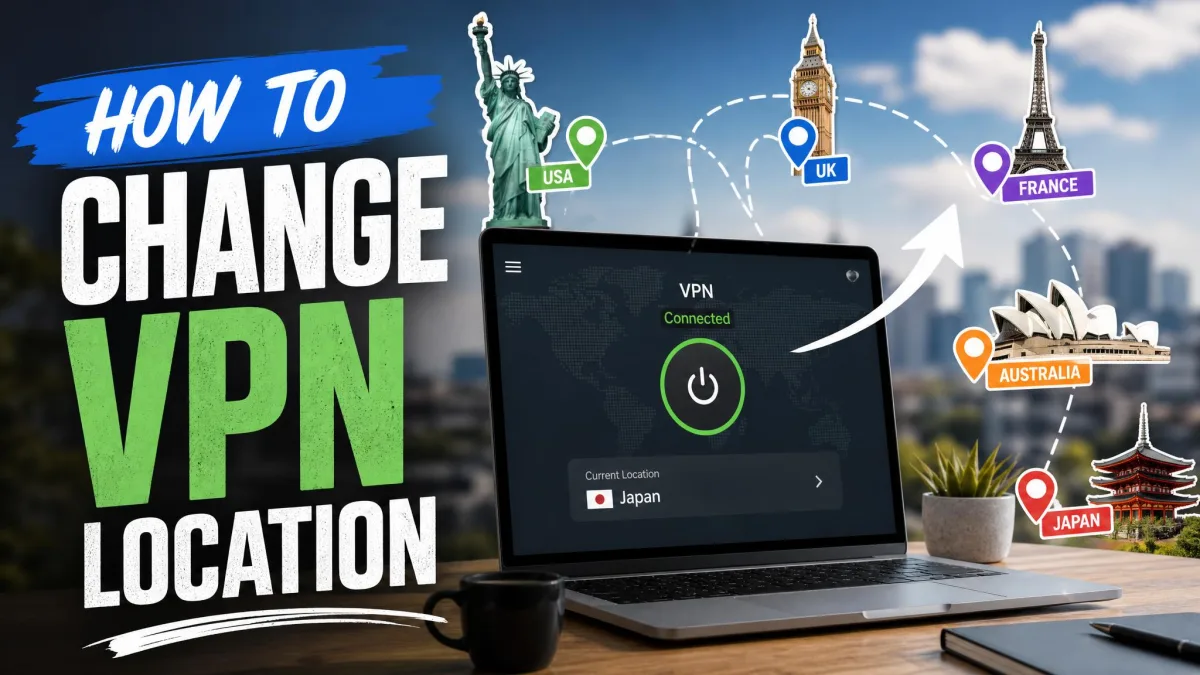
Changing your VPN location means routing your internet traffic through a server in another country. Your device keeps its real physical position, but websites and apps read the server's location instead of yours. In plain terms, a VPN swaps your public IP address for one in the country you pick, so the internet treats you as if you're browsing from there.
We've spent years testing VPNs against real speed, leak, and streaming benchmarks before recommending any of them. This guide walks you through the exact steps we use, the small snags that trip people up, and how to confirm the change actually worked. You'll also learn where a VPN can and can't move your location, so you know what to expect before you connect.
Our test machines cover the setups most people use at home: a Windows 11 laptop, a MacBook, an iPhone, and an Android phone, plus Chrome, Firefox, and Safari for browser-only work. Over repeated sessions we connected to servers across dozens of countries, checked our IP after every switch, and ran leak tests to make sure nothing gave the real location away. The steps below reflect what worked reliably, not just what the marketing pages promise.
How to Change Your VPN Location in 5 Steps
The whole process usually takes under five minutes once you have an app installed. Here's the sequence we follow every time, whether we're testing a new service or just switching regions for the day.
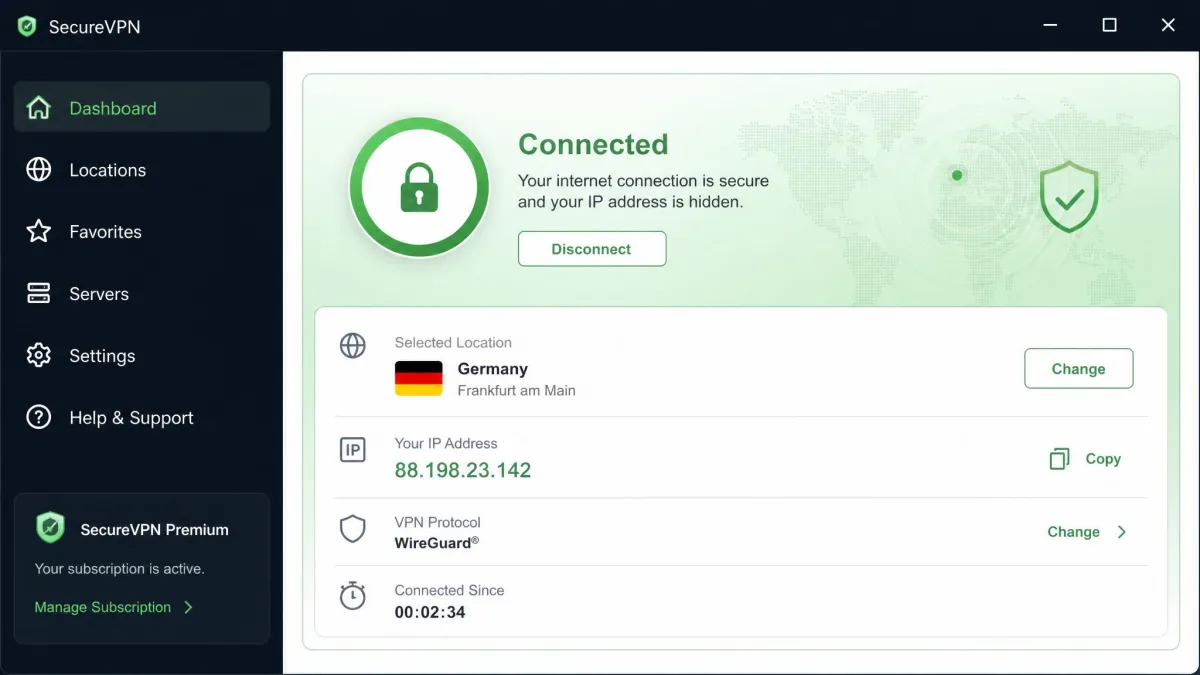
1. Choose a VPN with servers in many countries
Your location options are limited to the countries your VPN actually operates servers in. If you want a Japanese IP, the service needs servers in Japan. So before anything else, check the provider's server list and confirm it covers the regions you care about.
Broad coverage matters more than a huge raw server count. In our testing, the providers with servers in 90 or more countries gave us the most flexibility for switching between regions. We'll name specific picks further down, but as a rule, wide country coverage beats a big number of servers in only a few places.
Free VPNs usually offer only a handful of locations and throttle your speed. If changing location is the whole point, a reputable paid service with a money-back guarantee is worth it. You can test it risk-free and cancel if it doesn't deliver.
2. Download and install the app on your device
Download the app straight from the provider's official website or your device's app store. Avoid third-party download sites, which sometimes bundle unwanted extras. The install itself is a standard next-next-finish process on Windows and macOS, and a normal store install on mobile.
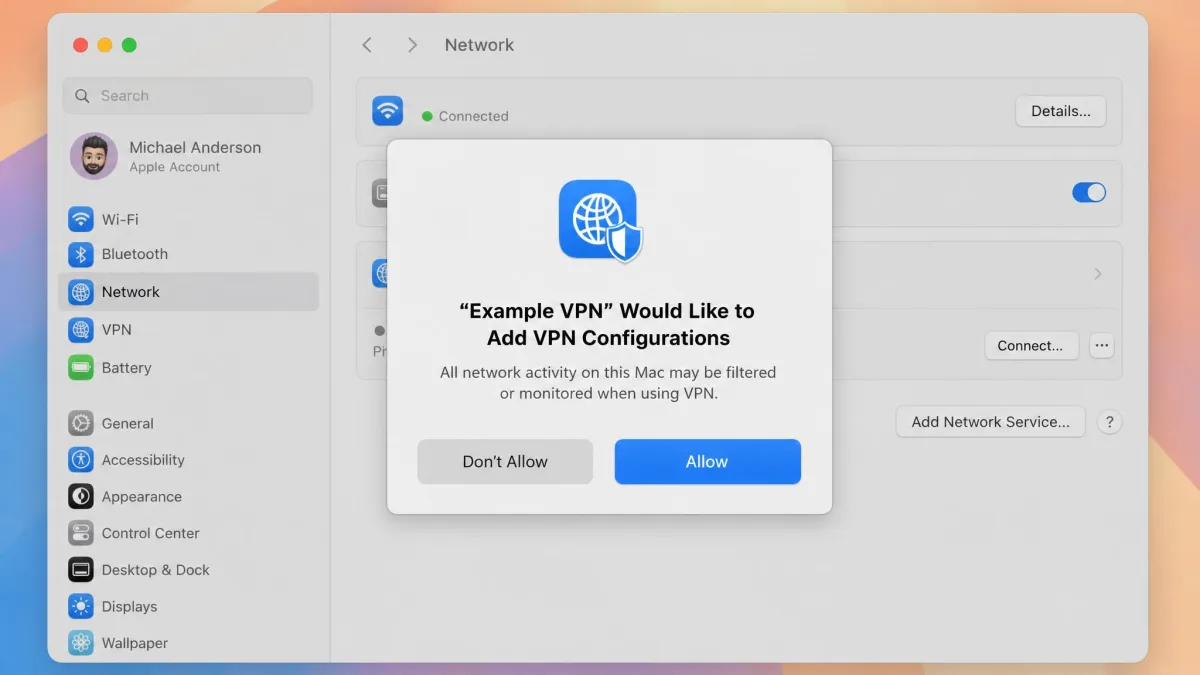
Once it's installed, open it. Most apps ask for a couple of permissions on first launch, such as allowing a network configuration. Accept those, since the VPN can't route your traffic without them.
3. Open the app and sign in
Sign in with the account you created when you subscribed. If you're on a free trial, the same login works. Some services let you skip account creation until after the trial, but you'll still need to sign in to reach the full server list.
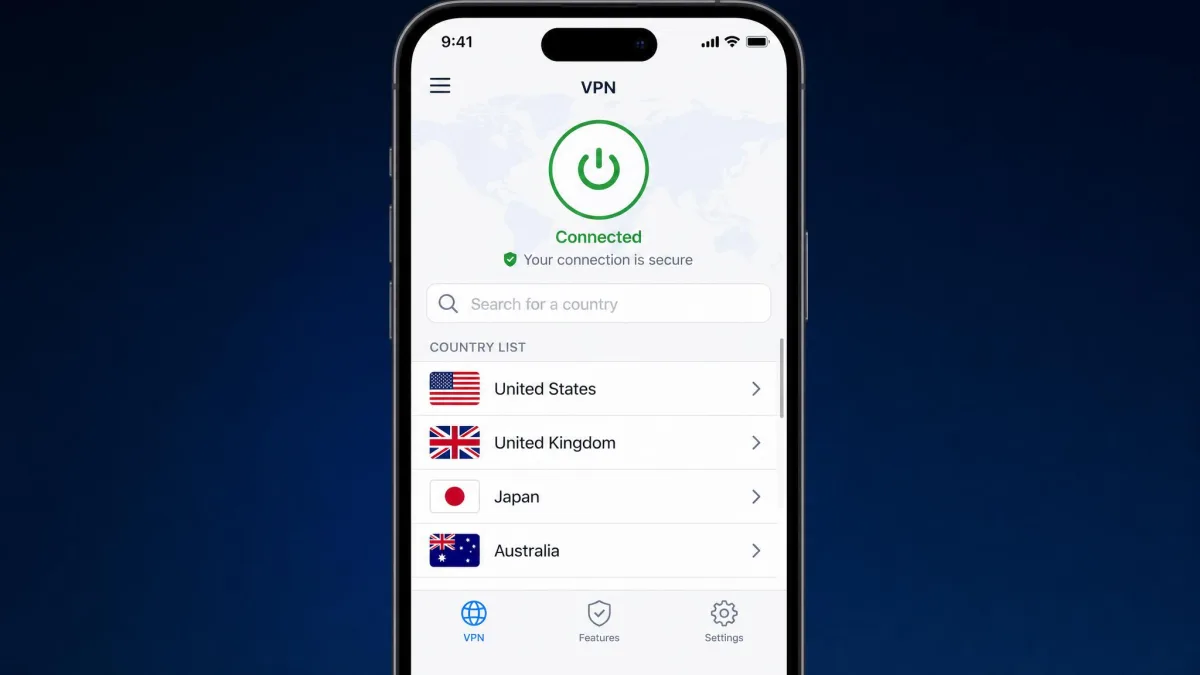
After you sign in, the app shows a map or a country list. This is your control panel for changing location, and it's where the next step happens.
4. Connect to a server in your target country
Pick the country you want to appear in and connect. You can usually search the list by name or scroll the map. The app builds an encrypted tunnel to that server, and within a few seconds your public IP becomes one based in that country.
Connecting to a distant server usually costs some speed, and busy servers add latency. In our testing, a nearby country felt almost identical to no VPN, while a server on the other side of the world noticeably slowed page loads. If speed matters, try a couple of servers in the same country and keep the fastest one.
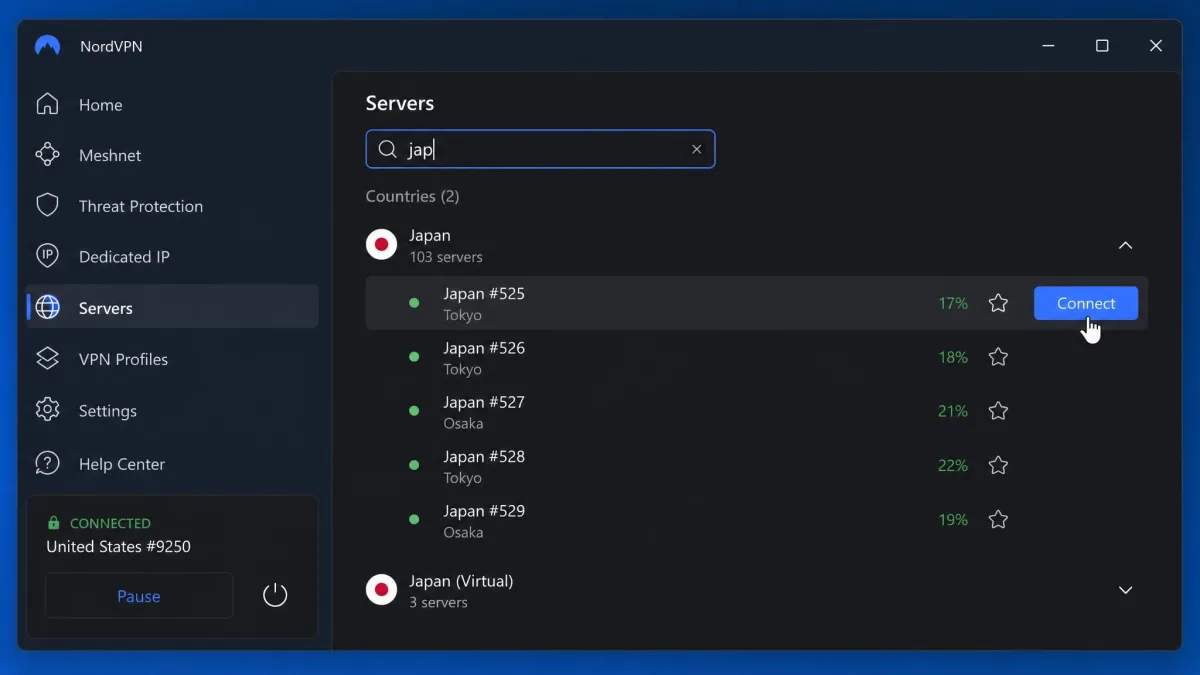
Some apps offer a specialized server list for streaming or a "fastest server" button. These pick an optimized server in your chosen country automatically, which saves you from testing several by hand.
5. Confirm your new location is active
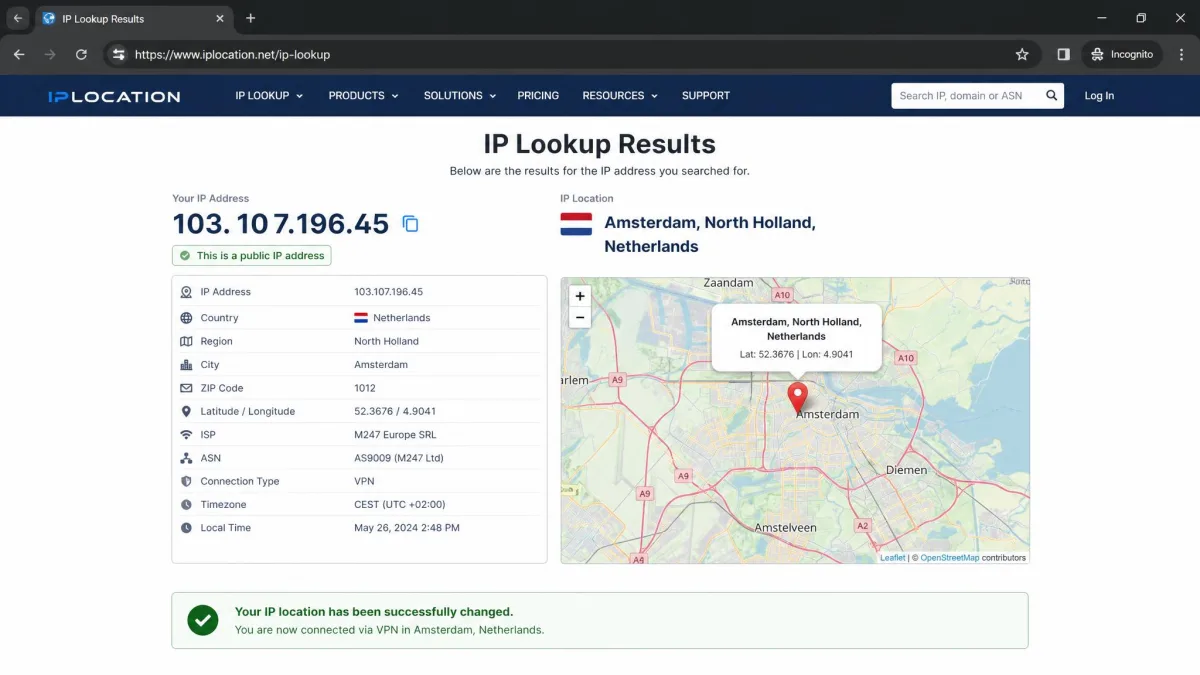
Don't trust the app's connected icon alone. Open an IP-lookup tool such as WhatIsMyIP in your browser and check the location it reports. It should show the country you connected to, not your real one. If it does, your location has changed successfully.
If it still shows your real location, don't panic. That usually means a cache issue or a leak, both of which we cover in the troubleshooting section below.
How to Change Your VPN Location on Different Devices
The five steps are the same everywhere, but the small details differ by platform. Here's what to expect on each.
Windows and macOS
On both Windows and macOS, the desktop app gives you the fullest experience. You get the complete server list, split tunneling on most services, and settings for the connection protocol. Install the app, sign in, click your target country, and you're connected.
On macOS, the first connection prompts you to allow a VPN configuration in system settings. Approve it once and future connections are one click.
On Windows, the app may install a network adapter during setup, which is normal and needs no action from you.
iPhone and Android
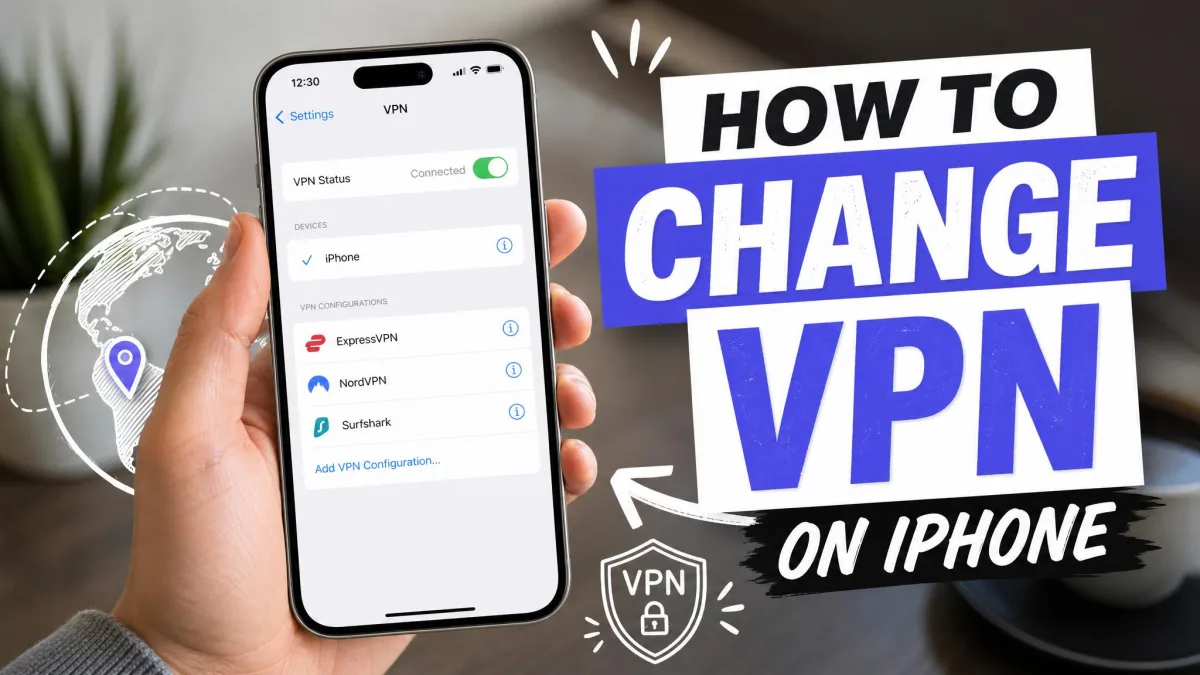
On iPhone and Android, download the app from the App Store or Google Play. The first time you connect, iOS asks you to add a VPN configuration and confirm with Face ID or your passcode. Android shows a connection-request dialog you'll need to allow.
Mobile apps put the country list front and center, so switching location on the go is quick. One difference worth knowing: Android is the only platform where a few VPNs can also override your GPS, which we explain in the GPS section below.
Browsers (Chrome, Firefox, Safari)
Many VPNs offer a browser extension for Chrome and Firefox. These are quick to install and change your location only inside that browser, which is handy when you want the rest of your device to stay local. Click the extension icon, choose a country, and connect.
Two things to keep in mind. A browser extension usually protects only the browser, not other apps, so anything outside that window still uses your real IP. And Safari has no first-party VPN extensions from the major providers, so on a Mac or iPhone you'll use the full app instead.
A browser extension only changes your browser's traffic. If you're using an app that reads your location outside the browser, such as a streaming app on your desktop, you need the full VPN app running instead.
How to Verify Your Location Has Changed
Verifying is a step people skip, and it's the one that catches the most problems. A single IP check confirms the basics, but a proper check makes sure nothing is quietly leaking your real position.
Start with an IP-lookup site to confirm the country. Then run a leak test. DNS or WebRTC leaks can quietly reveal your real location even with the VPN connected, so it's worth checking after you switch servers. We run ipleak.net and BrowserLeaks after every server change on our test machines. If either shows your real country or your home ISP's DNS servers, the VPN isn't fully protecting you yet.
If a leak shows up, switch to a different server, enable the app's leak-protection or kill-switch setting, and test again. In our experience, a fresh server plus those settings clears most leaks. If it doesn't, the provider itself may be the weak link, and that's a reason to try a different one.
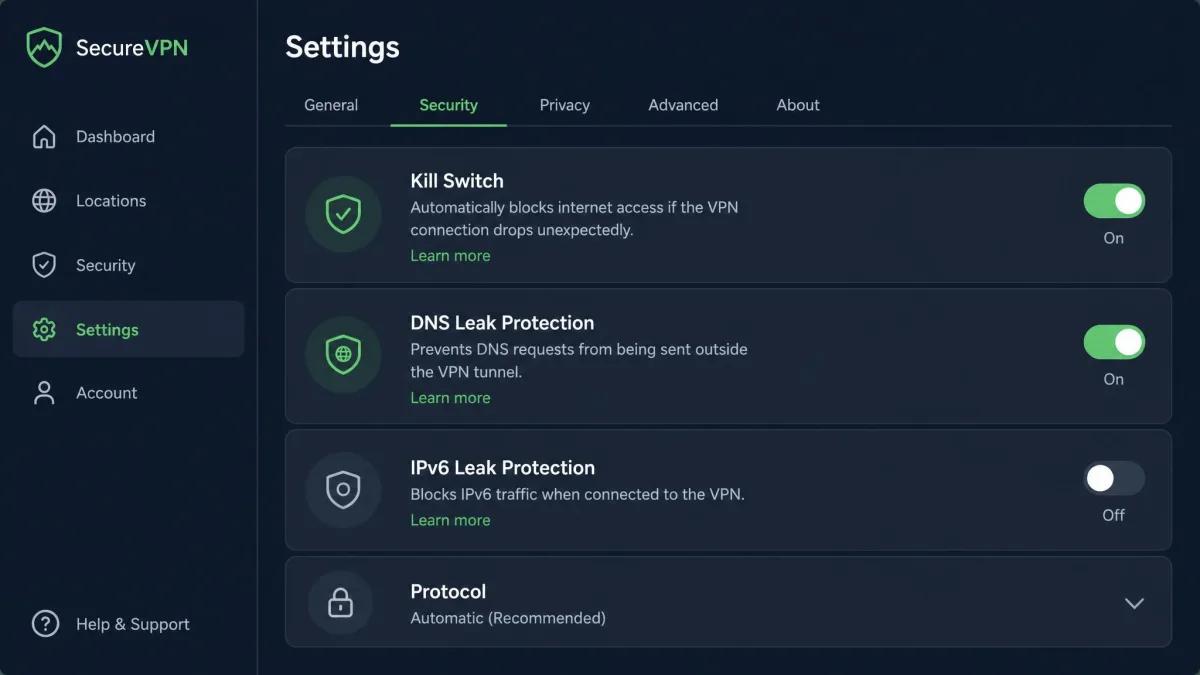
A green connected icon tells you the tunnel is up. Only a leak test tells you your real location is actually hidden.
What Changing Your Location With a VPN Actually Does
It helps to know exactly what's happening under the hood. When you connect, the VPN routes your traffic through a server in another country and swaps your public IP address for one in that country. Websites and apps that read your IP now see the server's location, so they treat you as a local visitor there.
That covers most of what people want: region-locked sites, price checks, and content that varies by country. But it's worth being clear about the limits. A VPN changes your IP-based location only. It doesn't move your device's GPS, and it doesn't change the language or account settings you've already saved on a service.
Why Change Your VPN Location? (Use Cases)
People change their VPN location for plenty of legitimate reasons. Here are the four we hear about most, and what to realistically expect from each.
Access geo-restricted streaming and content
This is the most common reason, and also the one with the most caveats. Very few VPNs reliably unblock streaming, and many services only open a handful of regional libraries at best. In our testing, the difference between providers here was larger than in any other category.
Even after connecting, streaming sites can throw a proxy error until you switch to a different server in the same country. Netflix, for example, shows error code m7111-1331-5059 when it detects a VPN. If you hit it, switch servers within the same country and clear the site's cookies, and it usually clears.
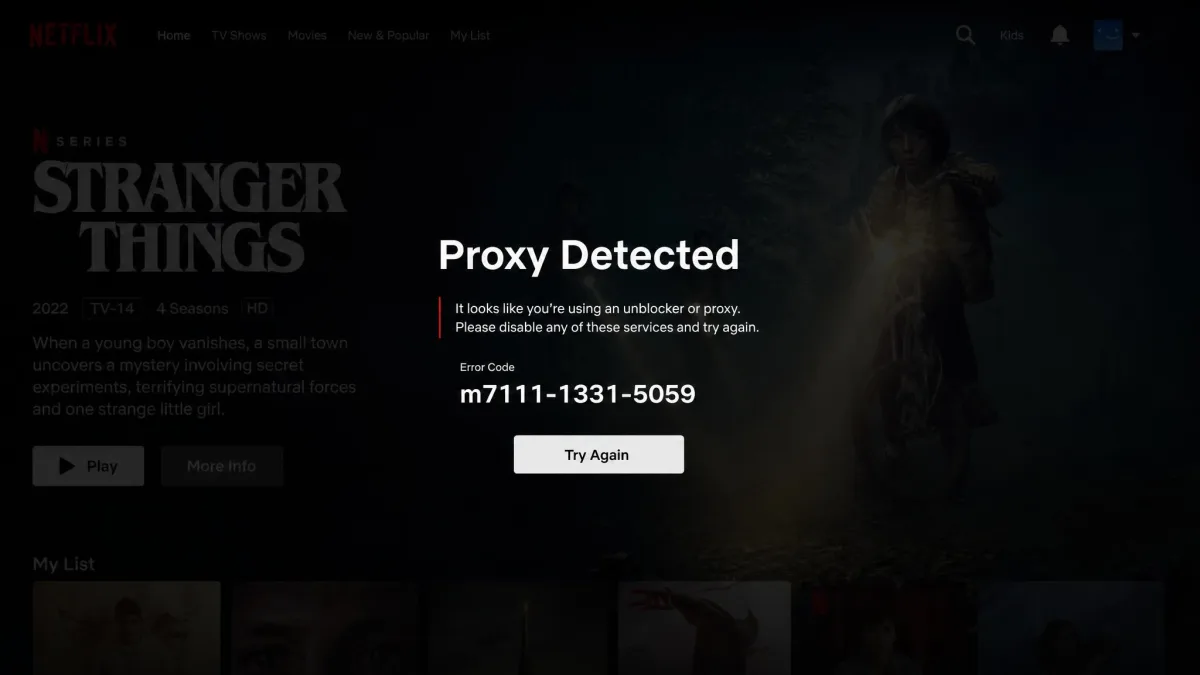
Netflix blocks VPN use on its ad-supported plan, so you'll need an ad-free plan to stream through a changed location. No amount of server-switching gets around that limit.
Bypass censorship
In regions with heavy internet restrictions, a VPN lets you reach sites and services that are otherwise blocked. By connecting to a server in a freer country, your traffic exits there instead, so the local block no longer applies. Many people rely on this to reach news, social media, and messaging apps while traveling.
Improve privacy and anonymity
Changing your location also masks your real IP from the sites you visit, which makes it harder to tie your browsing back to you. A VPN encrypts your traffic too, so the network you're on, such as public Wi-Fi, can't easily read what you're doing. It isn't total anonymity, but it's a solid layer of everyday privacy.
VPN use has grown fast for exactly these reasons.
Find better prices and deals
Some online prices vary by country, from flights and hotels to software subscriptions. By changing your location, you can compare what a service charges in different regions and sometimes pay less. Results vary a lot by retailer, so treat this as a check worth doing rather than a guaranteed saving. Always clear cookies between checks, since a stale session can keep showing your original price.
Troubleshooting: What to Do When Your Location Won't Change
If a site still shows your old location after you connect, work through these fixes in order. Most cases clear within a minute or two.
First, clear your browser cache and cookies, or open a private window. Sites often keep showing the old region until you clear the site's cookies and cache. Next, flush your DNS so your device stops using cached location data. Then disable the browser's location permission for that site, since HTML5 geolocation can override your IP.
If it still won't budge, reconnect to a different server in the same target country. Servers occasionally get flagged or overloaded, and a fresh one usually fixes it. For streaming specifically, clearing the service's cookies and switching servers within the same country resolves most proxy errors.
If a streaming service is stuck on your old region, log out, clear that site's cookies, switch to a different server in the same country, then log back in. That exact sequence cleared the most stubborn cases on our test machines.
Finally, run a leak test. If your DNS or IP is leaking, the site sees your real location no matter which server you pick. Turn on the app's leak protection and kill switch, then test again.
Is It Legal to Change Your VPN Location?
For most people in most places, yes. Using a VPN to change your location is legal in the majority of countries, and it's a normal privacy tool used by millions. It's restricted or banned only in the handful of countries where VPN use itself is illegal or tightly controlled.
Two caveats matter. Changing your location doesn't make otherwise-illegal activity legal, so anything you couldn't do at home stays off-limits. And a service's own terms may forbid VPN use, which is a contract issue rather than a legal one. If you travel, it's worth checking the local rules before you rely on a VPN there.
Can a VPN Change Your GPS Location?
Not on its own. A VPN swaps your IP address, but it does not move your phone's GPS. Map and rideshare apps can still read your true GPS position unless GPS is spoofed separately. So if an app depends on GPS rather than your IP, a standard VPN connection won't fool it.
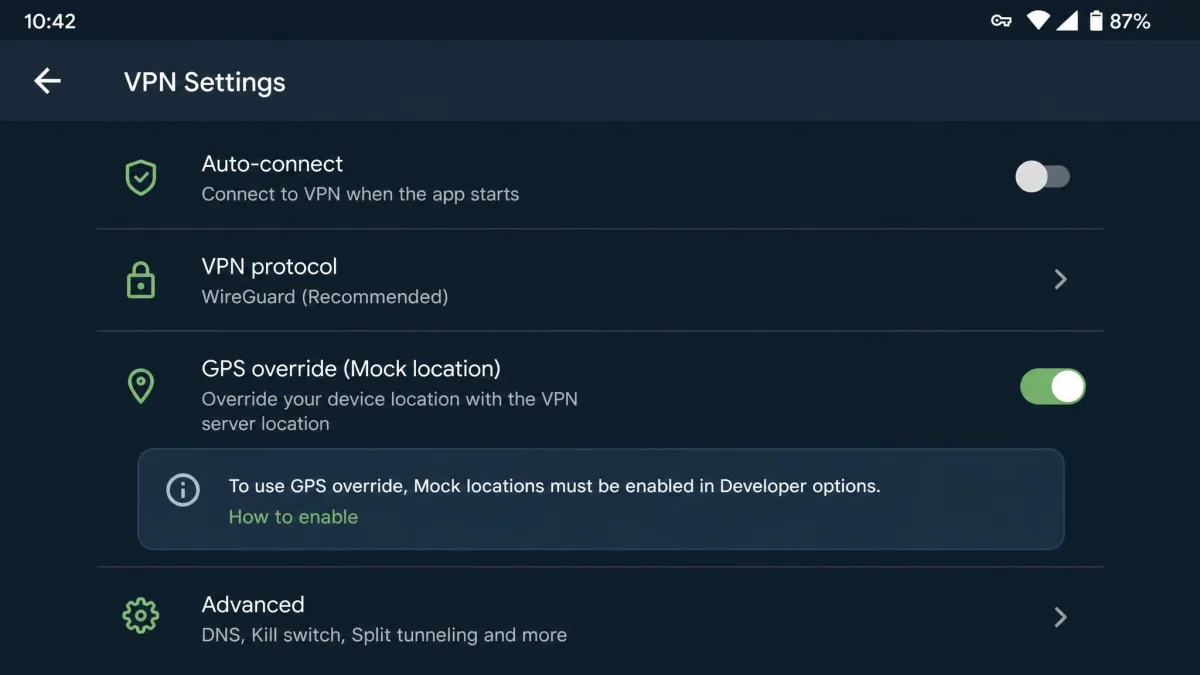
There's one practical exception. On Android, you can spoof GPS by enabling Developer options, choosing a mock-location app, and setting a city that matches your VPN server. A few VPNs build this in: Surfshark's Android GPS-override feature matches your device GPS to the selected server's coordinates. It needs mock-locations enabled in Developer options before the fake position takes effect. On iPhone, there's no equivalent built-in option, so a VPN there changes IP-based location only.
Best VPNs for Changing Your Location
We won't pretend every VPN is equal at this. Three come up again and again in our testing for wide coverage and reliable location switching. Here's how they compare on the features that matter for changing location.
| VPN | Buy | Server countries | GPS spoofing | Free tier | Price |
|---|---|---|---|---|---|
 |
Check price → | Among the largest (varies by count) | No | 3-day trial (Android) | From ~$3.59/mo (24-mo) |
 |
100 | Yes (Android GPS override) | 7-day trial (3 devices) | From ~$2.49/mo (24-mo) | |
 |
113 | No | 30-day refund only | From ~$8.32/mo (12-mo) |
NordVPN is the one we reach for when streaming is the goal. Its SmartPlay feature helps with unblocking, and it's widely the most reliable for opening Netflix libraries in our experience. Coverage is among the largest of any provider, though the exact country and server counts shift often enough that we don't put stock in a single number. It comes with a 30-day money-back guarantee, so you can test location switching risk-free.
Surfshark is the value pick and the only one of the three with a native in-app GPS override on Android. It runs 4,500-plus servers across 100 countries, offers a genuine 7-day free trial, and is the cheapest long-term of the three. If you need to spoof GPS as well as IP on an Android phone, this is the straightforward choice.
ExpressVPN covers 113 countries and is consistently fast, but it has no in-app GPS spoofing and costs the most. It changes IP-based location only. There's no free trial, though the 30-day money-back guarantee amounts to the same test window.
All three offer a 30-day money-back guarantee, so you can treat any of them as an extended free trial. Sign up, test location switching for your specific use, and cancel within the window if it doesn't deliver.
Prices here are promotional long-term rates that shift between billing terms and regions, so treat them as approximate rather than fixed. Check the current offer before you subscribe.