You tap a streaming app and it tells you the show is not available in your country. Or a game only rewards people standing somewhere else. Android hands every app the same set of coordinates, and by default you have no say in what those coordinates say.
You can change that in a few minutes, without rooting anything. Android ships with a mock location setting inside Developer options, and a free app can feed it whatever coordinates you choose. We walked each method below on stock Android and on a Samsung build, and noted where the process quietly goes sideways.
Here is the step-by-step version, plus the two questions nobody answers well: why your fake position keeps snapping back, and which apps still catch you.
What You Need Before You Start
Everything in the first three methods works on an unmodified phone. You need an Android phone you can reach Settings on, a few minutes, and a connection to install an app.
Install your spoofing app before you go hunting through Settings. The mock location toggle stays greyed out until at least one app on the device can act as a mock provider, and that trips up more people than any other step.
A couple of things worth checking first:
- Your Android version. The menu path changes between releases, and older builds hide Developer options elsewhere.
- Your launcher skin. Stock Android, Samsung One UI, and the Chinese OEM skins all move the same setting around.
- Whether the target app matters to you. If your bank or your main game account is on this phone, read the risks section before you toggle anything.
Method 1: Enable Developer Options and Use a Mock Location App
This is the method almost every guide points at, and it works on the widest range of phones. Android has a debugging switch called "Select mock location app" that tells the system to accept coordinates from an app you nominate instead of from the GPS radio. Once it is set, every app on the phone sees the fake position.
Step 1: Turn on Developer Options
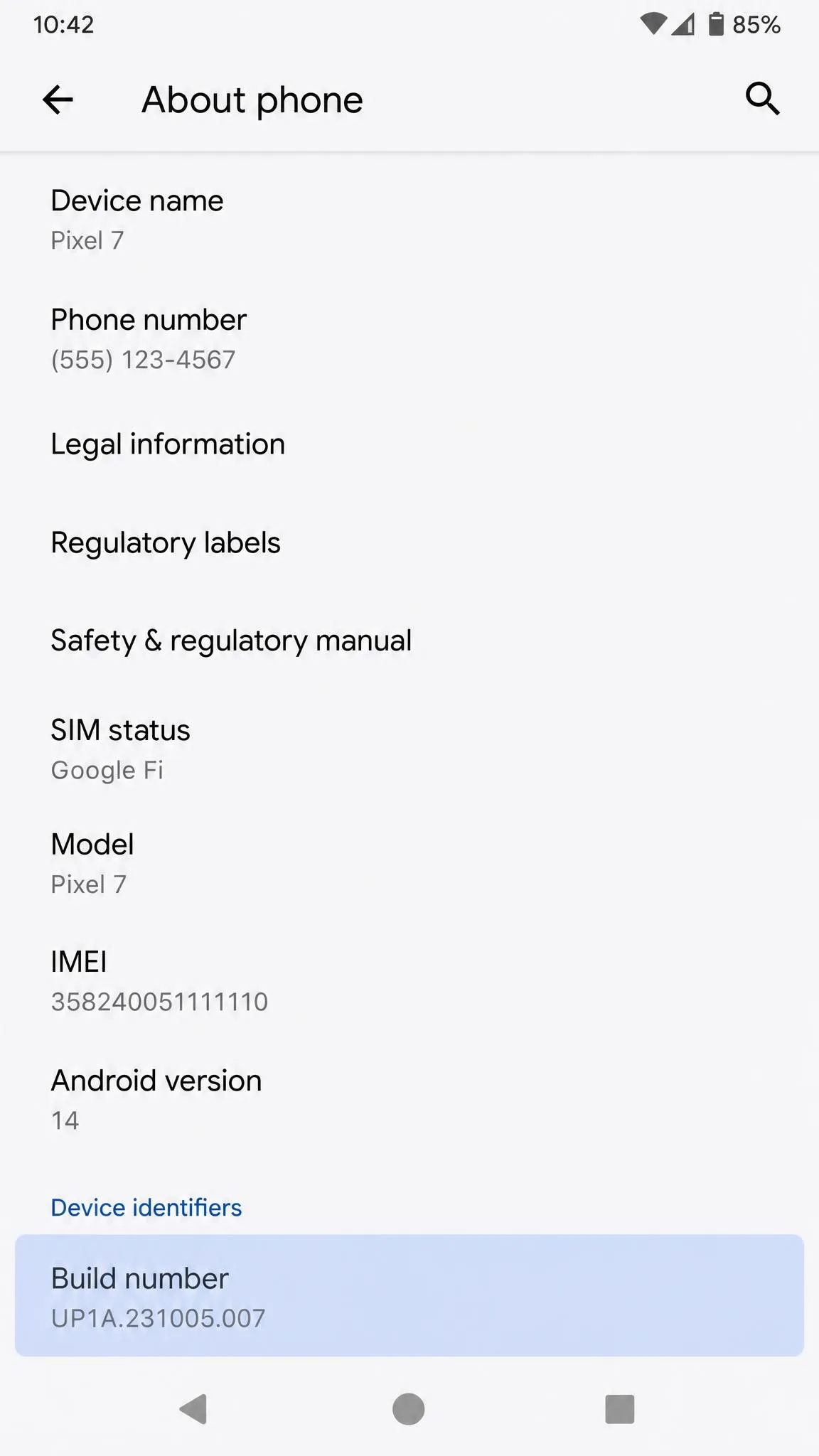
Open Settings, scroll to About phone, and tap Build number seven times. Android counts the taps down on screen and confirms with a short "You are now a developer" message.
Recent builds ask for your lockscreen PIN, pattern, or password after the seventh tap before the menu unlocks, so have it ready.
Where the new menu lands depends on your release. According to Google's Developer options documentation, on Android 9 and higher you go to Settings > System > Advanced > Developer options. On Android 8.0 and 8.1 the path drops the Advanced step. On Android 7.1 and lower the entry sits directly under Settings.
On stock Android the entry lives under Settings > System. On several Samsung builds it sits at the top level of Settings instead, at the bottom of the main list, which is where most people give up looking.
Step 2: Install a mock location app
Open the Play Store and install a mock location app. Google's own documentation is explicit that the setting does nothing on its own, so you have to supply the app.
Two safe starting points:
- Fake GPS Location by Lexa for a simple drag-a-pin workflow. It is free, ad-supported, and recent builds list Android 5.0 and up.
- FakeTraveler on F-Droid if you would rather avoid ads. Version 2.3.2 is a 5.3 MiB download, GPL licensed, with no ads and no trackers.
Free spoofing apps lean hard on interstitial ads, and some builds pop one between every pin drop.
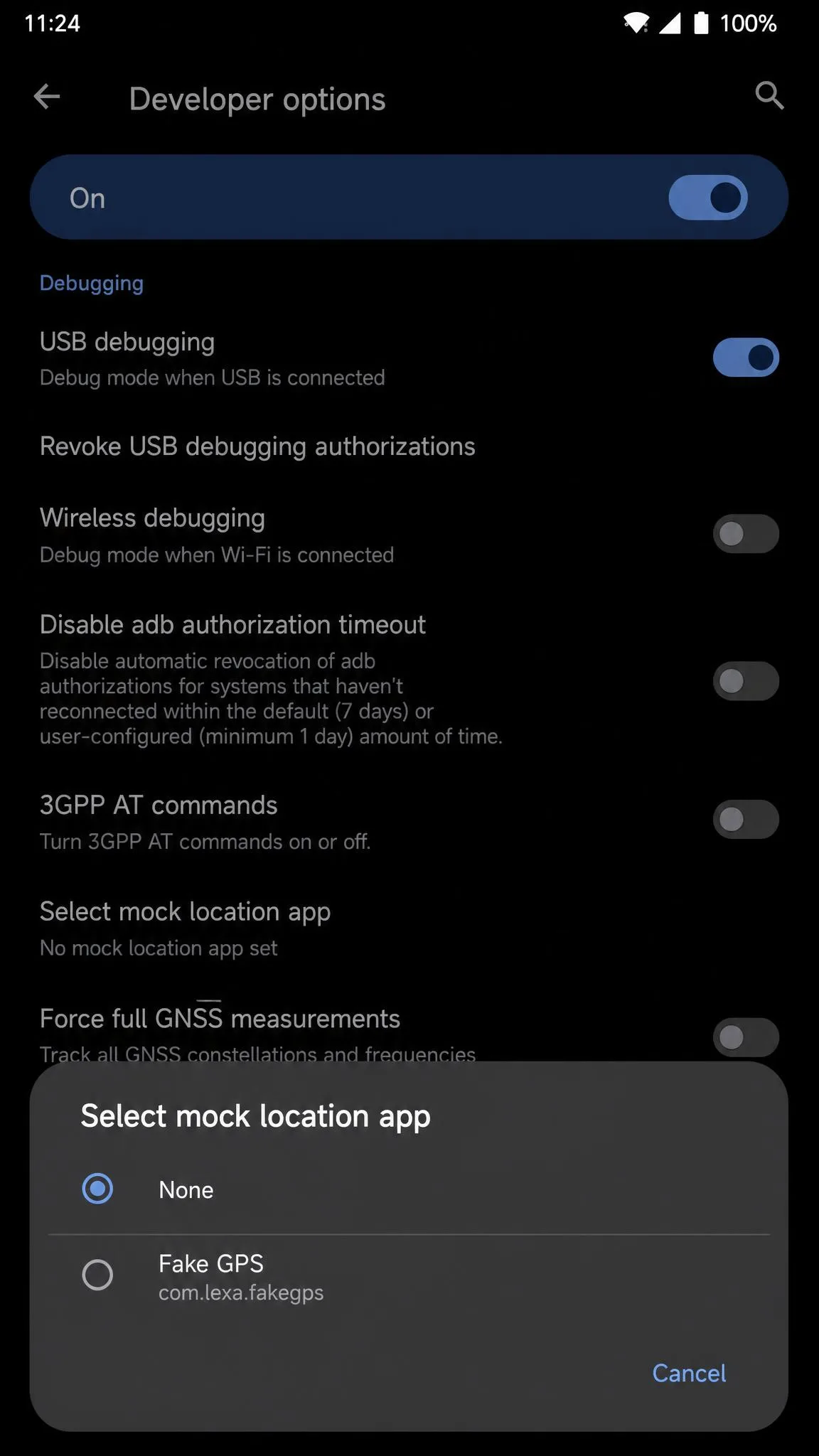
Step 3: Select your app under "Select mock location app"
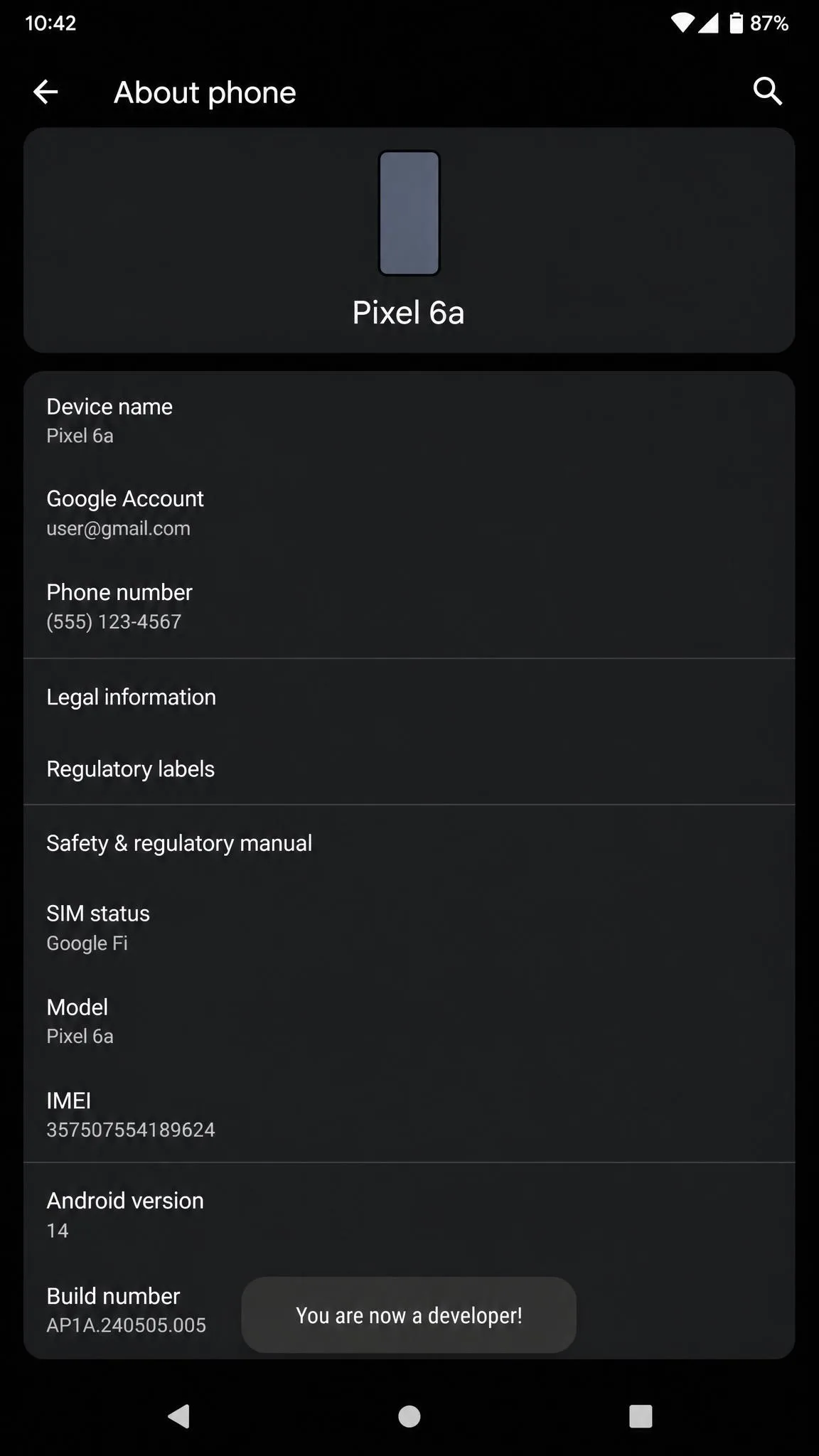
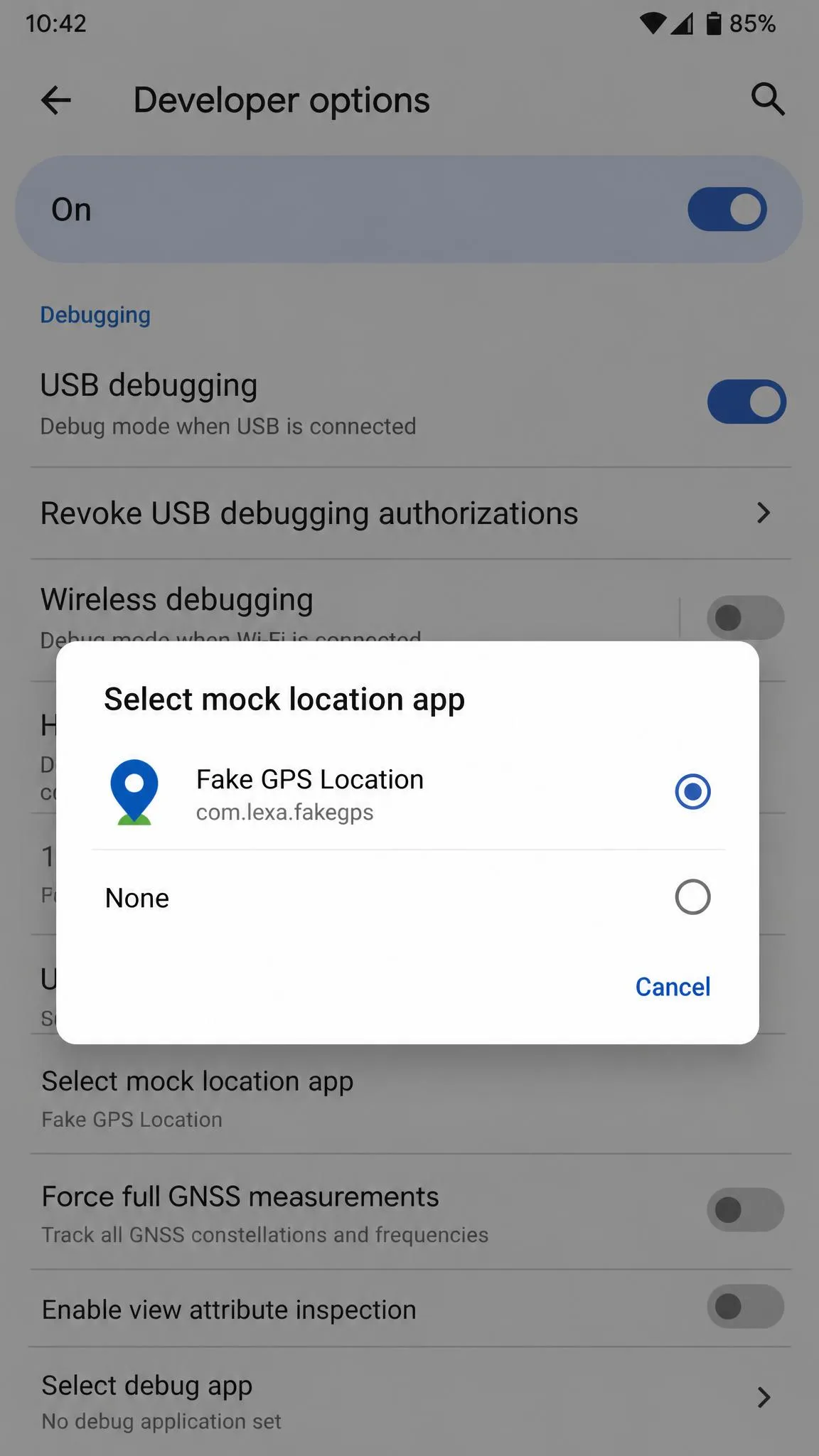
Go back to Settings > System > Developer options, scroll to the Debugging block, and tap Select mock location app. Your newly installed app now appears in the list. Pick it.
If the row is still greyed out, the app has not registered itself as a mock provider. Open the app once, grant it location permission, then come back.
Keep in mind that only one app can hold the mock location slot at a time. If you install a second spoofer and it seems to do nothing, check this setting again, because the first app is probably still holding the slot.
Step 4: Set your fake location and apply it
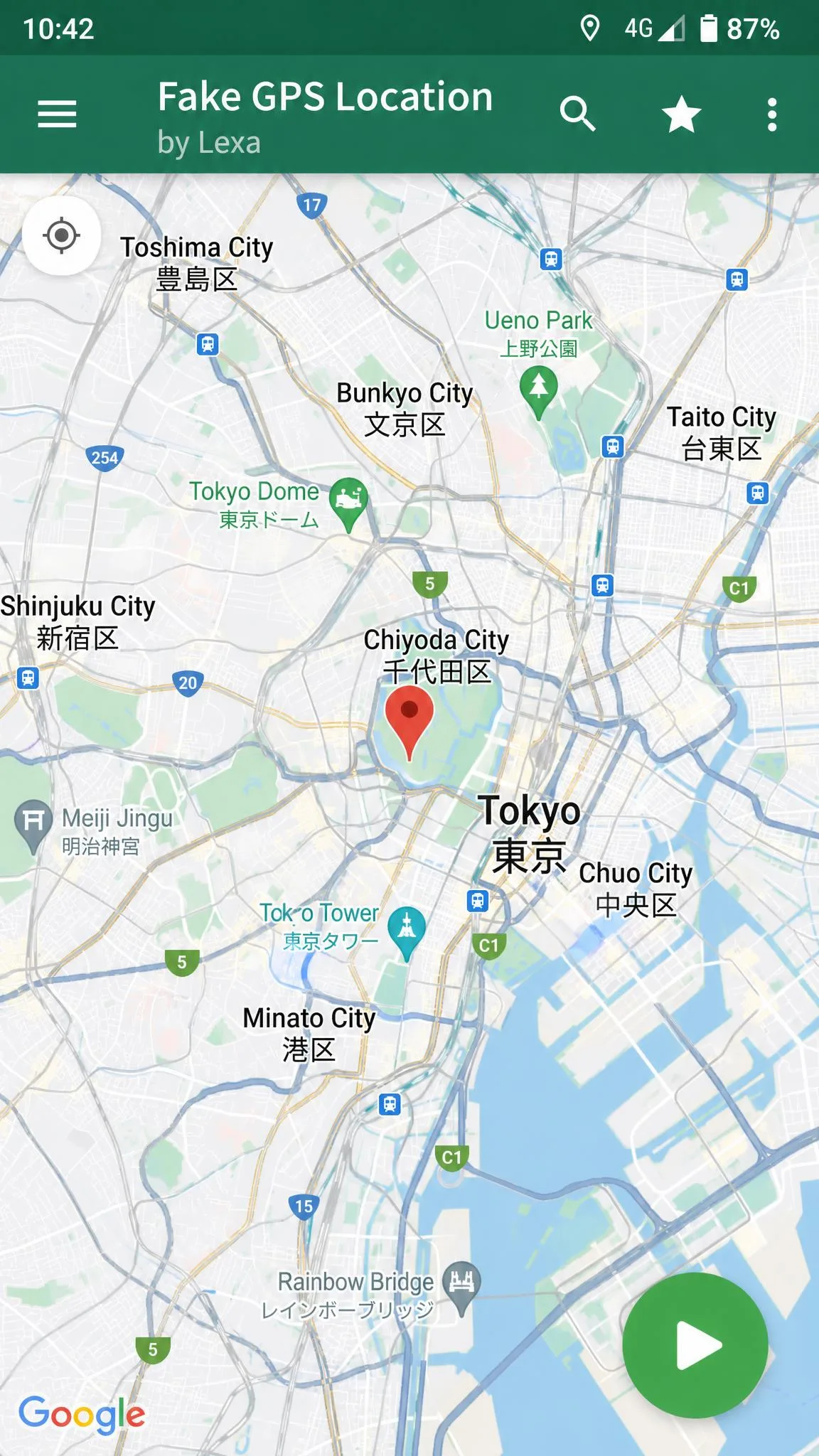
Open your spoofing app, search for a city or long-press a point on the map, and tap the play or apply button. The app drops into a persistent notification and starts feeding those coordinates to the system.
Check your work in Google Maps. The blue dot should sit on your fake position within a few seconds. If it does, every other app is seeing the same thing.
Tapping Pause in that persistent notification is the fastest way to hand control back to the real GPS, and it beats digging into Settings each time.
Method 2: Spoofing With a VPN (and What a VPN Cannot Change)
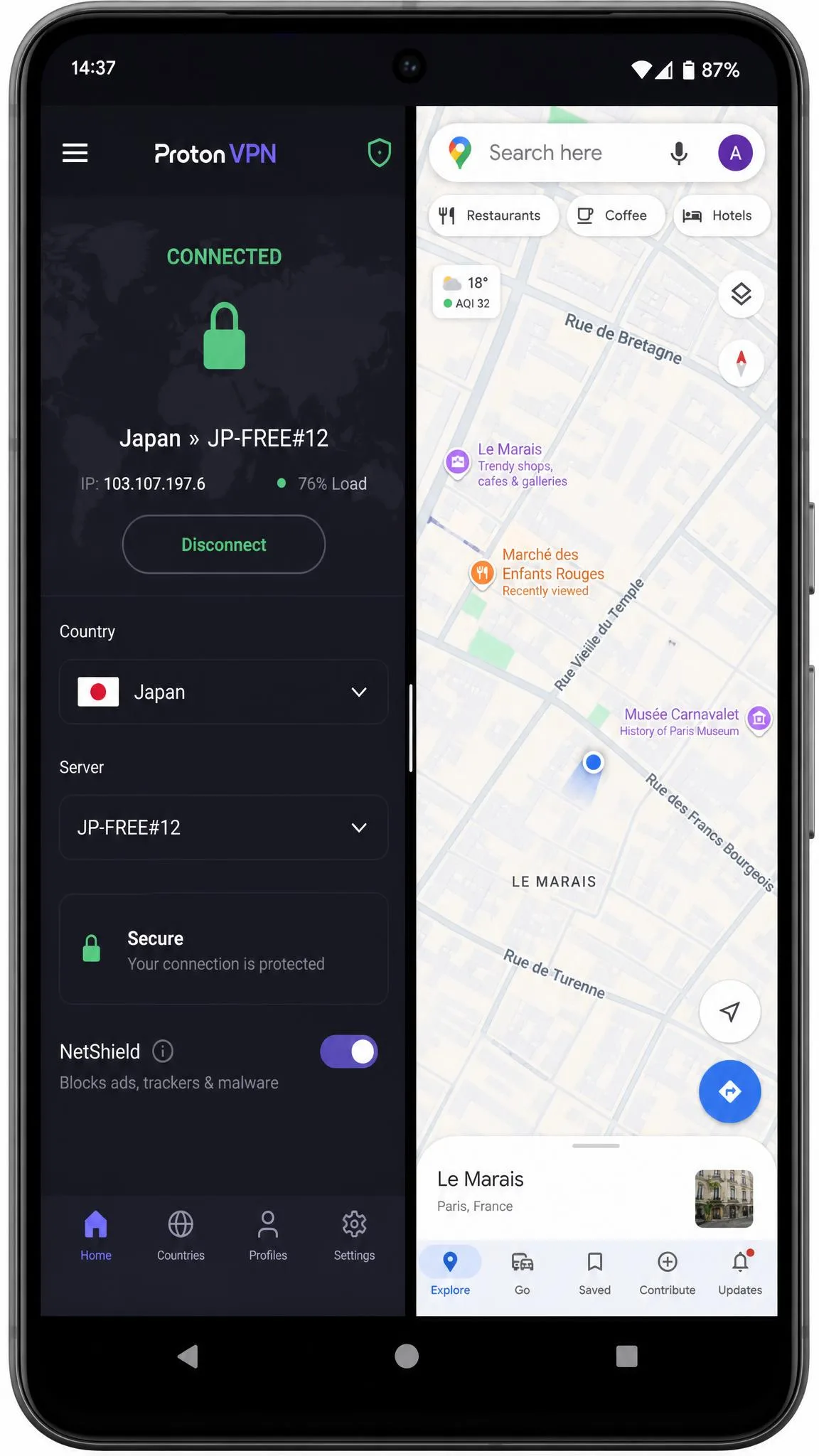
A VPN swaps the IP address apps and websites see. It does not touch your GPS coordinates, and that difference decides whether a VPN solves your problem or wastes your money.
Run a VPN alone and you get a split result. A streaming site checks your IP and believes you are abroad, while a maps app checks the GPS and still shows the street you are standing on. Any app that reads both signals will notice they disagree.
The rule is simple. Use a VPN to change your location when the app only checks your IP address, which covers most web-based streaming and regional store pricing. Use mock location when the app reads GPS, which covers maps, delivery apps, dating apps, and location-based games. Some people run both so the two signals point at the same country.
One trade-off worth knowing: routing traffic through a distant VPN server adds latency and slows throughput. In online games the extra delay is easy to feel.
Method 3: Desktop Location Changers (No Root, No Developer Options)
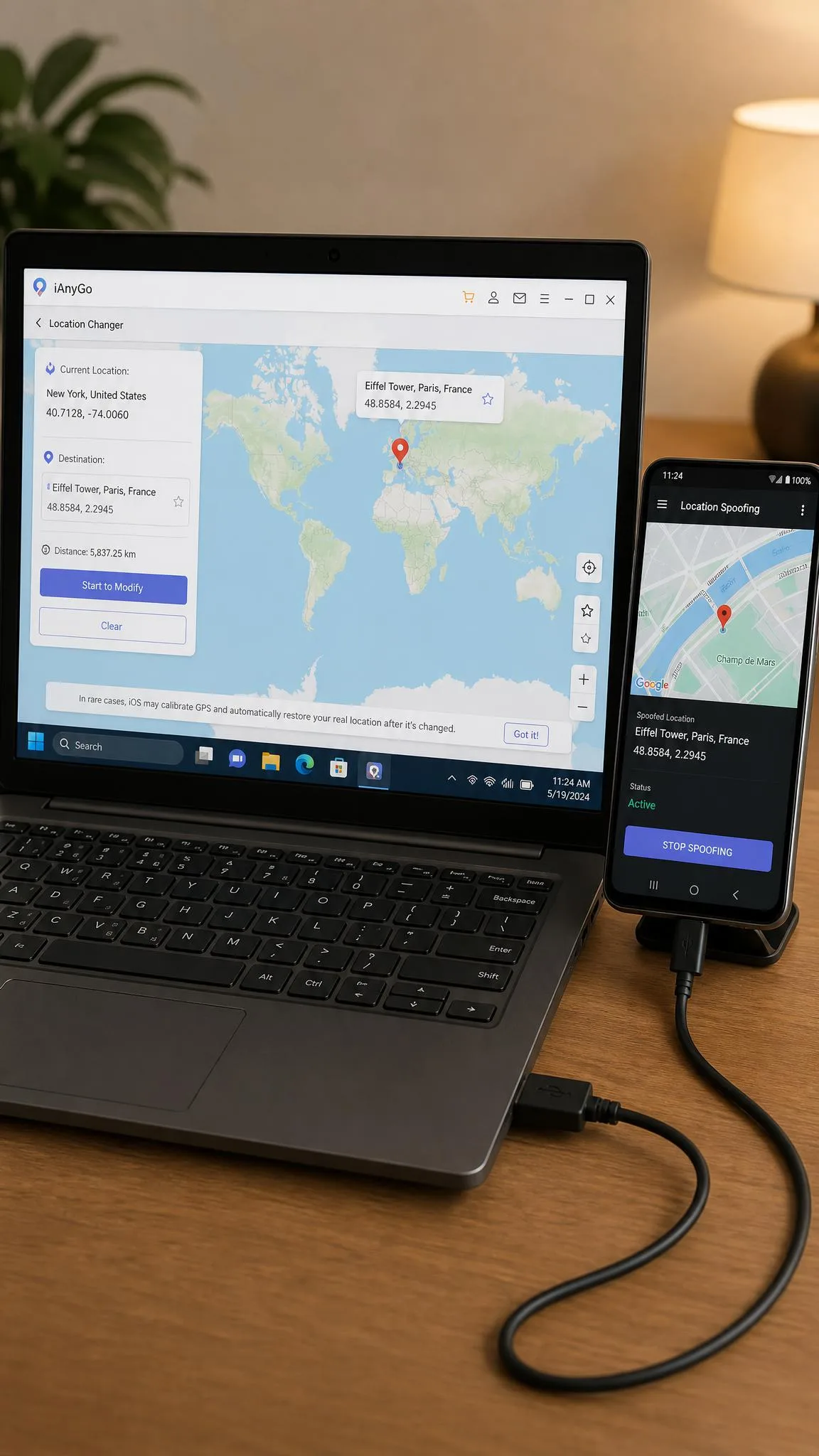
If the Developer options route feels fiddly, a desktop location changer does the same job from a computer. You install a Windows or Mac program, connect the phone, pick a point on the map, and the software pushes the position to the handset.
The appeal is that it skips the mock location toggle, which also means no mock-location flag sits on the phone for apps to read. iToolab AnyGo for Android is the mainstream example, with teleporting, multi-spot route simulation, adjustable movement speed, and joystick control, which our AnyGo for Android review tests in depth. The 1-month plan is $29.99, but is commonly discounted to $14.99, and renews until you cancel.
The catch is tethering. A desktop tool avoids the Developer options dance, but the phone has to stay connected to the computer for the whole session. That is fine at a desk and useless if you wanted to walk around.
Best Fake GPS Apps for Android Compared
Most free spoofers do the same core job, so the useful differences are joystick support, whether the app is still on Play, and how easy the result is to detect.
| App | Root required | Joystick / routes | Price | Android 13+ | Detection resistance |
|---|---|---|---|---|---|
 |
No | No | Free, ad-supported | Yes, Android 5.0 and up | Low, uses the mock-location flag |
 |
No | No | Free | Yes | Low, uses the mock-location flag |
 |
No | Yes | Free, ad-supported | Yes, version 5.3.3 | Low to medium |
 |
No | Yes | Free, delisted | Unsupported since January 6, 2024 | Low |
 |
No | Yes | Paid, from $9.95 per month | Yes, via desktop | Medium, no on-device mock toggle |
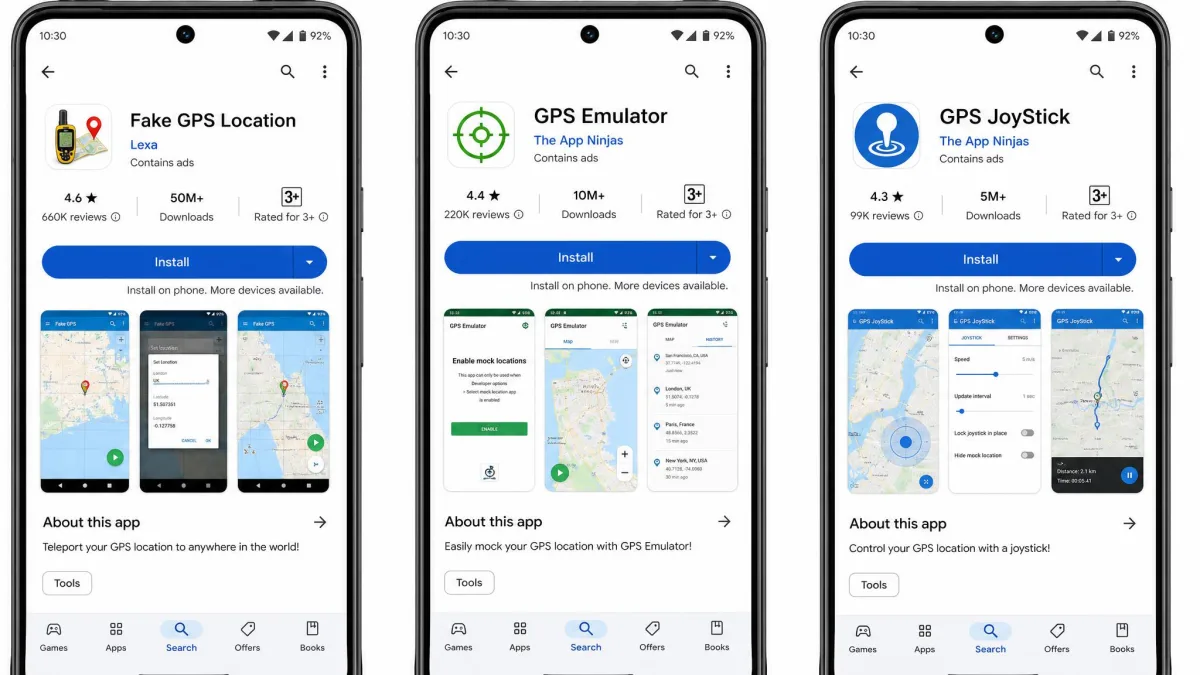
Ratings above come from AppBrain's community data, which recomputes Play Store scores independently. GPS Emulator leads the free field at 4.78 out of 5 across about 260,000 ratings, on the strength of a plain, fast set-a-pin workflow with terrain and satellite map views. Lexa's Fake GPS sits close behind at 4.65 across roughly 610,000 ratings and about 56 million lifetime downloads, which makes it the safest default if you just want a pin and a pause button.
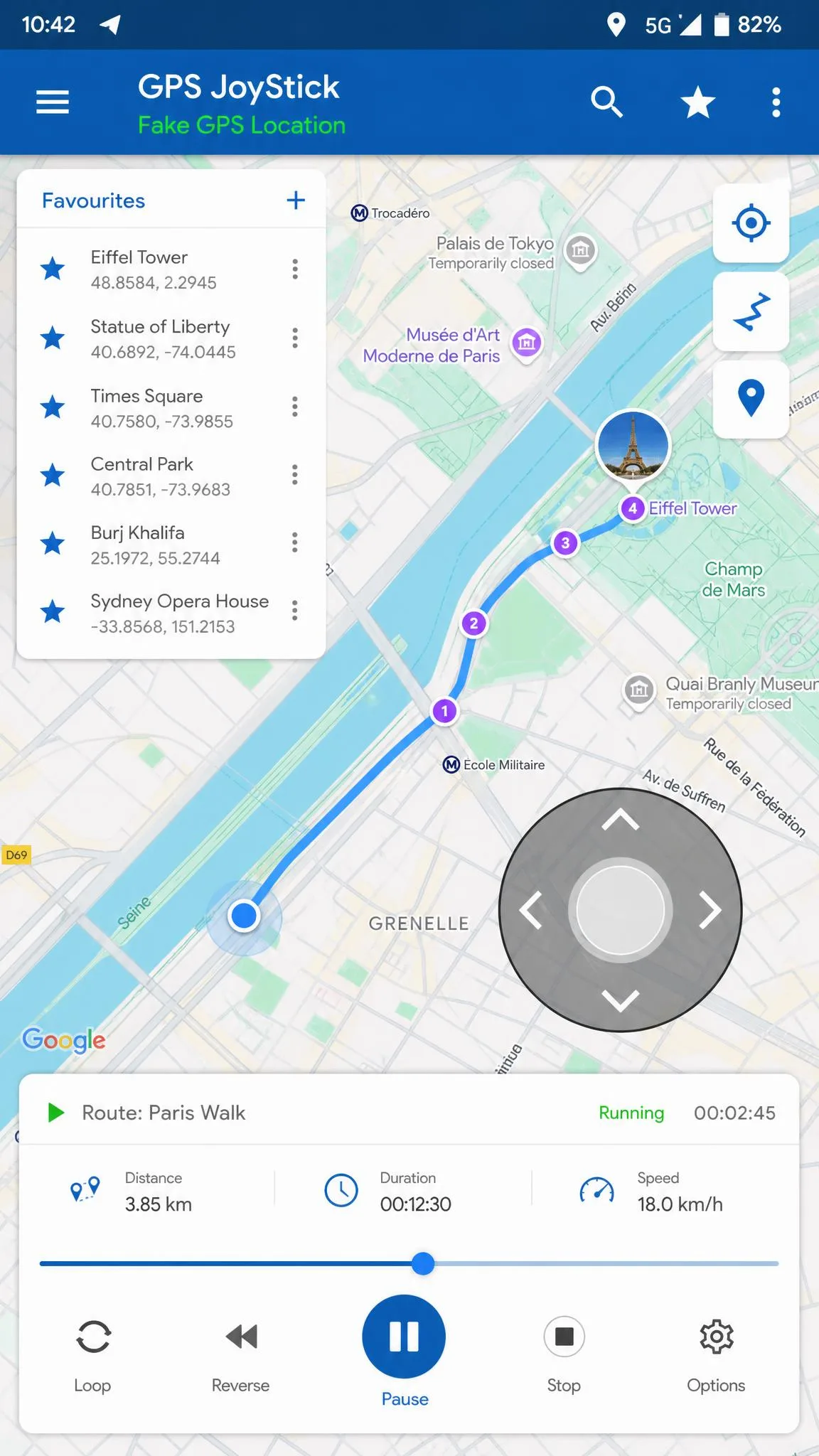
Fake GPS Joystick & Routes scores lower at 4.05 across roughly 100,000 ratings and about 9.2 million downloads. People put up with it for the on-screen joystick, route and GPX playback, and favourites, which nothing in the pin-drop category offers. A fuller build lives on the developer's own site rather than on Play.
Mock GPS with Joystick is in the table as a warning rather than a recommendation. It vanished from Google Play on January 6, 2024 after about 2.5 million downloads, at a 3.13 rating. These apps disappear from the store without notice, and installed copies keep working but stop getting fixes.
Rooted and Advanced Methods (Magisk, Xposed, LSPosed)
Everything above rides on the mock location setting, which is exactly the part strict apps look for. The rooted route removes that tell by hooking the location APIs directly.
XposedFakeLocation is the current open-source example. It needs root plus a modern LSPosed build supporting the libxposed API, Xposed API 101 or newer, and a minimum of Android 11. In exchange you get per-app spoofing without the developer-options toggle, custom accuracy, altitude, speed, GPS noise, a randomisation radius, and the ability to force-stop and relaunch a target app.
Two hard realities before you go down this path. The rooted route demands an unlocked bootloader, a custom recovery, and a PC with ADB, which rules out most Samsung, Oppo, Vivo, and Realme handsets outright. And rooting to hide spoofing can leave banking and payment apps unusable on the same phone, because they check device attestation and fail unlocked devices.
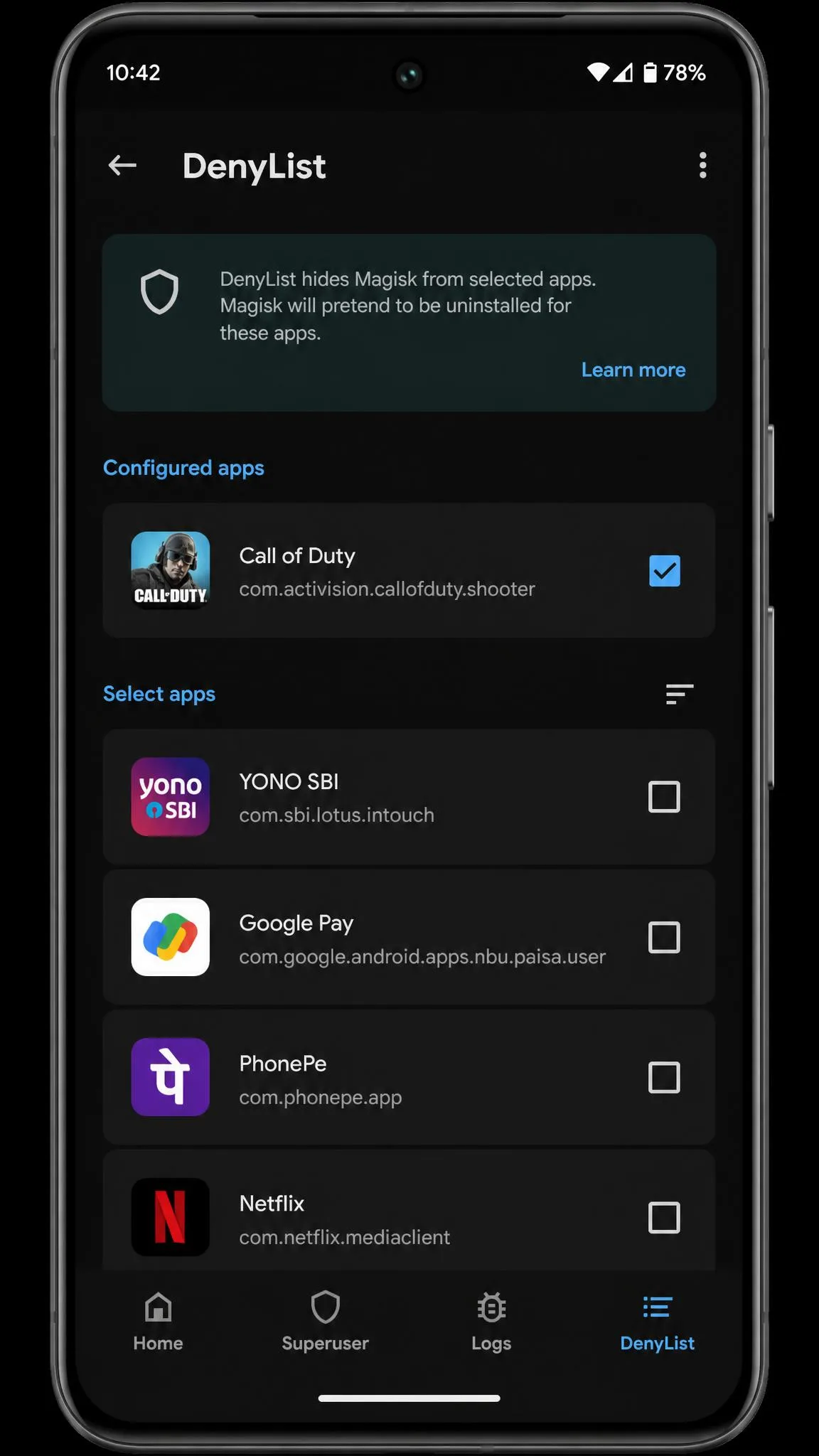
Hiding a spoof from a genuinely strict game is not one app either. It takes a stack: Magisk with DenyList, a storage-isolation app, and a mock-location patcher on top of the GPS app. Attempt it at your own risk, preferably on a spare phone.
How to Stop Spoofing and Restore Your Real Location
Reverting is quicker than setting up, but do all three steps or you will leave a stale position behind.
- Stop the spoof. Tap Pause or Stop in the spoofing app's persistent notification. The real GPS takes over immediately.
- Clear the mock location app. Go to Settings > System > Developer options > Select mock location app and choose None.
- Refresh your position. Open Google Maps and let it re-lock, or toggle Airplane mode on and off.
If an app still shows the fake city, clear that app's cache from Settings > Apps, then reopen it. Some apps hold the last known position until something forces a refresh.
Why Your Fake GPS Keeps Snapping Back
You set a position, it holds for thirty seconds, then the blue dot jumps home. Two separate things cause this, and they need different fixes.
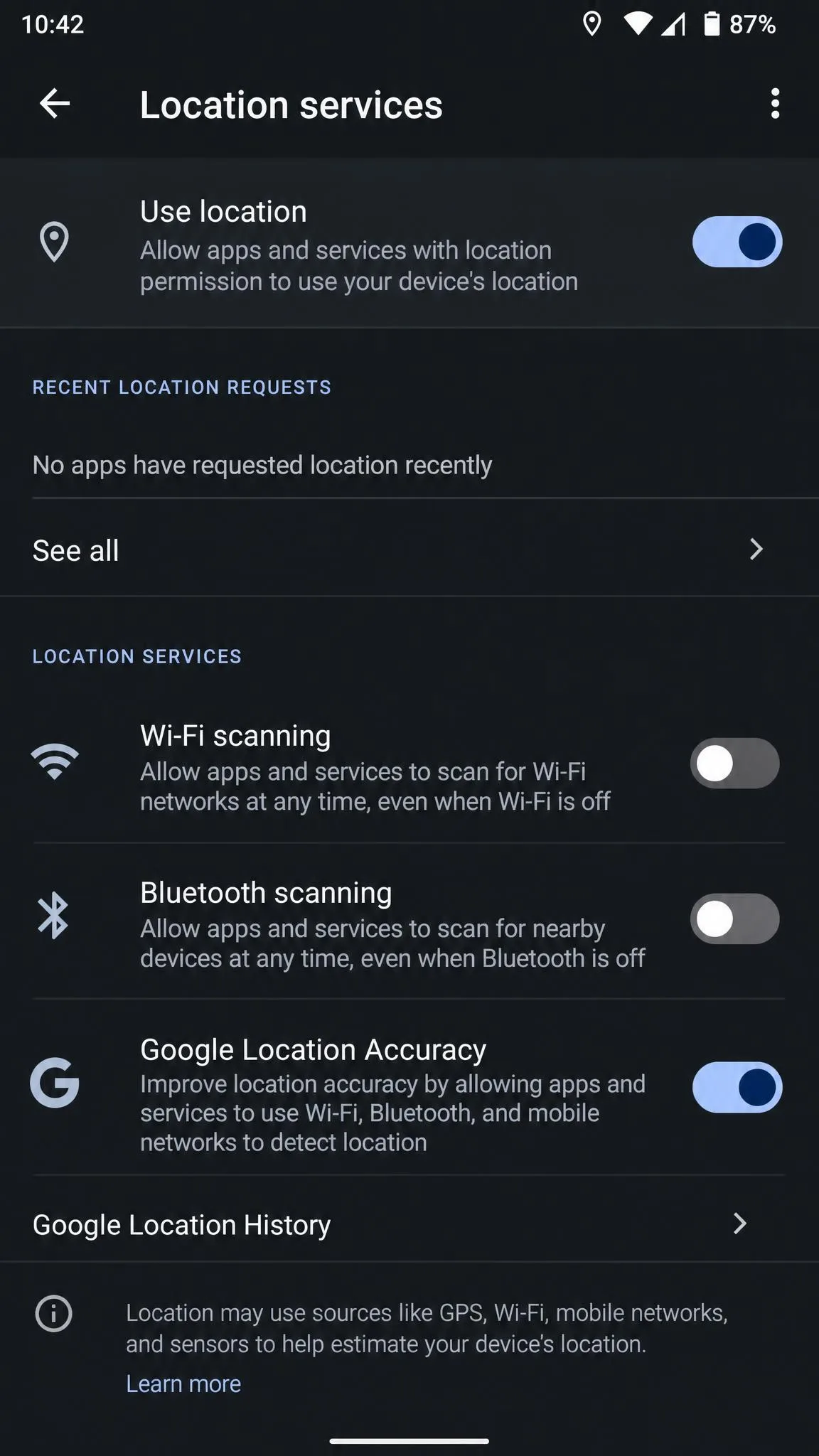
The first is signal fusion. Android does not rely on GPS alone. It blends satellite data with nearby Wi-Fi networks and Bluetooth beacons, and Google's location service knows roughly where those networks physically are. An app that only overrides the GPS provider leaves a contradiction, and the fused result drifts back toward the truth. The fix is to turn off Wi-Fi scanning and Bluetooth scanning under Settings > Location > Location services, and ideally switch Wi-Fi and Bluetooth off entirely while spoofing.
The second cause is the app itself pushing back. Some apps detect the mock provider and deliberately fall back to their own last-known or network-derived position. No setting fixes that one, only a different method. The underlying plumbing is documented in how Android's LocationManager handles test providers, which every no-root spoofer builds on.
Two smaller causes worth ruling out first:
- Battery optimisation killed the spoofing app. Exclude it from battery optimisation in Settings > Apps.
- Google Location Accuracy is on. Turn it off under Settings > Location > Location services while you are spoofing.
When Spoofing Your Location Works (and When Apps Catch It)
Spoofing swaps the coordinates Android reports to apps, so it works cleanly whenever the app trusts the operating system's answer and checks nothing else. That covers a lot of everyday cases.
It works reliably for testing your own app during development, hiding your real neighbourhood from social apps that broadcast distance, unlocking geo-restricted content in apps that read GPS, and moving your position in casual location-based games with no anti-cheat.
It fails, or partly fails, in three situations. Apps with server-side anti-cheat compare your reported position against your IP address, your movement speed, and your history, so teleporting 400 miles in one second is trivially obvious. Apps that check the mock-location flag can see the flag directly. And apps that also read your IP will notice when GPS says Tokyo and the network says Ohio.
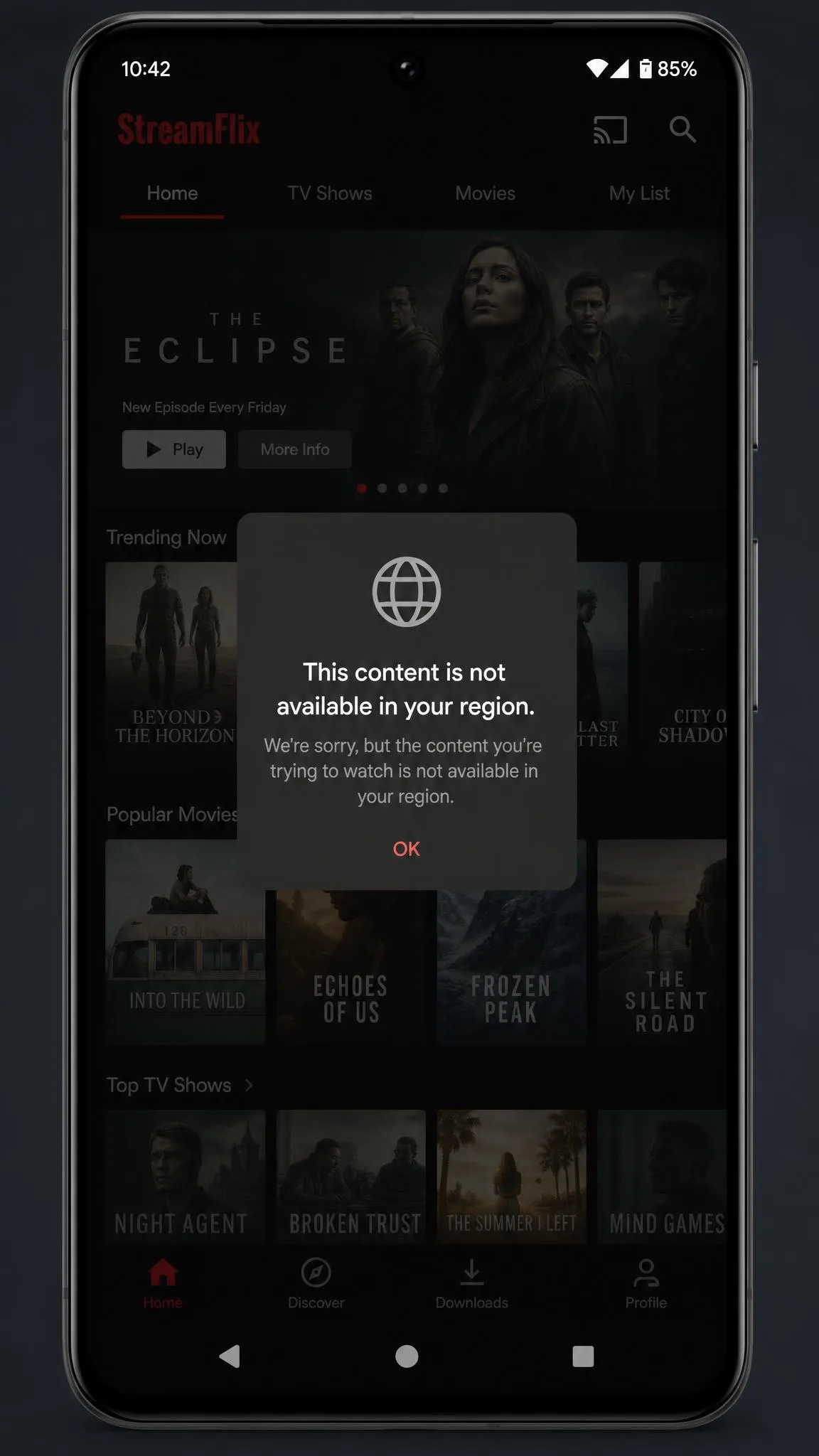
Spoofing into a region an app does not serve can backfire in a duller way too. Instead of showing you a different catalogue, the app simply refuses to load anything.
Android 13 and 14 tightened background location permissions and gave apps clearer visibility into whether mock location is active. The exact behaviour varies by Android build and by which app is asking, so the visibility of the mock-location flag is not consistent across devices.
Risks, Legality, and Which Apps Detect Spoofing
Changing what your own phone reports about itself is not illegal in most places, and there is nothing unlawful about installing a mock location app from the Play Store. The trouble is almost never with the law. It is with the terms of service of the app you are pointing the fake coordinates at.
Games are the clearest example because their penalties are published. Niantic names GPS location spoofing as cheating and applies a three-strike policy in Pokemon GO. Strike 1 is a warning lasting about 7 days, during which rare Pokemon stop appearing on the map and in the nearby tracker. Strike 2 is a suspension lasting about 30 days. Strike 3 is permanent account termination. Niantic also states that offenders are not always given three strikes, and some behaviour results in immediate termination.
Detection has improved on two fronts. A location delivered through the mock-location provider carries a flag any app is allowed to read, which is why plain no-root spoofing is the easiest kind to catch. And games and banking apps increasingly lean on Play Integrity and device-attestation signals, which unlocked and rooted devices fail.
App quality is its own risk. These apps ask for broad permissions and many are free ad-supported projects from developers you have never heard of. Google Play's device and network abuse policy is the governing rule for what an app may do on your device, and it is worth reading before you side-load anything from outside the store.
Never spoof your location on a phone you might need for an emergency call. Emergency services can use your device's location, and a fake position sends responders to the wrong address. Expect account consequences too: spoofing breaks the terms of service of most games, dating apps, and delivery platforms, and a ban is usually permanent.
Frequently Asked Questions
Is it illegal to spoof your location on Android?
Can apps detect a fake GPS location?
Do I need to root my phone?
Why does my location snap back to the real one?
Does a VPN change my GPS location?
Will spoofing get my game account banned?
How do I turn mock location off?
The Bottom Line
For almost everyone the answer is the same: install a free mock location app, enable Developer options with seven taps on Build number, nominate the app under Select mock location app, and drop a pin. That is the whole job, no root required, and it takes about five minutes the first time.
Pick your app for how you plan to move. A pin-drop app like Lexa's Fake GPS or GPS Emulator is enough for changing where you appear to be. A joystick app is worth its lower rating if you need to simulate walking. A desktop tool is the answer if you would rather not touch Developer options at all.
Keep the two limits in mind. A VPN and a mock location app solve different halves of the same problem, and neither hides you from an app that is genuinely looking. If your account matters to you, weigh that part first.