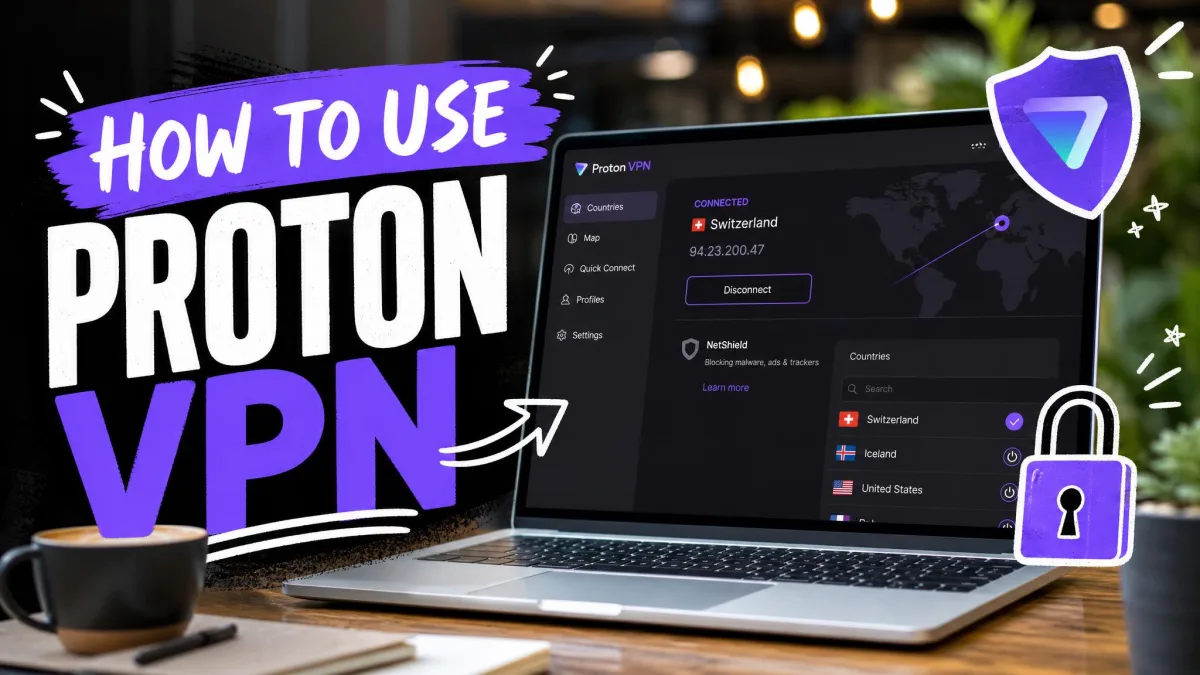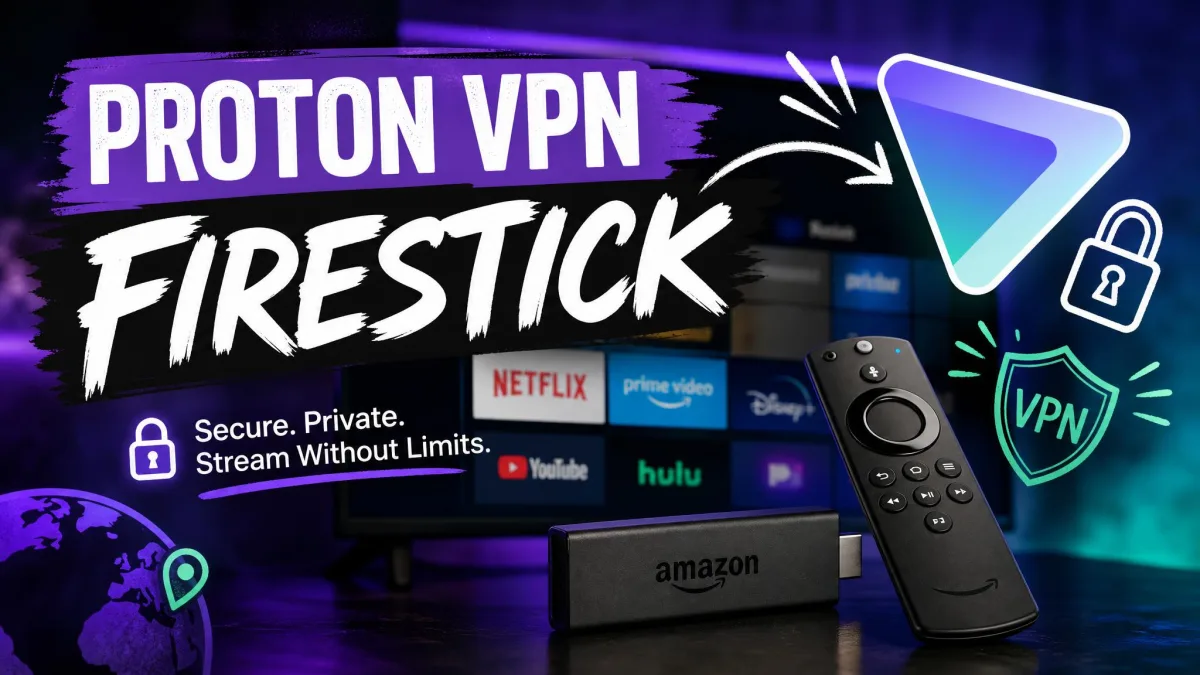
Yes, Proton VPN has a native Fire TV app in the Amazon Appstore, and it runs on Fire OS 7 or later on the free plan or a paid one. Both plans encrypt your traffic so your internet provider can't see what you watch, but only a paid plan unlocks geo-blocked content and lets you stream your favorite shows from another country's library.
Below are the steps we follow; they take about five minutes end to end. For a walkthrough that covers any provider, see our guide on how to use a VPN on Firestick.
Does Proton VPN work with Firestick?
Yes. Proton's own Fire TV setup guide confirms that the Proton VPN Firestick app installs straight from the Amazon Appstore, with no sideloading needed on Fire OS.
When you connect to a Proton VPN server in another country, streaming apps see that country's IP address and show you that region's content. On any plan, your traffic is encrypted, which adds security on shared networks and makes it harder for your provider to throttle your streams.
Which Fire TV devices are supported
The Proton VPN Fire TV app for Fire OS needs Fire OS 7 or later. That includes the Fire TV Stick 4K Max, the Fire TV Cube (2022) and most Fire TV Edition TVs from 2022 onward. To check yours, open Settings > My Fire TV > About and read the OS line.
A few newer sticks run a different system: only Fire TV Sticks with "Select" in the name, such as the Fire TV Stick 4K Select, and HD sticks with Wi-Fi 6 run Vega OS, a Linux-based system Amazon began rolling out in late 2025. The Fire TV Stick 4K, the 4K Plus and the HD stick without Wi-Fi 6 still run Fire OS.
The Fire OS app won't install on Vega OS, and Vega OS doesn't allow sideloading. Instead, Proton released a separate Vega OS app in mid-September 2026. You can find it in the Appstore and sign in at protonvpn.com/firetv. The rest of this guide covers the Fire OS app.
Free vs paid Proton VPN on Fire TV
The free plan gives you servers in 10 countries, unlimited data and no ads, on 1 device at a time. There's no location picker, though. When we select Connect, the app puts us on whichever free server it judges fastest.
The free plan won't unblock streaming libraries. On free servers, US Netflix, Prime Video, Hulu and BBC iPlayer stayed locked for us, and P2P traffic is blocked, so P2P-based Kodi add-ons don't work either.
VPN Plus costs $9.99 on monthly billing, with cheaper promotional rates on longer plans. It opens up 140+ countries, streaming support, split tunneling, NetShield and up to 10 devices, the same device limit as Proton Unlimited. There's a 30-day money-back guarantee, although Proton's terms describe a refund of the unused portion, so how much comes back depends on usage.

Before you start: create a Proton VPN account
Set up the account on your phone or computer first, since typing a password with a TV remote is slow.
- Open the Proton VPN website or phone app.
- Choose the free plan or a paid plan.
- Enter your email address and create a password.
- Install the Proton VPN phone app if you'd like to sign in on the TV with a QR code.
For the other apps on your account, see how to use Proton VPN across your devices.
How to install Proton VPN on Firestick from the Amazon Appstore
With the account ready, the install itself takes a couple of minutes.
- Press the Home button on your remote.
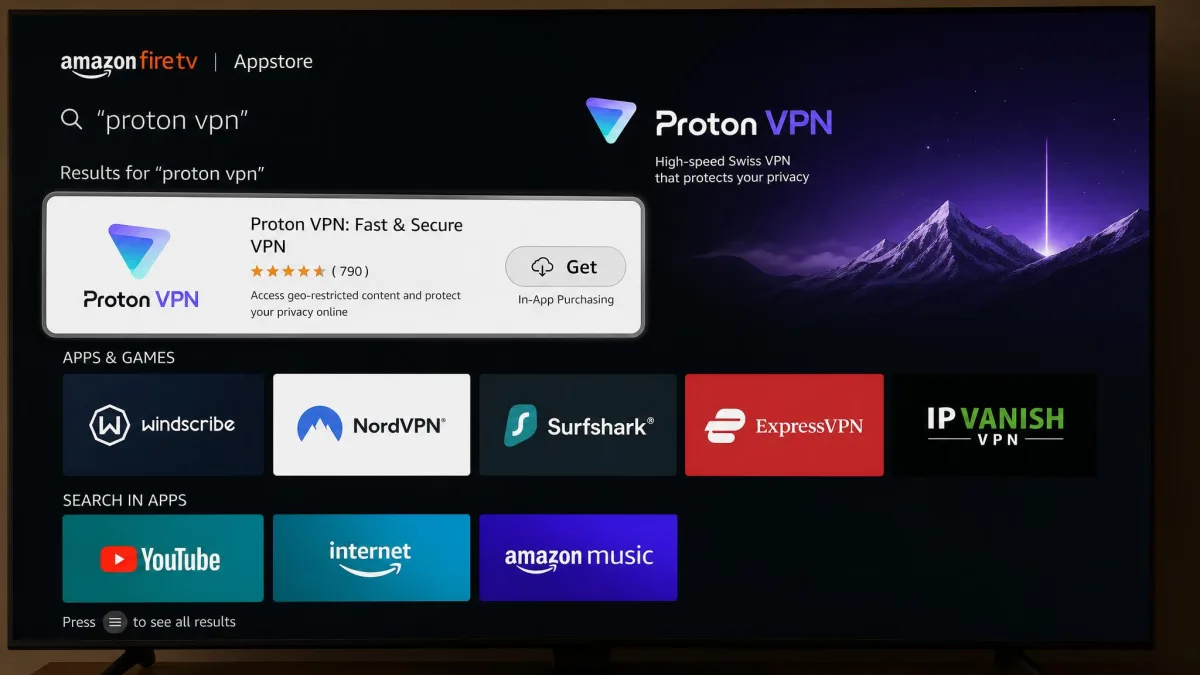
- Go to Find > Appstore and select the search box.
- Type "proton vpn" with the on-screen keyboard.
- Select Proton VPN in the results.
- Select Get and wait for the download to finish.
- Select Open to launch the app.
We found typed search more dependable than the remote's microphone button, and Proton's own guide says voice search proved unreliable in its tests. Older listings and search results often spell it "ProtonVPN" as one word, so a search for ProtonVPN Firestick or ProtonVPN for Firestick lands on the same app. You can also send it from the Proton VPN listing in the Amazon Appstore.
Pin Proton VPN to your Fire TV home screen
Open your apps list, highlight Proton VPN, press the Menu button on the remote and select Move. That puts it in your top row.
How to sign in on your TV at protonvpn.com/tv
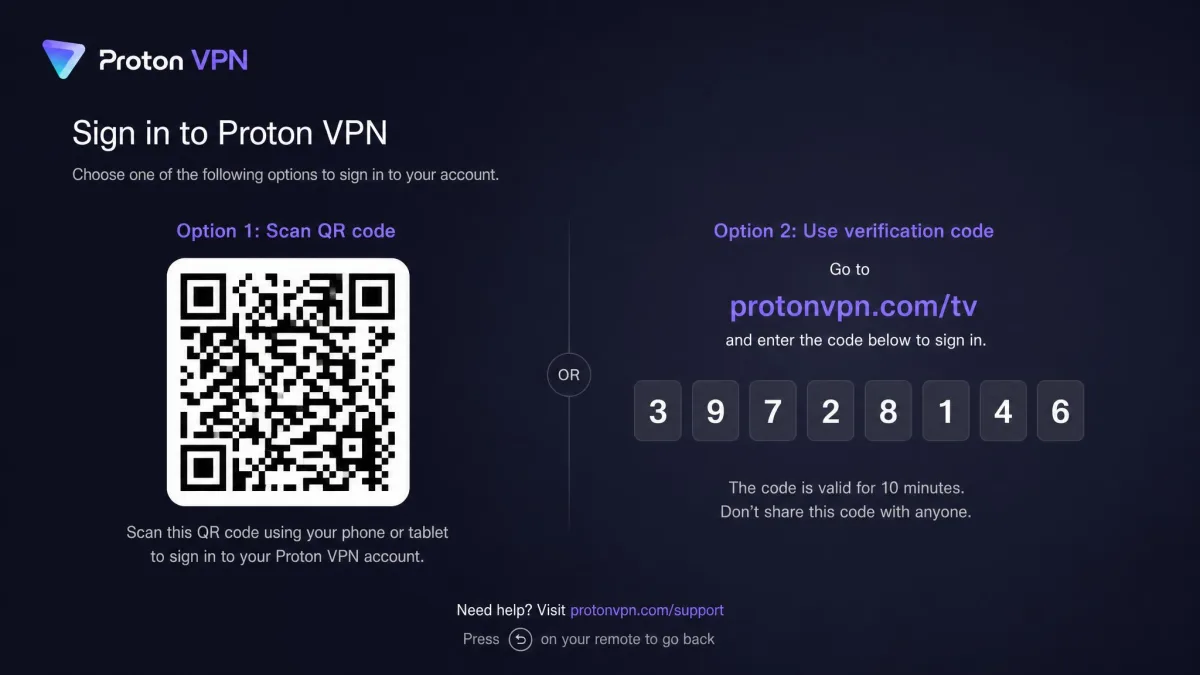
Open the app and the TV shows a QR code. Scan it with your phone, tap the link and sign in. To use a code instead:
- Select "Trouble signing in?" on the TV to show an 8-digit code.
- Open protonvpn.com/tv on your phone or computer.
- Sign in to your Proton Account on the page that loads, account.protonvpn.com/tv.
- Type the 8-digit code into the field that appears.
- Select Verify code.
This is far easier than typing a password with the remote. Once the code verifies, the TV app shows your account tier and subscription status. A common snag is typing the code on protonvpn.com, which has no code field, rather than on protonvpn.com/tv. For a Fire Stick running Fire OS, protonvpn.com/tv is the right page. Owners of a Vega OS Firestick should use protonvpn.com/firetv instead of protonvpn.com/tv.
How to connect to a server and start streaming
Once the TV shows your plan, you're ready to connect.
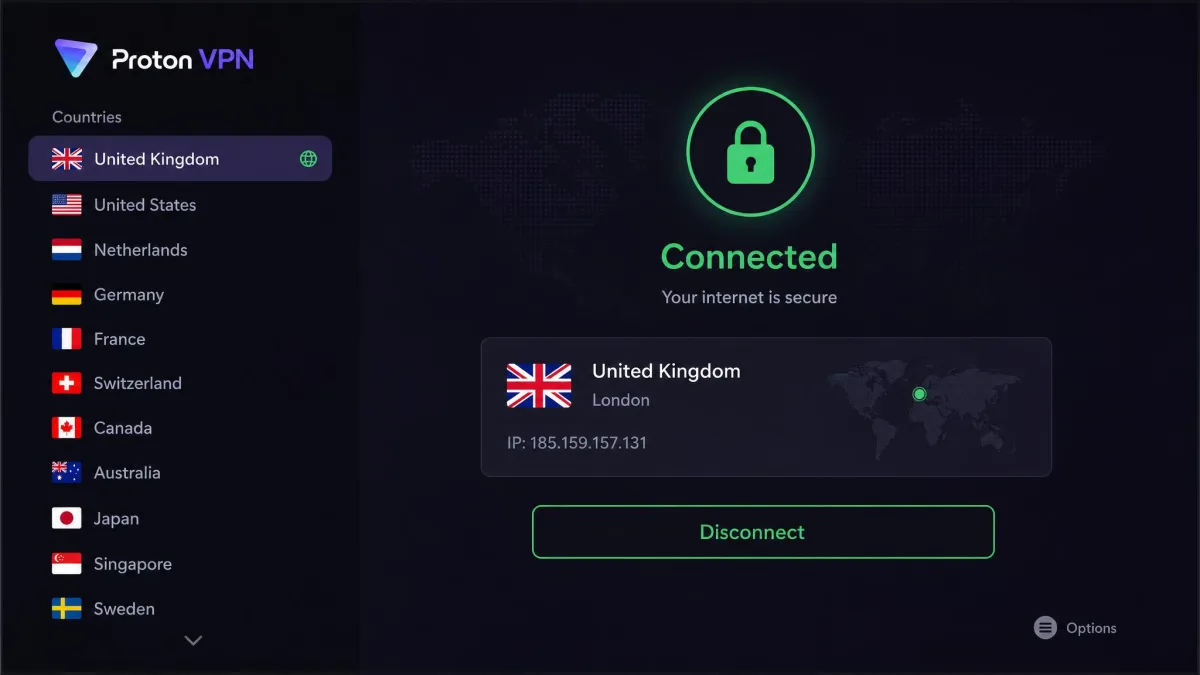
- Select a country from the list if you're on a paid plan, or expand it to pick a specific server.
- Select Connect. On the free plan, this is the only choice, and the app picks the server for you.
- Accept the connection request if Fire OS asks for permission to set up a VPN.
- Press Home and open your streaming app.
The server list is easy to navigate with the remote, and you can save one favorite country or server for Quick connect.
How to check Proton VPN is working
Open the Silk browser on your Fire TV and load any what-is-my-IP site. The location it shows should match the server you picked.
Proton VPN not in your Appstore? Sideload it with Downloader
This fallback only applies to Fire OS devices. Use it only when the Appstore route fails.
- Open Settings > My Fire TV > About and click your device name seven times to unlock Developer Options.
- Install the free Downloader app from the Appstore.
- Go to Settings > My Fire TV > Developer Options > Install unknown apps and turn Downloader on.
- Open Downloader and enter the address of Proton's official GitHub releases page.
- Download the latest APK file and select Install.
Allowing unknown apps lowers your device's security. Download the APK only from Proton's GitHub releases page or F-Droid, never from mirror sites, and turn Downloader's permission off when you're done. A sideloaded APK doesn't update itself, so you'll repeat these steps to get new versions.
Proton VPN features that matter on Fire TV
Split tunneling
On a paid plan, split tunneling lets you choose which apps use the VPN and which go direct. Changes don't apply to a live tunnel, so disconnect and reconnect after editing the list.
Auto-connect (and why there's no kill switch)
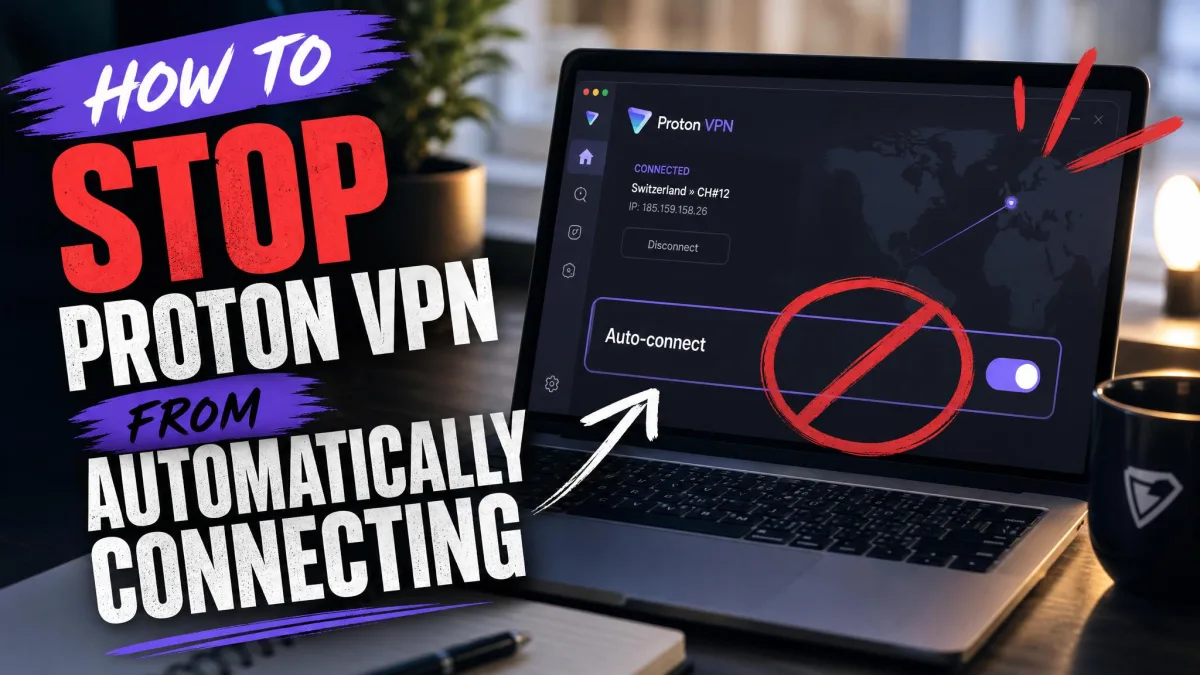
Turn on Settings > Auto-connect and the app connects when your Fire TV starts. There's no kill switch in the TV app, though, so traffic isn't blocked if the tunnel drops. If auto-connect gets in your way, here's how to stop Proton VPN from connecting automatically.
Protocols (Smart, WireGuard, Stealth)
Smart protocol is the sensible default. In Settings > Protocol you can choose WireGuard over UDP or TCP, or Stealth for networks that block VPN traffic.
Proton VPN on Firestick not working? Quick fixes
Most problems show up at the same few points: the install, the streaming app, playback and your home network. Here's what to try for each.
- The install stalls. Clear the Appstore's cache under Settings > Applications and try again.
- A streaming app detects the VPN. Confirm you're on a paid plan, then restart the streaming app.
- Video buffers. Switch to WireGuard UDP or a lower-load server in the same country, and avoid Secure Core, whose extra hop slows streams.
- Local devices disappear. Turn on Allow LAN connections and reconnect.
For deeper problems, see our Proton VPN troubleshooting guide or what to do when the app won't open.
Is Proton VPN a good choice for Firestick?
For privacy on a Fire TV, yes. If you mainly want to keep your provider from seeing what you watch, whether on hotel Wi-Fi or at home, the free plan is enough and you can stay on it. If you want a VPN for another country's streaming library, pay for VPN Plus from the start rather than fighting the free servers. The missing kill switch is the main gap on Fire TV, so anyone who needs a guarantee that nothing leaks during a dropout should weigh that before committing. Our full Proton VPN review covers speeds and privacy in depth. If Proton isn't the right fit, compare it against our picks for the best VPN for Firestick.