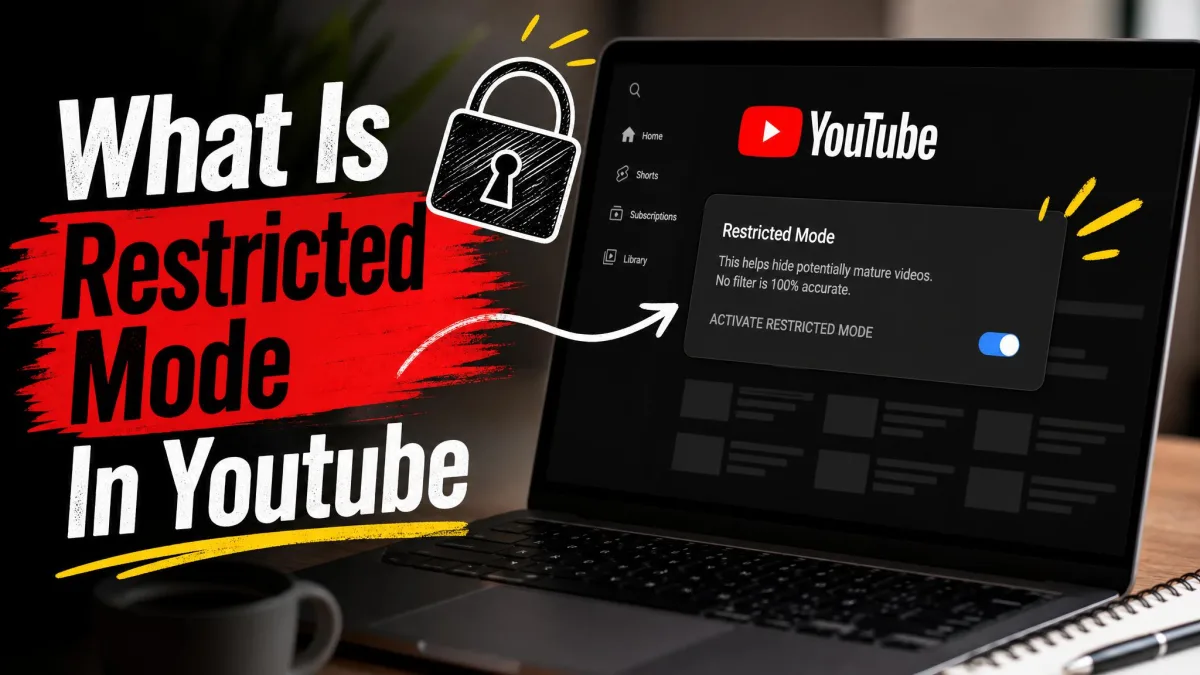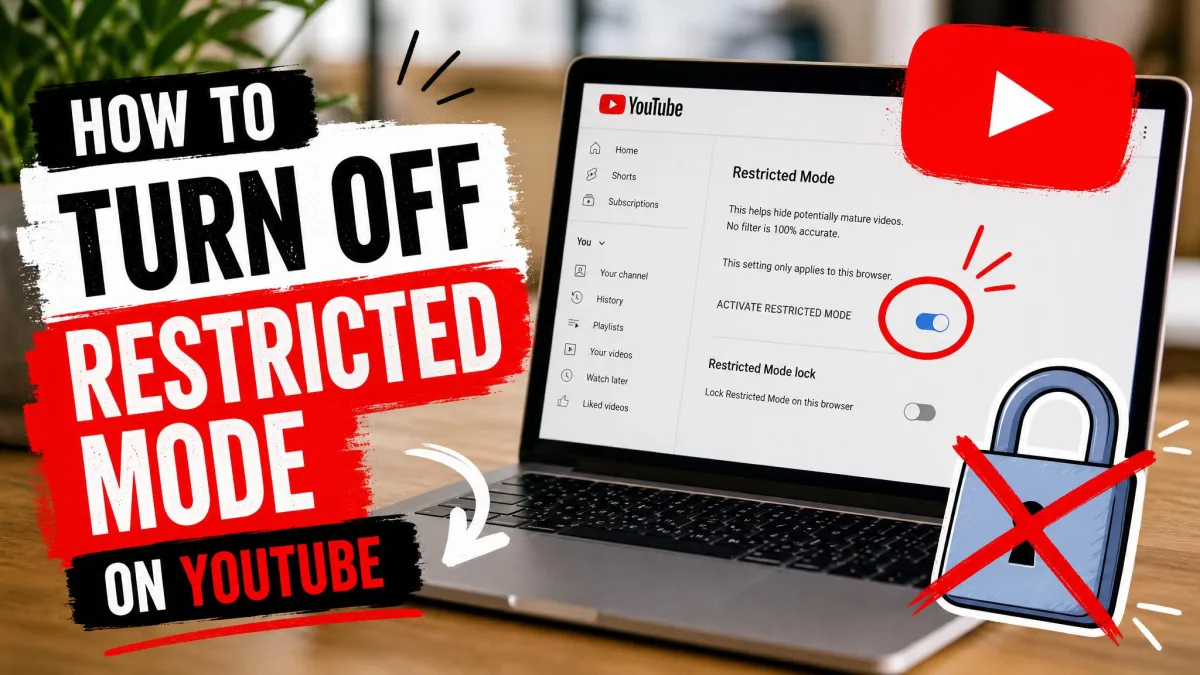
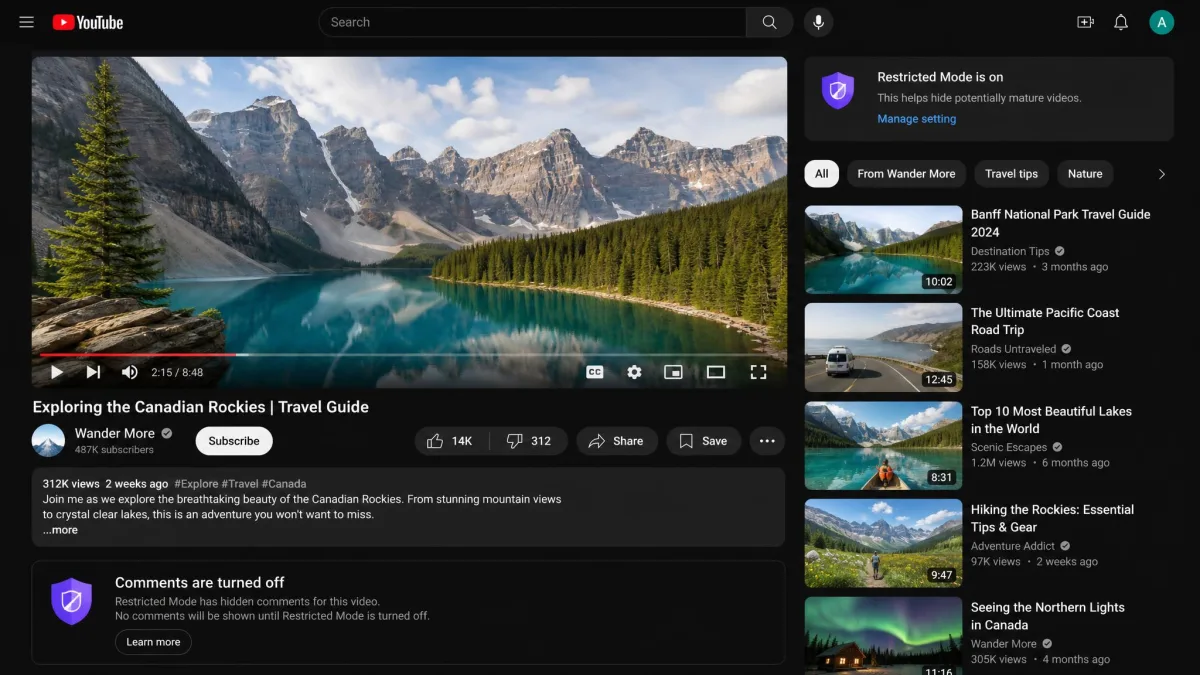
Restricted Mode is an optional YouTube filter that hides videos the platform reads as potentially mature, along with the comments underneath them. It is a household and classroom setting, not a hard block, and any account holder aged 13 or older can switch it off for themselves. The catch is that the setting lives on the browser or device rather than in your account, so turning it off in one place leaves it on everywhere else.
This guide covers the steps for desktop browsers, the YouTube app on iPhone and Android, smart TVs and consoles, and the harder cases where a school network or a parent's Family Link rules keep the filter switched on.
What Restricted Mode Actually Does
Restricted Mode screens out videos that may contain mature content. YouTube lists 6 categories the filter targets: drugs and alcohol, sexual situations, violence, mature subjects, profane language, and incendiary or demeaning content.
The filter decides using a video's title, its description, its other metadata, and automated checks on the language spoken in it. Reviews under YouTube's Community Guidelines and existing age restrictions feed the same system, with human reviewers applying age restrictions by hand.
One side effect surprises people. With the feature enabled, comments vanish from videos entirely, and that missing comment section is usually the first clue that the filter is active. Google is also candid that the filter is not perfect, and that quality varies because cultural norms and sensitivities differ from place to place.
Restricted Mode vs. Age-Restricted Videos
These two things get mixed up constantly, and they are not the same feature.
Restricted Mode is optional. You choose to turn it on, and you can turn it off again in a few clicks. It filters a broad pool of content that may be mature, and it errs on the cautious side.
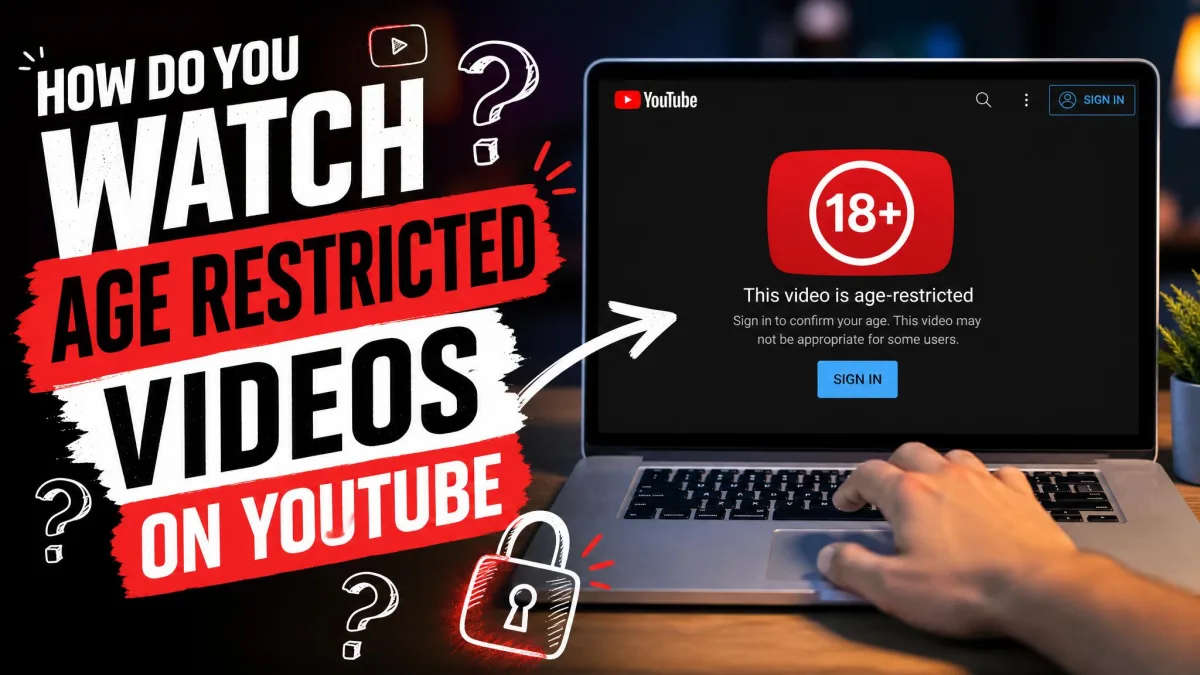
An age restriction is not optional. When a creator or a reviewer applies one, that video is unavailable to anyone under 18, and every viewer has to sign in so YouTube can confirm their age. Turning the filter off does nothing to unlock age-restricted content on YouTube. If a video is still asking you to sign in and confirm your age after you have cleared the filter, an age restriction is what you are hitting.
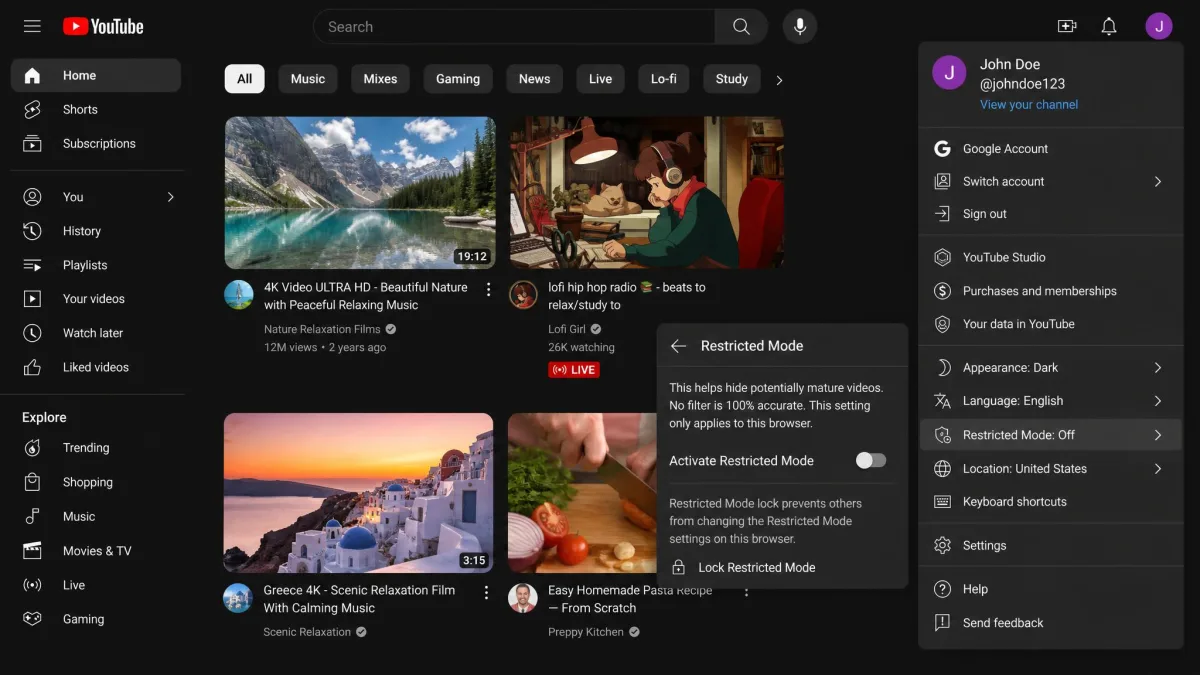
How to Turn Off Restricted Mode on Desktop (Chrome, Edge, Safari)
The desktop path is the quickest of the lot, and it is documented on Google's official Restricted mode help page.
- Open youtube.com in your browser.
- Sign in to your Google account.
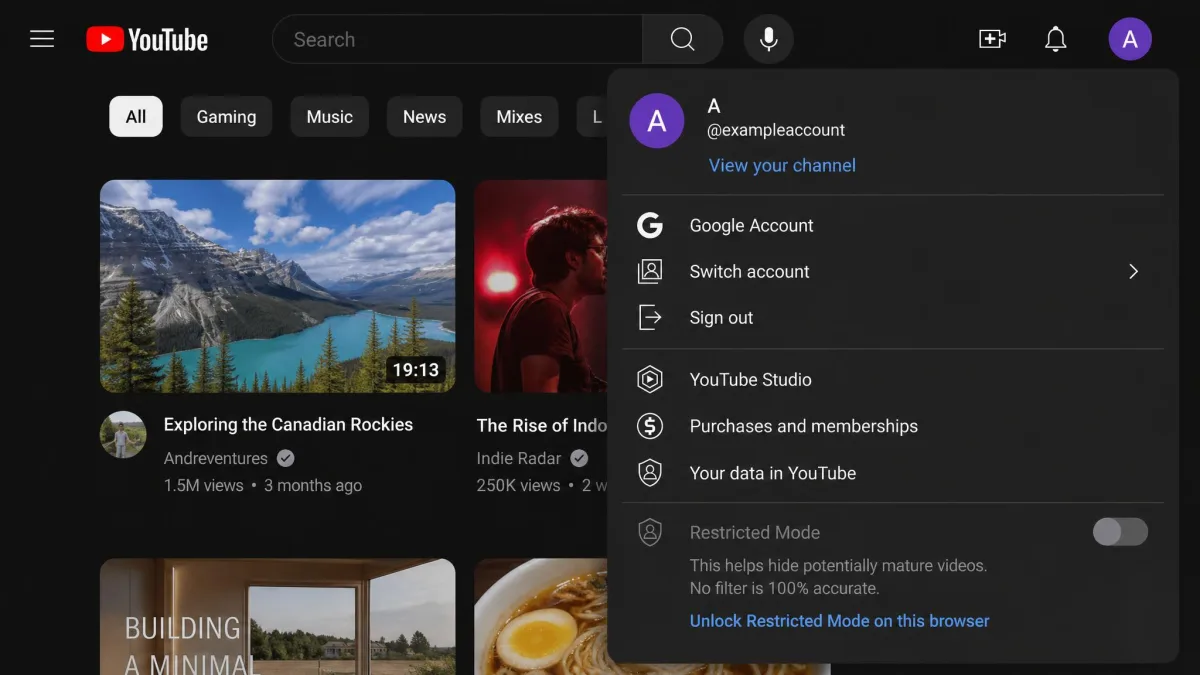
- Click your profile photo in the top right corner.
- Scroll to the bottom of the menu and select Restricted Mode.
- Toggle Activate Restricted Mode off.
- Refresh the page and check that comments have come back.
That final check matters more than it sounds. Comments returning is the fastest visual confirmation that the setting actually saved.
This is a per-browser setting, not an account setting. If you use Chrome at home and Edge at work, you have to repeat these steps in each one. Separate Chrome profiles count as separate browsers too.
How to Turn Off Restricted Mode in the YouTube Mobile App (iPhone and Android)
The app keeps the option in the settings menu rather than under your profile photo directly.
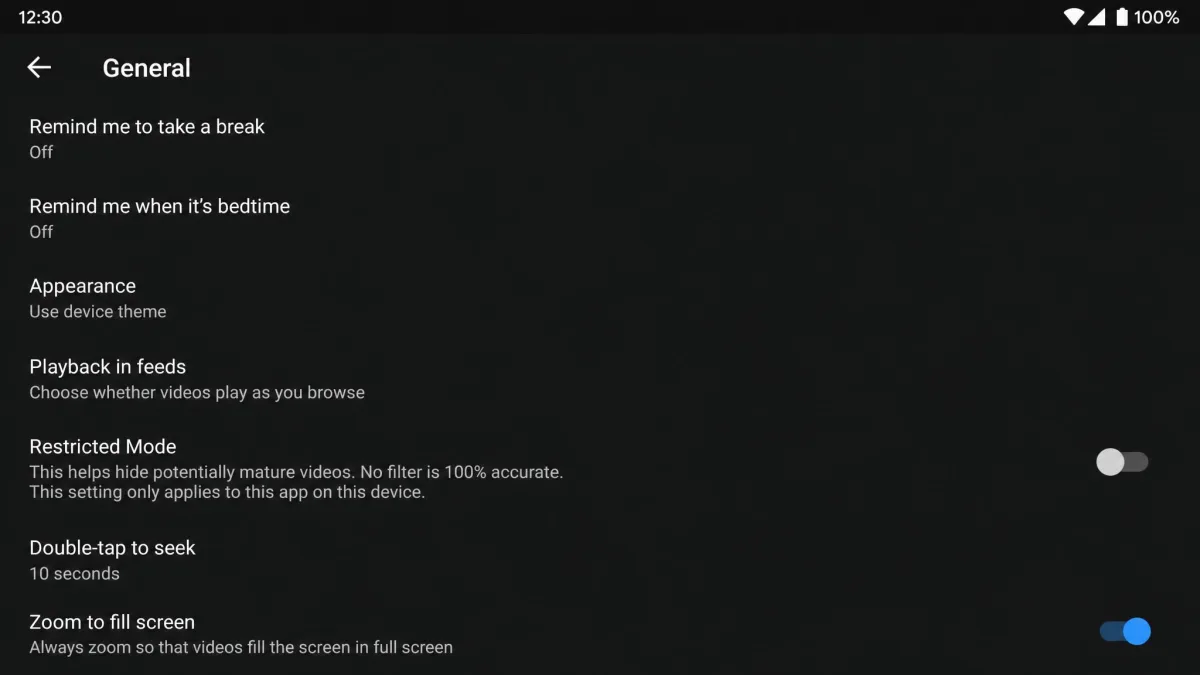
On Android:
- Open the YouTube app.
- Tap your profile photo in the top right corner.
- Tap Settings.
- Tap General.
- Switch the Restricted Mode toggle off.
On iPhone and iPad, the route is nearly identical. Tap your profile picture, open Settings, then switch the Restricted Mode slider off. The iPhone app places that switch under either Account or General depending on the app version, so make sure you check both menus before deciding the option is missing.
If the toggle will not stick, force-close the app and reopen it. Installing any pending app update and trying again clears most stubborn mobile cases before you need to look at anything deeper.
Turning It Off in a Phone Browser
Watching YouTube in Safari or Chrome on your phone is a different context from the app, and it needs its own pass. Open youtube.com in the mobile browser, tap your profile photo, and find the Restricted Mode option in the same menu the desktop site uses. Clearing it in the app does not clear it in the phone browser.
How to Turn Off Restricted Mode on a Smart TV, Console, or Streaming Box
Living-room devices each store the setting locally.
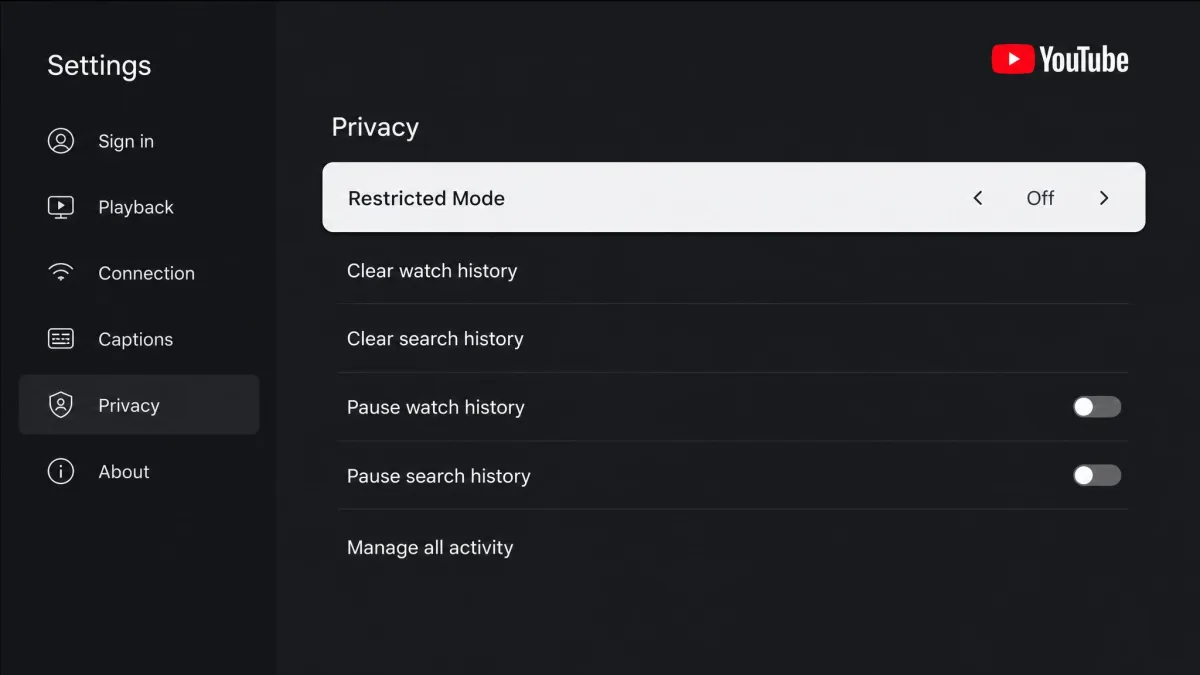
- On Android TV, open Apps and select YouTube.
- Scroll down to Settings inside the app.
- Choose Restricted Mode.
- Set it to Off.
Older TV and console builds still label this Safety Mode rather than Restricted Mode, so the wording on screen may not match the desktop instructions. Treat the two labels as the same switch.
For smart speakers and smart displays, the control is not on the device at all. Open the Google Home app, go to Settings, then Notifications and digital wellbeing, then YouTube Settings.
Restricted Mode Won't Turn Off? Fixes That Work
When the filter refuses to clear, it is almost always one of four causes. We worked through each device path for this guide, and these are the checks worth running in order.
Check Whether It's Locked to This Browser
The toggle can appear greyed out and refuse to move at all. That means someone locked the setting to this browser. Click Unlock Restricted Mode on this browser, re-enter your Google account password, and the toggle becomes editable again.
Confirm You're Signed Into the Right Account
The setting applies to whichever account is currently signed in. If you juggle a personal account and a school or work one, you may have cleared the filter on a profile you are not actually watching under. Check the account name in the corner before you retry.
Turning the filter off in one browser also leaves it on everywhere else, which reads as a change that did not save. The same is true across devices, since YouTube does not sync this setting. Your phone can still be filtered minutes after your laptop is clear.
Clear Your Cache or Try a Private Window
Clearing your browser cache and cookies, then reloading YouTube, often releases a setting that will not switch off. A private or incognito window is a quick way to test the same thing without wiping anything. If you sign out of your Google account, close the browser completely, and sign back in, that clears most remaining stuck states on desktop.
Also check for a filter that is not YouTube's. Google SafeSearch and content-blocking browser extensions keep filtering results after the YouTube setting is off, which looks exactly like the toggle failing. Router and firewall parental controls are a separate lock again, and those have to be cleared on the router itself.
Check Family Link and Device Parental Controls
On an account supervised through Family Link, the option is visible but cannot be changed. A parent can enforce the filter so their child cannot switch it off on any device they are signed in to. The change has to come from the supervising parent's own device.
Turning this off unhides mature content and restores comments across the whole browser or device, not just for you. On a shared family computer, that affects whoever uses it next. An administrator or supervising parent can also re-lock it at any time.
When a Network Administrator Enabled Restricted Mode
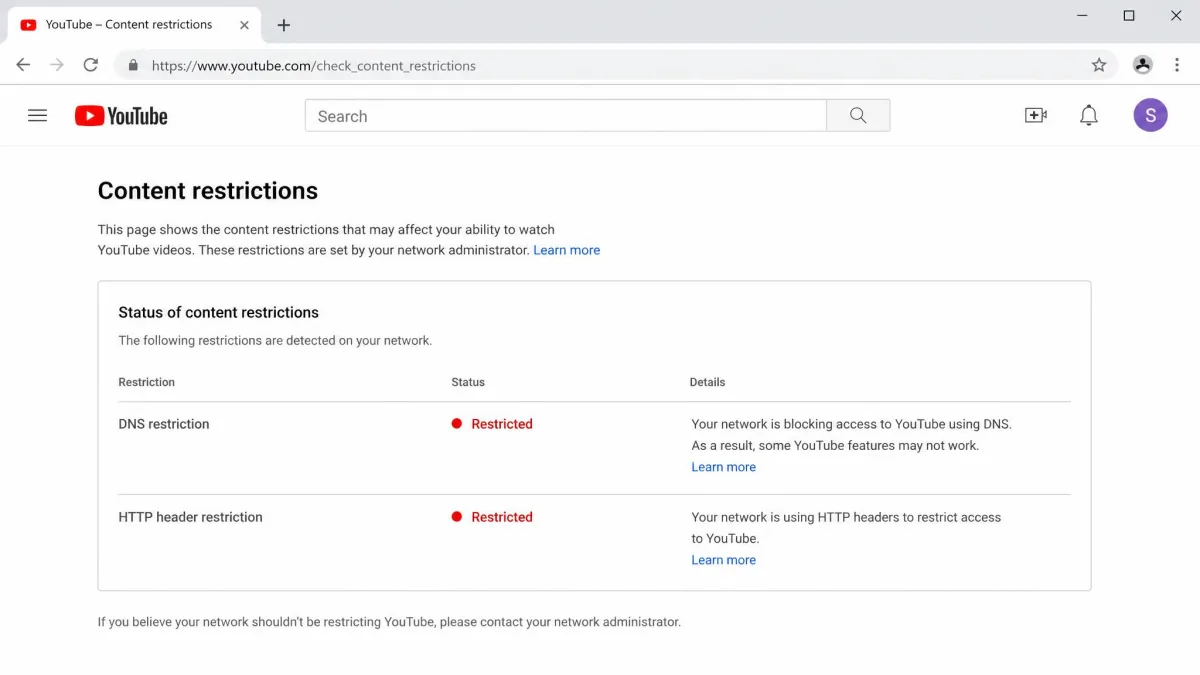
On a school, work, or public Wi-Fi network, the switch flips back on after every page reload. That is not a bug. The filter is being applied by the network, not by your account, so nothing you change inside YouTube can override it.
Administrators have 2 network methods for this: a DNS CNAME record that redirects youtube.com, or a YouTube-Restrict HTTP header added to your traffic. Strict filtering points youtube.com at restrict.youtube.com, and moderate filtering points it at restrictmoderate.youtube.com.
School, Work, and Public Wi-Fi Networks
To confirm what you are dealing with, open YouTube's content restrictions page. It reports whether DNS restrictions and HTTP header restrictions are active, and at which level, Moderate or Strict.
If either shows as on, the only real fix is asking whoever runs the network to change the policy. Switching to a different network, such as your phone's mobile data, sidesteps it. Routing around a school or workplace filter with a VPN or proxy usually breaks the acceptable-use policy you agreed to, so check the rules before you try it.
Google Workspace and Admin Console Settings
If you are signed in with a school or company Google account, the restriction may follow the account rather than the network. Workspace administrators set YouTube content permissions in the Admin console to Strict, Moderate, or unrestricted for signed-in organisation users. Signing out and watching while signed out is a quick way to tell which of the two is holding the filter in place.
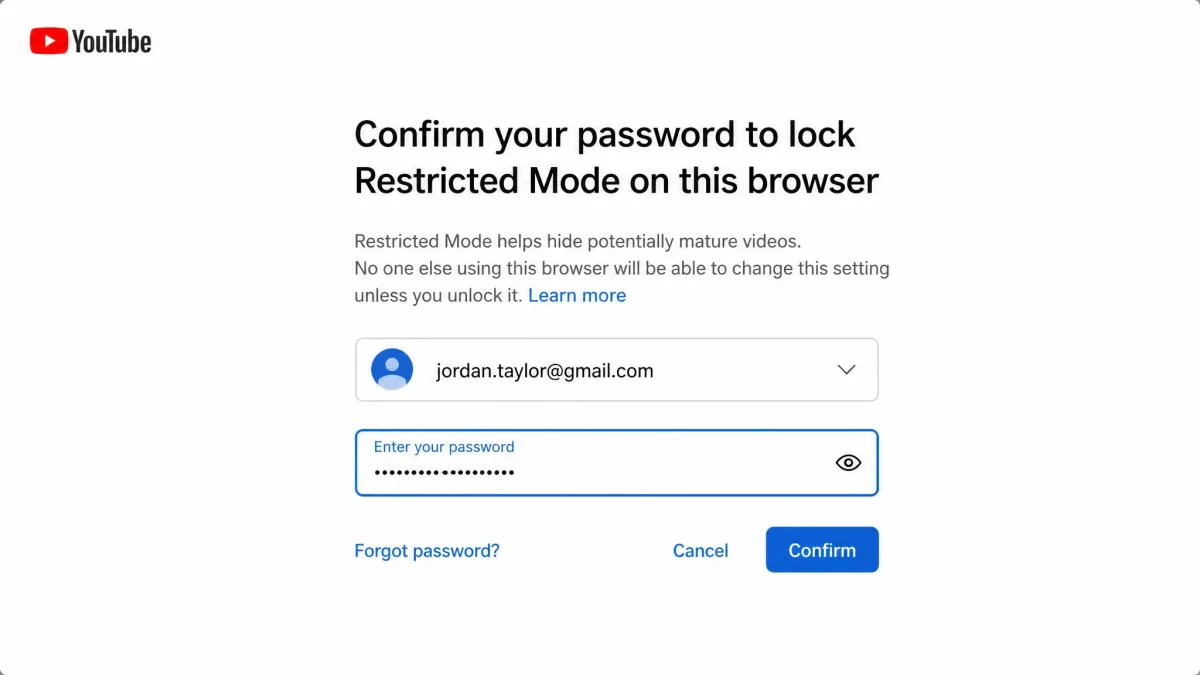
How to Turn Restricted Mode Back On (and Lock It)
Switching the filter back on uses the same path in reverse: profile photo, Restricted Mode, toggle it on. Here's how to make it stay on for other people who use the machine.
- Turn Restricted Mode on in the browser you want to protect.
- Select the option to lock Restricted Mode on this browser.
- Enter your Google account password to confirm.
- Repeat in every browser and browser profile on the device.
Locking it means the toggle greys out for anyone else and only reopens with your password. For a child's account, a supervised YouTube account through Family Link is stronger, because it follows the account across devices instead of stopping at one browser. If you publish videos yourself, it is worth reading up on how Restricted mode affects your videos before you assume the filter only touches viewing.