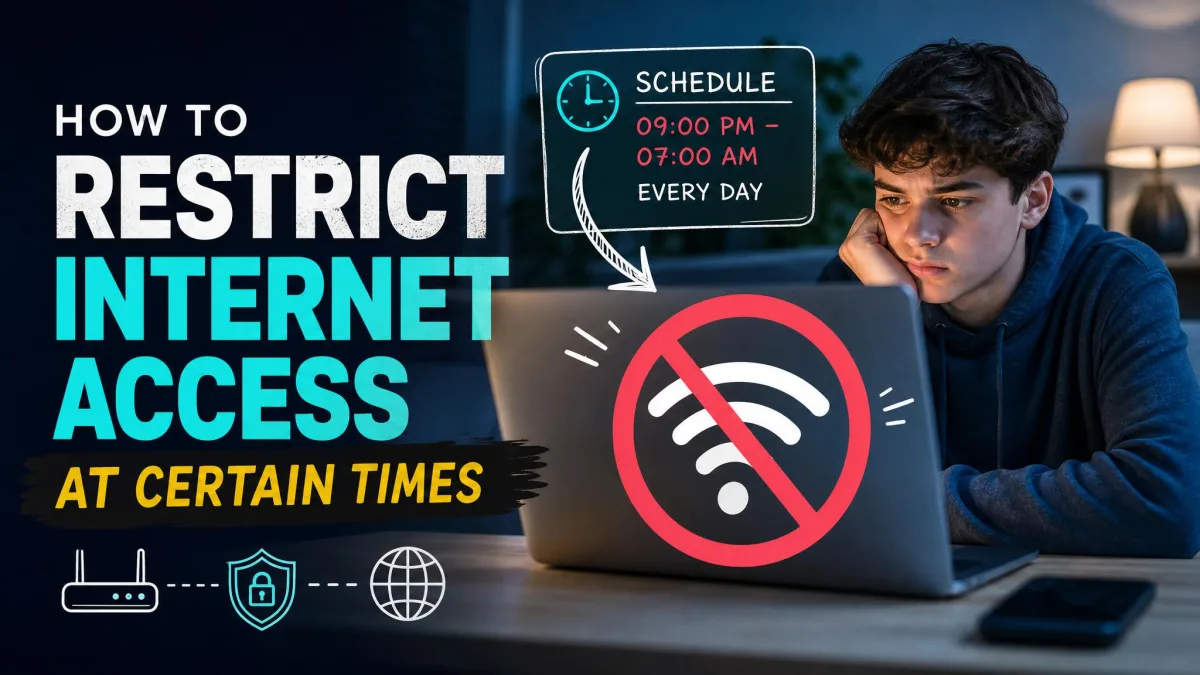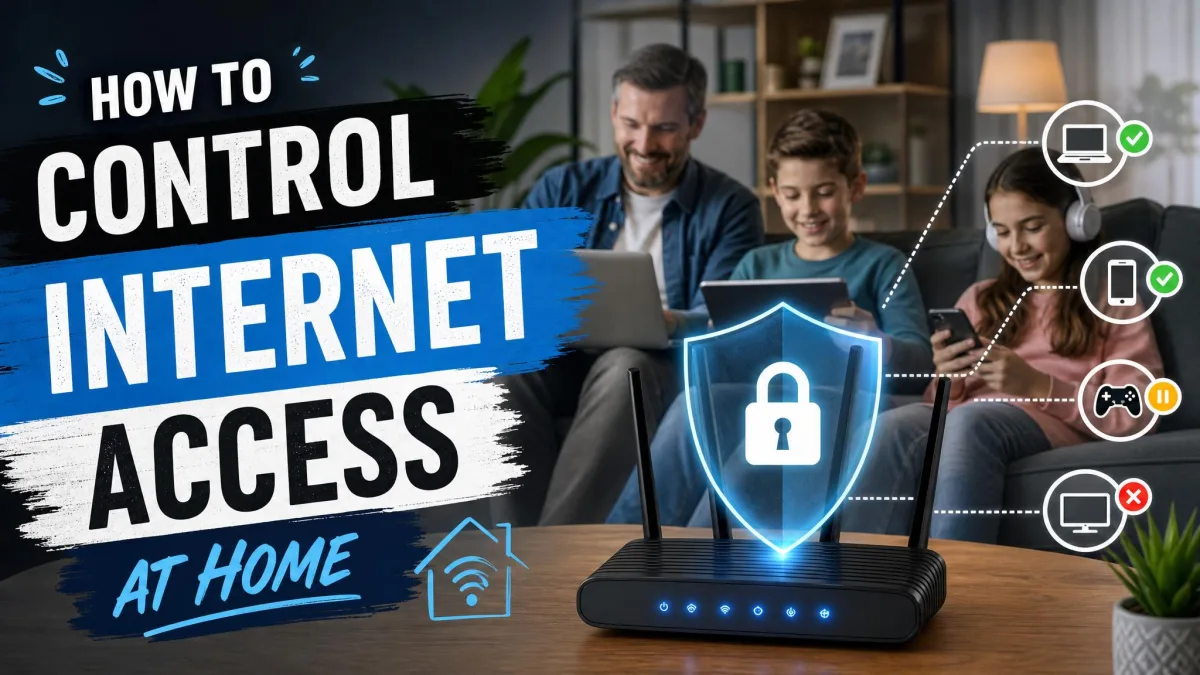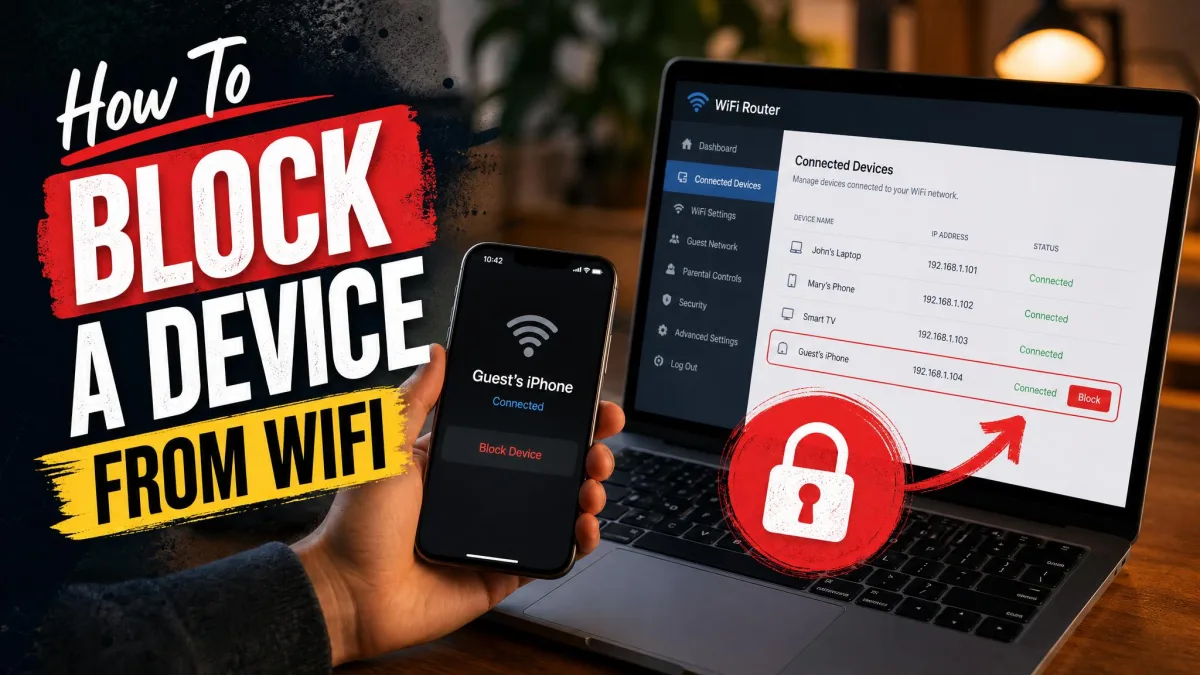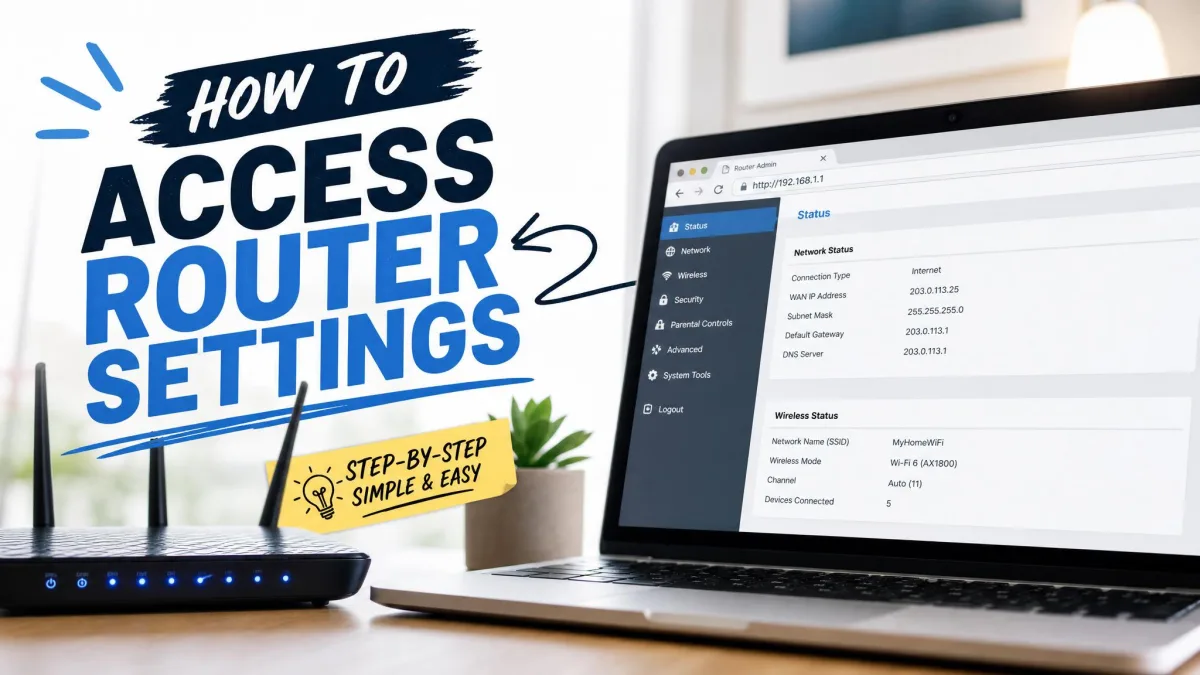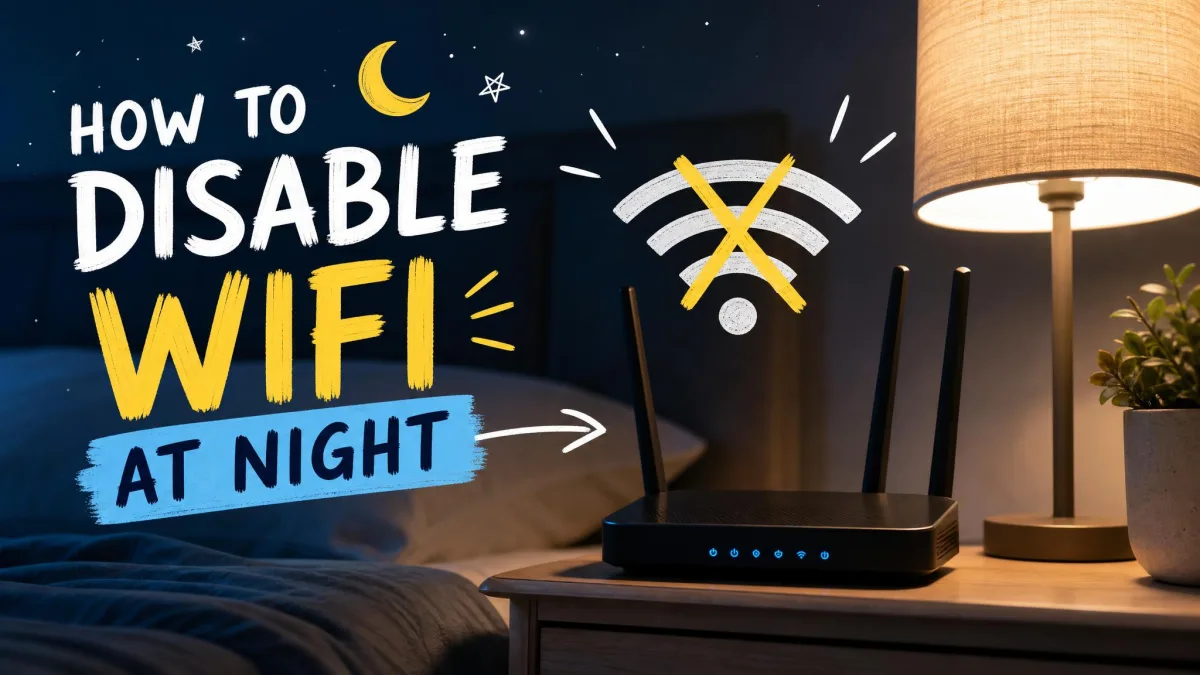
If your Wi-Fi runs all night and the kids stay online past bedtime, the fix is simpler than you think. You don't need expensive hardware, a fight over screens, or a new router. Most routers can switch the wireless radio off on a schedule, and a cheap smart plug or timer does the same job for the ones that can't.
We tested four of these methods on our home network, setting a nightly schedule on a Linksys router, automating a TP-Link smart plug, running a mechanical timer on the bench, and locking devices down with Screen Time and Family Link. The guide below walks through each one, and the comparison at the end can help you decide.
Quick Answer: How to Disable WiFi at Night
The fastest fix is your router's built-in schedule. Log in to the admin page, find the wireless schedule or parental-control setting, and set an off window for bedtime. If your router has no schedule, plug the power supply into a smart plug or a mechanical outlet timer (about $7) and let it kill power at the same time every night. If you can't touch the router, lock the devices with Screen Time, Digital Wellbeing, or Family Link. The rest of this guide shows the exact steps.
We ran these on our home network, from a nightly router schedule to a seven-dollar mechanical timer. The router schedule was the most hands-off, while the device-level controls needed the most babysitting, because that's where the bypasses live.
Why Turn Off Your WiFi at Night?
People turn the Wi-Fi off at night for four main reasons: better sleep, less screen temptation, lower EMF exposure, and a quieter, safer network. The first two have the strongest evidence, so they get the most attention here.
Sleep Better and Cut Blue-Light Distraction
Screens emit blue light that can push bedtime later, but a live connection makes another scroll effortless. A 2022 review of 42 studies on digital media and young people found that digital-media use was linked to shorter sleep and poorer sleep quality for smartphones, computers, the internet, and social media, though not for television, game consoles, or tablets. A 2021 CDC sleep study found that 34.9% of U.S. children slept less than the recommended amount for their age, and CDC research found that 72.7% of high school students slept fewer than 8 hours on school nights, against a recommendation of 8-10 hours. A Wi-Fi cutoff does not solve all of that, but it removes a quiet enabler of the late-night scroll.
Reduce EMF Exposure (Framed Plainly — Cite, Don't Alarm)
Some households turn the Wi-Fi off at night to reduce radio-frequency exposure while they sleep, which is a fair preference. We'll be honest about the evidence: most electromagnetic-field research on sleep has looked at power-frequency fields, not home Wi-Fi, and the results are mixed. We treat it as a personal choice rather than a health claim, and the router's schedule cuts exposure without any unplugging.
Keep Kids Off Screens After Bedtime
An always-on connection makes a 1 AM scroll one tap away. A Consumer Reports analysis of kids' sleep reports that 89% of U.S. teens keep at least one device in the bedroom overnight and recommends cutting internet access one to two hours before bedtime, not only at lights-out. A scheduled cutoff turns that into an automatic habit instead of a nightly negotiation.
Save Power and Improve Home Security
The security case for a nightly cutoff is straightforward: a network that's off can't be attacked. U.S. cybersecurity guidance recommends switching the home network off when it isn't in use, and security researchers call that reducing the attack surface. When the radio is off, wireless devices drop offline while wired Ethernet keeps working, and unplugging the router kills both.
On power, be realistic: a typical mid-range router draws about 10.8 W and costs roughly $11.65 a year to run around the clock, so eight hours off saves a few dollars a year. Most people turn the Wi-Fi off for sleep and screen habits, not for the bill.
Method 1: Use Your Router's Built-In Wi-Fi Scheduling
The cleanest way to turn off Wi-Fi at night is a setting that's already in your router. Most modern routers, and virtually every mesh system, can switch the wireless radio off and back on by schedule, with no extra hardware. You set it once and the router remembers the window every night.
Step 1: Access the Router Admin Dashboard
Open a browser on any connected device and type the router's admin address, most commonly 192.168.1.1 or 192.168.0.1, while Xfinity gateways use 10.0.0.1. Most routers also provide a hostname: TP-Link uses tplinkwifi.net, Netgear uses routerlogin.net, ASUS uses router.asus.com, and Linksys uses myrouter.local. If none work, check the router's sticker or app for the address, then sign in with the admin password from setup or follow the quick-start guide, since newer models usually ask you to create one on first login.
Step 2: Find the Wi-Fi Scheduling / Parental Controls Setting
The label varies depending on the model, but it's usually predictable: "Wireless Schedule," "WiFi Scheduling," or a schedule option inside parental controls. On TP-Link routers, open Advanced, then Wireless, then Wireless Settings. On Netgear Nighthawk routers, open ADVANCED, then Advanced Setup, then Wireless Settings, and look for "Turn off wireless signal by schedule." On ASUS, open the Router app, tap Settings, then Network, and look for WiFi Scheduling. On Linksys, open Parental Controls, then "Restrict Internet access," and use the "Specific Times" grid.
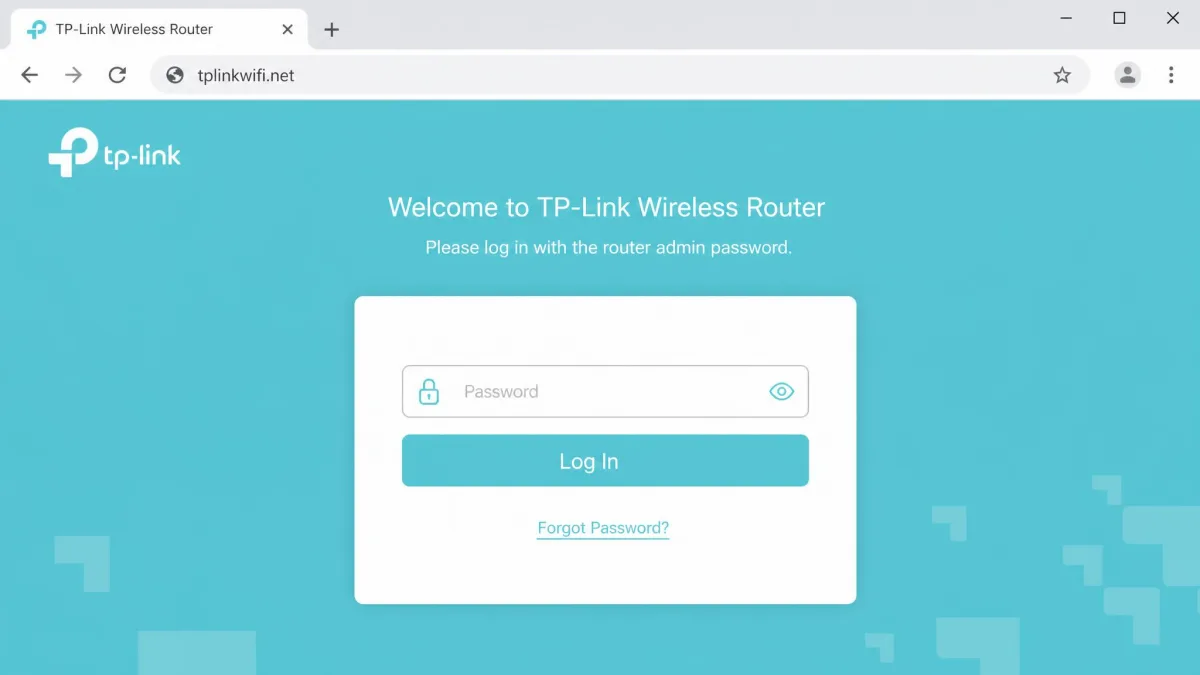
Step 3: Set Your Nightly Off-Hours
Pick a start time, an end time, how long the window runs, and the days it repeats, then save. Two quirks are worth knowing. TP-Link's Wireless Schedule rejects an off window that crosses midnight, so a 10 PM to 7 AM shutdown has to be split into two same-day slots, and some TP-Link models only schedule in whole hours. If a router loses its clock after a reboot, the scheduled Wi-Fi can stay off until the next event, because the schedule isn't re-evaluated at boot.
If the Wi-Fi stays off past its morning wake-up time, update the firmware and confirm the time zone and daylight-saving setting. That resolves the most common cause we tracked down.
Router-Specific Notes (Linksys, TP-Link, Netgear, ASUS, Google Nest, Eero)
Brand support varies. TP-Link's Wireless Schedule supports multiple windows, and some models keep one band, usually 2.4 GHz, active during off-hours. ASUS's WiFi Scheduling switches both radios off before bed and back on in the morning, but wireless scheduling and parental-control time scheduling cannot run together. Netgear Nighthawk models offer "Turn off wireless signal by schedule" with start and end times and a per-day repeat. Linksys schedules through a day-and-time grid, and the mobile app only offers Never or Always, so use the web interface. Google Nest Wifi pauses internet per device or group in the Google Home app, but it can't switch the radio itself off, and pauses miss devices using Private or Randomized MAC addresses. Eero is softer: its Power Saving Schedule lowers performance during set times rather than switching Wi-Fi off, saving about 43.8 kWh per year on typical setups.
Method 2: Unplug the Router (or Use a Mechanical Outlet Timer)
The lowest-tech fix is to unplug the router, or the power supply it shares with the modem, and the internet drops for every device in the house. Devices reconnect automatically when power returns, but the trade-off is the habit: you have to remember it every night, which is why a mechanical timer earns its place.
A 24-hour mechanical outlet timer plugs into the wall, the router plugs into the timer, and tabs around its dial trip the power daily. A basic unit runs about $7, and the Defiant 24-hour indoor timer we looked at sells for about $6.98 at Home Depot. Every mechanical timer ticks audibly, steps only in 15- or 30-minute increments, and drifts with temperature and age, so recheck the dial when the clocks change.
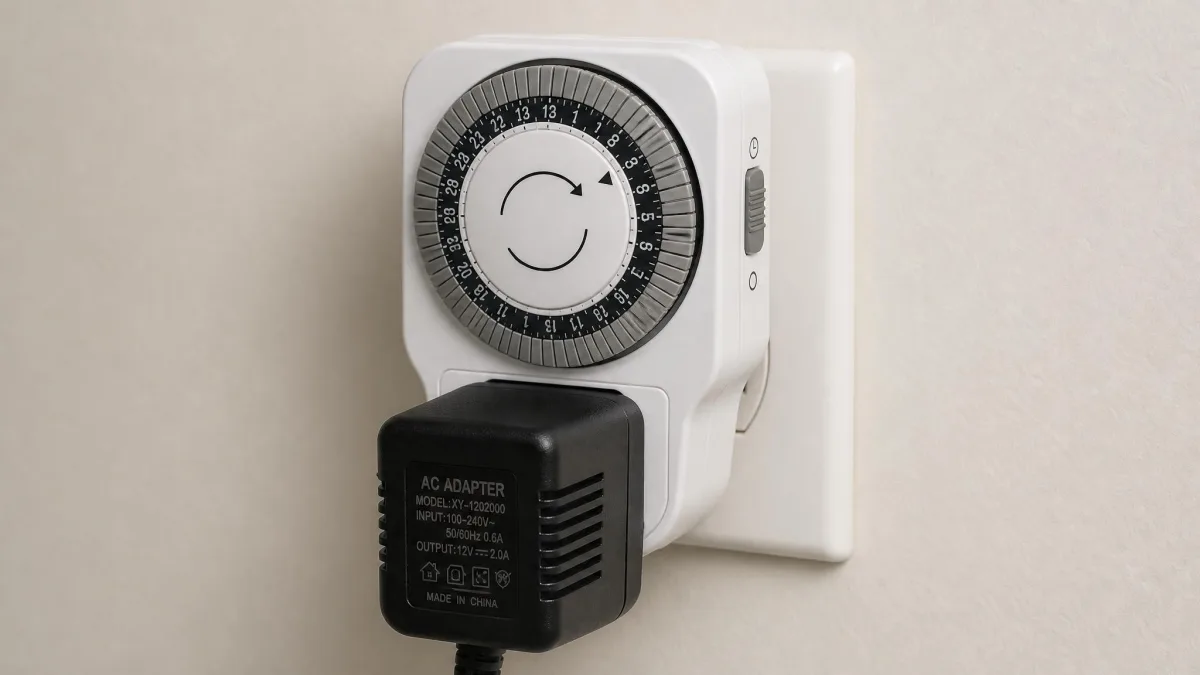
On some connections, the nightly power cut has a real cost. On a DSL or VDSL line, unplugging the modem means a retrain with the ISP every morning that can take minutes instead of seconds, and on UK Openreach-managed lines the ISP can throttle your speed for days if the line looks unstable. Cable and fiber connections don't have that problem.
Method 3: Use a Smart Plug to Automate Power at Night
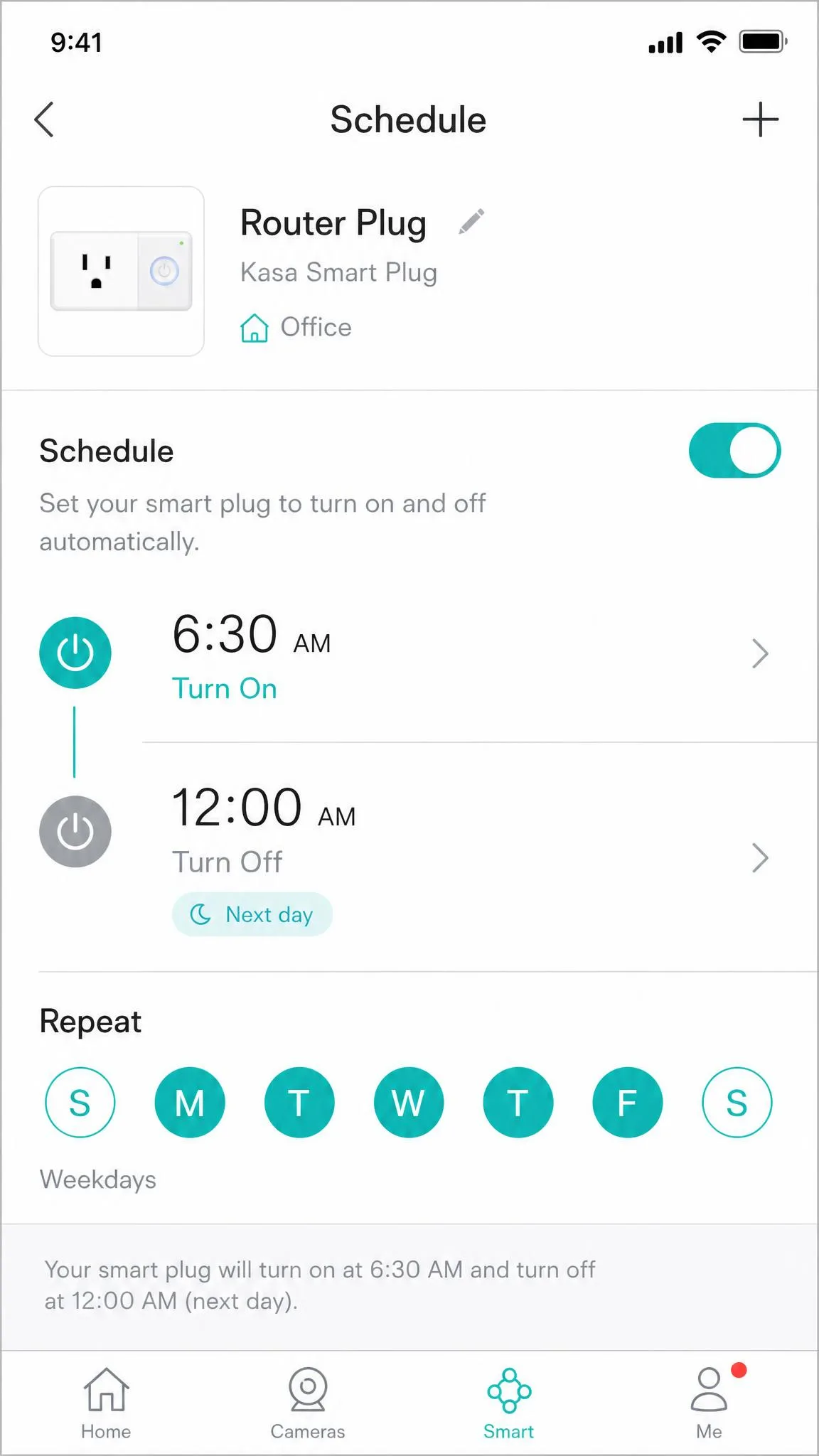
Between the built-in schedule and the old-school timer sits the smart plug: it plugs into the wall, your router plugs into it, and an app on your phone controls the power. Wirecutter's top indoor smart-plug pick is the TP-Link Kasa Smart Wi-Fi Plug Slim (EP25), chosen for reliability in testing, real-time energy monitoring, and an Away Mode. A good smart plug runs about $8 to $13.

Smart Plug App Setup
Setup takes about five minutes: plug in the smart plug, open the Kasa app, add the device, and set an on/off schedule by time and day. The schedule lives on the plug itself, so a brief Wi-Fi outage does not cancel it. One quirk is worth knowing: if the plug loses power while the internet is down, it can't keep its clock accurate, and the next scheduled on or off can fire at the wrong time. We have also seen Kasa plugs skip schedules after a power cut until the internet returns.
Mechanical vs. Digital Timers
If you want automation without another app, a mechanical timer is the budget path, while a digital timer keeps a battery-backed clock and costs more but needs programming. For a bedtime schedule, the mechanical timer's 15- or 30-minute steps are more than enough.
Method 4: Set Device-Level Downtime with Parental Controls
Router and power methods cut the whole network. Device-level downtime works differently: instead of turning the internet off, you lock the device itself during a set window. Each family member can have their own schedule, but the control lives in software kids can poke at, so expect more maintenance.
iOS Screen Time
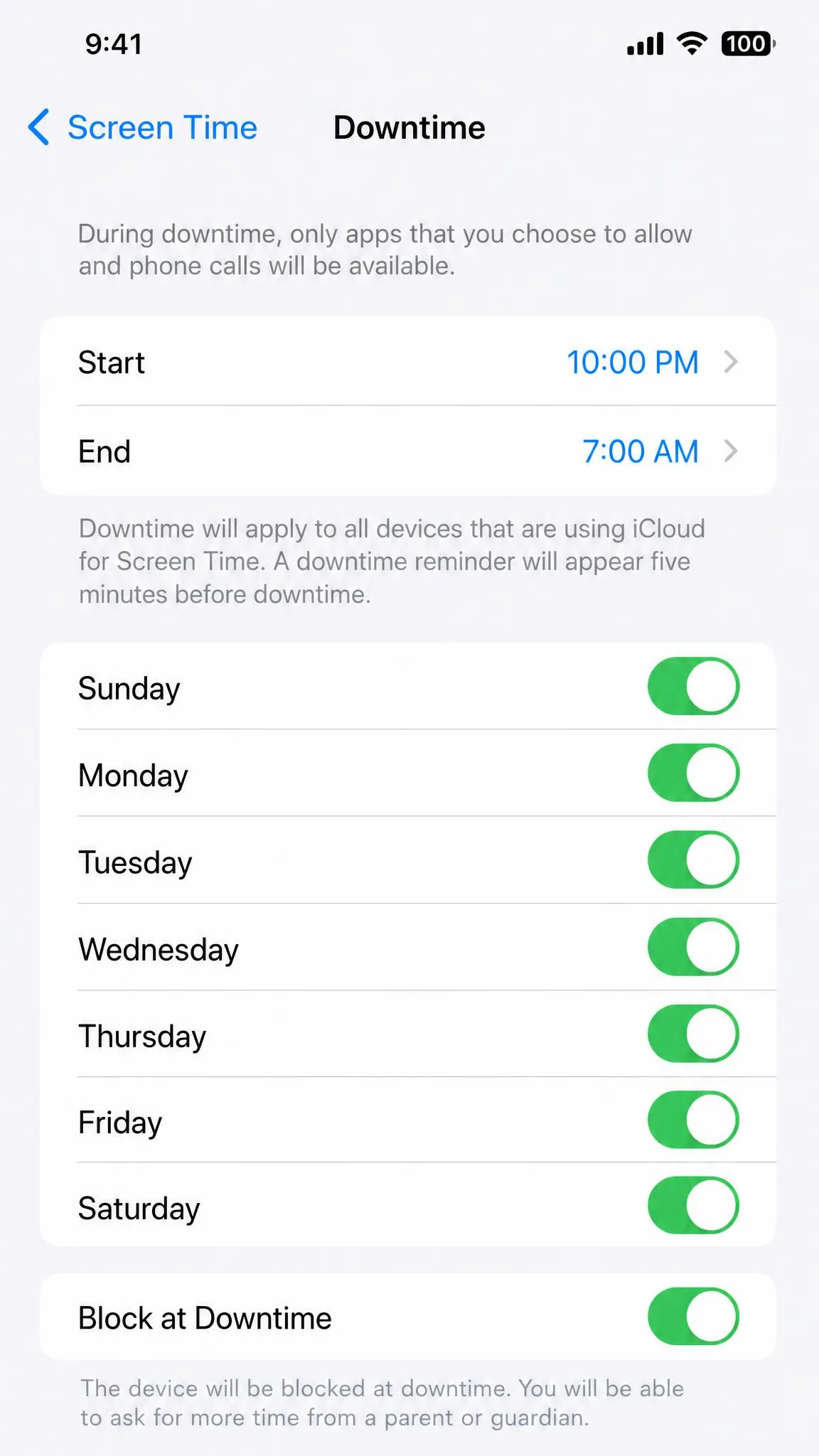
On an iPhone or iPad, open Settings, then Screen Time, and turn on Downtime, picking a start and end time and the days it repeats. During the window, apps and notifications are blocked, and only phone calls and allowed apps stay available. A five-minute warning precedes the block, and "Block at Downtime" fully blocks apps. The reality check is enforcement: Downtime and App Limits are widely reported to stop enforcing, leaving apps usable inside a blocked window. The reliable fix is a full reset: turn Screen Time off, sign the child out of their Apple ID, power-cycle the device, and set it up again.
Android Digital Wellbeing and Family Link
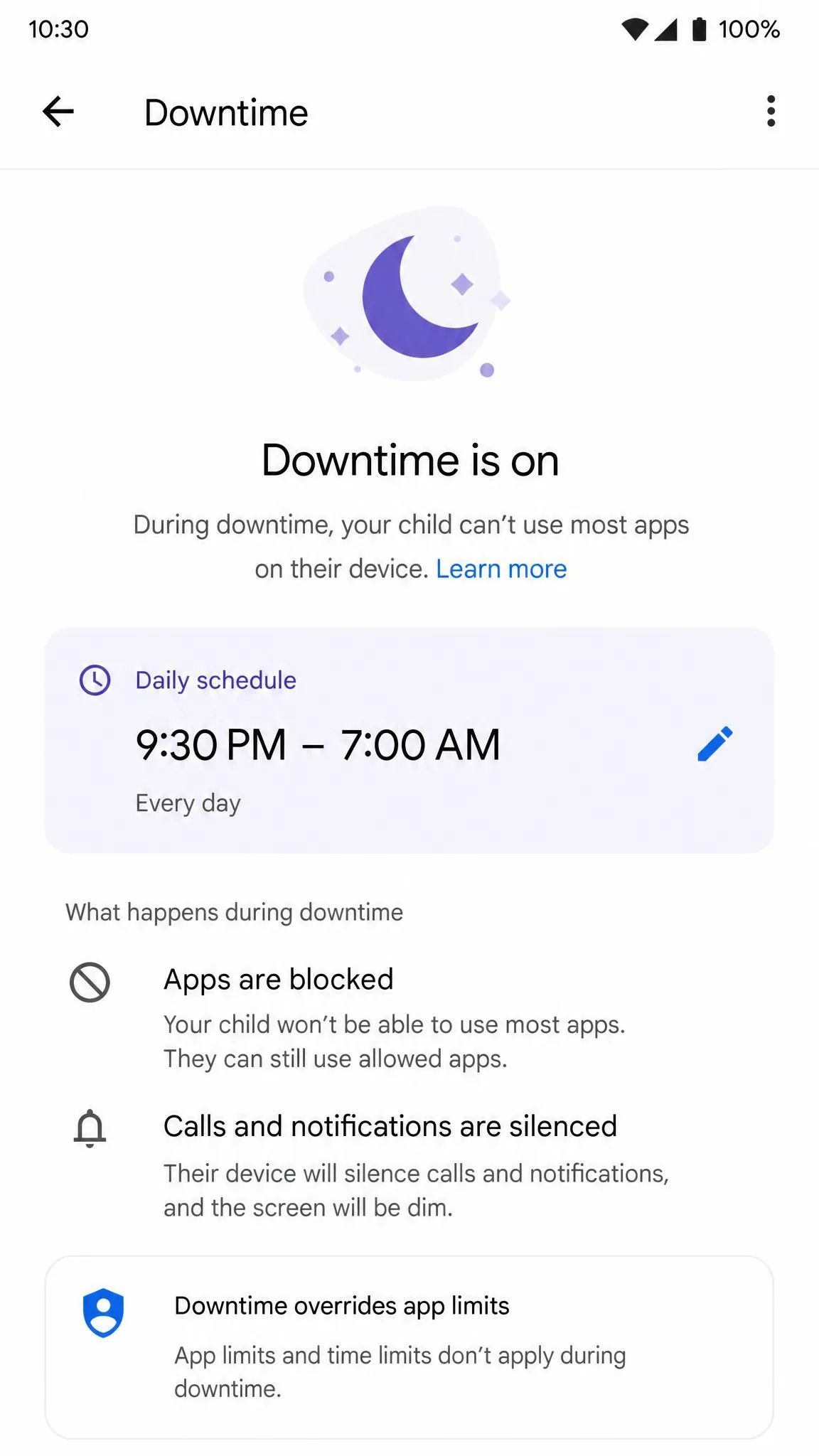
Android splits the job between two tools. Digital Wellbeing's Bedtime mode grays the screen, silences notifications, and dims the display on a schedule, but it does not cut Wi-Fi. For an actual lock, Google Family Link's Downtime sets a weekly schedule that locks the child's device, leaving "Unlimited Apps" reachable. Family Link enforces downtime mostly on the device rather than on Google's servers, and determined kids have found ways around it, from clock changes to casting from an unrestricted device. Treat it as a strong deterrent rather than an unbreakable lock.
Game Consoles (PlayStation and Xbox)
Consoles have their own family controls. PlayStation's parental controls set Playtime Duration and Playable Hours per day or per day of the week, and you can choose whether "When Playtime Ends" only notifies or actually logs the child out. On Xbox, the Family Hub sets per-day screen-time schedules, pauses, and activity reports, with the countdown applying across Xbox consoles and Windows devices.
Method 5: Schedule an Internet Cutoff with a DNS Filter or Smart-Home App
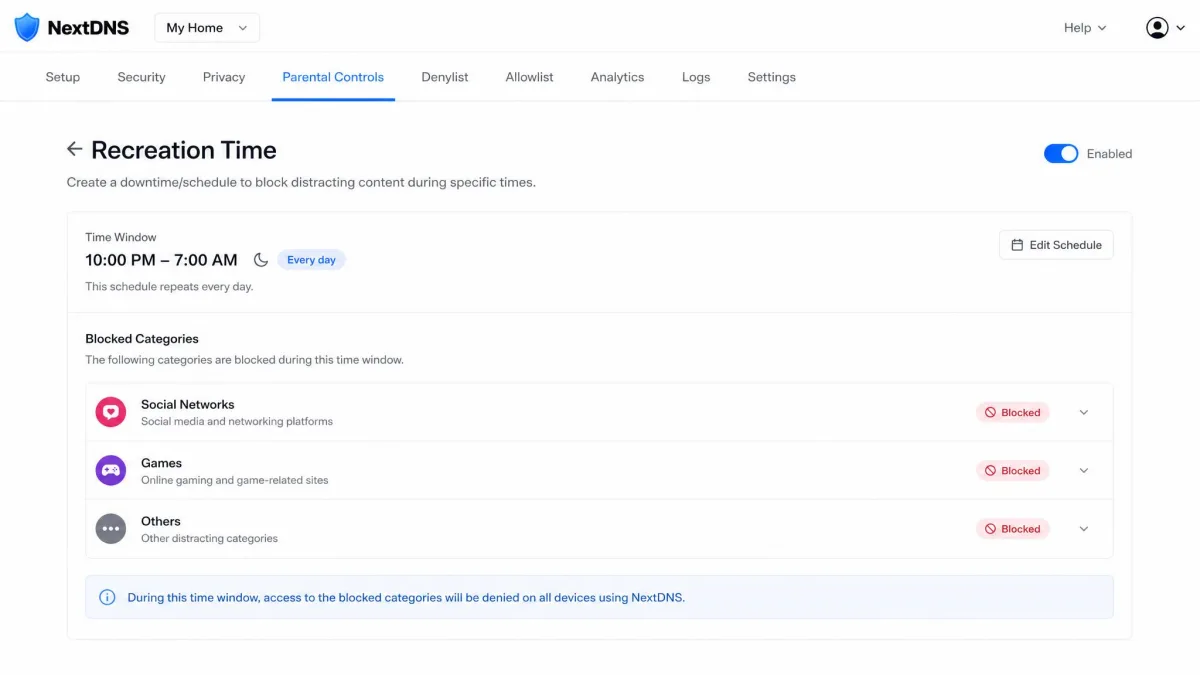
A DNS filter is a different kind of off switch. Instead of cutting the connection, it decides what content gets through. NextDNS, for example, offers "Recreation Time," which blocks recreation categories like social media and gaming during a time window, with per-device profiles and a free tier. A common layered setup pairs router-level scheduling (when devices are online) with a DNS filter (what content is reachable). Bedtime cuts the network while daytime content rules stay active, for curfews and filtering in one place.
Which Method Should You Use? (Router Schedule vs. Smart Plug vs. Unplugging)
Router scheduling is the best default: it's free, it repeats nightly, and it leaves wired devices online. A smart plug is the right call when your router has no schedule or you want to cut power to the modem too, and it lets you toggle the router from your phone. Unplugging, with or without a mechanical timer, is the no-app option, but it cuts wired gear and adds a morning reconnect delay on DSL lines.
| Method | Setup ease | Automation | Remote control | Cost | Main caveat |
|---|---|---|---|---|---|
 |
Moderate, admin login and save | Full, repeats nightly | None built in | $0 | Brand-dependent; can fail to re-enable |
 |
Easy, app pairing | Full, app-scheduled | Yes, from the app | ~$8–13 per plug | Plug needs internet to keep its schedule clock accurate |
 |
Simplest, plug or set dial | Full with a timer, manual otherwise | None | $0 or about $7 | Cuts wired gear too; DSL retrain delay each morning |