Your computer takes a full minute to reach the desktop, the browser stalls on the fourth tab, and every click arrives a half-second late. That sluggish behaviour almost always traces back to a short list of causes: too many programs launching at startup, a hard drive with no room left to breathe, background sync fighting for attention, or adware that slipped in with a free download.
Most of it is fixable for free, in an afternoon, with tools Windows already includes. The 15 fixes below are ordered roughly by payoff, starting with the five-minute wins and finishing with the two upgrades worth paying for. If you want the official view alongside ours, Microsoft's official performance guidance lists 12 tips of its own and overlaps heavily with what follows.
Start Here: Restart and See What's Actually Running
Before you change a setting, restart properly. Open the Start menu, select the power icon, and choose Restart rather than Shut down. On laptops that only ever get their lid closed, this clears the slowdown on its own, because open apps and pending updates keep piling up for weeks.
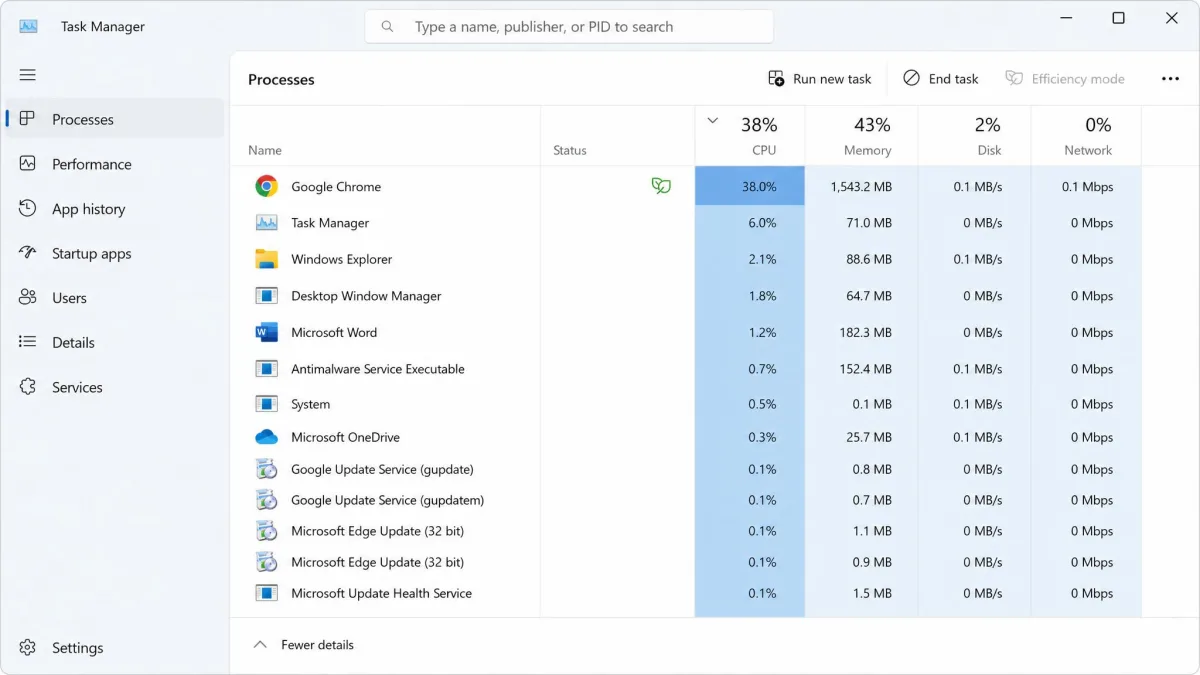
Then look at what is running. Press Ctrl+Shift+Esc to open Task Manager.
Ctrl+Shift+Esc opens Task Manager directly, with no right-click menu in between. It is the most useful keyboard shortcut on a slow Windows PC.
Read Task Manager Without Guessing
Select the CPU column header to put the hungriest process on top, then do the same for Memory and Disk. You want anything sitting above a few percent while you do nothing.
Three patterns repeat. A browser with dozens of tabs dominates Memory. An antivirus or update task pins Disk at 100% for a while, which is normal and passes. A name you do not recognise sits permanently at the top of CPU, which is worth a search and often a malware scan.
Why Your Computer Slowed Down in the First Place
Machines rarely slow down overnight. They slow down over time, as each new program adds a startup entry, a background service and a scheduled task. Updates grow the system folder, downloads eat the free space Windows needs for temporary files, and browser extensions accumulate.
Hardware plays a part too. A five-year-old laptop with a mechanical hard drive and 4 GB of RAM was adequate for the software of its day. Nothing broke; the demands moved. Our breakdown of why a computer gets slow goes deeper, but the practical point is simple. Software fixes recover speed you lost, and hardware upgrades buy speed you never had.
1. Cut Your Startup Programs Down to the Essentials
This is the highest-value five minutes on the list. Blocking apps from starting automatically shortens boot time more reliably than any single settings tweak.
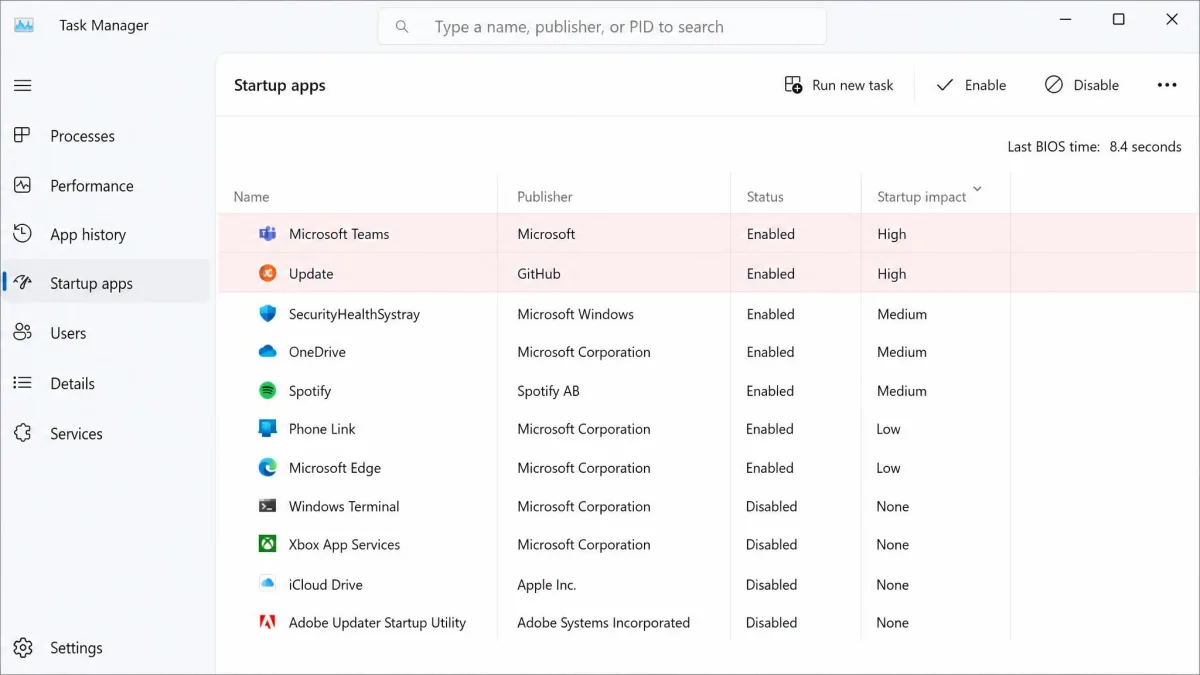
Open Task Manager, select the Startup apps tab, and read the Startup impact column. The high-impact entries are rarely things you launched on purpose. They are updaters, chat clients, printer helpers and manufacturer utilities that installed themselves alongside something you wanted.
Right-click anything you do not need at login and select Disable. Nothing is uninstalled, and the program still opens when you double-click it. You can also configure startup applications from Settings by selecting Apps then Startup. Leave your antivirus and audio utility alone, and disable the rest.
2. Close Background Apps and Background Permissions
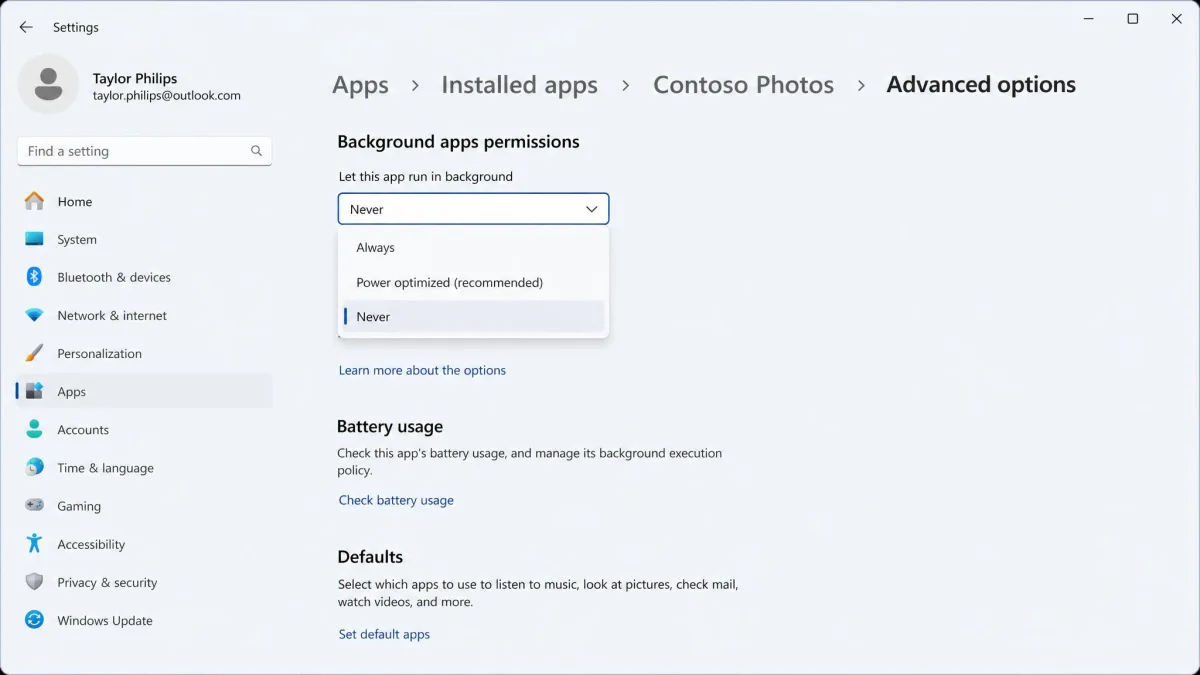
Disabling a startup entry stops a program launching at login. Background permissions are a separate control that decides whether an app keeps working once its window is closed.
In Settings, select Apps, then Installed apps. Open the three-dot menu next to an app, choose Advanced options, and set Background apps permissions to Never for anything that does not need to run constantly. Weather, news and photo apps are the usual candidates. Leave anything that delivers notifications you want.
For the immediate win, return to Task Manager, select the process eating your CPU, and select End task.
3. Free Up Disk Space (and Keep 15% Headroom)
Windows needs empty space to work in. It writes temporary files, swaps memory to disk and stages updates there, and a nearly full drive turns all of that into a queue.
Aim to keep at least 15% of the drive free. The right headroom figure depends on drive type and capacity, so treat 15% as a floor rather than a fixed rule. Write speed degrades as an SSD approaches full, so the last slice of capacity is the expensive one to use, and drives already reserve about 7% of their flash for housekeeping you never see.
Disk Cleanup and Storage Sense, Step by Step
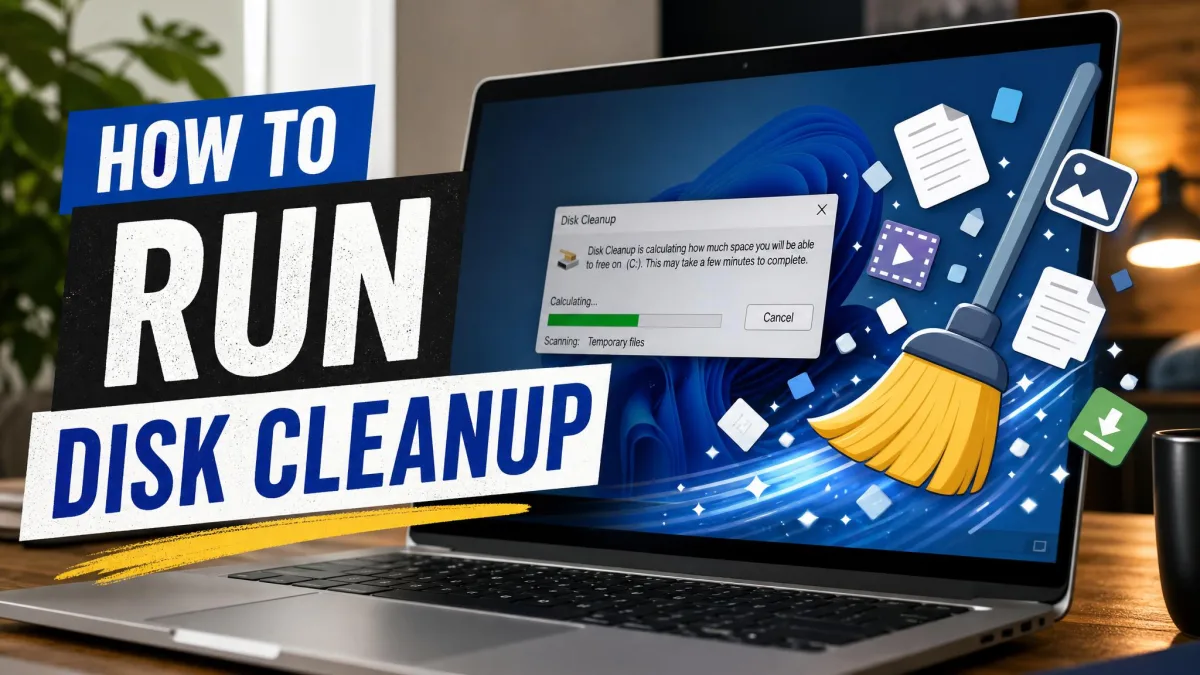
Windows 11 surfaces this as Cleanup recommendations; Windows 10 still calls it Disk Cleanup. Open Settings, select System, then Storage, and let it finish measuring. Our guide to running Disk Cleanup in Windows covers the older interface.
Safe things to remove:
- Temporary files and the temporary internet cache
- Delivery Optimization files, which are update fragments shared with other PCs
- Thumbnails, which Windows rebuilds on demand
- The Recycle Bin, once you have checked it
- The previous Windows installation in the Windows.old folder, which is only removable for fewer than 10 days after an upgrade
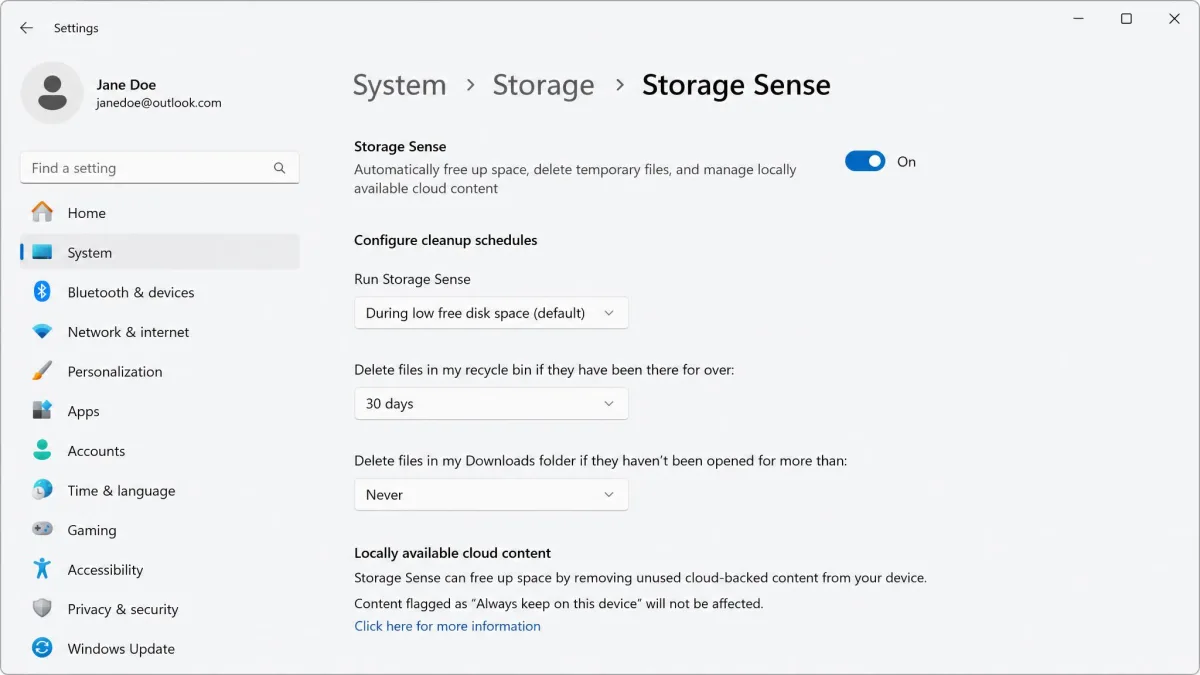
Storage Sense automates the same job. Turn it on under Storage and it clears temporary files and empties the Recycle Bin of anything older than 30 days by default, with Never, 1, 14, 30 and 60 days as the alternatives.
Do not switch on Storage Sense's Downloads cleanup without thinking first. With that option enabled at 30 days it deletes PDFs, screenshots and scanned documents purely because nobody opened them that month, and it does not ask for confirmation. Downloads folders that start as scratch space quietly become long-term storage, so revisit these settings when your habits change.
4. Uninstall Programs and Bloatware You Never Open
Trial software, manufacturer utilities and toolbars you forgot agreeing to consume disk space and, worse, add background services. Removing them is cleaner than disabling them.
Open Settings, select Apps, then Installed apps, and sort by size or install date. Open the three-dot menu beside anything you have not used in a year and choose Uninstall. Microsoft's page on how to uninstall apps and programs covers the stubborn cases that need Control Panel instead.
Be careful with anything named after your PC's manufacturer. Some of it is junk, but a few carry real driver or function-key support. If the name mentions audio, graphics, touchpad or power management, leave it.
Fixes 1, 3 and 4 together account for most of the improvement on a neglected machine, and they cost nothing but attention. Everything after this point is smaller, more situational tuning, so do not skip ahead expecting later tweaks to rescue a machine you have not decluttered.
5. Scan for Malware, Adware and Browser Hijackers
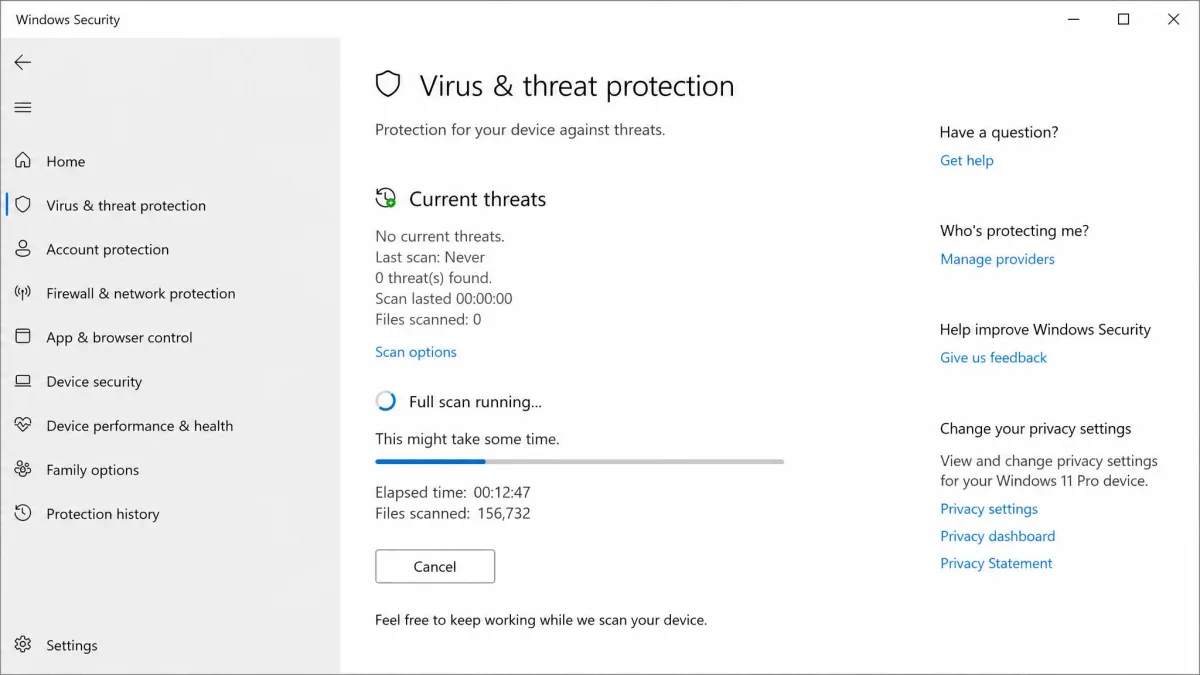
Sudden slowdowns with no obvious cause deserve one security pass. Open Windows Security, select Virus and threat protection, and run a Full scan rather than the Quick option.
Then get a second opinion. A second scanner such as Malwarebytes AdwCleaner regularly catches adware the resident antivirus ignores, and on a genuinely sluggish machine the culprit is usually a browser hijacker rather than a virus. The symptoms are specific: a search engine you did not choose, a home page that resets itself, new tabs opening on their own, and a toolbar nobody installed.
6. Install Windows Updates and Driver Updates
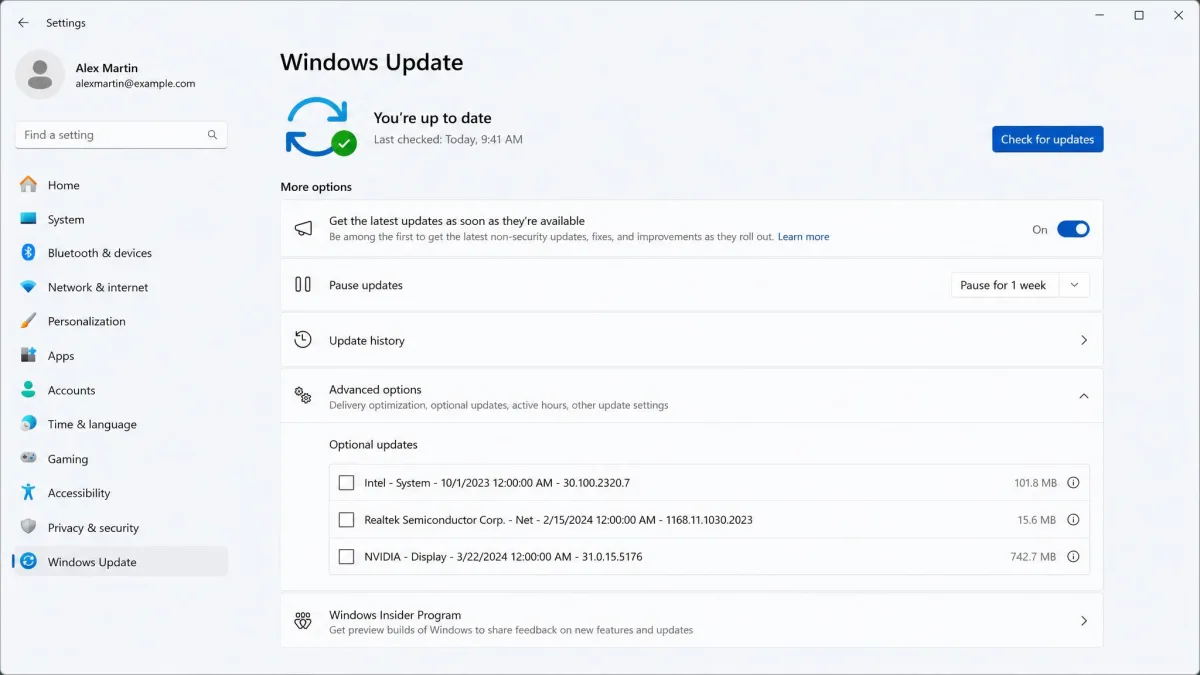
Updates carry performance fixes as often as security ones. Open Settings, select Windows Update, and choose Check for updates. Install everything, including the optional quality updates under Advanced options, and restart when asked.
Windows delivers most device drivers through the same channel. Look under Advanced options, then Optional updates, then Driver updates.
Graphics Drivers Deserve a Separate Pass
Graphics drivers are the exception worth handling by hand, because Windows Update lags the manufacturer by months. Get them from AMD, Intel or NVIDIA, or from your laptop maker's support page if you have a hybrid setup. Stuttering video, sluggish window animations and poor game performance often clear up entirely on a current driver.
We would skip third-party updater apps for most people, since Windows plus three vendor sites covers nearly everything. If you maintain several older machines, our roundup of the best driver updater tools explains which ones are honest about what they find.
7. Switch the Power Mode to Best Performance
Windows throttles the processor to save energy, and the default balanced setting is a compromise. Open Settings, select System, then Power and battery, and set Power mode to Best performance. On Windows 10 the equivalent lives in Control Panel under Power Options, where the plan is called High performance.
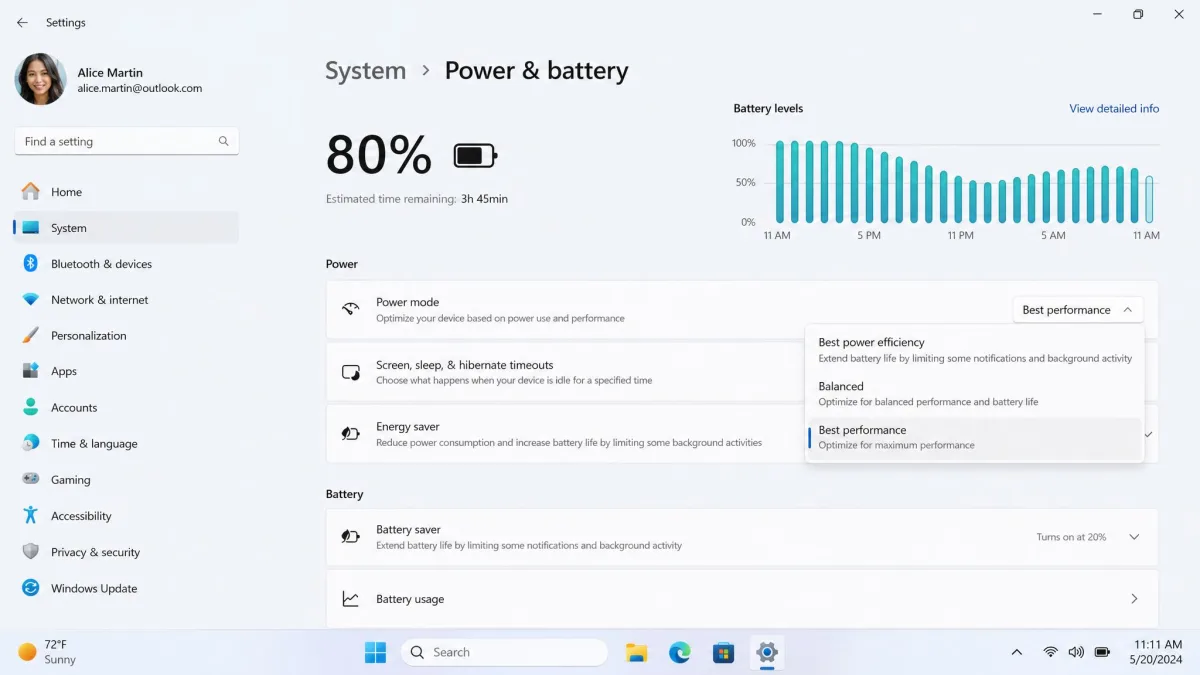
The trade-off is straightforward. This raises power draw and drains a laptop battery faster, and Microsoft recommends it where power availability is not a limitation. In practice it pays off on laptops doing CPU-heavy work like video export, and does little on a machine that mostly browses. Desktops can stay on it permanently.
8. Turn Off Visual Effects, Animations and Transparency
Every fade, slide and blur costs a few frames of work. On a modern machine you will never notice. On older hardware or integrated graphics, turning them off produces a responsiveness gain you can feel immediately, because windows snap open instead of easing open.
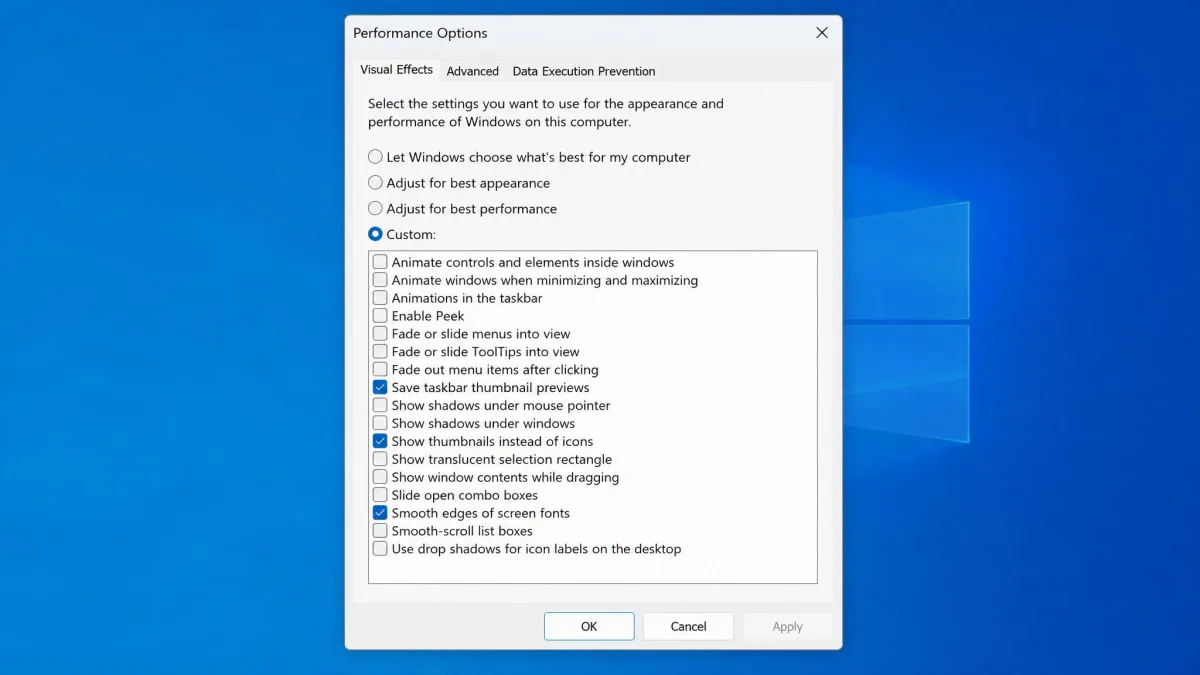
Select Start, type "performance", and open Adjust the appearance and performance of Windows. On the Visual Effects tab, choose Adjust for best performance to switch everything off, or select Custom and keep two: Smooth edges of screen fonts, and Show thumbnails instead of icons.
Separately, open Settings, select Accessibility, then Visual effects, and turn off Transparency effects and Animation effects. Transparency asks the graphics chip to composite the desktop behind every window.
9. Pause OneDrive and Other Cloud Sync
Cloud sync is a quiet disk and network hog, especially the first time it indexes a large folder or after you move a lot of files around. If your PC crawls at login, sync is a prime suspect.
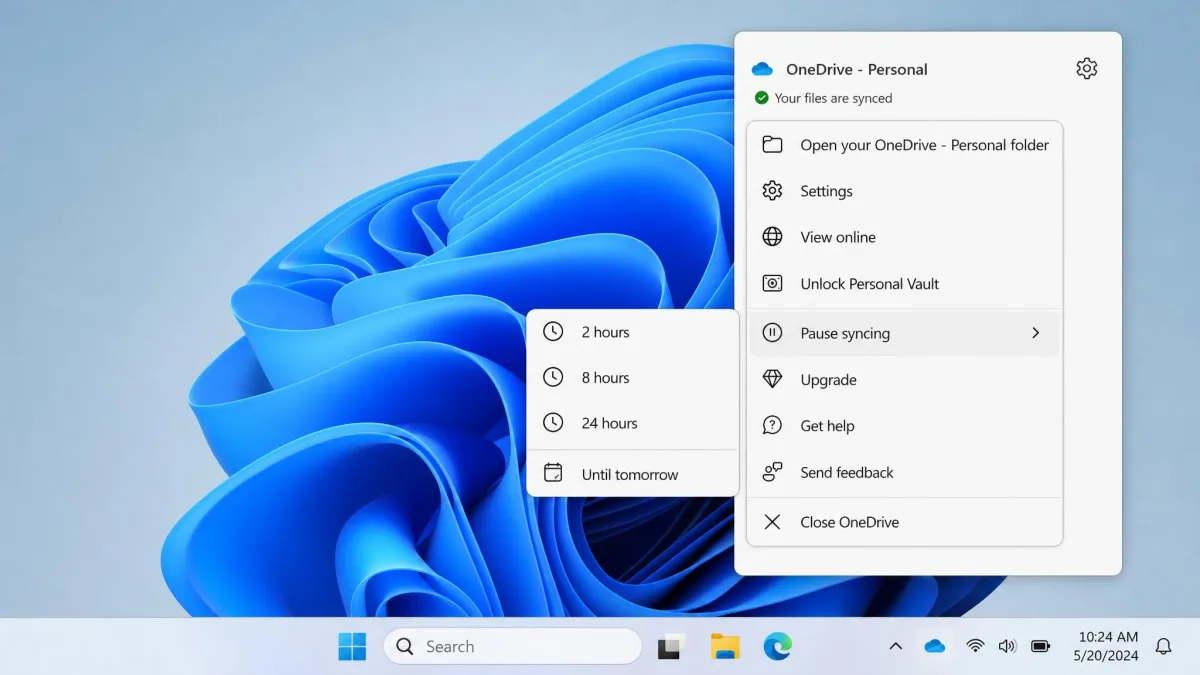
Select the OneDrive cloud icon in the notification area, open the settings menu, choose Pause syncing, and pick 2, 8 or 24 hours. Dropbox and Google Drive have equivalent controls in their tray menus.
Turning on Files On-Demand in OneDrive's settings is the better permanent answer. Your files stay visible in File Explorer but download only when you open them, which frees a great deal of space on a small drive.
10. Turn Off Search Indexing on Drives You Don't Search
The indexer keeps Start menu search instant, and it earns its keep on your system drive. On a secondary drive holding backups, media archives or game installs, it spends time cataloguing files you will never search by name.
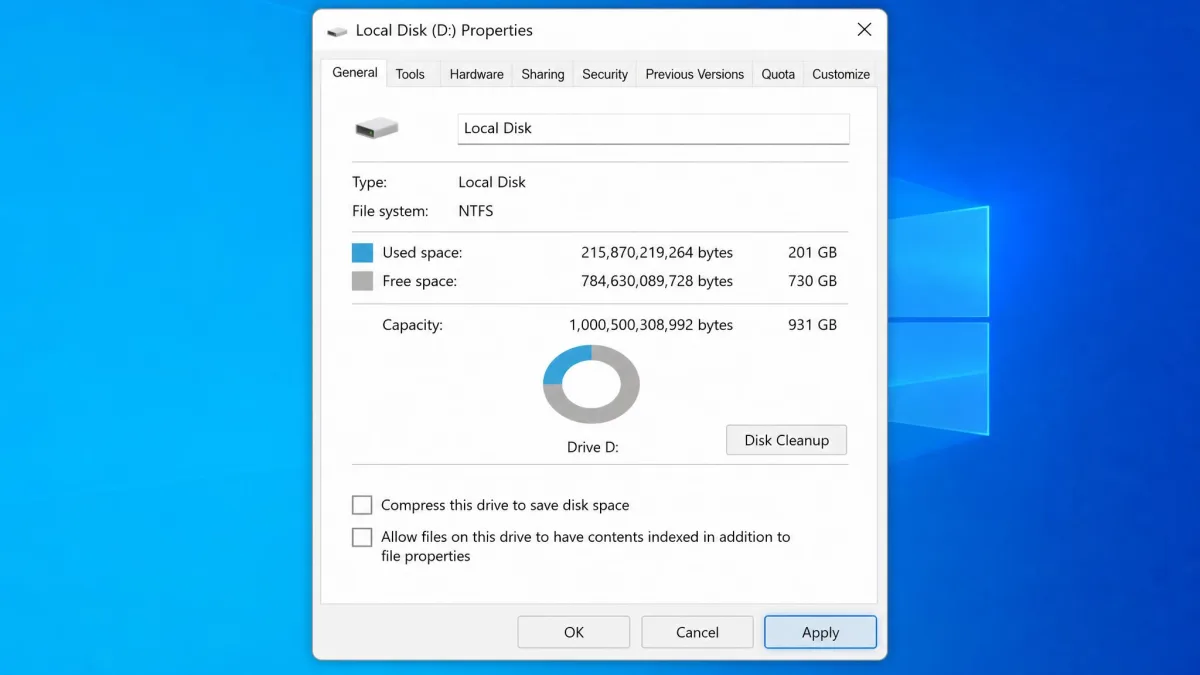
Open File Explorer, right-click the drive, select Properties, and clear the checkbox that allows files to have contents indexed. Apply it to the drive, its subfolders and files, and expect several minutes on a large volume. Leave the system drive indexed unless you never use search.
11. Turn Off Windows Tips, Suggestions and Notifications
Windows runs small background checks to decide which tips and suggestions to show you, and each notification interrupts whatever you were doing.
Open Settings, select System, then Notifications, and scroll to the bottom. Turn off the offer to get tips and suggestions when you use Windows, along with the setup and welcome prompts. While you are there, select Additional settings and stop notifications from apps that only advertise to you. The performance saving is small and honest; the interruption saving is not.
12. Optimize Your Drive (Defrag HDDs, TRIM SSDs)
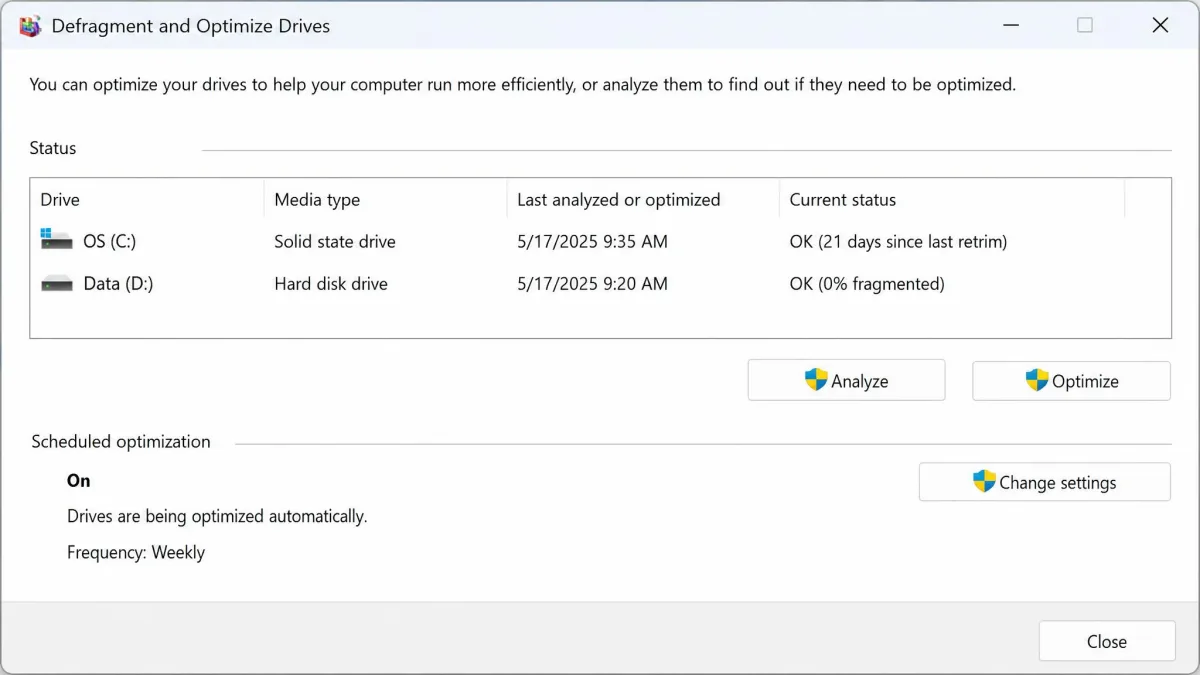
Windows already handles this. It optimizes drives automatically once a week by default, and the schedule can be set to daily, monthly or off. Defragmenting is rarely the fix on a modern system, and running it by hand on an SSD adds write wear without adding speed.
The two drive types get different treatment. Hard drives get defragmented, which gathers scattered file fragments back together. SSDs get trimmed, which tells the drive which blocks it can safely clean up while idle.
To check the schedule, select Start, type "defragment", and open Defragment and Optimize Drives. The Media type column tells you what each drive is. Microsoft's guide to optimizing your drives covers the scheduling options.
Skip the registry cleaners while you are here. The measurable speed gain is close to zero on modern Windows, and a bad cleanup can leave you with software that will not launch. We covered the reasoning in our look at registry cleaner software.
13. Tame Your Web Browser: Extensions, Tabs and Cache
For most people the browser is the computer. It is also a common hidden drag, and trimming extensions plus closing dozens of idle tabs frees memory faster than most system tweaks.
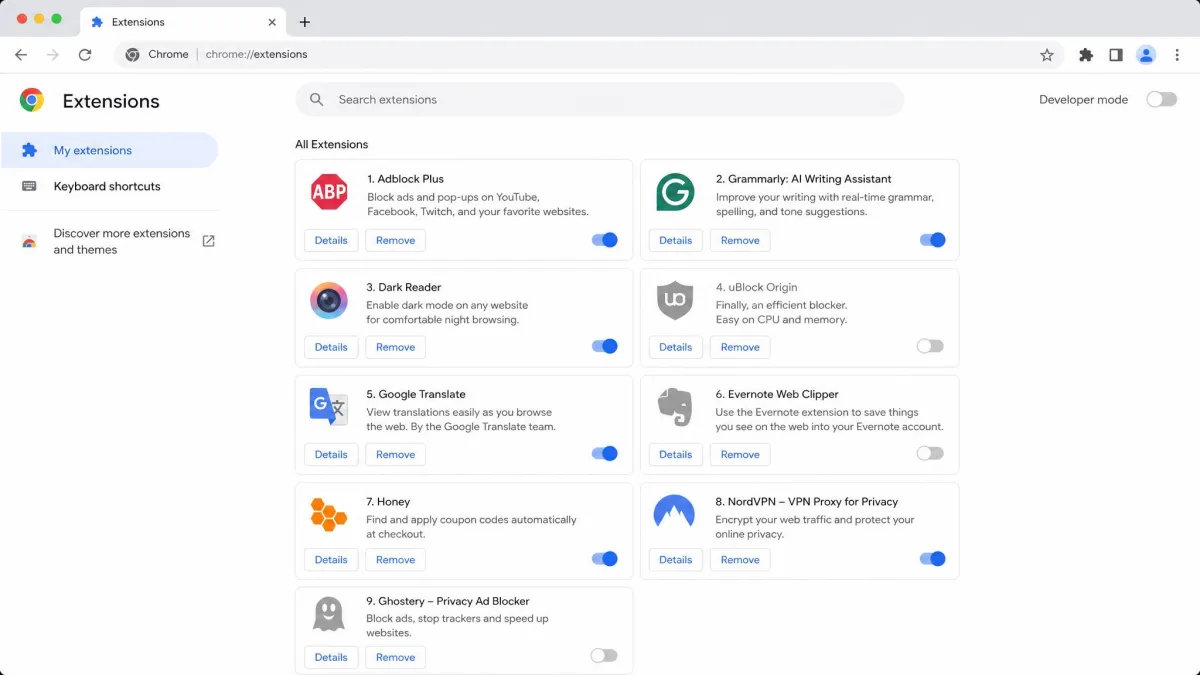
Open your browser's extensions page and remove anything you do not use weekly. Coupon finders, screenshot tools and old shopping helpers are the usual suspects, and each one runs on every page you load. Then close the tabs, and turn on your browser's memory saver or sleeping tabs setting so idle ones release their memory.
Clearing the cache is worth doing occasionally, though the first visit to each site will be slightly slower while it rebuilds. Our walkthrough on clearing the cache on your computer covers each browser's path.
14. Clean the Dust Out and Fix Thermal Throttling
A computer that runs fast for ten minutes and then crawls is usually overheating rather than short of resources. When the processor gets too hot it reduces its own clock speed to protect itself, and dust in the fans and heatsink is the ordinary cause.
Shut down and unplug the machine. On a desktop, open the side panel and use short bursts of compressed air on the fans, the heatsink fins and the power supply grille, holding each fan still so it cannot spin. On a laptop, blow air through the intake and exhaust vents, and keep it off beds and cushions that block airflow.
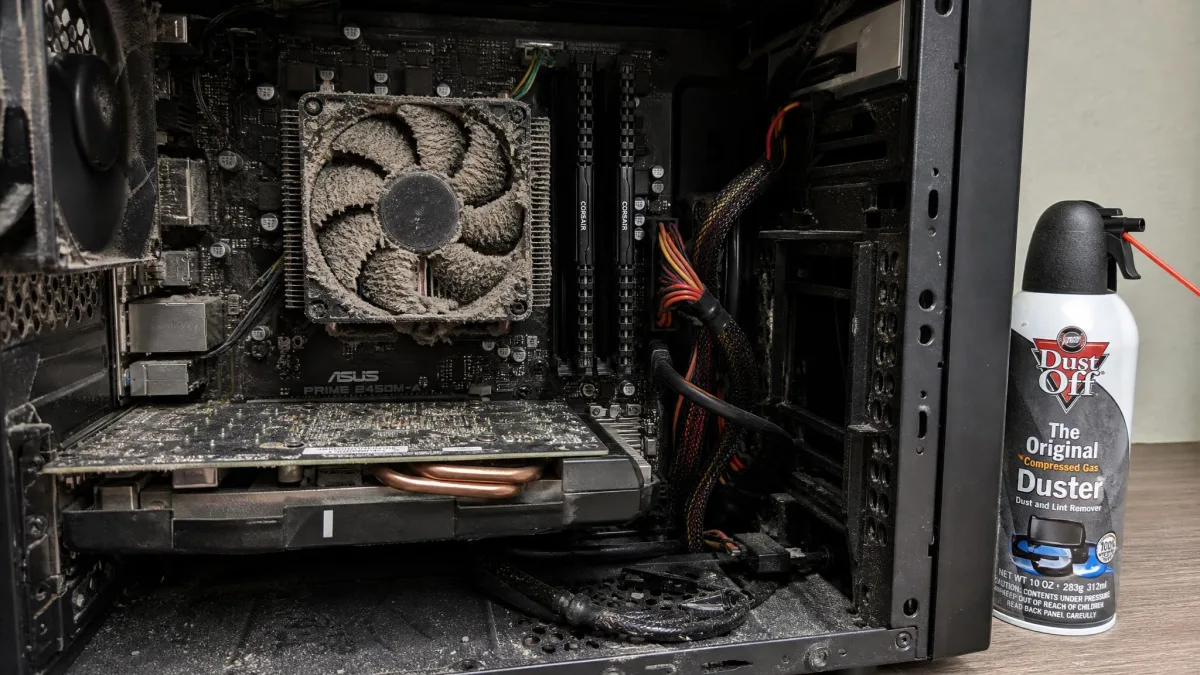
If temperatures stay high on an older machine, the thermal paste between the processor and its cooler has probably dried out. Replacing it helps, but it means dismantling the cooler, so it is a job for a repair shop unless you are comfortable inside a case.
15. Run the Built-In Troubleshooters and Maintenance
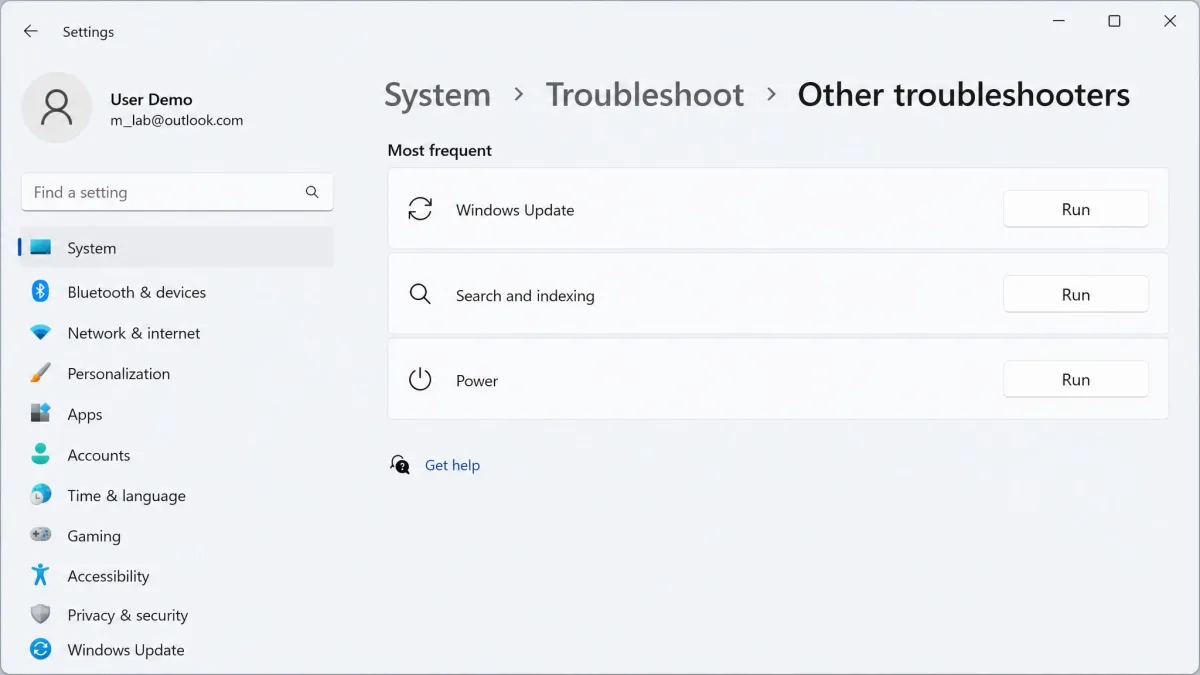
Windows ships automated repair tools that cost nothing to try. Open Settings, select System, then Troubleshoot, then Other troubleshooters, and run the ones for Windows Update, Search and indexing, and Power.
Two command-line checks help when things feel unstable. Right-click Start, open Terminal as administrator, and run sfc /scannow to repair damaged system files. Follow with DISM /Online /Cleanup-Image /RestoreHealth if the first reports problems it could not fix.
Gamers should also confirm Game Mode is on, under Settings, then Gaming, then Game Mode. It tells Windows to hold back background activity and updates while you play, and it is on by default on most systems.
At a Glance: Effort, Gain and Risk
| Fix | Effort | Expected gain | Risk |
|---|---|---|---|
| Cut startup programs | 5 minutes | Faster boot and login | Low |
| Free up disk space | 10-20 minutes | Restores headroom on a near-full drive | Low, Storage Sense can delete wanted files |
| Uninstall bloatware | 15 minutes | Less background activity | Low |
| Malware scan | 20-60 minutes | Large if infected, none if clean | Low |
| Windows and driver updates | 20-40 minutes | Stability and graphics fixes | Low |
| Best performance power mode | 1 minute | Small, mostly on laptops | Shorter battery life |
| Turn off visual effects | 3 minutes | Noticeable on old hardware | Low |
| Optimize drive | Automatic weekly | Modest on HDDs, none on SSDs | Manual SSD defrag adds wear |
| Add more RAM | 30 minutes plus parts | Big for multitasking | Compatibility mismatch |
| Install an SSD | 1-2 hours plus parts | Largest single gain | Data migration |
| Reset Windows | 1-3 hours | Full restoration of speed | Reinstall everything |
When Software Isn't Enough: Hardware Upgrades That Pay Off
If you have worked through all 15 fixes and the machine still drags, the hardware is the limit. Two upgrades are worth the money, and one popular suggestion is not.
Install an SSD (The Single Biggest Win)
Swapping a mechanical hard drive for an SSD is the biggest overall performance boost available to most people, ahead of any processor or graphics upgrade. Boot times, application launches and file searches all depend on how fast the drive finds scattered data, and that is precisely where spinning platters lose.
You have two routes. Clone the existing drive with the free software most SSD makers include, or install Windows fresh, which takes longer and leaves a cleaner system. Check whether your machine takes a 2.5-inch SATA drive or an M.2 NVMe stick before you buy; Crucial's compatibility tool matches part numbers to a specific system model.

Add More RAM
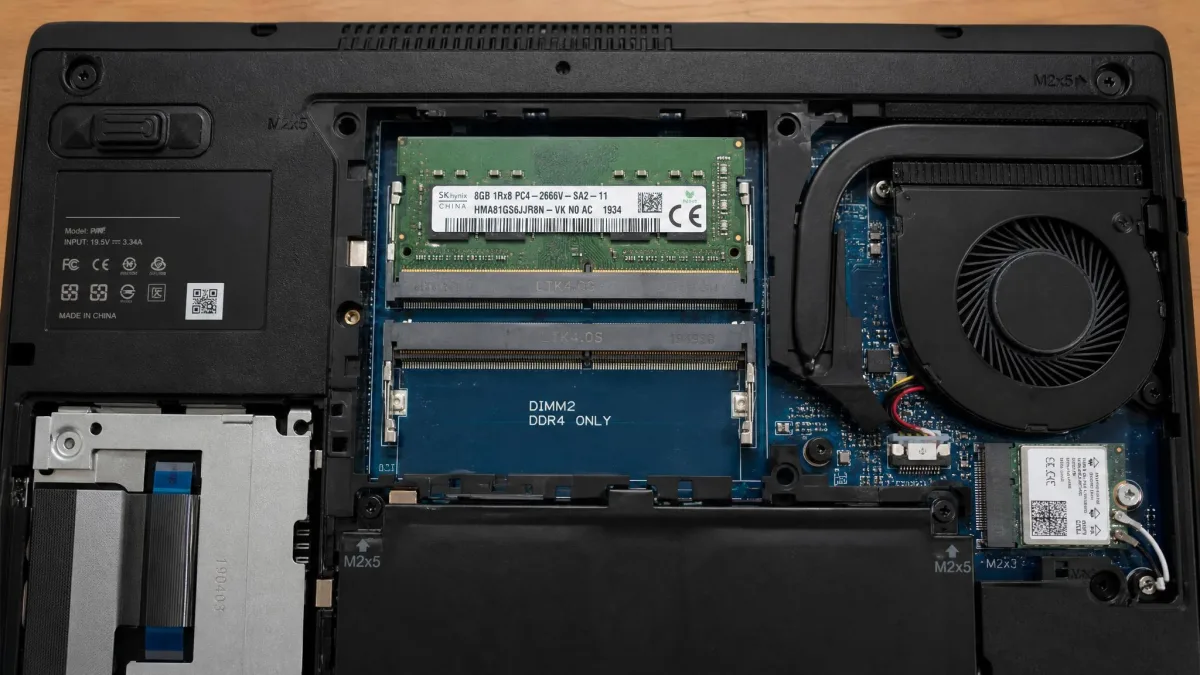
If Task Manager's Memory column sits near 100% while you work, more memory helps more than anything else here. Windows 11 requires 4 GB of RAM as a minimum, and a minimum is exactly what it feels like. 8 GB is workable for browsing and office work, 16 GB is comfortable for most people, and 32 GB is for video editing and virtual machines.
Desktops are usually simple: open the case, check how many slots are free, and match the existing speed and type. Many thin laptops have memory soldered to the board and cannot be upgraded, which the same compatibility tool tells you before you spend anything.
When memory runs out, Windows falls back on the Windows page file, which uses disk space as overflow. It keeps things working, but disk is far slower than memory, and heavy paging is the grinding feeling you get on an 8 GB machine with too many tabs open.
What About ReadyBoost?
ReadyBoost lets Windows use a USB stick or SD card as extra cache. It is a dead end on any machine that boots from an SSD, because Windows will not enable it there at all.
That leaves older hard-drive machines with roughly 2 GB to 4 GB of RAM, where the usual sizing advice is one to two times installed memory. Even there the benefit varies a lot by machine and workload, and on most modern PCs it is close to nothing. Put the money toward an SSD instead.
Last Resort: Reset Windows or Reinstall Clean
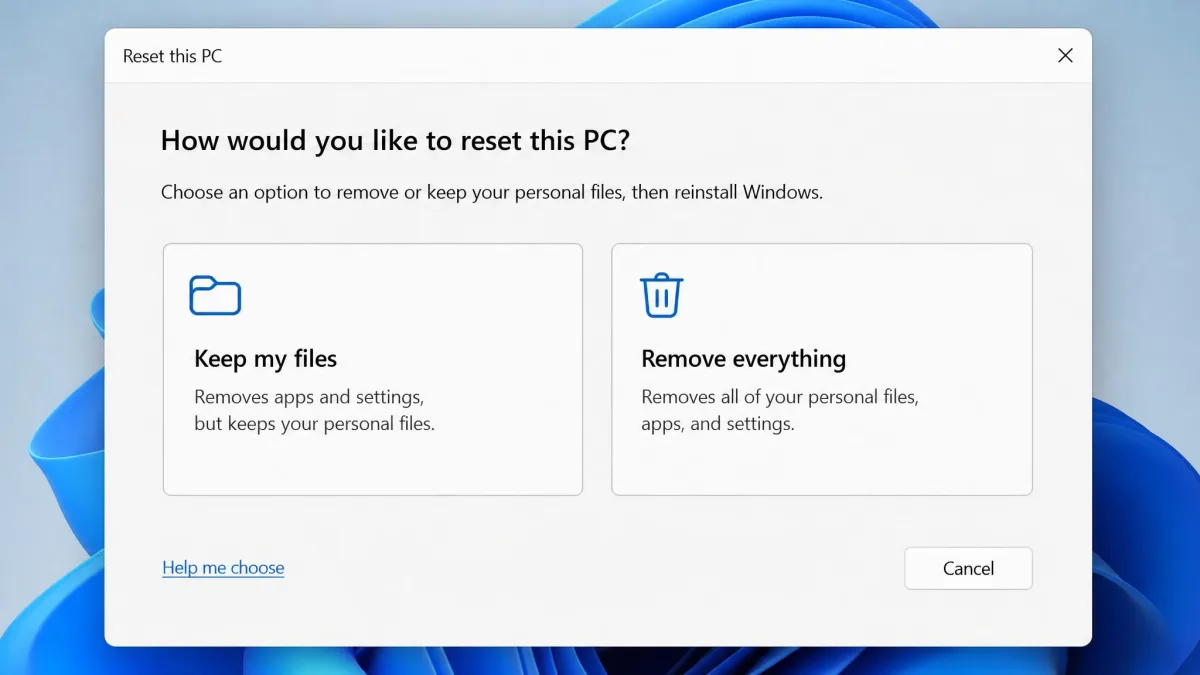
When years of installs and uninstalls leave a system nothing fixes, resetting Windows works. Open Settings, select System, then Recovery, then Reset this PC, and choose whether to keep your files or remove everything. It is effective but slow, and it means reinstalling every application and signing back into everything, so it belongs last.
Back up first, and check that the backup actually opens before you start. Even the Keep my files option removes all your installed applications and settings, and Remove everything erases your data completely. Note your product keys and make sure you can still get into your password manager.
How Much Faster Should You Expect It to Get?
On a machine that has never been maintained, the software fixes above typically restore it to something close to how it felt when it was new. Boot is quicker, the desktop is usable sooner after login, and the browser stops stalling.
What software cannot do is make old hardware into new hardware. If a mechanical hard drive is the bottleneck, no setting will make it behave like flash storage. If 4 GB of RAM is the ceiling, closing tabs manages the problem rather than solving it. In practice, fixes 1 through 5 deliver the bulk of the improvement, the middle of the list adds smaller gains on older hardware, and an SSD changes the character of the computer entirely.
One habit worth adopting: note how long the machine takes from the power button to a usable desktop before you start, and check the same thing when you finish. Without that comparison it is hard to tell an improvement from wishful thinking, and it also tells you when a fix did nothing so you can undo it.
A Simple Maintenance Routine to Keep It Fast
Speed is easier to keep than to recover. Every week, restart the computer at least once rather than leaving it sleeping, and close browser tabs you have finished with.
Every month, check the Startup apps tab for new arrivals, since installers add themselves there quietly. Empty the Recycle Bin, check your free space, and install pending Windows updates.
Every six months, run a full malware scan and a second-opinion scan, review your installed apps for things you no longer open, check your graphics driver against the manufacturer's site, and blow the dust out of the fans.
Settings paths differ slightly between versions. Windows 11 keeps power, storage and notification settings under Settings, while Windows 10 still sends some of them to Control Panel, and the top power plan is called Best performance in Windows 11 and High performance in Windows 10. If a menu name here does not match what you see, search for the setting by name from the Start menu.