Your PC takes two minutes to reach the desktop, apps hang when you click them, and the cursor spins at moments it never used to. Slowness like this almost always arrives as three symptoms together: long startup times, laggy apps, and a general loss of responsiveness that creeps in over months. The good news is that it is usually fixable with tools already on the machine, and usually without buying anything.
Start with triage rather than tweaks. Find out what is actually consuming your resources first, then work down the 12 fixes below in order. Most slow machines have several causes stacked on top of each other, so one fix rarely settles it.
Start here: find out what's actually eating your resources
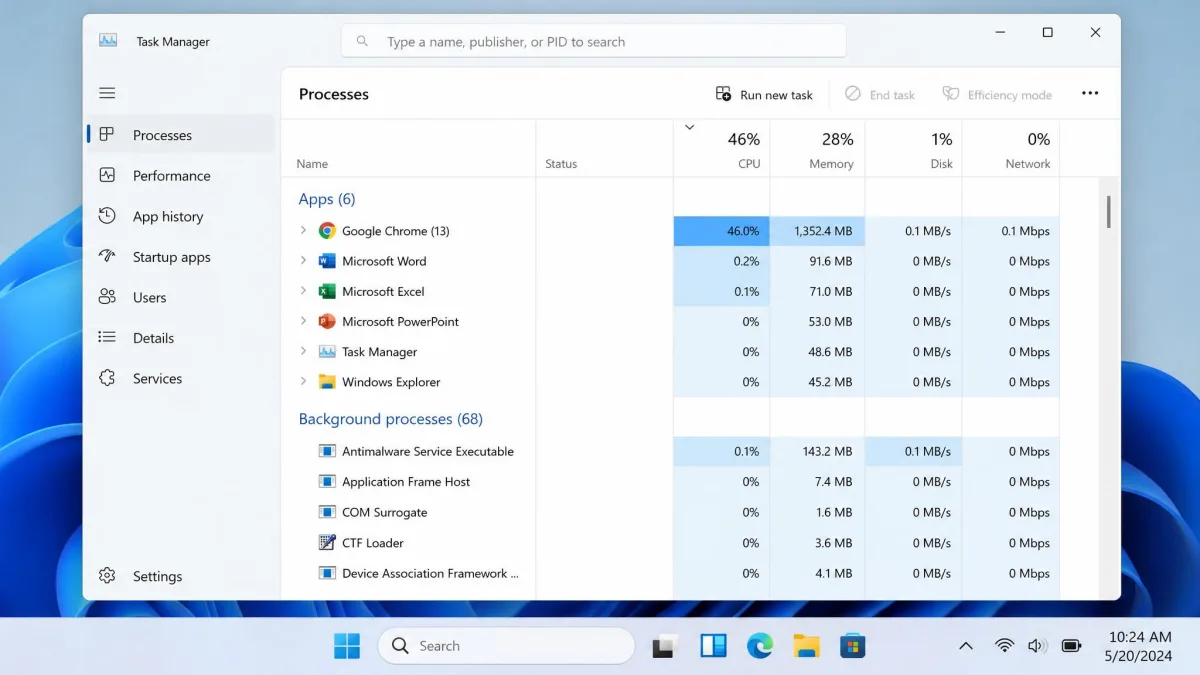
Before you change a single setting, watch the machine misbehave. Windows ships with a live readout of every process and what it is consuming, and that readout usually names the culprit in under a minute.
Microsoft's own guidance on PC performance lists 12 tips for exactly this reason: the right fix depends on what is actually running.
Read Task Manager the right way
- Press Ctrl+Shift+Esc to open Task Manager.
- Select the Processes tab.
- Click the CPU column heading to sort highest-first.
- Repeat with the Memory and Disk columns.
- Leave the window open while you reproduce the slowness.
Sorting by CPU, memory or disk usage exposes the offending process quickly, and closing it is usually enough to restore responsiveness on the spot. If the same name keeps climbing the list every day, that is your real problem, not Windows in general.
Ctrl+Shift+Esc opens Task Manager directly, with no menu hunting. It is the single most useful shortcut on a machine that is running slow, because it still works when the Start menu has stopped responding.
What a healthy CPU, memory, and disk reading looks like
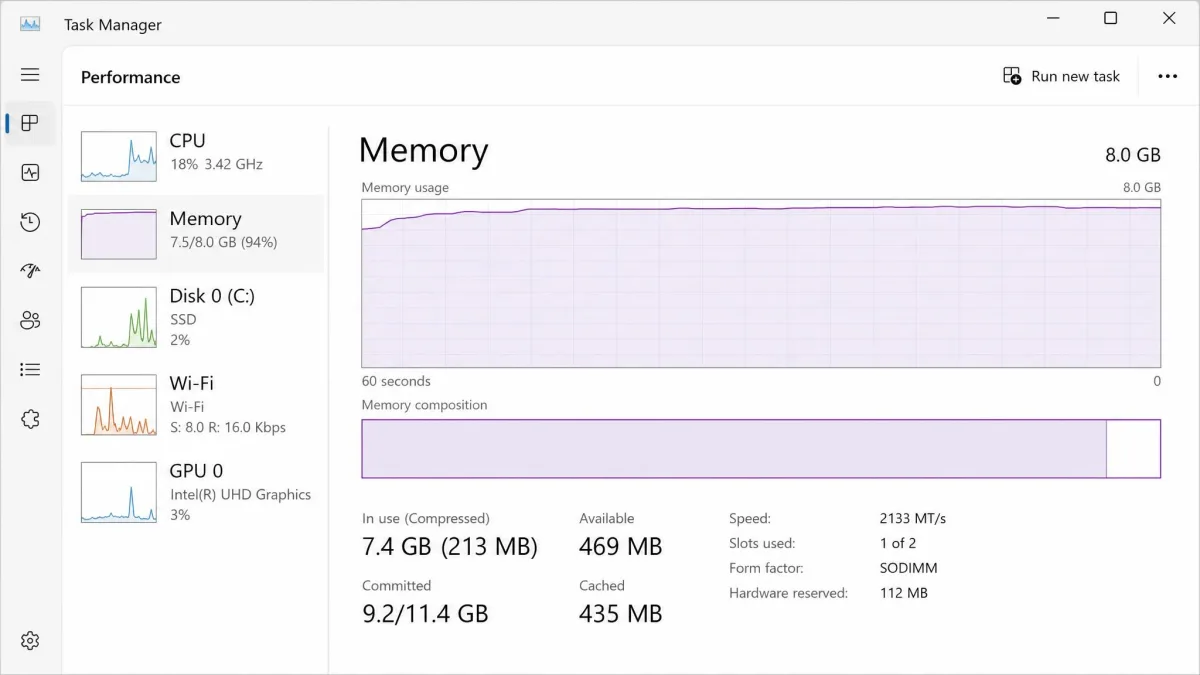
On an idle desktop, total CPU should sit low single digits, memory should have visible headroom, and disk activity should be close to nothing. A machine pinned at 100% disk while you are doing nothing is usually mid-update, mid-scan, or short on space. Memory that sits near 100% during normal use is the one reading that points at hardware rather than housekeeping.
Fix 1: Restart properly and close what you're not using
A proper restart clears memory leaks, finishes pending updates, and stops the background processes that accumulate over days of sleep-and-wake. Shutting the lid is not the same thing.
Select Start, choose Power, then choose Restart rather than Shut down. Close the apps you are not using while you are there, especially anything with dozens of open tabs or documents.
Fix 2: Disable startup programs
Every app that launches with Windows competes for the same disk and CPU during the first minutes of your session. Trimming that list is the fastest way to cut sign-in lag.
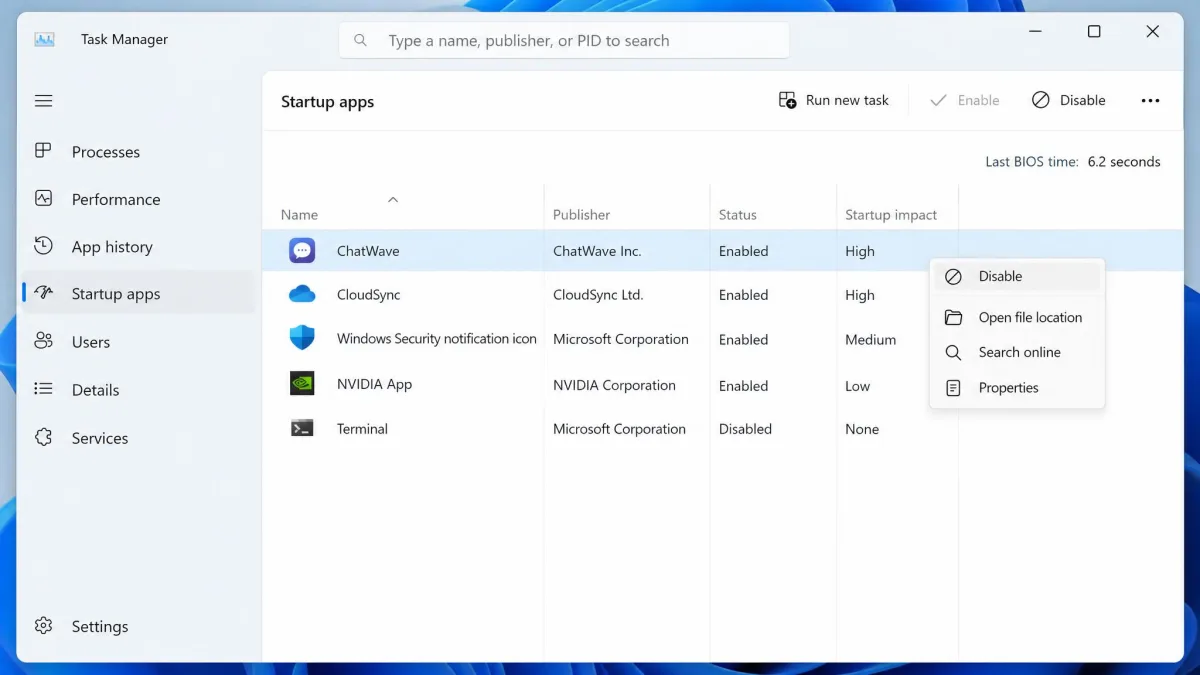
- Press Ctrl+Shift+Esc to open Task Manager.
- Select the Startup apps tab.
- Read the Startup impact column, which rates each entry High, Medium, Low or None.
- Right-click anything rated High that you do not need immediately.
- Choose Disable.
Chat clients, game launchers, printer utilities and cloud sync tools are the usual suspects. You can also configure startup applications from Settings if you prefer a plainer list. Disabling an app here does not uninstall it; it just stops it launching automatically.
Set expectations, though. Disabling startup apps cuts boot and sign-in time noticeably, but it does not make the machine faster once you are already sitting at the desktop.
Fix 3: Shut down background apps and background permissions
Some apps keep running in the background even after you close their window, refreshing data and checking for updates on their own schedule. Windows lets you revoke that permission per app.
Select Start, then Settings, then Apps, then Installed apps. Click the three-dot menu beside an app, choose Advanced options, and set Background apps permissions to Never for anything you only use on demand. Weather widgets, store apps and vendor companion tools are safe candidates.
Fix 4: Free up disk space with Storage Sense and Disk Cleanup
Filling a drive close to capacity slows the whole system, and freeing space is often the fix when nothing obvious is running. Windows gives you two ways to clean up, one manual and one automatic.
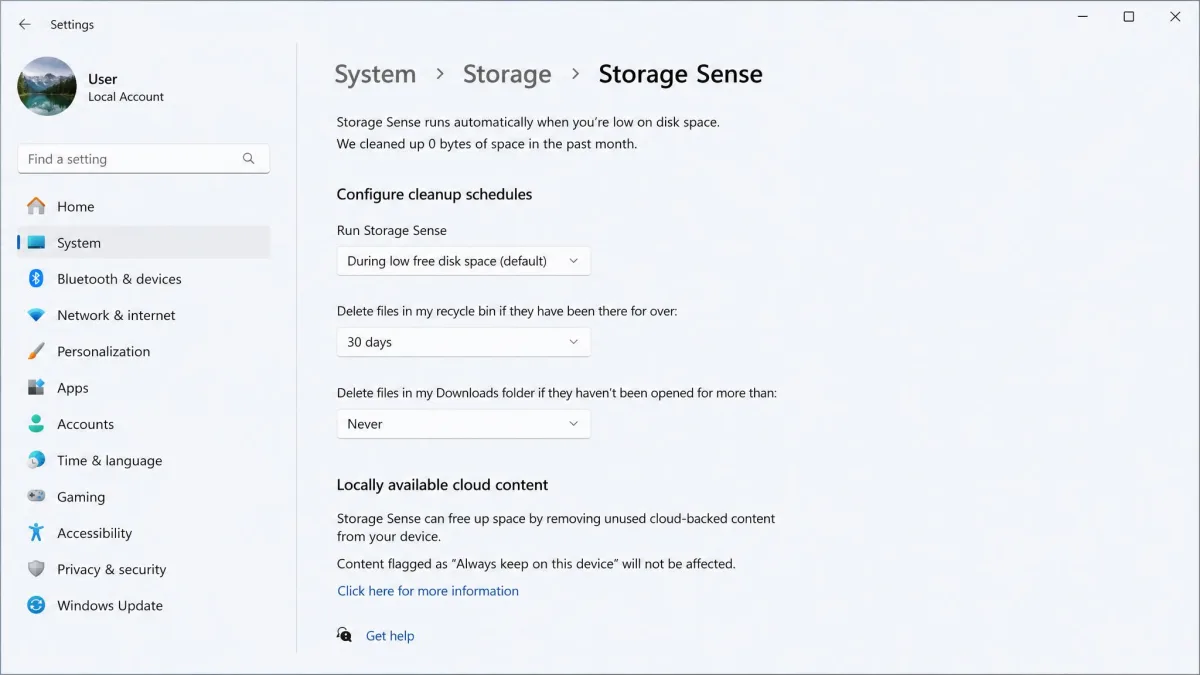
To do it by hand, select Start, then Settings, then System, then Storage, then Cleanup recommendations. Windows groups temporary files, large unused files and old downloads so you can tick what you want gone.
To automate it, turn on Storage Sense on that same Storage page. By default it deletes Recycle Bin items after 30 days, and the interval options run Never, 1 day, 14 days, 30 days and 60 days.
Two traps are worth knowing. Deleting files without emptying the Recycle Bin reclaims no space at all, which catches people out halfway through a cleanup. And Storage Sense left at its defaults only runs when the drive is already low on space, so it is easy to assume it has been tidying up when it has not run in months.
The Downloads folder rule defaults to Never, and there is a good reason to leave it there. Storage Sense only sees the last-opened date, so pointing it at Downloads can quietly delete files you still want, including saved PDFs, screenshots and scanned documents.
How much space should you keep free? Roughly 10 to 20% of the drive is a sensible working target. The right headroom figure varies by drive type and capacity, so treat any single percentage as a rough floor rather than a hard rule. Our internal guide on how to fix low disk space errors covers the stubborn cases.
Fix 5: Uninstall programs you no longer use
Unused software costs you more than disk space. Trial antivirus, old toolbars and preinstalled vendor apps keep services and scheduled tasks alive long after you stopped opening them.
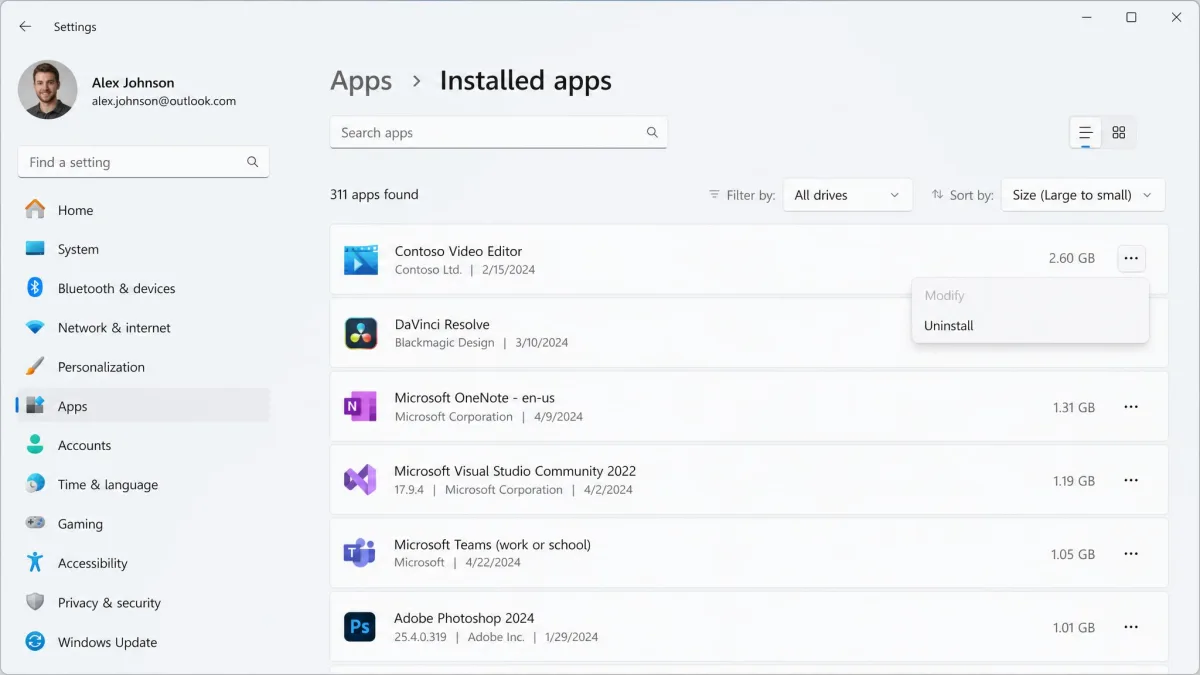
Select Start, then Settings, then Apps, then Installed apps. Sort by size to find the heavy items, or by install date to spot things you forgot were there. Click the three-dot menu beside an entry and choose Uninstall. Microsoft's page on how to uninstall apps and programs covers the edge cases where an app refuses to go.
If a name is unfamiliar, search it before removing it. Some entries with odd names are drivers or runtimes that other software depends on.
Fix 6: Install Windows and driver updates
Updates are not just security patches. Graphics and storage drivers in particular have a direct effect on how quickly the desktop and your apps respond, and a stale driver can make a healthy machine feel broken.
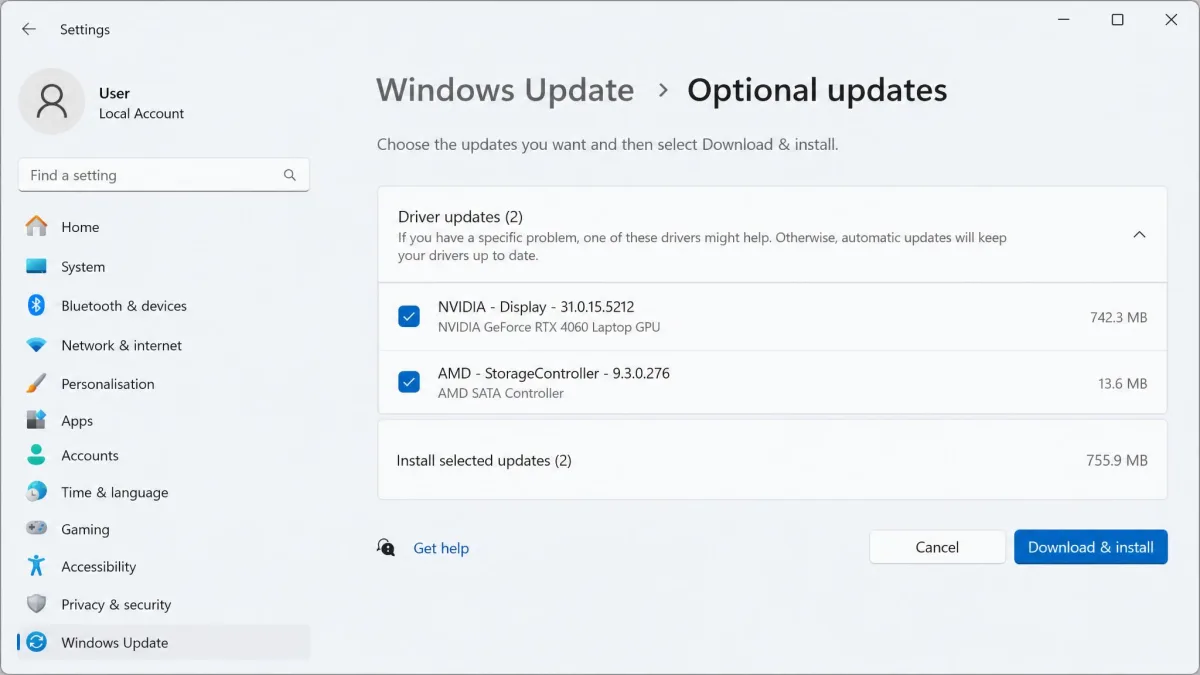
Select Start, then Settings, then Windows Update, then Check for updates. Let it finish and restart when asked. Then open Advanced options and check Optional updates, where hardware makers publish driver revisions that Windows will not push automatically. Microsoft's instructions on how to install Windows updates cover the stuck-update cases.
We would leave the paid updater tools alone here, because Windows Update and the manufacturer's own site cover almost every case for free. If you want the comparison, we have written up the best driver updater tools for Windows separately.
One caveat if you are still on Windows 10: support ended on October 14, 2025, so the free security updates have stopped. Paid Extended Security Updates exist as a stopgap, but a machine that is otherwise capable is better off upgraded.
Fix 7: Scan for malware and adware
A machine that slowed down suddenly, rather than gradually, deserves a malware scan before anything else. Cryptominers, browser hijackers and adware all show up as sustained CPU or network use from a process you do not recognise.
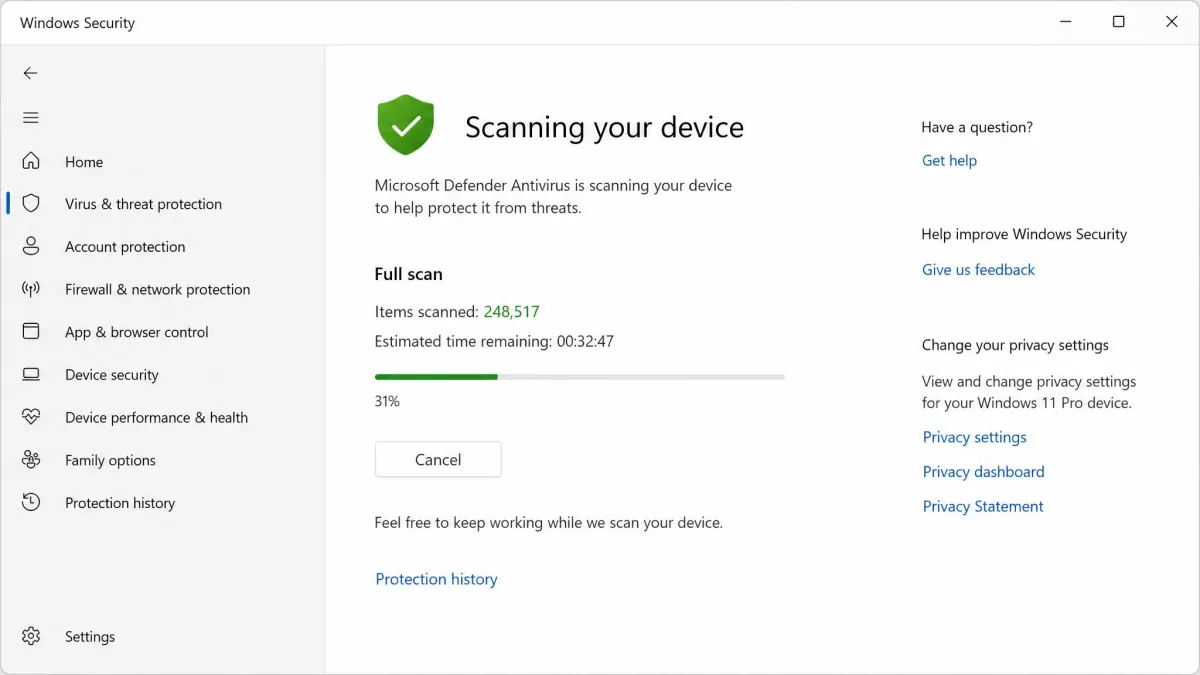
- Select Start and open Windows Security.
- Choose Virus and threat protection.
- Choose Scan options.
- Select Full scan and click Scan now.
Microsoft's steps for how to run a scan in Microsoft Defender apply to both Windows 11 and 10. A full scan takes a while, so start it when you can leave the PC alone.
Fix 8: Turn off visual effects and animations
This one changes how fast the PC feels rather than how fast it computes, and on an older machine the difference is immediate. Turning off window animations makes minimise and maximise feel instant, which reads as a speed gain even when nothing else has changed.
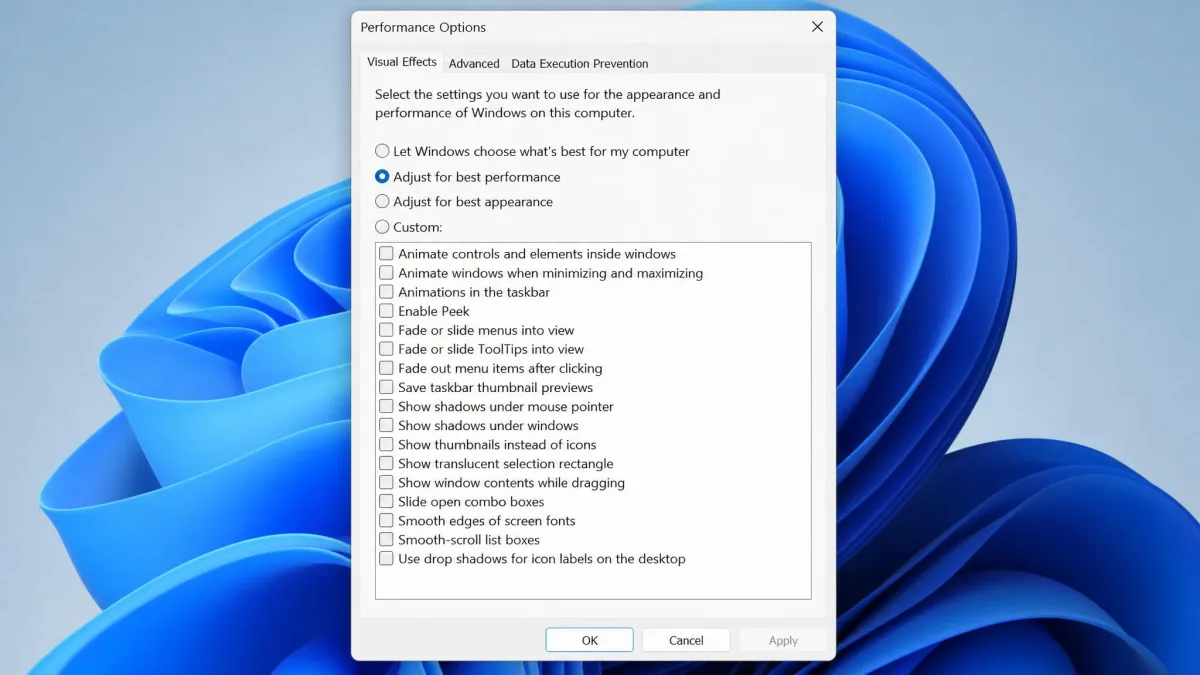
Search the taskbar for performance, open Adjust the appearance and performance of Windows, then select Adjust for best performance. That switches off animations, shadows and transparency in one click. If the result looks too stark, choose Custom and re-enable Smooth edges of screen fonts.
Of the 12 fixes here, the ones that reliably change how a machine feels are startup trimming, freeing disk space and switching off animations. Everything else on this list either fixes a specific fault or maintains what you have already gained.
Fix 9: Set your power mode to Best Performance
Laptops in particular ship with a power profile that caps CPU speed to save battery, and that cap is invisible until you go looking for it.
Select Start, then Settings, then System, then Power and battery, then set Power mode to Best performance. Microsoft's page on how to change the power mode shows where the setting sits on each Windows version. Expect shorter battery life in exchange, so plug in when you need the speed.
Fix 10: Optimize (defragment) your drive
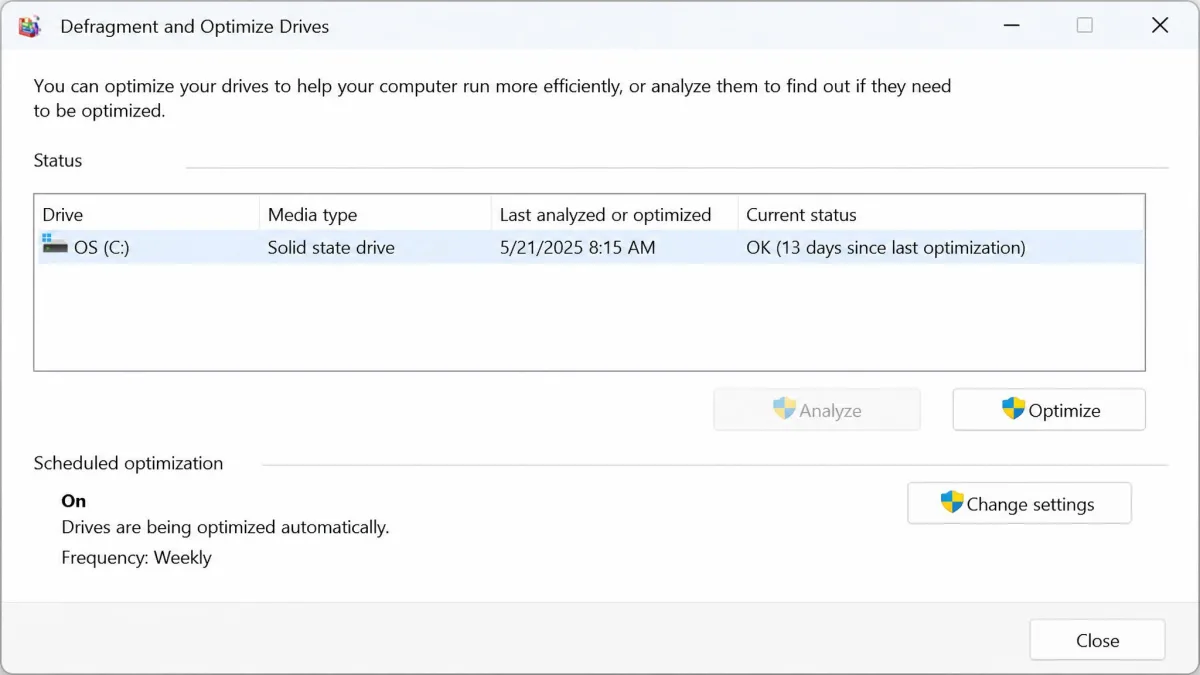
Where the power fix unlocks speed the hardware already had, this one is a check rather than a chore. Windows optimizes drives automatically once a week by default, so on a modern install there is usually nothing left to do.
Search the taskbar for defrag, open Defragment and Optimize Drives, then choose Analyze. If the fragmentation figure is high, choose Optimize. Microsoft's guidance on how to optimize your drives explains what each drive type gets.
Know which drive you have before you start. On an SSD, Optimize sends a TRIM command rather than defragmenting, and only mechanical hard drives get true defragmentation. Manual defragmentation is largely wasted effort on modern Windows because the scheduled task already handles it, and it is the wrong tool entirely on an SSD. One number does matter if you are on an HDD: Windows needs about 15% free space to defragment the drive properly, so clear space first.
Fix 11: Repair corrupted system files with SFC and DISM
If the slowness comes with random crashes, Settings pages that will not open, or features that fail silently, the system files themselves may be damaged. Two built-in commands repair them.
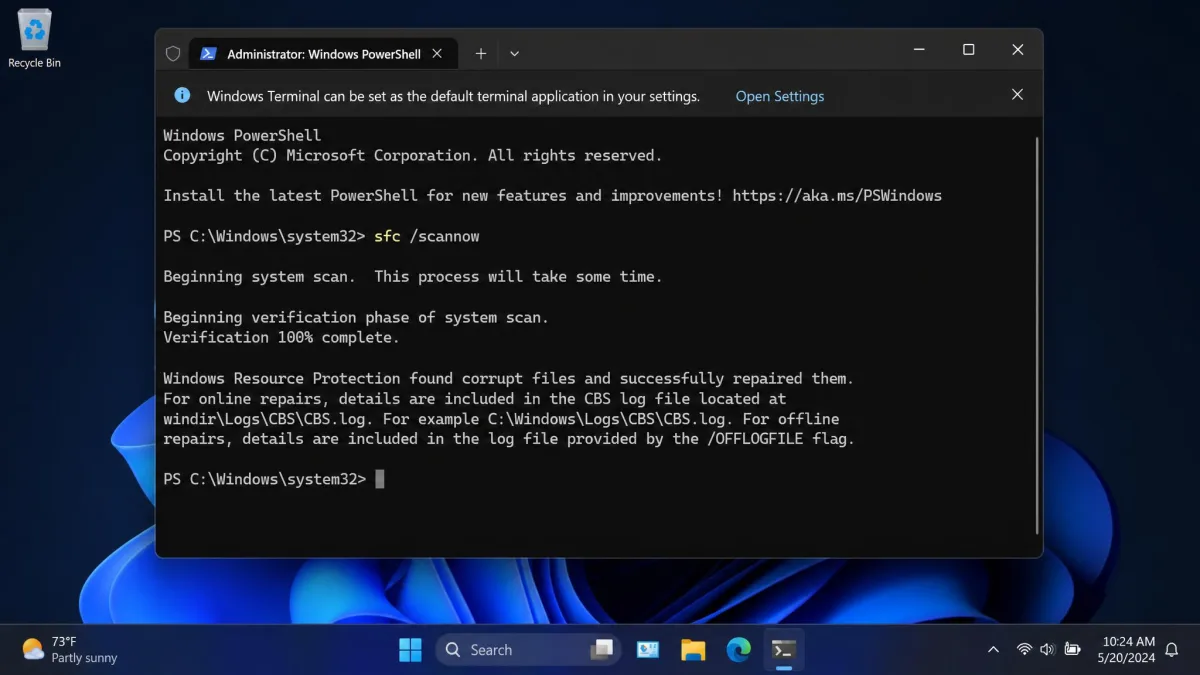
- Right-click Start and choose Terminal (Admin).
- Type
sfc /scannowand press Enter. - Wait for the scan to reach 100%.
- If it reports problems it could not fix, type
DISM /Online /Cleanup-Image /RestoreHealthand press Enter. - Run
sfc /scannowonce more, then restart.
The built-in System File Checker scans and repairs all protected system files, and it must be run from an elevated prompt. It usually completes in a few minutes and fixes exactly this class of fault.
The DISM /RestoreHealth progress bar stalls at certain percentages for long stretches. That pause is normal and does not mean the command has hung, so let it finish rather than closing the window.
Fix 12: Tame your web browser
For most people the browser is the heaviest program on the PC, so a slow browser and a slow computer feel identical from the chair. Open your browser's own task manager and see which tabs and extensions are consuming memory.
Then work through the short list below.
- Remove extensions you no longer use, especially anything that injects content into every page.
- Cut the number of tabs you keep permanently open, and bookmark the rest.
- Clear the cache if pages have started loading strangely.
- Check that hardware acceleration is switched on in your browser's system settings.
Why your PC got slow in the first place
None of the fixes above make sense in isolation until you know what changed. Slowness is cumulative: software you installed, files you never deleted, and updates that raised the baseline requirements all pull in the same direction.
The five usual culprits
- Too many apps starting automatically and running in the background
- A drive filled close to capacity, so Windows has no room to work
- Malware or adware consuming CPU and network quietly
- Outdated drivers, or a Windows install carrying damaged system files
- Hardware that has fallen behind what your current software expects
Multiple causes usually stack on one machine, which is why working through the whole list beats hunting for a single switch. Our companion piece on why your computer got slow in the first place goes deeper on the diagnosis side, and our 12 fixes for a slow computer guide covers the same ground for older machines.
Do PC optimizer and registry cleaner apps actually help?
No, and this is the one place we will be blunt. Everything mainstream optimizers sell, including temp-file cleanup, startup management and drive optimization, already ships in Windows for free. You have just used all three.
Registry cleaning is worse than useless. No legitimate performance testing shows that cleaning the registry improves Windows speed, and Microsoft does not support the use of registry cleaning utilities at all. Its stated policy is that it will not guarantee problems caused by them can be resolved without reinstalling Windows.
Registry cleaning can break a working install badly enough that reinstalling Windows becomes the only reliable recovery. Chasing speed by installing another optimizer also tends to add bloatware and background services, which leaves the machine slower than it was before you started.
If you still want to know which cleanup tools are less bad than the rest, we tested them: here are the best PC cleaners we tested, with the same skepticism applied.
When software fixes aren't enough: hardware upgrades
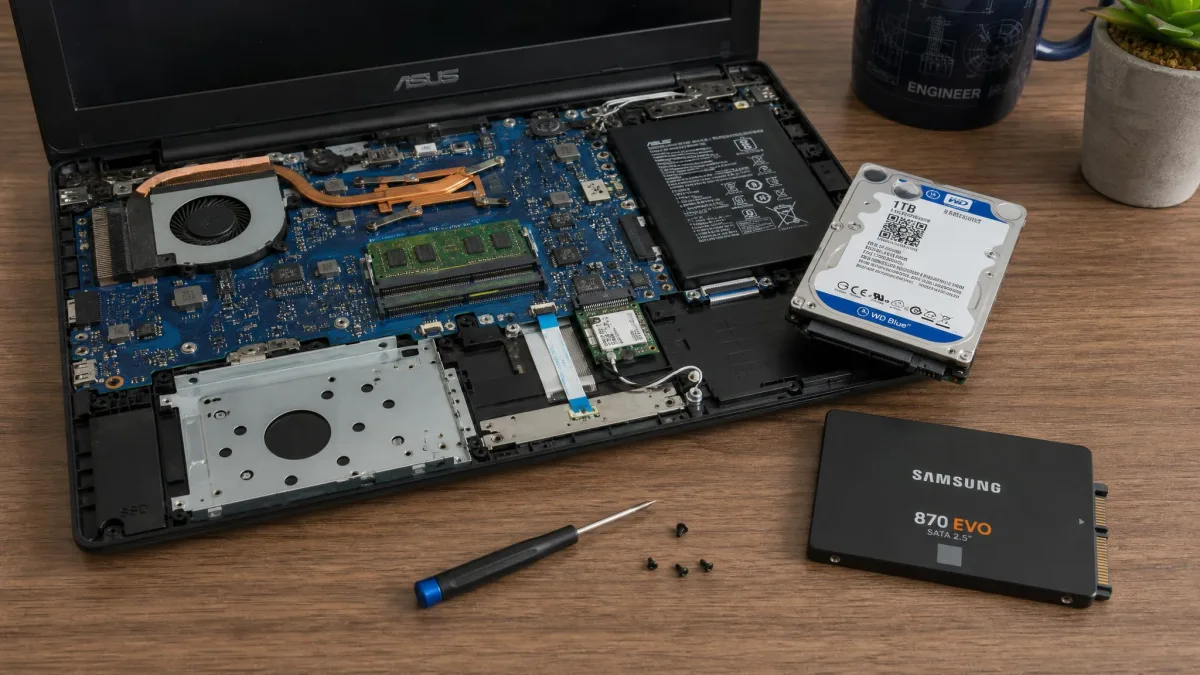
If you have worked the list and the machine is still slow, the ceiling is physical. Two upgrades are worth the money, and one comparison decides which.
| Upgrade | Typical effect | Best when | Risk | Cost |
|---|---|---|---|---|
| Smoother multitasking, fewer stalls with many tabs or apps open | Task Manager memory sits near 100% under normal use | Must match the board's memory type and slot count | Low to moderate | |
| Biggest overall gain: boot, app launch and file access | The PC still runs a mechanical hard drive | Needs a clone or a clean install of Windows | Moderate | |
| No measured speed gain, and adds background load | Rarely, since Windows includes the same functions | Registry cleaning is unsupported and can force a reinstall | Subscription, for functions already free |
Add more RAM
Windows 11 requires 4 GB of RAM as its stated minimum, but that is a floor for running, not for comfort. Comfortable RAM depends heavily on workload, so the sensible amount ranges from 8 GB for light browsing up to 32 GB for heavy multitasking. Check your current total in Task Manager under the Performance tab, and check compatibility with Crucial's compatibility tool before you buy.
Switch to an SSD
The single biggest real-world speed jump on an ageing machine comes from swapping a mechanical hard drive for an SSD, not from software tweaks. Boot, sign-in, app launch and file copies all improve at once. SSD performance varies widely between models, so an NVMe drive is a materially different upgrade from a budget SATA one; check what your motherboard supports before choosing.
When it's cheaper to replace the PC
If the machine cannot meet Windows 11's requirements, which include 64 GB or more of available storage plus TPM 2.0 and Secure Boot, upgrades stop being economical. A PC that needs a new drive, new memory and a new CPU is a new PC.
Last resort: reset or clean-install Windows
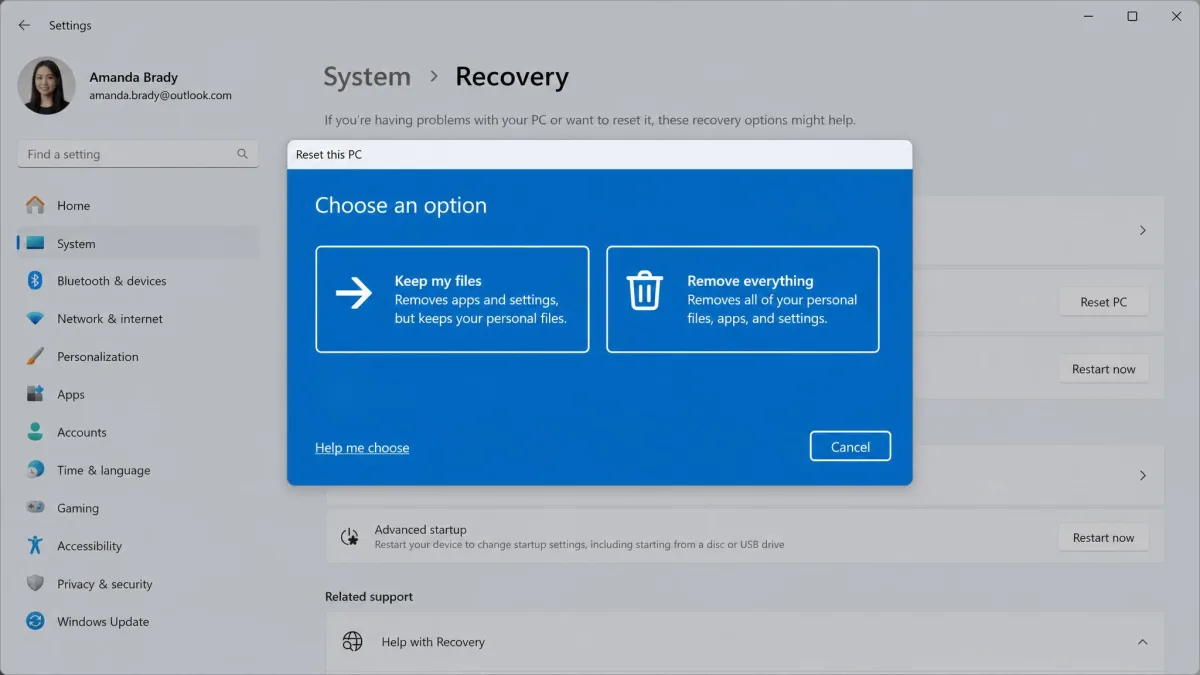
A reset gives you a clean Windows install without hunting down whatever is wrong. Select Start, then Settings, then System, then Recovery, then Reset this PC, and choose whether to keep your files.
Back up everything you cannot replace before you start. Keep my files preserves personal data but still removes every installed application and most settings, and a clean install removes everything on the system drive. Confirm your backup has actually completed, not just started.
Keep it fast: a simple maintenance routine
Speed you have recovered will drift back unless you defend it. This routine takes a few minutes a month.
- Restart the PC properly at least once a week
- Review Task Manager's Startup apps tab whenever you install new software
- Empty the Recycle Bin and run Cleanup recommendations monthly
- Install Windows and driver updates as they arrive
- Run a full malware scan quarterly
- Keep a comfortable margin of free space on the system drive
Our step-by-step walkthrough on how to run Disk Cleanup in Windows 11 and 10 is a good monthly companion to this routine.
Frequently asked questions
Why is my PC slow all of a sudden?
Why is my PC slow after a Windows update?
Does more RAM or an SSD help more?
Are PC cleaner and optimizer apps worth it?
How much free disk space does Windows need?
How often should I restart my PC?
Will resetting Windows fix slowness?
The bottom line
Most slow PCs are repairable in an afternoon with the tools already installed. Start in Task Manager so you are fixing the real cause, trim what starts automatically, free up disk space, then let updates and a malware scan clear the rest. Reach for the reset only after the free fixes, and reach for your wallet only when the readings say the hardware is the limit.
The one upgrade worth planning for is the drive. If your PC still runs a mechanical hard drive, an SSD will do more for everyday speed than every setting on this page combined.