Your laptop takes two minutes to reach the desktop, the fan spins up before you have opened anything, and every click lands a half second late. That is a normal way for a Windows laptop to age, and almost all of it is fixable in an afternoon without buying anything.
The 14 fixes below run in rough order of payoff, starting with the free software changes built into Windows and ending with the two hardware upgrades worth the money. Work through them one at a time, so it stays obvious which change actually mattered on your machine.
We have run this same sequence on tired office laptops, six-year-old family machines, and thin-and-lights that never had much headroom to begin with, and the order below is what has held up. If you are short on time, start with the five-minute checklist and come back for the rest tonight.
Start Here: The 5-Minute Checklist
If you only have five minutes before your next meeting, do these four things in order.
- Restart the laptop properly, using Start then Power then Restart, not just closing the lid.
- Press Ctrl+Shift+Esc to open Task Manager and end the one app sitting at the top of the CPU column.
- Open Settings, go to System, then Power & battery, and set the power mode to Best performance.
- Check that Windows is not mid-update in the background, since an install in progress will make everything feel slow until it finishes.
That short run is often enough to get you through the day. The rest of this guide is the proper fix.
Why Your Laptop Slowed Down
Laptops slow down over time for cumulative reasons. Every program you installed added a startup entry, a background service, or a scheduled task. The drive filled up, drivers aged out, and dust settled into the vents, so the processor quietly reduces its own speed to keep from overheating.
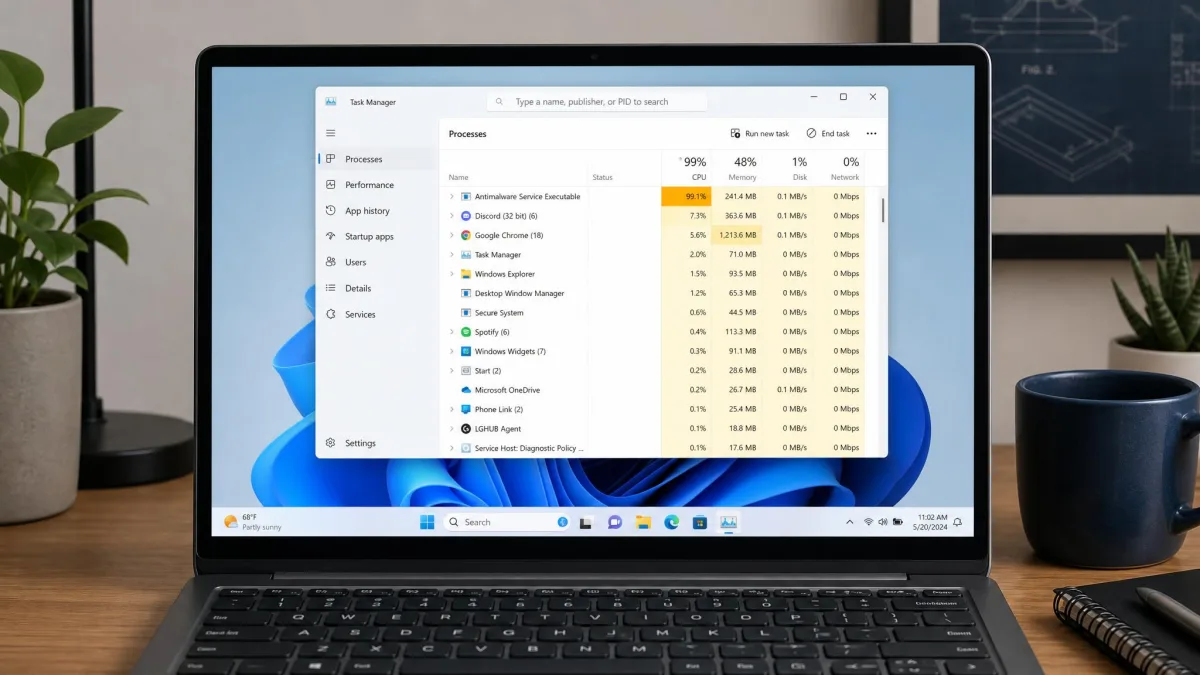
Two patterns account for most of the really bad cases we see. The first is a single misbehaving app that pins the processor near 99 percent. The second is a memory leak that forces Windows to swap to disk, which is what makes a laptop feel frozen rather than merely slow. Both show up in Task Manager within seconds, which is why fix number 2 comes so early.
Nothing here needs an advanced user. If you can open a settings panel and select a checkbox, you can do all 14. The same causes apply to desktops, so our companion guide on how to make your computer faster is worth a read if you are tuning more than one machine.
1. Disable Startup Programs
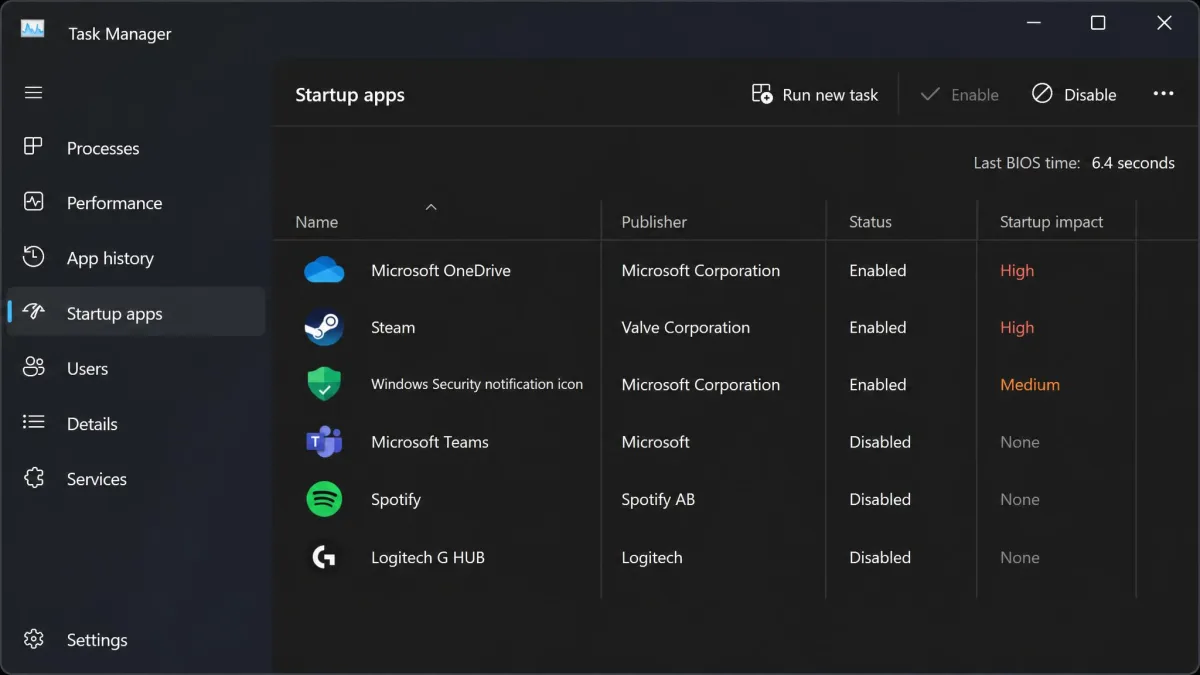
Startup entries are the single biggest reason a laptop takes forever to become usable after you press the power button. Press Ctrl+Shift+Esc, choose the Startup apps tab, and look at the Startup impact column. Anything rated High that you did not deliberately want running is a candidate. Right-click it and select Disable.
Chat apps, cloud sync clients, game launchers, updater helpers, and printer software are the usual offenders.
Disabling an entry does not uninstall the program. You can still open it normally, it just stops loading itself the moment Windows starts.
Do not disable your antivirus or security software at startup. It is one of the most common self-inflicted mistakes people make while cleaning out the Startup tab, and it leaves the laptop unprotected from the next boot onward.
2. Find and Close Resource-Hungry Background Apps
Startup control fixes boot time. Task Manager fixes the slowness you feel while you are working.
Reading Task Manager Without Guessing
Open Task Manager with Ctrl+Shift+Esc and click the CPU column header to sort by it. Watch for ten seconds rather than acting on the first snapshot, because Windows briefly spikes during its own housekeeping. If one process holds the top of the list, select it and end the task. Then sort by Memory and repeat. A browser with thirty tabs open will often sit at the top of both columns, and that is a habit fix rather than a software fault.
The Startup impact rating in Task Manager is the fastest triage tool on the machine. Sort that column High to Low and you can see which entries are actually costing you boot time, instead of guessing from program names.
3. Uninstall Programs You Never Use
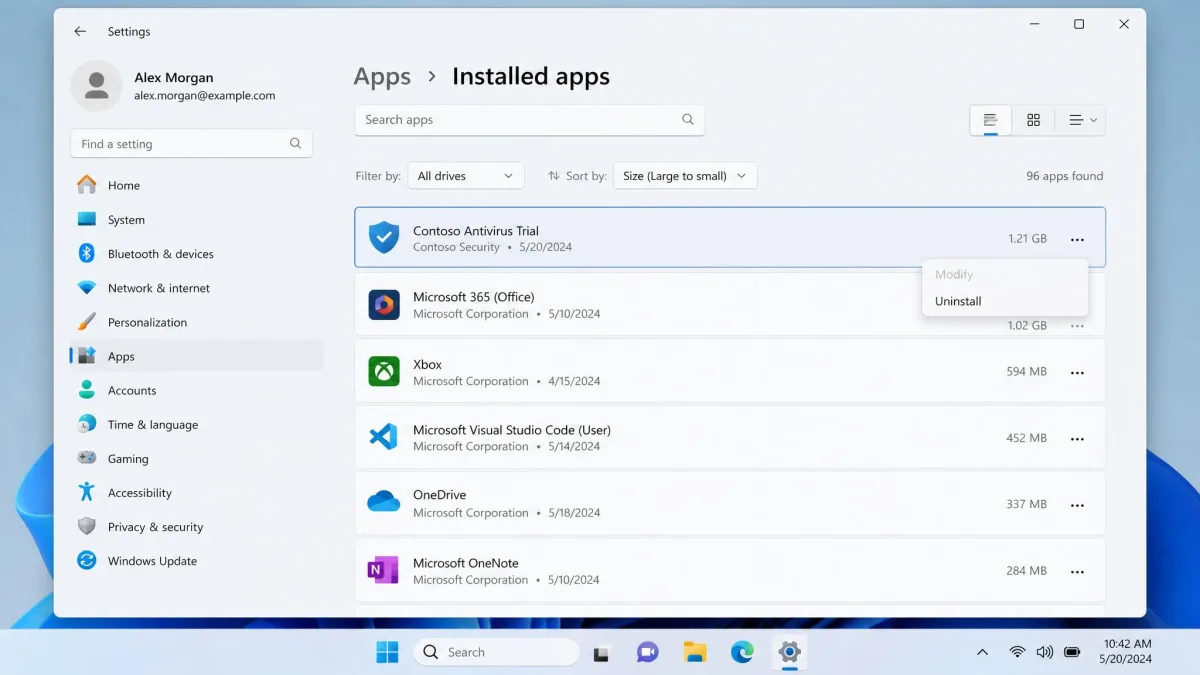
Every program you installed and forgot still takes disk space, and many keep a background service or updater running. Open Settings, go to Apps, then Installed apps, sort by size, and remove what you do not use. Microsoft's walkthrough of how to uninstall programs you no longer use covers both the Settings route and the older Control Panel one.
Trial antivirus suites, manufacturer bloatware, and toolbars are worth hunting first. Be careful with unfamiliar entries, though. This is the step most likely to break something, because some odd-looking names are vendor components your laptop depends on for its keyboard, audio, or power management. If you cannot identify an entry, search the name before you uninstall it.
4. Free Up Disk Space With Disk Cleanup and Temp Files
A nearly full drive makes a laptop slower on its own, with no startup apps or malware involved at all. Windows needs working room for its page file, updates, and temporary files, and it gets slow and clumsy when it does not have any.
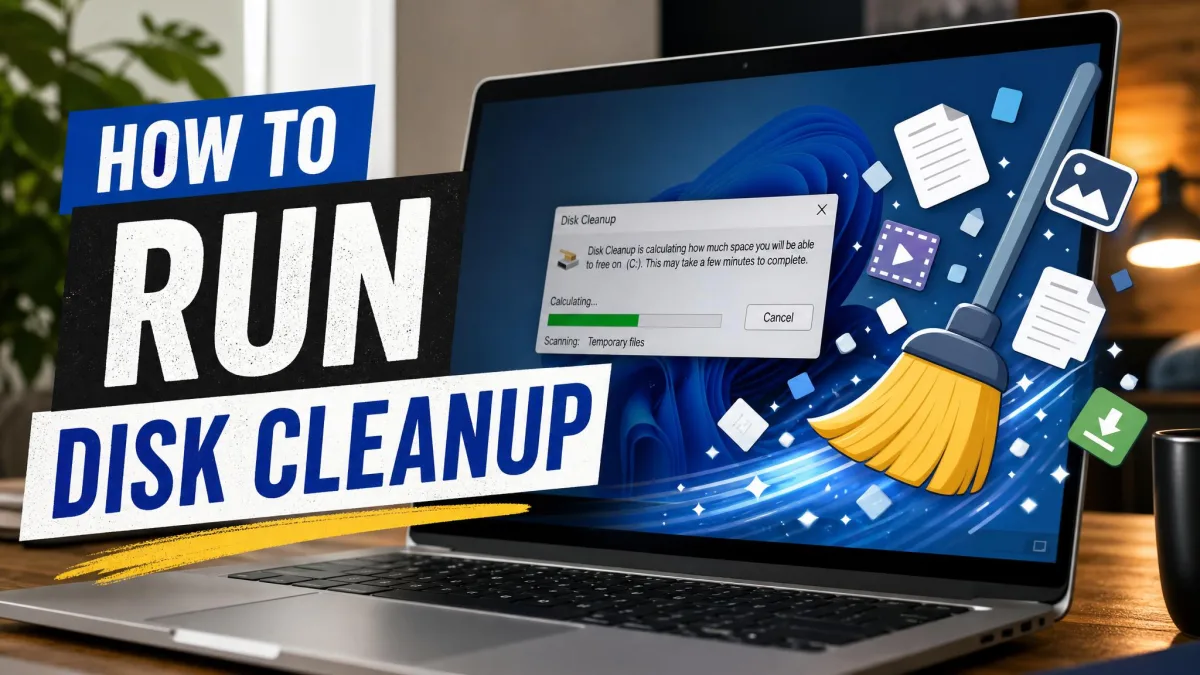
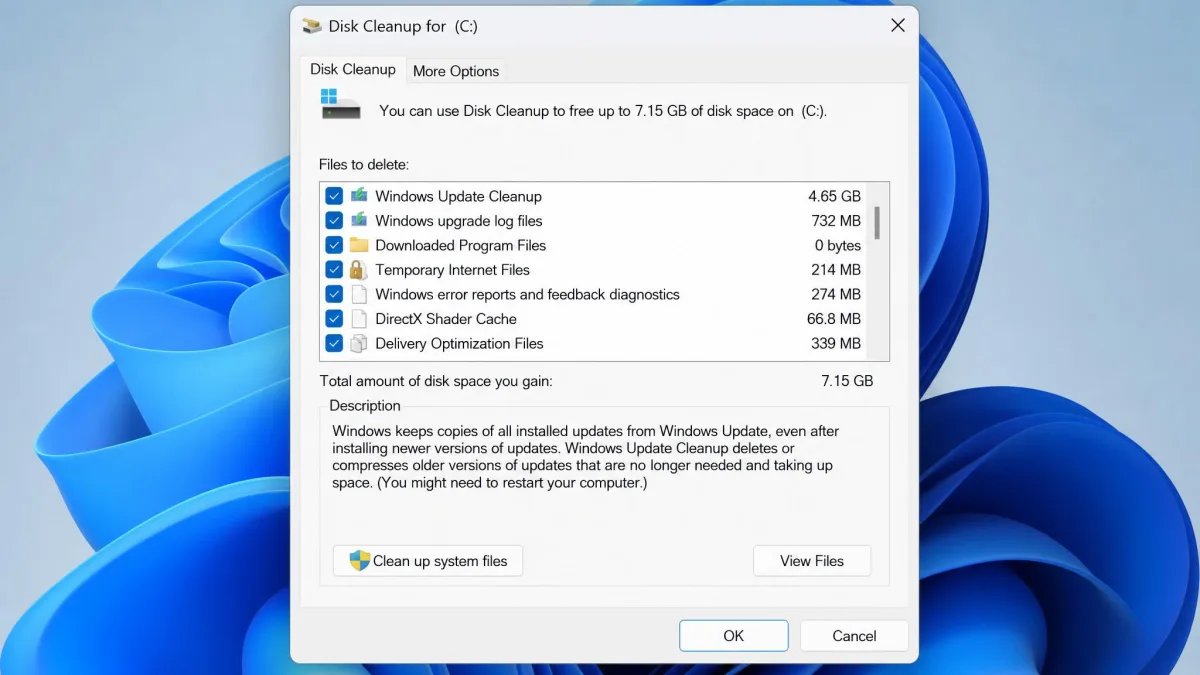
Type "disk cleanup" into the Start menu, select the drive, and let it calculate. Then click Clean up system files to get the second, larger pass that includes old Windows update files. Storage Sense, under Settings then System then Storage, can clear temporary files on demand and keep doing it automatically. We recommend running the manual pass monthly, which is often enough to stop the drive creeping full again. Our fuller walkthrough on how to free up disk space on Windows 11 covers Storage Sense in detail.
Which Files Are Safe to Delete
Temporary files, Delivery Optimization files, thumbnails, and the Recycle Bin are all safe to clear in Disk Cleanup. Previous Windows installations are safe too, but only if you are sure you will not roll back. Never delete files by hand out of the Windows folder. Microsoft's own performance guidance in its tips for improving PC performance lists 12 solutions and makes the same point about free space.
Registry cleaners are not the shortcut they look like. Microsoft does not support the use of registry cleaning utilities and cannot guarantee that problems caused by one are resolvable, which is stated plainly in its registry cleaning support policy. Skip that whole category of tool.
5. Turn Off Visual Effects and Animations
Windows spends real graphics work on menu fades, animation effects, shadows, and transparency. Type "adjust the appearance and performance of Windows" into the Start menu, open the Visual Effects tab, and select Adjust for best performance to turn all of them off at once. If the flat look bothers you, choose Custom and keep only "Smooth edges of screen fonts".
This is a change where the feel improves more than the benchmark does. Menus open instantly and window switching stops dragging, even when the measured numbers barely move.
6. Switch Your Power Plan to Best Performance
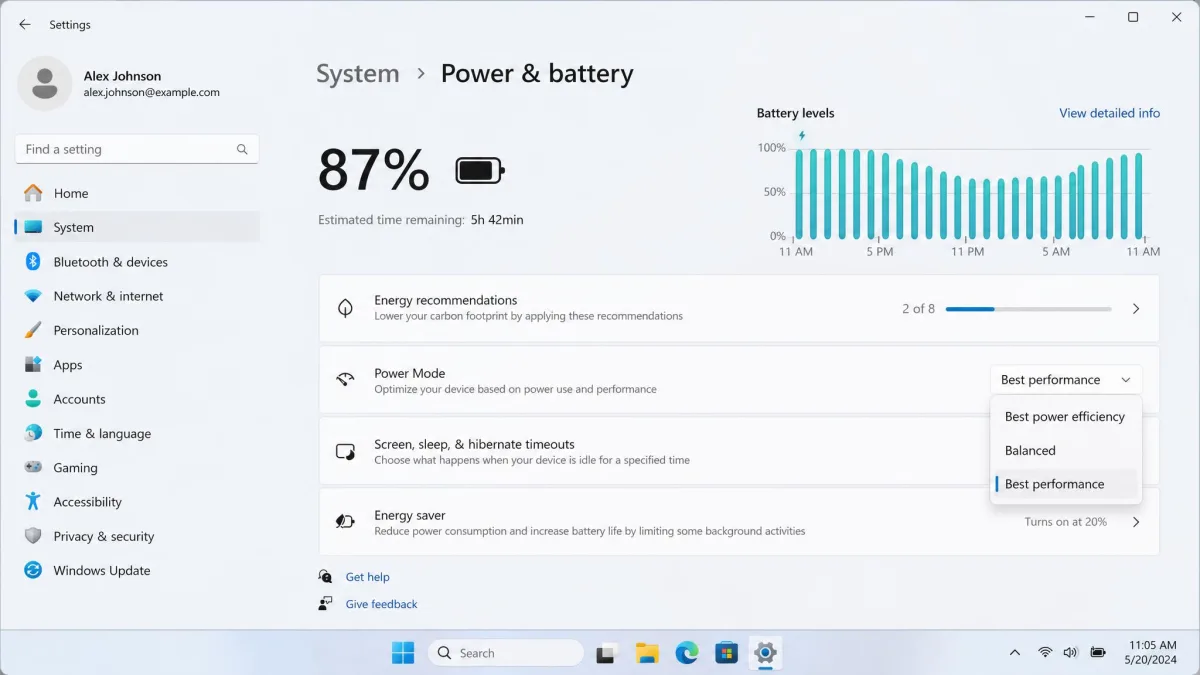
The default Balanced power plan deliberately throttles your processor to save battery. Best performance removes that ceiling. Open Settings, go to System, then Power & battery, and set the power mode to Best performance while the laptop is plugged in.
Of all the free fixes here, this is the one that changes the feel of the machine fastest. Pointer movement and window responsiveness improve straight away, before you have applied anything else. The trade is battery life, so it is worth switching back to Balanced when you are away from a socket.
7. Scan for Malware and Adware
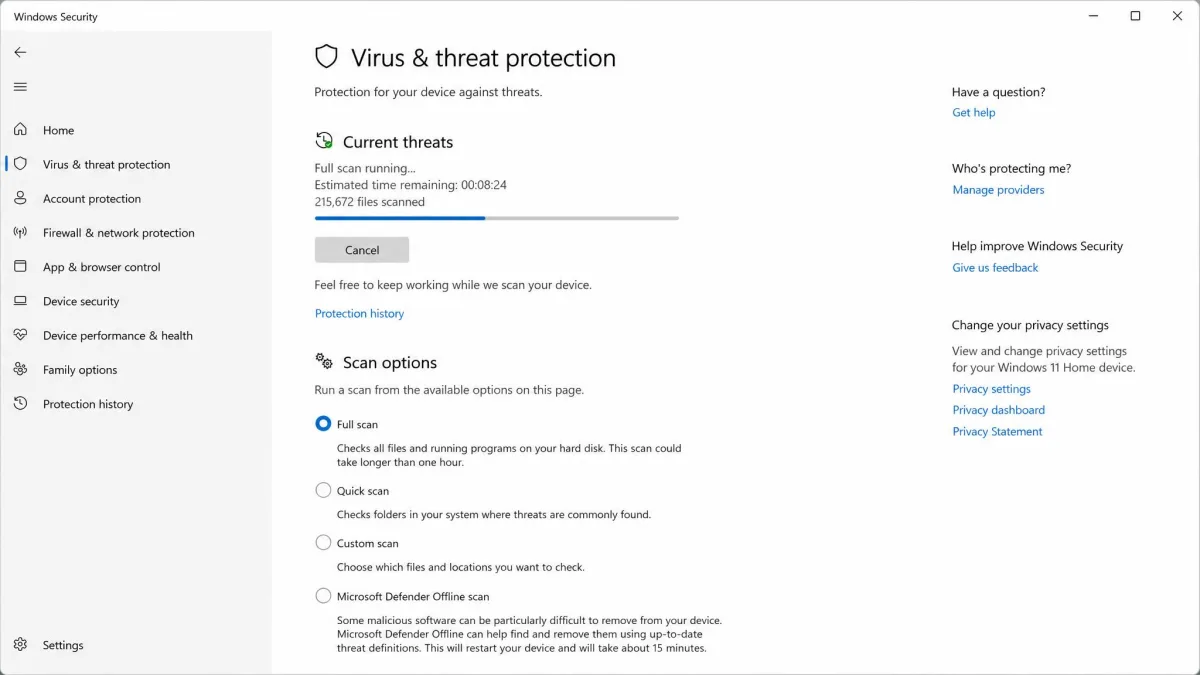
Adware and unwanted programs are a genuine and underdiagnosed cause of slowness, especially the kind that hooks into your browser. Open Windows Security from the Start menu, choose Virus & threat protection, and run a full Defender scan rather than the quick one.
Then run a second on-demand scanner from a different vendor. Mainstream antivirus routinely leaves potentially unwanted programs and adware in place, so the second pass regularly catches what was actually slowing the laptop down.
8. Update Windows and Your Device Drivers
Open Settings, go to Windows Update, and install everything pending, including optional driver updates under Advanced options. Then open Device Manager, expand Display adapters and Storage controllers, right-click each device, and choose Update driver.
Outdated or faulty drivers are one of the most common causes of lag, and the problem stays invisible until you replace the driver. Get drivers from Windows Update or your laptop maker's support site, and nowhere else.
9. Optimize or Defragment Your Drive
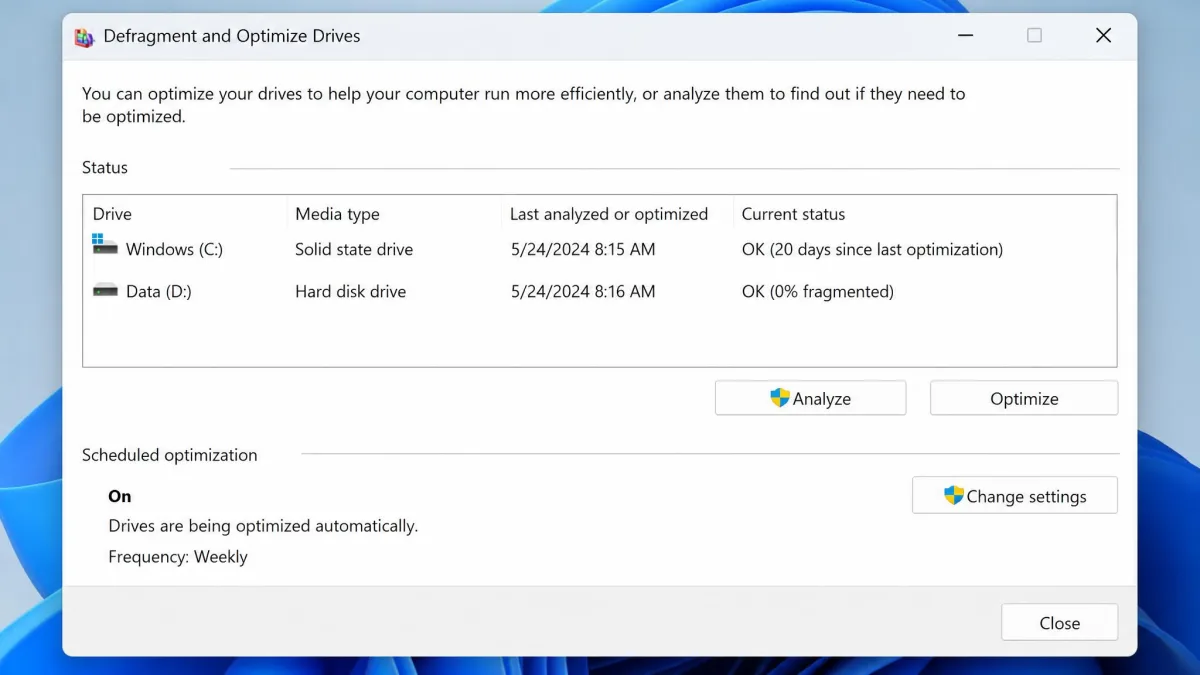
Windows automatically optimizes drives once a week by default, so for most people this fix is a check rather than a chore. Type "defragment" into the Start menu, open Defragment and Optimize Drives, and confirm the schedule is on. You can set it to Daily, Weekly, or Monthly, or turn it off. Microsoft's instructions for how to optimize your drives explain what each schedule does.
Running a manual defragment on modern Windows is usually wasted effort, because the scheduled task already handles it.
SSD vs HDD: Do Not Defragment an SSD
The same tool treats the two drive types differently. Hard drives are defragmented. SSDs are trimmed instead, which tells the drive where it can safely clean up during idle time.
Never run a third-party defragmenting tool against an SSD. Old defragmenting utilities that do not recognise solid state drives shuffle data pointlessly and add wear for no speed gain. Let the built-in Windows optimizer handle it.
10. Trim Browser Extensions and Tabs
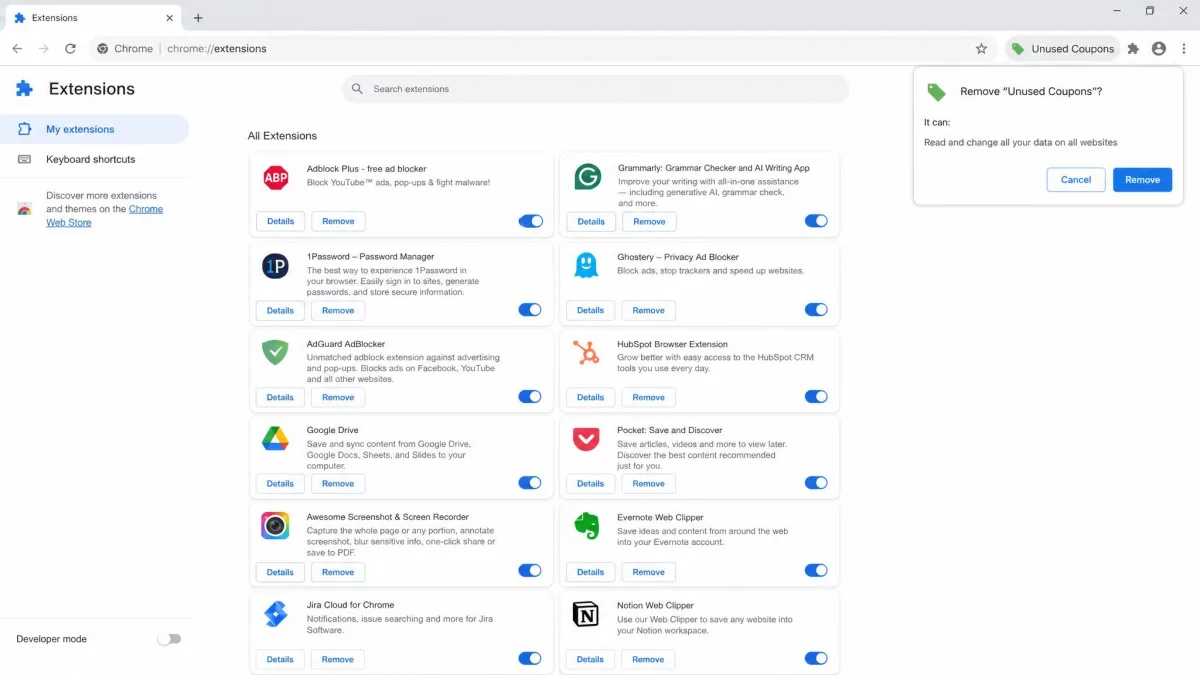
If your laptop is only slow inside the browser, this is your fix. Extensions are a persistent hidden cost: they slow page loads and raise the browser's memory use, and most people keep far more of them than they use. Open your browser's extensions page and remove everything you cannot justify.
Tabs are the other half. Every open tab holds memory, and on an 8 GB laptop a few dozen will push Windows into swapping to disk. Both Chrome and Edge have a memory saver setting that sleeps inactive tabs.
11. Turn Off Search Indexing and Background Sync
Search indexing keeps a database of your files so Start menu searches return instantly. On a fast machine that is a good trade, but on an old laptop with a hard drive it is a constant background tax. Open Settings, go to Privacy & security, then Searching Windows, and switch from Enhanced back to Classic.
While you are there, check what else is syncing. OneDrive uploading photos and a backup client running mid-morning compete for the same disk. Set them to run overnight instead.
12. Clean the Vents and Fans to Stop Thermal Throttling
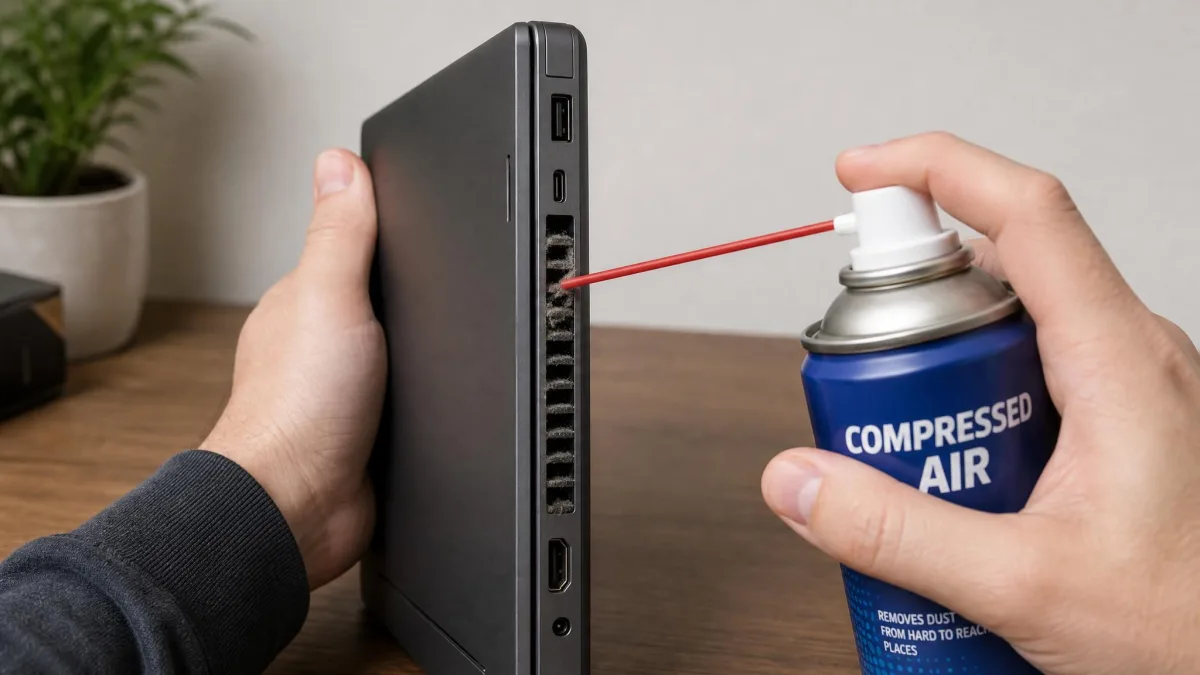
This is the laptop-specific fix desktop guides leave out. When dust clogs the vents the processor gets hot, and the laptop reduces its clock speed to protect the hardware. The symptom is a machine that starts fine and gets slower the longer you use it, usually with a loud fan.
Shut it down, unplug it, and blow short bursts of compressed air through the intake and exhaust vents. Do not run a vacuum over them. If the laptop is easy to open and out of warranty, clearing the fan and heatsink properly is far more effective.
13. Upgrade to an SSD
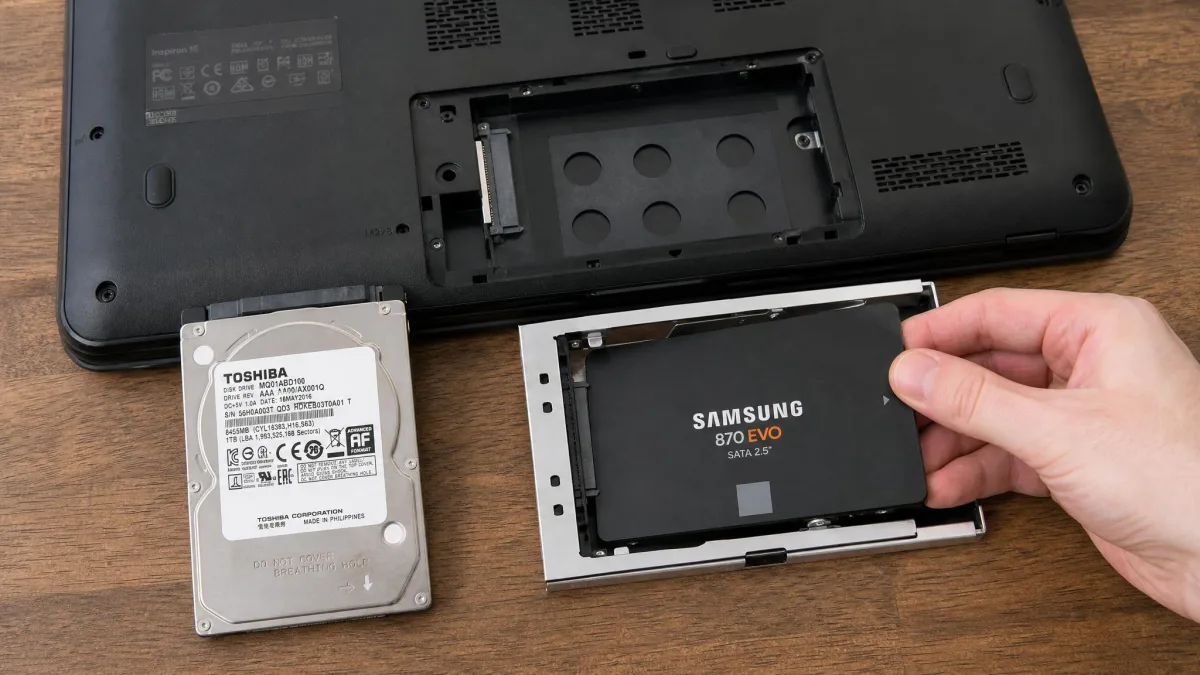
If your laptop still has a spinning hard drive, stop here. Nothing else on this list comes close. An SSD swap is the single change that delivers the largest across-the-board improvement, and software tuning never matches it on a machine still running a platter drive.
The reason is the kind of reading Windows does. Booting pulls hundreds of small scattered system files, and random small-file reads are where solid state drives beat platters by the widest margin. A SATA SSD reads at up to about 550 MB/s, while laptop hard drives top out around 120-150 MB/s, though sustained throughput varies with drive RPM, capacity, and where on the platter the data sits.
| Drive type | Typical boot time | Sequential read | Windows maintenance | Best for |
|---|---|---|---|---|
| SATA SSD | 15-25 seconds | up to 550 MB/s | Trimmed automatically | Any laptop still on a platter drive |
| Laptop HDD | 60-90 seconds | 120-150 MB/s | Defragmented weekly | Bulk secondary storage only |
An HDD-to-SSD swap typically cuts boot time by 3-5x, commonly from roughly 60-90 seconds down to 15-25 seconds, though the figures swing with your processor, memory, and how many startup entries you left enabled. Most laptops from the last decade take a 2.5-inch SATA drive or an M.2 stick, and a compatibility checker such as a RAM or SSD upgrade tool will tell you which one yours needs.
14. Add More RAM
Memory is the second upgrade worth making, and it matters most if you keep many tabs and apps open at once. When Windows runs out of physical memory it falls back on the page file on your drive, which is far slower, and that swap is exactly the moment a laptop stops feeling responsive.
How Much RAM Your Laptop Actually Needs
Windows 11 requires 4 GB of RAM, which is a floor for installation rather than a target for comfort. Beyond that the guidance splits. Microsoft says 8 GB is fine for everyday use and has been working through 2026 to reduce Windows 11 memory use on 8 GB machines, while laptop makers call 16 GB the practical 2026 target. Vendor positions moved during 2026 and may move again, so treat it as workload-dependent.
One detail tips the balance on thin-and-light laptops. They carve video memory out of system RAM, so an 8 GB machine may leave 6 GB or less for Windows and your apps. If yours is one of those and the memory is not soldered, 16 GB is the upgrade to make.
Six-year-old laptops can be brought back to comfortable daily use by stacking several of these fixes rather than counting on any single one. The startup cleanup, the power mode, the disk space, and the drivers each move things a little, and together they add up to a machine that feels new again.
Last Resort: Reset or Reinstall Windows
If you have worked through everything above and the laptop is still slow, a clean start clears years of accumulated software mess in one move. Open Settings, go to System, then Recovery, and choose Reset this PC. Keep my files preserves your documents and removes installed programs, while Remove everything is the fuller clean.
Back up first, and make sure you can find installers and licence keys for the programs you need. On some laptops a reset restores the manufacturer's image, which means the bloatware comes back and you will be repeating fix number 3.
When It Is Time to Replace the Laptop Instead
On genuinely outdated hardware, the software fixes produce little or no measurable improvement. That is the honest signal to stop spending time and start pricing a replacement. If the laptop already has an SSD and 8 GB or more of memory, and it is still slow after all 14 fixes, the processor is the limit and no upgrade will change that.
There is a middle answer worth remembering. A very old laptop can stay perfectly good for web browsing, email, and streaming after tuning while remaining unsuitable for gaming or video editing. Demoting it to a second machine is often better value than replacing it.
Windows 10 support ended on October 14, 2025, and consumer Extended Security Updates cover version 22H2 only through October 13, 2026, for $30 one time or free through Windows Backup sync or 1,000 Microsoft Rewards points. If your laptop cannot meet the Windows 11 requirements, which include 4 GB of RAM, 64 GB or more of available storage, TPM 2.0, and Secure Boot, that date is a real deadline rather than a nudge.
Windows 11's storage requirement of 64 GB is an installation floor, not a comfortable one. A 64 GB laptop with Windows 11 on it will spend most of its life short on space, which is its own cause of slowness.

Frequently Asked Questions
Why is my laptop suddenly so slow, when it was fine last week?
Does upgrading to an SSD really make a difference on an old laptop?
Can I speed up my laptop without spending money?
Will Windows 11 slow down an older laptop?
How often should I physically clean my laptop?
When is it cheaper to buy a new laptop than to upgrade?
Final Thoughts
Work down the list rather than across it. Do fix 1, use the laptop for a day, then do the next one, so you know which change earned the improvement.
Most laptops we see are slow for two or three small reasons stacked together, not one dramatic fault. Clearing startup entries, freeing disk space, updating drivers, and setting the power mode covers a large share of cases and costs nothing but an afternoon. If none of it helps, that is useful too, because it tells you the hardware has reached its limit.