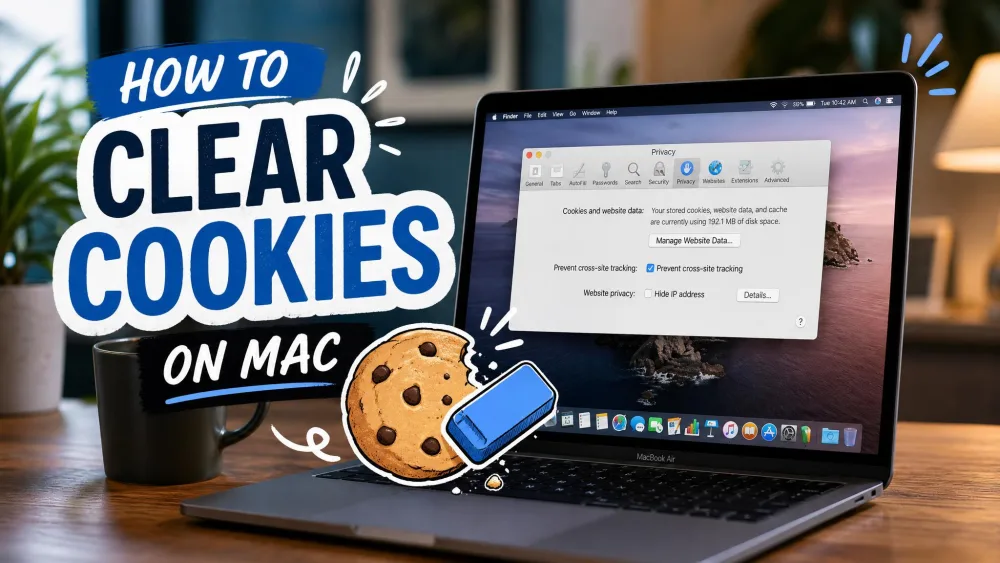
To clear cookies on a Mac in Safari, open Safari, choose Safari > Settings from the menu bar, click Privacy, click Manage Website Data, then click Remove All.
Chrome and Firefox keep the same job in a different place, and both are covered below.
Clearing cookies signs you out of nearly every site you were logged into, so plan on signing back in.
Cookies are small files that websites store in your browser. They hold your sign-in state, your site preferences, and the tracking IDs advertisers use to follow you from site to site.
Most people clear them for privacy, or because a page has started behaving oddly.
| Browser | Settings path to clear all cookies | Keyboard shortcut | What "clear all" deletes |
|---|---|---|---|
| Safari | Safari > Settings > Privacy > Manage Website Data > Remove All | None for cookies. Option+Command+E empties the cache only, and needs the Develop menu | Cookies and website data for every site listed |
| Chrome | Chrome > More (three dots) > Delete browsing data > Cookies and other site data > Delete data | Command+Shift+Delete | Cookies and site data for the time range you pick |
| Firefox | Firefox > Settings > Privacy & Security > Cookies and Site Data > Clear Data | Command+Shift+Delete | Cookies and site data for the timeframe you pick |
| Edge | Edge > Settings > Privacy, search, and services > Clear browsing data > Choose what to clear | Command+Shift+Delete | Cookies and site data for the time range you pick |
We wrote and checked these steps against macOS Tahoe 26, point release 26.5.2, running Safari 26. Two labels changed recently and still catch people out: Safari's menu now says Settings rather than Preferences, and Chrome's dialog is called Delete browsing data. Apple has announced macOS 27 for the fall, so re-read the labels once you update.
How to Clear Cookies in Safari on Mac
Removing website data signs you out of most sites and can change how they behave. Apple notes it may also change or remove that data in other apps. Have your password manager open for the sites you rarely visit.
Apple documents the same panel and the same caution in Apple's Safari User Guide.
Delete All Cookies and Website Data in Safari
- Open Safari.
- Choose Safari > Settings from the menu bar.
- Click Privacy.
- Click Manage Website Data.
- Click Remove All, then confirm.
- Quit Safari and open it again.
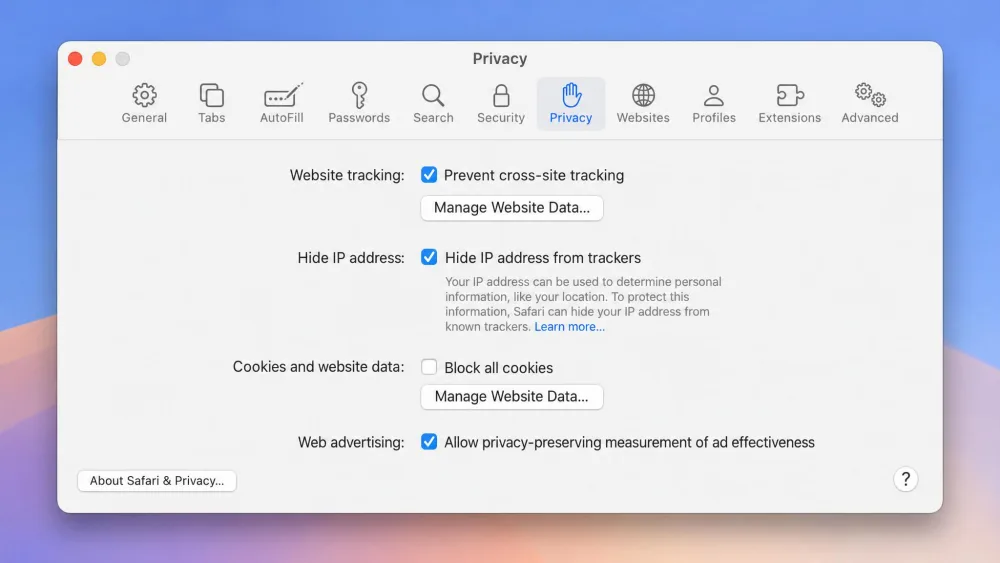
That last step matters. Quitting and relaunching is what makes the clear take effect, which is why help desks put that line in their instructions for every browser.
On older versions of macOS the menu says Preferences instead of Settings. Everything after that is the same.
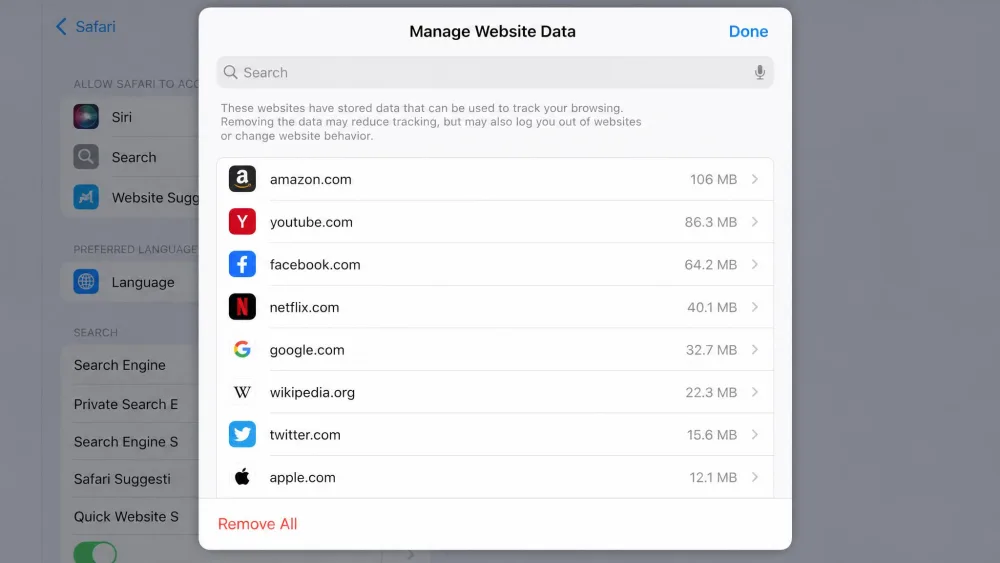
Safari has no keyboard shortcut for cookies. Option+Command+E empties the cache, and it appears only once you open Safari > Settings > Advanced and tick Show features for web developers. Command+Shift+Delete is not a Safari shortcut, though it does open the clear-data dialog in Chrome, Firefox and Edge.
Delete Cookies for a Single Website in Safari
Clearing everything is rarely necessary. If one site is stuck on a bad session, remove just that site.
- Choose Safari > Settings, then click Privacy.
- Click Manage Website Data.
- Type the site name in the search field.
- Select the site, then click Remove.
- Click Done.
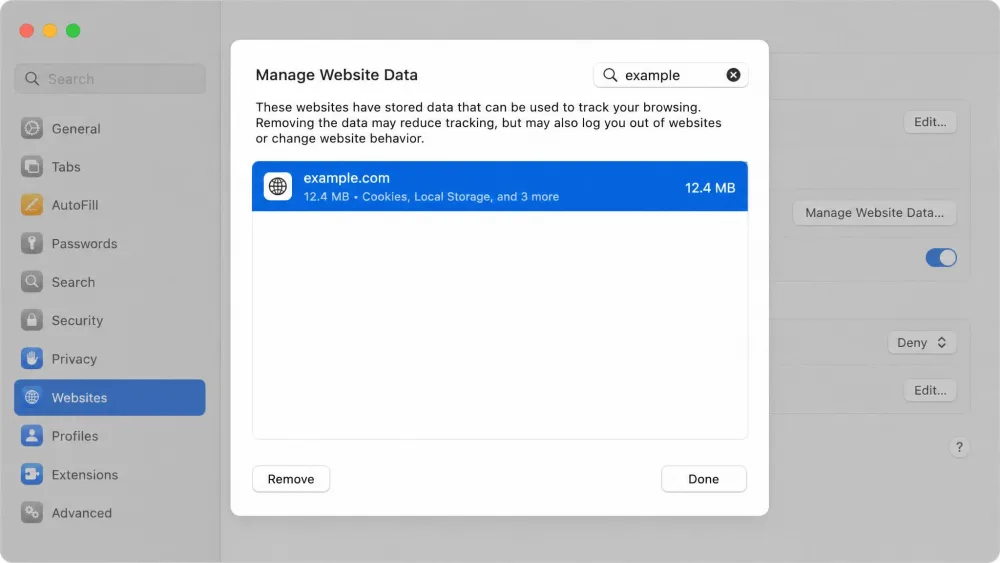
If a cookie you just deleted reappears, Safari had it in memory and wrote it back to disk. Wait a beat, click Remove again, and it sticks. A greyed-out Remove button is usually Screen Time restricting web content rather than a Safari fault.
None of this touches cached files, which sit in a separate store. Our steps for clearing Safari's cache cover that side.
How to Clear Cookies in Chrome on Mac
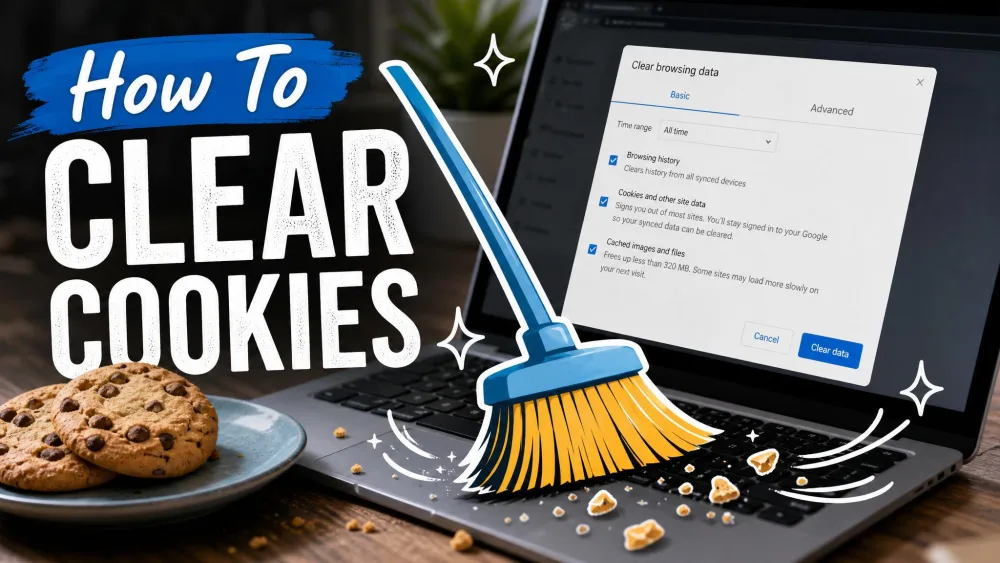
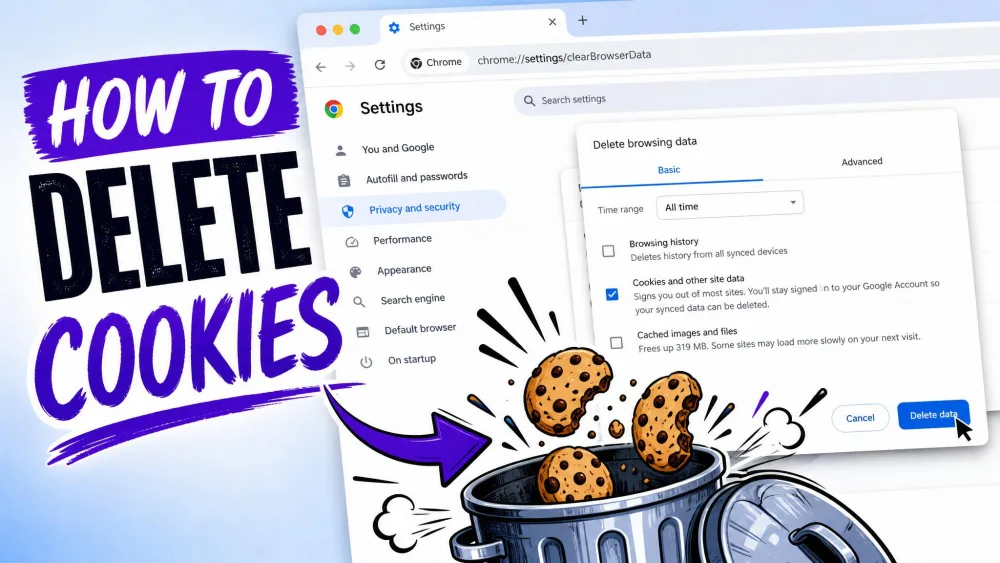
Chrome renamed this dialog. It reads Delete browsing data now, not Clear browsing data.
- Open Chrome.
- Click the three-dot More menu at the top right.
- Choose Delete browsing data.
- Pick a time range, anywhere from Last hour to All time.
- Tick Cookies and other site data.
- Click Delete data.
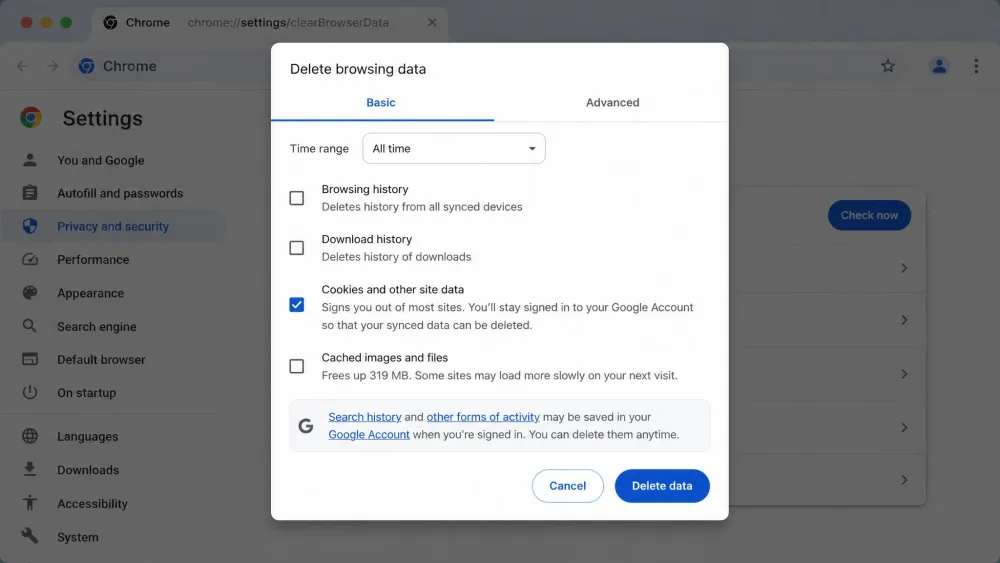
Command+Shift+Delete opens that dialog directly.
One catch is worth knowing. Deleting cookies while you are signed in to Chrome does not get rid of the Google cookies, because Chrome refreshes the ones keeping you signed in. Sign out of Chrome first if you want those gone too.
To remove a single site instead:
- Choose Chrome > Settings, then click Privacy and security.
- Click Third-party cookies.
- Click See all site data and permissions.
- Search for the site.
- Click Delete to the right of it.
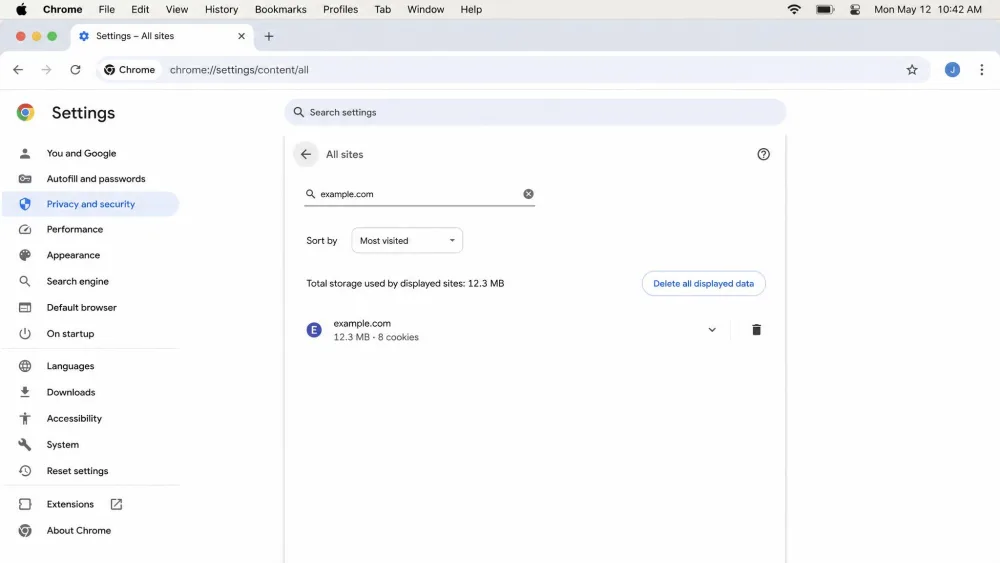
Expect to sign back into websites afterwards.
"Clear all" does not mean the same thing in every browser. Safari's Remove All wipes website data for every site it has stored, with no time range to choose. Chrome and Firefox ask for a timeframe first, so set it to All time or Everything for the same result.
How to Clear Cookies in Firefox on Mac
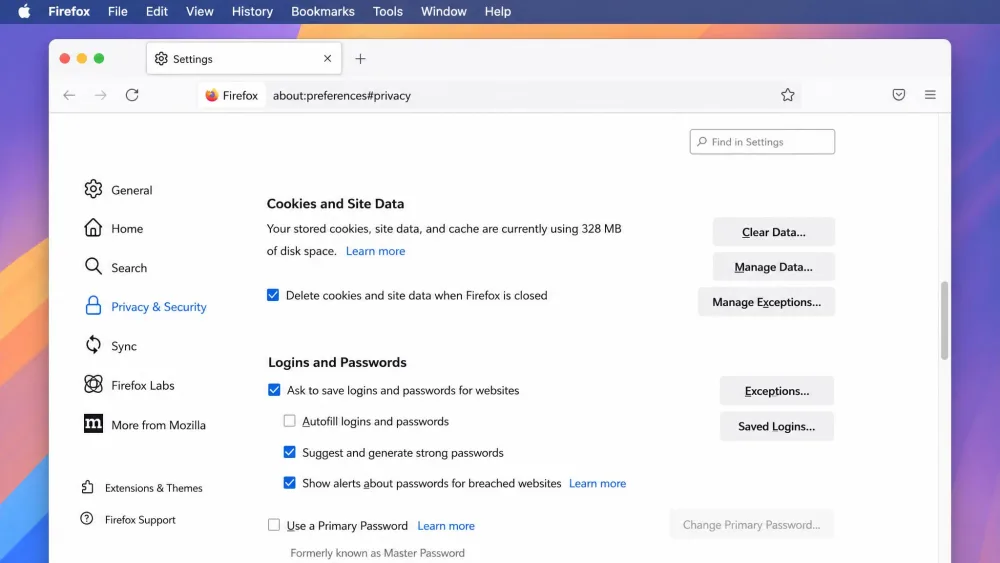
- Open Firefox.
- Choose Firefox > Settings from the menu bar.
- Click Privacy & Security.
- Scroll to Cookies and Site Data.
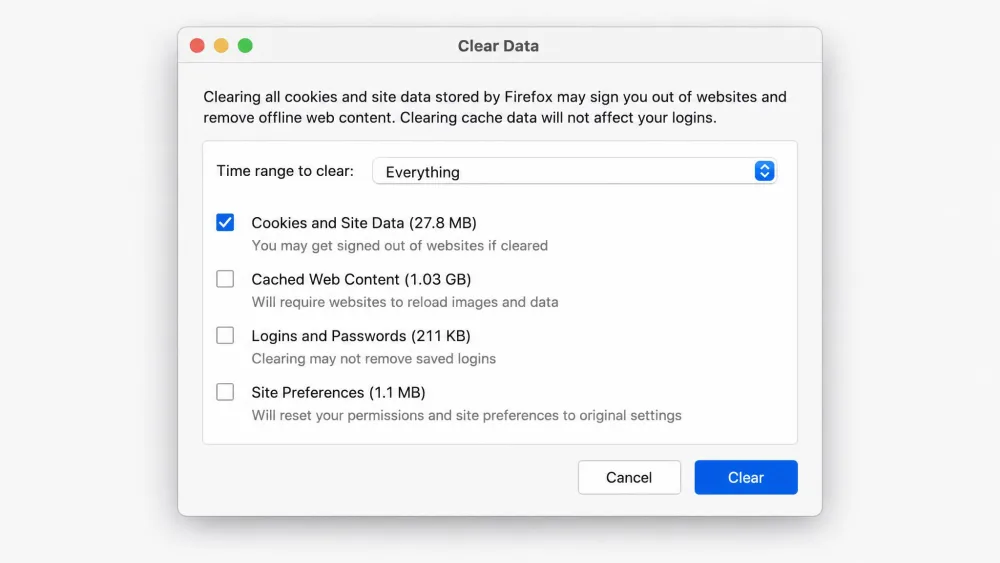
- Click Clear Data.
- Tick Cookies and Site Data.
- Set When to Everything, then click Clear.
Firefox has renamed this window recently, so it may be titled Clear Recent History or Clear browsing data and cookies depending on your version. The path and the checkboxes are the same either way, and Command+Shift+Delete opens it.
For one site only:
- Choose Firefox > Settings, then click Privacy & Security.
- Scroll to Cookies and Site Data, then click Manage Data.
- Type the site name in the Search websites field.
- Click Remove All Shown.
- Click Save Changes.
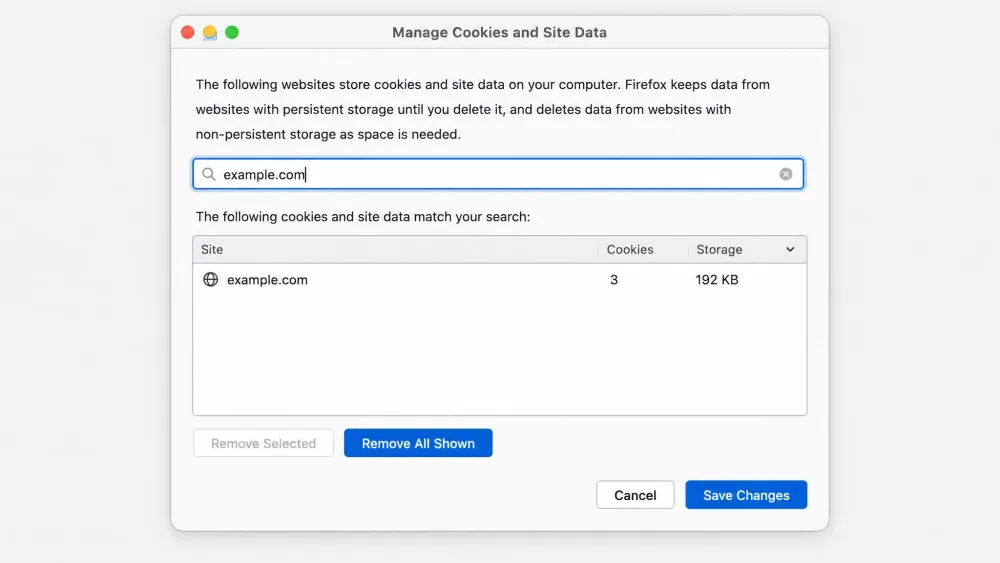
Mozilla's Firefox support documentation covers the same panel.
What Happens After You Clear Cookies on Mac
You get signed out of nearly everything. Two-factor authentication is the part that actually costs you time, because sites treat your browser as brand new and ask for a fresh verification code instead of remembering the device.
Your saved passwords are safe. They live in iCloud Keychain or your browser's password manager, not in cookies, so clearing website data does not touch them. Bookmarks and your Reading List come through untouched too.
Keep in mind that some sign-in forms still come back blank. The password is saved, but the username a site pre-filled for you can come from that site's own cookie rather than from Keychain.
Clearing cookies is not a speed upgrade either. The first load of each site afterwards is slower while your browser fetches fresh copies, and things settle on repeat visits.
The University of Iowa's help desk calls this an important first step for almost any browsing problem, and its guide to clearing cache and cookies in your web browser says the same for every browser. For the background, read what a cookie actually is. To cover your phone as well, follow our steps for clearing cookies on iPhone.
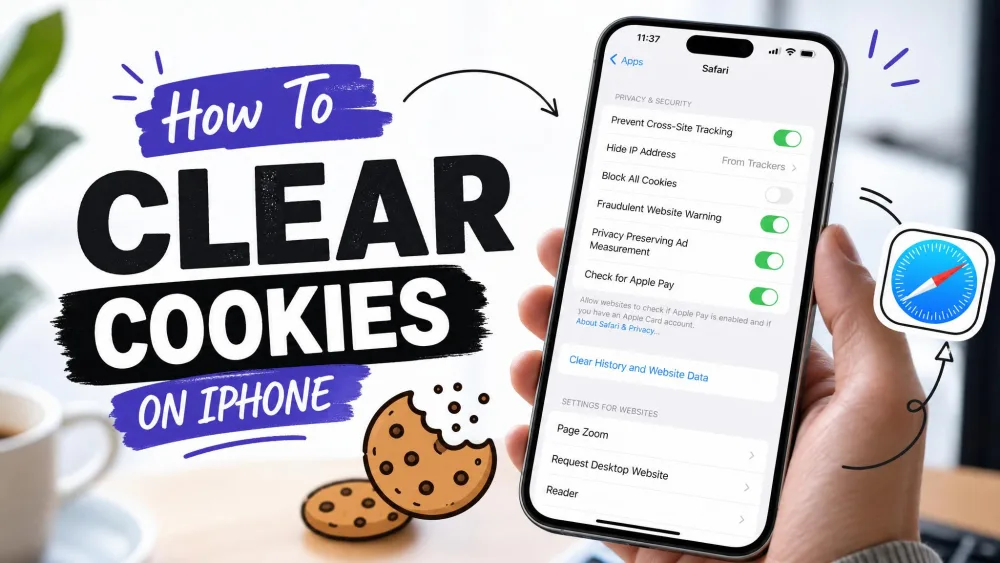
Safari's Clear History and its Manage Website Data panel are separate controls. Apple's list of what Clear History removes never names cookies or website data, while other guides say it clears them too, so use Manage Website Data when cookies are what you are after.
Cookies vs. Cache: What Each One Stores
Cookies are small files a site sets in your browser to hold your sign-in state, your preferences and tracking IDs. The cache is a saved copy of page pieces, things like images, scripts and stylesheets, kept so repeat visits load faster.
That difference decides which one to clear. Clearing only the cache leaves cookies and history in place, so nothing signs you out, and it often fixes a misbehaving page on its own.
Clearing cookies is the bigger move, and the right one when you want a site to forget you. If you want both, follow our full guide to clearing cache and cookies on Mac.
How to Stop Cookies From Piling Up Again
A one-time clear is not a fix. Over time cookies build back up with normal browsing, so it is worth changing a setting or two.
Block Third-Party Cookies
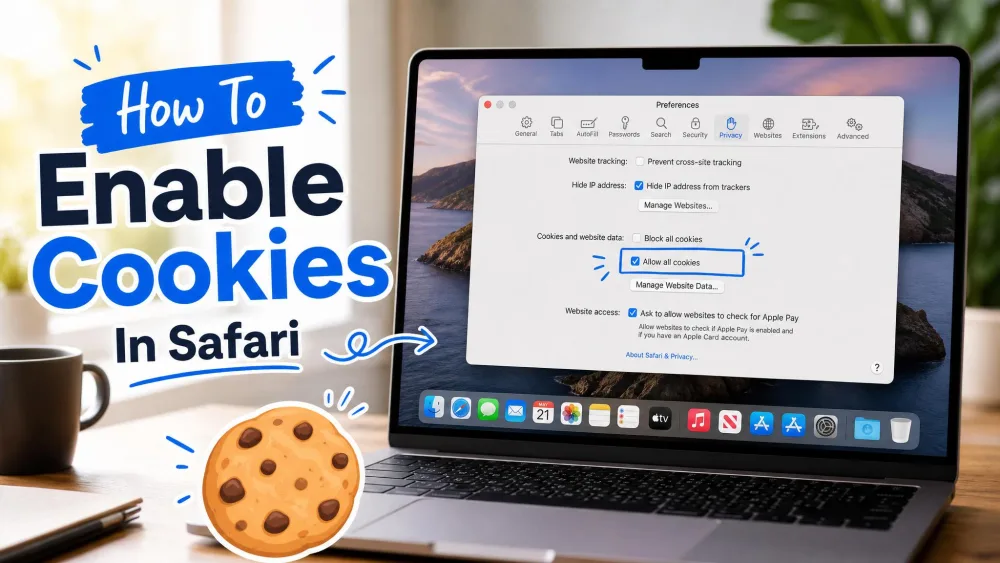
Safari already handles this. Its tracking prevention blocks all third-party cookies by default, and WebKit states plainly that there are no exceptions to that blocking. To confirm the related setting:
- Choose Safari > Settings from the menu bar.
- Click Privacy.
- Check that Prevent cross-site tracking is ticked.
Firefox gets there another way. Total Cookie Protection gives every site its own cookie jar, so third-party cookies cannot follow you between sites. It arrived in Firefox 86 and became the default for everyone worldwide in 2022.
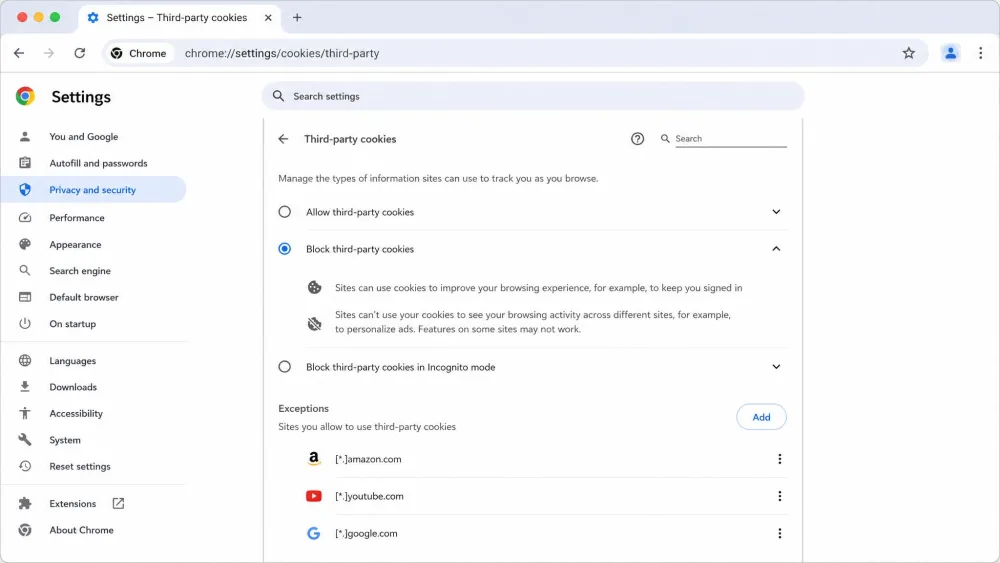
Chrome is the browser that needs your input. Google confirmed in 2025 that it will not remove third-party cookies from Chrome, and the controls stay in privacy settings. Chrome leaves them switched on out of the box, and Google has changed its plans more than once, so check the page rather than assume.
- Choose Chrome > Settings, then click Privacy and security.
- Click Third-party cookies.
- Select Block third-party cookies.
Set Safari to Clear History Automatically
- Choose Safari > Settings from the menu bar.
- Click General.
- Open the Remove history items pop-up menu.
- Pick an interval, from after one day through to after one year.
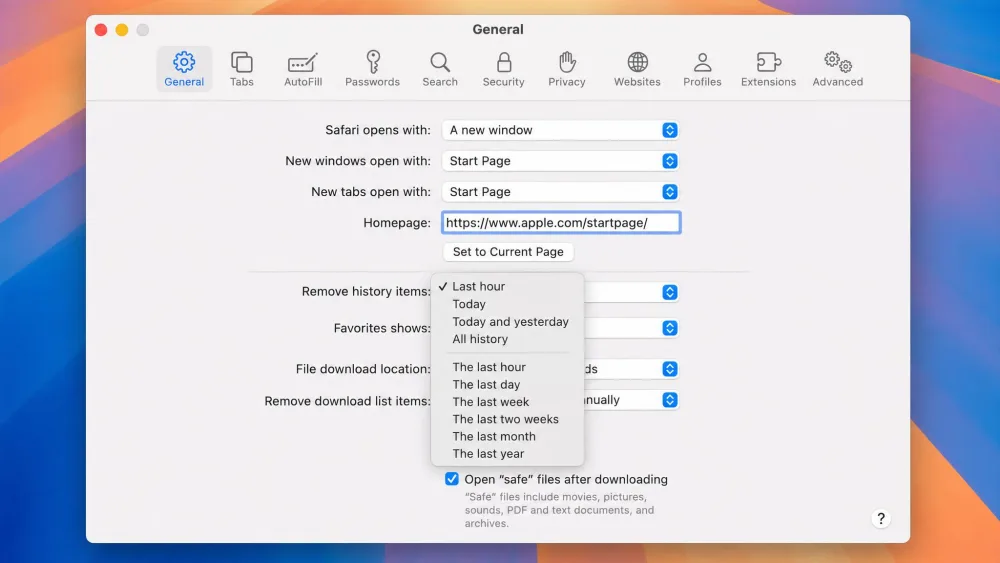
Choosing Manually keeps history until you clear it yourself. This setting governs history, and Apple does not spell out whether it reaches website data, so keep using Manage Website Data when cookies are the target.
Frequently Asked Questions
Will clearing cookies delete my saved passwords or iCloud Keychain entries?
Is it safe to delete all cookies on a Mac?
What is the difference between clearing cookies and clearing cache?
Why do cookies come back after I delete them?
Why is Safari still slow after clearing cookies?
The Bottom Line
Safari keeps cookies behind Manage Website Data, while Chrome and Firefox put them behind a dialog that asks for a time range first. All three sign you out of the sites you were using, and all three leave your saved passwords and bookmarks alone. If a page is misbehaving, clear the cache first, since it costs you nothing. And if you would rather not repeat this next month, block third-party cookies instead.