Cookies are small files that websites store on your iPhone to remember you. They keep you logged in, save what is in your shopping cart, and remember your language and layout choices. That is helpful most of the time. It also means every site you visit is quietly building a record of your activity, and some of those cookies belong to advertisers tracking you across the web.
Clearing cookies is how you reset that. It signs you out of sites, wipes the stored preferences, and often fixes pages that have started loading wrong. It is also one of the simplest ways to take control of your privacy on a phone you carry everywhere.
We ran every method below on an iPhone running iOS 26, the current iPhone software at the time of writing, so the menu paths match what you see on screen today. Below we walk through Safari step by step, then cover Chrome, Firefox, and the other browsers, plus how to block cookies, how often to clear them, and what to do when the button will not cooperate.
What Are Cookies (and Why Clear Them on iPhone)?
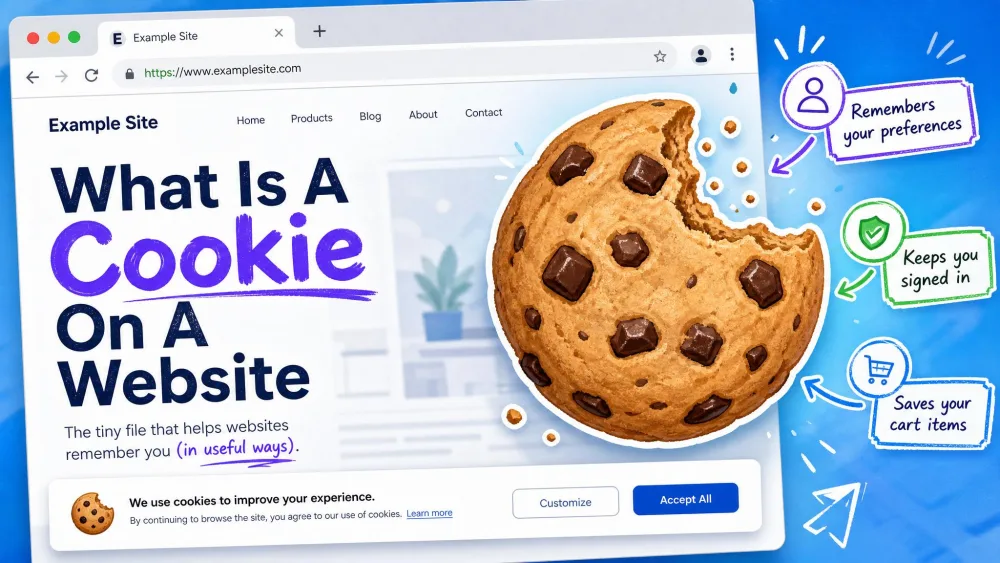
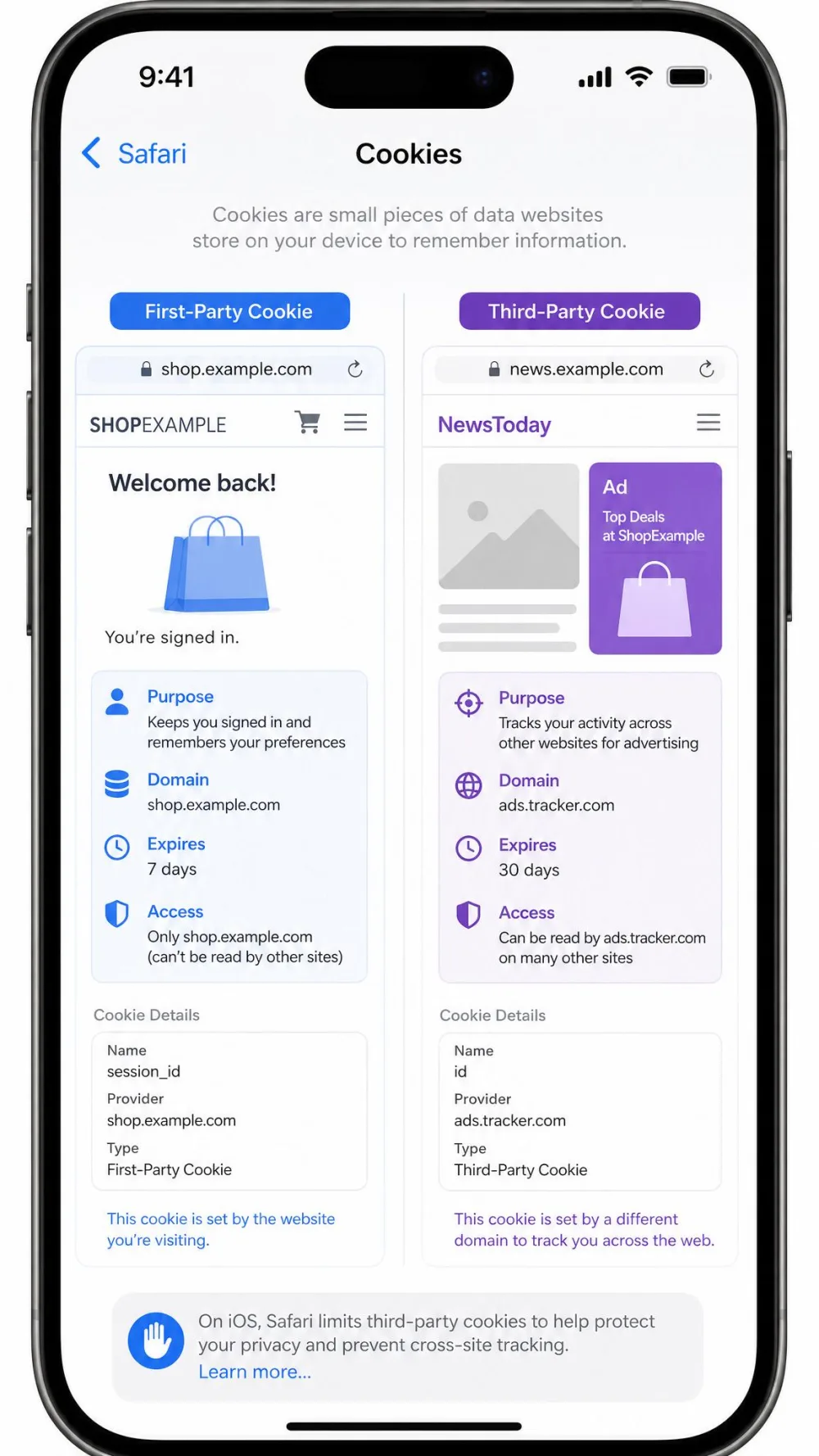
A cookie is a tiny text file a website saves in your browser. It holds things like your login session, your site settings, and an ID that lets the site recognise you on your next visit. First-party cookies come from the site you are on. Third-party cookies come from advertisers and trackers embedded in that page, and those are the ones that follow you around.
People clear cookies for a few clear reasons. The first is privacy. Deleting cookies removes the tracking IDs advertisers and political campaigns use to profile you. The second is troubleshooting. When a site logs you out repeatedly, shows an old layout, or refuses to load a page correctly, stale cookies are often the cause, and clearing them forces a clean start. The third is storage. A single ordinary website can store a surprising amount of data on your phone, sometimes well over 50MB, so clearing site data can free up noticeable space.
Cookies and cache are not the same thing. Cache holds images, scripts, and page files so sites load faster on your next visit. Cookies hold your login state and preferences. That distinction matters in practice: clearing cookies is what actually signs you out, while clearing cache mostly just slows the next load while files rebuild.
One thing worth knowing before you start. On the iPhone, the Settings app only controls Safari. Chrome, Firefox, Edge, and every other browser keep their own separate cookie store, and each one has to be cleared inside its own app. We cover all of them below.
How to Clear Cookies in Safari on iPhone
Safari is the default iPhone browser, so this is the method most readers need. On iOS 26 the fastest option clears your history, cookies, and cached files together in one action. Follow the four steps below.
Step 1: Open the Settings App
Tap the grey Settings icon on your Home Screen. This is the system Settings app, not a menu inside Safari itself. If you cannot find it, swipe down on the Home Screen and search for "Settings".
Step 2: Tap Safari
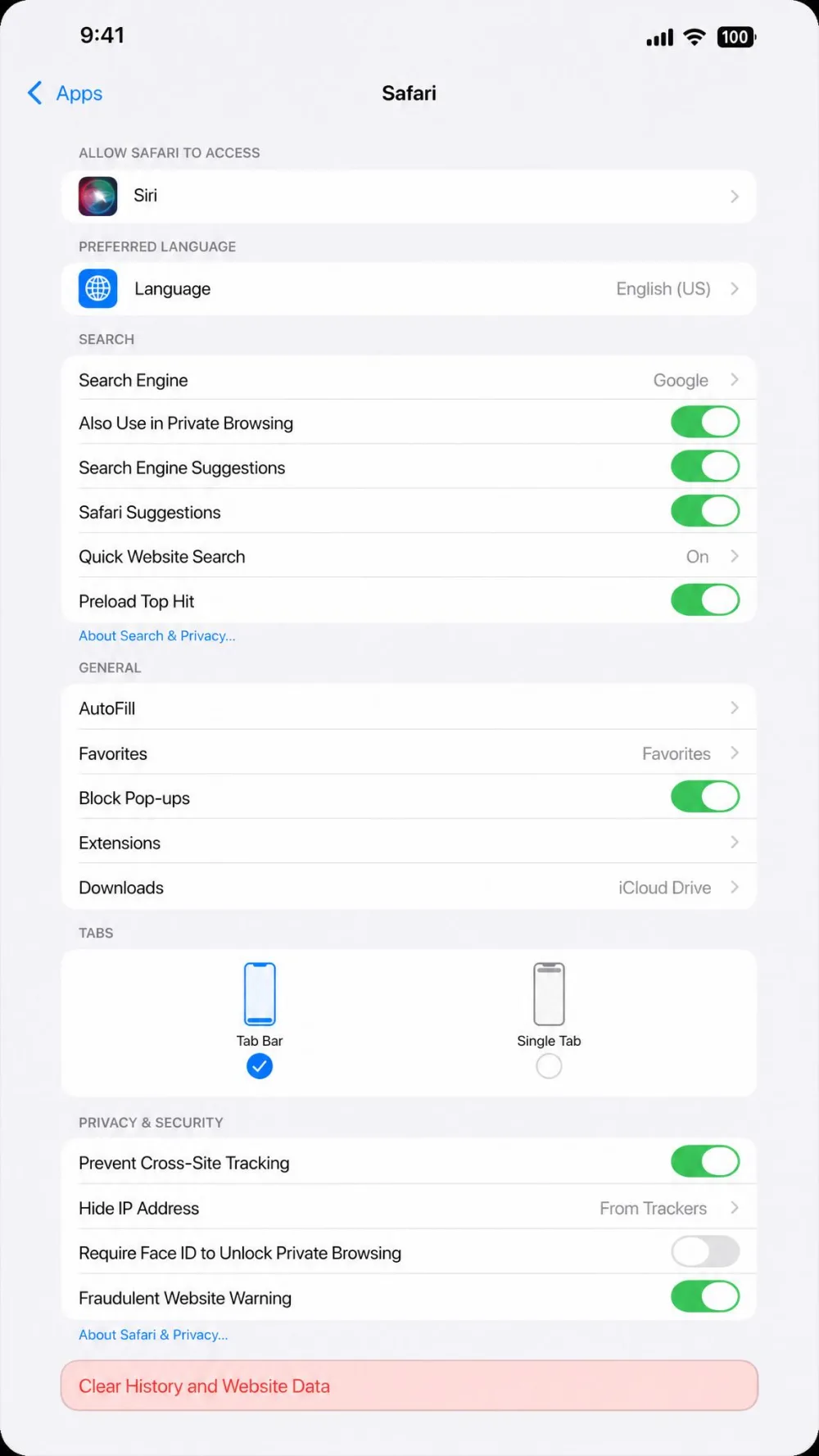
In iOS 26, Safari lives under a new location. Go to Settings > Apps > Safari. This is a change worth flagging: in iOS 26 the Safari settings moved into Settings > Apps, which trips up anyone used to finding Safari directly in the main Settings list. On earlier versions, iOS 15 through 18, you tap Safari directly in the main Settings screen instead.
Not sure which iOS version you are on? Go to Settings > General > About and check the Software Version line. If Safari is not where this guide says, look for it directly in the main Settings list, which is where older versions keep it.
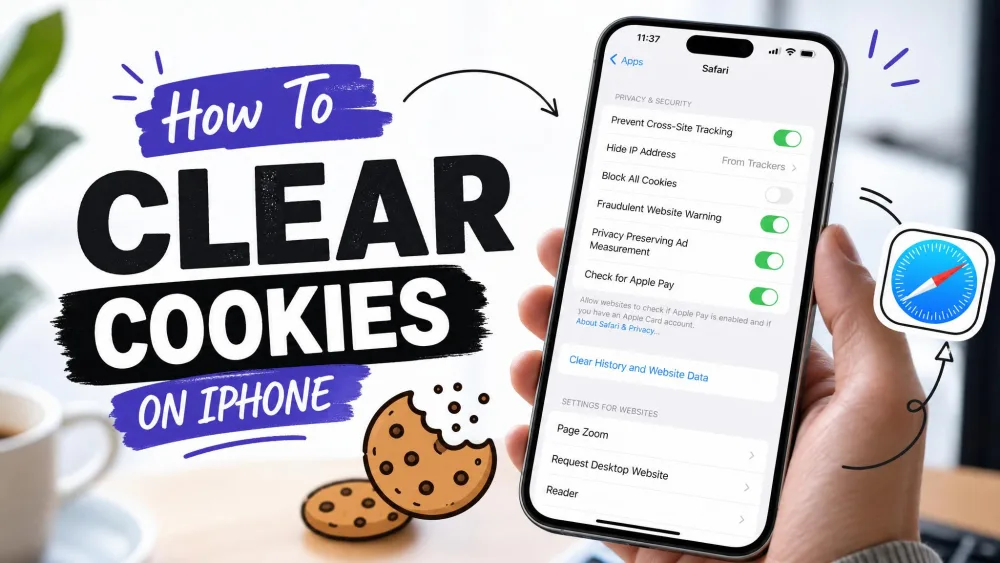
Step 3: Tap Clear History and Website Data
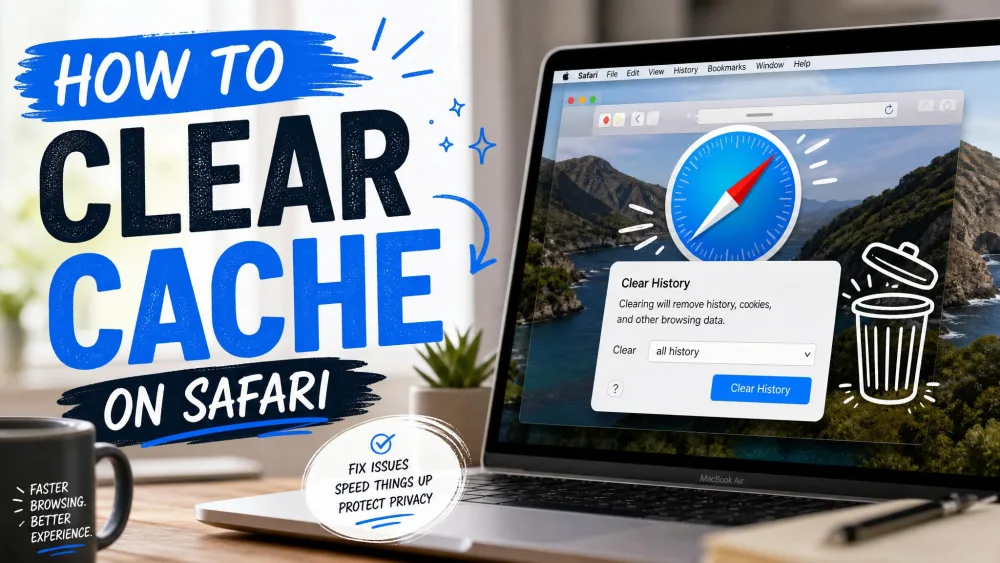
Scroll down inside the Safari settings and tap Clear History and Website Data. This one control removes your browsing history, your cookies, cached files, and the site permissions you have granted, all together. There is no way to keep some of those and drop the rest from this button, so use the alternatives further down for a lighter touch. This is Apple's own all-or-nothing control, not something a third-party app can soften.
Step 4: Confirm
iOS will ask you to confirm, and on newer versions it may let you choose a time range or profile. Confirm the action, and Safari clears the data. You will be signed out of most sites, and pages will load fresh on your next visit.
Clearing cookies logs you out of nearly every site where you were signed in, so keep your passwords handy because you will re-enter them on your next visit. It also wipes the site permissions you granted, such as location and notification access, and those sites will prompt you for them again.
Clear Cookies Without Deleting Your History
The main Safari button is all or nothing. To remove cookies and site data but keep your history, go to Settings > Apps > Safari > Advanced > Website Data. From there you can remove data site by site, or tap Remove All Website Data to clear cookies and caches while leaving your history untouched. Reach for this when you like your history but a login has gone stale.
Clear Cookies for a Single Website Only
You do not have to wipe everything to fix one misbehaving site. Go to Settings > Apps > Safari > Advanced > Website Data, swipe left on the site you want, and tap Delete. Only that site loses its cookies and data, and every other login stays put. This is the cleanest fix when one shopping site or forum keeps glitching.
How to Clear Cookies in Chrome on iPhone
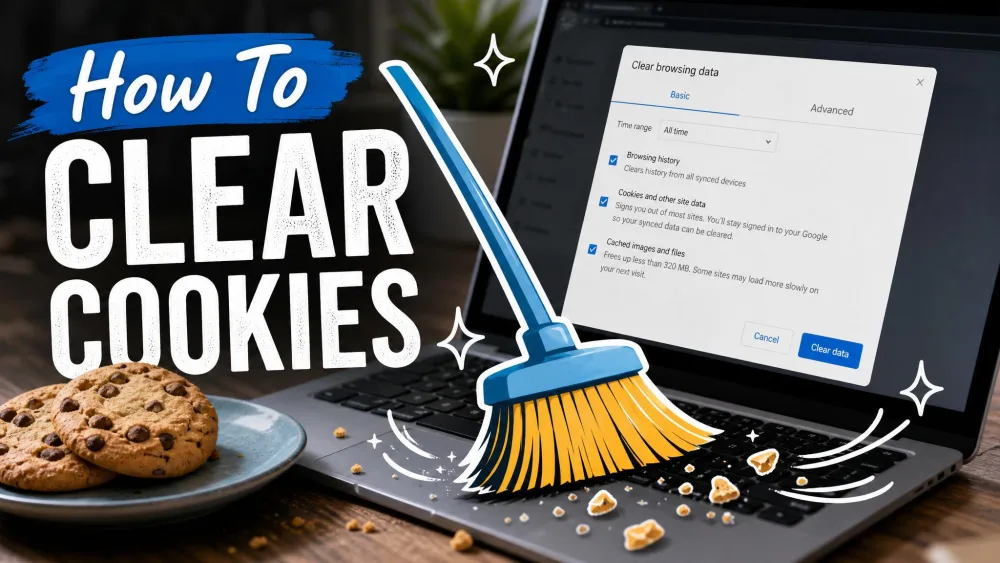
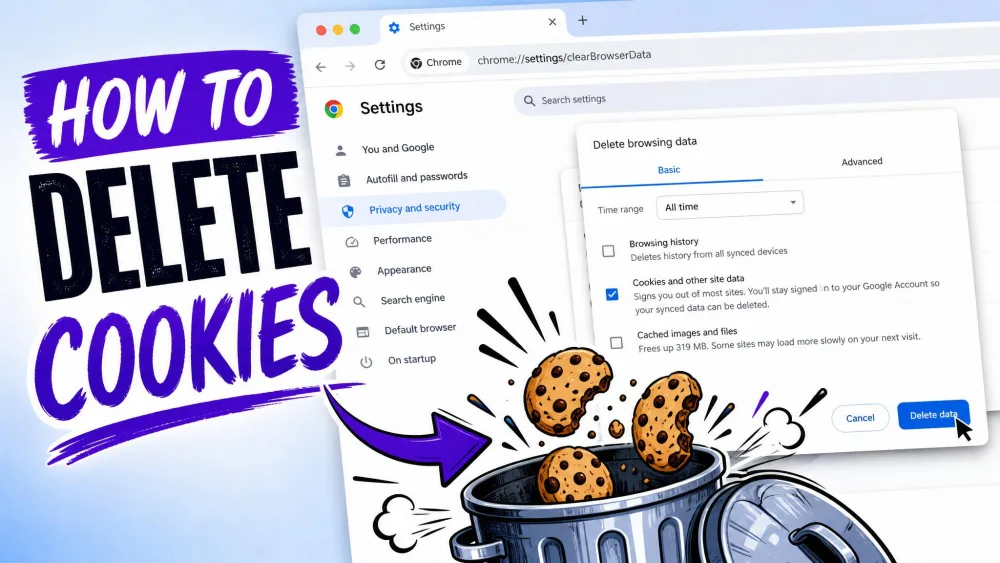
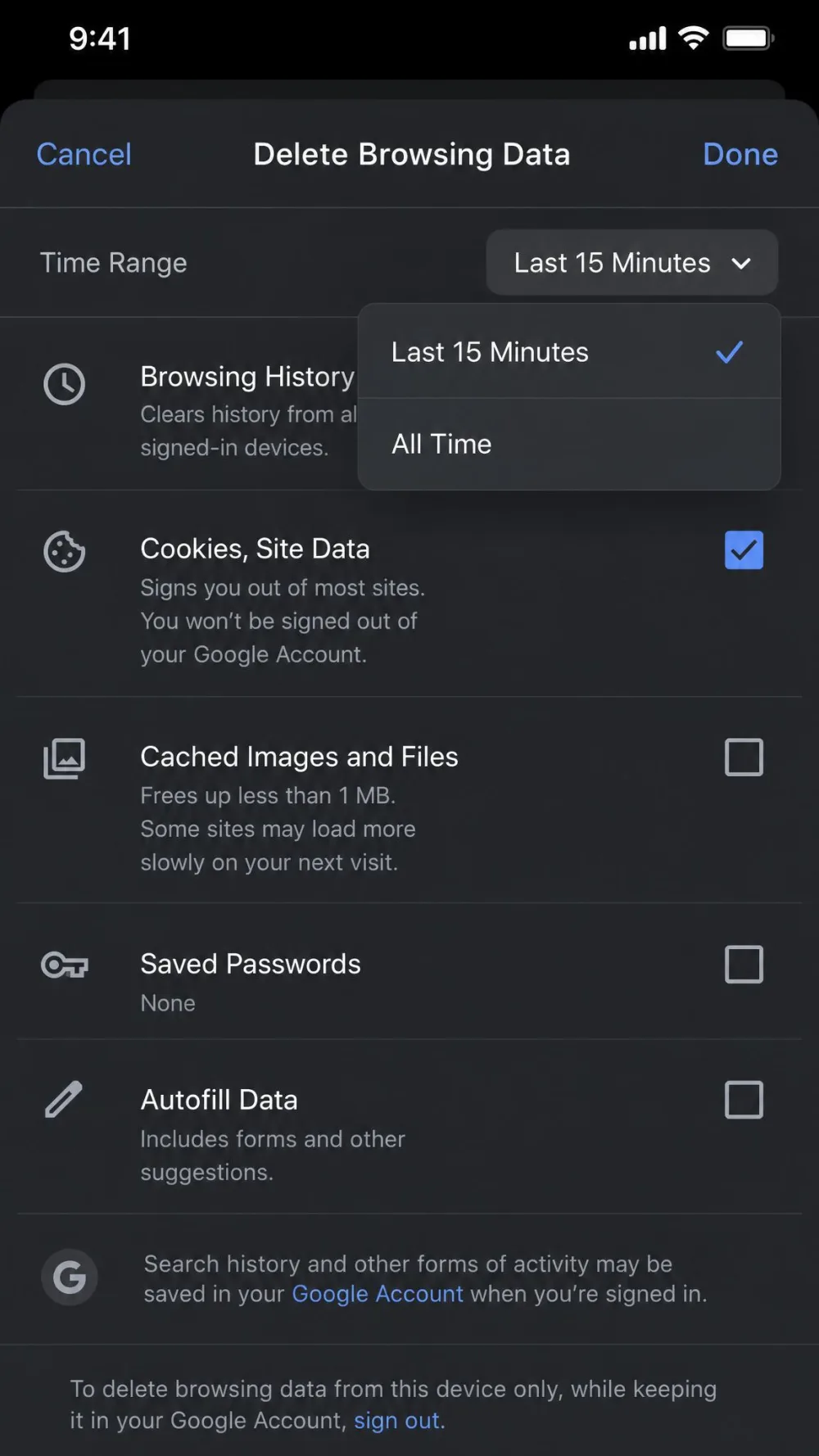
Chrome keeps its own cookies, so clearing Safari does nothing for it. You clear Chrome from inside the Chrome app. Open Chrome, tap the three dots for the More menu, then tap Delete Browsing Data. Pick a Time Range and choose which data types to remove, making sure Cookies, Site Data is ticked, then tap Delete Browsing Data to confirm.
One default is worth changing. Chrome's Delete Browsing Data screen defaults to a Time Range of 15 minutes, which only clears very recent activity. If you want to clear everything, switch the range to All Time before you confirm. You can also leave History unticked if you only want to drop cookies and cache.
Clearing Chrome's cookies may sign you out of your Google Account on the device. If you rely on Chrome sync, make sure you know your Google password before you clear, so you can sign back in without a scramble.
To manage saved passwords, which live separately, use Manage other Google data rather than the browsing-data screen. Google's own Google Chrome help walks through the same steps.
How to Clear Cookies in Firefox and Other Browsers on iPhone
Firefox follows the same principle. It stores cookies inside its own app, so you clear them from Firefox's settings, not from iOS Settings. Open Firefox, tap the hamburger menu, then go to Settings > Data Management. Tick Cookies, and optionally Cache and Browsing History, then tap Clear Private Data. Firefox removes only the types you selected.
The exact menu labels can shift slightly between Firefox versions, so if "Data Management" is not where this guide says, look for a similarly named privacy or data option in the Firefox settings.
Edge, Brave, and Opera
Edge, Brave, and Opera are all Chromium-based, so they behave much like Chrome. Each clears cookies from its own in-app menu, typically Settings > Privacy and Security > Clear Browsing Data. The pattern is the same: open the app, find its privacy settings, choose Clear Browsing Data, and confirm. Because iOS Settings never touches third-party browsers, repeat the process in each app you use.
If you use more than one browser, clearing cookies is a per-app chore. There is no single iPhone switch that wipes cookies everywhere. Clear Safari in Settings, then open each other browser and clear it from inside.
How to Block or Limit Cookies on iPhone
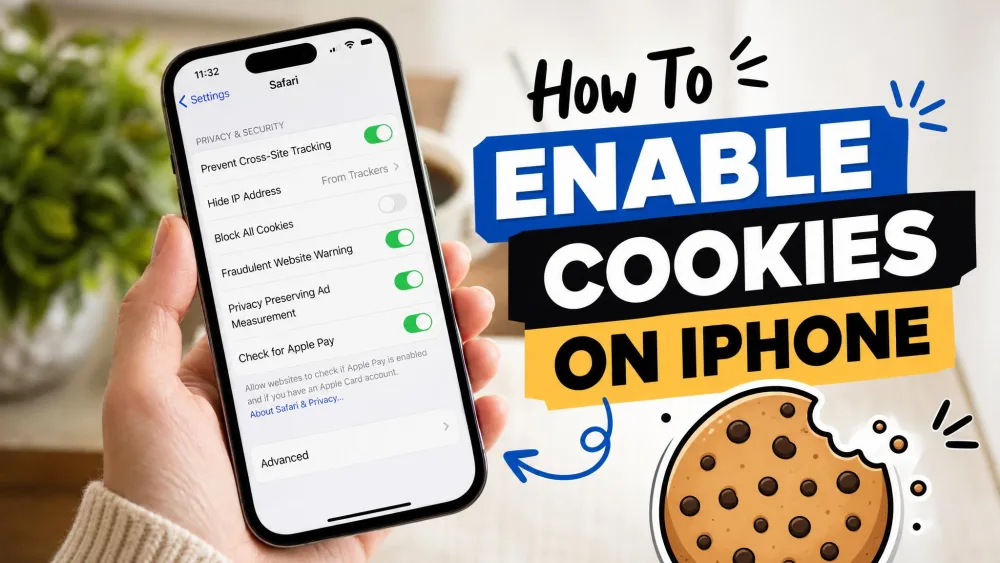
Clearing cookies is a reset. Blocking or limiting them is a longer-term setting. Safari gives you two levers. The gentler one is Prevent Cross-Site Tracking, which is on by default and stops third-party trackers from following you between sites while leaving normal logins working. This is the setting we recommend leaving on for most people.
The heavier lever is Block All Cookies, found under Settings > Safari > Advanced > Block All Cookies. Apple itself warns this can break sites and sign-ins, and in practice it does exactly that. Turning on Block All Cookies breaks everyday behaviour: shopping carts stop working and you cannot stay logged in anywhere until you turn cookies back on. Prevent Cross-Site Tracking is the better middle ground for nearly everyone.
Block All Cookies sounds like the private choice, but it makes the web frustrating to use. Carts empty themselves and logins fail. Leave it off and rely on Prevent Cross-Site Tracking instead unless you have a very specific reason.
iOS 26 also adds a Private Browsing Lock, which requires Face ID or Touch ID to open private tabs. It does not block cookies on its own, but it is a useful privacy layer if you share your phone.
How Often Should You Clear Cookies?
There is no single right answer, and the honest range is a balance between privacy and convenience. Clearing more often means more privacy but more re-logging-in. For most people, clearing every few weeks to a few months is plenty. If you care a lot about privacy, weekly is reasonable. If you mostly want convenience, clear only when a site starts misbehaving or you notice your storage filling up.
The trade is simple. Frequent clearing keeps trackers from building a long profile of you and frees up space, but it signs you out constantly. Clearing less often keeps you logged in and browsing smoothly, at the cost of letting cookies pile up.
Troubleshooting: Clearing Cookies Isn't Working
Most of the time the steps above just work. When they do not, one of these three issues is usually why.
"Clear History and Website Data" Is Grayed Out
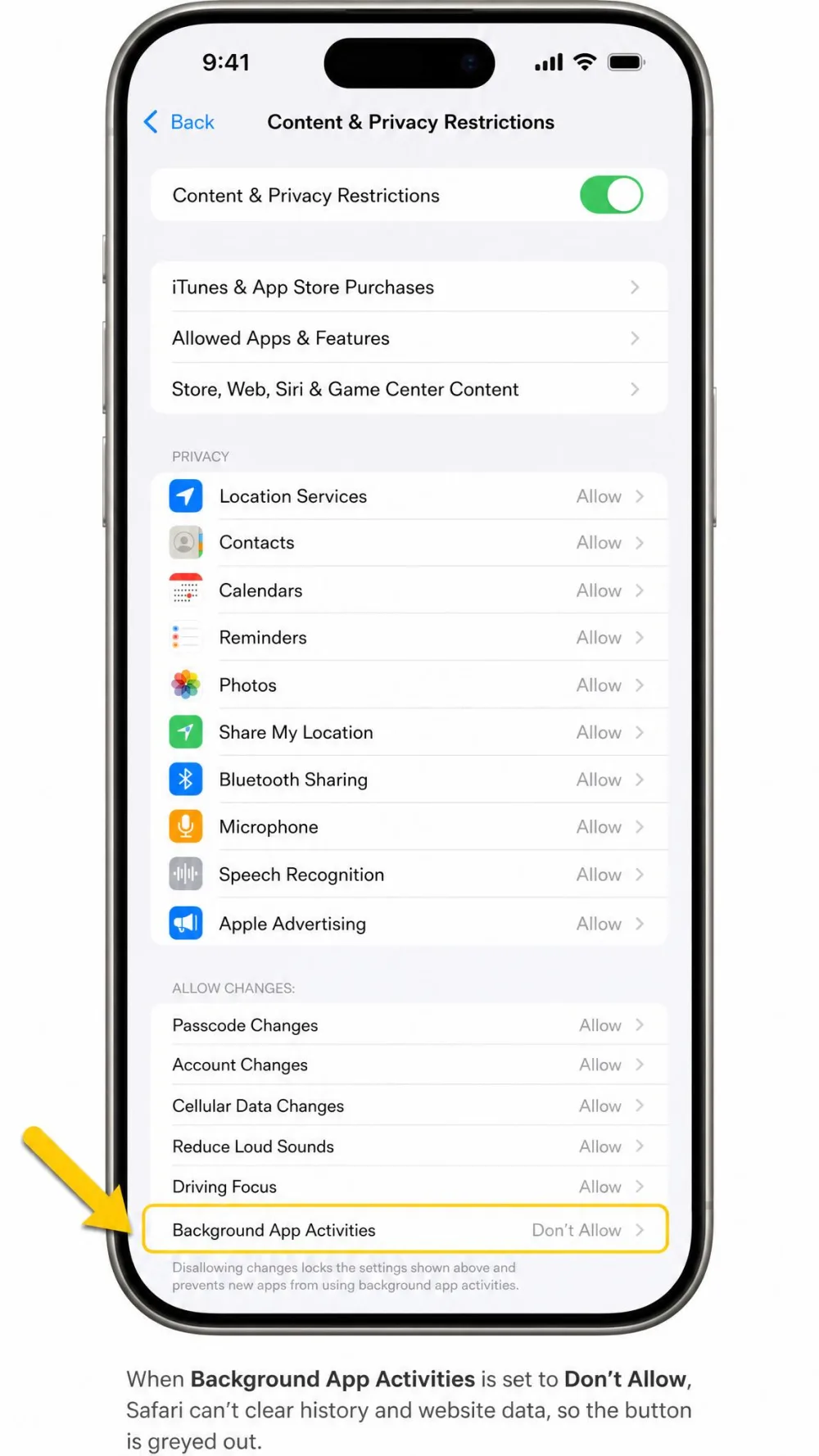
If the button is greyed out and will not tap, the usual cause is Screen Time content restrictions blocking it. Go to Settings > Screen Time > Content and Privacy Restrictions and check whether web content or changes are limited. Turning the relevant restriction off, or entering the Screen Time passcode, restores the button. This is common on phones set up with parental controls.
Websites Still Won't Load Correctly
If a site still misbehaves, close it fully and reopen it, then check your connection. Some sites hold data a single clear does not fully reset, so try clearing that one site through Settings > Apps > Safari > Advanced > Website Data. A phone restart occasionally helps when a page refuses to refresh.
Cookies Won't Clear in Chrome or Firefox
If cookies seem to survive in Chrome or Firefox, you almost certainly cleared the wrong place. Clearing Safari in iOS Settings does nothing to those apps. Open the browser itself and clear from inside it. In Chrome, also check that your Time Range was set wide enough, because the 15 minutes default leaves older cookies in place.
What Changed in iOS 26 for Cookie Management
The headline change in iOS 26 is where Safari's settings live. They moved from the main Settings list into Settings > Apps > Safari. Functionally the Clear History and Website Data control works the same as before, but the new location catches out longtime users who expect Safari near the top of Settings.
iOS 26 also introduces the Private Browsing Lock mentioned earlier, adding Face ID or Touch ID protection to private tabs. Prevent Cross-Site Tracking remains on by default, so your iPhone already limits the worst of third-party tracking out of the box. On earlier versions the same controls sit under Settings > Safari directly rather than under Apps.
Frequently Asked Questions
Will clearing cookies log me out of websites?
Does clearing cookies also clear my browsing history and passwords?
How often should I clear cookies on iPhone?
Can I clear cookies from third-party browsers like Chrome or Firefox on my iPhone?
Why is "Clear History and Website Data" greyed out?
What is the difference between cookies and cache?
Does clearing cookies speed up my iPhone?
Bottom Line
Clearing cookies on your iPhone is quick, and it does real work for your privacy and your browsing. For Safari, the whole job is Settings > Apps > Safari > Clear History and Website Data on iOS 26, or a targeted clear through Advanced > Website Data when you want a lighter touch. For Chrome, Firefox, and any other browser, repeat the clear inside each app, because the Settings app only handles Safari.
We ran these steps on iOS 26, and the pattern holds across the board: clearing signs you out, resets stale sites, and frees up space, at the cost of re-entering a few passwords. Leave Prevent Cross-Site Tracking on, skip Block All Cookies unless you enjoy broken shopping carts, and clear on a rhythm that matches how private you want to be. That is all it takes to take control of what your phone remembers.
We tested every method in this guide on an iPhone running iOS 26. If your menus look different, you are likely on an earlier version, where Safari sits directly in the main Settings list rather than under Settings > Apps.