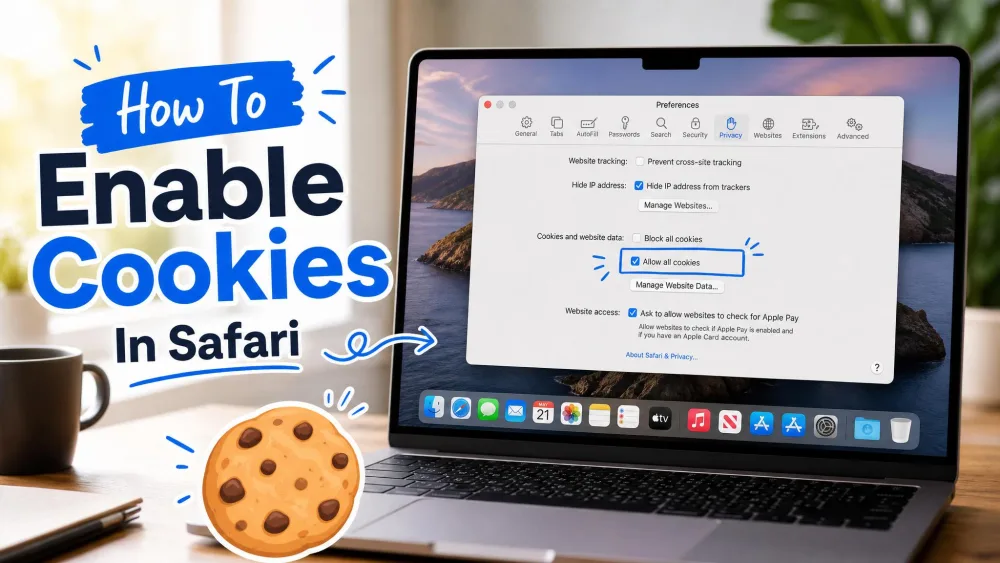
A site that keeps logging you out, an empty shopping cart, or a login page that refuses to load usually points to one thing: blocked cookies in Safari. The fix is a single toggle or checkbox, and it lives in a slightly different place on each Apple device.
We walked through the exact settings paths on an iPhone, an iPad, and a Mac so you can turn cookies back on and get your sites working again. Below you will find the quick answer first, then step-by-step instructions for each device and a troubleshooting section for the cases where cookies are on but a site still complains.
Quick Answer. On iPhone or iPad, open Settings, tap Apps, tap Safari, scroll to Advanced, then turn the Block All Cookies toggle off. On a Mac, choose Safari, then Settings, click the Privacy tab, and uncheck Block all cookies. That is the whole fix on every device.
Quick Answer: Enabling Cookies in Safari
Cookies are allowed in Safari by default, so "enabling" them almost always means switching off a Block All Cookies setting that got turned on, either by you or by a privacy shortcut.
On iPhone or iPad
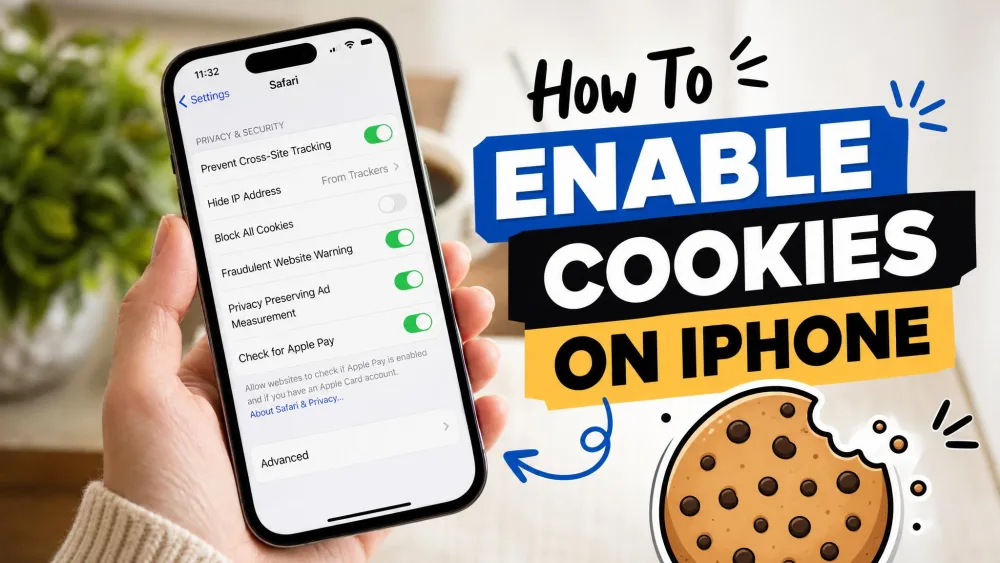
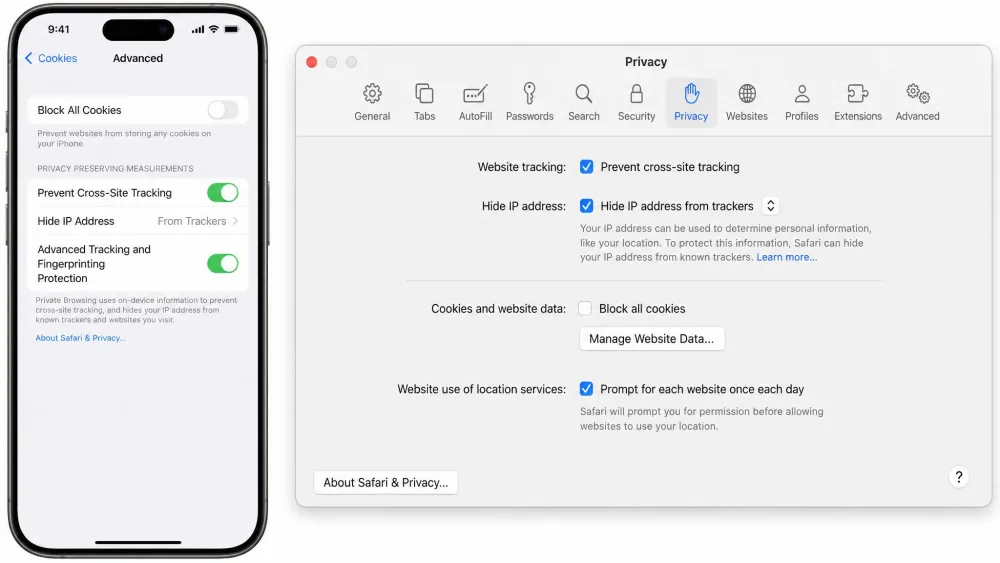
Open the Settings app, tap Apps, then tap Safari. Scroll down to Advanced and make sure the Block All Cookies toggle is off and grey. Cookies are on whenever that switch is off.
On Mac or MacBook
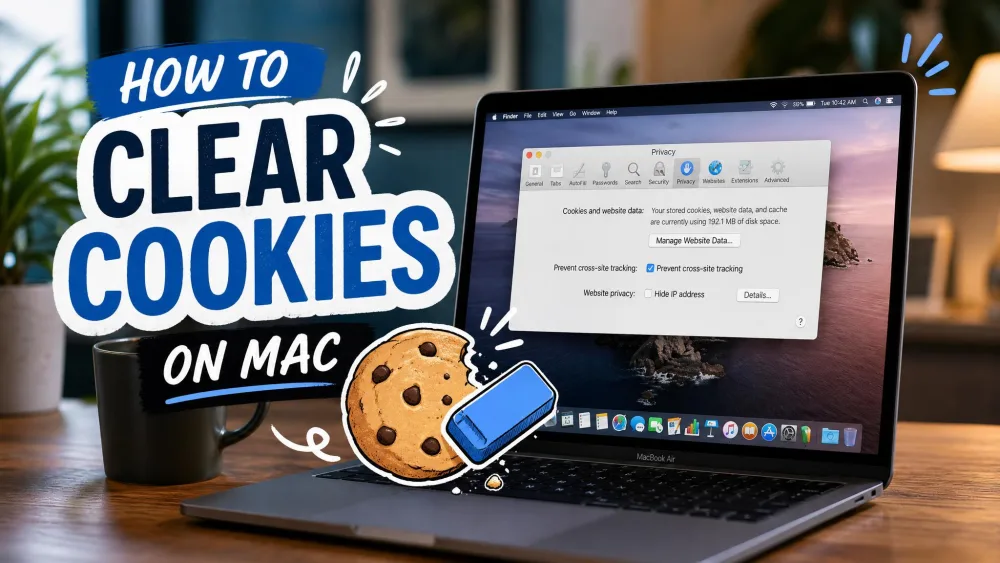
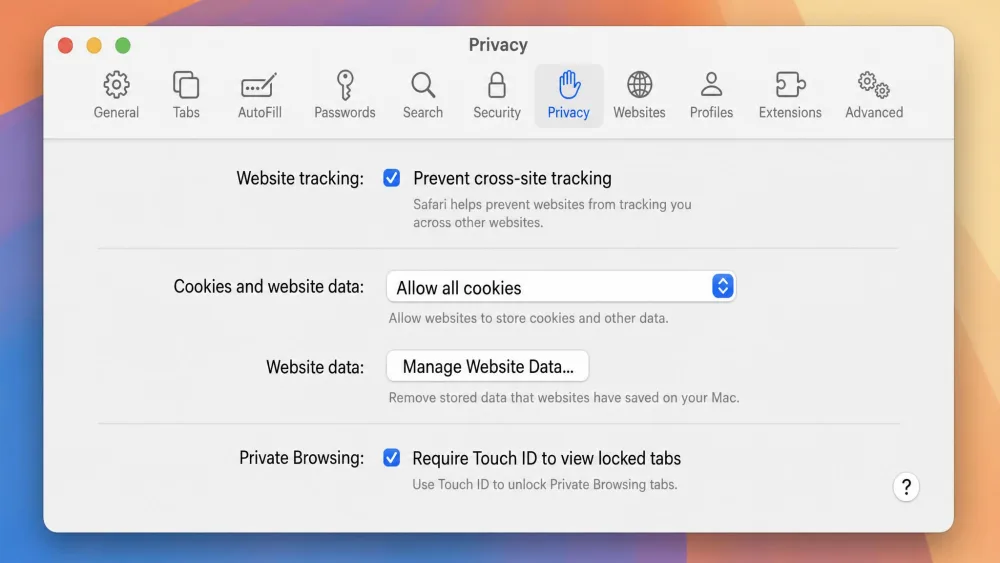
Open Safari, choose Safari, then Settings, and click the Privacy tab. Uncheck the box labelled Block all cookies. Leave Prevent cross-site tracking on for normal, privacy-friendly browsing.
What Are Cookies (and Why Safari Blocks Some by Default)
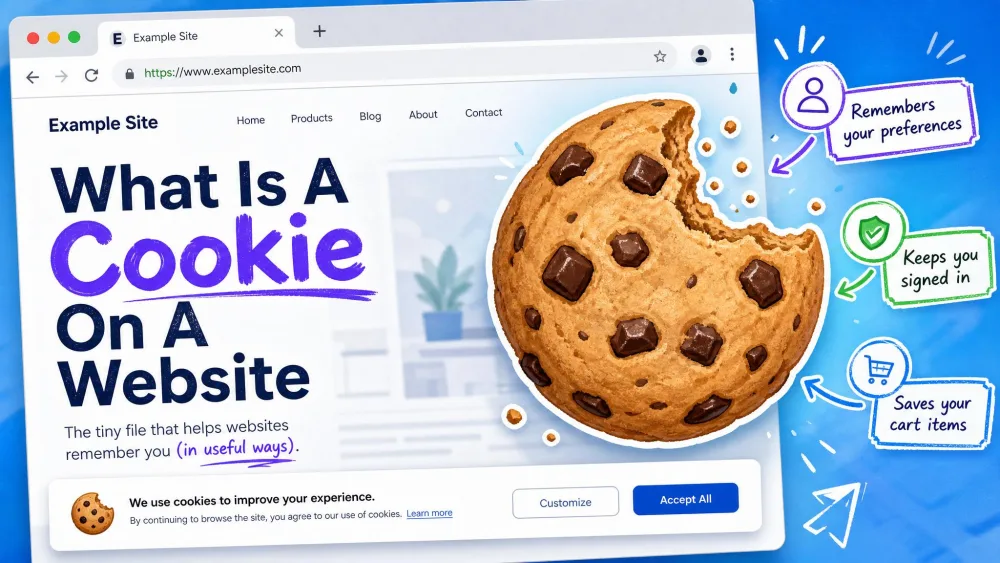
Cookies are small files a site stores on your device to remember logins, saved preferences, and shopping-cart contents. Without them, a site cannot tell that you are the same visitor from one page to the next.
Safari already allows first-party cookies, the ones set by the site you are actually visiting. What it blocks by default is different. A setting called Prevent Cross-Site Tracking stops third-party advertiser cookies from following you between sites. That is not a full cookie block, and it is on for good reason.
The setting that breaks sites is the separate Block All Cookies switch. When it is on, Safari refuses every cookie, first-party and third-party alike. Sites then force a fresh login on every visit or refuse to log you in at all, forget preferences like dark mode, and in some cases block access until cookies are turned back on.
How to Enable Cookies in Safari on iPhone
On the iPhone, the cookie control is one toggle. There is no separate "enable cookies" switch, so all you are doing is confirming that Block All Cookies is switched off.
Step 1: Open the Settings App
Tap the grey Settings icon on your Home Screen or find it by swiping down and searching for Settings. This is the system Settings app, not any menu inside Safari itself.
Step 2: Tap Apps, then Safari
In iOS 18, Apple moved per-app browser settings into a new Apps section, so Safari no longer sits directly in the main Settings list. Scroll down, tap Apps, then tap Safari. On older versions of iOS you will find Safari listed on the main Settings screen instead.
Step 3: Open Privacy & Security
Inside the Safari settings, scroll down to the Privacy & Security heading. This is the section header you scroll past on your way to the cookie control, not the final tap.
Step 4: Turn Off "Block All Cookies"
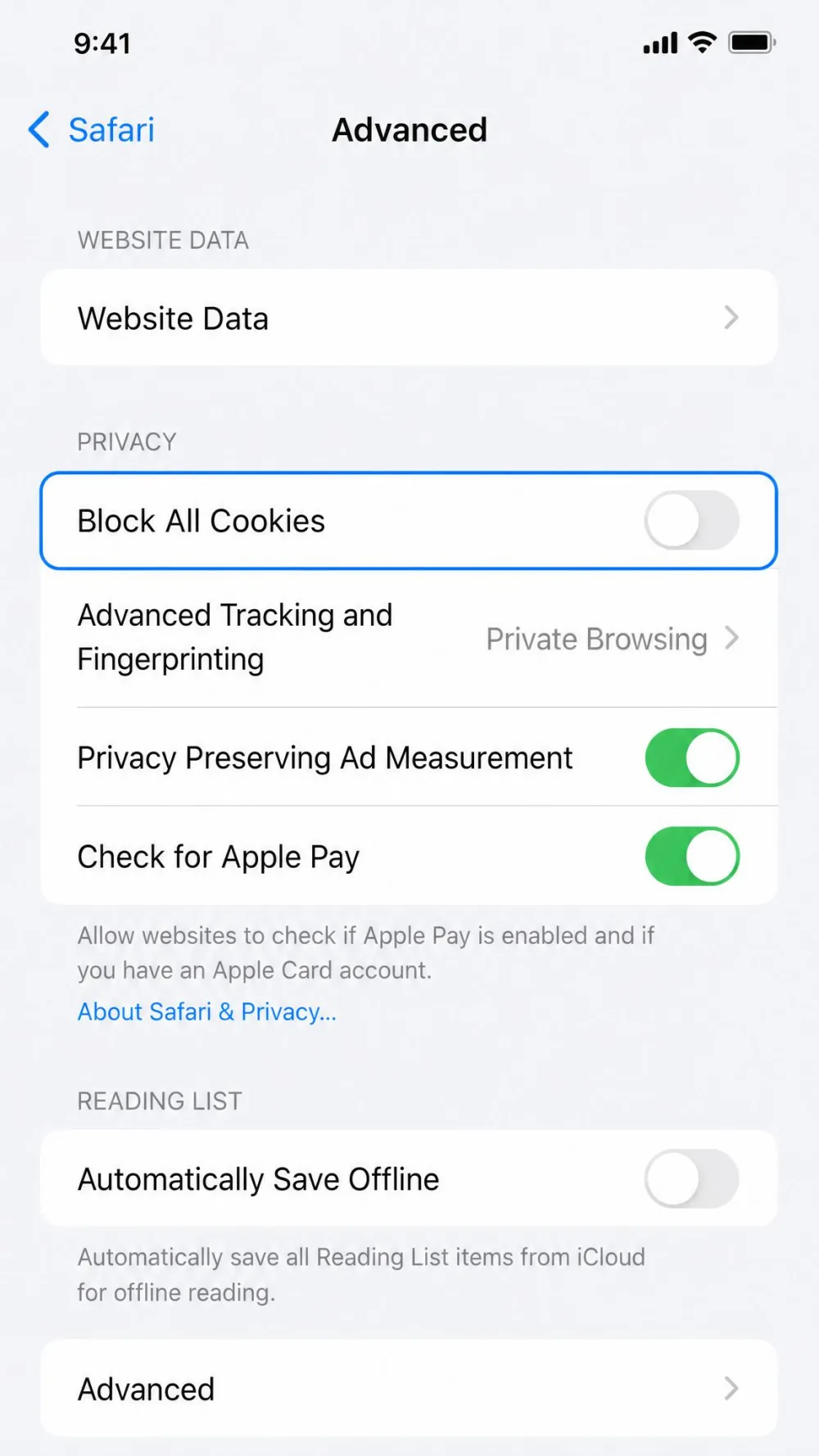
Keep scrolling to Advanced and open it. Find the Block All Cookies toggle and make sure it is off and grey. If it is green, tap it once to switch it off. Cookies are allowed the moment that toggle is off.
Step 5: Reload the Website
Return to Safari and reload the page that was misbehaving. If it still refuses to remember you, close the tab completely and open the site fresh, since a stale page can hold on to the old blocked state.
If the Block All Cookies toggle looks greyed out and will not move, Screen Time content restrictions are usually the cause. Open Settings, tap Screen Time, and check your content and privacy restrictions to free the toggle.
How to Enable Cookies in Safari on iPad
The iPad uses iPadOS, and its cookie control sits in exactly the same place as the iPhone. If you have followed the iPhone steps above, you already know this path.
Step-by-Step Settings Path
Open the Settings app on your iPad, tap Apps, then tap Safari. Scroll down to Advanced and make sure the Block All Cookies toggle is off and grey. Reload the site afterwards, and if it still misbehaves, close and reopen the tab so Safari drops the old blocked state.
How to Enable Cookies in Safari on Mac (and MacBook)
On a Mac or MacBook, cookies live inside Safari's own Settings window rather than in System Settings. Recent macOS builds reorganize these panes, so the exact tab can vary by version.
Step 1: Open Safari Settings (Preferences)
With Safari open, click Safari in the menu bar at the top-left of the screen, then choose Settings. On older versions of macOS this menu item is named Preferences instead, but it opens the same window.
Step 2: Go to the Privacy Tab
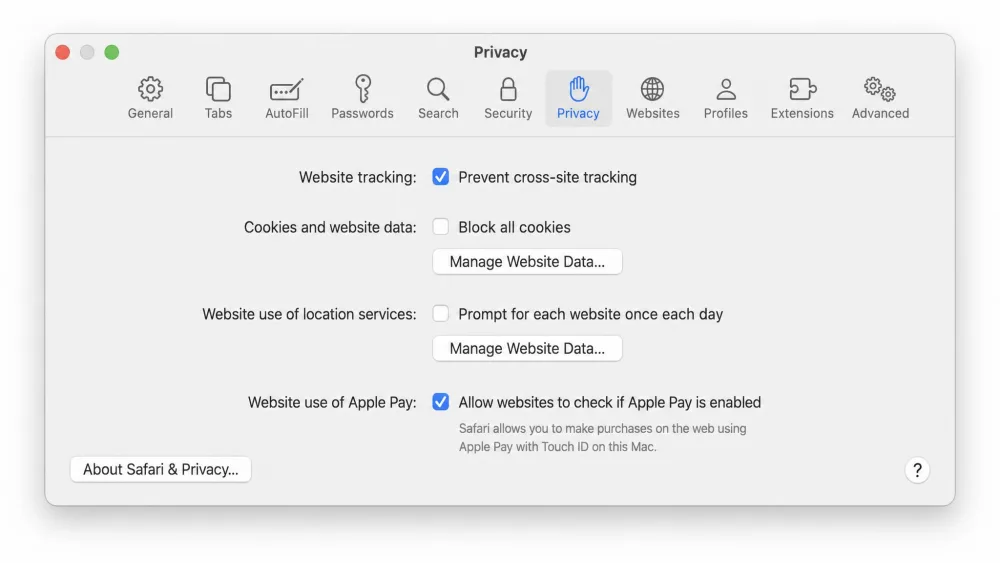
Click the Privacy tab at the top of the Settings window. On macOS Sequoia 15 the cookie controls live here, in the Privacy tab, directly below Prevent Cross-Site Tracking, not in the Advanced pane.
Step 3: Uncheck "Block All Cookies"
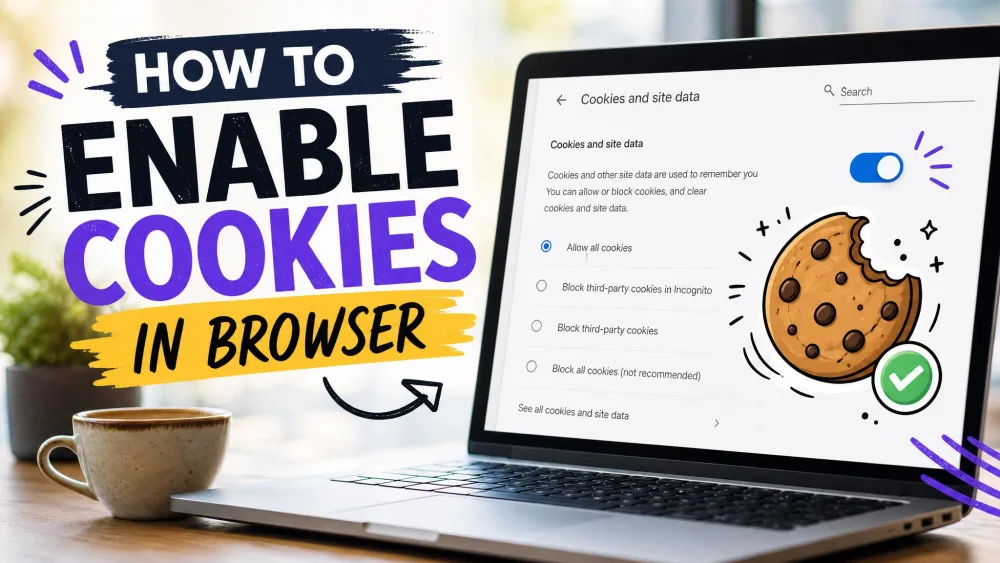
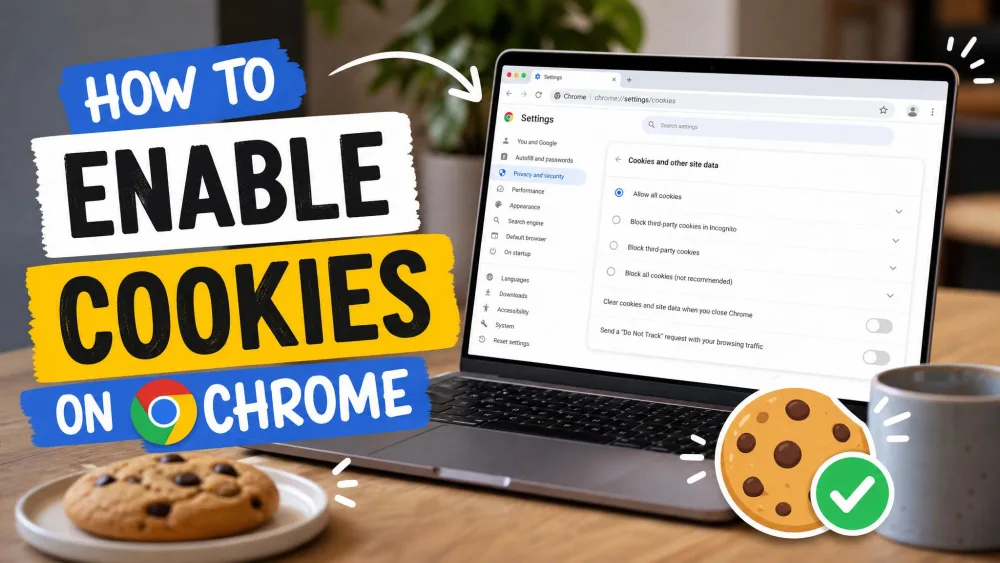
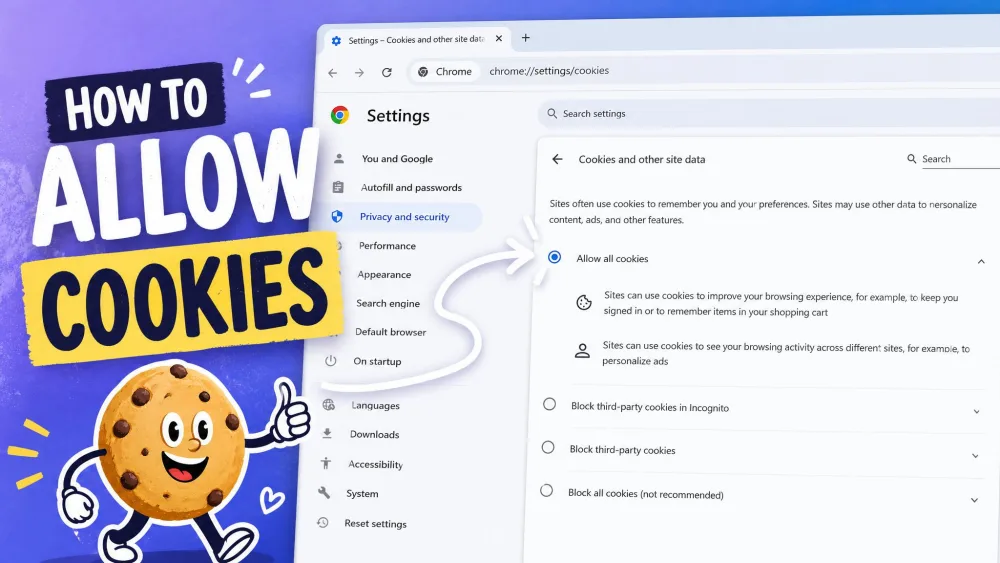
Find the checkbox labelled Block all cookies and clear it. With the box unchecked, Safari accepts cookies again, and your logins and saved carts should start sticking. Apple's Mac Safari cookie guide currently covers macOS Ventura 13, Sonoma 14, Sequoia 15, and the newer Tahoe release, so the wording should match whichever of those you run.
You can cross-check the exact steps for your version in Apple's own documentation on how to manage cookies and website data in Safari (Apple Support) and its page on how to Enable cookies in Safari on Mac (Apple Support).
Step 4: Manage "Prevent Cross-Site Tracking"
The same Privacy tab holds Prevent Cross-Site Tracking. Leaving it on blocks third-party advertiser cookies while your first-party logins keep working, which is the balanced setting we recommend for everyday browsing. Only turn it off temporarily if a specific site still complains about blocked cookies after everything else checks out.
We suggest leaving Prevent Cross-Site Tracking on. It blocks the advertiser cookies that follow you between sites without breaking normal logins or carts, so you keep most of the privacy benefit and lose almost none of the convenience.
How to Allow Cookies for a Specific Website Only
Safari does not offer a per-site cookie allow-list, so there is no switch that whitelists one site while blocking the rest. If a single site is misbehaving, the practical fix is to clear just that site's stored data and let it start fresh.
On a Mac, open Safari, choose Settings, click the Privacy tab, and select Manage Website Data. Search for the site, select it, and remove only its data. On iPhone or iPad, clear that one site's data the same way rather than wiping everything. This clears a corrupted cookie for that domain without logging you out of every other site you use.
Troubleshooting: Cookies Enabled but Site Still Won't Work
Sometimes cookies are clearly on and a site still insists they are blocked. In our testing, four causes explain almost every case, and each has a quick check.
You're in Private Browsing Mode
Private Browsing windows discard cookies the moment the tab closes, so logins never stick and consent banners reappear on every visit. This is the most common false alarm behind "my cookies won't save." Open a normal window instead, and for background you can read Apple's notes on how to use Private Browsing in Safari.
Third-Party Cookies Are Still Blocked
Even with cookies allowed, a site can still report them as blocked because Prevent Cross-Site Tracking is dropping its third-party cookies. Temporarily turning that setting off in the Mac Privacy tab is what actually unblocks these sites. Turn it back on once you are done, since most sites do not need it off.
Clear Corrupted Cookies for That Site
A login loop that survives re-enabling cookies usually traces to a single corrupted cookie for one domain. Clearing just that site's website data fixes it without wiping every other login you have saved. Use the Manage Website Data step above and remove only the affected site.
Restart Safari or Check iCloud Sync
If nothing else works, quit Safari completely and reopen it so the new cookie setting takes hold across your tabs. On iOS 18, some users found that cookie settings which refused to stick were fixed by the iOS 18.0.1 update rather than any settings change, so make sure your device is up to date. Banking and payment pages were the loudest holdouts on iOS 18, still throwing cookies-blocked errors after every recommended fix, and a software update was often the real cure.
Turning Block All Cookies off then on again clears your remembered session and effectively logs you out everywhere. If you only wanted to reset one stubborn site, clear that site's data instead so you do not lose every other login.
Block All Cookies vs. Prevent Cross-Site Tracking: What's the Difference
These two settings sound similar but do very different jobs. Block All Cookies is a blunt switch that refuses everything, while Prevent Cross-Site Tracking is a targeted filter that only blocks advertiser tracking. Knowing which is which saves you from disabling the wrong one.
| Setting | Block All Cookies | Prevent Cross-Site Tracking |
|---|---|---|
| What it does | Blocks every cookie, first-party and third-party | Blocks only third-party advertiser tracking cookies |
| Effect on logins and carts | Breaks logins, carts, and saved preferences | Logins and carts keep working normally |
| Privacy level | Maximum, but breaks many sites | Balanced, blocks trackers without breaking sites |
| Recommended setting | Leave off for normal browsing | Leave on (the Apple default) |
Are Cookies Safe? Privacy Considerations Before Enabling
First-party cookies are low-risk and mostly just make sites work as expected. They remember your login, your language, and your cart, and they do not follow you around the web. Enabling cookies in Safari does not throw your privacy protection away.
The tracking concern comes from third-party cookies, and Safari already handles those separately. Because Prevent Cross-Site Tracking stays on by default, you can safely uncheck Block All Cookies without opening the door to advertiser tracking. You get working sites and keep the anti-tracking shield at the same time, which is the setup we run on our own test machines.
Frequently Asked Questions
What's the difference between "Block All Cookies" and "Prevent Cross-Site Tracking"?
Why is "Block All Cookies" greyed out on my iPhone?
Can I enable cookies for only one website in Safari?
Why are cookies still blocked in Safari after I enabled them?
Is it safe to enable cookies in Safari?
How do I enable third-party cookies on Mac?
Conclusion: Quick Recap for All Apple Devices
Enabling cookies in Safari comes down to one control on each device. On iPhone and iPad, open Settings, tap Apps, tap Safari, scroll to Advanced, and switch Block All Cookies off. On a Mac, open Safari, choose Settings, click the Privacy tab, and uncheck Block all cookies.
Leave Prevent Cross-Site Tracking on the whole time, since it keeps advertiser tracking blocked without breaking your logins or carts. If a site still complains after that, step through the troubleshooting checks: leave Private Browsing, clear the one site's corrupted data, and make sure your device is running the latest update. With those settings in place, your sites should remember you again on every Apple device you own.