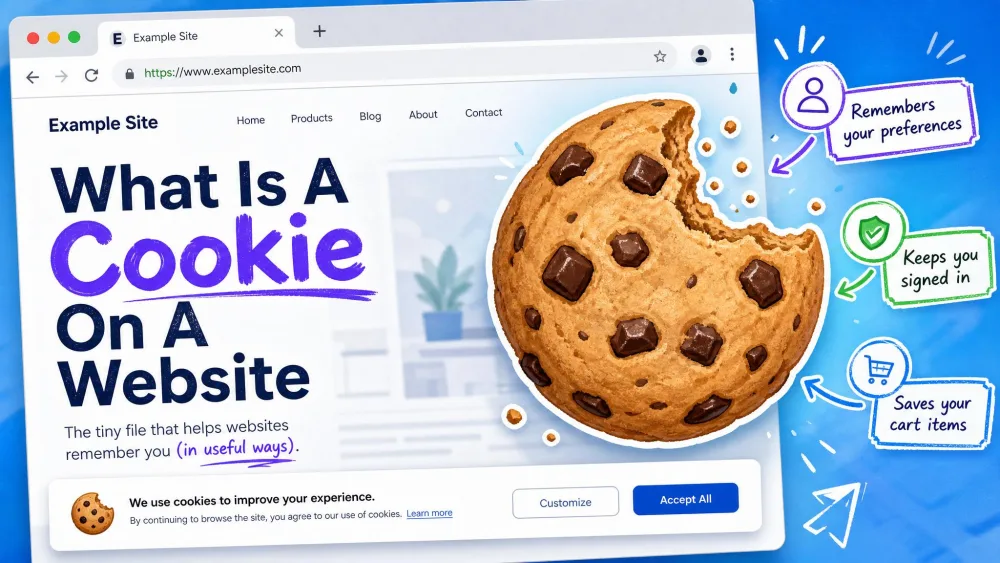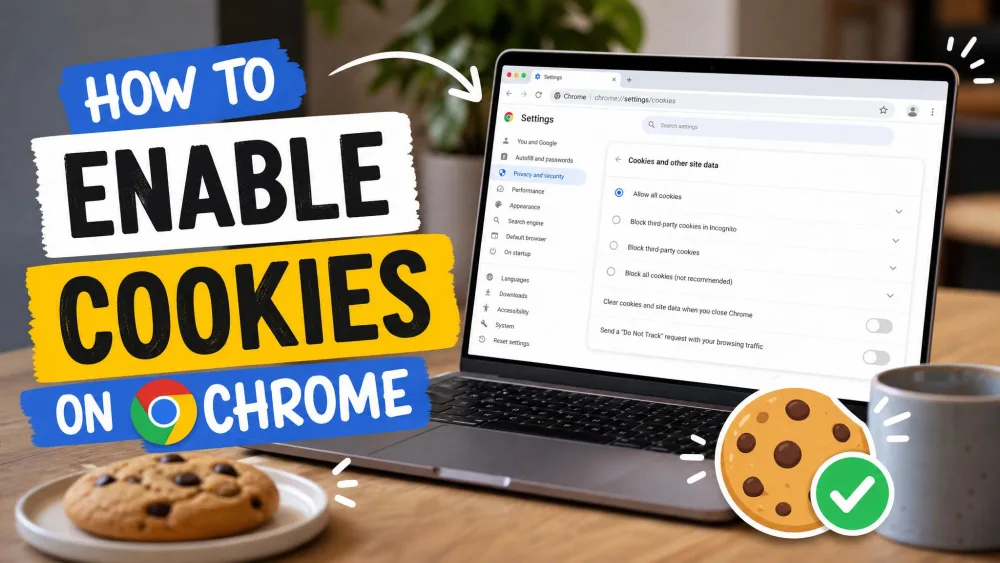
A cookie is a small text file a website stores in your browser to remember you between visits. It holds things like your login session, your language choice, and the items in your shopping cart. When cookies are turned off, sites forget all of that, and everyday browsing starts to break.
We tested Chrome's cookie settings across Windows, Mac, Android, and iPhone to map every path, because the menus have shifted between versions and the mobile apps do not match the desktop layout. This guide walks you through enabling cookies on each device, allowing them for specific sites, and fixing the common snags that leave cookies off even after you flip the switch.
What Are Cookies and Why Enable Them
Cookies come in two kinds. First-party cookies are set by the site you are visiting, and they handle the useful work: keeping you logged in, saving preferences, and holding a cart together across pages. Third-party cookies are set by other domains loaded on the page, usually for advertising and cross-site tracking.
Enabling cookies is what makes normal sites behave. With cookies blocked, sites throw login errors, hit you with repeated verification prompts, and load pages that never render right. If privacy is your concern, you do not have to choose all-or-nothing: Chrome lets you allow the first-party cookies sites need while still limiting third-party trackers.
How to Enable Cookies on Chrome on Desktop (Windows, Mac, Linux, Chromebook)
The steps below are identical on Windows, Mac, Linux, and Chromebook, since desktop Chrome shares one settings layout across every platform.
Step 1: Open Chrome Settings
Open Chrome, click the three-dot More menu in the top-right corner, and choose Settings.
Step 2: Go to Privacy and Security
In the left sidebar, click Privacy and security. This section holds every control for cookies, site data, and tracking.
Step 3: Open Site Settings, then Cookies
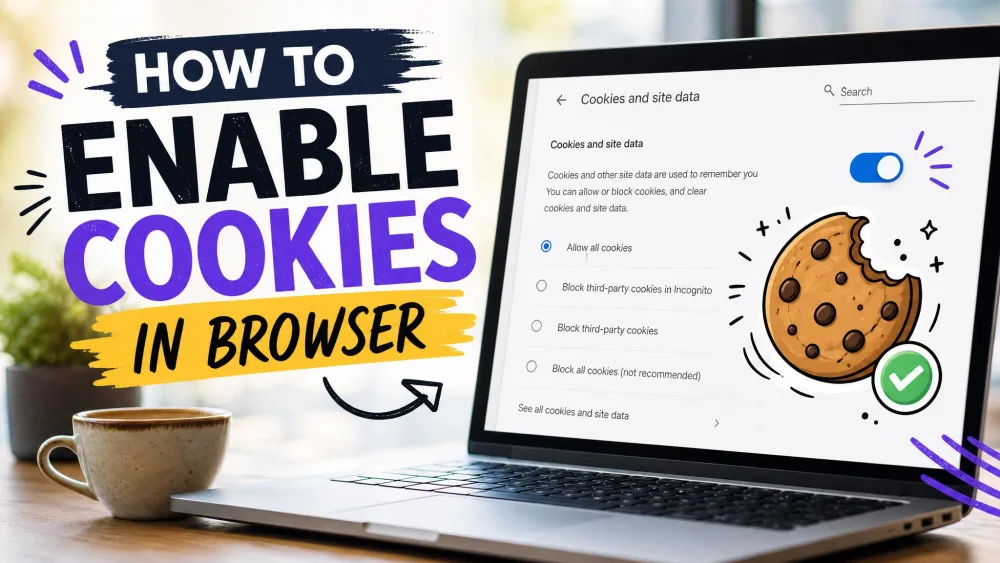
Newer Chrome versions surface this control as a top-level Third-party cookies item inside Privacy and security. On other builds, the same setting lives under Site settings, then Cookies (labeled "Cookies and site data" on some machines). Open whichever one your version shows.
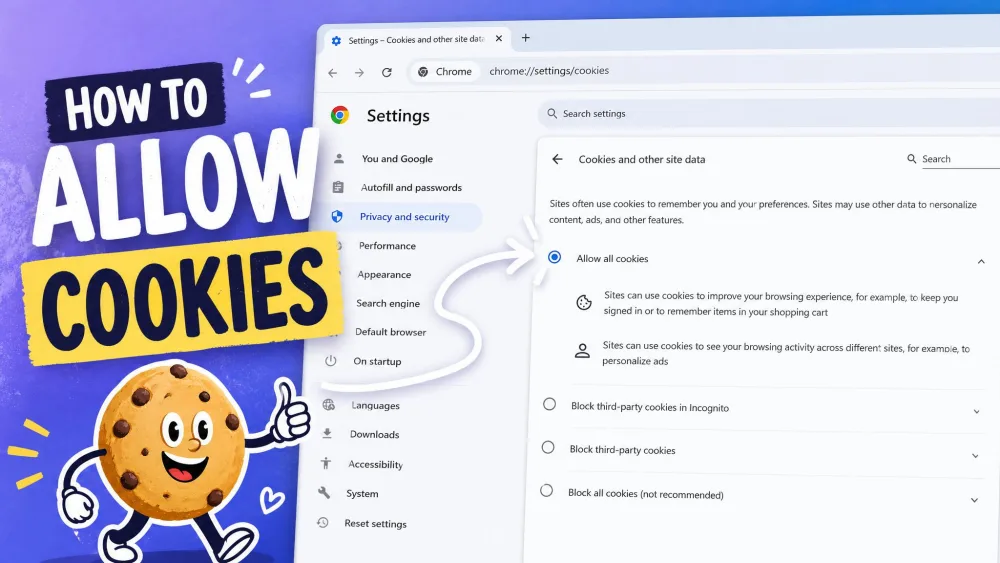
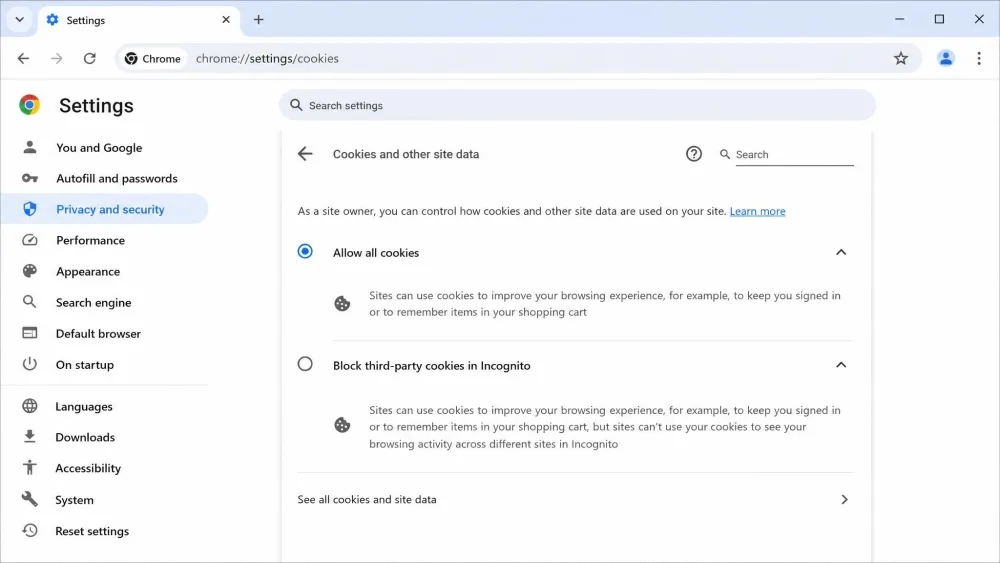
Skip the menus entirely. Type chrome://settings/cookies into the address bar and press Enter to jump straight to the cookie settings page.
Step 4: Choose Your Cookie Setting
Pick the level of access you want. On recent builds the top option reads Allow all cookies; older builds phrase the same control as "Allow sites to save and read cookie data (recommended)." Either one turns cookies fully on.
If you would rather keep some tracking protection, select Block third-party cookies in Incognito instead. In our testing this is the low-friction middle ground: it keeps normal browsing working while limiting cross-site tracking whenever you open a private window.
How to Enable Cookies on Chrome on Android
On Android the controls sit inside the Chrome app rather than the phone's system settings.
- Open the Chrome app and tap the three dots in the top-right corner.
- Tap Settings, then Site settings.
- Tap Third-party cookies (older builds list this as Cookies).
- Tap Allow third-party cookies (or Allow cookies on older builds).
Android menu labels drift between app versions, so if the wording does not match exactly, look for the closest cookie-related item under Site settings. The menu order stays the same even when the labels change.
How to Enable Cookies on Chrome on iPhone & iPad
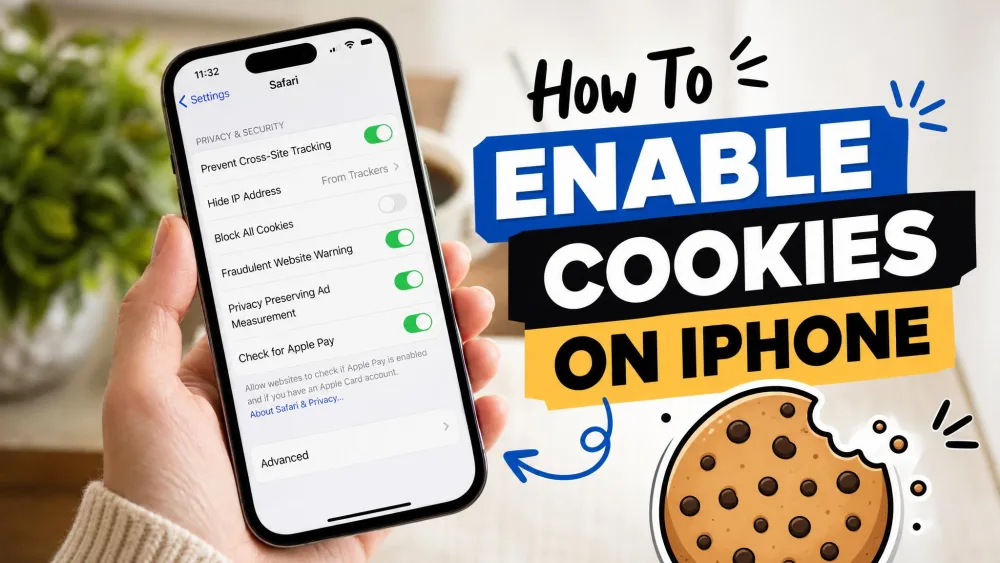
Here is the part that trips people up: on iPhone and iPad, Chrome keeps cookies on by default. There is no per-site cookie on/off switch like the one on desktop, so most users go hunting for an enable toggle that is not there. If sites are remembering your logins, cookies are already working and you do not need to do anything.
To confirm the setting, open Chrome, go to Settings, then Privacy and security, then Third-party cookies, and check that Allow third-party cookies is selected.
How to Allow Cookies for Specific Sites Only
If you keep cookies restricted but want a few trusted sites to work fully, add them as exceptions instead of loosening the global setting.
On desktop, open Privacy and security, find the Sites allowed to use third-party cookies list, click Add, and enter the site's URL. That single site is now cleared to set cookies while everything else stays under your default rule. You can also click the tune or lock icon on the left of the address bar to manage cookies for the page you are currently on.
How to Manage Third-Party Cookies and Delete Cookies in Chrome
Third-party cookies are the ones worth thinking about. Chrome gives you four levels: allow all cookies, block third-party cookies in Incognito, block third-party cookies everywhere, and block all cookies. For most people, allowing cookies while blocking third-party cookies in Incognito strikes the right balance.
Avoid Block all cookies. It is the setting most likely to break everyday sites, and in our testing many core features simply stop working, from logins to saved carts. If you want tracking protection, block third-party cookies rather than all of them.
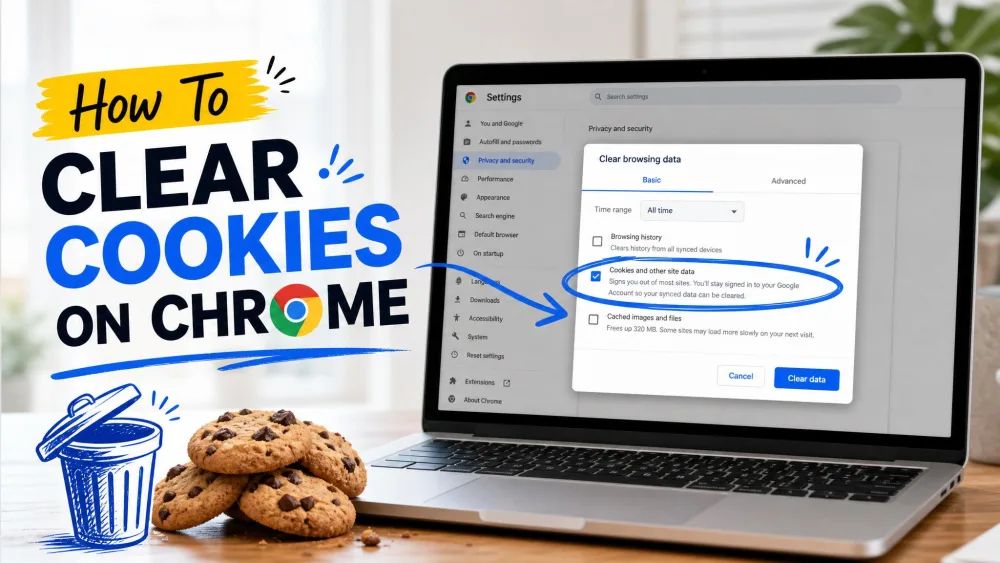
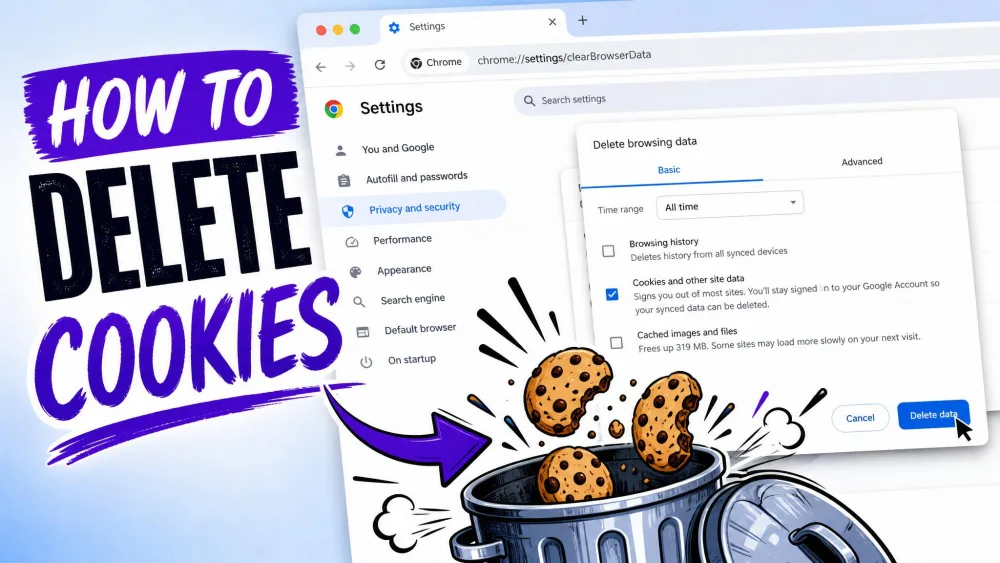
To clear existing cookies, open the three-dot menu, choose Delete browsing data, check Cookies and other site data, pick a time range, and click Delete data. Clearing cookies signs you out of sites and wipes saved preferences, so expect to log back in afterward. For a fuller walkthrough, Google's support page covers how to manage cookies in Chrome across every version.
Troubleshooting: Cookies Still Not Working
If a site still misbehaves after you have enabled cookies, work through these checks.
The most common culprit is the version drift itself. The same option lives under Site settings > Cookies on some machines and under a top-level Third-party cookies item on others, so it is easy to change the wrong control and think the job is done. Confirm you actually selected an "allow" option on the path your version uses.
When one specific site keeps failing, clearing that site's existing cookies and restarting Chrome usually clears it up. Also check that you are not browsing in Incognito with third-party cookies blocked, and that no extension or antivirus tool is stripping cookies before they reach the browser.
Frequently Asked Questions
Will enabling cookies affect my privacy?
What is the difference between first-party and third-party cookies?
How do I clear cookies in Chrome?
How do I enable cookies for a specific site only?
Final Thoughts
Enabling cookies in Chrome comes down to one control on desktop and Android, and nothing at all on iPhone, where they are on by default. If you want both working sites and reasonable privacy, allow cookies but block third-party cookies in Incognito, and add trusted sites as exceptions only when you need them. Keep the version drift in mind: if the setting looks different from a guide, the menu order is the same even when the labels are not, so follow the path rather than the exact wording.