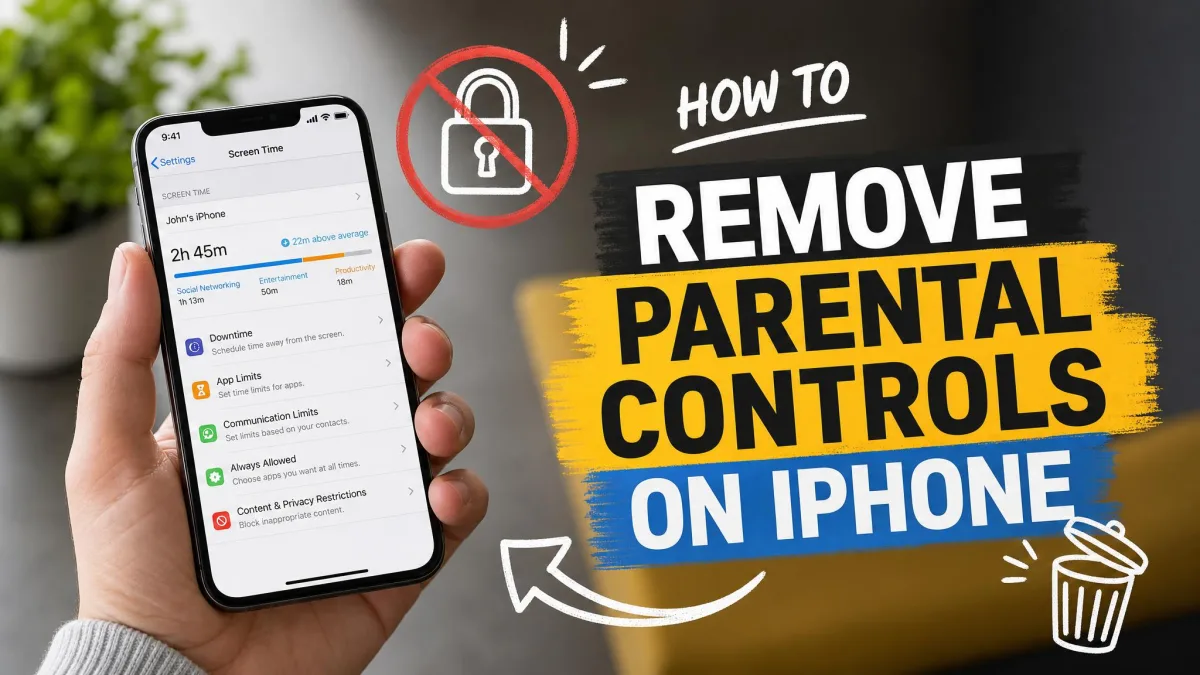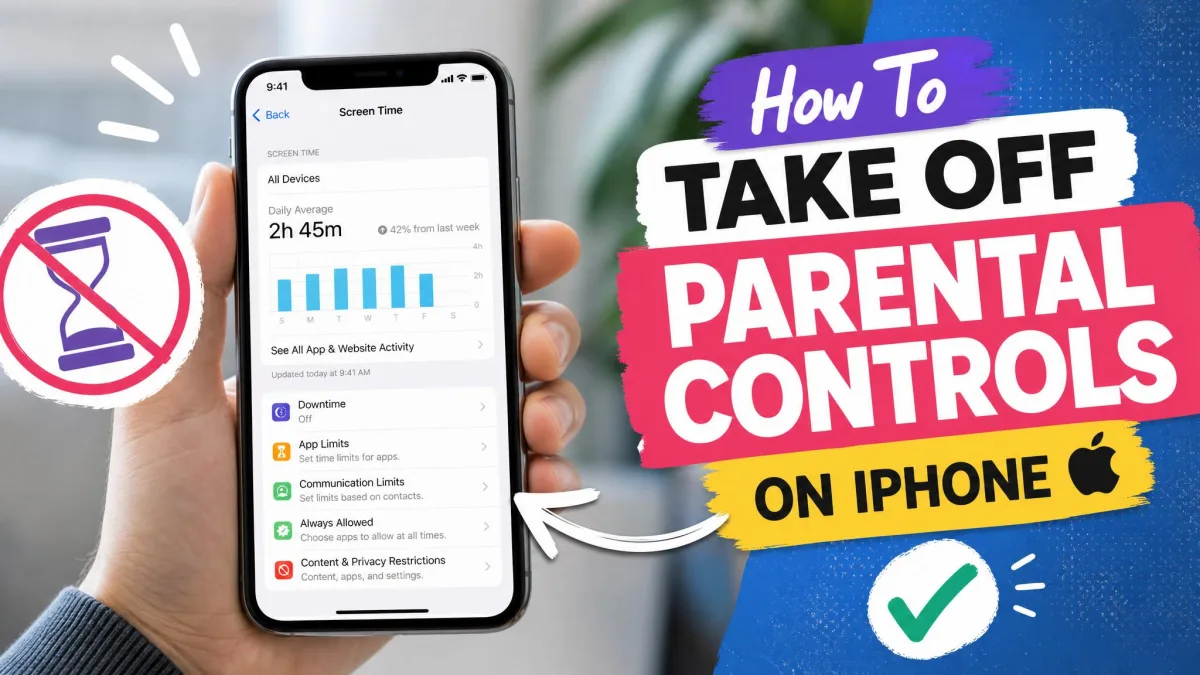
Screen Time is the built-in iPhone feature that tracks your usage and enforces the limits you set, from app caps to content restrictions. You can remove it all from Settings, with or without the passcode, and most paths take under a minute.
What to Know Before You Remove Screen Time
Removing Screen Time needs one of two credentials: the Screen Time passcode, or the Apple Account used when Screen Time Passcode Recovery was set up.
Keep your Screen Time passcode handy before you begin.
Have Your Screen Time Passcode Ready (or an Apple ID to Reset It)
To turn Screen Time off, you need its passcode. If you forgot it, reset it with your Apple ID as long as Screen Time Passcode Recovery was enabled at setup.
Screen Time is built into iOS and cannot be uninstalled; removing it means turning off its tracking and limits. Our guide to check Screen Time on iPhone shows the reports.
How to Turn Off Screen Time on iPhone (With the Passcode)
Turn Off Screen Time Completely in Settings
Turning Screen Time off entirely stops usage tracking and switches off every limit it enforces.
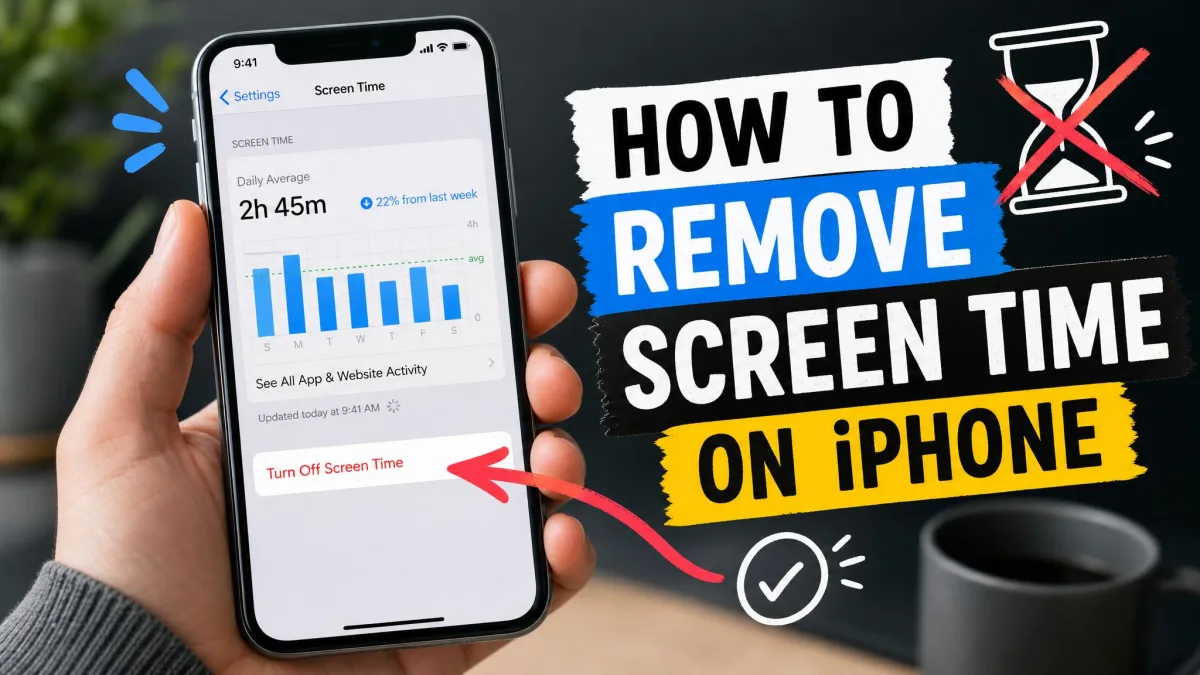
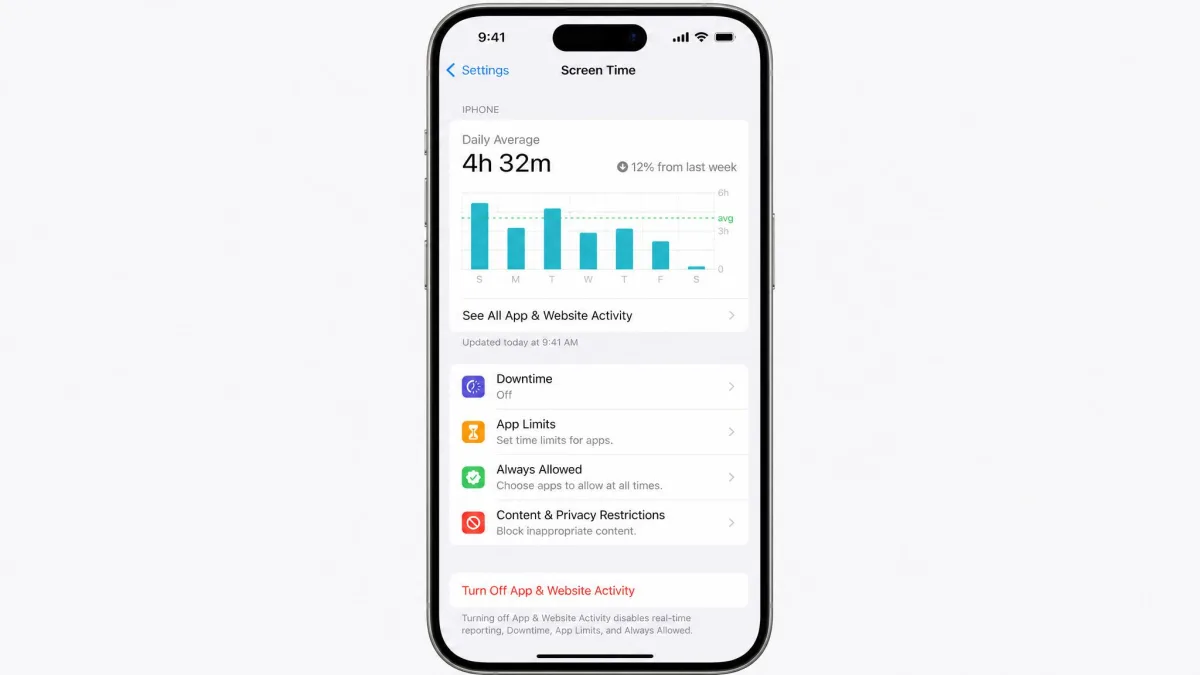
Go to Settings > Screen Time. Scroll down and select the bottom button, which reads Turn Off App & Website Activity on iOS 17 and later and Turn Off Screen Time on iOS 16 and earlier. If prompted, enter the passcode, then confirm.
Tracking stops, and Apple's documentation on Screen Time settings covers each toggle you might want back.
Turn Off Individual Screen Time Features (Downtime, App Limits, Restrictions)
Prefer to keep tracking but drop the limits? Turn features off one at a time instead of disabling Screen Time entirely.
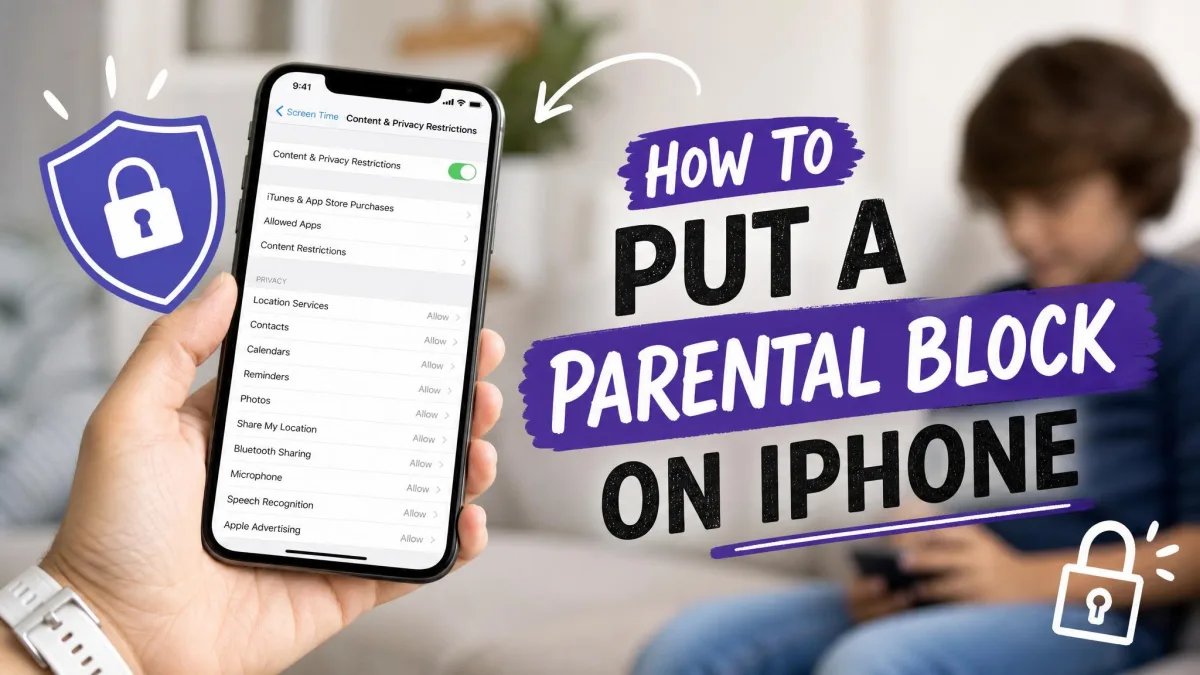
Go to Settings > Screen Time > Downtime and turn off Downtime, then go to Settings > Screen Time > App Limits and toggle it off. Go to Settings > Screen Time > Communication Limits and set both to Everyone, then go to Settings > Screen Time > Content & Privacy Restrictions and toggle off the master switch.
Apple's iPhone User Guide section on Screen Time covers the same switches.
How to Remove Screen Time Without the Passcode
Forgot the passcode? You have three routes, and only one wipes the phone. Start with the reset path.
Reset the Screen Time Passcode with Your Apple ID
Go to Settings > Screen Time > Change Screen Time Passcode and tap Forgot Passcode?. Enter the Apple Account email and password used when Screen Time Passcode Recovery was set up, then turn Screen Time off with the steps above.
Repeated wrong entries trigger escalating lockouts that top out at a 60-minute lockout. The iPhone stays usable, and only Screen Time changes are blocked. Removing a Screen Time passcode without the password (Macworld) covers the route if Apple ID stalls.
The reset demands the Apple Account used at setup, which on a family device is usually the organizer's rather than the one signed in.

Turn Off Screen Time on a Child's iPhone (Family Sharing)
A child's Screen Time is managed through Family Sharing, so changes happen on the parent's device. Go to Settings > Screen Time, tap the child's name under Family, then tap Manage Screen Time. The child cannot remove these limits without the parent's Apple Account.
Erase and Restore Your iPhone as a Last Resort
Last resort: Go to Settings > General > Transfer or Reset iPhone and select Erase All Content and Settings. Turn off Find My first from Find My on iCloud.
Erasing wipes everything, not just Screen Time, and it is not permanent. Restoring from a backup re-applies Screen Time, and a child under Family Sharing re-syncs the organizer's limits.
To avoid a full wipe, an unlocker such as FonesGo iPhone Unlocker can target the Screen Time passcode directly.
How to Delete or Reset Screen Time Data and History
Screen Time keeps a running report of every app and category. There is no way to delete part of it, so clearing is all-or-nothing: turn Screen Time off and the history clears.
Turning Screen Time off and back on cleared the history reliably on older iOS versions. On iOS 26, the standard reset can fail and old data can resurface about an hour later, so treat it as best-effort.
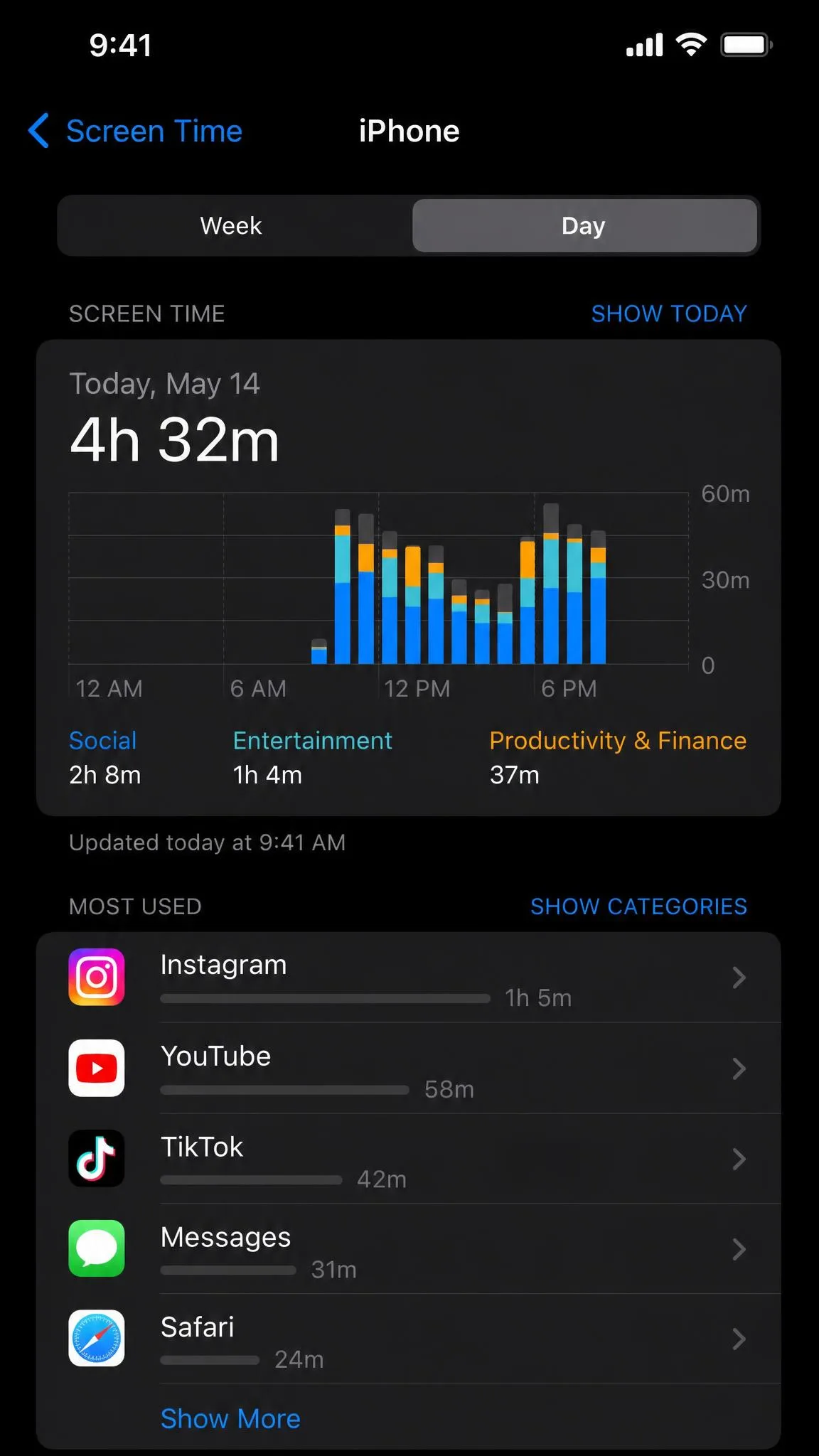
What Happens When You Turn Off Screen Time
Turning Screen Time off stops usage tracking and clears the recorded history. Downtime, App Limits, Communication Limits, Always Allowed, and Content & Privacy Restrictions switch off.
Screen Time stays in Settings after you turn it off. Switch it back on anytime by going to Settings > Screen Time > App & Website Activity and tapping Turn On App & Website Activity, and tracking and limits start fresh from that point.
FAQ About Removing Screen Time on iPhone
What happens if I enter the wrong Screen Time passcode too many times?
Can Screen Time be disabled remotely by a parent or guardian?
Why does Screen Time data keep reappearing after I delete it?
Does Screen Time turn off automatically after a certain period?
Bottom Line
Turn it off from Settings with the passcode in hand, and you are done. If the passcode is gone, reset it with your Apple ID, or work through the family organizer. Erase only as a last resort, because Screen Time switches back on whenever you want it.