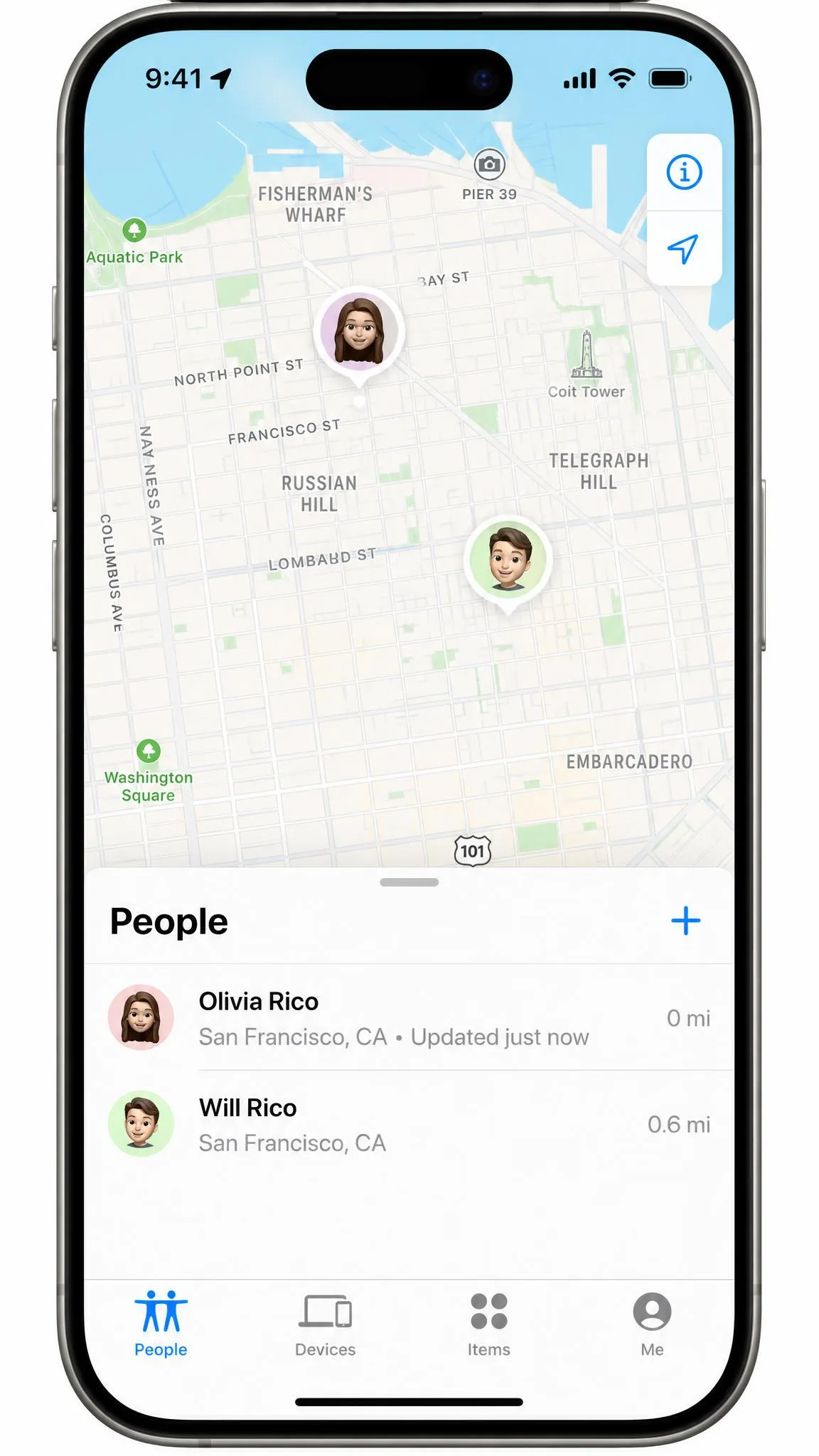
You want the pin on someone's map to sit somewhere other than where you actually are, and every result promises a one-click app that does it. Here is the honest constraint first: Apple's iOS sandbox stops any App Store app from touching the system GPS feed, so those apps cannot move your Find My pin. Wanting privacy from a family location share is an ordinary motive, and real methods do exist. They just involve a cable, a spare device or a settings change rather than a download.
Can You Actually Fake Your Find My iPhone Location?
The short answer
Yes, but not the way most people expect, and not from the iPhone alone.
Every working method falls into one of two buckets. Either you inject a false GPS fix into the device over a USB session from a computer, or you change which device Apple treats as your location source. The second bucket is the more reliable one, and the less technical.
Why Apple makes this so hard
Find My does not trust a single signal. It cross-references GPS satellite data, Wi-Fi positioning, Bluetooth beacons and the crowdsourced Find My network, so fooling one input alone is not enough to move the map.
The sandbox does the rest. An app you download cannot reach the system location service that Find My reads, which is why the App Store is full of "fake GPS" apps that change nothing outside their own screen.
There is also no remote route. Nothing done on a separate device can change the GPS fix the iPhone itself determines and reports, and Apple Support Communities hosts a long-running consensus thread concluding that no legitimate app can falsify what Find My publishes. The paid desktop tools push coordinates into a connected handset during a live session; they do not rewrite anything on Apple's servers.
What Does Not Work (and Why People Keep Trying It)
VPNs
A VPN changes the IP address the network sees, not the GPS fix Location Services reports, so Find My is unaffected by one. Map-based apps keep showing your true position the whole time.
"Fake GPS" apps from the App Store
Free GPS apps downloaded from the App Store change nothing in Find My, and installing one is the most common wasted step people take before finding a working method. Android allows a developer-options mock location setting; iOS has no equivalent, which is why the tactic gets copied across from Android guides and fails.
Changing your Apple ID region or address
Your Apple ID country, billing address and App Store region control which storefront you get access to. None of them feed the coordinates Find My publishes.
Now that the dead ends are out of the way, here is the first method that genuinely moves the pin.
Method 1: Desktop Location Changer Software
How it works
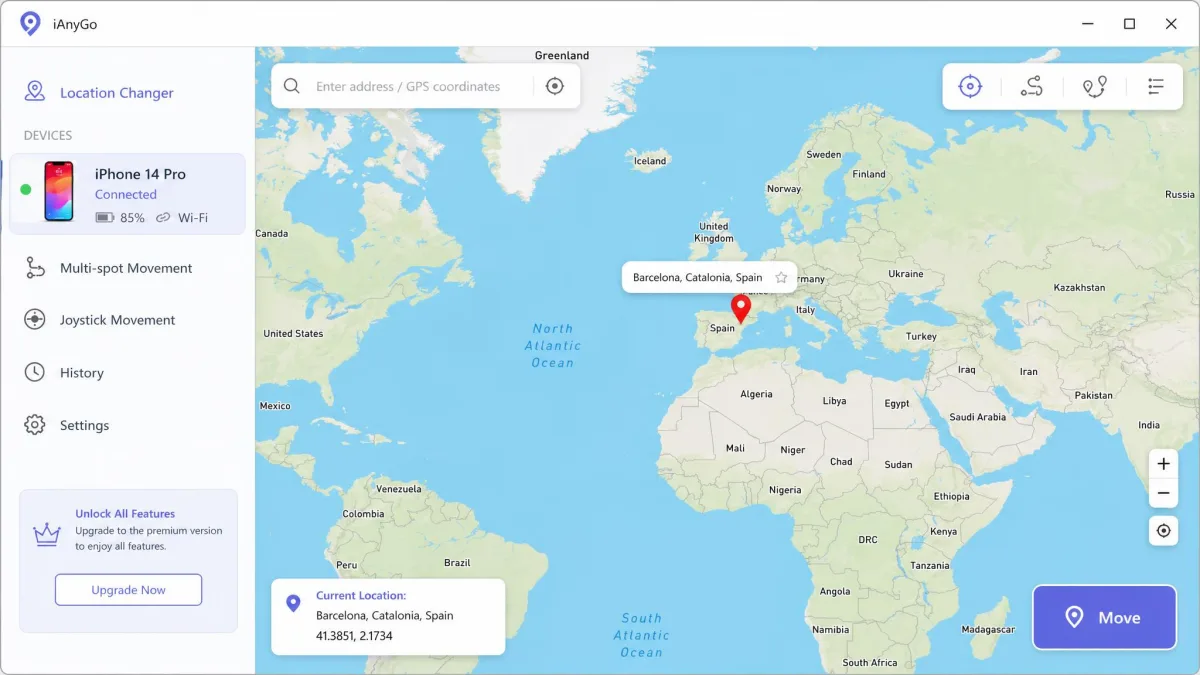
A desktop location changer installs on a Windows PC or a Mac, connects to your iPhone by cable, and injects chosen coordinates into the device. Tenorshare iAnyGo and iMyFone AnyTo are the best-known options, and both go past a single fake point: you get single-spot teleport, two-spot and multi-spot route simulation, adjustable movement speed, joystick control and GPX import. That matters if you want the pin to drift realistically rather than sit frozen.
Step-by-step
- Install the app on your computer and open it.
- Connect the iPhone with a cable and trust the computer when prompted.
- Pick a mode, either a fixed point or a route.
- Search for the destination on the map or drop a pin manually.
- Click the move button, then check Find My on another device to confirm the pin has shifted.
Keep a second Apple device open on the Find My People screen while you set this up. Confirming the change from the outside takes ten seconds and saves you from assuming a spoof worked when it did not.
Limitations and cost
These tools need the iPhone connected by cable and the desktop app left running. The spoof is a live session rather than a saved setting, so the moment you close the app, you are back on real GPS.
Tenorshare iAnyGo is the clearest on price: $12.95 for a one-month, one-PC license, $42.95 for a year, and $95.95 for a lifetime license covering five iOS devices, with a 30-Day money-back guarantee. A standalone iAnyGo iOS app runs $9.95 per month.
iMyFone AnyTo sells the same feature set through VIP and SVIP tiers with a 30-day money-back guarantee, but its pricing runs on rotating promotions, so the figure on iMyFone's location changer page changes between visits and regions.
The free desktop route: 3uTools
3uTools is free and bundles a Virtual Location map into a wider iOS toolkit that also handles flashing, file management and backups. Virtual Location works reliably on iOS 16 and earlier. On newer builds it frequently fails with a "developer image load failed" error, and behaviour varies by point release, so results are inconsistent rather than uniformly broken. When the map refuses to render, switching the internal source from Google Maps to Mapbox or OpenStreetMap is the usual workaround.
3uTools stays dependable for the flashing and backup work it is known for. Virtual Location has become the least reliable part of the toolkit.

Method 2: Xcode Simulate Location (Free, Mac Required)
Xcode is Apple's own developer tool, and it ships with a location simulator meant for testing location-based apps. It is free, and it is the only first-party way to feed your iPhone a false fix.
Step-by-step
- Install Xcode on a Mac and create a new project of any kind.
- Connect the iPhone with a cable and select it as the run destination.
- Enable Developer Mode on the iPhone if prompted, following Apple's instructions for enabling Developer Mode on an iOS device.
- Build and run the project so a debug session starts.
- In the Debug area, open the Simulate Location control and pick a city, or add a GPX file for a moving route. Apple documents the control in its Xcode guide to simulating location in tests.
Why it stops when you unplug
The simulated location holds only while the debug session is active over USB. Unplugging the cable snaps the iPhone's GPS straight back to its real coordinates, and stopping the session does the same.
That makes this a temporary state, not a persistent setting. It also demands a Mac, a created project and a stable cable connection, which is heavy setup friction for a one-off change. One snag is worth knowing first: on free Apple developer accounts, provisioning-profile entitlement errors can make the Simulate Location control vanish from the Debug area entirely. The failure is intermittent and tied to signing configuration, so it does not hit every free account.
Method 3: Leave a Secondary or Burner iPhone Behind
This is the method with no software, no cable and no jailbreak required, and it is the one we would reach for first. Apple lets you nominate which of your devices reports your position, so a spare iPhone parked at home becomes your published address.
Step-by-step
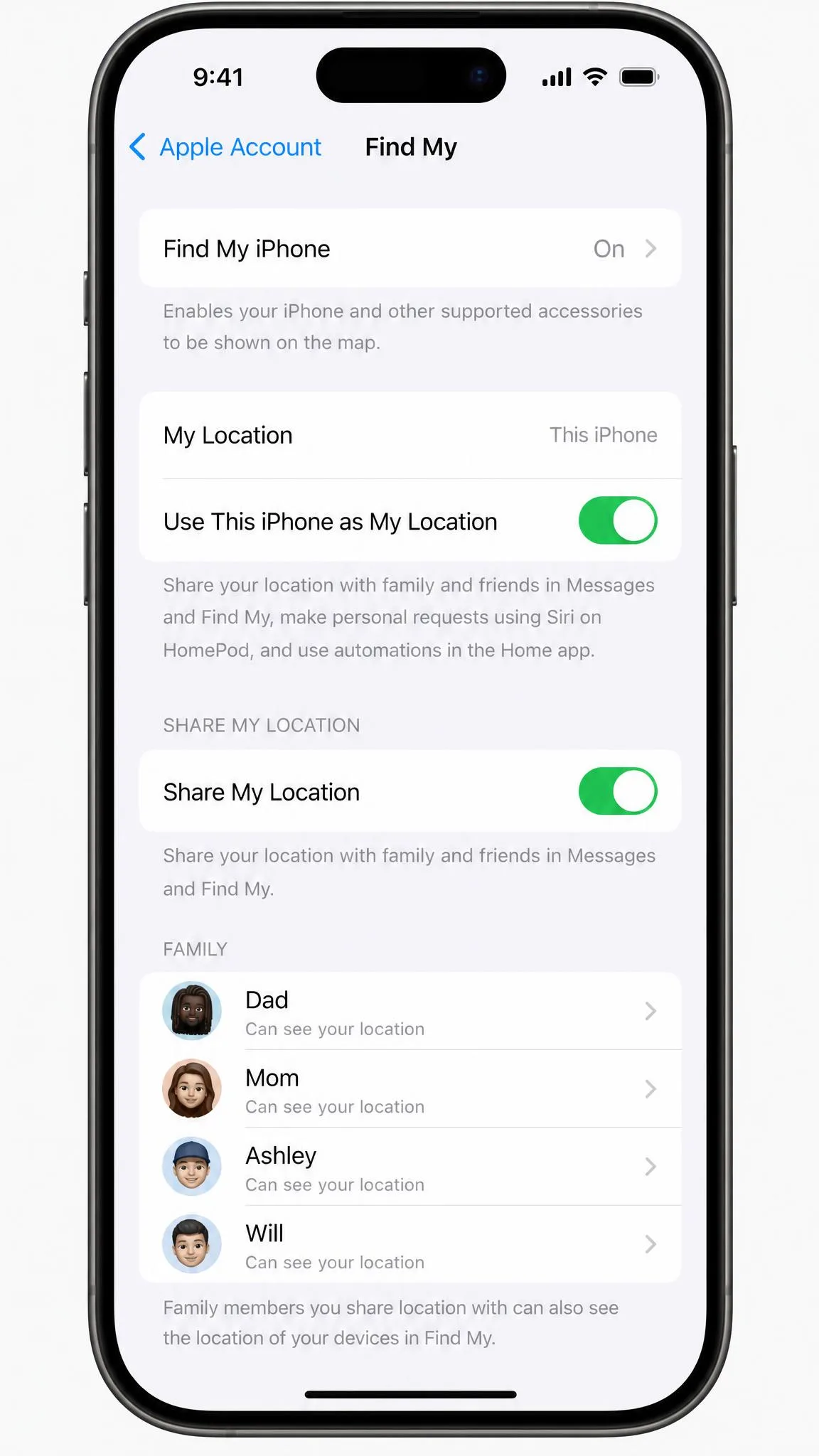
- Sign the spare iPhone into the same Apple Account and leave it on home Wi-Fi with a charger attached.
- On that phone, open Settings, tap your name, tap Find My, then tap "Use This iPhone as My Location".
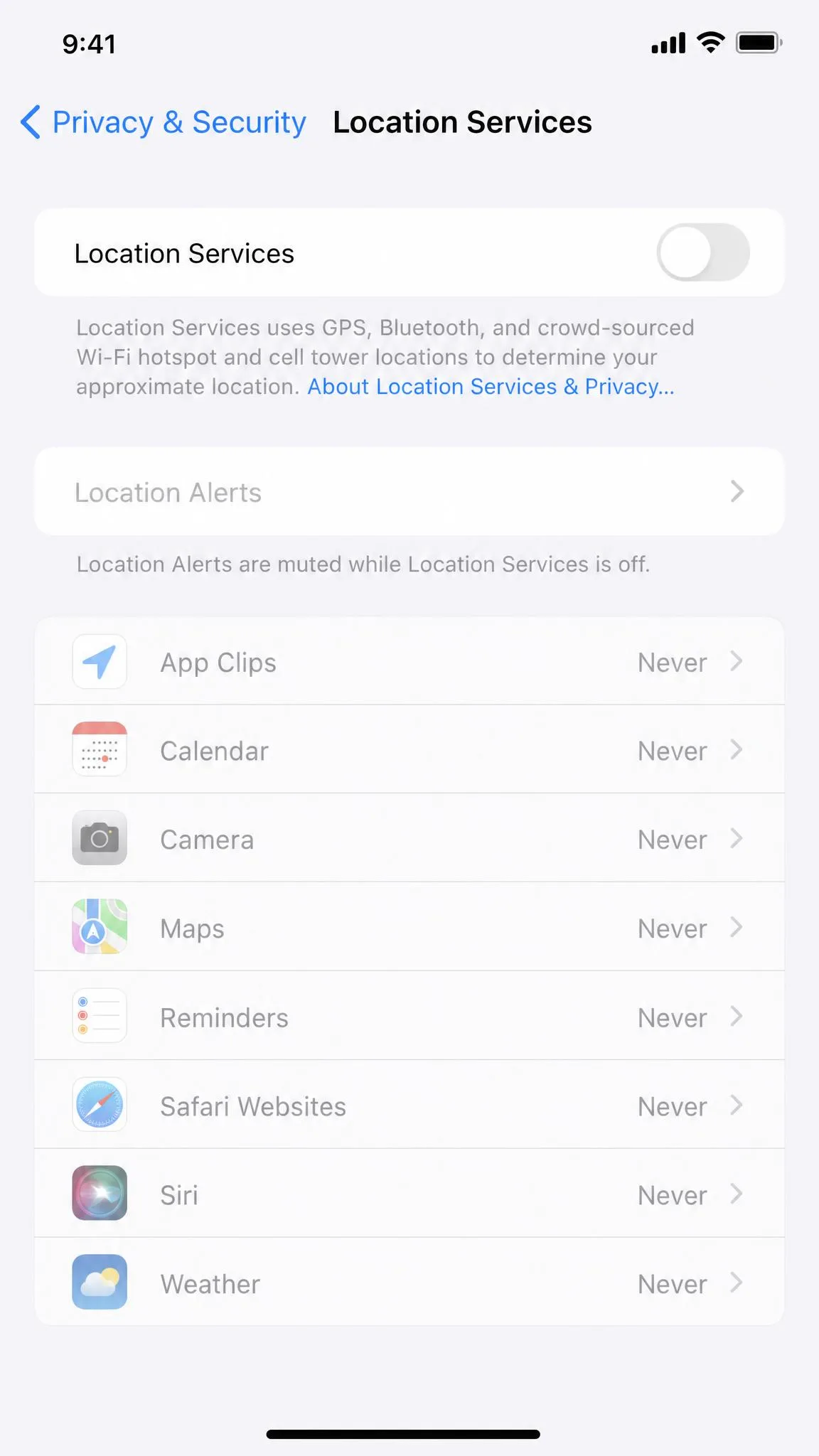
- Open Settings > Privacy & Security > Location Services > Share My Location on the spare phone and confirm it reads "This Device" before you leave.
- Check Find My from another account to confirm the pin sits at the spare phone's address.
Why this is the most reliable trick
It holds up unattended, which none of the cable-based methods do. It is also very hard to spot from the other side, because it uses an ordinary Apple setting rather than injected coordinates, so nothing about the data looks synthetic.
The failure mode is loud rather than quiet. If the spare phone dies or drops Wi-Fi, the map reads "No location found" instead of quietly reverting to your real iPhone.
Watch one related detail. If your iPhone is paired with a GPS and Cellular Apple Watch, your location is shared from the Watch when you are out of iPhone range and the Watch is on your wrist, which undoes the whole arrangement.
Method 4: Jailbreak Tweaks (Not Recommended)
Jailbreaking removes the sandbox restriction entirely, which is why tweaks like Relocate Reborn can spoof the system location with no computer attached. Relocate Reborn is free through Cydia, it needs a jailbroken iPhone, and it does not work across all iOS versions.
What jailbreaking actually costs you
Jailbreaking to intercept location opens the phone to spyware, trojans and other malware. The irony is worth sitting with: a malicious spoofing tweak typically also knows your real location and can transmit it, so you may end up broadcasting the thing you were trying to hide.
The warranty picture is two-sided. Apple's warranty does not apply to a product modified to alter its functionality or capability without Apple's written permission, and Apple can deny service to a device running unauthorized software. The Magnuson-Moss Warranty Act of 1975 pulls the other way, barring a warrantor from voiding a written warranty over a defect unrelated to the modification. In practice you will still be arguing the point at a service counter.
Jailbreaking strips the security model that protects your Apple Account, banking apps and messages, and there is no clean undo if a tweak misbehaves. Trading the whole device's security posture for one location feature is a bad exchange.
Method 5: Freeze or Stop Sharing Instead of Faking
Often the goal is not to appear somewhere else. It is to stop broadcasting real-time location for a while. These options need no tools at all.
Airplane Mode
Airplane Mode cuts the cellular and Wi-Fi radios, so Find My holds the last known location with a timestamp and eventually flips to "No location found" or Offline. It does not delete the pin. It freezes it with an "Updated X minutes ago" label, which reads as more suspicious the longer it sits still.
Turn off Location Services for Find My
You can turn Location Services on or off at Settings > Privacy & Security > Location Services, which Apple covers in its guide to turning Location Services on or off. Switching it off stops the phone producing a fix for anything, Find My included. That is a blunt instrument: Maps, weather and camera geotagging go dark with it.
Stop Sharing My Location with one person
To cut one contact only, open Find My, tap People, select the contact, then tap Stop Sharing My Location. To stop sharing with everyone, open Find My, tap Me, and toggle Share My Location off.
Turning sharing off produces a visible "No location found" state on the other person's screen, so it is discreet from a data standpoint but not invisible socially. What they see also depends on timing and on whether other devices on your account are still sharing.
Faking Location Without a Computer: What Are Your Real Options?
Strip out anything needing a cable and the list gets short. The burner iPhone works with no computer. Jailbreak tweaks work with no computer, at the cost already described. Some vendors sell standalone iOS apps, including the iAnyGo iOS app at $9.95 per month, that skip the desktop step.
There is also a hardware route. Dongles that plug into the Lightning port and feed the phone a fake satellite signal cover roughly iOS 9 through recent releases, though pricing and coverage vary widely by seller and firmware revision, and the cost can run into the hundreds of dollars. They also draw power through the port and can make unrelated apps misbehave while attached.
For most people wanting a no-computer answer, the spare iPhone is cheaper, safer and steadier.
Comparing the 5 Methods: Which One Fits Your Situation
| Method | Needs a computer? | Free? | Fools Find My? | Persists after unplug? | Risk level |
|---|---|---|---|---|---|
| Yes, Windows or Mac, cable | No, $12.95/mo iAnyGo | Often, while the session runs | No | Medium, sessions drop | |
| Yes, Mac only | Yes | Yes, during the debug session | No | Low technically, high friction | |
| No | Cost of a spare iPhone | Yes, by design | Yes | Low | |
| No, after jailbreaking | Free tweak, Relocate Reborn | Sometimes, iOS-version dependent | Yes | High, warranty and malware | |
| No | Usually paid | No | Not applicable | None, and no effect | |
| No | Yes | Hides instead of faking | Yes | Low, but visible to the other person |
The pattern across all five is simple. Anything that injects coordinates over a cable is a live session that ends when the cable does, and anything that survives being left alone works by changing which device Apple asks, not by lying about where a device is.
The Risks: Detection, Account Bans, Safety and Trust
Spoofing detection is a mature field. Security researchers document mock-location flags, sensor correlation that compares accelerometer and gyroscope data against claimed movement, impossible-travel analytics, jailbreak and emulator checks, hooking-framework detection and IP-geolocation mismatch. Guardsquare's research on detecting geo-spoofing walks the full stack, citing Pokemon Go's 2021-22 anti-cheat effort and Brazilian rideshare fraud rings as live cases.
The practical takeaway for anyone teleporting a pin: a position that jumps between distant points is exactly the impossible-travel pattern those analytics look for. On Apple's side, we found no evidence that Apple bans Apple Accounts over Find My spoofing. That ban precedent sits with game and app publishers.
When spoofing is a bad idea
The human detection risk is higher than the technical one. A pin that has not moved in six hours, or a phone that is reachable by text while its map says it is across town, gives the game away long before any analytics engine does.
Deceiving a partner, a parent, an employer or a court about your whereabouts carries consequences that have nothing to do with technology. If a location share is a condition of your job, a custody arrangement or a bail condition, faking it puts that arrangement at risk. If the share itself is the problem, ending it openly is usually the better move.
Is it legal to fake your location?
We found no statute that makes location spoofing illegal in itself. The enforceable questions are about conduct and consent rather than about the act of changing a coordinate.
It becomes a legal matter when spoofing supports something already unlawful, such as insurance fraud, breaching a court order, or a pattern of stalking or harassment.
Frequently Asked Questions
Can you fake your location on Find My without them knowing?
Does Airplane Mode freeze your Find My location?
Why does Find My show the wrong location?
Can Find My location spoofing be detected?
Does turning off Location Services stop Find My?
Is it illegal to spoof your iPhone location?
Can you spoof without a computer?
The Bottom Line
If you need a pin to sit somewhere convincing while you get on with your day, leave a spare iPhone at that address and set it as your location source. It costs nothing beyond the hardware, needs no software, and it is the only method that holds up when you walk away.
If you need precise, moving coordinates, a desktop location changer over USB is the practical option, as long as you understand you are paying for a live session and not a setting. Xcode does the same job free on a Mac if you can tolerate the setup.
Skip the VPNs, skip the App Store GPS apps, and skip jailbreaking. If the honest answer is that you simply do not want to be tracked, stopping the share outright is cleaner and easier to defend than any spoof.