You searched the App Store for a fake GPS app, installed the top result, and nothing moved. Your iPhone still reports the same real location it always did, and the app you downloaded turned out to be a map novelty rather than a location changer.
That is not a bad download. It is a platform rule. iOS treats your position as a protected system service, and Apple's Location Services documentation describes it as a single source that every app reads from rather than something an app can rewrite on its own.
So the workarounds all live outside the App Store. Below are six methods, five of which need no jailbreak at all, with the cost, the effort and the ban risk for each one spelled out.

Can You Actually Spoof Your Location on an iPhone?
Yes, but only from outside iOS itself. Every working method either tethers your device to a computer, sits between your phone and the internet, or replaces the satellite signal your iPhone is listening to.
Why App Store "fake GPS" apps do not work on iOS
Android lets you nominate a mock location provider in developer settings. iOS has no equivalent switch, so no App Store app can change the GPS position your iPhone reports to other apps. Spoofing needs a tethered computer, developer tooling, or external hardware.
Anything on the App Store claiming otherwise is doing something narrower. Some show a fake pin inside their own map view. Others change a profile location in a single social app. None of them touch what Location Services hands to Google Maps or a location-based game.
iOS works out where you are from GPS satellites, cell towers, Wi-Fi networks and nearby Bluetooth devices together. That blend is why a tool has to feed the system a full fake position rather than simply hiding one signal.
GPS location vs IP address: two different things to change
These get confused constantly, and choosing the wrong one wastes an afternoon.
Your GPS location is a coordinate pair. Your IP address is a network identifier that websites use to guess your country. A VPN changes the IP address websites see, not the GPS coordinates Location Services reports.
That distinction decides your method. If you want a streaming service to think you are in another country, change the address. If you want a map or a game to move, you need to spoof the GPS location itself.
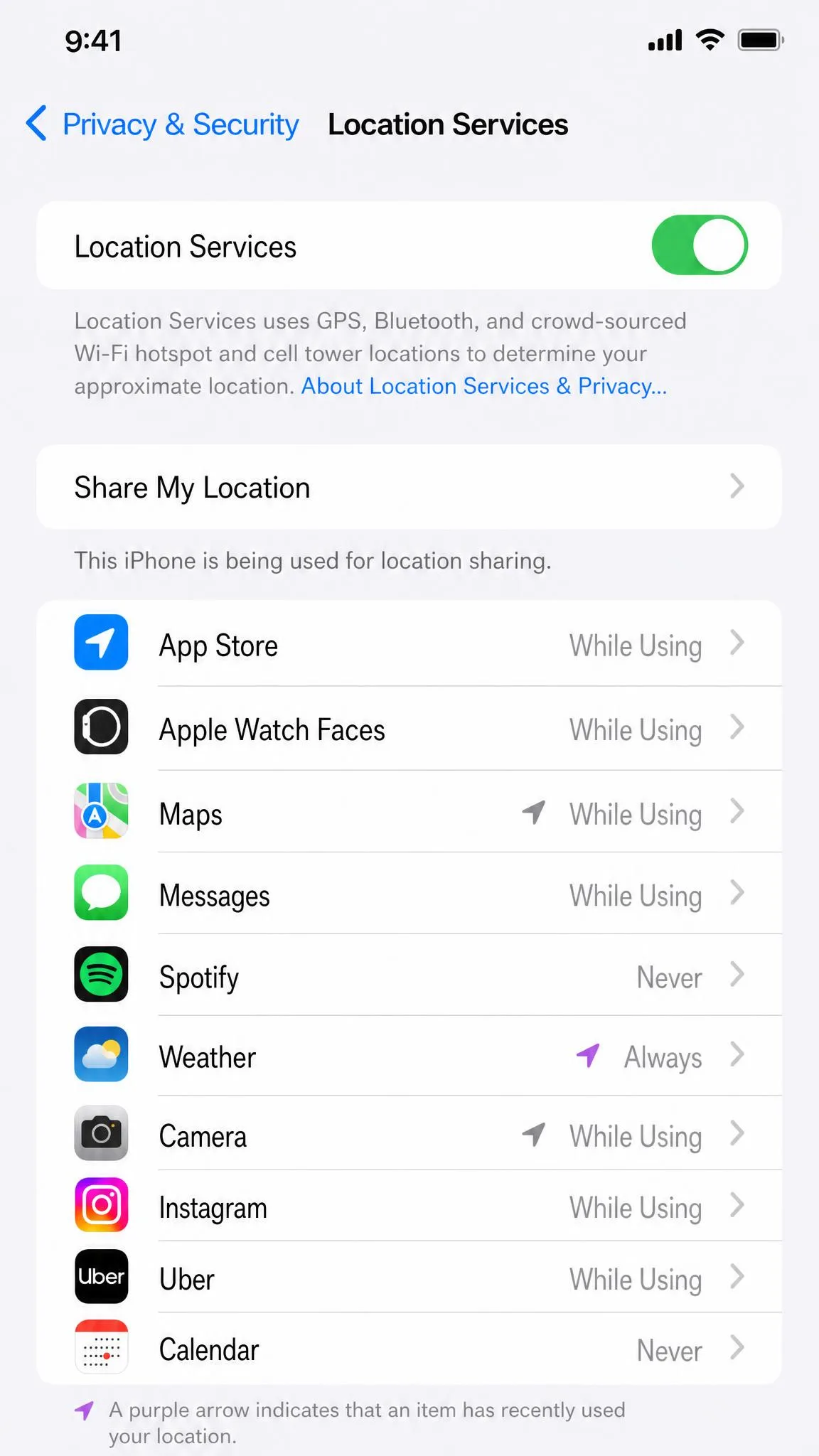
Quick Comparison of iPhone Location Spoofing Methods
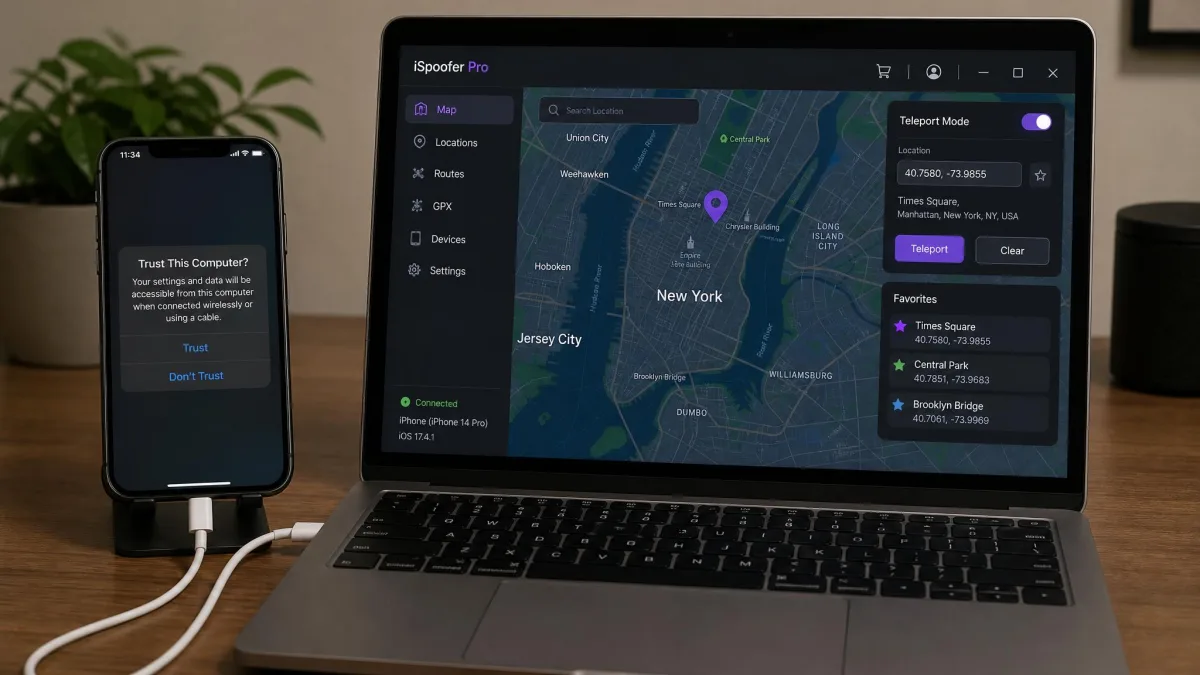
The tethered methods we have spent the most time with differ mainly in whether you need a computer attached and what happens when you disconnect it, and that is the split worth reading the table for.
| Method | Needs a computer? | Jailbreak required? | Cost | Persists when unplugged? | Ban risk |
|---|---|---|---|---|---|
| Yes (Windows or Mac) | No | $19.95/month, $79.95/year | No | Medium | |
| Yes (Mac) | No | Free | No | Medium | |
| No | No | Subscription | IP address only | Low | |
| No | No | Free | Yes | Low | |
| No | No | $150 and up | Yes | Medium | |
| Usually | Yes | Free | Yes | High |
Method 1: Use a Desktop Location Changer App (Easiest, No Jailbreak)
A desktop location changer installs on your Windows PC or Mac, talks to your iPhone over the USB cable, and pushes a chosen coordinate into the position that iOS reports. It is the method most people end up using, because it needs no developer knowledge and it moves every app on the device at once.
iToolab AnyGo is the tool we know best, and you can read our full findings in our iToolab AnyGo for iOS review. It costs $19.95 for a one-month license, $39.95 for three months, or $79.95 per year, and there is a free trial with limited functionality that does not ask for a card. A lifetime license is listed around $119.95, though that figure is discounted so often that the list price rarely matches checkout. iToolab carries a Trustpilot score of 4.2 out of 5, which sits well above the tone of its most recent reviews.
Tenorshare iAnyGo is the closest alternative at $14.99 per month, with a 1-hour free trial on the desktop versions and support that stretches from iOS 14 through iOS 27. Both tools connect up to 15 devices at once and both carry a 30-day money-back guarantee, though refunds are decided case by case rather than granted automatically.
Pros
- No jailbreak, no developer tools, no coding
- Moves every app on the phone, including games and maps
- Route simulation with adjustable walking, cycling and driving speeds
Cons
- The fake position ends when you unplug the cable
- A new iOS release can break the tool until the vendor patches it
- Reliability varies between installs on different computers
What you need before you start
You need a computer, the USB cable that came with your iPhone, and about ten minutes.
Your device should be running iOS 13 or later for AnyGo, and on iOS 16 and newer you must enable Developer Mode first. Have your coordinates ready as well. LatLong.net turns any address into the latitude and longitude pair these tools accept.
One warning about the cable. Wi-Fi connection support was dropped from AnyGo, so the phone has to stay physically connected for the whole session.
Step-by-step: set a fake location
- Install the location changer on your Windows PC or Mac and open it.
- Connect your iPhone with the USB cable, then unlock the device.
- Tap Trust on the prompt that appears, and enter your passcode when asked.
- Wait for the app to finish reading the device and load its map view.
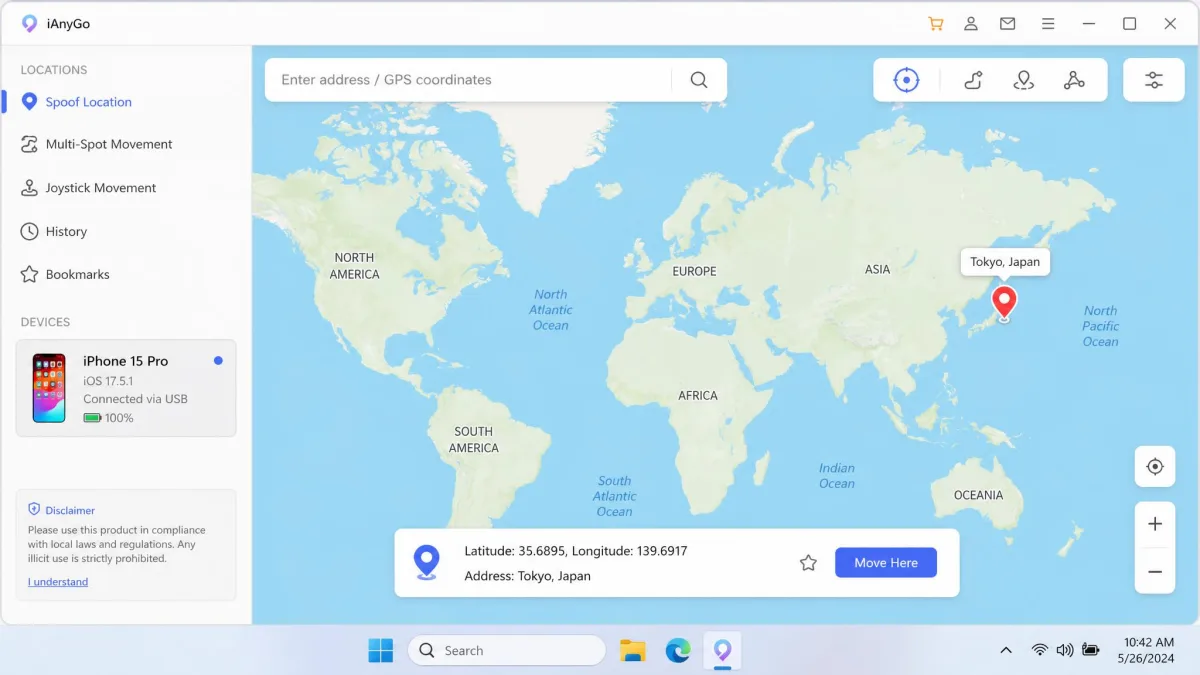
- Select the teleport mode, usually the leftmost icon in the toolbar.
- Type an address or paste your coordinates into the search field.
- Check the pin that drops, then click Move or Go to apply it.
Setup friction on the tethered methods is almost entirely trust prompts and cable handling. The phone has to be unlocked and trusted before anything changes, and skipping that step is the most common reason the map never moves.
The change takes effect immediately across the system. Open Apple Maps and the blue dot sits at the new spot, and the teleport is convincing enough that Find My shows the fake position too.
Simulating movement along a route
Standing perfectly still in a location-based game looks exactly as odd as it sounds, which is why these tools also fake movement.
Two-spot mode walks a straight line between a start and a finish. Multi-spot mode follows a series of waypoints, and iAnyGo accepts routes of up to 99 points. A 360-degree joystick lets you steer by hand, and you can set the pace anywhere from a stroll to 108 km/h.
Both tools also import and export GPX files, so a route you build once can be reused later.
Keep simulated speed inside something a human body could manage. Walking pace for city routes and driving speed only on roads is the simplest way to avoid tripping a server-side check for impossible travel.
Method 2: Simulate a Location With Xcode (Free, Mac Required)
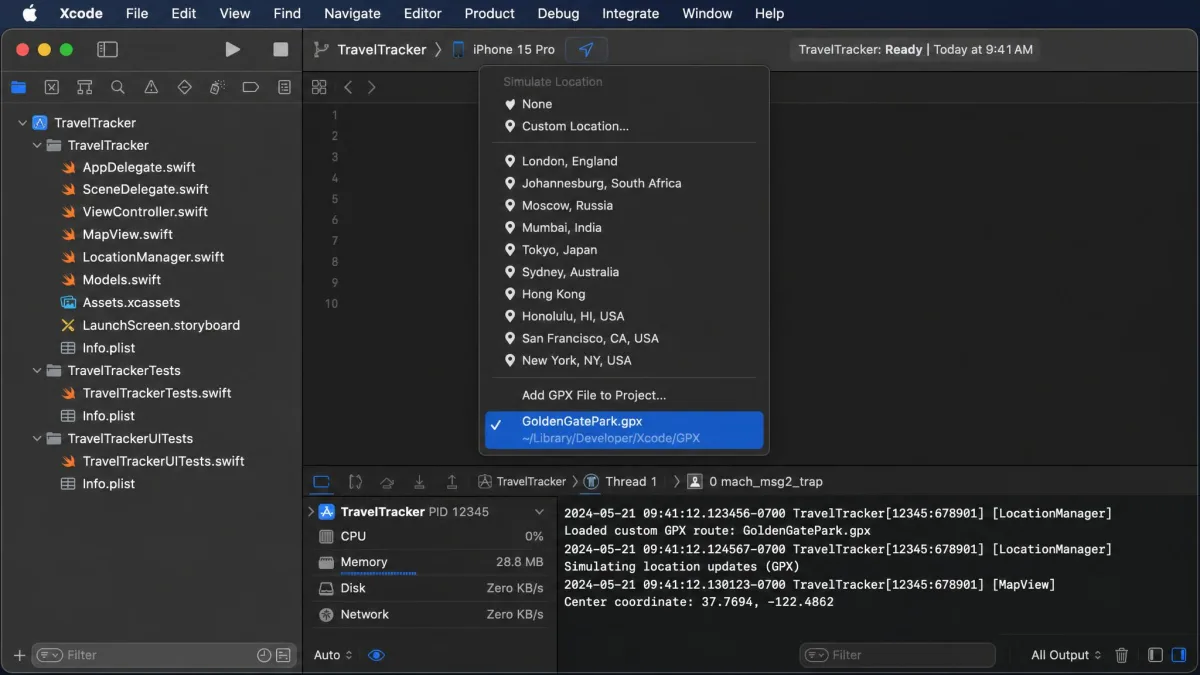
If you already own a Mac, Apple hands you a location spoofer for nothing. Xcode's debugging tools can simulate a location in Xcode for a connected device, which is how developers test map features without leaving the office.
There is no paid developer account required for local simulation. You need Xcode installed, a free Apple ID signed in, and a small .gpx file holding the coordinates you want.
Step-by-step: enable Developer Mode and simulate a location
- Open Settings, then tap Privacy & Security and scroll to Developer Mode.
- Toggle Developer Mode on, then restart the iPhone when prompted.
- Tap Turn On after the reboot and enter your passcode to confirm.
- Create a .gpx file on the Mac containing your target latitude and longitude.
- Connect the iPhone and open a blank project in Xcode.
- Add the .gpx file to the project, then build and run it on the device.
- Choose the location arrow in Xcode's debug area and select your custom location.
Developer Mode is required on iOS 16 and later before a Mac can run development-signed builds on your device. Turning it on forces a restart, but it does not wipe the iPhone or delete any data, and Apple's own guide to enabling Developer Mode on your iPhone covers the same sequence.
The catch: it stops when you unplug
The Xcode route ends when the cable comes out. Resetting to your real position is simply a matter of disconnecting and restarting the phone, which is convenient for testing and useless for anything you want to leave running.
That makes this method a strong free option for short sessions and a poor one for a full afternoon of use.
Method 3: Change Your IP Address With a VPN
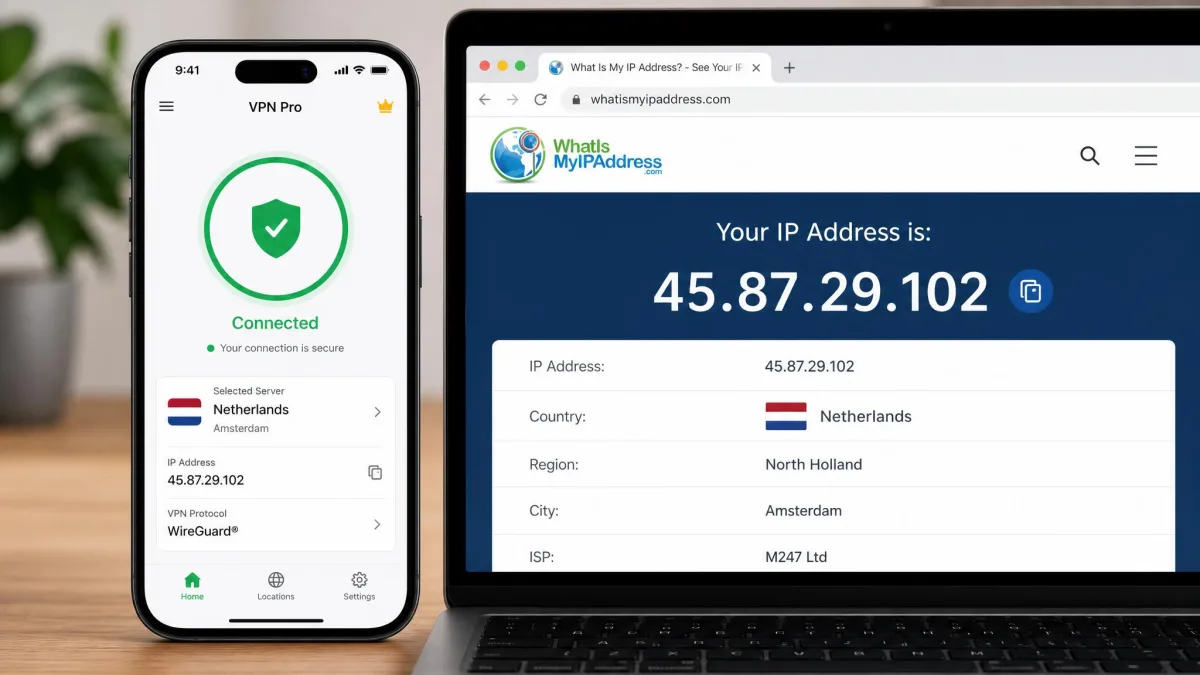
Unlike the two tethered methods above, a VPN never touches your GPS coordinates at all: it routes your traffic through a server somewhere else, so websites read that server's address instead of yours. Install the app, choose a country, and your apparent country changes in seconds.
What a VPN does and does not change
It changes the IP address. It does not change the GPS location.
A VPN quietly disappoints anyone expecting map apps to move, because those apps read GPS coordinates and ignore the tunnel entirely. Google Maps, Waze and Pokemon GO all still see your real position while a VPN is connected, and a VPN also cannot change your Apple ID region or what Location Services reports to the system.
When a VPN is the right tool instead of GPS spoofing
Reach for one when your goal is geo-restricted content or general privacy on a shared network. Streaming catalogues, regional pricing pages and news paywalls all key off the address, so a VPN handles those cleanly.
Skip it when a game, a fitness tracker or a dating app is the target, because all of those read GPS location directly.
Method 4: Change Your Apple ID Region and App Location Settings
This one is different in kind. It does not fake your position at all. It changes which country's App Store you can access, which is what many people actually want when they start searching for a spoofer.
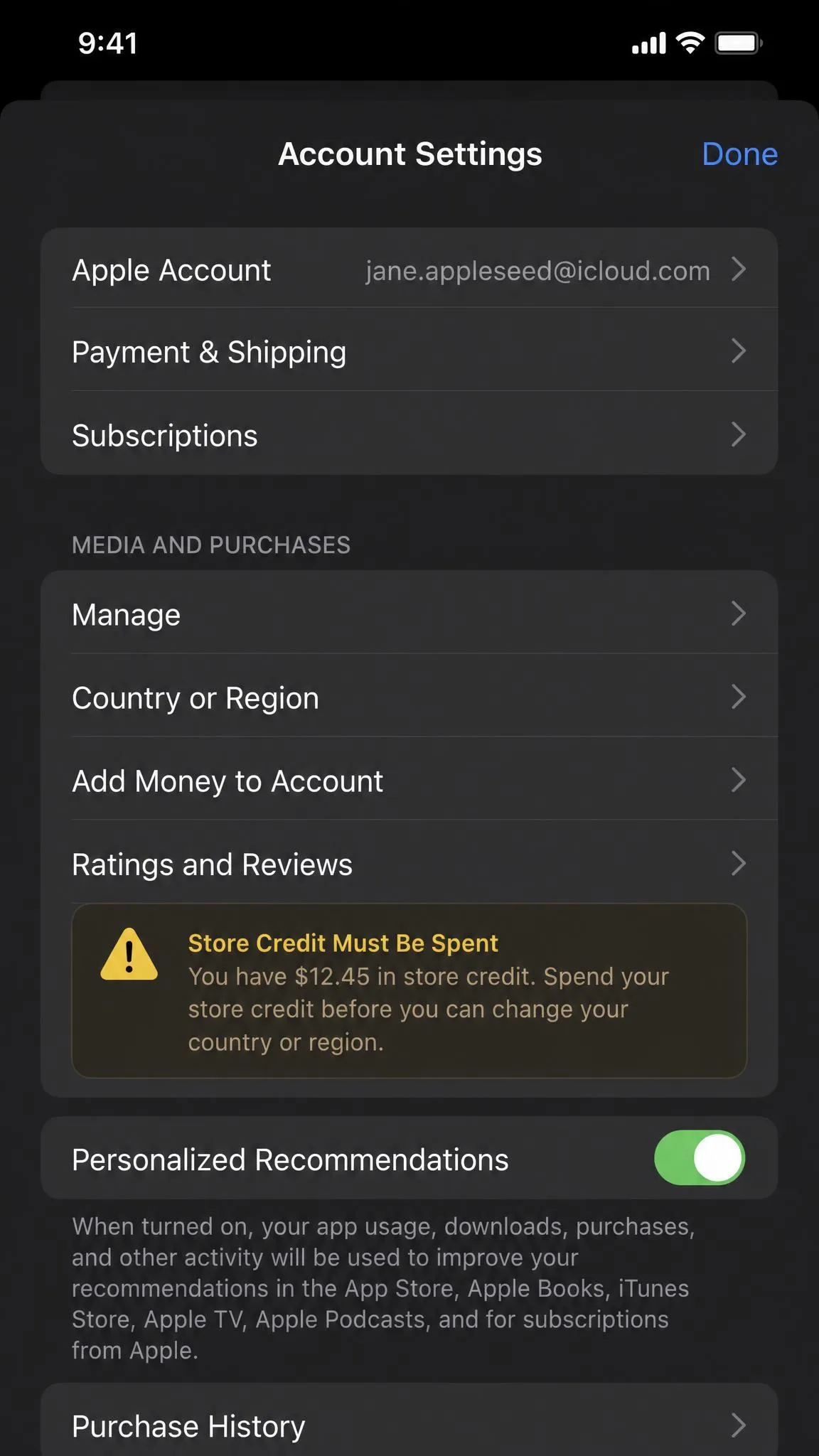
To change it, open Settings, tap your name, tap Media & Purchases, tap View Account, then tap Country/Region. Apple's instructions for changing your Apple ID country or region list the conditions, and there are several.
Your store credit must be spent down to zero, because Apple blocks the switch while any balance remains. Every subscription has to be cancelled, and memberships, pre-orders, rentals and season passes need to expire first. You may also need a payment method and billing address valid in the new country, along with a matching phone number. If you are in a Family Sharing group, the whole group shares one region, so you cannot change yours without leaving.
The upside is that this change persists with no cable, no computer and no ban risk.
Method 5: Use a GPS Spoofing Hardware Dongle
Hardware spoofers skip the software layer entirely. Instead of asking iOS to report a different position, they broadcast a fake satellite signal that your iPhone's receiver picks up as though it came from orbit.
The QPin hardware GPS spoofer for iPhone sells for $150. Enthusiasts build their own instead: a HackRF One software-defined radio costs under $300, and one documented DIY rig with a Raspberry Pi, antenna and battery came to about $225.
The appeal is that hardware runs as an external accessory rather than a tethered computer session, so nothing has to stay plugged into a laptop. The problem is that a broadcast has no aim. Every GPS receiver in range picks it up, including car navigation systems and phones belonging to people who did not ask for this.
Transmitting fake GPS signals over the air is regulated in most countries and can interfere with navigation and emergency services well beyond your own device. Treat hardware spoofing as a lab exercise, not an everyday tool.
Jailbreaking: The Method We Do Not Recommend
Jailbreaking removes Apple's restrictions and lets you install tweaks that change location without any computer attached. It is the only method that gives you a persistent fake position with a native app, and it is the one we tell people to avoid.
Some VPN pages still claim GPS spoofing on iPhone requires a jailbreak. That has not been true for years, since tethered desktop tools and Xcode both do the job on a stock device.
Jailbreaking will void your warranty, blocks official iOS updates until you restore, and strips out the sandboxing that keeps a malicious app away from the rest of your data. It also raises your detection risk sharply, because jailbreak checks are the first thing a security-conscious app looks for.
Risks: Account Bans, Find My, and the Terms of Service
Hardware and jailbreak tweaks raise the stakes because they leave traces, but the detection problem starts long before that. Nearly every app you would want to fool prohibits location manipulation in its terms of service, and enforcement is more sophisticated than most guides admit.
Guardsquare on how apps detect spoofed locations documents the full toolkit: jailbreak checks, hooking and debugger detection, code-signature tampering checks, correlation between motion sensors and reported GPS, and mismatches between your IP address and your coordinates. Backends add their own layer by flagging impossible travel, where an account surfaces in distant places in an unrealistically short time.
Vendor blogs tend to frame cooldown compliance as a safety guarantee. It is not one. Timing your jumps correctly defeats a single check, not five of them running together.
Cooldown timers and realistic movement speeds
Location-based games apply a waiting period after you move, and the Pokemon GO cooldown is the best documented example. A 1 km hop clears in about 30 seconds, while the timer tops out at 2 hours no matter how far you jump.
Catching, gym battles and feeding berries all start that clock. Teleporting itself, hatching eggs and trading do not.
Acting before the cooldown ends triggers a soft ban first, then a temporary suspension, then a permanent one if you keep going. Jumping locations too often inside a spoofing tool is the fastest route to a suspension we know of.
Use a spare device rather than your primary iPhone. Frequent coordinate jumps can trip Apple's automated security filters and temporarily flag an iCloud account, and keeping the experiment off your main account avoids most of that fallout.
What spoofing does to Find My and location sharing
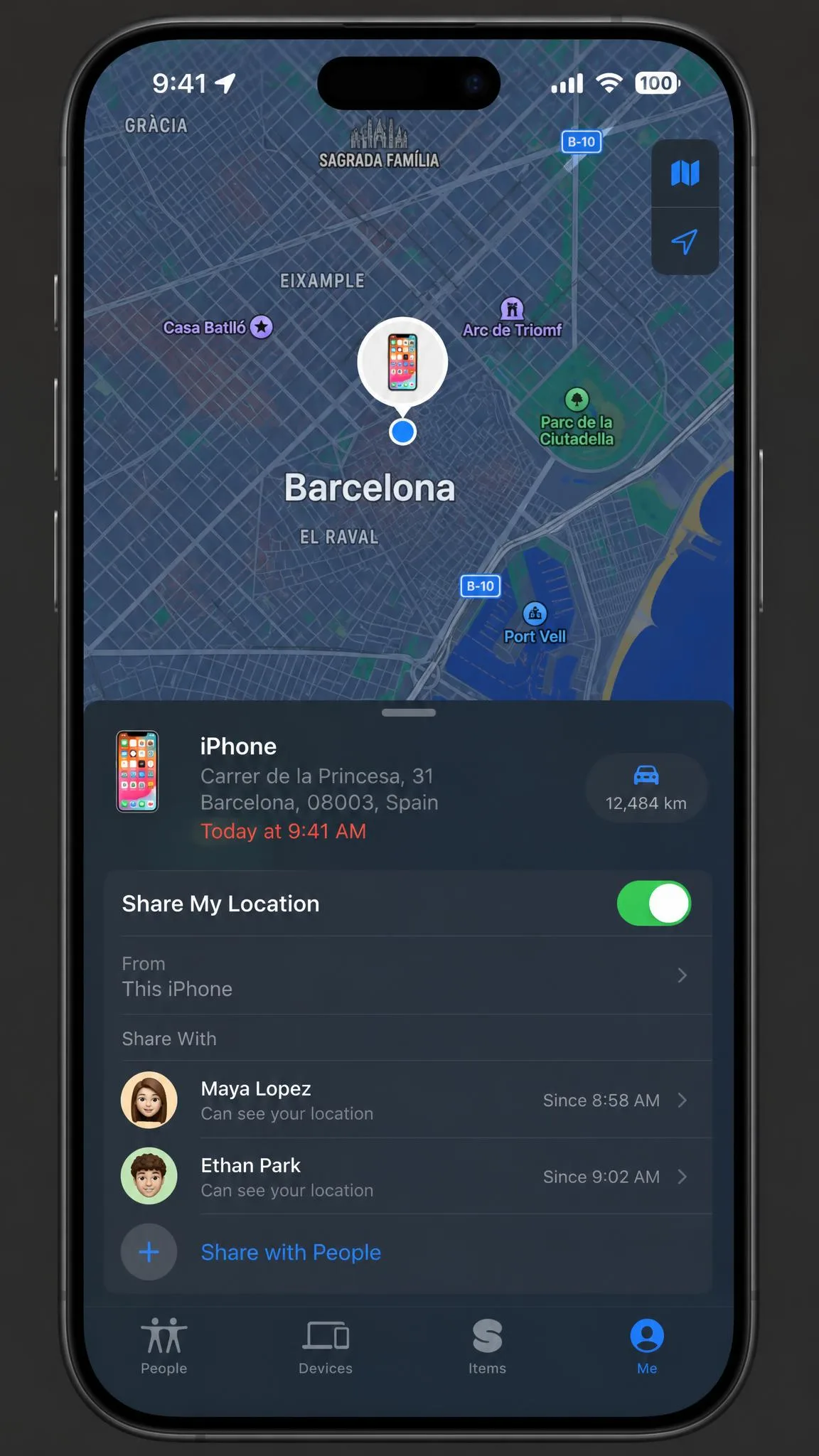
Find My reads the same system position every other app does, so it reports the fake location as if it were genuine. Anyone sharing location with you sees the spoofed pin, including family members and any Family Sharing safety alerts you have set up.
Location-based automations break the same way. Home screen suggestions, arrival reminders and smart home triggers all fire against coordinates that are not where you are.
Is Spoofing Your iPhone Location Legal?
Changing your own device's reported position is not itself a crime in the United States, the United Kingdom or the European Union. No general law says your phone must tell the truth about where it is.
What creates liability is what you do with it. Breaking a service's terms of service is a contract matter that gets your account closed rather than a criminal one. Using a fake location to commit fraud, evade a court order, bypass a bail condition or misrepresent yourself in a legal filing is a separate problem entirely, and the spoofing is the least of it.
Broadcast hardware sits in stricter territory, since transmitting on GPS frequencies is licensed spectrum in most countries.
How to Turn Off Spoofing and Restore Your Real Location
Reverting is easier than setting up. For a desktop tool, stop the session in the app, disconnect the USB cable, then restart the iPhone. For Xcode, unplug the device and restart it the same way.
The spoofed position sometimes sticks in place after you disconnect and only clears after that restart, so do not panic if the first check still shows the fake pin.
To confirm you are back, open Settings, then tap Privacy & Security and Location Services, and check that the toggle is on. Open Apple Maps and tap the arrow to recentre. If the blue dot lands on your real address, you are done.
Apple ID region changes are the exception, since those persist until you change them back through the same Settings path.
Frequently Asked Questions
Can I spoof my iPhone location without a computer?
Can an employer or a court make me account for a spoofed location?
Will spoofing get me banned from Pokemon GO or dating apps?
Does spoofing affect Find My and location sharing?
Do App Store fake GPS apps work on iPhone?
Does the spoofed location stay after I unplug?
One app still shows the old spot after I have restored everything. What now?
The Bottom Line
If you want the simplest working answer, a desktop location changer gives you system-wide GPS spoofing on a stock iPhone for the price of a couple of coffees a month. If you own a Mac and only need a short session, Xcode does the same job for free.
Choose a VPN only when the goal is geo-restricted content, because it changes your address and nothing else. Skip the jailbreak, keep your movements believable, and run all of this on a spare device rather than the phone that holds your real accounts.