Most players hit the same wall eventually. The spawns near your house repeat, the raid you want is three towns over, and a regional event lands somewhere you are never going to fly to. Faking your GPS is how people get around that, and on iPhone it is more restricted than on Android because iOS does not expose a mock-location switch.
This guide covers the four methods that still work on iPhone in 2026, in the order we would try them: a desktop location changer, joystick and route simulation, Apple's own Xcode simulator, and the jailbreak route we think you should leave alone. We put the desktop tools on iPhones running current iOS builds and walked through setup on both Windows and macOS. We will also be straight with you about the risk, because spoofing breaks Niantic's rules and no tool removes that.

Every price, iOS support range and cooldown figure in this guide is checked against the vendor's own pages or the published cooldown charts, and every hands-on note comes from running these tools on a connected iPhone rather than from a feature list.
Can You Still Fake Your GPS in Pokemon Go on iPhone?
Yes, and the method has been stable for a few years now. iOS has no developer toggle for mock locations, so nothing you install from the App Store alone will move your avatar. What works instead is a desktop app that talks to your iPhone over USB or Bluetooth and feeds it a different set of coordinates while the phone stays connected.
That connection is the trade-off. Every desktop spoofer keeps your iPhone tied to a computer, which is the main day-to-day annoyance compared with an Android app you can run standalone. If you want to walk around town with a fake location on an iPhone, you are carrying a laptop. These tools also need frequent updates, because game and OS changes break the workaround between releases.
What You Need Before You Start
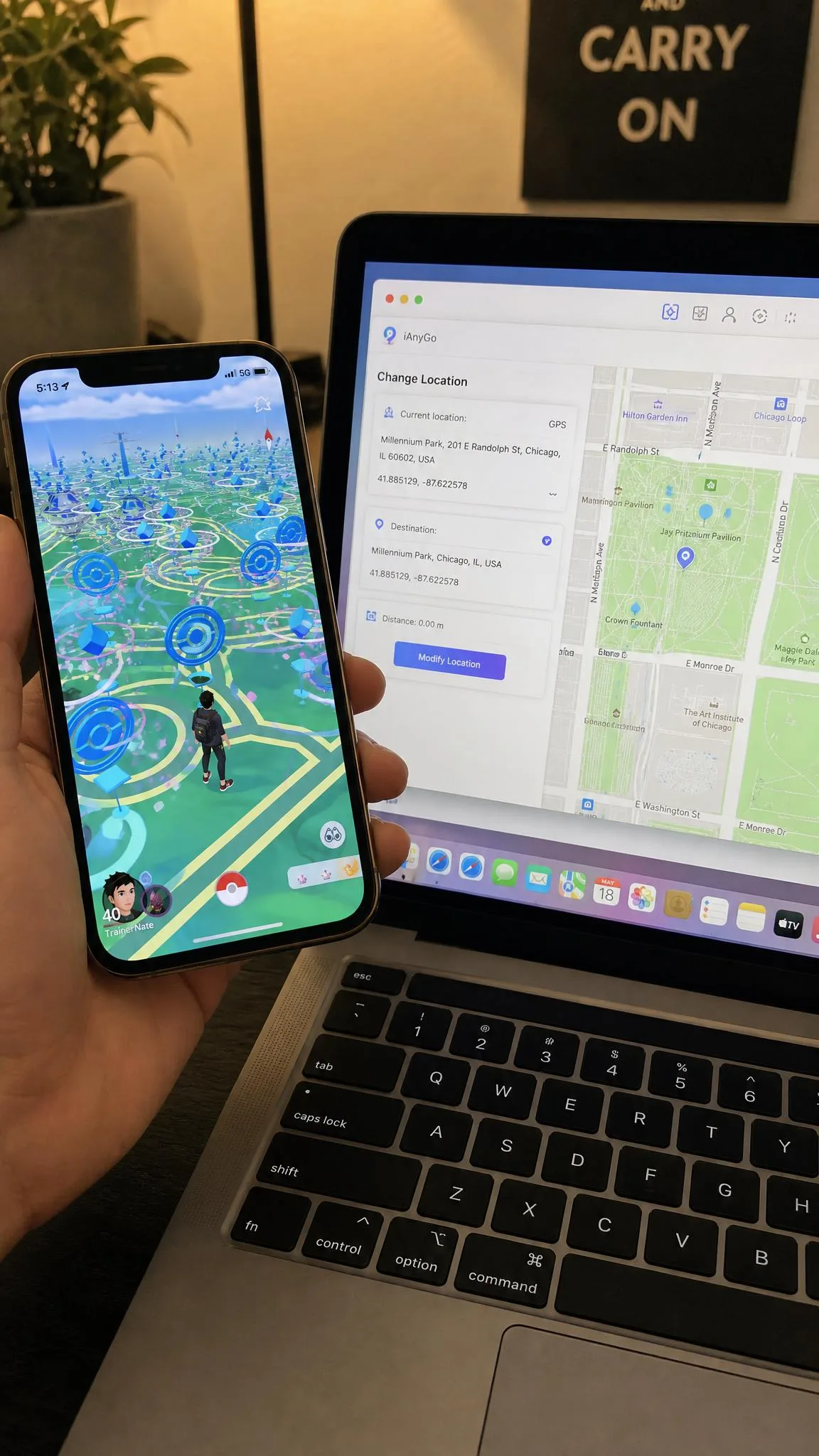
The shopping list is short. You need a Windows or Mac computer, the original Lightning or USB-C cable for your iPhone, and a spoofing app installed on the computer. Tenorshare iAnyGo runs on Windows 11 back through Windows 7, or macOS 26 down to 10.10, and needs 200MB free space.
You also need Developer Mode enabled on the iPhone. This is the step people miss on the first run, and the desktop tool will refuse to connect until it is on. Finally, decide which account you are willing to risk. We would not do this on a main account you have played for years.
Spoofing violates Niantic's rules, and there is no version of this that is risk free. Vendor claims of a zero-ban guarantee do not hold up. Assume the account you use can be suspended, and choose it accordingly.
Spoofer Comparison: Which iPhone Method Fits You
Four routes, four sets of compromises.
| Method | Cost | Jailbreak needed | Joystick | Ban risk |
|---|---|---|---|---|
 |
$12.95/mo, $95.95 lifetime | No | Yes | Moderate |
 |
Included in the same licence | No | Yes | Moderate, lower with cooldowns |
 |
Free | No | No | Moderate |
 |
Varies | Yes | Yes | Highest |
Cost is the obvious split. Tenorshare iAnyGo lists $12.95 per month for a single PC, $22.95 per quarter, $42.95 per year or $95.95 lifetime, with a 30-day money-back guarantee and a 60-minute free trial. A standard licence covers 5 iOS devices and unlimited Android devices, and it supports iOS 27 back through older releases on iPhone 6 to iPhone 17.
MocPOGO undercuts that on desktop at $9.95 per month, with a $19.95 iOS app plan bundling Windows and Mac access and a $14.95 Android app plan. It covers iOS 13 through iOS 27 and spoofs up to 15 devices at once, but publishes no money-back period, so treat any refund as discretionary. iMyFone AnyTo sits in the same bracket at $9.95 monthly, $39.95 per year or $59.95 lifetime, supporting iOS 26 and iOS 18 and binding up to 5 iPhone or Android devices.
Method 1: Desktop Location Changer (No Jailbreak)
This is the method we would point almost everyone to. Setup is short, the location holds steady once the device is connected, and nothing about it touches the phone's system files.
Step 1: Install the Location Changer
Download the installer from the vendor's own site rather than a mirror, and install it on the computer you will keep near you while you play. Nothing goes on the iPhone itself, and that missing App Store component is exactly why this method survives on iOS without jailbreak.
Step 2: Connect Your iPhone
Plug the iPhone in with a cable, unlock it, and tap Trust when the prompt appears. If the app cannot see the device, enable Developer Mode in Settings under Privacy and Security and restart the phone. Both iAnyGo and MocPOGO offer Bluetooth if you would rather not stay wired, though USB is the more reliable choice on a first run.
Step 3: Set Your Target Location
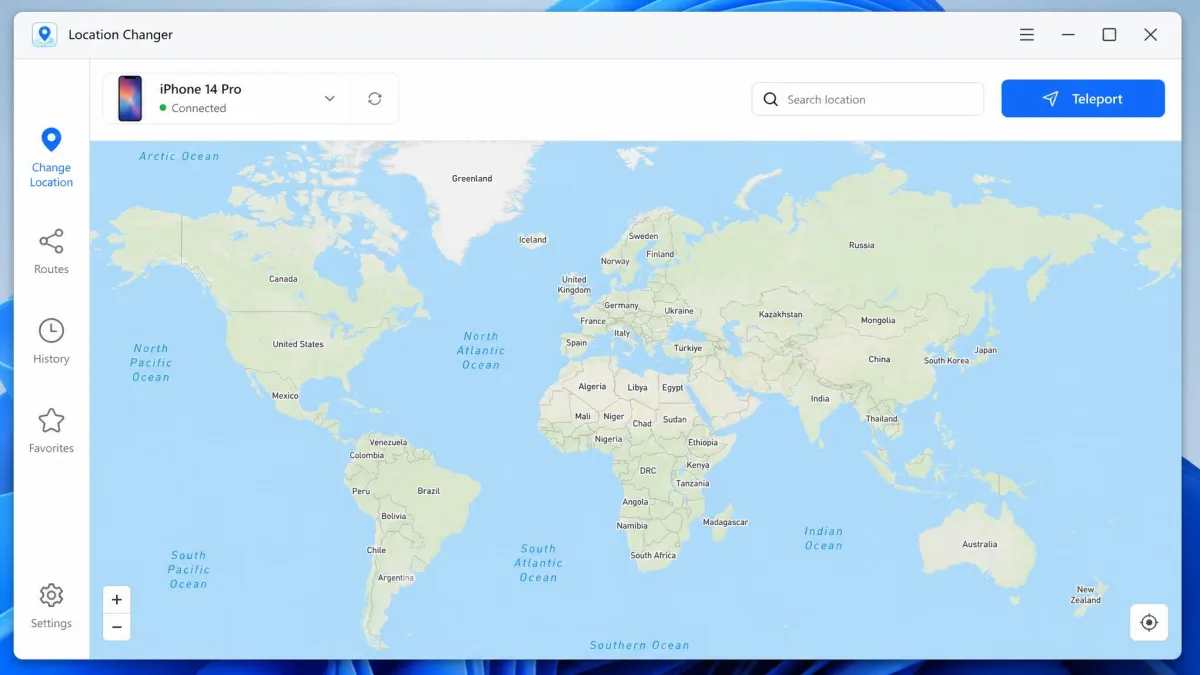
Choose teleport mode, then search for a city or drop a pin on the map. Pick somewhere with real foot traffic, a park or a downtown block, rather than the middle of a lake. Click the button to start the location change. Then check the distance from where you actually are, because that number decides your cooldown and it is the most important thing on this screen.
Step 4: Open Pokemon Go and Verify
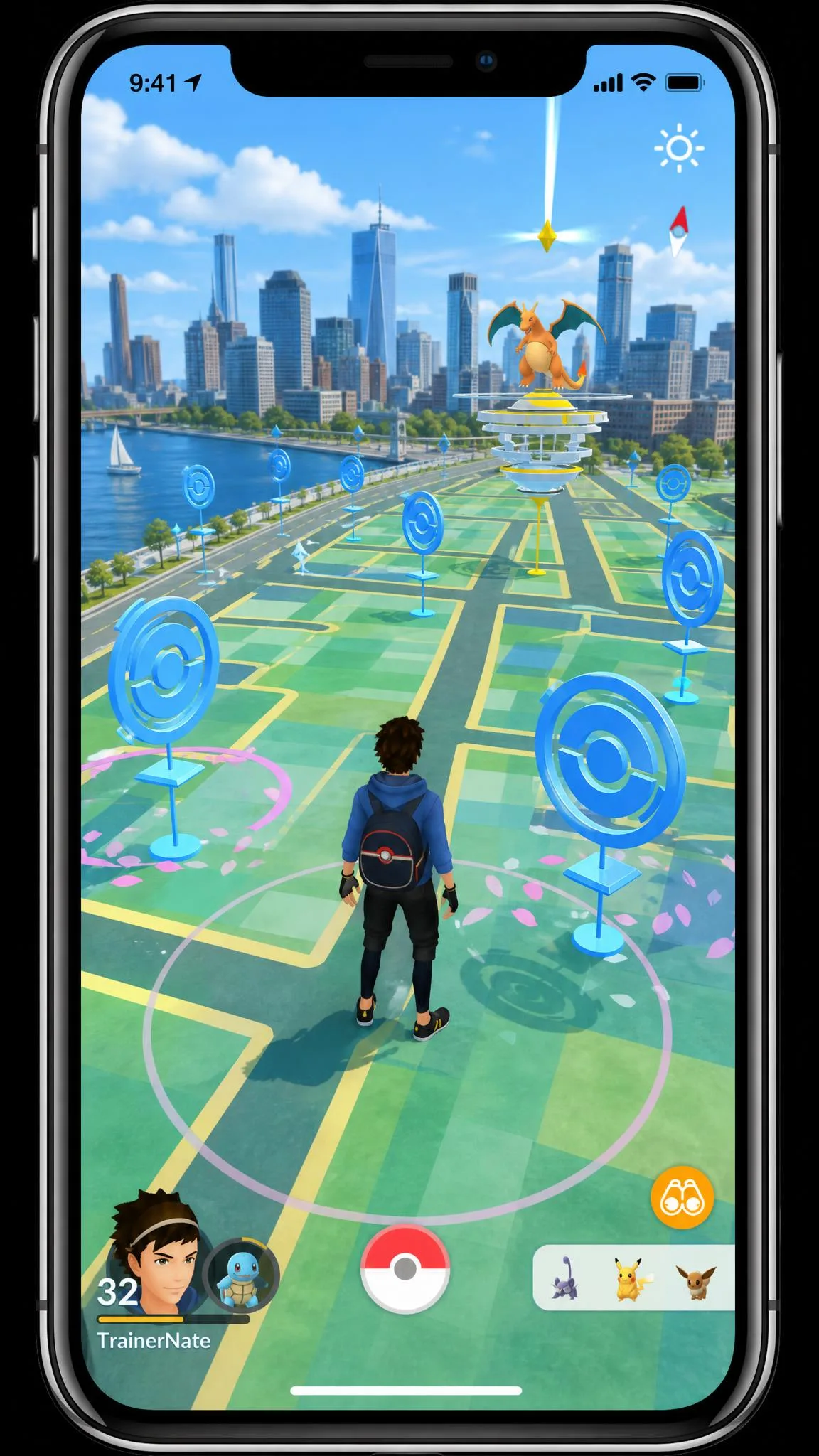
Launch the game and wait for the map to settle. Your avatar should be standing in the new spot with local PokeStops and gyms drawn in. If it snaps back and forth between the real and the simulated coordinates, that is rubber-banding, the most common failure we see. Close the game fully, confirm the desktop app still shows the device as connected, and reopen. Then do nothing for the length of your cooldown before you catch anything.
Method 2: Joystick and Route Simulation for Realistic Movement
Teleporting gets you to a place. A joystick gets you around it, and it is the mode we ended up using most. Joystick and route simulation at a walking-speed setting behaves far more like real movement than repeated hops, which is the practical reason to use it over raw teleporting.
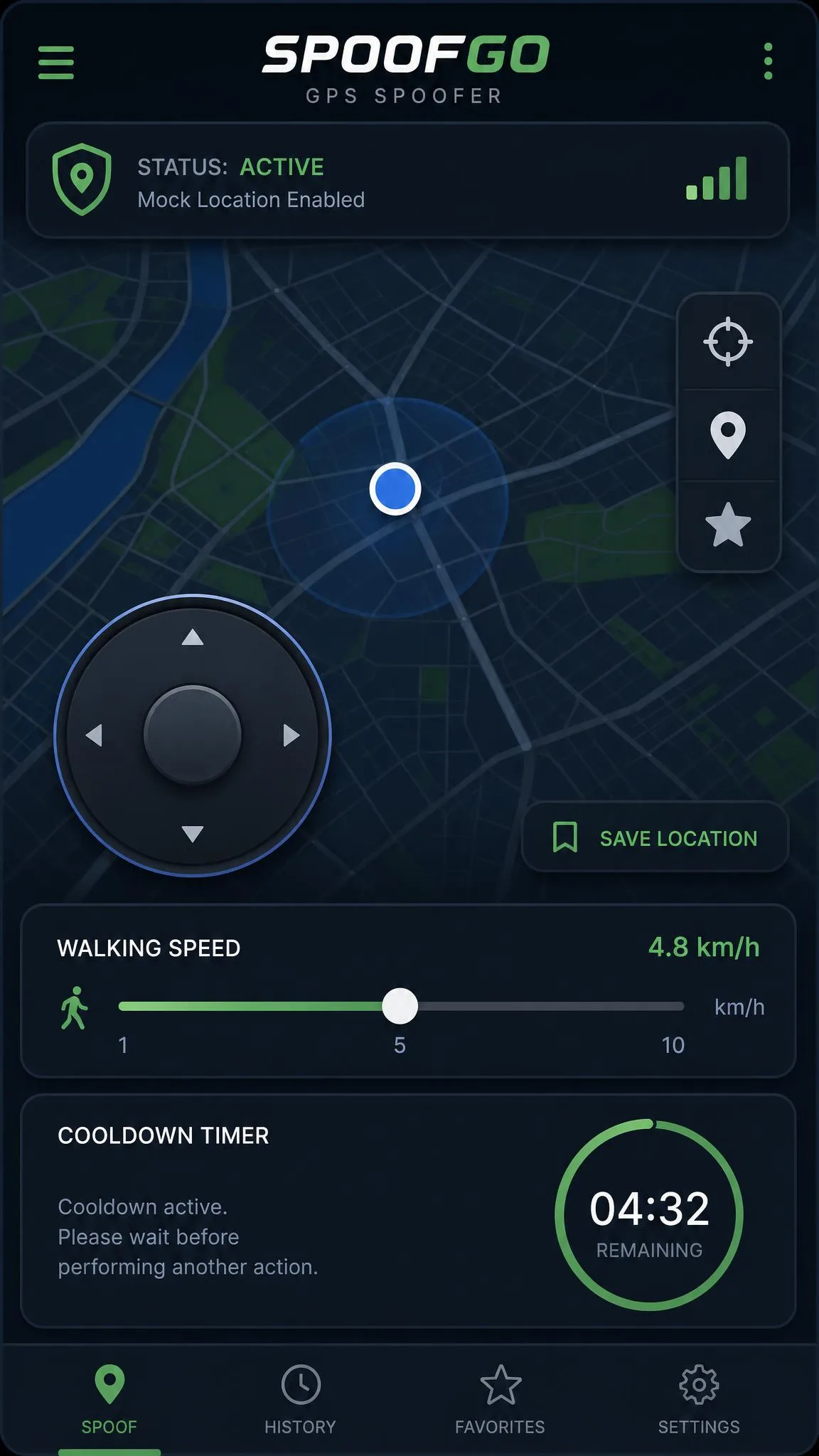
MocPOGO gives you a 360-degree joystick with speed adjustable from 3.6 to 100 km/h. Leave it near the bottom of that range, because human walking pace is around 5 km/h and a trainer crossing a city at highway speed is doing something no phone GPS would ever report.
Route simulation is the other half. Both iAnyGo and MocPOGO let you set a two-spot or multi-spot route, import a GPX track, and let the avatar walk it while you do something else. That covers egg hatching and buddy distance without you touching the screen.
Set a multi-spot route through a few PokeStops rather than a straight line between two points. Real walking has corners in it, and a route that follows streets is easier to leave running for a long session.
Method 3: Xcode Developer Location Simulation (Free, Mac Only)
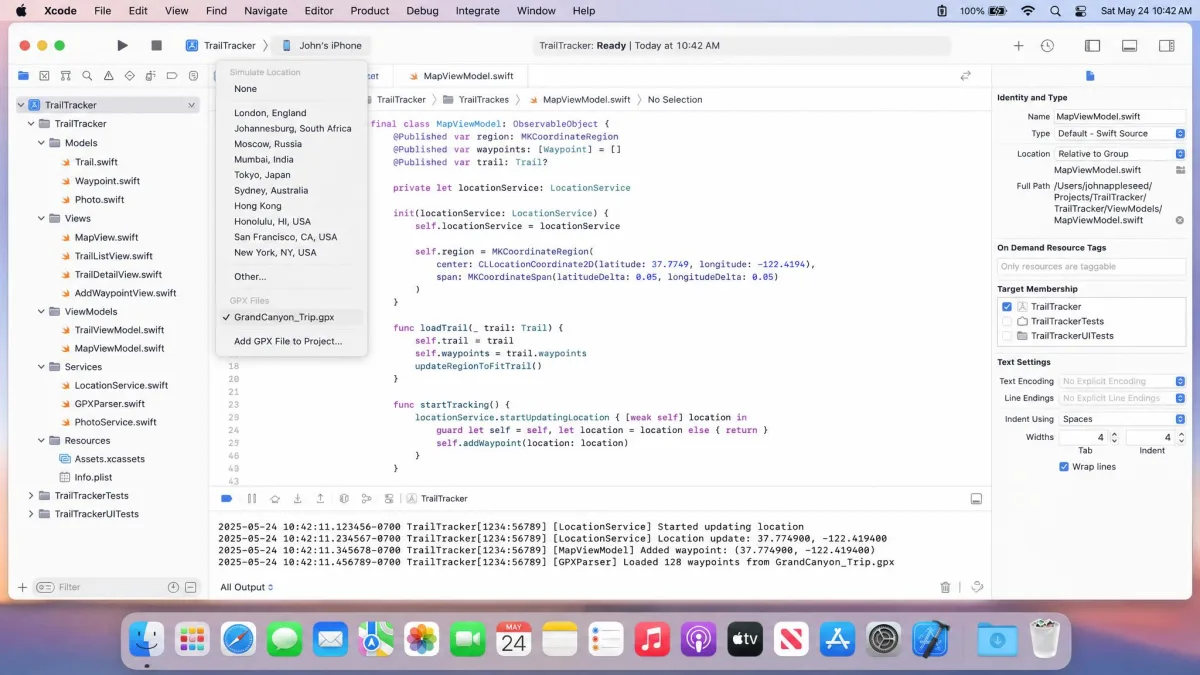
If you have a Mac and no budget, Apple's own tooling can do this. Xcode from Apple Developer is a free download, and a free Apple ID is enough to sign a personal test app, so you do not need a paid developer account. You build a dummy app project containing a .gpx waypoint file, run it on the tethered iPhone, and the phone reports the waypoint as its location.
It works, and it is also the most limited option here. The simulated position only holds while the iPhone stays plugged into the Mac, and pulling the cable snaps GPS straight back to your real position. There is no joystick and no live control, only the waypoints you compiled in, so this is for sitting in one place. If you want to move, you want Method 2.
Method 4: Jailbreak Tweaks and Modded Apps (Why We Do Not Recommend It)
Jailbreak tweaks and modded Pokemon GO clients do exist, and they are the only way to spoof on iPhone with no computer attached. That is the entire upside.
The downside is that a modified client is the clearest signal you can send. Niantic's enforcement singles out modified clients alongside bots and unauthorized backend access, so this is not a grey area you can argue your way out of. Jailbreaking also limits you to specific iOS builds, blocks some banking and streaming apps, and removes protections that exist for good reasons. We would not run it on a phone we cared about.
Does a VPN Change Your Pokemon Go Location?
No, and this is the most common misunderstanding about spoofing. A VPN changes the IP address your traffic appears to come from, while Pokemon GO reads the device's GPS coordinates, so a VPN alone does not move the in-game avatar at all. Connect to a server in Tokyo and your trainer is still standing on your street. Some players run one alongside a location changer so the network location is not flatly contradicting the GPS, but on its own it does nothing here.
Ban Risk: Soft Bans, Strikes, and the Cooldown Chart
Niantic published a three-strike system for how it bans players back in 2018, and it is still the reference point players use. A first strike is a warning, and rare Pokemon stop appearing for seven days. A second strike suspends the account for a month. A third is permanent termination with no recovery path. Niantic also reserves the right to skip straight to a permanent ban in severe cases.
Below that sits the soft ban, which is what most spoofers actually run into. During a soft ban, wild Pokemon flee instantly, PokeStops and gyms give you nothing, and you cannot join raids. Nothing is on your record, the game is just refusing to cooperate until the clock runs out.
The Cooldown Rule
Cooldown is the gap the game expects between two actions in different places. Jump 500 km and start spinning stops immediately and you have told the game something impossible.
| Distance jumped | Cooldown to wait |
|---|---|
| 1 km | About a minute |
| 5 km | 2 minutes |
| 10 km | 6 minutes |
| 25 km | 11 minutes |
| 250 km | 45 minutes |
| 500 km | 60 minutes |
| 1,000 km | 90 minutes |
| Over 1,500 km | 120 minutes |
These charts are community-derived rather than published by Niantic and vary by a couple of minutes in the middle range, though the 120-minute cap is consistent everywhere. Charts disagree at 1 km, so treat it as roughly a minute. Not everything starts the clock. Catching a Pokemon, spinning a stop or gym, feeding berries, gym and raid battles, placing a Pokemon in a gym and Team Rocket battles all trigger a cooldown. Teleporting itself, hatching eggs and trading do not.
Safe Movement Patterns
The habits that keep accounts alive are boring ones. Teleport once, wait the full cooldown, then play normally before moving again. Use the joystick at walking speed inside a city rather than teleporting between neighbourhoods, avoid jumping across continents and back in one session, and do not spoof and then immediately play from your real location the same day. Several tools include a built-in cooldown timer, and it is worth leaving visible.
Fixing Common Spoofing Errors on iPhone
Error 12, "Failed to detect location", is the one you will meet first. It fires when the reported GPS position conflicts with what the game expects, including SIM and carrier location checks, and it is common right after a spoofer connects. It often clears simply by teleporting to a different nearby point or switching movement mode, because the spot you picked can be flagged, crowded or too close to your real position.
If the location keeps snapping back, force the game's location permission to While Using the App, then reset Location and Privacy on the phone. That combination clears most stuck-location states for us.
If the joystick stops responding or the desktop app freezes, the connection usually needs re-establishing. Spoofing software can crash mid-session, so unplug, reconnect and restart the desktop tool before assuming anything is broken. Older iOS releases also fall off vendor support lists quickly, so an ageing test device can be left behind by an update.
Is Spoofing Pokemon Go Legal?
Faking your GPS is not a crime in itself. Location spoofing has legitimate uses, from app development to privacy, and no jurisdiction we know of prosecutes players for it. It is still a contract breach. Niantic's Terms of Service prohibit falsifying your location and using unauthorized third-party software, and breaking them can end your account. You are not risking a court case, you are risking everything you have caught.
One practical wrinkle: subscription cancellation and refund handling is a recurring sore point with these vendors, including charges continuing after a tool has stopped working. Buy the shortest term that suits you and keep the receipt.
How to Reset Your iPhone Location Back to Normal
Getting back to normal is quick. Stop the location change in the desktop app first, then disconnect the cable and restart the iPhone. That alone restores real GPS in most cases.
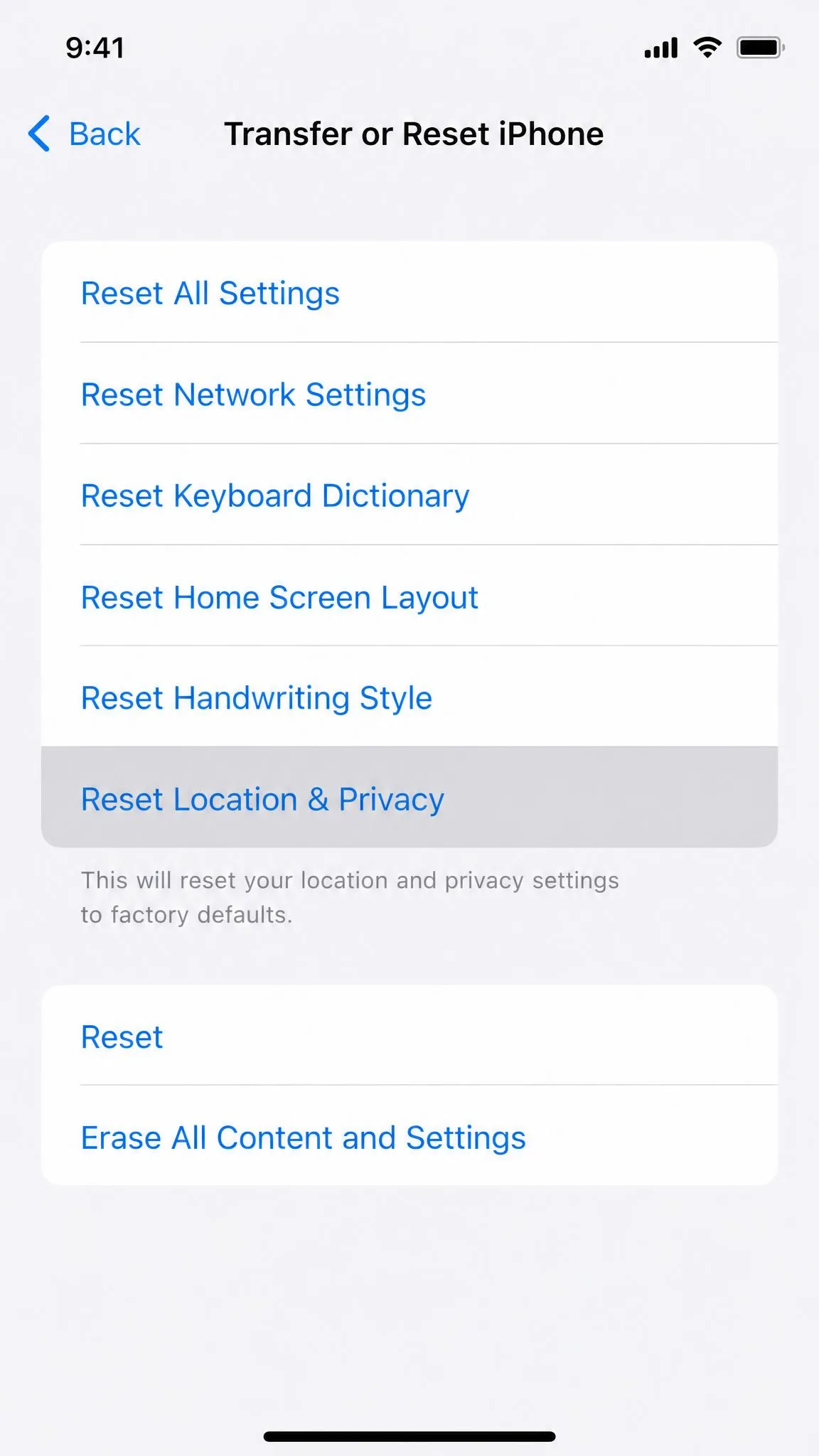
If the game still shows you somewhere else, open your iPhone Location Services settings in Settings under Privacy and Security, toggle Location Services off and back on, and check the permission for Pokemon GO. For a stubborn case, use Transfer or Reset iPhone, then Reset, then Reset Location and Privacy, which clears every app's stored location permission. Give the game a few minutes outdoors before judging the result.
Frequently Asked Questions
Is spoofing Pokemon Go illegal?
Can you get banned for faking GPS?
What is a soft ban and how long does it last?
Does a VPN alone work for Pokemon Go?
Can I spoof for free on iPhone?
Do I need to jailbreak my iPhone?
How do I reset my location back to normal?
Which iPhone models does this work on?
Final Thoughts
If you want to fake GPS on Pokemon GO on an iPhone in 2026, a desktop location changer with joystick and route simulation is the method that actually works without jailbreaking. Set it up once, keep the phone connected, move at walking speed, and respect the cooldown chart. The risk is the part we would not gloss over: Niantic's three-strike system is still in force, no tool can promise an exemption, and the account you use is what you are staking. Proceed with caution and treat the cooldown timer as a rule rather than a suggestion.