You want to keep your whereabouts private from one person, or from one nosy app, without a "stopped sharing your location" banner announcing it. That is the awkward part: the settings are easy, but nobody tells you what the other side actually sees afterwards.
In this guide we walk through seven ways to hide your location on iPhone, from a single Find My toggle to a full Safety Check reset. For each one we spell out who it hides you from, whether anyone gets notified, and what stops working. Every path below was checked against iOS 26.6, the current public release.
We walked all seven methods on an iPhone running iOS 26.6, then checked the other half of the story: what a person still sharing with you sees in Find My once you have gone quiet.
First, Decide Who You're Hiding From (and Who Gets Notified)
First, decide which of three situations you are in: hiding from one specific person, hiding from one app, or going dark to everyone. The right method follows from that answer, and picking the wrong one is how people end up breaking Maps when all they wanted was privacy from a single contact.
Notification behaviour is the part that worries people. Apple's guidance is deliberately conditional, so we will be too: whether anyone gets a notification depends on the other person's iOS version and on whether the sharing started inside Messages or inside Find My.
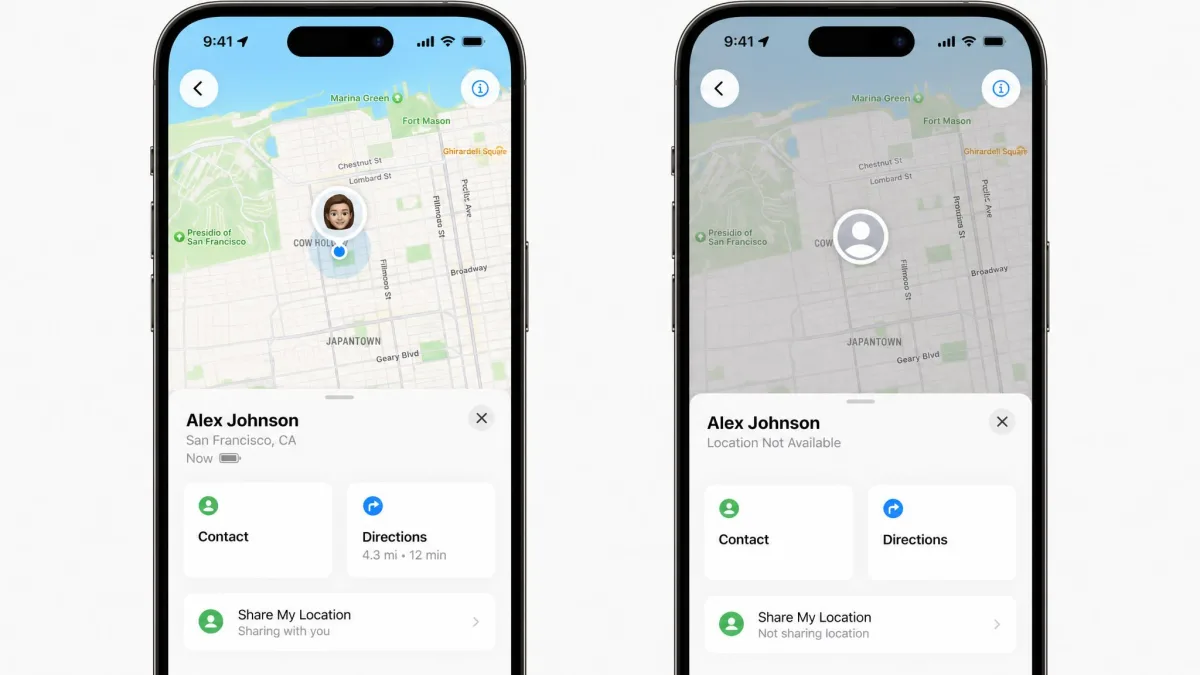
What we can say plainly is what the other side sees. Once sharing stops, your entry in their Find My list reads No Location Found, the same string that appears when a phone is off, offline, or in Airplane Mode. There is no alert and no banner on their device.
Two strings are worth learning. No Location Found means the device is offline, powered off, or otherwise unreachable. Location Not Available is the more revealing one, because it appears when the phone is online but is not sharing.
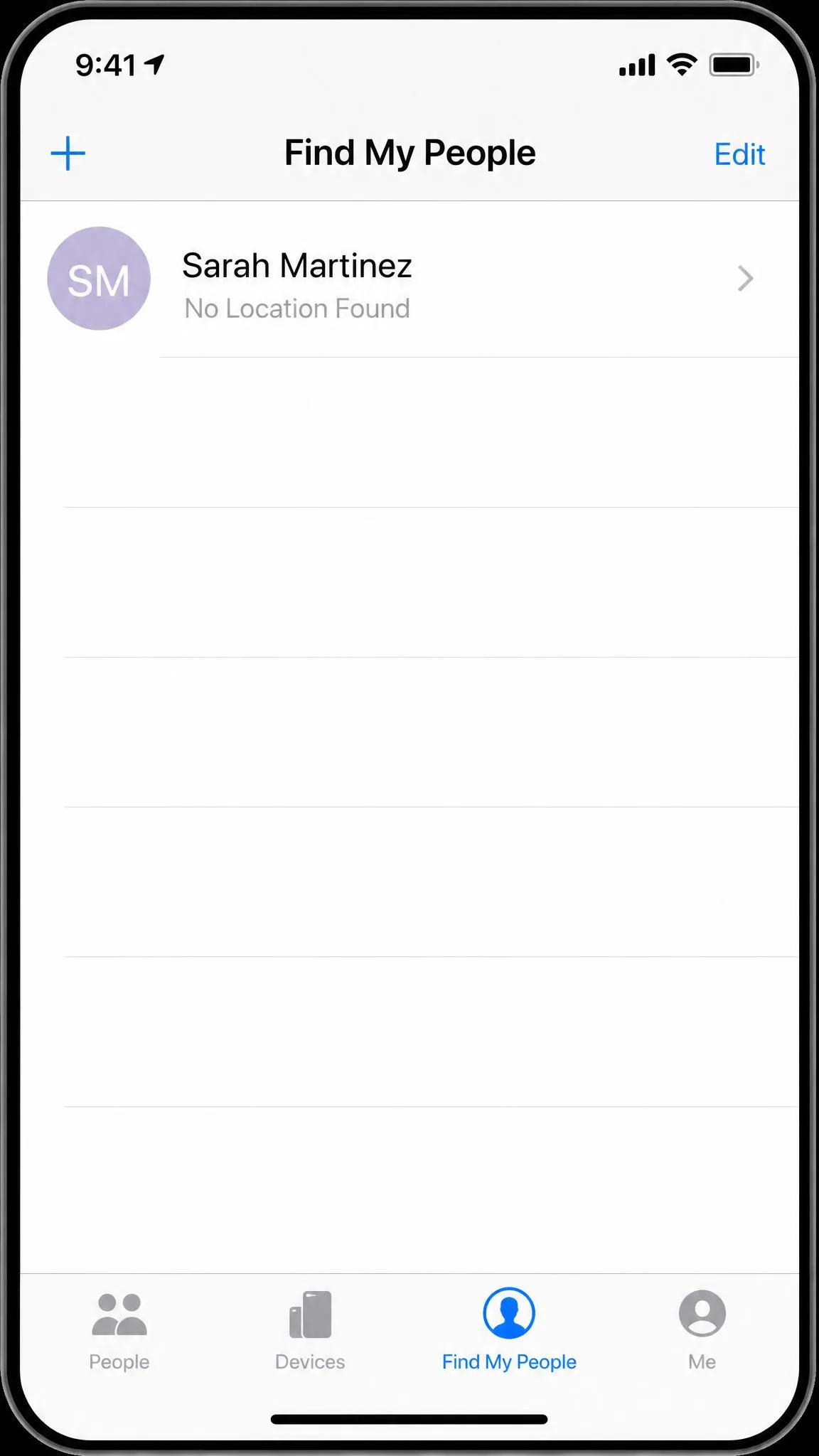
Method 1: Stop Sharing Your Location in Find My
Try this first, because it hides you from people without touching anything else on the phone. Maps, weather, and your camera's geotagging keep working; only the humans lose sight of you.
Hide your location from everyone at once
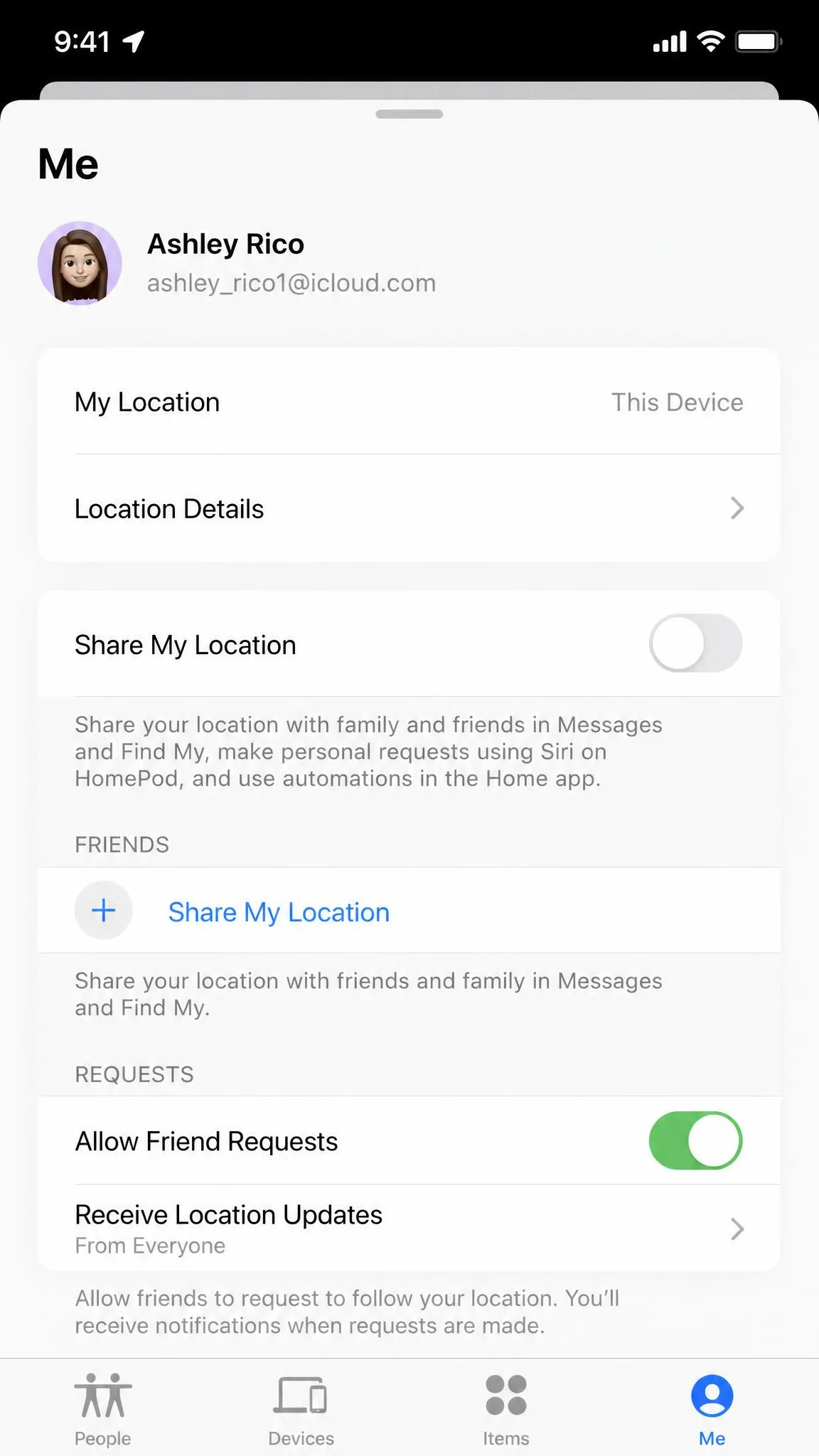
Open the Find My app, tap the Me tab, scroll to Share My Location, and switch it off. That single toggle covers every person on your list at once.
One quirk we noticed: your own Messages thread may show a "you stopped sharing location" line. That line sits on your device only, and the other person does not see it in their copy of the conversation.
You can stop sharing your location in Find My and turn it back on later. Sharing resumes silently, and you do not need to re-invite anybody.
Hide your location from one specific person
To disappear from a single contact, open Find My, tap People, tap the person's name, then tap Stop Sharing My Location and confirm. Everyone else keeps seeing you exactly as before.
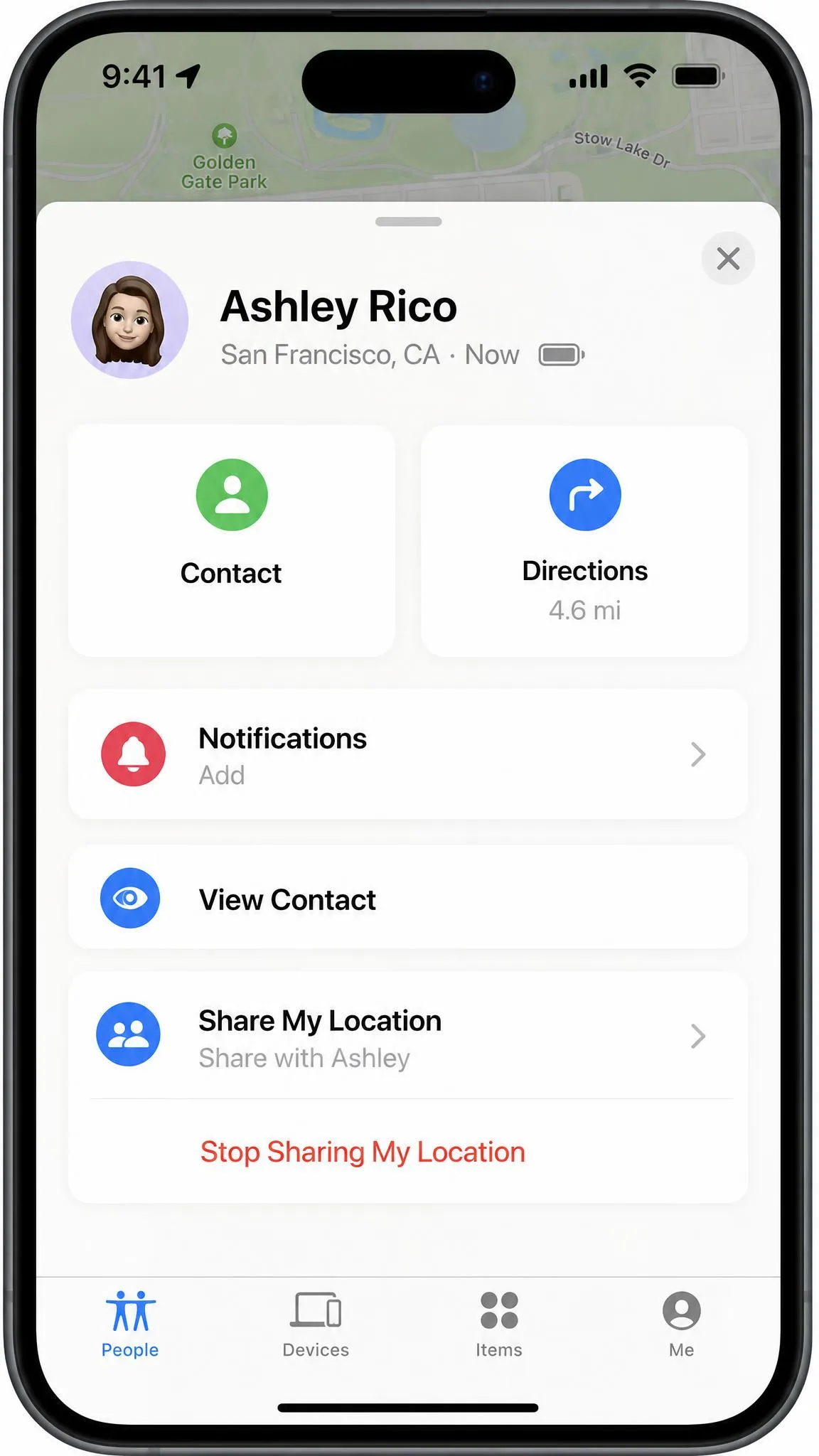
We prefer this to the global toggle when the goal is narrow, because it leaves no odd gap for the people you still want to stay reachable to.
Method 2: Turn Off Location Services Entirely
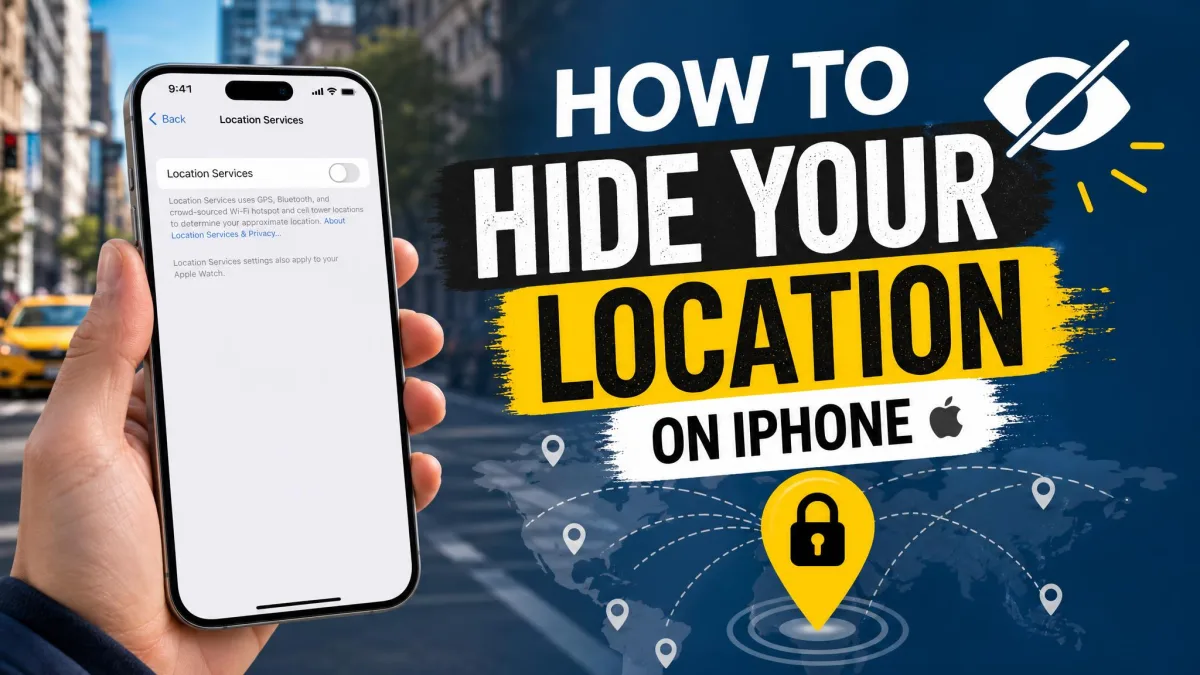
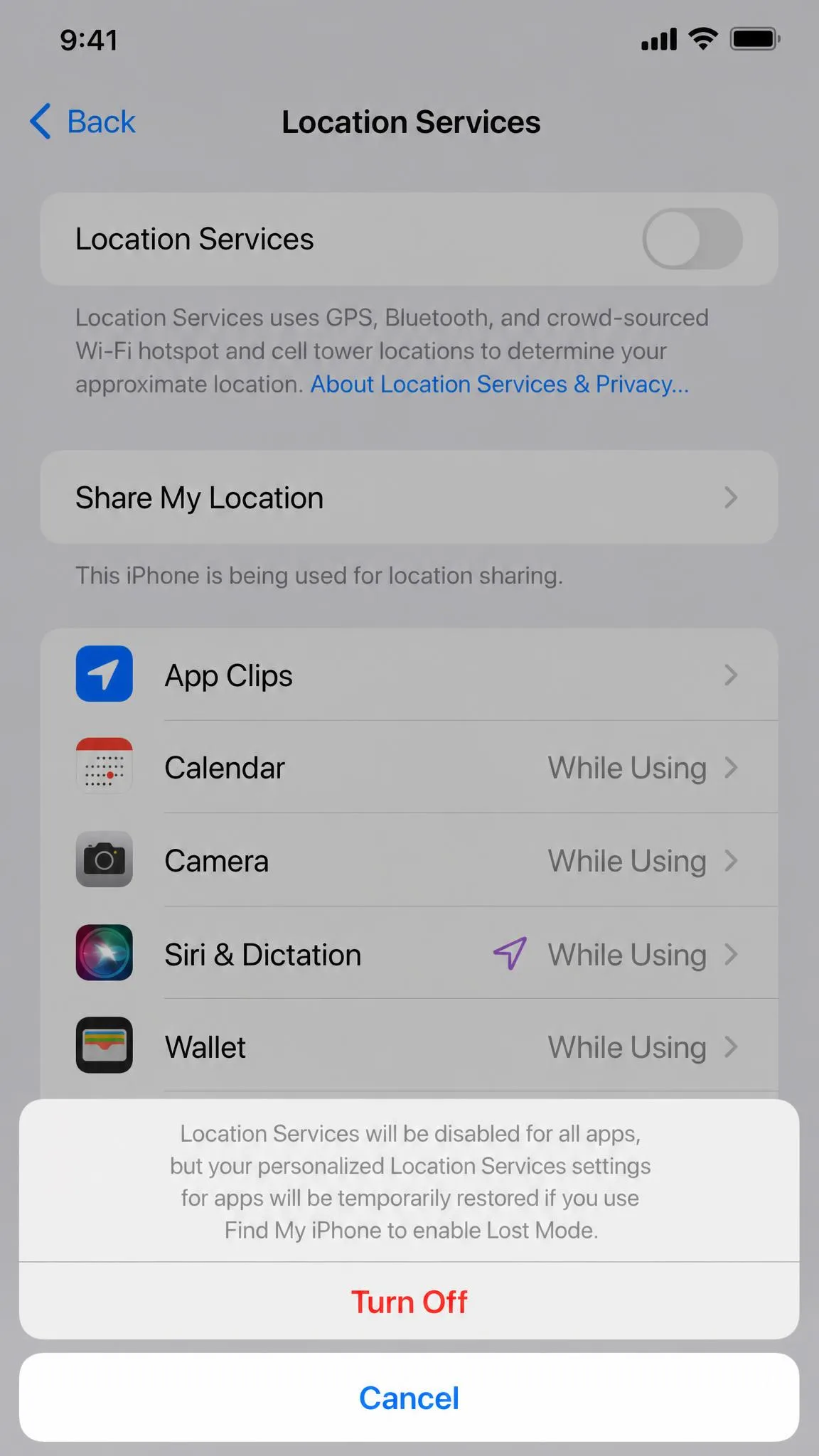
To stop the phone producing a position at all, open Settings, tap Privacy & Security, then tap Location Services, and switch the toggle off. iOS asks you to confirm, and from that point no app and no person gets your GPS position.
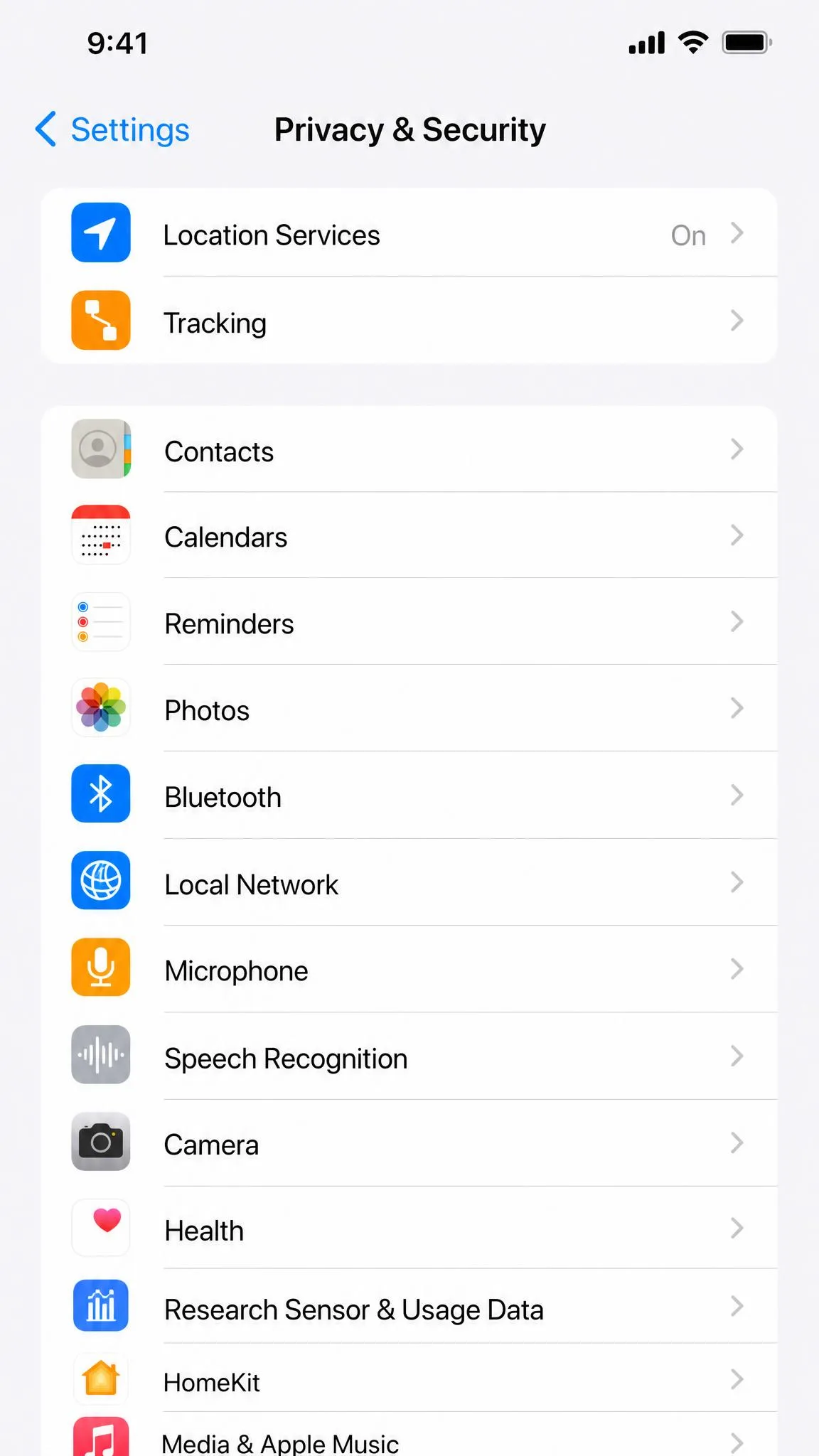
This is the heaviest hammer here. Maps navigation stops, weather stops updating for where you are, and any app feature keyed to your position goes quiet until you switch it back on.
Apple documents how to turn Location Services off in Settings. For a clean slate instead, there is a full reset at Settings, General, Transfer or Reset iPhone, Reset, Reset Location & Privacy, which drops every app back to asking permission from scratch.
Turning off Location Services also turns off Find My iPhone's live map, so a lost phone cannot be seen on a map. An iPhone 11 or later can still be found through the crowd-sourced Find My network over Bluetooth, but that is a fallback, not a plan. Lost Mode's ability to switch location reporting back on varies by device and iOS release, so do not rely on it for recovery.
Method 3: Control Location Access App by App
Most people do not need to hide from everyone. They want one app to stop watching. Open Settings, tap Privacy & Security, then Location Services, and scroll to the app you want to change.
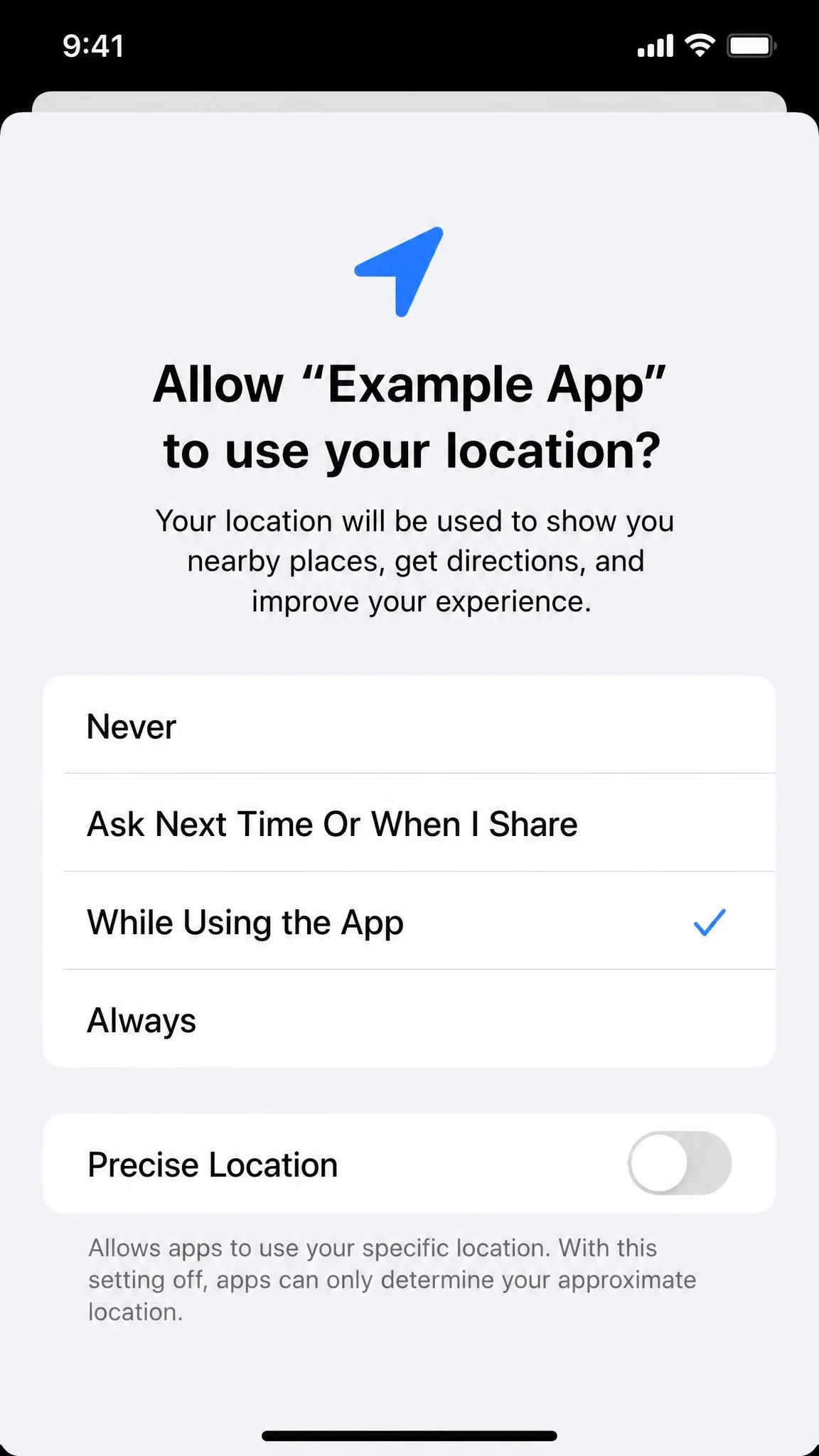
Each app offers four levels: Never, Ask Next Time Or When I Share, While Using the App, and Always. Never blocks the app completely, while Ask Next Time gives it a one-off grant the next time it asks.
Apple also lets you control which apps can track you across other companies' apps and websites, which is a separate switch worth checking on the same trip through Settings.
Precise vs. approximate location
Inside each app's location screen sits a Precise Location switch, introduced with iOS 14. Turning it off hands the app a rough area rather than exact coordinates, so a weather or news app still knows roughly where you are without pinning you to a street.
In our experience that single switch settles most privacy complaints, and most apps keep working on approximate location without any trouble.
Watch the small arrow beside an app in the Location Services list. A purple arrow means the app used your location recently, and a grey one means it used it in the last day. That is the fastest way to find which apps deserve attention.
Method 4: Use Airplane Mode for a Quick, Temporary Hide
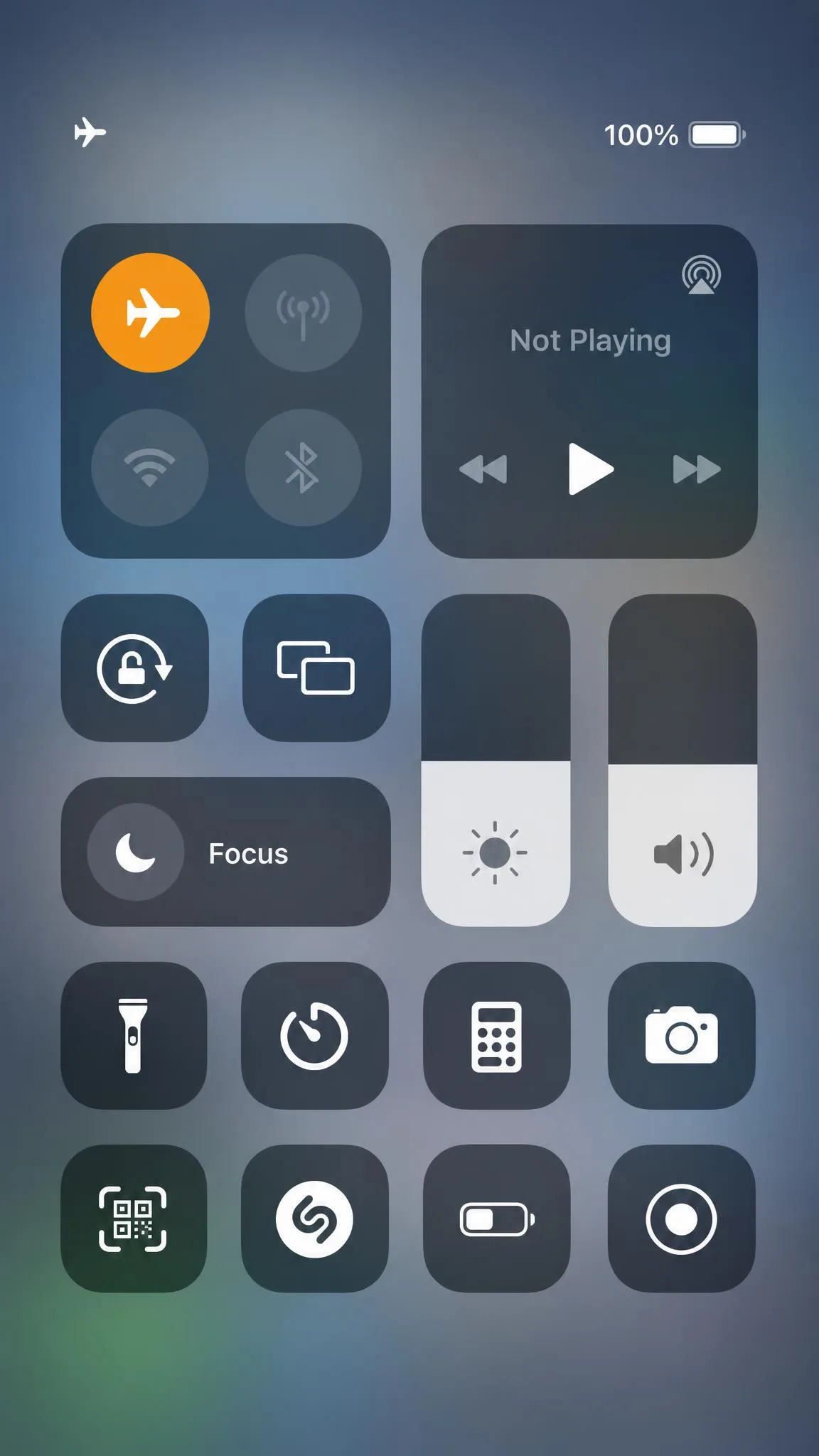
Airplane Mode is the fastest hide on the phone. Open Control Centre and tap the aeroplane icon, and within seconds your position stops updating for everyone.
It does not switch off the GPS receiver. What it cuts is cellular and Wi-Fi, so the phone has no way to upload its position, and Find My falls back to No Location Found.
The honest drawback is that it is a giveaway. That same status appears whether a phone is genuinely offline or deliberately cut off, and leaving Airplane Mode on after a flight is such a common accident that the state rarely reads as suspicious on its own. It is fine for twenty minutes and poor as a habit.
Airplane Mode also stops calls, texts over cellular, and mobile data. If you are hiding from one person, you are unreachable to everyone else too.
Method 5: Share From Another Apple Device Instead
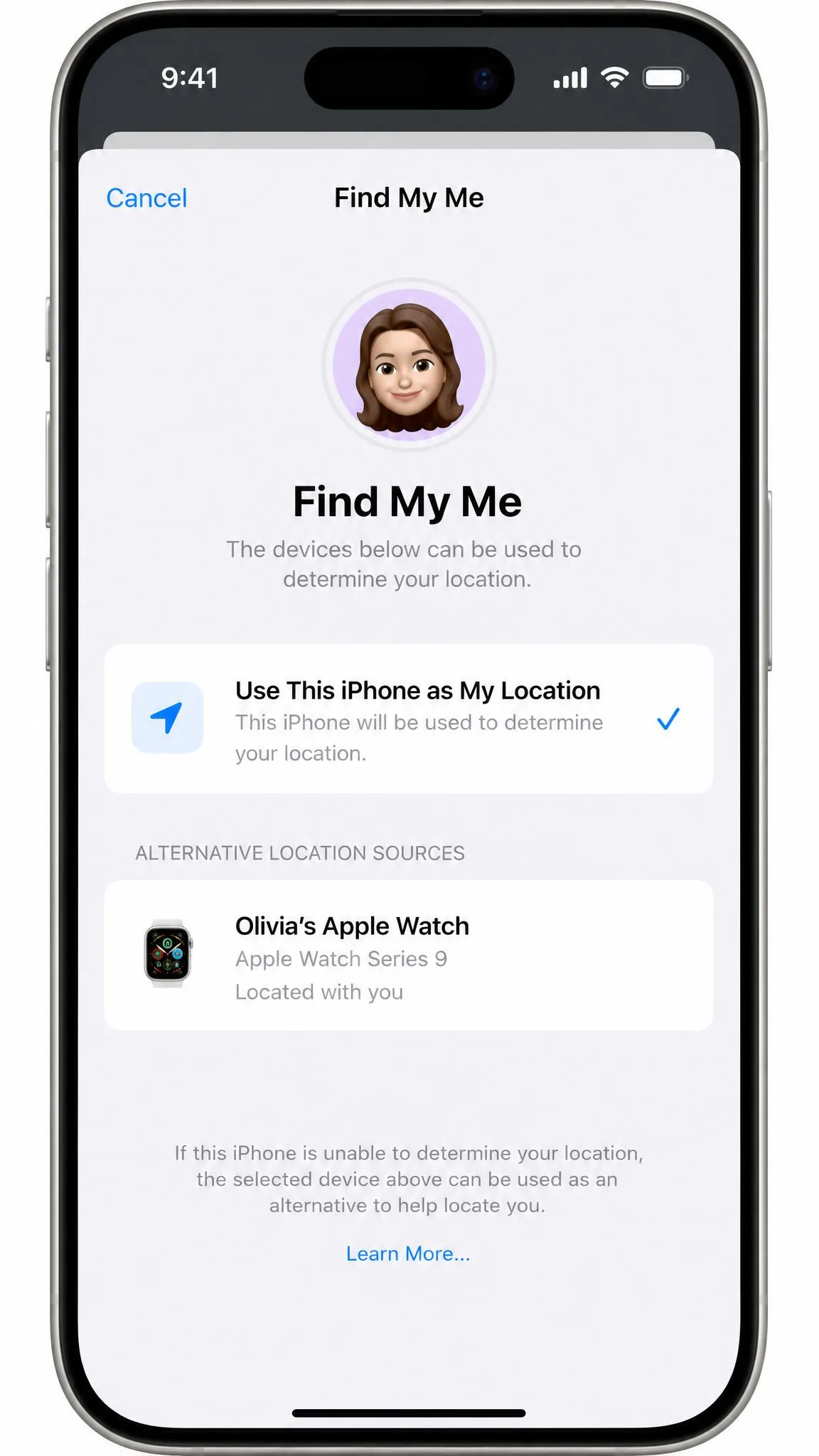
If you own a second Apple device, you can nominate it as the one that reports your location. In Find My, tap the Me tab and choose which device to use as your location, and sharing continues from whichever one you picked.
The practical use is obvious once you see it. Leave a spare iPad or old iPhone at home, set it as your location source, and everyone sharing with you sees a normal, stationary position while you carry your main phone as usual.
Nobody is notified, nothing stops working, and switching back is one tap. It is the quietest option in this guide because the sharing relationship never breaks. If you do not have a spare device, our guide to faking your Find My iPhone location covers the software route to the same result.
Method 6: Use Safety Check to Revoke Everything at Once
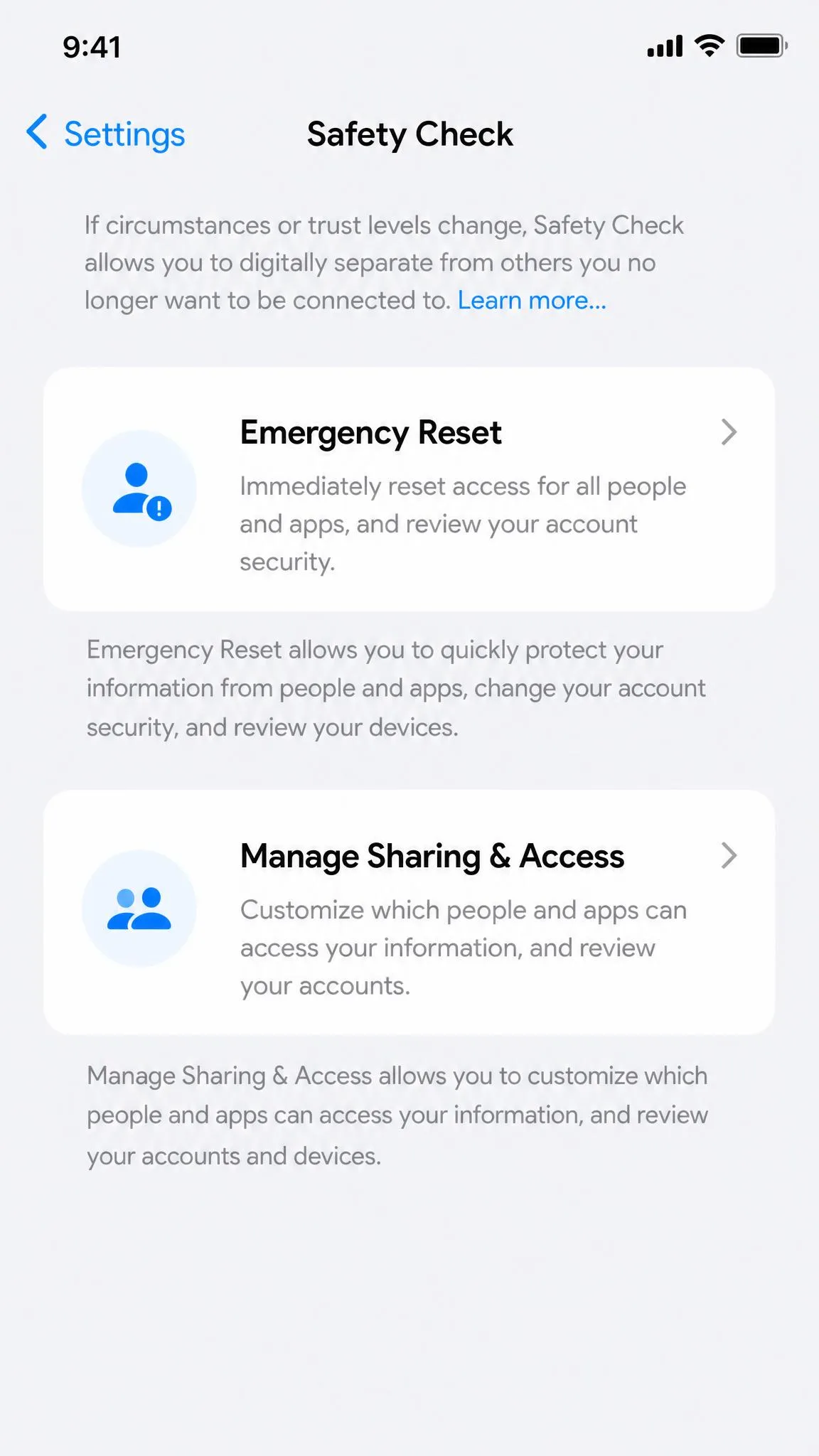
Safety Check cuts every thread in one pass rather than making you hunt through settings. It needs an iPhone running iOS 16 or later, and you will find it at Settings, Privacy & Security, Safety Check, near the bottom of the list.
Fair warning: it sits far enough down that people scroll straight past it. Apple's own instructions note that you may need to scroll to reach it.
There are two modes. Emergency Reset stops sharing with all people and apps at once, and Manage Sharing & Access walks you through person by person and app by app so you can keep the sharing you want. If Stolen Device Protection is turned on, the flow behaves a little differently.
Read Apple's Safety Check documentation before using Emergency Reset, because restoring everything afterwards is a slow, one-by-one job.
If you are working through a difficult personal situation rather than a passing privacy itch, the National Domestic Violence Hotline publishes calm, practical safety planning resources covering phones and shared accounts.
Method 7: Share a Different Location Instead of Hiding
People ask about this constantly, so we will cover it honestly. Instead of stopping sharing, you keep sharing and change what gets shared, so the other person sees a plausible position rather than an empty status line.
Method 5 is the clean version of that idea, since a second Apple device reports a genuine position from a place you chose. Beyond that, third-party spoofing apps can set an arbitrary position on the phone itself. They work, but they can break app behaviour and run against plenty of apps' terms of service.
If you want the detail, we have written separately about how to change your location on iPhone and how to spoof your location on iPhone. We are not going to sell you a spoofer here, because for the situation most people are in, one of the first six methods is faster.
Third-party location spoofers can break apps that check for tampering, and using one may violate an app's terms of service. Weigh that before installing anything that rewrites your GPS position system-wide.
Which Method Should You Use?
Here is the whole set side by side, so you can pick on the two things that matter most: who it hides you from, and how quickly you can undo it.
| Method | Who it hides you from | Does it notify anyone | What stops working | How fast to undo |
|---|---|---|---|---|
| Everyone you share with | No direct alert; they see No Location Found | Nothing else on the phone | Instant, one toggle | |
| Every app and person | No | Maps, weather, Find My live location, app location features | Instant, one toggle | |
| One chosen app | No | Only that app's location features | Instant, per app | |
| Everyone, temporarily | No, but shows No Location Found | Calls, cellular data, Wi-Fi | Instant | |
| Nobody; shows the other device's position | No | Nothing | Instant, in Find My | |
| All people and apps at once | No | Sharing you may want to keep | Slow, must re-grant one by one | |
| Everyone viewing you | No | App accuracy may suffer; may breach app terms | Varies |
Hiding from one person? Use Method 1's per-person route. Hiding from one app? Use Method 3. If you want a quiet, believable hide that keeps everything else intact, Method 5 is the one we would choose. Save Location Services off and Safety Check for the moments when a clean sweep matters more than convenience.
What Stops Working When You Turn Off Location on iPhone
Turning off Location Services globally costs more than people expect. Maps navigation stops giving directions, weather loses your current position, and any app feature keyed to where you are goes quiet.
Find My iPhone is the loss that stings later rather than now. Without Location Services you cannot see the phone's live position on a map, which matters most on the day you misplace it.
Smaller things break too. Photos stop recording where they were taken, delivery apps ask you to type an address, and location-aware reminders lose their trigger. None of that happens with the narrower methods, which is the argument for using them first.
Location sharing also drops out on its own sometimes, with nobody having changed a setting. Unstable network or Bluetooth connections and quietly reset app permissions are the usual causes, and that background noise is a large part of why a deliberate hide rarely draws suspicion.
Frequently Asked Questions
Does hiding my location notify the other person?
Can I hide my location from one person without them knowing?
Will Find My iPhone still work if I turn off Location Services?
Can I still use Maps and GPS navigation?
Can someone still track my iPhone with location off?
Is it legal to fake my iPhone location?
The Bottom Line
For most people the answer is smaller than they expect. If one person is the problem, stop sharing with that one person in Find My. If one app is the problem, set it to Never or switch off Precise Location and move on.
Keep the global Location Services switch as a last resort, because turning it off costs you Maps, weather, and the live Find My map you will want the day the phone goes missing. Whichever route you take, nobody gets an alert, and you can undo almost all of it with a single tap when you want to be visible again.