If a website is suddenly blocked on your iPhone and you can't browse the page, Screen Time's Web Content restrictions are probably on. You can turn them off in under a minute with the Screen Time passcode. This guide covers both methods, plus passcode recovery.
What Are Web Content Restrictions on iPhone?
Web Content restrictions live inside Screen Time, the parental controls Apple added in iOS 12. They replaced the old Restrictions menu. Find them at Settings > Screen Time > Content & Privacy Restrictions > Content Restrictions > Web Content.
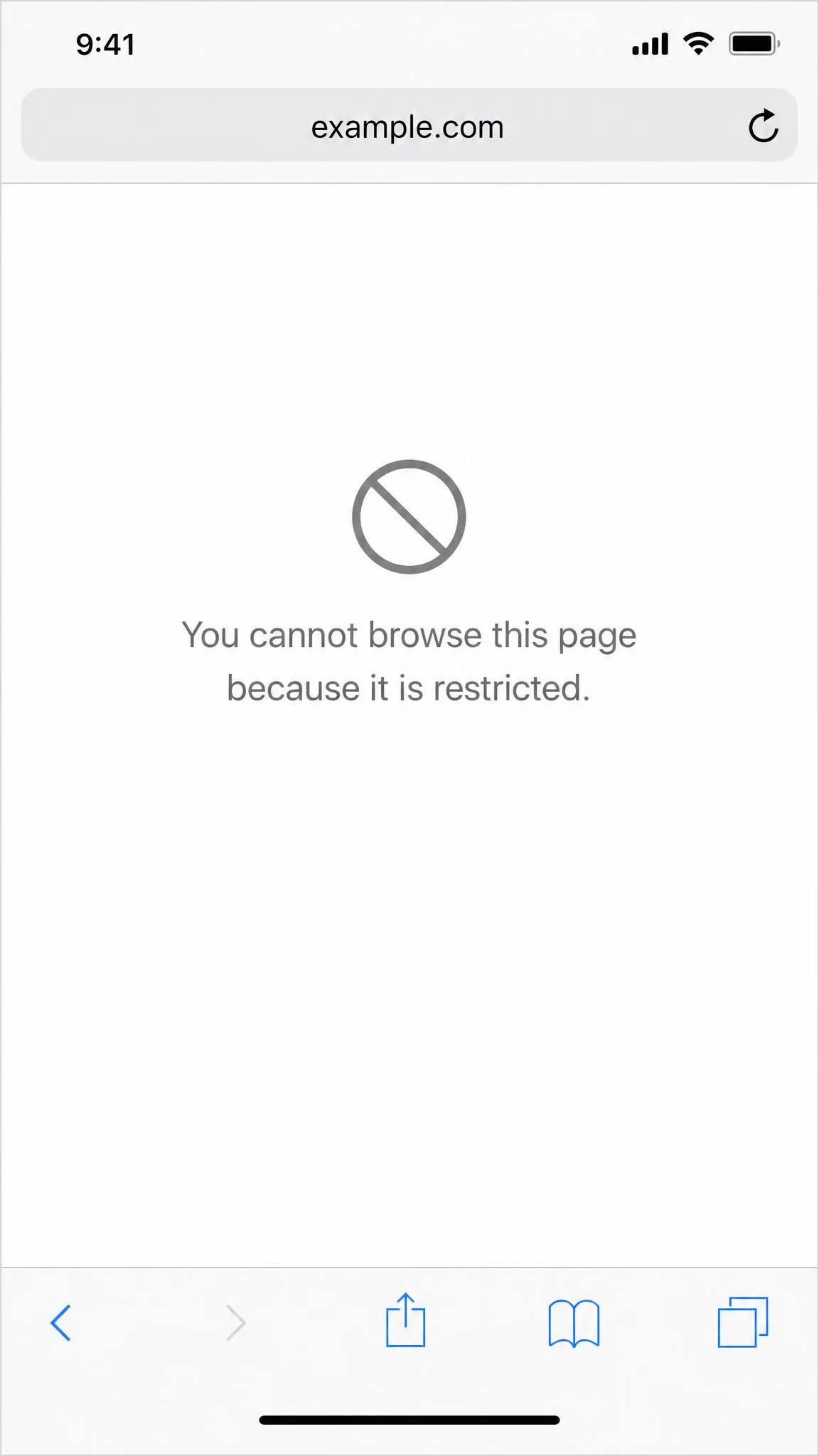
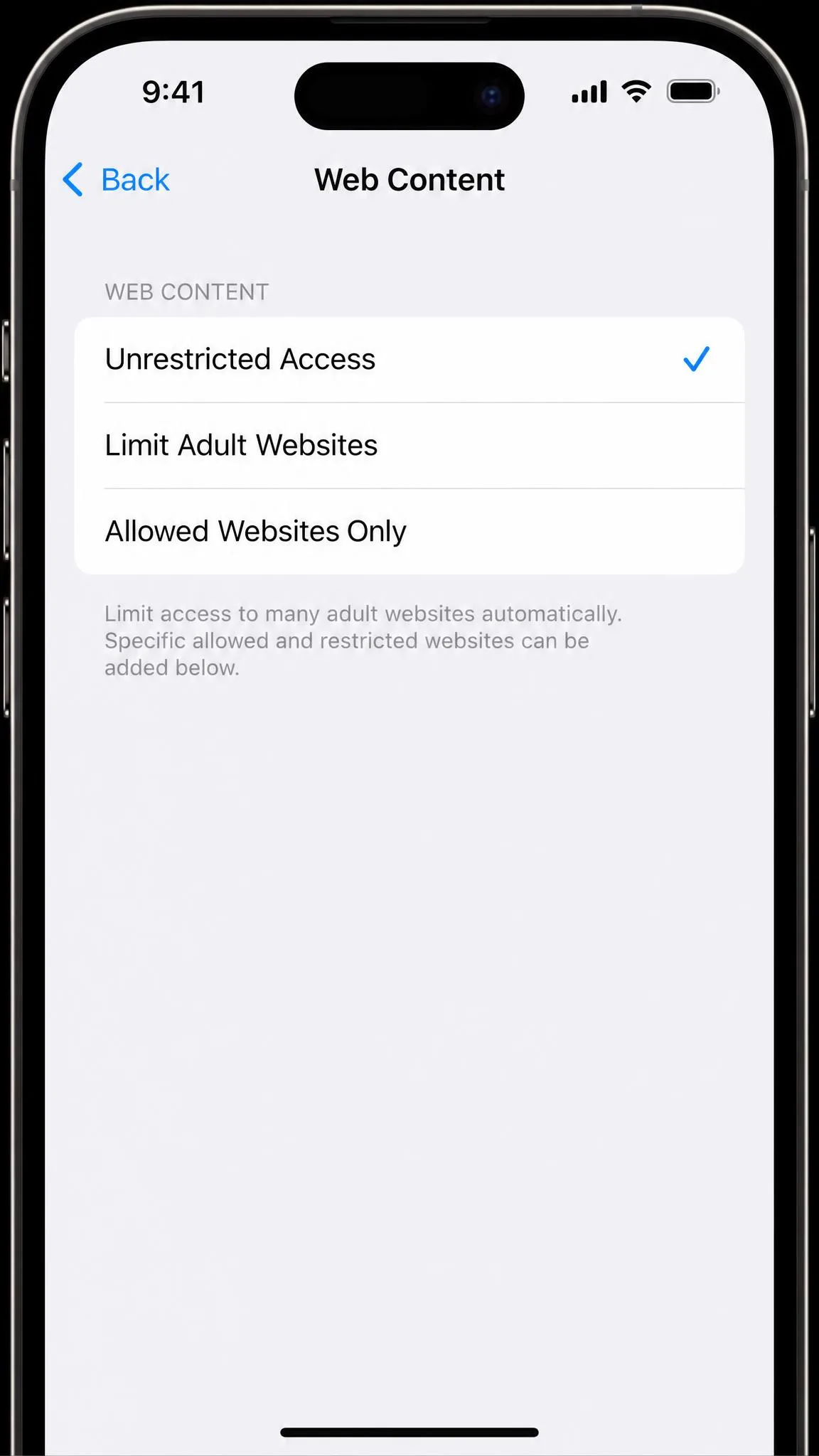
Web Content has three levels. Unrestricted Access lets any site load. Limit Adult Websites blocks Apple-classified adult content. Allowed Websites Only lets approved sites open. Anything blocked shows Safari's message: "You cannot browse this page because it is restricted."
Before You Start: You'll Need the Screen Time Passcode
Turning off restrictions needs the Screen Time passcode. It's a separate 4-digit code from your unlock passcode. On a child's phone in Family Sharing, only the Family Organizer can change the child's restrictions. No code? Go to Method 3.
Method 1: Turn Off All Content & Privacy Restrictions
This pauses every control under Content & Privacy Restrictions in one switch: web limits, app ratings, purchases, and privacy locks.
Step 1: Open Settings and Tap Screen Time
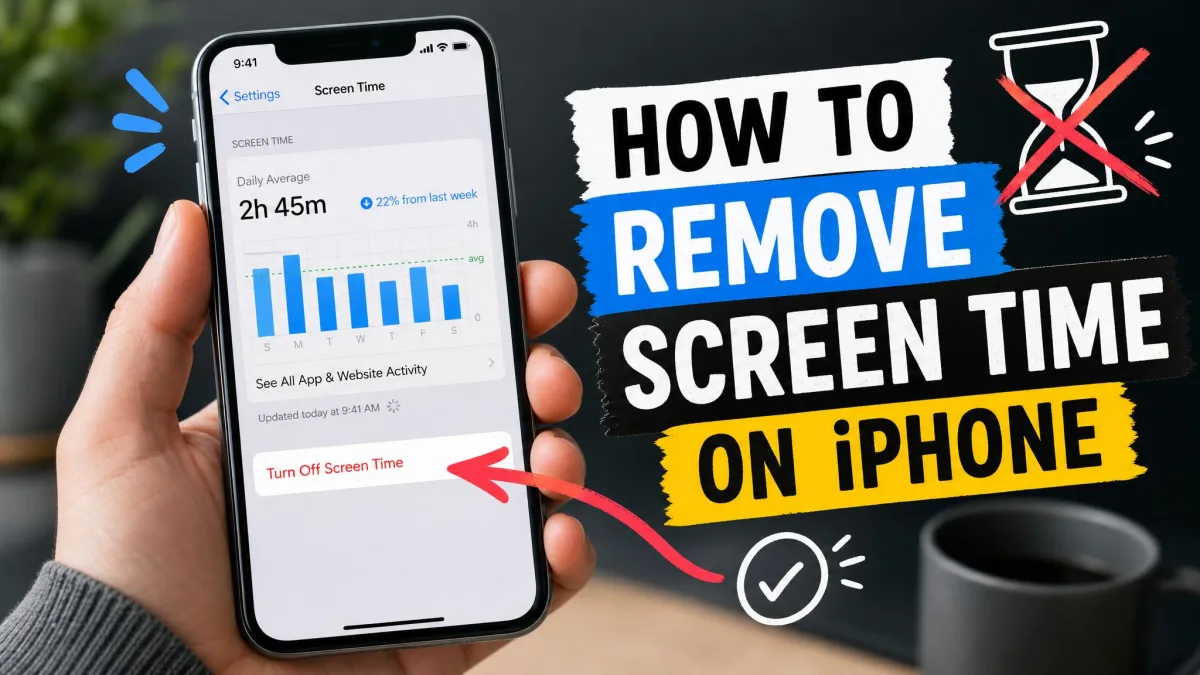
Open Settings and tap Screen Time. It's the same screen you used to set up parental controls on iPhone. If Screen Time is off, the block comes from a profile or network filter (see Troubleshooting).
Step 2: Tap Content & Privacy Restrictions
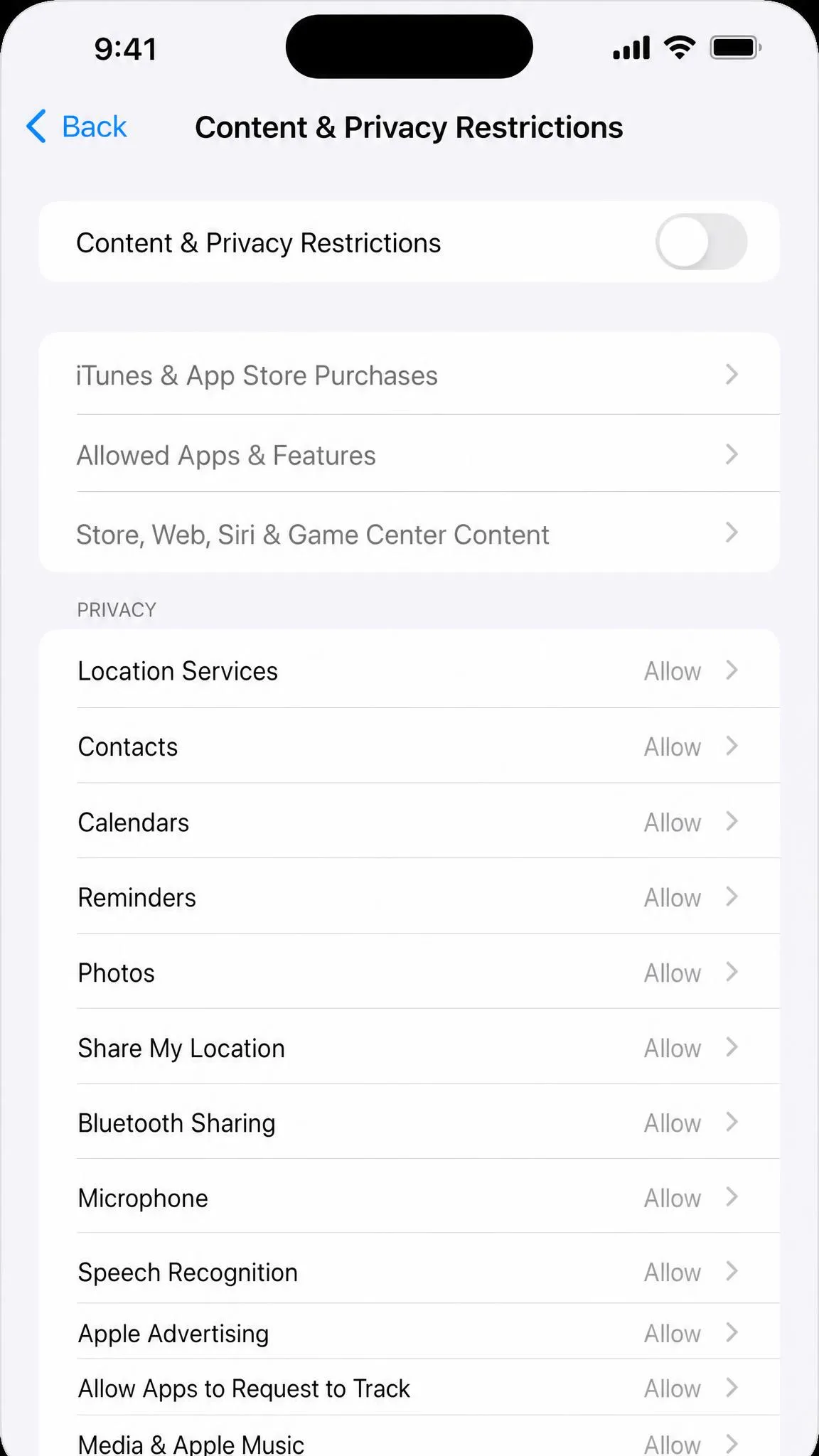
Tap Content & Privacy Restrictions and enter the Screen Time passcode if prompted. This screen groups every locked control, from web content to app purchases to privacy permissions.
Step 3: Turn Off the Content & Privacy Restrictions Toggle
Turn off the Content & Privacy Restrictions toggle at the top. Web content restrictions lift right away, and Safari loads the restricted pages again. The controls are paused, not deleted, and come back if you re-enable the toggle.
Method 2: Turn Off Only the Web Content Restriction
To keep app limits and purchase controls but lift the web filter, turn off just the Web Content restriction.
Set Web Content to Unrestricted Access
Open Settings > Screen Time > Content & Privacy Restrictions, enter the Screen Time passcode if prompted, then tap Content Restrictions > Web Content. Select Unrestricted Access. Every site becomes browsable again. This only touches the web filter, so app limits and purchase restrictions keep running.
Unrestricted Access vs Limit Adult Websites vs Allowed Websites Only
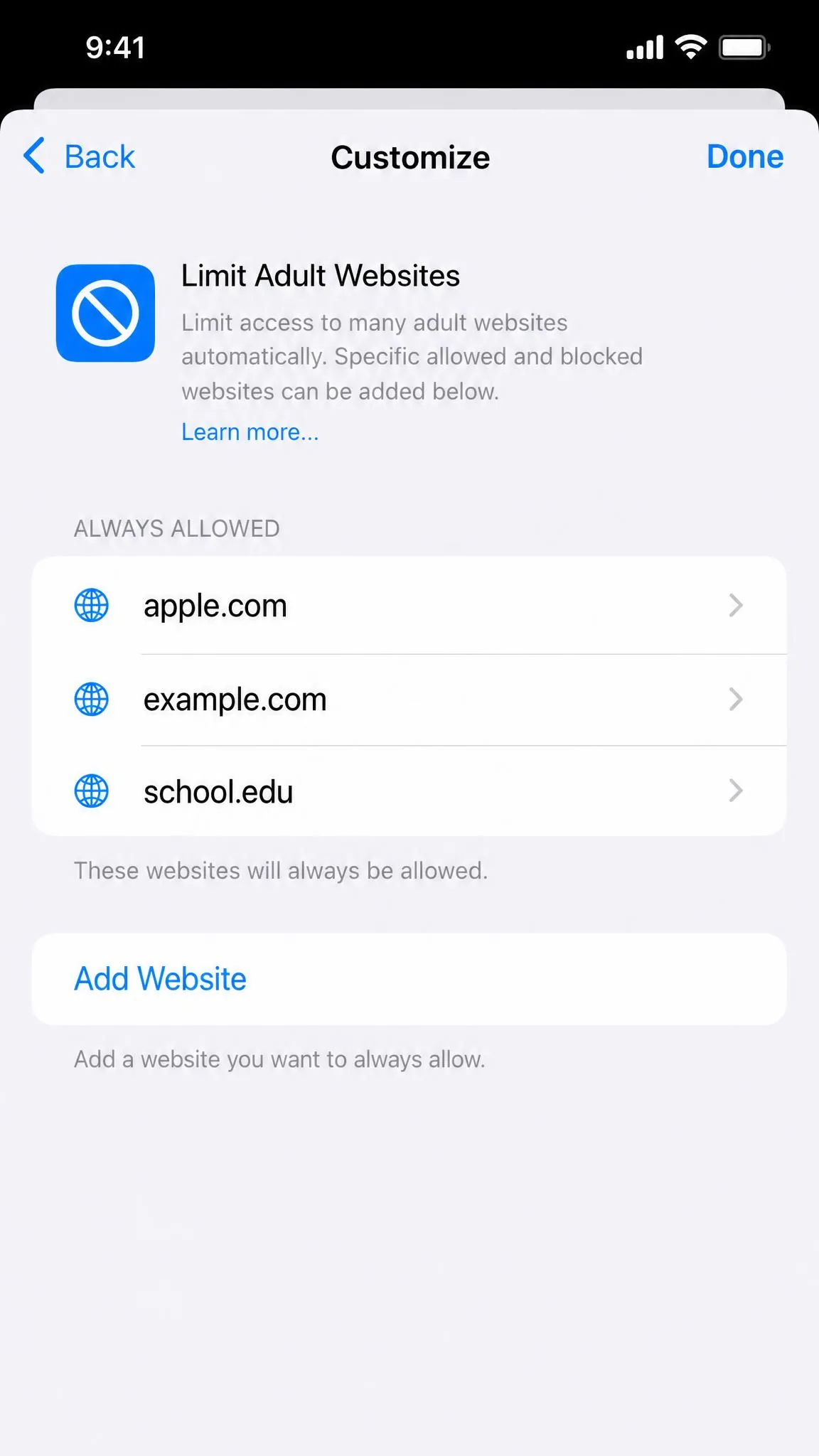
As covered above, the three levels differ in how much they filter. The detail worth knowing before you pick is the Customize list under Limit Adult Websites, where you can add sites that are always allowed or never allowed, so the filter doesn't have to be a blanket block. If the restricted-page error shows up on a site you trust, see Troubleshooting below.
Turn Off Only App Store and App-Purchase Limits
Can't install apps or buy in-app items? That's a separate control. Open Settings > Screen Time > Content & Privacy Restrictions, tap iTunes & App Store Purchases, and set Installing Apps and In-App Purchases to Allow.
How to Allow a Specific Website Instead of Turning Off Restrictions
To unblock one site without lifting the whole filter, open Settings > Screen Time > Content & Privacy Restrictions, then go to Content Restrictions > Web Content. Under Limit Adult Websites, tap Customize, then Add Website under Always Allowed, and enter the URL. The site opens while everything else stays filtered.
You can also switch to Allowed Websites Only and add the URL, which blocks everything else.
Method 3: Turn Off Restrictions Without the Passcode
If the Screen Time passcode is lost, you still have a path back. Try the Apple ID reset first, then the erase as a last resort.
Reset the Screen Time Passcode with Your Apple ID
On iOS 15 or later, reset the passcode with the Apple Account you chose for recovery. Open Settings > Screen Time > Change Screen Time Passcode, tap Change Screen Time Passcode again, then tap Forgot Passcode. Enter that account's email and password, then set a new 4-digit passcode. Apple's guide to resetting a forgotten Screen Time passcode walks through the steps.
The recovery account can differ from the one signed in on the device, and in Family Sharing it may be a family member's.
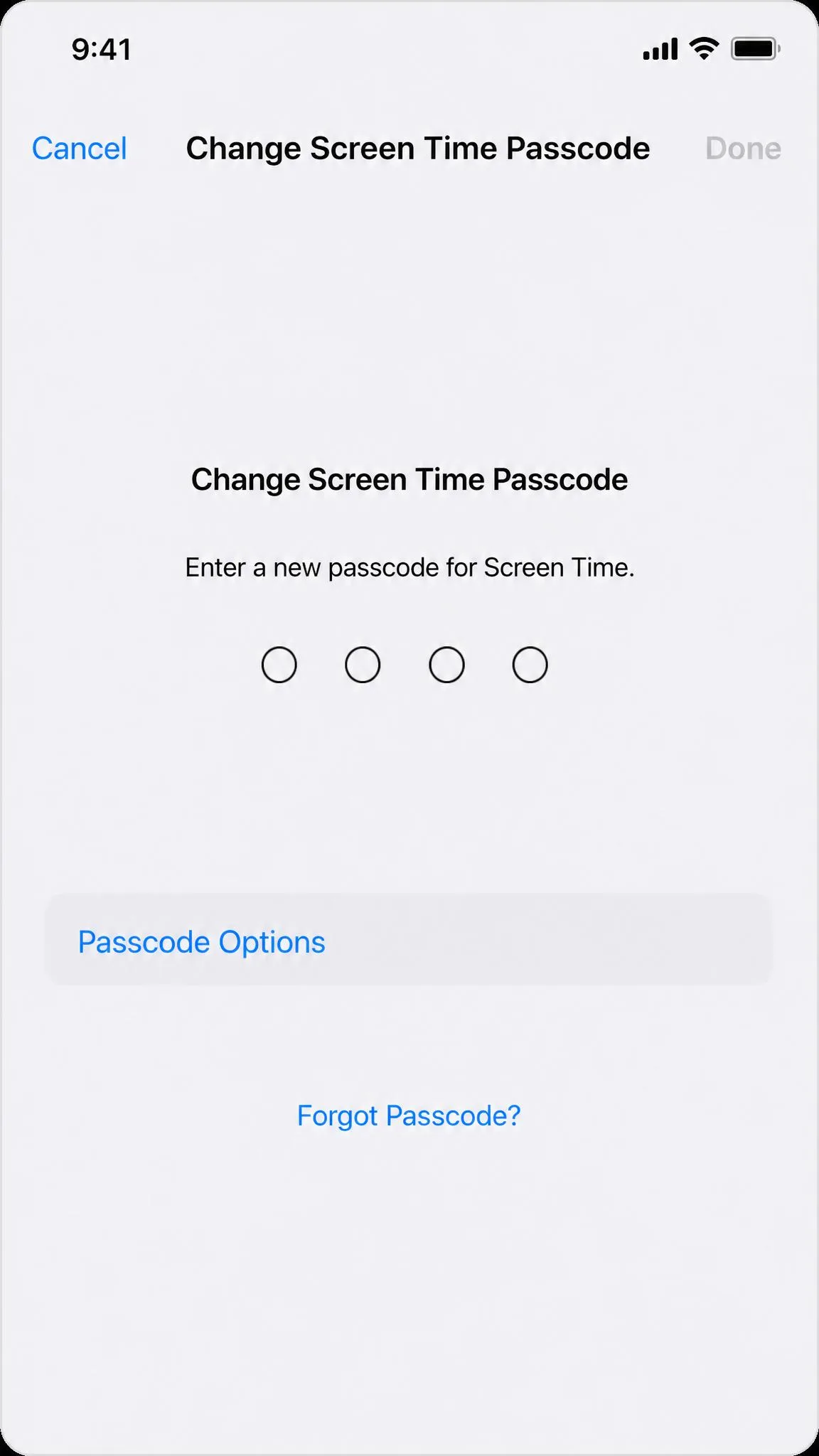
Every failed Apple ID attempt counts toward a lockout, with wait times up to 60 minutes. In our testing, the flow even rejected a correct Apple ID and password on some iOS versions, and Apple Support directed us to erase the device.
Change the Passcode from the Family Organizer's Device
On Family Sharing, only the Family Organizer can reset a child's Screen Time passcode. From the organizer's iPhone, open Settings > Screen Time, tap the child's name under Family, then tap Change Screen Time Passcode. The prompt may ask for the organizer's own iPhone passcode. Select the child's name first, or you'll edit your own settings.
Erase and Restore the iPhone (Last Resort)
If neither reset works, the only official path is erasing the device and setting it up as new. Open Settings > General > Transfer or Reset iPhone > Erase All Content and Settings.
A backup won't clear the passcode. Restoring from a backup brings the forgotten code back, so only a clean setup works. The erase flow can itself prompt for the passcode; if it does, erase from iCloud.com/Find instead.
This wipes the phone. Photos, messages, and apps that aren't in iCloud are gone, and restoring a backup brings the passcode back. Treat the erase as a true last resort.
How to Turn Off Web Content Restrictions on a Child's Device (Family Sharing)
On a child's iPhone in Family Sharing, only the Family Organizer can change or turn off restrictions. From the organizer's iPhone, open Settings > Screen Time, tap the child's name under Family, then turn off Content & Privacy Restrictions or set Web Content to Unrestricted Access.
When a child requests a site, the organizer must tap Allow Website and enter the Screen Time passcode on the approval prompt, or the site stays blocked.
Turning Off Web Content Restrictions on Other Devices
The same filtering appears on other platforms with different paths.
Safari on Mac
On a Mac, web content control runs through Screen Time. Open System Settings > Screen Time > Content & Privacy, then open App Store, Media, Web, & Games and pick an access level under Safari. Choose Unrestricted to stop the blocking. Screen Time must be on for the menu to appear.
Microsoft Family Safety on Windows and Xbox
Microsoft Family Safety filters web and search content under Content filters in its app or website. Turn off both toggles, Only use allowed websites and Filter inappropriate websites and searches, to lift the filter. They only apply in Microsoft Edge while the child is signed in, so other browsers aren't covered unless restricted separately.
Google Chrome Site Settings
Chrome has no Screen Time-style content filter, so its controls are per-site. Open a site, tap View site information to the left of the address bar, then Site settings, and choose a permission level. Reset any site's permission from the same menu.
SafeSearch and Search Filters
If results look filtered, check the search filter. Google SafeSearch offers Filter, Blur, and Off at google.com/safesearch. A lock icon there means an admin or network policy manages it. Bing SafeSearch offers Strict, Moderate, and Off, and turning Off requires verifying you are 18 or older.
Troubleshooting: "You Cannot Browse This Page Because It Is Restricted"
Safari shows this message when iOS blocks a site at the system level, through Screen Time filtering, a management profile, or a network or DNS filter. It isn't a Safari bug or a network failure, so restarting the browser won't help.
In our testing, a common false block came from Limit Adult Websites mislabeling an ordinary recipe page, and Unrestricted Access cleared it. If the error persists, the filter sits outside Screen Time. Check for a profile you didn't add under Settings > General > VPN & Device Management, and try another network.