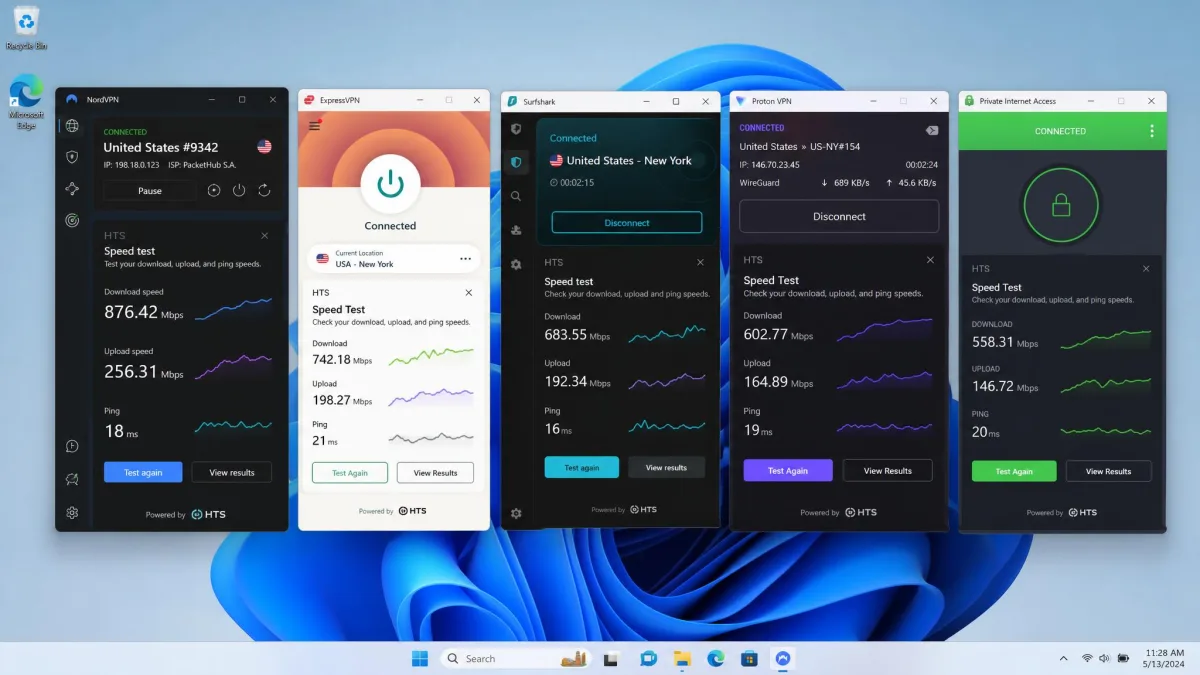
We put five of the most talked-about VPNs through hands-on testing on Windows. The lineup was NordVPN, ExpressVPN, Surfshark, Proton VPN, and Private Internet Access. Every one was installed on the same Windows 10 and Windows 11 machines and connected on the same gigabit line. We measured the three things that actually matter on a PC: download speed, privacy protection, and the ability to unblock streaming services. We licensed or subscribed to each service ourselves. Nothing here is based on a vendor demo or a marketing sheet.
Our goal was simple. We wanted to know which VPN we would keep installed on our own laptops after the testing was over. We also wanted to know which ones we would uninstall the moment the review wrapped. To get there we ran real-world speed tests to nearby and distant servers. We forced disconnects to see whether the kill switch held, checked for DNS and IP leaks, and tried to stream region-locked content across several platforms. The result is a ranked list with a clear top pick, plus honest notes on where each service stumbled.
If you are short on time, the quick picks below give you our verdict at a glance. If you want the full detail, keep reading. The in-depth reviews, the comparison table, and answers to common questions all follow. Every recommendation here is a service we would genuinely put on our own machines. We have flagged the trade-offs plainly, so you can match a pick to what you actually need.
5 Best VPNs for Windows
Below is the full breakdown of each pick. That includes what using it on Windows was actually like, where it excelled, and where it fell short. We have ordered them by overall ranking, starting with our top choice.
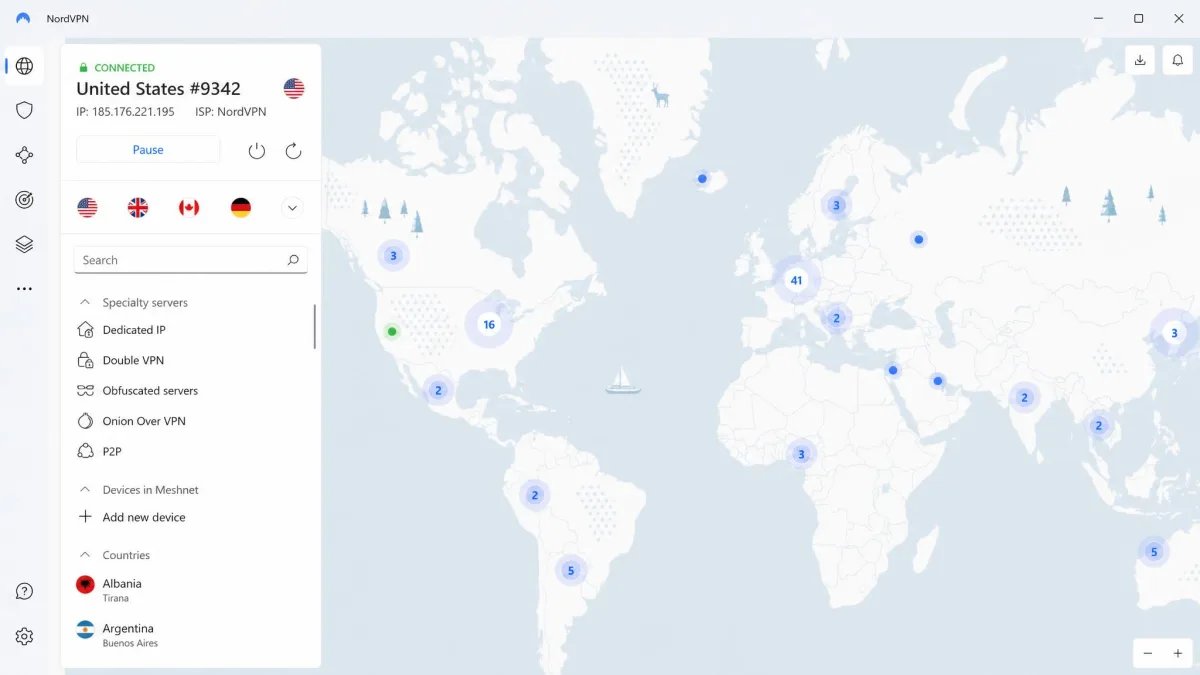
NordVPN, Best Overall Windows VPN
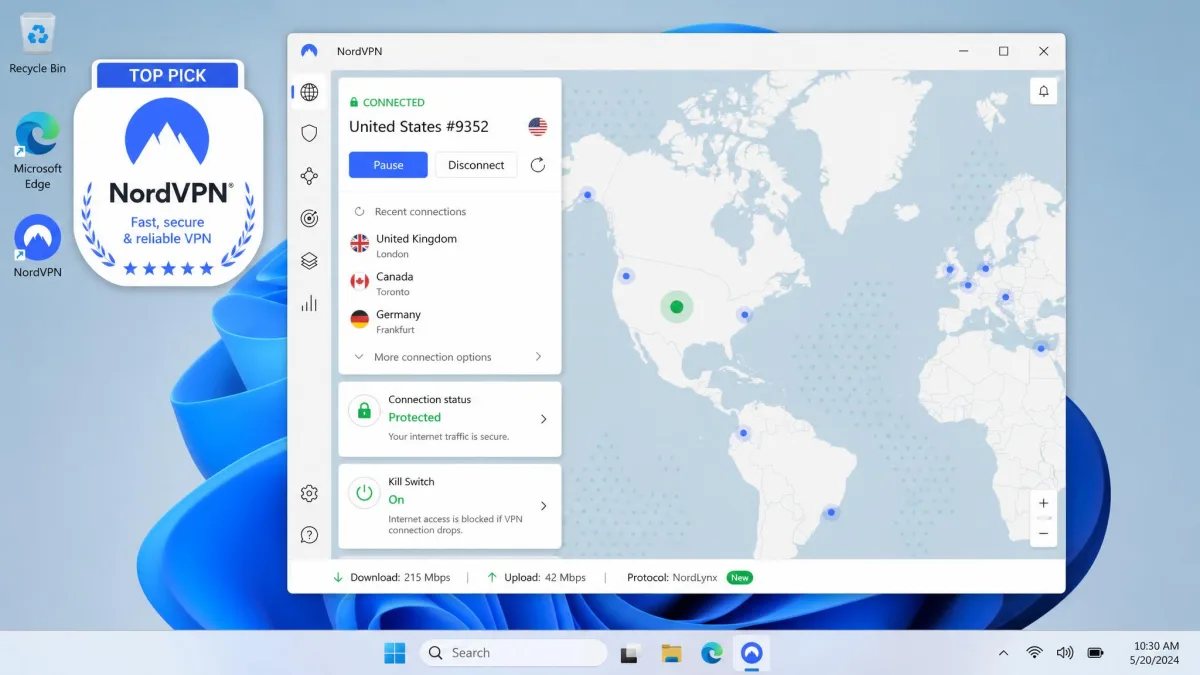
NordVPN was the most complete package we tested on Windows. It is the service we would recommend to most people without hesitation. Its NordLynx protocol, built on WireGuard, held around 87% of our base speed across test locations. That sits comfortably above the 60% to 70% that is typical for VPNs. On our gigabit line that worked out to roughly 520 Mbps. Nearby servers ran close to line rate, and the expected drop-off only appeared on long-haul connections such as Australia. For streaming, downloading, and general browsing, we never felt the VPN was in the way.
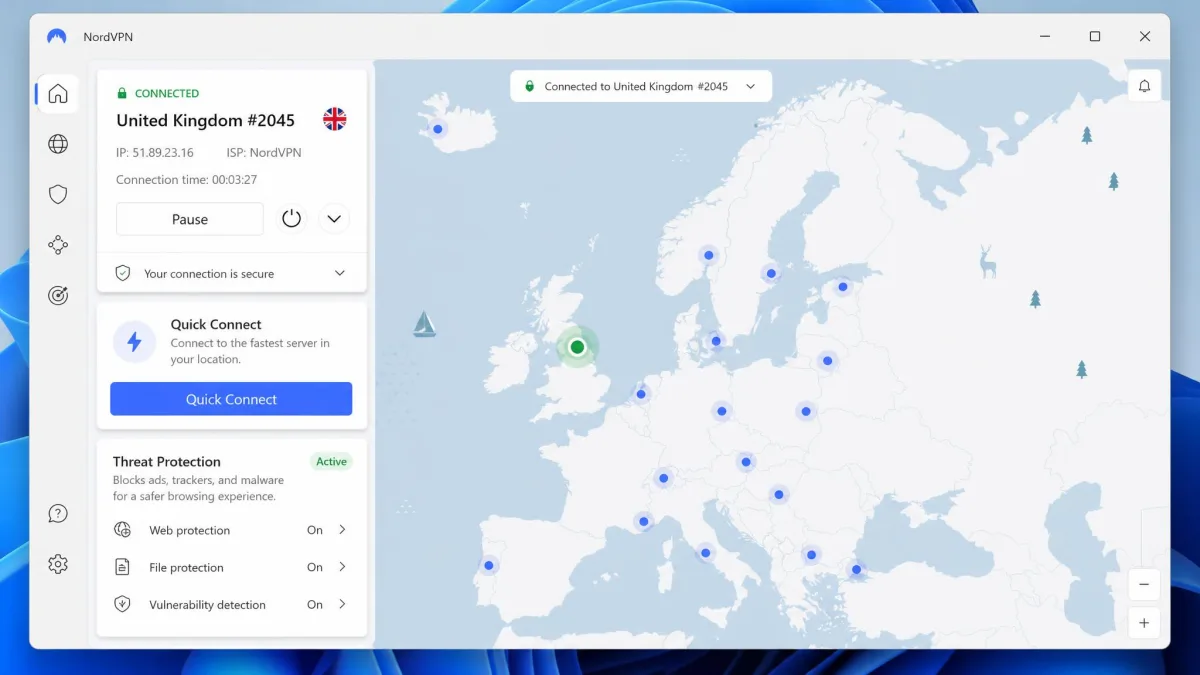
Privacy is where NordVPN earned its top spot. Here is the moment that clinched it. We yanked the connection out from under the app again and again, at random points mid-download and mid-stream. Each time, the screen simply stopped rather than falling back to the naked line, and every leak test we ran afterward came back clean. The Windows app also bundles genuinely useful extras. Threat Protection blocks malware, ads, and trackers. There is a dark web monitor, Meshnet, split tunneling, and a double VPN option. The interface manages to hold all of that without feeling cluttered. It has a native build for Windows on ARM and full support for Windows 7, 8, and 8.1.
Day to day, the app was one of the easiest to live with. Quick Connect reliably picked a fast nearby server. The tray icon made it obvious whether we were protected. Reconnecting after sleep was quick and quiet. Split tunneling was easy to configure when we wanted a single app to skip the VPN. Threat Protection cut a noticeable amount of ad and tracker noise while browsing. It is the rare service that is powerful enough for advanced users yet approachable enough to leave running for someone who never touches the settings.
The extras are what push NordVPN past the rest of the field on features. Threat Protection runs even when you are not connected to a server, which is unusual. It keeps blocking malicious sites and trackers as a background layer of defence. Meshnet lets you link your own devices into a private encrypted network. That is handy for reaching a home PC remotely or for a small LAN party. The double VPN option routes traffic through two servers when you want an extra hop. Most people will not touch every one of these. But they are the kind of depth that justifies the price once you start using them, and none of them got in the way of the basic connect-and-forget experience.
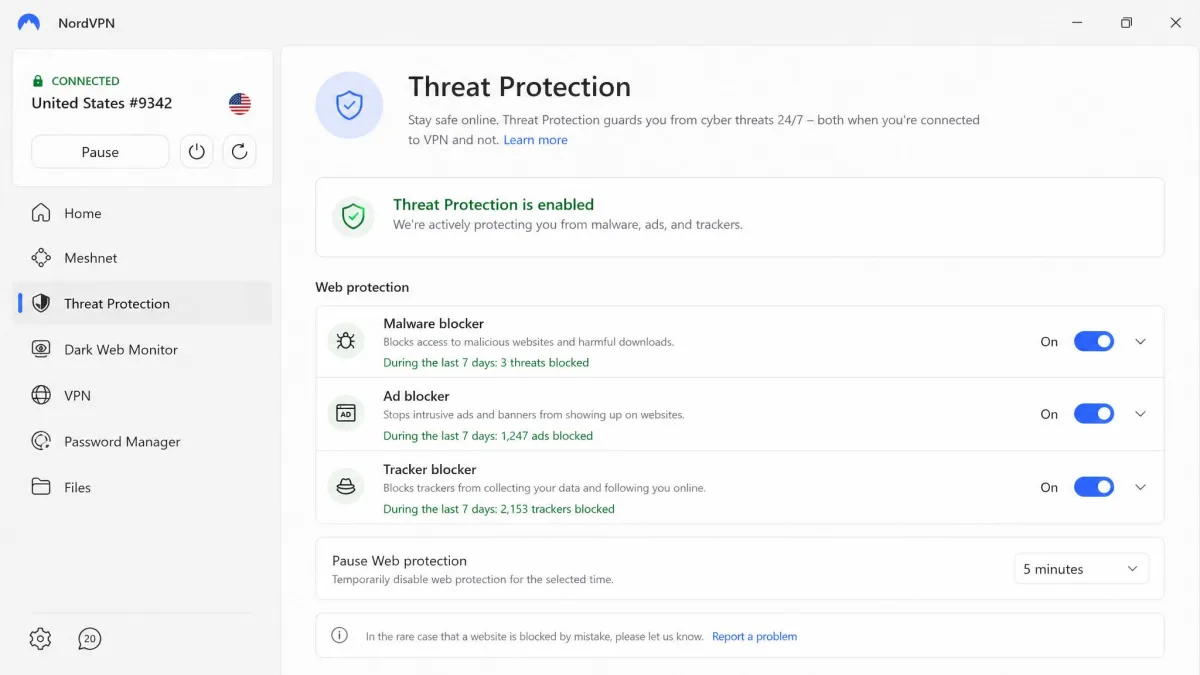
On price, NordVPN sits around $3.39 to $3.49 a month on the two-year plan. The exact rate shifts with the current promotion and tier. The monthly plan is $14.99, and every plan is covered by a 30-day money-back guarantee, so you can put it through its paces risk-free. The network spans 9,300 or more servers across 137 countries, with vendor totals that drift a little month to month. There is a 3-day free trial available on Android if you want to test the apps before committing on desktop.

Pros
- Excellent NordLynx speeds, around 87% of base retained
- Kill switch cut all traffic on every forced disconnect, no leaks
- Threat Protection, dark web monitor, Meshnet, and split tunneling built in
- Supports Windows 7, 8, 8.1, 10, 11, and Windows on ARM
Cons
- Two-year price is promo-dependent and not the cheapest here
- Some advanced features take a little exploring to find
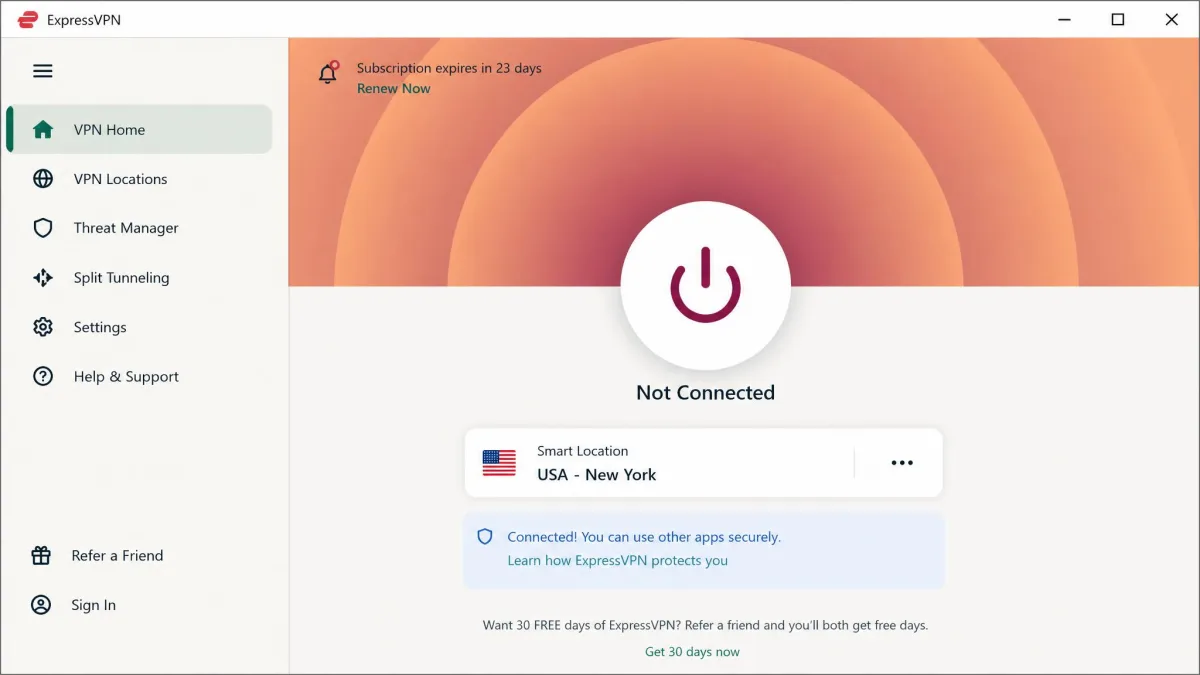
ExpressVPN, Best for Ease of Use
Where NordVPN wins on all-round depth, ExpressVPN wins on simplicity. It is the VPN we would hand to someone who has never used one before. Its Windows app is the most plug-and-play of the group. It is built around a single large connect button and a clean one-click layout that hides complexity until you go looking for it. Nothing about the setup required a manual. The app got out of the way once connected, which is exactly what a first-time user wants.
Speed was not a compromise for that simplicity. ExpressVPN's Lightway protocol posted fast Windows numbers in our testing. A Seattle server landed around 718 Mbps, and the newer Lightway Turbo mode reached far higher under ideal conditions. Streaming is where Express really pulled ahead, though. It reliably unblocked US and international services including Hulu, HBO Max, Peacock, Disney+, and BBC iPlayer. That makes it the most dependable pick if watching region-locked content is your main goal. The app runs RAM-only TrustedServer infrastructure. It includes the Network Lock kill switch and adds a password manager and Identity Defender on higher tiers.
We also appreciated how forgiving it was across devices and networks. When a server slowed, switching to another location took a couple of clicks, and the app remembered our preferences. It reconnected smoothly when we moved the laptop between Wi-Fi networks. For anyone who wants a VPN that simply works without a learning curve, this is the smoothest experience in the roundup. It is the one we would set up for a less technical family member and then not worry about.
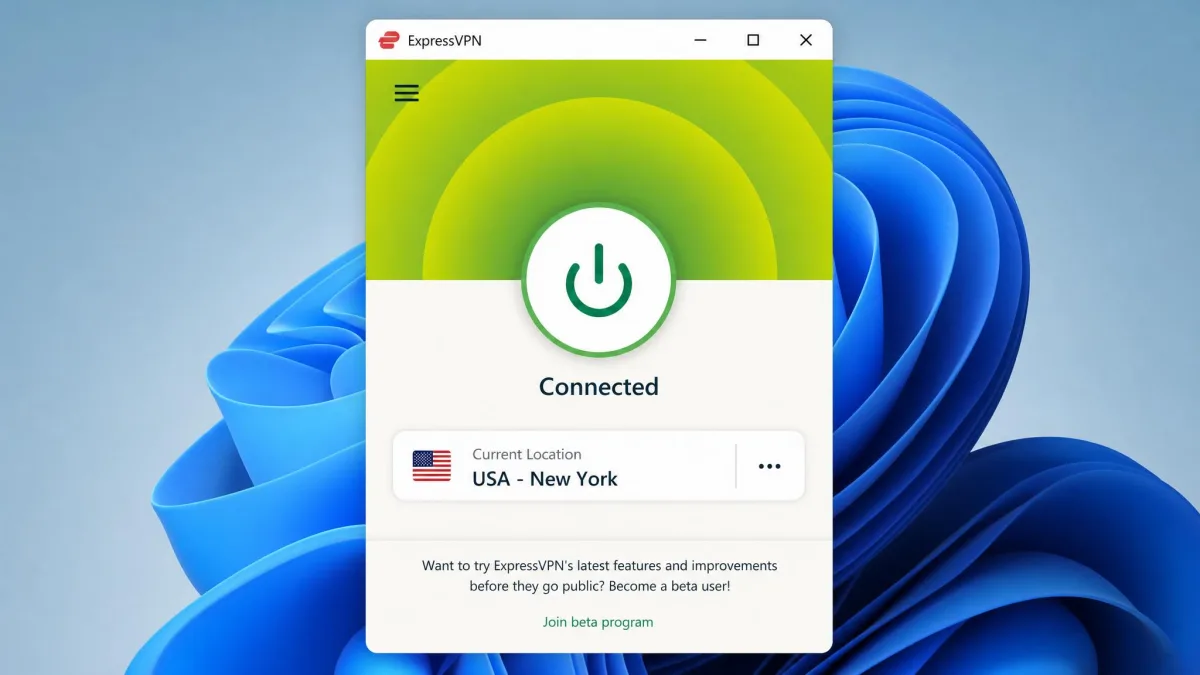
The TrustedServer design is worth calling out for privacy-minded buyers. The servers run entirely in RAM and never write to a hard drive. Every reboot wipes them clean. So there is no long-lived disk for data to accumulate on in the first place. That is a stronger structural guarantee than a policy alone. It pairs well with the Network Lock kill switch, which held firm when we forced disconnects during testing. The streaming edge held up across repeat sessions rather than on a single lucky day. That is the real reason it tops our unblocking scores.
The catch is price. ExpressVPN costs noticeably more than the budget rivals. That premium is the main reason it sits second rather than first. Two-year pricing starts from around $3.26 a month, with the lowest advertised rate depending on the current promo and chosen tier. Monthly billing runs from $12.99 up to $19.99 depending on plan. You get 10 to 14 simultaneous devices by tier, a 30-day money-back guarantee, and a network of 3,000 or more servers across 113 countries. Want the smoothest experience and reliable streaming, and the price does not put you off? Then it is an easy recommendation.

Pros
- Most beginner-friendly Windows app, genuinely one-click
- Fast Lightway speeds, around 718 Mbps in our test
- Broadest and most reliable streaming unblocking of the group
- RAM-only TrustedServer network and Network Lock kill switch
Cons
- Noticeably more expensive than budget rivals
- Password manager and dedicated IP are reserved for higher tiers
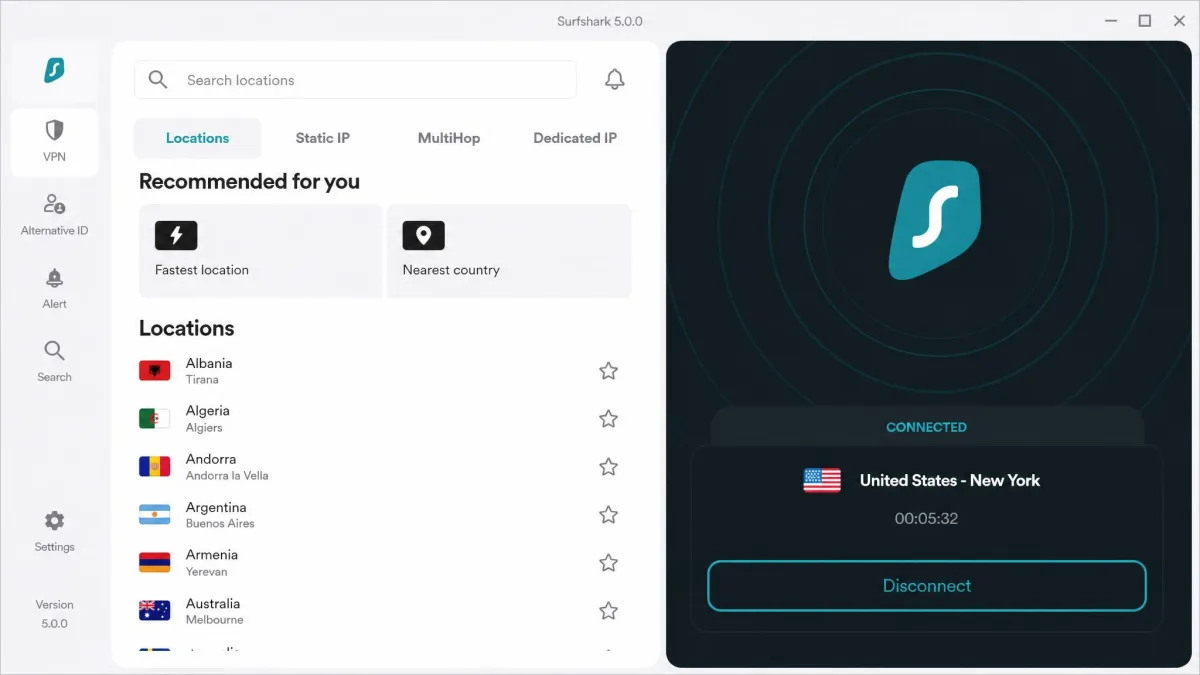
Surfshark, Best Budget Windows VPN
Where ExpressVPN asks you to pay for polish, Surfshark proves that cheap does not have to mean slow. On its two-year plan it costs $2.49 a month, billed as one term up front. Yet it delivered speeds that kept pace with services costing far more. On nearby WireGuard servers it held between 89% and 95% of our base speed. It averaged around 81% across a gigabit line, which is excellent for the price. Setup was painless too. The Windows 11 app installed in under two minutes and connected on WireGuard in roughly two seconds.
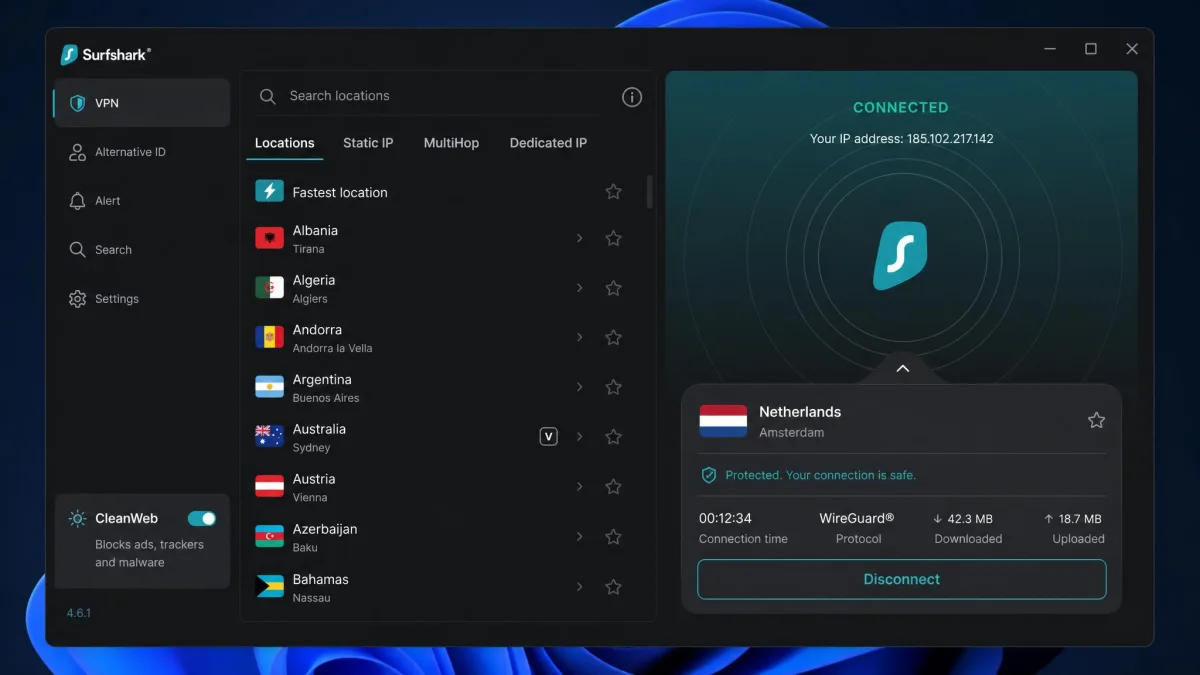
The headline feature is unlimited simultaneous devices. That makes Surfshark a standout for households and anyone with a pile of gadgets. One subscription covers your PC, laptop, phone, tablet, and TV with no counting required. The app also includes the CleanWeb ad and tracker blocker. There is MultiHop and Dynamic MultiHop for routing through two servers, split tunneling via Bypasser, and a rotating IP option. Streaming performance was good, if a step behind ExpressVPN. The network spans 4,500 or more servers in 100 countries, and every plan carries a 30-day money-back guarantee.
For the price, the feature list punches well above its weight. Dynamic MultiHop lets you build your own two-server route rather than picking from a fixed list. That is a genuinely advanced touch on a budget service. The rotating IP option changes your address periodically without dropping the connection. Bypasser, Surfshark's name for split tunneling, made it easy to route a banking app or a local printer around the VPN while everything else stayed protected. None of this is unique in the category. But finding it all in the cheapest pick on our list is what earns Surfshark its value crown.
It is not flawless. Some users, ourselves included on occasion, hit the odd connection drop or a split-tunneling hiccup. These usually cleared within minutes by switching protocol or server. A minority of Windows 11 users have also reported a DNS error after installing that can block internet access until DNS settings are reset. So it is worth knowing the fix exists. One more thing to watch. The intro price is for the first term, and Surfshark renews at a higher rate afterward, which varies by plan tier and currency. For the money, though, it is the best value on this list. It is the one we would recommend to anyone kitting out a whole household on a budget.

Pros
- Unlimited simultaneous devices on one subscription
- Fast WireGuard speeds, up to 95% of base on nearby servers
- Installs in under two minutes, connects in about two seconds
- CleanWeb blocker, MultiHop, and split tunneling included
Cons
- Occasional connection drops or split-tunneling hiccups
- Renewal price is higher than the intro rate
Proton VPN, Best for Privacy and Best Free Tier
Where Surfshark wins on value, Proton VPN wins on trust. It is the pick for people who put privacy first, and it is the only service here with a free tier we would actually recommend. Based in Switzerland, outside many surveillance agreements, it runs open-source apps that have been independently audited. It follows a strict no-logs policy. It adds Secure Core multi-hop routing that sends your traffic through hardened servers before it leaves the network. NetShield blocks ads and malware. There is a Tor-over-VPN option, and the kill switch worked cleanly in our tests. If your threat model is serious, this is the one.
The Windows app is clean and simple. We liked that it keeps advanced options like Secure Core easy to reach without burying the basics or cluttering the main screen. Speeds were strong for a privacy-focused service. It retained roughly 81% to 88% of download speed on Windows. It neared line rate, over 950 Mbps, on a nearby WireGuard server with VPN Accelerator switched on. It is not the fastest option for streaming-heavy use, and unblocking was only fair compared with the top two. So heavy streamers should look elsewhere.
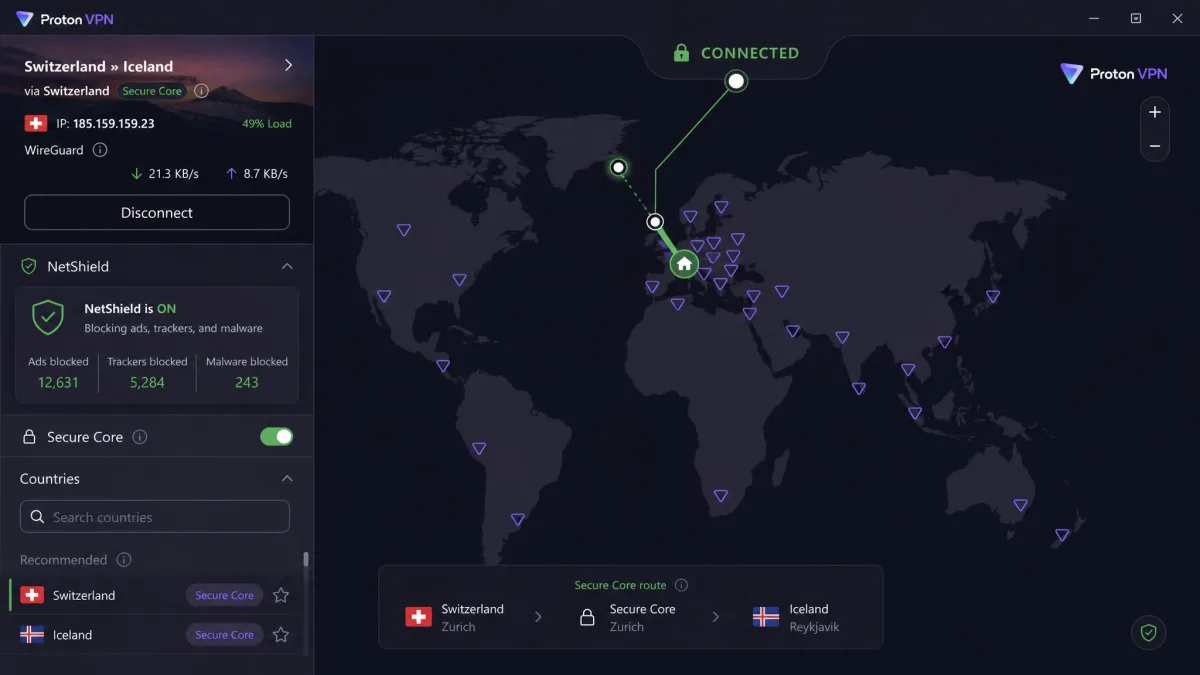
What sets Proton apart is that its privacy promises are backed by things you can verify. The apps are open-source. The no-logs policy has been audited. The Swiss jurisdiction adds a legal layer of protection on top of the technical one. In use, none of that came at the cost of a confusing interface, which is a common failing among security-first tools. It felt like an app built for ordinary people who happen to care about privacy, not just for specialists. That balance is genuinely rare.
Secure Core is the feature that best captures Proton's approach. It routes your connection through a hardened server in a privacy-friendly country before it exits. So even if an exit server were compromised, your real address would stay hidden behind the first hop. Tor over VPN is built in for anyone who needs to reach onion sites without a separate browser. NetShield trimmed ads and tracker calls cleanly during our browsing tests. These are tools aimed at a serious threat model. The fact that they sit one click away rather than buried in a config file is what makes Proton usable for people who are not security professionals.
Pricing for VPN Plus sits around $2.99 to $3.49 a month on the two-year plan, varying with the current discount, or $9.99 a month billed monthly. That comes with 10 devices and a 30-day money-back guarantee. Be aware that getting a refund on the Plus plan can be more difficult than with rivals. The free tier is the real draw, though. It offers unlimited data with no ads on one device across a limited set of countries. That is genuinely rare, since most free VPNs cap your data or bombard you with ads. Proton has also kept its desktop apps current.

Pros
- Audited, open-source apps and a strict Swiss no-logs policy
- Secure Core multi-hop and Tor-over-VPN for serious privacy
- Free tier with unlimited data, no ads, on one device
- Fast WireGuard speeds, over 950 Mbps nearby with Accelerator
Cons
- Not the fastest for streaming-heavy use, unblocking only fair
- Refunds on the Plus plan can be difficult to obtain
Private Internet Access, Best for Customization
Where Proton keeps things simple, Private Internet Access hands you every knob. This is the enthusiast's VPN. Its Windows client is dense but polished. It exposes more settings than any other app we tested. You can choose your encryption cipher, pick between kill switch modes, and toggle the MACE ad, tracker, and malware blocker. You can configure split tunneling and set up port forwarding. If you like to tune every knob, PIA hands you the whole control panel. The apps are open-source, so you can inspect what you are running.
That flexibility comes with a trade-off in raw speed. In our testing PIA's speeds landed below average on many servers. It felt slower than Nord, Express, or Surfshark on distant connections. For local browsing and everyday use the difference was hard to notice. But long-haul server hops made it obvious. Streaming was a mixed bag as well. PIA unblocked Netflix in our tests. Performance on its regular, non-optimized servers was inconsistent, so you may need to hunt for a server that works.
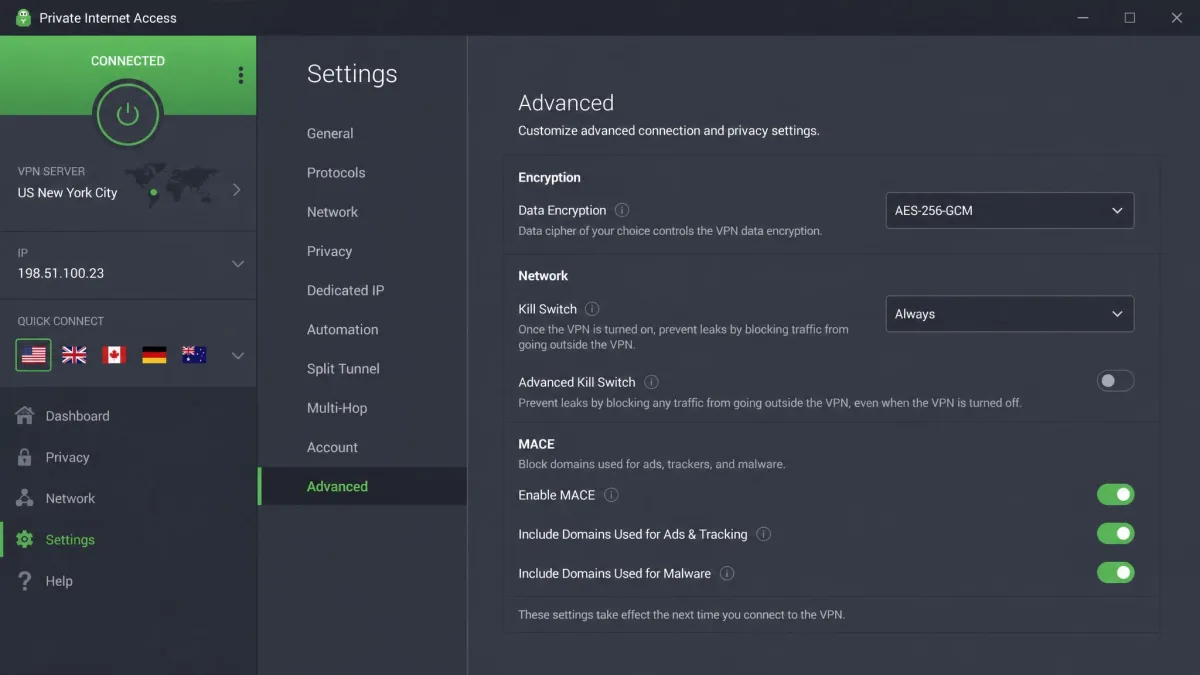
For the right user, though, that depth is the whole appeal. You can drop the encryption cipher for a speed boost on trusted networks. You can switch between an all-or-nothing and an app-level kill switch. That is the kind of control the more polished apps simply do not offer. Port forwarding also makes PIA a favourite for certain download and self-hosting setups. This is a tinkerer's VPN. If that describes you, the extra settings are a feature rather than clutter.
The two kill switch modes are a good example of the control on offer. One cuts all internet the moment the VPN drops, which is the safest default. The other only blocks traffic while the app is running, which suits people who want the machine to stay online when they deliberately disconnect. Layering the configurable cipher on top means you can trade a little encryption strength for speed on a network you trust. Or you can lock it down when you are on public Wi-Fi. That per-situation tuning is exactly what enthusiasts want. It is the reason PIA keeps a devoted following despite trailing the field on raw speed.
Where PIA claws value back is price and device support. It runs as low as around $2.03 a month on the three-year intro plan. It renews near $56 a year, or about $4.70 a month, afterward, and the monthly plan is $11.95. Like Surfshark, it allows unlimited simultaneous devices. New subscribers get a 30-day money-back guarantee. The network is large, though sources cite its footprint inconsistently at somewhere between 78 and 91 countries. Value configurability and a rock-bottom long-term price over outright speed? Then PIA is a smart buy.

Pros
- Deeply customizable, from cipher choice to kill switch modes
- Unlimited simultaneous devices
- Very low three-year intro price
- Open-source apps with MACE blocker and port forwarding
Cons
- Speeds land below average, slower on distant servers
- Streaming is inconsistent on non-optimized servers
Best Windows VPNs Compared
Here is how the five picks stack up on the specifications that matter most on a Windows machine. Prices reflect the long-term intro rates available at the time of writing and can shift with each provider's current promotion.
| Product | Buy | Price (2-yr) | Max devices | Servers / countries | WireGuard speed | Streaming | Windows 7/8 | Free tier |
|---|---|---|---|---|---|---|---|---|
|
Check price → | ~$3.39–$3.49/mo | 10 | 9,300+ / 137 | ~520 Mbps (NordLynx) | Reliable | Yes (7, 8, 8.1) | No |
|
Check price | from ~$3.26/mo | 10–14 | 3,000+ / 113 | ~718 Mbps (Lightway) | Reliable (broadest) | Legacy support | No |
|
Check price | $2.49/mo | Unlimited | 4,500+ / 100 | ~752 Mbps nearby | Good | Legacy support | No |
|
Check price | ~$2.99–$3.49/mo | 10 | 100+ countries | 950+ Mbps w/ Accelerator | Fair | Yes (7, 8) | Yes |
|
Check price | ~$2.03/mo (3-yr) | Unlimited | 78–91 countries | Below average | Netflix, inconsistent | Legacy support | No |
The Fastest VPN for Windows
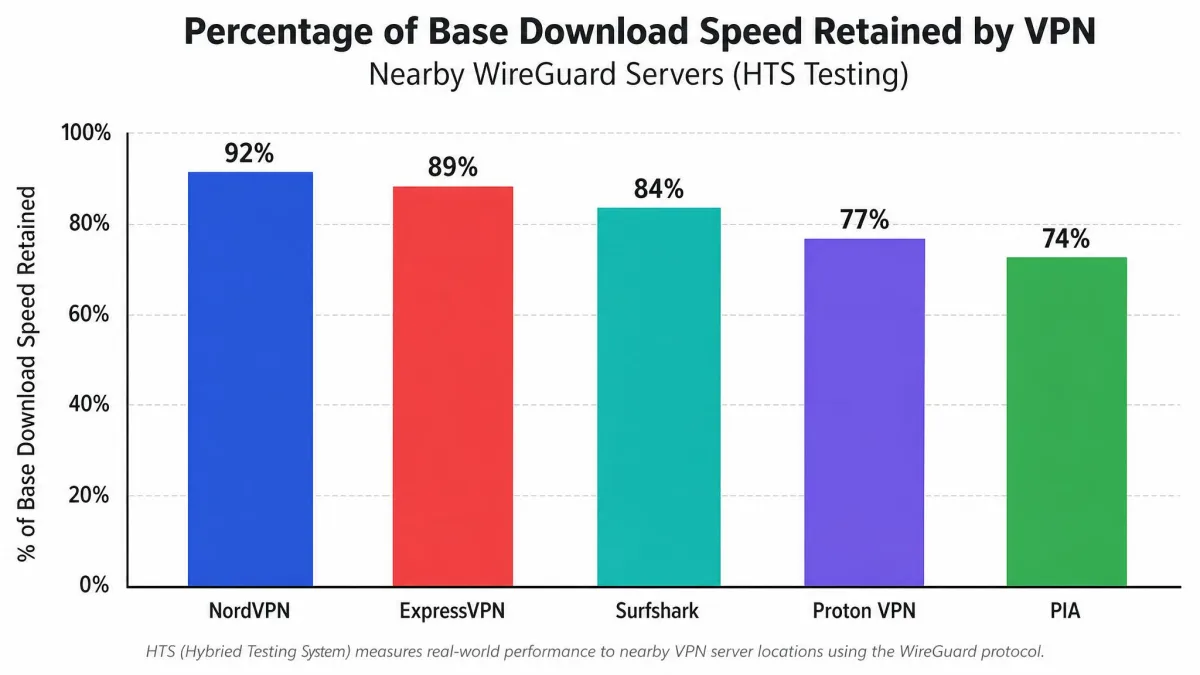
If speed is the deciding factor for you, the numbers from our testing sort the field cleanly. Proton VPN posted the single highest figure. It neared line rate at over 950 Mbps on a nearby WireGuard server with VPN Accelerator enabled. That makes it the fastest raw result we recorded. In everyday terms, though, NordVPN was the most consistently fast across locations. It held around 87% of base speed even as the distance grew. That is what you feel day to day.
Surfshark deserves a mention here too. It held between 89% and 95% of base speed on nearby servers and averaged roughly 81% on a gigabit line. That is remarkable for a budget service. ExpressVPN's Lightway was quick as well, landing around 718 Mbps to a Seattle server. The one to skip if speed is your top priority is Private Internet Access. Its speeds landed below average on many servers and felt slower on distant connections. For most Windows users chasing the best real-world speed, NordVPN is the safe pick. Surfshark is the value alternative that gives up very little.
One thing our numbers make clear is that a single headline figure can mislead you. Proton VPN's line-rate result came on a nearby server with its Accelerator feature switched on. The picture changed on distant hops. That is why we lean on the retention percentage rather than the peak. NordVPN won the consistency prize for a simple reason. Its speed held up as we moved from a nearby server to a mid-distance one and then to a long-haul connection, where the drop-off is normally steepest. Connect mostly to servers in your own country and almost any pick here will feel fast. The gaps only open up once you reach across an ocean.
How We Test and Rank Windows VPNs
Every VPN in this guide earned its place through the same hands-on process. We ran it on real hardware rather than a spec sheet. We installed each Windows app on two machines: a Windows 11 desktop on a wired gigabit connection and a Windows 10 laptop on Wi-Fi. That let us see how each service behaved on both a modern and an older build. We paid for the plans ourselves. So we also got to judge the sign-up flow, the billing, and how easy it was to cancel.
Speed is the first thing we measure. A VPN that halves your connection is one you will eventually switch off. We tested each service on its fastest protocol, usually a WireGuard-based option. We ran repeat download tests to a nearby server, a mid-distance server, and a long-haul server such as Australia. We recorded the percentage of base speed retained. Raw numbers vary by line, but the retention figure tells you how much a VPN actually costs you. We ran each test more than once, at different times of day, so a single congested server did not skew the result.
Privacy comes next. We checked each app for DNS, IPv6, and WebRTC leaks. Then we forced the connection to drop to confirm the kill switch cut all traffic rather than quietly letting data slip through. We read each provider's no-logs policy and noted which ones have been independently audited. A privacy claim you cannot verify is just marketing. We factored in jurisdiction too, where a provider publishes it. The strongest technical protection means less if the company sits somewhere it can be compelled to hand over data.
Finally we tested the everyday jobs people actually buy a VPN for. That means unblocking streaming libraries, browsing on public Wi-Fi, and downloading. We tried to access several US and international streaming services from foreign servers. We noted setup friction, connection drops, and any Windows-specific bugs along the way. Each service is then scored on speed, privacy, features, ease of use, and value. Only after all of that did we rank them. No score here comes from a press release. Every one reflects what the app did on our own connection.
Those five scoring pillars are not weighted equally. Speed and privacy carry the most weight, since they are the reasons the category exists. Ease of use and value act as tie-breakers when two services land close together. A VPN that leaks even once fails the privacy pillar outright, no matter how fast it is. A single leak defeats the point of the tool. We also gave credit for the small things that make an app pleasant to live with. A tray icon that clearly shows your status counts. So does a reconnect that is quick after the machine wakes from sleep. Those details rarely make a spec sheet, but they decide whether a VPN stays installed a month later.
We keep our test machines deliberately ordinary. One is a mid-range desktop and the other a three-year-old laptop, both on connections you would find in a normal home. If a VPN only shines on lab-grade hardware, that is not much use to the person reading this. So every number below reflects the kind of setup you probably have.
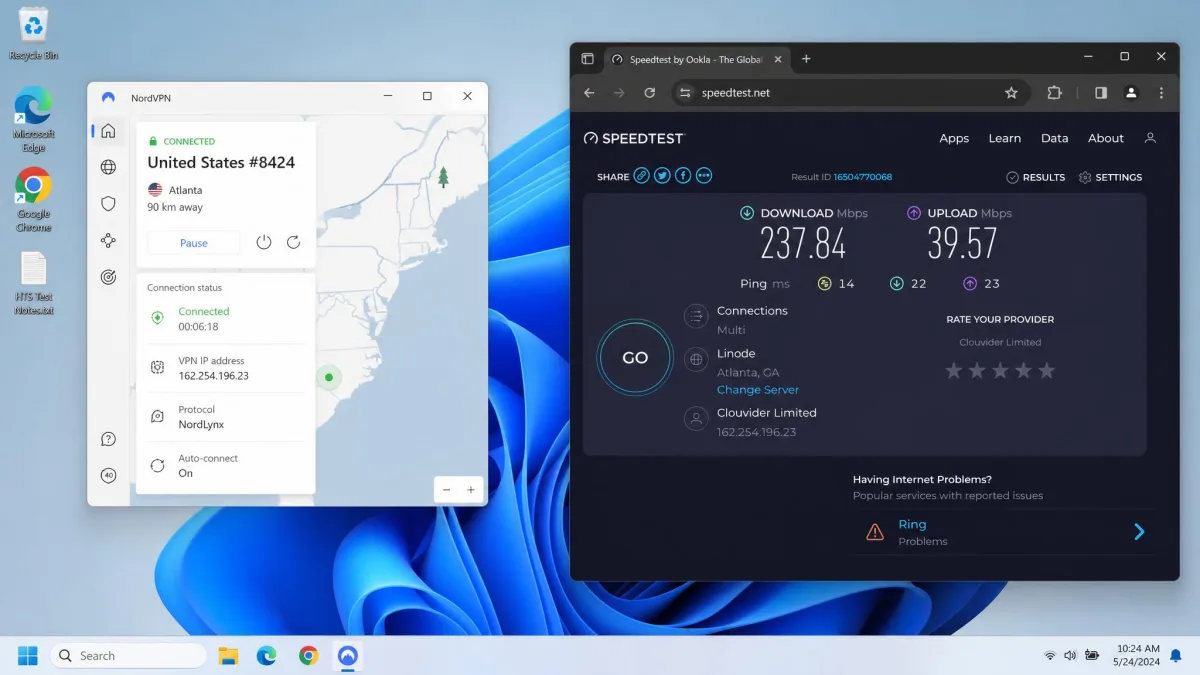
When you compare VPN speeds, look at the percentage of your base connection retained rather than the raw megabit figure. A VPN that keeps 85% of a 100 Mbps line will feel just as fast, proportionally, on a gigabit connection.
Why You Should Use a VPN on Windows
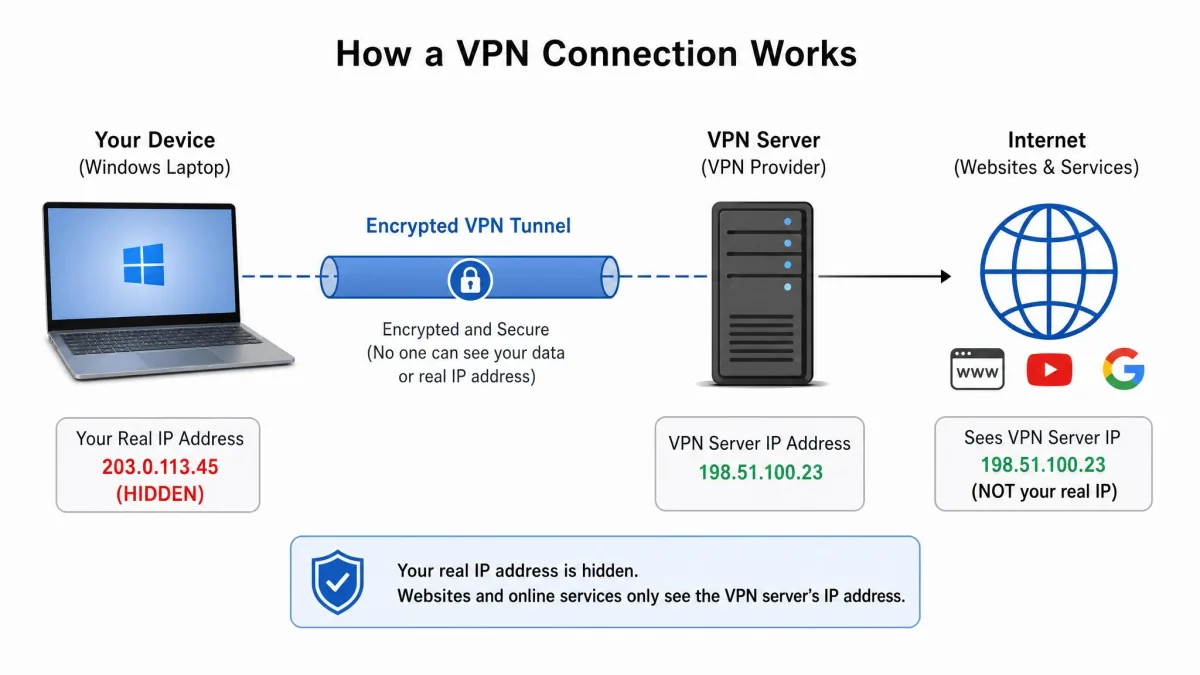
Windows is the most targeted desktop platform in the world. That makes it a sensible place to add a layer of protection. A VPN encrypts the connection between your PC and the internet. So anyone sharing a network with you cannot read the data passing to and from your laptop. That covers a café, an airport, a hotel, or a shared office. On public Wi-Fi in particular, that encryption is the difference between a private browsing session and one a stranger on the same network could snoop on.
Privacy is the other half of the story. Without a VPN, your internet provider can see every website you visit. In many countries, it is allowed to log and sell that browsing data. A no-logs VPN routes your traffic through its own encrypted servers and hides your real IP address. Your provider then sees only that you are connected to the VPN, not what you are doing online. That same IP masking is what lets you access content and services as though you were in another location.
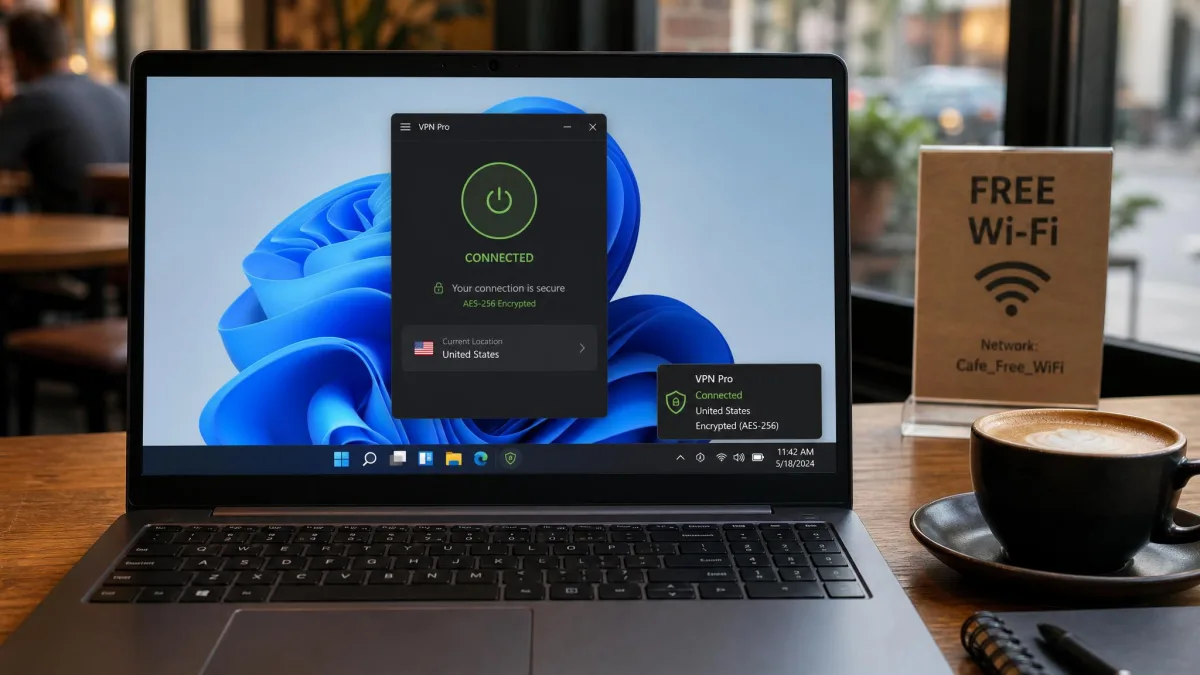
There are practical everyday wins too. A VPN lets you access your home streaming library while travelling. It helps you find better prices on flights and subscriptions that vary by region. It lets you download safely without exposing your real address. For remote workers, it adds a secure tunnel to company resources over any connection. None of this requires special skills. Modern Windows apps have made the whole thing close to one-click, which is exactly what we tested for.
Gamers and downloaders have their own reasons to run one. A fast VPN can shield you from targeted denial-of-service attacks during competitive play. It also hides torrent traffic from an internet provider that might otherwise throttle it. The catch is that a slow VPN ruins both jobs. That is why the speed pillar in our scoring matters so much here. On the WireGuard-based protocols our top picks use, the overhead was small. Gaming latency stayed playable and large downloads finished at close to full line rate. Protection did not have to mean a compromise.
It is worth being realistic about what a VPN does not do. It will not make you anonymous if you stay logged into accounts that identify you. It is not a substitute for antivirus or for keeping Windows updated. Think of it as one strong layer in a sensible security setup, alongside a password manager and current software. It is not a single tool that solves everything. Used that way, it is one of the cheapest and most effective upgrades you can make to how your PC handles the internet.
What to Look for in a Windows VPN
Not every VPN is worth installing. The differences that matter are easy to check once you know what you are looking at. These are the factors we weigh most heavily, in roughly the order we would prioritise them for a Windows PC or laptop.
Speed and protocol. The fastest modern VPNs run on WireGuard or a WireGuard-based protocol. It delivers far better speeds than the older OpenVPN standard while staying secure. NordVPN's NordLynx, ExpressVPN's Lightway, and the plain WireGuard used by Surfshark, Proton VPN, and PIA all fall into this camp. Do you game, stream in 4K, or download large files? Then protocol support and real-world speed retention should sit at the top of your checklist. You can read more about the technology behind these fast tunnels in the WireGuard protocol overview. It is also worth keeping OpenVPN in reserve. A few restrictive networks block WireGuard traffic, and OpenVPN often slips through where the newer protocol cannot.
Privacy and a no-logs policy. Look for a clearly stated no-logs policy, ideally one that has been independently audited. You also want a working kill switch that cuts your traffic if the connection drops. Jurisdiction matters too. Proton VPN's Swiss base, for example, sits outside the reach of many surveillance agreements. Leak protection for DNS and IPv6 should be built in and on by default. The best apps enable it without you having to hunt through the settings. An audit is the part most buyers skip, and it is the part that matters most. It turns a no-logs promise into something a third party has actually checked. Proton VPN and PIA both ship open-source apps you can inspect, which is about as transparent as the category gets.
Device support and simultaneous connections. Count the devices in your household. Say you have a PC, a phone, a tablet, and a smart TV. A service with a low connection cap will frustrate you quickly. Surfshark and PIA both allow unlimited simultaneous devices. Nord, Express, and Proton cap paid plans at 10 or more. For most single-PC users a cap of 10 is plenty. Families and shared households should lean toward the unlimited options. Remember that a smart TV, a games console, and a router each count as a device too. The total climbs faster than people expect once you protect the whole home rather than just the laptop.
Streaming and unblocking. Is a big reason you are buying a VPN to watch content from another region? Then unblocking reliability matters. Some services keep up with the streaming platforms' blocking better than others. We tested each one against several services to see which held up. ExpressVPN was the most consistent here. It reliably unblocked Hulu, HBO Max, Peacock, Disney+, and BBC iPlayer. So if streaming is your priority, weight this factor heavily. Bear in mind that unblocking is a moving target. Platforms block VPN server addresses over time. The service that keeps up best month after month is worth more than one that unblocks everything for a week and then goes dark.
The single best predictor of whether you will keep a VPN installed is how little you notice it. The winners in our testing were the ones that protected the connection without slowing it to a crawl or nagging us with pop-ups.
— From our hands-on Windows testing
Windows compatibility. Most people run Windows 10 or 11, and every pick here supports both. Are you on an older build like Windows 7, 8, or 8.1? Then check for legacy support before you buy, since a few providers have dropped it. NordVPN is one of the better options here. It has also shipped a native app for Windows on ARM. That ARM support is easy to overlook. It matters if you own one of the newer Snapdragon-powered Windows laptops, where an app built only for Intel chips can run slowly through emulation or not at all.
Price and value. Long-term plans are far cheaper per month than monthly billing. But watch the renewal rate, which is often much higher than the intro price. We weigh the two-year cost, the money-back guarantee, and what you actually get for the money before calling anything a bargain. A slightly higher price for a service you will actually keep using beats a rock-bottom deal on an app you abandon after a month. Every pick here carries a 30-day money-back guarantee. That is the safety net that lets you test a service on your own connection before you commit. Use it rather than trusting any speed number, ours included, on faith.
Almost every VPN advertises a low headline price that applies only to the first billing term. Read the renewal rate before you subscribe. Some services renew at two or three times the intro price once the initial plan ends.
How to Set Up a VPN on Windows 10 and 11
Installing a VPN on a modern Windows machine takes only a few minutes. Every service in this guide uses more or less the same flow. You do not need to touch Windows' own network settings for any of these apps. Each one handles the connection itself.
Start by choosing a plan on the provider's website and creating an account. Once you have subscribed, download the official Windows app from the provider's site rather than a third-party download portal, which can bundle unwanted extras. Run the installer. For a service like Surfshark it finishes in under two minutes. Then open the app and sign in with the account you just created.
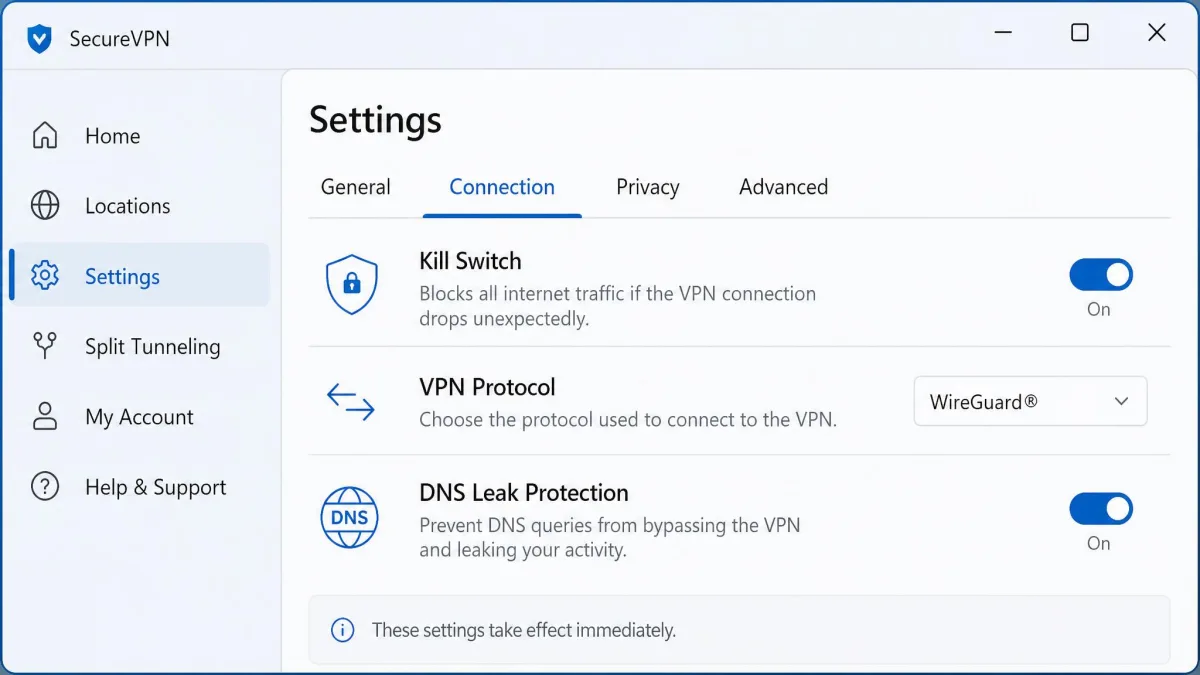
From there, connecting is usually a single click. Most apps offer a large connect button that picks the fastest nearby server automatically. That is the right choice for everyday use. Want a specific country, for streaming or shopping? Pick it from the server list before connecting. We recommend a quick tour of the settings on first launch. Confirm the kill switch is enabled. Set the protocol to the WireGuard-based option for the best speed. Turn on auto-connect so the VPN starts with Windows.
A couple of extra settings are worth a look while you are in there. Turning on auto-connect for untrusted networks means the VPN fires up the moment you join a café or airport Wi-Fi. That is exactly where you most want protection and most easily forget it. Does your provider offer split tunneling? This is also the moment to decide which apps, if any, should skip the VPN. A local backup tool or a service that blocks VPN traffic outright are common examples. Setting these once means the app then does the right thing automatically. That is the whole point of leaving it installed.
After connecting for the first time, run a quick DNS leak test in your browser to confirm your traffic is protected. Every pick in this guide passed our leak tests, but it is a good habit to verify on your own connection, especially after changing protocols.
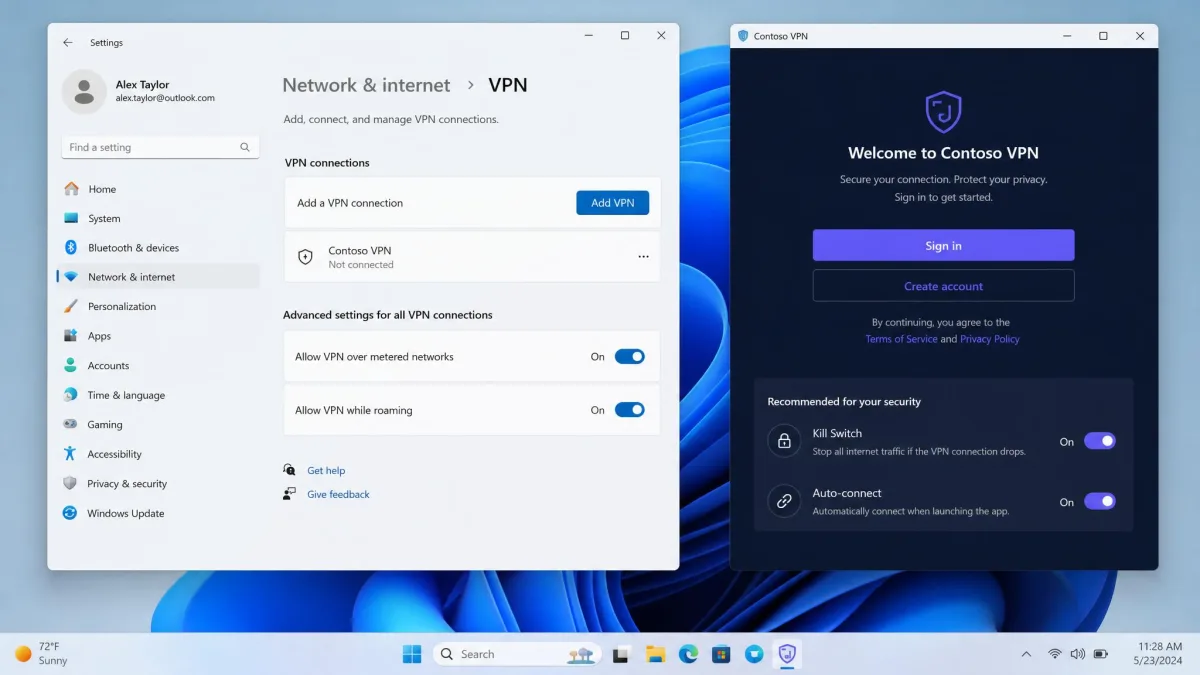
Windows 11 does include a way to add a VPN manually under Settings. But that is meant for manual server configurations and corporate connections. For a consumer VPN, the provider's own app is faster, more secure, and far easier. So stick with the app unless you have a specific reason not to. Once it is set up, there is very little to do day to day. The app connects on startup, protects the connection quietly, and stays out of your way. That is exactly how a good VPN should behave.
Can You Use a Free VPN on Windows?
You can, but most free VPNs come with strings attached. Some are worse than using no VPN at all. The problem is that running a server network costs money. A service giving it away for free has to make money somewhere. Too often that means throttled speeds, tight data caps, a short list of crowded servers, or intrusive ads. In the worst cases, it means logging and selling the very browsing data a VPN is supposed to protect.
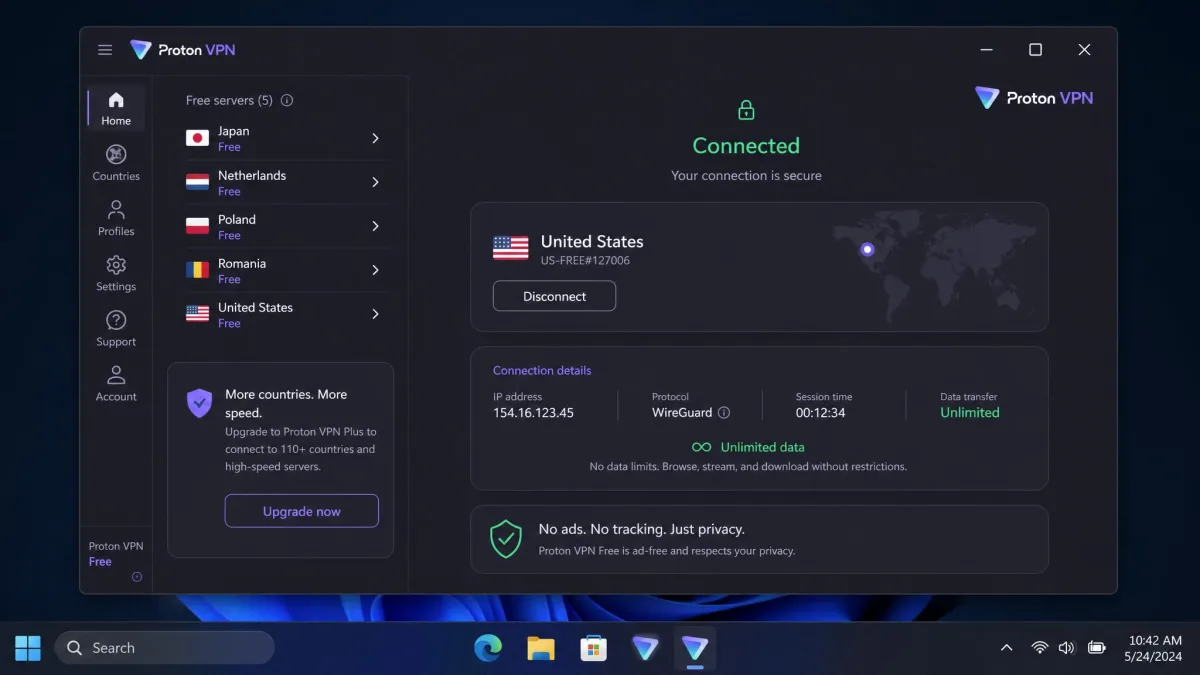
There are a few genuinely safe free options, and Proton VPN is the standout. Its free tier stands apart for offering unlimited data with no ads. It is backed by the same audited, no-logs infrastructure as its paid plans. That is close to unheard of among free VPNs. The trade-offs are reasonable: one device at a time and a limited set of countries to connect from. For light, security-focused use on a Windows laptop, it is a legitimate choice rather than a compromise.
The unlimited-data part is what makes Proton's free tier so unusual. Most free plans cap you at a few gigabytes a month. That runs out within days of normal browsing. Proton lets you stay connected as long as you like on the one device it allows. You will notice the limited country choice if you were hoping to unblock a specific region. The free servers can be busier than the paid ones at peak times. But for protecting a session on public Wi-Fi it does the core job properly. It is the rare free VPN we would leave installed rather than treat as a stopgap.
Our advice is to treat free VPNs with caution. Does a free service explain how it stays in business, and does it publish a no-logs policy you can verify? If not, assume your data is the product. For anything beyond occasional light browsing, a cheap paid plan such as Surfshark's buys you far more. At a couple of dollars a month, you get far more speed, far more capacity, and far more trust. The gap between a reputable free tier and a sketchy one is enormous. So the name behind the app matters more here than anywhere else.
Free VPNs from unknown developers have been caught logging user activity, injecting ads, and even carrying malware. If you want a free option on Windows, stick to a reputable provider with a published, audited no-logs policy, such as Proton VPN.
Do VPNs Work on Older Windows Versions?
Yes, though your options narrow as the Windows version gets older. Are you still running Windows 7, 8, or 8.1? Some providers have dropped support while others keep legacy apps available. NordVPN is one of the more accommodating here. Its support extends to Windows 7, 8, and 8.1 alongside 10 and 11, and Proton VPN also covers older builds. The other picks offer legacy support in varying forms. So it is worth checking the current app requirements before you subscribe if you are on an older system.
Bear in mind that Windows 7 and 8 no longer receive security updates from Microsoft. That is a much bigger risk than any VPN can offset. A VPN encrypts your connection, but it cannot patch the operating system underneath it. If you are on an unsupported version of Windows, a VPN is a sensible layer to add. But upgrading to Windows 10 or 11 should be the real priority for your security. Once you are on a current build, every service in this guide runs natively and stays supported with regular updates.
There is a newer compatibility question worth flagging too, at the opposite end of the age scale. The latest Windows laptops built on ARM processors need an app compiled for that architecture to run at full speed. Not every provider ships one yet. NordVPN's native ARM build means it runs properly on those machines rather than leaning on slower emulation. That is a point in its favour if you have bought one of the recent Snapdragon-powered PCs. On standard Intel or AMD hardware, none of this affects you. Every pick here installs and runs without a second thought.
Is It Legal to Use a VPN on Windows?
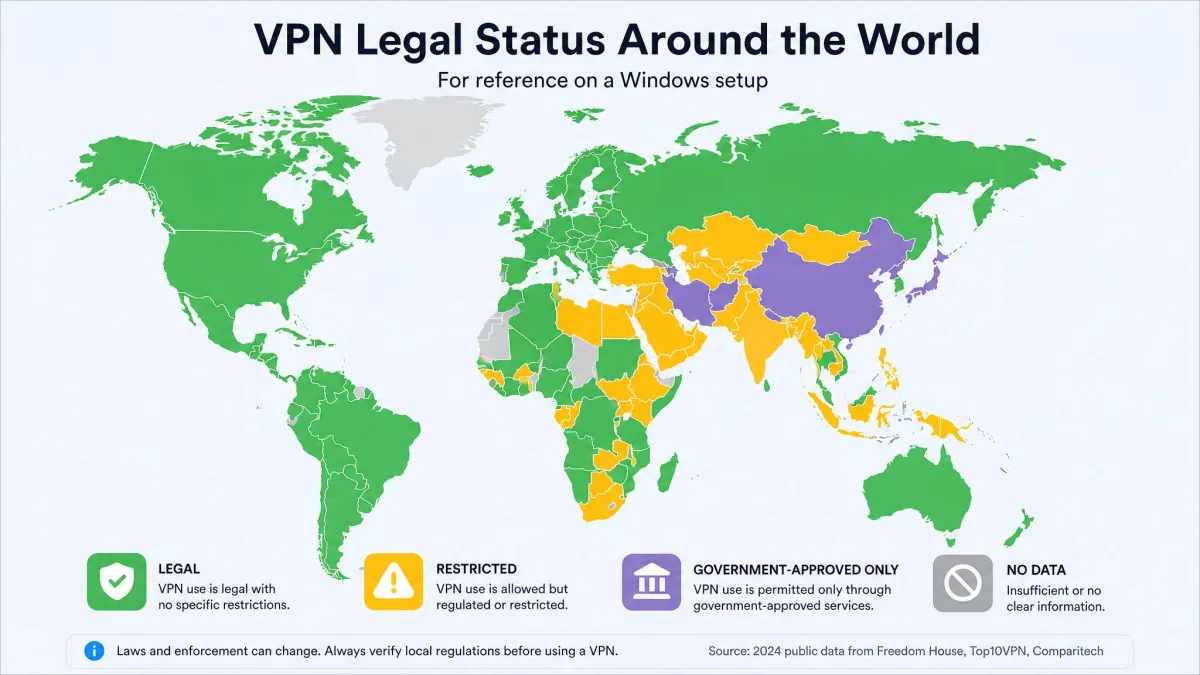
In the vast majority of countries, using a VPN is completely legal. That includes the United States, the United Kingdom, Canada, and across most of Europe. Businesses rely on them every day for secure remote access. Individuals use them routinely for privacy and security. Installing and running a VPN on your Windows PC is not something you need to worry about legally in these places.
The important caveat is that a VPN does not make illegal activity legal. Whatever is against the law without a VPN remains against the law with one. That covers copyright infringement or accessing prohibited content. A VPN protects your privacy. It is not a shield for breaking the rules.
A handful of countries do restrict or ban VPN use, or only permit government-approved services. That includes places such as China, Russia, and a few others with heavy internet controls. If you travel to or live in one of those regions, check the local rules before relying on a VPN. For most readers on a Windows machine at home, though, there is nothing to worry about. The providers here operate openly and legally in the markets they serve.
Common Windows VPN Problems and How to Fix Them
Even the best VPNs occasionally hit a snag on Windows. Most issues have quick fixes. Here are the ones we ran into or heard about most, and how to clear them.
No internet after installing. A minority of Windows 11 users report a DNS error after installing a VPN, most notably with Surfshark. It blocks internet access until DNS settings are reset. The fix is to reset your network adapter's DNS settings to automatic, or reinstall the app. After that, the connection returns to normal. It is worth knowing this is a known quirk rather than a broken app. If resetting the adapter does not clear it, flush the DNS cache from a Command Prompt window and restart the machine. That usually finishes the job, and the connection then behaves normally on every launch afterward.
Slow speeds. If your connection feels sluggish, the culprit is usually the protocol or the server. Switch to the WireGuard-based option: NordLynx, Lightway, or plain WireGuard. Then choose a server closer to your physical location. Distant servers cost you the most speed, as our tests to Australia showed on every service. PIA in particular felt slower on long-haul connections, so a nearer server helps most there. It is also worth checking that any speed-boosting feature your provider offers is switched on. Proton VPN's Accelerator, for instance, made a clear difference to its nearby-server numbers in our testing.
Frequent disconnects. Occasional drops, which we saw now and then with Surfshark, usually clear by switching protocol or server. They resolved within minutes for us. Make sure auto-connect and the kill switch are both enabled, so a brief drop never leaves you unprotected. If drops are constant, check whether antivirus or a firewall is interfering with the VPN app. A security suite can sometimes mistake VPN traffic for something to block and quietly sever the tunnel.
Streaming not working. If a service will not unblock, disconnect and try a different server in the same country. Streaming platforms block individual VPN server IPs over time. ExpressVPN was the most reliable for this in our testing, while PIA's regular servers were the most hit-or-miss. Clearing your browser cache after switching servers also helps. Using the provider's streaming-optimized servers, where they exist, saves you the trial and error of hunting for one that works.
App will not start with Windows. Does the VPN fail to launch on boot the way you expect? Open the app settings and confirm auto-connect and launch-on-startup are both enabled. A Windows update can occasionally reset them. When that does not stick, reinstalling the app usually restores the startup behaviour. Pairing auto-connect with the kill switch means your PC is never briefly online without protection during that first minute after login.
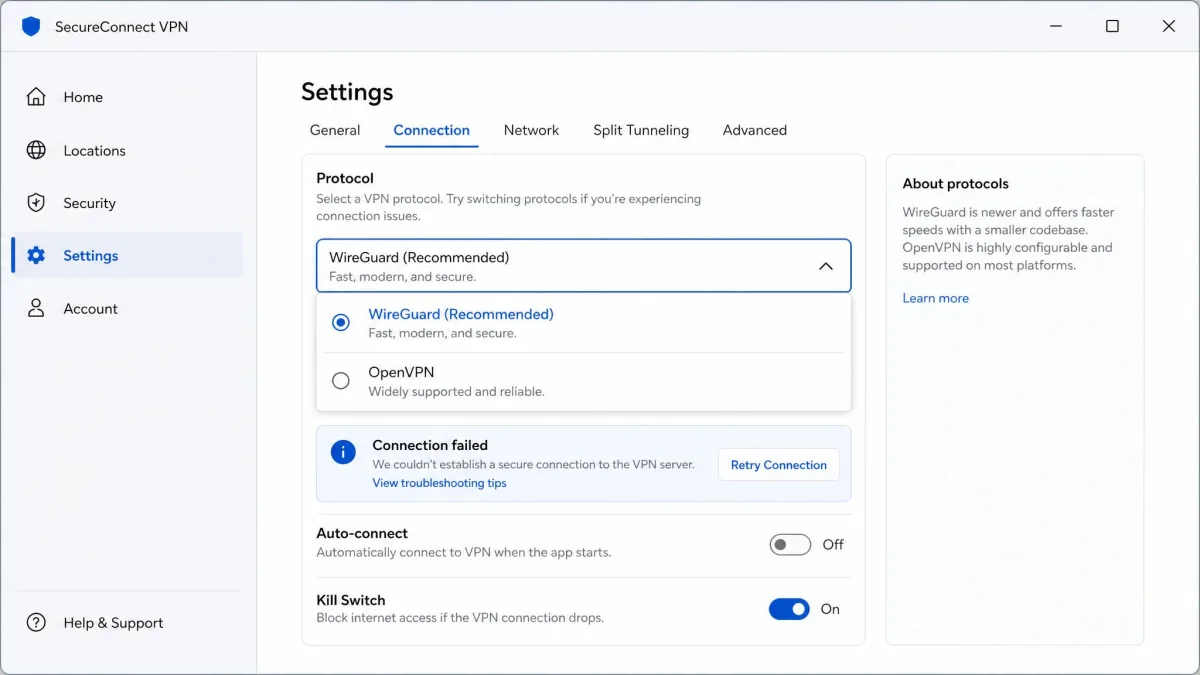
If a VPN will not connect at all on Windows, the fastest fix is usually to switch protocols in the app settings. A server or network that blocks WireGuard traffic will often allow OpenVPN, and vice versa, so toggling between them clears many stubborn connection problems.
Conclusion: Our Top Windows VPN Pick
After testing all five on real Windows 10 and 11 hardware, NordVPN is our top pick for most people. It combined the best all-round speed, with NordLynx holding around 87% of our base connection. Its kill switch never once failed across our forced-disconnect tests. Its feature set covers privacy, security, and streaming without feeling bloated. It also supports older Windows versions and ships a native ARM build, so it fits the widest range of PCs.
The rest of the field each has a clear best-fit buyer. Choose ExpressVPN if you want the simplest app and the most reliable streaming, and do not mind paying a premium. Choose Surfshark if you want the best value and unlimited devices. Choose Proton VPN if privacy is your priority, or if you want the best free tier on Windows. Choose Private Internet Access if you love to customise every setting and want the lowest long-term price. Any of the five will protect your PC well. The right one depends on which of those matters most to you.
Whichever you pick, lean on the 30-day money-back guarantee that all five offer. Test the app on your own line before you commit. Our numbers came from ordinary home hardware. But your connection, your distance from a provider's servers, and the sites you use will shape your own experience. A week of real use tells you more than any chart. That is the same standard we hold ourselves to.