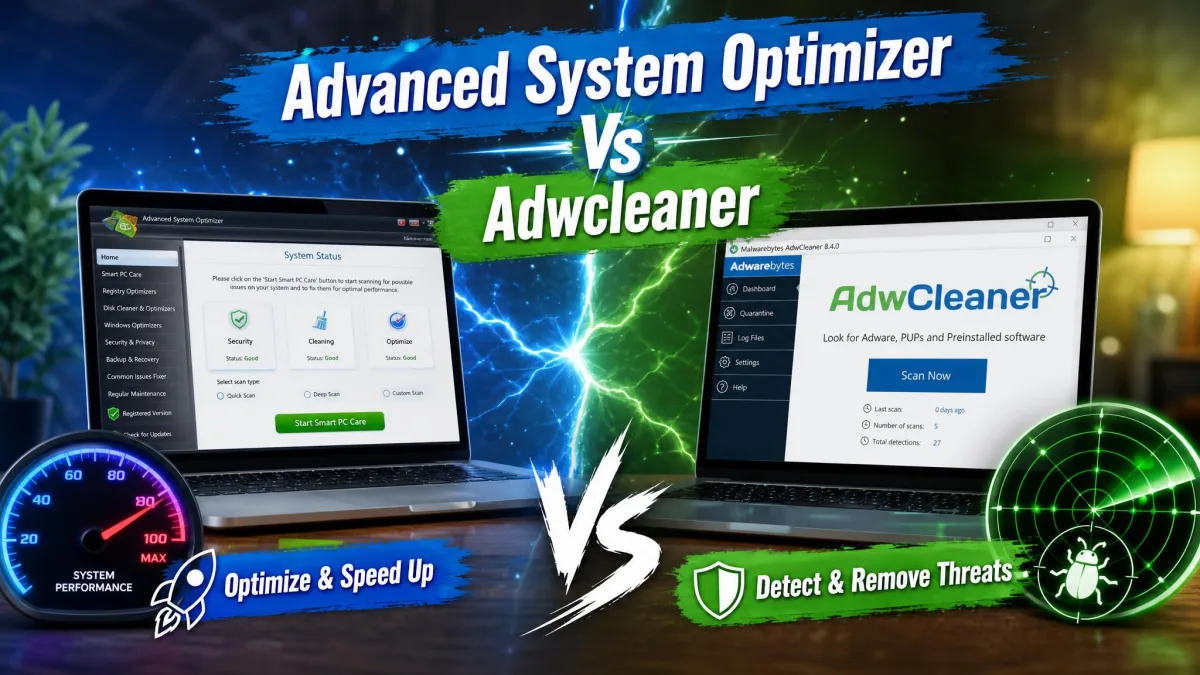
A PC that takes three minutes to reach the desktop. A browser that opens on a search page nobody chose. A hard drive quietly filling with junk files. Those are three different problems. Most people go looking for one piece of software to fix all of them, and that search usually surfaces these two names side by side.
They are not really competitors. Advanced System Optimizer is a paid, all-in-one maintenance suite. It cleans junk files, tidies the registry, defragments disks and manages startup programs. AdwCleaner is a free, single-purpose scanner. It hunts adware, browser hijackers and preinstalled bloatware, then gets out of the way.
Comparing them is less about which is better. It is about which problem you actually have. This guide covers what each tool does, what it costs, how fast it runs, and which one belongs on your Windows PC.
Advanced System Optimizer vs AdwCleaner at a Glance
Two Tools, Two Different Jobs
One is a broad suite you buy and keep installed. The other is a 9 MB executable you download, run once, and delete. Here is how they line up on the features most buyers care about.
| Feature | Advanced System Optimizer | AdwCleaner |
|---|---|---|
| Purpose | All-in-one optimization and maintenance suite | Focused adware, PUP and browser-hijacker remover |
| Junk cleanup | Yes, dedicated junk and disk cleaner | No |
| Registry repair | Yes, registry cleaner and optimizer | No |
| Adware and PUP removal | Yes, via System Protector | Yes, its entire purpose |
| Privacy tools | Yes, privacy protector and secure delete | No |
| Scheduling | Yes | No |
| Price | $69.95 list, often discounted | Free |
| Free tier | Trial only, fixes locked | Fully free, no paid tier |
| Install vs portable | Installed application | Portable single executable, about 9 MB |
| Windows support | Windows 11/10/8.1/8 and 7 | Windows 11, 10 and 8.1 |
| Refund terms | 60-day money-back guarantee | Not applicable |
What Each Tool Actually Does
Advanced System Optimizer: All-in-One Optimization Suite
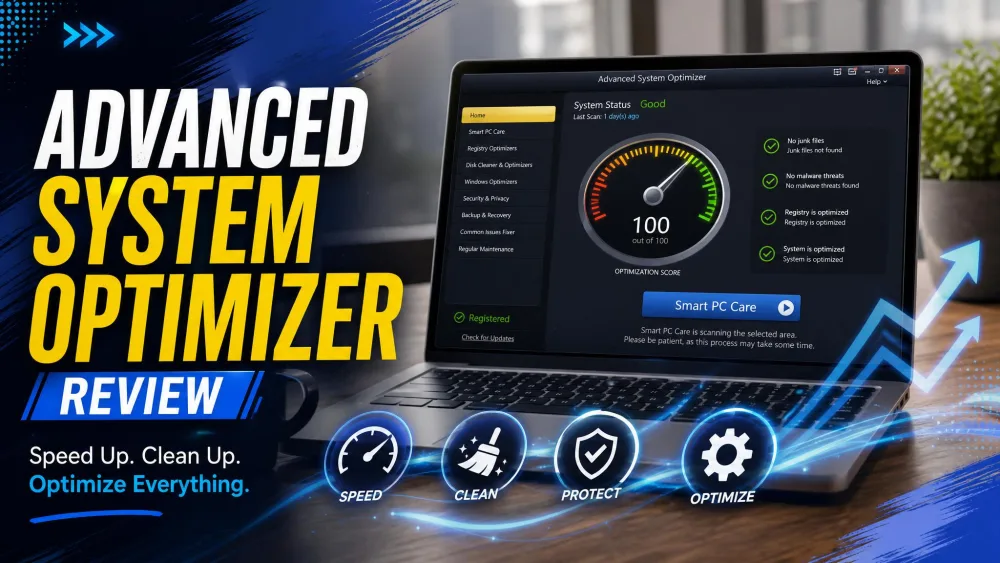
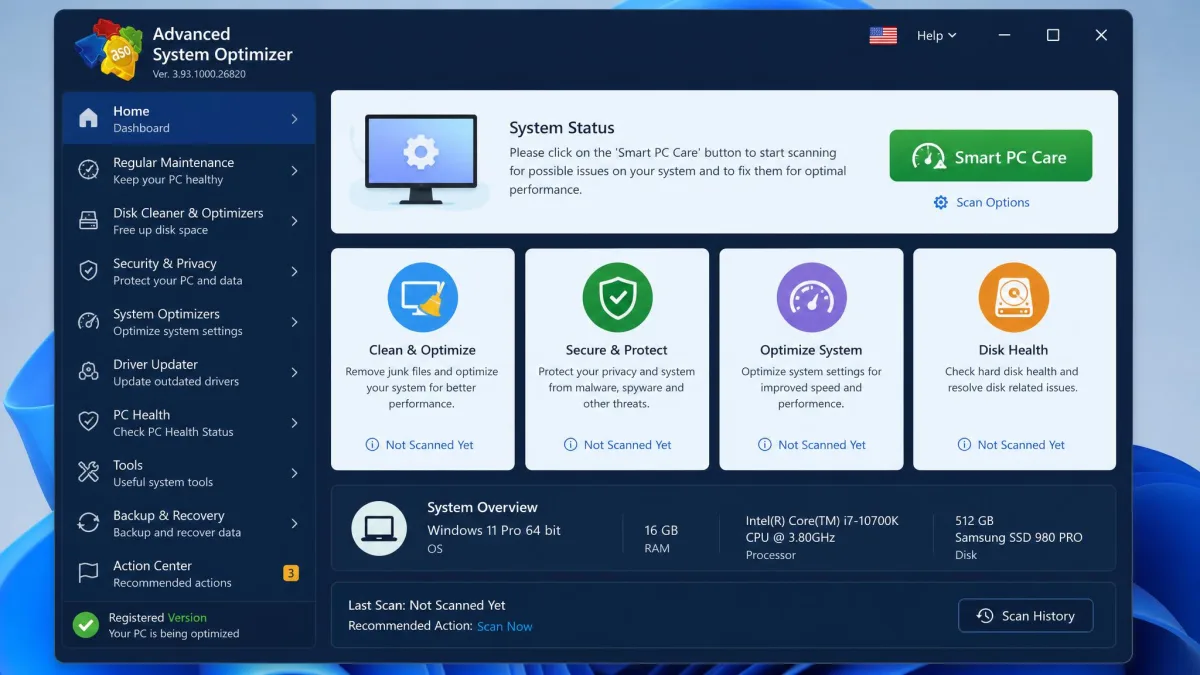
Advanced System Optimizer bundles more than twenty utilities behind one window. Smart PC Care runs a single sweep across the common maintenance jobs. Beyond that, the disk side gives you a Junk File Cleaner, a Disk Cleaner and Optimizer, and a Disk Defragmenter. The system side adds a Registry Cleaner, a Startup Manager, a Memory Optimizer, a Driver Updater and a Game Optimizer.
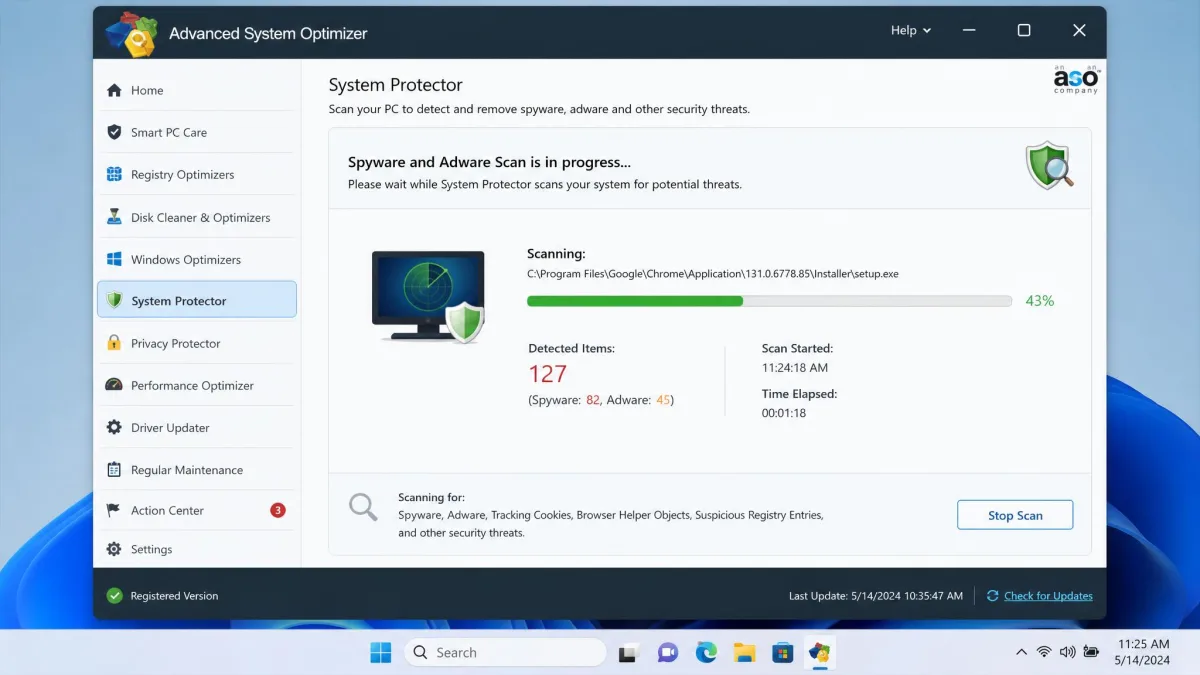
The security and privacy side is thinner but present. System Protector scans for spyware and adware. Privacy Protector clears browsing traces and securely deletes files. There is also a Backup and Recovery module, plus an Undelete tool for accidentally removed files. Scans can be scheduled, which matters if you want maintenance to happen without you remembering to start it.
The tools sit in labelled categories on the main window. Finding the one you want takes a few seconds rather than a hunt through menus. Installation is quick, and it does not ask you to make a string of decisions along the way.
Pros
- More than twenty maintenance utilities in one place
- Junk file, registry, disk and startup cleanup all covered
- Scheduling means maintenance runs without you
- 60-day money-back guarantee on the licence
Cons
- The unregistered version lists problems but locks most fixes
- Can sit heavily on system resources during deeper scans
- One licence key activates one PC
- Registry cleaning carries risk that most users do not need to take
AdwCleaner: Focused Adware and PUP Remover
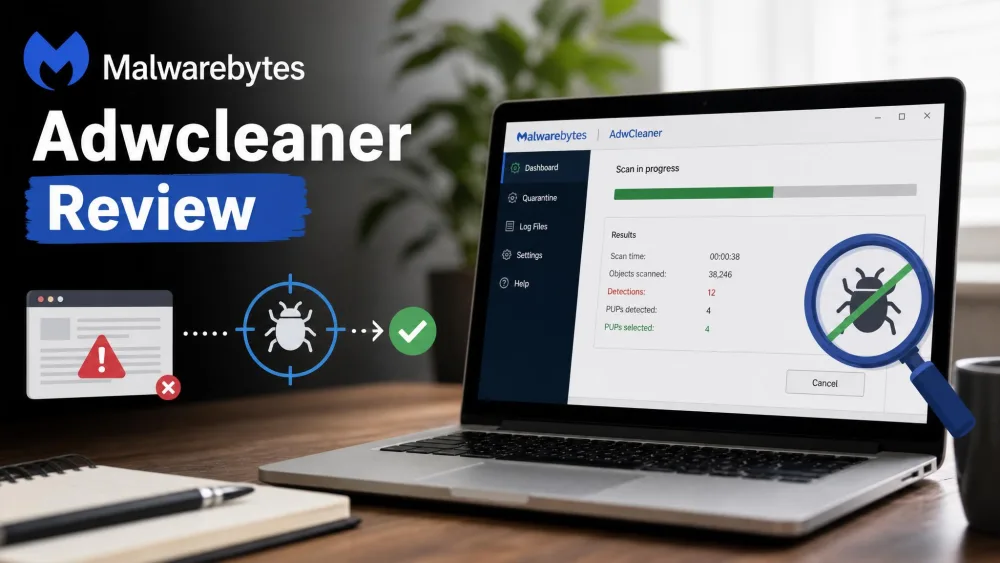
Malwarebytes AdwCleaner does one job. It scans for adware, potentially unwanted programs, browser hijackers, toolbars and preinstalled bloatware. Then it removes what you approve. The tool is free, with no paid tier.
The whole application is a single portable executable of about 9 MB. There is no installer and no background service. Nothing is left behind after a reboot. You download it, double-click, and delete the file when you are finished.
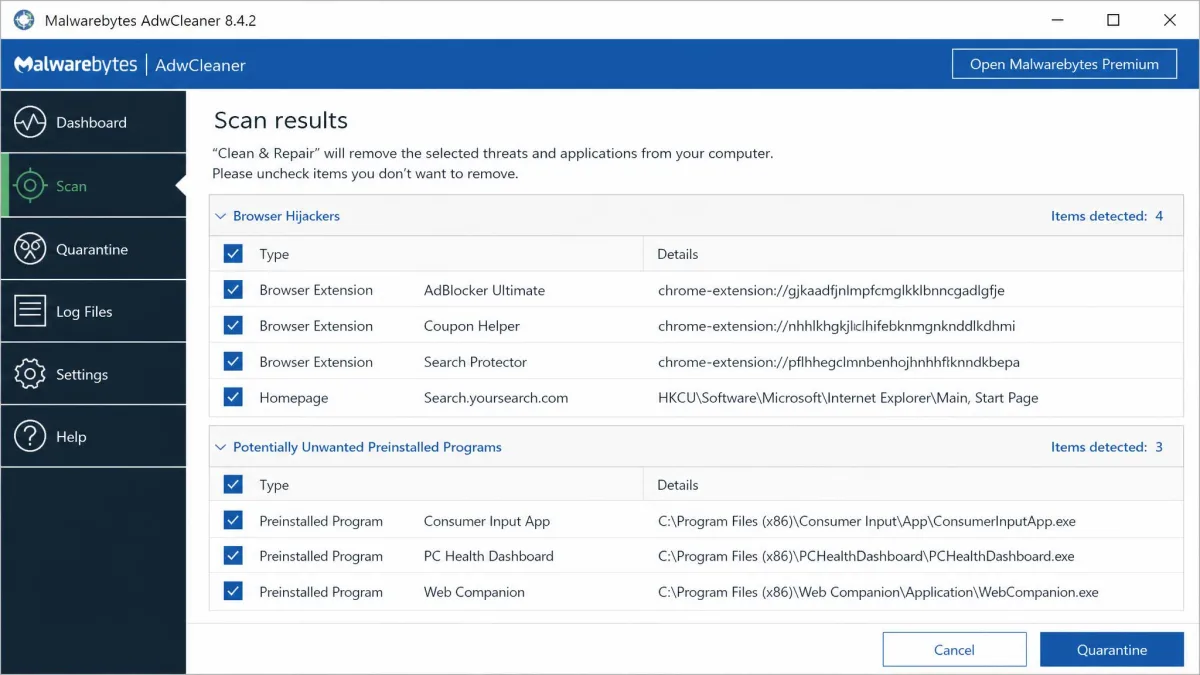
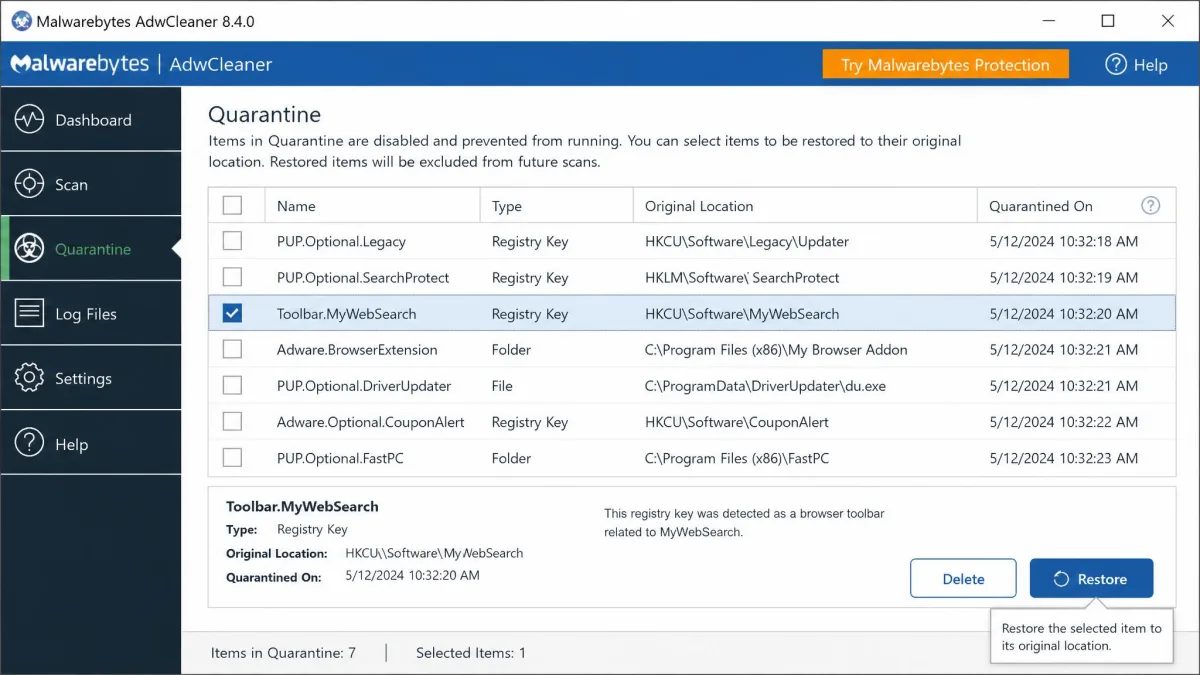
Two features make it safe to hand to a non-technical user. The detection list appears before anything is deleted, so you can untick what you want to keep. Everything removed goes to a quarantine you can pull items back out of later.
Scan logs are readable plain text. There is also a command-line interface, with switches such as /noreboot for anyone scripting a cleanup across several machines.
What it does not do is just as important. There is no junk-file cleanup, no registry cleaning, no defragmentation, no scheduling and no real-time protection. It does nothing about viruses, trojans or ransomware. This is a one-off cleanup pass, not ongoing cover.
Pros
- Completely free with no paid tier
- Portable, about 9 MB, nothing installed
- Review the detection list before anything is removed
- Quarantine lets you restore a wrongly removed item
- Command-line options for repeat use across machines
Cons
- Adware and PUPs only, no junk files or registry
- No real-time protection and no scheduling
- Prompts you to upgrade to Malwarebytes Premium after a scan
- Basic Repair toggles can break working settings if used casually
Advanced System Optimizer vs AdwCleaner: Features Compared
Junk File and Disk Cleanup
This is the clearest split of the whole comparison. Advanced System Optimizer has a dedicated Junk File Cleaner and a separate Disk Cleaner and Optimizer. Between them they target temporary files, cached installer leftovers, log files and the debris Windows accumulates over months of use. AdwCleaner has nothing here at all.
If reclaiming drive space is the reason you started looking, AdwCleaner is the wrong tool. It is worth knowing that Windows' built-in Disk Cleanup already handles the safest categories of junk at no cost. So the case for paying rests on the extra utilities around the cleaner, not the cleaner alone.
Registry and System Optimization
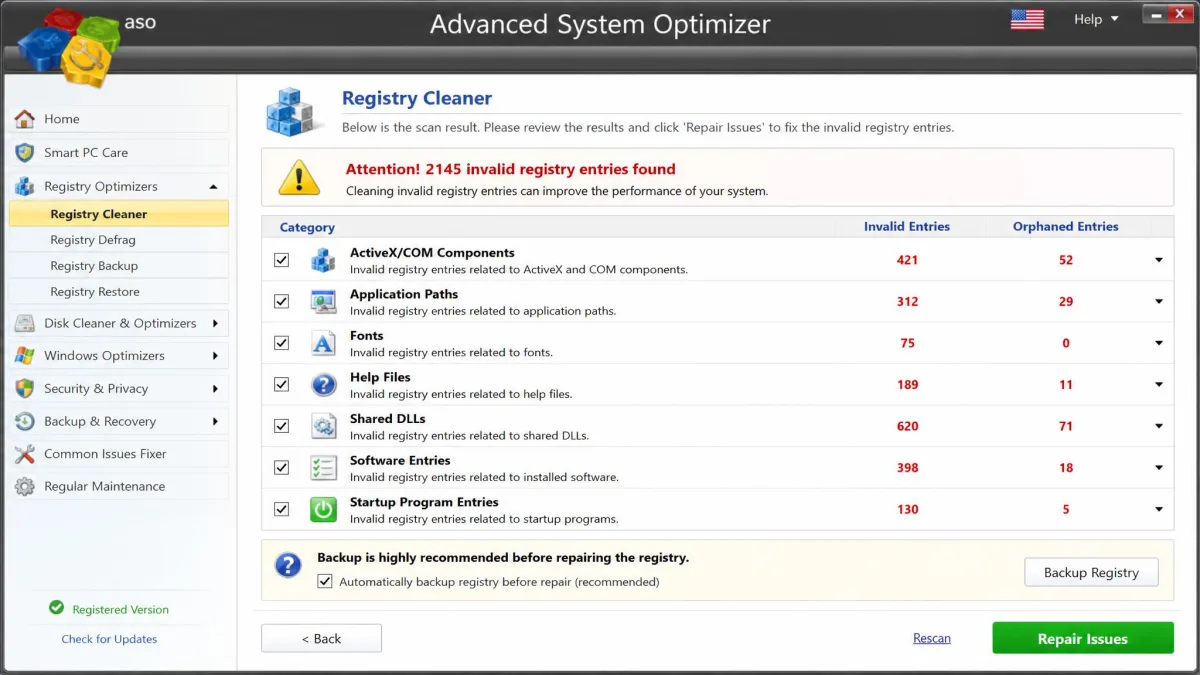
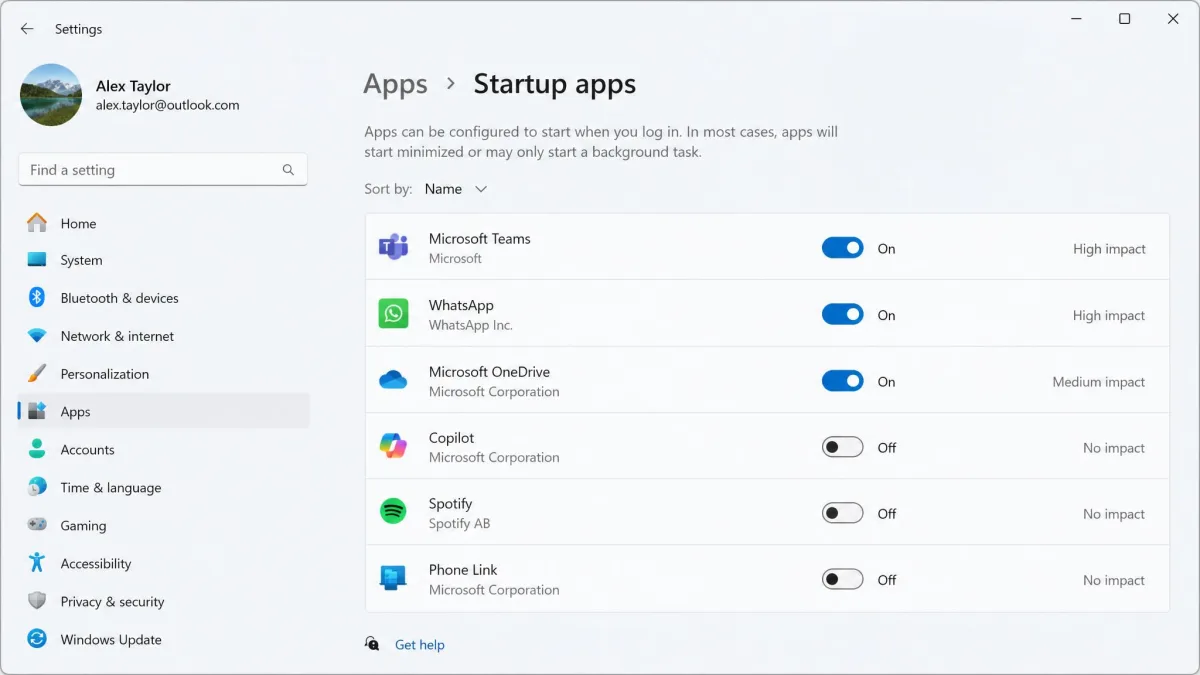
Advanced System Optimizer's registry cleaner scans for orphaned and invalid entries, then offers to repair them. The suite also includes a disk defragmenter, a memory optimizer and a startup manager. That startup manager is the one most likely to produce a difference you can feel. Fewer programs loading at sign-in is a direct saving on boot time.
AdwCleaner has no equivalent to any of this.
Registry cleaning is the riskiest thing any optimization suite does, and the payoff is small. Invalid entries rarely slow a modern PC in a way you would notice. An aggressive clean, though, can break a program's activation or its file associations. Take the backup the tool offers before you let it repair anything, and treat a clean registry as tidiness rather than speed.
Adware, Bloatware and PUP Removal
Both tools claim this ground, but not to the same depth. AdwCleaner exists for it: browser hijackers, injected search pages, toolbars, bundled offer software and the programs that arrive preinstalled on a new machine. Advanced System Optimizer covers it through System Protector. That is one module inside a broad suite, rather than the whole point of the product.
Say your actual complaint is a changed homepage, or ads appearing where they should not. The free specialist is the better first move. AdwCleaner is still a standard first-response tool on free tech-support toolkit lists, for exactly that reason.
Privacy and Security Tools
Advanced System Optimizer's Privacy Protector clears browsing history and traces. Its secure file deletion overwrites data, so a deleted file cannot be recovered. That is genuinely useful before you sell or hand on a laptop. AdwCleaner has no privacy module. Removing a tracking-heavy toolbar does reduce what gets collected in the first place, though.
Neither product is antivirus software. The suite's spyware scanning is no substitute for real-time protection, and AdwCleaner explicitly is not one either. Windows Security, already on your PC, remains your baseline.
Backup, Restore and Scheduling
Advanced System Optimizer includes a Backup and Recovery module and an Undelete tool for recently deleted files. You can also schedule scans, so maintenance repeats on its own. AdwCleaner keeps a quarantine you can restore from. That is a safety net for its own actions rather than a backup system, and there is no scheduling at all. If unattended, repeating maintenance is what you want, only one of these two offers it.
Pricing: Free vs Paid
AdwCleaner is free, permanently, with no paid tier. The one caveat is the upgrade prompt for Malwarebytes Premium that appears after a scan. Free does not quite mean no upsell.
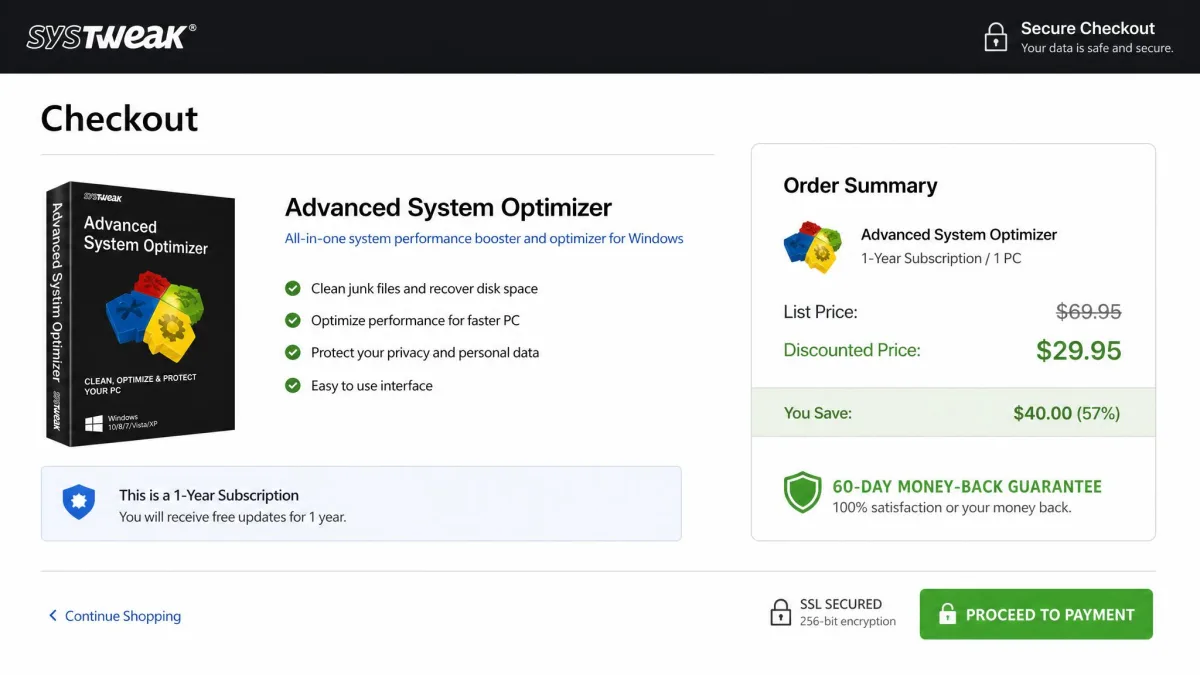
Advanced System Optimizer carries a regular list price of $69.95. That buys a one-year licence for one PC. The vendor's buy page frequently discounts it to $49.95. That promotion rotates with a dated deadline, so the figure at checkout moves. Third-party listings quote lower numbers still, which is why we treat $69.95 as the anchor and everything below it as promotional drift.
There is also a 60-day money-back guarantee. That window is unusually generous, and it takes most of the risk out of trying the suite. One licence key activates one PC, so a household with three computers needs three licences. Bundle promotions occasionally package multi-PC keys.
The free version of Advanced System Optimizer is a demonstration rather than a usable free tier. It will scan and list what it finds, then stop short of applying most fixes until a licence key is entered.
Ease of Use and Interface
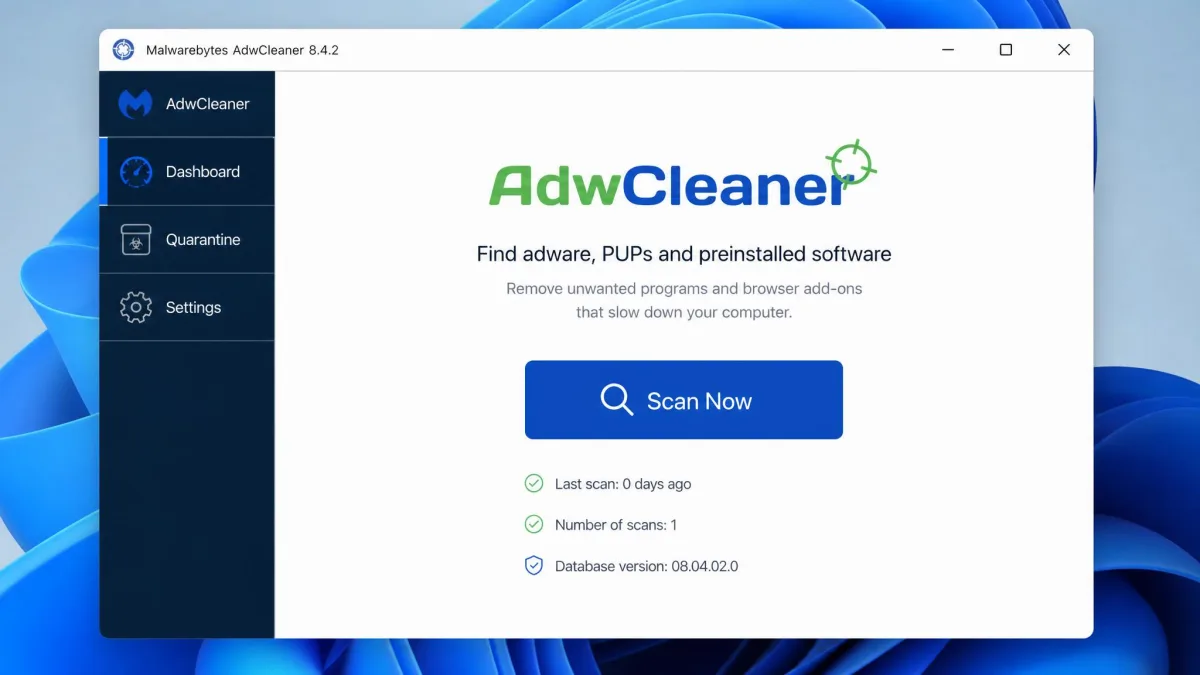
Price is not the only place these two diverge sharply. Both are user-friendly, but in different ways. AdwCleaner is the simpler by a wide margin: one window, a Scan button, a results list and a Clean button. You click Scan Now, review what it found, untick anything you want to keep, then let it quarantine the rest. There is nothing to configure and nothing to learn.
Advanced System Optimizer asks more of you, because it does more. The main window groups its utilities into labelled categories. Smart PC Care gives beginners a single button that runs the common jobs without picking through modules. Even so, twenty-plus tools is twenty-plus tools. A user who only wanted a faster laptop can find the choice overwhelming.
For a one-off cleanup handed to a relative over the phone, AdwCleaner wins on simplicity. For someone who wants a maintenance dashboard they will return to, the suite's structure earns its extra complexity.
Advanced System Optimizer vs AdwCleaner: Performance and System Impact
Scan Speed and Resource Use
AdwCleaner is fast. Most scans finish in well under a minute on a typical consumer laptop. A complete pass runs roughly a quarter of an hour end to end, counting the download, the scan, the cleaning step and the reboot. It only forces that reboot when an item cannot be quarantined while Windows is running, and the /noreboot switch suppresses even that. Because nothing is installed, there is no ongoing resource cost between runs.
Advanced System Optimizer sits at the other end. Its deeper scans can weigh heavily on system resources while they run. That is normal for a suite doing disk analysis and defragmentation, but it is worth planning around on an older machine. Start a full sweep when you are stepping away from the desk, rather than mid-task.
We could not find a credible measured figure for Advanced System Optimizer's cleanup. That means gigabytes reclaimed, boot-time change, or scan duration on a defined test machine. The vendor does not publish one, and no independent test we could verify supplies one either. Treat any speed claim you see quoted for this suite as unmeasured until someone shows the numbers.
Measured Cleanup Results
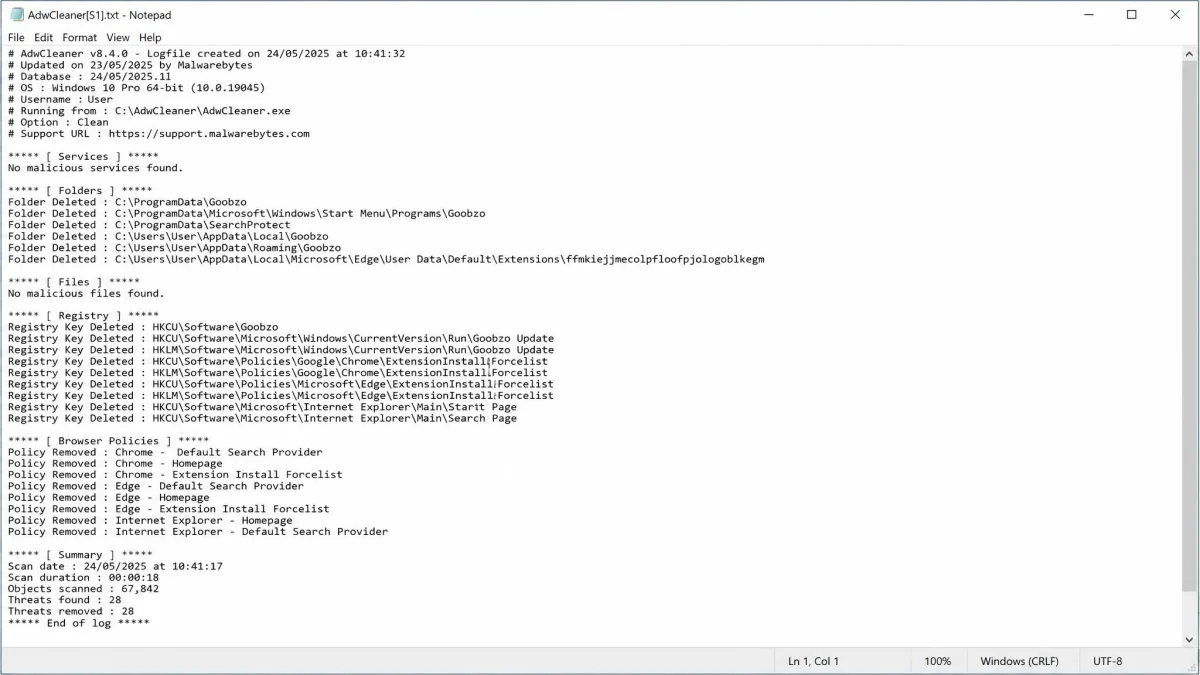
The honest comparison here is about scope rather than a leaderboard. AdwCleaner's result is a count of adware entries, browser policies, toolbars and bundled programs removed. Its own quarantine log tells you exactly what went. The suite's result is a mixture of reclaimed disk space, registry entries repaired and startup items disabled.
Only one of those outcomes reliably makes a PC feel faster, and that is cutting startup programs. Removing adware makes a browser behave properly again. Users often describe that as speed, but it is really the removal of interference. Deleting junk files frees space, and space is not speed unless a drive is close to full. Setting expectations that way is the single most useful thing we can tell you before you spend money.
Safety, Reputation and Trust
Speed and scope only matter if you trust the software in the first place. AdwCleaner is published by Malwarebytes, a well-known security vendor. Its vendor page cites a 4.8 star average across more than twenty thousand reviews, an aggregate that keeps updating as reviews land. The review-before-remove list and the restorable quarantine are the practical safety features here, and they matter more than any score.
Advanced System Optimizer's reputation is more mixed. G2's community rates it 4.7 out of 5, with 83% five-star reviews. That score is a live running average, and Systweak's own blog quotes a slightly higher figure. Look one level up at Trustpilot and the picture cools. The company-level score for Systweak sits near 3.8 out of 5 across roughly 274 reviews. That page covers all Systweak products rather than this one app, and both the score and the count move week to week. Read it as a signal about the publisher, not a verdict on the software.
The broader point about this category is simple. Optimization software runs with deep system access, which makes the publisher's integrity part of the product. The 2017 CCleaner supply-chain compromise put malicious code inside a signed build of the most trusted cleaner on the market. Download from the official site, never from a mirror or a bundled installer, whichever tool you choose.
AdwCleaner's Basic Repair toggles can reset firewall rules, proxy settings, Winsock, TCP/IP and browser policies. Those are repair tools for a specific broken setting, not routine maintenance. Switching them on out of habit can break a working VPN, a corporate proxy or a printer. Leave them off unless you are fixing something you have already identified.
System Requirements and Windows Support
The compatibility gap runs the opposite way from the price gap: here the paid suite is the more accommodating of the two. Advanced System Optimizer runs on Windows 11, 10, 8.1, 8 and 7, in both 32-bit and 64-bit builds. It reaches back further than its free rival.
AdwCleaner's current versions support Windows 11, 10 and 8.1. Windows XP, Vista, 7 and 8 are no longer supported. Versions from 8.5 onward dropped them, and older builds such as 8.4 remain the fallback for anyone still running those systems. The hardware bar is almost nothing: a minimum 800 MHz CPU with SSE2, 512 MB of RAM and 10 MB of free disk space. The current build is 8.8.1, though Malwarebytes ships point releases often, so that number moves.
Neither tool is available for macOS or Linux. Both are Windows-only.
Alternatives Worth Considering
Compatibility aside, these two are not the only names on the shortlist. Advanced System Optimizer vs CCleaner covers the best-known cleaner in the category. Advanced System Optimizer vs BleachBit is the comparison to read if you want a free, open-source cleaner instead of a paid suite.
Subscription suites from the big security brands take a different approach again. They bundle cleanup with a support relationship: see Avast Cleanup vs Advanced System Optimizer and AVG TuneUp vs Advanced System Optimizer. For a fuller picture of the suite on its own terms, our Advanced System Optimizer review goes module by module.
Which One Should You Choose?
The decision comes down to which symptom you are trying to fix.
Choose Advanced System Optimizer If...
- You want junk file cleanup, disk optimization and startup management in one place
- Maintenance should run on a schedule without you starting it
- You value secure file deletion and privacy trace clearing
- You are on Windows 8 or 7 and need current support
- You are comfortable paying for software you will keep installed
Choose AdwCleaner If...
- Your browser has been hijacked, or ads are appearing where they should not
- A new laptop arrived full of preinstalled programs you did not ask for
- You want something free, portable and gone after one use
- You are cleaning someone else's PC and want to leave nothing behind
- You need a command-line cleanup you can repeat across several machines
Why Many Users Run Both
These two overlap barely at all, so running both is straightforward once you get the order right. Take the adware pass first. It clears browser hijacks, toolbars and bundled programs, and none of that is visible to a junk cleaner. Let the machine reboot afterwards, because some removals only complete on restart.
The suite then works on a stable system. Its junk scan reads a drive that no longer holds the leftovers of software you just removed, so the disk-space figure it reports is the real one. Run the two at the same time and the results get muddled: a junk cleaner deleting temporary files while a scanner is reading them produces detections that vanish mid-pass.
Afterwards, the two leave very different footprints. AdwCleaner leaves only a quarantine folder you can delete. The suite stays installed, holds its scheduled scans, and keeps its own backup of anything the registry cleaner touched.