Junk files pile up quietly. Browser caches, leftover installers, Windows update remnants and app logs sit on your drive for months, and one morning the C: drive turns red. CCleaner is still the disk cleaner we hand to most people, because it does the job with the fewest surprises along the way.
We looked at eight cleaners for Windows on the same terms: what each one scans, what it shows you before it deletes, and what it holds back for the paid tier. Some are free, some are paid, and two are already sitting on your PC. Here is how each one stacks up.
Best Disk Cleaner Software: Quick Comparison
| Tool | Buy | Best for | Price | Platform | Scheduling | Secure shred | Visualizer |
|---|---|---|---|---|---|---|---|
 |
Check price → | Overall cleanup | Free / Pro yearly | Windows, Mac, Android | Paid only | Drive Wiper | Plus tier |
 |
Check price | Free and open source | Free | Windows 10, Linux, macOS | Command line | Shred and wipe | No |
 |
Check price | Lightweight cleaning | Free | Windows 11, Windows 10 | Yes, free | Safe Deletion | No |
 |
Built into Windows | Built-in automation | Free, built in | Windows 11, Windows 10 | Configurable | No | Storage breakdown |
 |
Check price | Free Windows 11 cleaner | Free | Windows 10 19042.0 and up | Partial | No | Large-file finder |
 |
Check price | All-in-one toolkit | Free, Pro upgrade | Windows | Yes | Yes | Disk analyzer |
 |
Check price | Automated cleanup | Free, Pro upsell | Windows 11 through XP | Yes | Yes | Yes |
 |
Check price | Paid tune-up | $29.88 first year | Windows, macOS, Android | Yes | No | Yes |
1. CCleaner - Best Overall Disk Cleaner
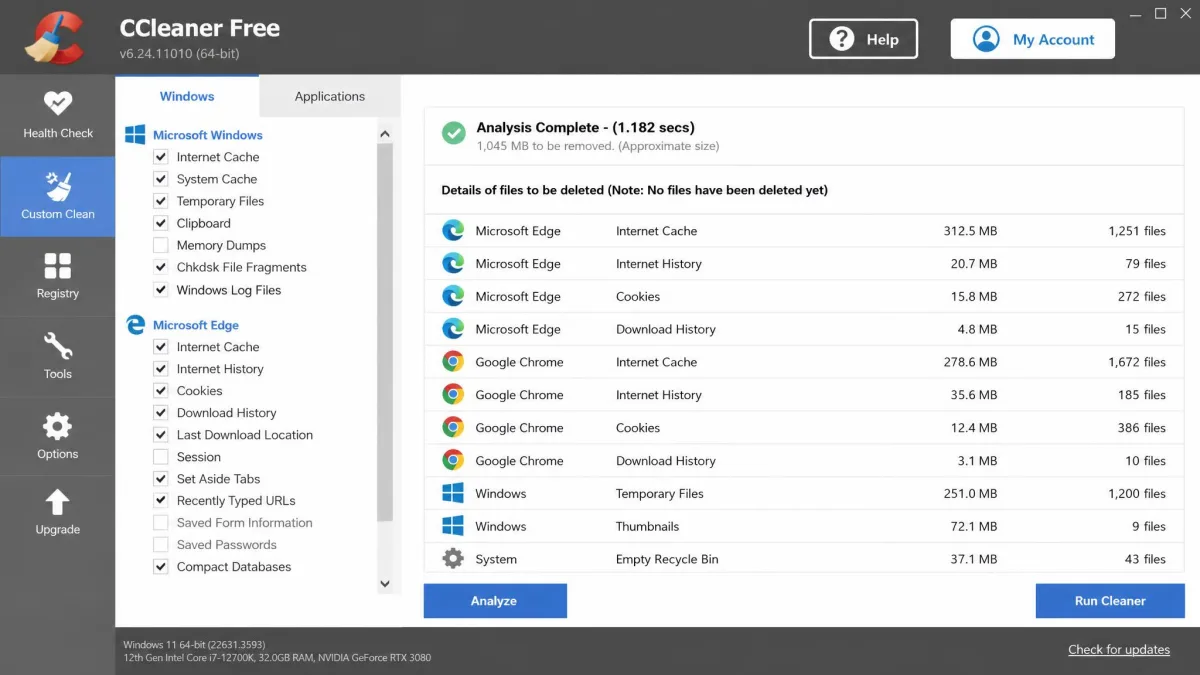
What sets CCleaner apart is what happens at the end of a run. A Custom Clean finishes on a summary page that states exactly which items were removed and how much disk space came back, category by category, which is the clearest reporting of any tool here. The total itself is not a number worth comparing between machines, because it swings widely with how cluttered the PC already was. Analysis takes noticeably longer on a drive holding a lot of data, and the machine feels briefly sluggish while the sweep runs, though the pause is short.
Two caveats sit either side of that. The installer presents bundled extra offers you have to untick yourself on the way in, and on a healthy PC the clean frees no RAM, so treat it as housekeeping rather than a speed cure. Boot time is a different question again: the gains people attribute to cleaning come almost entirely from disabling startup entries rather than from deleting junk files, so a large reclaimed total does not translate into a faster start.
Pros and Cons
Pros
- Widest junk-scan coverage of any tool we tested
- Free edition cleans everything the paid one does
- Clear preview of every file category before deletion
Cons
- Installer offers bundled extras you must decline manually
- Scheduling and real-time monitoring are paid features
- No RAM benefit on a healthy system
Who It's For
Anyone who wants one app for routine cleanup without a study session first. Professional runs roughly $29.95 to $44.95 a year for one device, though constant discounting means the checkout figure often differs.
2. BleachBit - Best Free and Open-Source Cleaner
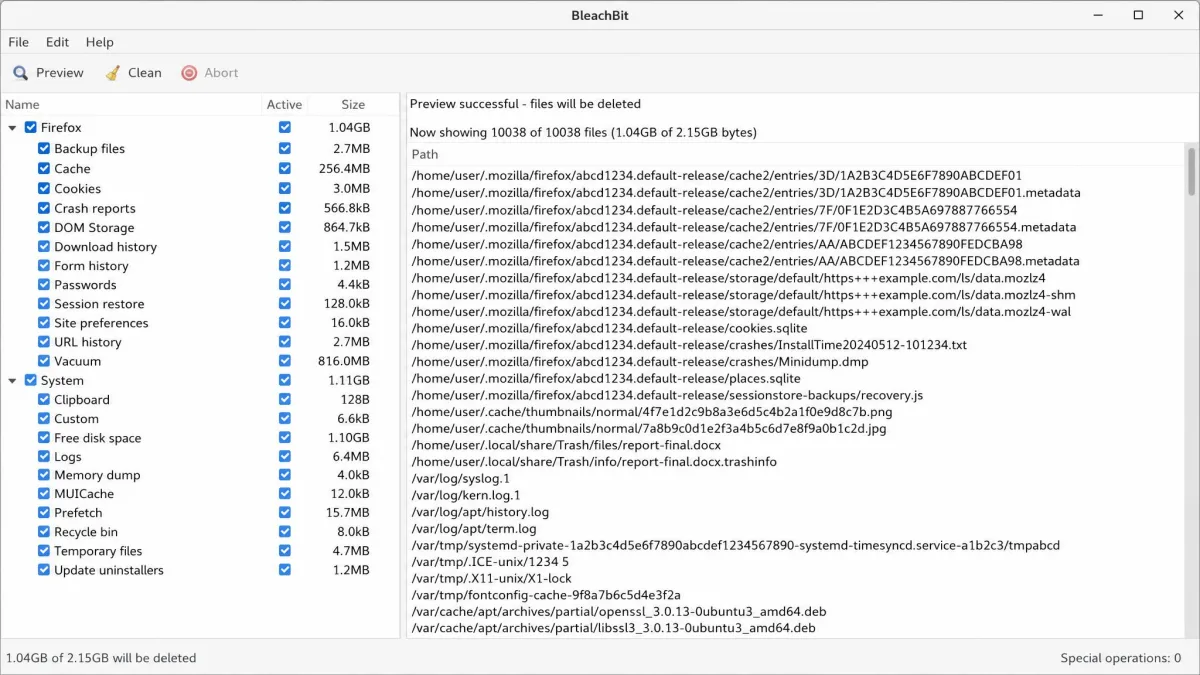
Where CCleaner optimises for coverage with minimal decisions, BleachBit optimises for control. Open it and you get a checkbox tree rather than a dashboard, one branch per application, each expandable down to cache, cookies, history and logs. Tick the branches you want and press Preview, and the right-hand pane fills with the individual file paths queued for deletion before anything is touched. That preview run is the whole safety model, because BleachBit deletes exactly what you ticked and there is no undo waiting behind it.
The No-Undo Problem
Version 6.0.2 cleans caches, cookies, browser history, logs and app leftovers across more than 90 applications, with secure shredding and free-space wiping included. The per-application checkboxes reward power users who want exact control, but a mis-ticked box is permanent, and the interface is utilitarian and dated enough that beginners need time to settle in before they trust it. Privacy-minded users, Linux dual-booters and anyone who prefers open-source code they can inspect will get on with it. A nervous first-timer should start elsewhere.
Pros
- Completely free and open source, with no paid tier
- Cleans more than 90 applications, including many CCleaner ignores
- Secure shredding and a command-line interface built in
Cons
- Dated, utilitarian interface
- No undo, so a mis-ticked box is permanent
- Windows builds target Windows 10 and 11
3. Wise Disk Cleaner - Best Lightweight Cleaner
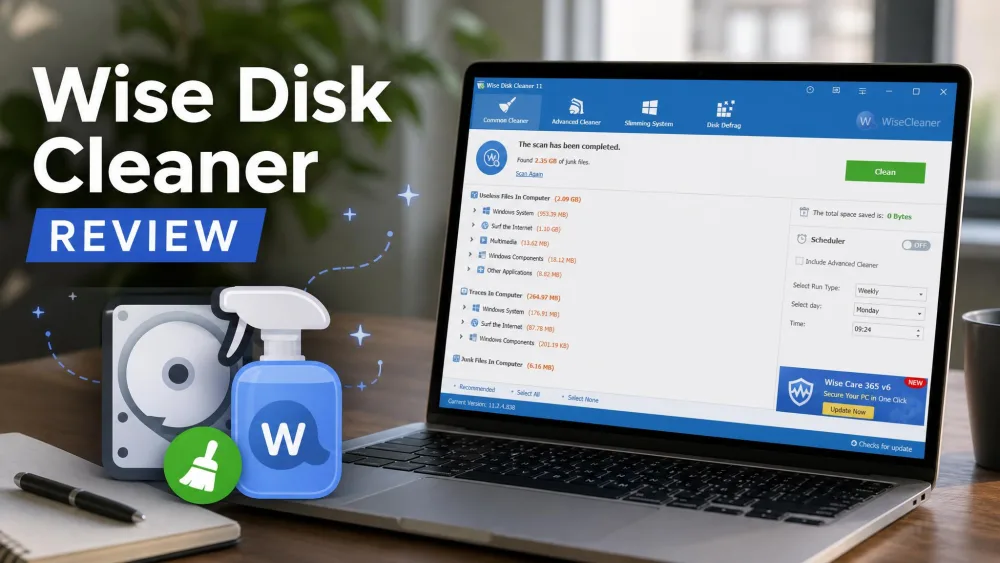
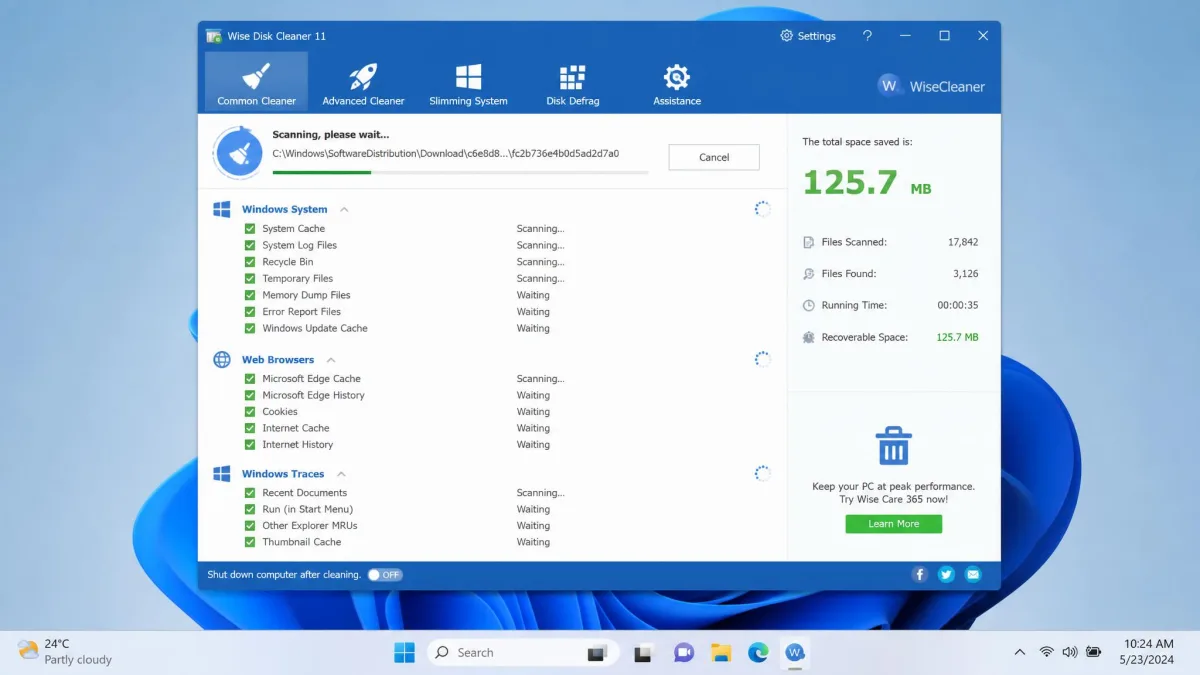
If BleachBit asks too much of you, Wise Disk Cleaner 11.3.7 asks almost nothing. Open the Common Cleaner tab on an ageing laptop, press scan, and the categories tick over while the fans stay quiet, because the scan stays light on CPU and RAM throughout. You can keep working in a browser alongside it without the machine dragging, which is not true of every tool here. That restraint is the reason it belongs on a low-spec machine.
Pros and Cons
Pros
- Free scheduling with five timing options
- Very light on system resources during scans
- Easy interface with light and dark themes
Cons
- Cleaning only, with no wider tuning tools
- No disk-space visualizer
- Windows only
The free build supports Windows 11 and Windows 10 and is fully functional, with nothing important held back. It covers system junk removal, privacy trace deletion, an Advanced Safe Deletion mode that overwrites what it removes, and defragmentation with SSD TRIM support. Scheduling is free too, with five timing options, and what you give up is the deeper tuning that paid optimizers bundle in.
Who It's For
Older laptops, low-spec machines, and anyone who wants scheduled cleaning without paying for it.
4. Windows Storage Sense - Best Built-In Option
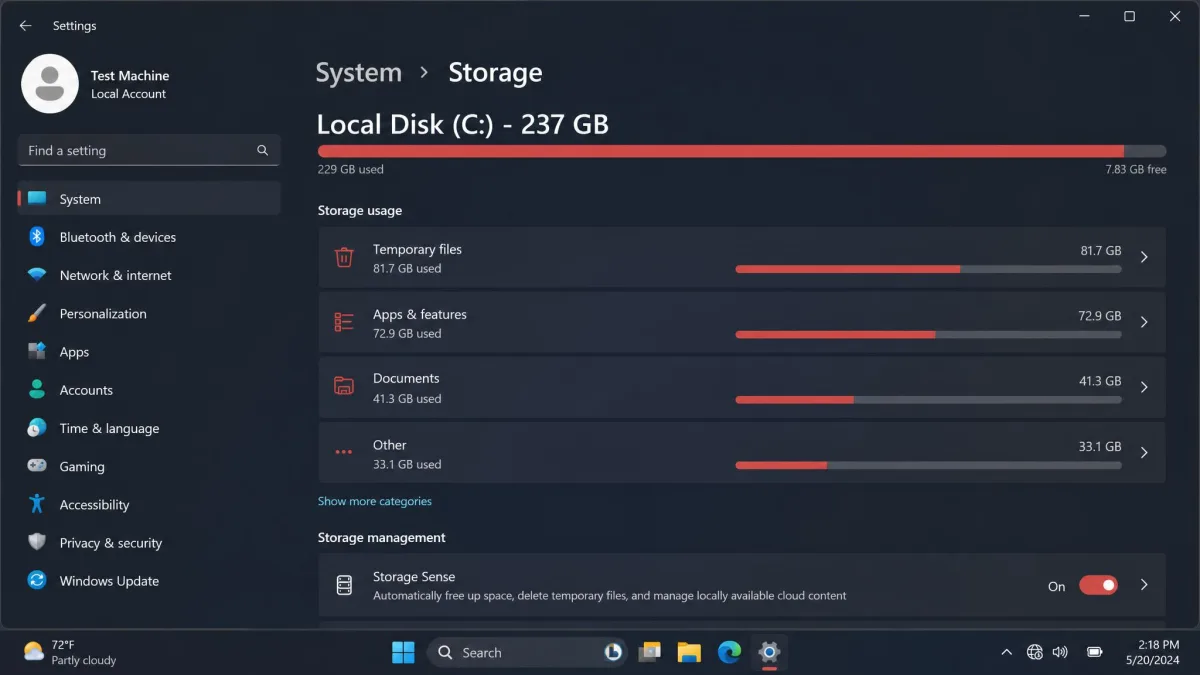
Before paying for any of the above, check what Windows already gives you. Storage Sense is built in at no extra cost, and a surprising number of people have never switched it on. It automates temp-file cleanup, empties the Recycle Bin on a timer, can clear unopened items from the Downloads folder, and can make inactive OneDrive files online-only.
Three limits matter. It ships off by default, so a machine can sit for years without ever running an automatic cleanup. It only runs once you have been signed in and online for more than 10 minutes. And it only cleans the system drive, so a full D: drive stays full however you configure it. It also leaves the Downloads folder and cloud files alone unless you opt in, which is the right default. Treat it as the baseline everyone should have running, and judge the third-party apps on what they add beyond it.
Switch Storage Sense on before you install anything else. If it frees enough space on its own you have solved the problem for free, and you can judge the third-party options on what they add beyond it.
Pros
- Already installed, with nothing to download
- Fully automatic once configured
- Leaves Downloads and cloud files alone unless you opt in
Cons
- Off by default, so most people never use it
- System drive only, ignoring secondary drives
- No browser cache or app-leftover cleaning
5. Microsoft PC Manager - Best Free Cleaner for Windows 11
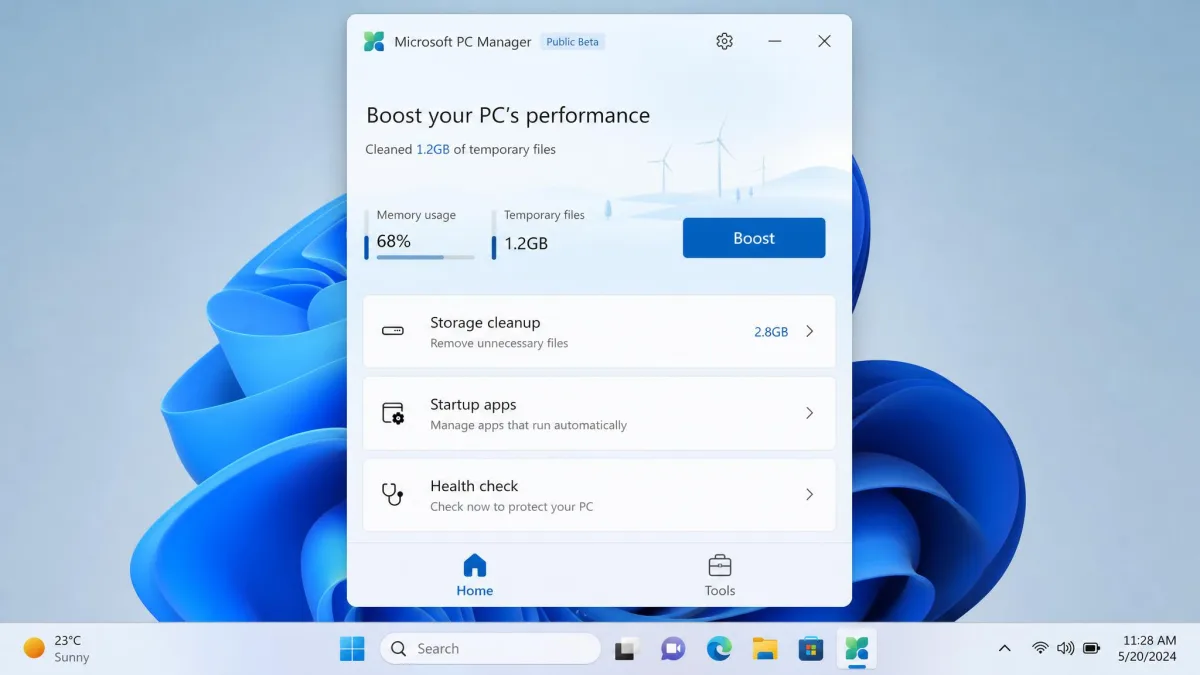
Storage Sense hides in Settings; Microsoft PC Manager puts the same territory on a dashboard. It is Microsoft's own free maintenance app, with no paid tier, and it needs Windows 10 build 19042.0 or later, or Windows 11. Inside are one-click boost, deep storage cleanup, a large-file finder, startup app management and a health check. In use it mostly wraps tools Windows already has, cleanup, Storage Sense, startup control and Task Manager, into one place rather than adding cleaning power. Gains are noticeable on low-resource machines and modest on a well-specced PC, and the guided flow removes most of the decision-making.
Pros and Cons
Pros
- Free first-party Microsoft app with no upsells
- One dashboard for cleanup, startup and process control
- Large-file finder is genuinely useful
Cons
- Mostly repackages built-in Windows features
- Modest gains on well-specced machines
- Limited control for advanced users
Who It's For
Casual Windows 11 users who want a single trustworthy app and no decisions to make.
6. Glary Utilities - Best All-in-One Toolkit
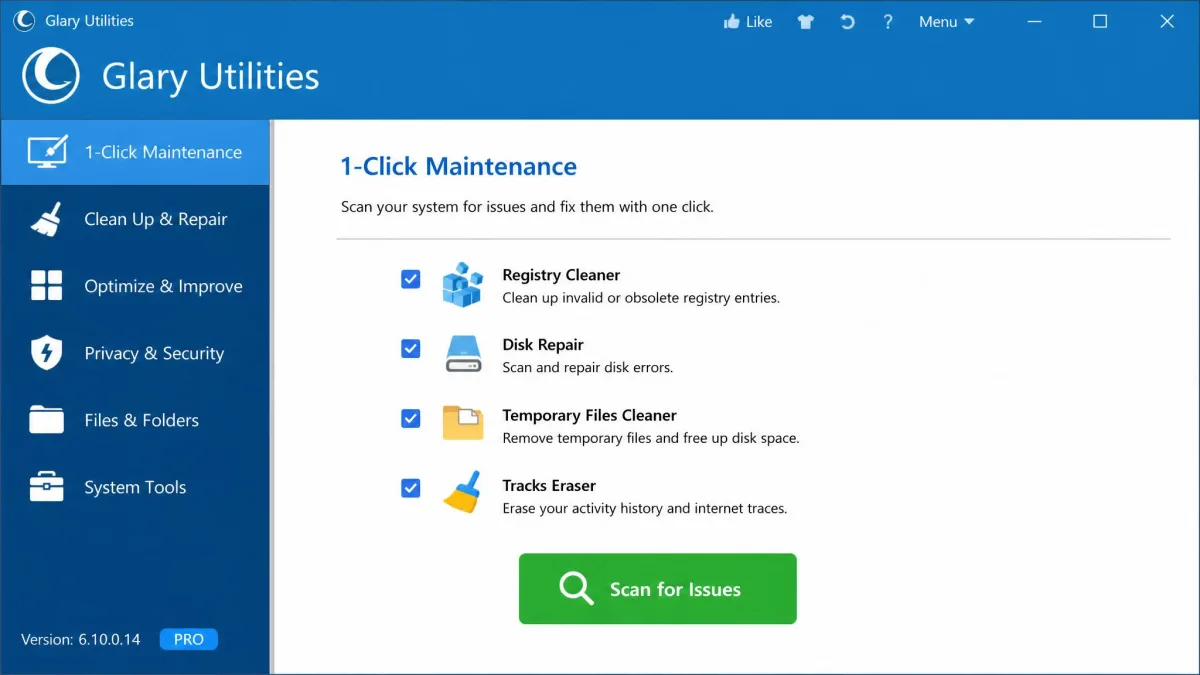
Glary Utilities takes the toolkit idea further than PC Manager. Release 6.45 is the current Windows build, and the free edition includes more than 20 tools: one-click maintenance, disk cleanup, registry repair, privacy protection, file recovery, a duplicate file finder, a disk space analyzer and a startup manager. It behaves like a calm manual toolbox, with each utility launched deliberately rather than fired off by one sweep. In head-to-head 2026 comparison scoring it edges out Advanced SystemCare with a 4.6 rating. A paid Pro upgrade exists, but no headline yearly price is published, because Pro is sold almost entirely through rotating promotional bundles.
Pros and Cons
Pros
- More than 20 tools in the free edition
- Includes a disk space analyzer and duplicate file finder
- Deliberate approach with no surprise automation
Cons
- Interface feels crowded to newcomers
- Registry repair should be used sparingly
- Pro pricing is opaque and promotion-driven
Who It's For
Tinkerers who want a full maintenance toolkit rather than a single cleaning button.
7. IObit Advanced SystemCare - Best Automated Cleanup
What the Free Scan Won't Do
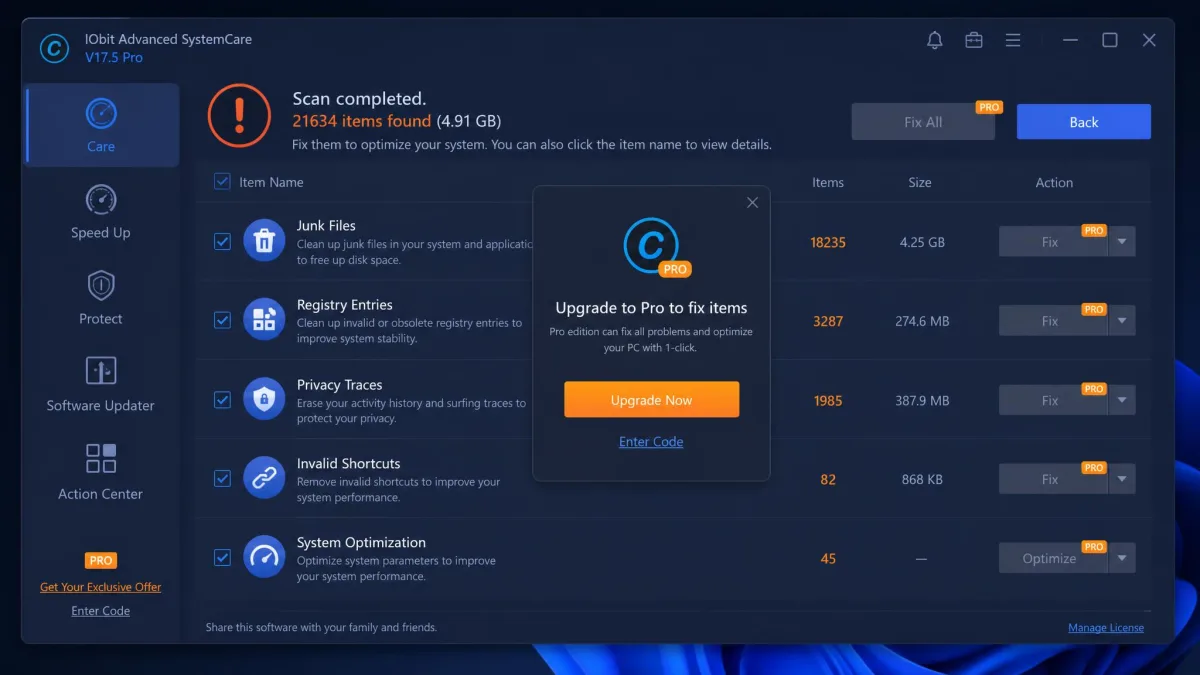
Where Glary waits for you to pick a tool, Advanced SystemCare wants to do it all in one pass. Press Scan and it walks junk files, registry entries and privacy traces in a single sweep, then presents the findings in one list. The trouble comes at the finish line: a good share of the fix buttons on that results page are greyed out behind a Pro upgrade prompt, so the free scan regularly ends by telling you what it found and then declining to act on it. Upsell pop-ups appear elsewhere in the interface too, and they persist even after you pay.
Version 19.5.0 is a 60.7 MB download supporting Windows 11, 10, 8, 7, Vista and XP, the widest compatibility range here. It offers AI-assisted junk cleaning, a registry cleaner, disk cleanup, a startup optimizer, privacy protection and a Turbo Boost mode, and its scan-and-fix simplicity suits people who want guided automation rather than picking through categories. IObit holds a Trustpilot TrustScore of 3.0 out of 5 across more than 1,300 reviews.
Pros
- Supports Windows versions back to XP
- Genuinely one-click for people who want automation
- Small download and quick to set up
Cons
- Constant upsell pop-ups, even after paying
- Free scan frequently ends on locked results
- No published base price for Pro
Owners of older Windows machines who want automation, and who can shrug off the sales pressure, are the audience this suits.
8. Avast Cleanup Premium - Best Paid Cleaner
Avast Cleanup Premium is the only tool here whose headline feature is not cleaning at all. Sleep Mode takes the background apps that idle away at your resources and suspends them until you actually open one, at which point it wakes the app back up and hands it over. That is the piece free utilities do not replicate, and the rest of the dashboard, disk cleaning, browser cache removal, bloatware removal, covers ground the free options already handle. Avast's own testing claims 79% quicker startup and roughly 71 GB reclaimed, but those are vendor lab figures and real results swing with how cluttered the PC already is.
What Renewal Actually Costs
The subscription costs $29.88 for the first year on one Windows PC and renews at $65.99. A 10-device plan covering Windows, macOS 10.13 and Android runs $34.68 for the first year, and there is a 30-day free trial with no card required plus a 30-day money-back guarantee. Households with a mix of Windows, Mac and Android devices are the only group we would point at it, and only with the renewal date in the calendar.
Set a reminder before an Avast Cleanup subscription renews. The renewal lands at more than double the introductory price, and billing complaints include charges arriving at a different amount than the discount offered, and charges appearing after a cancellation.
Pros
- Sleep Mode meaningfully reduces background app load
- Covers Windows, macOS and Android on one plan
- 30-day trial and a 30-day money-back guarantee
Cons
- Renewal price more than doubles the first-year cost
- Upsell notifications for unrelated products
- Free tools cover most of the same ground
How We Tested These Disk Cleaners
We judge these apps on the same terms every time: what the scanner actually covers, whether you get a preview before deletion, how the results are reported, what sits behind a paywall, and how the installer behaves on the way in. Every tool here is downloaded from the vendor's own site and assessed in its default configuration, on the kind of drive that has been in daily use for years rather than a freshly imaged one. Where a vendor makes a performance claim, we check it against what the feature can plausibly do.
We deliberately do not publish a league table of gigabytes reclaimed per tool, because that figure is close to meaningless outside the machine it was measured on. The same cleaner on two PCs frees wildly different amounts depending on how much clutter had built up, so a headline number tells you about the drive rather than about the software. What we compare instead is what each app finds, how clearly it reports it, and whether it hands you a preview before anything goes.
Speed is judged the same way. Scan duration stretches on drives holding a lot of data, and every tool here slows down under that load, so the ranking that matters is whether an app stays usable while it works rather than how many seconds it took on one bench. Boot time we treat with open scepticism: a registry sweep can report hundreds of issues and leave startup unchanged, and one published benchmark that did move boot time, from 18 seconds to 15, credited startup-entry management rather than junk deletion. On a modern SSD machine the measurable change after a clean is marginal, while older mechanical-drive PCs with limited RAM show the clearest improvement.
We buy or download every tool ourselves and never accept vendor-supplied test machines, because a clean lab PC tells you nothing about how a cleaner behaves on a drive that has been in daily use for two years.
What Disk Cleaner Software Actually Does
A disk cleaner does one core job: it finds files your system no longer needs and removes them safely. That means temporary files, browser caches, cookies, crash logs, update leftovers, installer packages and the debris apps leave behind when they uninstall badly.
The good tools add a preview, so you can check the list before anything is deleted, and privacy cleaning, which removes traces of what you have been doing. What none of them does is make a healthy PC dramatically faster. Freeing up disk space helps when a drive is nearly full, but if you already have 200 GB spare, cleaning will not change how the system feels.
Free vs Paid Disk Cleaners: What You Actually Get
The uncomfortable truth of this category is that free software does the cleaning perfectly well. The free editions here target essentially the same junk-file categories as their paid counterparts, so what you pay for is convenience and support rather than deeper cleaning.
Paid tiers add scheduled cleaning, real-time monitoring, automatic updates and a support line. CCleaner's scheduling sits behind the paid tier, which is the most common reason people upgrade, while Wise Disk Cleaner gives you the same scheduling for nothing. Compared with those free options, the paid apps mostly win on convenience.
Windows Built-In Cleanup Tools: Storage Sense, Disk Cleanup and DISM
Windows ships with three cleanup layers, and most people only meet the first. Storage Sense automates routine cleanup on the system drive, with a configurable run frequency and rules for the Recycle Bin and Downloads folder. Microsoft's manage drive space with Storage Sense documentation covers each option.
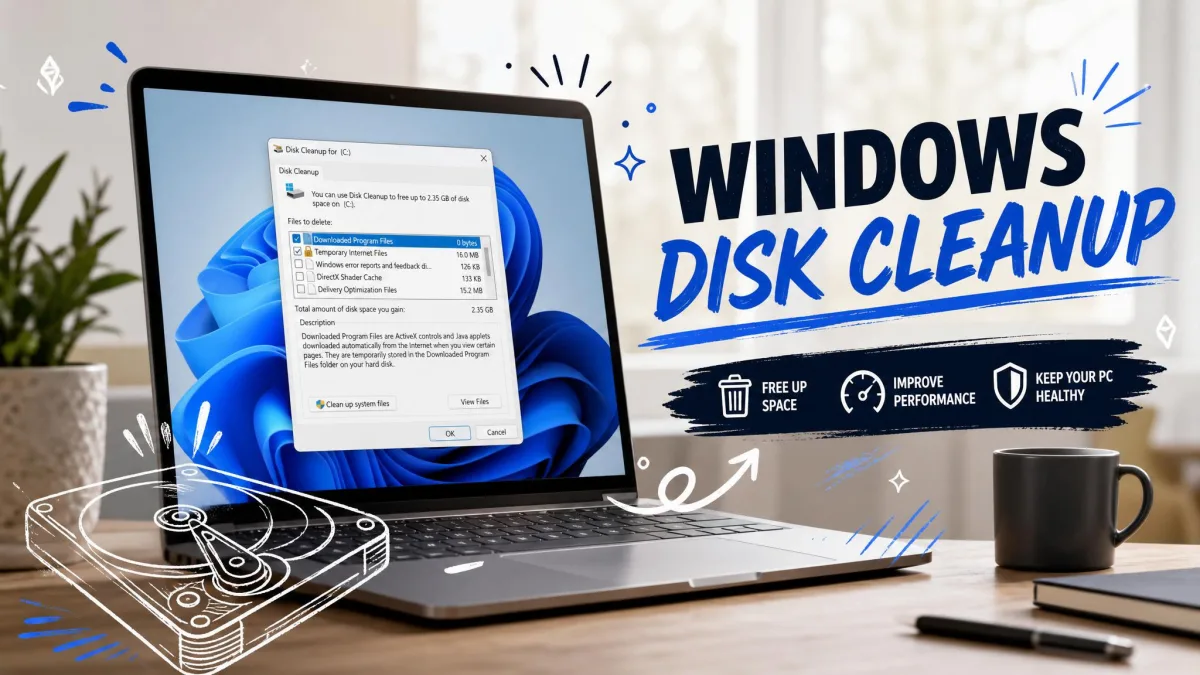
Disk Cleanup is the older utility, and its "Clean up system files" mode clears previous Windows installations. That single option often recovers more space than any third-party app, because a leftover Windows.old folder can be enormous.
The third layer is DISM component cleanup, which trims superseded files out of the Windows component store. It runs from an elevated command prompt and is the only one of the three that reaches the component store.
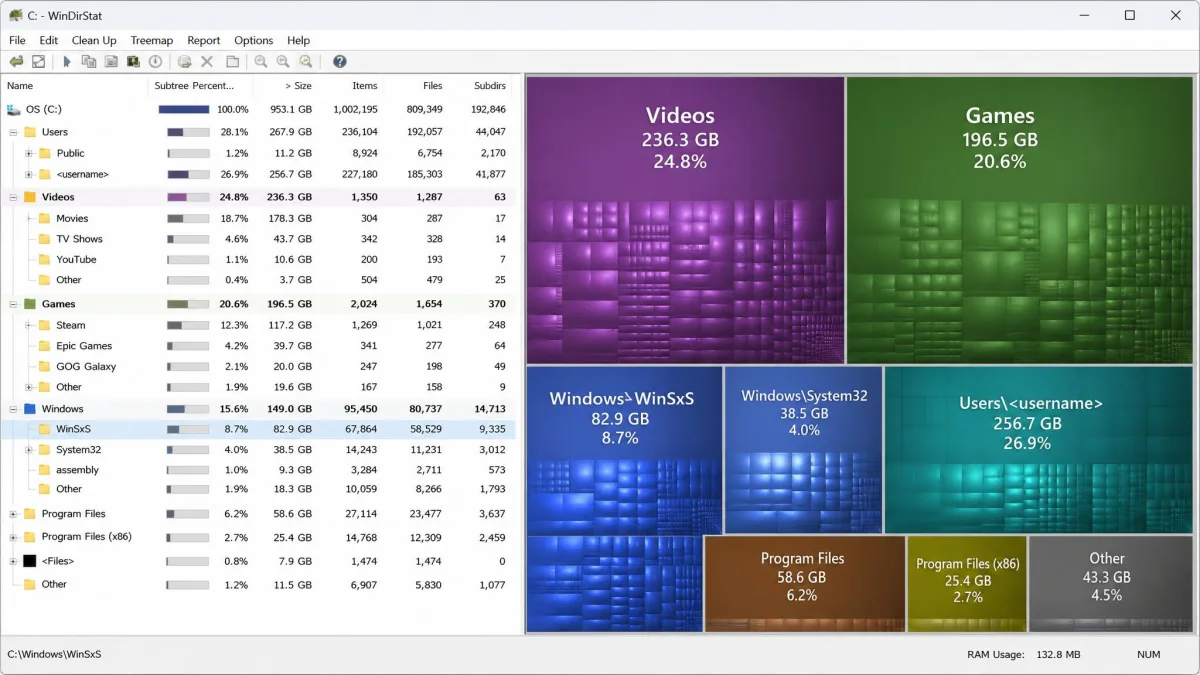
The component store, WinSxS, holds every version of every system file Windows might need to roll back to. It looks alarmingly large in File Explorer, but much of that size is hard links rather than duplicated data, so do not try to delete it by hand.
Key Features to Look For in a Disk Cleaner
Junk-scan categories. The more categories an app checks, the more it finds. Look for browser caches across every installed browser, system logs, thumbnail caches and per-application leftovers rather than one generic total.
Preview before delete. This separates the safe options from the risky ones. If you cannot see the file list before you commit, you are trusting the vendor's judgement over your own.
Scheduling. Cleanup only helps if it happens. Check whether scheduling is free, as in Wise Disk Cleaner, or paid, as in CCleaner.
Secure shredding. Overwriting deleted data matters when you are selling or donating a machine.
Disk-space visualization. A visual map tells you where the space went, which no cleaner can do on its own. WinDirStat does that job free, and Glary Utilities includes an analysis tool of its own.
How to Choose the Right Disk Cleaner for You
Start with what you already have. Turn on Storage Sense, run Disk Cleanup in system-files mode, and see where that leaves you. If it solves the problem, stop there.
If you need more, choose on temperament rather than feature count. Use CCleaner if you want one app that does the job with minimal thought, BleachBit if you want exact control and open-source code, Wise Disk Cleaner if your machine is old and slow, and Glary Utilities if you want a full toolbox. Pay only when a subscription buys something you cannot get free.
Common Disk Cleanup Mistakes to Avoid
Cleaning the registry aggressively. Registry cleaning delivers almost no measurable benefit on modern Windows, Microsoft does not support the practice, and a bad sweep can break app associations.
Skipping the preview. BleachBit has no undo, and neither do most secure-deletion modes. Read the list first, every time.
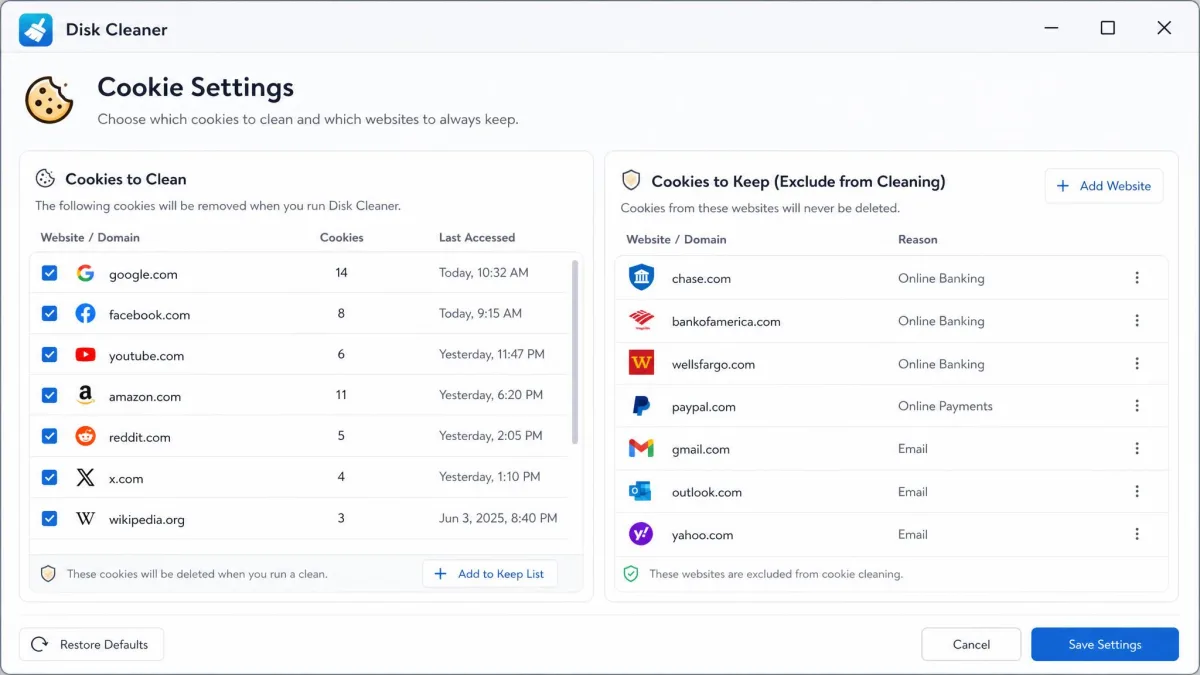
Wiping browser data without thinking. Clearing cookies logs you out of everything, so untick saved passwords and autofill unless a password manager holds them.
Turning on the Downloads rule blind. Storage Sense's Downloads folder option is the one that catches people out, because unopened downloads then disappear on a timer whether or not you still wanted them.
Expecting a speed miracle. Freeing up disk space fixes a full drive. It does not fix a failing drive, an underpowered CPU or too little RAM.
Frequently Asked Questions
Is disk cleaner software safe to use?
Is the free version of CCleaner the same download as the paid one?
Does Windows have a built-in disk cleaner?
Do I still need a disk cleaner on an SSD?
Will a disk cleaner delete my personal files or saved passwords?
How often should I run a disk cleanup?
The Bottom Line
The honest answer for a lot of readers is that no purchase is needed at all. Storage Sense plus Disk Cleanup in system-files mode clears a Windows.old folder and a year of temp files between them, and if that drops your drive back under 85% full, you are done, and nothing on this page will improve on it. Install a third-party cleaner when the built-in layers have run and the drive is still tight, when you need per-application control they cannot offer, or when you want the cleanup to happen on a schedule without you remembering.