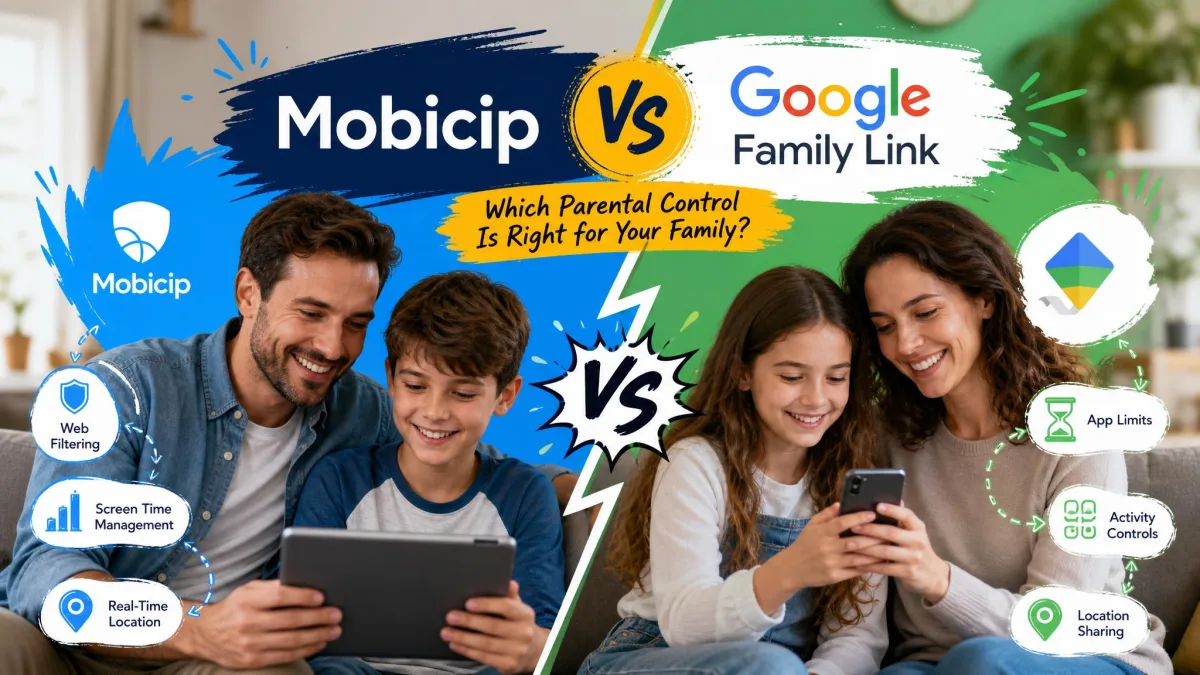
Two apps dominate the shortlist when a parent goes looking for controls on a child's phone, and they could hardly be less alike. One is free, built into the account your child already signs in with, and native to Android. The other is a paid subscription that spreads across phones, tablets and laptops. We compared them across the jobs parents actually care about, from web filtering and screen time limits through app blocking, location tracking, social media monitoring, activity reports, platform support and how easily a tech-savvy kid gets around them.
Neither app is the obvious winner for every household, which is why the sections below stay feature by feature rather than declaring a champion up front. We grounded each judgement in the published plan details, the official system requirements and documented behaviour on real family devices.
One framing note before the details. Google Family Link is free and built into the Google account system, so it competes on reach rather than depth, while Mobicip sells a subscription and has to justify it with features Google leaves out.
Mobicip vs Google Family Link at a Glance
The table below sets the two side by side on the rows that decide most purchases. Read it as a shortlist filter rather than a scorecard, since the weighting depends entirely on your child's age and the devices in your house.
| Product | Buy | Price | Web filtering | Screen time | Location | Platform support |
|---|---|---|---|---|---|---|
 |
Check price → | $4.99/mobilled annually | Category filters plus custom allow and block lists | Daily limits, per-app limits, managed schedules | Family locator with geofencing and alerts | iOS, Android, Windows, macOS, Chromebook, Kindle Fire |
 |
Learn more | Free | Chrome and Google Search filters only | Daily limits, per-app limits, bedtime downtime | Android child devices, periodic refresh | Android 5 or later, iOS 13 or later, Chromebook M69 or later |
One row sits outside that table and matters just as much. On uninstall protection, Mobicip's paid tiers actively resist removal, while Family Link relies on device administrator restrictions that a patient child can work around.
Pricing: Free vs Paid Plans
Price is the cleanest difference between these two apps, and for many families it settles the question before any feature comparison starts.
Google Family Link: Free, With Limits
Google Family Link is free, and there is no paid tier, no trial clock and no upsell inside the app. Everything Google offers to supervising parents, including app approval, screen time limits, remote device lock and content filters for Chrome and Google Search, is available at no cost.
The limits are functional rather than financial. Family Link cannot read your child's messages, cannot show you browsing or search history, and cannot show you YouTube watch history, so a parent hoping to see conversations will not find that here.
Mobicip Basic, Lite, Standard and Premium
Mobicip sells three published paid tiers, each billed annually and quoted as a monthly figure. Lite costs $2.99 per month and covers 5 devices, Standard costs $4.99 per month and covers 10 devices, and Premium costs $7.99 per month and covers 20 devices.
A 7-day free trial of the premium features lets you test the app on your own devices before committing, and there is a 30-day money back guarantee behind the annual plan.
Mobicip's pricing page lists only those three paid tiers. A free Basic plan exists, but its inclusions are not published beside the paid plans, so treat it as a limited sampler rather than a genuine free alternative to Family Link.
Content and Web Filtering
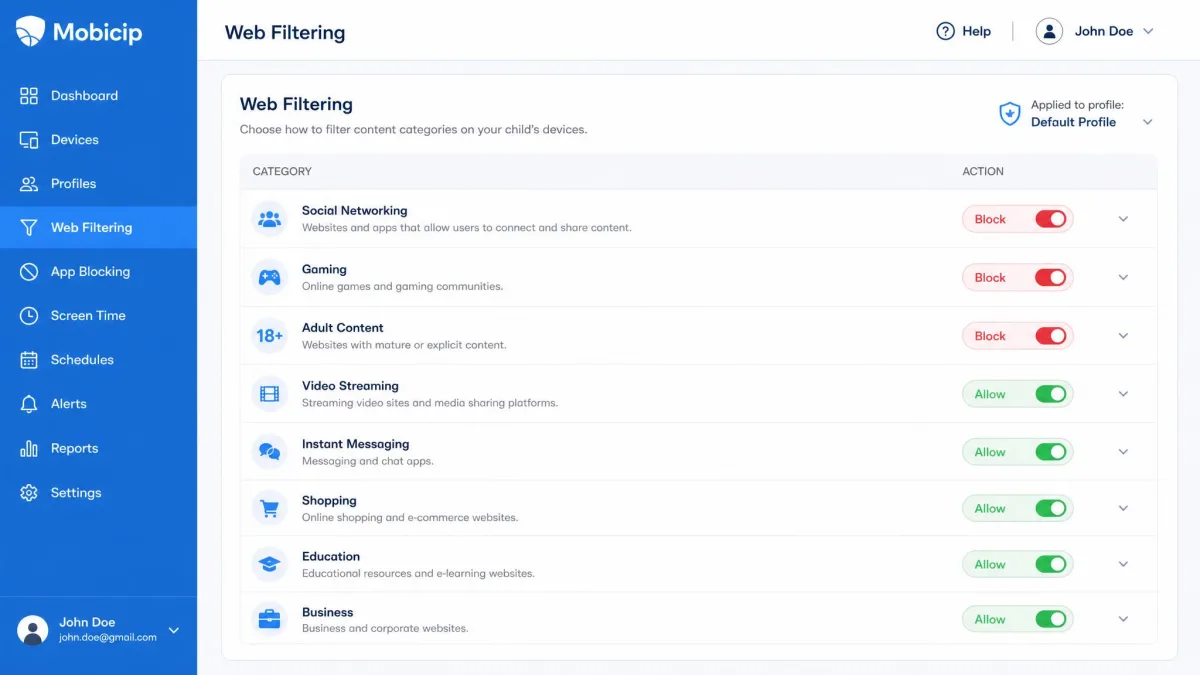
Filtering is where the paid app earns its money. Family Link's content filtering works inside Google's own surfaces, applying SafeSearch to Google Search and site restrictions to Chrome. Steer a child into a different browser or a webview inside another app and that protection thins out quickly.
Mobicip filters by category across the device, and in practice the category engine holds up well. It does occasionally block a safe site by mistake, which means you will spend a little time approving sites your child legitimately needs for homework.
The custom blacklist is less consistent. Sites you have explicitly blocked stay blocked some of the time and load other times, and the YouTube app in particular can slip past the blacklist even when the website version is blocked.
Block YouTube properly by handling the app and the site separately. In Mobicip, add the YouTube app to your blocked apps list rather than relying on a website block, then confirm the site entry as a second layer.
Mobicip's filtering runs through a local VPN, which is worth knowing before you install it. That approach raises battery use and causes occasional slowdowns on Android devices.
Screen Time Limits and Scheduling
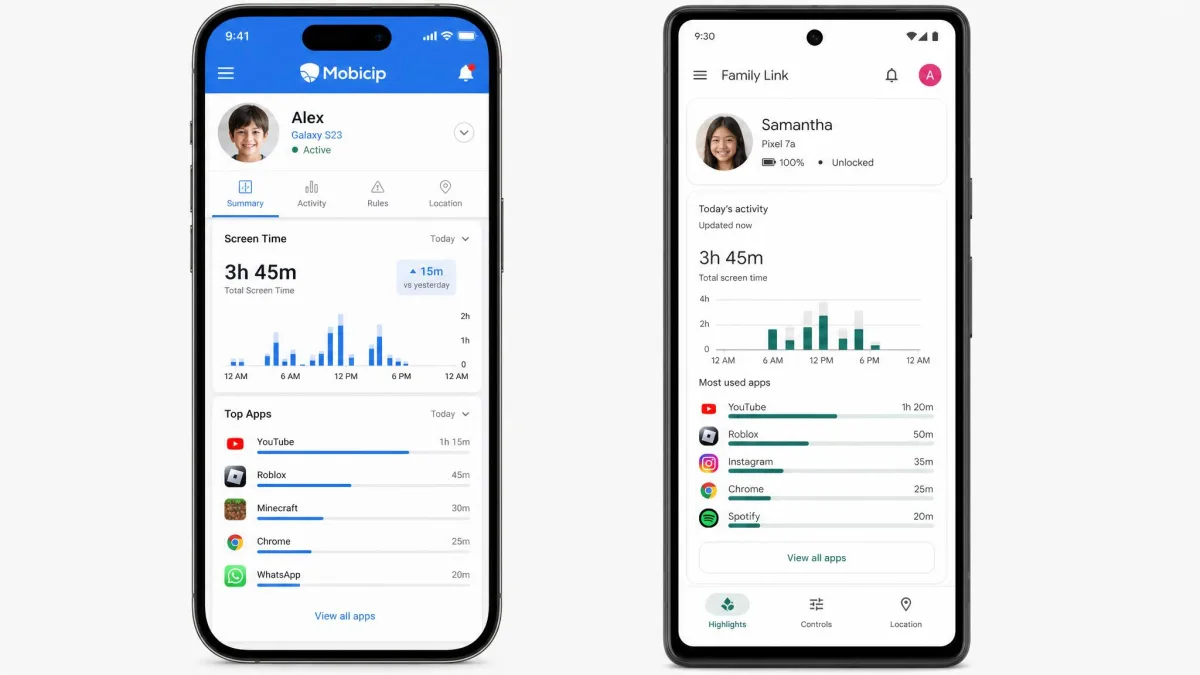
Both apps set a daily cap, apply per-app limits and schedule a nightly cutoff, so the feature lists read almost identically. Enforcement is where they separate.
Family Link's daily limits and downtime do not always fire on schedule, and a child's phone can stay usable past the cutoff while the parent app insists the limit is active. That gap is the most common complaint we see from Family Link households.
Mobicip pairs daily limits with managed schedules, so you can build different rules for school days and weekends rather than applying one blanket cap. Its own weak point is stability: settings can become corrupted after a software update and need reconfiguring, which is worth checking after any major release.
App Blocking and App Approval
Family Link's app controls are genuinely strong. You approve or decline every Play Store download, block installed apps individually, and set per-app time limits from the parent app, all without paying anything.
Mobicip's app blocker does the same core work and adds preemptive blocking, so a category of apps can be blocked before your child ever installs one. Its app categories are vague, though, and it is hard to tell what actually falls under labels like Utilities or Government and Society.
Audit the categories before you trust them. Open Mobicip's app list on the child device, then sort by category, then spot-check five apps to see where the tool has filed them.
Location Tracking
Family Link shows your child's location on a map, but only for Android child devices, and the map refreshes periodically rather than continuously. A stale timestamp such as "Updated 2 hours ago" is normal behaviour rather than a fault, which is fine for a general sense of where a child is and poor for anything time-sensitive.
Mobicip's family locator positions accurately, and its geofenced zones fire alerts as configured, so you get a notification when a child arrives at school or leaves a friend's house. For families who want location alerts rather than location checks, that difference justifies a good part of the subscription on its own.
Social Media and Message Monitoring
This is the clearest gap in the whole comparison. Family Link cannot see inside apps, so messages and in-app chat stay invisible to parents, and there is no social media monitoring feature of any kind.
Mobicip's social media monitor covers Snapchat and Facebook. TikTok and Instagram, which is where most of the concern actually sits for parents of teens, are not covered.
Neither app gives you meaningful visibility into TikTok, Instagram or private messaging. If reading a teen's conversations is your main goal, this pair is the wrong shortlist, and a dedicated monitoring app is the honest answer.
Both approaches carry a trade-off worth naming. Research from the Pew Research Center's screen-time survey and guidance from Harvard's Center for Digital Thriving point the same way: heavy covert monitoring tends to cost trust, while agreed limits tend to hold.
Activity Reports and Parent Dashboard
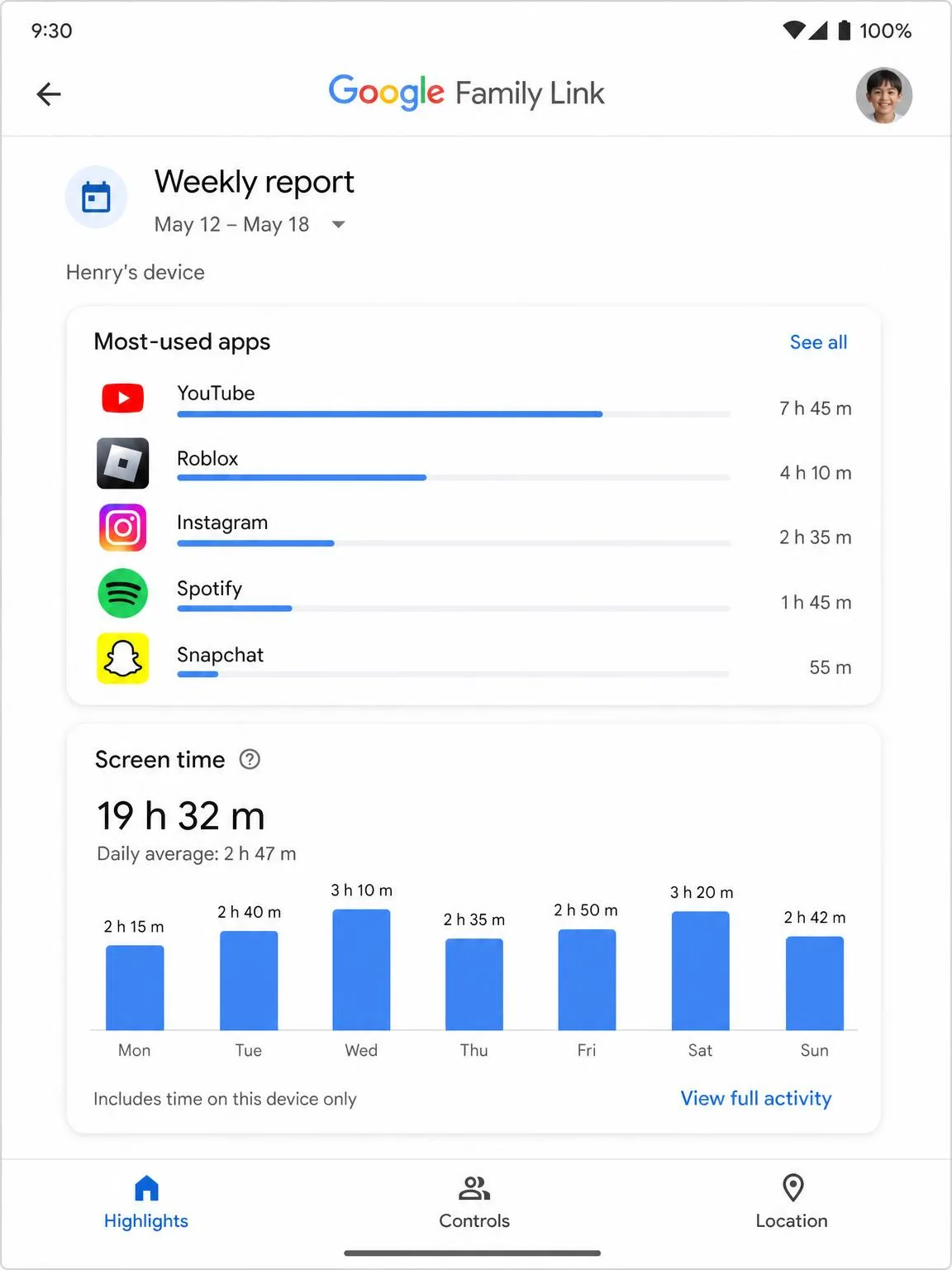
Family Link's reports focus on app usage: which apps a child opened, for how long, and how that compares across the week. It is clean, it loads fast, and it stops at the app boundary, so you see that a messaging app was used for 90 minutes without seeing anything inside it.
Mobicip's activity reports go further. A usage timeline sits alongside the web activity its filter already sees, so browsing and app time appear in one picture, and the dashboard is easier to work in when you are switching between three or four child profiles.
Device and Platform Support (Android, iOS, Chromebook, Windows, Mac)
Family Link's official requirements are specific. Child devices need Android 5 or later, iPhones and iPads need iOS 13 or later, and Chromebooks need Chrome OS version M69 or later, as set out in Google's Family Link Help Center.
The catch is what "supported" means on Apple hardware. On iPhones and iPads, Family Link mainly governs the Google account rather than the device itself, so iOS coverage is far thinner than on Android and several controls parents expect simply are not there.
Mobicip covers iOS, Android, Windows, macOS, ChromeOS Chromebooks and Kindle Fire, with Chromebook coverage running through a browser extension. For a household with a Windows laptop for homework and an old iPad in the living room, that breadth is the deciding factor.
Setup and Ease of Use
Family Link is quick to set up for families already inside the Google ecosystem, since it builds on accounts that already exist. Create the child account, install the app on the child device, sign in, and you are supervising within a few minutes.
Mobicip asks more of you. Installation on tablets runs slowly, with the progress bar barely moving for ten minutes or more, and the Android install can fail outright when a device rights-management or MDM profile is already present.
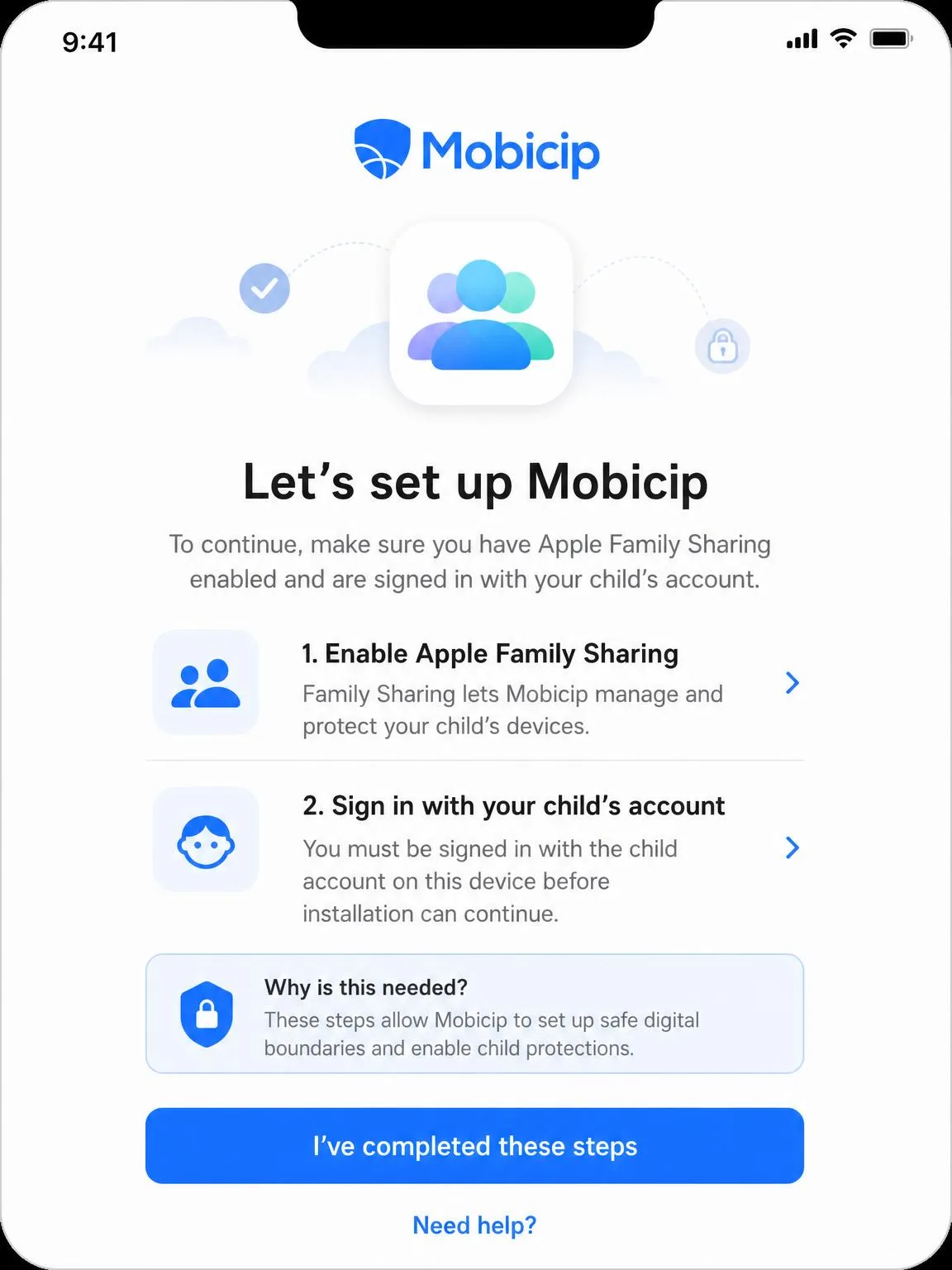
There are platform-specific prerequisites too. Setting Mobicip up on iOS requires Apple Family Sharing and a child account, and the Android setup requires turning Google Family Link off first, so the two apps cannot be installed casually side by side on the same Android phone.
Support quality splits along the same line. Mobicip's own help material is thorough, with setup videos and a broad FAQ library, but support can be slow to follow up on filtering faults, sending an acknowledgement and then going quiet. Trustpilot's community rates Mobicip 3.8 out of 5 across 8 reviews.
Can Kids Bypass Them? Uninstall Protection Compared
Every parental control app can be beaten, and both of these have well-known routes around them. The useful question is how much effort each one demands.
Changing the device date and time is the common way kids get past Family Link's screen time limits, and our guide to how kids bypass Family Link walks through the other routes in detail. Family Link's uninstall resistance leans on device administrator restrictions, which a determined child can unwind.
Mobicip is beatable in three documented ways: changing the device clock, turning off the VPN that carries the filtering, or deleting the app. On Android specifically, disabling the app under Settings, then Device Care, then Battery stops the VPN filtering without any obvious sign in the parent dashboard.
Google's own supervision can also fail in ways nobody planned for. A System Parental Controls update rolling out around April 28, 2026 blocked supervised kids from placing outgoing calls, and hundreds of parents hit the same fault before it was addressed.
Pros and Cons
Google Family Link Pros and Cons
Pros
- Completely free with no paid tier or upsell
- Strong Play Store app approval and per-app time limits
- Fast setup for families already using Google accounts
- Clear, readable app usage reports
Cons
- No social media or message monitoring at all
- Location works only on Android child devices
- Screen time limits do not always enforce on schedule
- Supervision can end when the child turns 13
Mobicip Pros and Cons
Pros
- Category web filtering that works across the device
- Accurate location with geofenced arrival and departure alerts
- Covers Windows, macOS, Chromebook and Kindle Fire as well as phones
- Managed schedules for school days versus weekends
- A 7-day trial and a 30-day money back guarantee
Cons
- Custom blacklist blocks inconsistently, and the YouTube app can slip past
- VPN-based filtering costs battery life and causes Android slowdowns
- Social media monitoring stops at Snapchat and Facebook
- Slow tablet installs, and installs that fail against existing MDM profiles
- Support follow-up can go quiet on filtering faults
Which Should You Choose?
Choose Google Family Link If...
Think in age bands rather than feature lists. For a six to ten year old on a hand-me-down Android phone, whose whole digital life is a handful of approved games and a video app, Family Link's app approval and bedtime cutoff cover essentially every risk that child faces. The same holds for a ten to twelve year old whose only device is a school-issued Chromebook signed into a Google account. Family Link also suits parents who want oversight without surveillance, which is a defensible position rather than a compromise.
Choose Mobicip If...
The device mix is what usually decides it. A house with an iPad in the living room, a Windows laptop used for homework and one Android phone per child is exactly the shape Family Link handles worst, because two of those three surfaces fall largely outside what it governs. Mobicip is also the better fit for an eleven to fifteen year old who has started browsing well beyond Chrome, and for any parent whose real question is where a child is at four in the afternoon rather than what they installed at lunchtime.
Can You Use Both Together?
Not on the same Android device. Mobicip's Android setup requires turning Family Link off first, so the layered approach some parents imagine is not available where it would matter most.
Layering does work across devices. Run Family Link on a younger child's Android phone, run Mobicip on the shared Windows laptop and the iPad, and you get broad coverage without either app fighting the other.