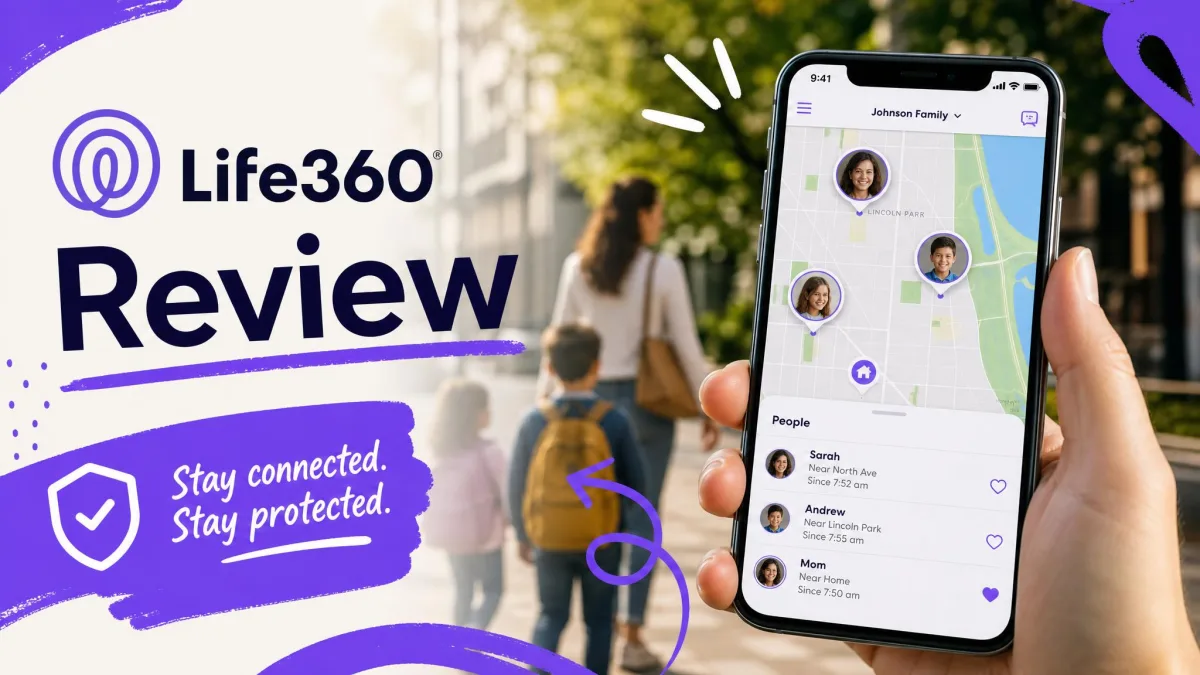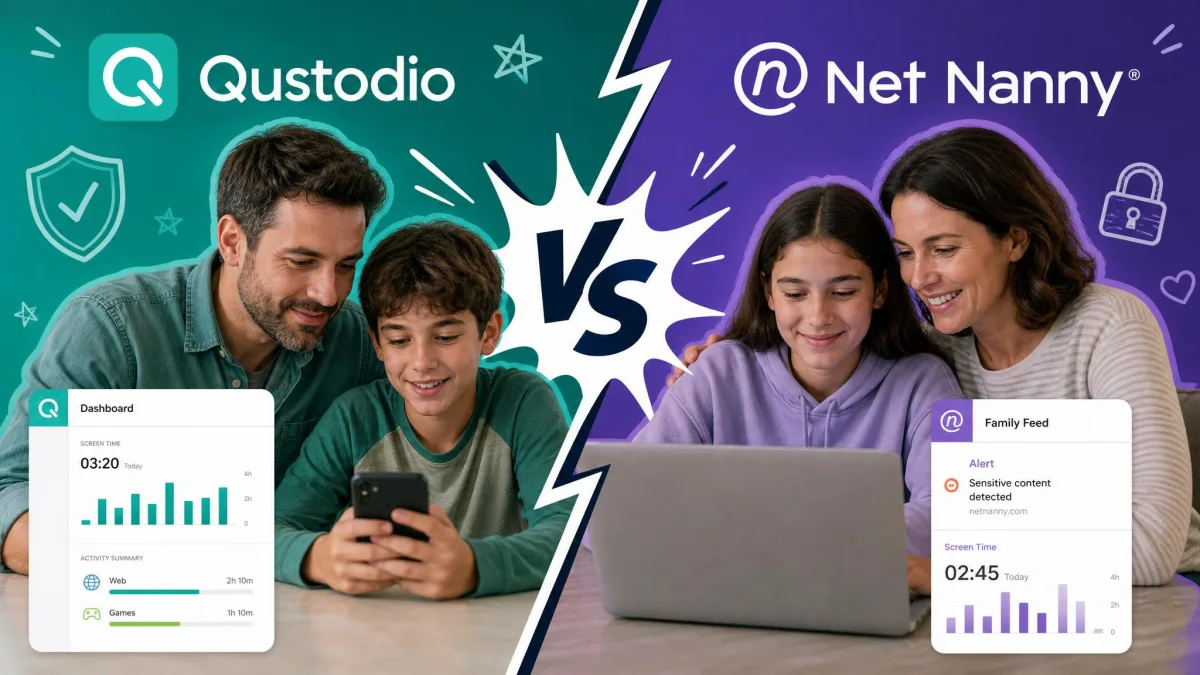
Net Nanny and Life360 both promise to help keep your kids safe online, but they are built for almost opposite jobs. Net Nanny is a content-control tool. It filters websites, blocks apps, and sets screen-time limits so you can shape what a child sees and does on a device. Life360 is a family location app. It shares real-time GPS, draws map alerts around places, and watches for driving trouble, including a car crash.
That difference matters because parents often type "Net Nanny vs Life360" expecting a straight winner, then discover the two apps barely overlap. One manages content and time. The other manages location and safety. Pick wrong and you pay for features you will never use while missing the ones you actually need.
We installed both apps and set them up the way a real family would, across an iPhone, an Android phone, and a Windows laptop, and lived with each for a stretch of everyday use. This guide walks through how they filter, block, track, and alert, what each one costs, and which app fits your family. Where the two genuinely compete, we say so. Where they don't, we tell you which gap you'll feel.
Net Nanny vs Life360 at a Glance
Here is the short version before we get into the detail. Net Nanny controls what happens on the screen. Life360 controls what you know about where your child is. The table below lines up the features parents ask about most, so you can see at a glance where each app is strong and where it simply doesn't play.
| Feature | Net Nanny | Life360 |
|---|---|---|
| Web filtering | AI real-time content filtering | None |
| App blocking | Yes | None |
| Screen time | Yes, 15-minute increments | None |
| Location/geofencing | Yes on iOS, with history | Core feature, geofenced Places |
| Driving safety | No | Crash detection at 25+ mph |
| Social/message monitoring | Social feed filtering, no message monitoring | None |
| Alerts | Family Feed alerts | Place, SOS, and crash alerts |
| Platforms | Windows, Mac, iOS (no Android) | iOS and Android |
| Price | $39.99 to $89.99/year | Free tier, paid from ~$7.99/mo |
What Each App Is Built For
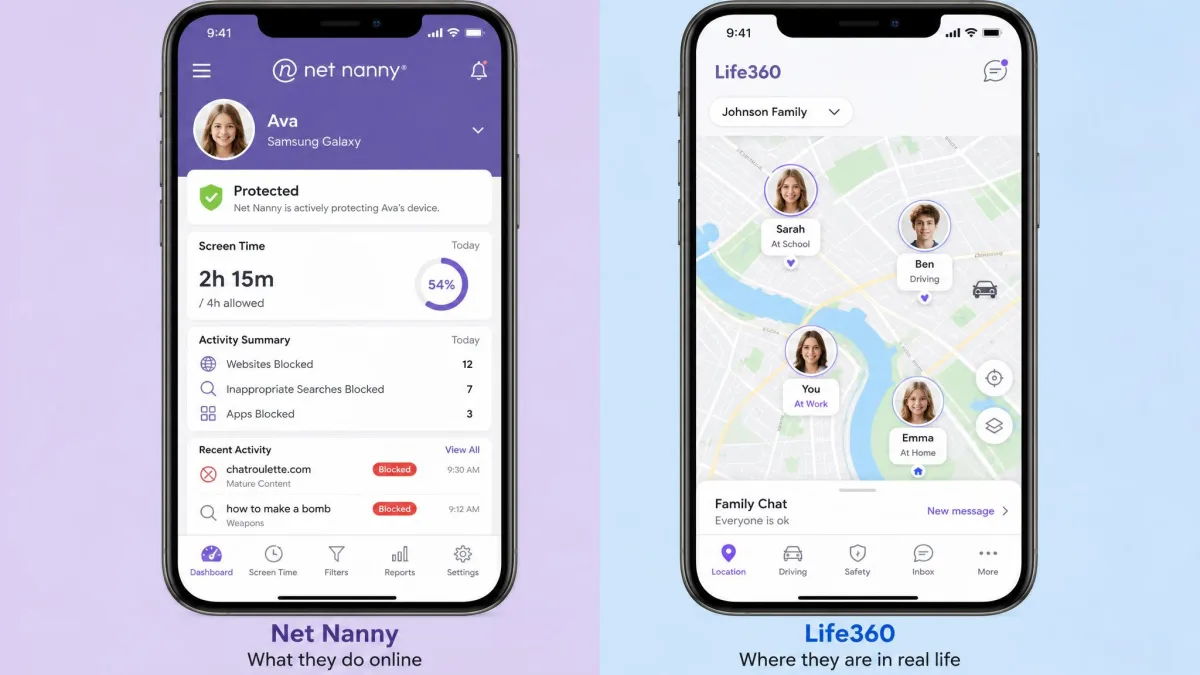
The fastest way to choose is to stop thinking of these as rivals and start thinking of them as two different tools. You would not compare a door lock to a smoke alarm just because both are "home safety." Net Nanny and Life360 sit in that same relationship. Understanding what each was designed to do makes the rest of this comparison easy.
Net Nanny: web filtering and content control
Net Nanny is a classic parental control app. Its core job is filtering the web in real time, using AI to score pages by content category as they load, so a child is blocked from adult, gambling, or violent sites even on pages nobody has manually reviewed. On top of that it blocks or approves individual apps, sets daily screen-time schedules, monitors YouTube searches and watched videos, and filters social feeds on Instagram, Facebook, and Pinterest. Parents manage all of it from a Family Feed dashboard.
What Net Nanny does not do is monitor conversations. There is no text message, email, or call monitoring, so it watches content and time rather than private chats. That is a deliberate design choice, and for many parents balancing oversight with a child's privacy, it is the right one.
Life360: location tracking and family/driving safety
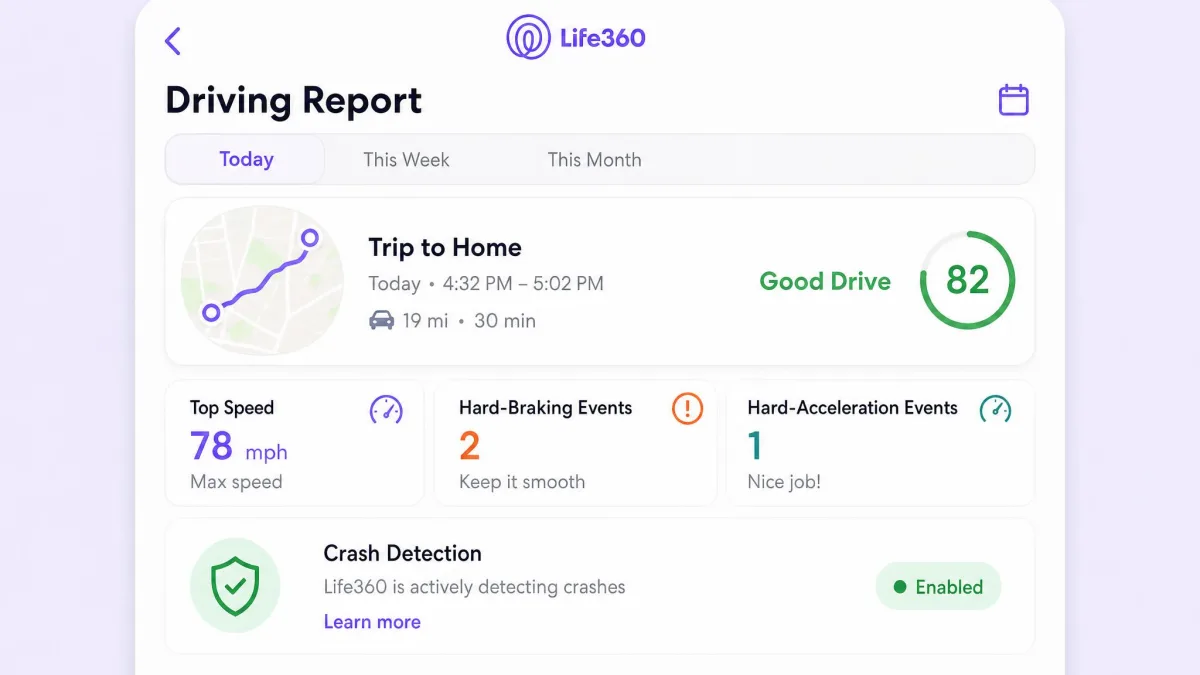
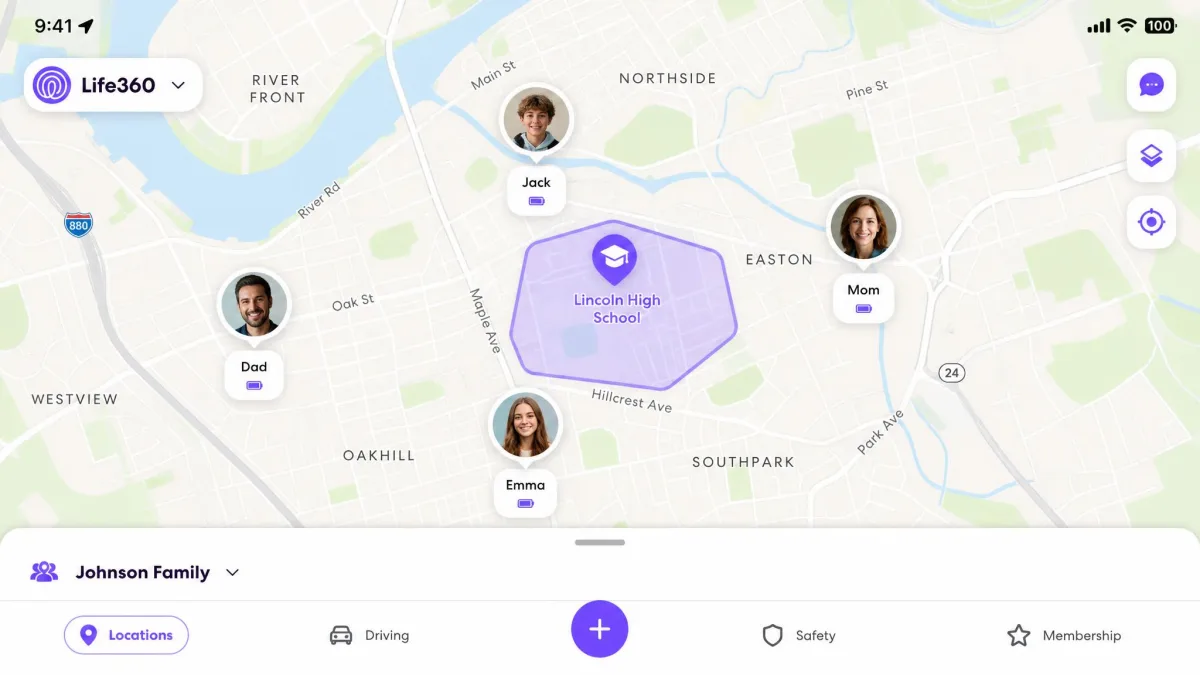
Life360 answers a single question well: where is everyone right now? It shares live GPS location among family members, keeps a location history, and lets you draw geofenced Places, such as home or school, that fire an alert when someone arrives or leaves. Its standout feature is safety on the road. Automatic crash detection triggers at 25+ mph and can alert the family and emergency services, and driving reports flag speed, hard braking, and phone use behind the wheel.
Life360 has no content controls at all. There is no web filtering, no app blocking, no screen-time management, and no message monitoring. It never tries to shape what a child sees online. It only tells you where they are and whether they are safe getting there.
Web & Content Filtering
This is the clearest split in the whole comparison. Net Nanny filters. Life360 does not. If web and content filtering is the reason you are shopping, Life360 is not a candidate at all, and Net Nanny is one of the better filters available.
Net Nanny's real-time engine is genuinely good at the obvious categories, catching adult and violent pages reliably as they load. It is less airtight once you lean on custom word and phrase filters. During our testing, some content we had explicitly set it to block still slipped through, including explicit song lyrics and gambling and self-harm terms. The default category filtering is the strong part; the custom filters need checking rather than trusting.
No web filter is perfect. Treat Net Nanny's filtering as a strong first layer, not a guarantee, and keep talking to your kids about what they run into online.
Life360 offers nothing here. A child using Life360 on their phone has an unfiltered browser. If a parent's main worry is what a child can reach online, that gap is the end of the conversation for Life360 on its own.
App Blocking & Screen Time Management
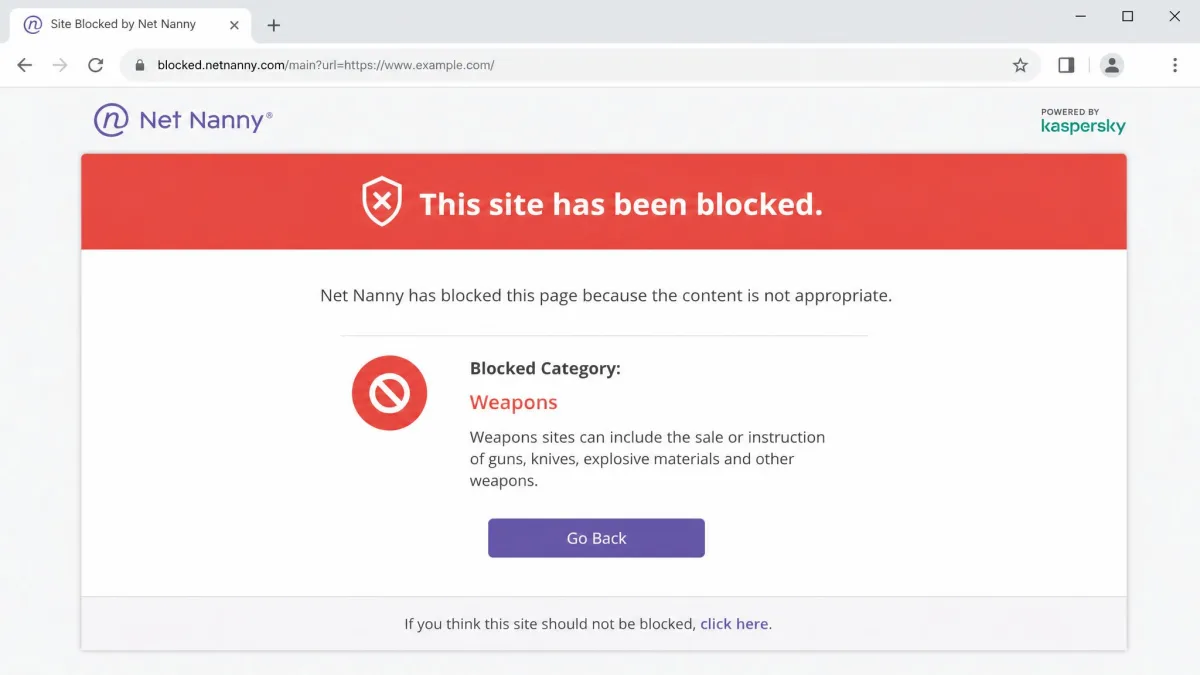
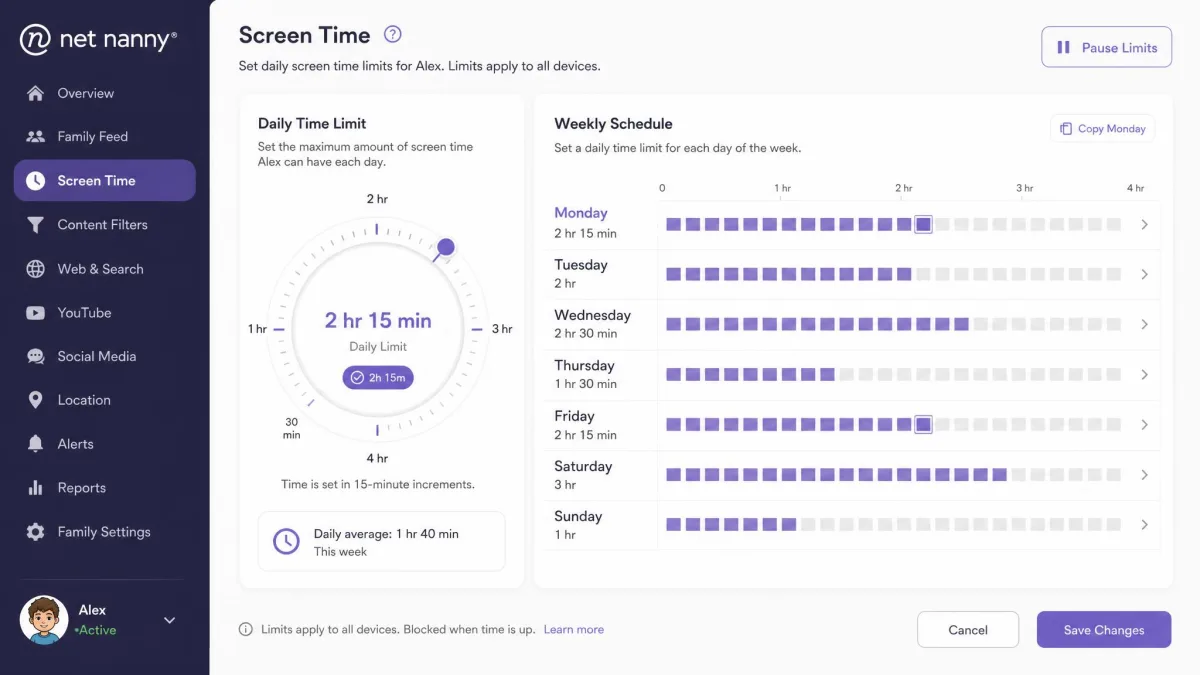
App blocking and screen-time limits are again a Net Nanny feature with no Life360 equivalent. Net Nanny lets you block or approve individual apps and build a daily screen-time schedule, so you can cut off games during homework or shut a device down at bedtime.
The scheduling is more precise than most rivals. Net Nanny sets screen time in 15-minute increments and adds a dial control for fine adjustment, which makes it easy to grant "twenty more minutes" without a fight. In day-to-day use the limits held on the desktop and iOS devices we tested.
One caution worth knowing before you rely on it: the child app's tamper protection is weak. It can be disabled with just the account credentials, and on an iPhone the underlying management profile can be removed from Settings with little friction. A determined teen who knows the login, or how to dig into Settings, can undo the controls. Life360, again, has no screen-time or app-blocking features to compare.
Location Tracking, Geofencing & Driving Safety
Now the tables turn. This is Life360's home ground, and it is where Net Nanny is the thin one. Net Nanny does include location tracking with historical data on iOS, so it is not useless here, but location is a side feature bolted onto a content app. Life360 is a location app to its core.
Life360 shares real-time GPS, keeps location history, and supports geofenced Places with arrival and departure alerts. The free plan includes 2 days of location history and 2 Places, while Gold and Platinum step up to 30 days of history and unlimited Places. Then there is the driving layer that Net Nanny cannot match at all: automatic crash detection at 25+ mph, SOS alerts, and driving reports covering speed and hard braking. You can read exactly how the feature works on the Life360 crash detection support page.
Life360 is not flawless in practice, and it helps to know its quirks. Location updates can lag by minutes or even hours, sometimes showing a family member at a spot they have already left, and accuracy is typically within a city block rather than pinpoint, depending on GPS conditions and whether battery saver is on. The app can also freeze, fail to load the map, or falsely report a phone as off, and on some Android models the operating system shuts it down, leaving gaps in tracking.
Location accuracy on any GPS app depends on signal, indoor walls, and battery-saver settings. If Life360 shows a stale position, a manual refresh usually pulls the current one.
Even with those wrinkles, Life360 tracks location far more thoroughly than Net Nanny, and it is the only one of the two with any driving safety at all.
Social Media & Message Monitoring
Parents often expect a parental control app to read messages. Net Nanny does not, and neither does Life360, so if reading your child's texts is the goal, neither app is your answer.
Net Nanny does filter social feeds on Instagram, Facebook, and Pinterest and monitors YouTube activity, which is content oversight rather than conversation monitoring. It will not show you private chats or DMs. There is no text message, email, or call monitoring in the product at all. Life360 has no social or messaging features whatsoever; it is not designed to touch that side of a phone. Families who specifically want message monitoring should look at a tool built for it, such as one of the options in our Bark vs Net Nanny comparison.
Alerts & Notifications
Both apps alert you, but about completely different things. Net Nanny's alerts flow through its Family Feed, flagging blocked sites, searches, and flagged content, so the notifications are about what a child is doing on the screen.
Life360's alerts are about movement and safety. You get a ping when someone arrives at or leaves a geofenced Place, an SOS alert if a family member triggers it, and a crash alert if the app detects an accident. Neither alert stream replaces the other. One tells you what your child looked at; the other tells you where they went and whether they got there safely.
Supported Devices & Setup
Platform support is where a lot of families quietly rule one app out, so check this before you pay. Net Nanny runs on Windows, Mac, and iOS. It has no current Android version in 2026, and support has confirmed there is no pending release. For an Android-first household, that alone can be a dealbreaker.
The missing Android support causes a specific setup headache. Net Nanny's dashboard still shows Android-related options that do not actually work, which is confusing during setup when you cannot tell what is supported and what is not. Creating the parent account also requires a mobile device, since there is no web-portal signup, so keep a phone handy when you start.
Life360 runs on both iOS and Android, which makes it the more universal install. Setup is straightforward: everyone installs the app, joins a Circle, and shares location. The trade-off shows up later in battery life, which we cover in the pricing and pros sections below.
Net Nanny has no working Android app in 2026. If the child device you need to cover is an Android phone, Net Nanny cannot manage it, and Life360 or a different Android filter is the better route.
Pricing & Plans Compared
Price often decides it, and the two apps take opposite approaches. Net Nanny is subscription-only with no lasting free plan. Life360 keeps a genuine free tier and charges for the extras.
Net Nanny costs $39.99/year for a single desktop device, $54.99/year for the 5-device Family Pass, and $89.99/year for the 20-device Family Pass. There is a 3-day free trial and no permanent free plan, so you commit fairly quickly. One billing caution from testing: the signup can misfire, and in one case a single signup produced eight charges across two cards, so keep an eye on your statement after you subscribe.

Life360 starts at $0. The free plan covers real-time location, 2 Places, and 2 days of history, which is enough for a lot of families. Paid tiers add history, unlimited Places, roadside help, and more. Silver runs about $7.99/mo, Gold is $14.99/mo, and Platinum is roughly $24.99/mo. All paid plans include a 7-day free trial and auto-renew until you cancel. Prices vary by region and billing cycle, so confirm the current rate on the Life360 site before you buy.

Straight cost comparison is tricky because they sell different things. If you only need location, Life360's free tier beats paying Net Nanny anything. If you need content control, Net Nanny's $54.99 Family Pass is the relevant number, and Life360 cannot do that job at any price.
Pros and Cons
Feature lists only go so far, so here is how each app actually nets out after living with it. Read these together: each app's biggest strength is usually the other's blank spot.
Net Nanny pros and cons
Pros
- Strong real-time web and content filtering by category
- App blocking plus precise 15-minute screen-time scheduling
- Social feed and YouTube activity oversight
- Covers Windows, Mac, and iOS from one account
Cons
- No current Android version in 2026
- Custom word filters can miss terms you set to block
- Weak tamper protection, removable with account login
- Subscription only, with just a 3-day trial
Life360 pros and cons
Pros
- Genuinely useful free tier for basic location
- Real-time GPS with geofenced Place alerts
- Automatic crash detection and driving reports
- Runs on both iOS and Android
Cons
- No web filtering, app blocking, or screen-time controls
- Location can lag by minutes and drift a city block
- Noticeable battery drain, worse on Android
- Can freeze or be shut down by the OS on some phones
The battery point is worth calling out because it is easy to miss until the complaints start. Life360 draws roughly 10 to 20% extra battery per day on iPhone and 15 to 30% on Android, and it climbs during active driving. On an older phone that can mean a midday recharge.
Which Should You Choose?
By now the decision should feel less like a contest and more like a match. You are not picking the better app; you are picking the app that does the job you came for.
Choose Net Nanny if...
Choose Net Nanny if your main worry is what your child sees and does online. It is the real parental control app of the two, with filtering, app blocking, and screen-time limits that Life360 simply does not have. It fits younger kids especially well, where content boundaries matter more than knowing their exact location. Just confirm your child's device is Windows, Mac, or iOS first, because Net Nanny cannot cover Android. Our full Net Nanny review digs deeper into how it holds up day to day.
Choose Life360 if...
Choose Life360 if the question you care about is where your family is and whether they are safe getting there. It is the better fit for older kids and teens who are out driving, where crash detection and live location beat content filtering you no longer need. The free tier makes it easy to start, and it works on any phone. Just plan for the battery cost and the occasional stale location, both covered in our full Life360 review.
Can you use both together?
Yes, and plenty of families do. The two apps do not conflict, because they manage different layers of a child's phone. A common setup is Net Nanny for content and screen time on a younger child's iPad or laptop, with Life360 running on the family's phones for location and driving safety. You pay for two subscriptions, but you get coverage neither app provides alone. If your budget only stretches to one, let your biggest worry decide: content points to Net Nanny, whereabouts points to Life360.
Frequently Asked Questions
Is Net Nanny or Life360 better for younger kids?
Does Life360 filter web content?
Does Net Nanny track location?
Which is cheaper?
Can kids bypass either app?
Do I need Android support?
For a broader view of how these apps stack up against the rest of the field, and what the research on kids and screen time suggests about healthy limits, compare our writeups on Net Nanny vs Google Family Link and Bark vs Life360.