If you are weighing Kids360 against Life360 for a kid who just got their first phone, the choice is less about which app is better and more about which problem you are actually trying to solve. One of these apps is built to control what happens on the child's device, and the other is built to show you where everyone in the family is right now.
That difference decides almost everything else, from what you pay to which alerts land on your phone at 4pm on a school day. We compared both on location tracking, geofencing, screen time controls, emergency features, battery impact, and pricing, then routed the answer by family type rather than crowning a single winner.
Kids360 vs Life360 at a Glance
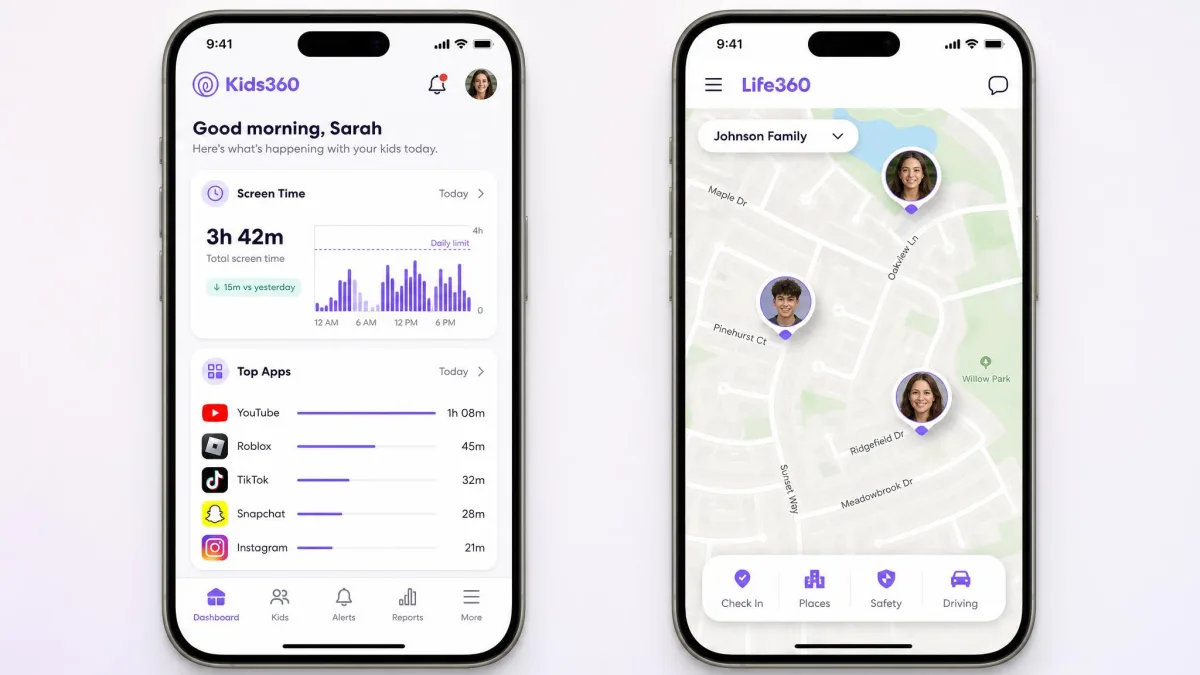
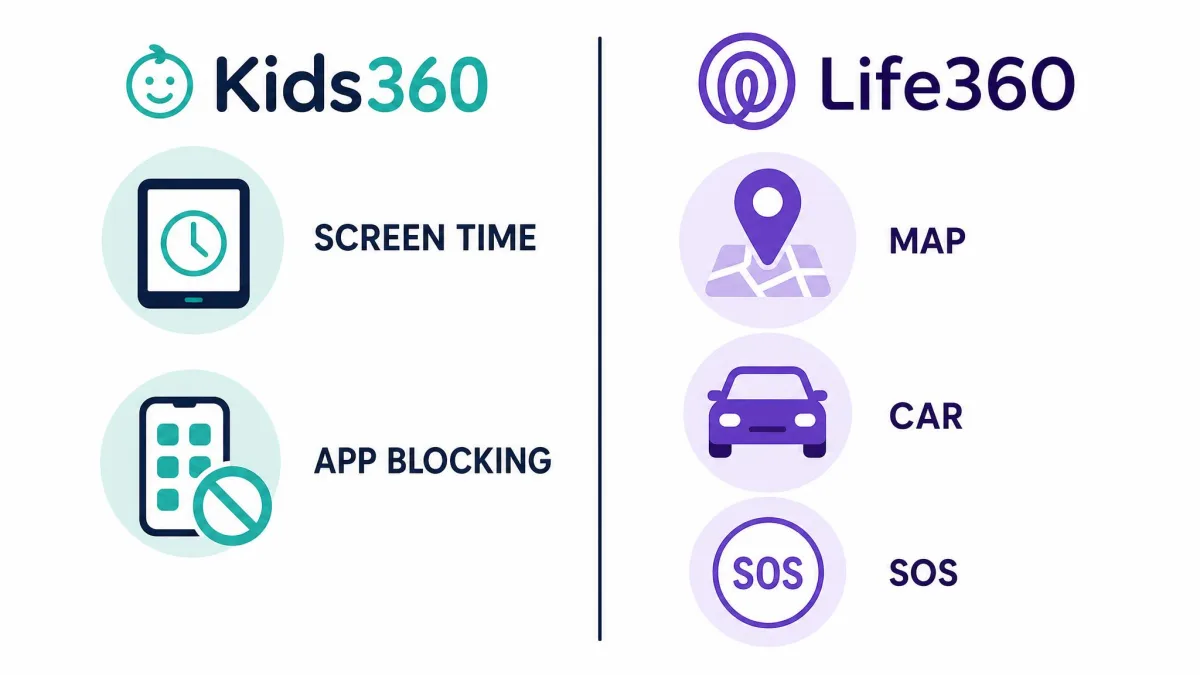
Kids360 is a parental control app. Life360 is a family location and driving safety app. They overlap on a live map and on place alerts, and they diverge everywhere else.
Quick verdict: who each app is for
Pick Kids360 if the phone itself is the problem: too many hours in one app, homework hours that vanish, a YouTube history you would like to see. Pick Life360 if the world outside the phone is the problem: a teen driver, a long bus ride home, a family that needs to find each other without texting.
What Each App Is Built to Do
Kids360: parental control first
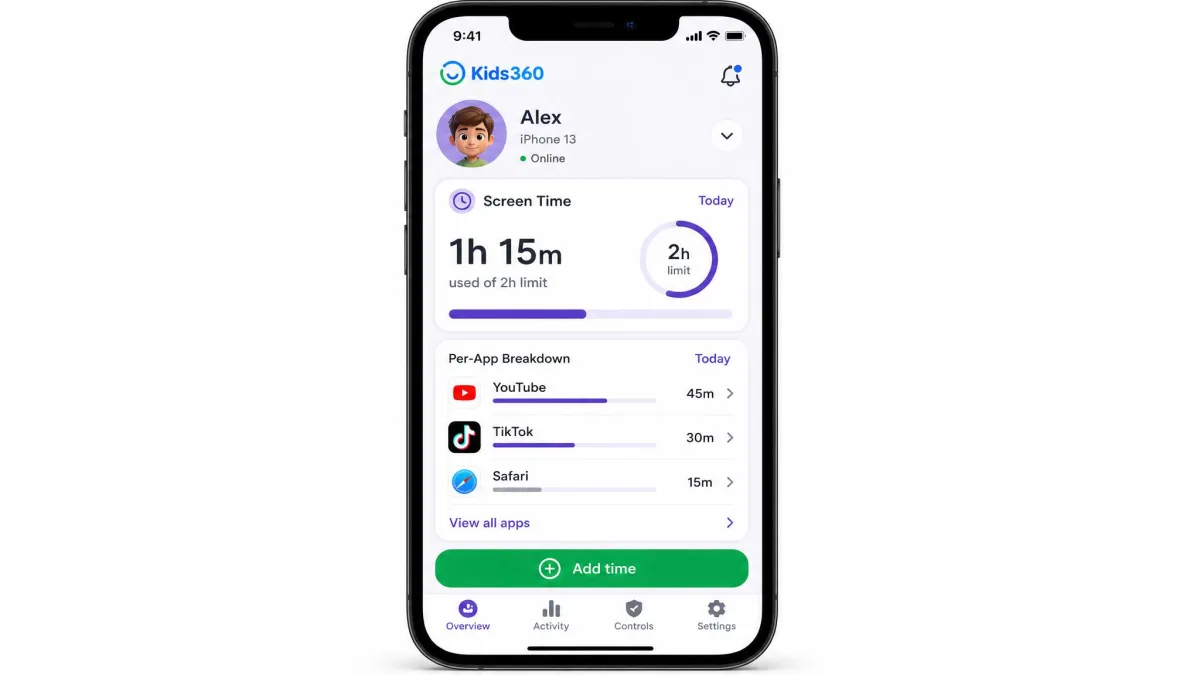
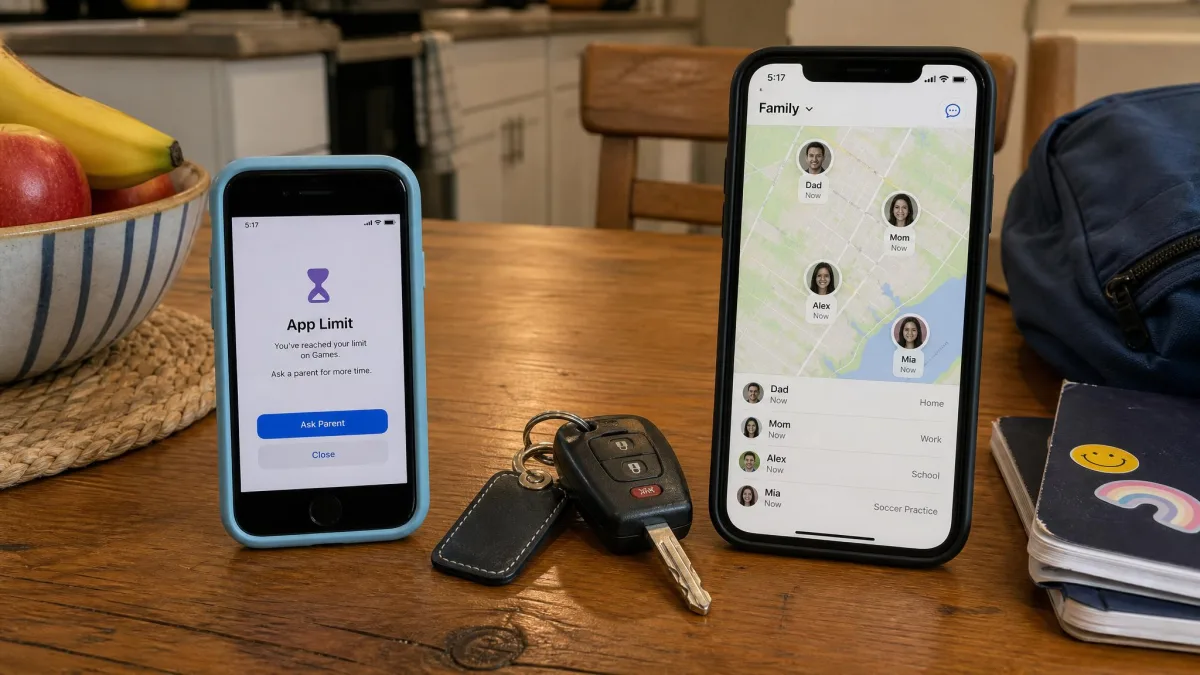
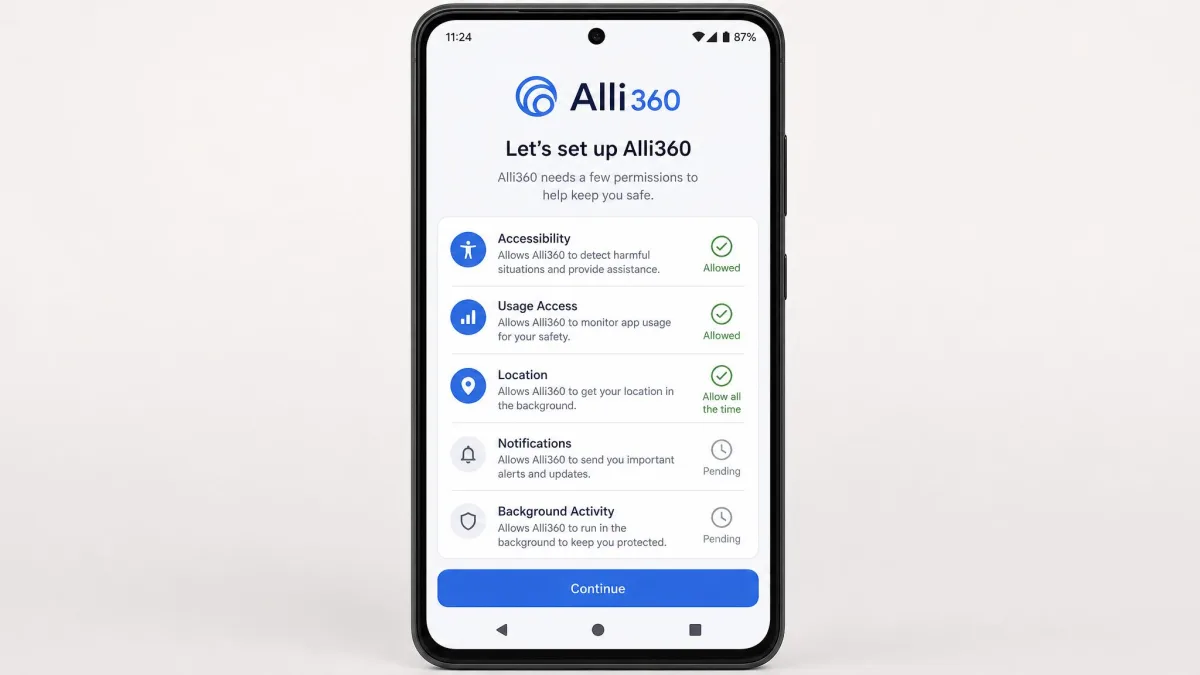
Kids360 runs as a pair of apps rather than one. Parents install Kids360 on their own phone, and the child's device runs the companion app Alli360, which is what makes the monitoring and the blocking possible. Once both are paired, the parent app becomes a dashboard: daily screen time limits with automatic device lock, per-app and per-category app blocking, schedules for study and sleep hours, daily usage reports, YouTube and search history visibility, live GPS location on a map, the child's device battery status, and safe zones with enter and leave alerts.
The feature we did not expect to like is the reward system. Kids360 offers over 4,600 developmental tasks a child can complete to earn extra screen time, which reframes the daily cap as something a kid can negotiate with rather than a wall that appears at 8pm. If you want a fuller walkthrough of the dashboard, we cover it in our full Kids360 review.
The vendor says limits can be configured in about 5 minutes once both apps are installed. That matches the install itself, which is quick. Pairing two separate apps is the part that stretches, because setup only completes once the child's device has granted every permission the monitoring depends on.
Life360: family location and driving first
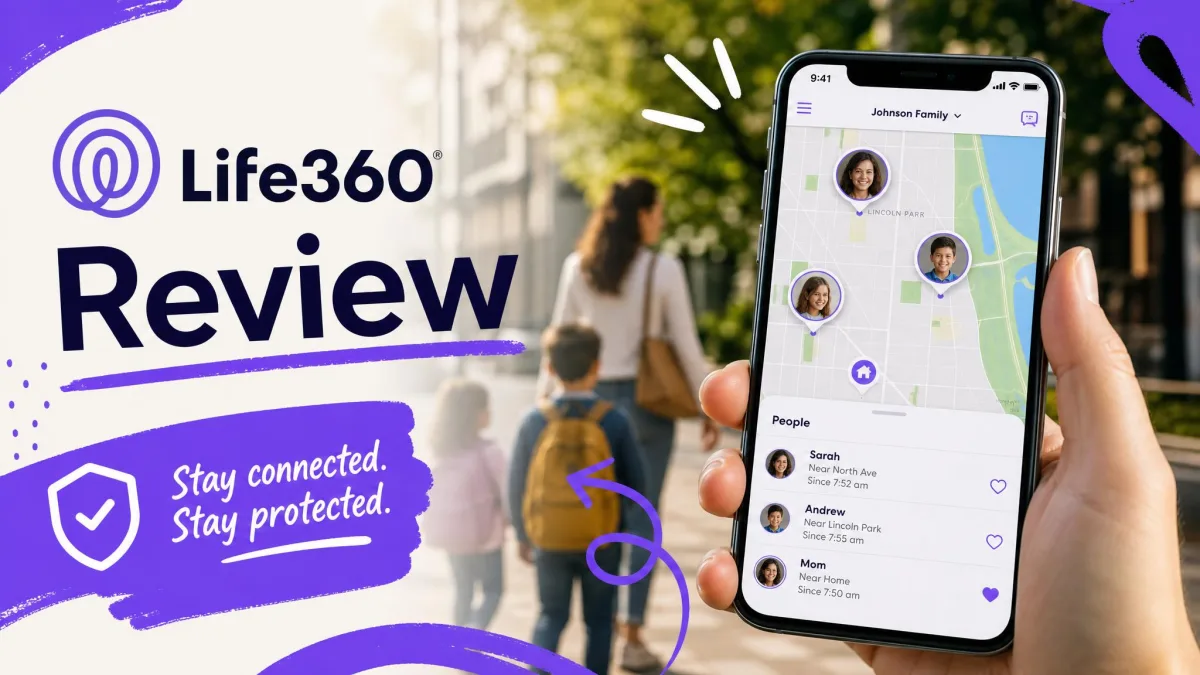
Life360 is the opposite shape. It is built around a shared map that every member of a Circle can see, and the safety features hang off that map: Places geofences with arrival and departure alerts, location history, SOS Help Alerts with silent emergency dispatch, automatic crash detection, driving summaries and driver behavior reports, speed and phone-use detection, low battery notifications, roadside assistance, stolen phone and identity theft protections, and Tile item and pet tracking. It runs on both iOS and Android.
What Life360 does not do is control the phone. It has no app blocking, no website filtering, and no screen time limits, and the company has never pretended otherwise. That is why parents of younger kids so often end up running a second app alongside it. We go deeper on the driving side in our full Life360 review.
We compared these two the way a parent actually would, by asking what each app does on an ordinary Tuesday rather than by scoring feature checklists. Life360 has a large public track record to draw on, with 4.8 stars from roughly 3 million App Store ratings. Kids360 has a much smaller and more divided one, so we lean on vendor documentation and verified user reporting for its side and say so where the evidence thins out.
Feature-by-Feature Comparison
Location tracking and accuracy
Both apps put a dot on a map, and both are honest enough to admit that dot is a GPS estimate. Life360 is tight in dense urban areas where cell towers and wifi help the fix, but pins can sit well off the real address, and a member's dot can freeze at an old location for hours before catching up. Two people riding in the same car can even show up at different points on the map, which is disconcerting the first time you see it.
Kids360's location behaves differently. It commonly resolves to an approximate area rather than an exact street address, which is fine for confirming a child is at school and not fine for finding them inside a shopping centre. The dashboard can also be slow to refresh, lagging behind what the child's device is actually doing.
Refresh rates differ in a way that matters day to day. Once the parent phone and the child's device are paired, Kids360 syncs the two apps every 5 minutes, so the map is a recent snapshot rather than a live feed. Life360 updates roughly every 2 seconds while the app is open and the member is moving, then stretches to somewhere between 2 and 15 minutes once it drops into the background, though Life360 varies its update rate with movement, battery level, and signal strength, so no single interval holds across devices.
In weak-signal and rural areas Life360 updates slow down and the map stops feeling real-time. That is a GPS limitation rather than an app bug, and no family safety app on any platform escapes it.
Geofencing and real-time alerts
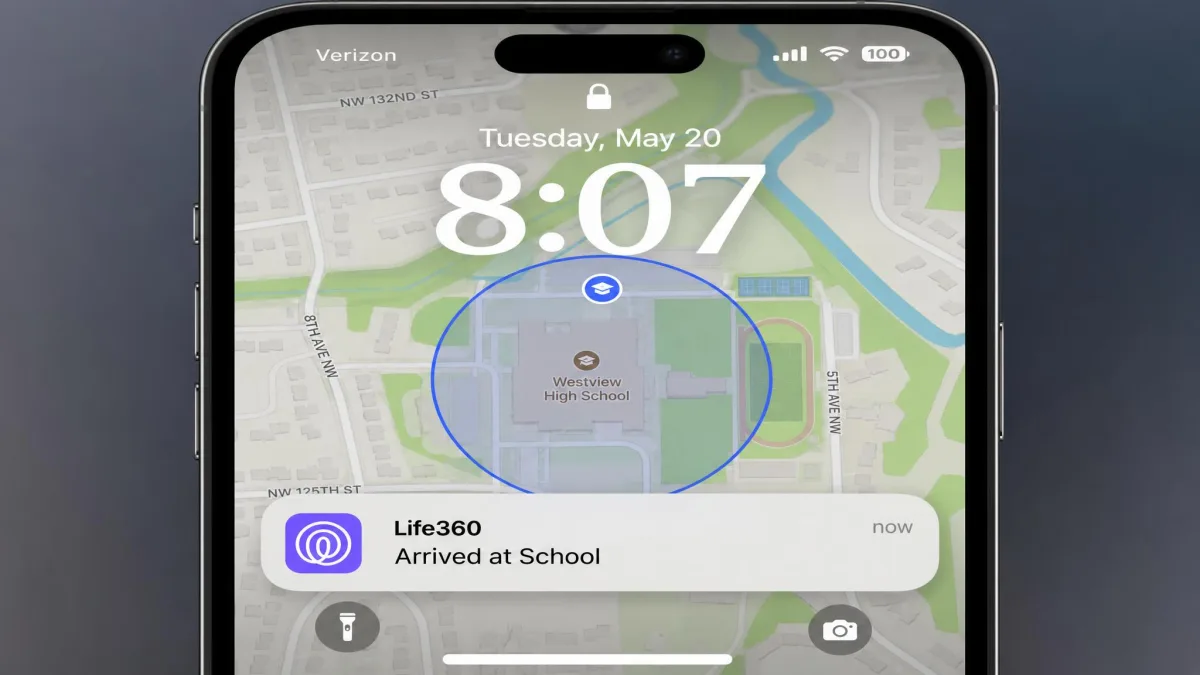
Life360 calls its geofences Places. The free plan allows 2 Places with arrival and departure alerts, which covers home and school for most households, and Gold raises Places to unlimited. Alerts arrive as push notifications, and they are the feature families keep using long after the novelty of the map wears off.
Kids360 uses the same idea under the name safe zones, with enter and leave alerts. The mechanic is equivalent. The difference is reliability, because permissions on the child's device drop out repeatedly and have to be re-granted before schedules and zones work again, which means an alert that never fires can look exactly like a child who never arrived.
Screen time, app blocking, and website filtering
This is where the comparison stops being close. Kids360 sets daily screen time limits that lock the device automatically, blocks apps individually or by category, and runs schedules for study and sleep hours. Life360 does none of this.
The caveat is enforcement. Kids360's screen time limits can fail to enforce, letting a child keep using the phone well past the daily cap even after a reset and a reinstall. When it works it works well, and when a permission has quietly lapsed you find out from the usage report rather than from the block.
Removing Alli360 from a child's Android phone can require booting the device into safe mode. Decide before you install whether you are comfortable with software that is deliberately awkward to uninstall.
Content and activity monitoring
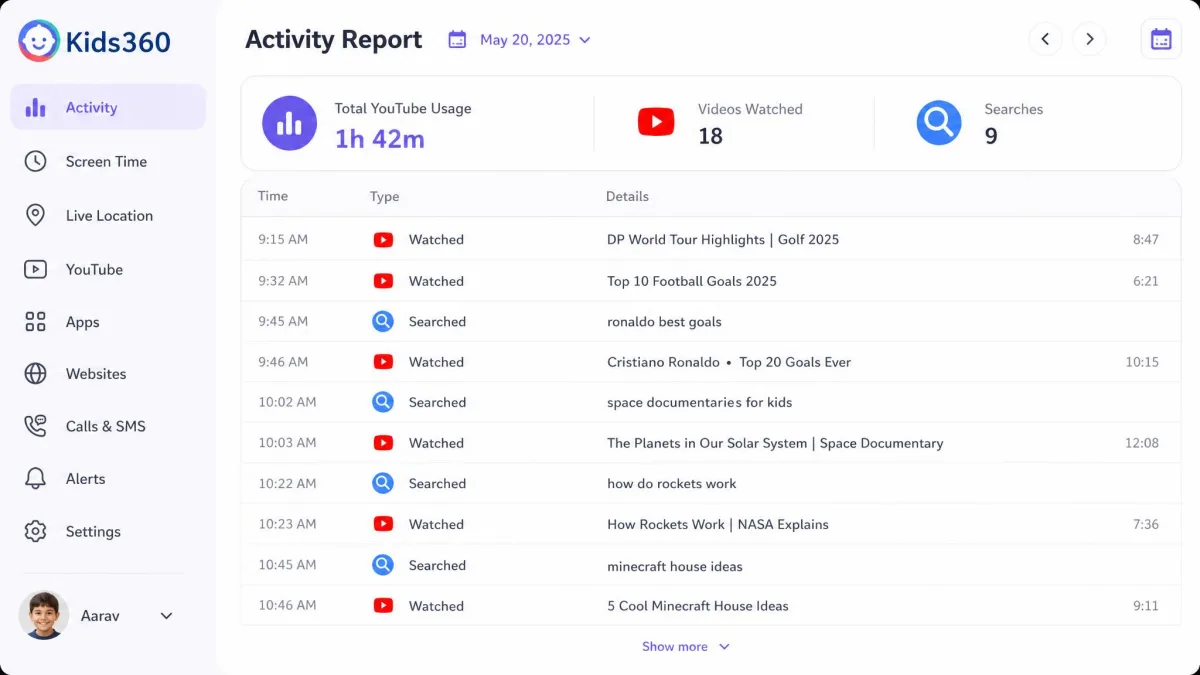
Kids360 gives you daily usage reports plus YouTube and search history visibility, which is the practical middle ground between reading a child's messages and knowing nothing at all. Life360 offers no content monitoring. It will tell you where a phone is, never what is on the screen.
Driving reports and crash detection
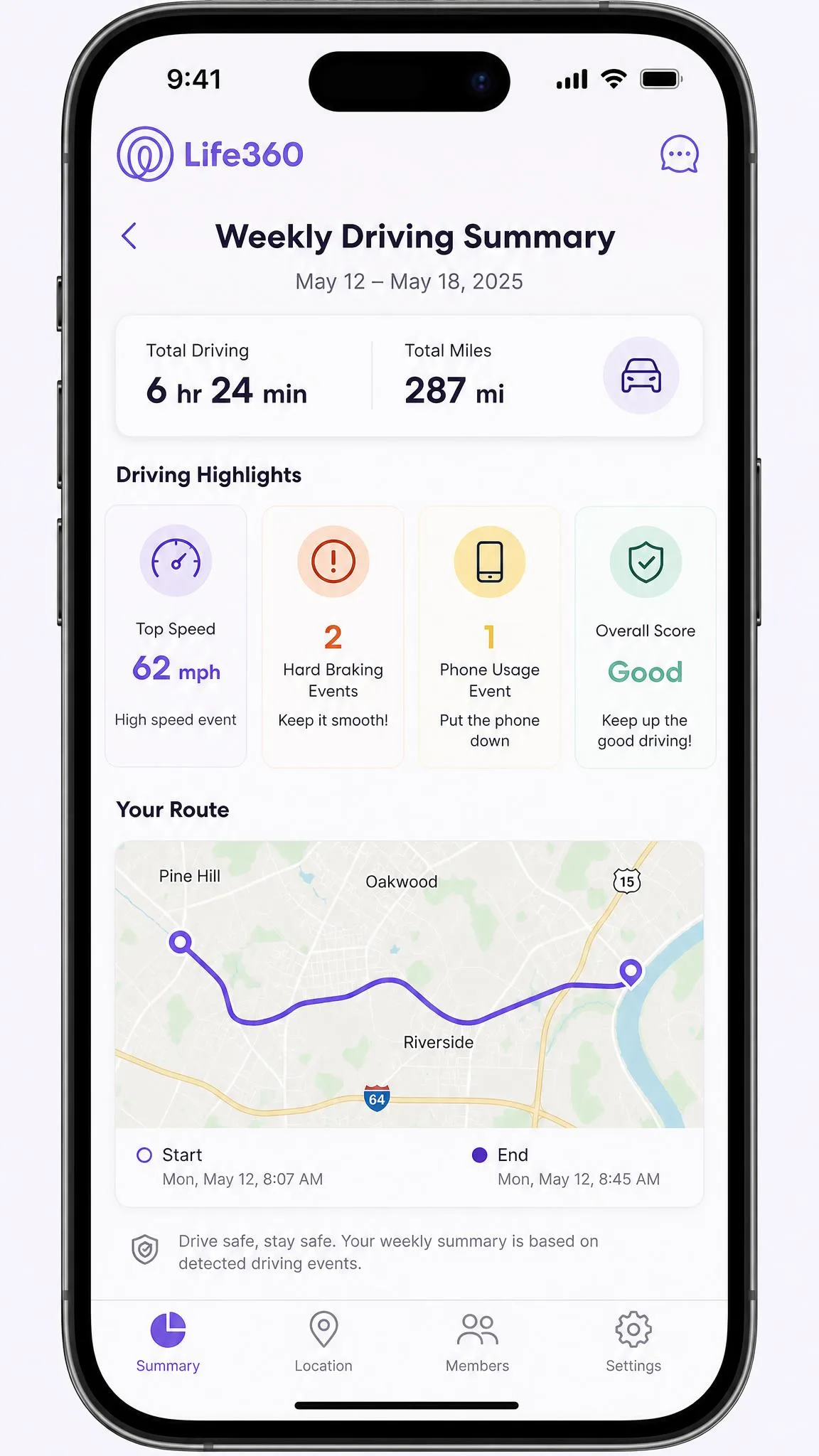
Life360 owns this category outright. Driving summaries come free, driver behavior reports including speed and phone-use detection arrive on Gold, and automatic crash detection is included on the free plan. Drive history is not flawless, since it sometimes logs phantom trips that nobody took, which is worth knowing before you confront a teenager about a journey they did not make.
Kids360 has no driving features at all. For a family whose main worry is a newly licensed sixteen-year-old, that alone settles the question.
SOS and emergency tools
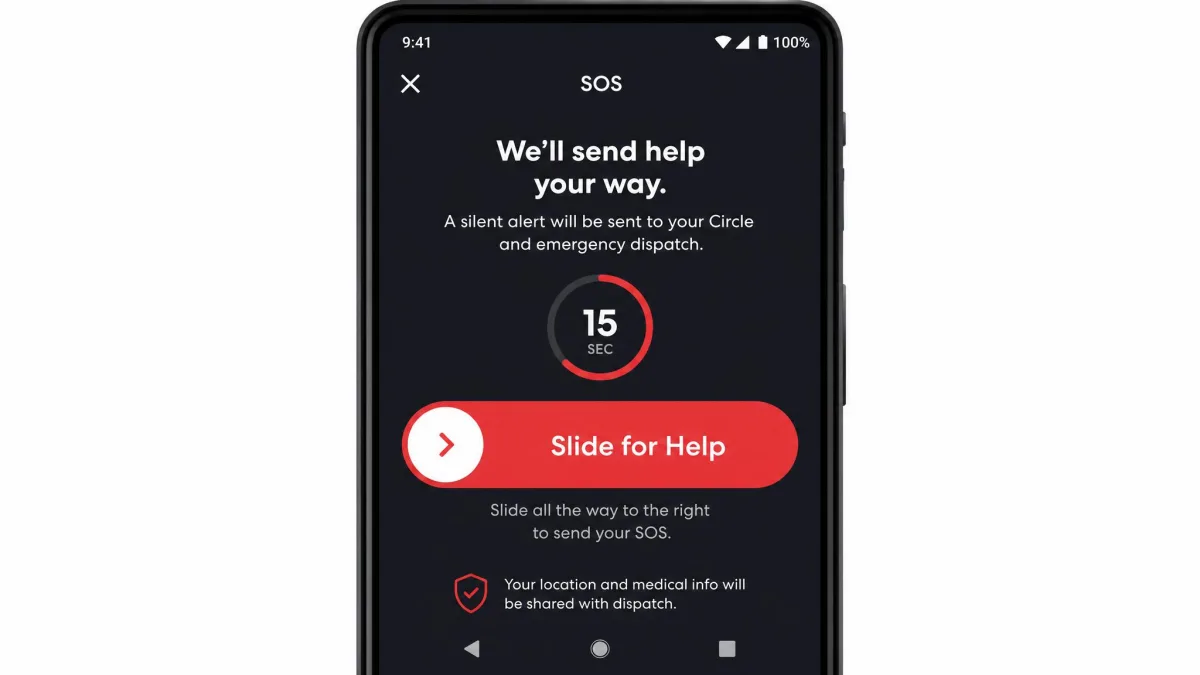
Life360's SOS Help Alerts let a member trigger a silent alert that reaches their Circle and can dispatch emergency help. Crash detection and SOS both work without a subscription, which is genuinely unusual among family safety apps and the single strongest argument for installing Life360 even if you never pay a cent.
Kids360 has no SOS button and no crash detection. It is a monitoring product rather than an emergency one, and no amount of screen time control changes that.
Battery drain and reliability
Life360 running in the background noticeably shortens battery life, and Life360's own listing warns that continued background location use can drain the battery. On a teenager's older phone this is the complaint that ends the trial before any feature does.
Kids360 sits at moderate impact, and the load falls on the child's device rather than on yours. Alli360 uses location in the background even when it is closed, and a phone with it installed runs down noticeably faster, though neither the vendor nor any independent test puts a percentage on that, so treat it as a qualitative difference rather than a measured one. On reliability, Kids360 can crash or lag while the parent and child devices sync, which compounds the refresh delay already built into the dashboard.
Android vs iPhone parity
Both apps ship on iOS and Android. Kids360 requires iOS 17.0 or later and supports tablets as well as phones. Life360 requires iOS 17.2 or later. On Android, Kids360 asks for deeper permissions because blocking apps requires them, and that is the same reason its permissions are the ones most likely to lapse after a system update.
Pricing: Free Plans and Paid Tiers Compared
| Feature | Kids360 | Life360 |
|---|---|---|
| Location accuracy | Live map, often approximate area rather than exact address | Live map, tight in cities, drifts in weak signal |
| Location history | Daily activity reports, no documented history window | 2 days free, 30 days on Gold |
| Geofence alerts | Safe zones with enter and leave alerts | 2 Places free, unlimited on Gold |
| Screen time limits | Yes, daily limits with automatic device lock | No |
| App/website blocking | Yes, per app and per category | No |
| Content alerts | YouTube and search history, daily usage reports | No |
| Driving reports | No | Yes, summaries free, driver reports on Gold |
| Crash detection | No | Yes, free |
| SOS | No | Yes, SOS Help Alerts, free |
| Battery impact | Moderate, background monitoring on the child device | Noticeable background drain |
| Platforms | iOS 17.0 and later, Android, Kids360 for parent and Alli360 for child | iOS 17.2 and later, Android |
| Free plan | Advertised free tier, inconsistent after setup | Yes, 2 Places and 2 days of history |
| Paid price | $79.99 per year | $7.99, $14.99, or $24.99 per month |
| Our rating | 6.9/10 | 8.2/10 |
Kids360 pricing works out cheaper on paper and stranger in practice. The annual subscription is listed at $79.99 per year, and the App Store lists in-app purchases running from $7.99 to $79.99, though Kids360 prices differ by store region and by promotional offer, so the tier you are shown may not match the listed range. Vendor-adjacent sources describe a 7-day free trial, but trial length varies by store and campaign, and some sign-up flows ask for payment as soon as setup finishes. Pricing is also not shown until the pairing flow is complete, which makes the first billing screen feel abrupt.

Life360 prices the whole Circle rather than each member, which is the detail that changes the maths for larger families. Silver is $7.99 per month or $79.99 per year, Gold is $14.99 per month or $149.99 per year, and Platinum is $24.99 per month or $249.99 per year. Gold raises location history to 30 days and Places to unlimited, and adds driver reports plus 24/7 roadside assistance. Gold also includes stolen phone coverage up to $250, though the reimbursement amounts differ between Life360's plan page and its app store listing, and the benefit is region-limited. Platinum adds 50 miles of free towing and up to $1 million in stolen funds reimbursement.

The free tier question has a clean answer. Life360's free plan is usable for day-to-day check-ins, and it is the 2-day history window rather than any missing safety feature that eventually pushes families toward paying. Kids360 is murkier. Its own marketing describes a free tier covering app time limits, real-time geolocation, a loud signal, search logs, and device protection, with paid plans reserved for advanced automation and multi-device management. What survives past setup without paying is inconsistent, though, and several sign-up flows put those same features behind the subscription screen, so budget for the annual price rather than counting on the free tier.
Pay monthly for the first month of either app. Both are worth more after a family has actually lived with the notifications for a few weeks, and an annual plan bought on day one is the purchase parents most often regret.
Privacy, Data Handling, and Consent
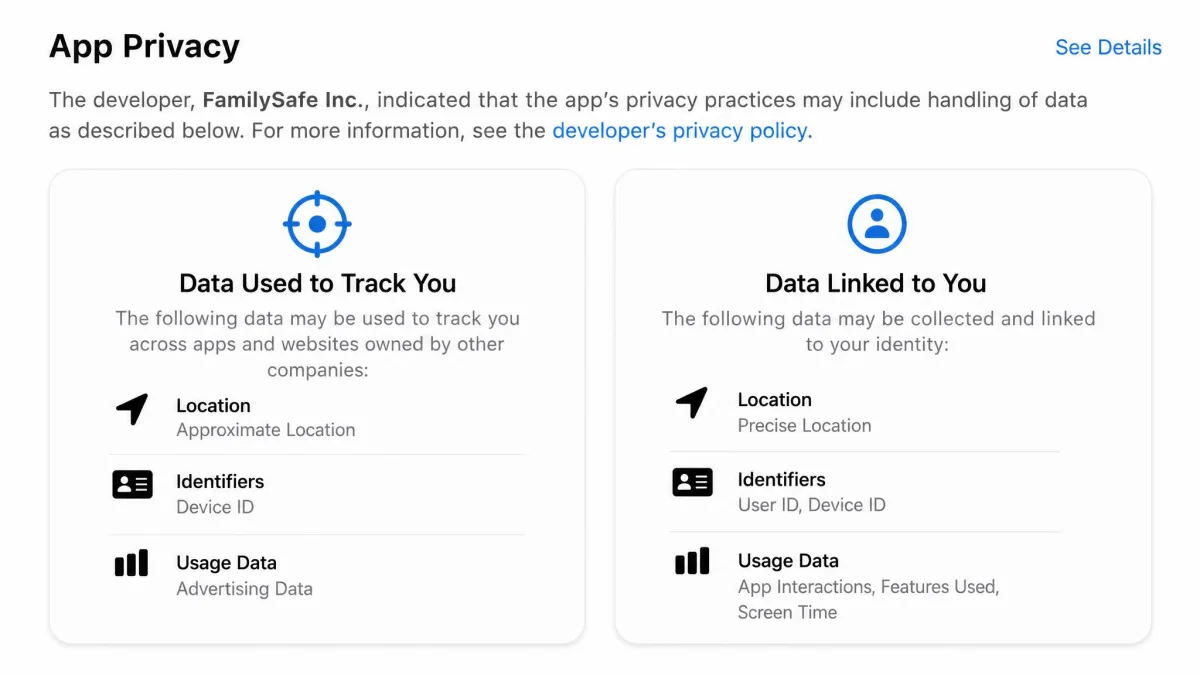
Both apps collect a lot. Life360 collects precise location, contact information, and usage analytics, and can use location when the app is not open, which is exactly what makes background alerts possible. Kids360's developer discloses that the app may collect identifiers, usage data, and diagnostics used to track users across other apps and websites, which is a broader disclosure than most parents read before tapping Allow.
Tell your child what the app can see before you install it, not after they find out. Covert monitoring is the fastest way to turn a safety tool into a trust problem, and a teenager who feels tracked in secret will look for a workaround rather than ask you to loosen a rule.
Where Each App Falls Short
What Life360 misses for younger kids
Life360 offers nothing for app blocking or website filtering, so parents of younger kids end up running a second app alongside it. That is a real cost, both in money and in the number of dashboards you have to check. Satisfaction data is also split, since a 4.8 App Store average sits against a 1.7/5 SmartCustomer panel score across 508 reviews, driven mostly by billing and cancellation complaints rather than tracking failures. If you subscribe, set a calendar reminder before the renewal date.
If a filtering-first tool is what you actually need, Canopy vs Life360 covers that pairing directly.
What Kids360 misses for teen drivers
Kids360 has no crash detection, no SOS, and no driving reports, which makes it the wrong app for a family whose oldest child just started driving. Its own reception is polarized. It holds 4.6 stars from 8,900+ App Store ratings and a vendor-stated 4.7 on Google Play, while Trustpilot rates it 3.6/5 across 204 reviews, with 40% five-star and 41% one-star ratings and very little in between. Support is chat-only with no phone line, and replies can be slow or absent.
Families comparing Kids360 against dedicated filtering tools should read Kids360 vs Qustodio, Kids360 vs Bark, and Kids360 vs Net Nanny.
Pros
- Life360 includes crash detection and SOS Help Alerts on its free plan
- Life360 charges one price for the whole Circle, not per member
- Kids360 blocks apps by category and enforces sleep and study schedules
- Kids360 turns 4,600 developmental tasks into earned screen time
Cons
- Life360 has no screen time, app blocking, or website filtering at any tier
- Life360's background location noticeably shortens battery life
- Kids360's limits can fail to enforce until permissions are re-granted
- Kids360 location often resolves to an approximate area, not an address
How to Choose: Kids360, Life360, or Both
So the routing comes down to the age of your child and the shape of your worry.
Best for tweens and phone safety
Kids360, or a filtering tool in its class. A ten-year-old with a first phone needs limits on apps and websites far more than they need a driving report. Compare it against the alternatives in Kids360 vs Google Family Link before you subscribe, since Family Link costs nothing.
Best for teen drivers and family logistics
Life360, without much argument. Crash detection, SOS, driver behavior reports, and real-time location on a shared map cover the risks that matter at sixteen, and the free tier lets you prove the habit sticks before you pay.
Best for large or mixed-device families
Life360 as the base layer, because one membership covers everyone and both platforms are supported, plus a separate parental control app on the younger kids' devices only. Running Kids360 on a teenager who drives adds monitoring they will resent without adding the safety features they actually need. If you want a lighter second app, Kids360 vs FamiSafe is the comparison to read next.
Life360 tells you where your family is. Kids360 tells you what your child is doing on their phone. Buying the wrong one costs you a year of notifications about the wrong thing.
How to Set Up Your Pick in 10 Minutes
Start on the child's device rather than yours, because every permission that matters lives there.
For Life360, install the app on both phones, then create a Circle on the parent phone and share the join code. On the child's phone, open Settings, tap Privacy, then Location Services, and set Life360 to Always so background alerts can fire. Back in the app, add your first two Places, usually home and school, and turn on arrival and departure alerts for each one. Enable Crash Detection from the Safety tab before you close the app.
For Kids360, install Kids360 on your phone and Alli360 on the child's, then pair them with the on-screen code. Grant every permission Alli360 requests in one sitting, including screen time access and location, and confirm the pairing shows as active on your dashboard. Set the daily limit and the sleep schedule next, then check the usage report the following evening to confirm the limit actually enforced.
What Surprises Parents in the First Month
Two things catch families out more than anything else.
The first is that a child can defeat Kids360 tracking simply by turning off location services on their own phone. No parental control app is stronger than the operating system it runs on, so the fix is a conversation and a household rule rather than a better app.
The second is that removing either app is harder than installing it, and cancellation is where most of the billing complaints on both sides begin. Cancel through the store subscription screen rather than inside the app, and keep the confirmation email somewhere you can find it.
Frequently Asked Questions
Is Kids360 or Life360 better for young kids?
Can you use Kids360 and Life360 together?
Can a child turn off Kids360 or Life360?
Does Life360 block apps or websites?
Which drains less battery?
Is either free plan enough?
Which is more accurate?
Final Verdict
Life360 is the better family safety app for most households, and the free plan alone justifies installing it. Real-time location, geofence alerts, crash detection, and SOS cover the emergencies that actually happen, and paying once for the whole Circle keeps the cost sane as the family grows.
Kids360 wins a narrower fight. If the argument in your house is about hours and apps rather than journeys and arrivals, it does things Life360 will not do at any price. Just go in knowing that its limits need their permissions checked, its location is approximate, and its support is chat-only. For a family with both a tween and a teen driver, running Life360 everywhere and Kids360 on the younger device only is the setup we would choose.