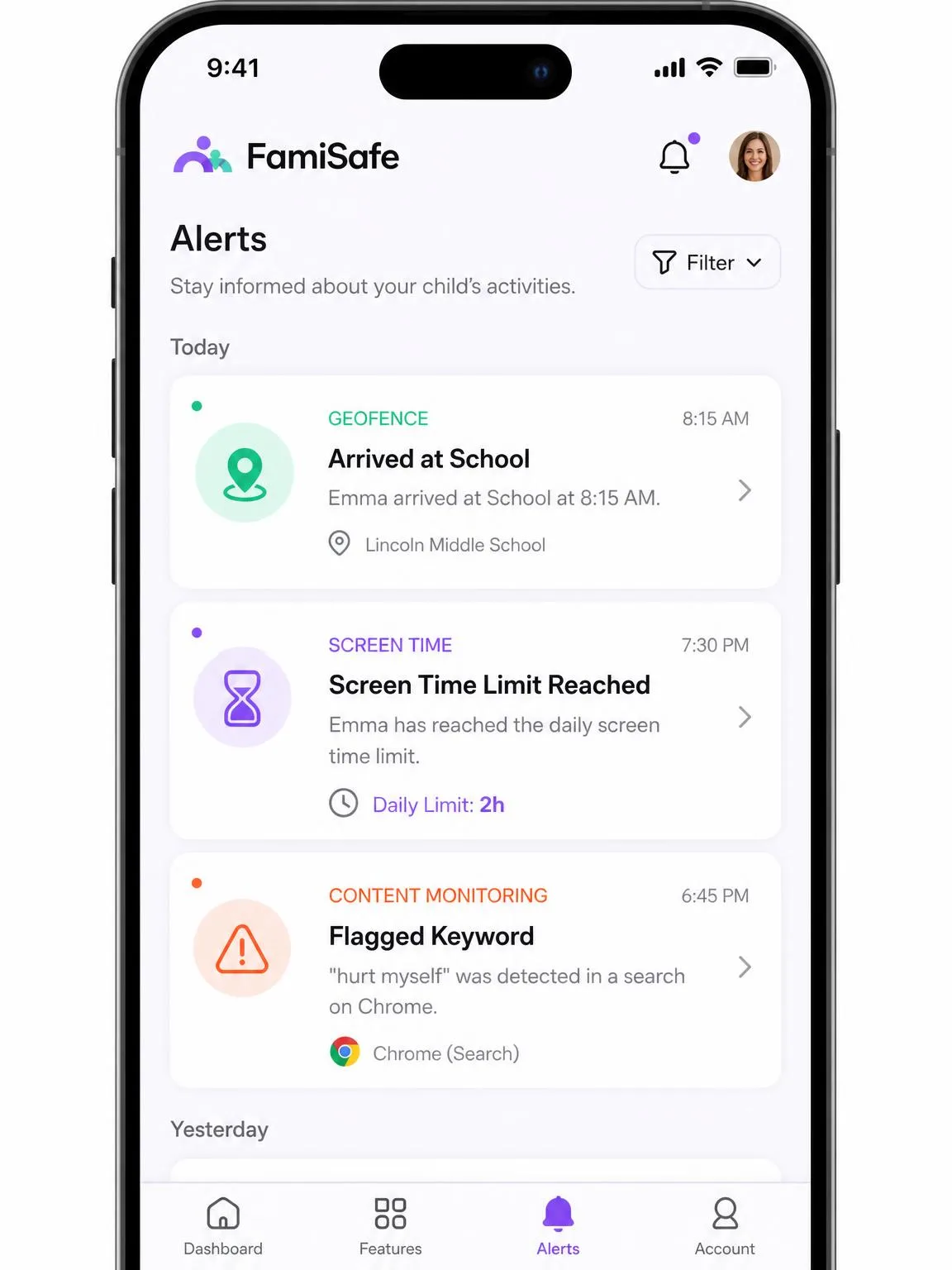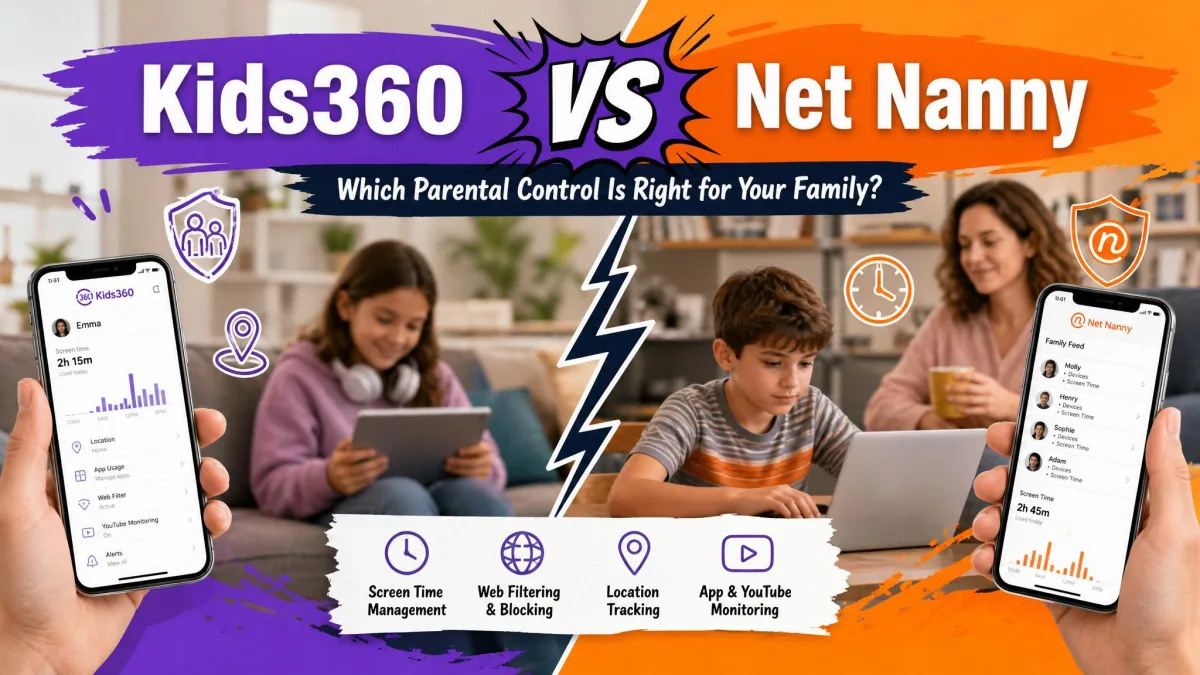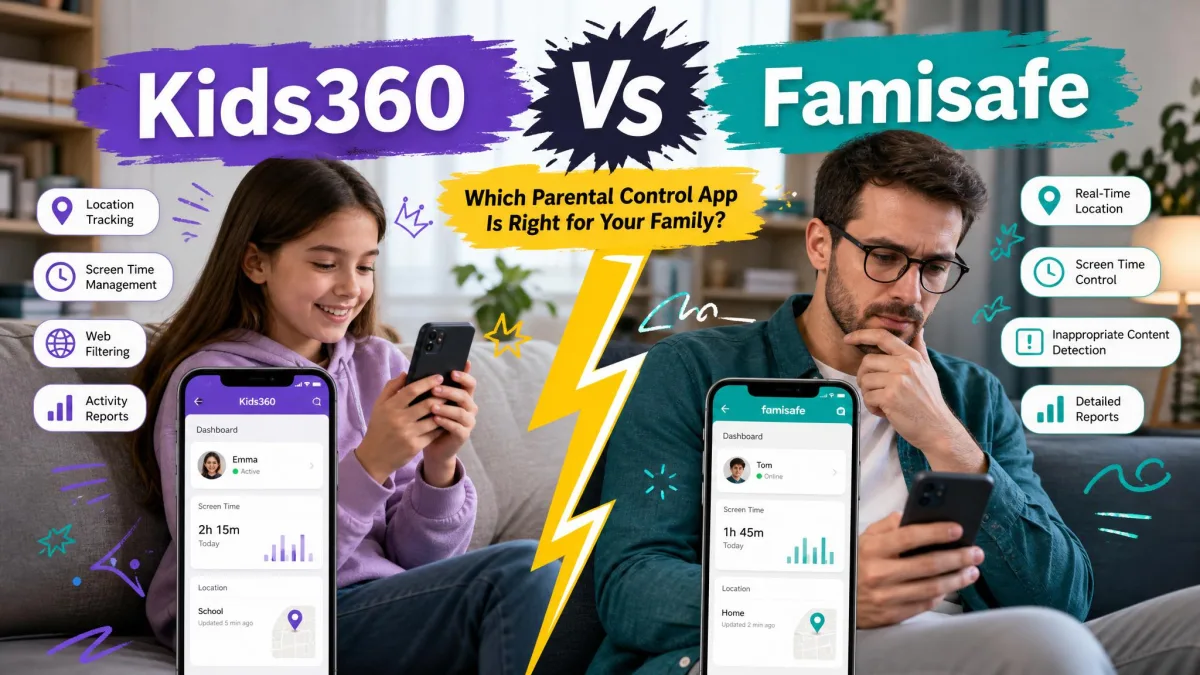
Most parents shopping for a parental control app run into the same problem: two apps that look almost identical on their feature pages solve very different halves of the job. Kids360 is built around simple screen time control, with app limits, daily schedules and a library of tasks kids can finish to earn extra minutes. FamiSafe is built around monitoring depth, layering web filtering, content alerts, social app checks and driving reports on top of the basics. Both promise real-time location and both want a monthly subscription, so the decision comes down to how much oversight you actually need and how much you are willing to manage.
We tested both on family Android and iPhone hardware: in short, FamiSafe suits most families, while Kids360 suits screen-time-only households. Here is how the two compare, dimension by dimension.
Both apps were assessed on parent and child devices across Android and iOS, with the location, screen time and blocking features exercised the way a family would actually use them. Kids360 claims in this comparison come from the vendor, its App Store listing and verified user reporting rather than from competing review sites, because Kids360 publishes far less detail than Wondershare does.
Kids360 vs FamiSafe at a Glance
Kids360, which we cover in our full Kids360 review, is published by MINDCARE LAB LTD, part of the Findmykids family of apps, and it uses a two-app model: you install Kids360 on your phone, and the child's phone runs the companion app Alli360. It carries 4.6 out of 5 on the App Store from 8.9K ratings and 4.7 on Google Play, with over 1M parents claimed by the vendor. The picture is less flattering away from the stores, where its Trustpilot score sits at 3.6 out of 5 across 204 reviews, split sharply between 41% one-star and 40% five-star.
FamiSafe, which we tested at length in our FamiSafe review, comes from Wondershare and takes the opposite approach. It runs on Android, iOS, Windows, Mac, Chromebook and Amazon Kindle Fire, and adds a web dashboard so you can manage everything from a laptop. The feature list includes screen time control and schedules, app blocking, web filtering, real-time location and location history, geofencing with SOS alerts, driving reports, explicit content alerts, sensitive image detection, browser and search history, social app and chat monitoring, YouTube history and activity reports.
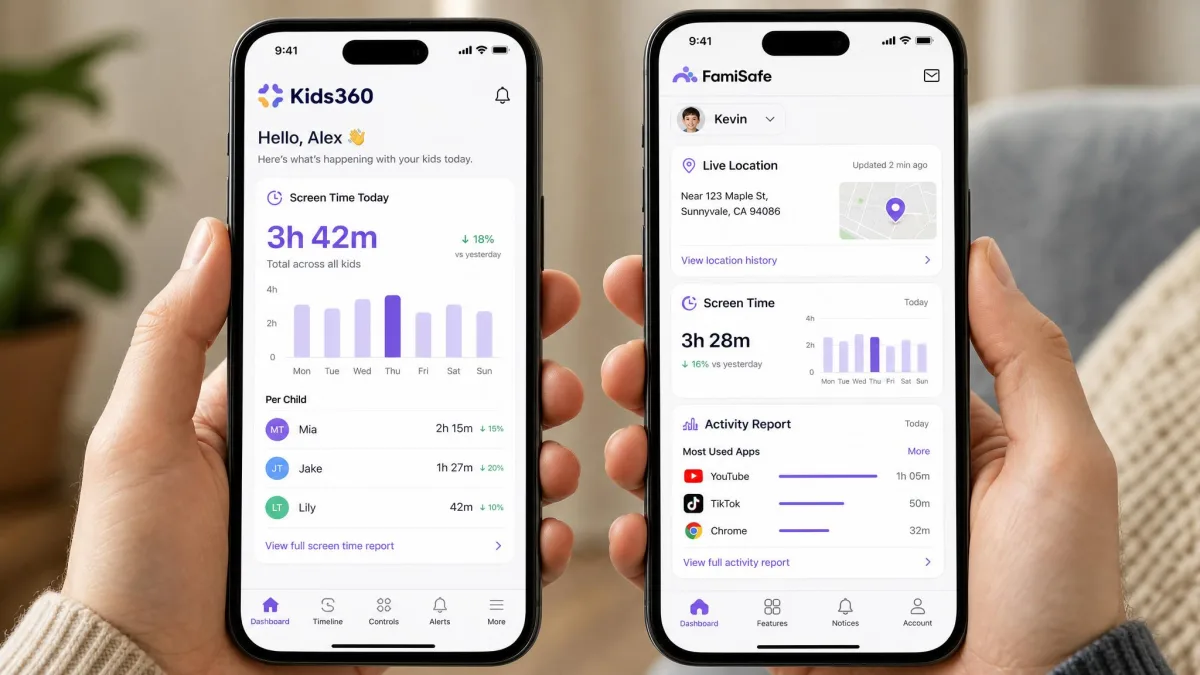
The two apps also differ in how much they publish about themselves. Wondershare documents FamiSafe's plans, device counts and per-feature pages in detail, while Kids360 leaves several basics, including its device allowance, unstated outside the store listing.
Quick Comparison Table
| Feature |  |
 |
|---|---|---|
| Location tracking | Real-time GPS map, accuracy uneven | Real-time GPS, accurate within a few metres |
| Geofencing | Not confirmed in Kids360 itself | Geofences with entry, exit and SOS alerts |
| Screen time limits | Daily limits, schedules, task-earned time | Daily limits and scheduled device lock |
| App blocking | Yes, per-app and by schedule | Yes, per-app and per-category |
| Web filtering | Basic internet safety filter | Category web filter plus search and browser history |
| Activity reports | App usage statistics dashboard | Detailed activity reports and content alerts |
| Social media monitoring | Not offered | Yes, plus call history and text messages |
| Platforms supported | Android 7.0 or later, iOS 17.0 or later | Android, iOS, Windows, Mac, Chromebook, Kindle Fire |
| Devices per plan | No published allowance | 5 monthly, 8 quarterly, 10 yearly |
| Starting price | $9.99/mo, store-dependent | $9.99/mo or $59.99/yr |
| Free trial | Free trial offered, length varies | 3-day free trial, 7-day money-back guarantee |
| Buy | Check price | Check price → |
What Kids360 Is Best At
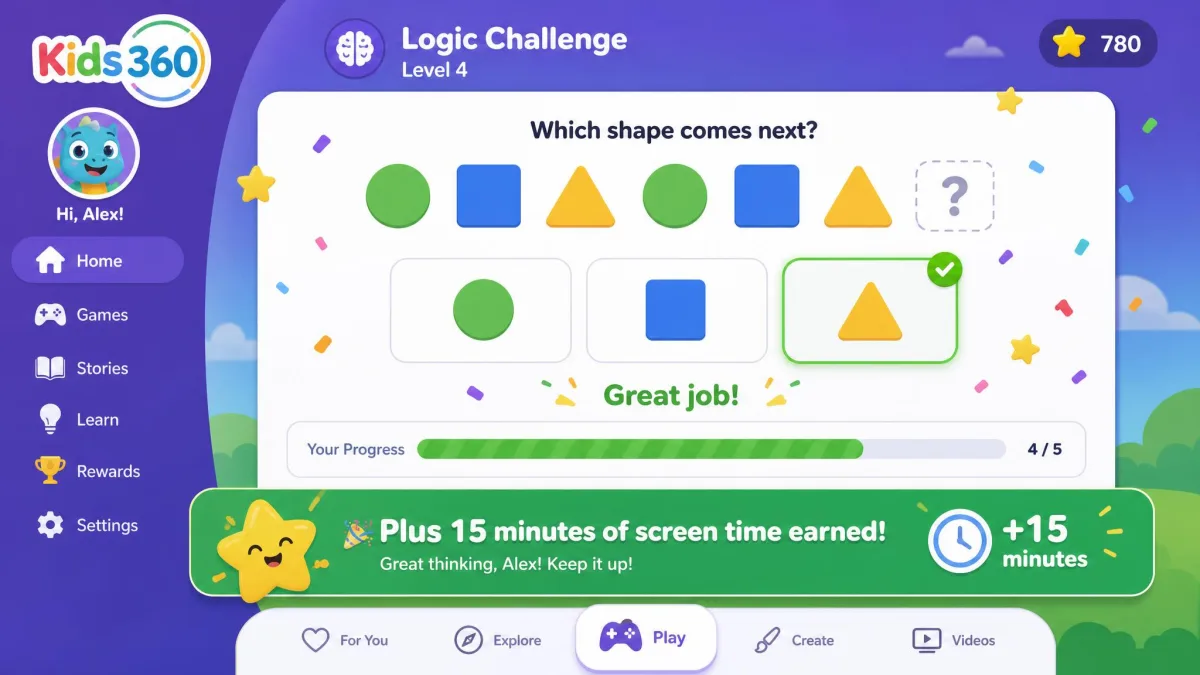
Kids360 does one thing better than any comparable app on the market: it turns screen time into something a child has to earn rather than something a parent simply confiscates. The app ships with over 4,400 built-in logic and thinking challenges, and finishing them adds minutes to the child's daily allowance. For younger kids especially, that reframes the whole negotiation, because the conversation stops being about what you are taking away.
The free tier is also more generous than most. Without paying anything you get app usage statistics, the tasks library, the child's location, a loud signal to make a silenced phone ring, and uninstall protection. Scheduling and blocking are what you buy the subscription for.
Setup is the other bright spot. The initial install is quick and the interface is clean and uncluttered, which matters when you are doing this on a Sunday evening with a reluctant ten-year-old watching. The catch is that the paywall only becomes visible once setup is already finished, so plan for that before you start.
Pros
- Task-based screen time rewards that kids actually engage with
- Genuinely useful free tier including location and uninstall protection
- Clean, fast setup on both parent and child devices
- Loud signal feature for finding a silenced phone
Cons
- Location fixes can be approximate or badly out of date
- Screen time schedules do not always fire as configured
- No social media or message monitoring at all
- Support is email only
What FamiSafe Is Best At
FamiSafe's advantage is breadth. It is the only one of the two that covers content as well as time, which means you can block a category of websites, get an alert when an explicit message appears, review YouTube history and check where the phone is, all from the same dashboard. If you have a teenager rather than a young child, that difference matters, because the risks you are managing are no longer mostly about hours spent.
Location is where FamiSafe pulled clearly ahead in our testing. Updates land within a few metres in everyday use, and geofence entry and exit alerts fire reliably, which is what makes the school-arrival and home-arrival notifications trustworthy enough to stop checking manually. Screen time limits and scheduled device locks also hold up in day-to-day use, with no surprise unlocks.
The trade-offs are genuine costs, not footnotes. The full feature set feels expensive next to leaner screen time apps, and the depth only pays off if you actually use the content side rather than leaving it configured and ignored. Wondershare's own documentation is thorough enough that most of the setup friction is front-loaded into the first evening.
Pros
- Accurate real-time location and reliable geofence alerts
- Web filtering, content alerts and browsing history in one dashboard
- Runs on Android, iOS, Windows, Mac, Chromebook and Kindle Fire
- 10 devices on the annual plan, plus a web dashboard
Cons
- Continuous tracking drains the child device's battery
- Social monitoring covers chats and messages but not every platform a teenager uses
- The full feature set feels expensive next to leaner screen time apps
- Real-time location can lag behind the child's actual position at times
Location Tracking and Geofencing
Real-Time Location Accuracy
Both apps market real-time GPS, and both deliver a live map with the child's position pinned on it. The difference is how much you can trust the pin. FamiSafe's updates land within a few metres in normal conditions, close enough to tell which building on a street a phone is sitting in.
Kids360's fix often resolves to an approximate area rather than an exact address, which is fine for a general "still at school" check and frustrating for anything more precise. Worse, the data can arrive badly stale, in some cases showing a position from days earlier without making that obvious. FamiSafe is not immune either, and its real-time location can lag behind the child's actual position at times, but the gap is measured in minutes rather than days.
For everyday location accuracy, FamiSafe is the safer bet.
Geofencing and Place Alerts
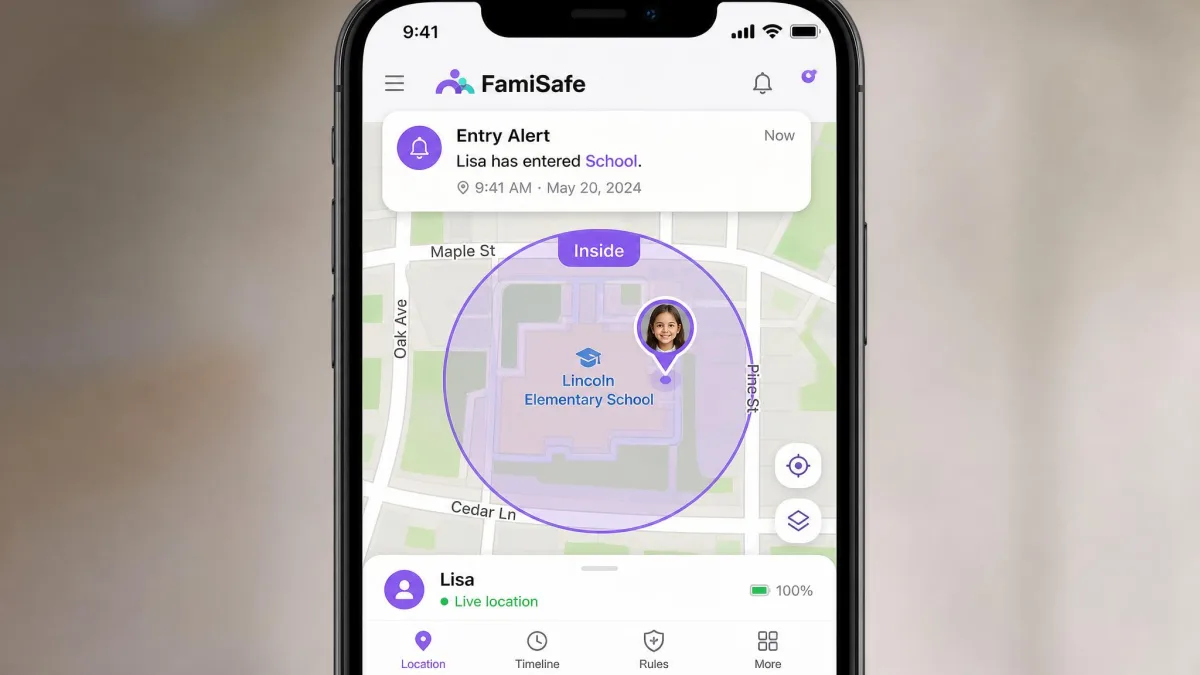
FamiSafe supports proper geofences: you draw a zone around home, school or a grandparent's house and get an alert on entry and exit, with SOS alerts available from the child side. In practice those alerts fired consistently, and they are the feature most likely to replace the habit of texting "are you there yet".
Kids360 is harder to pin down. The vendor lists real-time location tracking but does not confirm geofencing or place alerts inside Kids360 itself, and the picture is genuinely unsettled. The official Kids360 location page advertises live map tracking and the child phone's battery status and nothing else, while third-party profiles of the app describe safe zones for home and school with enter and exit notifications. As far as we can tell, geofenced place alerts sit in the sibling app Findmykids rather than in Kids360, so treat arrival alerts as something to confirm on your own store listing before you buy for that reason.
Location History
FamiSafe keeps a location history trail, so you can scroll back through where a device has been rather than only seeing where it is now. That history is what makes the driving reports possible, because speed and route data have to come from somewhere. Kids360 shows the current position on a map; a comparable history timeline is not part of its published feature set.
Screen Time Management
Daily Limits and Schedules
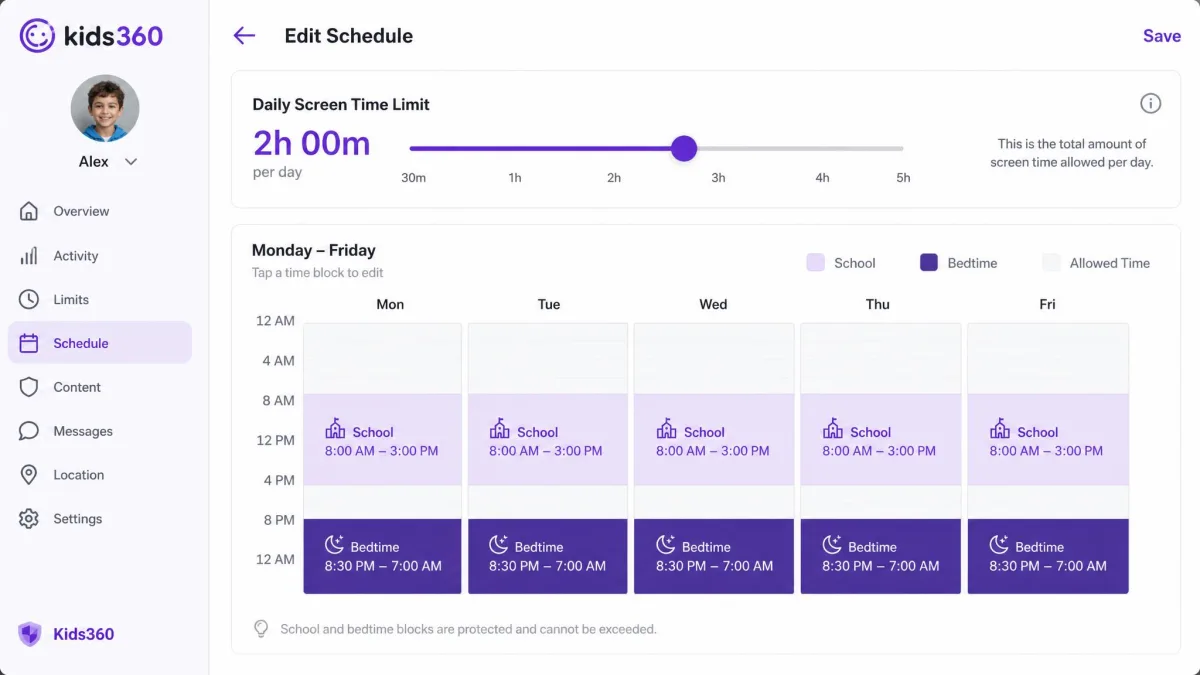
This is Kids360's home ground, and it starts strong. You set a daily cap, create schedules for school hours and bedtime, and the child app enforces them. The reward system sits on top, letting kids add minutes by completing challenges rather than by asking.
Reliability is the problem. Kids360's screen-time schedules can fail to fire, and the child's phone sometimes locks at random instead, which is exactly the failure pattern that erodes a child's trust in the whole arrangement. FamiSafe's limits and scheduled device locks held up in day-to-day use without that kind of drift.
An enforcement tool that misfires is worse than no tool at all, because every random lock hands your child a legitimate reason to argue that the app is broken. Test any schedule you create on a real day before you rely on it.
App-Level Time Controls
Both apps let you go below the daily total and set limits on individual apps, which is how you keep a games app at 30 minutes while leaving a homework app unrestricted. Kids360 pairs this with its app usage statistics so you can see which app is eating the allowance before you decide where to cut. FamiSafe adds category-level controls, so you can cap a whole class of apps at once instead of managing them one by one.
For families with several children and different rules for each, FamiSafe's category approach saves real time.
App Blocking and Usage Monitoring
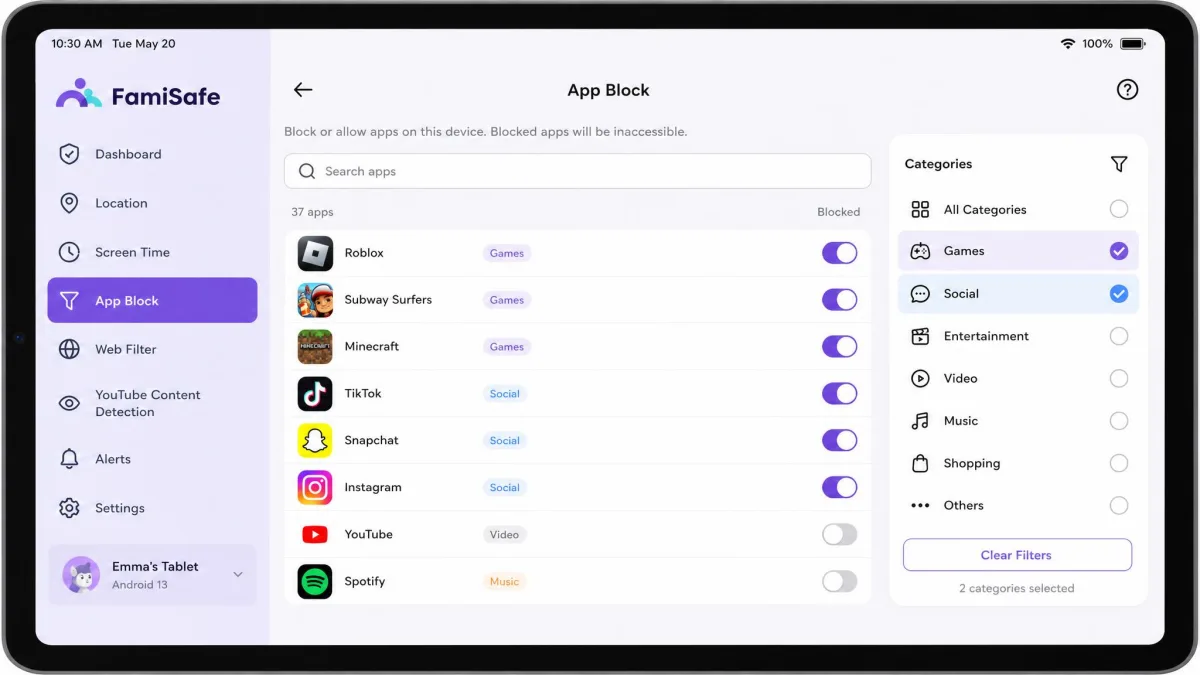
Kids360's app blocker works per app and by schedule, and it is one of the paid-tier features rather than something you get free. It is straightforward, and pairing it with the usage dashboard makes the decision about what to block easier. One caveat from testing: several advertised Kids360 controls are unavailable on iPhone, and blocking coverage can differ between child profiles on the same account, so verify each profile individually rather than assuming your settings copied across.
FamiSafe blocks per app and per category, and reports usage back as part of its detailed activity reports. Because it also covers Windows, Mac and Chromebook, blocking follows the child onto a laptop, which is where a lot of workaround attempts actually happen.
Web and Content Filtering
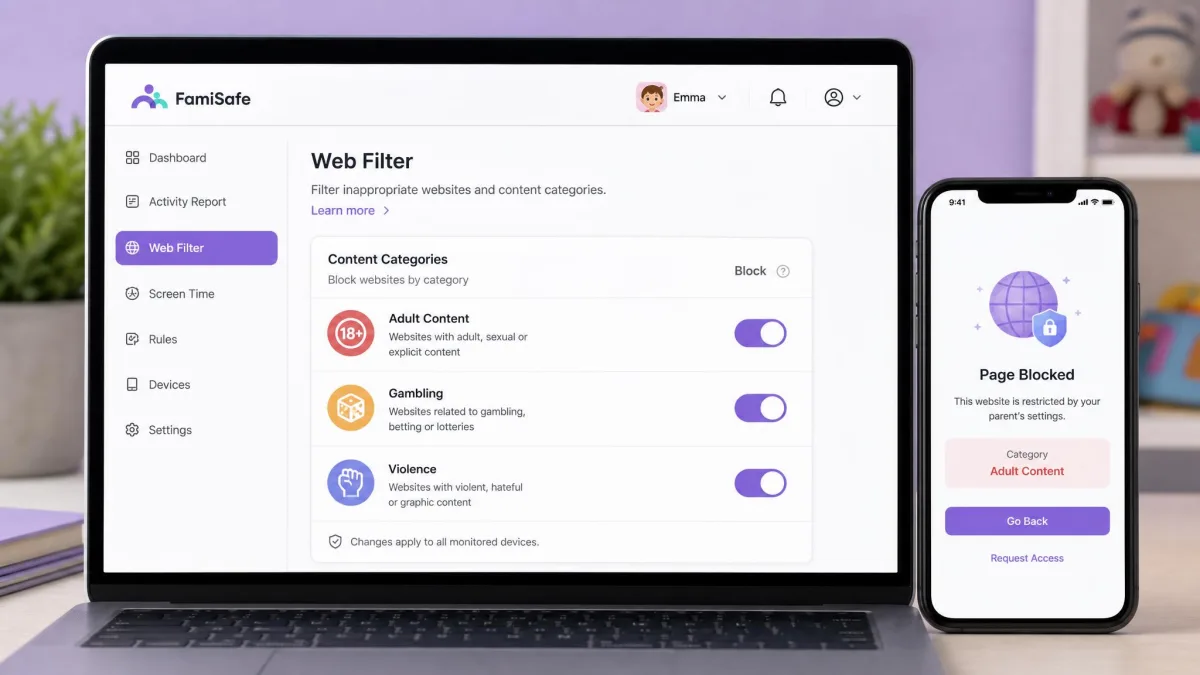
Filtering is where the two apps stop overlapping. Kids360 includes an internet safety filter that blocks inappropriate content in the browser. It is basic, and it is best understood as a floor rather than a full filtering system.
FamiSafe goes considerably further. You get a category web filter, browser and search history, explicit content alerts and sensitive image detection, which together cover both what a child tries to reach and what reaches them unprompted. Filtering alone does not keep kids safe, and the value of these tools is in what they surface for a conversation.
When it comes to content filtering, FamiSafe wins without much argument.
Activity Reports and Alerts
Reporting follows the same split as filtering. Kids360 reports app usage statistics: which apps were opened, for how long, and how the daily total was spent. That is enough to manage screen time and not much more.
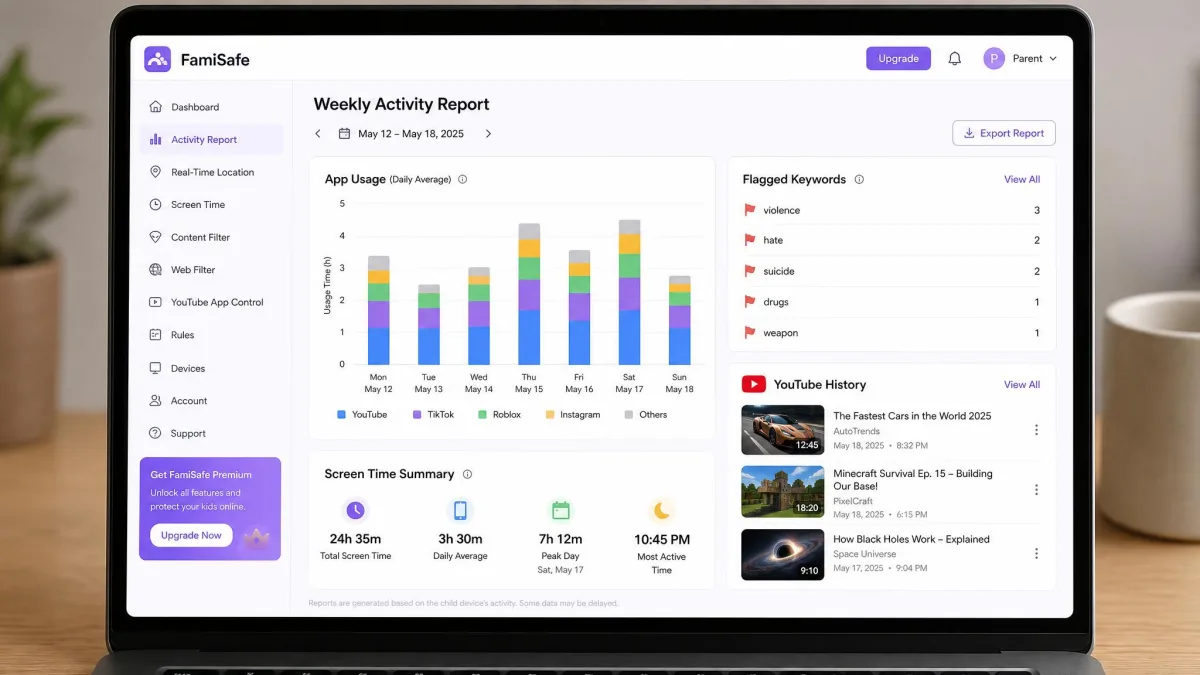
FamiSafe produces detailed activity reports covering app usage, browsing, YouTube history and flagged content, and pushes alerts when something crosses a line you have set. It also produces driving and speed reports, a feature aimed squarely at families with a newly licensed teenager and one Kids360 does not attempt at all. Trip reports cover average and maximum speed, distance, driving time, hard braking and over-speed alerts, and Wondershare presents the feature as working on both Android and iOS child devices. There is no published per-platform feature table for it, though, so which of those metrics actually appear on an iPhone versus an Android phone varies.
Social Media and Message Monitoring
Kids360 does not offer social media or message monitoring. If that is on your list, this comparison is already over.
FamiSafe includes social app and chat monitoring, and it also runs dedicated call history and text message monitoring on both iPhone or iPad and Android child devices, with suspicious-keyword alerts that flag a message containing terms you have set. The logs refresh automatically every hour, or when you pull them manually, so call and text records are a recent picture rather than a live feed. What we can say plainly is that the social monitoring that is there stays shallow next to FamiSafe's location and screen time tools. Treat it as an early-warning signal, not a transcript.
Ease of Setup and Daily Use
The Parent App
FamiSafe's dashboard is easy to navigate, and the whole install runs about 15 minutes end to end, including the child device. Nothing about it requires you to be tech-savvy, and the web dashboard means you are not stuck doing everything on a phone.
Kids360's parent app looks cleaner but behaves less predictably. It freezes or lags while syncing with the child device, which undercuts the real-time monitoring the app is sold on. When you open an app to check where your child is, a spinner is the wrong answer.
The Child App and Tamper Resistance
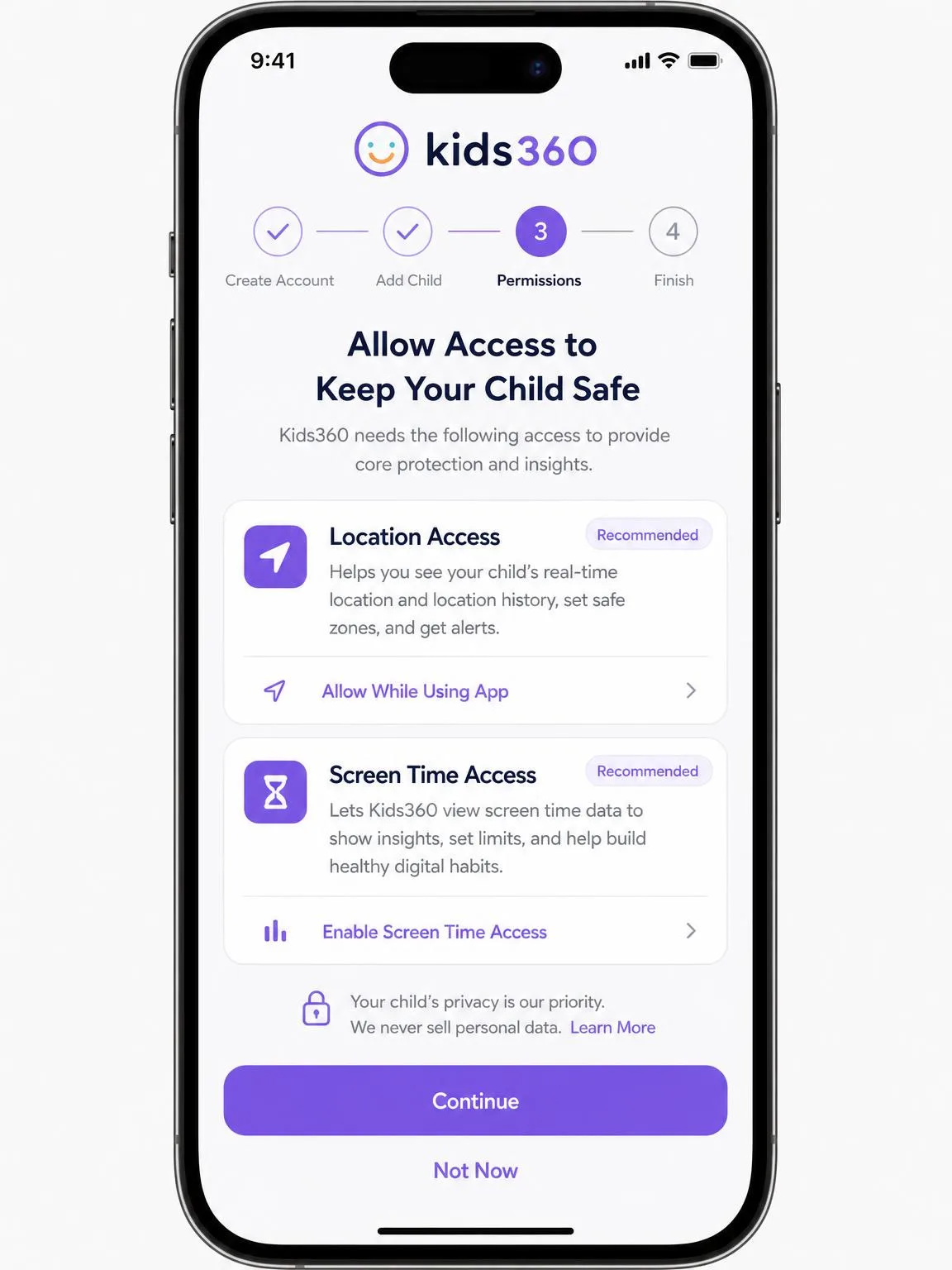
Kids360 runs a separate companion app, Alli360, on the child's phone, and includes uninstall protection even on the free tier. That protection is not absolute. On Android a child can disable the Alli360 companion app or switch off location services, which quietly ends monitoring without alerting you that anything changed.
FamiSafe is not fundamentally different here, because Android's permission model limits what any parental control app can lock down. The practical defence with either app is the same: check in on the child device occasionally rather than assuming silence means compliance.
Set a weekly reminder to open the parent app and confirm the child device is still reporting. Both apps can go quiet after an OS update resets a permission, and neither one reliably tells you it has stopped.
Device and Platform Compatibility
FamiSafe covers Android, iOS, Windows, Mac, Chromebook and Amazon Kindle Fire, plus the web dashboard. That range is the single biggest practical gap between the two apps, because a child with a school Chromebook is only supervised on one of them.
Kids360 offers a parent app on Android and iOS, and is also distributed via Huawei AppGallery and the Galaxy Store. The iPhone build requires iOS 17.0 or later, which rules out older hand-me-down devices, and several advertised controls do not appear on iPhone at all. On the other side, the Android build runs on Android 7.0 and newer, which covers almost any phone still in family circulation.
Pricing and Plans
Free Trials and Free Tiers
FamiSafe's free plan is limited to 1 device with premium features locked, and the yearly plan carries a 3-day free trial plus a 7-day money-back guarantee. That guarantee is short but usable, and it is enough to run a full week of school-day testing before committing.
Kids360's free tier is the more useful of the two, covering app stats, tasks, location, loud signal and uninstall protection without payment. A free trial is offered on the paid plans, but the length attached to a Kids360 subscription changes with the plan and store offer, so read the checkout screen rather than the marketing page.
Cost per Device and Family Plans
FamiSafe's pricing is published and easy to compare. It is $9.99 per month for 5 devices, $19.99 per quarter for 8 devices, or $59.99 per year billed as $4.99 per month for 10 devices. For a family with three kids and a couple of laptops, the annual plan is the obvious choice and works out to a few pence per device per day.
Kids360's pricing is harder to state cleanly. In-app monthly plans are listed at $9.99 to $12.99, and Kids360's monthly price varies by store, region and the offer shown at checkout. In-app purchases span roughly $7.99 to $79.99, with $79.99 the annual top tier, though the subscription tiers are region-priced, so the figure on your store page may differ. The device allowance is the bigger unknown. You can add several children to one parent account, but Kids360 publishes no number anywhere on its site or its store listings, and the only "unlimited" claims we found come from aggregator write-ups rather than the vendor. If you have three or four phones to cover, ask support to confirm the allowance in writing before you subscribe.
| Plan | Kids360 | FamiSafe |
|---|---|---|
| Monthly | $9.99 to $12.99, store-dependent | $9.99, 5 devices |
| Quarterly | Not offered | $19.99, 8 devices |
| Annual | Around $79.99 top tier | $59.99, 10 devices |
| Free tier | Stats, tasks, location, loud signal | 1 device, premium locked |
| Refund | Not published | 7-day money-back guarantee |
Kids360 publishes far less pricing and limit detail than Wondershare does, so several figures above are drawn from its App Store listing rather than a published price page. Confirm the amount and the renewal date on your own store checkout screen before you subscribe.
Privacy, Data Handling and Safety
Both apps collect location, app usage and, in FamiSafe's case, message and browsing content, which is a serious amount of data about a minor. The practical question is not whether these apps collect data but whether you can turn collection off cleanly when you no longer need it, and that is where Kids360's billing record gives us pause. Subscriptions have renewed shortly after a cancellation attempt, producing an unexpected charge, and no refund window is stated on the official site.
FamiSafe's published 7-day money-back guarantee and standard Wondershare billing make the exit clearer. Neither app should be installed on a child's phone secretly. Tell your child what is being monitored and why, and revisit that conversation as they get older.
The parental control app you can explain to your child is worth more than the one that sees everything, because the one you hide is the one they will work to defeat.
Customer Support
Kids360 support runs by email at support@kids360.app with no phone line. Replies can be slow, and cancellation is sometimes offered in place of an actual fix, which is a poor answer when the problem is a schedule that will not fire.
FamiSafe is backed by Wondershare's wider support operation, and the documentation is more thorough, which matters because most parental control problems are permission problems that a good help article solves faster than a support agent.
Alternatives Worth Considering
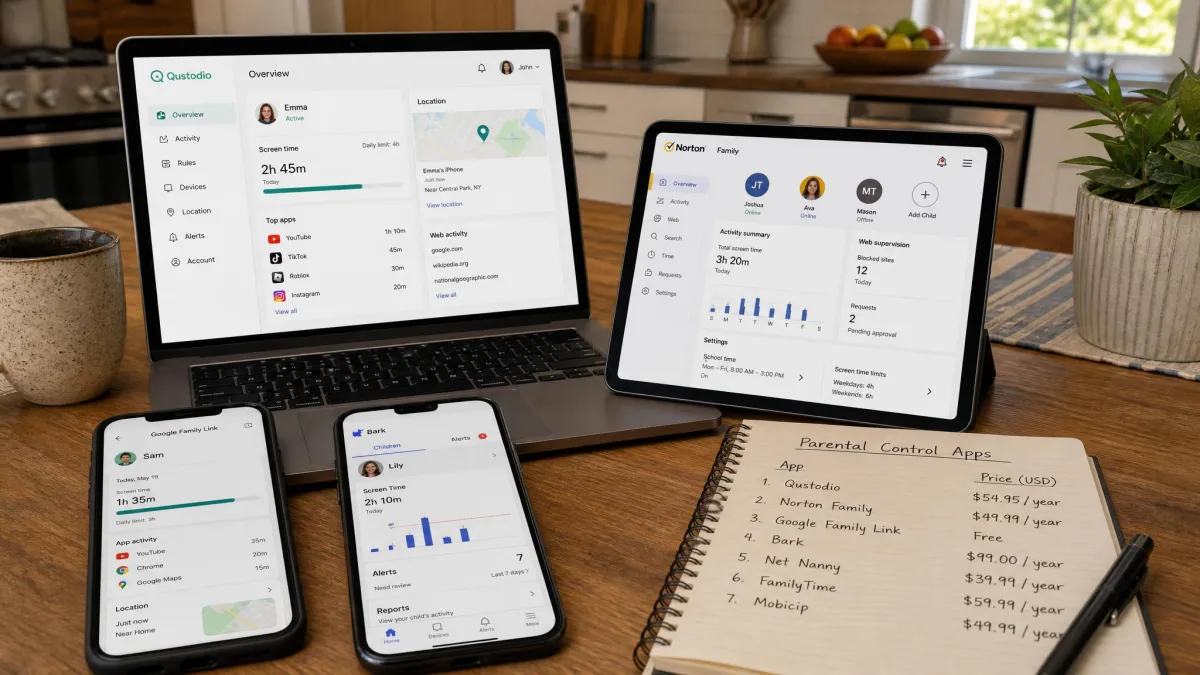
If neither app fits, three others are worth a look before you commit. Google Family Link is free, covers Android well and handles daily limits and app approval without a subscription, though its content filtering is thin. Mobicip sits closer to FamiSafe on filtering depth and supports a similar spread of platforms. Qustodio is the most detailed reporting tool of the three, and we cover that matchup in our Kids360 vs Qustodio comparison.
Which One Should You Pick?
Choose Kids360 If
Screen time is the only thing you need to manage, your child is young enough that content monitoring is not yet the issue, and the idea of earning minutes through challenges appeals to your family. The free tier alone will tell you within a week whether the app suits you, and that costs nothing but the setup time. Go in knowing that location is approximate and schedules need checking.
Choose FamiSafe If
You want one app to cover location, content, screen time and reporting across phones and laptops. You want geofence alerts you can rely on. You have a teenager, a Chromebook, a new driver in the house, or all three. The annual plan at 10 devices is the best value in this comparison, and the 7-day money-back guarantee lets you test it properly.