Your Android phone hands your position to a long list of apps at once, and most of them asked for it years ago. Maps needs it. So do weather, delivery, rideshare, and a few games you forgot were installed. On top of that sits your Google account, which can keep its own history of where the device has been.
That is why there is no single switch that hides you from everyone. The right method depends on who you are trying to hide from: one nosy app, a person you once shared with in Google Maps, or Google itself. Below are seven methods, in step-by-step order, from the fastest toggle to full GPS spoofing.
Which Method Should You Use? (Quick Comparison)
Start with the table. Find the row that matches who or what you want to hide from, then jump to that method.
| Method | What it hides | What it does not hide | Main tradeoff |
|---|---|---|---|
| Turn off location services | All app access to device position | Carrier and cell tower data, emergency location | Maps, weather, and ride-hailing stop working |
| Per-app permissions | One app's access | Other apps, Google account history | You have to repeat it per app |
| Stop Maps sharing | Live position from chosen contacts | Google Location History | The person sees you drop off their list |
| Airplane mode | App-visible position while it is on | Carrier records, last known location | The phone is offline |
| VPN | Your IP-based apparent location | GPS coordinates | Slower speeds, higher latency |
| Mock-location app | GPS coordinates reported to apps | IP address, account history | App bans and broken services |
Method 1: Turn Off Location Services on Android
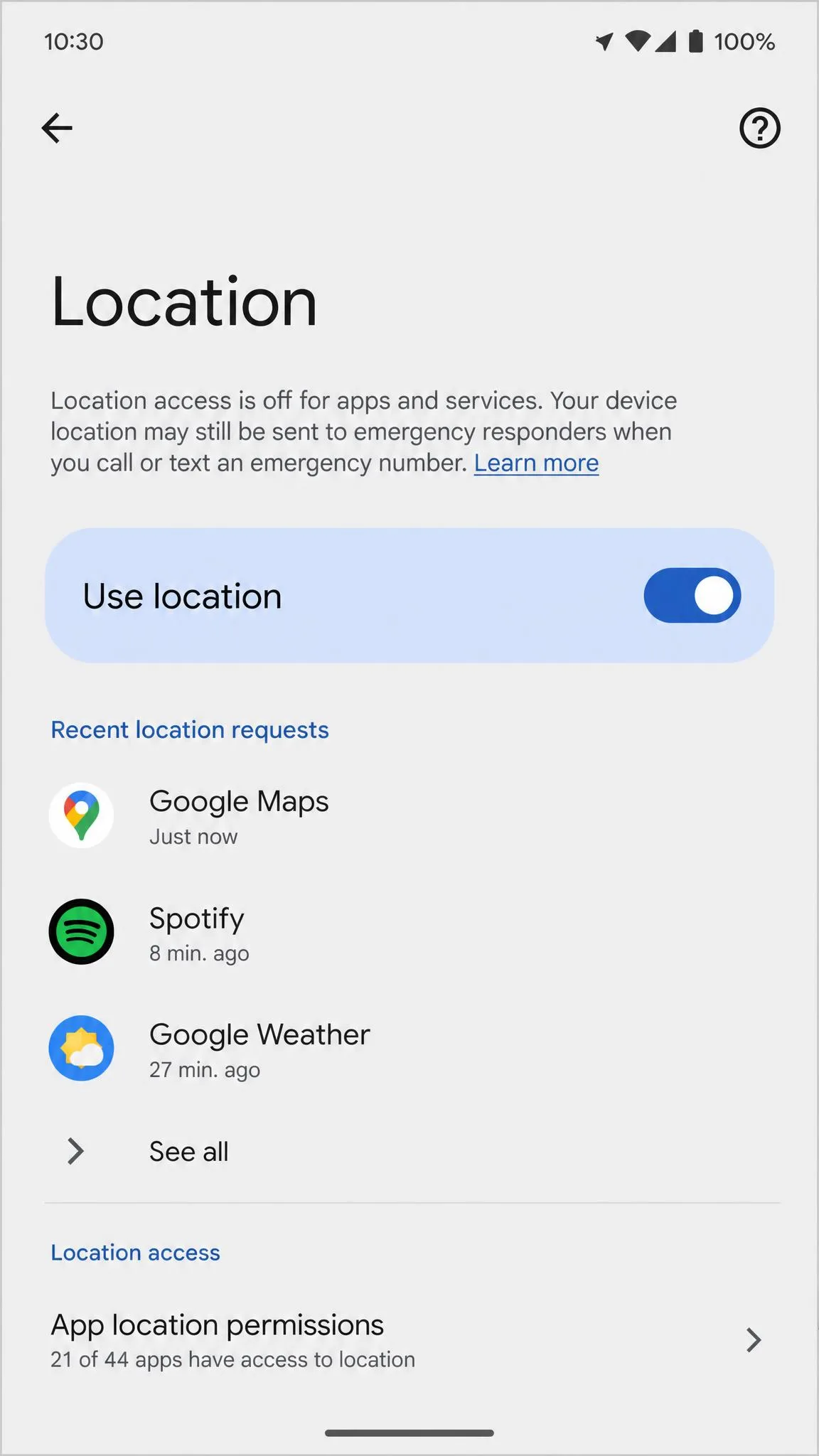
This is the blunt instrument, and it is the most effective single change you can make. With location services off, no app on the device can read your position at all.
The fastest route: the Quick Settings tile
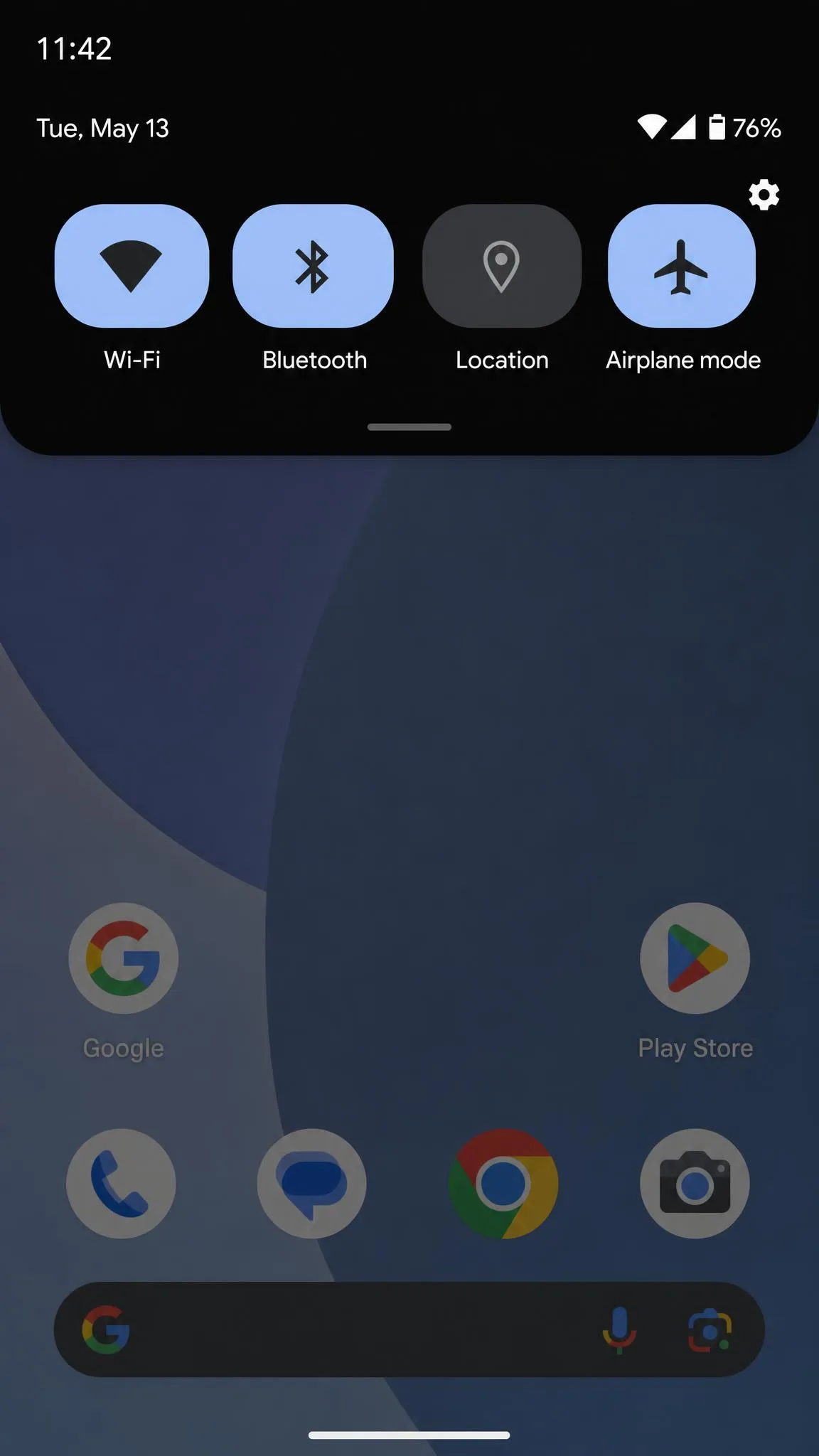
Swipe down from the top of the screen to open Quick Settings, then tap the Location icon to turn it off. If you long-press that same tile instead, Android opens the full location settings screen, including App location permissions. That shortcut saves a lot of digging.
Long-press the Location tile rather than tapping it when you want the settings, not the switch. It is the quickest way into per-app permissions on almost every Android build.
The full route: Settings > Location
For the complete set of options, open Settings, tap Location, and turn off the main Use location toggle. On the Pixel and Samsung One UI devices we checked, the paths differ at the second step, so the labels may read slightly differently on your phone.
While you are here, look at Location Accuracy. On Android 12 and above you will find it under Settings > Location > Location Services > Location Accuracy, with an Improve Location Accuracy toggle. On Android 11 and lower the same control sits under Settings > Location > Advanced > Location Accuracy. Google's Location Accuracy documentation explains what feeds it: Wi-Fi access points, cell towers, GPS, device sensors, your IP address, and your device model. Google says that data uses a rotating identifier and is deleted within 7 days. Even with the setting off, Emergency Location Service can still use it during an emergency call or text.
What stops working when location is fully off
Android warns you about this as you flip the switch, and the warning is accurate. Mapping, ride-hailing, and weather apps are the first to break, and they tend to break loudly. There is also a limit worth knowing: a phone that is powered on keeps talking to cell towers, so your carrier still holds coarse position data no matter what this toggle says.
Method 2: Turn Off Location for Specific Apps
Most people do not want a dark map app. They want three specific apps to stop watching. Per-app permissions are the tool for that, and they are far more precise than the master switch.
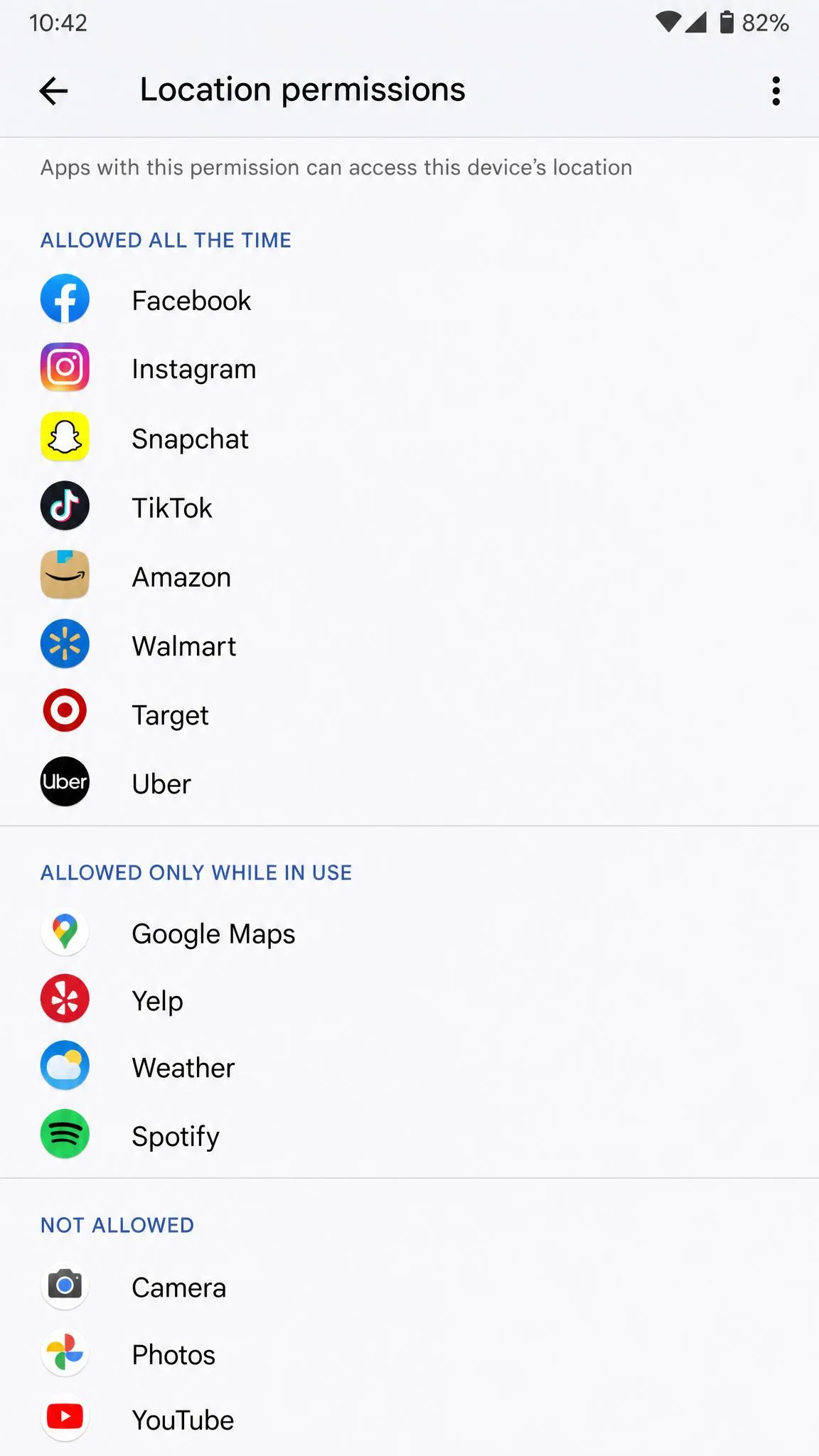
Open Settings, tap Location, then tap App location permissions. Android groups every app under Allowed all the time, Allowed only while in use, and Not allowed. Tap any app to change which group it belongs to.
Allow only while using the app
For nearly everything, "Allowed only while in use" is the setting to choose. The app gets your position when it is open on screen and loses it the moment you switch away. Background tracking is where the real privacy cost lives, so reserve all-the-time access for something you genuinely rely on, such as a navigation app you use hands-free.
Precise vs. approximate location
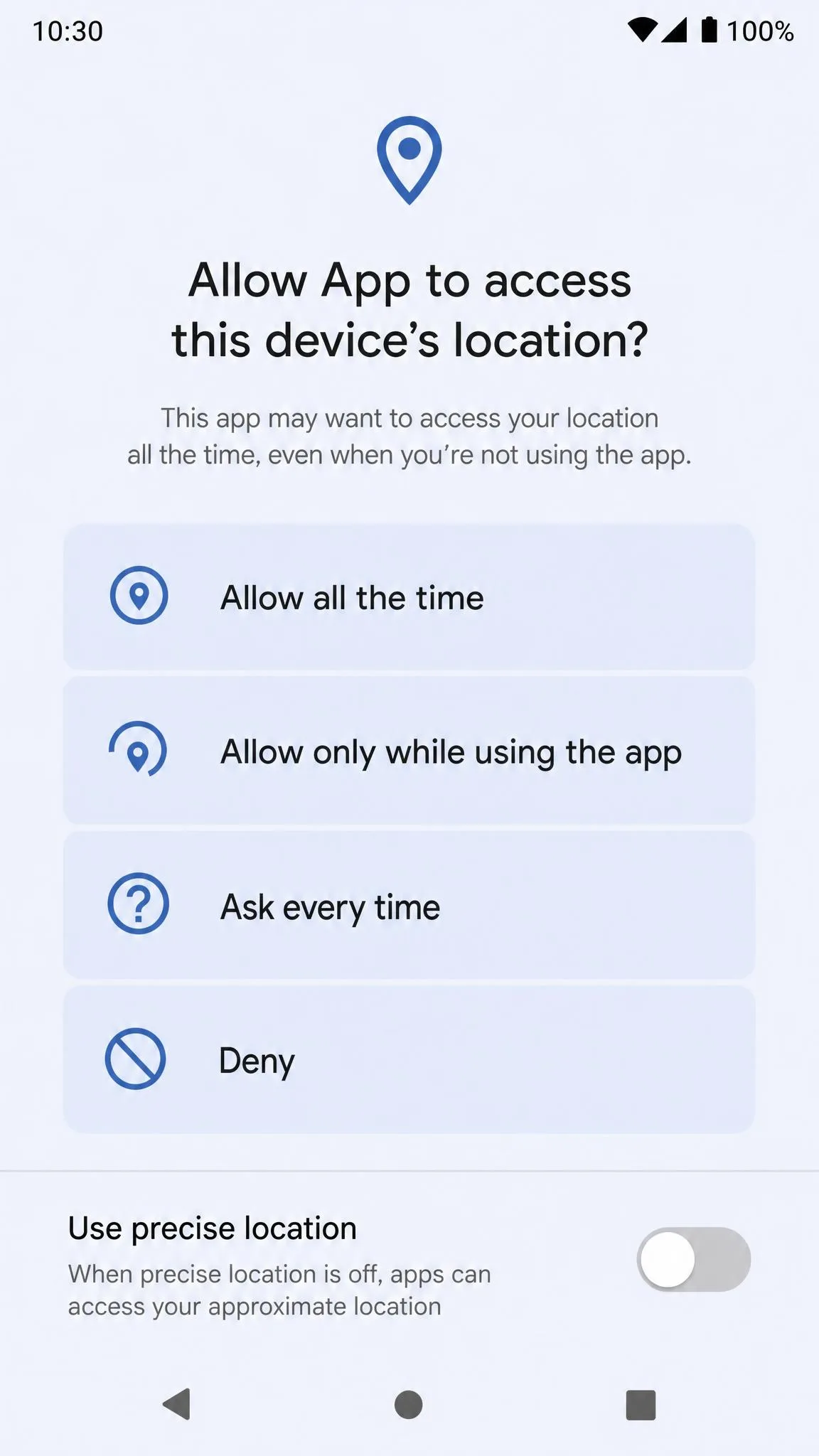
Android 12 introduced approximate location, which lets you grant an app a coarse area instead of your exact coordinates. A weather app, a news app, or a store locator works perfectly well with approximate location. A turn-by-turn navigation app does not. When the permission dialog offers both, look for the Precise toggle and switch it off for anything that does not need street-level accuracy.
Find and revoke permissions you forgot about
Scroll the whole Allowed all the time list, not just the top. That list almost always contains forgotten apps still holding constant access, and it is where most silent tracking actually turns up. Android helps a little here: permission auto-reset for unused apps arrived in Android 11 and was backported through Google Play services to devices running Android 6.0 and above. It is on by default for apps targeting API level 30 or higher, and for older apps you have to enable it yourself.
Revoking an app's permission stops that app. It does nothing about the history your Google account has already saved, which is what Method 4 handles.
Method 3: Stop Sharing Your Location in Google Maps
Live sharing in Google Maps is separate from every setting above. You can have location services on, permissions tidy, and still be broadcasting a live dot to someone you shared with two years ago.
End real-time location sharing
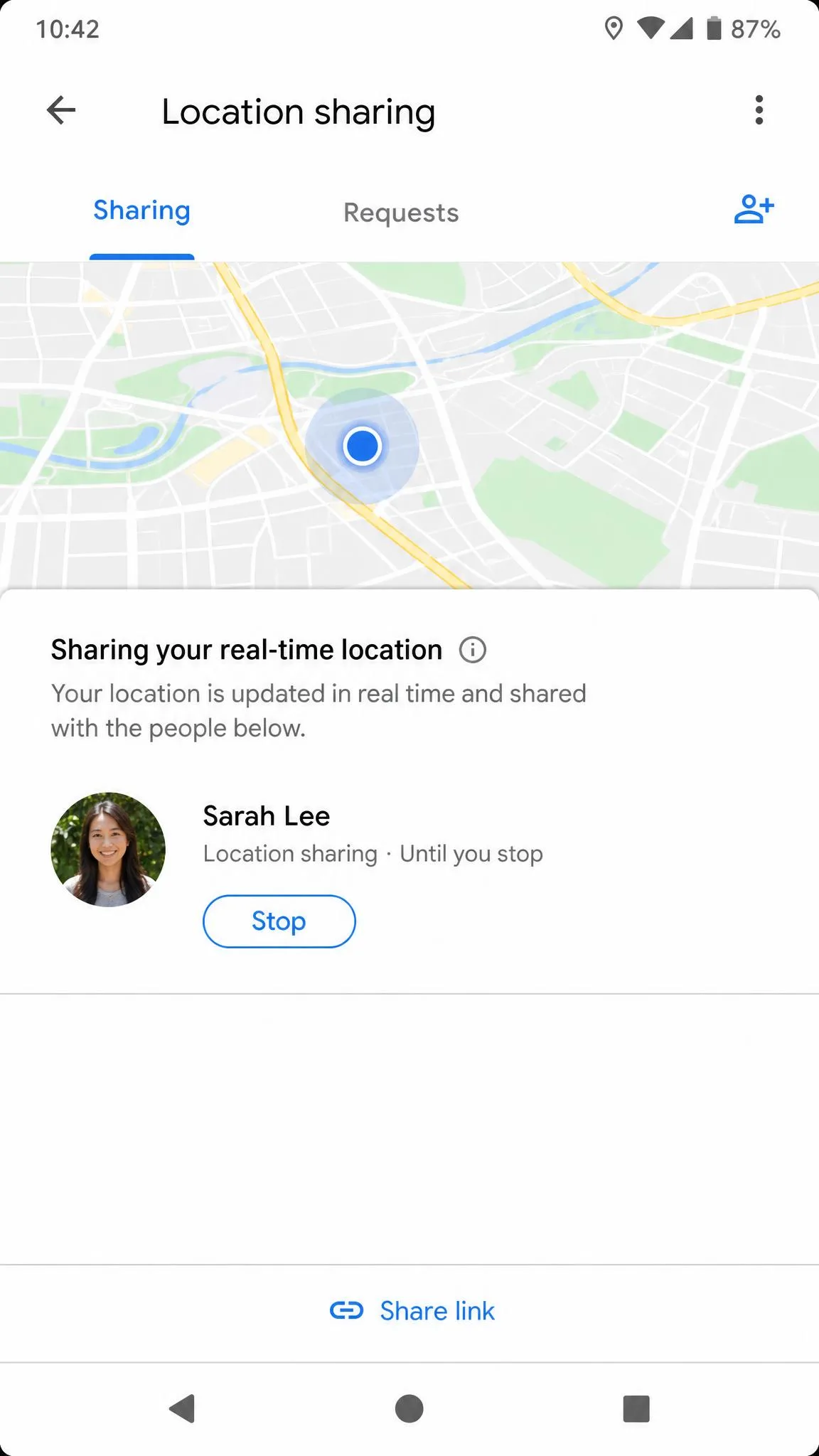
Sign in at myaccount.google.com, open People & sharing, tap Location Sharing, then Manage Location Sharing. Pick the person and tap Stop. You can also reach the same list from the Maps app by tapping your profile picture and choosing Location sharing.
Whether the other person gets notified
Ending a share is quiet. Google Maps does not push an announcement saying you stopped, though your entry does disappear from that person's sharing list, so it is quiet rather than invisible. Third-party apps behave differently, and some of them do alert contacts when sharing stops, so do not assume the same silence carries over.
Method 4: Turn Off Google Location History, Timeline, and Find My Device
Delete Location History and pause Timeline
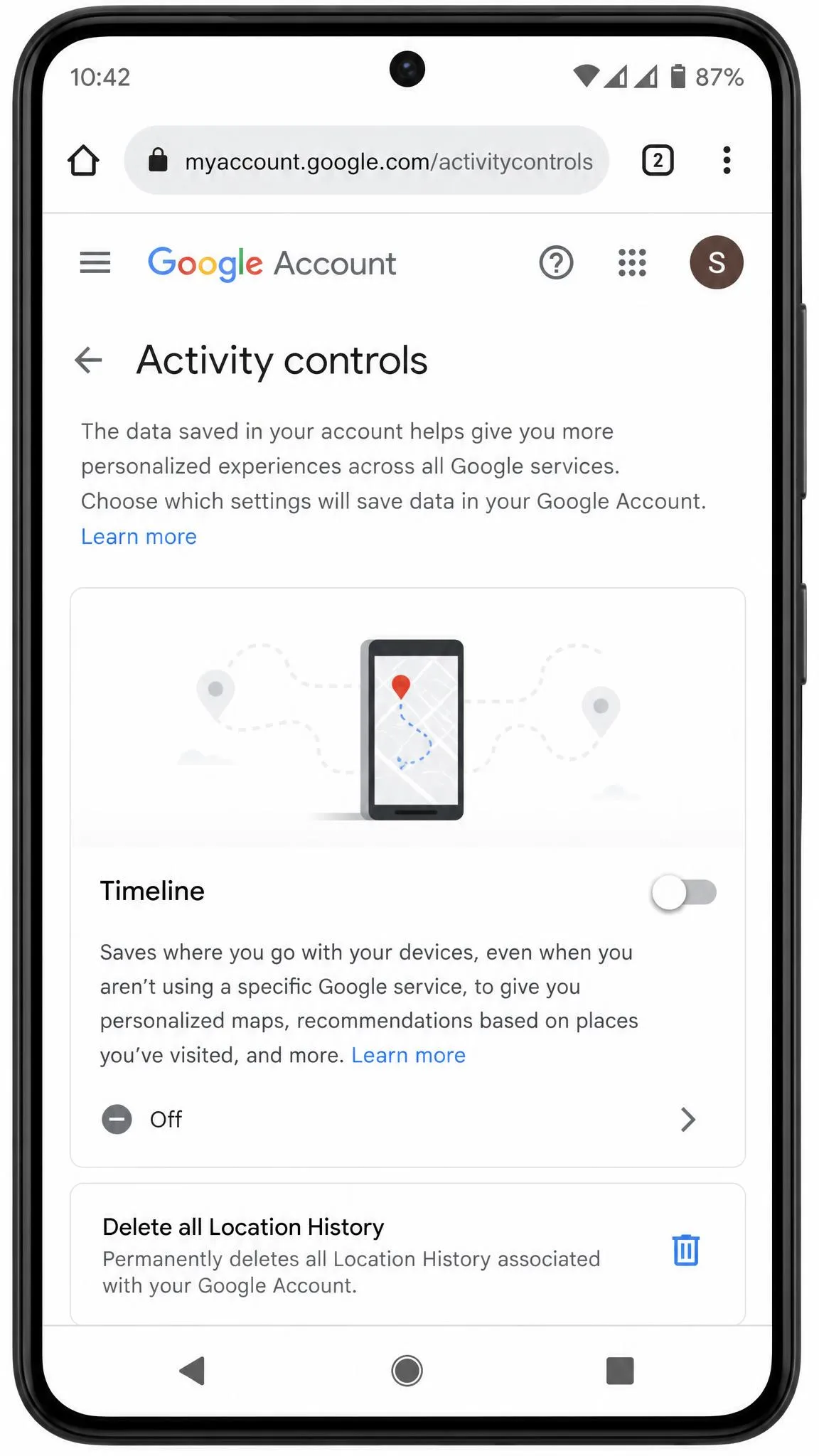
Timeline is switched on or off from the Timeline section of your Google Account, at myaccount.google.com/activitycontrols/location. With it on, precise device location is regularly saved to the phone itself, with optional encrypted backup to Google. You can manage or delete your Location History from the same screen.
One delete is rarely the whole cleanup, however. Deleting Timeline does not remove location saved through Web & App Activity or Search history, which can still record your general area and IP address. Clear that separately from your account activity controls. Auto-delete retention windows also vary by account and app version, because Google has repeatedly changed the available options as Timeline moved on-device.
Turn Off Find My Device
Find My Device sits under Settings > Security, or Biometrics and security on Samsung devices. Switching it off is possible, but be honest about the trade: you lose remote locate and remote wipe, which is the real cost of that toggle rather than any meaningful privacy gain.
Family trackers: Life360 and similar apps
Family-tracker apps are their own separate channel. Turning off Google's settings does nothing to them. Open the app, find its sharing or circle settings, and pause or leave from there. Whether the other members get an alert depends on the app and its current version, so check inside the app before you assume a quiet exit.
Method 5: Use Airplane Mode to Hide Your Location Temporarily
Airplane mode is the fastest temporary answer. Swipe down, tap the airplane icon, and the phone stops reporting its position to apps because it has no network to report over.
It is a blunt pause, not a disappearance. The GPS receiver itself keeps working, and your last known location reappears the moment connectivity returns. Your carrier's records of where you were before you switched it on do not go anywhere either. Use airplane mode for an hour, not as a privacy strategy.
Method 6: Change Your Apparent Location With a VPN
A VPN is the right tool when the thing you want to change is which country a website or streaming service thinks you are in.
What a VPN does and does not hide
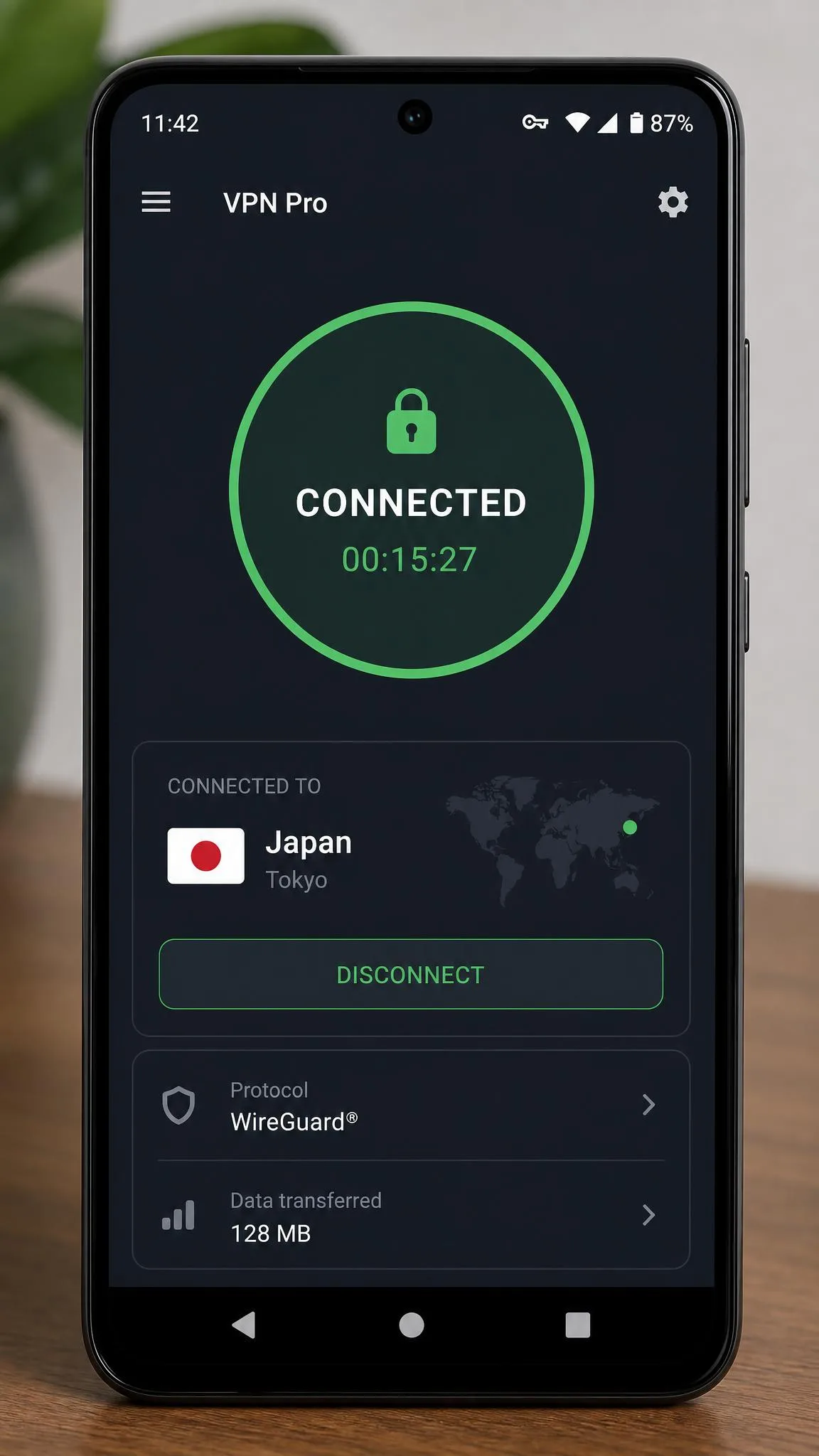
A VPN masks your IP address and routes traffic through a server in the region you choose. It does not touch the GPS coordinates apps read from the device. If an app asks Android directly for your position, a VPN changes nothing, which is the single most common misunderstanding about them.
There is a daily cost too. A VPN connection noticeably slows browsing and adds latency, and that shows up most in online gaming. If you only need a regional change for one site, turn it on for that session rather than leaving it running.
When changing your apparent IP is not enough, the next step is spoofing the GPS coordinates themselves.
Method 7: Fake GPS and Mock-Location Apps
Mock location is the only method here that makes your phone actively report a false position instead of no position.
How mock location works on Android
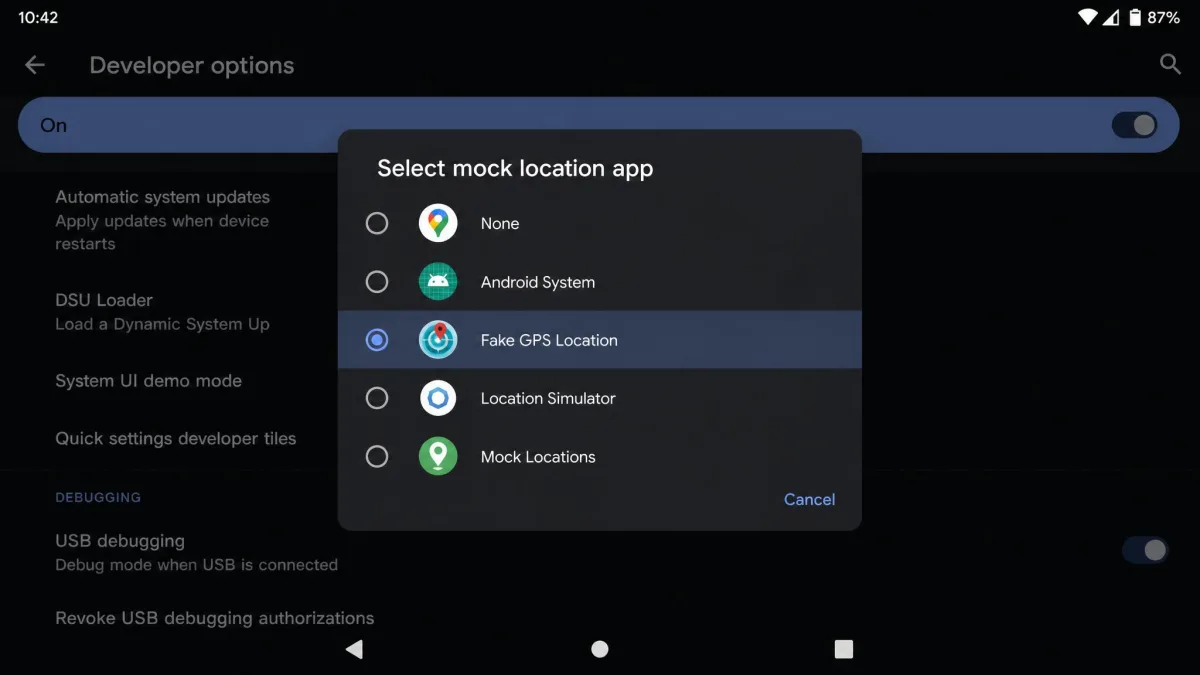
Mock location is a developer testing feature, documented as part of Android's developer mock location setting, that overrides the coordinates handed to the system location providers. To use it, install a fake GPS app from the Play Store, then open Settings, tap About phone, and tap Build number seven times to unlock Developer options. Go back into Settings, open Developer options, find Select mock location app, and choose the app you installed.
That last step is the one people miss. If the app is installed but never selected there, setup fails silently and the phone keeps reporting your real location.
The risks: app bans, broken services, and safety features
Banking apps, ride-hailing services, workplace attendance tools, games, and streaming platforms can all detect a mock location and restrict or block your access. Spoofing into a region an app does not serve usually makes it refuse to load rather than show you regional content. Some safety features that depend on accurate position, including emergency and family-locator functions, will report the fake coordinates instead of where you actually are.
What "Hiding Your Location" Actually Means on Android
GPS vs. Location Services vs. location sharing
These three get used interchangeably and they are not the same thing. GPS is the satellite hardware in the phone. Location services is the Android system layer that blends GPS with Wi-Fi, cell towers, sensors, and your IP address to produce a position. Location sharing is a separate account feature that hands that finished position to another person.
Turning one off does not turn off the others. That is why a reader who "turned off location" can still be visible in Google Maps to a family member.
Who you are hiding from changes the method
Hiding from an app means permissions. Hiding from a person means sharing settings. Hiding from Google means Timeline and Web & App Activity. Hiding from your carrier is not something a setting on the device can do, because that data comes from the towers, not the phone.
Why You Might Want to Hide Your Location
Privacy is the obvious reason. Location data is unusually revealing because it maps to real places: a clinic, a place of worship, a home address. The FTC has warned about sensitive location data and the harm that follows when it is bought and sold.
Battery is the practical reason, though it works differently than the folklore suggests. The master toggle is not where the drain lives; an app holding all-the-time access and polling at high accuracy through the day is, so trimming that short list is the change worth making on an aging phone.
Safety and simple boundaries make up the rest. Ending a share you set up during one trip, or stepping out of a family tracker you have outgrown, is a normal thing to want. If you also want to tidy other traces on the device, our guide on how to hide text messages on Android covers the messaging side, and how to change your location on Android goes deeper on spoofing tools.
Frequently Asked Questions
Does turning off location stop all tracking?
Will someone be notified when I stop sharing my location?
Does airplane mode fully hide my location?
Is spoofing my location on Android legal?
Does hiding my location save battery?
Why do some apps break when you spoof your location?
Final Thoughts
There is no single setting that hides an Android phone from everything, and any guide promising one is selling you something. What works is matching the method to the watcher: permissions for apps, sharing settings for people, Timeline for your Google account.
If you only do two things, do these. Open the App location permissions list and move everything you do not actively need to "Allowed only while in use", then check Location Sharing in your Google account for shares you forgot about. Those two passes take about five minutes and give you most of the peace of mind, without breaking maps the next time you need directions.