If your Screen Time report shows more hours than you expected, willpower alone usually isn't the fix. A few changes to your phone settings and to where you keep your phone do more. Start today by turning off the notifications you don't need, then charge your phone in another room tonight.
Below are 12 strategies that cut screen time, starting with the tools already built into your iPhone or Android phone. We also cover a 7-day reset, the apps that help, and how to bring the same ideas to kids and teens.
Why cutting back matters, and how much is too much
Screen time is not inherently bad. The problem is the time that slips away without you choosing it. In a 2026 Pew Research Center survey, 53% of US adults said they spend too much time on their smartphone, and 45% had tried to cut back in the past year.
Small changes show up quickly. In a 2025 study in PNAS Nexus, 467 iPhone users blocked mobile internet for two weeks while calls and texts still worked. Daily smartphone screen time in the blocking group fell from 314 to 161 minutes, roughly half. Overall, 90.7% of participants improved on at least one measure of well-being, mental health, or sustained attention.
Sleep is the other big reason. The National Institute of General Medical Sciences notes that light from devices at night can confuse your body clock, and that is why the bedroom shows up so often in the tips below.
There is no single healthy number for adults, because work, family, and what you use screens for all change the answer. Our guide on how much screen time is too much covers the detail.
Start by measuring your baseline
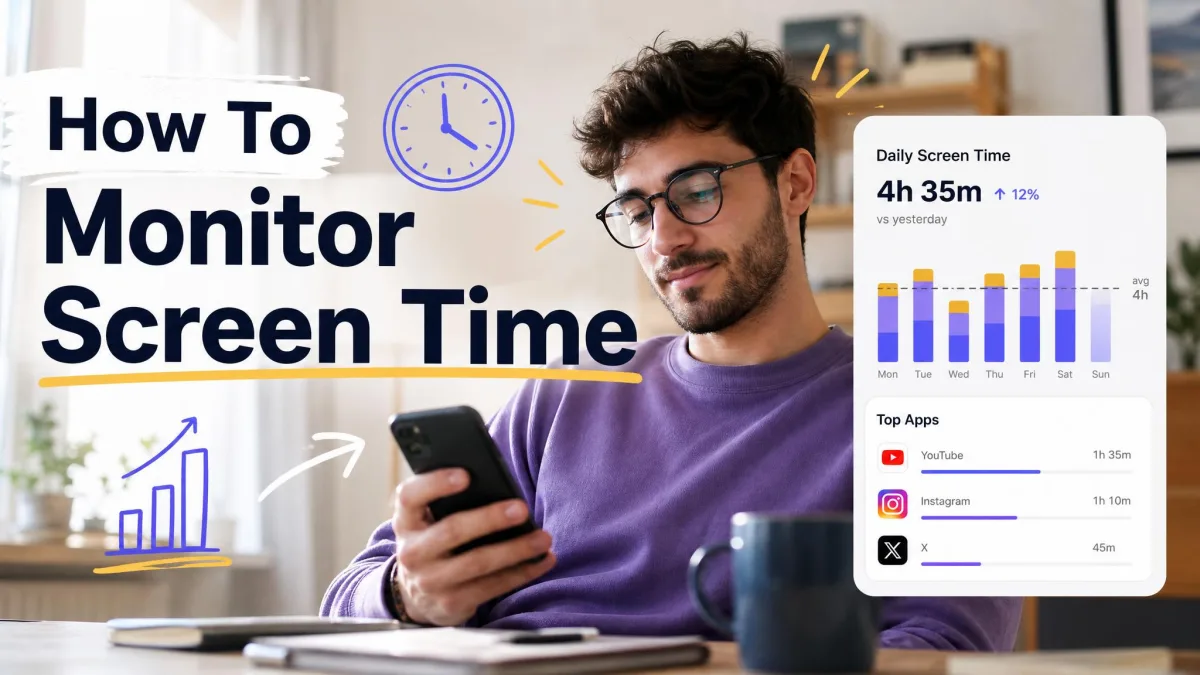
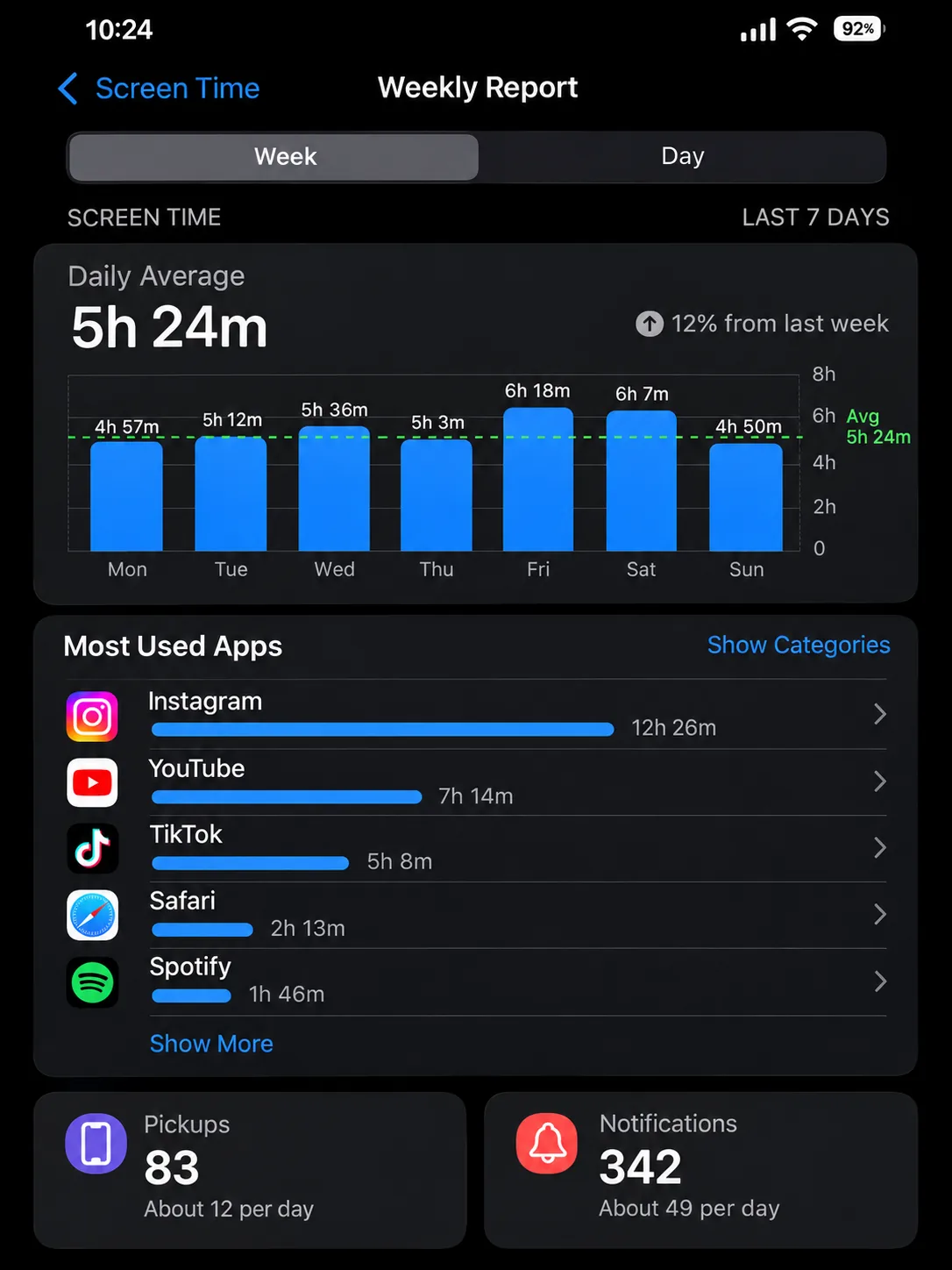
You can't cut what you haven't measured. Before you change anything, look at your daily total, top apps, pickups, and notifications for a few days.
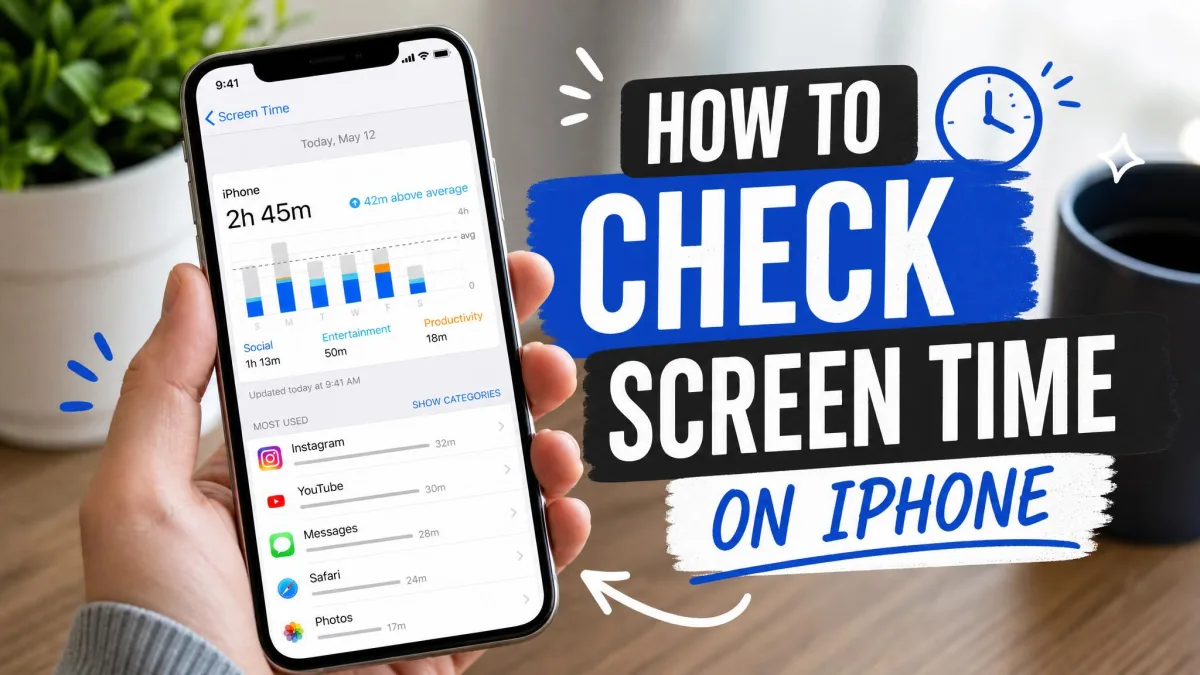
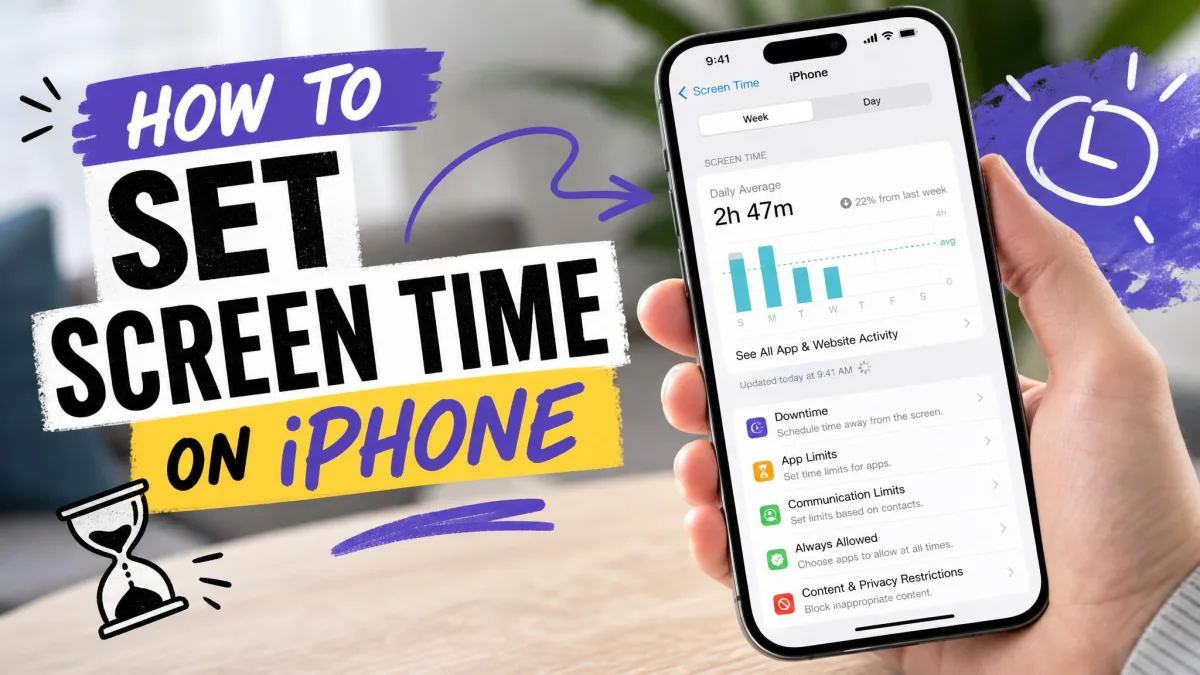
On iPhone and iPad: Screen Time
On September 14, 2026, Apple released iOS 27, which redesigned Screen Time. The path you follow depends on your version.
- iOS 27 and later: Open Settings → Screen Time, then tap Daily Average to switch between the Week and Day reports. Scroll down for Pickups and Notifications.
- iOS 26 and earlier: Open Settings → Screen Time, turn on App & Website Activity, then tap See All App & Website Activity.
Our guide on how to check screen time on iPhone shows each screen.
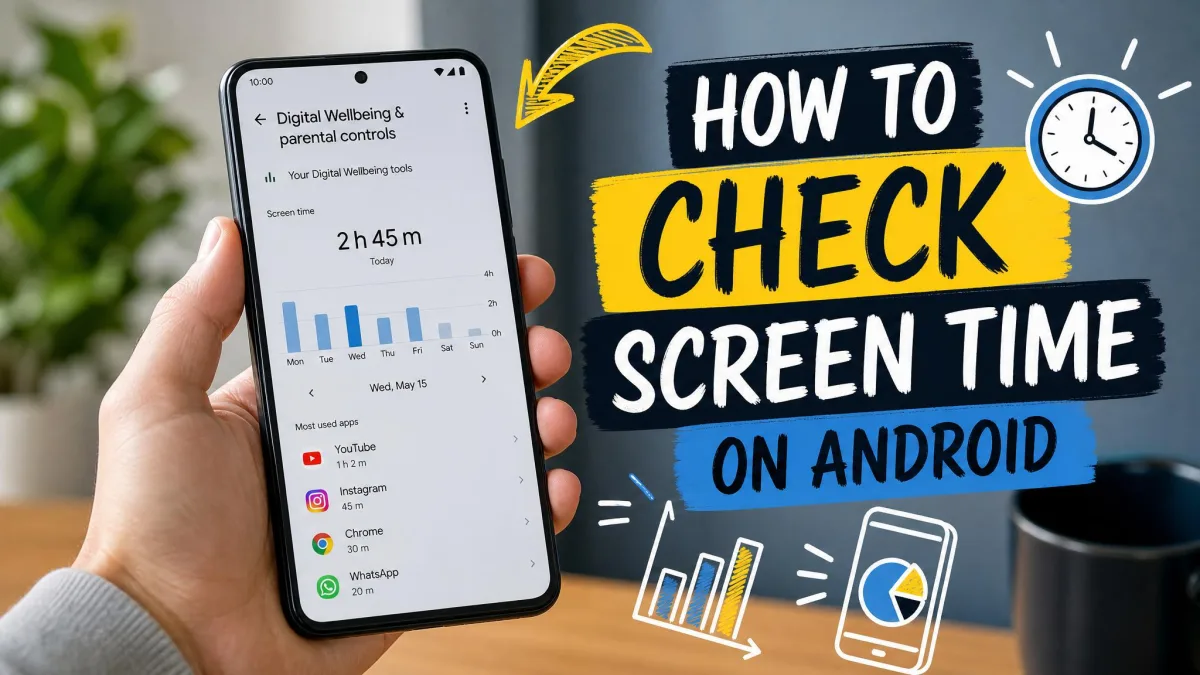
On Android: Digital Wellbeing
Open Settings → Digital Wellbeing to see the dashboard. It shows per-app screen time and notifications, plus your unlocks. On Android 9 and later, you can add a Screen time widget that shows your top 3 apps for the day. We cover Samsung, Pixel, and other phones in how to check screen time on Android.
Write down your daily total, top app, and pickups before you start. Checking them again after a week shows which tips worked for you.
12 ways to reduce screen time
Not every tip fits every person. Start with two or three that match your biggest time-sinks, then add more once those feel normal.
1. Turn off non-essential notifications
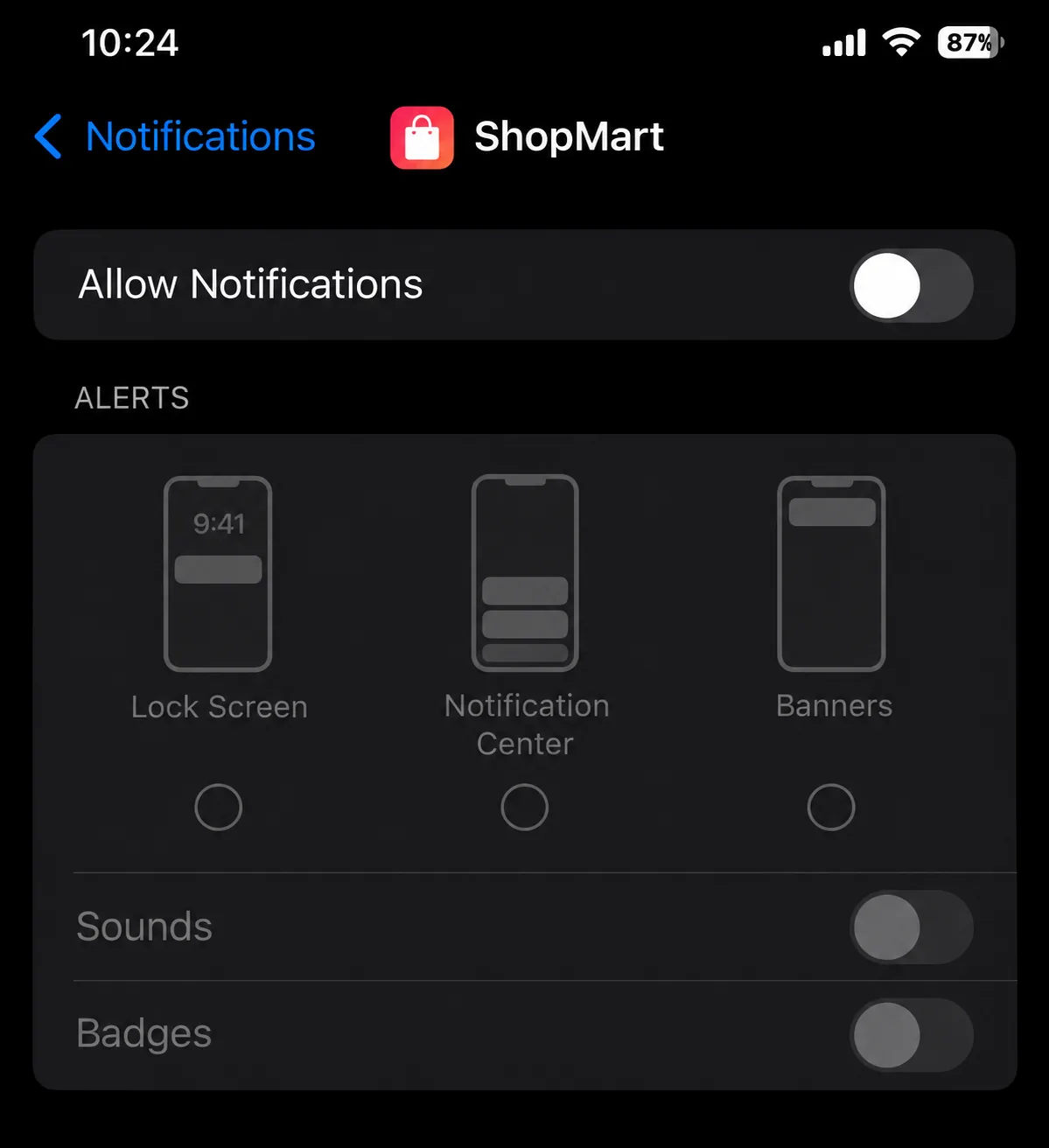
Every buzz is an invitation to pick up the phone. Cutting notifications removes the trigger before you reach for the screen.
- iPhone: Open Settings → Notifications, tap each app, and turn off Allow Notifications for anything that isn't a person or a time-sensitive alert.
- Android: Open Settings → Notifications → App notifications and switch off the apps you don't need.
Keep calls and messages from people on. Shopping apps, games, and social media badges should go first.
2. Set app limits on your biggest time-sinks
App limits put a daily cap on the apps your baseline flagged. On iOS 27, App Limits became Time Allowances, so the steps differ by version.
- iOS 27 and later: Open Settings → Screen Time → Time Allowances. Drag the slider for a daily total, or set time per category such as Social Media or Games.
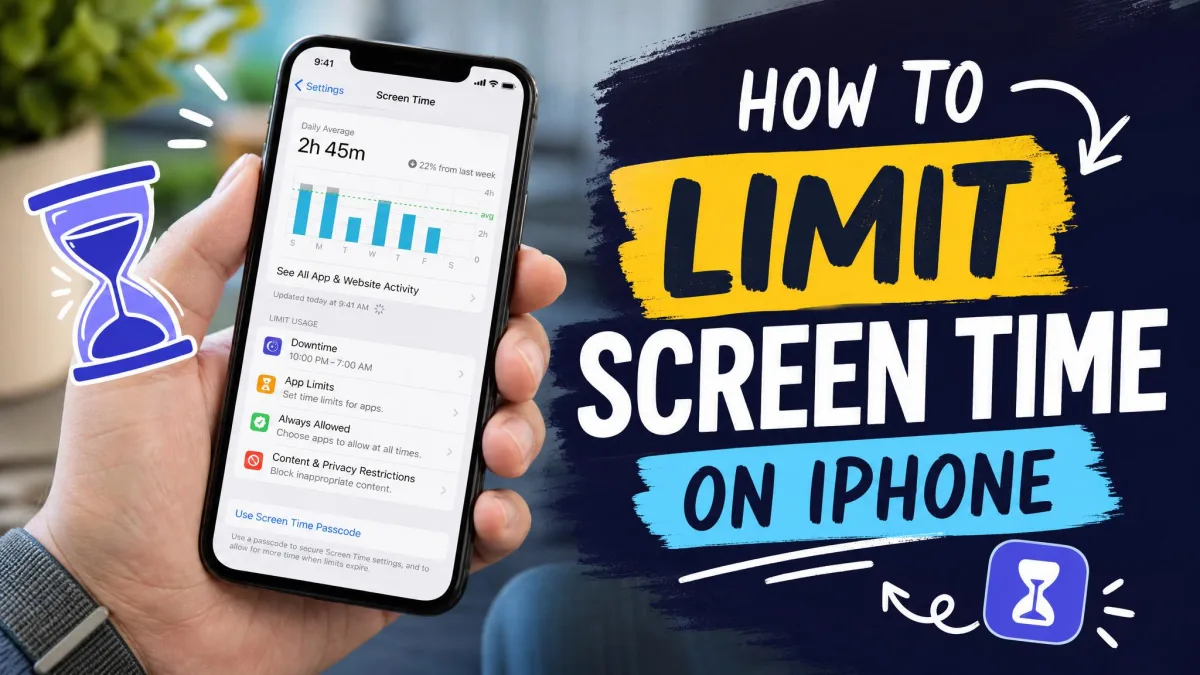
- iOS 26 and earlier: Open Settings → Screen Time → App Limits → Add Limit. Choose a category or apps, tap Next, and set the time.
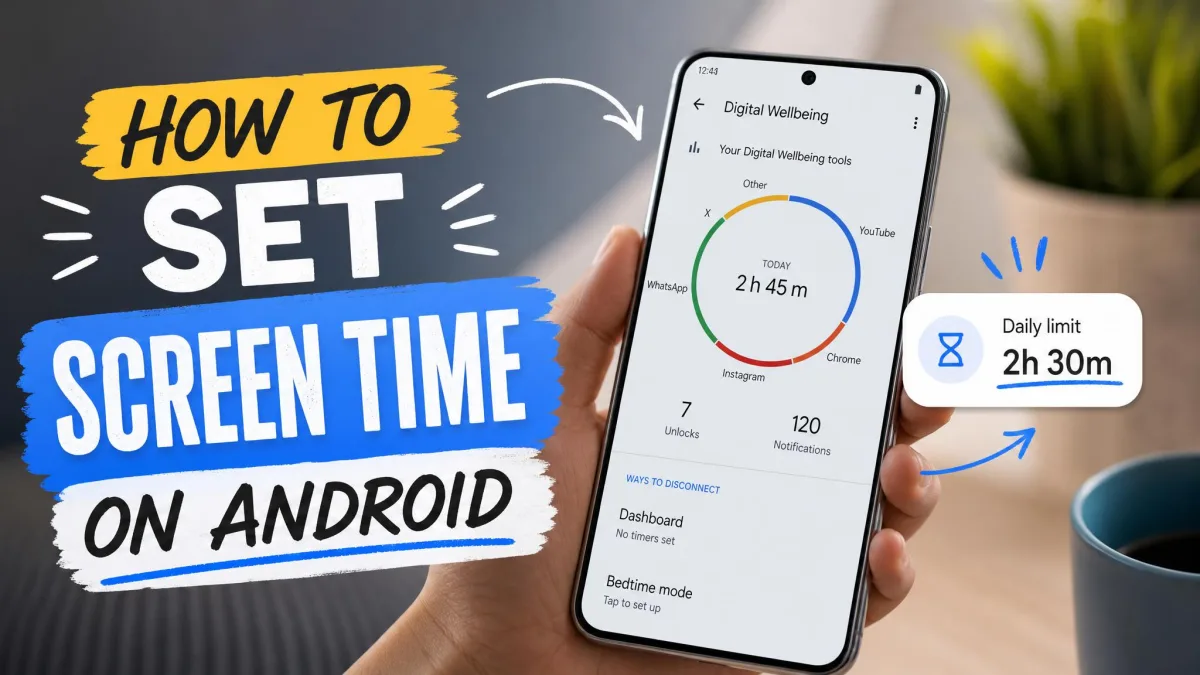
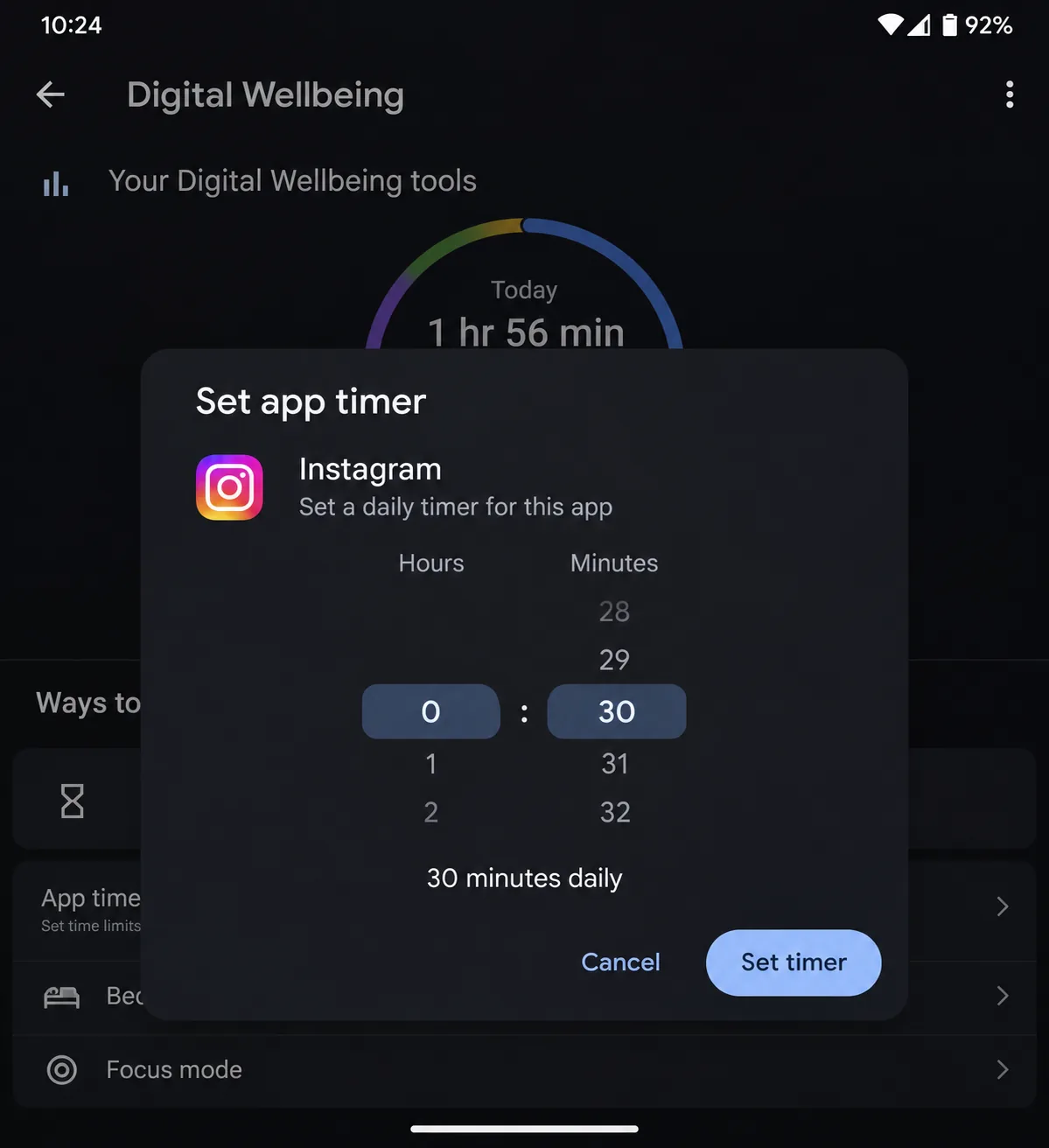
- Android: Open Settings → Digital Wellbeing → App timers, pick an app, and tap Set timer.
In our testing, a self-set iPhone limit without a Screen Time passcode worked as a reminder, not a barrier. When the limit hit, the screen offered One More Minute, Remind Me in 15 Minutes, and Ignore Limit for Today, and one tap put us straight back in the app. Having someone else set the passcode is what turns limits into hard stops, because the Block at End of Limit toggle only appears once a passcode exists. Whether the One More Minute option still appears with that toggle on has changed across iOS releases and differs between child and adult accounts.
Android is stricter. When a Digital Wellbeing timer runs out, the app shuts and its icon dims until midnight, with no "few more minutes" option. To stop yourself deleting the timer on a whim, open Settings → Digital Wellbeing → App limits → App limits PIN and set a 4-digit PIN.
Watch for two gaps. App limits leave the website open in your browser, and they cap minutes, not how often you open an app. Our full walkthroughs cover how to limit screen time on iPhone and how to set screen time limits on Android.
3. Switch your phone to grayscale
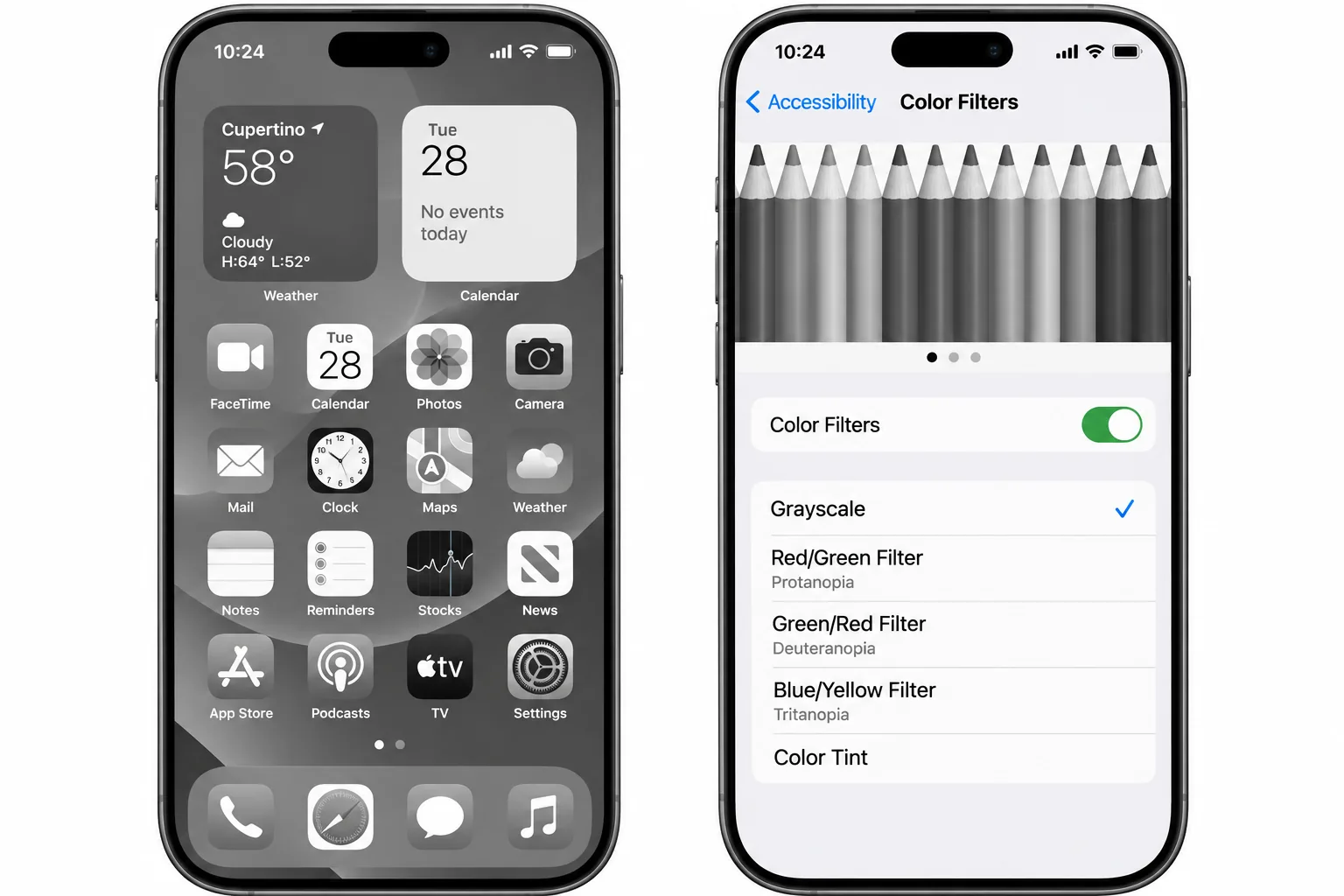
Color makes apps more appealing, so taking it away makes scrolling less rewarding. Grayscale cut total screen time by about 38 minutes a day, mostly from social media and browsing. Video time didn't change.
- iPhone: Open Settings → Accessibility → Display & Text Size → Color Filters, turn on Color Filters, and choose Grayscale.
- Pixel and stock Android: Open Settings → Accessibility → Color & motion → Color correction, turn on Use color correction, and choose Grayscale.
- Samsung Galaxy: Open Settings → Accessibility → Visibility enhancements → Color adjustment. Samsung renames this menu between One UI versions, so searching Settings for "grayscale" is the reliable fallback.
When we switched to grayscale, scrolling felt flatter, sessions got shorter, and we closed the browser sooner. Grayscale did make it awkward to judge a photo or to tell whether the flashlight toggle was on. Our fix on iPhone was adding Color Filters to the Accessibility Shortcut, so a triple-click of the side button flips color back on for a photo and then returns to gray.
Text-heavy feeds keep their pull, so time can drift to apps like LinkedIn. The effect also varies: for some people it holds into a second week, and for others it fades within days.
4. Hide or delete your highest-temptation apps
Hiding an app makes it harder to reach on autopilot. Move your top time-sink off the Home Screen into a folder on the last page, or into the App Library on iPhone. If an app isn't worth keeping, delete it. One caution: deleting and reinstalling an app can reset its Screen Time limit.
5. Create screen-free zones, starting with the bedroom
Screen-free zones remove the decision, because you don't have to resist a phone that isn't there. Start with the bedroom, then the dinner table.
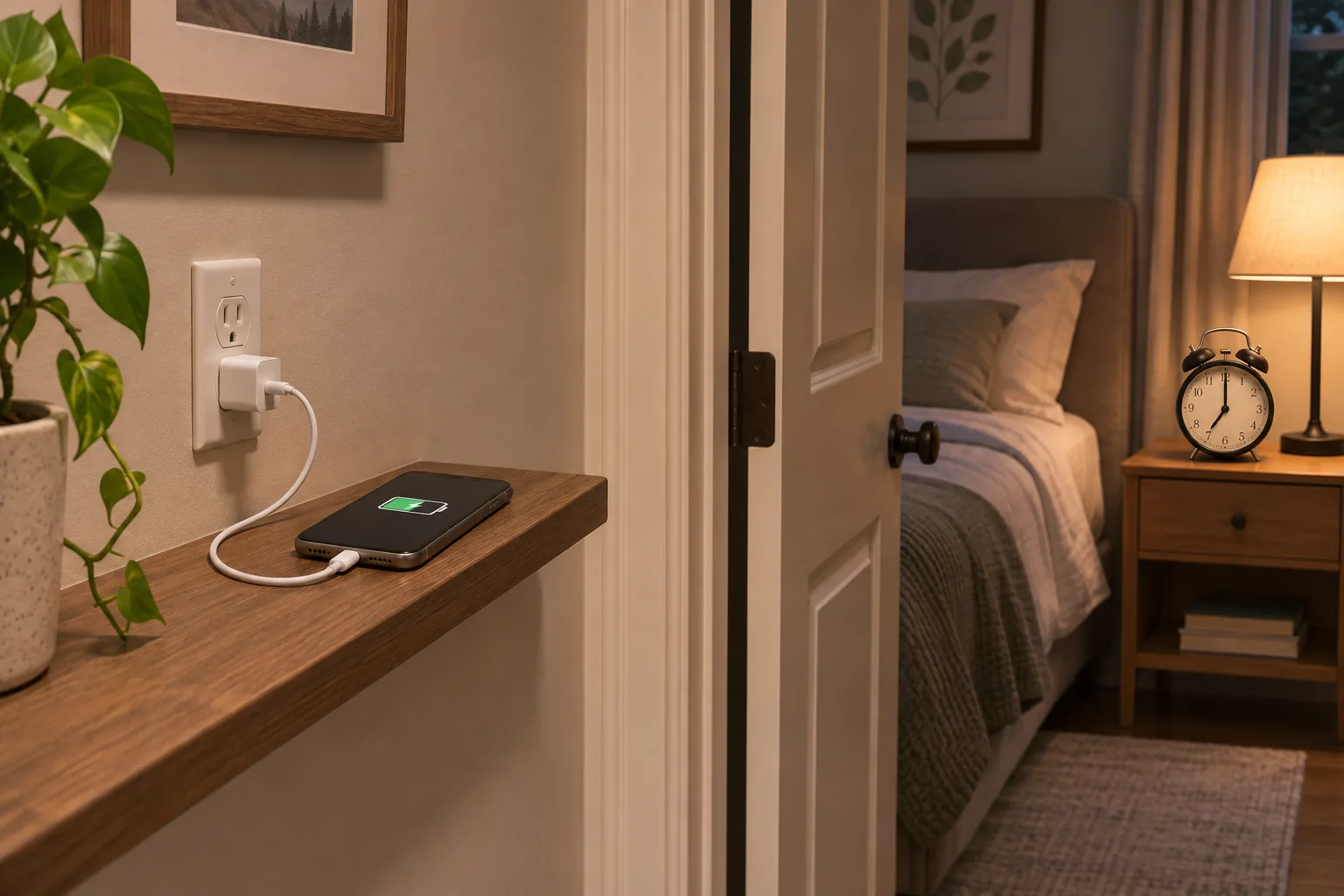
In our experience, charging your phone in another room only sticks once a cheap standalone alarm clock replaces the phone alarm. That removes the main excuse for keeping it on the nightstand. Keeping the phone out of the bedroom also made it easier to skip checking it first thing in the morning.
6. Set a digital sunset before bed
A digital sunset is a set evening time when screens go off. Aim for an hour before bed, or start with 30 minutes.
Light is only part of the reason. A National Sleep Foundation consensus statement agreed that screen use and stimulating content before bed harm sleep in children and teens, and it recommends screen-free bedtime routines.
- iPhone (iOS 27): Open Settings → Screen Time → Screen Time Schedule, turn on Schedule, and tap Add Schedule to set your evening window.
- iPhone (iOS 26 and earlier): Open Settings → Screen Time → Downtime and choose Scheduled. You get a 5-minute reminder before it starts.
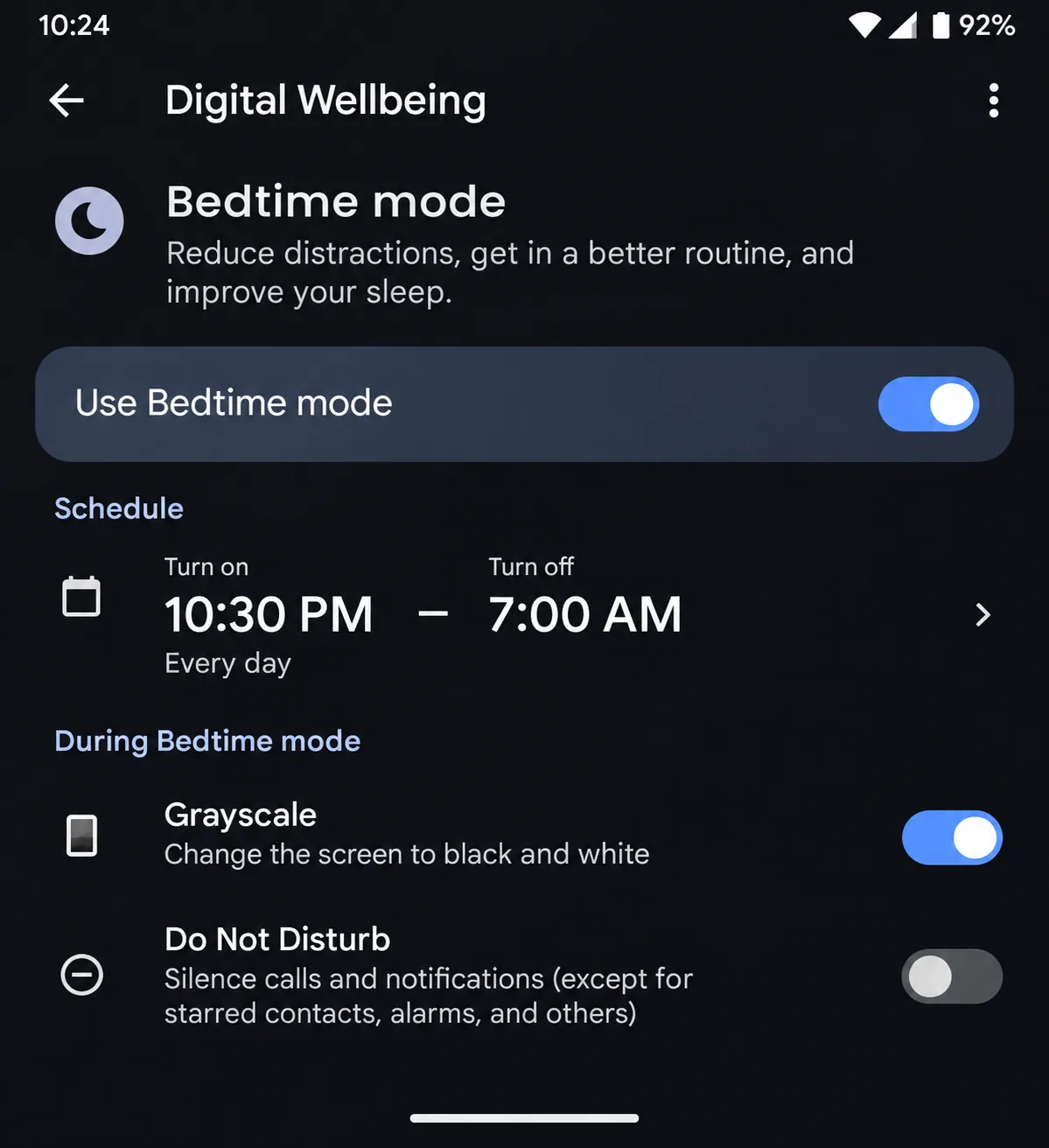
- Android: Open Settings → Digital Wellbeing → Bedtime mode. Set a schedule or choose "while charging", then turn on grayscale under screen options.
7. Protect the first hour of your morning
The first thing you look at sets the tone for the day. If that's email or a news feed, you start in reactive mode. Try keeping the phone off for the first 30 to 60 minutes after you wake up.
This gets much easier once your phone sleeps in another room.
8. Use Focus modes and Downtime for work and study
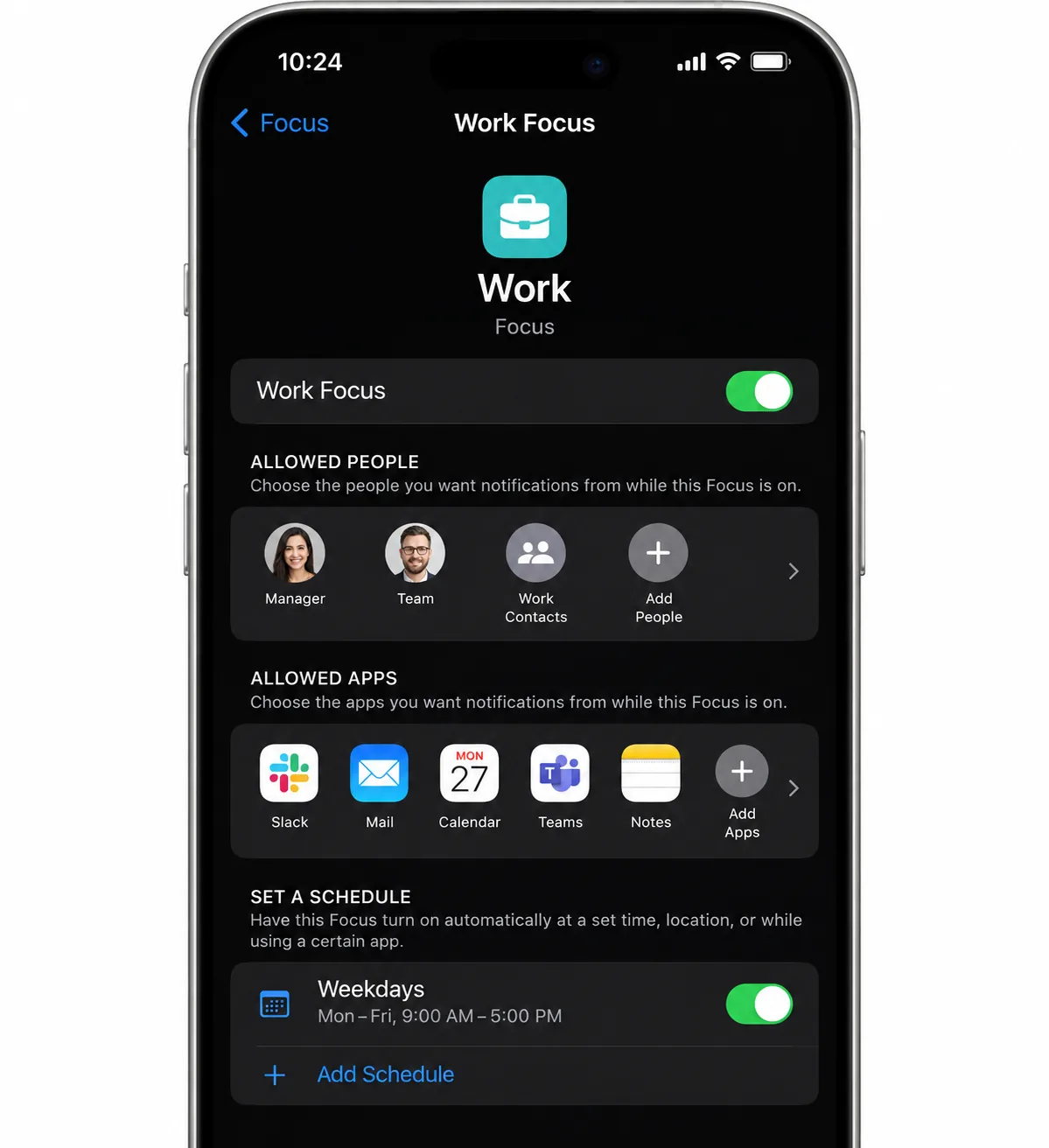
Focus modes silence everything except the people and apps you choose. That helps when you work on the same device that distracts you.
- iPhone: Open Settings → Focus, pick Work or Personal (or create a custom one), choose who and which apps can reach you, and add a schedule.
- Android: Open Settings → Digital Wellbeing → Focus mode, select the apps to pause, and set a schedule.
- iPhone schedules: Use Screen Time Schedule on iOS 27, or Downtime on iOS 26 and earlier, to block apps during a study window. Open Settings → Screen Time → Always Allowed to keep calls and key contacts reachable.
9. Put your phone in another room during focused time
Silencing your phone helps, but moving it out of reach helps more. A phone face-down on your desk still pulls at your attention. Put it in the next room for a set work block, such as 45 minutes, then take a short break to check it.
10. Take regular breaks with the 20-20-20 rule
Long stretches of screen work strain your eyes, not just your attention. The American Optometric Association's 20-20-20 rule is simple: every 20 minutes, look at something about 20 feet away for 20 seconds.
It eases digital eye strain and gives you a regular moment to notice what you're doing. A repeating timer makes it automatic.
11. Replace scrolling with a specific offline activity
Removing a habit leaves a gap, and the phone fills it unless something else does. Pick a specific replacement for your usual scrolling moments.
- While waiting in line, read a paperback or just look around.
- After dinner, take a 15-minute walk.
- In bed, read a printed book instead of a feed.
Keep the replacement within easy reach.

12. Make it social: tell someone and stack phones at meals
Change is easier when someone else knows about it. Tell a friend or partner your goal and ask them to hold you accountable. An accountability partner can also hold your Screen Time passcode, and that passcode is what makes iPhone limits hard to ignore.
At meals, stack phones face-down in the middle of the table. The first person to reach for theirs pays for coffee.
Tools and apps that help you cut back
Built-in settings cover most people. If they aren't enough, third-party tools add different kinds of friction.
| Tool type | Buy | Best for | How it helps |
|---|---|---|---|
 |
Most people starting out | Free daily caps, schedules, and usage reports | |
 |
Breaking reflex opens | A short pause before an app opens, with an easy way out | |
 |
Deep work and study blocks | Blocks apps and websites on a schedule across devices | |
 |
Timed focus sessions | Rewards staying off the phone; blocks nothing | |
 |
Bedrooms and family rooms | A lockbox or charging station in another room |
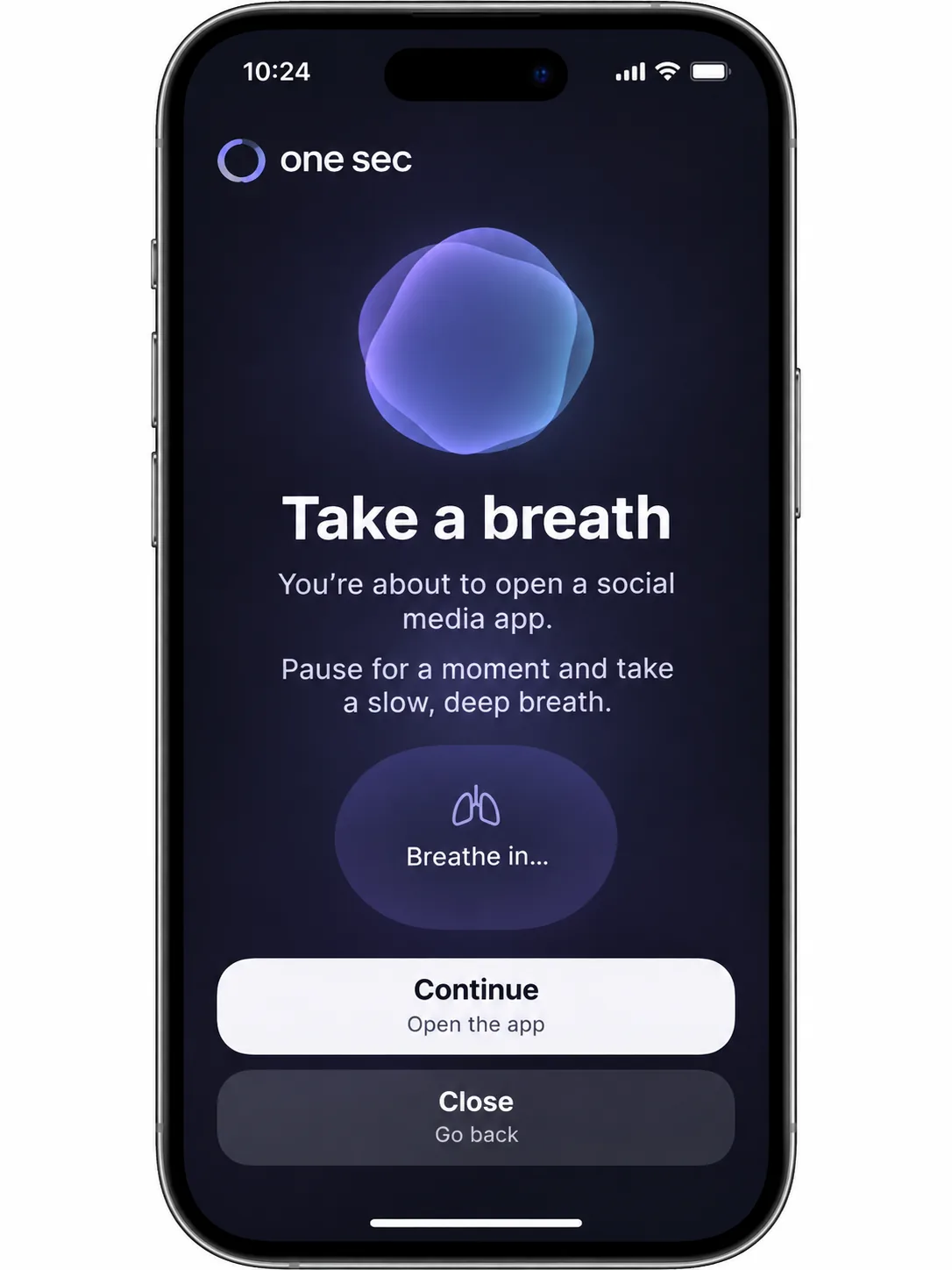
A peer-reviewed 2023 study of one sec in PNAS found it cut how often people actually opened target apps by 57% over six weeks, though that figure counts opens, not minutes. In our experience, one sec works as a speed bump, not a lock. The pause stops many reflex opens, but you can always continue. One sec itself also occasionally stops intercepting apps until you force-quit it.
Freedom aims to stop you completely, and its Locked mode prevents ending a session early. Expect some trial and error during setup before the blocks hold on a phone. Trustpilot rates Freedom 3.0 from 29 reviews, with complaints about blocks that can be dodged by revoking the app's permissions. Forest blocks nothing and relies on you not wanting to kill your virtual tree.
We don't rank individual apps here. For our picks, see the best apps to limit screen time.
Try a 7-day screen time reset
A full digital detox isn't necessary for most people. A one-week reset adds one change per day without cutting you off from work or family.
- Day 1: Note your baseline numbers and turn off non-essential notifications.
- Day 2: Set limits or timers on your top two apps.
- Day 3: Move your highest-temptation apps off the Home Screen.
- Day 4: Charge your phone outside the bedroom and use a separate alarm clock.
- Day 5: Set a digital sunset with Screen Time Schedule, Downtime, or Bedtime mode.
- Day 6: Try grayscale for the whole day.
- Day 7: Compare your numbers with Day 1 and keep the changes that helped.
Expect some drift afterward. In the PNAS Nexus study, screen time rose again to 265 minutes a day once the block ended, though that was still well below the 314-minute start. Only 25.5% of participants fully kept the block on, yet the group still saw significant benefits. You don't need a perfect week for the reset to help.
How to reduce screen time for kids and teens
Kids copy what adults do more than what adults say. The CDC's National Center for Health Statistics found that 50.4% of US teens aged 12 to 17 reported 4 or more hours of daily screen time outside schoolwork. Among them, 27.1% reported anxiety symptoms, versus 12.3% of teens who reported less than 4 hours. That is an association, not proof that screens caused it.
Set the rules together, and follow them yourself
Rules land better when kids help write them. The American Academy of Pediatrics' 2026 policy moved away from a fixed daily limit toward a family media plan with screen-free times and zones. Those only work if you follow them yourself. For young children, the WHO guideline on screen time for under-5s advises no screen time under age 1 and no more than 1 hour a day of sedentary screen time for ages 2 to 4. Our chart of screen time limits for kids by age covers older kids.
Use the built-in controls: Screen Time and Google Family Link
On iPhone, Screen Time through Family Sharing lets you set schedules and limits from your own phone. In our testing, limits pushed remotely can fail until you set them again on the child's iPhone, so check the device after setup.
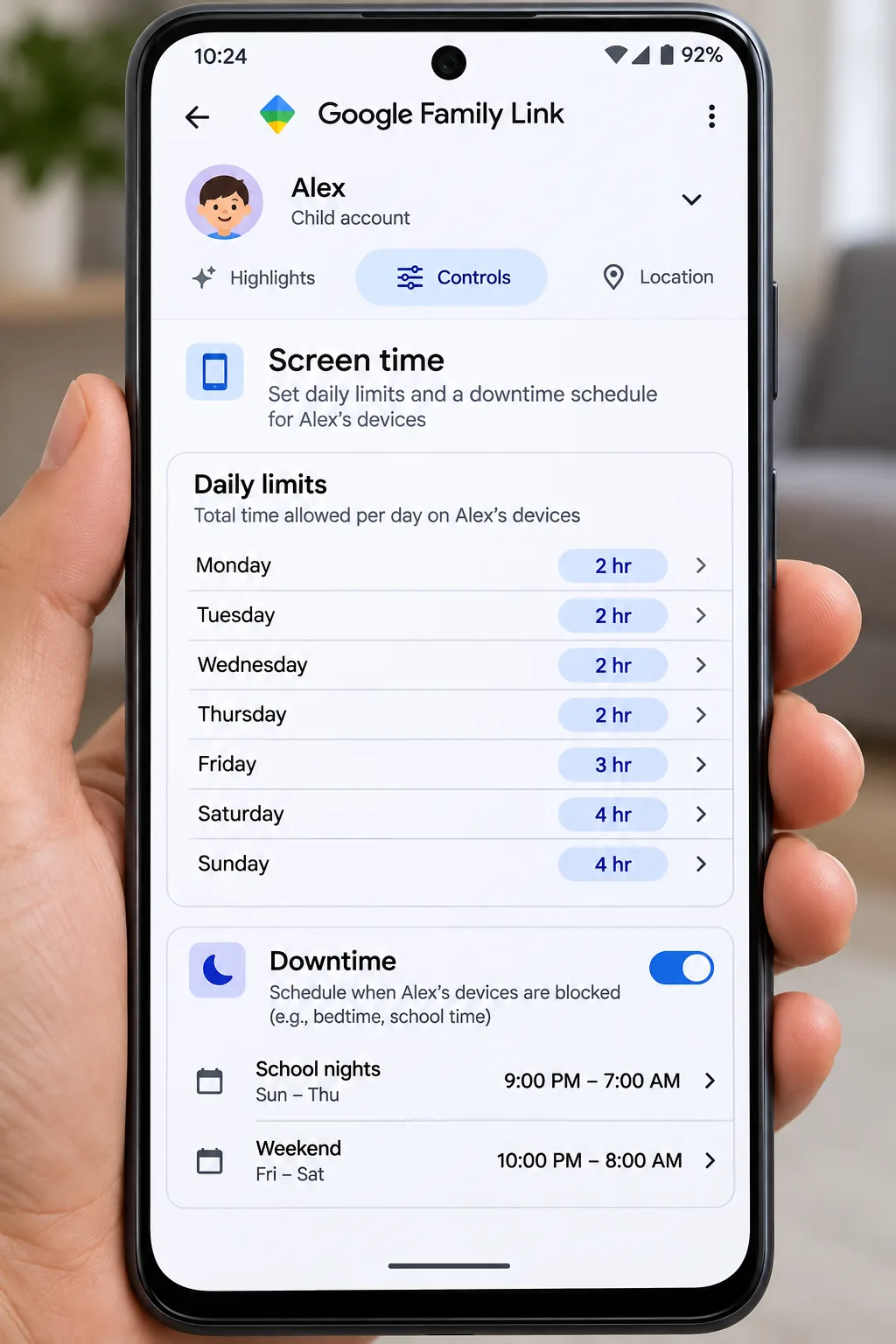
For Android and Chromebook, Google Family Link is free. It covers daily limits, Downtime and School time schedules, remote lock, and Bonus time. Per-app limits depend on the child's Android and Family Link versions. Family Link also doesn't manage iPhones or iPads. We found it covers the basics, but the interface feels dated and approval flows can be glitchy. Lock the date and time setting too, because changing the clock can sidestep Family Link limits. Our guides on how to manage screen time for kids and screen time rules for kids go deeper.
When a parental control app is worth it
Built-in tools are enough for most families. A dedicated parental control app is worth considering when a teen has already found the workarounds above, or when your family mixes iPhone and Android, since Family Link can't manage iPhones.
Monitoring works best when your child knows it's there. Tell older kids what you can see and why, and loosen controls as they show they can manage their own time.
Teens often resist standalone alarm clocks as too loud or less flexible than a phone alarm, so let them pick one they like.
What to do when your limits don't stick
Slipping is normal. In the same Pew survey, only 25% of people who tried to cut back called themselves very or extremely successful. If your numbers creep back up, try these steps:
- Start small. Pick one app or one time of day instead of your whole routine.
- Set realistic goals. Cutting 30 minutes a day is easier to keep than cutting half your screen time.
- Add friction, not guilt. Pair your limits with a blocker that has a locked mode, so ending a session early takes real effort.
- Be kind to yourself. One long evening on your phone doesn't undo a week of progress.
If one strategy keeps failing, swap it for another. Some people regain control through settings, and others through physical distance.
Frequently asked questions
How much screen time is healthy for adults?
How much screen time is healthy for a 14-year-old?
What is the fastest way to reduce screen time?
Does TV count as screen time?
Is blue light the main reason screens hurt sleep?
Can I see my screen time across all my Apple devices?
The bottom line
Reducing screen time is less about willpower and more about setup. Measure your baseline, turn off non-essential notifications, and move your phone out of the bedroom first. Then add app limits, grayscale, or Focus modes for the apps that still pull you back in. Start small and keep what works.