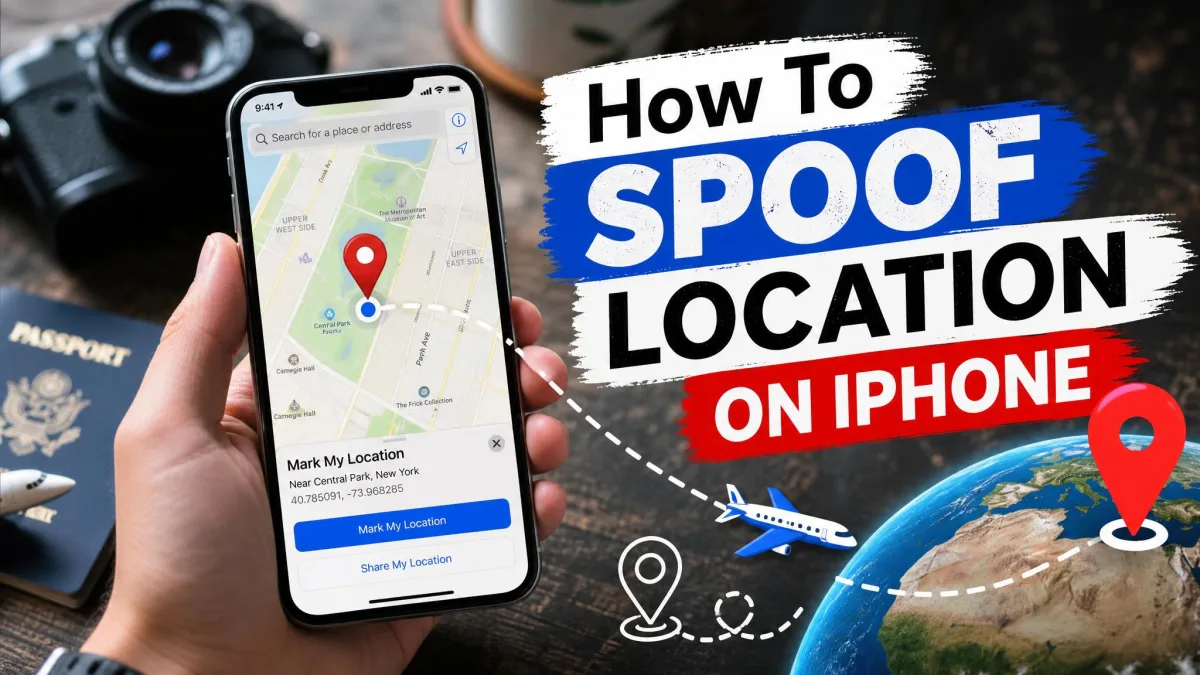
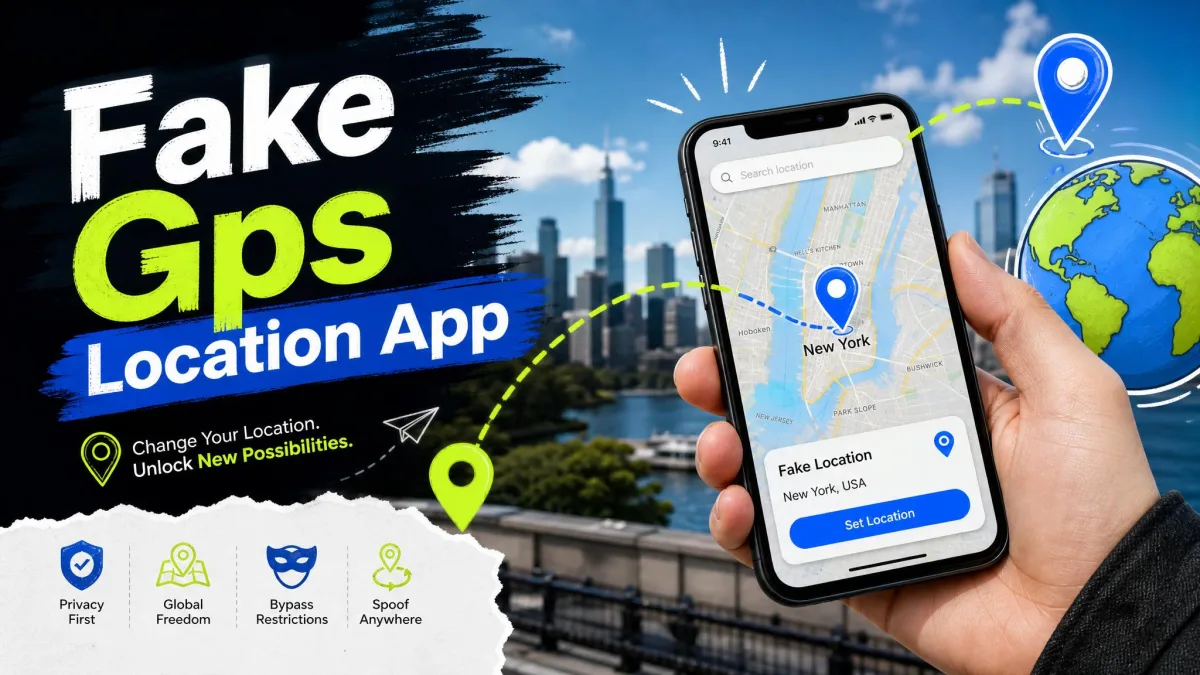
A fake GPS location app is a tool that feeds your phone a set of coordinates you choose, so every app that asks where you are gets that answer instead of the real one. On Android it works through a built-in mock location setting; on iPhone it usually runs from a computer over a cable. The practical problem is that the market is crowded with abandoned apps, and picking the wrong one wastes an afternoon.
One thing to settle before you install anything: changing your reported location is a normal developer and privacy feature, but plenty of services forbid it in their own terms, and a spoofed position can get an account limited or banned.
Below are the ten apps worth your attention, six for Android and four for iPhone, with what each one costs, whether it needs root, and how well it handles movement rather than a single pin drop.
The 10 Best Fake GPS Location Apps at a Glance
| App | Platform | Root or jailbreak required | Joystick and route simulation | Free vs paid |
|---|---|---|---|---|
 |
Android | No on Android 6.0 and up | Joystick plus saved routes with loop and reverse | Free with in-app purchases |
 |
Android | No | Map pin only, no joystick | Free |
 |
Android | No | Route recording and replay, adjustable speed | Free with in-app purchases |
 |
Android | No | Map pin and coordinates, no joystick | Free with premium tier |
 |
Android | No, works rooted or not | Joystick, saved favourites | Free |
 |
Android | No | Joystick included in the free version | Free with in-app purchases |
 |
iPhone, desktop app | No jailbreak | Joystick, two-spot and multi-spot routes | Paid, $49.95 per year |
 |
iPhone and Android, desktop app | No jailbreak or root | Joystick, two-spot and multi-spot, GPX import | Paid, free trial |
 |
iPhone, desktop app | No jailbreak | Joystick, multi-stop routes | Paid |
 |
iPhone, desktop app | No jailbreak | Joystick, two-spot and multi-spot, realistic mode | Paid, $59.95 lifetime |
What a Fake GPS Location App Actually Does
Android has supported mock locations since long before spoofing became popular, because app developers need a way to test location features without driving around. A fake GPS app registers itself as the system mock location provider, and from that moment the operating system hands your chosen coordinates to anything that asks. Apple never exposed the same switch to ordinary users, so the iPhone tools inject a simulated position from a desktop app over USB instead. Apple does ship its own location simulation tooling in Xcode, which is why the no-jailbreak route works at all.
Two consequences follow from that design. Spoofing on Android is system-wide, so maps, weather and ride-hailing apps all move with you rather than just the one app you were aiming at. And the better tools do not only place a pin, they simulate movement between points at a speed you set.
Why People Fake Their GPS Location
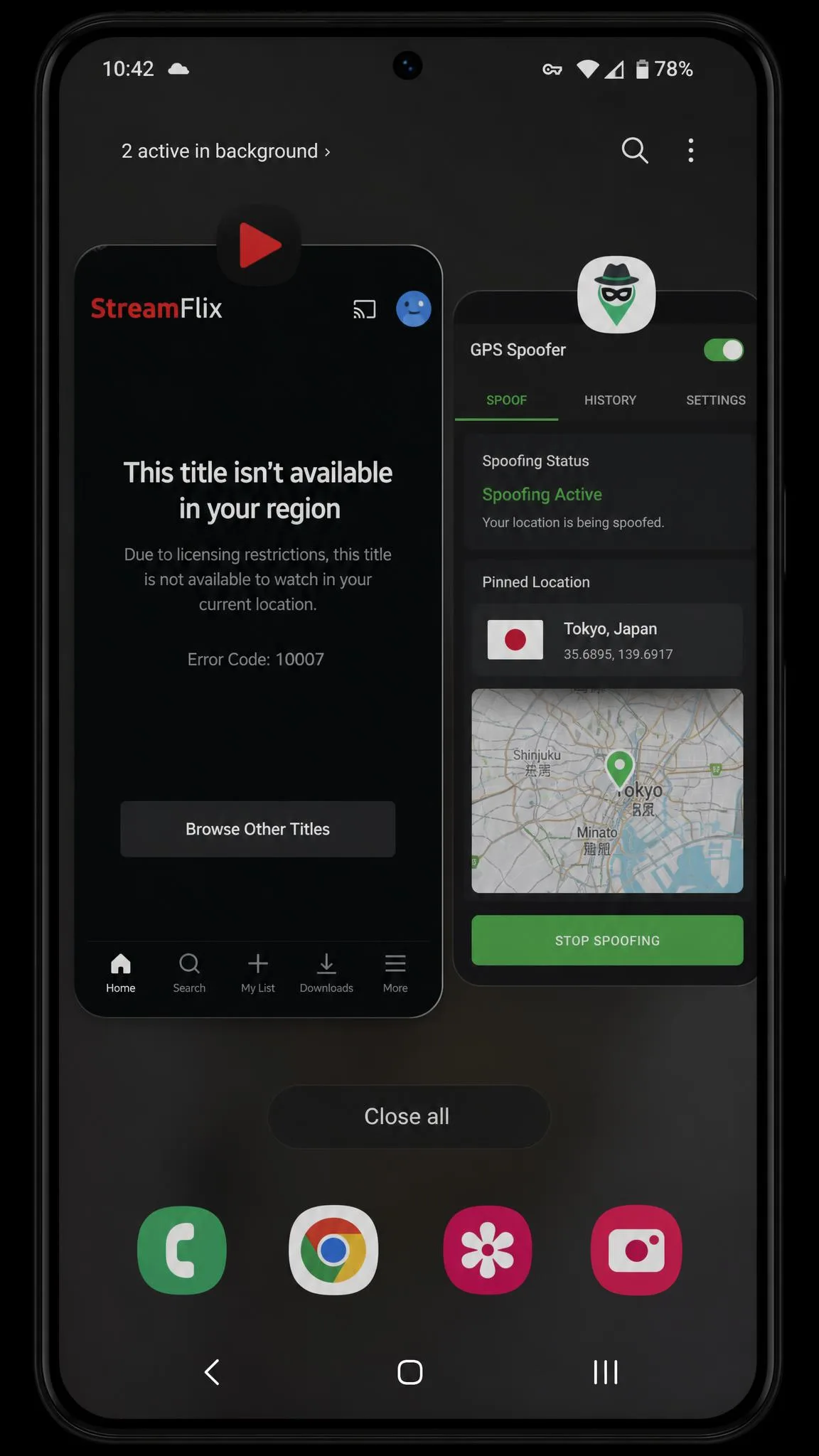
Location games are the loudest reason, but they are not the most common one. App developers and QA testers use a fake GPS location app to check geofencing without leaving the desk, which is exactly what the mock setting was built for. Others use it to reach geo-restricted streaming catalogues, to keep a social app from broadcasting a home address, or simply to protect their privacy against apps that collect location data far more often than they need to.
There is also a mundane category: testing a delivery radius, checking how a store locator behaves in another city, or seeing what a map looks like on the other side of the world before you travel.
Is Faking Your GPS Location Legal, and What Can Get You Banned
Setting a mock location on your own device is not illegal in itself in most places, and Android ships the feature deliberately. The risk sits in the terms of service of individual apps rather than in the law. Google's device and network abuse policy governs what apps may do to your device and network, and it does not name location spoofing outright, so the trouble comes from the services you point a spoofed position at.
Location games are the clearest example. Niantic's cheating and punishment policy treats falsified location data as cheating, and enforcement has tightened over the years. A ban wave in mid-2025 caught methods that had been considered safe for a long time.
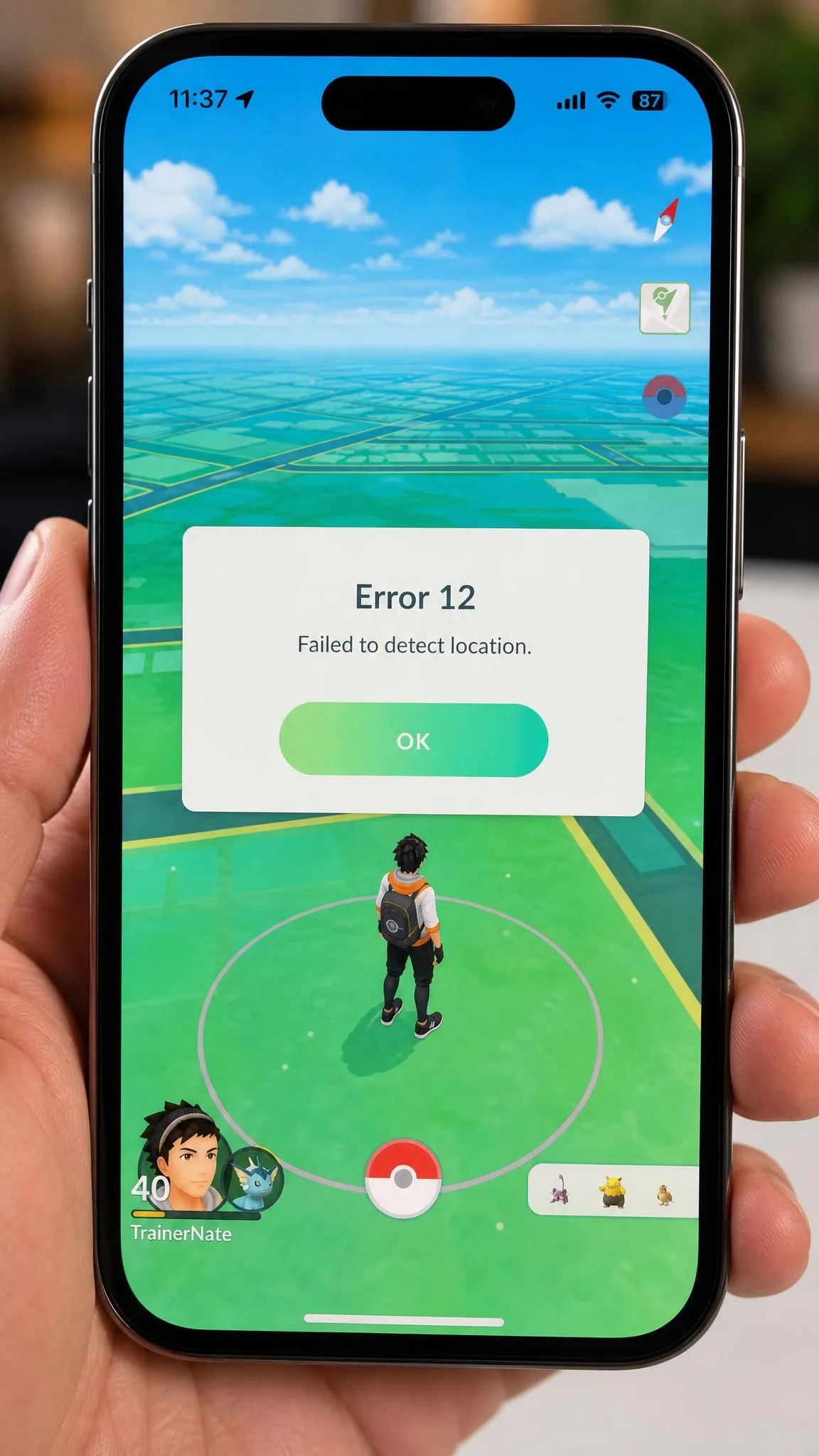
Jumping your position a long distance in a short window triggers a Pokemon GO soft ban that blocks PokeStop spins and catches, typically for something between 10 mins to 3 hours depending on the size of the jump. There is a second gotcha on Android: after using a mock location app your phone can stay locked to the last mocked coordinates even after you uninstall the app, and it takes a reboot or a toggle of location services to clear.
Best Fake GPS Location Apps for Android
The Android picks all run without root on a modern phone, and every one of them needs the same one-time chore first, described in the setup section below. Ranked by how well they hold up in daily use.
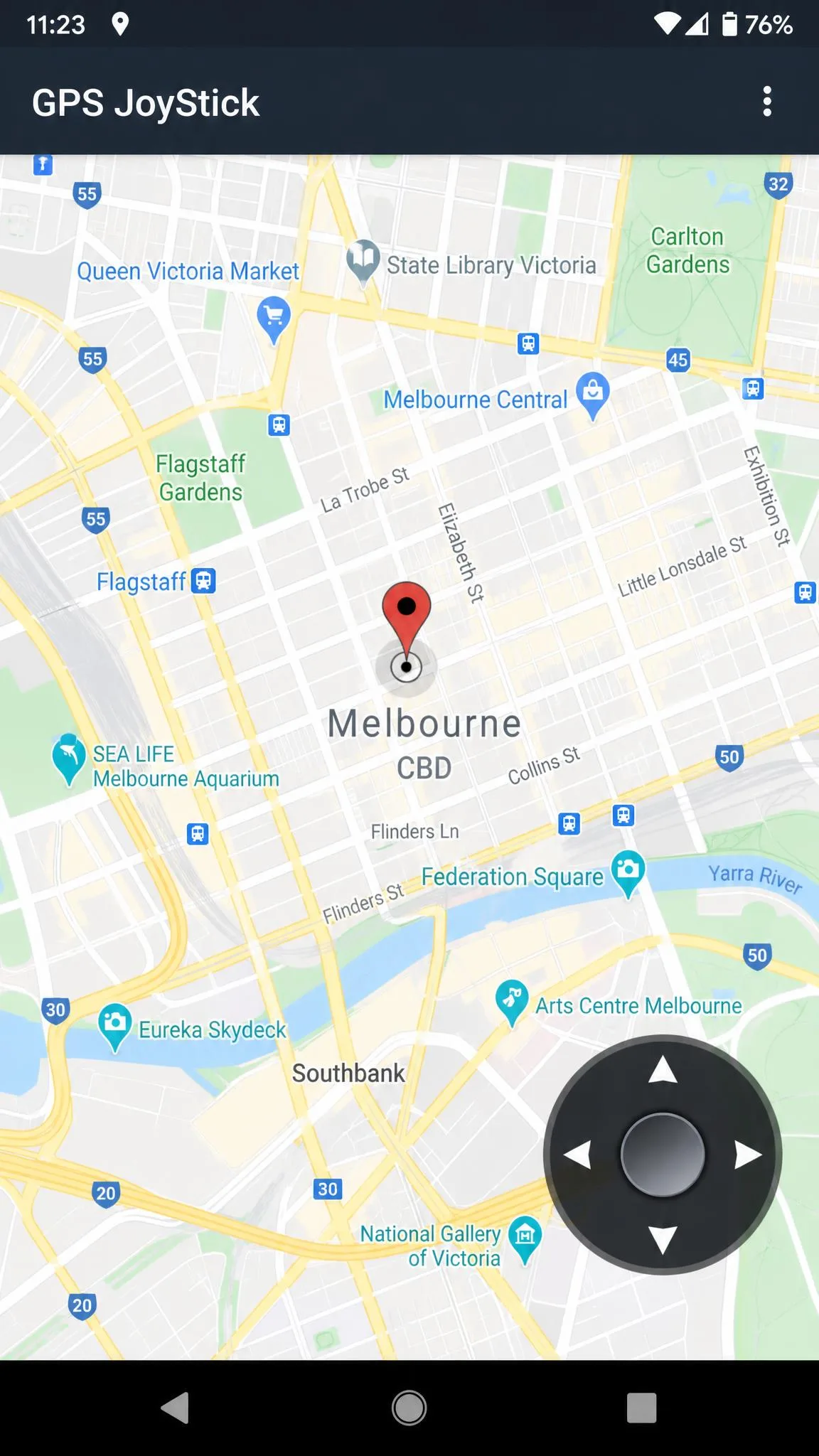
1. Fake GPS Location, GPS JoyStick
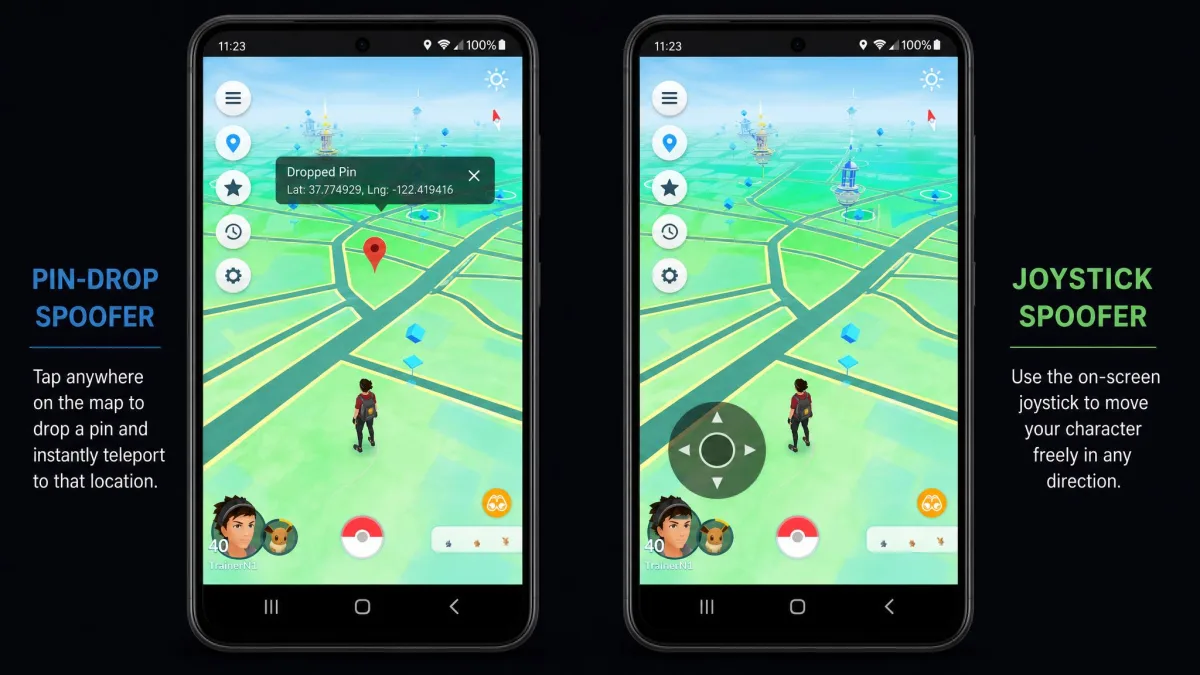
This is the app we reach for first, and the reason is what happens the moment you start moving. Drop a pin in a plain spoofer and you re-drop it for every step of a walk; bring up the JoyStick overlay and you steer continuously while the target app runs underneath, which is the difference between fiddling and simply going somewhere. It has passed 5,000,000+ downloads, and the app is the one we point people at when they ask for a single Android answer.
One warning that applies here more than anywhere else, because the joystick makes long hops so easy: move a spoofed position too far too fast in a location game and you land in a soft ban, with Error 12, "Failed to detect location", as the usual on-screen symptom.
Pros
- Overlay joystick works over any other app
- Multi-point routes with loop, reverse, pause and resume
- No root needed on Android 6.0 and up
- Direct latitude and longitude entry, favourites organised in folders
Cons
- Free tier pushes in-app purchases for the better modes
- Overlay takes a little practice to place comfortably

2. Fake GPS Location by Lexa
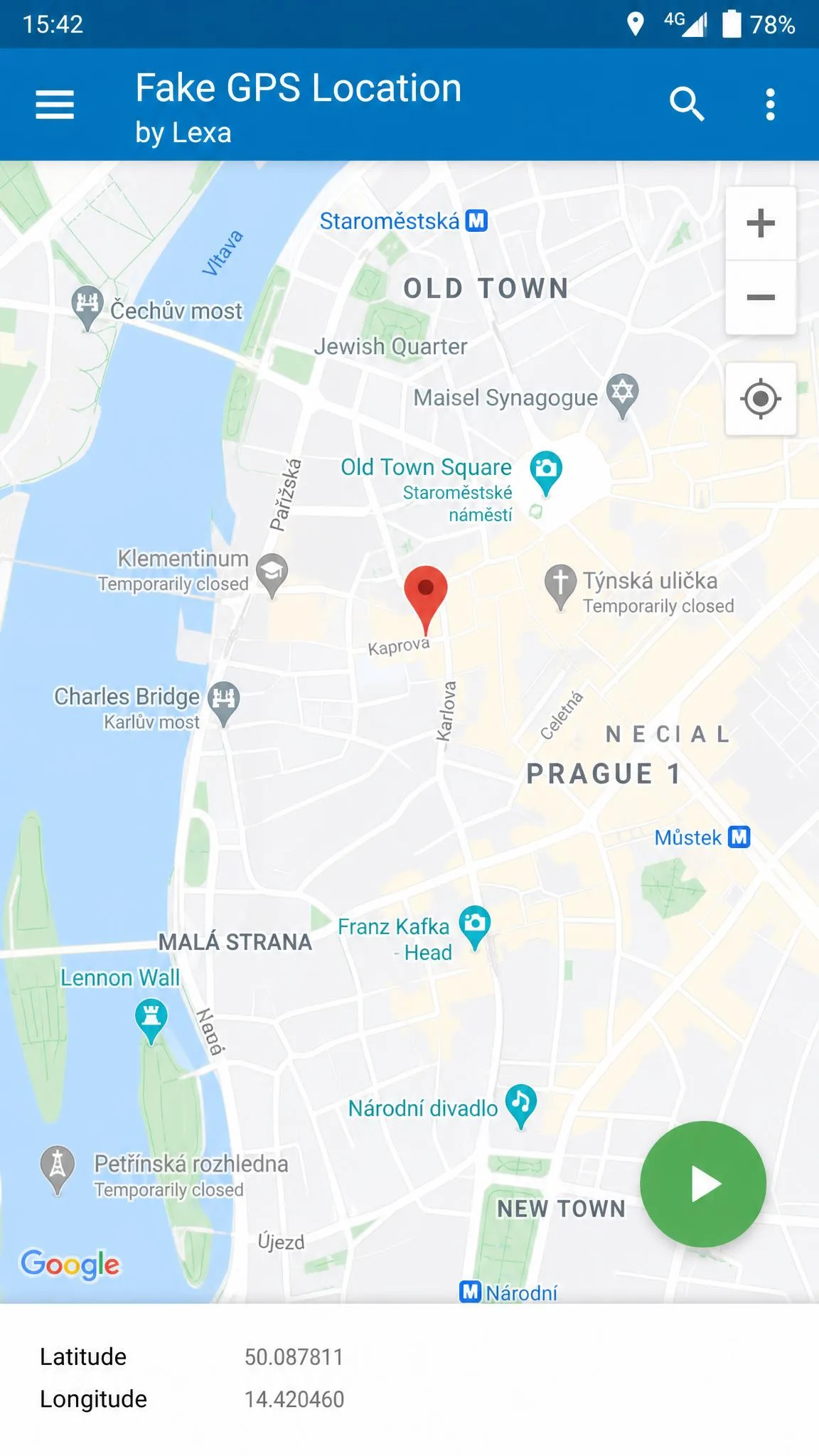
Where GPS JoyStick is built for movement, Lexa's app is the plainest tool here and the one we recommend when you only need a static position. You drop a pin on the map, hit play, and every app on the device believes you. It has 50,000,000+ downloads, weighs about 1.93 MB, runs on Android 5.0 and up, and the current release is 2.1.2. It also supports Tasker and can be started or stopped from the command line, which testers appreciate. It rates 4.65 out of 5 on Google Play. Its last update was in 2022.
Its own listing carries the warning we would give about any Android spoofer: your phone can stay locked to the last mocked coordinates even after you uninstall the app, and it takes a reboot or a toggle of location services to clear.
Pros
- Free with no upsell in the way
- Tiny download and fast to set up
- Tasker and command-line control
Cons
- No joystick and no route simulation
- No update since 2022
Download it from Fake GPS Location by Lexa on Google Play.
3. Mock Locations (Fake GPS Path)
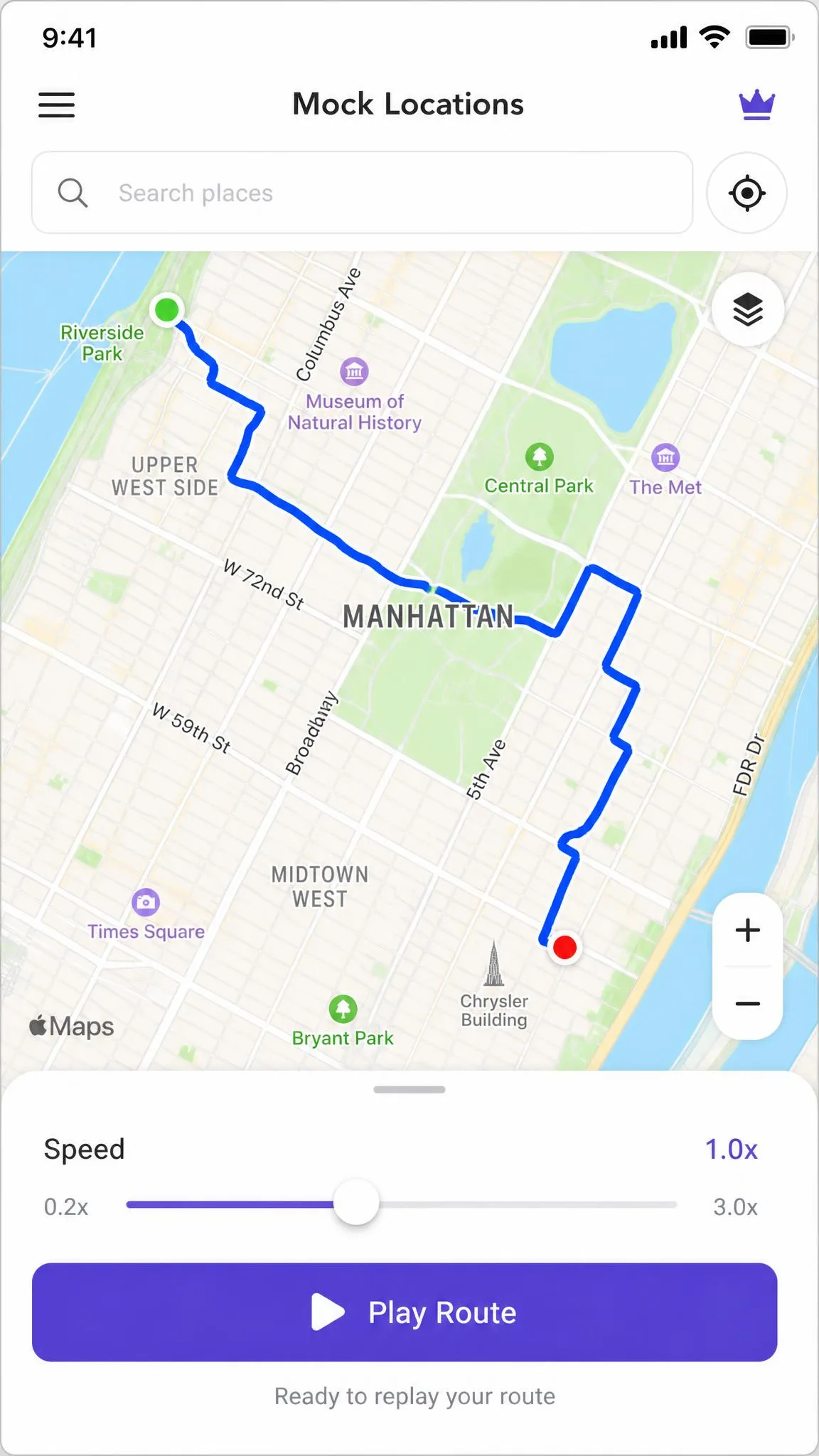
If a pin is too little and a joystick is too manual, this is the middle path. Published by Andrey Gavrikov, it is built around movement rather than a single point: you draw a route, set a speed, and it replays the path as if you were walking or driving it. It fakes both the GPS and the network location providers, which matters because some apps cross-check the two, and it spoofs for every installed app rather than a chosen list. A steady, constant-speed replay does look mechanical to anything watching closely, which is worth knowing before you rely on it.
Pros
- Records and replays a drawn route
- Fakes GPS and network providers together
- Adjustable playback speed
Cons
- Interface is busier than the rest
- Best features sit behind in-app purchases

4. GPS Emulator
Coming from the gaming-oriented apps above, Ro Team's GPS Emulator feels like a different genre: it is aimed squarely at developers and app testing, and it shows in the plain, unhurried layout. You search by place name or coordinates, or drag the pin, and switch between standard, satellite and terrain map views. It rates about 4 out of 5 on Google Play. It needs no root, and like every app in this section it silently does nothing until you tick it under Select mock location app, which catches people out on the first run more often than any other step.
Pros
- Search by place name or exact coordinates
- Three map views, including satellite
- Free tier is usable on its own
Cons
- No joystick, so no continuous movement
- Feature set aimed at testers rather than gamers
5. FGL Pro Location Spoofer
FGL Pro is the veteran of the group, and its age cuts both ways. It has been on Google Play since 2017 and has picked up around 5.3 million downloads, with joystick control, saved favourites, and support for rooted and non-rooted devices, and it runs on hardware as old as Android 4.0.3. The catch is that it has not had a meaningful update since 2019, though the last-update year depends on which channel you check and it still installs on some newer devices. Long-dormant spoofers like this one behave unpredictably on recent Android releases because the last build predates them by years.
Pros
- Joystick control at no cost
- Runs on very old Android versions
- Saved favourite locations
Cons
- Effectively unmaintained
- Unreliable on current Android releases
6. Fake GPS Location Professional
If FGL Pro's age puts you off, this is the free joystick option that is still being sold as current. The pitch is that joystick control is included as standard in the free version, which is unusual. It runs through Developer Mode mock location with no root, keeps an uncluttered interface, saves favourite locations, and will set your phone anywhere in the world in a couple of taps. Be careful at the download step, because several similarly named listings sit next to each other in search results.
Pros
- Joystick in the free version
- Clean, uncluttered interface
- No root required
Cons
- Several similarly named listings make it easy to install the wrong app
- Thin documentation
Best Fake GPS Location Apps for iPhone
Every iPhone option below runs on a Windows or Mac computer and talks to the phone over a cable. There is no comparable App Store download that spoofs location on the phone alone without jailbreaking, so treat the computer as part of the price.
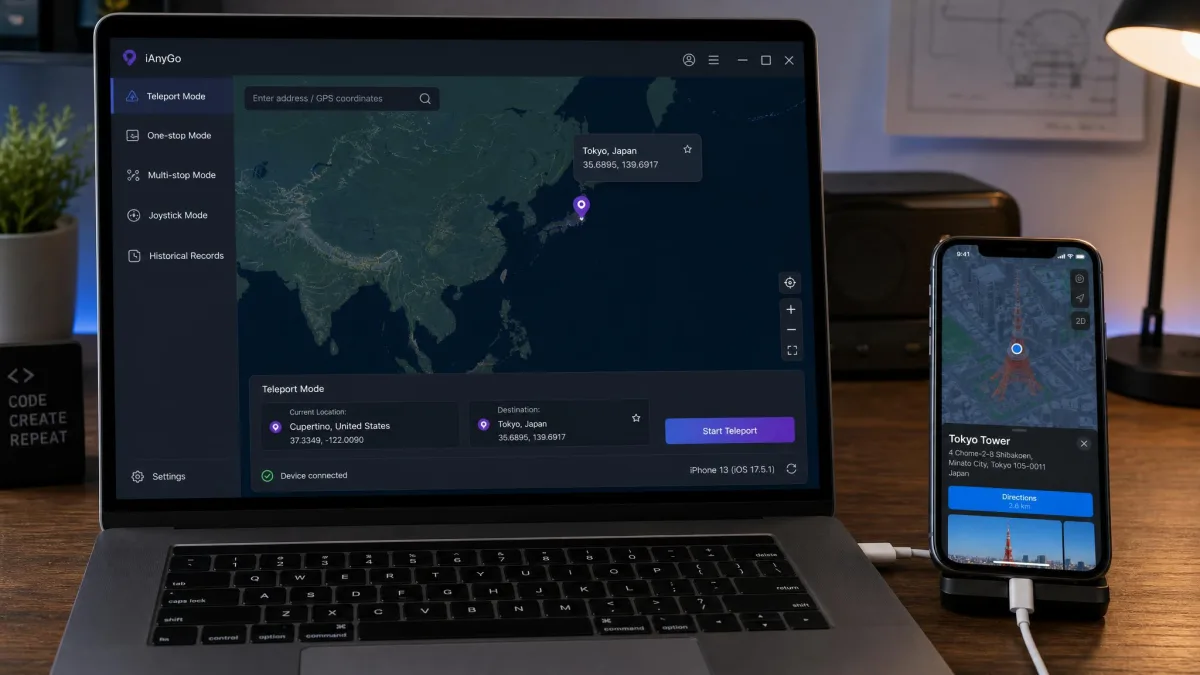
7. iToolab AnyGo
AnyGo is the most complete of the desktop tools. It runs on Windows and Mac, offers teleport mode, two-spot and multi-spot route movement, joystick control and adjustable speed, and it handles Pokemon GO cooldowns including Error 12. There is a free trial with no credit card, though like every free tier on this side of the article it caps teleports and joystick runs to a handful of moves, which is enough to confirm the cable works and not much else. A licence covers 15 devices plus one PC or Mac, with a 30-Day money-back guarantee. The 1-year plan is $49.95 billed annually. The 1-month plan is listed at $9.95, but that is a discounted promotional price against a $19.95 list price, and the $79.95 lifetime figure swings back toward $179.95 outside sale periods.
Pros
- Every movement mode, including joystick and multi-spot
- Cooldown handling built in for location games
- Free trial without a credit card
Cons
- Headline prices are promotional, not renewal prices
- Needs a computer and a cable
8. iMyFone AnyTo
Where AnyGo is iPhone-first, AnyTo is the cross-platform choice: it supports iOS 5 and up, including current beta releases, and Android 6.0 and up, with no jailbreak or root. It offers four movement modes, teleport, two-spot, multi-spot and joystick, with speed adjustable from a walking pace up to 120 km/h. It also imports and exports GPX routes and keeps historical route records, and it connects over USB, Wi-Fi or Bluetooth. The VIP tier covers 5 devices with unlimited desktop installs. Paid plans span monthly through lifetime, but displayed prices change with region, coupon and tier, so no single figure holds. The 30-day money-back guarantee is conditional on the vendor being unable to fix your problem, so a refund is not automatic.
Pros
- Covers iPhone and Android from one app
- GPX import and export with saved route history
- Wi-Fi and Bluetooth connection, not just USB
Cons
- Pricing is hard to pin down before checkout
- Refund guarantee is conditional
9. Dr.Fone Virtual Location
The third desktop tool is the one we would buy most cautiously. Wondershare's app covers the expected ground: Windows and Mac support, one-click teleport, multi-stop route planning, joystick control, adjustable walking and driving speed, and iOS spoofing without jailbreaking. Pricing is the weak point. A monthly licence is around $9.95 and an annual around $39.95, but Wondershare lists several different figures depending on platform and bundle. Its update status is also unclear: the product page does not say when the software was last refreshed, so we would buy the shortest plan first and re-check before renewing.
Pros
- Familiar interface if you already use Dr.Fone
- Multi-stop routes with speed control
- Covers iOS and Android
Cons
- Update status is unclear
- Checkout price may differ from the advertised one
10. MockGo
After AnyTo's shifting figures, MockGo is a relief: it is the easiest of these tools to price. Plans run $9.95 monthly, $19.95 for three months, $39.95 annually and $59.95 for a lifetime licence, each covering 5 iOS devices and one PC or Mac, all with a 30-Day money-back guarantee. Feature-wise you get teleport, two-spot and multi-spot modes, joystick control, adjustable travel speed, a Pokemon GO cooldown timer, and a realistic mode that randomises movement. That last one earns its place, because a constant-speed walk looks mechanical and the randomised mode smooths it out. Plug the phone in and the software finds it as soon as it launches, with no driver hunt. The free version caps teleport and joystick use to three bearings, though the vendor has changed trial limits before, so check the current allowance.
Pros
- Clear, flat pricing with a real lifetime option
- Realistic mode makes movement look natural
- Plugs in and is recognised immediately
Cons
- Free version is too limited to evaluate properly
- iOS only
How to Set Up a Fake GPS Location on Android
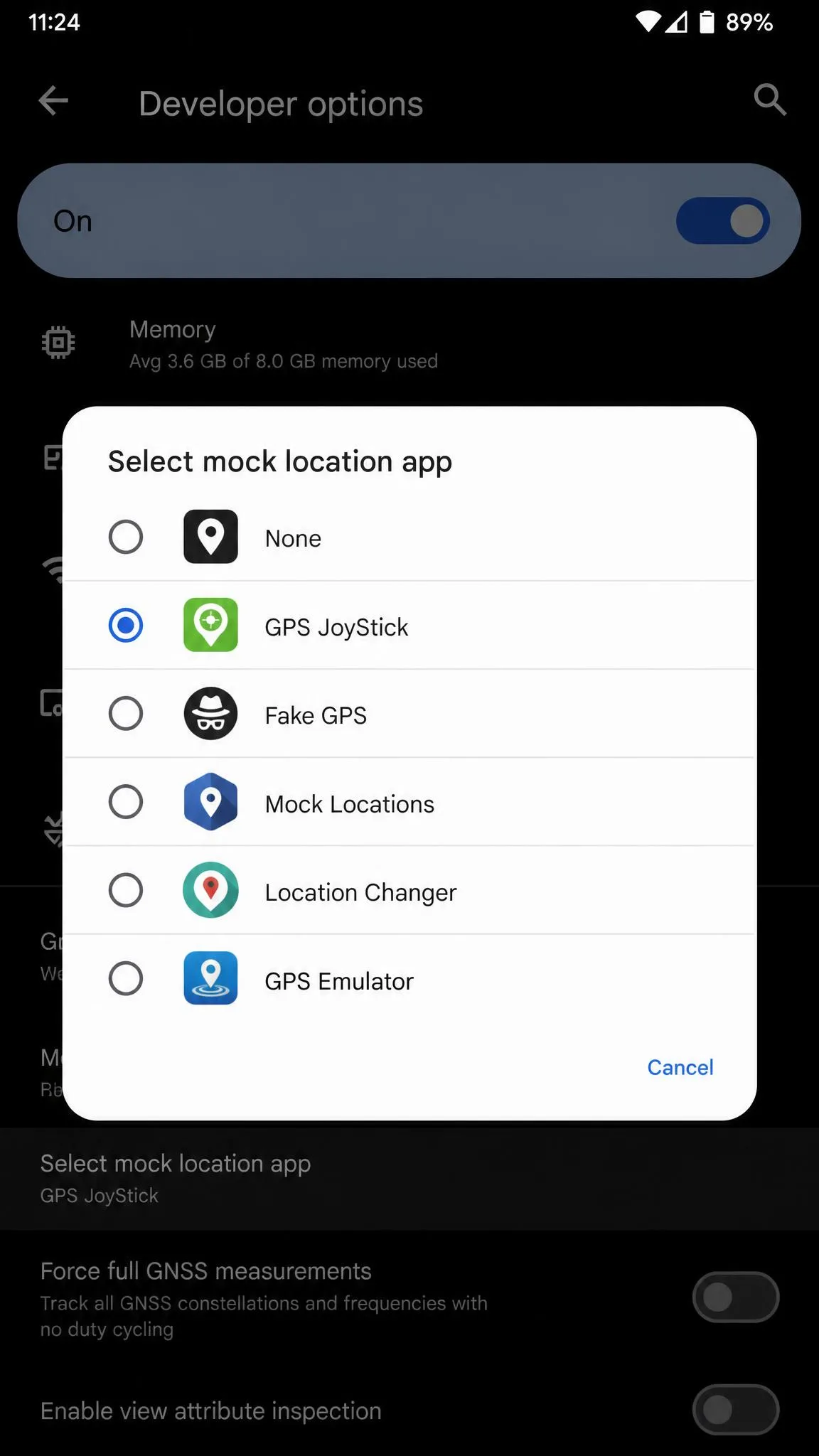
Every no-root Android spoofer needs the same one-time chore first, and it silently does nothing until you finish it. Install your chosen app, then open Settings, tap About phone, and tap Build number seven times until the phone confirms that you are now a developer. On Android 4.2 and higher you must enable Developer options this way; on 4.1 and lower they are already on.
Next, go back to Settings, open the Developer options entry, scroll to the Debugging group, tap Select mock location app, and choose the app you installed. Now open the app, pick your spot on the map, and start it.
If you would rather not install anything from a store, FakeTraveler on GitHub is an open-source mock location app that works through the same Developer options setting. To undo everything afterwards, stop the app, set Select mock location app back to none, and restart the phone so the last mocked position clears.
How to Fake Your Location on an iPhone Without Jailbreaking
The iPhone path is different in one important way: nothing runs on the phone. You install the desktop app on a Windows PC or a Mac, connect the iPhone with a cable, and the software is recognised as soon as it launches, so it is a plug-in-and-go affair rather than a driver hunt. Trust the computer when the phone asks, pick a spot on the map, and choose teleport for a fixed position or a route mode for movement.
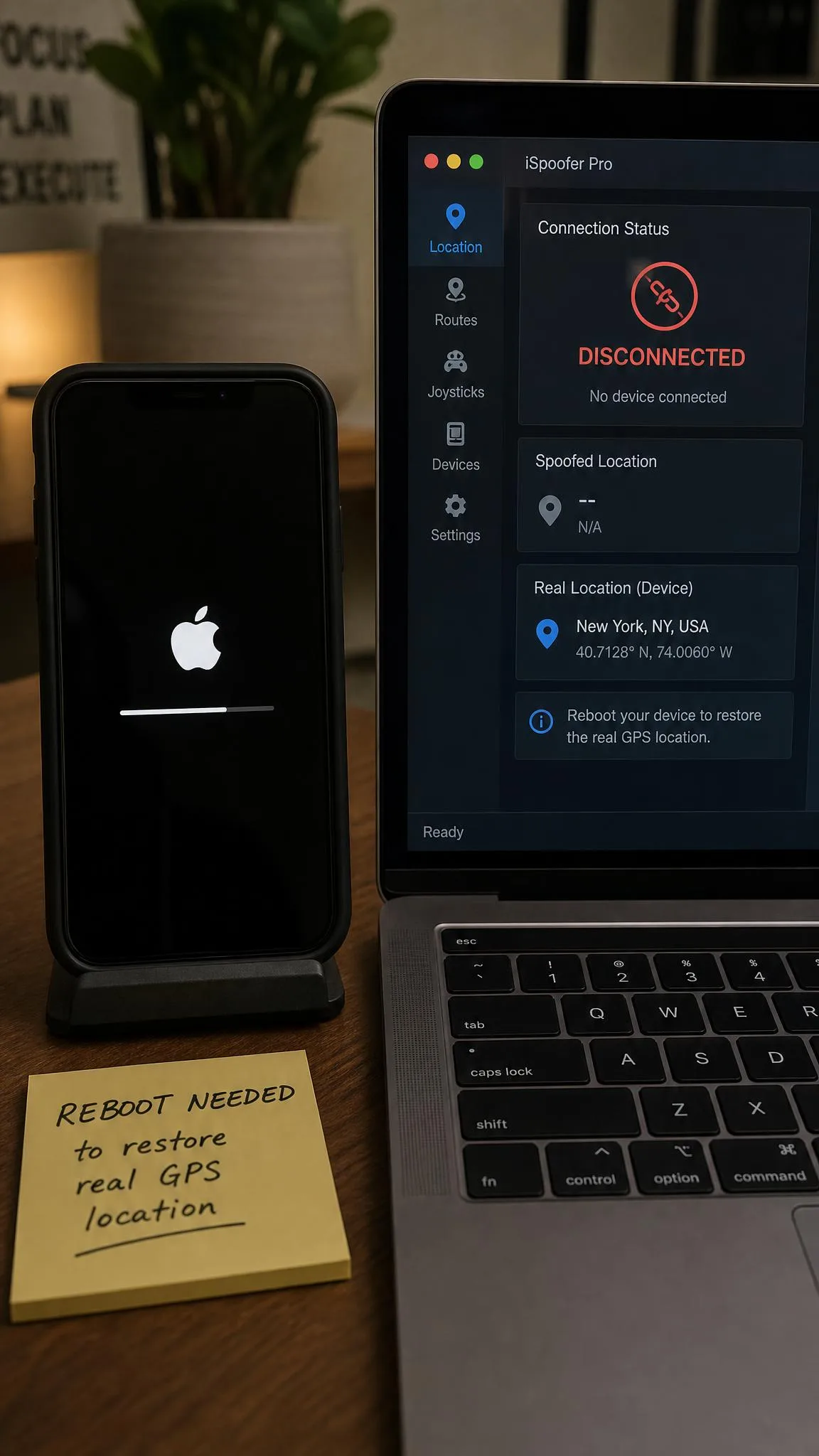
Getting back is slightly slower. Returning an iPhone to its real location after a long-distance teleport takes a reboot, and the true position needs a few minutes to reappear.
How to Choose the Right Fake GPS App
Start with the platform, because it decides almost everything. On Android you have real free options and the choice comes down to whether you need a joystick. If you only need a fixed position for privacy or a geo-restricted service, a pin-drop app is enough and costs nothing. If you need to move, pay for the joystick with your time rather than your money and use one of the free apps that includes it.
On iPhone there is no free path worth recommending. Free tiers on the desktop tools stop short of useful, capping teleports or joystick runs to a handful of moves before asking for payment. Buy the shortest plan you can, confirm it works for your use, then extend it.
Two more checks. Look at the last update date, because a spoofer that predates your Android version by years will behave oddly. And if location games are the reason you are here, accept that free Android spoofers frequently fail specifically against Pokemon GO while still working fine for maps, weather and geo-restricted apps.
Frequently Asked Questions
Can apps detect that you are spoofing your location?
Do you need root access?
Will spoofing get your Pokemon GO or Snapchat account banned?
What if my location is still wrong after a reboot?
Does fake GPS work on iPhone without jailbreaking?
Is a free fake GPS app safe to install?
The Bottom Line
The decision that actually matters is whether to pay at all, and on Android the honest answer for most readers is no. Install a free option, live with it for a week, and only reach for a paid desktop tool if you find yourself needing movement an Android app cannot give you. On iPhone the calculus flips, because there is no free path: budget for the software the same way you would budget for the cable.
Two habits will save you grief. Buy iPhone licences on the shortest term first and re-check the vendor's update status before you renew, since these tools go quiet without announcing it. And when you are done spoofing, spend the extra minute on cleanup: stop the app, set the mock location app back to none, reboot, and confirm your real position has come back before you open anything that cares where you are.