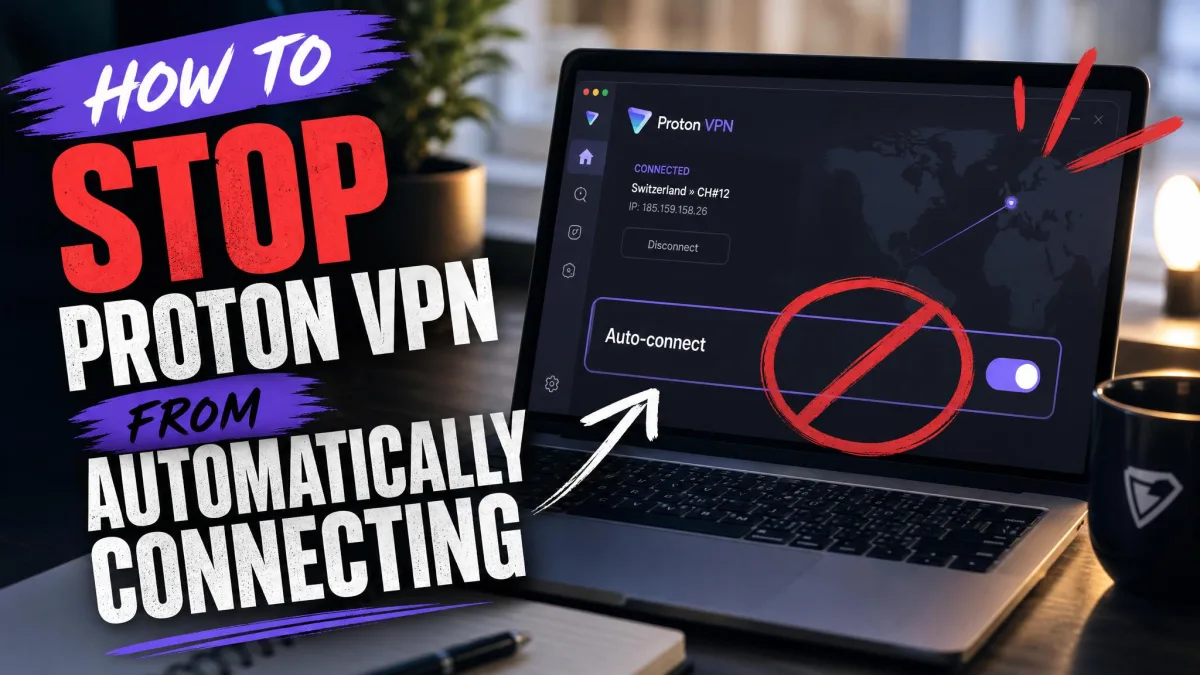
Proton VPN keeps connecting on its own, and you never asked it to. Maybe it fires up the second you boot your PC, or it reconnects a few seconds after every restart on your phone. The fix is usually one or two settings deep.
In this guide, we walk through every place Proton VPN can trigger an automatic connection. We tested the current apps on Windows, macOS, Android, and iOS to find the toggles that stop it, and we flag the one setting that can leave your internet dead if you turn it off the wrong way.
Why Does Proton VPN Connect Automatically?
Proton VPN almost never connects at random. Something is set to do it, and there are only a few candidates. Auto-connect triggers most often when your device restarts, when it reconnects to the internet, or when a previous connection drops unexpectedly.
The trick is knowing which feature is responsible. The auto-connect toggle, always-on VPN, and Connect on Demand look identical from the outside but live in different places.
Auto-Connect and Always-On VPN Explained
Auto-connect is the app's own option to open a tunnel as soon as it launches. It is opt-in on every platform, so if it is on, something enabled it. Turning it off stops the app from connecting the moment it starts.
Always-on VPN is a system-level feature, not an app setting. On Android it must be turned on manually and is not on by default, and it needs Android 7.0 or later. On iOS and iPadOS, Proton's always-on VPN is permanently activated and cannot be disabled by the user, which explains many of the "it just reconnects" reports we see. You can read the specifics in Proton VPN's always-on VPN guide.
A common complaint is that Proton VPN reconnects by itself right after a reboot, even when auto-connect was never enabled. On most devices this traces back to always-on VPN or Connect on Demand rather than the auto-connect toggle.
Connect On Demand and Kill Switch Behavior
Connect on Demand is the mobile cousin of always-on VPN. On iOS it reconnects Proton VPN within seconds of a restart, which is why the tunnel comes back before you can stop it. If you need a brief window without the tunnel, toggling Airplane Mode on and off is a workaround people use.
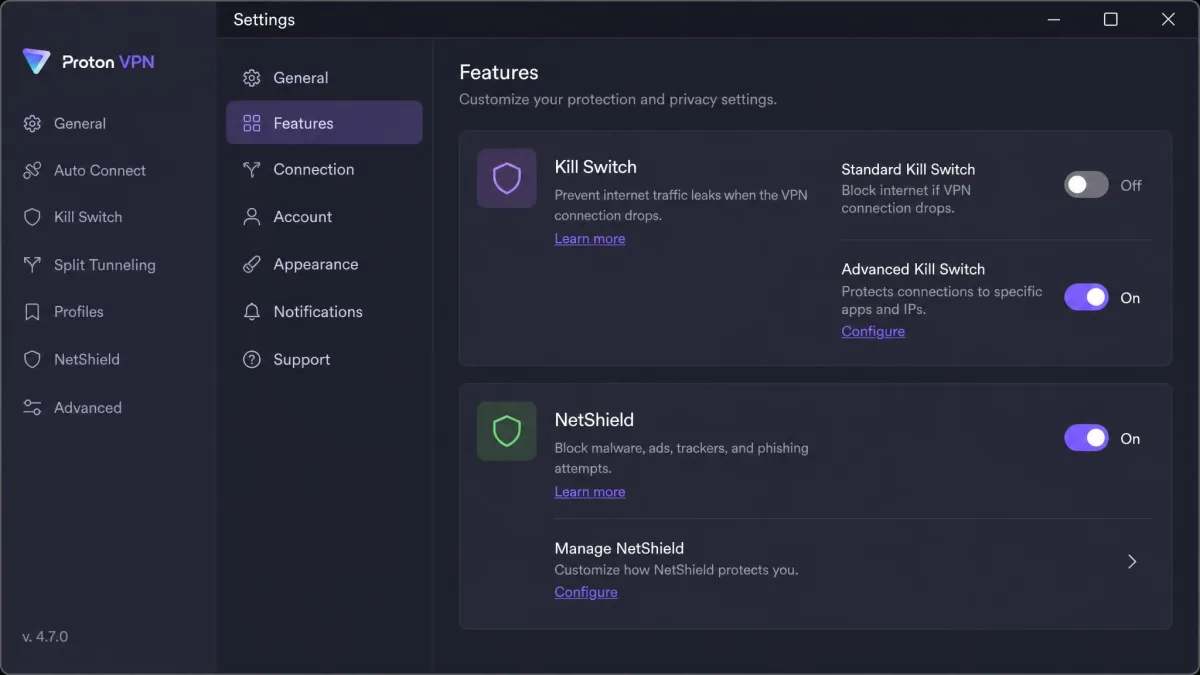
The kill switch is a separate thing, and it matters here. The standard kill switch only activates when a connection drops accidentally, and it does not block the internet when you disconnect on purpose. The advanced, or permanent, kill switch is stricter: it only allows internet access while you are connected to Proton VPN, and it stays active even after a restart. That last part is the setting that traps people. Proton documents both modes in its Proton VPN Kill Switch guide.
How to Turn Off Auto-Connect in the Proton VPN App
One rule applies before you start. You cannot edit Proton VPN settings while connected to a server, so disconnect first. If the toggles look greyed out, that is why.
Disconnect from any active Proton VPN server before you open Settings. The auto-connect and always-on toggles will not change while a tunnel is live.
Windows
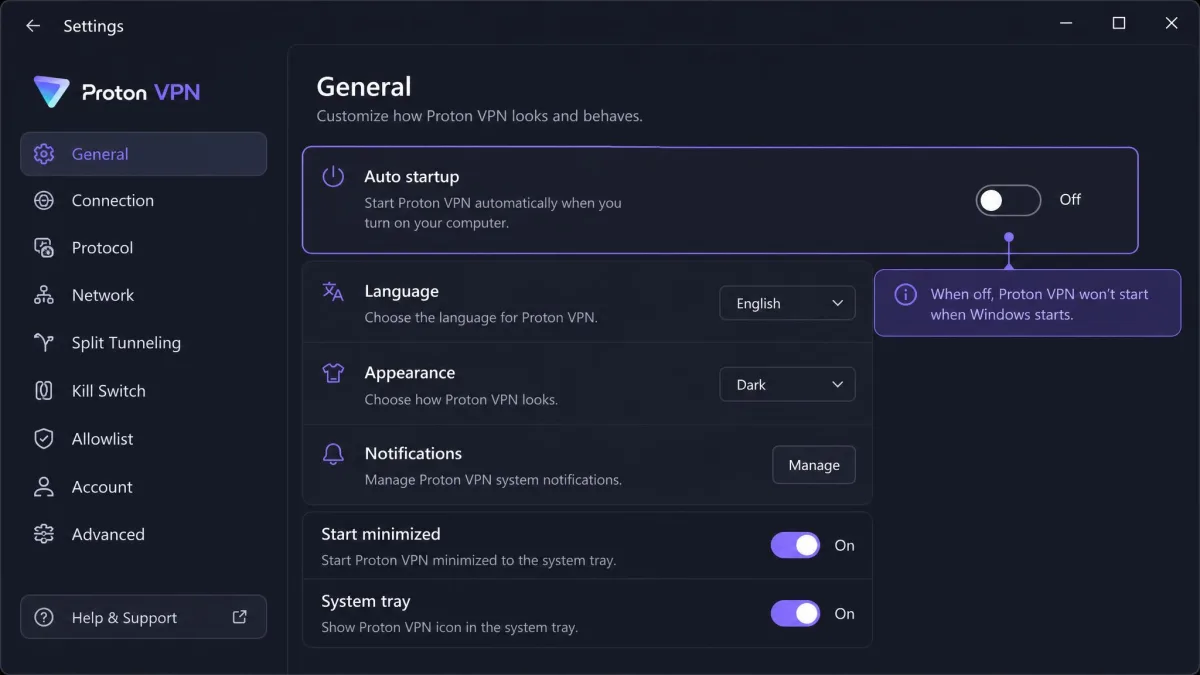
Open the Proton VPN app and disconnect. Go to Settings, then General, and find the Auto startup control. This governs whether the app auto-connects when Windows starts and when the app itself opens. Turn it off to stop the app from connecting on launch.
If you also see a "Connect on app start" style option, switch that off too. Third-party guides call these toggles slightly different names than the app does, so match by behavior: you want nothing that connects on Windows start or on app start.
macOS
Open the app and disconnect. Go to the Connection tab, then turn off the option to auto connect when the app starts and if the app disconnects unexpectedly. That single toggle covers both triggers on Mac. The General tab holds separate options for starting the app on Mac boot and starting it minimized to the menu bar, so turn those off if you do not want Proton VPN launching with your Mac at all.
Android
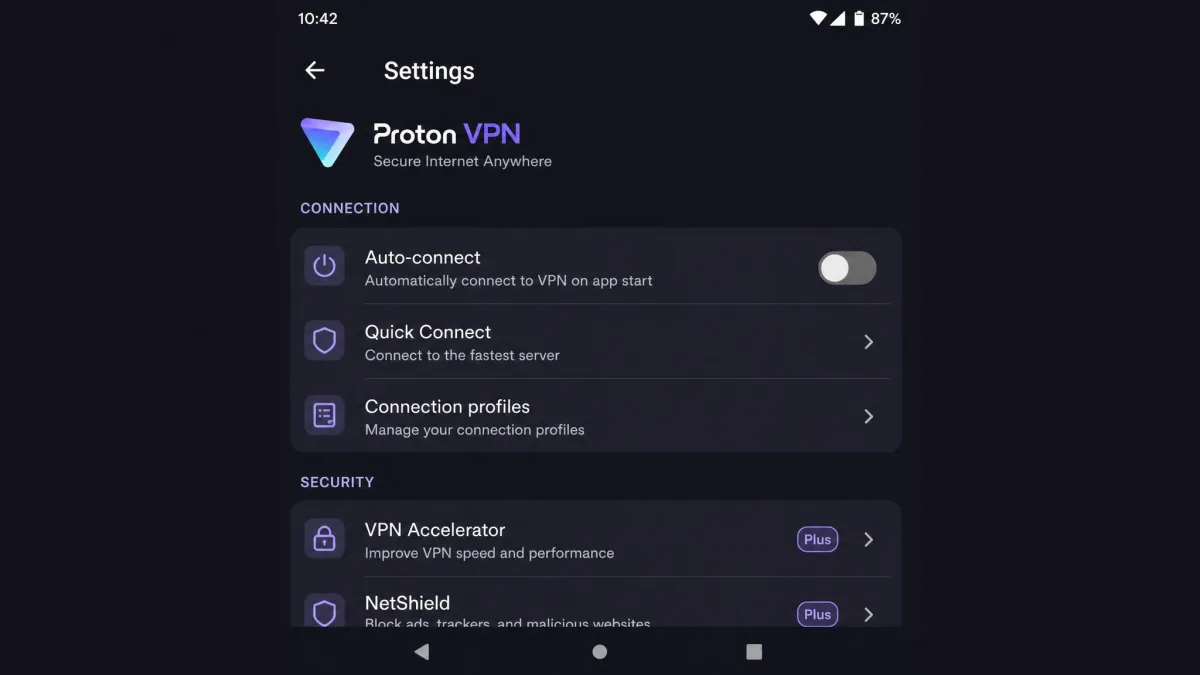
Open the app and disconnect. Tap your account or the settings gear, then look for the auto-connect option and switch it off. This handles the app's own launch behavior. Android has a second layer, always-on VPN, that lives in the system settings, and we cover it next because on Android it is the more common culprit.
iOS and iPadOS
Open the app and disconnect, then turn off any auto-connect option inside the app's settings. This stops the app-level trigger. On iOS and iPadOS, though, always-on VPN is permanently activated and you cannot disable it in Proton's app. If the tunnel keeps returning after a restart, that behavior, not a toggle you missed, is the reason.
How to Disable Always-On VPN (Android)
Always-on VPN on Android is managed by the operating system, not by Proton. Open your Android Settings and go to Network and internet, then VPN. Tap the gear icon next to Proton VPN.
On that screen, turn off Always-on VPN, and turn off "Block connections without VPN" if it is on. That second option is Android's version of a permanent kill switch, and leaving it on will cut your internet whenever Proton VPN is not connected.
Turning off always-on VPN and "Block connections without VPN" removes a layer of protection. Your traffic can travel unprotected in the seconds before a tunnel connects. Disable them only if you accept that tradeoff.
How to Change Your Default Connection
Sometimes the problem is not that Proton VPN connects, but where it connects to. If auto-connect drops you onto a slow or distant server, changing your default connection fixes that without turning the feature off.
On Windows, go to Settings, then Connection Preferences, then Default connection. You can choose Fastest country, Random country, Last connection, or a saved profile. Note that default connection customization is available only on a paid Proton VPN plan, so free-tier users cannot change it. Proton's steps for each platform live in its guide to change your default connection.
Stop Proton VPN From Launching at Startup
If you would rather Proton VPN never opened on its own, stop it at the app level first. On Windows, use the Auto startup control under Settings, General. On macOS, the General tab holds the start-on-boot option. Turn these off inside the app.
Here is the part that matters, and we learned it the hard way in testing. Do not block Proton VPN at the system level while a kill switch is active. Disable the launch behavior from inside the app instead, so the app is still there to manage the tunnel.
Troubleshooting: Proton VPN Still Connects or Kills Your Internet
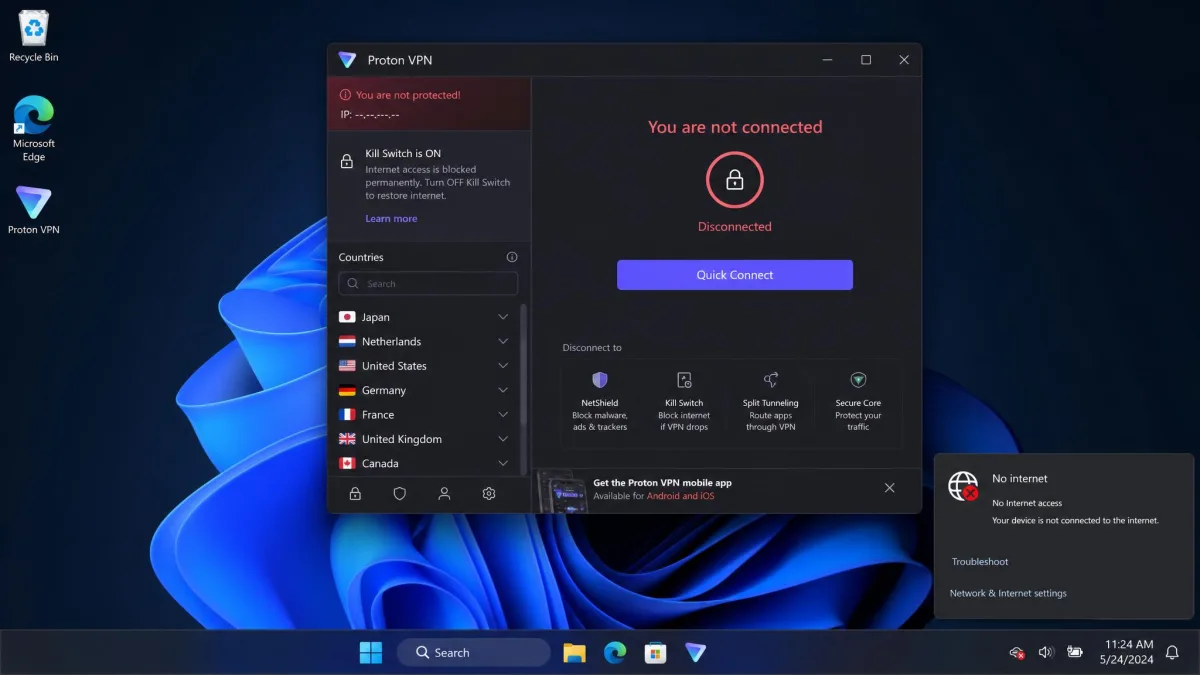
If your internet goes completely dead after you try to stop Proton VPN, the advanced kill switch is almost certainly the cause. Disabling Proton VPN at the Windows startup or system level can leave the internet fully dead even after several restarts, because the kill switch stays active with no app running to reconnect.
The reliable fix is to stop fighting it at the system level. Open the Proton VPN app and turn the settings off inside it, using Settings, General to switch off start on boot and connect on app start. In our testing, simply launching the app without connecting was often enough to restore internet access once the permanent kill switch had blocked it.
To disable the kill switch itself, the path depends on your platform. On Windows and the Linux GUI it lives under Settings, Features. On macOS, use the kill switch icon in the Countries tab and set it to Off. On iOS and iPadOS, check Settings, Security Options. On Android, disable Always-on VPN and "Block connections without VPN" as described above. If you only want VPN protection some of the time, the Proton VPN browser extension keeps control at the browser level so it cannot take down your whole connection.
Frequently Asked Questions
Why does Proton VPN keep turning on by itself?
Does disabling auto-connect reduce security?
How do I stop Proton VPN from launching at startup?
Will turning off the kill switch expose my IP?
Conclusion
Proton VPN's automatic connecting is almost always one of three features: the app's auto-connect toggle, always-on VPN, or Connect on Demand. Work through them in that order and you will find the one that is running.
The single rule to remember is to make every change from inside the app, especially when a kill switch is involved. Turn things off there, not at the system level, and you keep control without ever losing your internet.