Turning a VPN off on an iPhone sounds like a one-tap job, and often it is. The trouble starts when the toggle flips itself back on a few seconds later, or when you cannot find the switch at all because it moved into a differently named menu. We have run through this on our own test iPhones enough times to know where iOS hides each control and why the connection sometimes refuses to let go.
This guide covers the three quickest ways to disable a VPN, how to stop it reconnecting on its own, and how to remove the configuration completely. Every step below is one we walked through on iOS ourselves, so it lines up with what is actually on your screen.
How to turn off a VPN from iPhone Settings
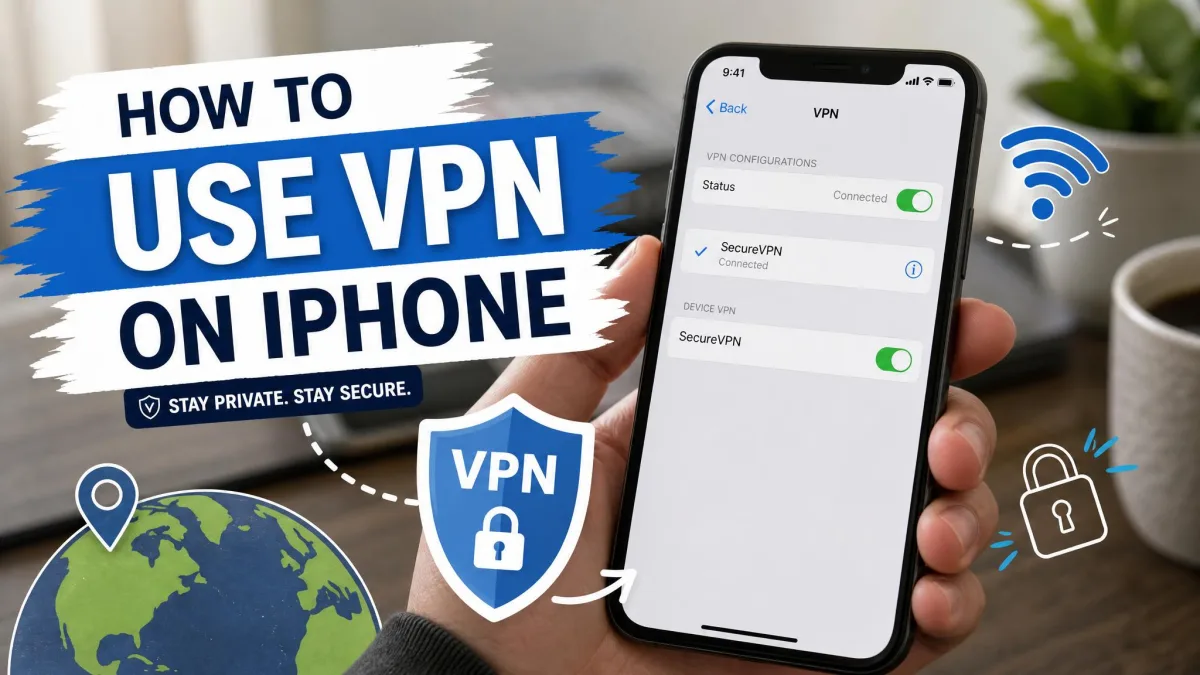
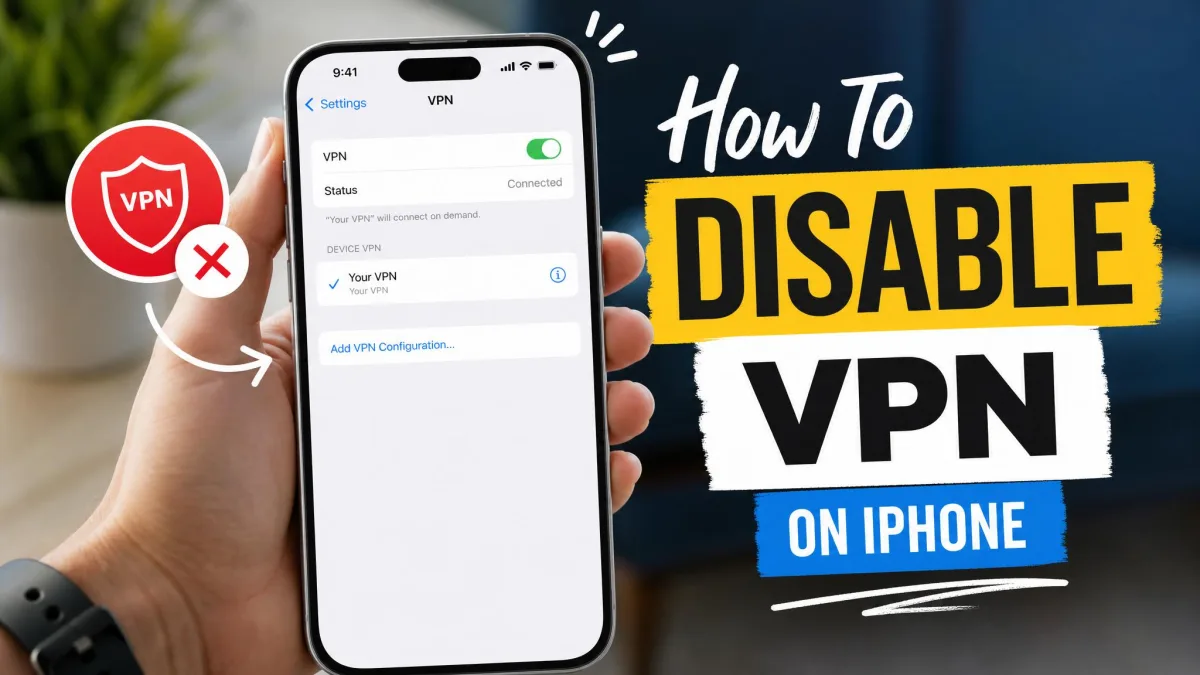
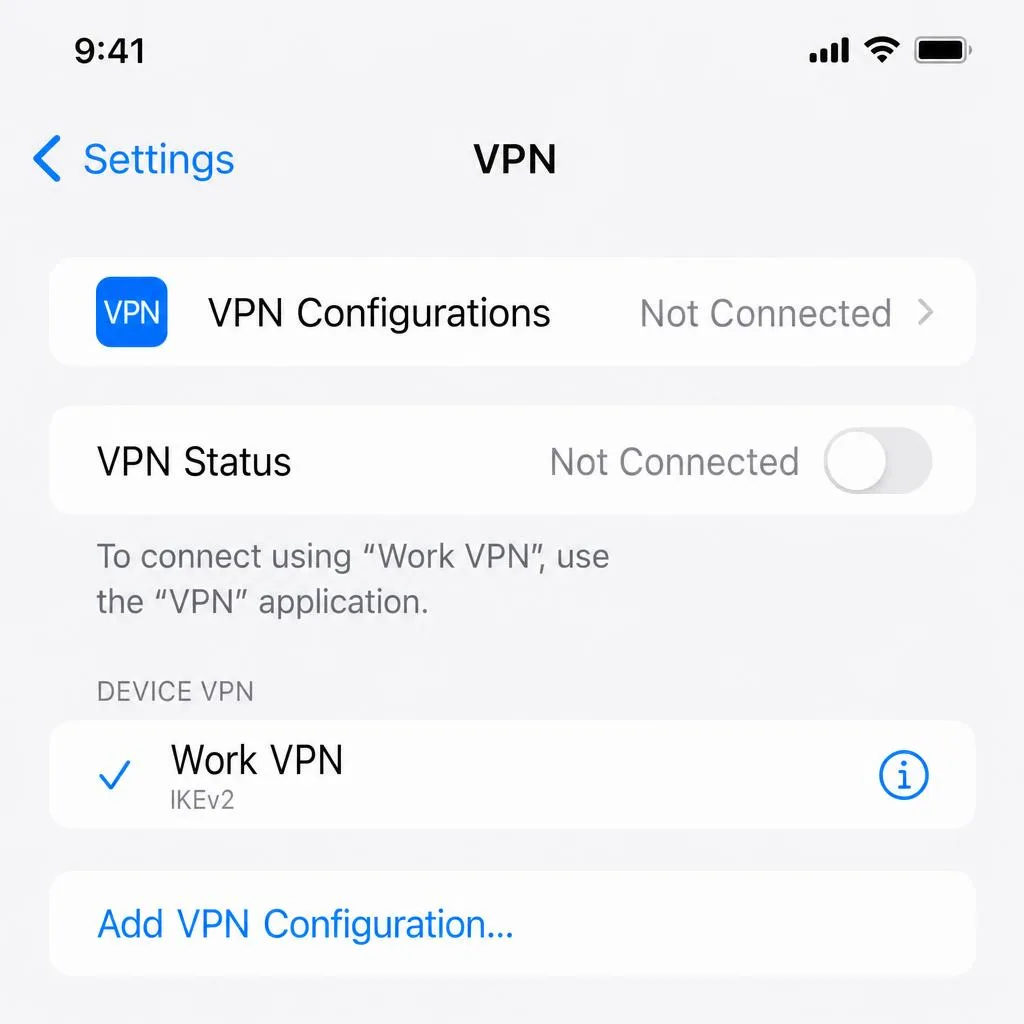
The most direct method lives in Settings. When a VPN is configured on your iPhone, a VPN row appears near the top of the main Settings list. Tap that row and you will see a VPN Status line with a toggle. A green toggle means the connection is active. Tap it and the status changes to Not Connected, which switches the VPN off straight away.
That top-level row is really a shortcut. The full set of controls sits one level deeper. Open Settings, tap General, then tap VPN and Device Management, and toggle the active profile off there. In our testing, where the switch lives varies: the top-level row shows up only when a VPN is configured, while profile deletion and the advanced options always sit under General.
Step-by-step: toggle the VPN off in Settings
- Open the Settings app on your iPhone.
- Tap the VPN row near the top of the list, or go to General, then VPN and Device Management.
- Find the VPN Status toggle. Green means connected.
- Tap the toggle so the status reads Not Connected.
That is the whole process for a temporary disconnect. The configuration stays saved, so you can switch it back on later with the same toggle. iOS shows a small VPN badge in the status bar and Control Center while a connection is active, so a glance up there confirms whether the tunnel is really off.
How to turn off a VPN from the VPN app
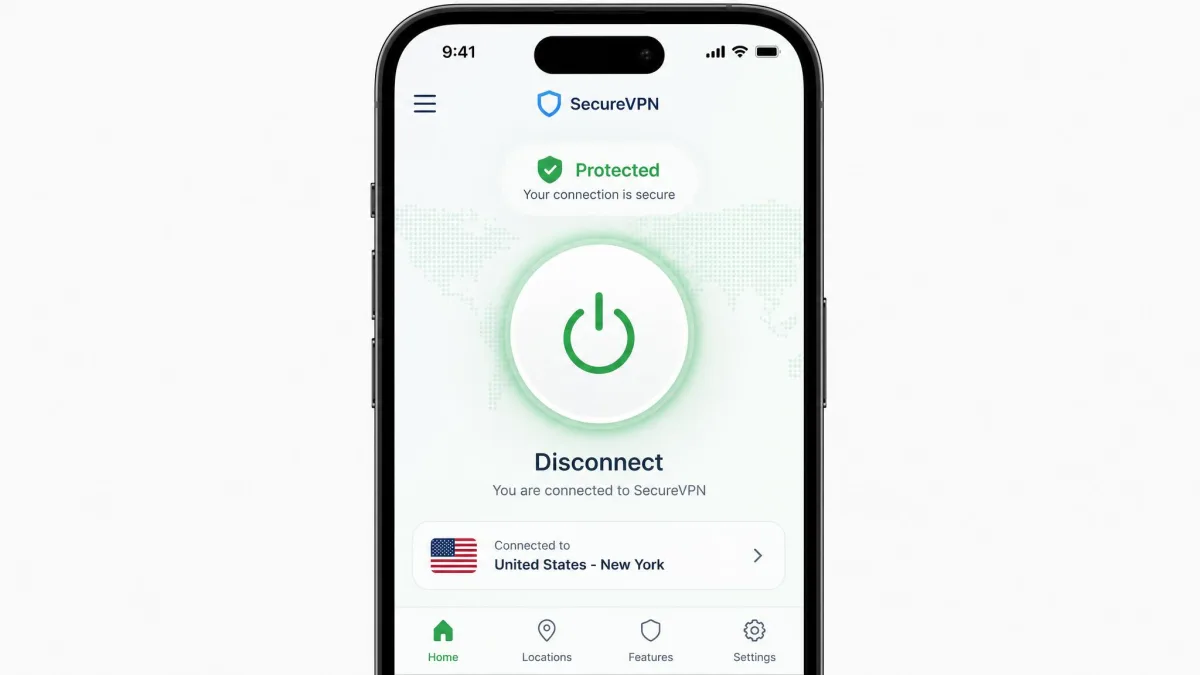
If you connected through a provider such as NordVPN, Proton VPN, or ExpressVPN, the app is often the easiest switch. Open the VPN app and look for a large Disconnect control or a power button on the main screen. Tap it and the connection drops. The app confirms with a disconnected status, and the VPN badge disappears from the status bar a moment later.
Using the app has one practical advantage. Some providers install their profile in a way that makes the Settings toggle behave oddly, and the in-app button talks to the profile directly. If the Settings toggle feels unreliable, the app's Disconnect button is the more dependable way to end the session.
How to stop a VPN from auto-reconnecting (Connect on Demand)
This is the problem that sends most people looking for help. You disconnect, and within a second or two the VPN turns itself back on. Nothing is broken. The cause is an iOS feature called Connect On Demand, which keeps the tunnel alive and quietly re-establishes it the moment you disable it.
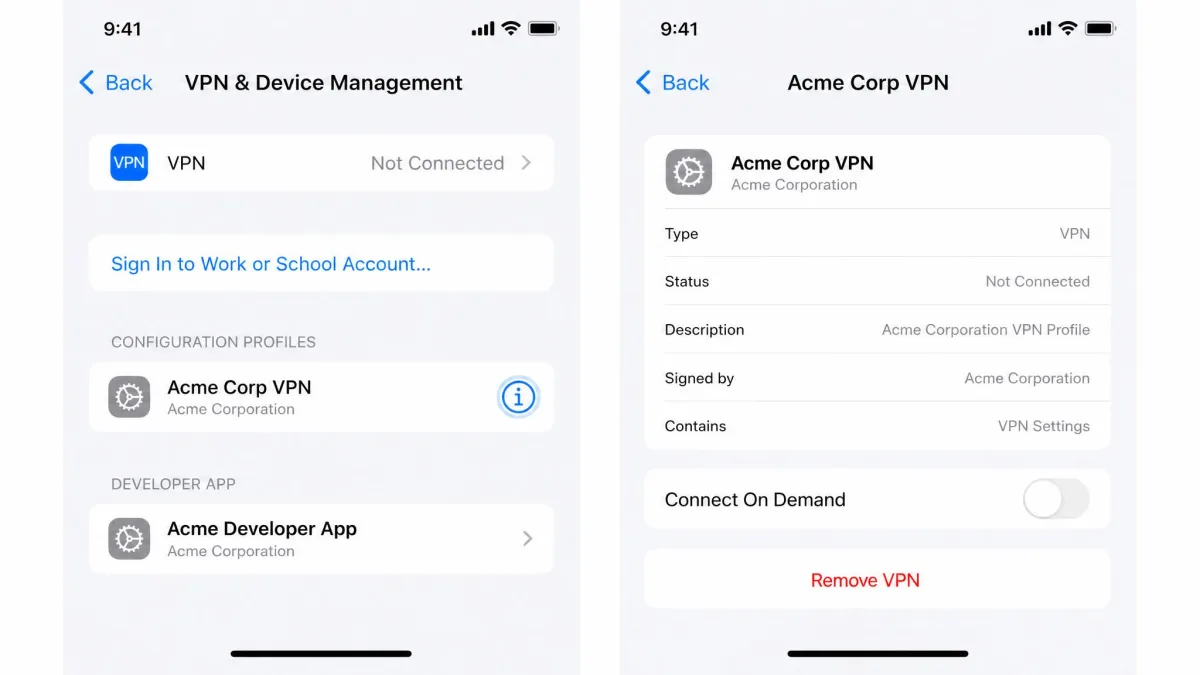
The setting is buried, which is why it is so easy to miss. Open Settings, tap General, then VPN and Device Management. Tap the small info icon, the letter i in a circle, next to your VPN. Inside that screen you will find a Connect On Demand toggle. Turn it off, and the VPN will stop reconnecting on its own.
On profiles installed by a VPN app or by a company's device management, the Connect On Demand toggle is often greyed out in Settings. When that happens, you cannot change it from iOS at all. Open the VPN app and look for an always-on, auto-connect, or reconnect setting there instead, and switch that off.
How to fully remove a VPN profile or configuration
Turning the toggle off leaves the VPN configuration saved on your iPhone. If you want the VPN gone completely, you need to delete both the app and its profile, and the order matters.
Delete the VPN app first. Press and hold its icon, then choose to remove or delete the app. After that, open Settings, tap General, then VPN and Device Management, tap the info icon next to the leftover profile, and choose Delete VPN. That clears the configuration for good.
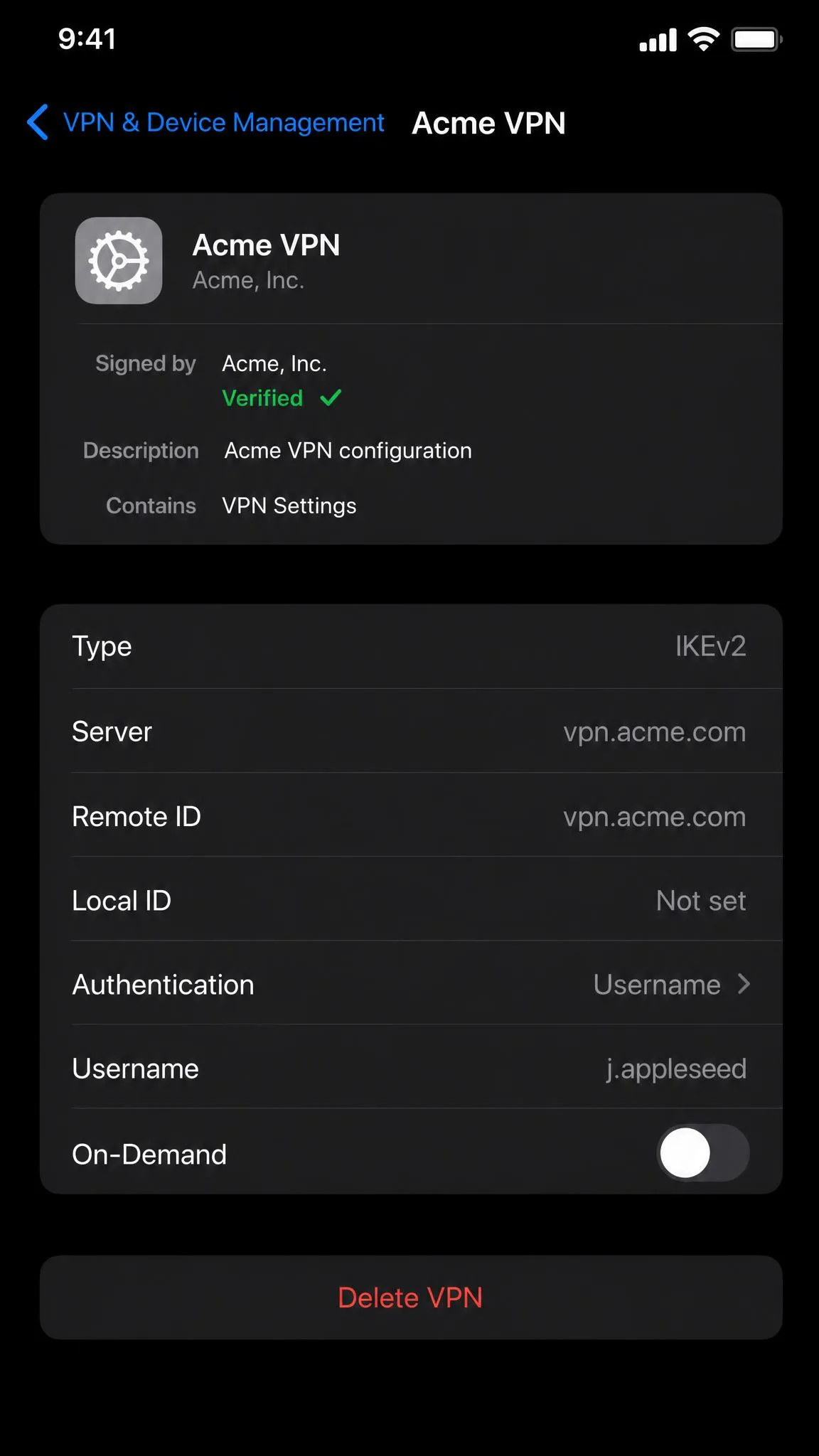
Deleting the profile while the tunnel is still active can briefly cut your internet as the connection drops. Removing the app before the profile avoids that interruption, because the tunnel is already closed by the time you delete the configuration.
VPN won't turn off or keeps reconnecting? Troubleshooting
Most stuck connections come down to one of a few causes, and they clear quickly once you know where to look.
If the VPN keeps reconnecting, check Connect On Demand first, using the steps above. That single setting is behind most turns-itself-back-on issues. If the toggle is greyed out, change the auto-connect option inside the VPN app instead.
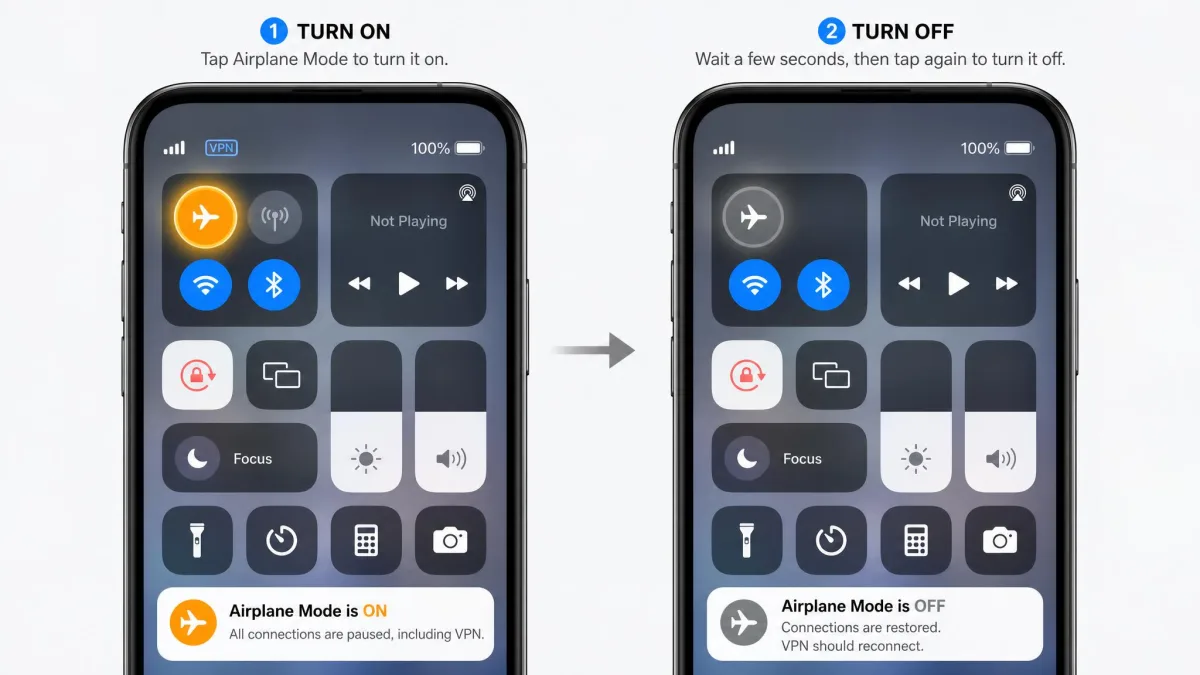
If the VPN will not release at all, a restart usually fixes it. Turn the iPhone off and back on, or toggle Airplane Mode on and off. That is often all a stubborn tunnel needs to let go.
Resetting network settings, under Settings, General, Transfer or Reset iPhone, then Reset, then Reset Network Settings, can clear a truly stuck VPN. Use it as a last resort. It also erases every saved Wi-Fi password on the device, so you will have to reconnect to each network by hand afterward.
What happens when you disable a VPN on iPhone
Switching a VPN off changes how your traffic reaches the internet. The encrypted tunnel closes, so your connection is no longer scrambled. Your real IP address and location become visible again, your internet provider can see the sites you visit, and any protection you had on public Wi-Fi is gone until you turn the VPN back on.
On a trusted network none of that is a problem. It only becomes one when you are on a network you do not control, which is where the question of leaving it on comes in below.
Why you might want to turn off your VPN
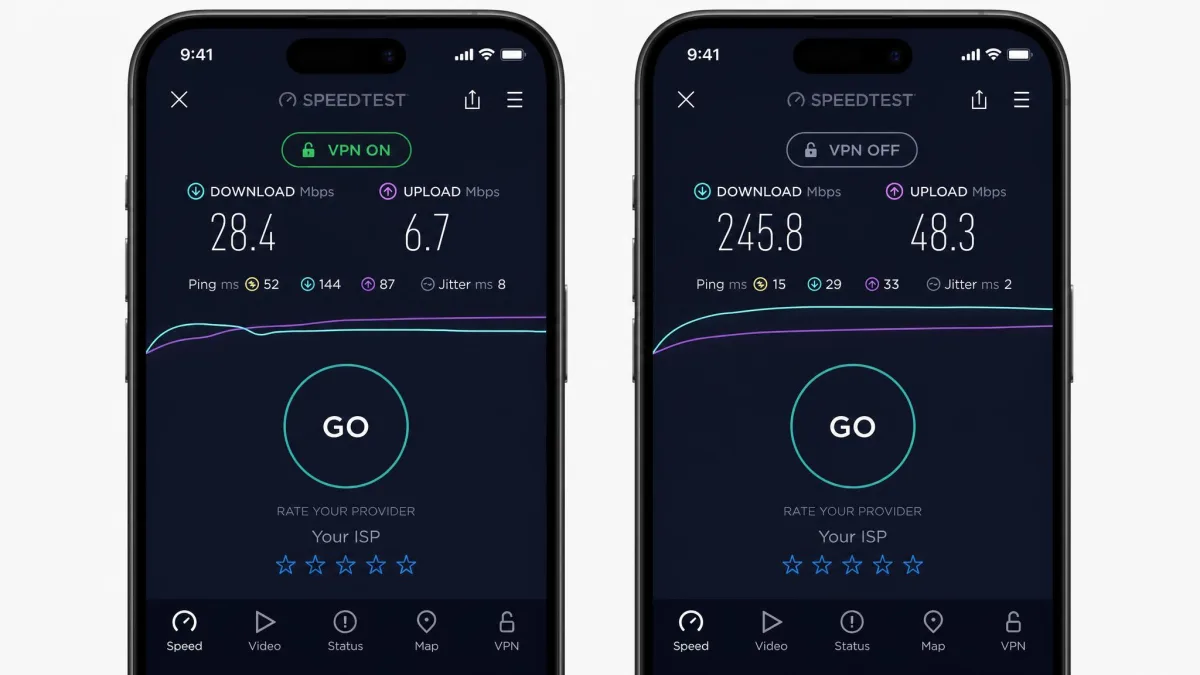
Most VPNs are worth running most of the time, but there are plenty of good reasons to disable one, at least for a while. The most common one is speed: a VPN routes your traffic through a distant server, so turning it off can make a slow connection feel quicker. People also switch it off to fix streaming and geolocation issues, since some services block VPN traffic or show the wrong regional catalogue.
A VPN can also add to battery drain, so turning it off helps on a low charge. It can get in the way when you need to reach a device on your local network, such as a printer or a smart-home hub, or when you are troubleshooting a connection that will not load. In each case a quick toggle off is enough, and you can switch it back on afterward.
Should you leave your VPN on or off? (risks of disabling)
Our general rule matches what most security guidance recommends: only turn the VPN off on Wi-Fi you trust, such as your home network, and leave it on for public networks. On café, airport, or hotel Wi-Fi, the VPN is doing real work by encrypting your traffic, and switching it off exposes what you are doing to anyone else on that network.
On your own home network the trade is usually fine. On an open network you do not manage, keeping the VPN on is the safer choice, and the small speed cost is a reasonable price for it.
For a broader walk-through across every platform, our guide on how to disable a VPN on any device covers the same ideas for Android, Windows, and Mac.