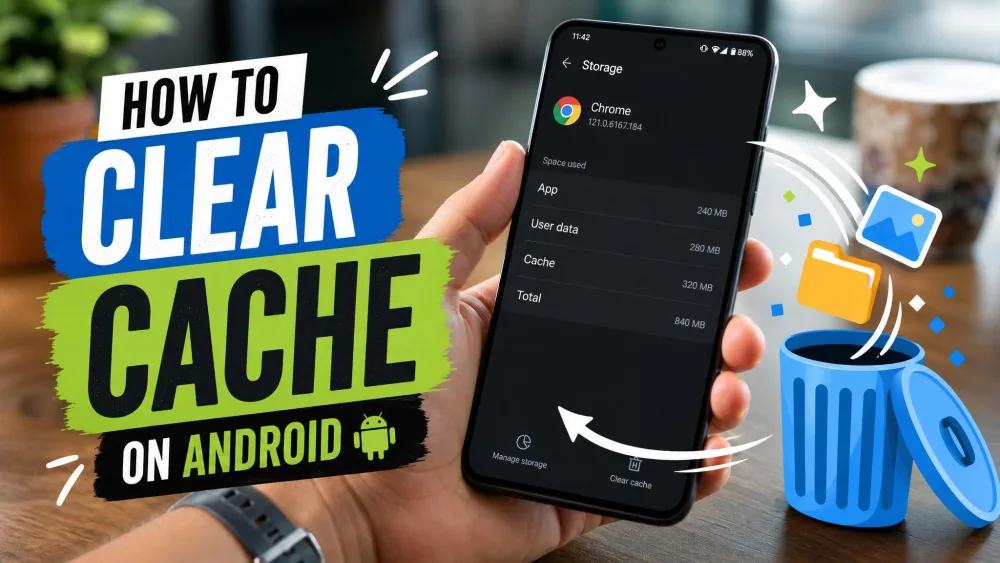
Instagram feels sluggish, keeps crashing mid-scroll, or is quietly eating a chunk of your phone's storage. The quick fix in almost every case is to clear the Instagram cache, which wipes the temporary files the app has piled up without touching your account. Below we walk through the exact steps for Android, iPhone, and desktop, plus what clearing removes so you know it's safe before you tap anything.
We ran these steps on both an Android phone and an iPhone, and the result was the same each time: the app felt noticeably smoother right away and the small glitches disappeared. Nothing in the account changed, and we stayed logged in throughout.
What Is the Instagram Cache (and Why Clear It)?
The cache is a stash of temporary files Instagram saves so it doesn't have to download the same content twice. Every reel you watch and photo you load leaves behind a copy, which helps at first because cached content loads faster the second time around.
The problem is that this stash keeps growing. In our experience, DM media and the in-app browser are the biggest contributors, which is why heavy Reels and message use bloats storage the fastest. Over a few weeks, the cache can swell into the gigabytes.
When those files get outdated or corrupt, Instagram starts to misbehave with crashes, lag, and images that refuse to load. Clearing the cache flushes the old files, and the app rebuilds a fresh set. It's the single most reliable quick fix for a misbehaving app.
Is It Safe to Clear the Instagram Cache?
Yes. This is the reassuring part, and it's worth stating plainly before you worry about losing anything. Clearing the cache removes temporary loading data only. It does not touch your account, which lives on Instagram's servers rather than on your phone.
We cleared the cache repeatedly during testing and stayed logged in every time, with drafts, saved posts, and messages all intact. The only change is that content takes a moment longer to load the first time while the app rebuilds a fresh cache, then returns to normal within a day.
What Clearing the Cache Does (and Doesn't) Delete
Here's the short version so there's no doubt about what you're removing.
Clearing the cache deletes temporary files: loaded images and videos, recent searches, and other residual data the app can rebuild on its own.
Clearing the cache does not delete your photos, posts, drafts, direct messages, saved content, or account settings. Those are stored on Instagram's servers and stay exactly where they are.
One caution for Android users: choose "Clear cache" and not "Clear data" or "Clear storage." The cache option keeps your logins and settings, while clearing data performs a full reset that erases settings and logs you out.
How to Clear Instagram Cache on Android
Android is the easy case, because the operating system gives you a genuine one-tap button for exactly this job. You never need to delete or reinstall the app.
Step-by-Step: Clear Cache in Android Settings
Follow this path from your phone's system Settings, not from inside Instagram:
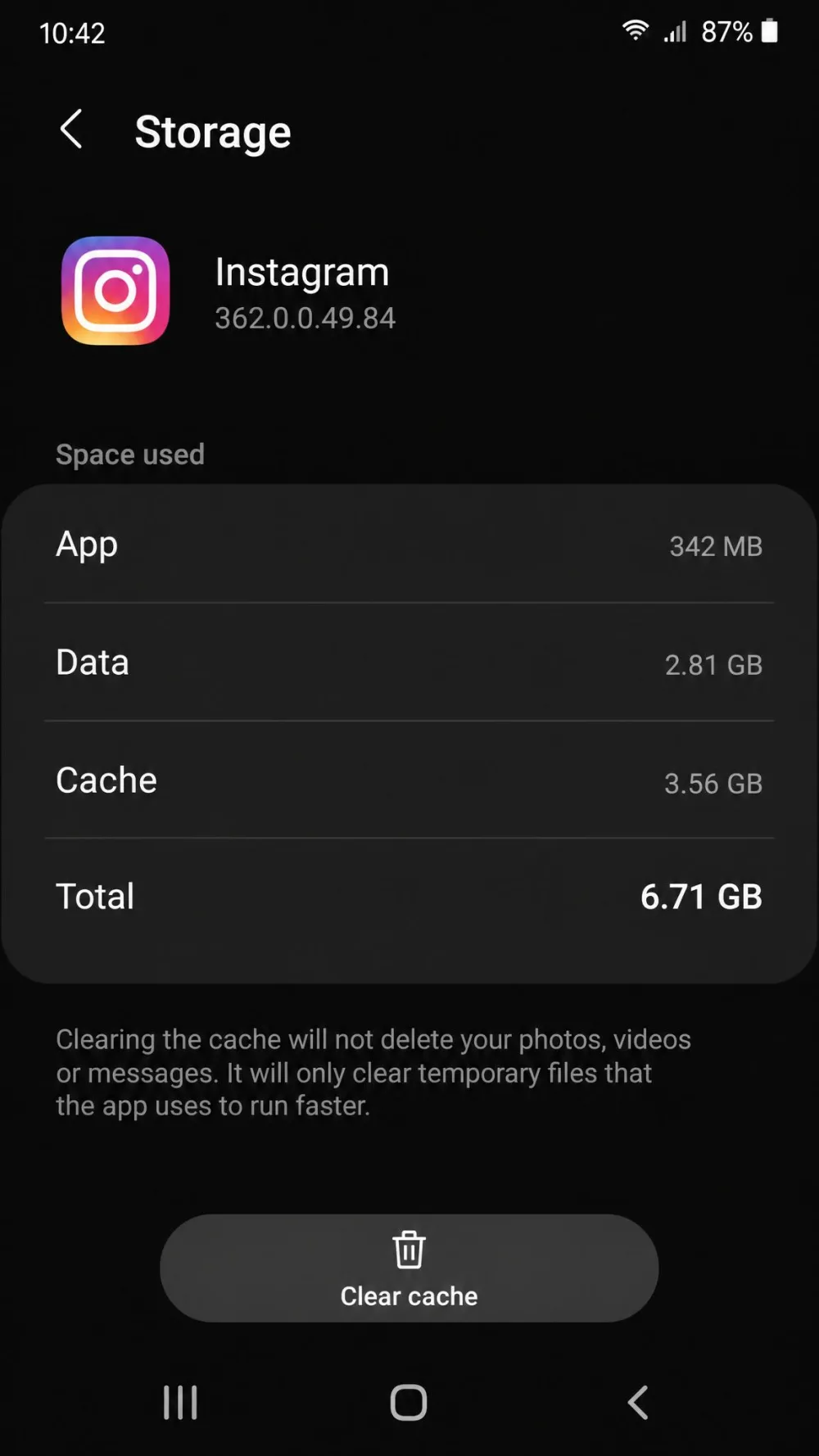
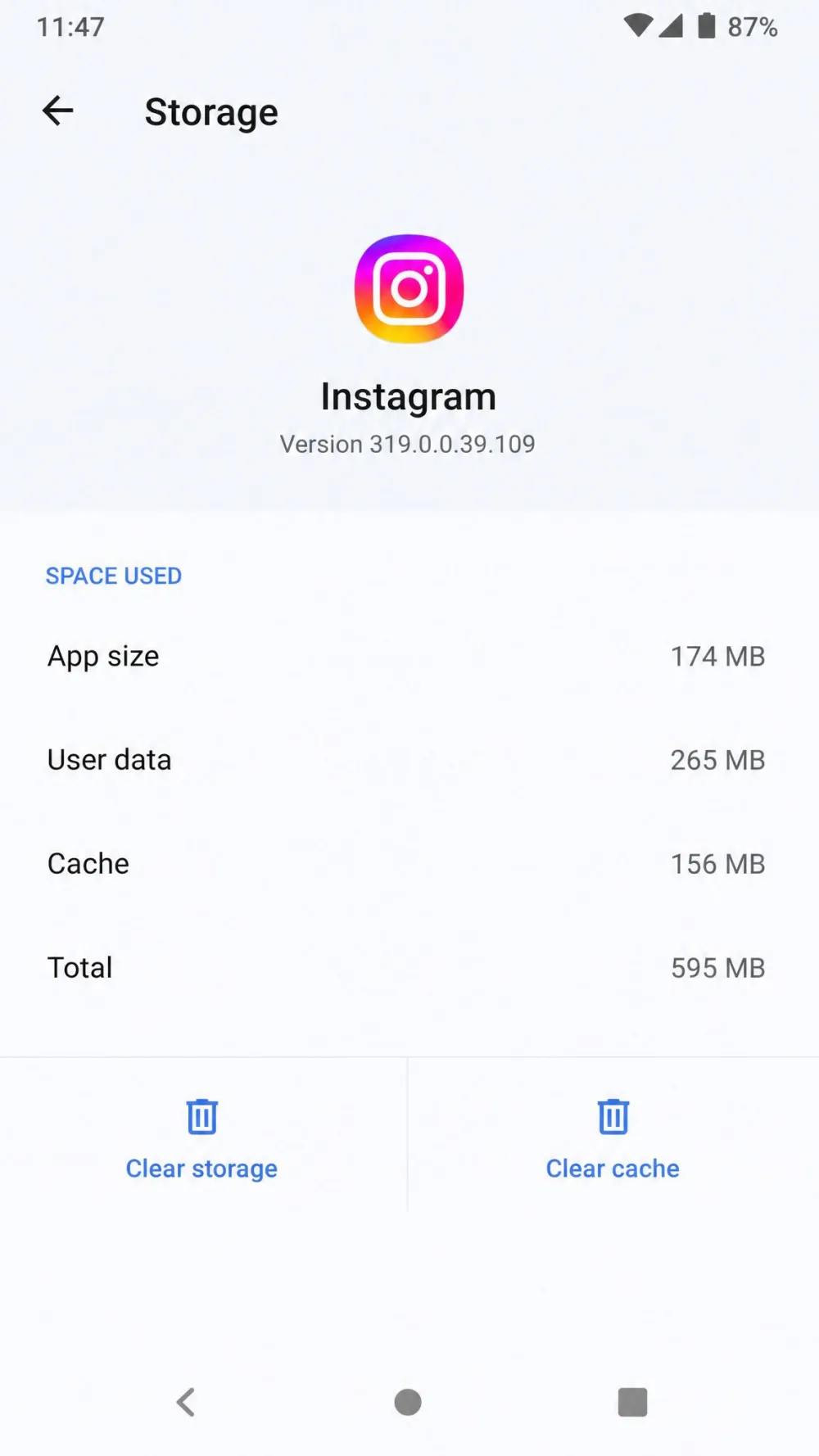
- Open Settings > Apps > Instagram > Storage (some phones label it Storage & cache).
- Tap Clear cache.
- That's it. The cache resets to zero, and you're still logged in.
On a Samsung Galaxy the path is nearly identical: open Settings > Apps, select Instagram, tap Storage, then tap Clear cache. If you want Samsung's own walkthrough, its guide on how to clear an app's cache on Samsung covers the same steps.
The exact wording may differ slightly by device, since manufacturers and Android versions label these menus differently. On older phones you may find it under Apps & Notifications instead. The two words that matter are "Storage" and "Clear cache."
Tap "Clear cache," not "Clear storage" or "Clear data." Clearing cache frees up space while keeping you logged in. Clearing storage wipes the app's settings and signs you out, so you'll have to log back in.
How to Clear Instagram Cache on iPhone
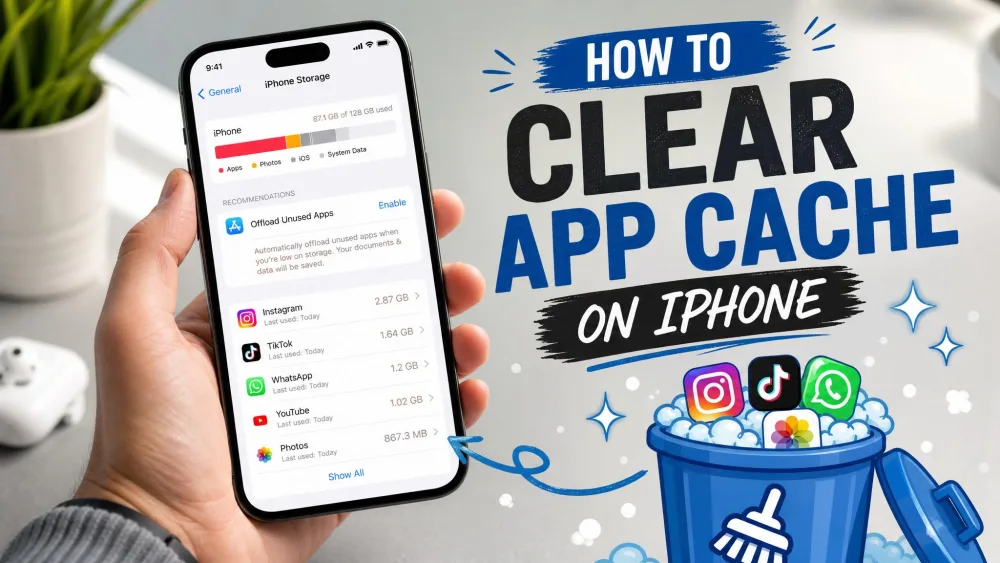
The iPhone is trickier, because Instagram has no in-app or per-app "clear cache" button on iOS. There's simply no toggle to tap inside the app or in your iPhone settings. Instead, you have two routes, and they clear different amounts.
Don't go hunting for a hidden clear-cache switch on your iPhone. It doesn't exist. Anyone who tells you Instagram has one on iOS is describing the Android version. Use one of the two methods below instead.
Method 1: Offload the Instagram App
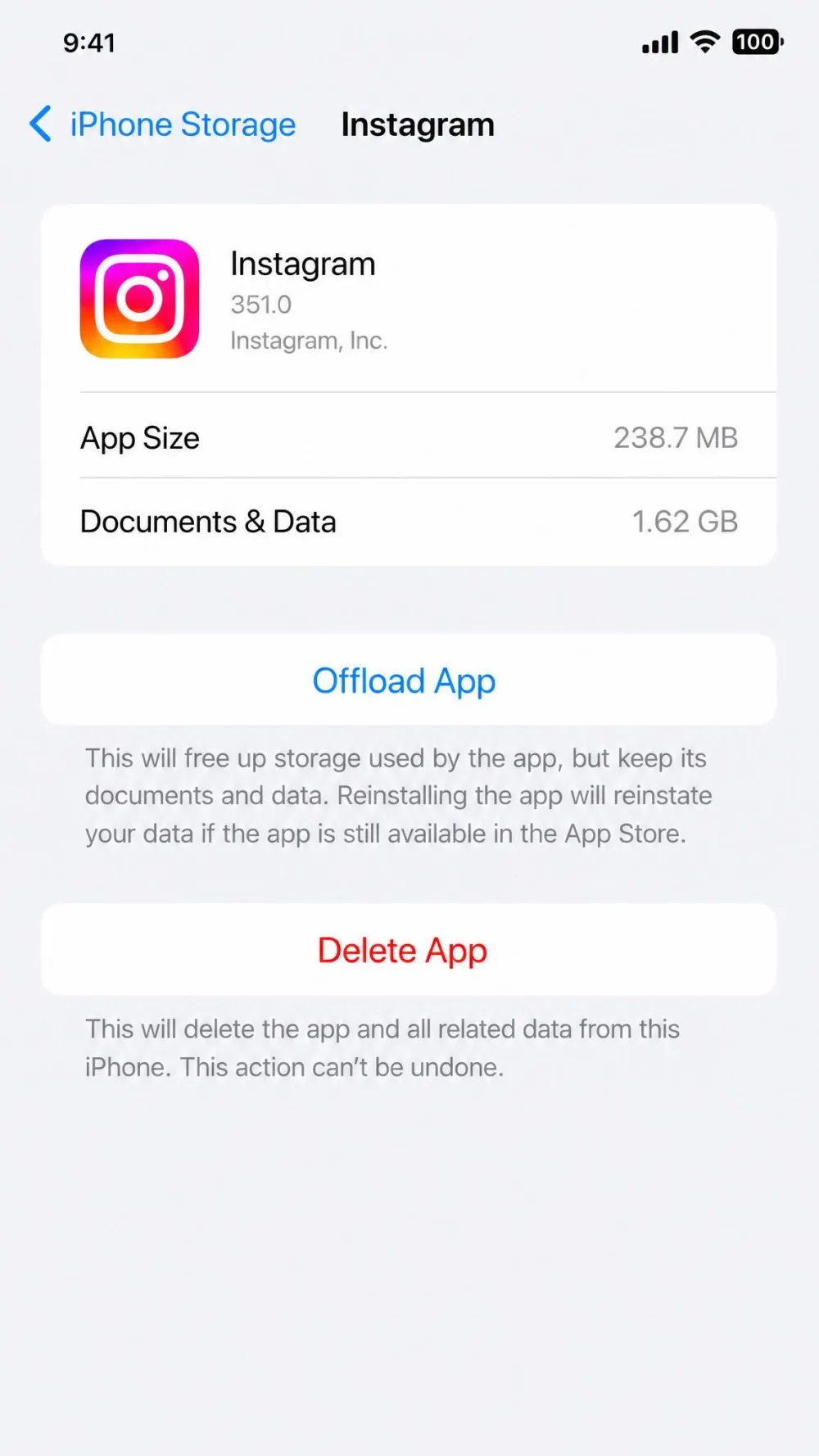
Offloading is the low-friction option that keeps you logged in. Open Settings > General > iPhone Storage > Instagram, then tap Offload App. In our testing this took less than a minute and didn't disturb the account or app setup at all.
Here's the honest nuance, though. Apple's own definition is that offloading removes the app itself but keeps its documents and data, and reinstalling restores everything. So offloading frees up the app's install footprint and can recover cache-heavy space, but it may not fully purge Instagram's internal cache the way a full reinstall does. An offloaded app also keeps its icon on your Home Screen with a small cloud symbol; tapping it reinstalls the app. For the official rundown of how to offload or delete the app, Apple's support page is the source to trust.
Method 2: Delete and Reinstall the App
For a thorough cache clear, delete the app and reinstall it. Open Settings > General > iPhone Storage > Instagram, tap Delete App, then reinstall Instagram from the App Store. This wipes all local data, including the cache, and gives you the cleanest start.
You will need to re-enter your login afterward, but your account data is untouched because it lives on Instagram's servers. Any drafts saved only on the device will be gone, so post them first if they matter.
Clear Cache vs. Offload vs. Reinstall: What Each One Does
If you're deciding between the three, this table lays out what each action removes and leaves alone.
| Action | What it removes | Stay logged in? | Drafts & settings kept? | Account data (photos/DMs) |
|---|---|---|---|---|
| Clear cache (Android) | Temporary cache files only | Yes | Yes | Untouched (on servers) |
| Offload App (iPhone) | App binary; frees cache-heavy space | Yes | Yes | Untouched |
| Delete & reinstall | App plus all local data and cache | No, must re-enter login | No, local drafts lost | Untouched |
In short, Android's Clear cache and the iPhone's offload are the gentle, login-preserving options, while delete-and-reinstall is the thorough reset for when nothing else works.
How to Clear Instagram Cache on Desktop (PC and Mac)
If you use Instagram in a browser, the cache lives in the browser rather than in an app. Clearing it is quick, and you have two ways to do it.
On Windows
The fastest route is the keyboard shortcut Ctrl+Shift+Delete, which opens your browser's clear-browsing-data window. Pick a time range, make sure "Cached images and files" is checked, and confirm. To clear Instagram's data only, click the lock icon in the address bar while on instagram.com, choose Site settings, and select Clear data.
On macOS
On a Mac the same window opens with Cmd+Shift+Delete in Chrome or Edge. In Safari, open the History menu, choose Clear History, and pick a range. As on Windows, you can also use the site-info button in the address bar to clear data for instagram.com alone rather than your whole browser.
How Often Should You Clear the Instagram Cache?
There's no need to make this a daily chore. For most people, clearing the cache once a month is plenty, or whenever the app starts to lag, crash, or feel bloated.
Heavy Reels and DM users will see the cache fill faster, so a clear every couple of weeks makes sense. If storage is tight and the app has crept up into the range of 2 to 6 GB, that's a good sign it's time. Treat that figure as a rough range rather than a fixed number, since the amount varies widely with usage and device.
Frequently Asked Questions
Does clearing Instagram cache delete my photos, drafts, or DMs?
Will I be logged out after clearing the cache?
How often should I clear my Instagram cache?
Does clearing the cache fix crashes and lag?
How much storage does the Instagram cache use?
Is it safe to clear the Instagram cache?
The Bottom Line
Clearing the Instagram cache is the fastest, safest way to fix a slow or crashing app and free up storage. Android users get a one-tap "Clear cache" button, iPhone users offload for a light clean or reinstall for a thorough one, and desktop users clear it in the browser with Ctrl+Shift+Delete. In every case your photos, messages, and logins are safe, because clearing only removes temporary files the app can rebuild. Do it whenever Instagram feels sluggish, and you'll get a smoother app back in under a minute.