If your MacBook feels sluggish or you are running low on storage, clearing its caches is one of the safest first steps to try. It takes a few minutes, it does not touch your documents or photos, and it often smooths out a browser or app that has started to misbehave. We have run these methods across our own test Macs many times, and in this guide we will walk through each one in the order most people need it.
We will keep things honest, though. Cache clearing is useful, but it is not magic. macOS rebuilds most of these files during normal use, so the space you win back is usually temporary and the speed bump is modest. Think of it as routine housekeeping and a reliable troubleshooting move, not a permanent fix for a full drive. With that framing in place, let us dive in.
Below you will find five practical routes: the browser cache in Safari, Chrome, Firefox, and Edge; the manual system and user cache buried in your Library folders; app caches; the automatic cleaner-app option; and the DNS flush for network hiccups. Pick the one that matches your problem, or work through them top to bottom.
What Is Cache on a MacBook?
Cache is temporary data that apps and macOS store so they do not have to rebuild the same thing twice. When a program can pull an image, a font, or a chunk of a web page from a local cache, it loads faster and uses less bandwidth. Most of the time this is exactly what you want, and the system manages it quietly in the background without any input from you.
The trouble is that cache files pile up. Over months of daily use they can grow large, go stale, or hold onto a corrupted version of something an app now needs fresh. That is when clearing the cache helps. On a MacBook, the cache splits into three broad types, and knowing which is which keeps you from deleting the wrong thing.
Browser cache
Your web browser keeps copies of images, scripts, and page assets so sites you revisit load quickly. This is the cache most people mean when they talk about clearing cache, and it is the safest to wipe. The worst that happens is that your next visit to a site is a touch slower while the browser downloads fresh copies. Each browser stores its own cache, so clearing Safari does nothing for Chrome, and the other way around. If you use more than one browser, you will need to clear each of them separately.
System and user cache
Beneath the browser, macOS and your apps keep their own working files. User cache lives at ~/Library/Caches in your home folder, and system-level caches sit at /Library/Caches and inside /System/Library/Caches. These folders hold the temporary data that everyday apps generate, from thumbnail previews to partial downloads. Clearing them can help a specific app that is acting up, but this is also where a careless delete can cause problems, so we treat it with more caution than the browser cache.
App cache
Individual apps stash their own caches, usually inside your user Library. A photo editor might cache preview renders, a music app might cache artwork, and a chat app might cache media you have already seen. When one particular app misbehaves, clearing just that app's cache is often the fix, and it is gentler than sweeping the entire Caches folder in one go.
Why (and When) You Should Clear Cache on a MacBook
Cache clearing earns its place as a troubleshooting step, not a daily ritual. In our testing, the best time to reach for it is when a single app or browser starts loading stale content, crashing, or behaving oddly after an update. Clearing that app's cache forces it to rebuild clean files, and that alone resolves a surprising number of small glitches.
It is far less useful as a routine speed boost. Because macOS recreates many cached files during normal use, the effect is modest and often temporary. If your goal is more free space, cache clearing helps a little, but moving large photo and music libraries to an external drive helps far more. We will come back to that reality check at the end.
Signs your MacBook needs a cache cleanout
A few symptoms point squarely at cache trouble. A browser that shows an outdated version of a page you know has changed is a classic sign. So is an app that keeps crashing right after an update, or one that suddenly runs slower than it did last week. Web pages that load broken layouts or fail to show new images are usually a browser-cache problem you can fix in under a minute.
You might also notice storage creeping up with no obvious cause. Cache files can grow large on a well-used Mac, sometimes past 20 GB, and on a first cleaner scan it is common to see tens of gigabytes flagged as junk. Just keep your expectations grounded: some of that space comes back the moment you start using your apps again.
What's safe to delete vs. what to leave alone
The safe zone is clear. Browser caches, the files inside app cache folders, and the files inside ~/Library/Caches can all be cleared without losing personal data. The golden rule is to delete the files inside a Caches folder, never the folder itself.
The danger zone is the system layer. You should never delete the Caches folders themselves, and you should leave the contents of /System/Library/Caches alone entirely. Removing the wrong system file can stop an app, or macOS itself, from working properly. If a folder is not clearly labelled with an app you recognise, the safe move is simply to skip it.
Before you touch anything inside your Library folders, understand that clearing cache does not delete your files, but deleting the wrong system file can break an app or macOS. Only ever remove the files inside a Caches folder, never the folder itself, and steer clear of /System/Library/Caches completely. When in doubt, back up first and read Apple's storage guidance before deleting system-level data.
How to Clear Browser Cache on a MacBook
Start here, because the browser cache is the safest to clear and the one that fixes the most everyday problems. Each browser handles it a little differently, so here is the exact route for the four most common ones, plus a shortcut that works across several of them.
How to clear Safari cache
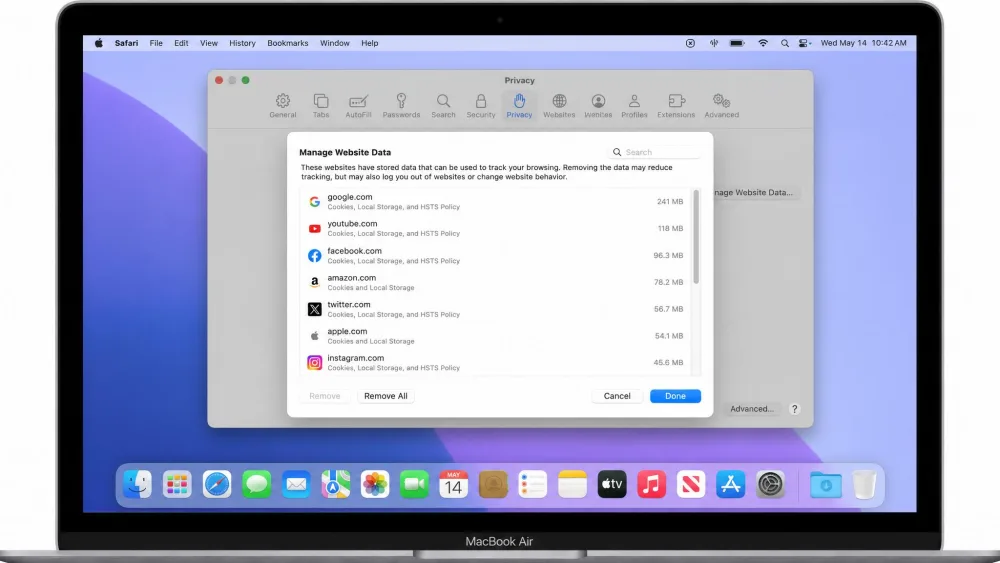
Safari gives you two routes. The straightforward one built into macOS is to open Safari, go to Settings, choose Privacy, then click Manage Website Data and select Remove All. That clears cookies and website data along with the cache, which fixes most stubborn sites. Apple documents this route in its guide to clear Safari cache and cookies.
If you want to empty only the cache and leave cookies in place, enable the hidden Develop menu first. Open Safari Settings, click Advanced, and turn on the Develop menu. From then on you can choose Develop, then Empty Caches, at any time. This is the more surgical option when you do not want to sign out of every site you use.
Once the Develop menu is switched on, you can empty the Safari cache instantly with the Option-Command-E keyboard shortcut, no menus needed. It is the fastest way to force a single stubborn page to reload from scratch.
How to clear Chrome cache
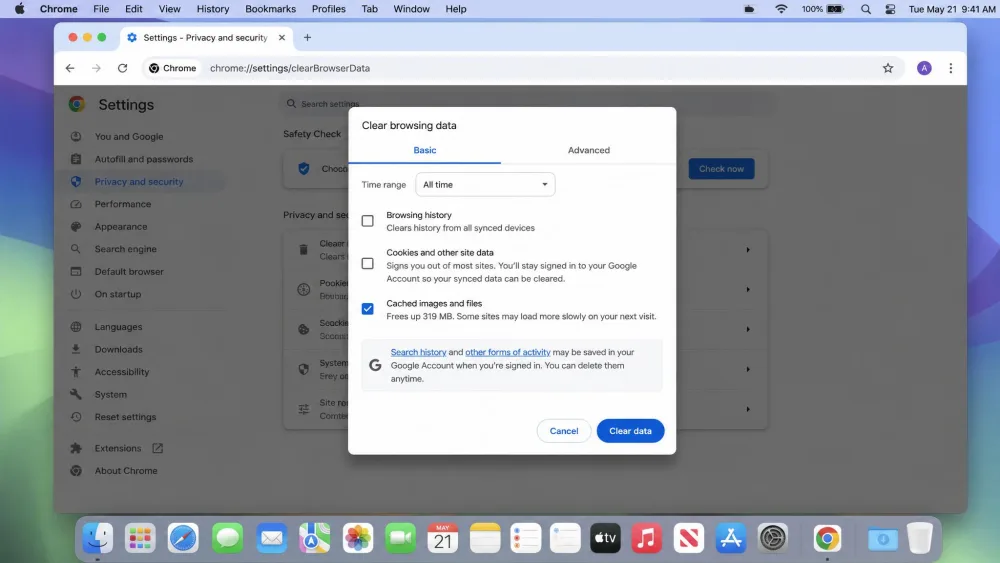
To clear the Chrome cache, open the menu, go to chrome://settings, then Privacy and security, and choose Clear browsing data. Select Cached images and files, set the time range to All time, and delete. If you only want to clear the cache and keep your history and passwords, untick the other boxes before you confirm.
Setting the time range to All time matters. A shorter range leaves older cached files in place, which defeats the purpose if you are chasing a display glitch on a site you have visited for a while.
How to clear Firefox cache
Firefox keeps the setting under Preferences. Type about:preferences in the address bar, open Privacy and Security, scroll to Cookies and Site Data, and click Clear. Tick Temporary cached files and pages, then confirm. As with Chrome, you can leave cookies checked or unchecked depending on whether you want to stay logged in. Mozilla's own instructions on how to clear the Firefox cache match this route step for step.
How to clear Microsoft Edge cache
Edge follows the same shape as Chrome, since both are built on Chromium. Open the menu, go to Settings, then Privacy, search, and services, and click Clear browsing data. Choose Cached images and files and click Clear now. Microsoft's guide to clear the Edge cache covers the same window if you want to confirm each option before you commit.
Keyboard shortcut to empty browser cache
You do not always need to dig through menus. In both Chrome and Firefox, Command-Shift-Delete opens the Clear browsing data window directly, so you can jump straight to the cache checkbox. In Safari with the Develop menu enabled, Option-Command-E empties the cache outright without any dialog at all. These two shortcuts cover most of what you will reach for day to day, and they are worth committing to memory if you troubleshoot sites often.
Clearing browser cache can sign you out of sites and wipe your autofill, so any logins and saved form data may be gone afterward. If you rely on the browser to remember passwords, either untick cookies and site data when you clear, or make sure you know your logins before you wipe everything.
How to Clear System and User Cache on a MacBook (Manual Method)
This is the deeper clean, and it is where care matters most. The user and system caches live in your Library folders, and macOS hides the user Library by default to keep people out of it. The manual method works, and it is free, but it is also slow and genuinely error-prone, so read each step before you start.
Clearing user cache files via ~/Library/Caches
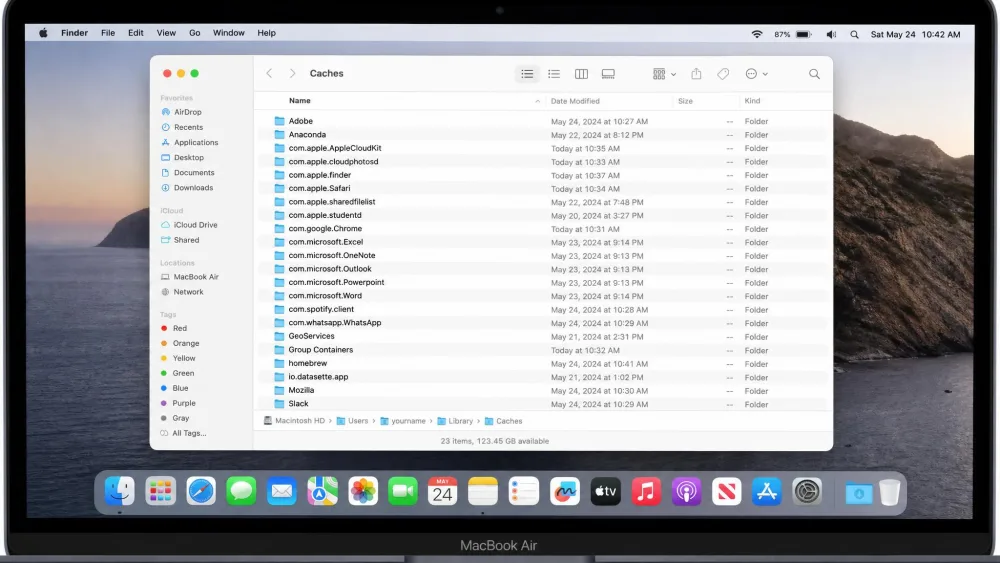
Open Finder, then from the menu bar choose Go, followed by Go to Folder. Type ~/Library/Caches exactly, including the tilde at the front, and press Return. That tilde is important, because it points to the cache inside your home folder rather than the system one. You will see a long list of folders, one for most of the apps you use.
Now the rule that keeps you safe: open each folder and delete the files inside it, but keep the folders themselves. Once you have cleared what you want, empty the Trash to actually reclaim the space. In our testing this is where the process drags, because there can be dozens of folders to work through, and it is easy to lose track or delete something an app was mid-way through using.
Shift-Command-G opens Finder's Go to Folder box from anywhere, so you can skip the menu entirely. Paste the cache path straight in and you are there in one step, which saves a lot of clicking if you visit these folders more than once.
Because the manual route is fiddly and mistakes can break an app, it is worth backing up before you start. We would not call that optional. The process is error-prone enough that a recent backup turns a potential headache into a simple restore, and it costs you nothing but a few minutes up front.
Clearing system-level cache safely
System caches sit at /Library/Caches and inside /System/Library/Caches, and this is where you slow down and pay attention. You can carefully clear files inside /Library/Caches using the same Go to Folder route, deleting only the files within folders. But leave /System/Library/Caches alone entirely, because its contents are part of how macOS runs. Deleting the wrong file here can stop apps, or the system, from working.
Honestly, for most people the system-level clean is not worth the risk for the small space it returns. If a specific app is broken, clearing its own folder inside the user cache is almost always the better and safer fix.
Flushing the DNS cache
If your problem is network-related, a site that will not resolve or a domain that points to the wrong place, the fix is a separate DNS flush rather than a file cleanup. Open Terminal and run the DNS flush command: dscacheutil -flushcache, followed by sudo killall -HUP mDNSResponder. macOS will ask for your password because the second part needs administrator rights. This clears the stored map of domain names to addresses and forces your Mac to look them up fresh, which resolves most "this site used to work" mysteries.
How to Clear App Cache on a MacBook
App caches are the middle ground: more targeted than a full system sweep, and often the exact fix for one misbehaving program. Most apps keep their cache inside ~/Library/Caches in a folder named after the app or its developer. Use the same Go to Folder route, find the folder that matches the app you are troubleshooting, and delete the files inside it while leaving the folder in place.
Quit the app first. Clearing a cache while the app is running can confuse it, and some files will be locked anyway. Once you reopen the app, expect a small first-launch lag while it rebuilds the cache it just lost. That brief pause is normal and it settles after the first use, so do not mistake it for the clean having made things worse.
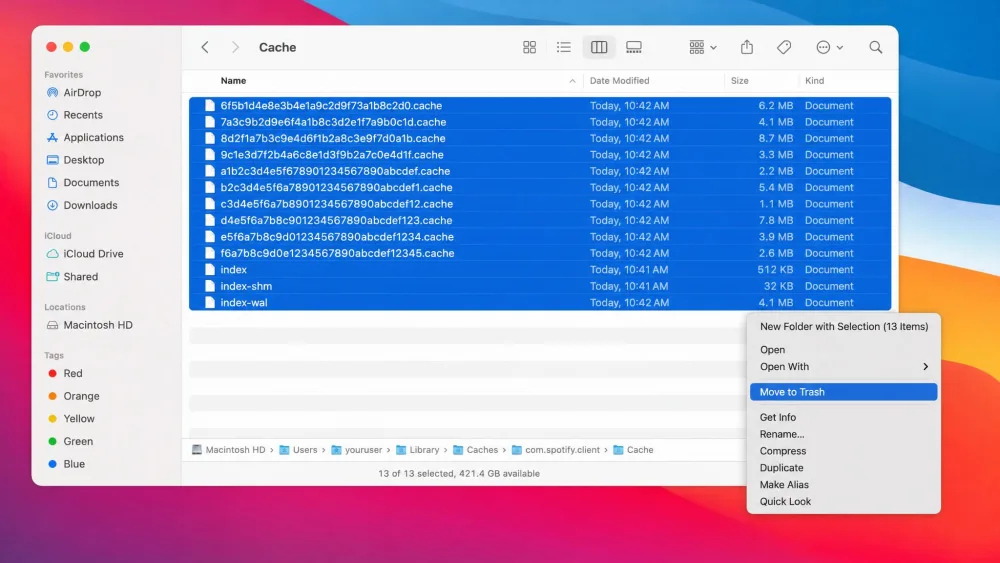
This targeted approach is our default recommendation whenever a specific app is the problem. It gives you the benefit of a cache clear without the risk of sweeping through folders that other apps depend on. If clearing the cache does not settle the app, the next steps are a full restart and, failing that, a reinstall.
Clear Cache Automatically With a Mac Cleaner App
If the manual route sounds tedious, that is because it is. Working folder by folder through ~/Library/Caches takes real time, and every step carries a small chance of deleting the wrong thing. A dedicated Mac cleaner app removes both problems. It scans the cache locations for you, shows what it found, and clears only the safe files in one pass.
The trade-off is trust. A cleaner is only as safe as its rules, so stick to well-known apps that show you what they will remove before they remove it, and that never touch protected system files. Used that way, a cleaner turns a fiddly half-hour into a couple of clicks, and it will not delete the folders that break apps.
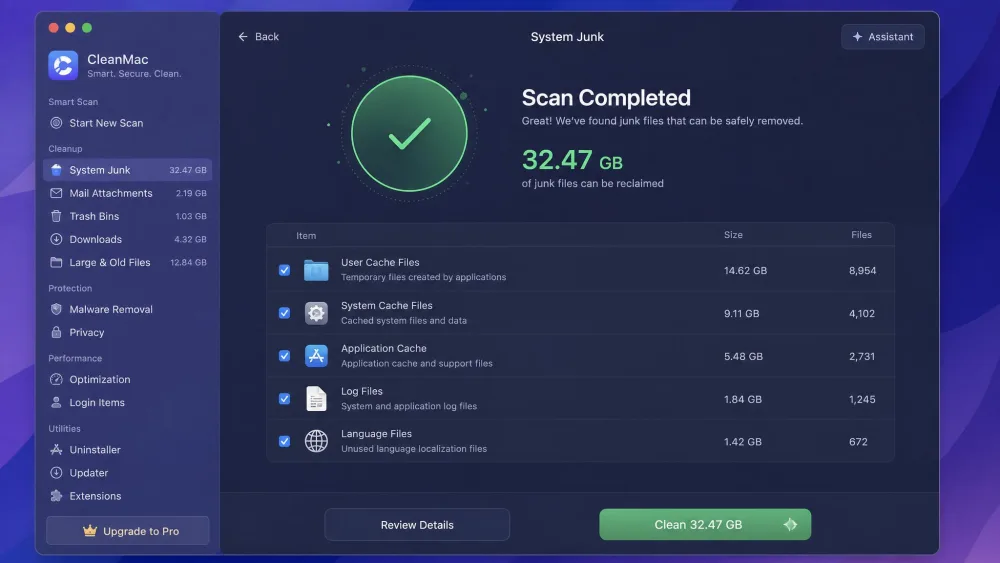

On a first scan, cleaners commonly surface tens of gigabytes of cache and other junk files on a well-used Mac. Treat that headline number with a little skepticism, though. As we will explain next, a lot of that space comes straight back once you start working again.
When we run a first cleaner scan on a Mac that has not been touched in a while, it is common to see anywhere from a few gigabytes to more than 20 GB flagged as cache and junk. The exact figure swings wildly depending on how heavily the machine has been used, so we treat any single reclaimed-space number as a rough ballpark rather than a promise.
What Happens After You Clear Cache on a MacBook
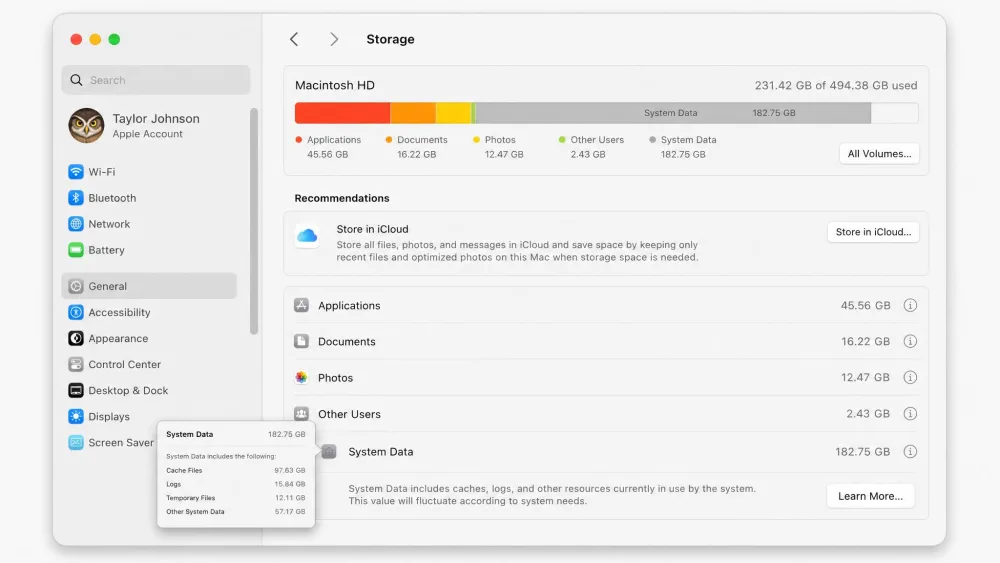
Here is the reality check we promised. Clearing cache does not permanently free space, because macOS recreates many of those cached files during normal use. Restart your Mac and the caches drop to a minimal size, then quietly rebuild as you open apps and browse. So the storage graph you were staring at will not stay low for long, and that is by design rather than a failure on your part.
The speed story is similar. Cache clearing can smooth out a specific stuttering app, but it is not a broad performance upgrade, and no honest source quantifies a big speed gain. The effect is modest and often temporary. What it does reliably do is clear stale or corrupted files, which is why it works so well as a troubleshooting step for one misbehaving app after you have already restarted the app and the Mac.
If your real problem is a full drive, cache is the wrong target. On a 512 GB MacBook Pro, for example, 80 GB of System Data is normal and not worth chasing. Moving large photo and music libraries to an external drive frees far more lasting space than any cache clean will. So clear cache when an app is misbehaving, keep your expectations grounded, and reach for storage management when you genuinely need room.
Frequently Asked Questions
Is it safe to clear the cache on a Mac?
~/Library/Caches can all be cleared without losing personal data. The one firm rule is to delete the files inside a Caches folder, never the folder itself, and to leave /System/Library/Caches alone entirely.Will clearing cache delete my files, passwords, or logins?
How do I clear system cache without third-party apps?
Shift-Command-G, and enter ~/Library/Caches for user cache or /Library/Caches for system cache. Open each folder, delete the files inside while keeping the folders, then empty the Trash. Leave /System/Library/Caches untouched.