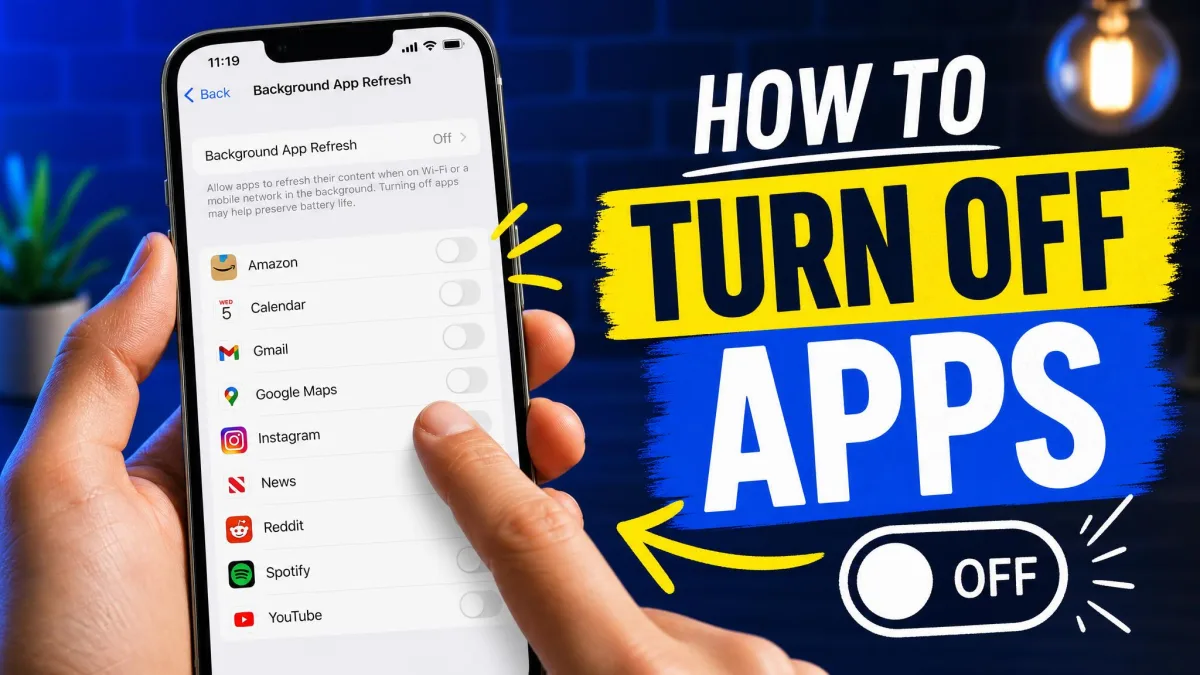
Apps you no longer use keep running in the background, drain your battery, and slow your device down. You can fix it without deleting anything. Good news: on iPhone, Android, and Windows, you can turn an app off while keeping your data, your settings, and the ability to bring it back whenever you want it. This guide covers the fastest methods across all three platforms, whether the app is preinstalled bloatware, an old game, or a background service. You will learn which action keeps your data, which one hides the app, and which one is only temporary.
Quick Workflow: Turn Off Apps Without Deleting Them
The fastest ways to turn off an app on each platform, without losing anything.
- On iPhone: Open Settings, tap General, then iPhone Storage. Tap the app, then tap Offload App.
- On Android: Open Settings, tap Apps, then the app. Tap Disable. It stops running and hides.
- On Windows: Open Settings, go to Apps, then Startup. Toggle off anything you do not want at sign-in.
- To stop background activity: turn off Background App Refresh on iPhone, restrict it on Android, or set background permissions to Never on Windows.
Prerequisites: What "Turning Off" an App Means on Each Platform
Turning off an app means different things on each platform, so knowing the right action saves you from hunting in the wrong menu. On iPhone, the main tool is offloading, which removes the app but keeps its documents, data, and settings. On Android, the equivalent is disabling, which stops the app, hides it, and keeps its data. On Windows, there is no single off switch; you manage startup programs and background permissions separately. You will also meet force stop, which is a temporary pause rather than a lasting change.
How to Turn Off Apps on an iPhone
These methods stop an app from taking up space or running in the background without deleting it. Start with offloading.
Offload an App Manually (Keep Your Data)
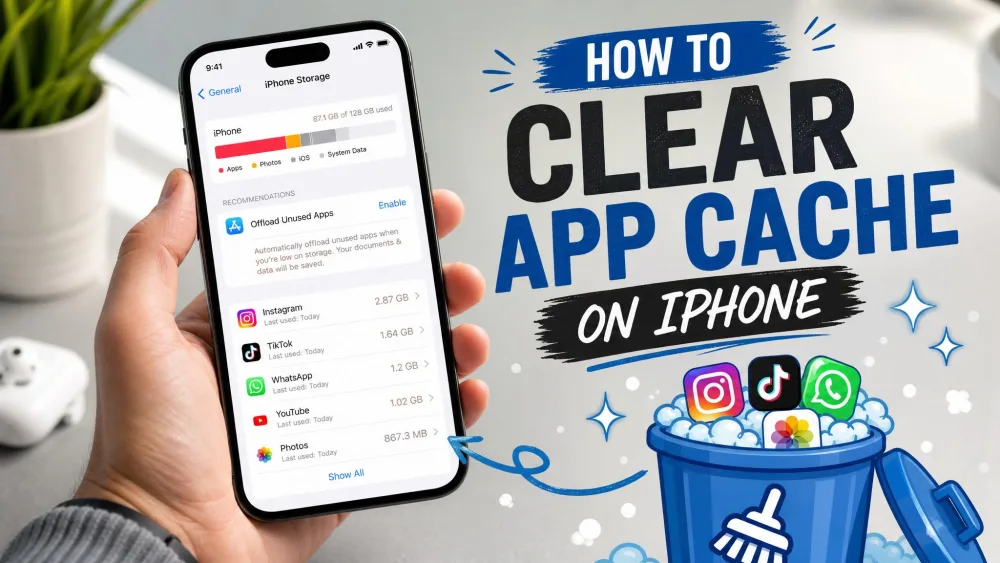
- Open Settings, tap General, then iPhone Storage.
- Wait for the list to load, then tap the app.
- Tap Offload App.
The app's icon stays on the Home Screen with a cloud badge, and tapping it reinstalls from the App Store. Offloading removes the app's code but keeps its documents, data, and settings, so reinstalling restores everything, including logins. In our testing, offloading a large game routinely freed gigabytes, while social apps freed less. Apple's documentation for offloading unused apps walks through the same steps.
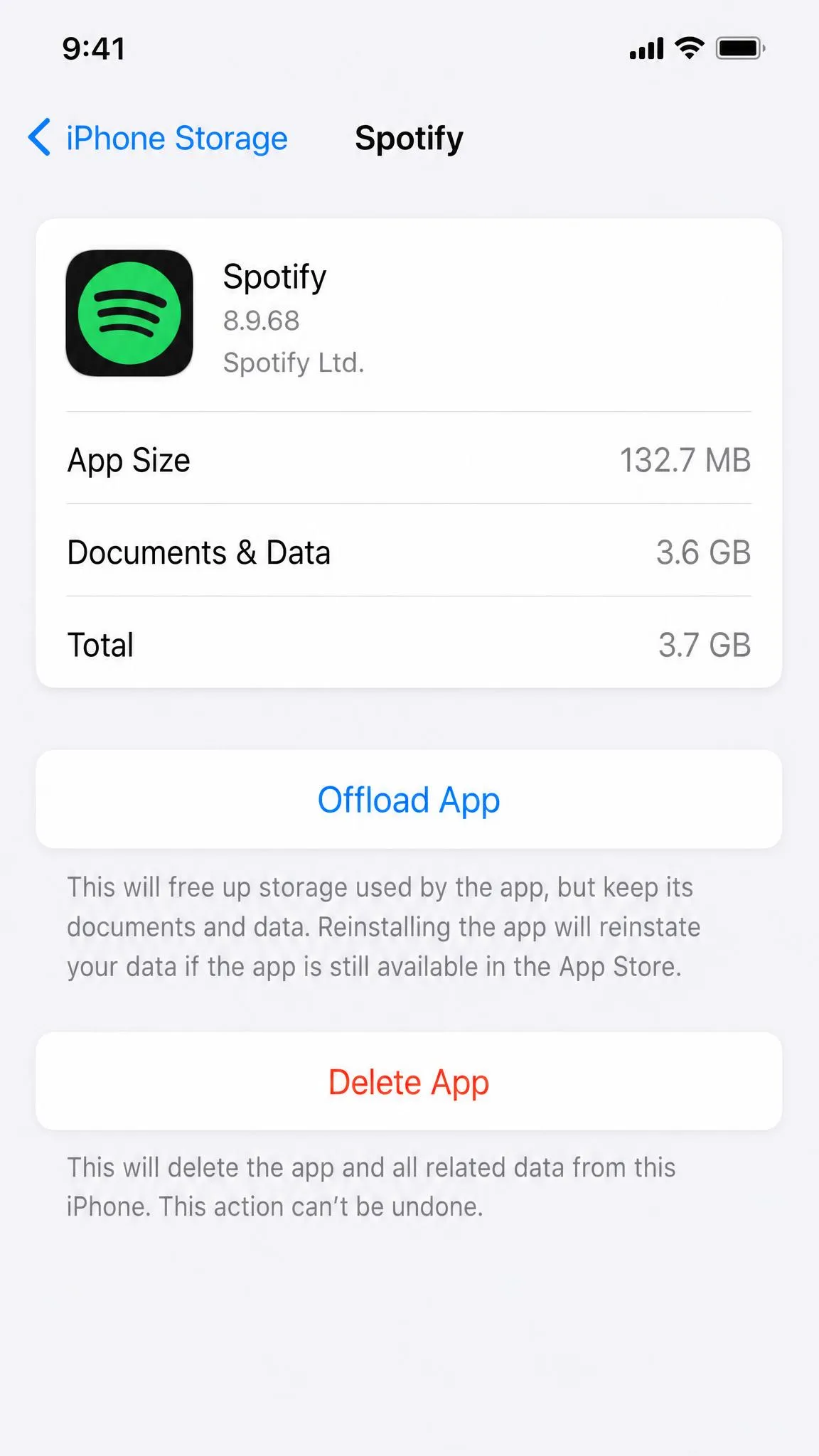
Offloading pays off most on big apps you rarely open. A game that sits unused can free gigabytes.
Turn On Automatic Offloading for Unused Apps
When storage is low, iOS can offload apps automatically. Find the Offload Unused Apps toggle under App Store settings (under Settings, then App Store on older versions, and Settings, then Apps, then App Store on iOS 18 and later). Turn it on, and iOS removes apps you have not used in a while. The offload process is silent, and the toggle is the only way to offload several apps at once. Offloading has been part of iOS since iOS 11.
Remove an App from the Home Screen Without Deleting It
Want a cleaner Home Screen without deleting anything? Press and hold an app icon, tap Remove App, then choose Remove from Home Screen. The app moves to the App Library, stays installed, keeps updating, and keeps sending notifications. In our testing, this is a pure decluttering move; it does nothing to stop background activity. Use offloading instead when you want the app to stop doing work.
Disable Background Activity and Background App Refresh
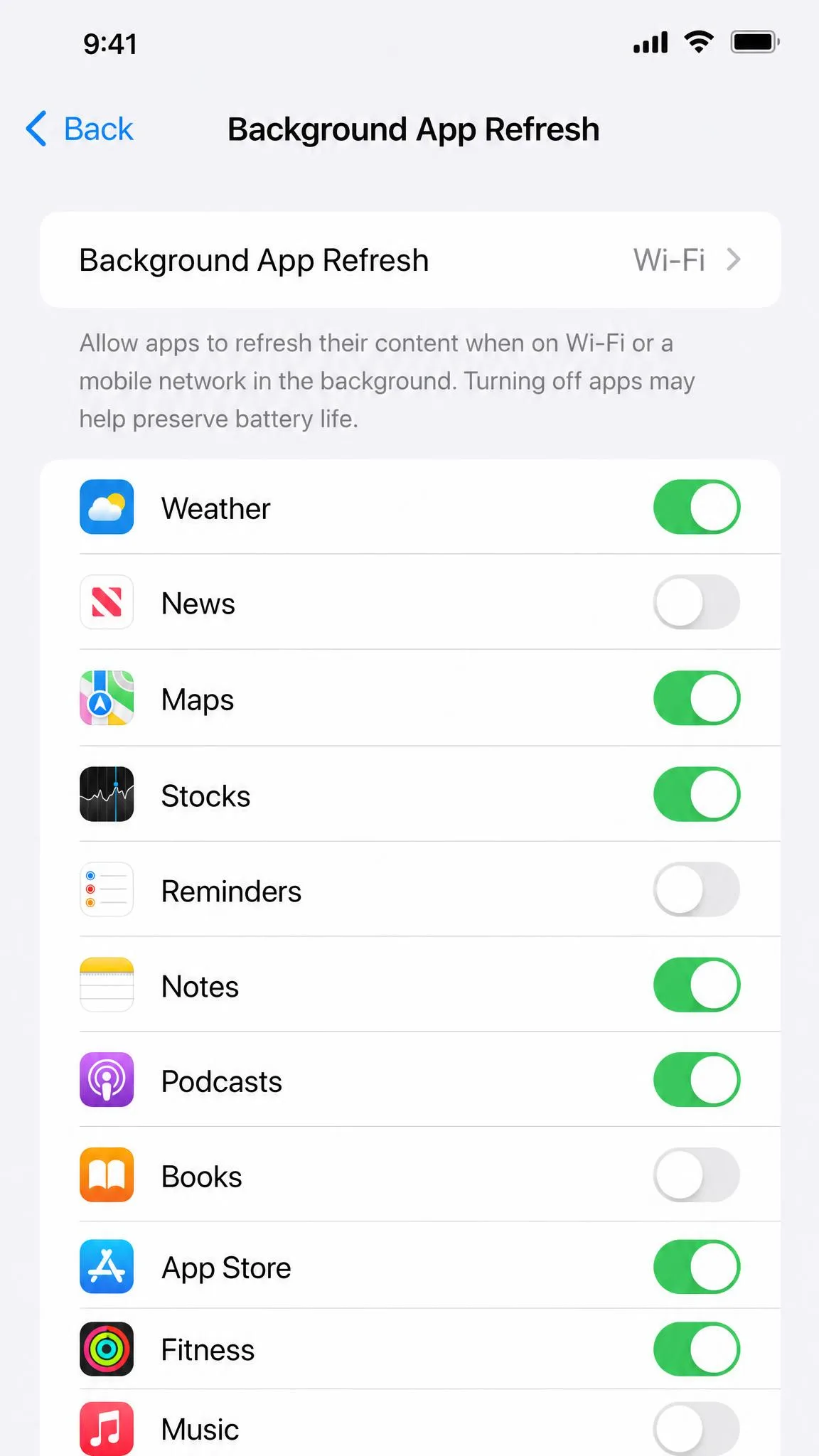
Many apps refresh content in the background. Open Settings, tap General, then Background App Refresh, and turn it off for a single app, set it to Wi-Fi only, or turn it off entirely. If an app is frozen, close it from the App Switcher: on Face ID iPhones, swipe up from the bottom edge and hold, then swipe up on the preview. Apple's guide to closing an app on your iPhone explains the gestures. Apple's own guidance is that you usually do not need to close apps; force-closing apps you use often does not save battery and can make the iPhone feel slower. In our testing, force-quitting was worth doing only for a frozen app.
Need a quick global win? Low Power Mode turns off Background App Refresh while it is active, then switches off once the battery reaches 80%.
Restrict App Access with Screen Time
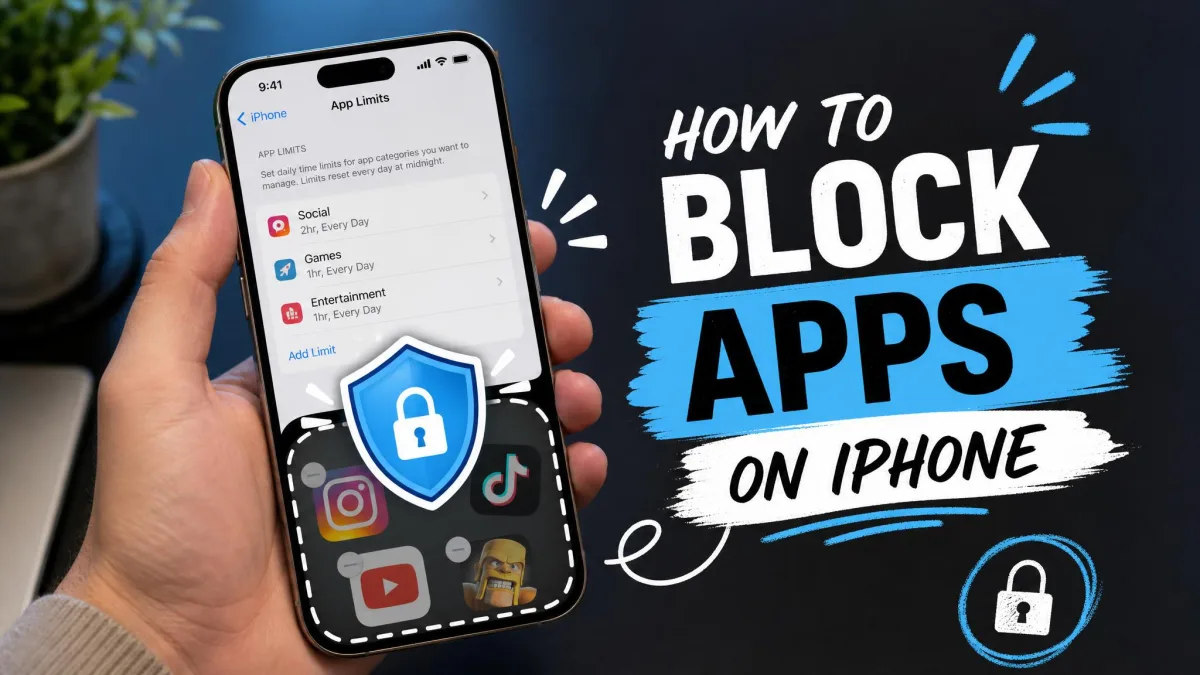
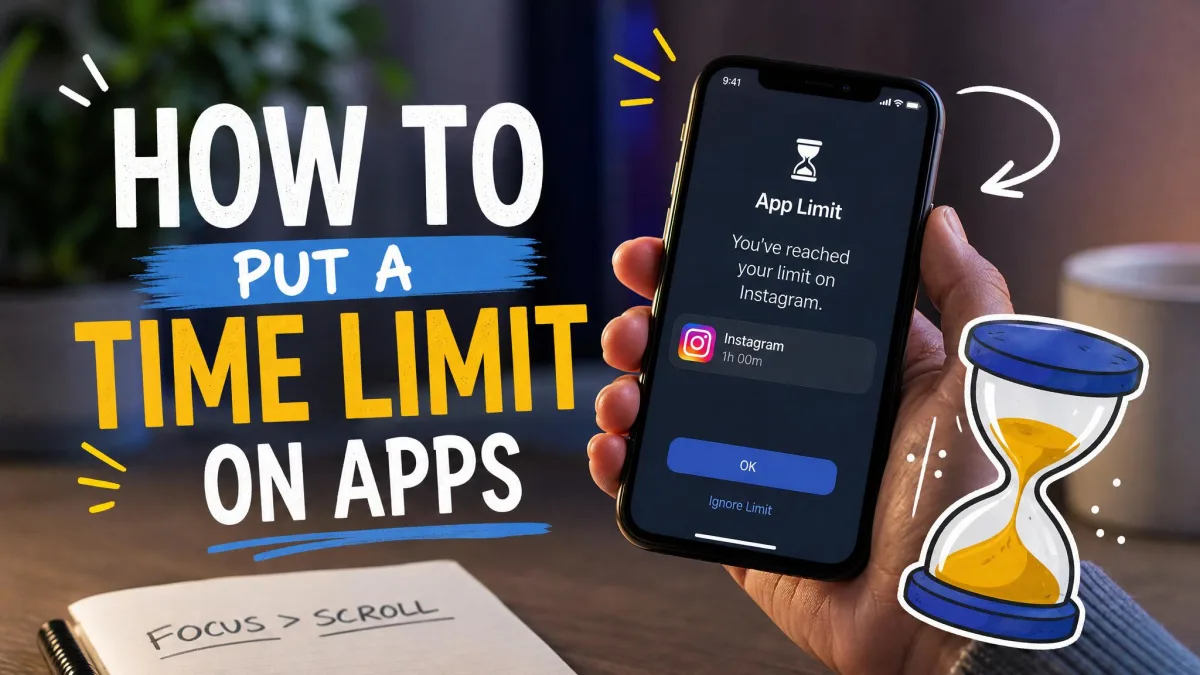
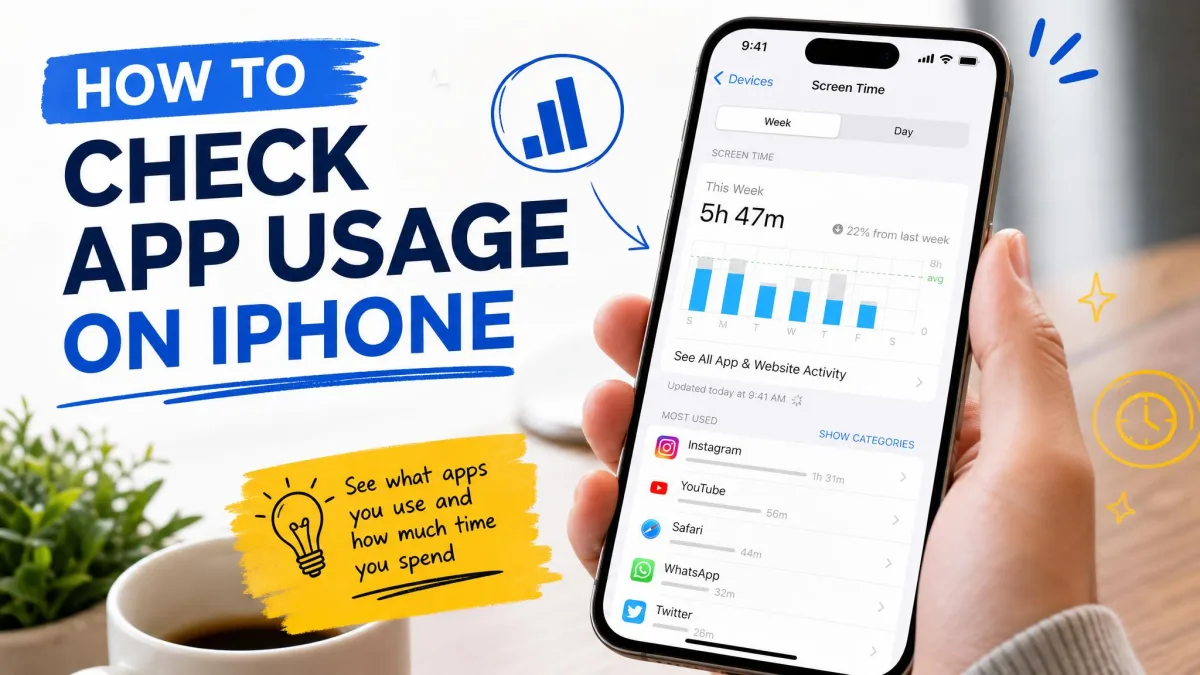
Screen Time lets you hide an app without deleting it, which parents use often. Open Settings, tap Screen Time, then Content & Privacy Restrictions. Turn on the toggle, tap Allowed Apps, and switch off the apps you want hidden. Screen Time also offers App Limits, a time cap per app that blocks it once the limit is reached, guarded by the Screen Time passcode.
How to Turn Off Apps on an Android Phone
Android gives you more levers than iPhone, but the exact menus vary by manufacturer. These methods work on the widest range of phones.
Disable Preloaded and Bloatware Apps from Settings
- Open Settings, then tap Apps.
- Tap the app.
- Tap Disable, then confirm.
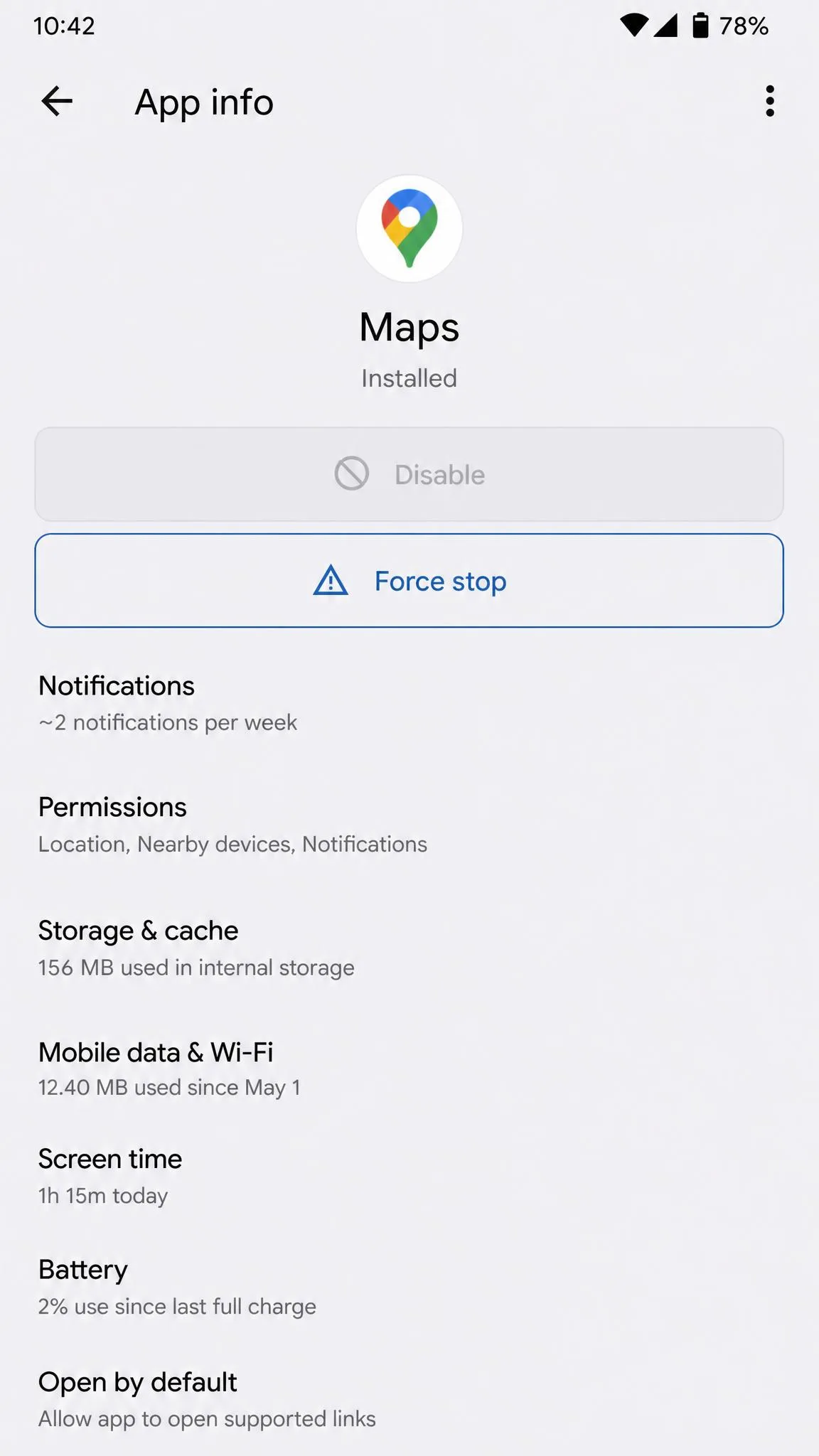
On most phones you can also press and hold the app icon and choose Disable from the menu. A disabled app stops using battery and memory, hides from your app list, and keeps its data. Some preinstalled apps cannot be disabled: critical apps show a grayed-out Disable button, and Google Play services usually cannot be disabled either. In our testing, carrier-firmware phones came with more bloatware than phones like the Pixel.
Do not disable essential system services. Forcing some of them can break the device.
Stop Apps from Running in the Background
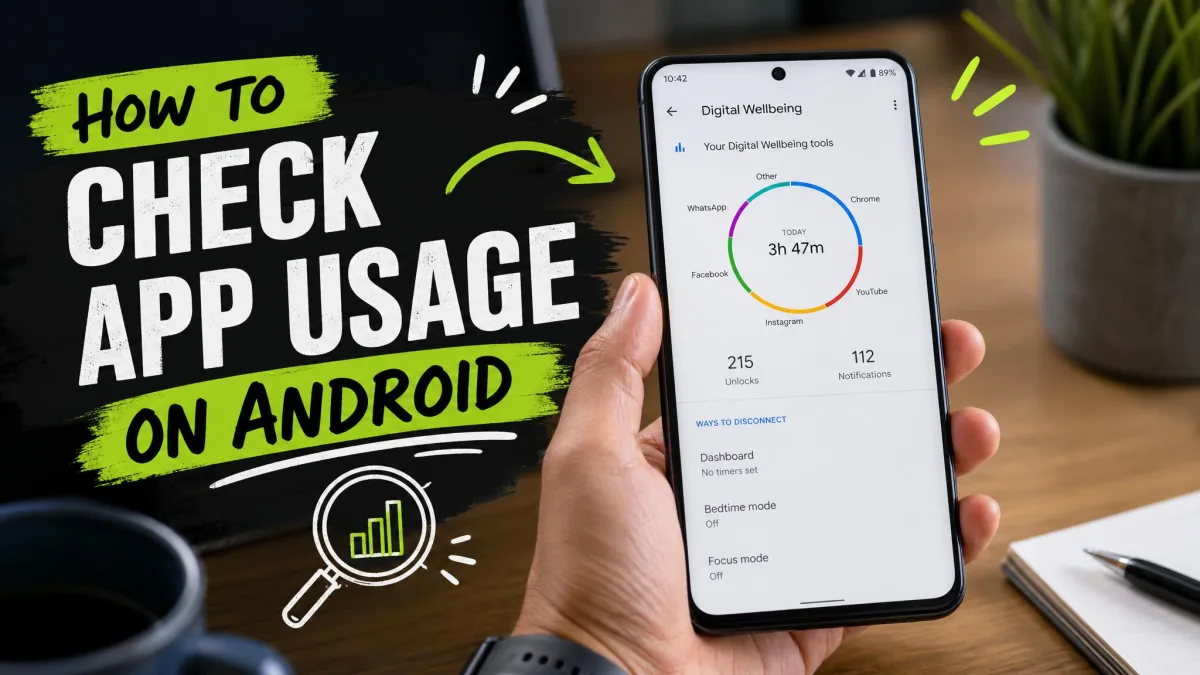
Open Settings, tap Apps, then the app, then Battery, and turn off Background activity or set battery usage to Restricted. On Samsung phones, use Battery and device care, then Background usage limits, and add the app to Deep sleeping apps. Android also auto-optimizes unused apps on its own: it stops them running in the background, revokes permissions, and stops notifications. Google's guide to managing unused apps on Android covers the full list. One trade-off: restricted apps cannot deliver real-time notifications, so leave messaging and email apps running.
Turn Off Auto-Start on Xiaomi, Redmi, and Poco Devices
On Xiaomi, Redmi, and Poco phones, apps often start automatically. Go to Settings, then Apps, then Permissions, then Background autostart, and toggle off the apps you do not want. Xiaomi warns not to disable autostart for essential system apps or apps you rely on for notifications. Restricting unused apps can improve battery life, with rough estimates around 15-30%, though real-world gains vary.
Use Developer Options to Limit Background Processes
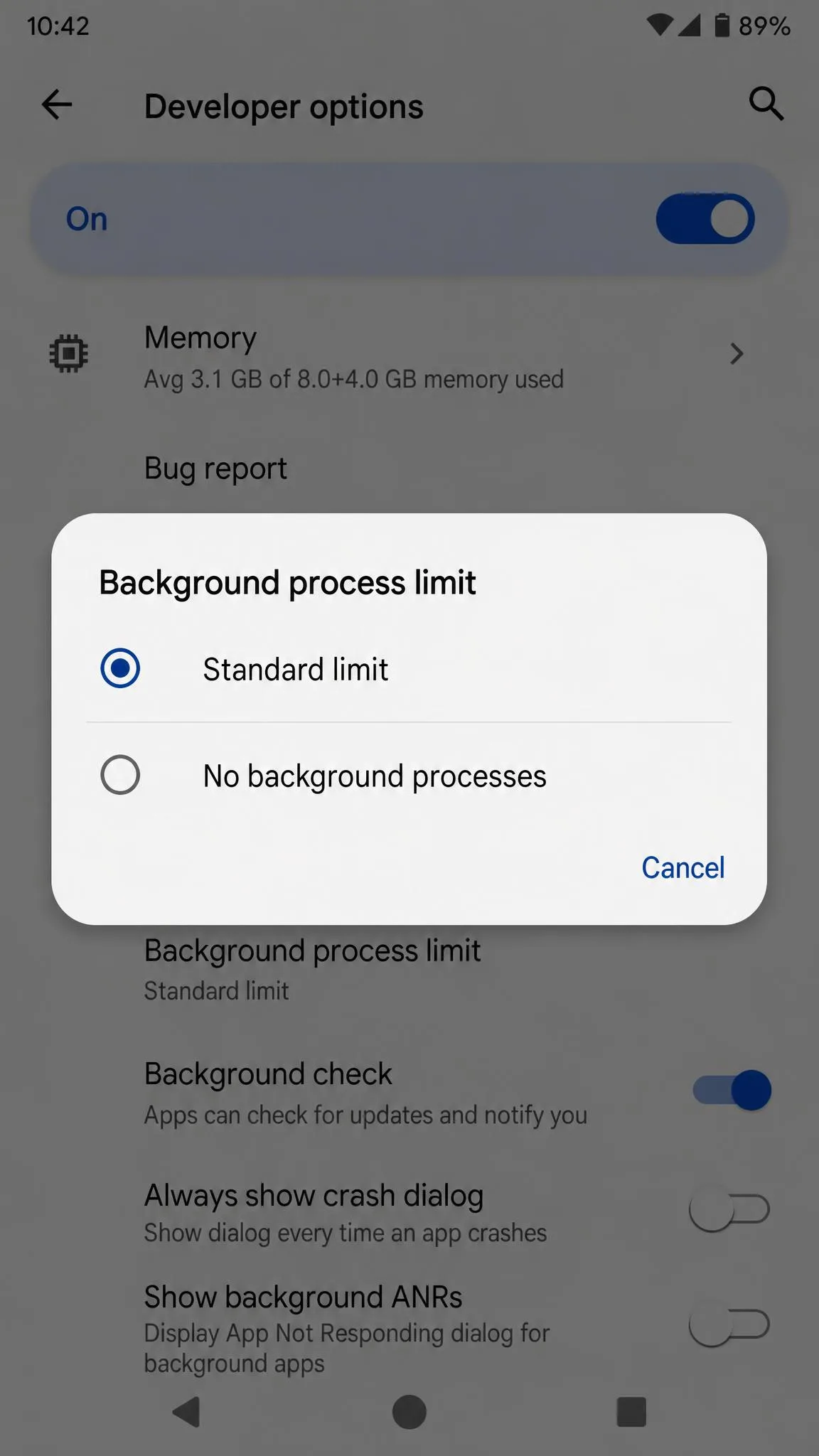
Developer Options can cap background processes. Unlock it by opening Settings, tapping About phone, then tapping Build number 7 times. Then open System, then Developer options, and set Background process limit. Two cautions from our testing: the setting resets on every reboot, and No background processes delays notifications and forces apps to reload, so we do not recommend it for everyday use.
Force Stop an App to Prevent It from Auto-Opening
If an app keeps opening on its own or freezes, force stop it: Settings, then Apps, then the app, then Force stop. It halts the app immediately, but the pause is temporary; the app can restart when system events trigger it. Use Disable or a background restriction for a lasting change. Google's guide to finding and closing apps on Android covers the basics. Some essential services cannot be force-stopped at all.
How to Turn Off Apps on Windows
Windows splits the job into startup programs and background apps. Both are managed in Settings or Task Manager.
Disable Startup Programs in the Settings App
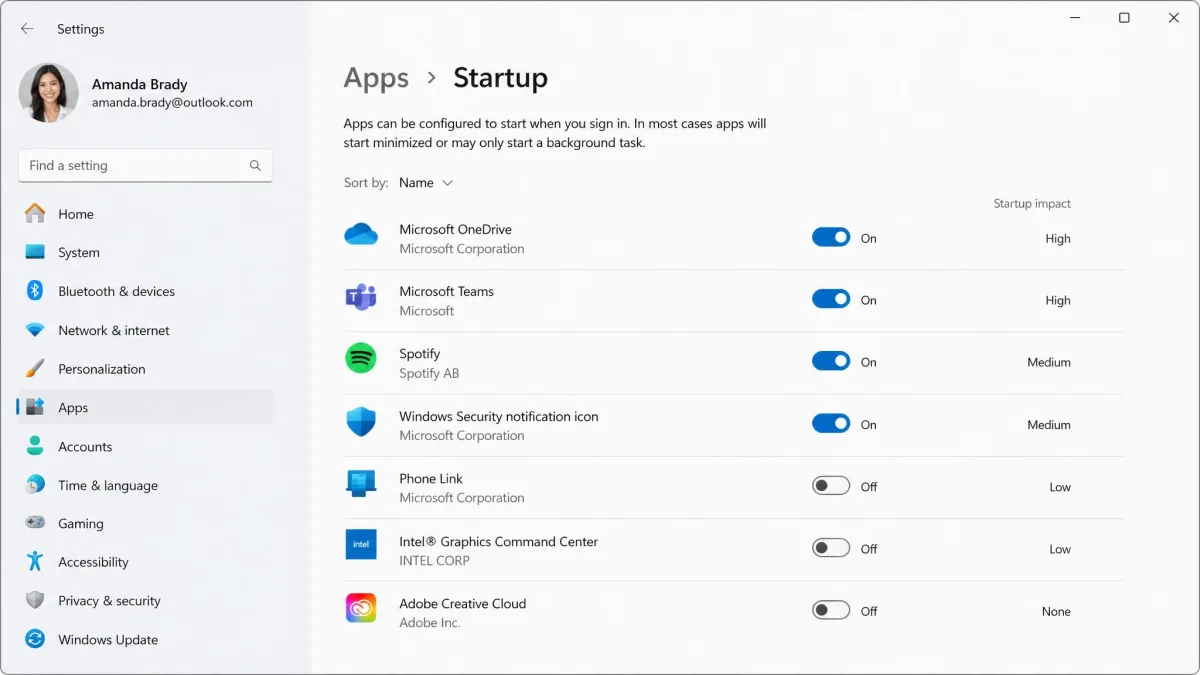
Open Settings, go to Apps, then Startup. Each app that launches at sign-in has a toggle and a startup impact rating. Set anything you do not want to Off. The toggle does not uninstall the app. The impact column is a useful guide: Low means under 300 ms of CPU at sign-in, while High means over a second. Microsoft's guide to managing apps that start automatically in Windows shows the same steps.
Disable Startup Programs in Task Manager
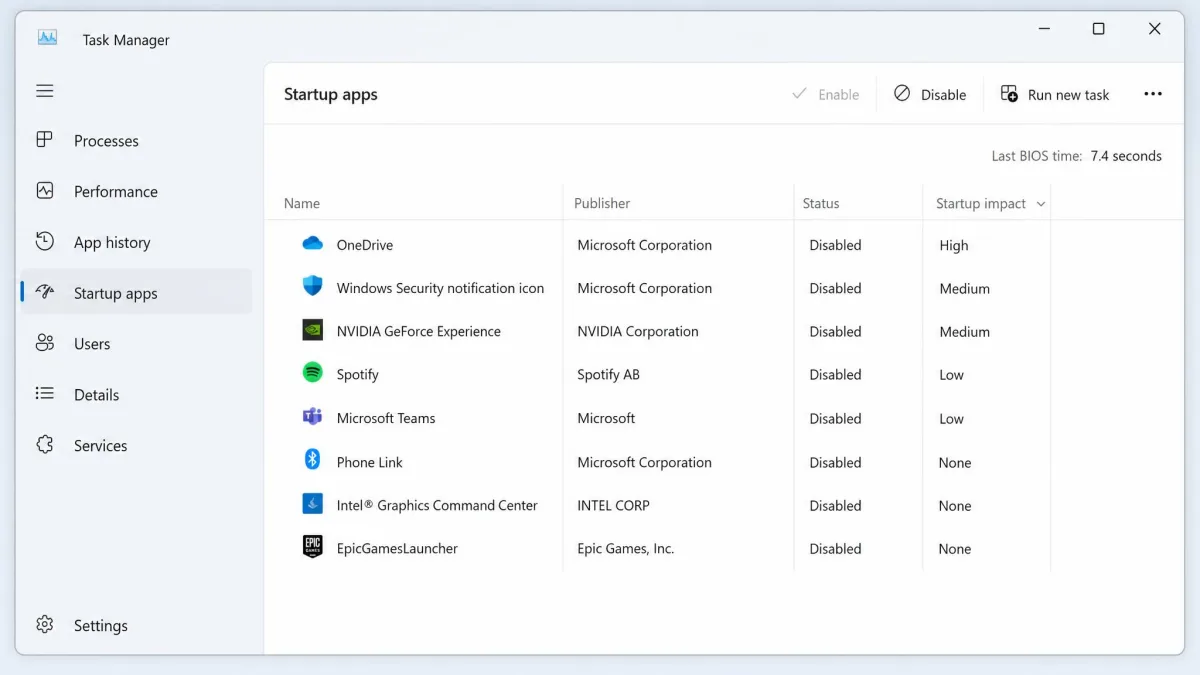
For a more detailed view, use Task Manager. Right-click Start or press Ctrl+Shift+Esc, open the Startup apps tab, and select an app, then click Disable. In our testing, this took effect immediately without uninstalling the app. Some apps re-add themselves to the startup list after you disable them; turn off the launch at startup option inside the app, or disable the Task Scheduler job that relaunches it.
Disable Background Apps in Windows 11
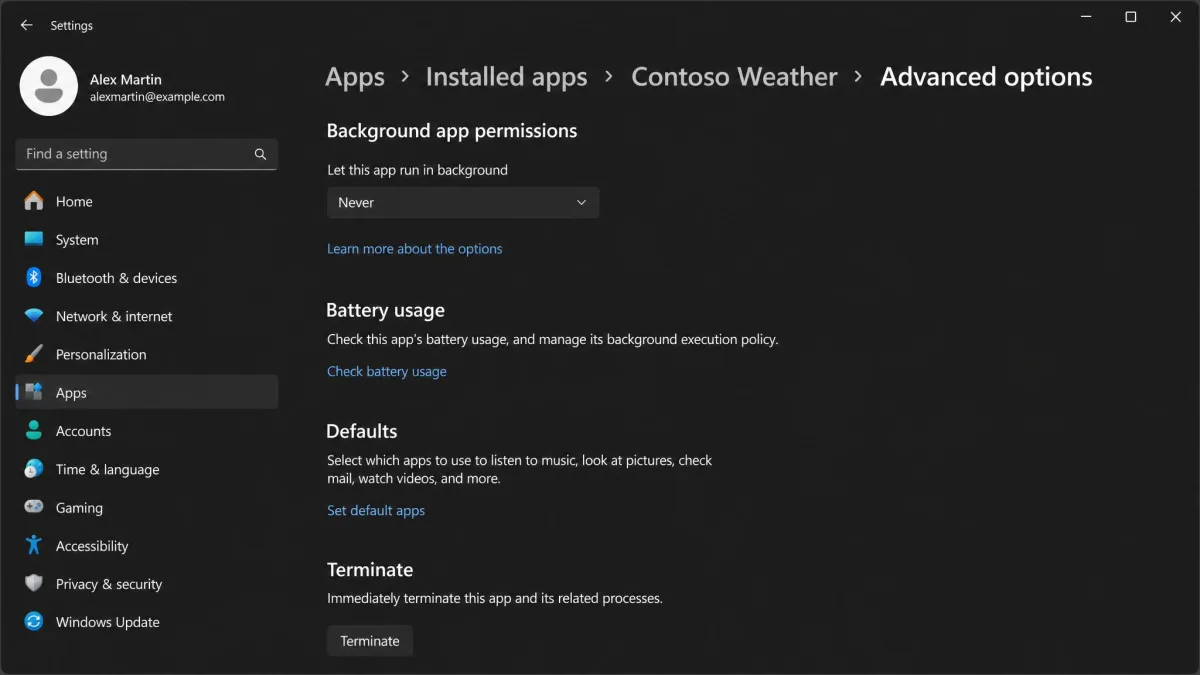
Windows 11 has no master switch for background apps, and the global toggle from Windows 10 is gone. Open Settings, go to Apps, then Installed apps, find the app, click the three-dot menu, then Advanced options. Under Background app permissions, set Let this app run in background to Never. The app stays installed but stops running in the background, so you get no notifications or updates. This setting only governs Microsoft Store apps; traditional desktop programs manage their own background behavior.
Do not look for a global background apps switch in Windows 11. The registry and Group Policy workarounds affect Microsoft Store apps only.
Troubleshooting: When Turning Off Apps Doesn't Work
If an app keeps coming back, you probably used a temporary method. Force stop and closing from the App Switcher both let the app restart later; use offload, Disable, or a startup toggle for a lasting change. On Android, if the Disable button is grayed out, the app is essential to the phone and cannot be turned off safely. On iPhone, automatic offloading only runs when storage is low, so offload manually otherwise. If you cannot find an app after disabling it, open Settings, tap Apps, and use the search bar at the top.
How to Turn Off Apps vs Uninstall vs Force Stop
Turning an app off is the reversible option: on iPhone it means offloading, and on Android it means disabling. Uninstalling removes the app completely and, on most phones, clears its data, so you start from scratch if you reinstall. Force stop is a temporary pause; the app can start again on its own. Our rule of thumb: offload or disable when you want the app gone but recoverable, uninstall when you are sure, and force stop only when an app is frozen.
How to Restore or Re-enable a Disabled App
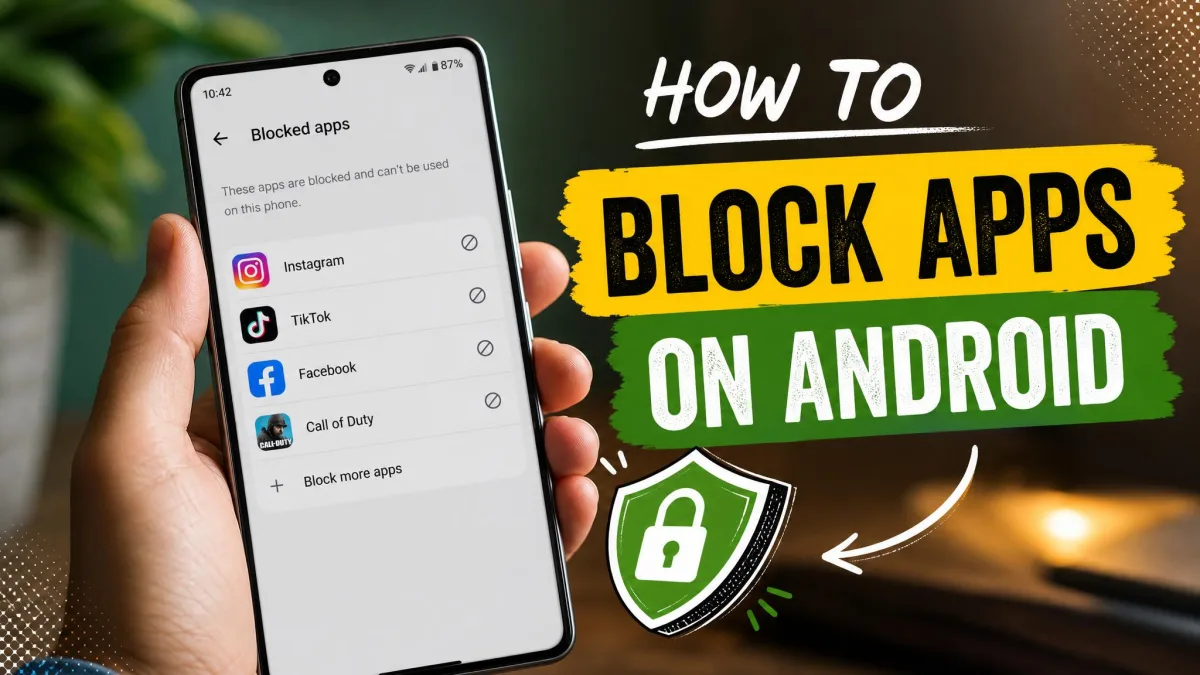
Every method here is reversible. On iPhone, tap the cloud icon on the offloaded app to reinstall it from the App Store, and it returns as you left it, as long as it is still available. On Android, open Settings, tap Apps, find the disabled app, and tap Turn on or Enable; it comes back instantly with its data. On Windows, flip the startup toggle back to On, or set background permissions back to Always or Power optimized. If you hid an app with Screen Time, return to Allowed Apps and switch it back on.
What Happens When You Turn Off, Disable, or Offload an App
- On iPhone, an offloaded app is removed from storage, cannot run or notify, and keeps its data and subscriptions.
- On Android, a disabled app stops using battery, memory, and internet, hides from your list, and cannot notify. Its data stays.
- On Windows, an app set to Never stays installed but cannot update or notify you while closed.
Every case is recoverable, which is the point of turning things off instead of deleting them. The trade-off is the same everywhere: an app that cannot run in the background cannot alert you in real time.
FAQ: Turning Off Apps Without Deleting Them
What's the difference between turning off, disabling, offloading, and deleting an app?
Does turning off an app delete my data?
Will I still get notifications after disabling an app?
Does disabling background activity improve battery life?
Can I turn off preinstalled or system apps?
How do I re-enable an app I turned off?
Conclusion
Turning off apps is one of the quickest ways to reclaim storage, battery, and focus, and none of it requires deleting anything. On iPhone, offload unused apps and turn off Background App Refresh. On Android, disable bloatware and restrict background activity. On Windows, trim the startup list and set background permissions to Never. Every change is reversible, so start with the apps you have not opened in months and keep the ones that matter.