If Facebook has started to feel slow, laggy, or is eating up your storage, a bloated cache is usually the culprit. The app saves images, videos, and web data on your device so your feed loads faster, but that pile of temporary files grows every day you scroll. Over a few weeks, it can swell into gigabytes and start working against you.
Clearing it out is one of the quickest ways to get Facebook running smoothly again. This guide covers every method that matters, on Android, iPhone, and your PC, plus the Messenger desktop app.
Best of all, none of it touches your account. Your photos, posts, and messages live on Facebook's servers, so a cache clear only wipes the temporary copies on your device.
Why Facebook's Cache Gets So Big (and When to Clear It)
Facebook is built to feel instant. To pull that off, it stores a local copy of almost everything you see: profile photos, thumbnails, videos, and the data from links you open inside the app. That copy is the cache.
The trouble is that it mostly grows. Facebook rarely clears it on its own, so every Reel you watch and every Marketplace listing you browse adds a little more. For heavy users that buildup climbs fastest, and it can reach several gigabytes within a month.
A big cache also goes stale, and old files start to clash with new updates. That is what leaves you staring at a frozen feed, broken thumbnails, or images that refuse to load.
So when should you clear it? The short answer: when Facebook starts to misbehave. If the app feels sluggish, images will not load, or your storage is running low, a quick clear is the first thing worth trying.
How to Clear Facebook Cache on Android
Android gives you two ways to clear Facebook's cache, and they do different jobs. Start with the in-app browser cache, then use your phone's Settings for a deeper clean.
Method 1: Clear the In-App Browser Cache (Cookies & Cache)
This is the method most guides skip, and it clears the junk from every link you have opened inside Facebook. It is quick, and it never logs you out.
- Open the Facebook app and tap the three-line menu.
- Tap Settings & Privacy → Settings, then scroll to Browser under Preferences.
- Tap Clear next to "Cookies and cache" and confirm.
That clears the cookies and site data for pages you opened in Facebook's built-in browser, without signing you out of Facebook itself.
The in-app browser cache is the single highest-value clear on any phone. It holds the bulk of the junk from links you tap inside Facebook, yet most guides never mention it. Clear this first, before you try anything more drastic.
Method 2: Clear the App Cache From Android Settings
For a deeper clean, use Android's own storage controls, which clear the main app cache in one tap.
- Open your phone's Settings and tap Apps.
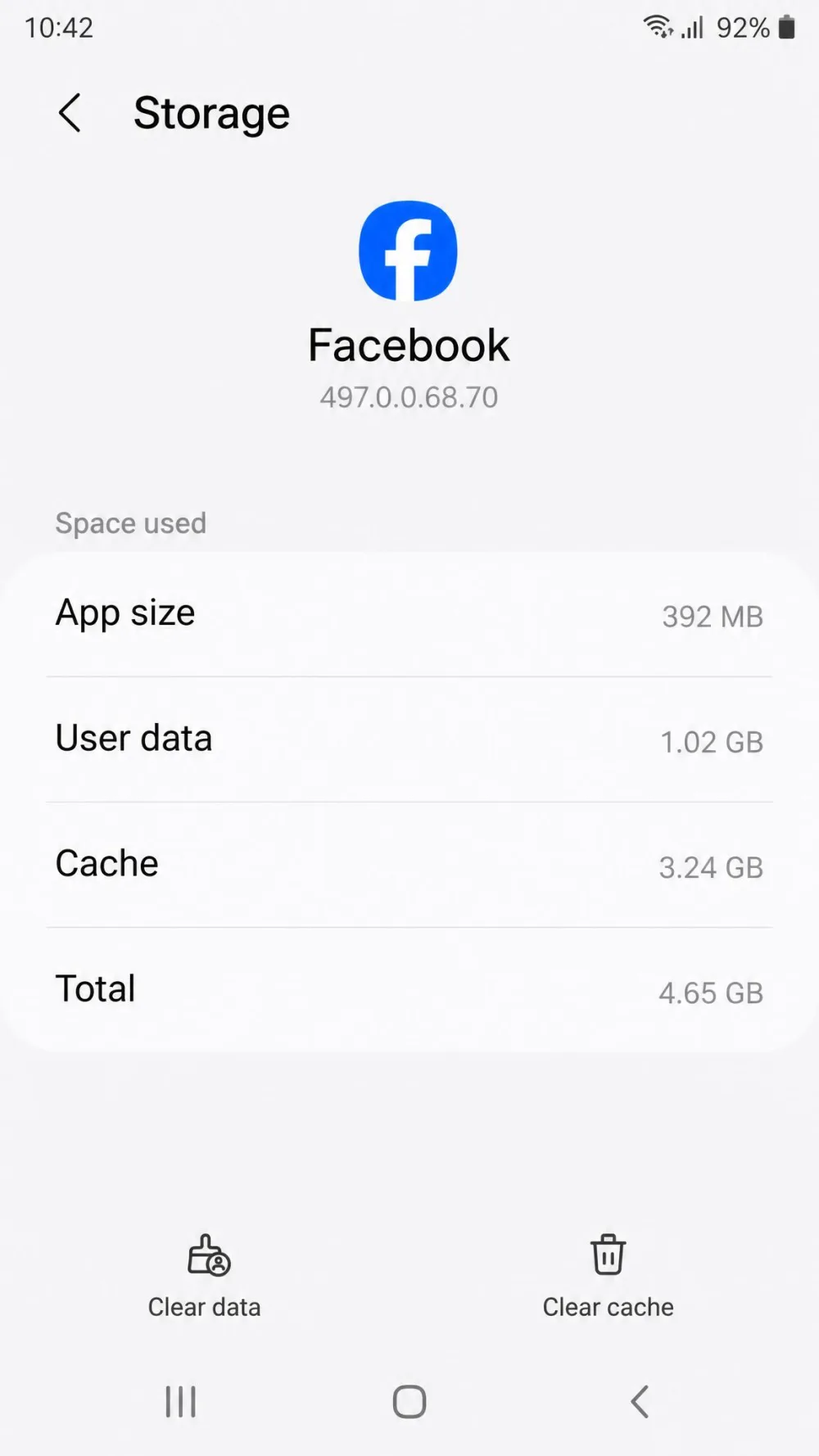
- Find and tap Facebook, then tap Storage (or Storage & cache).
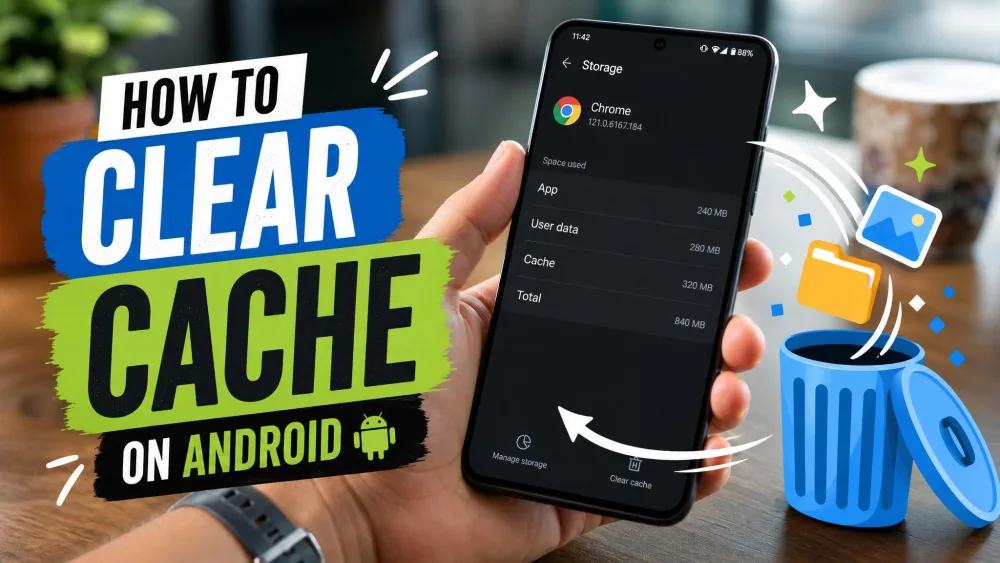
- Tap Clear cache.
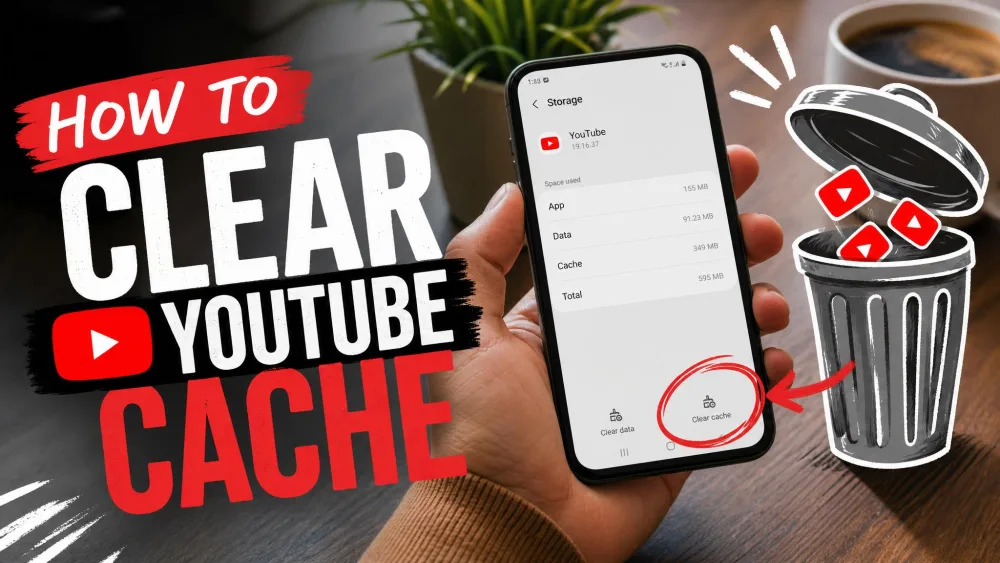
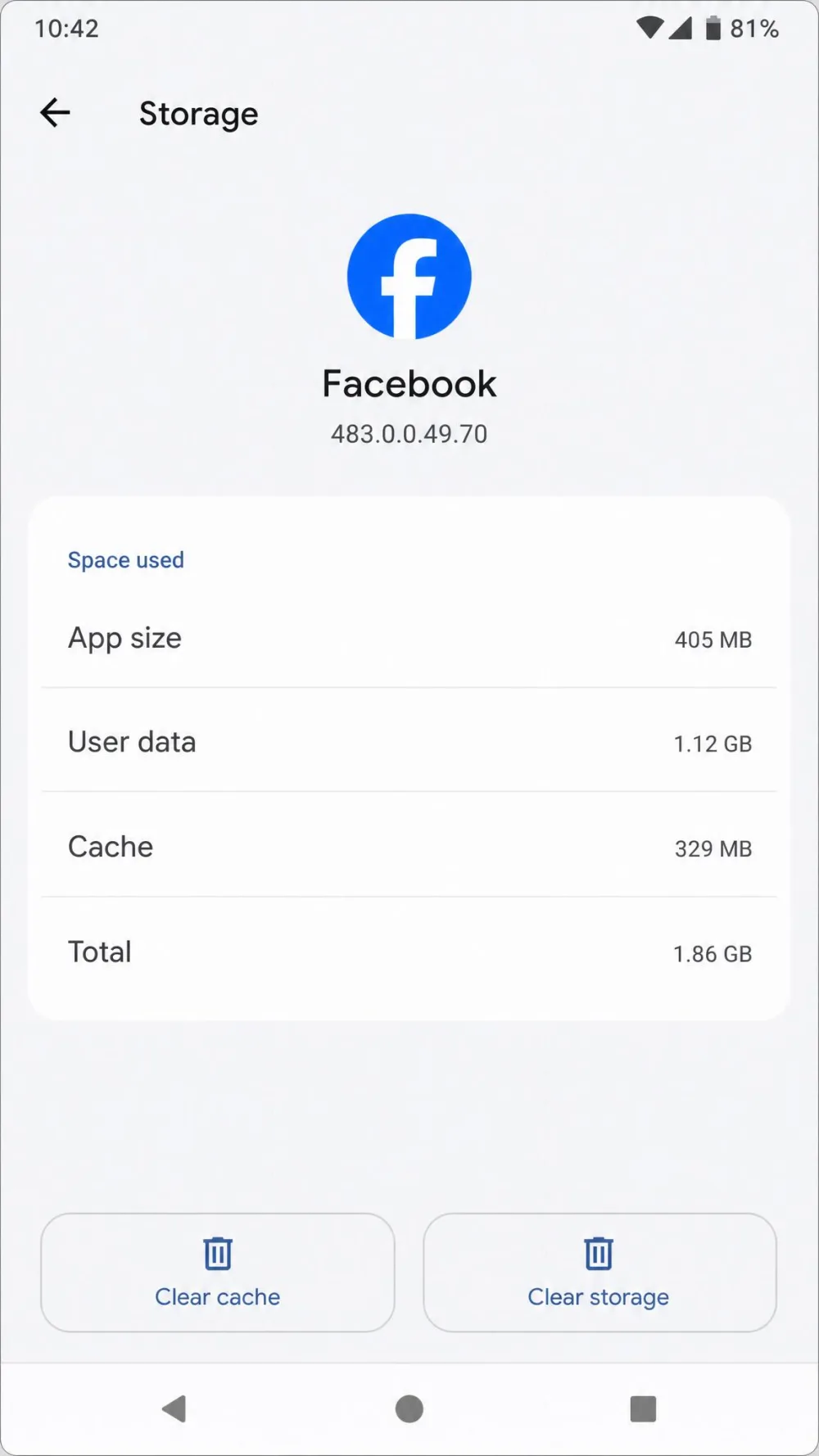
Here is the part to get right. Tapping Clear cache keeps you signed in and just removes the temporary files. The button beside it, Clear storage (sometimes labelled Clear data), wipes the whole app and logs you out, so you will have to sign back in.
On the Android Storage screen, "Clear cache" and "Clear storage" sit right next to each other. Tap "Clear cache" to free space while staying signed in. Only tap "Clear storage" for a full reset, because it removes your login and signs you out.
How to Clear Facebook Cache on iPhone
iPhone works differently from Android. iOS has no built-in "clear cache" button for individual apps, so you have two routes: clear the in-app browser cache from inside Facebook, or offload and reinstall the app itself.
Method 1: Clear the In-App Browser Cache (Cookies & Cache)
Good news: this method is identical to Android and just as safe, and it never logs you out of Facebook.
- Open the Facebook app and tap the three-line menu in the bottom-right.
- Tap Settings & Privacy → Settings, then tap Browser.
- Tap Clear next to "Cookies and cache".
That clears the cookies and cached data from pages you opened inside Facebook, without touching your login.
Method 2: Offload or Reinstall the Facebook App
Because iOS hides the app's own cache, the only way to purge it is to offload the app or delete and reinstall it.
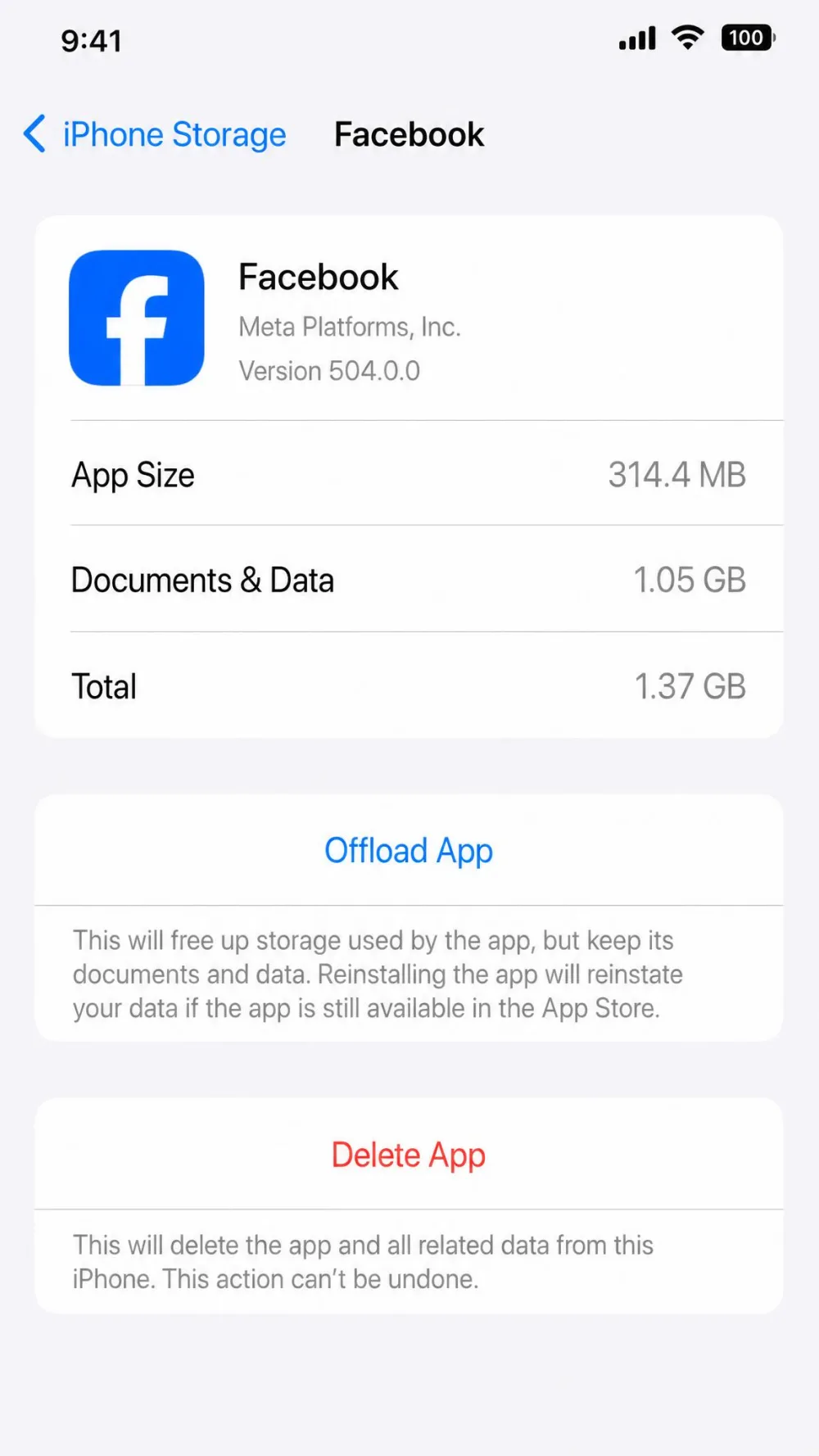
Offloading is the gentler option. It removes the app's program files but keeps your documents and data, so it frees space without a full wipe.
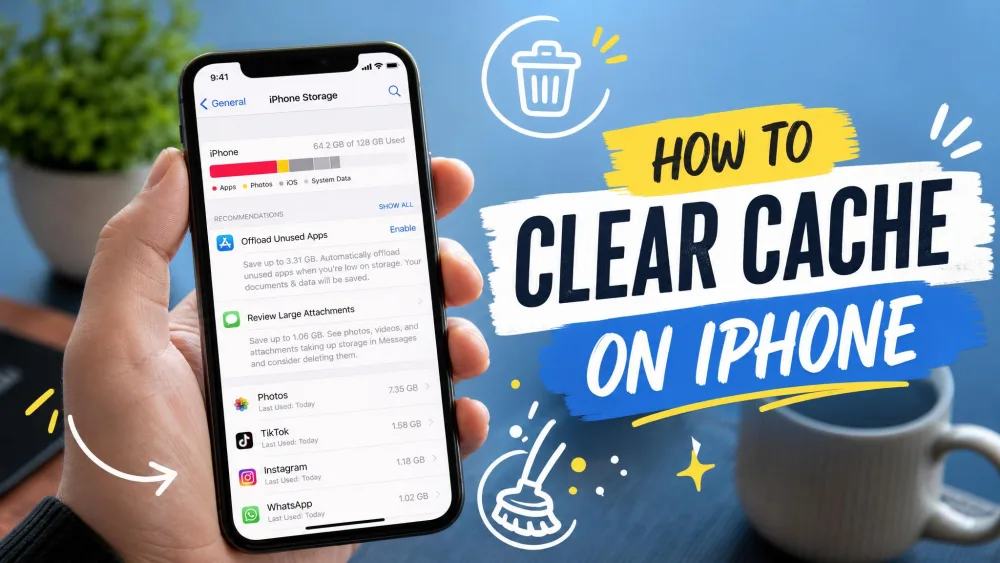
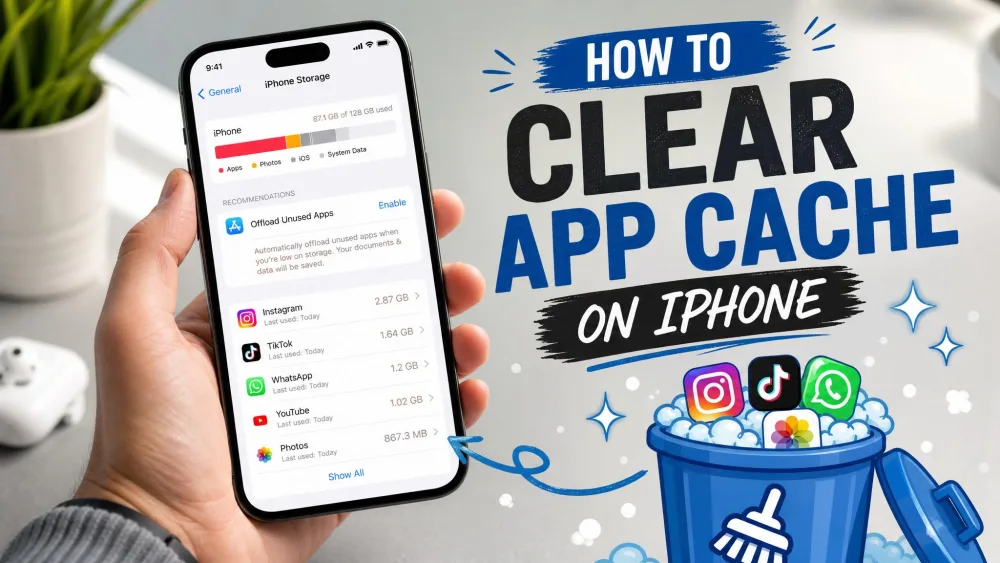
- Open Settings → General → iPhone Storage.
- Tap Facebook in the list.
- Tap Offload App, then confirm.
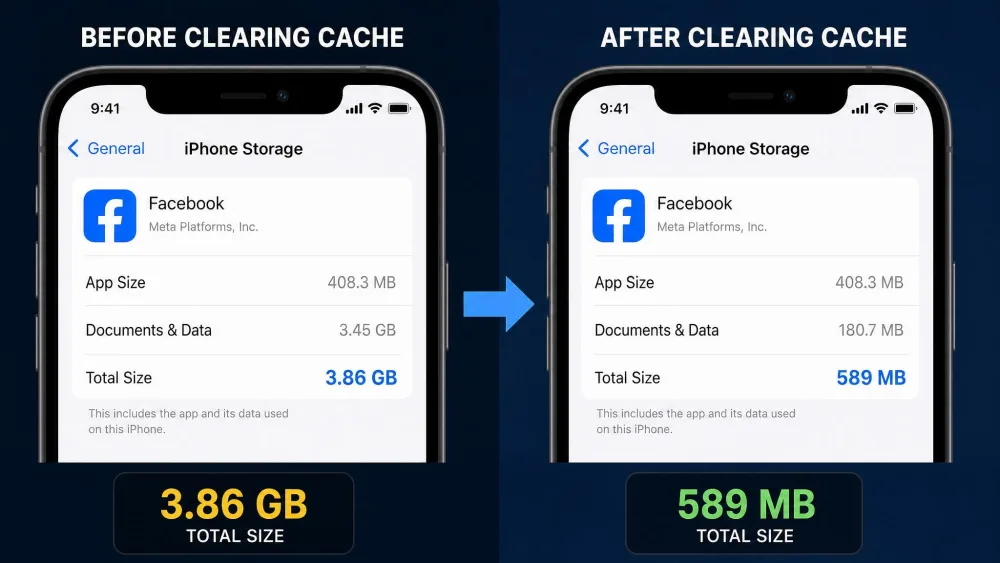
Offloading clears roughly 90-95% of the app's storage footprint, because it removes only the program files, not your saved data. When you reopen Facebook, iOS reinstalls it and you stay signed in. From the same screen you can also manage your iPhone storage across every app.
For a full purge, delete and reinstall the app instead. It wipes everything stored locally but logs you out, so have your password ready.
- Press and hold the Facebook app icon, then tap Remove App.
- Tap Delete App and confirm.
- Reinstall Facebook from the App Store and sign back in.
For more on the app cache, see Facebook's guidance for the mobile app.
How to Clear Facebook Cache on PC (Web Browser)
On a computer, Facebook runs in your web browser, so clearing its cache means clearing the browser's stored data. You can target Facebook alone or clear everything at once.
Option 1: Clear Cache for Facebook Only (Recommended)
This is the tidy option. It clears Facebook's cached data without wiping the logins and history for every other site you use.
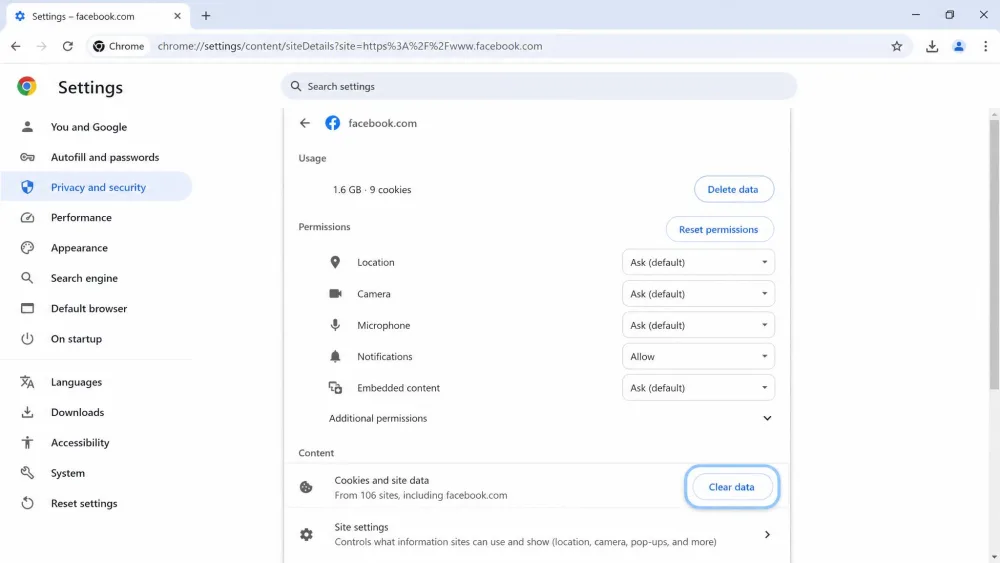
- Open facebook.com in Chrome or Edge.
- Click the tune or lock icon to the left of the address bar.
- Choose Site settings (or "Cookies and site data"), then click Clear data.
Prefer Firefox? Open Settings → Privacy & Security → Cookies and Site Data → Manage Data, search for "facebook", then click Remove Selected.
Option 2: Clear Your Entire Browser Cache
If you want a full refresh, clear the whole browser cache. This signs you out of other sites too, so use it when a broader clean-up is worth it.
- Press Ctrl+Shift+Delete on Windows, or Cmd+Shift+Delete on a Mac.
- Set the time range to All time.
- Check Cached images and files, then click Clear data.
How to Clear the Facebook Desktop / Messenger App Cache (Windows & Mac)
If you use the standalone Messenger app rather than the website, it keeps its own local cache. On Windows, you can reset it without reinstalling.
- Open Settings → Apps → Installed apps.
- Find Messenger, then click the three-dot menu and choose Advanced options.
- Click Reset to wipe its local cache.
Resetting signs you out, so you will log back in the next time you open Messenger. On a Mac, there is no built-in reset, so the reliable fix is to delete Messenger and reinstall it from the App Store.
How Much Storage Will You Actually Recover?
Here is where clearing the cache earns its keep. The exact amount depends on how heavily you use Facebook, but the pattern is consistent from the clean-up runs we do.
A light user who scrolls for a few minutes a day tends to build up around 200 to 500 MB over a week. A daily user racks up more, often 1 to 3 GB across a month. Heavy users, the ones watching stacks of Reels and browsing Marketplace, can pile up 3 to 6 GB or more.
Those figures are ranges, not promises, and your own total swings with how much you scroll, watch, and browse. Still, the trend holds: the more video you consume, the bigger the cache, and the more you get back by clearing it.
The in-app browser cache and Android's Clear cache usually free the most in one go. Offloading on iPhone reclaims most of the app's footprint, while a full delete and reinstall recovers the lot.
In our cleanup runs, the biggest Facebook caches always belong to the heavy video crowd: the people who watch a lot of Reels or live on Marketplace. On those phones, a month of daily use can stack up several gigabytes, and the in-app browser cache is almost always where the bulk of it hides.
Will Clearing the Cache Log You Out or Delete Anything?
This is the question that stops most people from clearing the cache, so let us settle it. A cache clear never deletes your photos, posts, or messages. All of that lives on Facebook's servers, so a clean-up leaves your account completely intact.
Getting logged out is a different matter, and it depends on the method. A plain cache clear keeps you signed in. The heavier options, like Android's Clear storage, deleting the app, or resetting Messenger, remove your login and ask you to sign back in.
Here is how every method compares at a glance.
| Method | Logs you out? | Deletes posts/messages? | Frees storage (approx.)? |
|---|---|---|---|
| In-app browser clear (Settings → Browser → Cookies and cache) | No | No | Small to moderate (cookies and in-app site data) |
| Android Clear cache (Settings → Apps → Storage) | No | No | Most local cache, often hundreds of MB to several GB |
| Android Clear storage/data | Yes | No (safe on the server) | All local app data |
| iPhone Offload App | No | No | App program files (about 90-95% of the footprint; keeps your data) |
| Delete and reinstall the app | Yes | No (safe on the server) | Full local wipe |
| Messenger desktop reset (Windows) | Yes (re-login) | No | Messenger's local cache |
How Often Should You Clear Facebook's Cache?
There is no fixed schedule, and you do not need one. For most people, clearing the cache about once a month is plenty, though some guides suggest every few months is fine.
The better trigger is behaviour, not the calendar. Clear the cache when the app slows down, images stop loading, or your storage runs low. It rebuilds within days of normal use, so treat it as periodic maintenance rather than a one-time fix.
To slow the buildup, a few habits help: switch to Facebook Lite, turn off video autoplay, and clear the cache now and then. Treat these as general good practice rather than a guaranteed cure.
Troubleshooting: Facebook Still Slow After Clearing the Cache
If Facebook is still sluggish after a clean-up, the cache was not the whole story. Work through these quick checks:
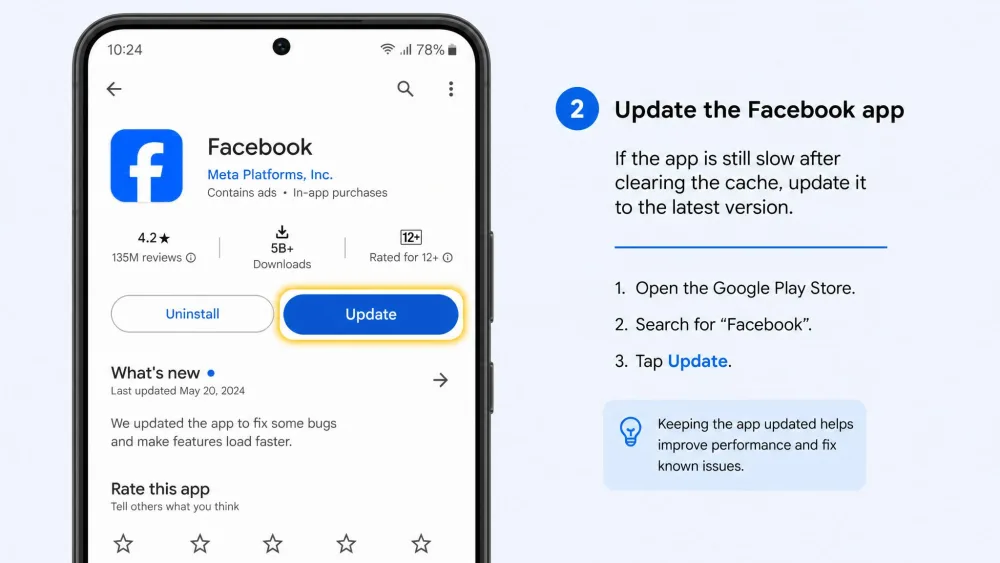
- Update the Facebook app to the latest version from your app store.
- Check your internet connection, and try switching between Wi-Fi and mobile data.
- Restart your phone or computer to clear out memory.
- Confirm Facebook is not having an outage by checking a status tracker or the news.
If the app runs smoothly again after these steps, you are set. If not, a full delete and reinstall is the most thorough reset on any device.
Frequently Asked Questions
Does clearing the cache delete my photos, posts, or messages?
Will clearing the cache log me out of Facebook?
How often should I clear my Facebook cache?
Does clearing the cache actually improve performance?
Conclusion
A slow, glitchy Facebook app is usually just a full cache, and clearing it is one of the fastest fixes you can try. On Android, start with the in-app browser cache, then use Settings for a deeper clean. On iPhone, clear the in-app browser cache first, and offload or reinstall the app when you need more. On a PC, clear Facebook's site data or the whole browser cache.
Whichever route you take, your account stays safe. Your photos, posts, and messages are never at risk, so you can clear the cache whenever Facebook needs it and get back to a smoother, faster feed.