The Spotify cache is a store of temporary files the app keeps on your device so music loads fast without re-downloading. Over time it grows, and on a phone that is already low on space it can eat a surprising share of your storage. The good news is that clearing it takes about three taps, and it is one of the safest cleanups you can run. We ran the current apps through our usual before-and-after cleanup routine on Android, iPhone, and both desktop builds, checking what the cache held and what happened after we wiped it.
What Is the Spotify Cache (and Why It Grows So Large)
A cache is a local copy of data an app keeps close by so it does not have to fetch it again; here is what a cache is in general computing terms. The Spotify cache holds full songs, portions of songs, album art, and playlist contents, all data that normally lives on Spotify's servers. Keeping a copy on your device means tracks load fast and play without using mobile data. The catch is that the cache only grows: the more you listen, and the higher your streaming quality, the more it stores.
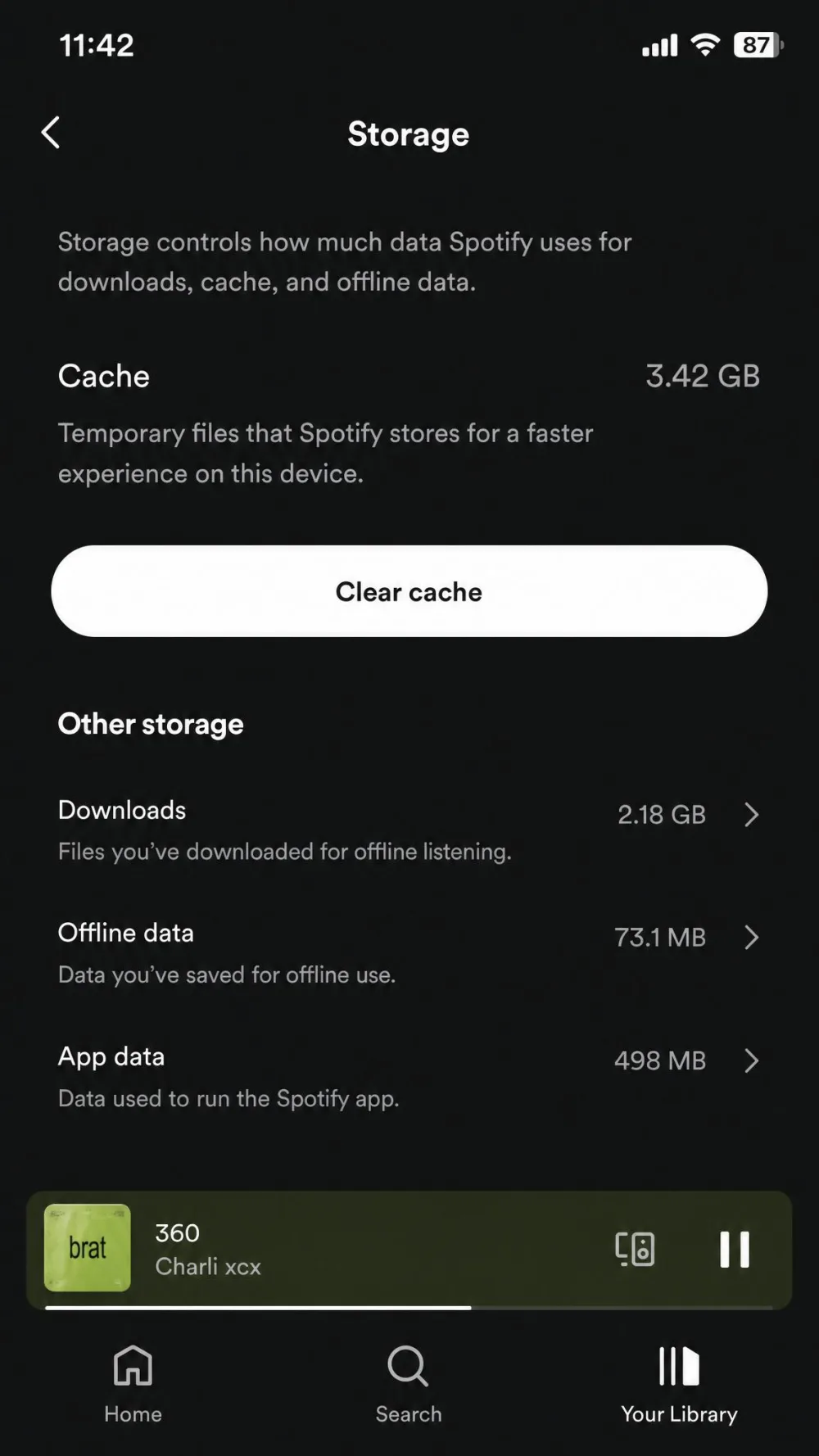
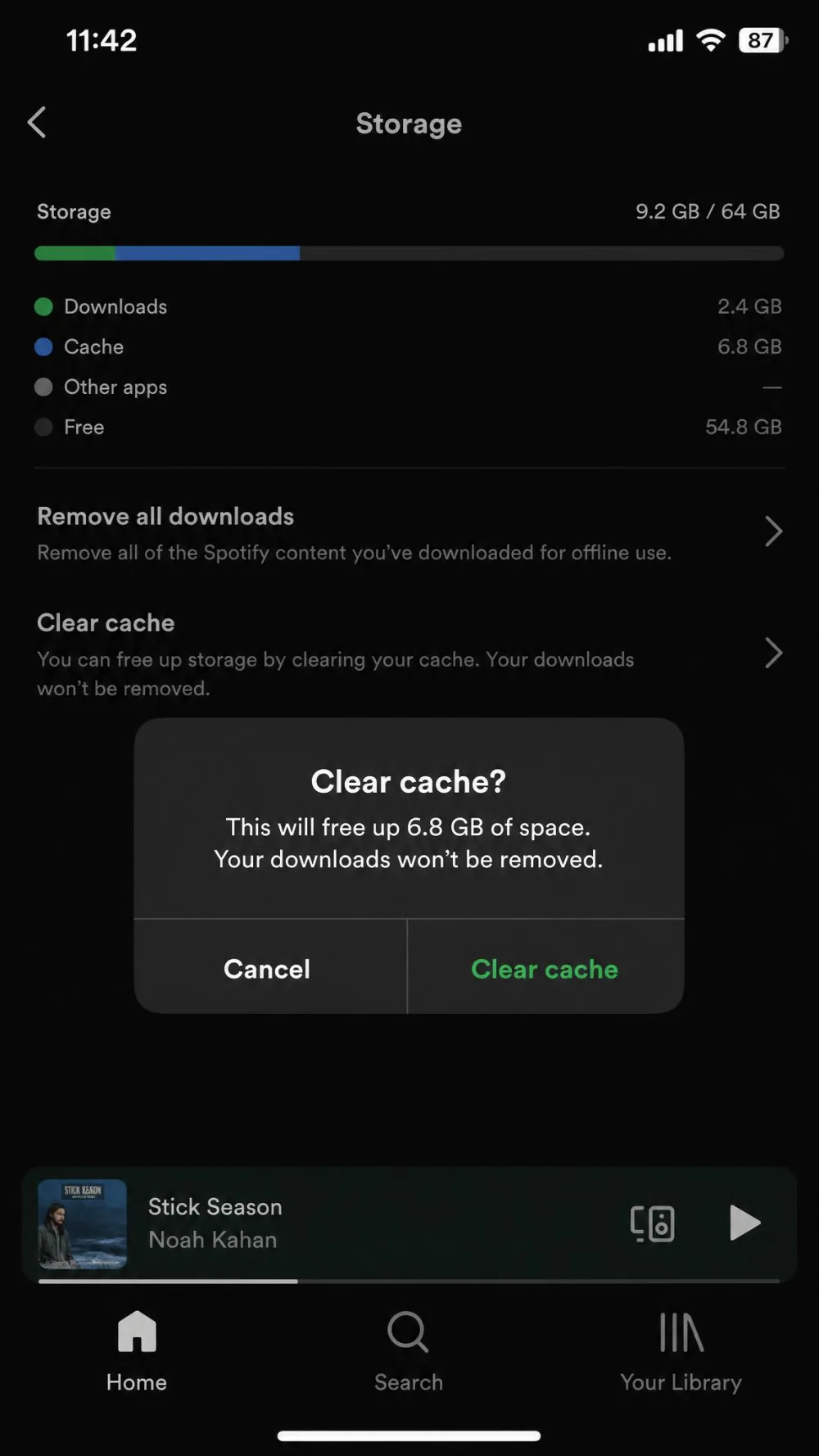
On a heavy-use account the cache can climb past 10GB, though that is a top-end figure rather than a typical one, since size varies widely with your listening volume and audio-quality settings. In our testing one phone was holding almost 3GB, and we have seen a case of Spotify hoarding 10GB, roughly 16% of the phone's total storage. Clearing it is also a common fix for crashes, playback bugs, and songs that fail to play, so it is worth knowing even when storage is not tight.
Will Clearing the Cache Delete Your Downloads or Playlists?
No. Using Spotify's in-app Clear cache button does not delete your downloads, offline songs and podcasts, playlists, or preferences. Offline downloads are stored separately, so wiping temporary files leaves your saved music untouched.
Clearing the cache with Spotify's in-app Clear cache button does not remove your playlists, liked songs, or account data. Those are tied to your account and sync back, not stored in the cache.
The one caveat is the difference between Spotify's own cache clear and your phone's system settings, where a "Clear storage" or "Clear data" action is a much heavier reset.
Stick to Spotify's in-app Clear cache button. Your phone's system-level "Clear storage" or "Clear data" option is a full reset that can remove offline downloads and sign you out, forcing you to re-download everything.
How to Clear Spotify Cache on Android
The control lives under Spotify's own settings, not your phone's.
Step-by-step
- Open the Spotify app on your Android phone or tablet.
- Tap your profile picture at the top of the screen.
- Tap Settings and privacy.
- Tap Data-saving and offline.
- Under Storage, tap Clear next to Clear cache, then confirm.
If your app shows an older layout, the Storage controls may sit directly under Settings rather than under Data-saving and offline; treat the Data-saving and offline path as current. Android users can also keep downloads on an SD card if the device has one, which frees internal storage without touching the cache.
How to Clear Spotify Cache on iPhone and iPad
The steps mirror Android, since both mobile apps share the same menu.
Step-by-step
- Open Spotify on your iPhone or iPad.
- Tap your profile picture in the top corner.
- Tap Settings and privacy.
- Tap Data-saving and offline.
- Under Storage, tap Clear next to Clear cache and confirm.
On iPhone, Spotify saves downloads in an encrypted form on your device. If you run low on room for a new download, iOS automatically frees up space by deleting unused stored data. Clearing the cache manually simply reclaims that space on demand.
How to Clear Spotify Cache on Windows and Mac (Desktop App)
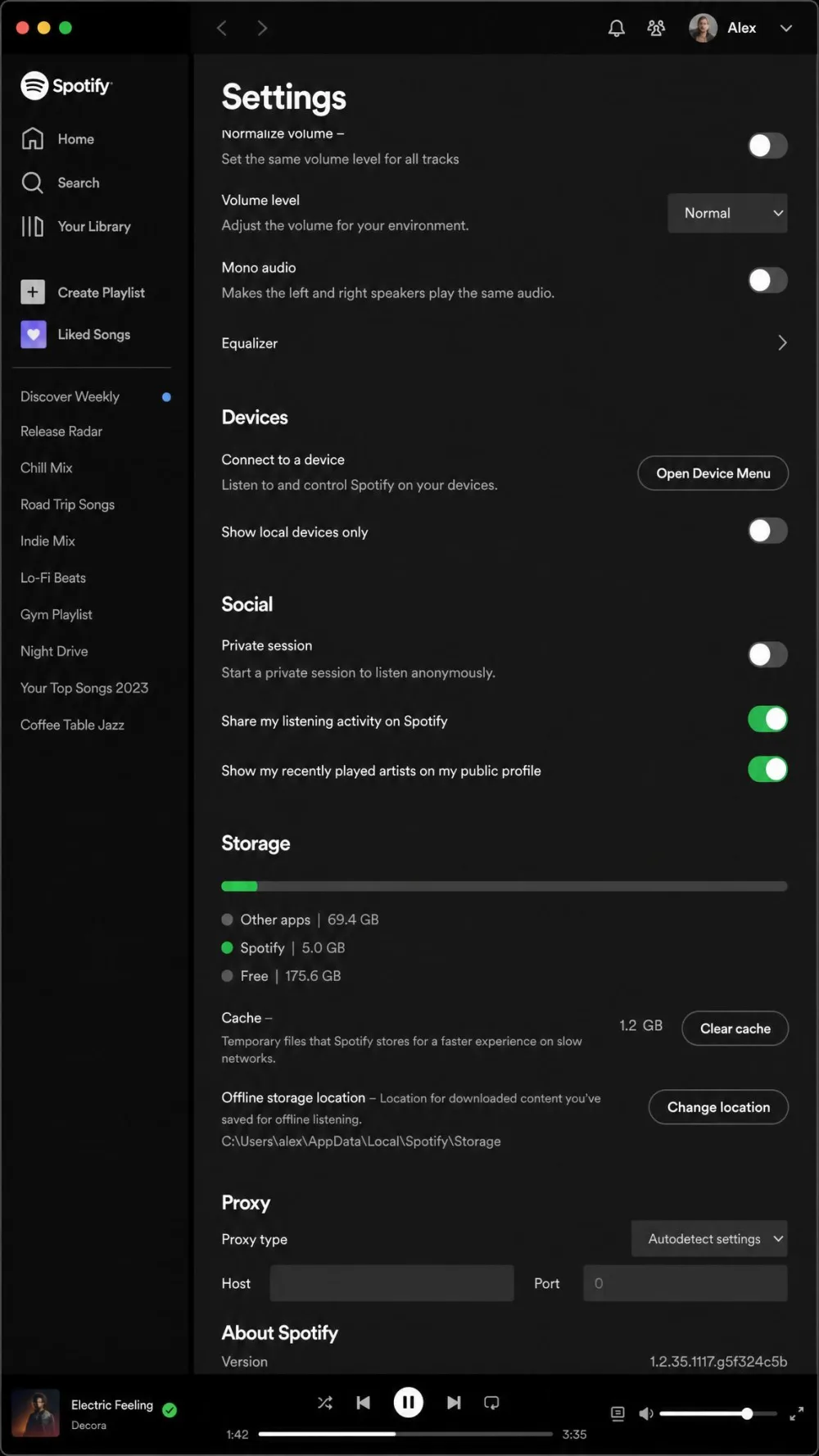
The desktop app hides the same control under Settings and adds one option the phone apps lack. Grab it from Spotify for Windows if you do not already run it.
Step-by-step
- Open the Spotify desktop app on Windows or Mac.
- Click your profile picture in the top-right corner and choose Settings.
- Scroll down to the Storage section.
- Click Clear cache and confirm.
Older guides sometimes tell you to hunt down Spotify's cache folders by hand in the file explorer. You do not need to; the in-app Clear cache button does the same job cleanly. The desktop app also gives you a Change location button under Storage, so you can move the cache to another drive, such as an external disk, and keep it off a small system drive. That option is not available on mobile.
How to Clear Spotify Cache on the Web Player
The web player has no Spotify cache button of its own. Because it runs inside your browser, its temporary files are handled by the browser's cache, not by Spotify. To clear it, open your browser's settings and use the option to clear browsing data or cached files. In Chrome, Edge, and Firefox this lives under privacy or history settings. Clearing the browser cache affects other sites too, so do it when you actually want a fresh start.
How to Limit or Move Cache to Free Up Space
You cannot set a hard cache cap inside Spotify, but a few habits keep it in check. On desktop, use the Change location button to store the cache on a larger or external drive, and on Android, moving downloads to an SD card keeps them off internal storage. Spotify recommends keeping at least 1GB of free storage for the app to run well, so if you regularly bump against that, clearing the cache every few weeks is the simplest fix. For more detail, Spotify's official storage settings guide covers the same options, and you can update or reinstall the app from Spotify on the App Store on iOS.
Clearing does not leave the cache empty for long. In our testing the size jumped from 0MB back to around 20MB almost immediately, which is normal as it starts refilling. Songs took a few seconds longer to load right after the clear, then speed returned to normal as the cache regrew.