Firefox is a private browser, but it does not encrypt your internet connection. Your traffic still leaves your device in the open, where your internet provider, a network owner, or anyone watching public Wi-Fi can read where you go. A VPN closes that gap. It wraps your connection in encryption and hides your real address, and on Firefox you can run it either as a lightweight add-on inside the browser or as a full app that protects everything on your device.
The trouble is that most VPNs are built for Chrome first and Firefox second. Some add-ons do nothing without a desktop app running in the background. Others leak your real IP through WebRTC, the very thing a VPN is supposed to prevent. So we set out to find the services that treat Mozilla's browser as a first-class citizen, with a real Firefox extension, strong encryption, and clean leak protection.
To do that, we tested more than 20 VPNs for Firefox on both Windows and macOS, running each one through the same speed, security, and leak checks inside the browser. We ran DNS, IP, and WebRTC leak tests on every finalist, timed download speeds with and without the VPN active, and installed each Firefox add-on to see whether it could stand on its own. The five picks below are the ones that earned a spot.
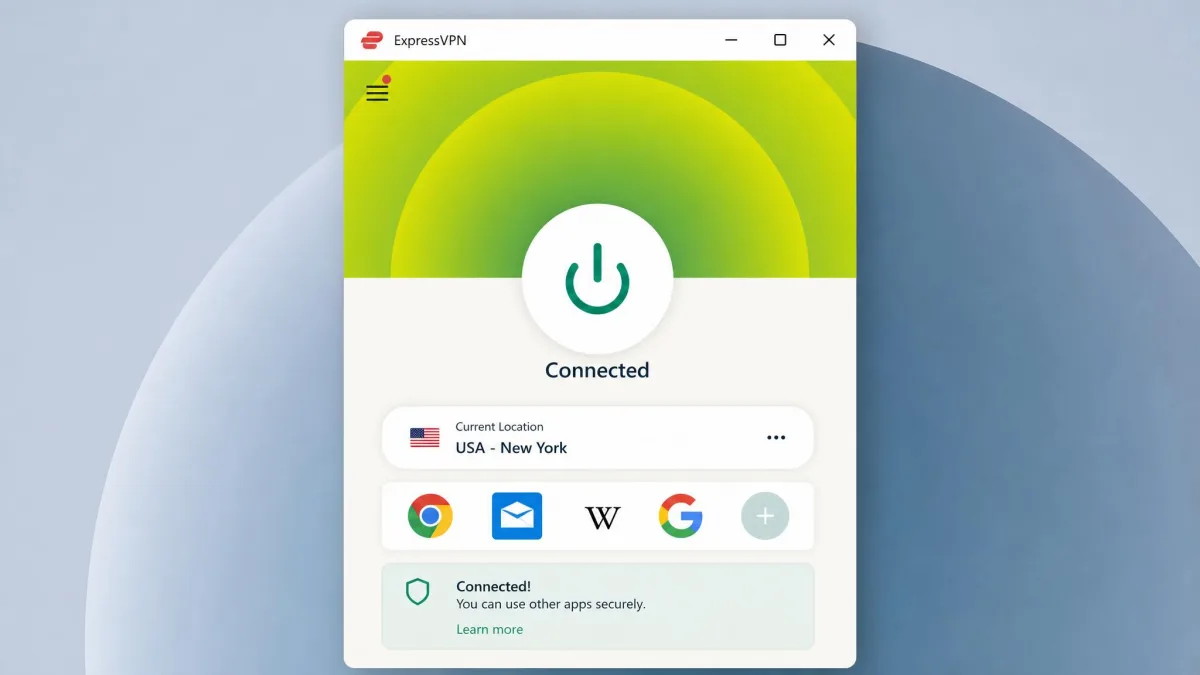
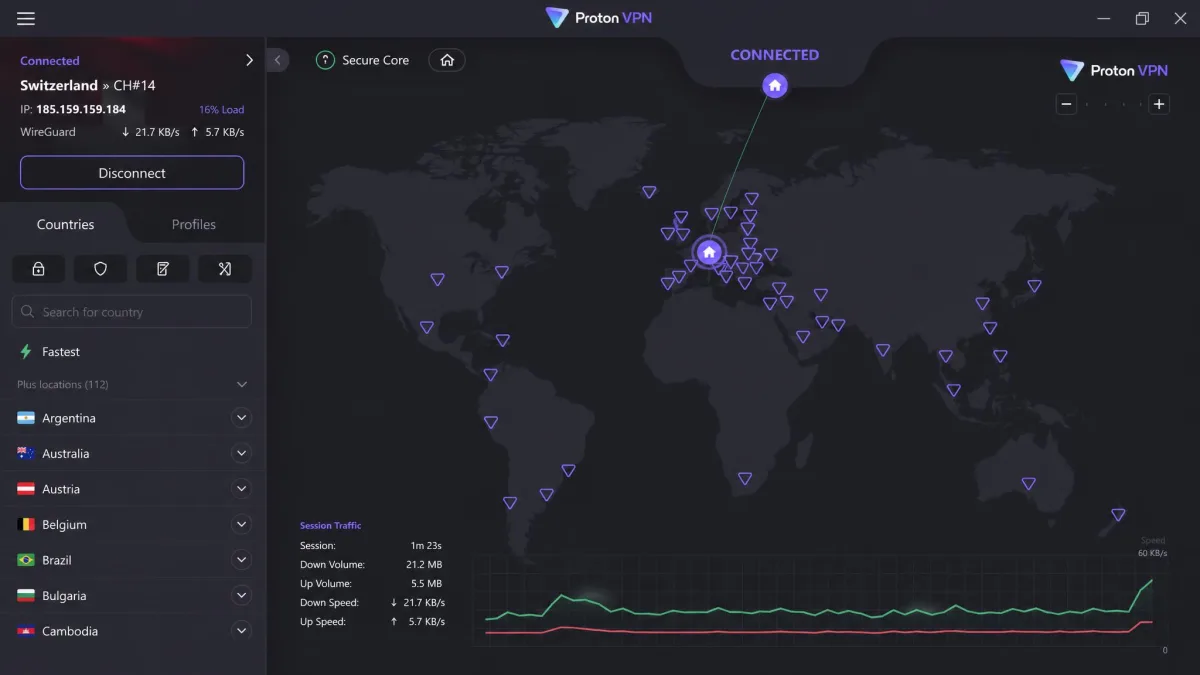
The Best VPNs for Firefox: Quick Summary
If you want the short version, here is where each pick lands and who it suits. NordVPN is the all-rounder we would install first, because its Firefox add-on runs independently and its speeds held up best across our machines. ExpressVPN is the security specialist, with the smallest speed loss we measured and a clean privacy record. Surfshark is the budget winner and the most affordable of our paid picks: unlimited devices at the lowest long-term price on the market. Proton VPN is the one to reach for if you refuse to pay, thanks to a genuinely usable free tier with no data limit. Private Internet Access is the choice for tinkerers who want to control every setting.
Every service here uses AES-256 encryption to secure your traffic, secures the key exchange with RSA encryption, keeps no activity logs, and backs a paid plan with a 30-day money-back guarantee, so you can try any of them without risk. The detailed reviews and the full comparison table below show exactly how they differ.
Comparison of the Best Firefox VPNs
Here is how our five picks stack up on the specs that matter most for browsing: how many countries you can connect through, the lowest price we found, whether a free tier exists, how many devices you can protect at once, leak protection, and the refund window.
| Product | Buy | Server countries | Lowest price | Free tier | Devices | Leak protection | Money-back |
|---|---|---|---|---|---|---|---|
 |
Check price → | 137 | $3.49/mo (2yr) | No | 10 | WebRTC + DNS | 30-day |
 |
Check price | ~105 | ~$2.99/mo (2yr) | No | 8 to 14 | WebRTC + DNS | 30-day |
 |
Check price | 100 | $2.49/mo (2yr) | No | Unlimited | WebRTC + DNS | 30-day |
 |
Check price | 140+ (paid) | Free / $2.99/mo | Yes | 10 (1 free) | WebRTC + DNS | 30-day |
 |
Check price | 91 | $1.79/mo (3yr) | No | Unlimited | WebRTC + DNS | 30-day |
Prices reflect the intro rates on each provider's longest plan at the time of writing, and they usually rise on renewal, so check the billing page before you commit. Free tiers aside, the day-to-day experience matters more than the sticker price, which is what the reviews cover next.
How We Tested and Ranked These Firefox VPNs
We do not score a VPN on its marketing. Each service was installed on a Windows PC and a MacBook, added to Firefox as an extension where one exists, and put through the same set of checks so the results were comparable.
Coming from a network administration background, our first instinct is always to distrust the connection until it proves itself. So before any VPN earns a recommendation here, it has to pass real leak, speed, and privacy tests inside Firefox, not just look good in a feature list.
Four things carried the most weight in our ranking. First, leak protection: we ran DNS, IP, and WebRTC leak tests on every finalist, and our top picks showed no leaks. Second, speed: we timed download and upload throughput with the VPN off and then on, on both platforms, because a VPN that halves your connection is one you will switch off. Third, the Firefox experience: whether the add-on is a real, independent extension or just a remote control for a desktop app. Fourth, privacy and value: the encryption standard, the logging policy, the price, and the refund window. We licensed the paid plans ourselves rather than relying on vendor trials.
We also repeated the leak checks after every server switch, not just once at connect. A VPN can pass a single test and then leak the moment it reconnects to a new location, so we changed servers, changed protocols, and ran the DNS and WebRTC checks again each time. Across our top picks the address on screen stayed the server's throughout, which is the result we want to see before a service earns a place on this list. We ran the same routine on both platforms because a VPN that behaves on Windows does not always behave the same way on macOS, and our speed numbers below show exactly how far that gap can stretch.
We spent time living with each finalist rather than judging it in a single sitting. We connected, disconnected, and reconnected across repeated sessions, retested after updates, and revisited the leak and speed checks more than once, so the rankings below reflect how each VPN behaves over normal use rather than a one-off snapshot.
Run your own leak test after you connect any VPN. Search for a WebRTC leak test, load the page in Firefox with the VPN on, and confirm the public IP shown is the VPN's and not yours. It takes 30 seconds and catches the most common failure.
The Best VPNs for Firefox: Detailed Reviews
Below are the five services that survived our testing, in ranked order. Each review leads with what stood out in real use, then lists the trade-offs, so you can match a pick to how you actually browse.
1. NordVPN - Best Overall VPN for Firefox
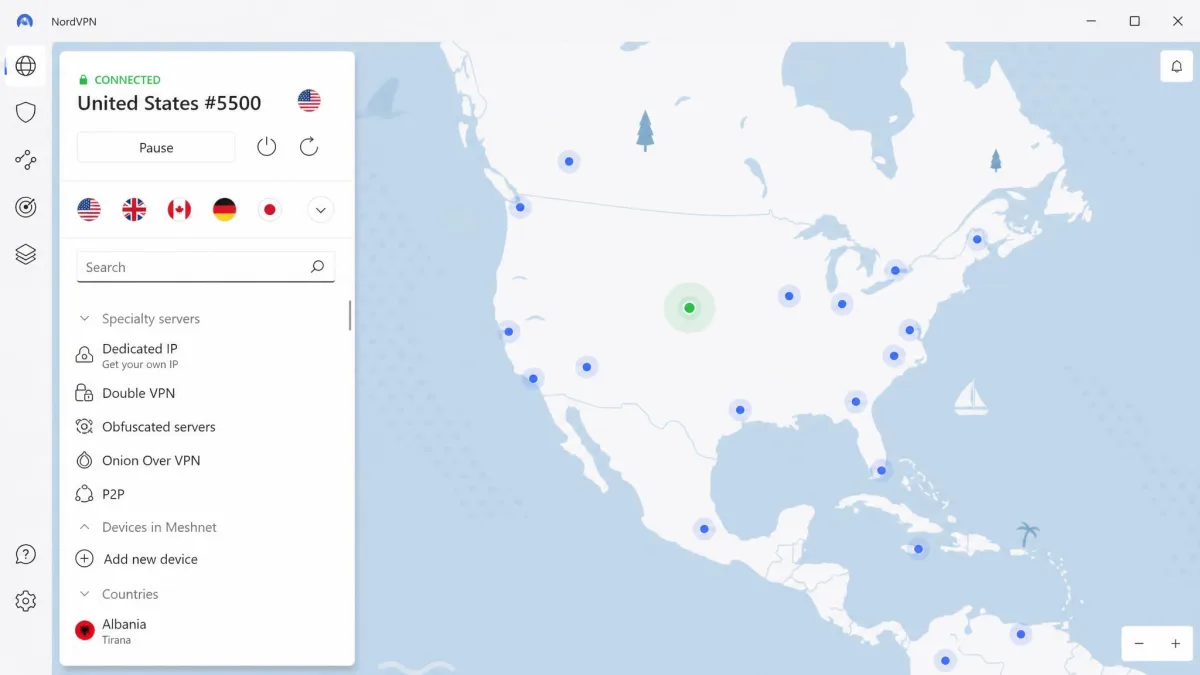
NordVPN
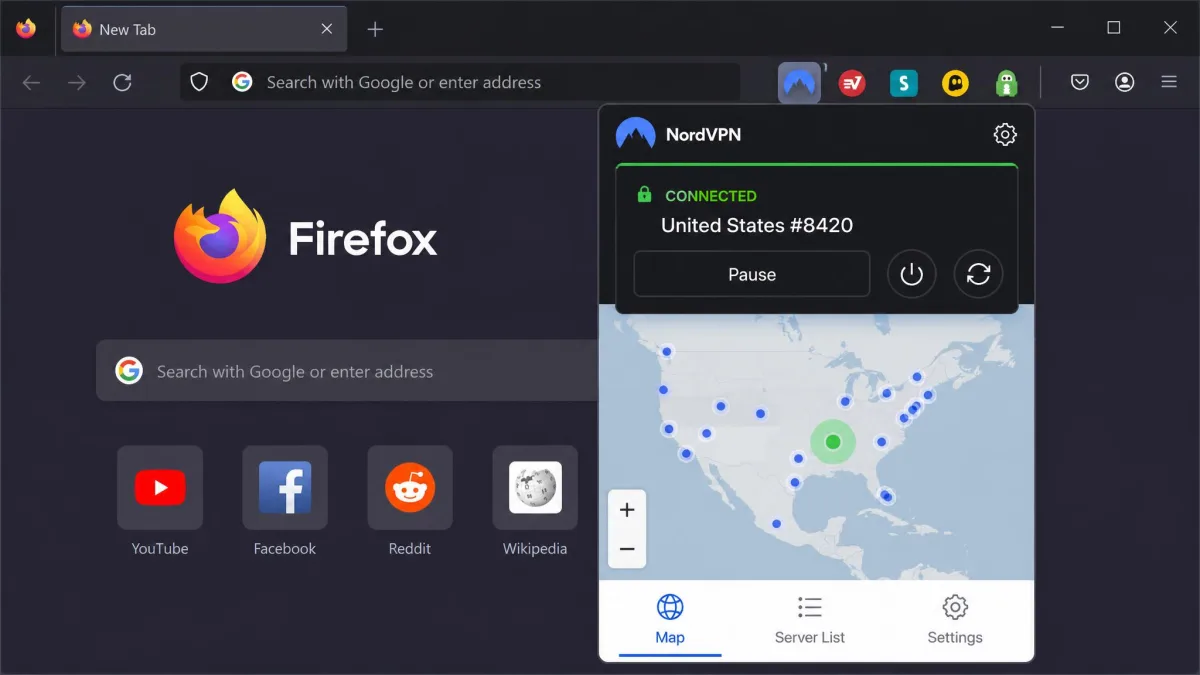
NordVPN earned the top spot on a detail that sounds small until you live with it: its Firefox add-on runs on its own, without the desktop app open in the background. Several rivals cannot do that. When we installed the extension on a clean Firefox profile and closed everything else, it still connected, encrypted the browser's traffic, and passed our WebRTC leak test. That makes it the closest thing to a true browser-native VPN in this group.
Speed is the other reason it wins. On Windows, our download throughput dropped only about 8% with NordVPN connected, which you will not feel while streaming or loading pages. The loss was larger on our MacBook, closer to 24%, so Mac users should expect a bigger hit, though it stayed comfortably usable. With 9,300+ servers across 137 countries, there was always a fast nearby option to switch to, and swapping locations from the add-on took a second or two before the new address showed clean. Threat Protection Lite also blocks ads and known malware domains inside the browser, which is a welcome extra on a Firefox add-on. The extension supports URL-based split tunneling too, so you can tell it to skip certain sites while it protects the rest, and NordVPN runs its network on RAM-only servers that hold nothing to disk between reboots.
Pros
- Firefox add-on works independently, with no desktop app required
- Smallest speed loss of any pick on Windows in our tests
- Threat Protection Lite blocks ads and malware inside the browser
- 9,300+ servers in 137 countries and 10 simultaneous devices
Cons
- Noticeably larger speed drop on macOS than on Windows
- Renewal price rises after the intro term
Best for: Most people who want a fast, independent Firefox extension backed by a full app. Skip if: You browse mainly on a Mac and speed is your single priority; ExpressVPN lost less there.
2. ExpressVPN - Best for Security and Speed
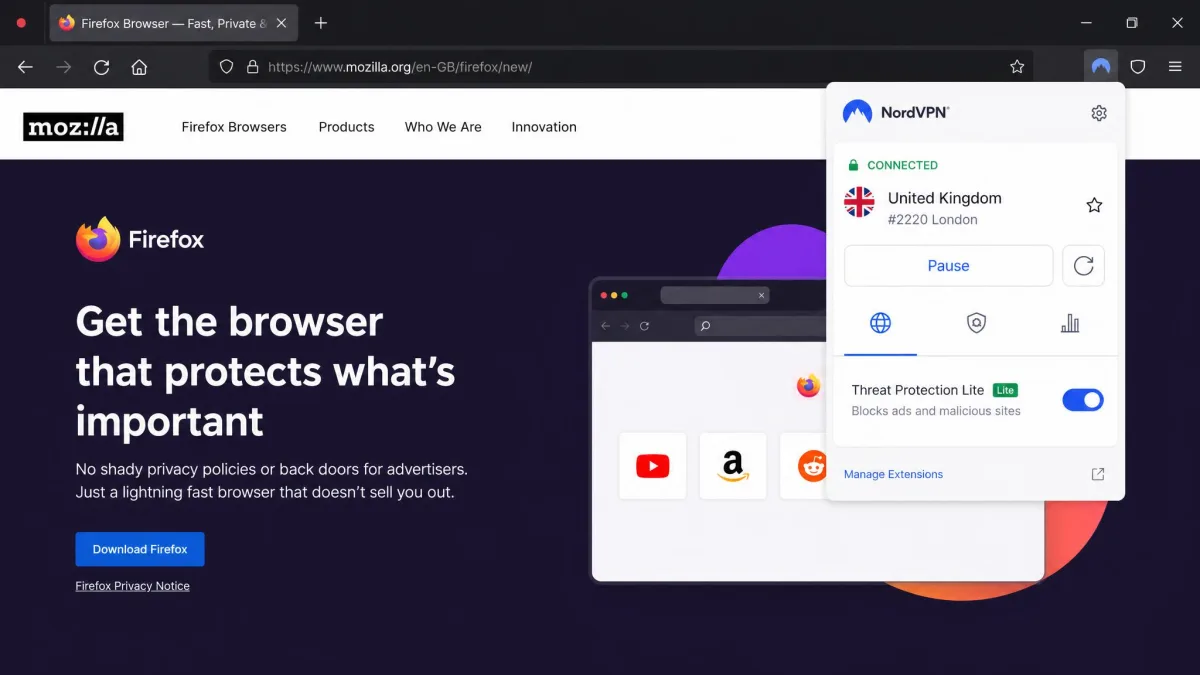
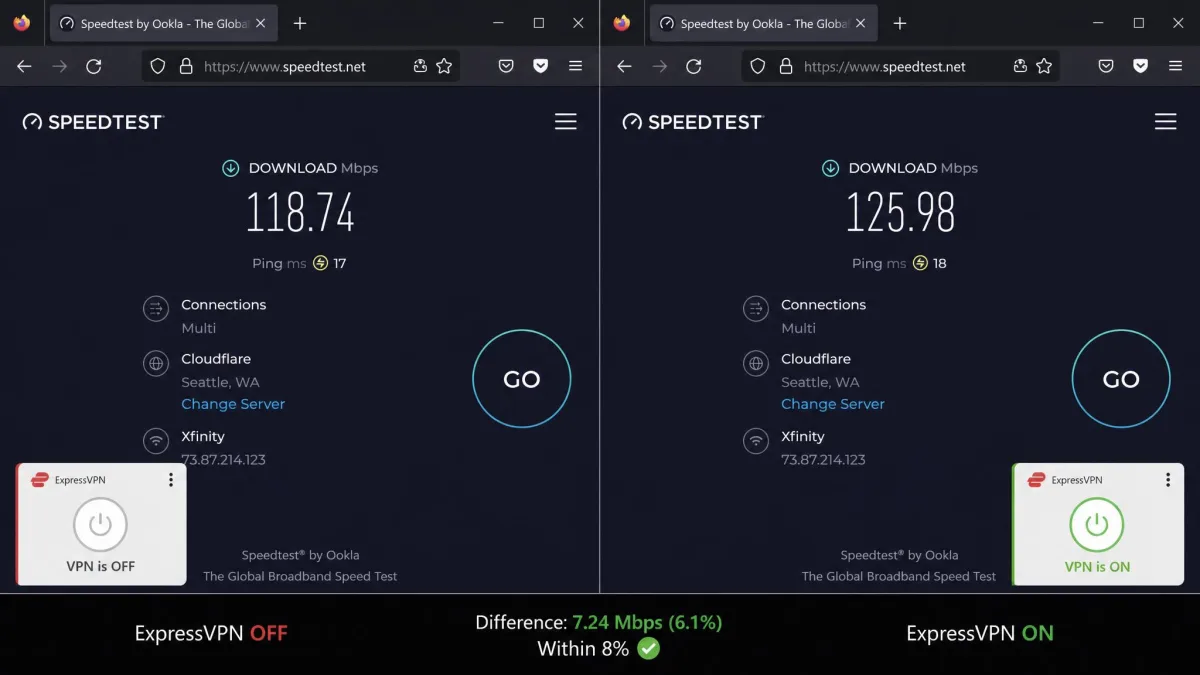
Where NordVPN wins on independence, ExpressVPN wins on raw consistency. It lost the least speed of anything we tested and pairs that with one of the strongest privacy records in the industry.
ExpressVPN
ExpressVPN was the speed champion of our group. Across repeated runs it shed only about 7% to 8% of download speed, among the smallest drops we recorded on either platform. That consistency is what you want if you stream in HD or move large files through the browser, and it held whether we connected to a nearby server or a distant one. Its servers run in RAM only under the TrustedServer system, so every reboot wipes them clean, and its extension actively spoofs your HTML5 geolocation and blocks WebRTC to keep your true address hidden. The add-on also forces HTTPS where a site offers it and ships a dark mode, small touches that show the browser tool got real attention rather than being an afterthought.
The catch is setup. Unlike NordVPN, ExpressVPN's Firefox add-on requires the desktop app to be running at the same time; the extension is really a control panel for the app rather than a standalone tool. That adds a step and means the browser add-on alone will not protect you. When the app was closed, the extension simply sat idle until we reopened it. Country counts vary by source, but expect servers in roughly 105 countries, and device limits run from around 8 to 14 depending on the plan tier you buy.
Pros
- Smallest speed loss of any VPN we tested, on both platforms
- Extension spoofs geolocation and blocks WebRTC leaks
- RAM-only servers wipe on every reboot
- Strong, independently audited no-logs record
Cons
- Firefox add-on needs the desktop app running to work
- Pricing and device counts vary by plan and current promo
Best for: Streamers and privacy-focused users who want the smallest speed hit. Skip if: You want a Firefox add-on that works without a separate desktop app running.
3. Surfshark - Best Budget VPN for Firefox
If ExpressVPN is the premium pick, Surfshark is the one that undercuts everyone while still covering the essentials. It is the only service here that protects an unlimited number of devices.
Surfshark
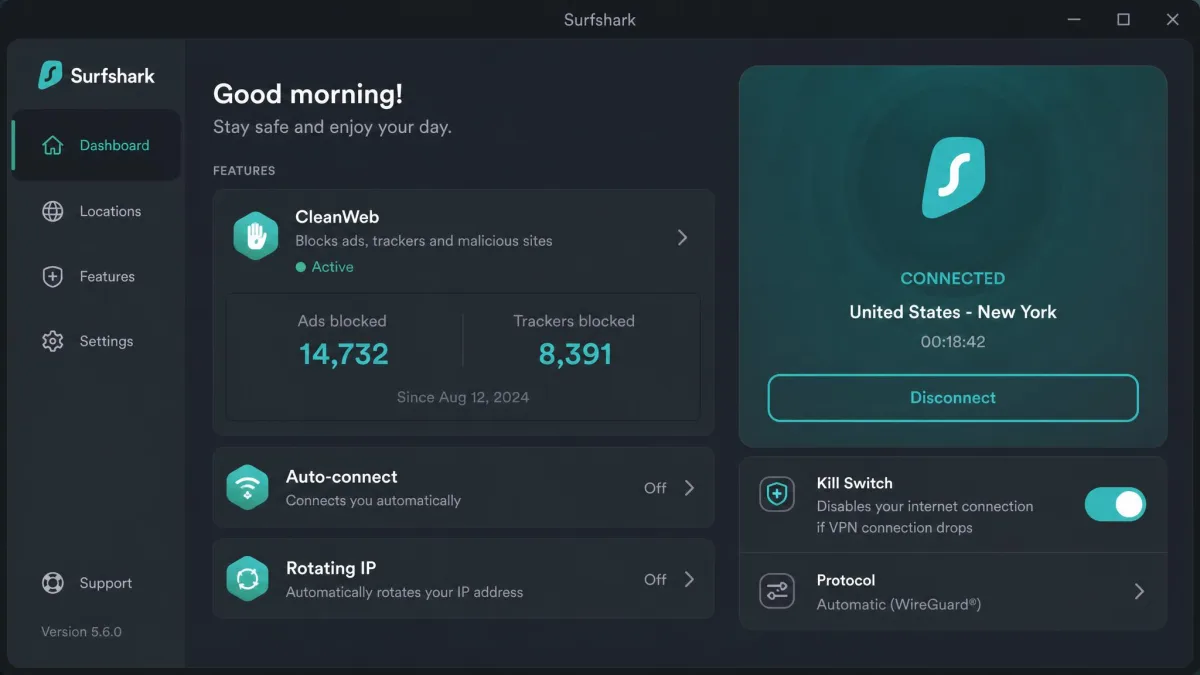
Surfshark's headline feature is value. For a lower long-term price than any other paid pick, you get unlimited simultaneous devices, so one subscription can cover a whole household's browsers, phones, and laptops. Its CleanWeb tool blocks ads and trackers inside Firefox, MultiHop routes you through two servers for extra cover, split tunneling lets you exempt trusted apps, and a dashboard shows what it is blocking in real time. Its 4,500+ servers span 100 countries and, like the rest of our top picks, run in RAM only so nothing is written to a disk.
Speed was where it slipped. Our results were inconsistent between runs, and in one Windows test the upload speed fell by more than 50%, which is a big swing for anyone uploading files or on video calls. Download speeds held up better, so casual browsing and streaming were fine, but the run-to-run variance means we would not lean on it for steady upload work. One thing to set up on day one: on Windows, Surfshark's kill switch is off by default and has to be enabled manually, so it will not protect you until you turn it on.
Pros
- Unlimited simultaneous devices on every plan
- Lowest long-term price among our paid picks
- CleanWeb blocks ads and trackers; MultiHop adds a second hop
- 4,500+ servers in 100 countries
Cons
- Inconsistent speeds, with a large upload drop in one Windows run
- Windows kill switch is off by default and must be enabled manually
Best for: Households that want to cover many devices for the lowest ongoing cost. Skip if: You upload a lot and need steady, predictable speeds.
On Windows, turn on Surfshark's kill switch before you rely on it. Until you enable it manually, your real connection is exposed for a moment if the VPN drops, which defeats the point of running one.
4. Proton VPN - Best Free VPN for Firefox
Every other pick here is paid. Proton VPN is the one we trust to recommend for free, because its free tier is genuinely usable rather than a trap designed to push you to upgrade.
Proton VPN
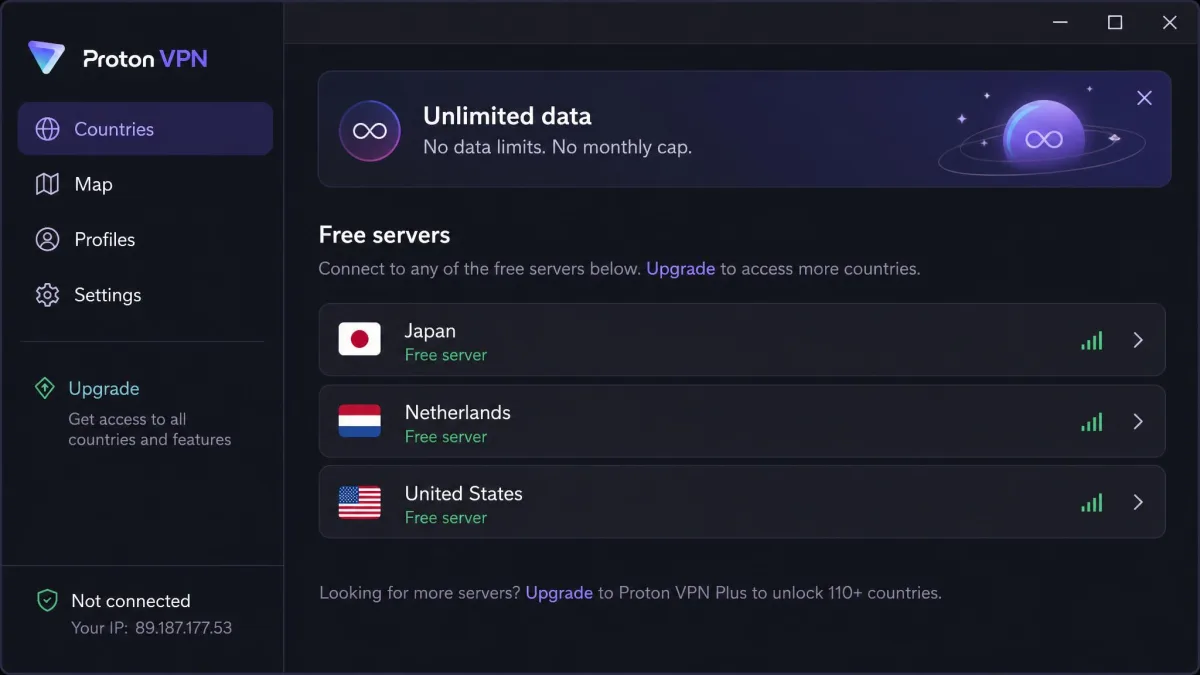
Proton VPN is the rare free VPN we recommend without hesitation. Its free plan applies no data cap at all, which is almost unheard of, and it comes from a company with a strong open-source and privacy pedigree. In testing, its speed loss stayed under about 8%, so the free tier did not feel like a punishment even on longer sessions. The paid plan opens up 2,000+ servers across 140+ countries, Secure Core routing that sends your traffic through two servers before it leaves Proton's network, P2P support, and the NetShield ad and malware blocker. Because the apps are open source, the code that handles your traffic is out in the open for anyone to inspect, which is a big part of why we trust the free tier at all.
There are limits to the free tier worth knowing. It covers just one device and gives you a random selection of servers in only 10 countries, so you cannot pick a specific location. The Firefox extension is also locked behind a paid subscription, which means free users rely on the desktop app rather than a browser add-on. For a free product with no data limit, those are fair trade-offs, and paid plans cover 10 simultaneous devices if you outgrow the free tier.
Pros
- Free tier with no data cap, from a privacy-focused, open-source company
- Speed loss under about 8% in our tests
- Secure Core and NetShield on paid plans
- 2,000+ servers across 140+ countries when you upgrade
Cons
- Free tier is limited to one device and random servers in 10 countries
- Firefox extension requires a paid subscription
Best for: Anyone who wants a trustworthy free VPN with no data cap. Skip if: You need to choose a specific country or want the Firefox add-on without paying.
5. Private Internet Access - Most Customizable
Rounding out the list is the pick for people who like to open the settings and stay a while. Private Internet Access gives you more control than anything else here.
Private Internet Access
Private Internet Access, or PIA, is built for people who want to control every knob. It exposes an unusually deep set of configuration options, from encryption strength to the underlying protocol, which power users appreciate and beginners can find overwhelming. We spent longer setting PIA up than any other pick here, not because it fought us but because there was so much to adjust. It also carries the lowest headline price on this list over a three-year term, at $1.79/mo, with unlimited devices and servers in 91 countries, including all 50 U.S. states. Shorter commitments cost more, at $3.99/mo on the annual plan and $11.95/mo month to month, so the value is really in the long term.
Performance depended heavily on platform. On Windows, PIA held up well, but on our MacBook it ran noticeably slower, with download speed dropping around 65% in one test. If you are a Mac user, that is a real consideration. Its apps are open source with an independently checked no-logs policy and run on RAM-only NextGen servers, and add-ons like a dedicated IP, email breach monitoring, and antivirus are available if you want them. Support runs 24/7, which helped when we were digging through the more obscure settings.
Pros
- Deepest set of configuration options of any pick
- Lowest three-year price and unlimited devices
- Open-source apps with an independently checked no-logs policy
- Servers in 91 countries, including all 50 U.S. states
Cons
- Much slower on macOS than on Windows in our tests
- The volume of settings can overwhelm beginners
Best for: Tinkerers on Windows who want maximum control and unlimited devices. Skip if: You are on a Mac or you want a simple, set-and-forget app.
The best Firefox VPN is the one whose add-on you never have to think about: it connects, it passes a leak test, and it stays out of your way while you browse.
— From our hands-on testing
Do I Need a VPN if I Use Firefox?
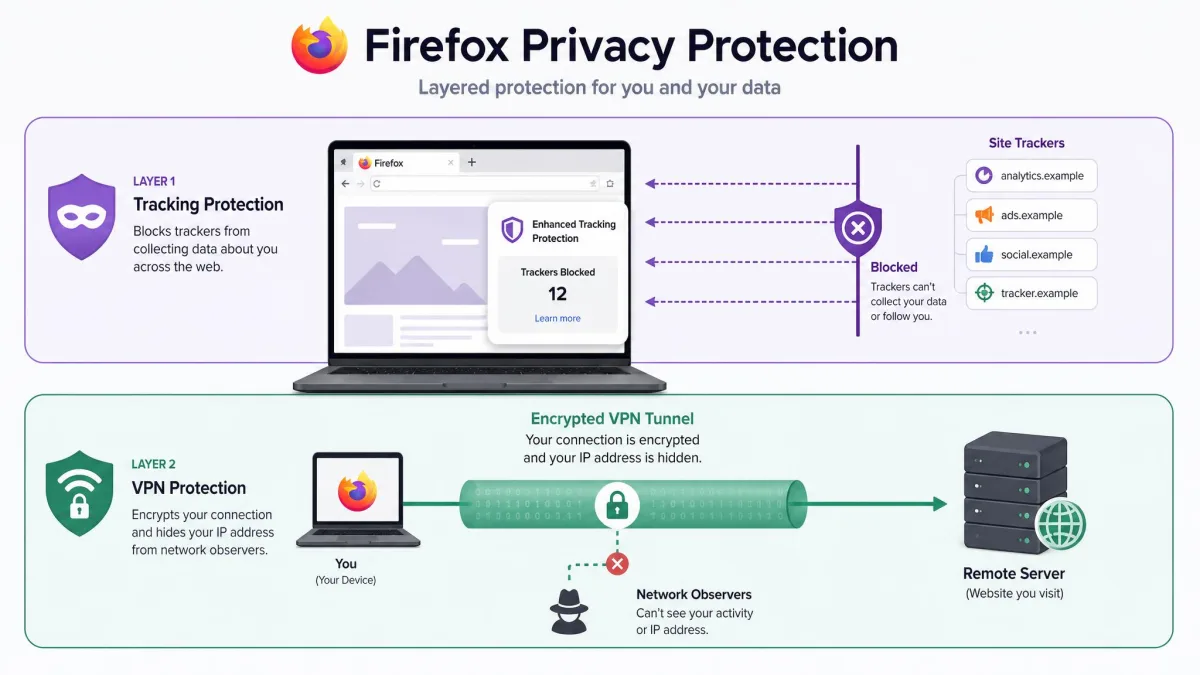
Firefox does a lot for your privacy inside the browser. It blocks many trackers, isolates sites, and gives you strong controls over cookies. What it does not do is hide your connection from the network. Your internet provider can still see every site you visit, a Wi-Fi owner can log your traffic, and your real address is attached to everything you do online. Firefox's private browsing mode only stops your own device from saving history; it changes nothing about what the network sees.
A VPN fills that gap. It encrypts the connection between your device and the VPN server, so your provider sees only that you are connected to a VPN, not what you are doing. It also swaps your real address for the server's, which allows you to browse without sites and advertisers building a profile tied to you. If you browse on public Wi-Fi, handle anything sensitive, or simply want your provider out of your business, a VPN is worth running with Firefox.
There are practical reasons beyond privacy, too. A VPN lets you reach content that is limited by region, whether that is a streaming catalog, a news site, or a service that behaves differently depending on where you appear to be. It stops your provider from throttling specific traffic, since it can no longer tell what you are doing. And on a shared or work network, it keeps the network's owner from watching which sites you visit. None of that requires a heavy setup: with the right add-on, all of it happens the moment you click connect in Firefox.
Think about where you actually browse. If you use coffee-shop, airport, or hotel Wi-Fi, you are sharing a network with strangers, and a VPN is the simplest way to keep that traffic private. If you work from a company or campus network, the administrator can log every domain you reach, and an encrypted tunnel keeps your browsing your own business. Even at home, a VPN stops your provider from compiling and selling a record of the sites you visit. Those are everyday situations, not edge cases, which is why we run one by default rather than only when something feels risky.
Who does not need one? If you only ever browse a handful of trusted sites on your own home network and none of it is sensitive, a VPN is optional. For everyone else, and especially anyone who uses Wi-Fi outside the home, it closes a real hole that Firefox alone cannot.
A VPN is not a complete privacy toolkit on its own. Pair it with Firefox's tracking protection and good password habits. The VPN hides your connection and address; the browser handles trackers and site isolation. Together they cover far more than either does alone.
Does Firefox Have a Built-In VPN?
No. Firefox does not include a built-in VPN. This is one of the most common misconceptions we see, and it is easy to understand why: Mozilla does offer a VPN. But Mozilla VPN is a separate paid subscription product, not something bundled inside the browser. Installing Firefox does not give you a VPN, and there is no hidden switch in the settings that turns one on.
That leaves you two real routes. You can install a VPN add-on from the Firefox add-ons store, which protects traffic inside the browser, or you can run a full VPN app that covers your entire device. Every service in this guide offers one or both. We compare the two approaches in detail further down.
How to Install a VPN Extension on Firefox
Adding a VPN add-on to Firefox is quick, and it is the fastest way to get protected if you only care about browser traffic. The steps are the same for most providers.
First, subscribe to a VPN that offers a Firefox extension and note your login. Second, open the Firefox add-ons store, search for your provider by name, and confirm it is the official listing before you install. Third, click Add to Firefox and approve the permissions it requests. Fourth, click the new icon in your toolbar, sign in, and connect to a server. Fifth, and this is the step most guides skip, run a quick leak test to confirm the add-on is actually routing your browser through the VPN.
Pin the extension to your toolbar right after installing it. Click the puzzle-piece icon, find your VPN, and select the pin. Having the connect button one click away means you will actually use it, rather than forgetting it is there.
Remember that some extensions, including ExpressVPN's and Proton VPN's free tier, depend on the desktop app or a paid plan to function. If the add-on will not connect, that dependency is the first thing to check.
Free vs. Paid VPNs for Firefox
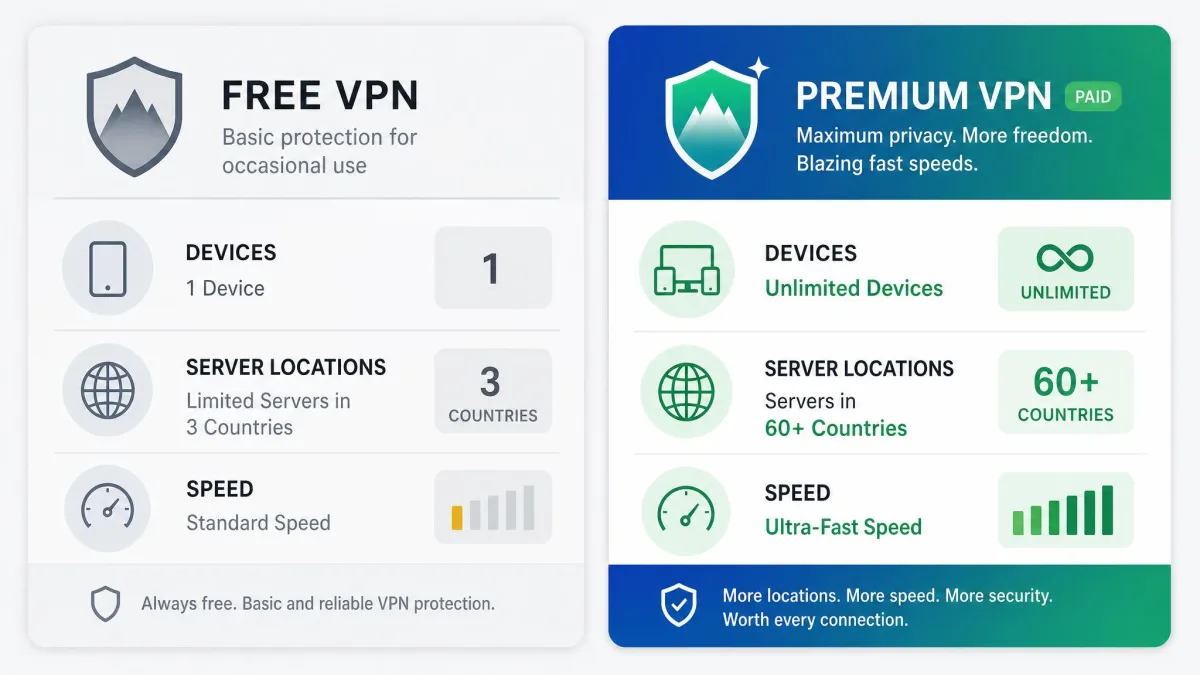
The gap between free and paid VPNs is wider than it looks. A trustworthy free VPN, like Proton VPN's free tier, limits you in predictable, honest ways: one device, a small set of servers, no ability to choose your country. It does not sell your data, and it does not cap how much you can browse. That is a fair deal for casual use.
Paid plans remove those limits and add the things that make a VPN pleasant to live with: many more servers, faster and more consistent speeds, more simultaneous devices, and extras like ad blocking and split tunneling. Across our testing, paid services were faster and more reliable inside Firefox, and every one backs its plan with a 30-day money-back guarantee. If a VPN is something you will use daily, a paid plan pays for itself in speed and fewer headaches. The danger lies with the free VPNs we did not recommend, which we cover below.
It helps to match the choice to how you browse. If you only need to hide the occasional session on public Wi-Fi and do not care which country you appear from, Proton VPN's free tier is enough and costs nothing. If you stream, work from the browser all day, share the subscription with family, or need a specific country on demand, the free tier's single device and random server list will frustrate you fast, and a paid plan is the better fit. That is the line we drew again and again in testing: the free tier is a fine safety net, but it is not built for daily, heavy use.
The refund window is the detail that makes this an easy decision. Because every paid pick here offers 30 days of no-questions-asked refunds, you can install one, run it inside Firefox for a few weeks, test the speeds on your own connection, and get your money back if it disappoints. In effect, that turns every paid plan into a free trial that behaves like the full product. We would rather do that than gamble on an unknown free add-on that might be logging every site we open.
VPN Extension vs. Full VPN App: Which Is Better?
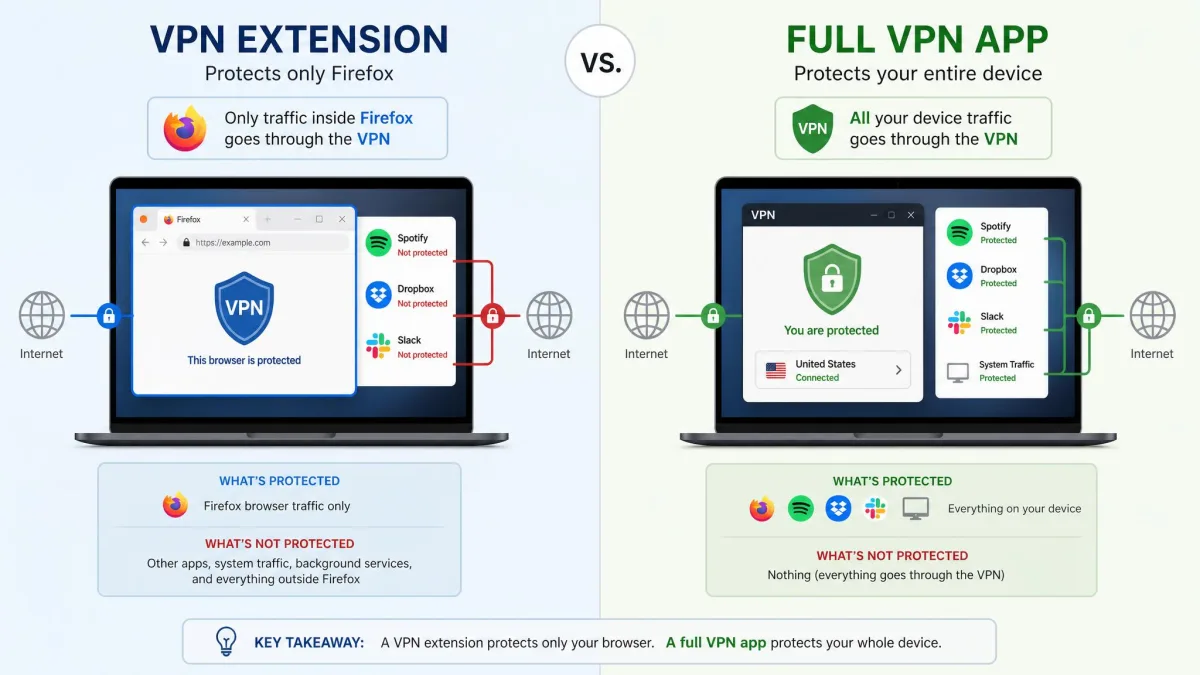
This is the choice most Firefox users get wrong, so it is worth being clear. A VPN extension protects only your browser. Anything outside Firefox, such as an email client, a game, or an app updater, still uses your normal connection. A full VPN app protects everything on the device at the operating-system level, Firefox included.
The extension wins on convenience. It is lighter, it connects in one click, and you can set a different server in the browser than the rest of your device uses. The full app wins on coverage and, usually, on security, because nothing slips outside the tunnel. Our advice is simple: if you only want to hide your browsing, an extension is enough, provided it blocks WebRTC leaks. If you want real protection for your whole device, install the app and, if you like, add the extension on top for browser-specific control.
There is a middle path we often use ourselves. Run the full app for baseline, whole-device protection, then use the browser add-on to set a different location just for Firefox. That lets you keep the rest of your device on a fast nearby server while the browser appears somewhere else, which is handy when a single site needs a specific region. Most of our top picks support this split without conflict, so you are not forced to choose one or the other.
One caution from testing: not every add-on is a full extension. ExpressVPN's and Proton VPN's browser tools lean on the desktop app or a paid plan, so the extension alone is not the whole story with them. NordVPN was the standout here because its add-on genuinely stood on its own. If browser-only protection is your goal, check that the extension actually encrypts traffic by itself before you rely on it, because a control-panel add-on gives you nothing when the app behind it is closed.
A VPN browser extension is not automatically less secure than a full app, but it is narrower. A good extension uses the same encryption; it simply protects a smaller surface. The security question is not extension versus app, it is how much of your device you want covered.
How to Fix WebRTC Leaks in Firefox
WebRTC is a browser feature that lets sites do real-time voice and video without plugins. The problem is that it can reveal your real IP address even when a VPN is connected, which quietly undoes the protection you are paying for. Every VPN in this guide blocks WebRTC leaks, but you can also shut the feature off in Firefox directly, and we recommend doing both.
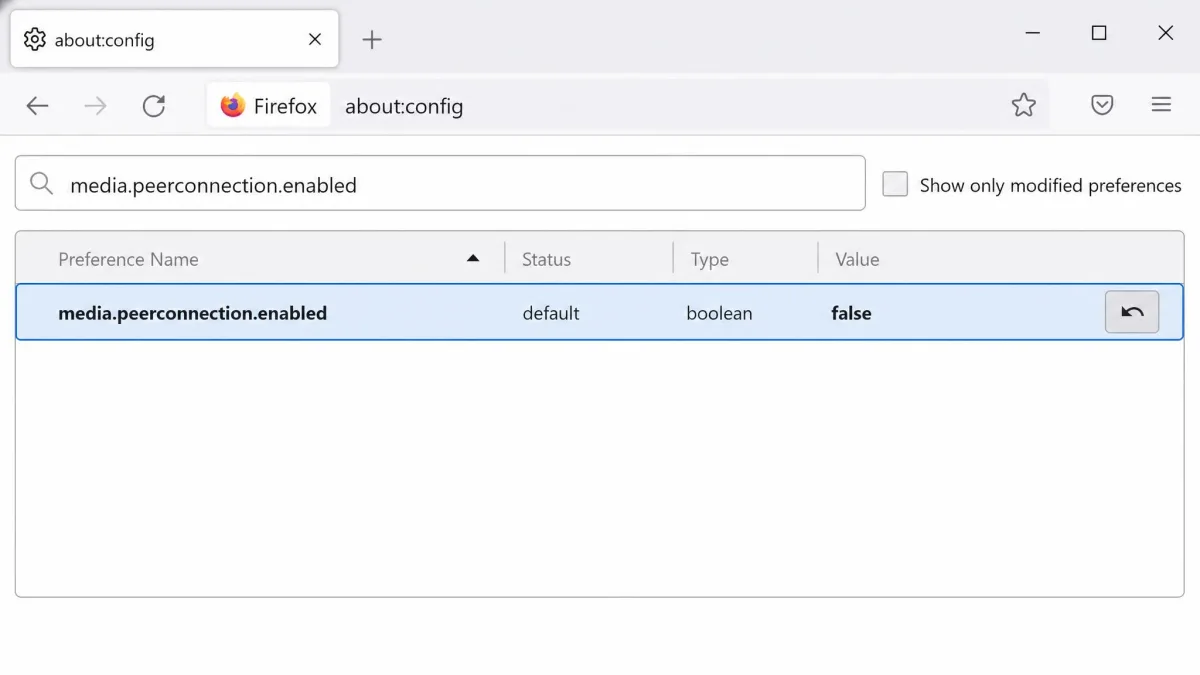
Here is the fix. Type about:config into the Firefox address bar and press Enter. Accept the warning that appears. In the search box, enter media.peerconnection.enabled. Double-click that preference so its value changes to false. That disables WebRTC across Firefox. To confirm it worked, connect your VPN and run a WebRTC leak test; the page should show the VPN's address, not yours.
Why bother when the VPN already blocks WebRTC? Because the two layers back each other up. If the extension is ever off, misconfigured, or reconnecting to a new server, the browser-level switch keeps your real address from slipping out in that gap. This is the belt-and-braces approach we take on our own machines, and it costs nothing beyond a minute in about:config. If you ever reinstall Firefox or set up a new profile, remember the preference resets to its default, so it is worth checking again after any fresh install.
Disabling WebRTC will break voice and video calls that run inside Firefox, such as some web-based meeting tools. If you rely on those, leave WebRTC on and depend on your VPN's built-in leak protection instead, then verify with a leak test that your real address stays hidden.
Risks of Free Firefox VPNs to Avoid
Proton VPN aside, the free VPN category is where most Firefox users get burned. A VPN that costs nothing has to make money somehow, and too often the product is you. The most common risk is data logging and selling: some free add-ons record your browsing and sell it to advertisers, the exact opposite of what a VPN is for. Others inject their own ads or trackers into the pages you visit.
The technical risks are just as real. Many free extensions leak your address through WebRTC or DNS, so your traffic looks protected while your real identity is exposed. Some use weak or outdated encryption. A few have shipped outright malware. Speed and server limits are almost universal, but those are honest annoyances; the data and security risks are what should scare you off. Stick to a reputable free tier from a company with a clear no-logs policy, or pay for a plan and use the refund window if it disappoints.
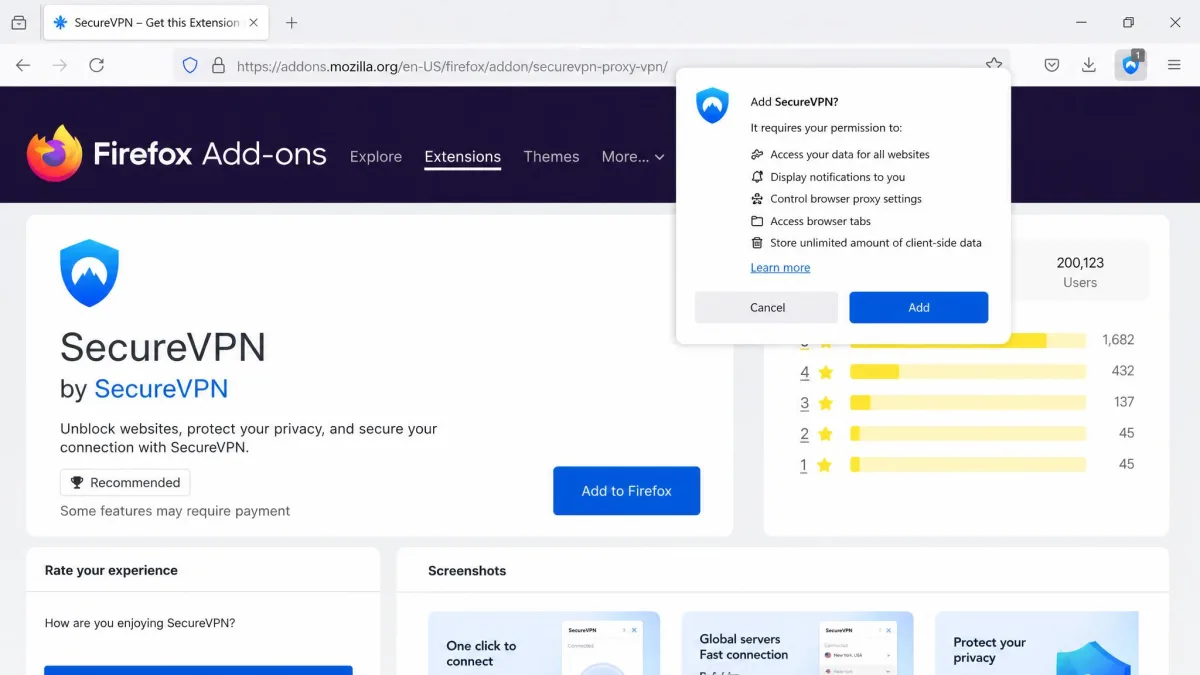
Permissions are the quiet warning sign. A VPN add-on needs to manage your connection, but it has no reason to read and change your data on unrelated sites or watch your keystrokes. When a free extension asks for far more access than its job requires, that is usually where the data harvesting begins. We check the permission list before installing anything, and we treat a mismatch between what a tool does and what it asks for as a reason to close the tab. A VPN is a trust relationship: you are routing everything through it, so the company behind it matters as much as the feature list.
Before installing any free VPN add-on, check who makes it and read its privacy policy for the words "sell" and "share." If a free VPN is vague about how it makes money or asks for permissions it does not need, walk away. Free protection that harvests your data is worse than no VPN at all.
Bottom Line: Our Top Recommendation
After testing more than 20 VPNs for Firefox across Windows and macOS, NordVPN is the one we would install first. It was the only top pick whose Firefox add-on ran fully on its own, it lost the least speed on Windows, and it passed every leak test we threw at it while blocking ads and malware in the browser for good measure. It is not perfect, since Mac users will see a bigger speed hit, but no other service matched its all-round balance of speed, independence, and protection.
If your priorities differ, the runners-up are easy to place. Choose ExpressVPN for the smallest speed loss and top-tier security, Surfshark to cover unlimited devices for the least money, Proton VPN if you want a free plan you can actually trust, and Private Internet Access if you love to fine-tune every setting. Whichever you pick, use the 30-day money-back guarantee to test it inside your own Firefox before you commit. Speed and leak protection vary from one connection to the next, so the only test that truly counts is the one you run on your own network. Install your choice, disable WebRTC in about:config, run a leak test, and time a few pages. If it holds up, keep it; if not, claim the refund and move to the next name on this list.