We tested the leading parental control apps on iPhone, Android, Windows and Mac, setting each one up the way a family would: the app on a child's phone, tablet or computer, and the controls on a parent's phone and web dashboard. Our best overall pick is Eyezy, the app we recommend if you want to see what is actually happening on your child's phone, from messages and social apps to location. If your main goal is screen-time limits and web filtering instead, Qustodio is the app to get, and for many families it's the better first install.
We judged every app against three family situations. The first is a younger child getting a first phone, where blocking and simple limits matter most. The second is a tween who needs firm screen-time rules and a web filter, and the third is a teen whose real risks sit inside chats and social feeds. For each one, we compared setup on iPhone and Android and checked whether limits held when a child looked for a way around them. We also checked how quickly alerts and location reached the parent and what the subscription really costs.
You're far from alone in wanting this kind of help. Pew Research Center's study of how parents monitor teens online, published in 2016, found that 61% of parents of teens had checked which websites their teen visited, and 39% used parental controls to block, filter or monitor online activity. The tools have changed a great deal since then, and the 12 apps below show where they stand now.
Our Top Picks at a Glance
These three apps stood out for different jobs. We'd install Eyezy for visibility and Qustodio for limits and filtering, while Google Family Link is the strongest free option for Android families.
The rest of the ranking covers more specific needs:
- Bark: best for social media and text alerts
- Norton Family: best value for big families
- Aura Parental Controls: best all-in-one online safety
- Microsoft Family Safety: best for Windows and Xbox families
- Apple Screen Time: best free option for iPhone
Parental Control Apps Compared
The table puts every ranked app side by side. Read the web filtering and screen time columns first if limits are your goal, and the monitoring column if you mainly want to know what your child is seeing and saying.
| Product | Buy | Best for | Price (from) | Free plan / trial | Platforms | Web filtering | Screen time limits | Location / geofencing | Social media / text monitoring | Device limit |
|---|---|---|---|---|---|---|---|---|---|---|
 |
Check price → | Seeing messages, social apps and location | About $8 to $10/mo on a 12-month term (varies with promotion) | No trial; 14-day money-back | iOS (iCloud backup sync, no install), Android (app install; some social-app capture needs root) | No (blocks only sites and apps you name) | No | Yes / Yes | Yes | 1 per plan; Family Kit 3 devices |
 |
Check price | Screen time limits and filtering | Free plan; Basic $59.95/yr (recently repriced) | Free plan (1 device); 30-day money-back | Windows, Mac, Chromebook, Android, iOS, Kindle | Yes (29 categories) | Yes (per-app, schedules) | Yes / Yes | Limited (Android calls and texts) | 1 free, 5 Basic, unlimited Complete |
 |
Social media and text alerts | Bark Jr $49/yr; Premium $14/mo or $99/yr | 7-day trial | Android, iOS, Chromebook (plus Bark Home) | Yes (basic blocking) | Yes (schedules) | Yes (location, check-ins) | Yes (30+ platforms, alerts) | Unlimited | |
 |
Value for big families | $49.99/yr | 30-day trial; 60-day money-back | Windows, Android, iOS (no Mac child devices) | Yes (categories) | Yes (device-wide) | Yes / Yes (30-day history) | No | Differs across Norton's pages | |
 |
All-in-one online safety | $10/mo billed annually (recently repriced) | 14-day trial; 60-day money-back | iOS 16+, Android 12+ (no computers) | Yes (categories) | Yes | No | No | Unlimited | |
 |
Windows and Xbox families | Free | Free | Windows, Xbox, Android (iPhone parent app only) | Yes (Edge only) | Yes (device and app) | Removed in 2024 (help pages still mention it) | No | Family group | |
 |
Free Android control | Free | Free | Android, Chromebook (iPhone parent app only) | Yes (Chrome, SafeSearch) | Yes (daily, per-app) | Yes / Yes (no history) | No | Family group | |
 |
Free iPhone control | Free | Free (built in) | iPhone, iPad | Yes (Content & Privacy Restrictions) | Yes (schedules, category allowances) | Via Find My (separate) | No (Communication Safety only) | Family Sharing group |
1. Eyezy: Best Overall
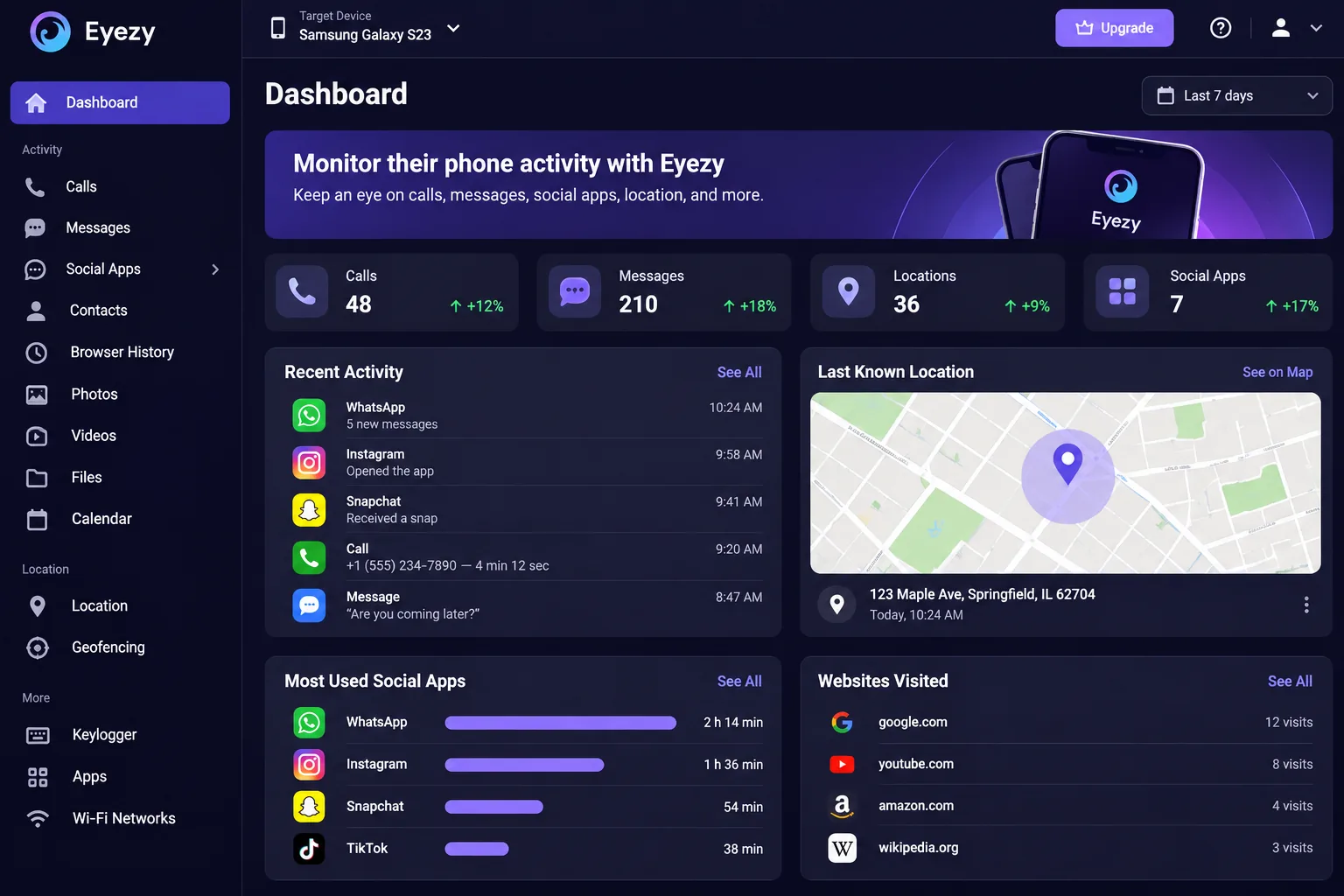
Eyezy is a phone-monitoring app, not a screen-time or filtering app, and that difference is the reason it sits at the top of our list. For many parents, the real worry isn't how long a child spends on the phone. It's what happens inside the messages, group chats and social apps that no web filter can see, and Eyezy shows you that on one clean dashboard.
On iPhone, nothing gets installed on your child's device. Eyezy syncs from the child's iCloud backup using their Apple ID and password, so data reaches your dashboard only after the phone completes a backup. In our testing, that meant activity arrived in batches rather than live. The very first sync also ran well past the advertised hour, and the events, photos and videos tabs stayed empty through the first day. If two-factor authentication is on or iCloud backup is switched off, you'll need the iPhone in hand to finish setup, and the companion app needs iOS 15.0 or later.
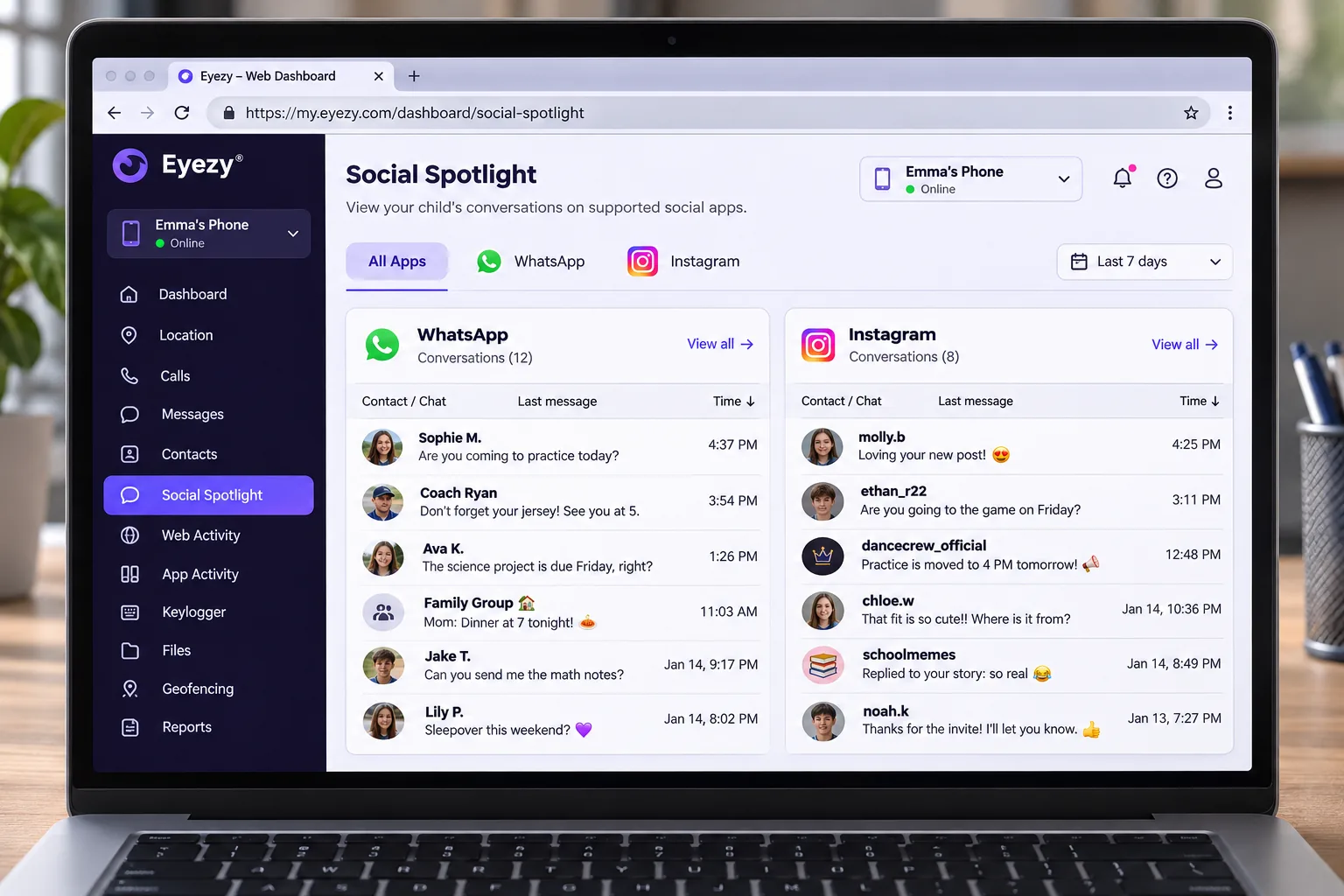
Android works differently. You install the Eyezy app directly on your child's phone, so you'll need brief physical access to it. During installation the app prompted us to switch off Google Play Protect, a step that felt uncomfortable and is worth understanding before you start. Once it was running, Social Spotlight captured WhatsApp, Instagram, Snapchat and Facebook activity with timestamps, and capture on Android stayed consistent from day to day.
Keystroke capture on Android was the feature that surprised us most. It logged typed text reliably and grouped it by app, which surfaced messages and searches the other tabs missed. Basic monitoring works without rooting, but full capture of some social apps, such as WhatsApp and Facebook, can require rooting the phone. Eyezy describes its rooting requirements differently on its current and older pages, so the features that need root can change with the app version.
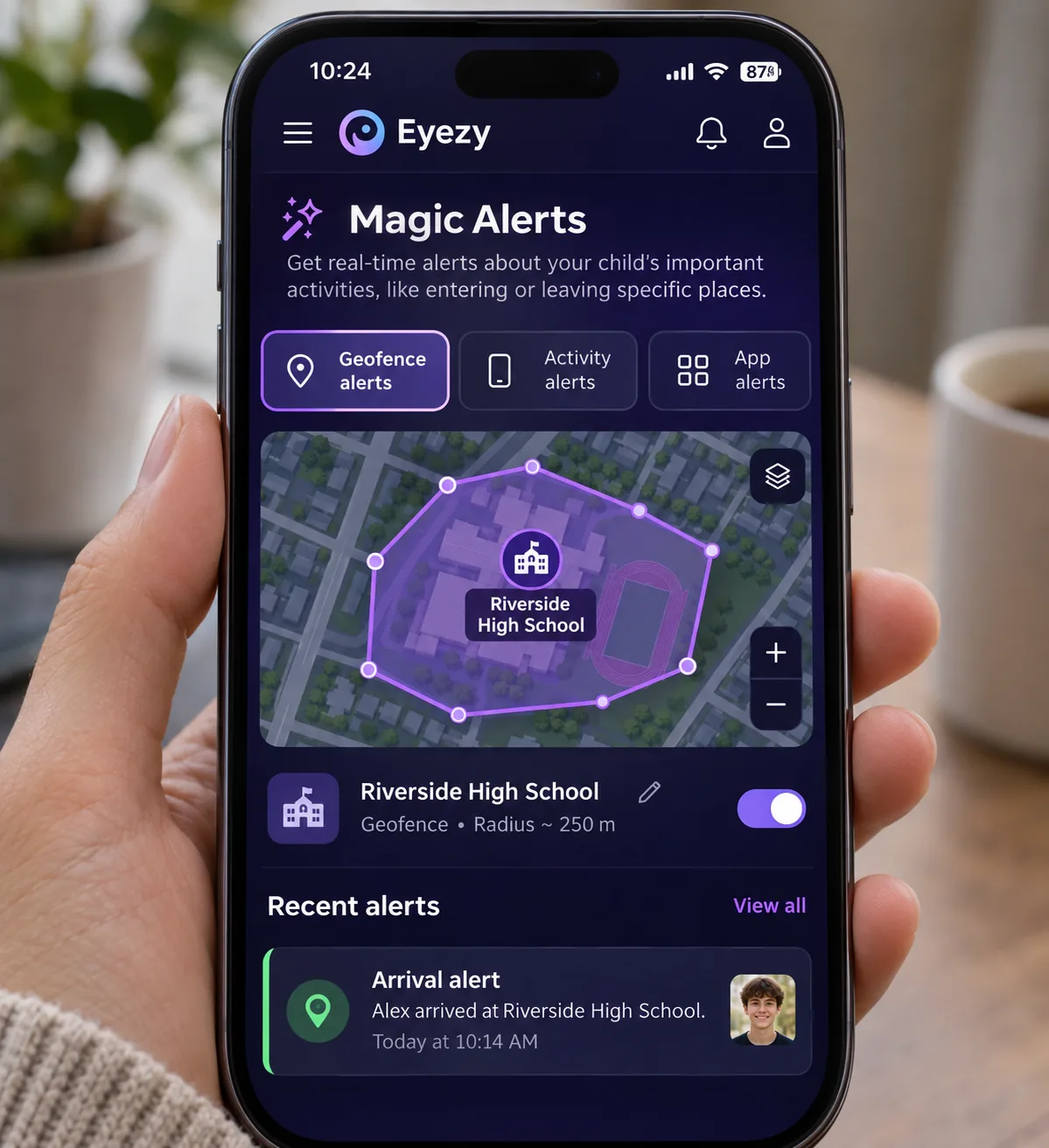
Location is the other strength. Pinpoint shows live GPS location, and Magic Alerts lets you set geofences and keyword alerts. Geofence alerts fired reliably whenever the phone crossed a boundary we'd drawn. Live location stayed accurate to a normal GPS margin in open areas, though updates lagged at times. The keyword alerts are what make the dashboard usable day to day, because they flag a problem without you reading every thread.
Be clear about what Eyezy does not do. It has no screen-time limits, schedules or downtime, and its dashboard only shows time spent per app. Eyezy's homepage copy suggests its Connection Blocker controls apps and sites "and for how long," but the Connection Blocker page itself lists only block and unblock. We found no time-limit or schedule controls. There's also no category web filter: Connection Blocker blocks only the specific apps, websites and Wi-Fi networks you name, and Web Magnifier logs browsing history and searches without blocking anything.
A few rough edges stood out. Some advertised tools, such as website blocking and search monitoring, were hard to find in the dashboard, and the help guides are thin on specific features. Support replies leaned automated or templated, live chat sometimes went unanswered, and email (support@eyezy.com) was the dependable route to a human agent. Eyezy's own compatibility policy also warns that a device can pass the compatibility check and still fail to run every subscribed feature.
Pricing takes some work to pin down. Eyezy publishes no price list and advertises its plans as costing less than $1 per day. Premium comes in 1-, 3- and 12-month terms, and the longer the term, the lower the monthly rate. On the 12-month term it works out to roughly $8 to $10 a month, because the per-month rate moves with the billing term and the running promotion. Each standard plan covers 1 device, the Family Kit covers up to 3 devices, and extras like live screen streaming are sold separately.
There's no free trial or free plan, only an interactive demo. Instead, Eyezy offers a 14-day money-back guarantee on your first subscription only, and 9% of each refunded transaction is deducted for bank and processing fees. Refunds are refused for an incompatible device, a factory reset or a mistaken purchase, so check compatibility before you pay. Google Play rates the companion app (now listed as Findio) 3.8/5 from about 7,100 reviews, and the App Store rates it 4.7/5 from about 4,700 ratings.
Pros
- Shows messages and social app activity on both iPhone and Android
- No install needed on the child's iPhone
- Keystroke capture on Android groups typed text by app
- Reliable geofence alerts and keyword alerts
- Clean, well-organized web dashboard
Cons
- No screen-time limits and no category web filtering
- iPhone data arrives only after an iCloud backup, not live
- Some social-app capture on Android can need rooting
- Prices aren't published and shift with term and promotion
- Refunds lose 9% and cover the first subscription only
Who it's for: parents of tweens and teens who want to see what is happening in messages, social apps and location, and who will tell their child the app is installed. If you also want limits, pair Eyezy with free Apple Screen Time or Google Family Link, or choose Qustodio instead. Our full Eyezy review covers every feature in more depth.
Our rating: 9.4/10
2. Qustodio: Best for Screen Time and Filtering
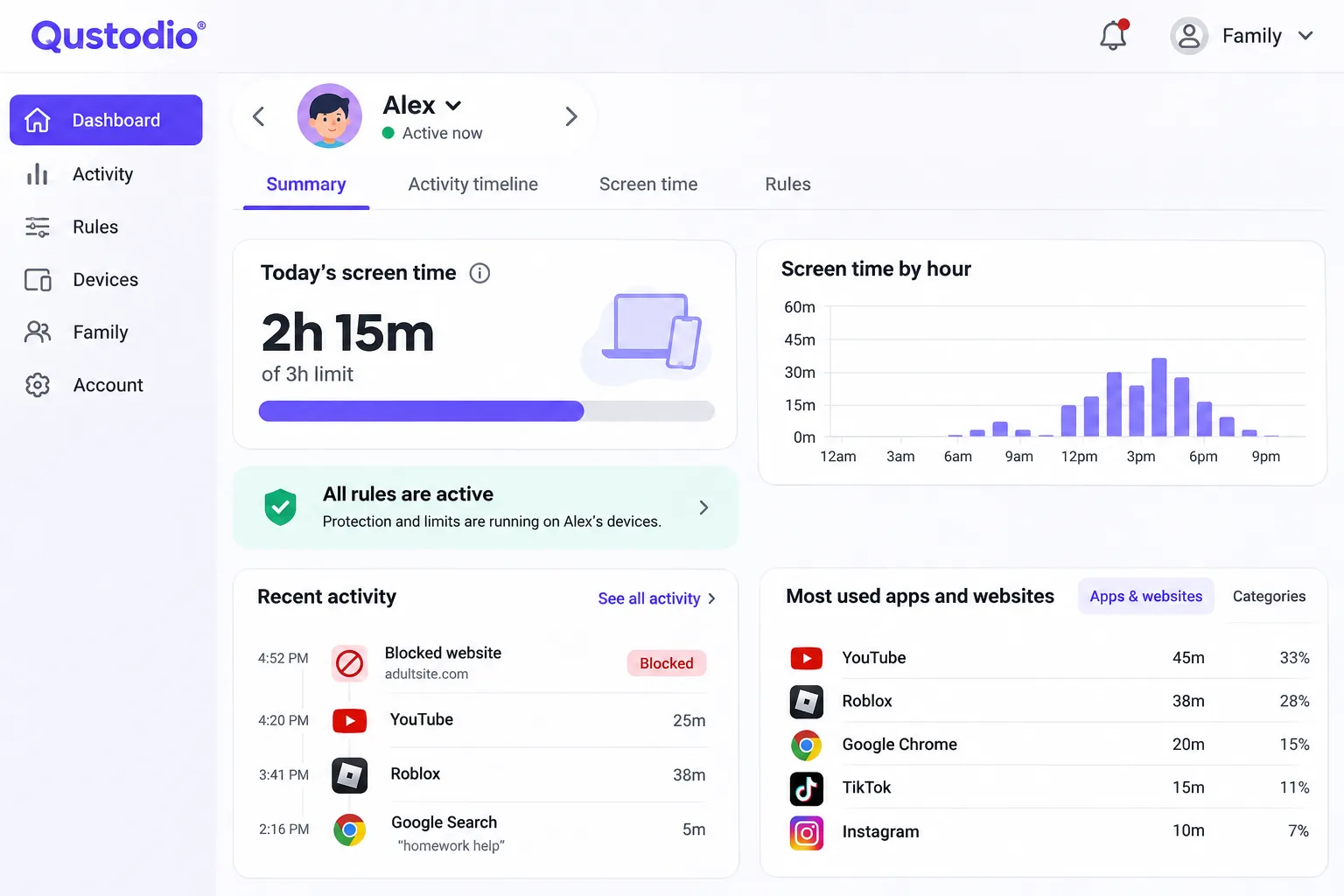
Where Eyezy shows you what happens on a phone, Qustodio decides how much of it happens. It's the app we'd pick if your main goal is screen-time limits, schedules and web filtering. It also covers more device types than any other app in our ranking: Windows, Mac, Chromebook, Android, iPhone and iPad, and Kindle.
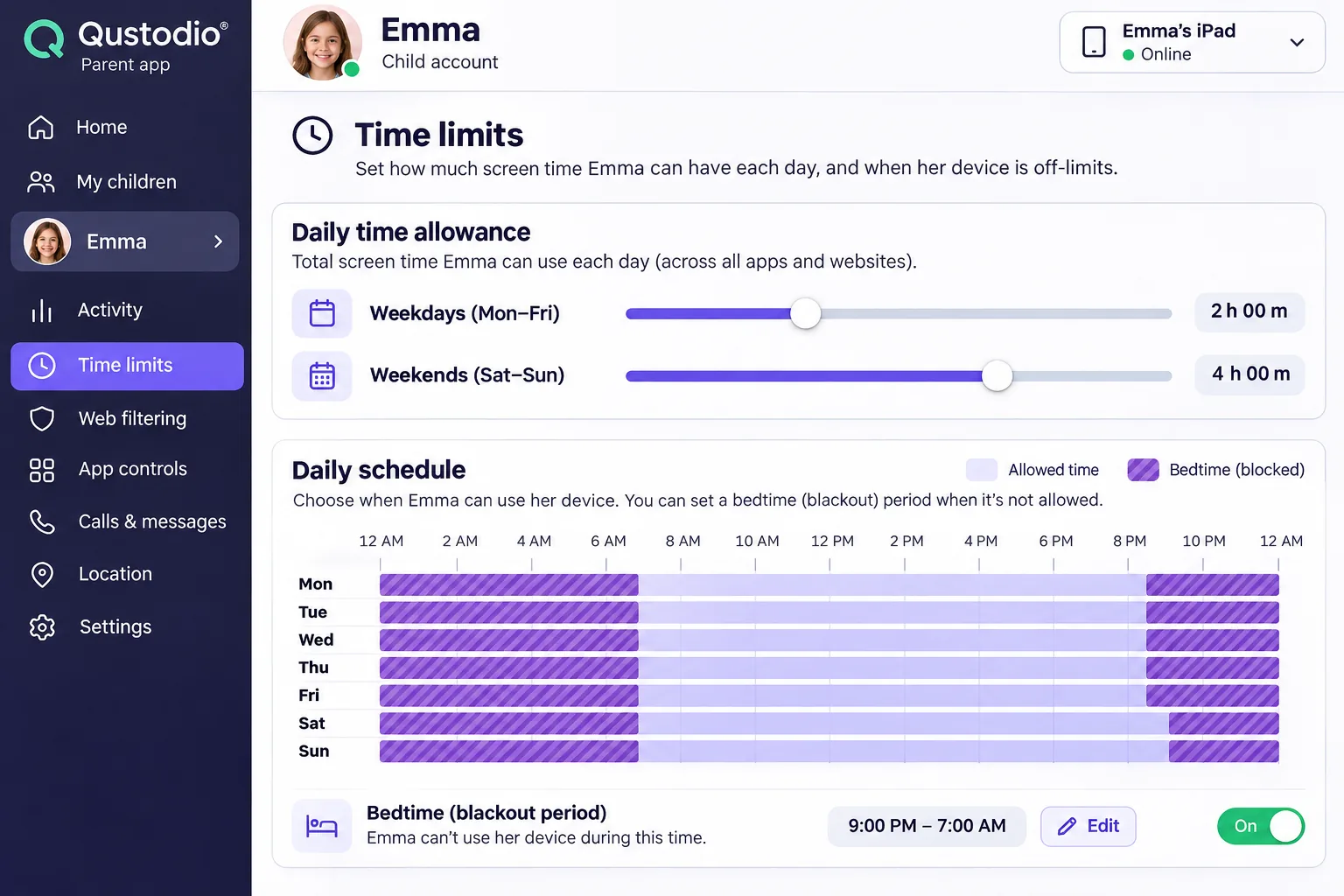
We started each child profile from one of Qustodio's age-based filter presets, then adjusted the 29 content categories by hand. Web filtering blocked inappropriate content reliably in Chrome and Edge. Per-app time limits, blackout periods and separate weekday and weekend allowances were quick to set up, and the daily digest emails gave us a readable summary without logging in. School arrival and departure alerts usually landed within seconds, although geofencing didn't trigger every time. General activity took 10 to 15 minutes to reach the parent dashboard.
Android is the fullest version of Qustodio. It adds call and SMS monitoring, a Panic Button and stronger app controls. The iPhone version is noticeably thinner: Qustodio installs a VPN profile for filtering, needs Apple's Screen Time switched off, and can't show in-app activity, block individual apps or monitor texts and calls. VPN and proxy workarounds were blocked most of the time, but not on every attempt.
The trade-offs are mostly about polish. Battery drain rose noticeably, by around 10 to 15 percent, and older Android phones lagged with Qustodio running. The Windows app looks dated and is buggier than the mobile apps, and setup on a Mac can take several restarts. Uninstall protection is awkward to set up, and without the extra desktop tool there are no tamper alerts. Social media monitoring is basic and can't see inside encrypted apps like WhatsApp, which is exactly the gap Eyezy fills.
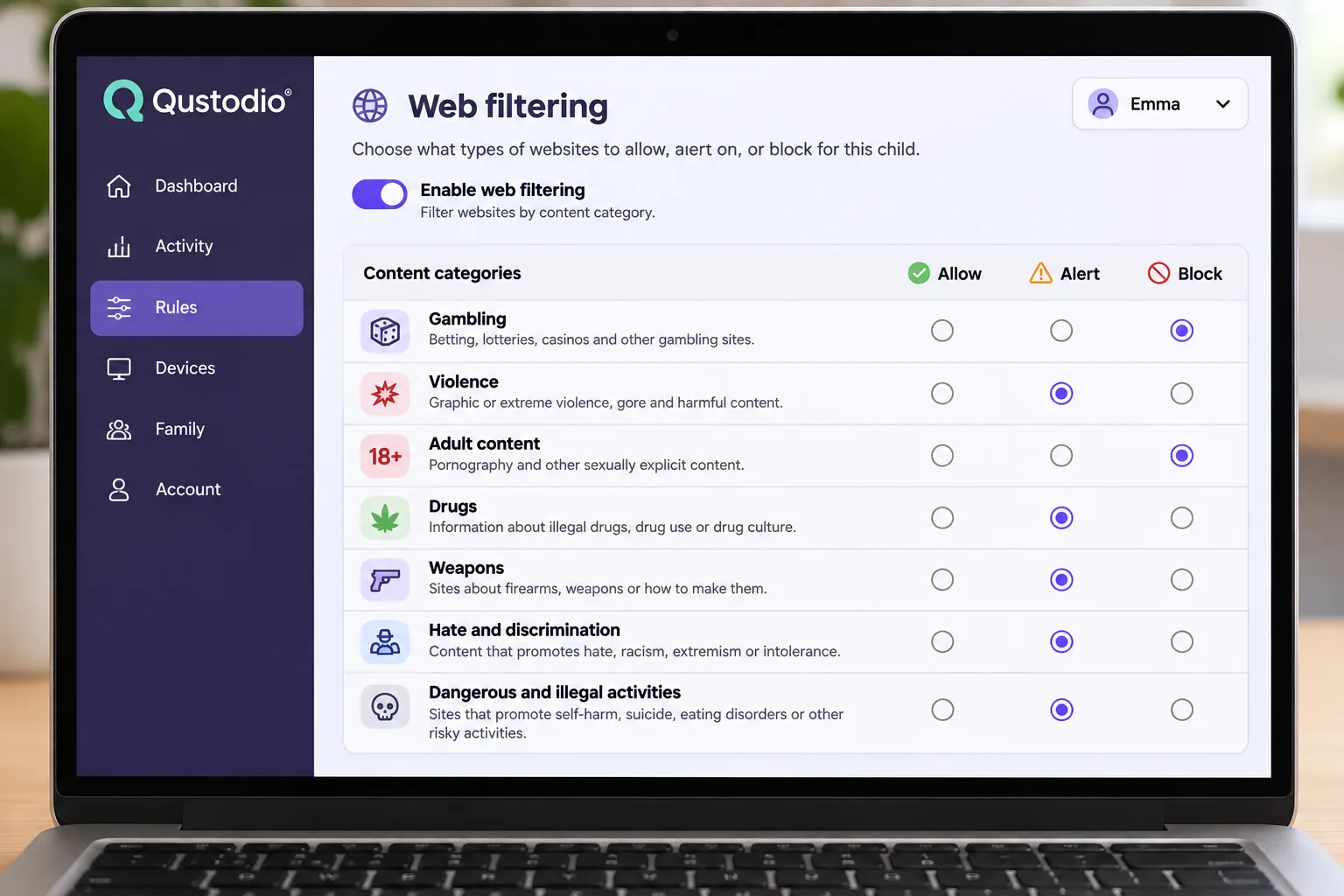
The free plan protects 1 device with basic features. On Qustodio's plans page, Basic costs $59.95 a year for up to 5 devices and Complete costs $104.95 a year for unlimited devices with Care Plus included. Qustodio shows different figures on the same plans page and has raised prices recently, so the checkout price depends on the current offer. Care Plus costs $12.99 as an add-on for Basic, and phone support is reserved for Complete. Every paid plan carries a 30-day money-back guarantee. Qustodio's premium trial length has changed over time and its plans page doesn't state it, so check at signup.
Pros
- Category web filtering with age-based presets
- Per-app limits, schedules and weekday/weekend allowances
- Widest platform list, including Chromebook and Kindle
- Free plan for 1 device and a 30-day money-back guarantee
Cons
- Thinner on iPhone and needs Screen Time switched off
- Can't see inside encrypted apps like WhatsApp
- Noticeable battery drain on some phones
- Dated, buggier Windows app
Who it's for: families who want firm, consistent rules across a mix of phones, laptops and tablets, especially with younger children and tweens. If you're weighing it against an alert-based tool, our Bark vs Qustodio comparison walks through the differences, and our Qustodio review covers each plan.
Our rating: 9.2/10
3. Bark: Best for Social Media and Text Monitoring
Bark takes a third approach. Instead of showing you every message like Eyezy or limiting time like Qustodio, it reads your child's messages for you and only speaks up when something looks wrong. It monitors texts, email and 30+ social media and messaging platforms, but it does not send you full message logs.
Connecting the social accounts took us around 30 minutes, and some platforms needed the child's login details. After that, Bark stayed quiet through normal teen chat and flagged messages about self-harm and bullying. It read context well enough that jokes between friends rarely triggered an alert. Alerts on flagged messages and web searches usually arrived immediately, though a few came in minutes late. Each one included suggested talking points for the conversation that follows.
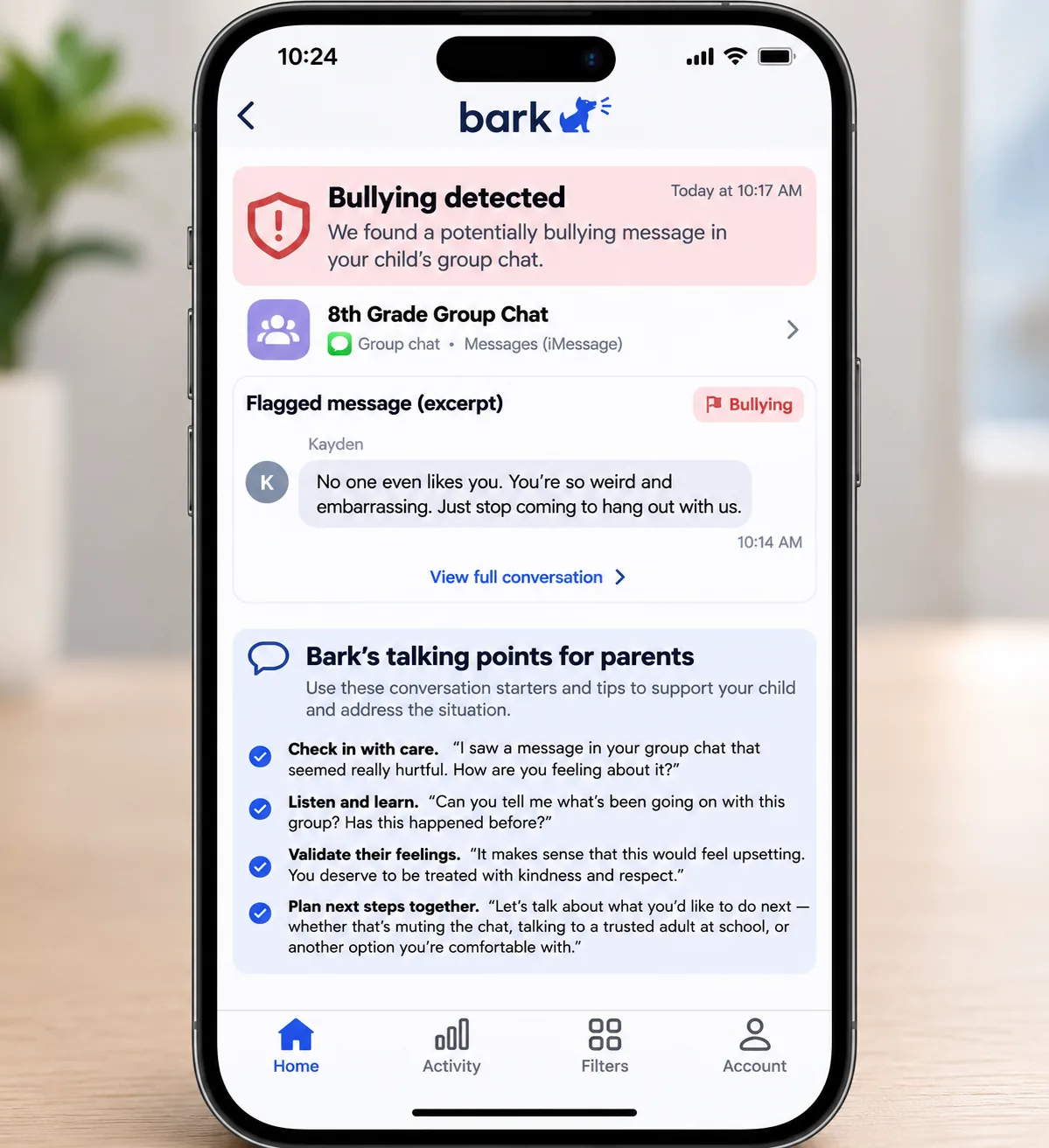
Bark sees more on Android than on iPhone, where Apple limits what it can analyze. iPhone setup was slower and can need a computer connection, while Android installation can require sideloading. Fuller iPhone and iPad monitoring comes through Bark Sync, an optional add-on at $6 a month or $49 a year. Bark is also thinner on controls. Browsing history is limited, there are no call logs or permanent archive, and its screen-time tools are weaker than those of dedicated control apps. The dashboard also gets cluttered with several children.
Bark Premium costs $14 a month or $99 a year, plus tax, and covers unlimited children and devices. Bark Jr costs $5 a month or $49 a year and drops the content alerts but keeps screen time, app and site blocking and location. There's a 7-day free trial, though you'll enter payment details upfront. For TVs and consoles, Bark Home costs $79 one-time, and Bark Phone plans start at $29 a month in the U.S. only. The Bark app is available in the U.S., South Africa and Australia.
Pros
- Alerts on bullying, self-harm and explicit content across 30+ platforms
- Few false alarms from normal chat
- Suggested talking points with each alert
- Unlimited children and devices on one plan
Cons
- Sees much less on iPhone without the Bark Sync add-on
- No full message logs, call logs or permanent archive
- Weaker screen-time tools than dedicated control apps
Who it's for: parents of teens who want a safety net for serious problems without reading private conversations. It's a strong middle ground between full visibility and no monitoring at all.
Our rating: 8.7/10
4. Norton Family: Best Value for Big Families
Norton Family sits at the opposite end from Bark. It doesn't read messages at all and puts its effort into web filtering, time rules and location instead, all for one yearly price. That makes it a sensible fit for a household with several children who mostly need guardrails.
Its web filter held up well in our testing. Blocked sites stayed blocked across Chrome, Samsung Internet, the Google app and private browsing, and each attempt sent an alert to the parent. Instant Lock took effect within seconds on some Android phones and after about a minute on others, while unlocking was near-instant. On iPhone, web filtering and schedules worked reliably, though app-level insight is limited.
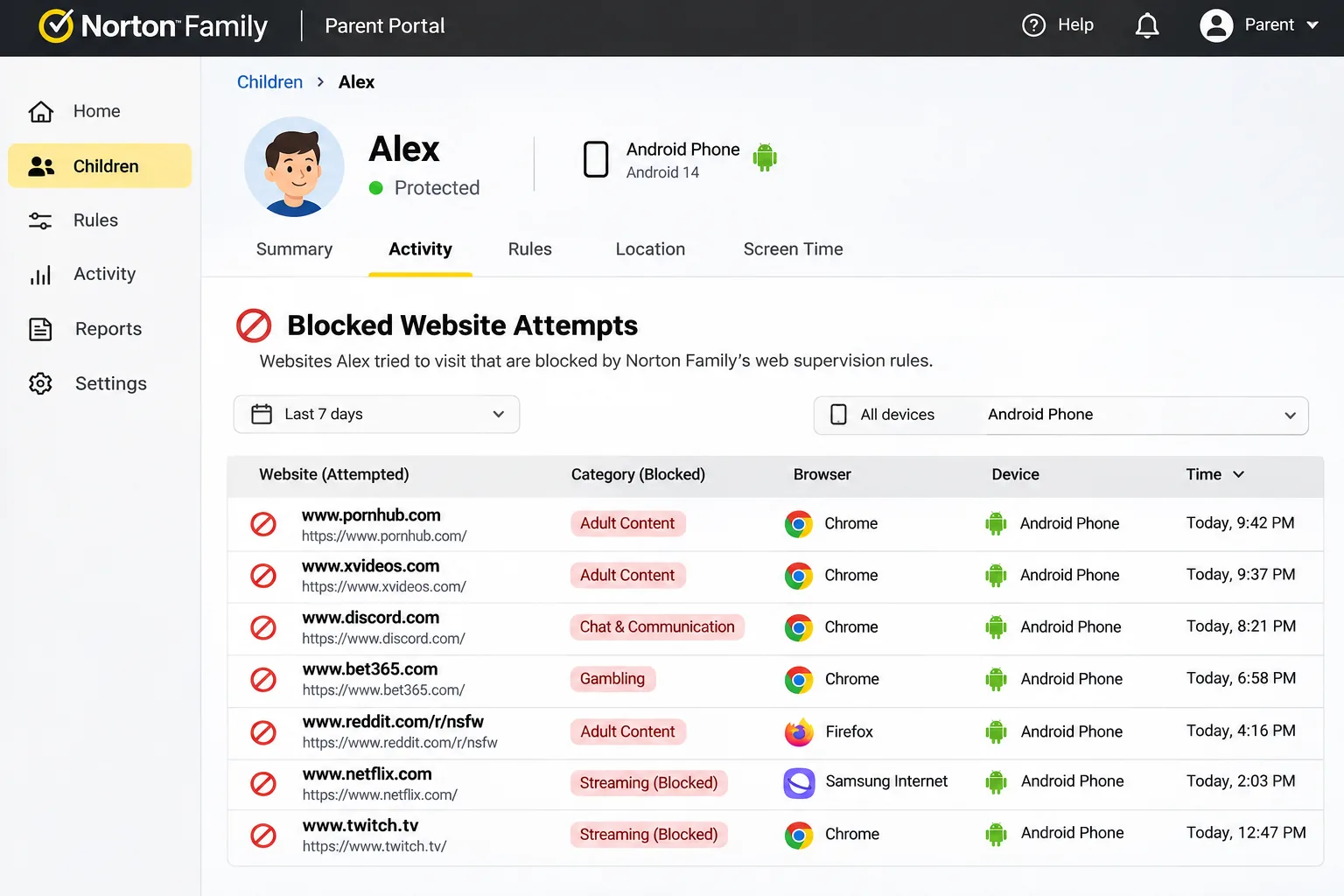
The weaker spots are worth knowing before you commit. Android setup involved about eight permission steps, some of them hard to find in settings. There are no per-app daily limits: apps are either allowed or blocked, and time limits apply to the whole device. School Time blocks websites but doesn't override app rules, so an allowed app like Snapchat stays usable during school hours. Reports don't record viewing in the YouTube app, TikTok or Hulu. Changing the device clock can also defeat scheduled downtime on Android. Location refreshed in seconds on some phones but lagged two to three minutes, or failed to refresh, on others.
Norton Family costs $49.99 a year on its own (about $4.17 a month) and is also bundled into Norton 360 Deluxe and higher plans. A 30-day free trial needs only an account, and paid plans carry a 60-day money-back guarantee. Child devices can run Windows, iOS or Android 10 and later, but Macs aren't supported as child devices. Location Supervision keeps a 30-day location history with boundary alerts. Norton states different device allowances on its checkout, support and renewal pages, so confirm the limit before you buy. Search and video supervision need the Norton Browser on phones. Live chat support is available 24/7.
Pros
- Web filter held across browsers and private browsing
- One low yearly price
- 30-day location history with boundary alerts
- 30-day free trial with no payment details
Cons
- No per-app daily limits
- No Mac support for child devices
- Clock changes can defeat downtime on Android
- No message or social media monitoring
Who it's for: larger families on Windows, Android and iPhone who want dependable web filtering and location on a budget. See our Norton Family review for a closer look at each supervision tool.
Our rating: 8.5/10
5. Aura Parental Controls: Best All-in-One Online Safety
Aura goes further than Norton by folding parental controls into a wider online-safety service, with identity theft protection and antivirus on its Family plan. Its controls run through Aura's own VPN on the child's phone. That VPN is both Aura's strength and its main setup step.
Getting started meant enabling Aura's VPN on each child's phone. From there, the default filters blocked adult, gambling and violent sites, catching about nine in ten sites in the blocked categories, and we added the rest by hand. SafeSearch on Google, Bing and DuckDuckGo and YouTube Restricted Mode held up reliably. The Pause the Internet button cut off every device on a child's profile at once, which is handy at dinner time. Aura also caught VPN bypass attempts and blocked location-spoofing apps. Rebooting an Android phone into safe mode got around its restrictions, though that also stopped most other apps from loading.
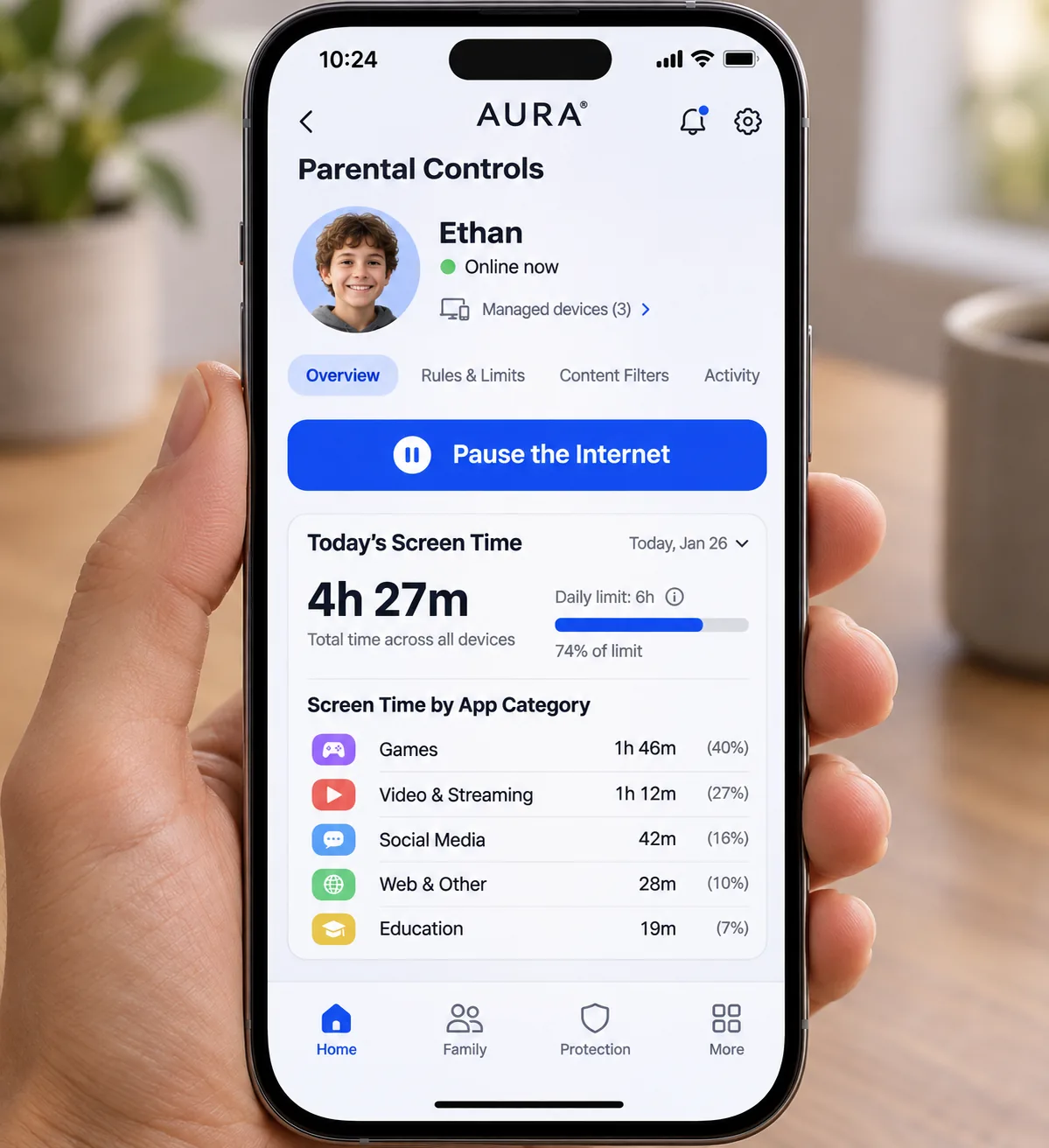
Screen time limits worked well on Android but rarely held on Apple devices, where Apple's own Screen Time does the job better. Social media monitoring shows time spent and lets you block platforms, but you can't read messages or posts, and texts aren't monitored. There's no GPS location tracking or geofencing, and the controls work only on phones and tablets, not desktops, laptops or Chromebooks. The exception is Safe Gaming by Kidas, which runs on Windows PCs only and monitors in-game voice and text chat on 200+ PC games and platforms, including Roblox, Fortnite and Discord.
Aura's own page lists the Kids plan at $10 a month billed annually or $13 month to month, covering unlimited kids and devices. The Family plan adds identity theft protection and antivirus for five adults at $32 a month billed annually. Aura has repriced both plans, and older, lower figures still appear in reviews. There's a 14-day free trial, redeemable once, and a 60-day money-back guarantee on annual plans. Parental controls need iOS 16 or later or Android 12 or later.
Pros
- Strong default filters with SafeSearch and YouTube enforcement
- Catches VPN bypass attempts
- Pause the Internet for a whole profile
- Safe Gaming chat monitoring on Windows PCs
Cons
- No location tracking or geofencing
- Screen time limits rarely held on Apple devices
- No controls on computers or Chromebooks
Who it's for: families who want parental controls and broader identity and device protection under one subscription, mostly on Android.
Our rating: 8.4/10
6. Microsoft Family Safety: Best for Windows and Xbox Families
Microsoft Family Safety is the first fully free app in our ranking, and it's built around the devices Microsoft makes. Microsoft Family Safety is free with a Microsoft account and sets screen time limits on Windows 10 and 11, Xbox consoles, and Android apps and games. Extra features are tied to Microsoft 365 Family. On iPhone it works only as a management app for parents.
Its best trick is one schedule across the whole setup. A single device screen time limit covered both a Windows PC and an Xbox, which suits console-heavy households. When we turned on web filters, the child account was pushed onto Microsoft Edge and other browsers were blocked. Approval requests for app access and extra screen time were slow and inconsistent, which left us unsure whether a change had applied. Activity reports also missed some apps.
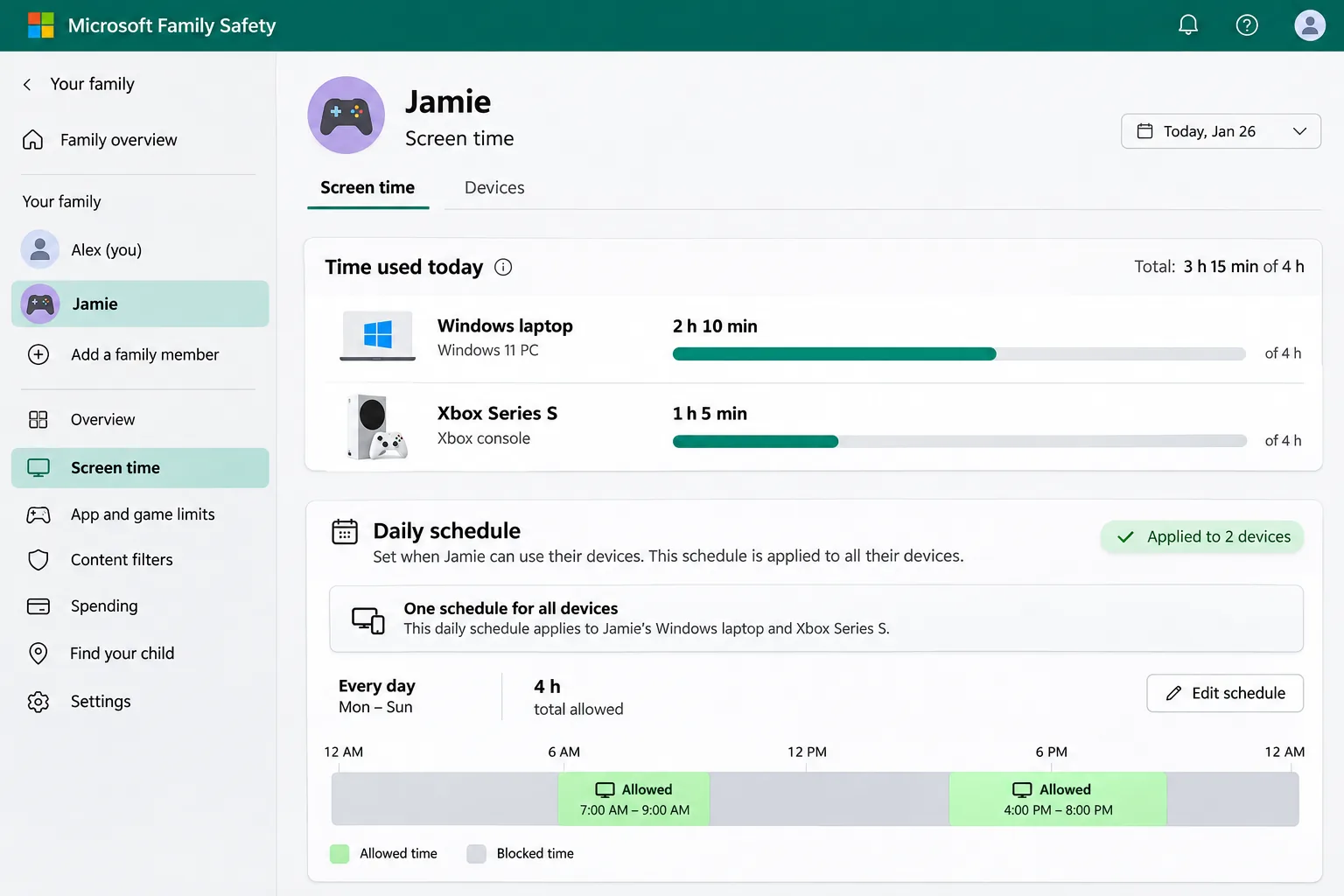
Microsoft's September 8, 2026 update promised faster approvals for app access, screen-time extensions and purchases, plus activity reports that cover more PC apps, though some issues remain. Content filters use age ratings for apps and games, and spending controls cover Microsoft Store and Xbox purchases. Location sharing and Drive Safety were removed from Family Safety on November 29, 2024, but some of Microsoft's undated help pages still describe location alerts. Don't count on Family Safety for location.
Pros
- Free with a Microsoft account
- One schedule across Windows and Xbox
- Purchase controls for Microsoft Store and Xbox
Cons
- Web filters work only in Edge
- Approval requests can be slow to apply
- No location sharing and no iPhone controls
Who it's for: households where the main screens are Windows PCs and Xbox consoles. Pair it with Screen Time or Family Link for phones.
Our rating: 8.0/10
7. Google Family Link: Best Free App for Android
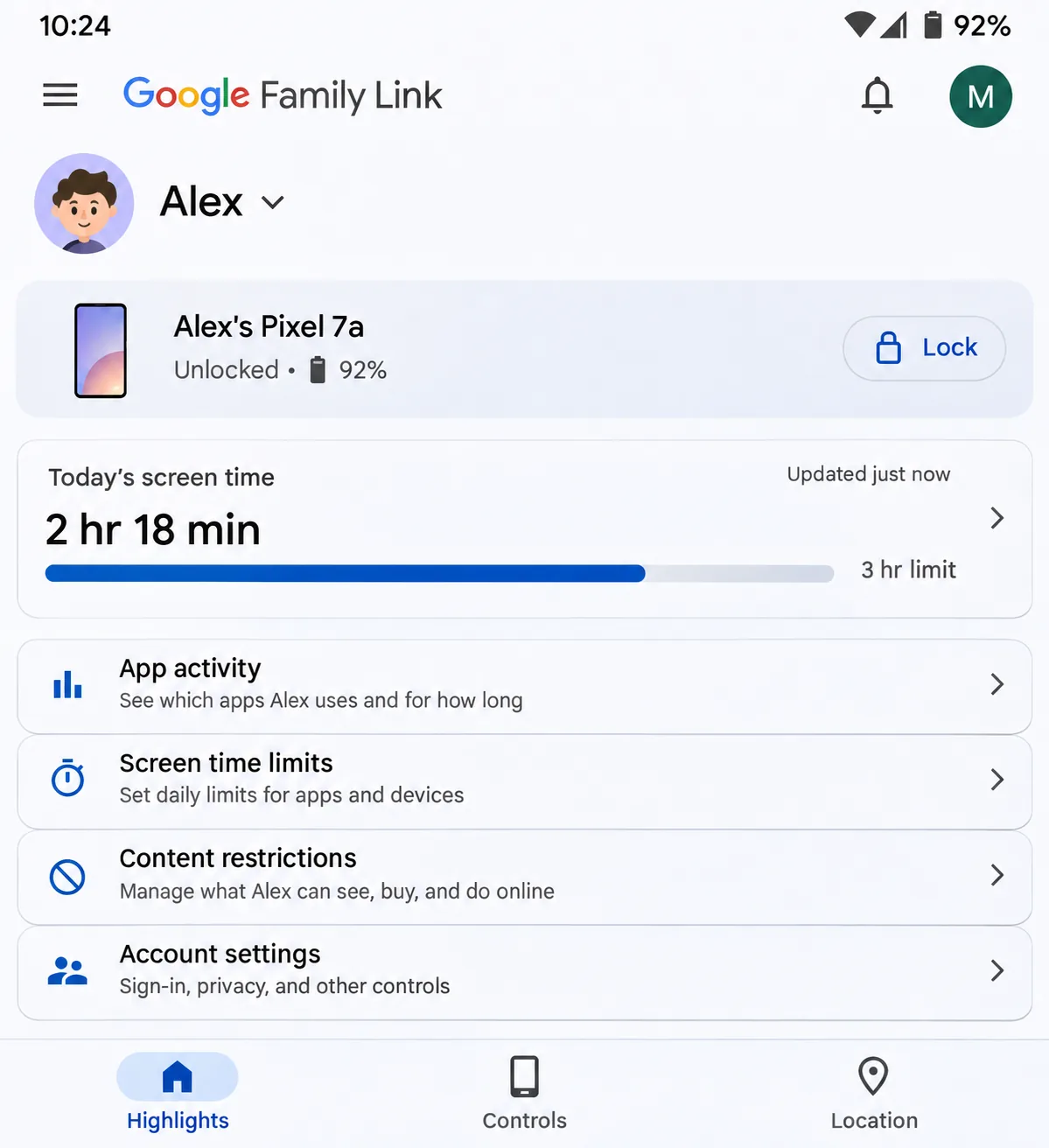
Google Family Link does for Android what Microsoft's tool does for Windows, and it's a strong free option for Android phones. Google Family Link is free, with no subscription, in-app purchases or ads. It controls Android phones, Android tablets and Chromebooks. Parents can manage it from Android or from an iPhone running iOS 17.0 or later, but there's no child app for iPhone.
Per-app time limits and app approvals are the strongest part of Family Link. We set daily limits, a bedtime and per-app caps, then approved new downloads from the parent's phone. Removing a limit or granting bonus time took a short while to reach the child's phone, so expect a pause before extra minutes appear. Web filtering through Chrome and SafeSearch didn't catch all explicit content. Family Link also shows current location, with arrival and departure alerts for family places, but keeps no location history.
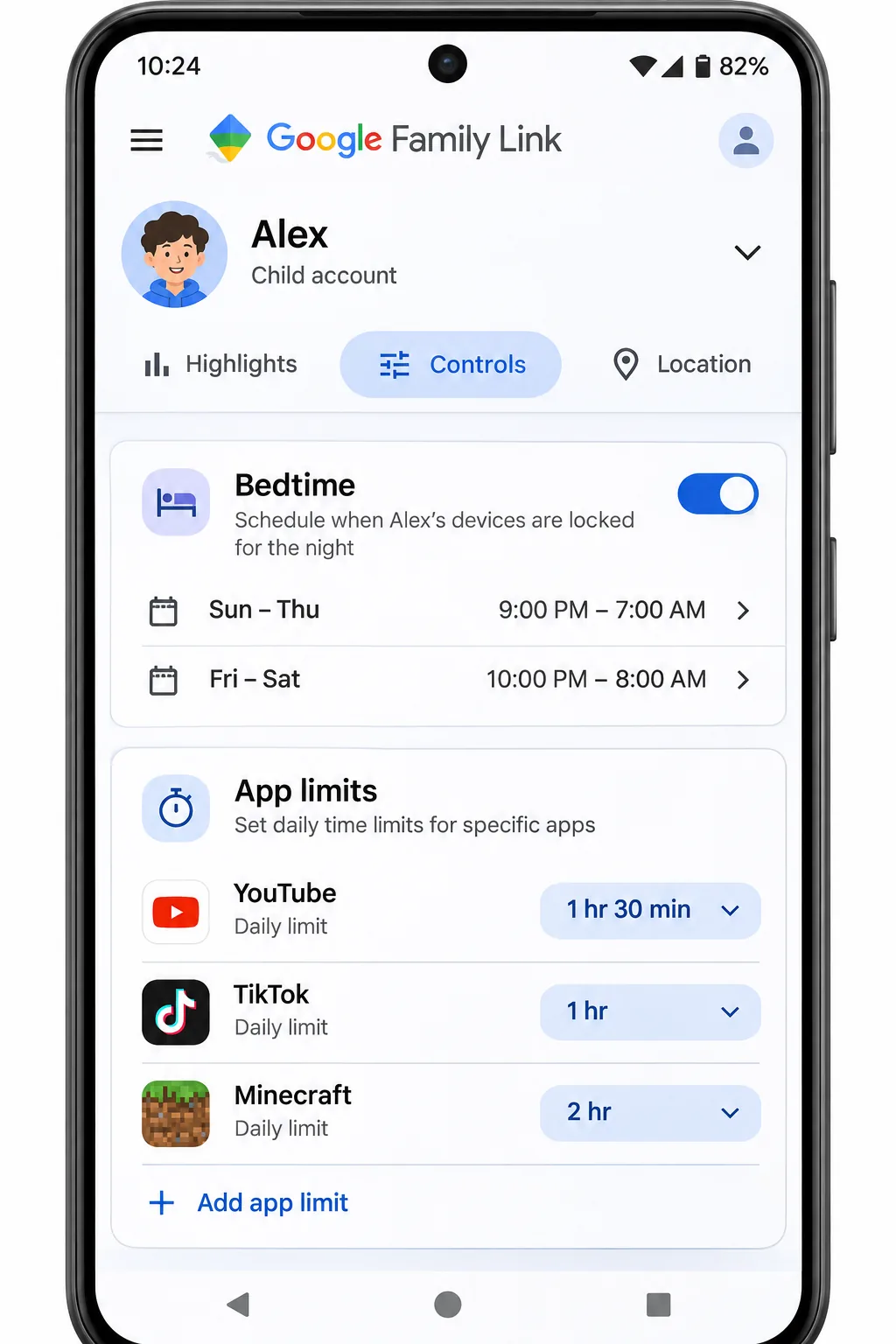
Family Link also handles YouTube and Play parental controls and contact and call settings, and it can ring the device and check its battery level. There's no message or social media monitoring. Since Google changed the rule in January 2026, teens aged 13 to 18 need a parent's approval to remove supervision, though some help pages and reviews still describe the older opt-out at 13. Our Google Family Link review walks through setup step by step.
Pros
- Completely free with no ads
- Strong per-app limits and app approvals
- Location with family place alerts
Cons
- No child controls on iPhone
- Web filter misses some explicit content
- No location history or message monitoring
Who it's for: Android and Chromebook families who want solid basics for free.
Our rating: 7.8/10
8. Apple Screen Time: Best Free Option for iPhone
Apple Screen Time is the iPhone counterpart to Family Link, built into every iPhone and iPad at no cost. It needs Family Sharing and a Child Account for each child. Apple's guide to parental controls on a child's iPhone notes that the newest Screen Time features require iOS 27 or later on every family device.
The feature set is broader than many parents expect. Screen Time Schedules control when apps are available, Time Allowances set daily budgets by category such as games and social, and Allowed Contacts asks for your approval when your child adds someone new. Ask to Buy covers downloads, Content & Privacy Restrictions handle age ratings and settings locks, and Communication Safety detects nudity in photos, videos and FaceTime. Location lives separately in Find My.
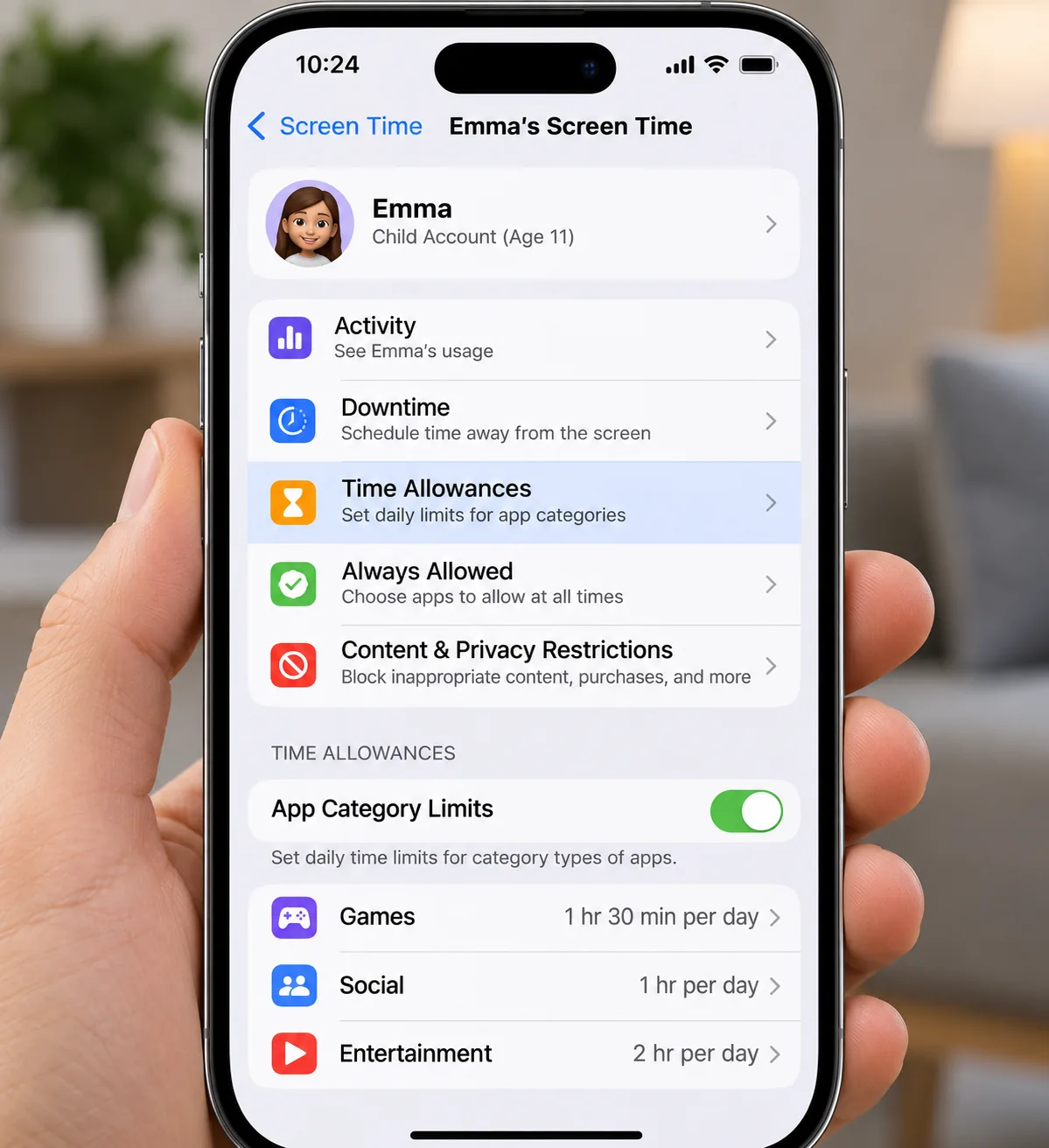
Screen Time's weak spot is reliability, and we ran into it during setup. We set Time Allowances for games and social apps from the parent's iPhone, then picked up the child's iPhone to check them, and the limits hadn't stuck. Nothing on the parent's side warned us that the restrictions had lapsed, and that silence is what worries us most for busy families. What fixed it was setting the same limits directly on the child's iPhone, which held where the synced settings hadn't. Apple acknowledged a bug in July 2023 that could reset Screen Time settings and promised further fixes, so it's worth checking the child's device after any change. Even with these quirks, third-party screen-time controls on iPhone are weaker than Apple's built-in Screen Time, because Apple restricts outside control.
Pros
- Free and built into every iPhone and iPad
- Category time allowances and contact approvals
- Communication Safety for explicit images
Cons
- Settings can reset with no alert to parents
- No message or social media visibility
- Apple devices only
Who it's for: every iPhone family as a baseline, especially for younger kids.
Our rating: 7.6/10
Other Parental Control Apps We Considered
These four apps came close but didn't make the ranked list. Each one does something well, and one of them may suit your family better than our picks.
Mobicip
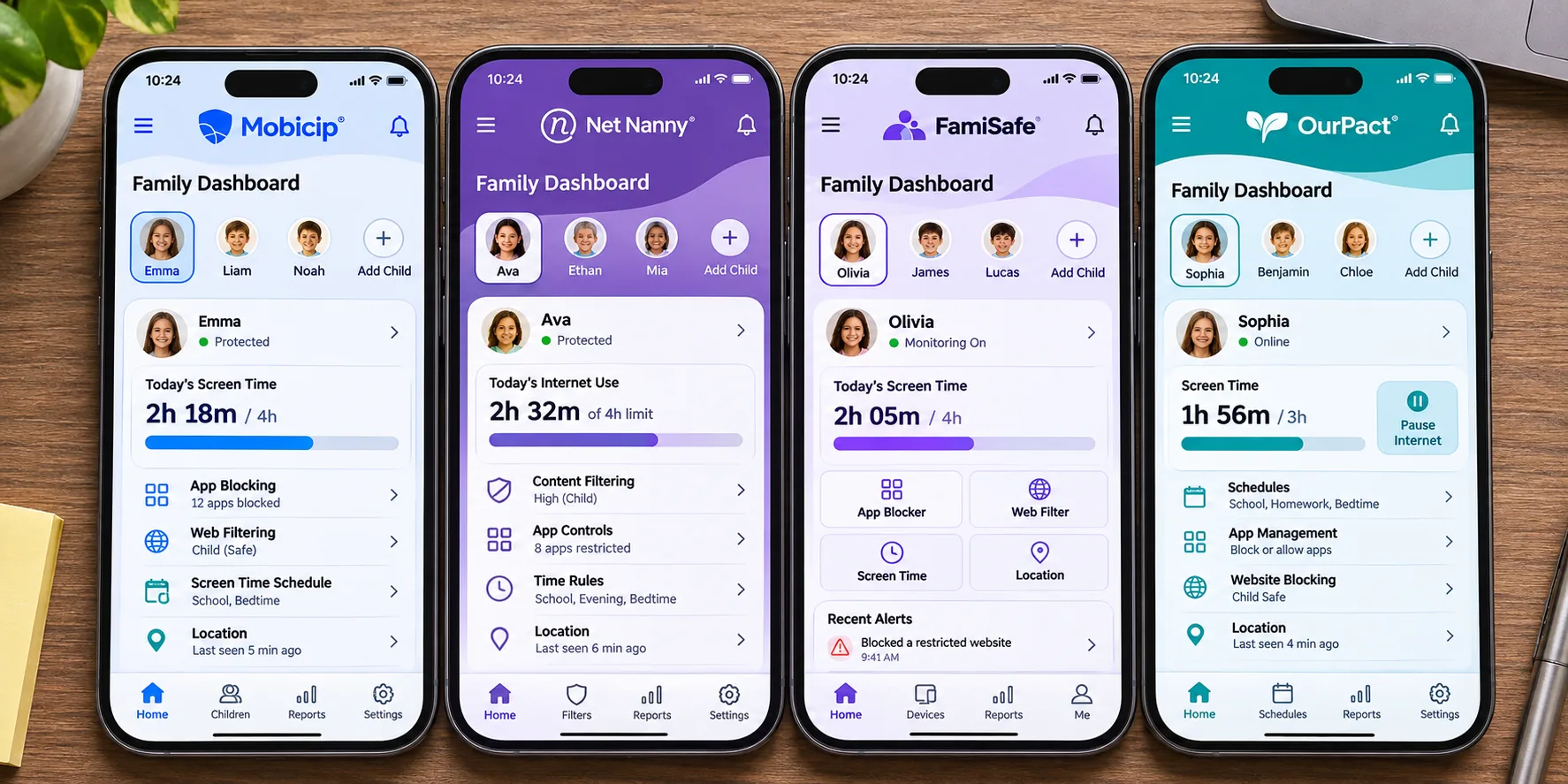
Mobicip offers screen-time schedules and limits, web content filtering, app blocking and location on iPhone, iPad, Android, Kindle Fire, Mac, Windows and Chromebook. It's one of the cheapest multi-device options: billed annually, Mobicip costs $2.99 a month for Lite (5 devices), $4.99 for Standard (10 devices) and $7.99 for Premium (up to 20 devices). There's a free Basic plan for 2 devices and a 7-day free trial with no card charged. It missed our top eight because Qustodio does the same job with deeper controls, but our Mobicip review is worth reading if price per device matters most.
Net Nanny
Net Nanny is still on sale, but it failed our check for this year's list. It supports Windows 10 and 11, macOS 10.13 to 11.x and iOS 11 and higher, with no Android app at all. Its content filter covers 14 categories, yet custom filters let related content through. Searches for terms like suicide or gambling also failed to appear in its Family Feed. Setup took about an hour for a single device, the web filter could be bypassed, and cancelling auto-renewal through support didn't always stop renewal charges. Net Nanny shows limited-time sale prices (from $39.99 a year for one desktop) alongside higher list prices. Our Net Nanny review has the full history.
FamiSafe
On iOS and Android, FamiSafe covers screen time limits, app blocking, web filtering, location tracking with geofencing, and explicit-content detection using 1,300+ default keywords. Its image masking pixelates explicit images but can still reveal detail underneath. There's a 3-day free trial, and the monthly plan costs $9.99 for up to 5 devices. FamiSafe's annual price and device allowance differ between its pricing pages and reviews, so check the figure at checkout.
OurPact
OurPact focuses on screen time management and location sharing across iPhone, iPad and Android, and you can mix iOS and Android devices for the same child. Premium costs $6.99 a month or $69.99 a year, Premium+ costs $9.99 a month or $99.99 a year, and both cover up to 20 child devices with a 14-day free trial. Premium keeps 7 days of location history, while Premium+ keeps 30 and adds a Content Monitor that takes screenshots and flags harmful content. It's a good simple option, but Qustodio and Family Link cover the same ground with stronger filtering.
How We Tested Parental Control Apps
We set up every app the way a parent would: the child app or profile on a phone, tablet or computer, and the parent controls on a phone and the web dashboard. Where an app supports them, we ran it on iPhone, Android, Windows and Mac, because the same app often behaves very differently on each. Eyezy and Qustodio are the clearest examples, with Android versions that go much deeper than their iPhone versions.
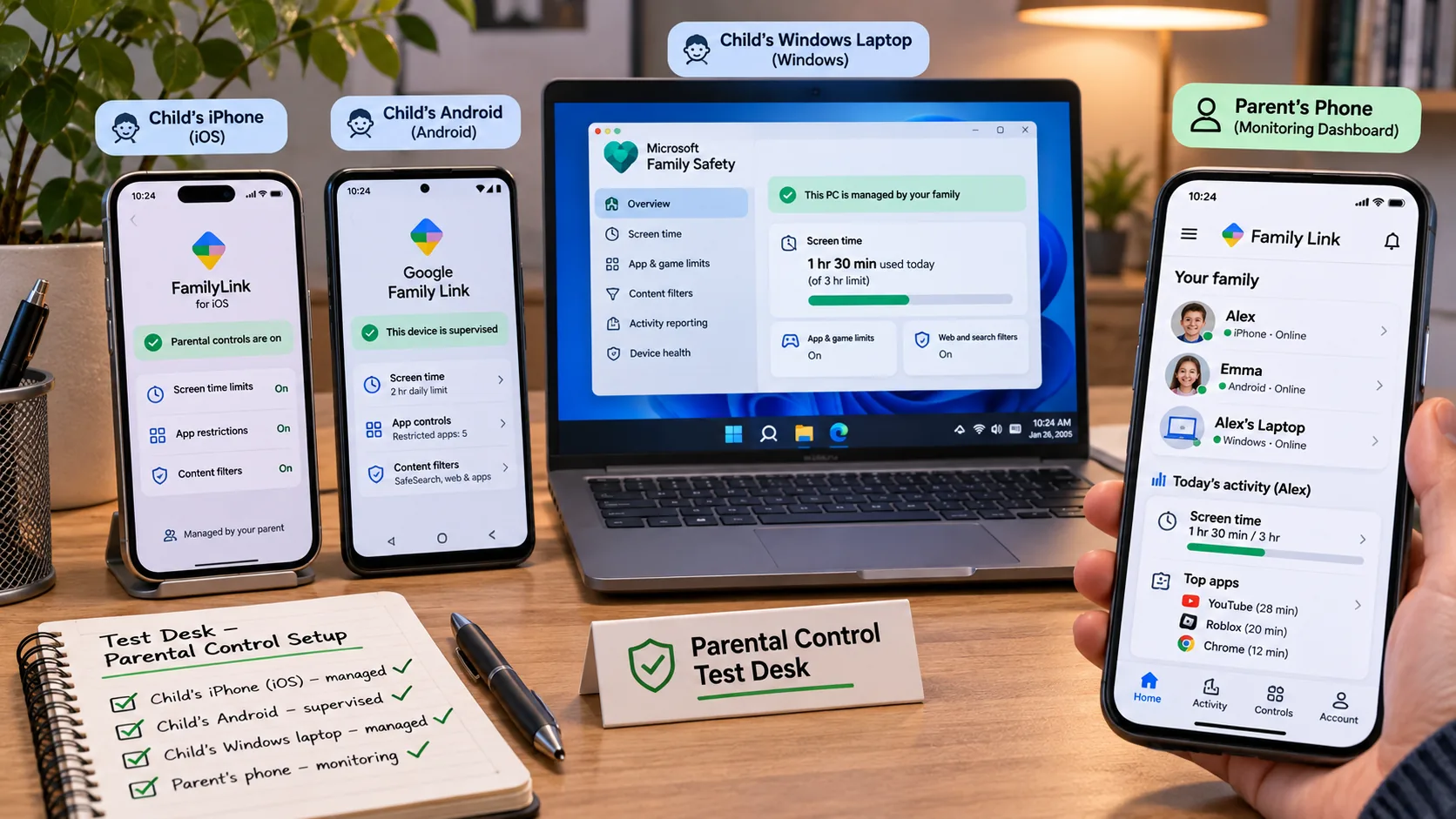
We scored each app on six things:
- Setup: how long it took, how many permissions it needed, and whether you need the child's device in hand.
- Controls: web filtering, screen-time limits, schedules and app blocking, and whether they held across browsers and private browsing.
- Visibility: messages, social apps, location, geofences and alerts, and how quickly each reached the parent.
- Bypass resistance: what happened when a child tried a VPN, safe mode or a clock change.
- Price and terms: what each plan really costs, device limits, trials and refund rules.
- Privacy and transparency: whether the app suits a monitoring arrangement your child knows about, and how much data it moves through the vendor.
Our ratings weigh these against each app's purpose. A monitoring app like Eyezy isn't marked down for lacking a web filter it never claims to have, but we say so plainly in its section so you can pair it with a tool that has one.
How to Choose the Best Parental Control App
Choosing gets easier once you decide what you're really worried about. If it's too much time on screens or stumbling onto inappropriate content, you need a control app. If it's what happens inside chats and social apps, you need monitoring, and many families end up with one of each.
Match the App to Your Child's Devices (iPhone vs Android)
Start with the phone your child actually carries. Text and social monitoring goes much deeper on Android than on iPhone across nearly every app we tested. On iPhone, most control apps also filter through a VPN profile. That's why Eyezy uses iCloud backups on iPhone instead of an app install, and why Qustodio's iPhone version can't block individual apps.
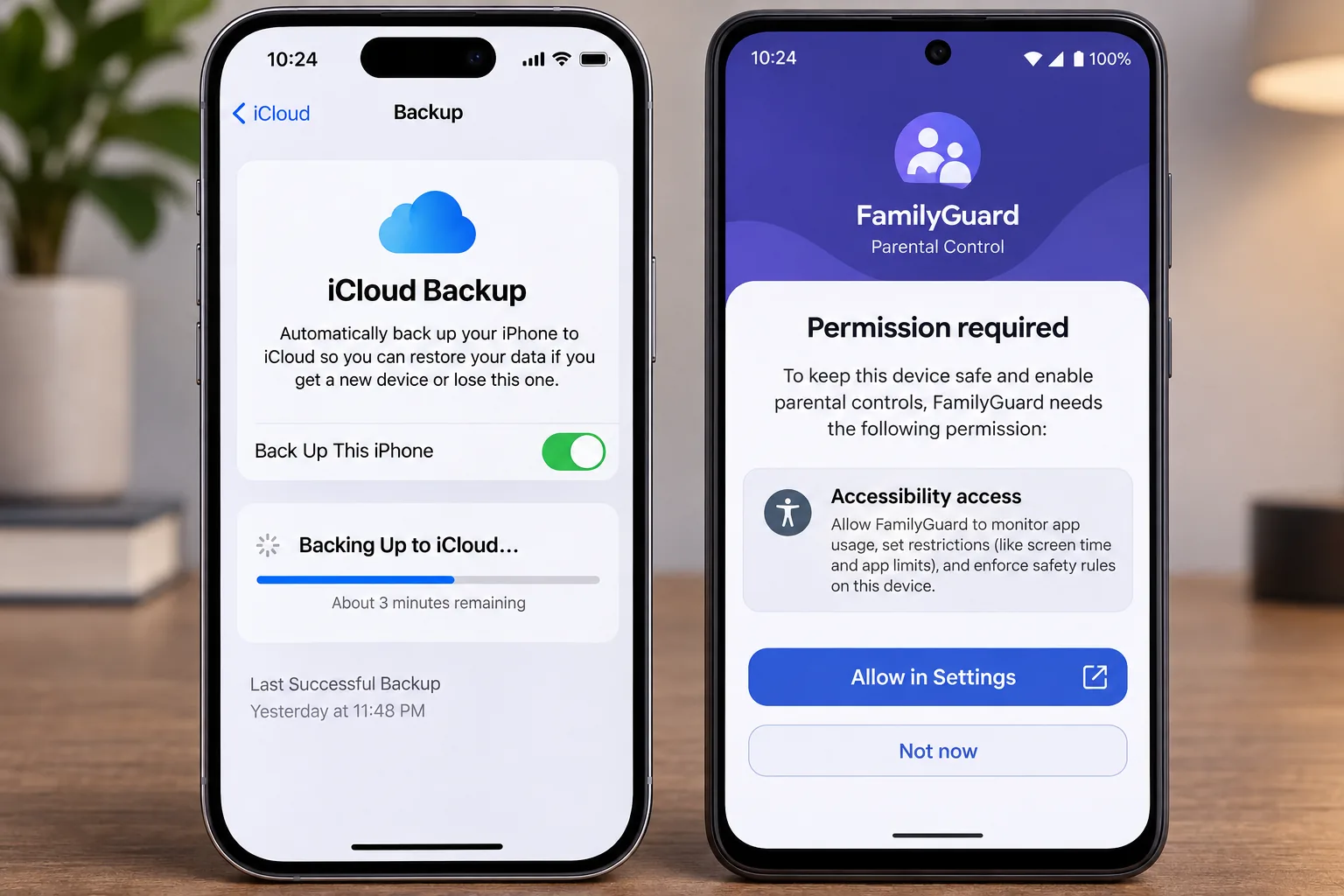
For iPhone, Apple Screen Time is the strongest free base for limits, and third-party screen-time controls are weaker than Apple's own. Our guide to the best parental control apps for iPhone covers that platform in detail. Android gives apps more room to work, so our best parental control apps for Android roundup goes deeper on monitoring and limits. If the main screen at home is a family computer, our picks for parental control software for PC cover Windows and Mac.
Match Controls to Your Child's Age
Common Sense Media's guide to a child's first phone puts the average age for a first phone at around 11 and suggests waiting until 13 or older where you can. Common Sense Media's 2025 census found that about 70% of kids own a smartphone by age 12, so many families face the question earlier than they'd like.
Its age guidance maps neatly onto the apps in this list:
- Ages 7 to 9: basic devices, supervision of all online interaction, and kid-friendly controls such as Screen Time, Family Link or Qustodio.
- Ages 10 to 12: a basic or supervised smartphone, essential safety features, and expectations you set together with your child.
- Ages 13 to 15: a shift from controlling to coaching, with basic boundaries and teaching your teen to monitor themselves.
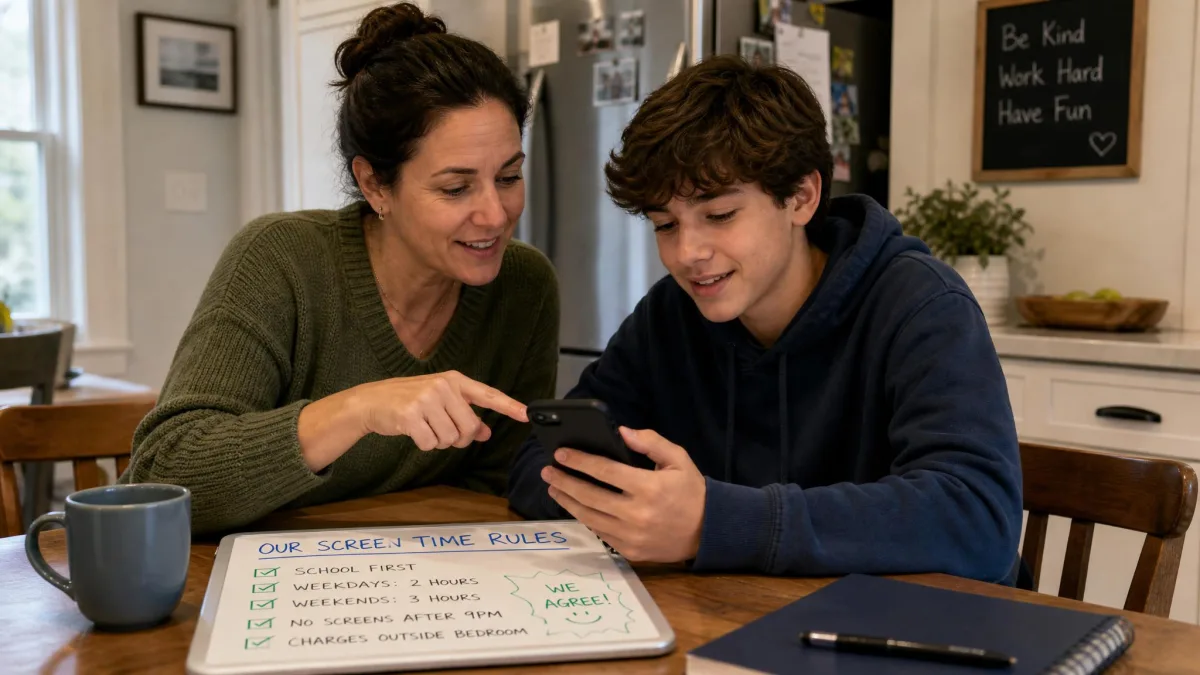
For older kids, the balance tips toward visibility and alerts rather than hard limits. Our list of parental control apps for teenagers focuses on that stage. Whatever the age, keep open conversations going about what the app does and why, because tech-savvy kids can find workarounds in most of these tools.
Key Features to Look For
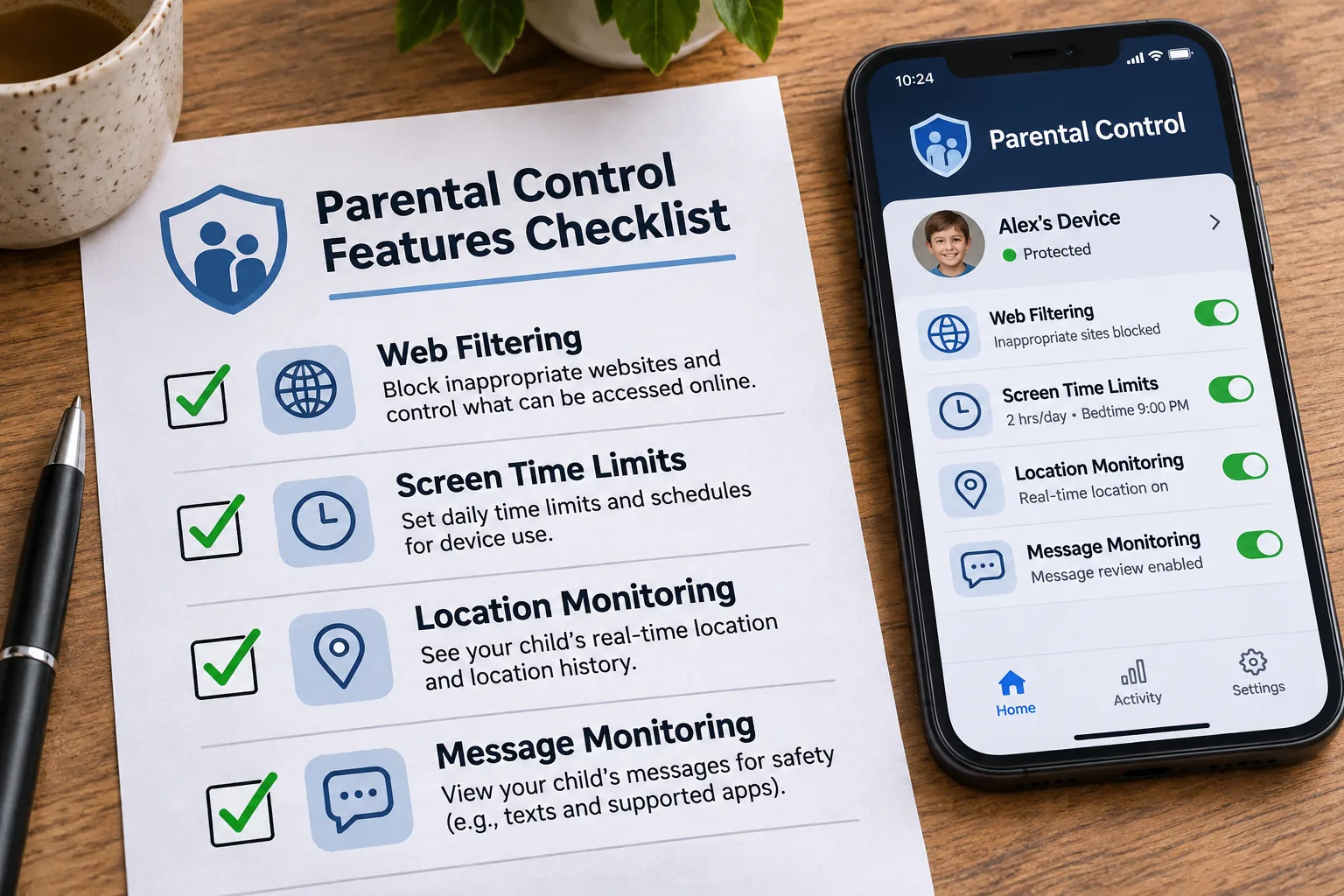
These are the features that separated the apps in our testing:
- Web filtering by category: blocks whole groups of sites, not just the ones you name. Eyezy doesn't offer this; Qustodio, Norton and Aura do.
- Screen time limits and schedules: daily limits, bedtimes and per-app caps. Norton limits the whole device, while Qustodio and Family Link go per app.
- Location tracking and geofencing: live location plus alerts when your child arrives at or leaves school.
- Message and social monitoring: either full visibility (Eyezy) or alerts only (Bark).
- Bypass protection: resistance to VPNs, safe mode and clock changes, plus alerts if the app is removed.
- Platform coverage: every device your child uses, including laptops, tablets and consoles.
Free vs Paid Parental Control Apps
Once device and feature fit are settled, the next question is budget. Free tools cover more than most parents expect. Apple Screen Time, Google Family Link and Microsoft Family Safety all set limits and filter content at no cost, and Qustodio's free plan protects 1 device. The catch is that each free tool controls only its own platform, and none of them shows you messages or social activity.
Paid apps earn their price in three places: one dashboard across mixed devices, deeper filtering and reporting, and visibility into messages, social apps and alerts. If your budget is zero, our ranking of the best free parental control apps compares the free options in more depth.
Parental Control vs Monitoring Apps: Privacy and Trust
Free or paid, every app here falls on one side of a bigger line: control or monitoring. The two solve different problems. Control apps set limits, filter content and block apps; Qustodio, Family Link, Screen Time and Net Nanny all work this way. Monitoring apps such as Eyezy give you visibility into messages, social apps and location, while Bark sits in between with an alert-based approach.
Our #1 is a monitoring app because, for many parents, the real worry lives inside messages and social apps, and a filter can't show you any of that. A control app is still the better first choice for young children, or whenever your goal is limits rather than visibility. For a teen, pairing Eyezy with Screen Time or Family Link gives you both, and the free tools fill the gap Eyezy leaves on limits.
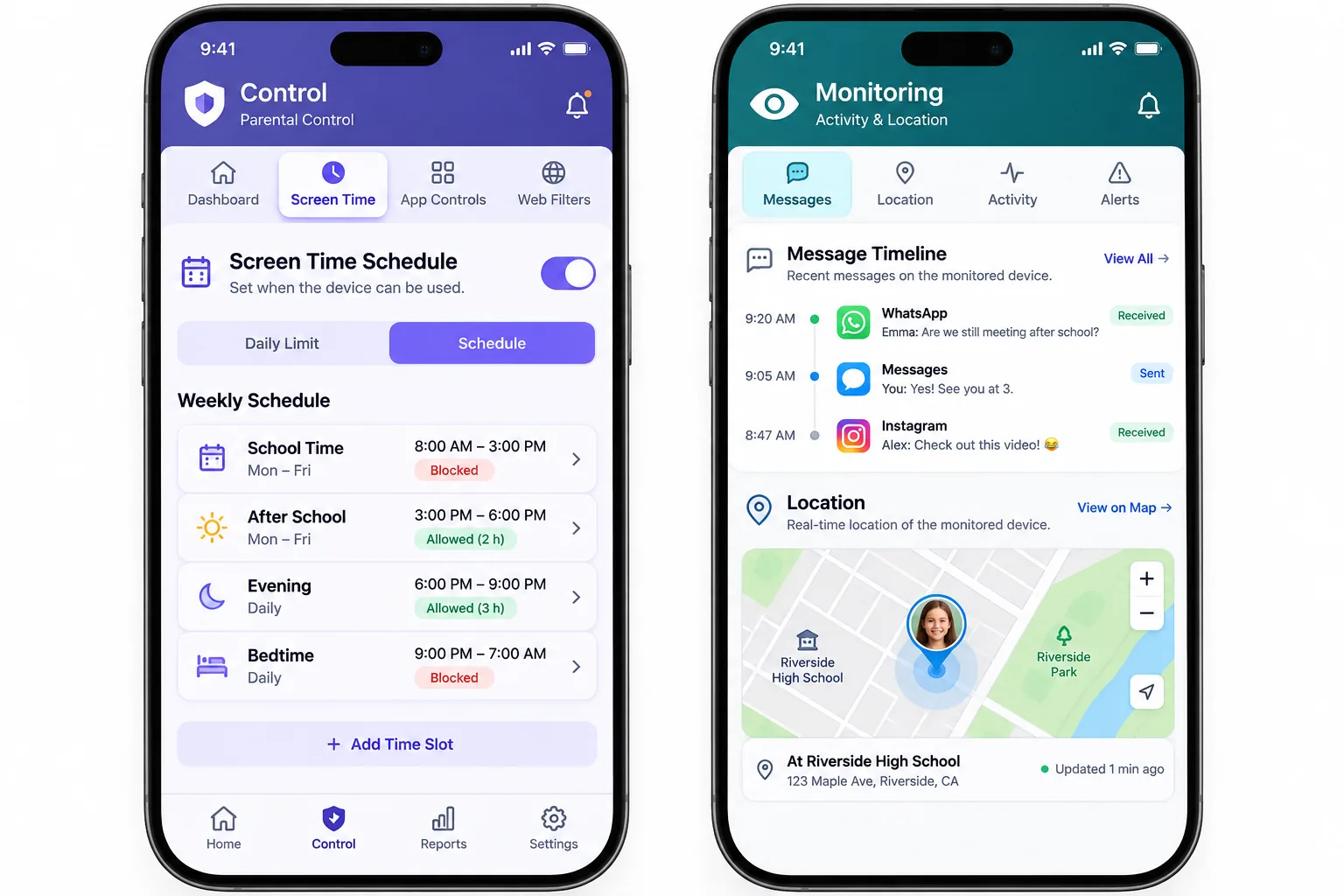
Trust is the part no app can set up for you. Tell your child the app is installed, agree the rules together, and explain what you will and won't look at. Then scale monitoring down as your child shows good judgment, so the app becomes a safety net rather than a permanent arrangement. That approach does more to keep kids safe online than any single setting.
Parental monitoring is for your own minor child's device. Installing monitoring software on another adult's phone without their consent is illegal, and the same tools used that way count as stalkerware, not parental controls.
Essential Settings to Configure After Setup
Once you've picked an app, the first hour after installation decides how well it works. Default settings are usually too loose for young kids and too strict for teens, so go through these before handing the device back.
- On iPhone, open Settings → Family → your child's name → Screen Time, then follow the onscreen instructions and set a Screen Time passcode your child doesn't know.
- Turn on approval for new downloads, through Ask to Buy on iPhone or app approvals in Family Link.
- Pick an age-based filter profile, then add or remove categories to fit your child.
- Set a bedtime and a school-time schedule rather than relying on one daily total.
- Turn on uninstall or tamper protection wherever the app offers it.
- Draw geofences around home and school so arrival alerts work from day one.
- In monitoring apps like Eyezy or Bark, add keyword alerts for topics you're worried about.
Test your own setup from the child's device before you trust it. Try a blocked site in a private tab, change the clock and check that downtime still applies, and confirm that a Screen Time limit set from your phone actually reached your child's.
Check the reports weekly for the first month. Most problems show up as gaps rather than alerts, such as an app missing from the activity list or a limit that didn't apply.
Final Verdict: Which Parental Control App Should You Choose?
Start with one question: do you need to see more, or limit more? For a younger child with a first phone, limits come first, so Qustodio or the free Screen Time and Family Link tools are the place to begin. For a teen whose risks sit in chats and social feeds, visibility matters more, so Eyezy is the place to start.
If your family mixes iPhones, Android phones and computers, Qustodio covers the widest spread of devices among our ranked picks from one dashboard, including Macs, Chromebooks and Kindle tablets. Whichever app you choose, run the quick self-test from the setup section before you rely on it.