Roku can't run a VPN app, so you won't find one to install from the channel store. You can still put your Roku behind a VPN, though, by sending its connection through another device that runs one.
There are four ways to do it: set up a VPN on your router, share a VPN from a Windows PC hotspot, share a VPN from a Mac, or use Smart DNS. Screen mirroring from a VPN-connected phone also works as a fallback. When we ran each of these setups, the Windows hotspot was the quickest way to get a Roku onto a VPN if a laptop already had a VPN app on it. The router route took the most work up front, but once it was running, nothing else in the house needed its own VPN app.
Why Roku Can't Run a VPN App
Roku OS is a closed, Linux-based operating system that Roku, Inc. builds and controls itself. It isn't Android, so you can't sideload an APK the way you can on some other streaming sticks. Channels run inside a sandbox, and none of them are allowed to create the virtual network interface a VPN app needs to tunnel traffic.
There's no VPN category in the Roku channel store, and the device has no system VPN client where you could type in a server address. Roku also gives you no manual DNS or proxy setting on the device itself. Every workaround therefore happens upstream, on whatever the Roku connects through. Roku, founded in 2002, controls the whole platform from the OS to the store, and nothing in the current Roku OS suggests it is about to open up.
Why go to the trouble? A VPN lets you pick a server in a different country, so streaming apps on the Roku see that location instead of yours. That's useful when you travel and want your home streaming library, or when a service limits content by region. It also encrypts the traffic leaving your network, so your internet provider can't see which services you stream.
Which Roku VPN Method Should You Use?
The right method depends on the hardware you already own and how often you want to switch countries. The table below compares the four methods plus screen mirroring, which we treat as an alternative rather than a method.
| Feature | Router | Windows PC hotspot | Mac sharing | Smart DNS | Screen mirroring |
|---|---|---|---|---|---|
| Difficulty | Hard (easy with a pre-built VPN router) | Medium | Medium | Medium-hard (router DNS) | Easy |
| Extra hardware needed | VPN-capable router | Windows PC with Wi-Fi | Mac on Ethernet | None (router access) | Phone, tablet or PC |
| Encrypts traffic | Yes | Yes | Yes | No | Yes (on the source device) |
| Changes location | Yes | Yes | Yes | For supported services only | Yes (source device) |
| Works on all Roku models | Yes | Yes | Yes | Yes (some channels bypass it) | No (AirPlay needs Roku OS 9.4 or 10.0 and a supported model) |
If you already pay for a VPN and own a Windows laptop, start with Method 2. It's the easiest way to test a VPN before you touch the router. If you want the Roku on a VPN every day without thinking about it, Method 1 is the better long-term choice. Smart DNS makes sense only when you care about location and not privacy, and Mac sharing works best if your Mac is wired to the router.
A router VPN is set-and-forget for every device on your network, but changing server country means logging back into the router every time.
Method 1: Set Up a VPN on Your Router
Unlike the Windows and Mac methods, a router VPN keeps working when your laptop is closed, and unlike Smart DNS, it encrypts the Roku's traffic. We cover the full process in our guide to setting up a VPN on your router, so this section focuses on what matters for a Roku.
Check Whether Your Router Supports a VPN
Your router has to support VPN client mode, not just a VPN server feature. Most gateways supplied by an internet provider can't. Some mesh systems, such as Eero Wi-Fi 6, can't run a network-wide VPN client either.
If your router can't do it, you have three options: you can buy one of the routers with built-in VPN support we've tested, buy a pre-flashed VPN router, or flash open firmware such as DD-WRT, OpenWrt or Tomato onto a compatible model. Flashing firmware is the cheapest route, but it can brick the router if anything goes wrong, so only try it if you're comfortable recovering a router from a failed flash.
Before you buy anything, log into your current router and look for a "VPN client" option under the VPN, Advanced or WAN menus. If it's there, you may not need new hardware at all.
Step-by-Step Router Setup
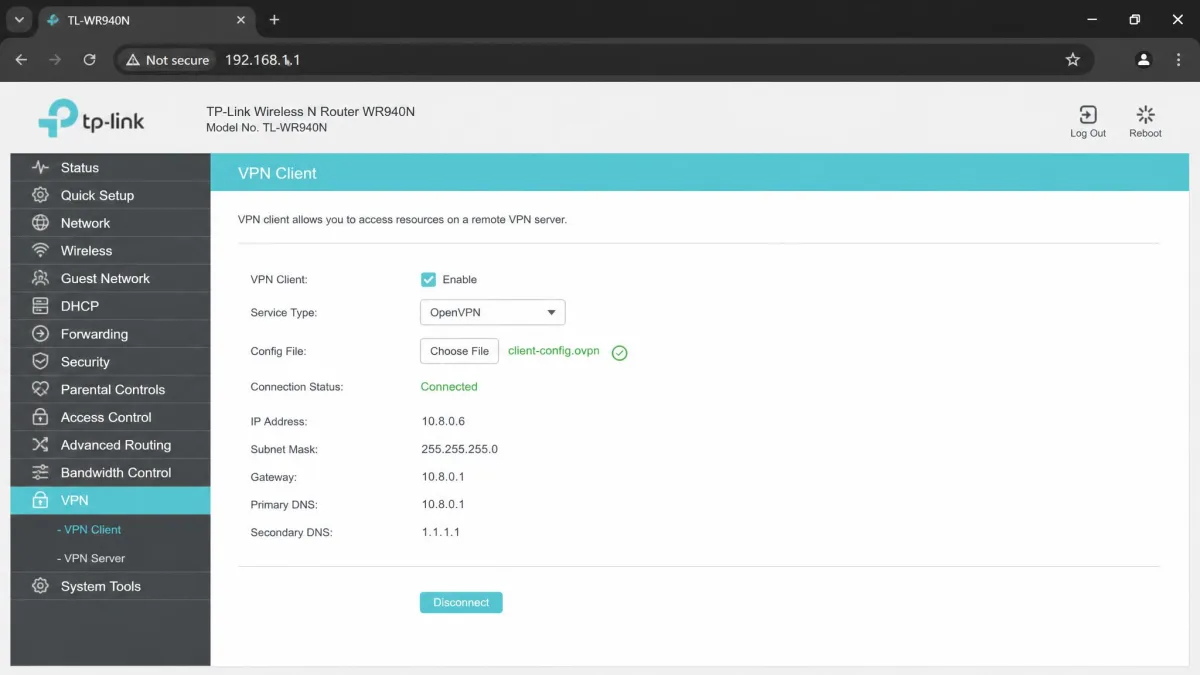
The steps below follow the typical admin panel. Menu names differ by brand, but the order stays the same.
- Open a browser on a computer connected to your router and go to 192.168.1.1 or 192.168.0.1. The default login is usually printed on the router's label.
- Find the VPN client section, which is often under Advanced, VPN or WAN.
- Install your VPN provider's router app if your router supports one. Otherwise, download the provider's OpenVPN or WireGuard config file and your manual login credentials from the provider's website.
- Upload the config file, enter the credentials and save.
- Connect to a server in the country you want, then confirm the tunnel status shows as connected.
When we configured a router by hand, it took around 40 minutes from first login to a working tunnel. A VPN-branded router like ExpressVPN's Aircove was ready in minutes by comparison. Your time will vary with the router model and firmware.
Connect Your Roku to the VPN Network
Once the router's tunnel is up, point the Roku at that Wi-Fi network.
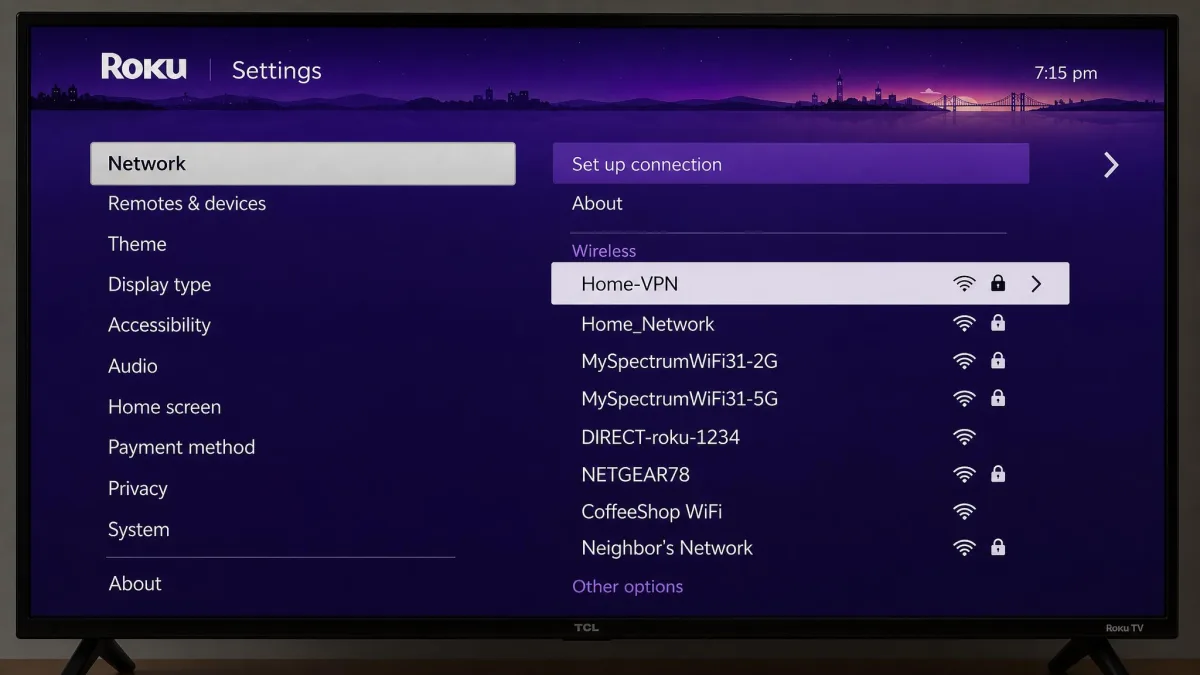
- On your Roku, press Home, then go to Settings > Network > Set up connection > Wireless.
- Select your router's Wi-Fi name (or its dedicated VPN network, if you created one).
- Enter the password and wait for the connection check to finish.
- Restart the Roku so every channel picks up the new location.
A router VPN has one trade-off: the router's CPU handles all of the encryption, so throughput can drop noticeably compared with the same VPN running on a laptop. Split tunneling or a separate VPN network name fixes most of that. It keeps the Roku on the VPN while phones and computers stay at full speed.
Method 2: Share a VPN From a Windows PC (Hotspot)
If you can't change your router's settings, a Windows laptop can share its VPN connection instead. The laptop runs the VPN app, turns itself into a Wi-Fi hotspot, and the Roku connects to that hotspot like any other network. You'll need a Windows PC with Wi-Fi and a working VPN app; our guide on how to use a VPN on a laptop walks through getting the app running first.
When a laptop already had a VPN on it, this was the quickest method in our testing. You can also switch server countries from the laptop at any time, with no router login. For the most reliable result, set the VPN app to OpenVPN, because it creates a visible network adapter that Windows can share.
Windows 11
- Connect the VPN app on your PC to a server in the country you want.
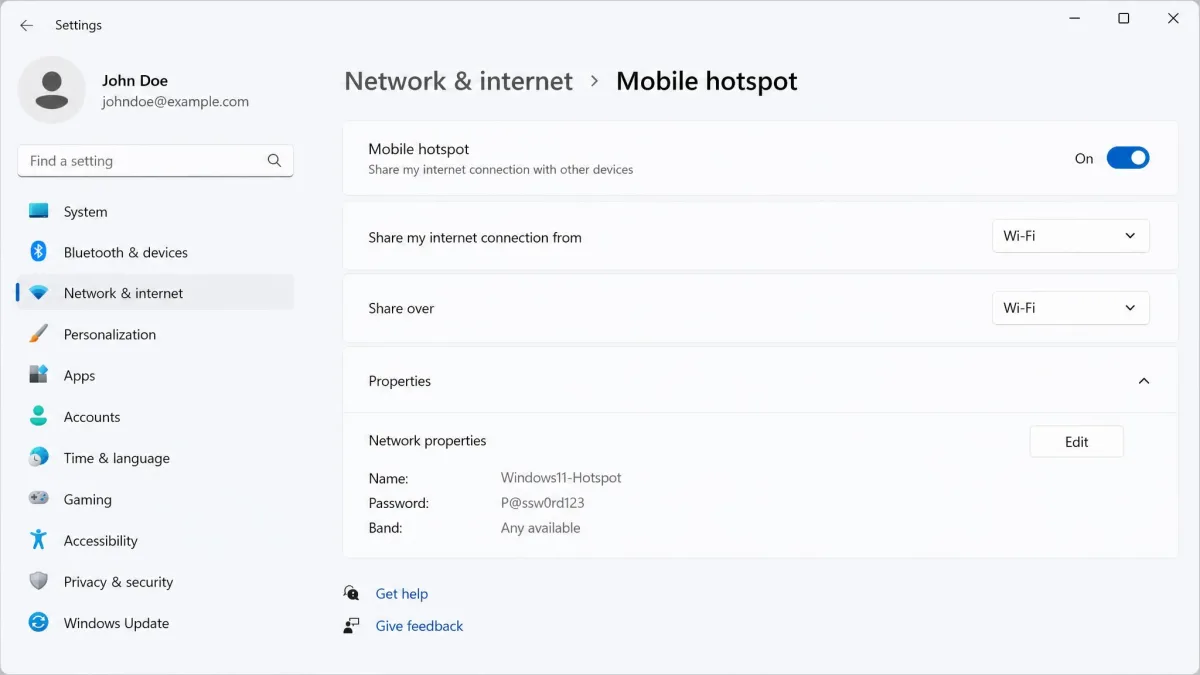
- Open Settings, then go to Network & internet > Mobile hotspot.
- Under "Share my internet connection from," choose your Wi-Fi or Ethernet connection, and set "Share over" to Wi-Fi.
- Select Properties > Edit to set a network name, password and band, then save.
- Turn on Mobile hotspot.
- Press Win+R, type ncpa.cpl and press Enter to open Network Connections.
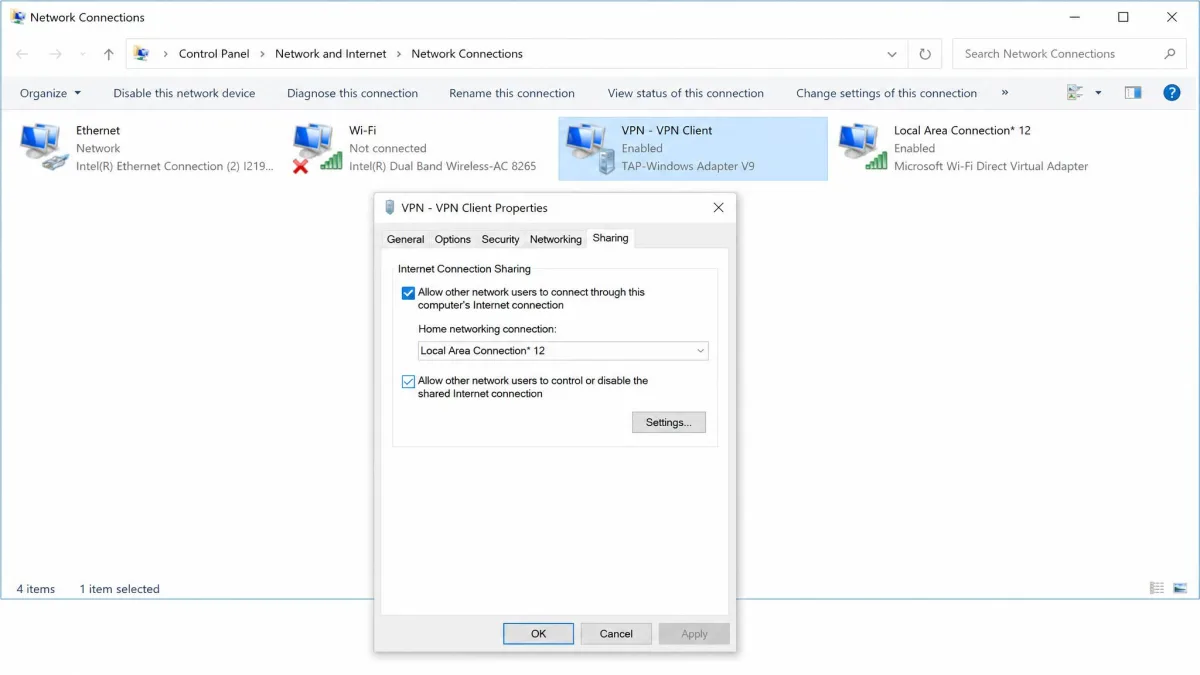
- Right-click the VPN's adapter (for example, the OpenVPN TAP adapter, not your Wi-Fi adapter) and choose Properties.
- Open the Sharing tab and tick "Allow other network users to connect through this computer's Internet connection."
- In the drop-down, pick the hotspot's virtual adapter, which shows up as Local Area Connection* followed by a number, then click OK.
- On your Roku, go to Settings > Network > Set up connection > Wireless and join the hotspot.
Steps 6 to 9 are the ones most people skip. If you leave out the adapter sharing, the Roku joins the hotspot fine but still shows your real location. We saw that exact result, which is easy to mistake for a VPN that doesn't work with your streaming service.
Windows 10
- Connect your VPN app to the server location you want.
- Select Start, then go to Settings > Network & Internet > Mobile hotspot.
- Under "Share my Internet connection from," choose the connection you want to share.
- Select Edit if you want to change the network name and password, then save.
- Turn on "Share my Internet connection with other devices."
- Open Network Connections with Win+R and ncpa.cpl, then share the VPN adapter with the hotspot adapter exactly as in steps 7 to 9 above.
- On your Roku, join the new hotspot from Settings > Network > Set up connection > Wireless.
Keep one thing in mind if your PC is on mobile broadband. Microsoft's mobile hotspot instructions note that sharing a cellular connection uses your PC's data plan, and streaming video will use that allowance quickly.
Turn off sleep on the laptop before you start a movie. The hotspot drops the moment the PC sleeps, and a VPN reconnect can silently reset the adapter sharing, so the Roku falls back to your real location.
Method 3: Share a VPN From a Mac
A Mac can do the same job as a Windows laptop, with one extra requirement. The Mac has to receive its internet through a different port than the one it shares from. In practice, that means a wired Ethernet connection. A Mac can't take Wi-Fi in and send it back out over the same Wi-Fi radio. Our guide on how to use a VPN on a Mac covers getting the VPN connected first.
- Plug your Mac into the router with an Ethernet cable and connect your VPN.
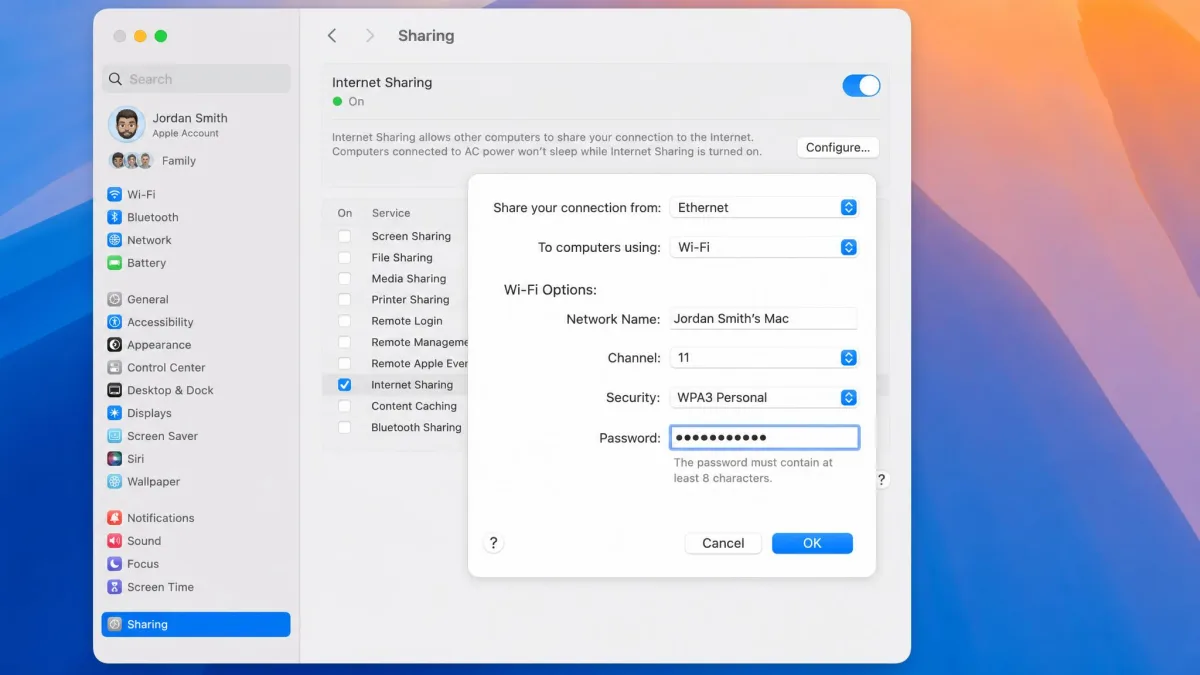
- Open the Apple menu, then go to System Settings > General > Sharing.
- Turn on Internet Sharing, then click Configure (the Info button next to it).
- Choose Ethernet as the connection to share, and turn on sharing to Wi-Fi.
- Set a network name, a password and the security type (WPA3 Personal or WPA2/WPA3 Personal), and pick a channel if you want.
- Click Done, and confirm Internet Sharing shows as on.
- On your Roku, go to Settings > Network > Set up connection > Wireless and join the Mac's network.
Apple's Internet Sharing instructions cover the same screens if your macOS version labels them differently.
We ran into one catch. Some VPN apps don't pass their tunnel through to shared devices, so the Roku connects but still reports your real location. Whether it works depends on how the VPN app builds its tunnel on macOS, and a VPN set up natively in macOS Network settings with IKEv2 or L2TP/IPSec is the more reliable path. Because of that, the router or Windows route is often simpler if you have either option.
Method 4: Use Smart DNS on Roku
Smart DNS changes your apparent location for some streaming services, but it does not encrypt your traffic. It only reroutes the DNS lookups that services use to work out where you are, so it offers no privacy benefit at all.
Its one benefit is speed, because nothing is encrypted. Roku has no DNS setting of its own, so you set Smart DNS on the router and the Roku picks it up automatically.
- Sign up with a provider that offers Smart DNS and note its primary and secondary DNS addresses.
- If the provider asks you to register your home IP address, do that on its website first.
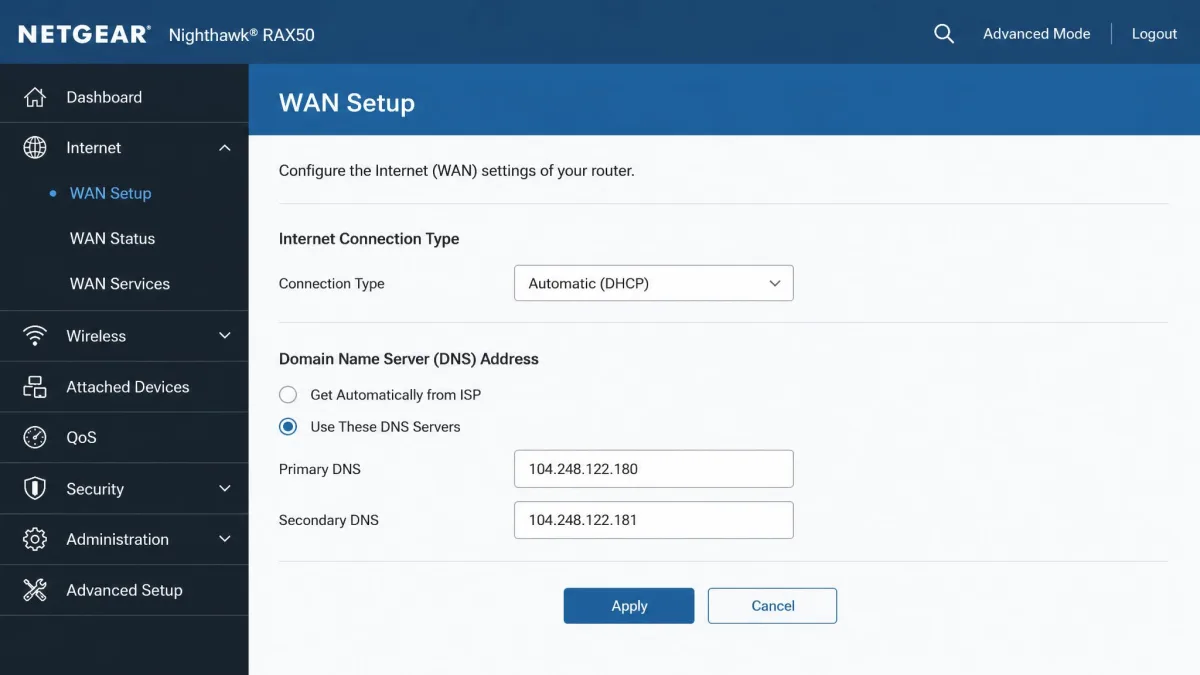
- Log into your router and find the DNS settings, usually under Advanced or WAN.
- Turn off automatic DNS and enter the provider's two addresses.
- Save the settings and restart both the router and the Roku.
Provider options have thinned out. ExpressVPN includes Smart DNS under the name MediaStreamer, and NordVPN has its own SmartDNS feature. CyberGhost's Smart DNS currently covers the U.S., the U.K., Germany and Japan, though country lists change as providers add or drop regions. CyberGhost also has a 45-day money-back guarantee on its longer plans and allows 7 devices at once.
In our testing, Smart DNS was less dependable than a full VPN, because streaming services increasingly detect DNS rerouting. Some Roku channels, notably Netflix, have also used hard-coded Google DNS (8.8.8.8 and 8.8.4.4), so they can ignore your router's Smart DNS and keep showing your home catalog. Blocking those two addresses on the router fixes it, although this behavior varies by Roku firmware and channel version, so it may not affect your device.
Smart DNS doesn't hide your activity from your internet provider or anyone else on the network. If privacy is part of why you want a VPN on Roku, use one of the first three methods instead.
Alternative: Screen Mirroring or AirPlay From a VPN-Connected Phone
If you don't want to touch the router or change your Roku region, you can mirror video from a phone, tablet or computer that's already connected to a VPN. The source device does all the VPN work, and the Roku just displays the result. We don't count it as a fifth method because the phone is tied up for the whole show.
To use AirPlay from an iPhone, iPad or Mac:
- Connect the VPN app on your Apple device.
- Make sure the Apple device and the Roku are on the same Wi-Fi network.
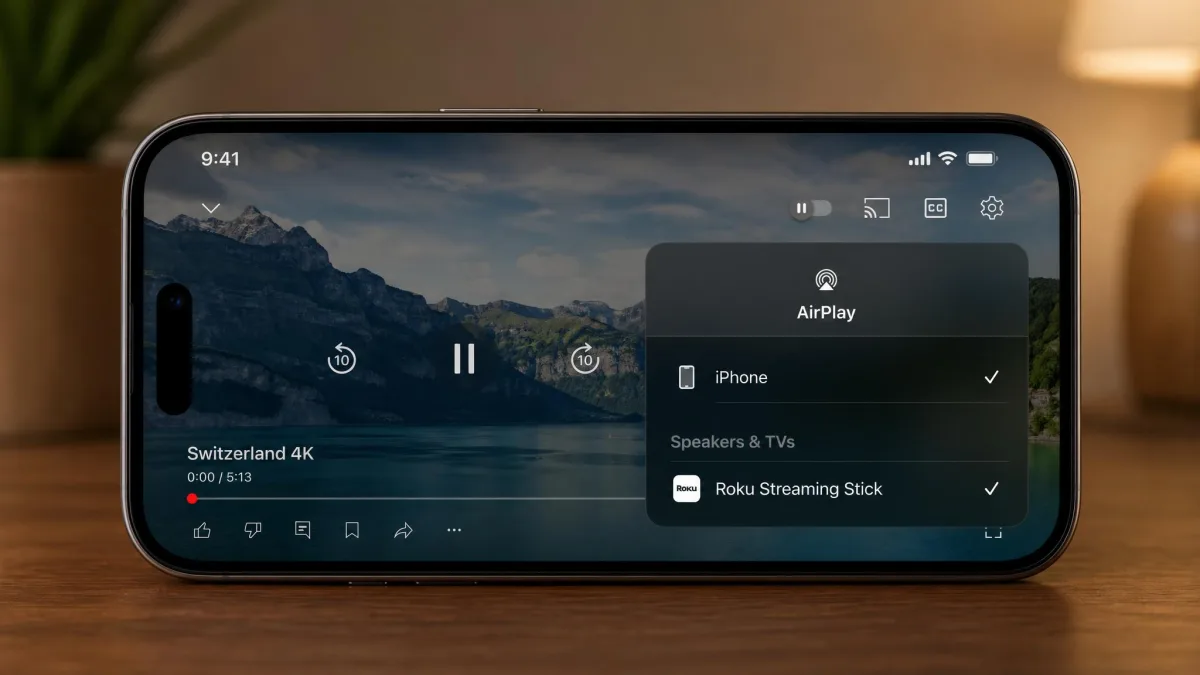
- Open the streaming app, tap the AirPlay icon (or Share, then AirPlay), and choose your Roku.
- Control playback from your Apple device or the Roku remote.
Not every Roku supports AirPlay, so check Roku's list of AirPlay-compatible models before you rely on it. Most Roku players and TVs need Roku OS 9.4 or higher, while older models such as the Roku Express and Roku 4 need Roku OS 10.0.
AirPlay took the least effort of anything we tried, and picture quality stayed high. The big exception is Netflix, which doesn't support AirPlay. Android users can mirror through Smart View, Cast or Quick Connect instead, and Windows can mirror with Win+K. Android mirroring looked noticeably softer than native playback in our testing, and it mirrors your notifications too, because it copies the whole screen. Some streaming services also block mirrored playback outright.
How to Change Your Roku Region or Store Location
A VPN changes what streaming apps see, but it doesn't change the Roku channel store. The store follows the country of your Roku account, which was set when you created the account and first set up the device. Missing channels are an account-region problem, not a network problem. Our guide on how to change your location with a VPN explains the location side in more detail.
To move your Roku to a different country's channel store:
- Connect your network to a VPN server in the target country, using the router or a hotspot.
- On a computer or phone on that same network, create a new Roku account. You'll need a valid postal code, and usually a payment method, from that country.
- Factory reset the Roku. Press Home, then go to Settings > System > Advanced system settings > Factory reset (on Roku TVs, choose Factory reset everything), and follow the on-screen instructions.
- Set up the Roku again while connected to the VPN network, and link the new account.
- Add the channels you want from the new store.
The new-account step fails without a valid local postal code, so have one ready before you reset anything. If the menu route isn't available, hold the Reset button on a streaming player for about 10 seconds until the status light blinks rapidly. On Roku TVs, hold the Reset pinhole for 12 seconds instead, or press Power plus Find My Remote on newer models.
A factory reset erases every channel, login and preference on the device and unlinks it from your Roku account. Switching back to your home region means repeating the whole reset and new-account process, so have your Wi-Fi password and streaming logins ready before you start.
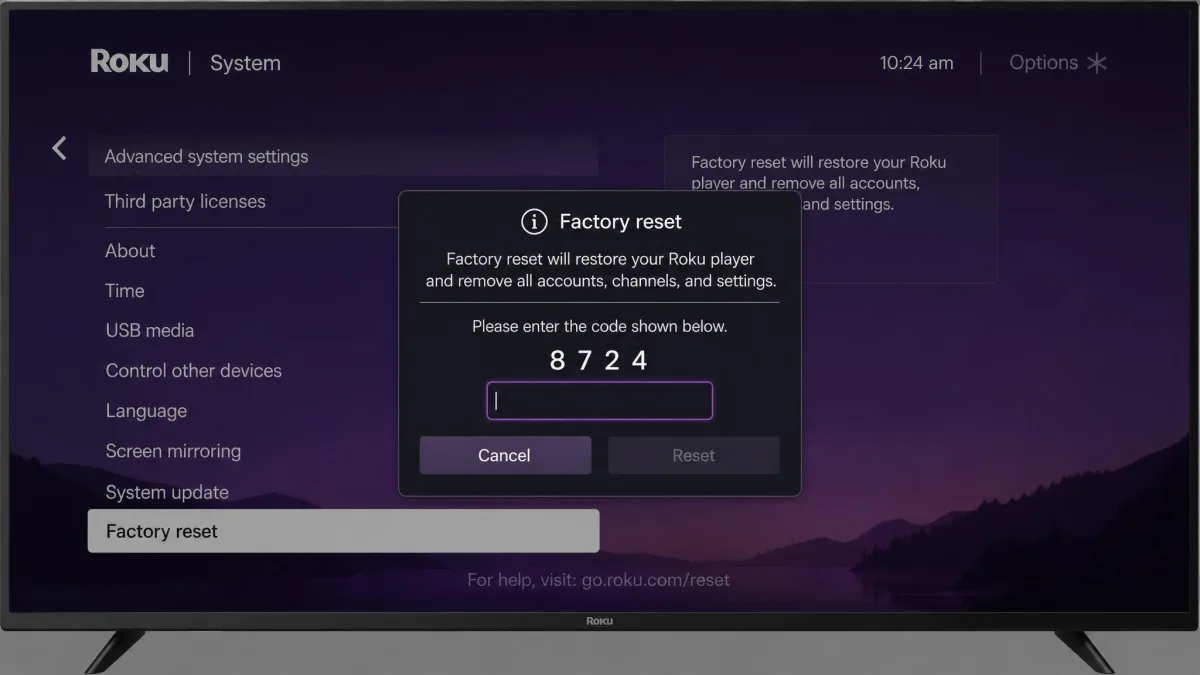
Roku's factory reset guide lists the button location for each model if you can't find the pinhole.
How to Check the VPN Is Working on Roku
Roku has no browser, so you can't visit an IP-check site on the TV itself. The easiest workaround is a phone on the same network, because an IP lookup there reflects what the Roku sees. For the full walkthrough, see our guide on how to check if your VPN is working.
- Confirm the tunnel is active on your router or VPN app, and note the server country.
- Connect your phone to the same Wi-Fi network as the Roku, with the phone's own VPN app turned off.
- Open an IP-lookup site on the phone and check that it shows the VPN server's location.
- Run a DNS leak test from the same phone to make sure DNS requests also go through the VPN.
- Open a streaming channel on the Roku and check that the content matches the region you chose.
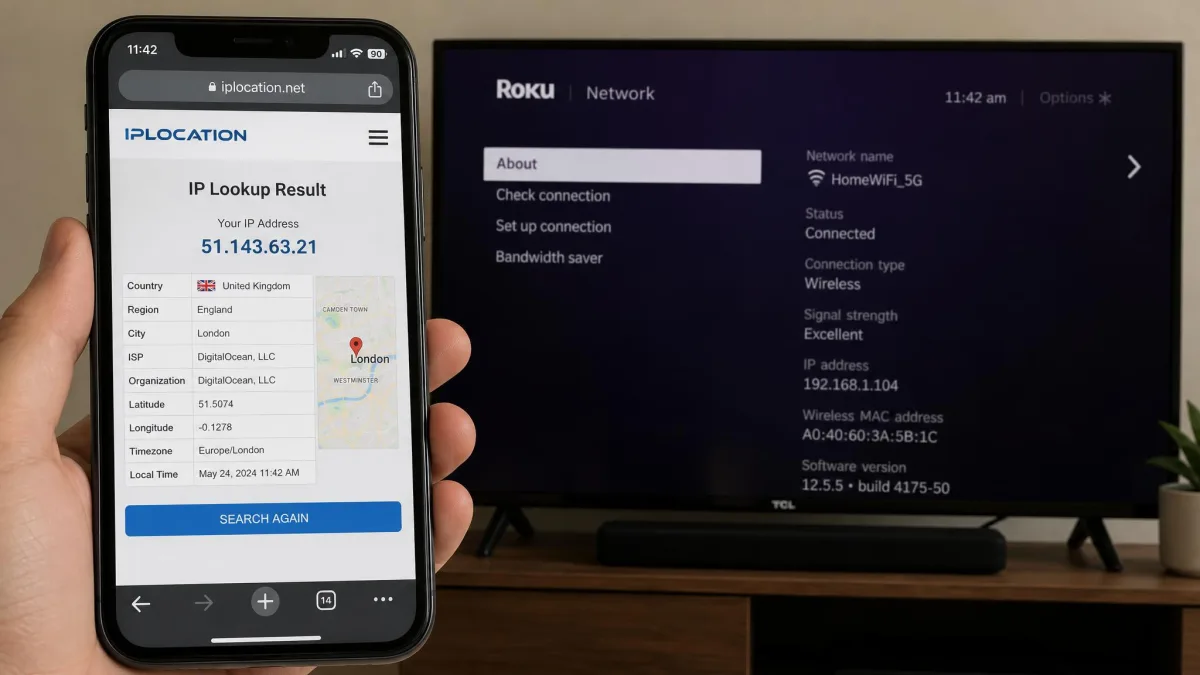
It's also worth comparing speeds with the tunnel on and off. A good VPN still leaves enough speed for 4K on Roku. In our testing, losses ranged from under 10% to about a third of the baseline, depending on server distance and provider.
VPN Not Working on Roku? Troubleshooting Steps
Most problems we hit came down to a handful of causes. Work through the one that matches your symptom.
- The Roku still shows your real location. On Windows, make sure the VPN adapter, not the Wi-Fi adapter, is shared with the hotspot. On a router, check that split tunneling isn't sending the Roku around the VPN.
- Video keeps buffering. Pick a server closer to you. If you're on a router VPN, the router's CPU may be the bottleneck, so test the same server from a laptop to compare.
- The hotspot keeps dropping. See the sleep tip in Method 2.
- Channels are missing from the store. This is your account region, not the network. Follow the region steps above.
- The Roku won't join the PC hotspot. Move the Roku closer to the laptop, or set the hotspot band to 2.4 GHz. That usually got it connected in our testing.
- It stopped working after a reboot. After a router restart, the VPN tunnel doesn't always come back up by itself, and the Roku quietly reverts to your real location. Log into the router and reconnect the tunnel.
Best VPNs for Roku
We chose these picks based on how easily each one gets onto a router or hotspot and how well it unblocks major streaming services through a Roku connection. Budget and less streaming-focused VPNs, including PureVPN, VyprVPN and Mullvad, failed to unblock services like US Netflix, Hulu or Disney+ this way. Some router setups are poorly maintained too: VyprVPN dropped its router app, and PureVPN's router instructions were outdated and failed on common hardware. Promo prices below change often, and renewal rates are higher. For a wider shortlist, see our guide to the best VPN for streaming.
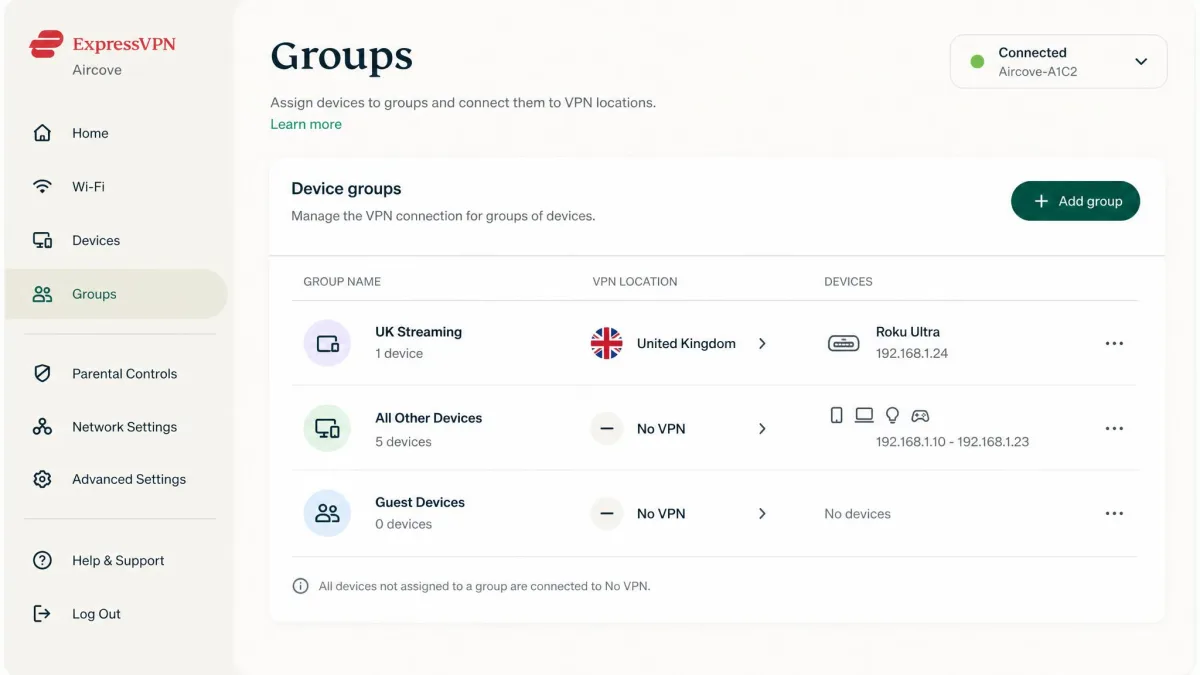
ExpressVPN is the easiest provider to get onto a router. It offers a router app for select Asus, Linksys and Netgear models, plus its own Aircove and Fortify routers with the VPN built in. Aircove can split your devices into up to 5 groups, each on its own VPN location, so the Roku can sit in one country while everything else stays local. Plans allow 10, 12 or 14 devices depending on tier, a router counts as one connection, and there's a 30-day money-back guarantee. Read our full ExpressVPN review.

NordVPN doesn't have a dedicated router app, so you'll use manual config files on a router. It officially supports Roku through a router or a VPN-protected hotspot from a computer, and it uses its WireGuard-based NordLynx protocol. It also includes SmartDNS if you only need a location change. You get 10 devices at once and a 30-day money-back guarantee. Our NordVPN review covers its streaming results in depth.

Surfshark allows unlimited simultaneous connections, which matters if the router takes one slot and the rest of the household wants their own. It supports Roku through a VPN router or a Windows virtual router. Surfshark discontinued its SmartDNS feature in February 2026, so it's not an option for Method 4. It also comes with a 30-day money-back guarantee. See our Surfshark review for the details.

Can You Use a Free VPN on Roku?
Technically yes, but free VPNs rarely work well with Roku. Their servers get blocked by streaming services, speeds are capped, and most free plans can't be installed on a router at all. That rules out Method 1 before you start.
Data caps are the other problem. A 10GB monthly allowance, like PrivadoVPN Free's, covers roughly four hours of HD video, though that figure varies with each service's bitrate. Even reputable free plans draw a line at streaming. Proton VPN's free plan, for example, doesn't support streaming and connects you to servers in 10 randomly selected countries. Its paid VPN Plus plan covers 10 devices and has a 30-day money-back guarantee, so it's a safer way to try before you commit. Our Proton VPN review has the full picture.
Some free VPNs have also sold user data or shipped malware, which defeats the point of using one. Our list of the best free VPN options covers which free services are trustworthy for lighter use.