Yes, you can use a VPN on a TV. The catch is that not every television gets there the same way. Some smart TVs run a VPN app straight from their built-in store, and those take about two minutes to set up. Others, including most Samsung and LG sets, have no VPN app at all, so you reach the same result through a router, a shared connection from your Windows PC, or Smart DNS.
That split is the whole story, and it is why a simple yes/no question turns into a short setup guide. In our testing across streaming sticks, Android-based TVs, and the more stubborn Tizen and webOS sets, the method you need depends entirely on what platform your TV runs. We spent time with each route so you can skip the dead ends and go straight to the one that fits your hardware.
This guide walks through the four setup methods, tells you which TVs support which, names the VPNs we reach for on a TV, and covers what to do when a stream still refuses to load. Let's start with the short answer.
Can you use a VPN on a smart TV? (short answer)
Yes. Any smart TV can send its traffic through a VPN, but the setup path depends on the platform. Android TV and Google TV, which power many Sony, Philips, TCL, and Hisense sets, install a VPN app directly from the Google Play Store. Amazon Fire TV devices do the same from the Amazon Appstore, and an Apple TV on tvOS 17 or later pulls native VPN apps from the App Store.
The sets that can't do this run their own closed systems. Samsung uses Tizen, LG uses webOS, and Roku and Vizio run locked-down platforms with no VPN app in their stores. For those, you protect the TV at the network level instead. That means a VPN on your router, a shared VPN connection from a Windows PC, or Smart DNS for streaming.
There are four practical ways to get a VPN onto a TV: a native app, a router install, a shared connection from a Windows PC, and Smart DNS. Pick the one your TV's platform allows, and the rest of this guide shows you how.
Why use a VPN on your TV
Most people set up a VPN on a TV for one of two reasons: to watch more, or to stay private while they watch. Both are valid, and a single subscription covers both at once. Here's what each one actually gets you on the big screen.
Unblock geo-restricted streaming and change your Netflix region
Streaming catalogs change from country to country. A VPN routes your TV's connection through a server in another region, so the streaming app sees that location instead of your real one. That lets you open geo-restricted libraries, including Netflix regional catalogs, BBC iPlayer, Amazon Prime Video, Hulu, HBO, ITV Hub, ESPN, and YouTube TV.
Changing your Netflix region is the most common goal, and it usually works, though not always on the first try. Netflix actively blocks known VPN IP ranges, so a given server can go dark for a while. When that happens, switching to a different server in the same country almost always clears it. Treat a region change as reliable but occasionally fussy, not guaranteed on every server at every moment.
If a streaming app loads your home catalog instead of the one you picked, force-close the app and reopen it after connecting the VPN. Streaming apps cache your location, and a fresh launch makes them re-check it.
Privacy and security while streaming
The second reason is privacy. A VPN encrypts the traffic leaving your TV, which hides your streaming activity from your internet provider and anyone else on the network path. On a shared or public connection, that encryption is the difference between your viewing being visible and being scrambled.
This matters more than it sounds. Internet providers can throttle video traffic once they recognize it, and an encrypted tunnel makes that traffic unreadable, which can keep speeds steady during peak hours. Just make sure the method you choose actually encrypts. As we'll cover below, Smart DNS does not, so it is a streaming tool rather than a privacy tool.
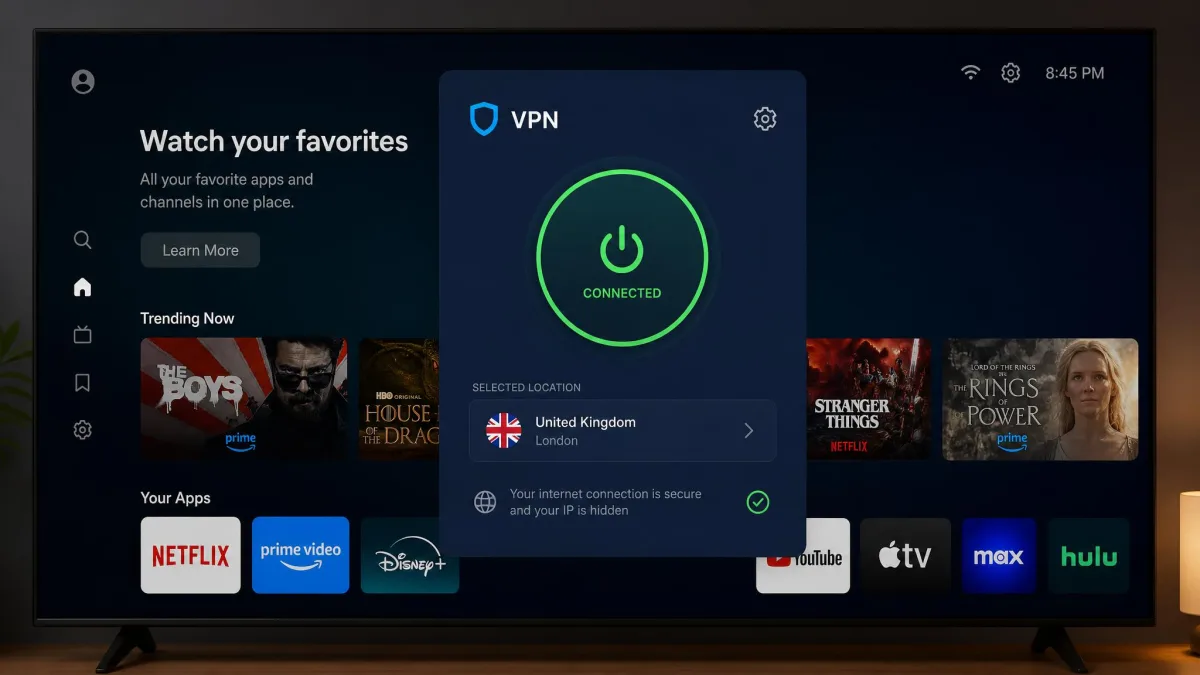
How to set up a VPN on your TV: 4 methods
There are four ways to put a VPN behind your TV, and they range from a two-minute app install to a firmware flash you should approach carefully. Start with the first method your platform supports, since the higher up this list you can go, the less work it takes.
Method 1: Install the VPN app directly (Android TV / Google TV)
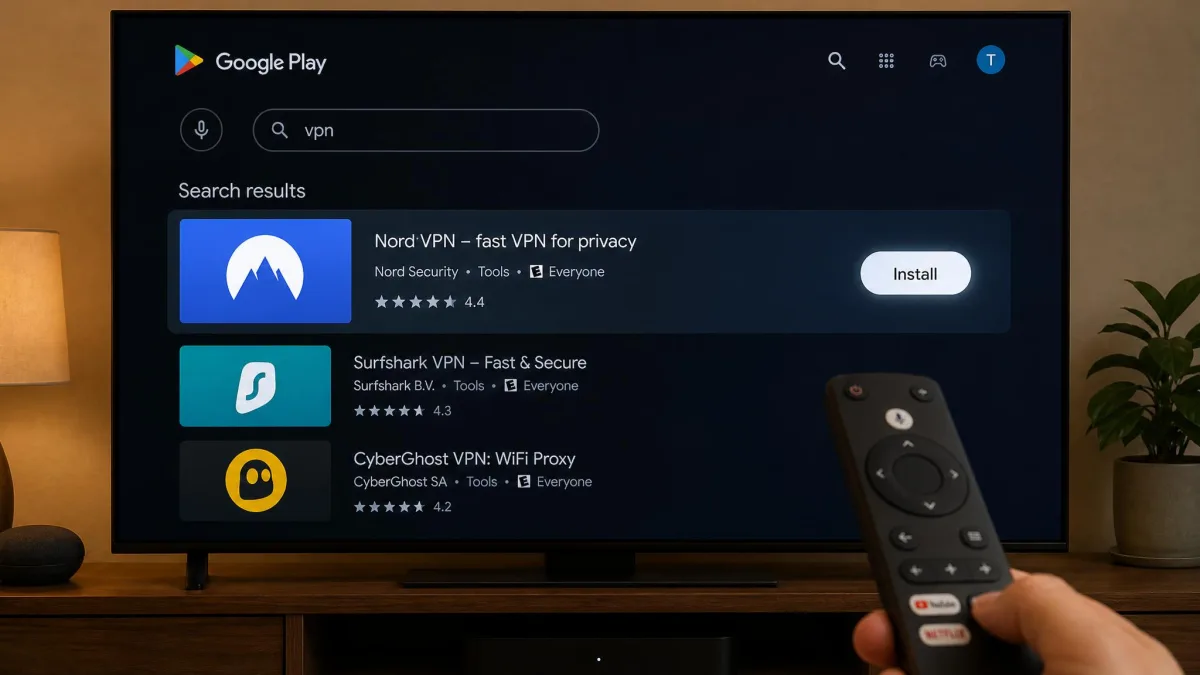
If your TV runs Android TV or Google TV, this is the easiest route by a wide margin. Installing the app straight onto an Android TV, Google TV, or Fire TV Stick is by far the smoothest way in, and most setups take only a couple of minutes from start to first stream.
Here's the flow:
- Open the Google Play Store on your TV from the home screen.
- Search for your VPN provider by name, then select Install.
- Open the app and sign in with your VPN account.
- Choose a server, connect, then open your streaming app.
Fire TV works the same way through the Amazon Appstore, and an Apple TV on tvOS 17 or later uses the App Store. Once the app is installed, connecting is a single click, and the VPN protects everything that TV streams.
Make sure you pick a nearby server first. A distant server noticeably slows streaming and triggers buffering, and switching to the WireGuard protocol in the app settings clears up most of the rest.
Method 2: Set up the VPN on your router
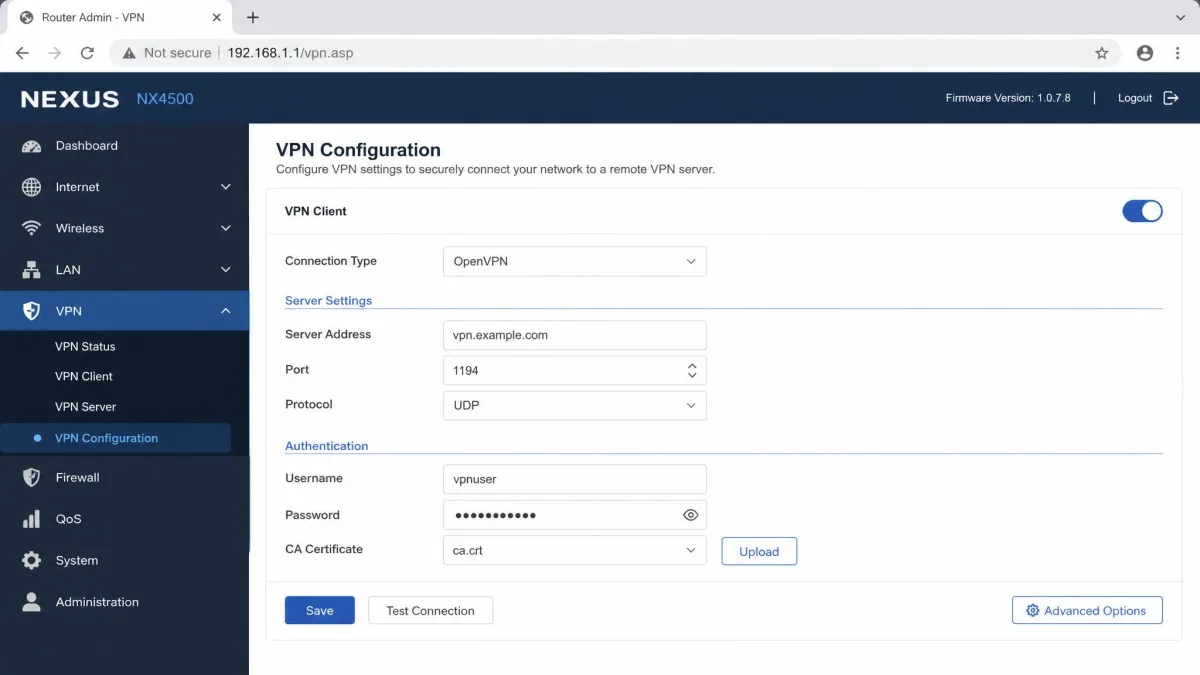
Where a native app protects one TV, a router install protects everything. Putting the VPN on your router covers every device on the network automatically, including TVs that cannot run a VPN app. It is the cleanest answer for a Samsung or LG set, because the TV never needs to know a VPN exists.
The trade-off is setup effort. Manually flashing VPN firmware onto a router is the fiddliest method here, and doing it wrong can brick the router, so read the steps twice before you start. Many providers now support easier config-file setups, and some sell pre-configured routers that skip the flash entirely.
The exact steps vary by router model, so work from a walkthrough written for your setup rather than a generic one. We cover the whole process in our own guides:
- Our step-by-step guide on how to set up a VPN on your router, from checking compatibility to testing the connection
- An explainer on what a VPN router is and whether your current model can run one
- Our picks for the best VPN routers, including pre-configured models that skip the flashing step
Not every router supports VPN firmware. Check your model against your provider's compatibility list before you buy anything, and never flash firmware over Wi-Fi. Use a wired connection so a dropped signal can't interrupt the process midway.
Method 3: Share a VPN connection from your Windows PC (Wi-Fi or Ethernet)
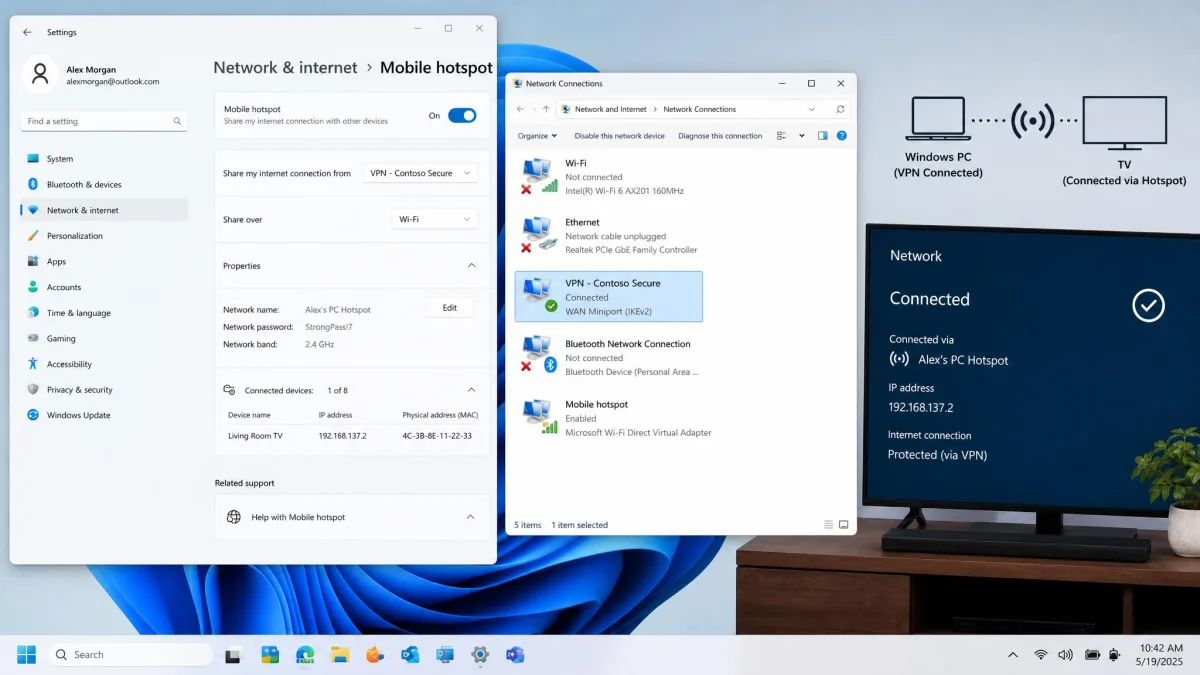
No compatible router? A Windows PC can act as the middleman. Both the Wi-Fi hotspot and the Ethernet sharing methods are Windows features, using the built-in mobile hotspot and Internet Connection Sharing tools. Your PC connects to the VPN, then passes that protected connection along to the TV.
You have two options here:
- Wi-Fi hotspot. Connect your PC to the VPN, open Settings > Network & Internet > Mobile hotspot, and turn it on. Then connect your TV to that hotspot like any other Wi-Fi network.
- Ethernet. Run a cable from your PC to the TV, connect the PC to the VPN, then enable Internet Connection Sharing on the VPN's network adapter.
This works, but it has real limits. Sharing the VPN from a Windows PC ties up that computer for as long as you're watching, and the wireless hotspot step can be flaky, so the Ethernet version is steadier if you can run a cable. Keep the PC awake the whole time, since sleep mode drops the shared connection.
Method 4: Use Smart DNS on your smart TV
Smart DNS is the odd one out, because it is not really a VPN at all. It reroutes only the small amount of traffic needed to spoof your location for geo-unblocking, and it does not encrypt your connection. That means no privacy or security benefit, but also no speed penalty.
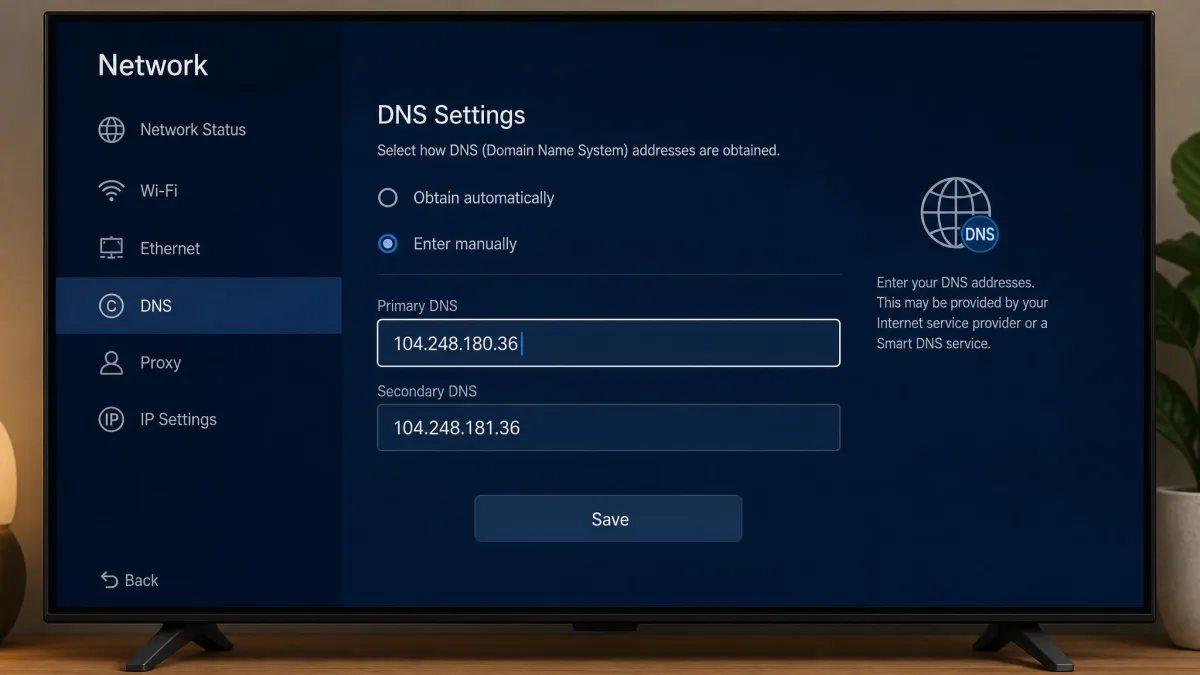
In practice, Smart DNS unblocks a region fast and with no measurable speed hit, which makes it great for 4K streaming. The catch is that it locks you to roughly one location at a time and gives you zero encryption. You set it up by copying the DNS addresses from your provider's dashboard into your TV's network settings:
- Enable Smart DNS in your VPN account dashboard and note the DNS addresses.
- On your TV, open Settings > Network > your connection > IP or DNS settings.
- Switch DNS to manual and enter the provider's addresses.
- Restart the TV so the new settings take effect.
Not every provider offers Smart DNS, so this method depends on your subscription. NordVPN includes it as SmartPlay, and ExpressVPN calls its version MediaStreamer.
| Method | Works on | Difficulty | Encrypts traffic? |
|---|---|---|---|
| Native app | Android TV, Google TV, Fire TV, Apple TV | Easy | Yes |
| Router install | Every device on the network | Moderate to hard | Yes |
| Windows PC share | Any TV near a PC | Moderate | Yes |
| Smart DNS | Any TV with DNS settings | Easy to moderate | No |
Which smart TVs and devices support VPNs
Every TV can end up behind a VPN, but only some can install the app themselves. Knowing which camp your TV falls into tells you exactly which method above you'll need. Here's how the common platforms break down.
Android TV / Google TV (native app support)
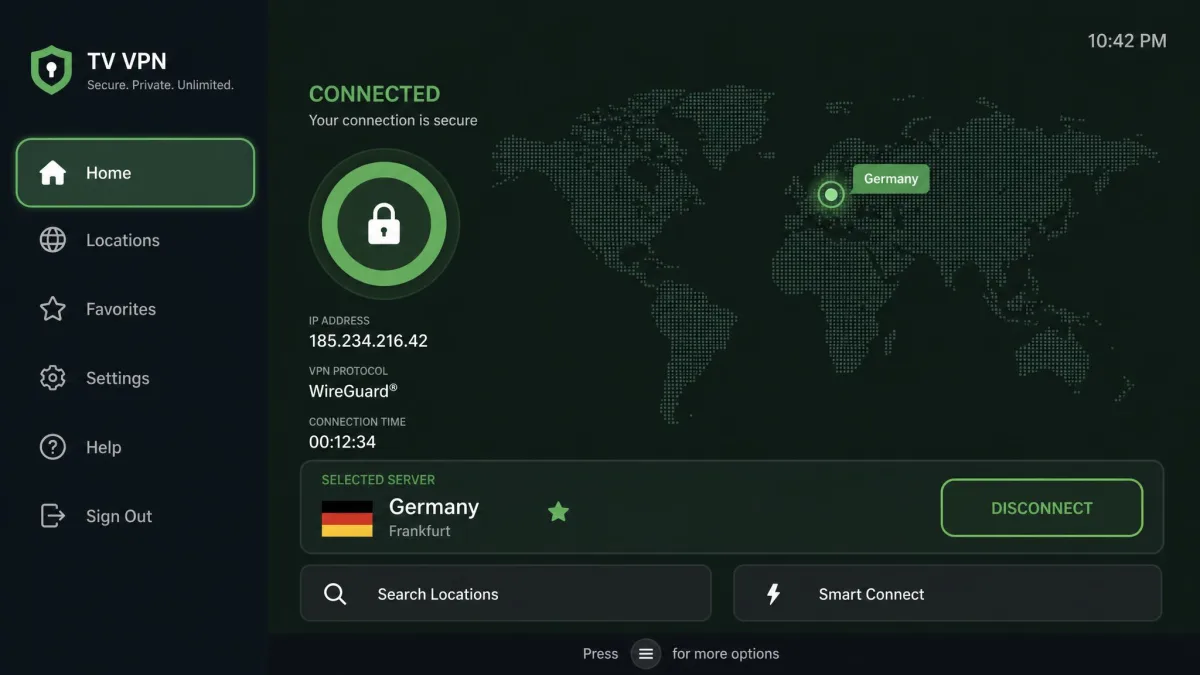
Android TV and Google TV are the easy case. They run a full app store, so they install VPN apps directly from the Google Play Store, the same as a phone. Sony, Philips, TCL, and Hisense sets often use one of these systems, and any of them can run a VPN natively.
If your TV falls here, use Method 1 and skip the workarounds entirely. The app handles the connection, the protocol choice, and server switching, all from the remote.
Samsung, LG, Vizio and other non-Android smart TVs
This is where it gets frustrating. Samsung sets run Tizen, LG sets run webOS, and Vizio runs its own SmartCast system. None of these have a VPN app in their stores, so you cannot install one directly no matter how hard you look.
Samsung and LG are the frustrating ones to work with, because with no app available you fall back to a router or PC-share workaround every time. Roku sits in the same boat, with a locked-down platform and no VPN app. For all of these, the router method is the most seamless once it's set up, since the TV just uses the network like normal. If you only want to unblock streaming and don't need encryption, Smart DNS is the quicker fix.
Ignore any listing that claims a "Samsung VPN app" or "LG VPN app" in the Tizen or webOS store. Those platforms have no native VPN apps, so such listings are either mislabeled router guides or something you should not install.
Streaming sticks and devices (Fire TV Stick, Chromecast, Apple TV, Roku)
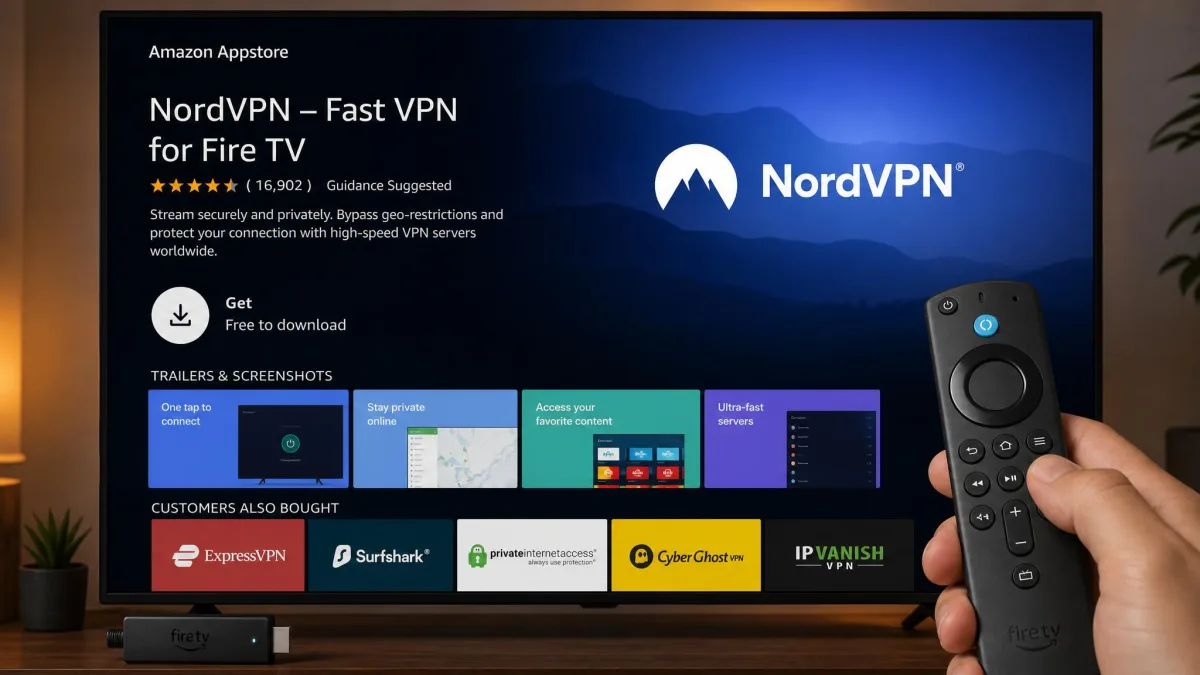
If your smart TV won't cooperate, a streaming stick usually will, and it's the cheapest fix by far. An Amazon Fire TV Stick installs VPN apps straight from the Amazon Appstore, and it is the single easiest way to add a VPN to an otherwise locked-down TV. Plug it into an HDMI port and you've sidestepped the whole Tizen or webOS problem.
Apple TV on tvOS 17 or later runs native VPN apps from the App Store. Google's Chromecast with Google TV runs the full Android TV app store, so it handles VPNs natively too. Roku is the exception, with no VPN app support, which sends it back to the router or Smart DNS route. When a client asks us how to add a VPN to an old Samsung set, a Fire TV Stick is almost always the answer we give.
Best VPNs for smart TVs (quick picks)
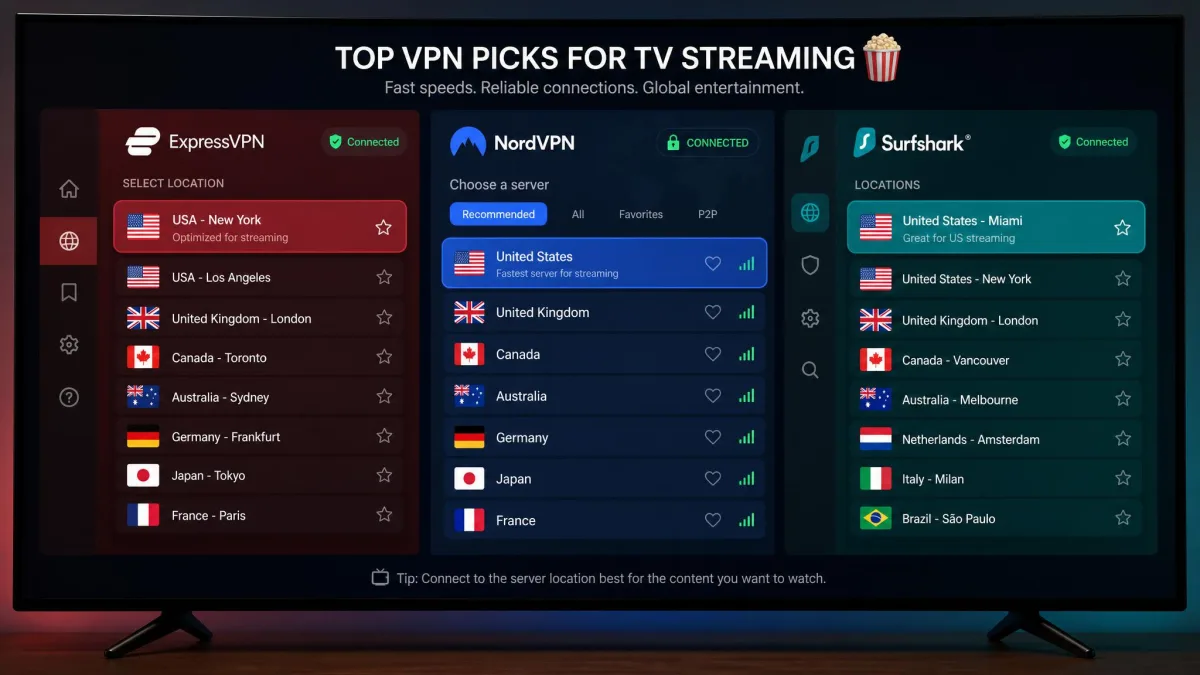
Not every VPN is built for the living room. The ones worth using on a TV share three traits: native apps for TV platforms, Smart DNS for the sets that can't run apps, and servers fast enough for 4K without buffering. These three are the ones we reach for, and each earns its spot for a different setup.
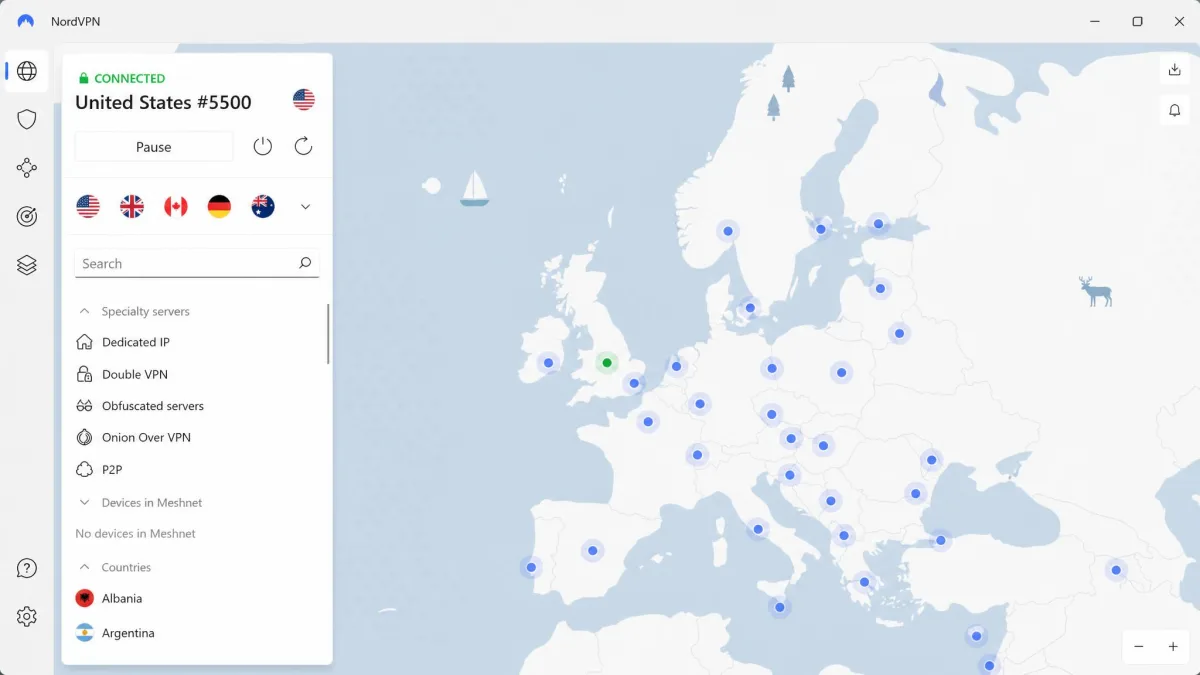
NordVPN is our overall pick for a TV. It has native apps for Android TV and Fire TV, includes Smart DNS through its SmartPlay feature, and supports split tunneling if you want only certain apps routed through it. Its network runs roughly 6,000-plus servers across 118 countries, though that total shifts as the network grows, so treat it as approximate. Entry pricing lands around $2.99 per month on the two-year plan, but that figure depends on the promo window and region and renews higher.

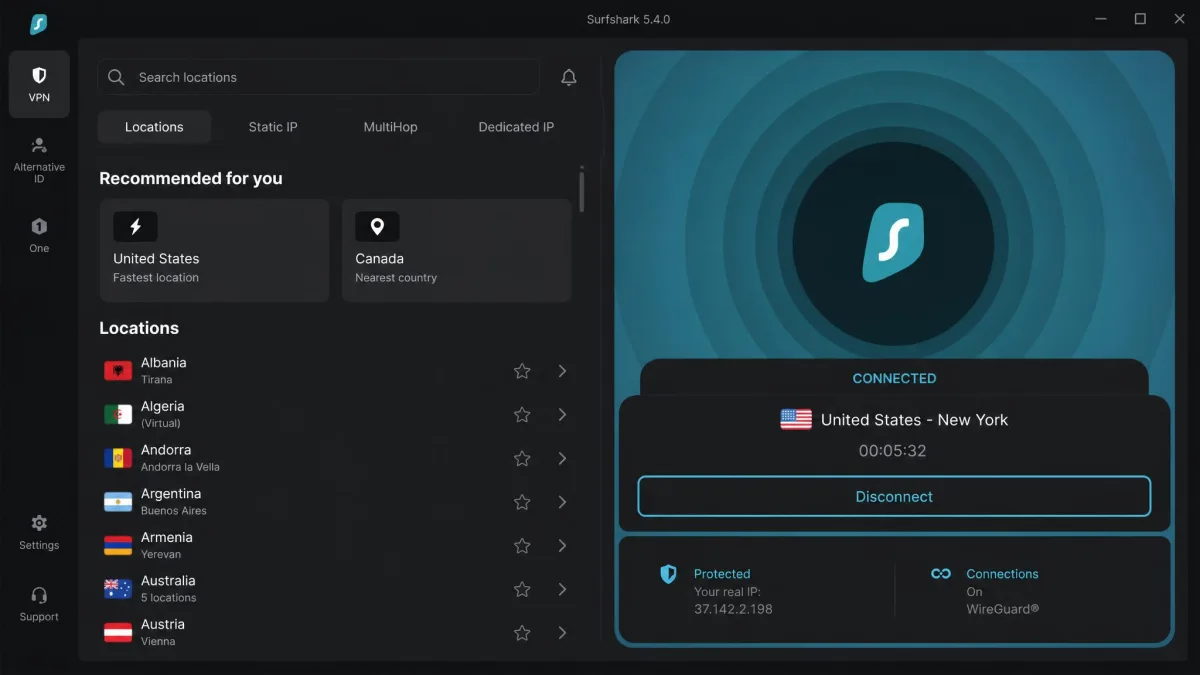
Surfshark is the value choice, and its standout feature is unlimited simultaneous connections on one subscription. That matters at home, where a single account can cover the TV, every phone, and a router at once. It also has the widest native app list of the three, spanning Android TV, Apple TV, Fire TV Stick, Chromecast, and Nvidia Shield, plus Smart DNS. Pricing starts around $1.99 per month on the two-year plan, again promo-dependent.
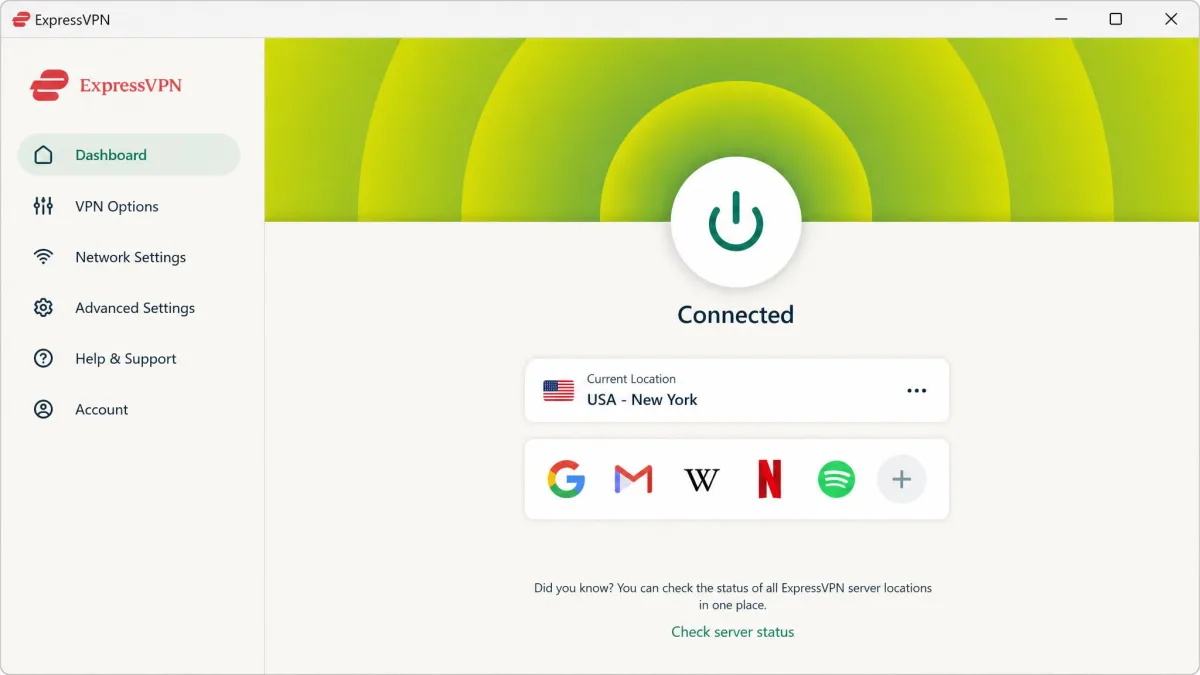
ExpressVPN is the one we point router users toward, partly because it sells its own Aircove VPN router that removes the flashing step entirely. It runs native apps for Android TV and Fire TV, and its MediaStreamer Smart DNS covers the TVs that can't. It is the priciest of the three at around $3.49 per month on the two-year plan, with the same promo caveats.
| VPN | Native TV apps | Smart DNS | Connections | Money-back window |
|---|---|---|---|---|
| NordVPN | Android TV, Fire TV | Yes (SmartPlay) | Multiple | 30-day |
| Surfshark | Android TV, Apple TV, Fire TV, Chromecast, Shield | Yes | Unlimited | 30-day |
| ExpressVPN | Android TV, Fire TV | Yes (MediaStreamer) | Multiple | 30-day |
The best TV VPN isn't the one with the most servers. It's the one with a native app for your platform and a Smart DNS option for the TV that can't run it.
— From our hands-on setup testing
Can you use a free VPN on your TV?
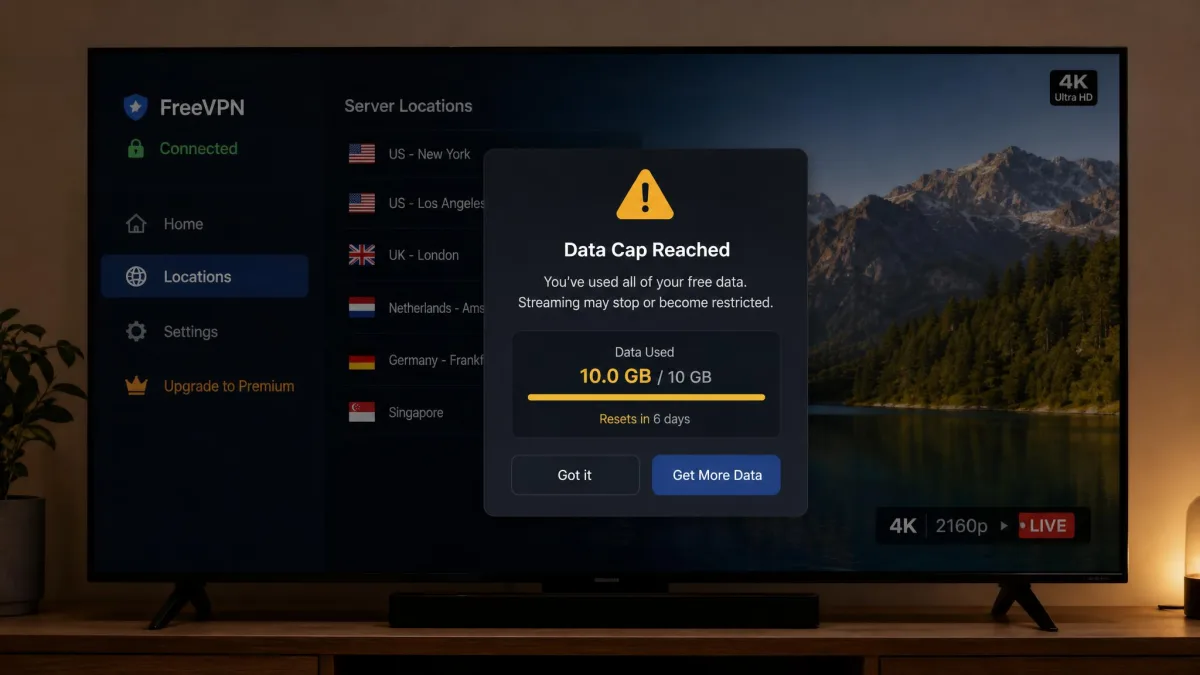
You can, but we rarely recommend it, and the reasons go beyond the usual data caps. Many free VPNs are genuinely unsafe for TV use. A large share leak your real location through IPv6, some bundle malware, and most lack native TV apps entirely, which forces you into a workaround for a service you can't fully trust anyway.
Even the ones that work tend to disappoint on the big screen. Cheaper and free VPNs deliver inconsistent download speeds and sometimes fail to open Amazon Prime Video from several server locations, which is the opposite of what you want mid-movie. On top of that, most free tiers throttle speed and cap data, and a single 4K film can burn through a monthly allowance in one sitting.
If you want a free option that is actually safe, Proton VPN offers a genuinely free plan with native TV apps and no shady data practices. The limits are honest ones: a smaller server choice and no Smart DNS. For occasional use it's fine, but for regular streaming a paid provider pays for itself in saved buffering.
A free VPN that asks for no payment often makes its money from your data. Before installing one on a TV, check its leak-test record and privacy policy. If either is unclear, the risk isn't worth the saved subscription.
VPN not working on your TV? Troubleshooting tips
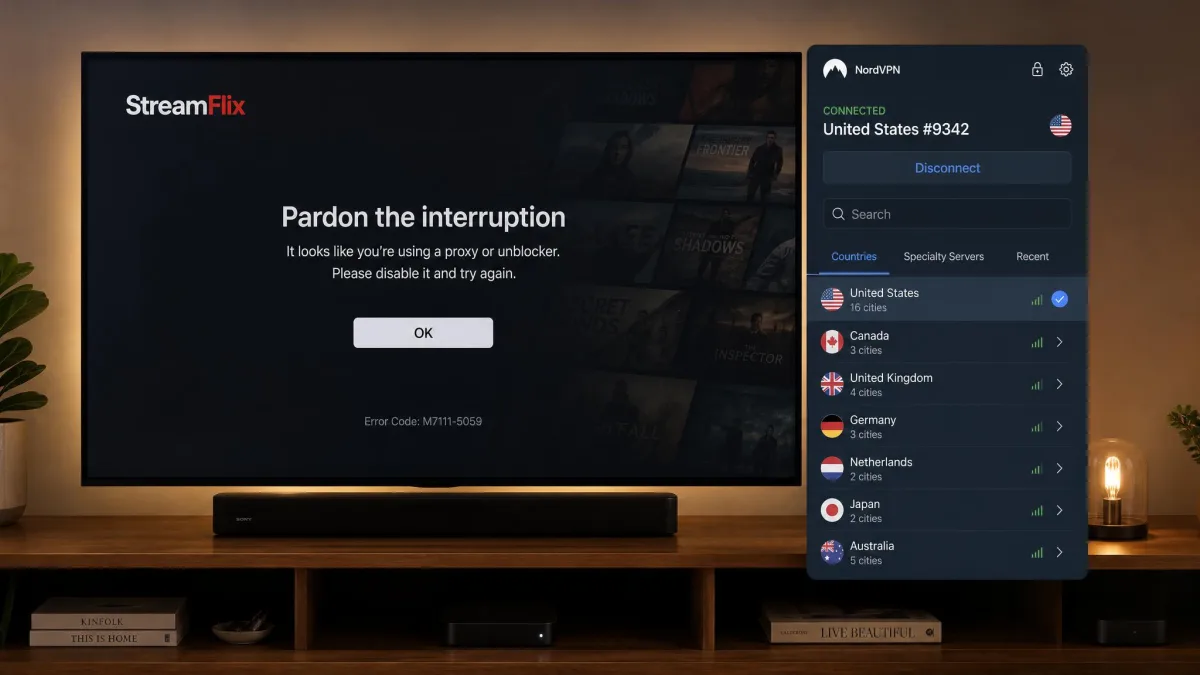
Even a good setup hits snags, and most of them have quick fixes. When a VPN misbehaves on a TV, the problem is usually the server, the protocol, or a streaming app that has cached your old location. Work through these in order.
- The stream buffers or drops quality. Connecting to a distant server noticeably slows streaming and triggers buffering. Switch to a nearby server and set the protocol to WireGuard, which fixes most speed complaints.
- The connection drops mid-stream. The VPN link sometimes falls off silently on a TV, leaving you on the unprotected connection without noticing. Turn on auto-connect in the app so it reconnects itself instead of failing over quietly.
- A streaming app shows a proxy or location error. Even with the VPN on, apps can throw a proxy warning. Switching to a different server in the same country usually clears it within a minute.
- The app loads your home catalog anyway. Force-close and relaunch the streaming app after connecting, so it re-checks your location instead of using its cached one.
- A PC-shared connection keeps failing. The Wi-Fi hotspot step is the flaky part. Switch to an Ethernet cable between the PC and TV, and keep the PC from going to sleep.
The single fix that resolves the most TV streaming complaints for us is the simplest one: change servers. Before you touch protocols or reinstall anything, try three different servers in your target country. Nine times out of ten, one of them just works.