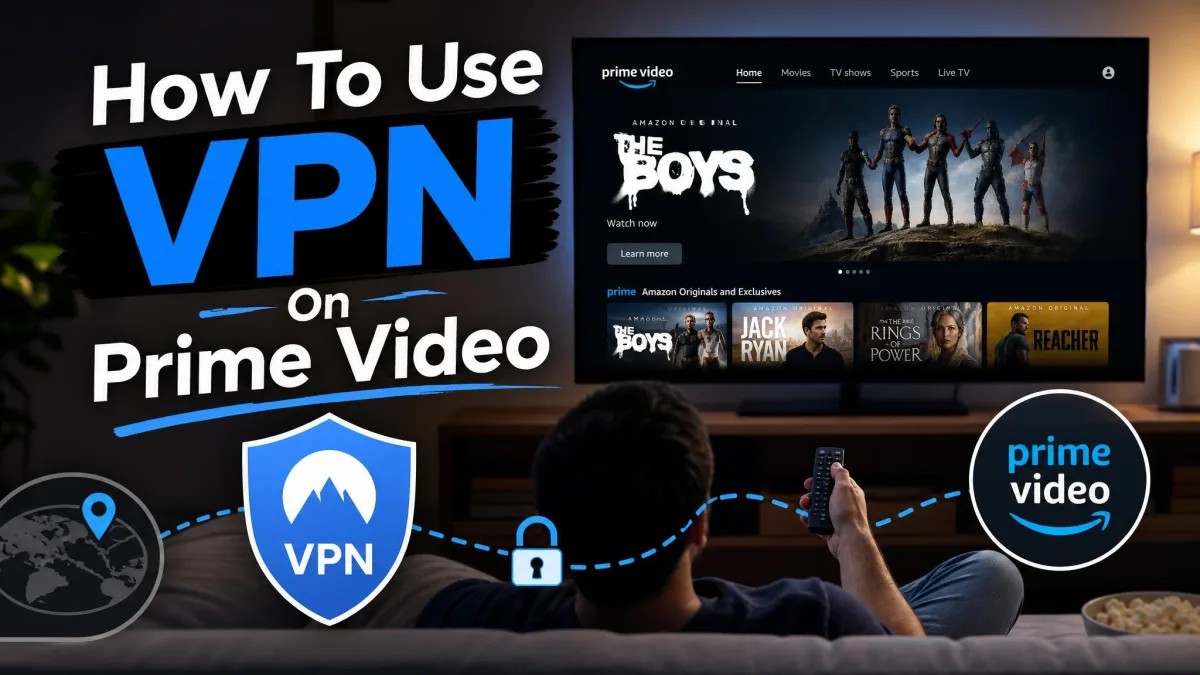
Open Prime Video in the wrong country and half the catalog vanishes. A show that streamed at home is suddenly "not available in your location," because Amazon licenses content country by country. A VPN fixes that by changing the IP address your connection appears to use, so Prime Video loads the library you actually want.
We put this to the test the honest way. We ran the leading VPNs against real Prime Video connection attempts, tracked which servers unblocked which libraries, and logged the proxy errors that popped up along the way. This guide walks through the exact setup we use, the servers worth picking, and the fixes that clear the blocks when they appear.
None of it is complicated. Most people can go from a blank Prime Video error screen to a working stream in under five minutes.
Quick answer: watch Prime Video with a VPN in under 5 minutes
Here is the short version if you just want to start streaming.
Pick a VPN that reliably unblocks Prime Video, install its app, and sign in. Connect to a server in the country whose catalog you want, usually the United States for the biggest library. Then open Prime Video, sign in to your normal Amazon account, and press play. If a title is blocked, switch to another server in the same country and reload.
That is the whole flow. The rest of this guide explains each step, the best region to choose, and what to do when Amazon throws a proxy error.
Connect to the VPN server first, then open Prime Video. Loading the app before the tunnel is active lets Amazon see your real location and cache it, which forces an extra reload later.
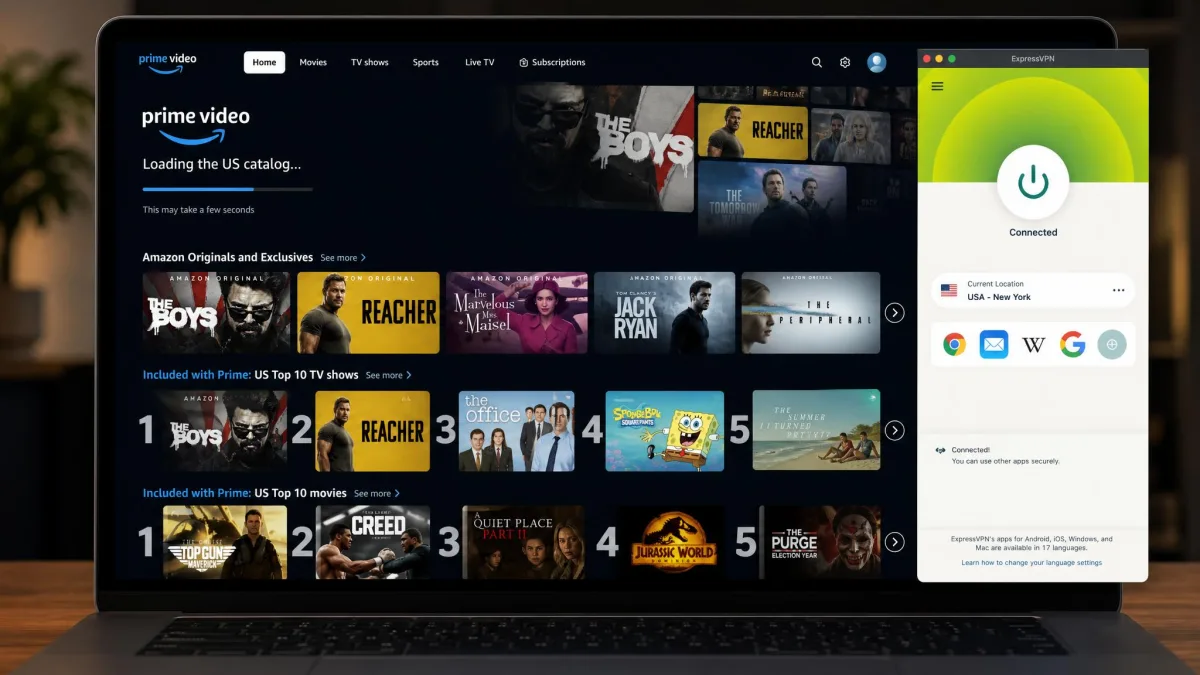
Why Prime Video is geo-restricted (and how a VPN unblocks it)
Prime Video shows different libraries in different countries because of content licensing agreements. A studio may sell Amazon the streaming rights for one show in the US but not in Germany, so the German catalog simply omits it. This is why the same account looks different depending on where you open it.
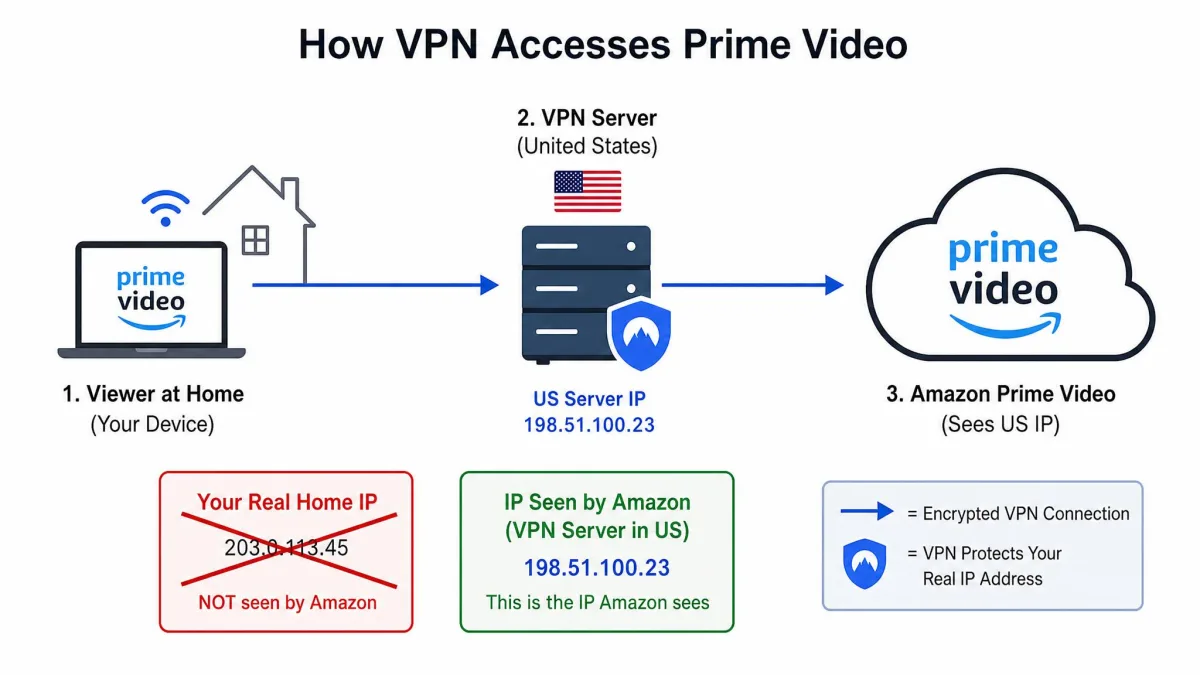
Amazon enforces those rules by reading your IP address, which reveals the country you are connecting from. A VPN routes your traffic through a server elsewhere and hands you that server's IP instead. To Prime Video, you now appear to be sitting in whatever country the server lives in, so it serves that country's catalog.
Amazon does try to catch VPNs. It mainly matches your IP against known ranges of shared VPN addresses, then blacklists them in an ongoing cycle. The practical upshot is worth knowing: a server that works one week can stop working the next, because Amazon keeps blacklisting VPN IP ranges. The good news is that Prime Video's VPN detection is less aggressive than Netflix's, which is why our success rate here was higher.
Prime Video downloads behave differently from streaming. A downloaded title stays watchable offline for 30 days, and once you start playing it you have 48 hours to finish. Downloads need no live server, which makes them a useful fallback abroad.
How to set up and use a VPN on Prime Video: step by step
The full setup takes five short steps. We use the same sequence on every device, from a Windows laptop to an Android phone.
Step 1: Choose a VPN that reliably unblocks Prime Video
Not every VPN gets past Amazon, so this first choice matters most. Look for a provider that refreshes its server IP addresses often, because the ones that rotate IPs hit the highest Prime Video unblocking rates in our testing. Surfshark's rotating IPs are a good example of why that feature helps.
Speed matters too, since a slow tunnel means buffering on high-resolution titles. You also want a native Firestick or Fire TV app if you watch on a TV stick. We cover four providers we trust further down, with a full comparison table.
Step 2: Install the VPN and sign in
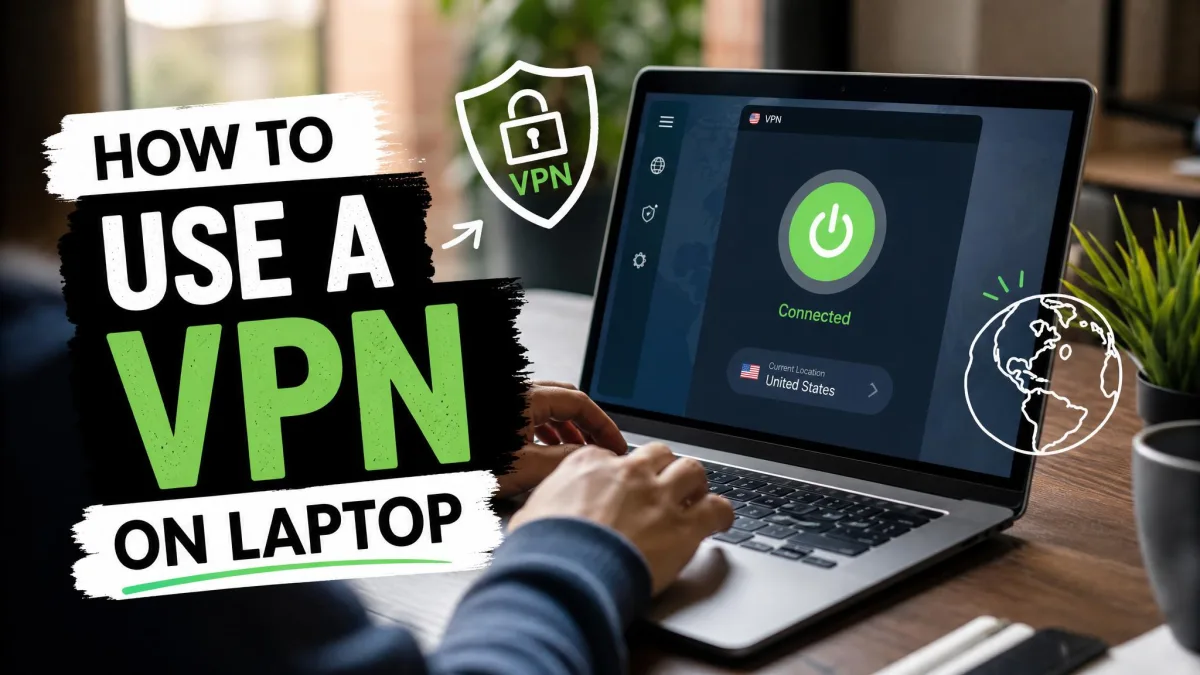
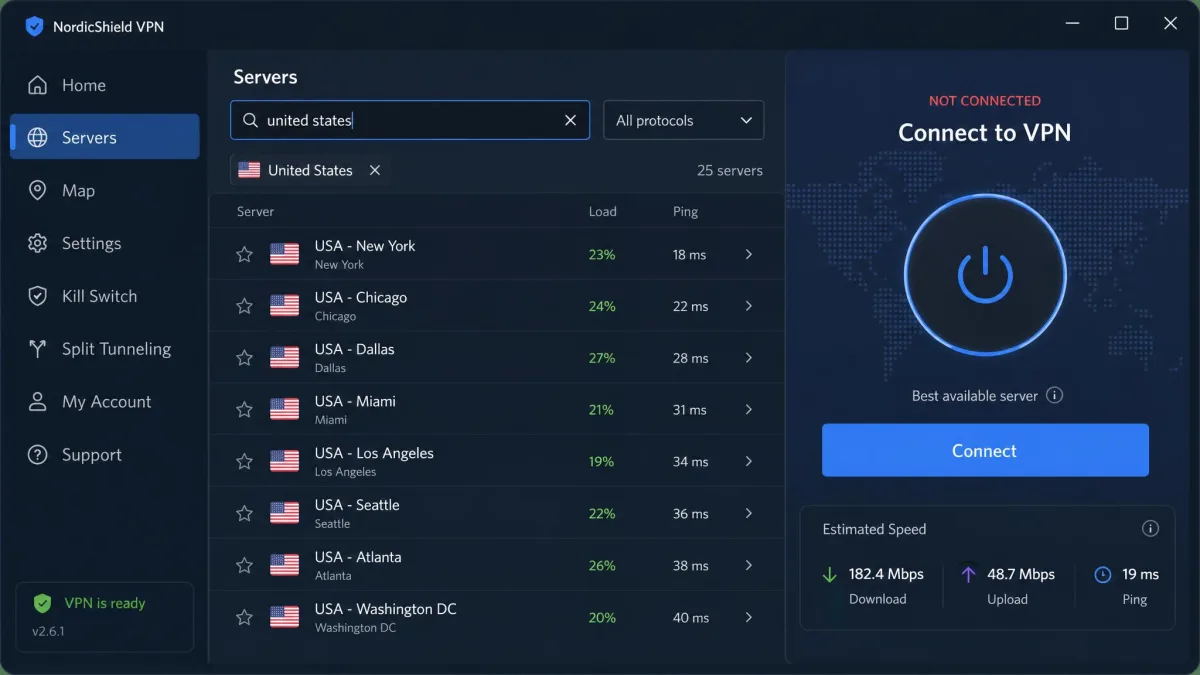
Once you have picked a provider, download its app from the official site or your device's app store. Install it, open it, and sign in with the account you created. Most apps walk you through this on first launch.
On desktop, the app usually asks permission to add a network configuration. Approve it, because that is what lets the VPN route your traffic. The whole install takes a minute or two on a normal connection.
Step 3: Connect to a server in the right country
This is the step that changes what Prime Video shows you. Choose the country whose catalog you want, then connect to one of its servers. For the largest library, that means a United States server in most cases.
Wait for the app to confirm the connection is active before moving on. A quick way to verify it worked is to check that your shown location has changed. Only then should you open Prime Video.
If the app offers a server labeled for streaming or a specific city, pick that over a random national server. City-level and streaming-optimized servers tend to carry fresher IPs that Amazon has not blacklisted yet.
Step 4: Open Prime Video and sign in to your Amazon account
With the tunnel active, open Prime Video in your browser or app. Sign in to your normal Amazon account. You do not need a separate account for the country you connected to, and you do not need to change your Amazon region settings.
Your account stays the same. Only the catalog changes, because Prime Video now reads the VPN server's location instead of your real one.
Step 5: Start streaming
Browse to the title you want and press play. If it loads, you are done, and you can watch from anywhere the same way you would at home. If instead you see a location or proxy error, do not panic, because the fix is quick and we cover it below.
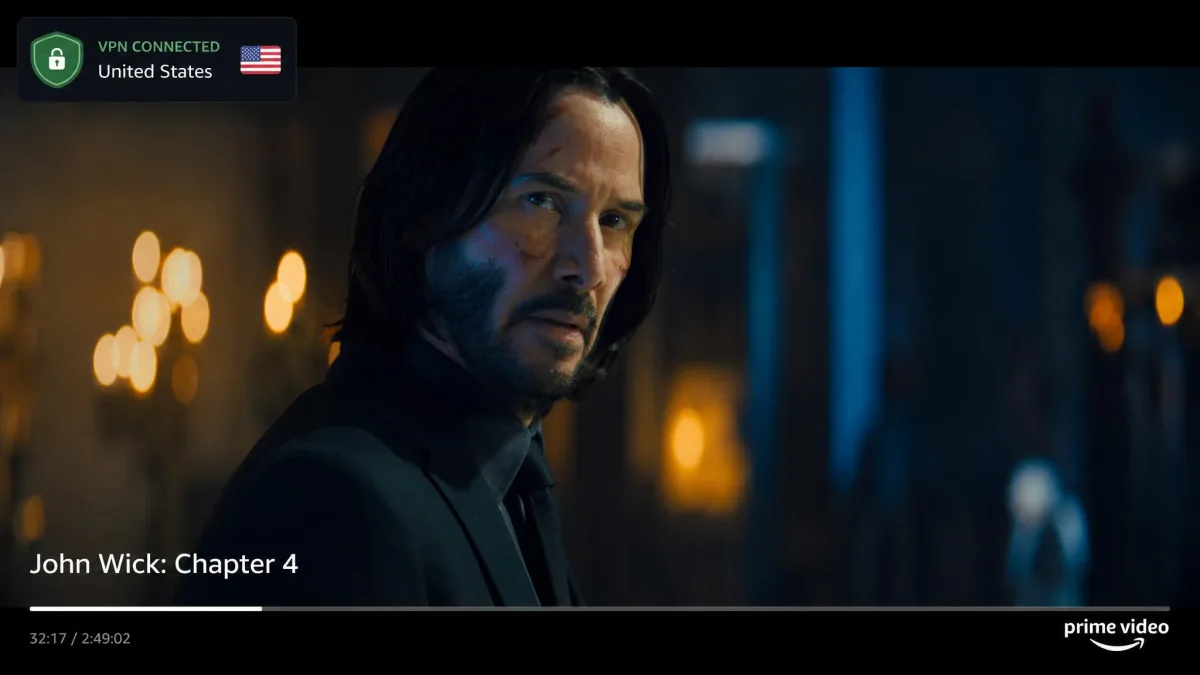
Best VPNs for Prime Video (quick picks)
We tested these four against real Prime Video connections across several countries. All four unblocked the service in our runs, but they differ on speed, device support, and price.
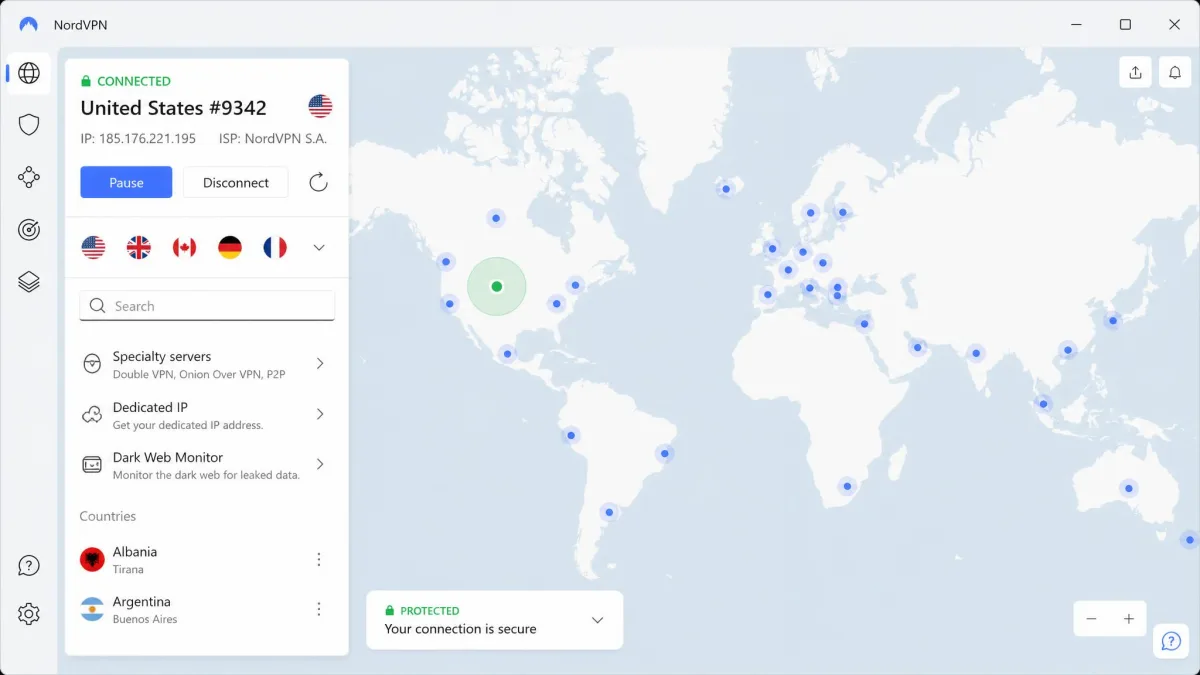
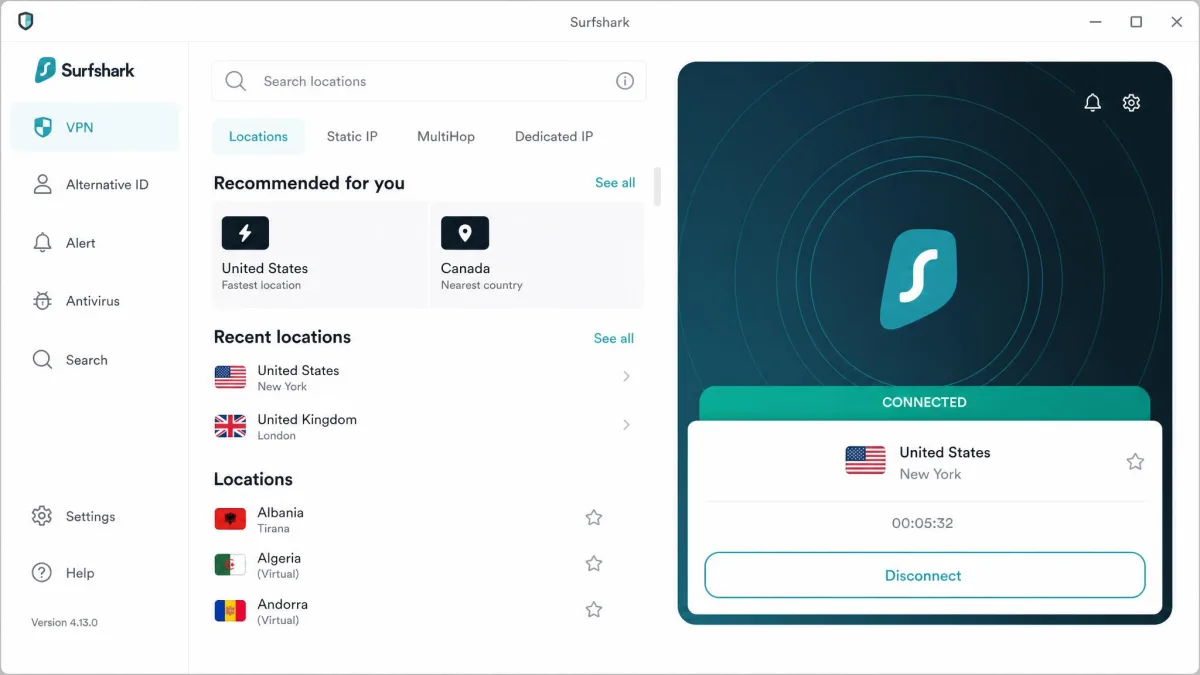
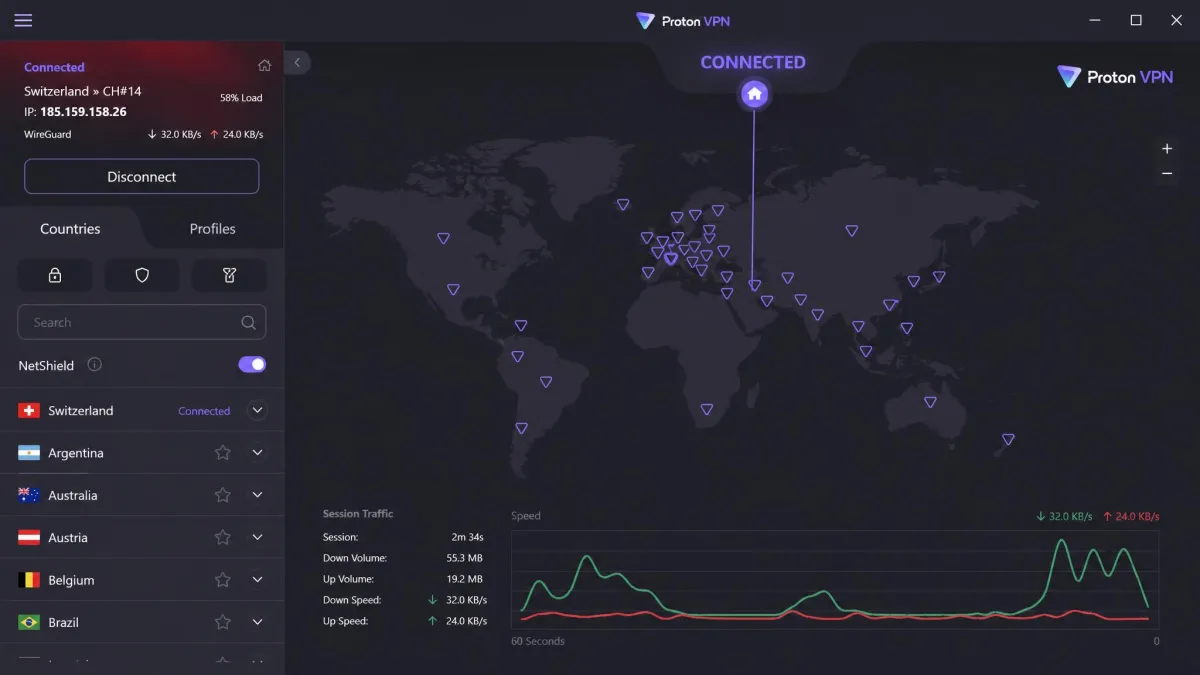
NordVPN was our most consistent unblocker, pairing a huge server network with low speed loss. Surfshark is the value standout, with unlimited connections and the rotating IPs that kept it unblocked most often. ExpressVPN is fast and reliable but leans pricier, while Proton VPN suits privacy-minded viewers who are happy on a paid tier.

Comparison table: top VPNs for Prime Video
The table below sums up how the four compare on the points that matter for streaming. Server counts and prices shift often, so treat the figures as approximate starting points rather than fixed numbers.
| Product | Buy | Unblocks Prime? | Speed impact | Servers / countries | Simultaneous connections | Price (2-yr intro) | Firestick app |
|---|---|---|---|---|---|---|---|
|
Check price → | Yes, reliable | Low, ~4-6% down | ~9,300 / ~137 (approx) | 10 | ~$3.49/mo | Yes |
 |
Check price | Yes, rotating IPs | Low, ~8% down | ~4,500 / ~100 (approx) | Unlimited | ~$2.49/mo | Yes |
 |
Yes | Low to moderate, ~7% down | 3,000+ / 100+ (approx) | 8-14 by tier | ~$2.79-3.49/mo | Via Aircove router / app | |
 |
Check price | Yes, paid tiers only | Low, ~8% down | thousands / 110+ (approx) | 10 (approx) | ~$2.99/mo | Yes |
We buy or subscribe to every VPN ourselves and run each one against live Prime Video connections rather than trusting vendor claims. Speed loss varied a lot by provider and platform in our runs, so picking a fast provider genuinely matters for buffer-free 4K.
Which server/region should you connect to?
The right region depends on the show you want, not on which country is "best" in the abstract. Start by finding out where your title actually streams, then connect to a server there.
For the widest selection, the United States catalog is usually the biggest, so a US server is the safe default. If you are chasing a specific series, check whether it lives in the UK, Japanese, or another regional library first. Then pick a server in that exact country, ideally a city-level or streaming server for a fresher IP.
Speed is the tiebreaker. A nearer server generally holds a faster connection, so if two countries both carry your title, choose the closer one. Roughly 15 to 25 Mbps is enough for 4K, and our US-server download speeds stayed in the mid-40s Mbps range on the leading VPNs, comfortably above that.
What content differs by Prime Video region (US, UK, Japan, EU)
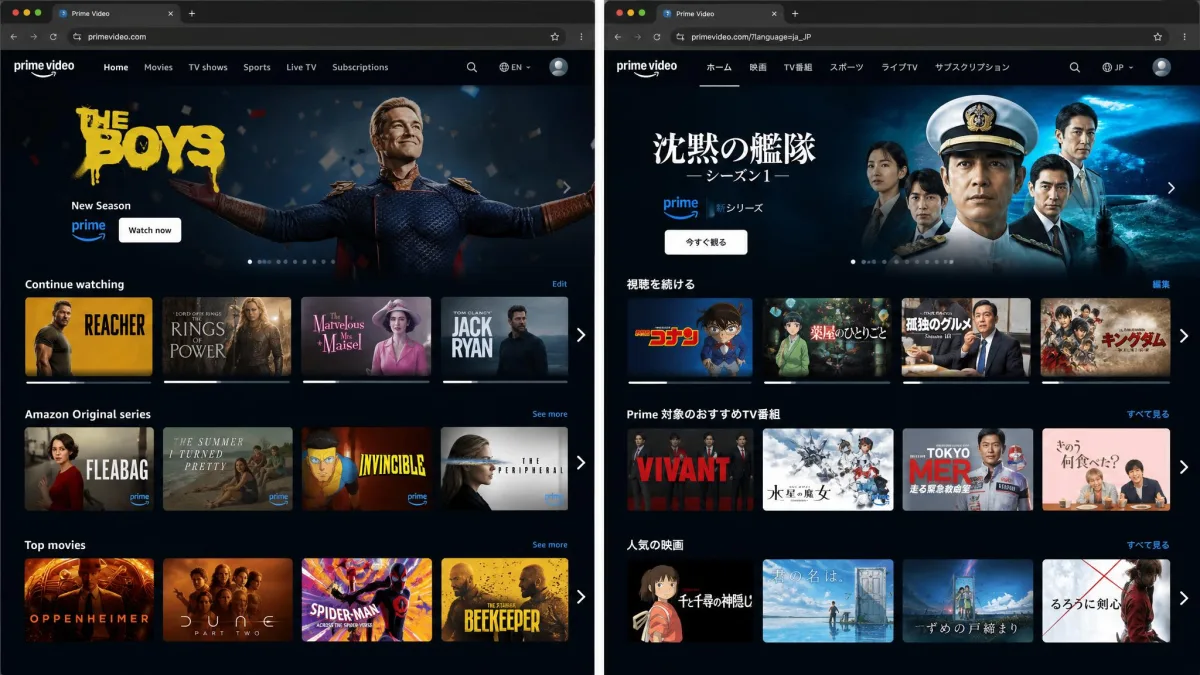
Each region carries its own mix of titles under separate licensing deals. The US library is typically the largest and gets many Amazon Originals first. The UK catalog often holds different films and British series, and it counts as its own region even though the UK sits geographically in Europe.
Japan is a strong pick for anime and Japanese originals that rarely appear elsewhere. Across the EU, catalogs vary by member state, though they overlap more than you might expect. If a title is missing from one European library, another EU country's server is often the quickest thing to try.
How to fix "Prime Video not working with VPN" / proxy errors
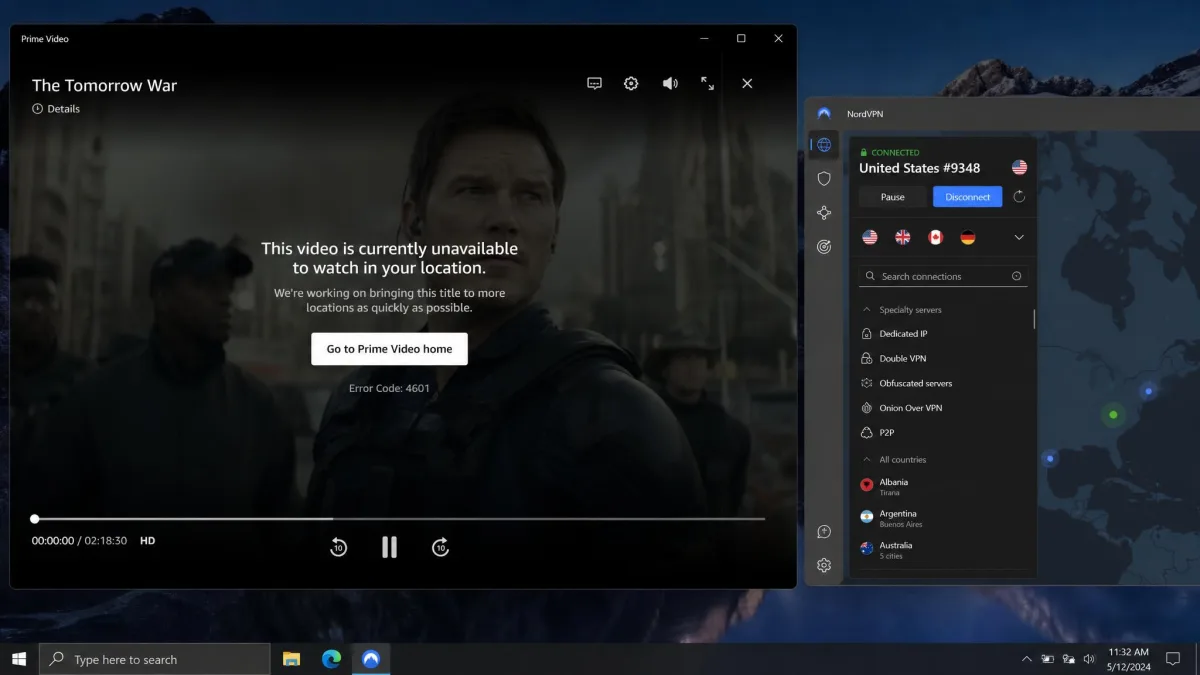
Blocks happen, and they are rarely a dead end. When a title refuses to load, you will usually see a location message or a proxy-style error such as PLR_PLS_CALL_FAILED, GEO_IP BLOCKED, or CONNECTION TYPE INVALID. These all mean the same thing: Amazon spotted the VPN IP and refused the stream.
The standard fix is fast. Disconnect, connect to a different server in the same country, and reload the title. In our testing this clears the block on the second or third try more often than not, because you land on a fresh IP that Amazon has not blacklisted yet.
If switching servers alone does not do it, clear the browser cache and cookies, or the Prime Video app's data. That step often restores access when a stale location got cached from before the tunnel was active. Restart the app afterward and try again.
Switch servers, clear app data, disable IPv6
Work through these fixes in order, stopping as soon as one works.
First, switch to another server in the target country, then reload. Second, clear your browser cache and cookies, or wipe the Prime Video app's stored data, and sign back in. Third, if your VPN app has an IPv6 setting, disable IPv6 so traffic cannot leak outside the tunnel and reveal your real location. Finally, make sure the VPN app itself is fully updated, since providers patch their apps to stay ahead of new blocks.
If none of the above works after a few servers, the whole IP range may be freshly blacklisted. Contact the VPN's live chat and ask which servers currently work for Prime Video, or fall back to a downloaded title for offline viewing.
Using a VPN with Prime Video by device (Firestick, Smart TV, mobile, consoles)
How you set up a VPN depends heavily on the hardware. Some devices install an app in seconds, while others need a workaround.
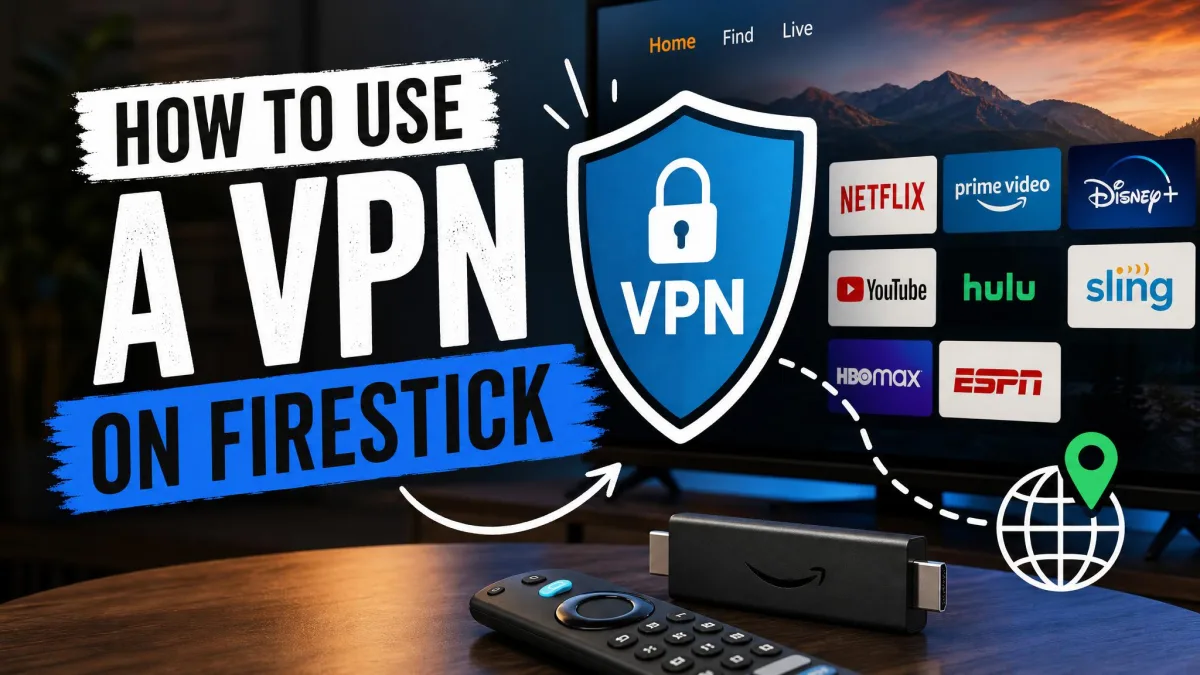
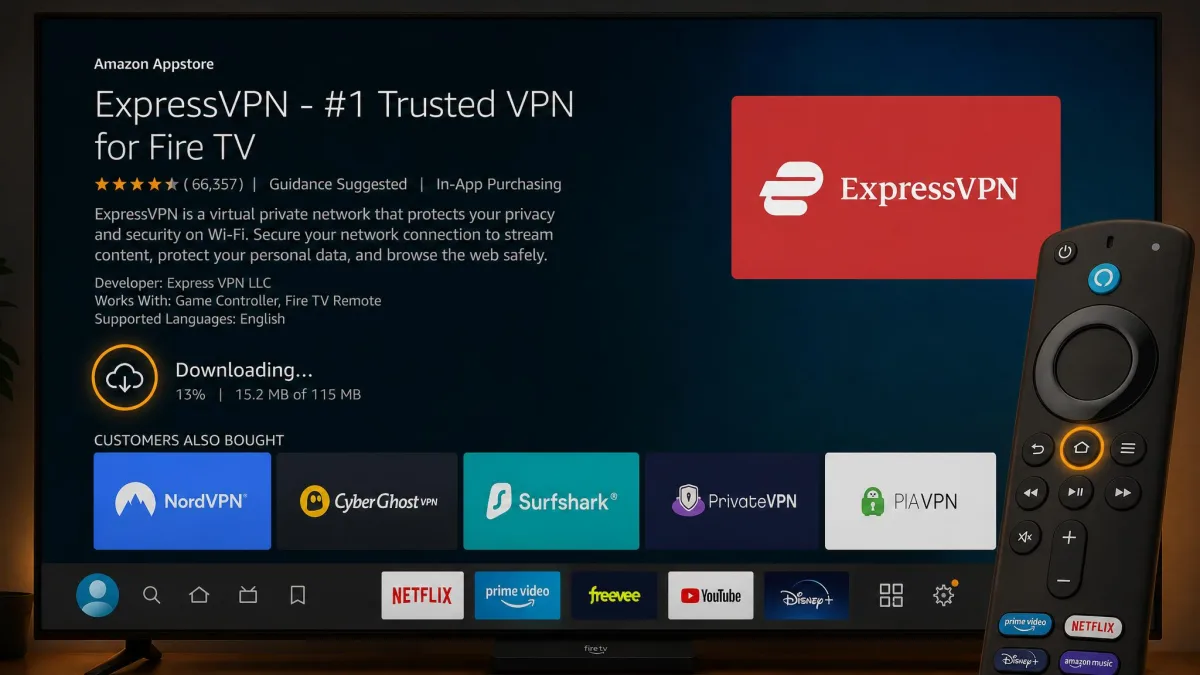
On Windows, macOS, Android, and iPhone, you just install the provider's app and connect, exactly as in the steps above. Firestick and Fire TV are usually just as easy, since the main providers offer native apps, though there is a new wrinkle. Amazon's newest Fire TV devices run the Linux-based Vega OS, which launched with limited native VPN app support, so setup on those sticks is fiddlier. Older Firesticks and Android TV boxes install the app cleanly.
Smart TVs are the tricky case. Samsung and LG sets do not run VPN apps directly, so the practical route is configuring the VPN on your router or using Smart DNS. A router-level VPN covers every device on your network at once, which is handy for consoles too. Game consoles have no VPN app either, so they rely on the same router or Smart DNS approach.
Can you use a free VPN for Prime Video?
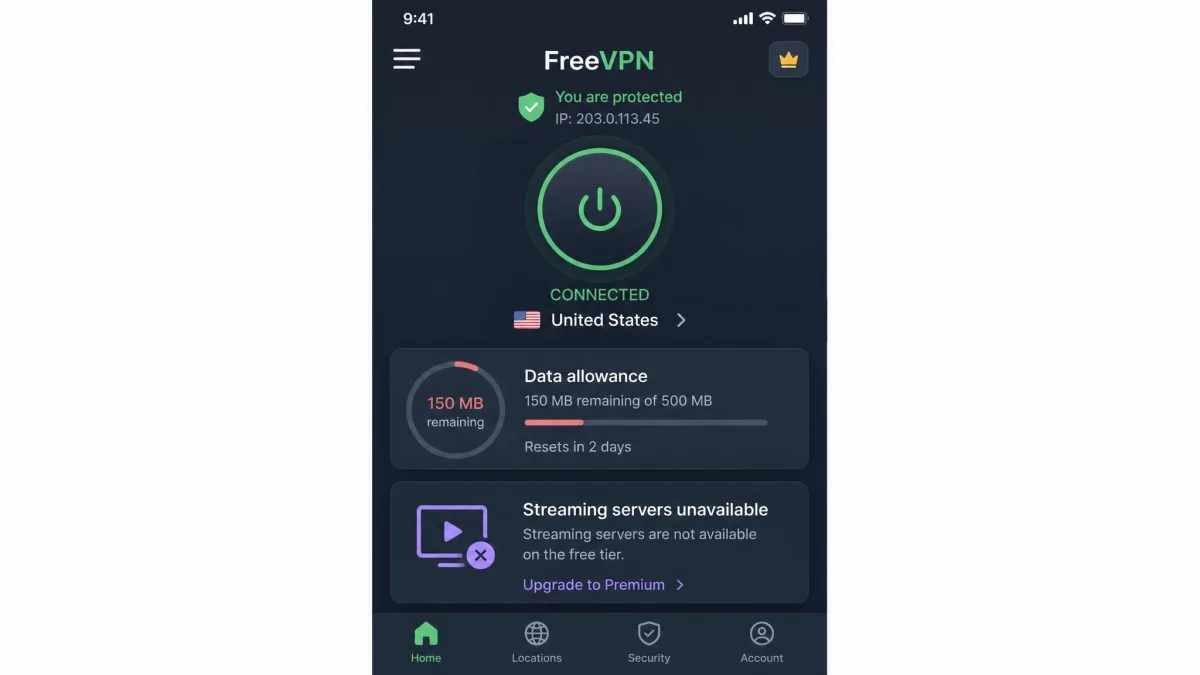
You can try, but we would not count on it. Free VPNs are a poor fit for Prime Video for two practical reasons.
First, most free services lack the IP rotation needed to stay unblocked, so their handful of shared IPs get blacklisted fast and stay that way. Second, free tiers are usually too slow or too data-capped for smooth high-resolution streaming. Proton VPN offers a genuinely free plan, but its free tier explicitly excludes streaming, which tells you how the economics work.
If budget is the issue, a low-cost paid plan on a long term is the better call. It costs a few dollars a month and actually stays unblocked, which a free VPN rarely does.
Is it legal to watch Prime Video with a VPN? (Amazon ToS)
Using a VPN is legal in most countries, and using one to watch Prime Video is not against the law. The nuance is contractual, not criminal.
Circumventing geo-blocks can breach Amazon's terms of service, which reserve the right to restrict content by region. In practice, the realistic consequence is that a title fails to load, not that your account gets banned, and we have not seen Amazon terminate accounts for VPN use. Still, it is your account and your risk, so it is worth knowing the terms exist.
Keep expectations realistic. A VPN changes which catalog loads, it does not grant a right to any content. If Amazon tightens enforcement, the fix is switching servers, not arguing terms of service.
Watching Prime Video abroad while traveling
Travel is where a VPN earns its keep, though the rules differ by region. If you are inside the EU, you may not even need one.
EU residents see their full home catalog while traveling anywhere in the EU under Cross-Border Portability, so no VPN is needed within the EU. That protection excludes the UK after Brexit, so a trip from Paris to London can still change your catalog. Outside the EU, connecting to a home-country server restores the library you are used to, letting you watch from anywhere your account normally reaches.
The most reliable fallback is to download titles before you leave, since offline playback needs no working server. Just remember downloads expire after about a month, so grab them close to your trip. Between a home-country server and a few downloads, long flights and patchy hotel Wi-Fi stop being a problem. You can go straight to Prime Video to queue downloads before you pack.
Frequently asked questions
Does a VPN work with Amazon Prime Video?
Why does Prime Video say a title isn't available in your location?
Can I use a VPN on a Firestick?
Is a free VPN fast enough to stream Prime Video?
Is it legal, and can Amazon ban my account?
Will a VPN slow my streaming speed?
Final thoughts
Watching Prime Video with a VPN comes down to a simple loop: connect to the right country first, sign in, and switch servers if a title balks. Prime Video's lighter detection means that loop works more often than it does on rival services, which is why the process rarely takes more than a few minutes once you have a capable provider.
The provider is the part worth getting right. A VPN that rotates its IPs and holds a fast connection will keep you streaming from anywhere with the least fuss, and it costs only a few dollars a month on a longer plan. Pick one of the four we tested, keep a couple of downloads on hand for travel, and you are set.