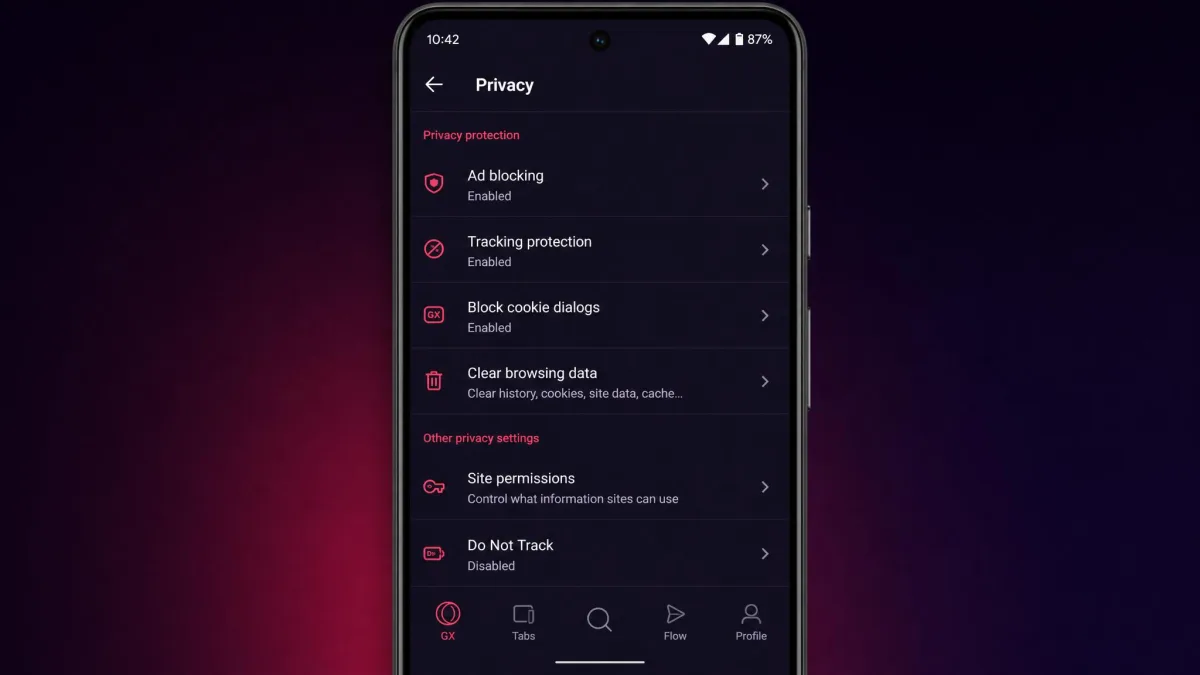
If you installed Opera GX on your phone and went hunting for the VPN toggle, you already hit the problem. It is not hidden, it simply is not there. Opera GX on mobile has no built-in VPN, and that gap trips up a lot of people who saw the free VPN advertised for the desktop browser.
Here is the direct answer. To browse privately with Opera GX on Android or iPhone, you use either the regular Opera for Android browser's built-in VPN or a separate standalone VPN app. Both routes work, and both take only a few minutes to set up. We tested each option to see what actually protects your traffic and what only looks like it does.
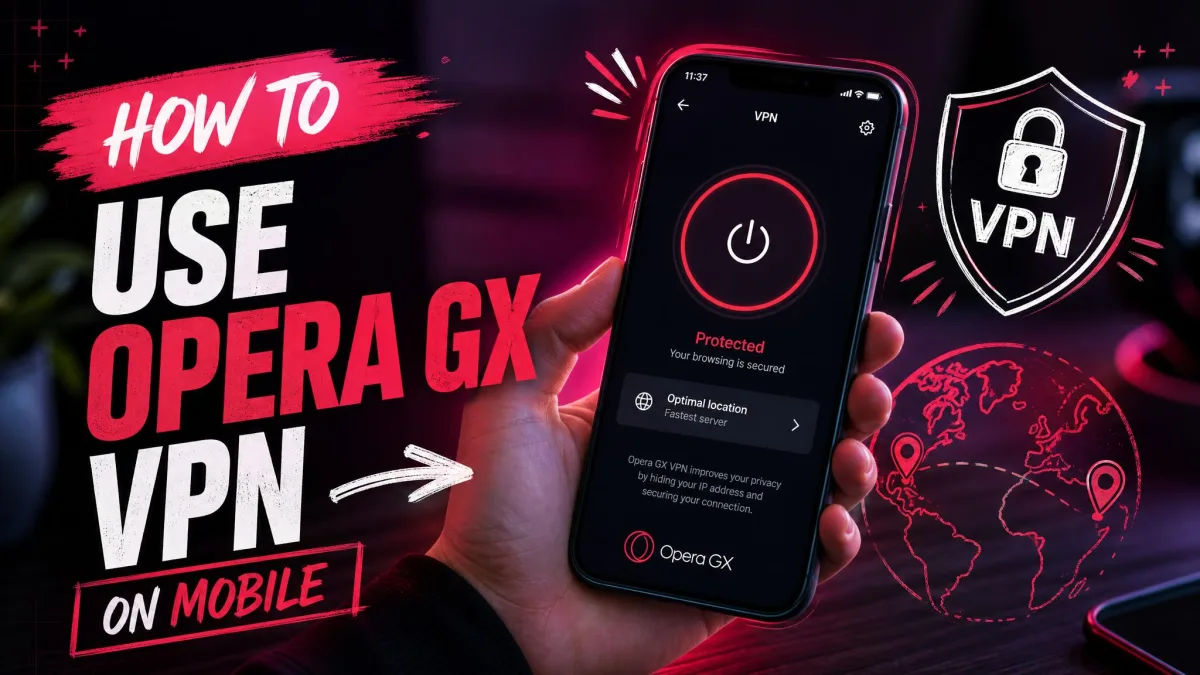
Opera GX for Android and iOS does not include a built-in VPN. The free VPN Opera advertises for Opera GX is desktop-only, meaning Windows and Mac. Any page claiming the GX mobile app has an integrated VPN is wrong, so do not search the settings for a switch that does not exist.
Does Opera GX Have a Built-in VPN on Mobile?
The short answer: it's desktop-only
No. The Opera GX browser you download on Android or iOS does not carry the free VPN at all. That feature lives only in the desktop version of Opera GX, where you enable it under Settings, then Privacy & Security. On the phone that menu path leads nowhere, because the VPN was never shipped in the mobile build. Even on desktop it is browser-level, so it protects traffic inside the browser only, never your other apps.
Opera for Android's VPN vs. Opera GX
The key distinction is between two different apps. Opera GX is the gaming-themed browser, and its VPN is desktop-only. The regular Opera for Android browser is a separate app, and it does include a free built-in VPN on the phone. So when a guide says Opera has a free mobile VPN, that is true, but it means the standard Opera browser, not GX. If you want GX specifically, you need the standalone-app route.
How to Get VPN Protection with Opera GX on Your Phone
You have two practical options. Both give you encrypted browsing, but they differ in how much of your device they cover.
Option 1: Use Opera (regular) for Android's built-in VPN
On Android, if you want a free, no-fuss option, install the regular Opera browser from Google Play and turn on its VPN. Opera states this is a no-log service that does not collect the data travelling through its servers. It is genuinely free, with no account. The catch is that it protects browser traffic only, and server choice is limited to 4 locations. Opera keeps an Opera's VPN for Android FAQ that walks through the toggle. This route does not run inside Opera GX, so it is a swap rather than an add-on.
Option 2: Install a standalone VPN app (iPhone & Android)
The route that works everywhere, including with Opera GX, is a standalone VPN app. You install it once, connect it, and every app on the device runs through the tunnel, GX included. This is the only workable option on iPhone and iPad, since no Opera browser ships a VPN on iOS. It also fixes the biggest weakness of any browser VPN. Because it works at the device level, your search traffic and other apps are covered too.
If privacy across your whole phone matters, choose the standalone app even on Android. A browser VPN leaves everything outside that one browser exposed.
Step-by-Step: Turning On a VPN for Opera GX on Android
Setting up a standalone VPN on Android is quick. In our testing the whole process took only a couple of minutes.
- Open Google Play, search for your chosen VPN app, then install it.
- Open the app and create or sign in to your account.
- Tap connect. Android shows a one-time VPN permission prompt, so approve it.
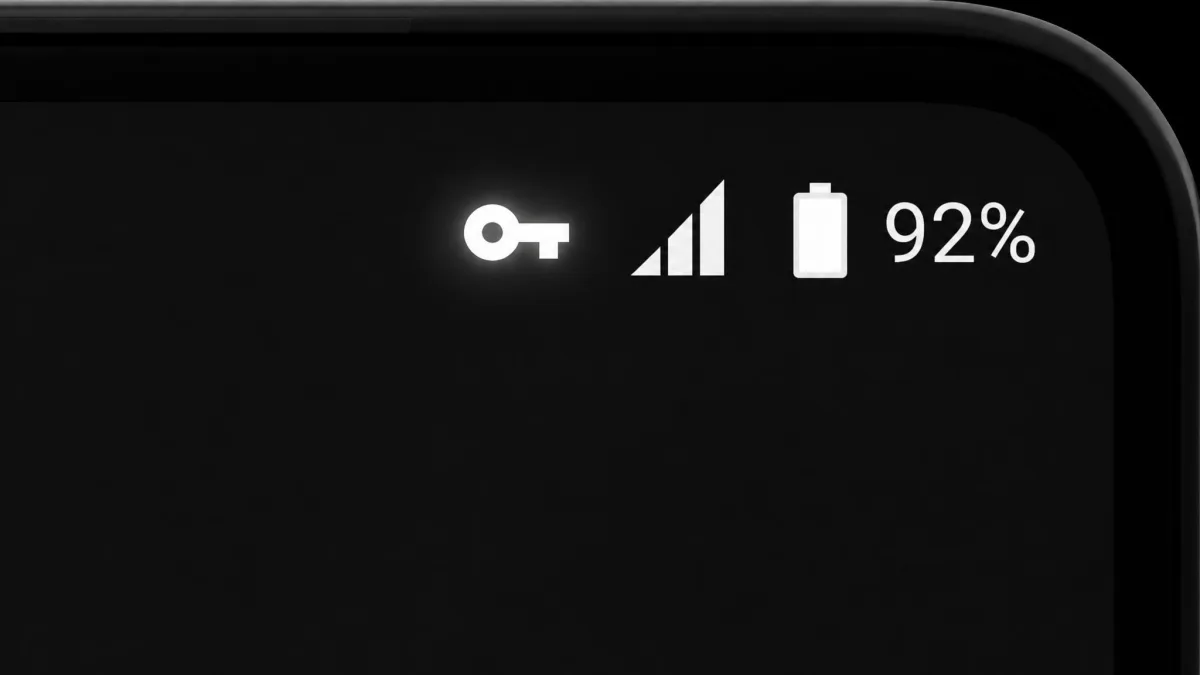
- Check the status bar. A small key icon appears to confirm the VPN is running.
- Launch Opera GX. Its traffic now travels through the encrypted tunnel.
That key icon is your proof the tunnel is live. We always glance at it first, because if it is missing, your traffic is going out unprotected.
Step-by-Step: Using a VPN with Opera GX on iPhone / iPad
On iOS the flow is almost identical, since a standalone app is your only option.
- Open the App Store and download your chosen VPN app.
- Create or sign in to your account.
- Connect the VPN and grant the permission when iOS asks.
- Open Opera GX. Its traffic now runs through the VPN alongside every other app.
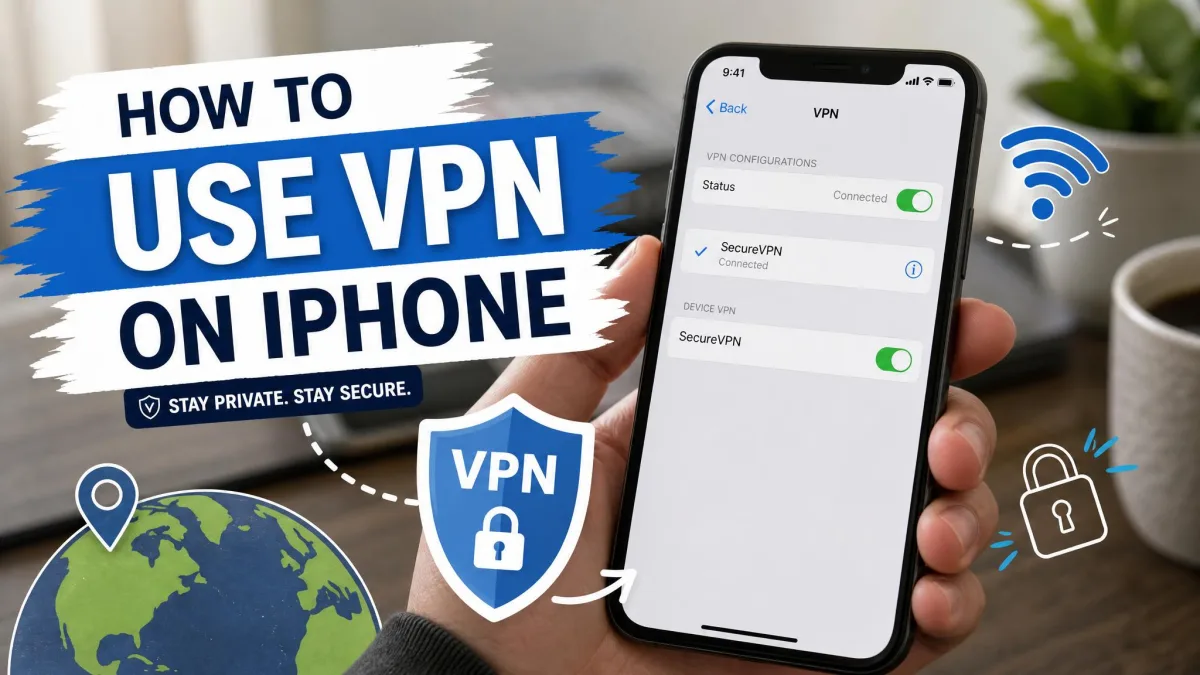
iOS shows a small VPN badge at the top of the screen when the connection is active. As on Android, we confirm that badge is showing before we trust the connection.
Best VPN Apps to Pair with Opera GX Mobile
For a free, device-wide option, ProtonVPN is the one we reach for first. Its free plan has unlimited data and no ads on iPhone, iPad, and Android, and unlike a browser VPN it protects every app. The free tier limits you to 5 countries and one device at a time, which is fine for everyday browsing. If you want more locations or faster speeds, paid apps such as NordVPN or ExpressVPN are the usual picks. NordVPN's Basic plan runs $14.99 a month, dropping to about $3.49 a month on the 2-year plan billed upfront. ExpressVPN's Basic plan is $12.99 a month, and its 2-year rate averages roughly $2.79 a month, though that advertised per-month figure shifts with active promotions and which tier you choose. Both back their plans with a 30-day money-back guarantee, so you can try either on your phone before committing.
| Option | Built-in VPN on phone | Protection scope | Locations | Cost |
|---|---|---|---|---|
| Opera GX mobile | No (desktop-only) | Not available on mobile | n/a | Free browser, no mobile VPN |
| Opera for Android | Yes, free built-in | Browser traffic only | 4 locations | Free |
| ProtonVPN (free app) | Yes (standalone app) | Whole device, all apps | 5 countries (free) | Free tier |
Benefits of Using a VPN with Opera GX on Mobile
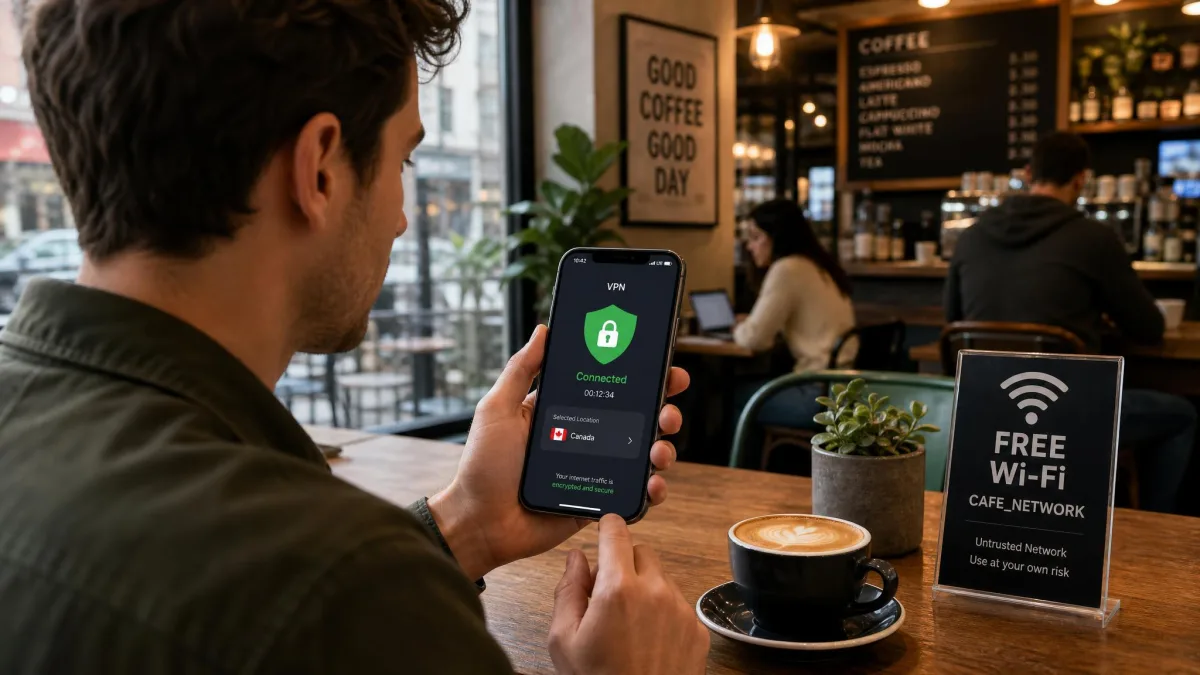
A VPN encrypts your internet traffic and hides your IP address, so the sites you visit and your network provider see far less about what you do online. The clearest security win is on public Wi-Fi. On an open network at a cafe or airport, an encrypted tunnel keeps your browsing away from anyone snooping on the same connection, and a device-wide app extends that to every app.
A VPN also lets you appear in another country, which can change the version of a page you see or the content available to you. Server choice depends on the app, so pick one whose country list covers what you need.
Limitations and Things to Know
Free browser VPNs come with real trade-offs. In our testing, Opera's free browser VPN was noticeably slow, with speeds often dropping by more than 50% against an unprotected connection. Those speeds can sag further at peak times, because the shared free servers get congested.
Scope is the other limit. A browser VPN only covers traffic inside that browser, so anything you do in other apps stays exposed. Server choice is coarse too. You pick a broad region rather than a specific city, and on Opera the location switcher lives in the browser's address-bar badge. None of this makes a browser VPN useless, it makes it a light-duty tool for casual browsing. For anything you care about, a standalone app is more reliable.
Frequently Asked Questions
Does Opera GX mobile even have a built-in VPN?
Is the Opera GX mobile VPN free?
Can I choose a specific country or server?
Does a VPN slow down mobile browsing?
Does it protect apps outside the browser?
How do I turn the VPN off?
Conclusion
Opera GX on mobile does not have a built-in VPN, and no setting will change that. To browse privately with GX on your phone, install a standalone VPN app, connect it, then open the browser. On Android you can instead switch to the regular Opera browser for its free built-in VPN. For whole-device privacy, especially on public Wi-Fi, the standalone app is the route we would choose.