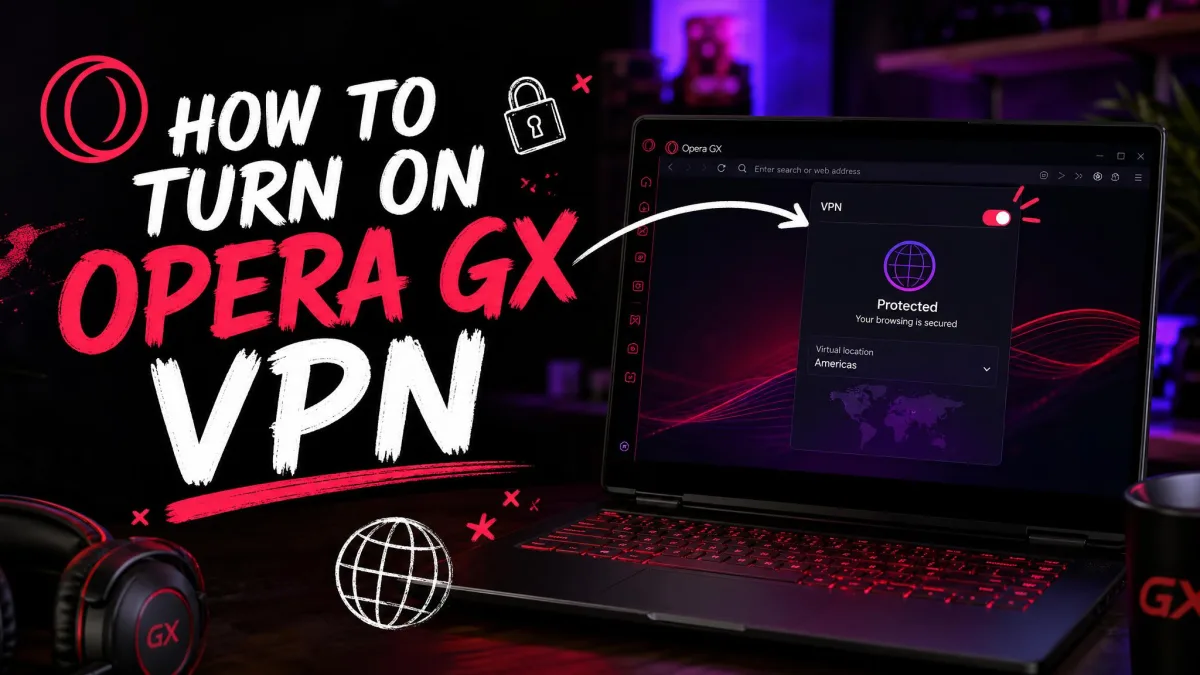
You want to hide your IP or reach a geo-blocked page, and Opera GX already has a VPN built in. The catch is that flipping one setting is not enough, and the switch is easy to miss. We tested the built-in VPN on Windows and macOS to map the exact path.
This guide walks through every step: enabling the toggle, switching the connection on, changing your region, and checking your new IP. We also explain what this VPN really is, so you know what it protects and what it leaves exposed.
How to Turn On the VPN in Opera GX (Desktop)
The free VPN ships with Opera GX on Windows and Mac, so there is nothing to download or install. Turning it on takes two actions, not one, and the second is the step most people skip.
Step 1: Open Settings
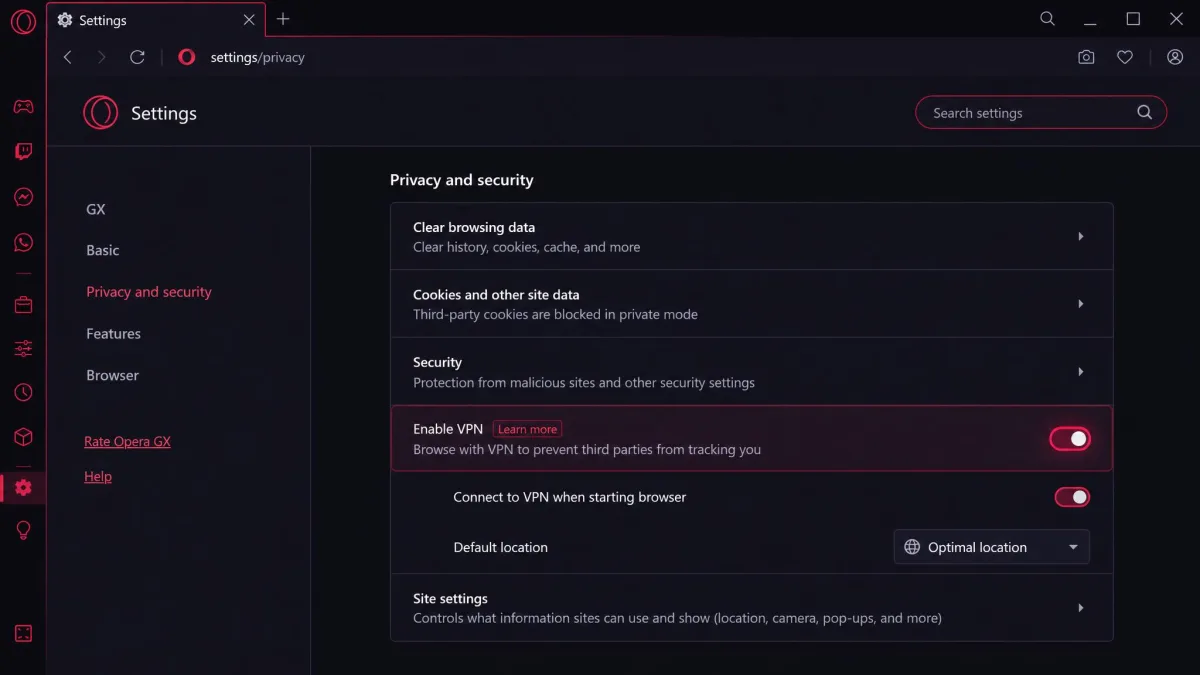
Open the Opera GX menu, then choose Settings. On Windows, press Alt+P to jump straight there; on macOS, press Cmd and comma. The settings tab opens in the main window.
Step 2: Find the Privacy & Security / VPN Section
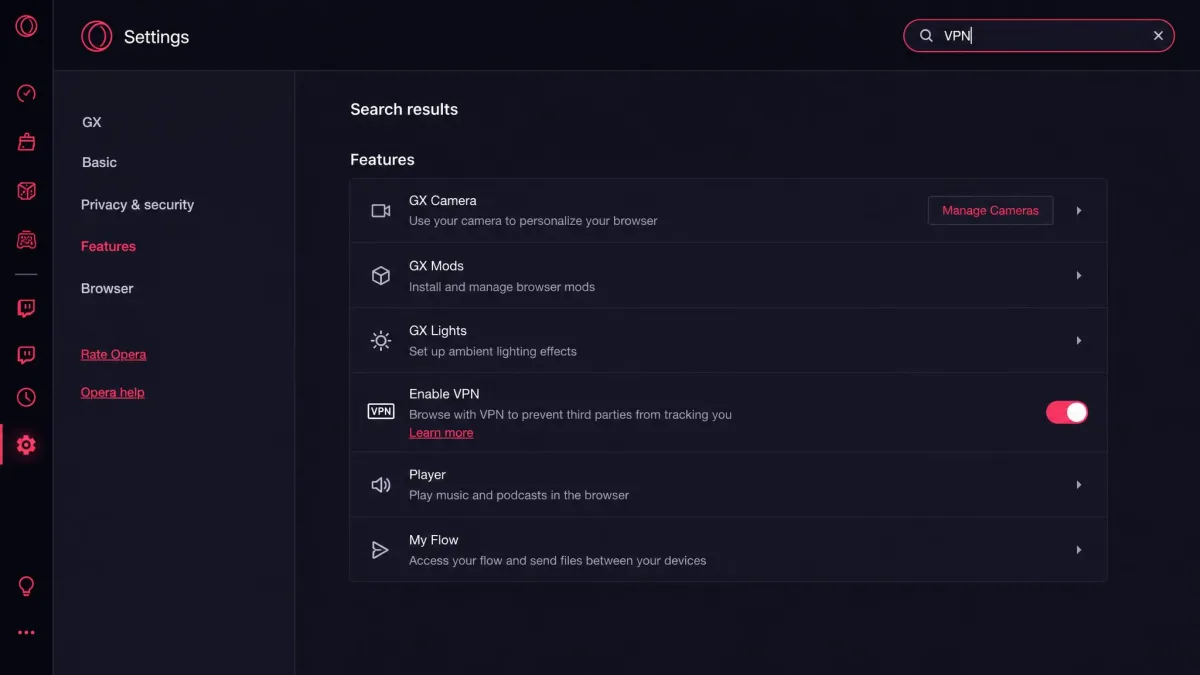
Scroll to Features, or open Advanced, then Privacy & security, depending on your layout. Look for the VPN block in that list. Opera GX moves this setting between versions, so check both spots if you do not see it right away.
Step 3: Toggle On the Free VPN
Switch on Enable VPN. This turns the feature on, but it does not yet route your traffic. In our testing, enabling this toggle alone did nothing until we finished the next step, which is the part first-time users almost always miss.
Flipping Enable VPN in Settings is only half the job. Your browsing is not protected until you also switch the connection on from the address-bar badge in Step 4.
Step 4: Confirm the VPN Badge in the Address Bar
A VPN badge now sits to the left of the address and search bar. Click it, then set the switch to On. The badge turns blue when the connection is live and grey when it is off. On a narrow window the badge is easy to overlook, so widen the browser if you cannot find it.
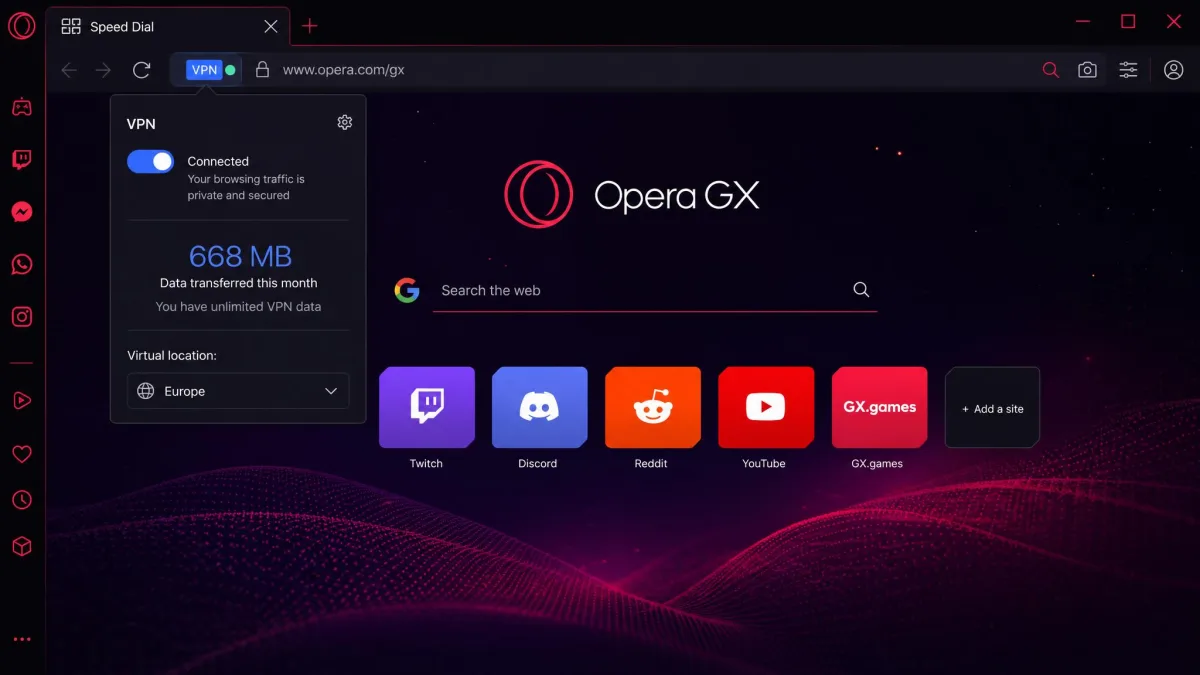
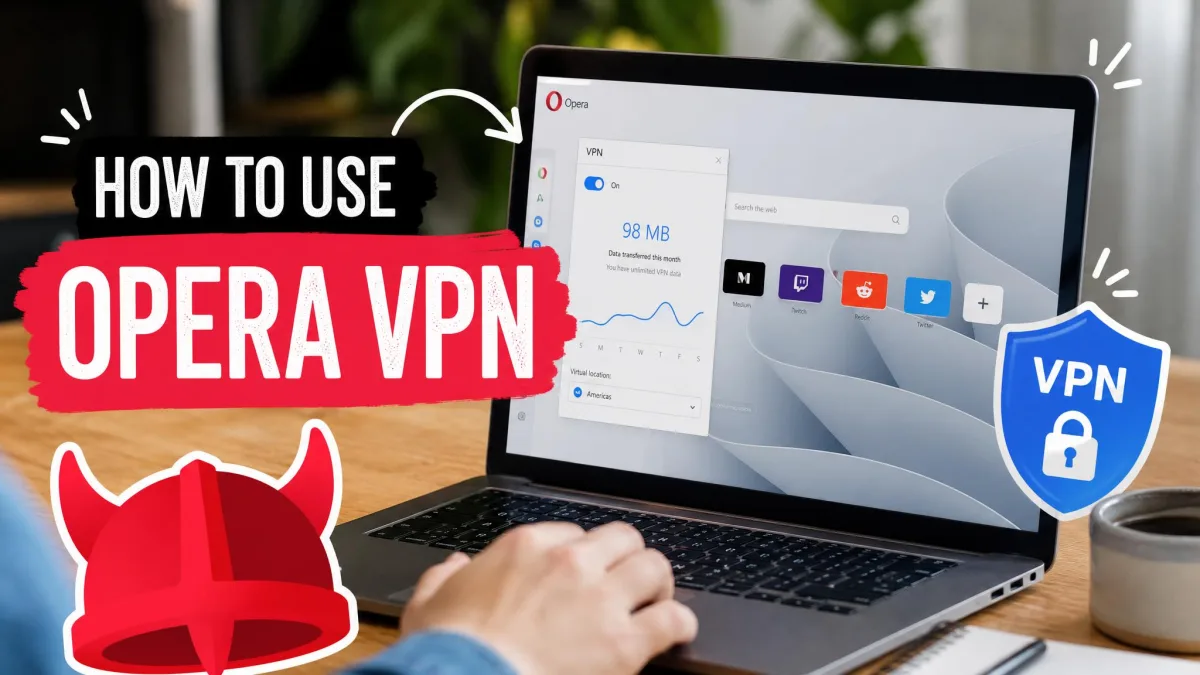
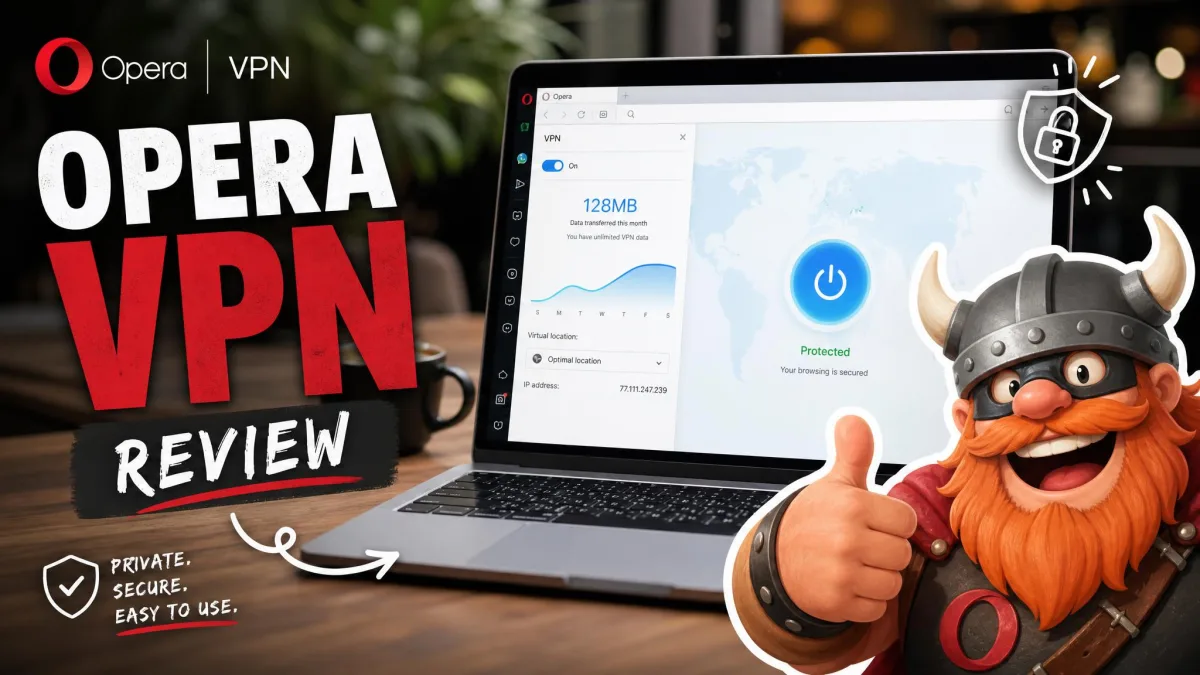
Click the VPN badge any time to see a quick status panel: on or off, data transferred, your virtual region, and your current virtual IP address.
How to Choose or Switch Your Virtual Region
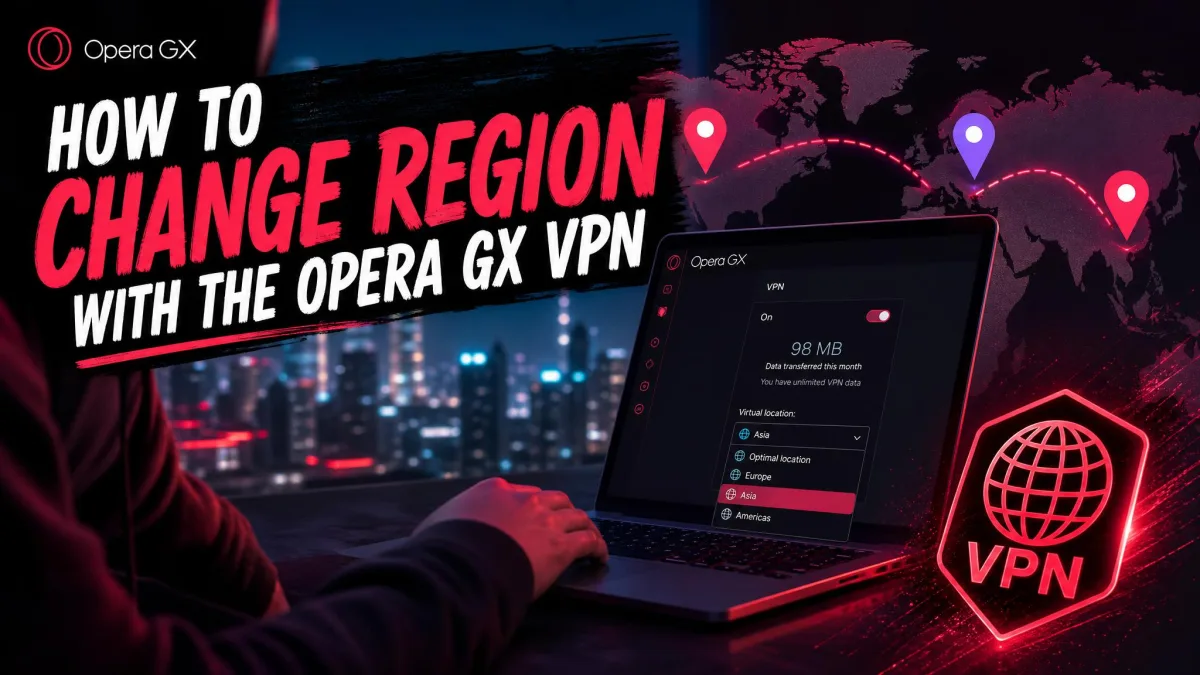
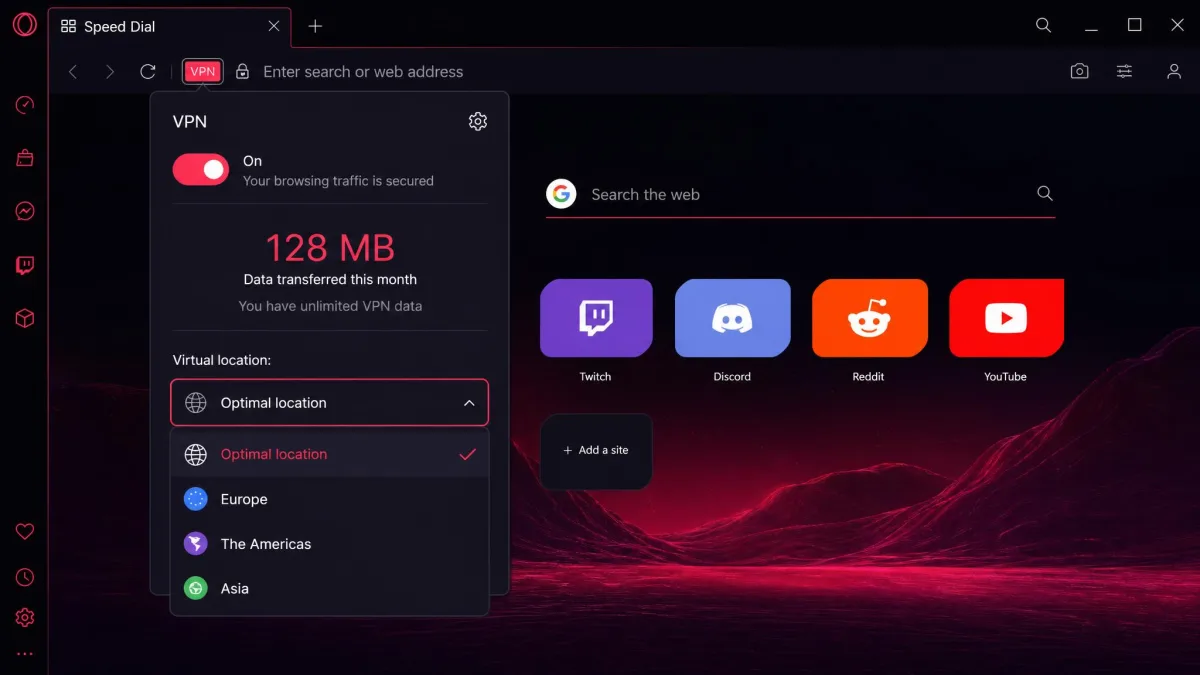
Open the badge panel and use the location dropdown to pick a region. The free tier offers broad areas rather than countries: Optimal location, Europe, The Americas, and Asia. Optimal picks the fastest nearby server automatically, which is the best choice for everyday speed.
Switching region reassigns your virtual IP within seconds. You cannot pin an exact country on the free tier, so services that check for a specific country may still block you.
How to Check Your Virtual IP Address
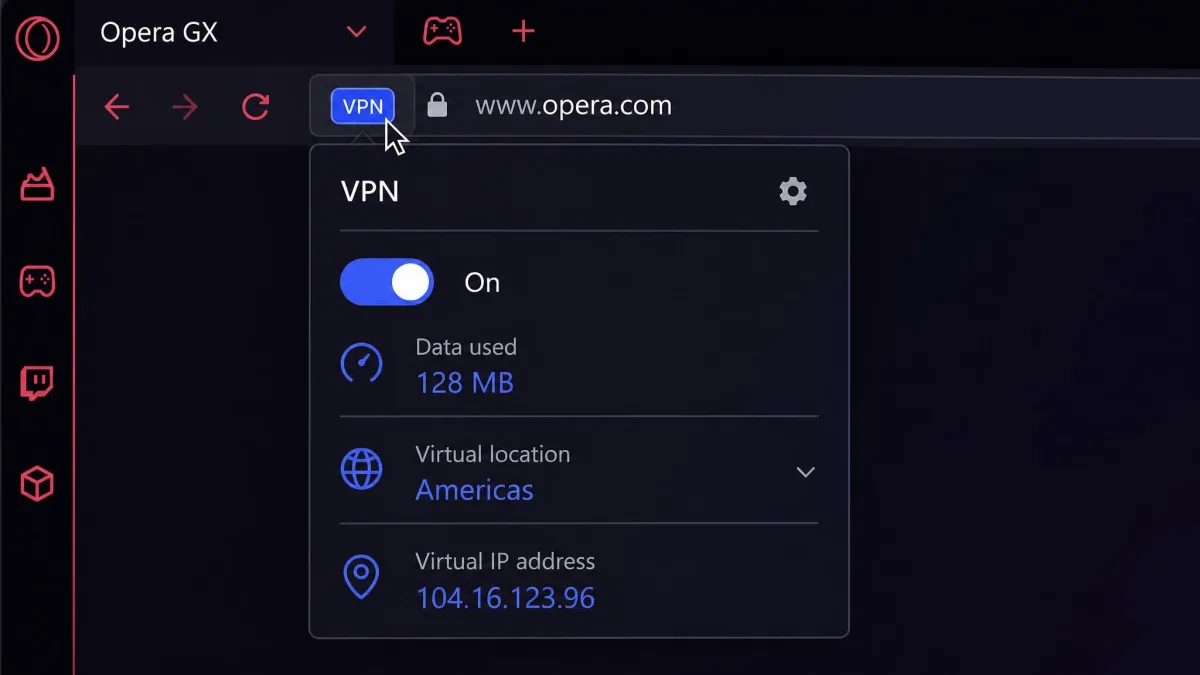
Click the VPN badge to open the status panel, where your virtual IP and location are listed. This is the address websites see while the VPN is on. To double-check, visit any "what is my IP" page in the same tab and confirm the location matches your chosen region.
How to Turn On the VPN in Opera GX Mobile (Android/iOS)
Here we have to be honest. Opera GX's official Free VPN page and Opera's help documentation describe the built-in VPN as a desktop feature for Windows and Mac. We could not confirm a built-in VPN inside the Opera GX mobile app, and availability appears to be version or region dependent at best.
If you need protection on your phone, do not assume the browser covers it. Use Opera's separate VPN Pro subscription, which is device-wide, or a standalone mobile VPN app instead.
What the Opera GX VPN Actually Is (and How It Works)
Opera GX's built-in free VPN is a proxy-style browser VPN. It encrypts traffic from the Opera GX browser and routes it through Opera's servers, swapping your real IP for a virtual one. It is Opera GX's built-in free VPN, so there is no login, no account, and unlimited data.
The key word is browser. Only traffic inside Opera GX passes through the VPN. Your other browsers, games, launchers, and desktop apps keep using your normal connection. Opera also states a strict no-logging policy, though that is Opera's own claim rather than an independently audited result.
Only traffic inside Opera GX passes through the VPN. Every other app on your machine keeps using your normal, unmasked connection.
Before You Start: What You Need
You need the desktop version of Opera GX on Windows or Mac, updated to a recent build. The VPN is built in, so there is nothing to install and no account, payment method, or trial signup for the free tier. For unblocking a site or masking your browser IP, it is enough; for protecting your whole device, you need a full VPN instead.
Free VPN vs. VPN Pro: What's the Difference
The free VPN covers your browser only. VPN Pro is a paid upgrade that protects your entire device and adds far more locations. The table below sums up the split, and you can read the details in Opera's VPN help documentation.
| Feature | Opera GX Free VPN | Opera GX VPN Pro |
|---|---|---|
| Price | Free, no login | $4/month |
| Coverage | Browser-only | Whole device |
| Servers | Broad regions (Optimal/Europe/Americas/Asia) | 3,000+ servers |
| Devices | Opera GX on Windows and Mac | Up to six devices |
| Data limit | Unlimited | Unlimited |
| Account needed | No | Yes |
VPN Pro pricing is around $4 a month, though the exact figure varies by region and promotion. If you only want to unblock a page in your browser, the free tier already does that job.
Troubleshooting: VPN Toggle or Badge Is Missing
If the VPN toggle is not in Settings, check both possible homes: Features, and Advanced, then Privacy & security. Opera GX shifts this setting between layouts and versions. If it is missing from both, update Opera GX to the latest build, which usually restores it.
If the badge is missing from the address bar, confirm Enable VPN is switched on first, since the badge only appears once the feature is active. On a narrow window the badge hides beside the address field, so widen the browser to bring it back into view.
Is the Opera GX VPN Actually Private? Limitations to Know
Treat this as a light privacy tool, not full anonymity. Because it is a proxy-style browser VPN, websites can still identify you through cookies, account logins, and other browser signals even while it is on. It hides your IP from the sites you visit, but it is not a device-wide privacy shield.
Speed is the other trade-off. In our testing, browsing slowed noticeably once the VPN was on, and speed drops are among the most common complaints for Opera's browser VPN. The browser also feels heavier with the VPN or ad blocker running, and Opera GX holds a modest 1.8 out of 5 across 85 Trustpilot reviews, with performance and resource use as recurring themes.
For anything sensitive, pair the VPN with HTTPS and good habits. A browser proxy is a convenience feature, not a substitute for a full, audited VPN.
Frequently Asked Questions
Is the Opera GX VPN free?
Is Opera GX VPN safe, and does it log my activity?
Why is my VPN option missing even after updating?
Does the VPN cover my whole device or just the browser?
Can I change my VPN location to a specific country?
Conclusion
Turning on the Opera GX VPN comes down to two moves: enable it in Settings, then switch the connection on from the address-bar badge. Once the badge glows blue, your browser traffic runs through a virtual IP, and you can swap regions from the same panel in seconds.
Just keep its limits in mind. It protects your browser, not your whole device, and it can slow things down. Use the free VPN for quick unblocking and casual IP masking, and step up to a full VPN when you need real, device-wide privacy.