Sometimes you need your real IP address back. A banking site blocks the login, a work tool refuses to load, or a local streaming service thinks you are in the wrong country. In every one of those cases, the fix is the same: turn the VPN off for a moment, do the task, then switch it back on.
This is a step-by-step guide to disconnecting a VPN on whatever device you are using. We tested each path ourselves on current builds of Windows, macOS, Android, iOS, and Linux, and we noted the small snags that trip people up along the way. None of it takes more than a few clicks once you know where to look.
We will cover the two main routes on every platform: the VPN app's own disconnect button, and the operating system's built-in network settings. Both work, and knowing both matters when one of them freezes.
Quick answer: how to turn off a VPN fast
The fastest way to turn off a VPN is through the app itself. Find the VPN app icon in your system tray or menu bar, right-click or click it, and select Disconnect. The connection drops within a second or two.
If the app is unresponsive, go to your device's network settings instead. On Windows that is Settings, then Network & Internet, then VPN. On a Mac it is System Settings, then Network. Select the connection and click Disconnect. This built-in route is the reliable fallback when the app freezes on us, which does happen.
Disconnecting is not the same as removing. Clicking Disconnect ends the current session but keeps the VPN profile and app installed, so one click brings your protection back later.
How to turn off a VPN on Windows 10 & 11
Windows gives you three separate ways to disconnect, and they all reach the same result. We use the Settings route most often because it is the quickest to find.
From Windows Settings (Network & Internet > VPN)
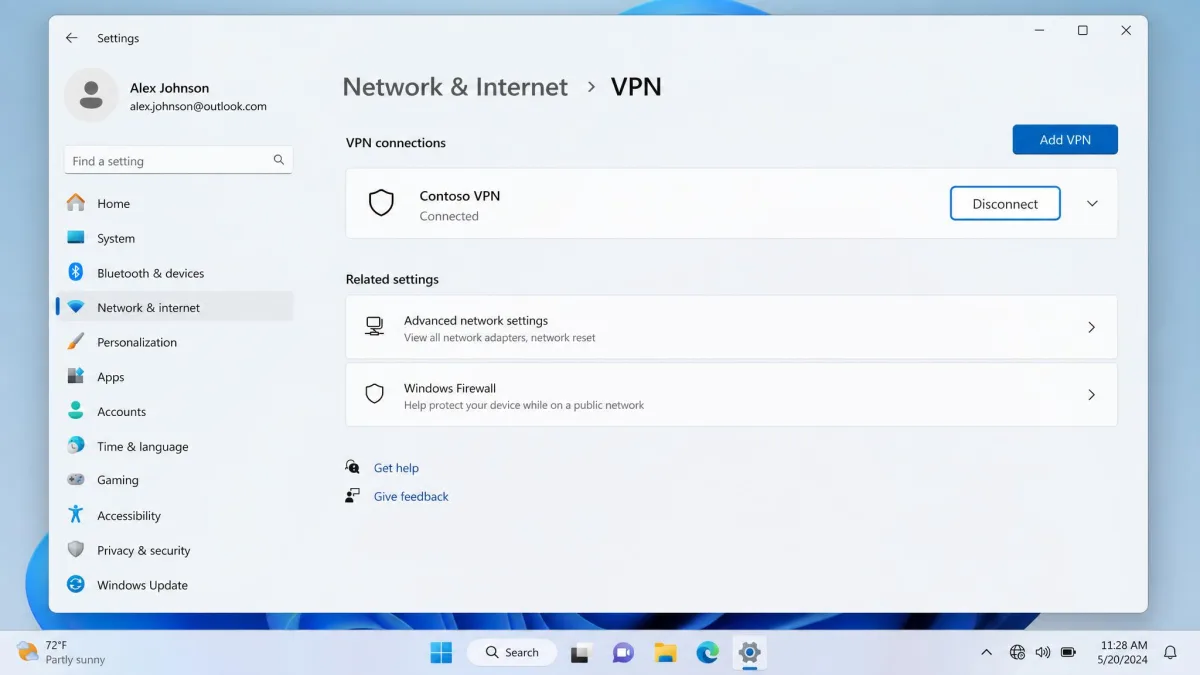
Open the Settings app by pressing Win + I. Click Network & internet in the left menu, then click VPN. You will see a list of your saved VPN connections. Select the one that is active and click Disconnect. To remove the connection entirely, click Remove instead of Disconnect.
That is the whole process. The status under the connection name switches from Connected to a blank state, and your normal internet access returns straight away.
From the Control Panel / adapter settings
The older Control Panel route still works and is handy when a connection will not behave. Open the Control Panel, go to Network and Sharing Center, then click Change adapter settings on the left. Right-click your VPN connection and select Disable, or choose Connect / Disconnect to end the session.
This adapter view is useful for stubborn connections, because disabling the adapter cuts the link at the network level rather than the app level.
From your VPN app directly
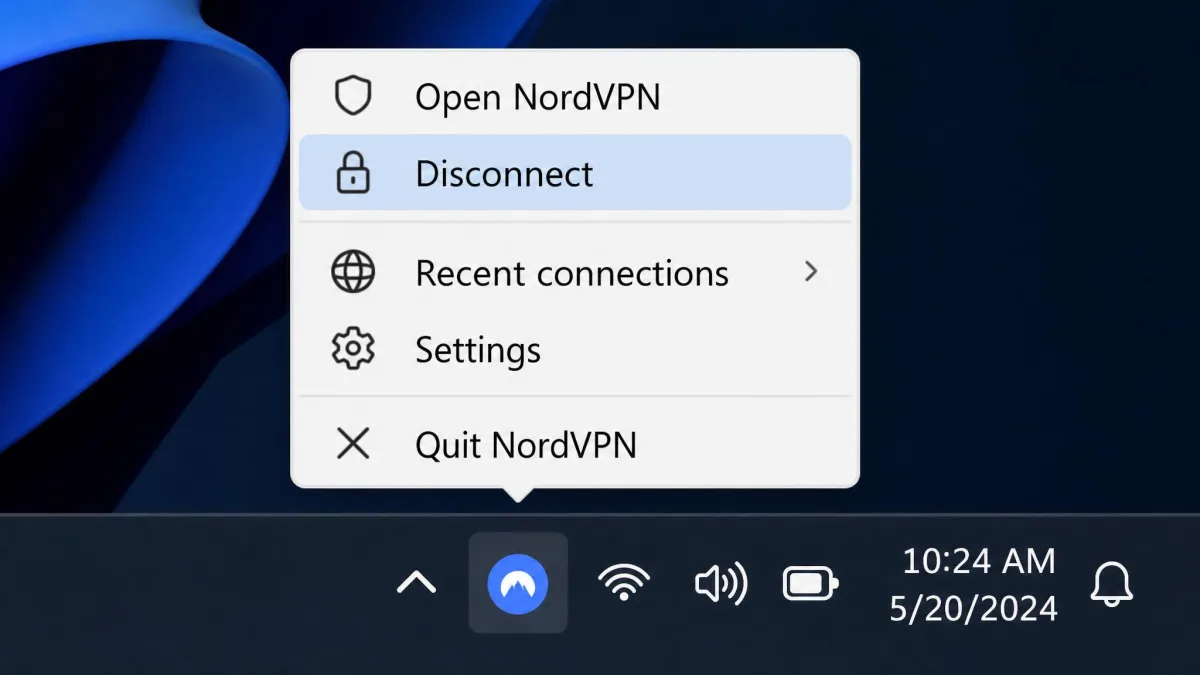
Most people find this the easiest option. Look for the VPN app icon in the system tray at the bottom-right corner of the screen, next to the clock. Right-click the icon and select Disconnect, or open the app and click the big Disconnect button on its home screen.
Microsoft keeps its own walkthrough of the built-in VPN client if you want the official reference; see Microsoft's Windows VPN settings guide for the manufacturer version of these steps.
How to turn off a VPN on macOS
On a Mac, click the Apple menu in the top-left corner, open System Settings, then select Network in the sidebar. Some macOS versions list VPN as its own sidebar entry. Select your VPN connection and click Disconnect, or flip its toggle to Off.
There is an even faster route. If the VPN status icon is showing in the menu bar at the top of the screen, click it and select Disconnect directly. No need to open Settings at all.
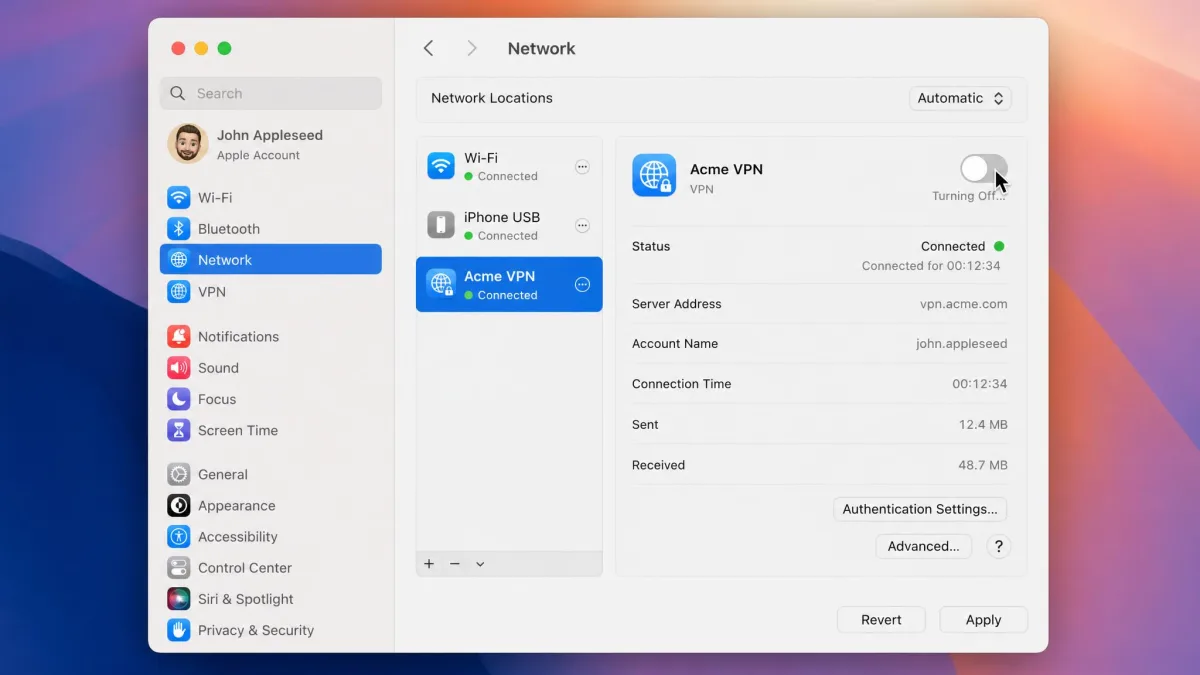
Apple's support site documents the same menus if you want to double-check a label on your version; see Apple's guide to set up or remove a VPN on Mac. The exact toggle wording shifts a little between macOS releases, so trust the on-screen labels over any screenshot.
How to turn off a VPN in a browser extension
If your VPN runs as a browser extension rather than a full app, it only protects that browser. Click the VPN extension icon in the browser toolbar, usually in the top-right corner, and click Disconnect or Off.
To switch it off more firmly, open your browser's Extensions or Manage extensions page and disable the extension there. That stops it loading until you turn it back on. Remember that a browser extension leaves the rest of your device unprotected, so disconnecting it only affects web traffic in that one browser.
How to turn off a VPN on Android
On Android, open Settings, tap Network & internet, then tap VPN. Tap the VPN name or its gear icon, then tap Disconnect or slide the toggle to Off. You can also open the VPN app itself and tap Disconnect on its main screen.
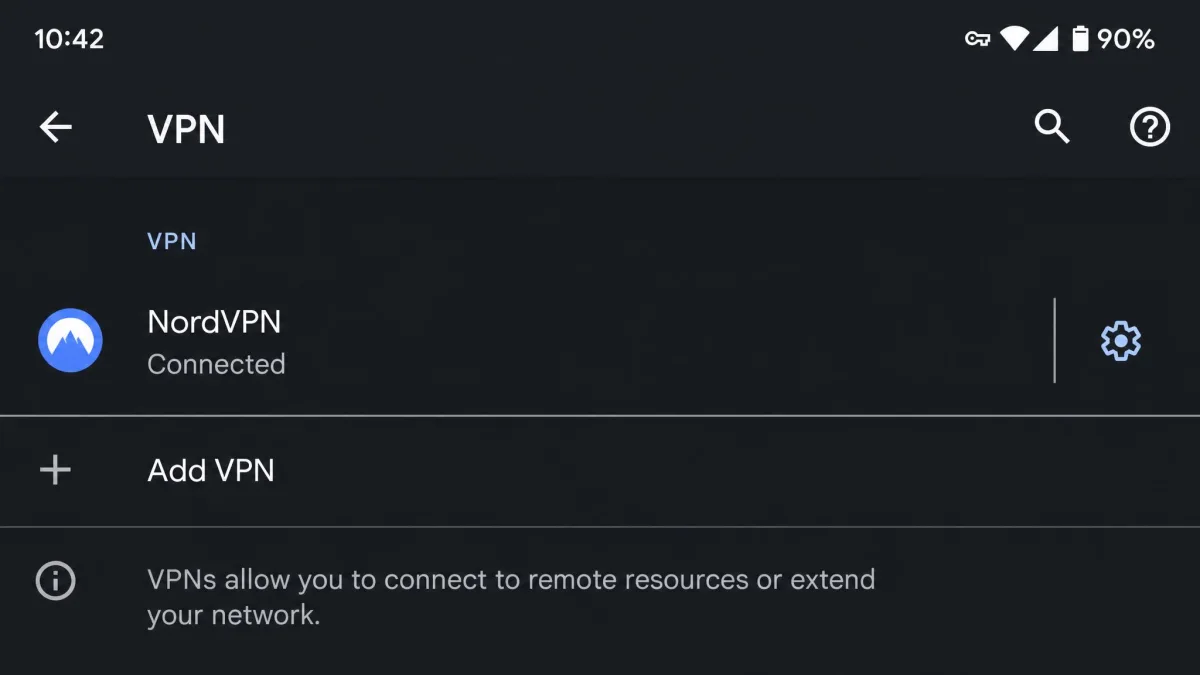
Some phone makers tuck the VPN menu under Connections or Wireless & networks, so the wording varies by brand. The app route is the most consistent across devices if you cannot find the system setting.
How to turn off a VPN on iPhone & iPad
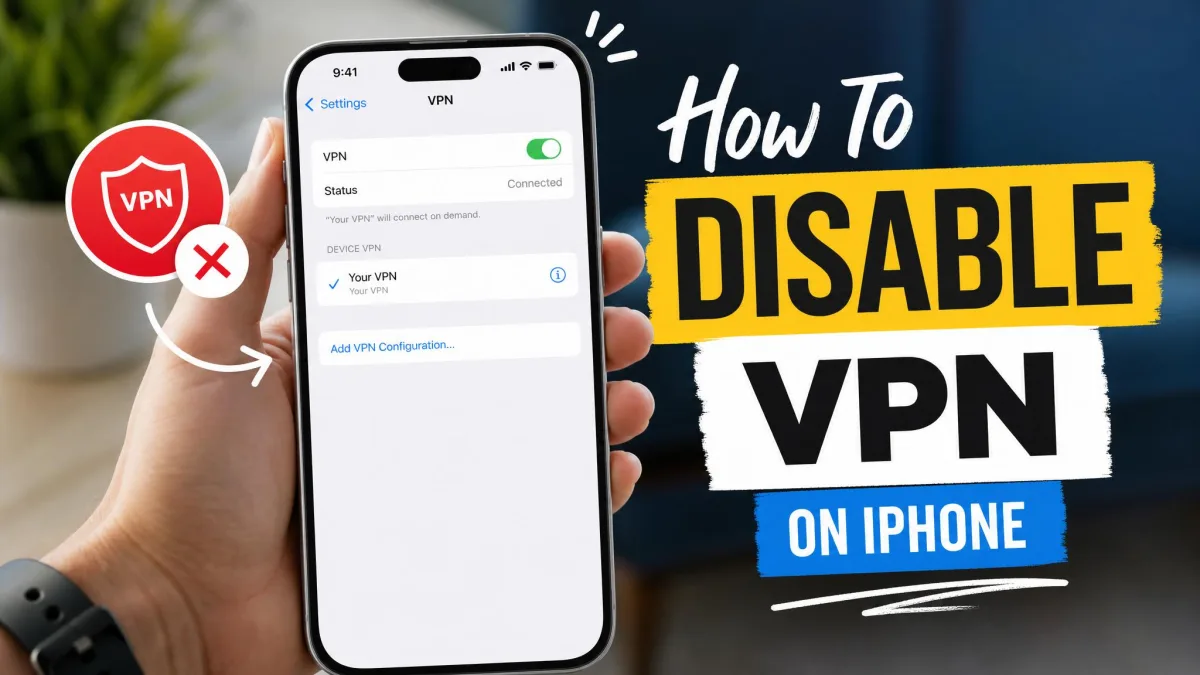
On an iPhone or iPad, open Settings and tap General, then VPN. Newer versions of iOS show VPN right on the main Settings screen. Flip the VPN Status switch to Off, and the connection ends immediately. You can also tap Disconnect inside the VPN app.
Our companion guide on how to turn off a VPN on iPhone walks through the same steps with more detail if you only need the mobile version.
How to turn off a VPN on Linux
On a GNOME or Ubuntu desktop, open Settings, click Network, find the VPN entry, and toggle the connection Off. You can also click the network icon in the system tray, open VPN Connections, and choose Disconnect.
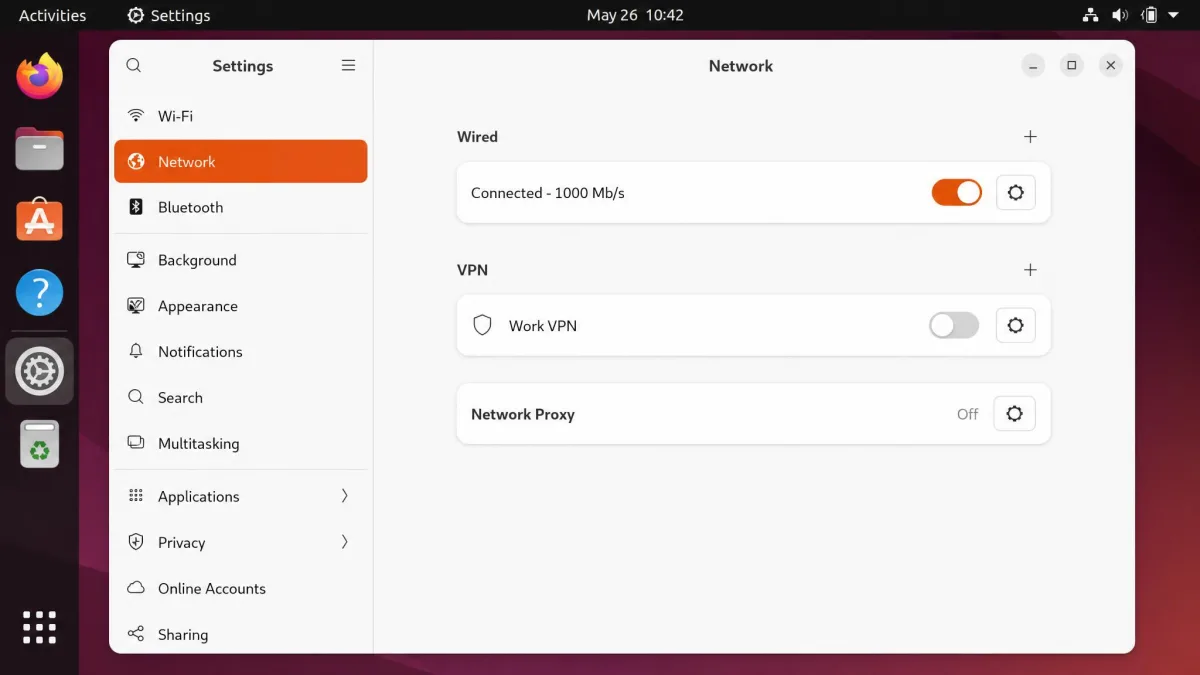
If you prefer the command line, run nmcli connection down <vpn-name> to drop a NetworkManager VPN. For an OpenVPN or WireGuard service, stop it with sudo systemctl stop openvpn@<config-name>. The command route is handy on headless machines where there is no desktop to click through.
How to turn off a VPN on a router
A router-level VPN protects every device on your network at once, so turning it off touches everyone. Open your router's admin panel in a browser by typing its address into the URL bar, commonly 192.168.1.1 or 192.168.0.1, then log in with your admin details.
Look for the VPN section, usually under Advanced, Security, or WAN, and disable or disconnect the VPN client. The exact menu name depends on your router brand and firmware, so it is worth checking the label carefully before you save any change.
A router VPN has no tray icon and no app. The admin panel is the only place to switch it off, and the change applies to every phone, laptop, and TV on the network.
How to turn off a VPN on a smart TV / streaming device
On a smart TV, Fire TV, or a similar streaming device, the steps depend heavily on the app and the platform. In most cases you open the VPN app installed on the device and select Disconnect from its home screen.
The exact path varies by device, but the pattern is consistent. On a Fire TV, open the VPN app from the Home row or from Apps under Your Apps & Channels, then select Disconnect; if it will not let go, go to Settings, then Applications, then Manage Installed Applications, pick the VPN app, and choose Force Stop. On an Android TV or Google TV, you can open the VPN app and turn off the connection, or go to Settings, then Network & Internet, then VPN, select the active VPN, and tap Disconnect. On a Chromecast with Google TV, open the VPN app from Apps to disconnect it, or remove the profile under Settings, then Network, then VPN. If the VPN is running at the router instead of on the TV, disconnect it from the router panel using the steps above. When in doubt, disconnecting the VPN at the router is the surest way to get a streaming device back onto your normal connection.
How do I know if my VPN is turned off?
The quickest check is your public IP address. Open any online IP-lookup tool in a browser and read the result. If it shows your real ISP-assigned IP address and your actual city, the VPN is off. If it still shows a server location, something is keeping the tunnel alive.
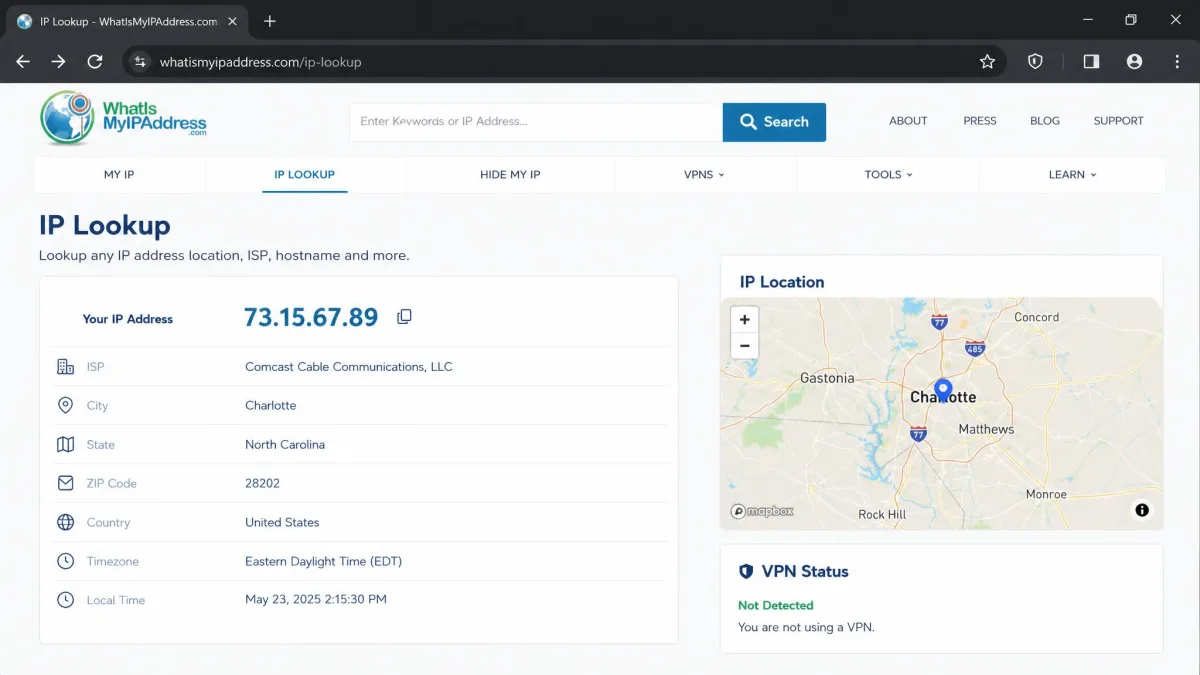
We run this check whenever a disconnect feels uncertain, because a VPN app can show Disconnected while a browser extension or a second profile is still routing traffic. The IP lookup settles it in seconds.
When you should turn off your VPN
There are plenty of everyday reasons to disconnect for a while. A banking or shopping site may flag the VPN's shared IP and block your login. A local device like a printer or a smart speaker may refuse to connect while your traffic is tunnelled elsewhere. Some work tools and streaming services also behave better on your home connection.
Speed is another honest reason. Disconnecting usually restores your baseline internet speed, since your traffic no longer takes a detour through a VPN server. In our testing that speed gain is noticeable and immediate, though it comes at the cost of encryption.
Before you fully disconnect, try switching to a nearer VPN server. A closer server often fixes both speed and a blocked login without giving up any protection.
When you should NOT turn off your VPN
Public Wi-Fi is the big one. Turning off a VPN on a cafe, airport, or hotel network leaves nearby attackers able to intercept your data on that same network. On those networks we keep the VPN on, full stop, because the encryption is exactly what you are there for.
The same caution applies to any sensitive task on an untrusted connection: online banking, entering card details, or logging into a work account. If the connection is not yours and not trusted, the VPN earns its place.
What happens when you disable your VPN (the risks)
The moment the VPN is off, three things change at once. Your traffic is no longer encrypted, your real IP address and location become visible to the sites you visit, and your internet provider can once again see your browsing activity. In the US, that provider is legally allowed to sell it.
None of this is cause for panic on a home network you control. It simply means the protection is paused, so it is worth turning the VPN back on once you finish the task that needed it off.
It is easy to forget to switch a VPN back on after a quick task. Set a short reminder or rely on auto-reconnect so you do not spend hours browsing unprotected without noticing.
A safer alternative: split tunneling
Most reasons people reach for the off switch have a gentler fix. Split tunneling routes some of your traffic through the VPN while letting other traffic, such as local network and LAN devices, bypass it. You keep the protection where it matters and drop it only where it gets in the way.
In practice, split tunneling and a quick server switch solve most of what would otherwise send you to the disconnect button. If your app offers it, set your printer, your banking browser, or a specific game to bypass the tunnel, and leave everything else protected. It saves you from toggling the whole VPN off and forgetting to turn it back on.