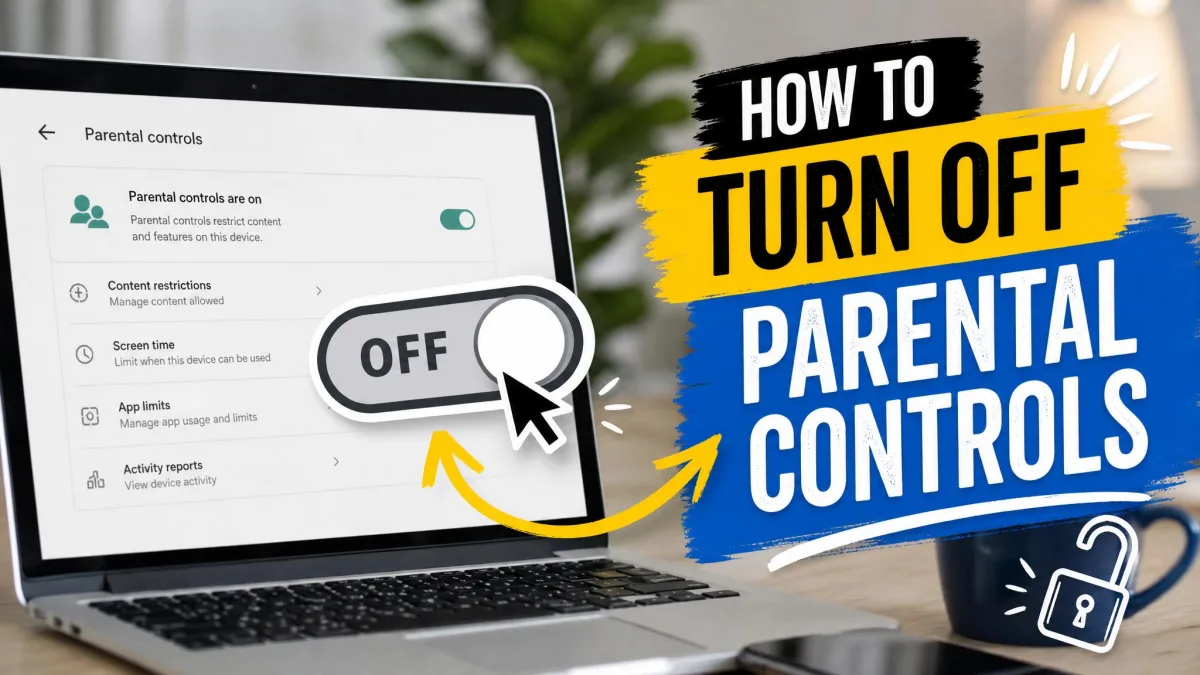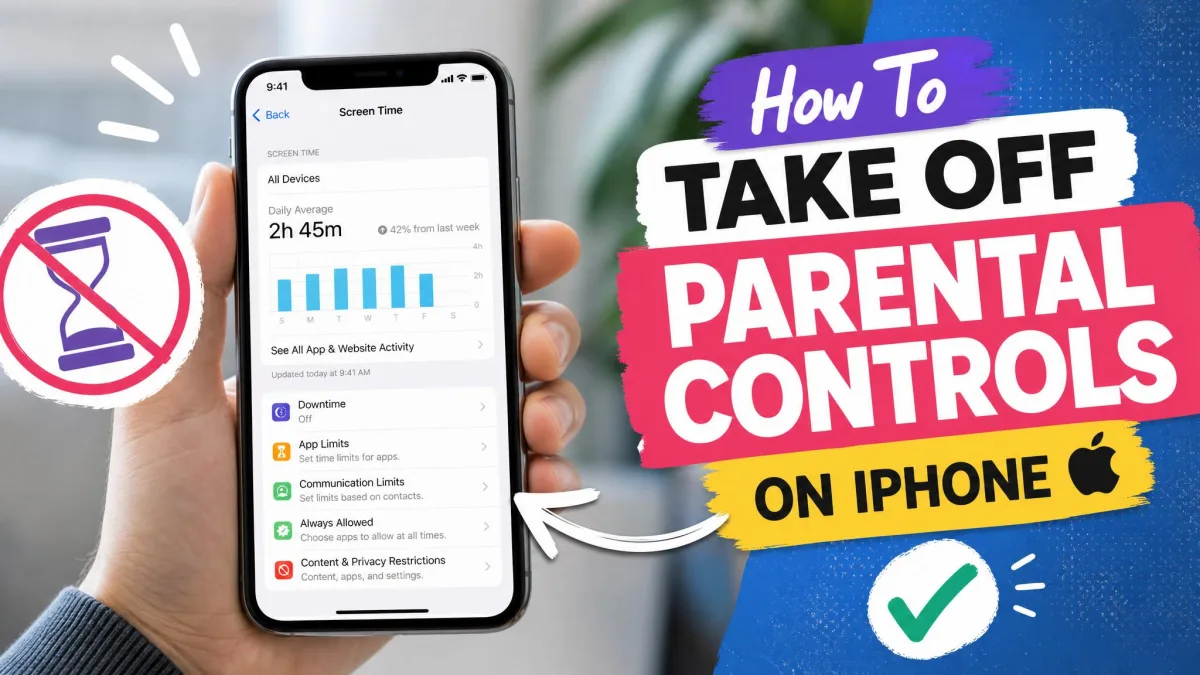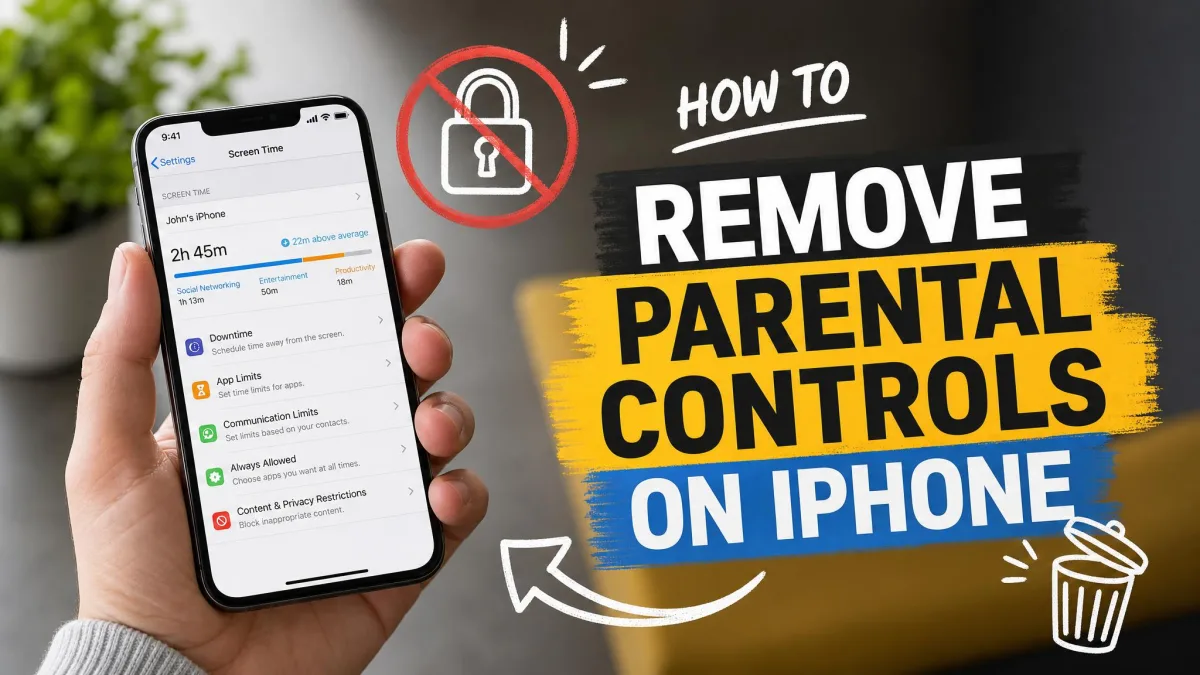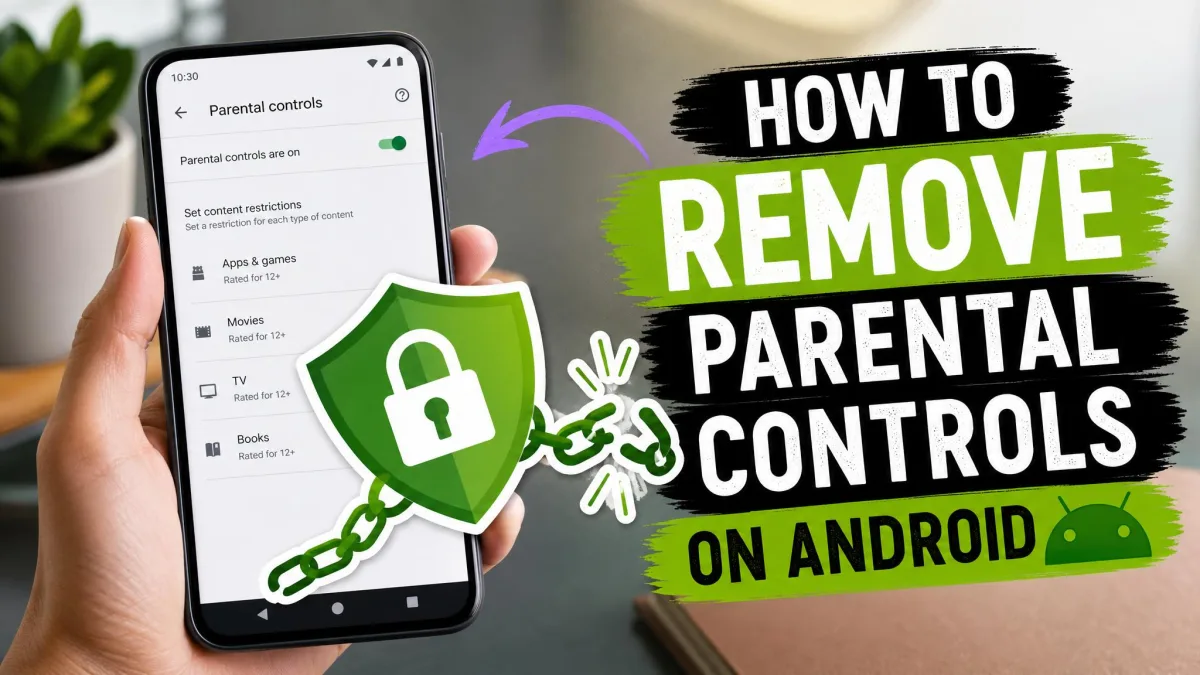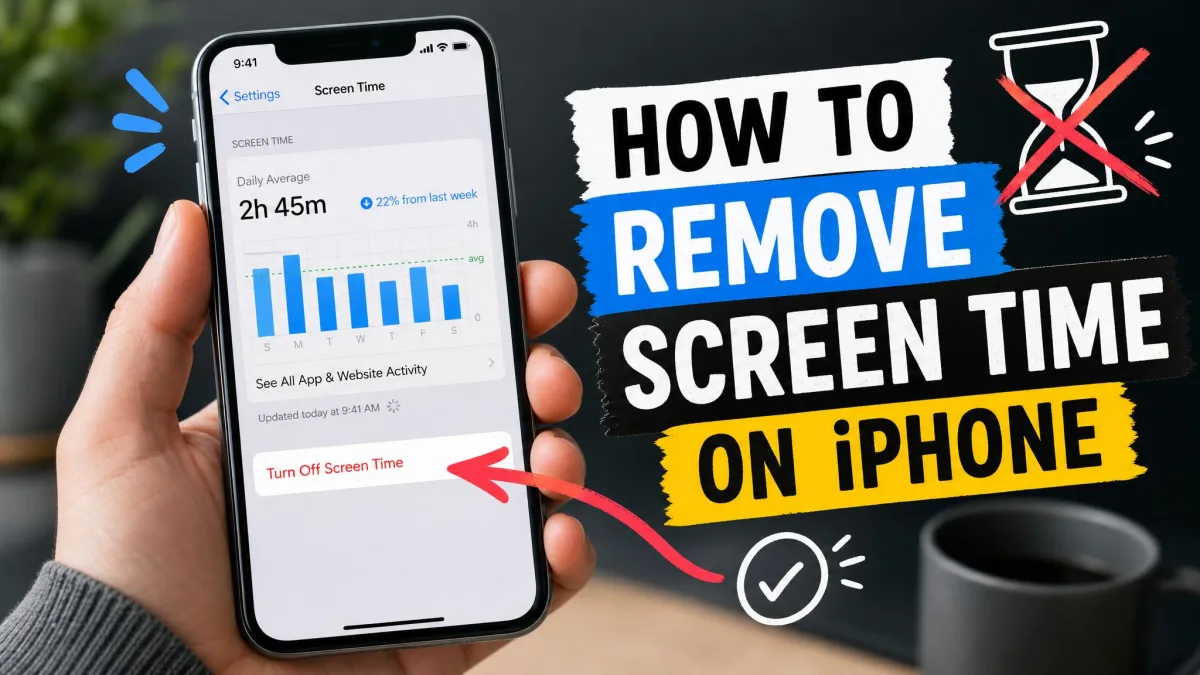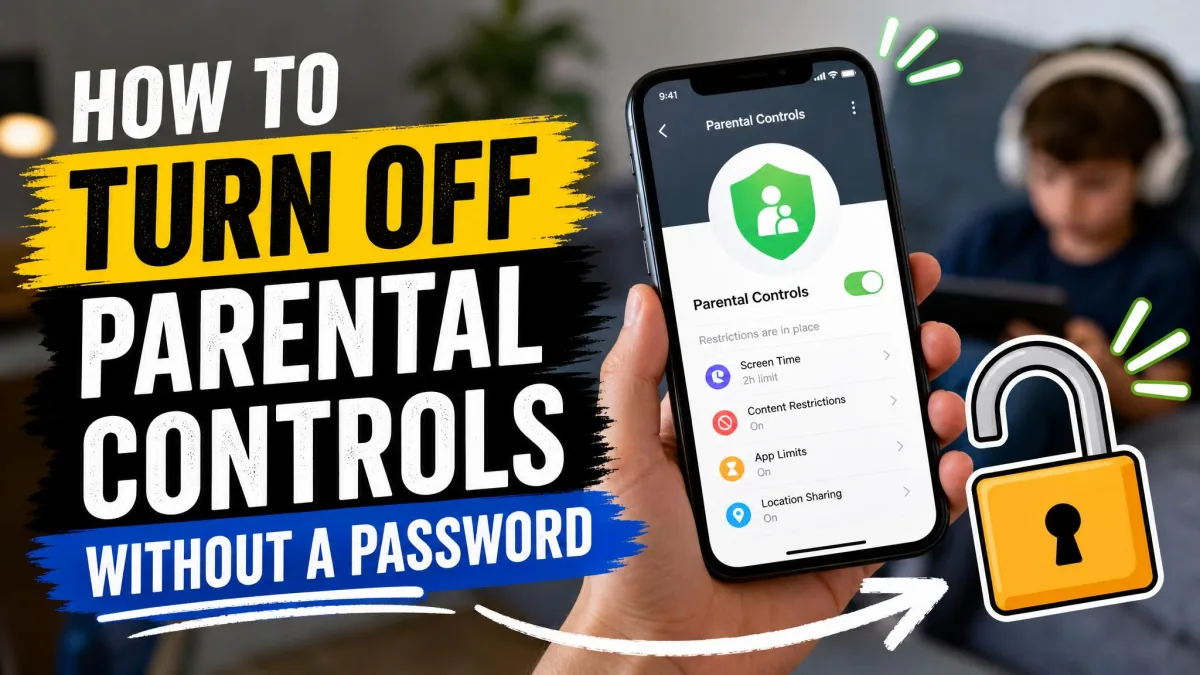
Forgot the passcode on your child's iPhone. Picked up a secondhand phone still carrying its old owner's restrictions. Set up on a school laptop whose admin password no one has. Any of these leaves you facing parental controls you cannot remove, because the password that unlocks them is gone.
You are not stuck. Apple, Google, and Microsoft all build recovery paths into their own tools, and most do not need the original password. This guide covers the supported methods for iPhone, Android, Windows, and Mac, from the least destructive option to the factory reset as the last resort. We confirmed the reset paths on current devices and flagged the ones that quietly stop working.
Why You Might Need to Remove Parental Controls Without the Password
Parental controls are meant to stay in place until someone with the password turns them off, which works well until the password is lost or the device changes hands.
Common Scenarios: Forgotten Passcode, Inherited or School Devices, Secondhand Devices
The most common case is simple: a parent or child outgrew the need for the controls, and the passcode is long gone. Secondhand devices are just as common, because a phone or laptop sold with restrictions active carries its old owner's limits into your home. School and work devices add a third layer, since their controls sit in a management profile. For the reverse problem, see our guide on turning off parental controls on any device, or our walkthrough of deleting parental controls on any device.
Only Remove Controls You Own or Are Authorized to Manage
One ground rule: this guide is for adults removing controls on devices they own or manage, not for children working around a parent's rules.
Only remove parental controls on a device you own or are authorized to manage. If the device is supervised by a school or employer, the restrictions belong to them, and the supported fix is to contact the installer rather than bypass it.
Before You Start: Identify Which Parental Control You're Dealing With
The fastest way to waste an afternoon is to try an iPhone fix on an Android problem. Each platform runs its own system, so name what you are dealing with first.
iOS Screen Time vs Android Family Link vs Google Play
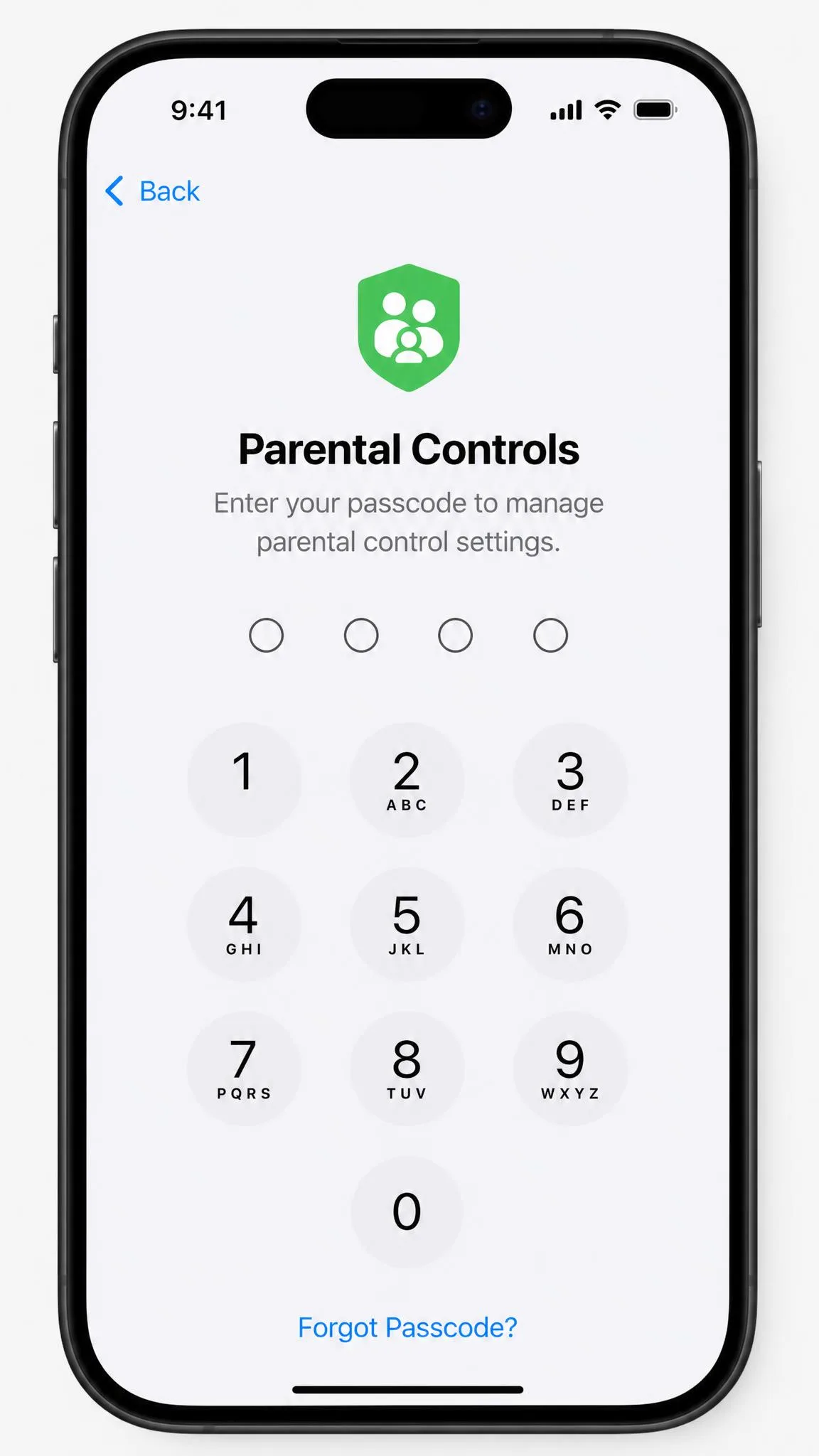
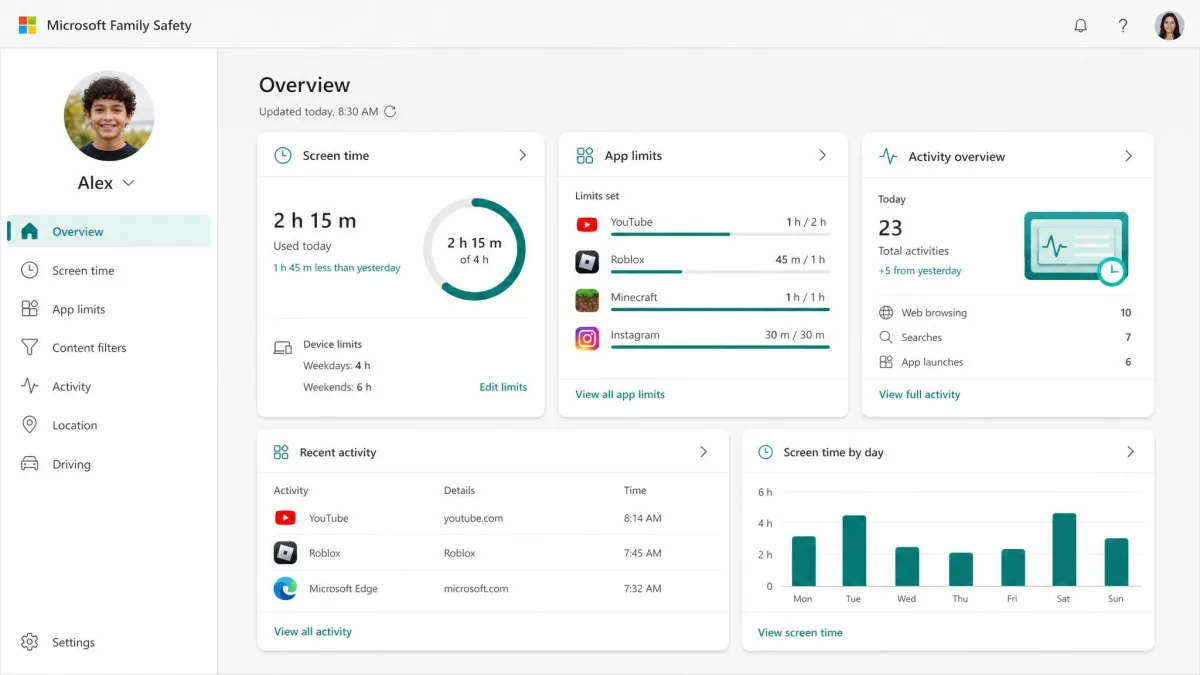
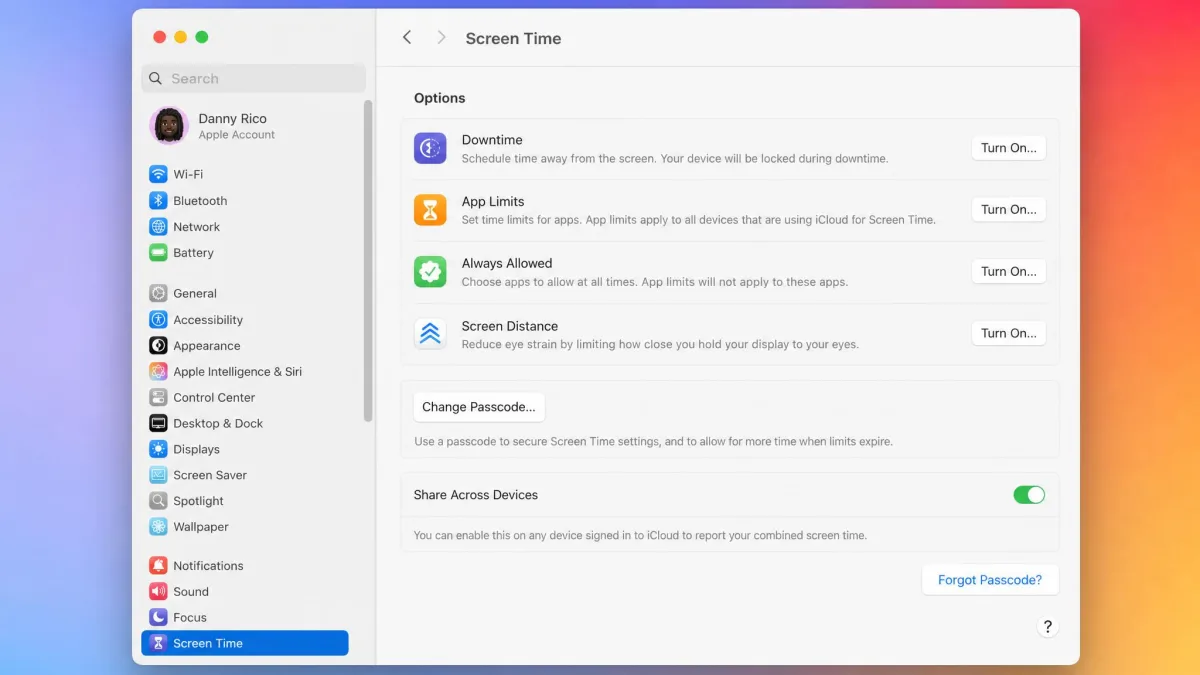
Apple's Screen Time manages restrictions on iPhone, iPad, and Mac with a four-digit passcode that only some setups tie to an Apple Account. Android splits the job between Google Play's content restriction PIN and Google Family Link's account supervision, controlled from the parent's phone. Windows uses Microsoft Family Safety, managed on the web.

How to Turn Off Parental Controls on iPhone Without a Password
iPhone methods run from the least destructive to the factory reset.
Reset the Screen Time Passcode With Your Apple ID
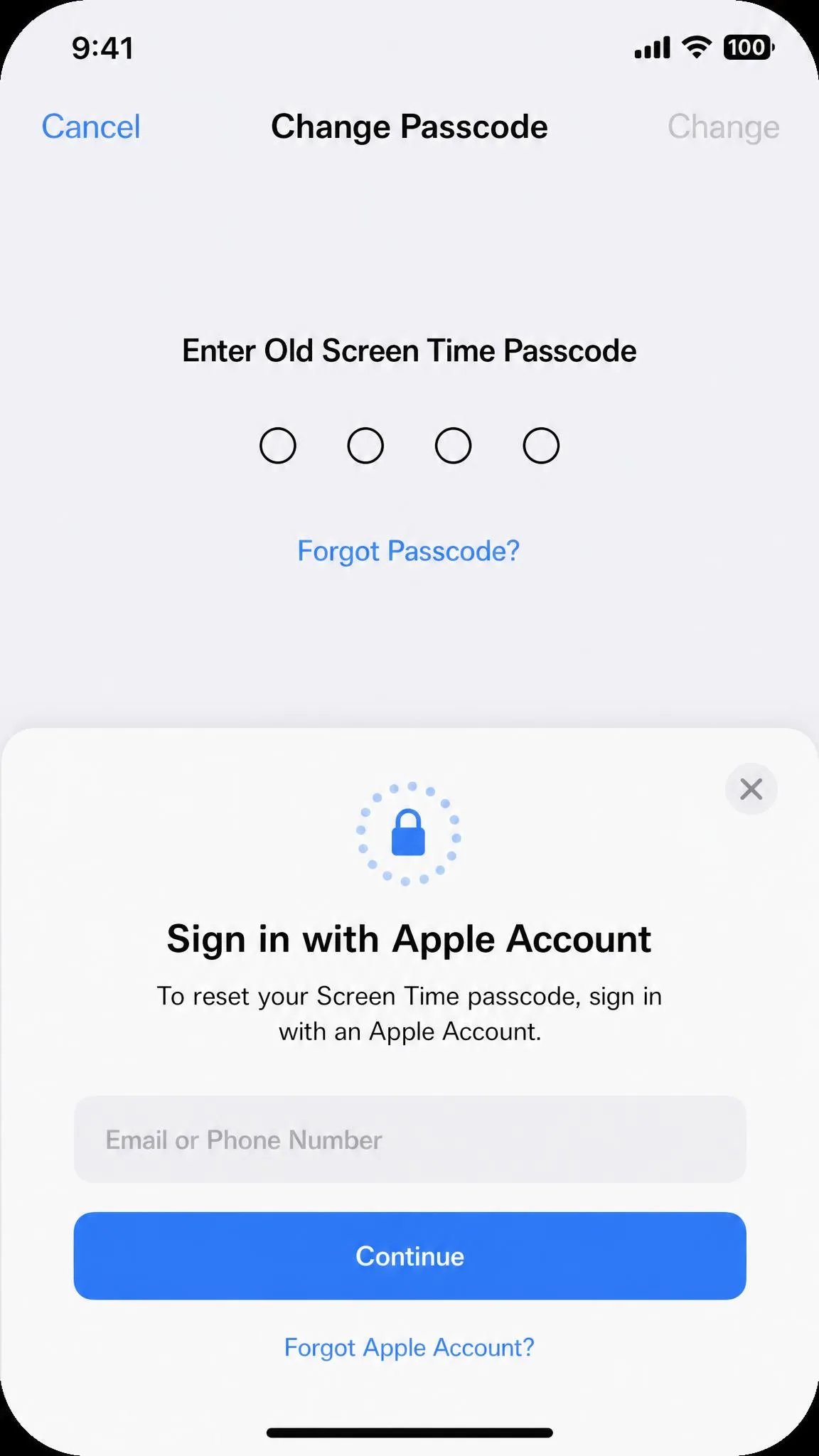
On iOS 13.4 and later, you can reset a forgotten Screen Time passcode with the Apple Account that created it. Open Settings → Screen Time → Change Screen Time Passcode, tap Change Screen Time Passcode again, choose Forgot Passcode?, and sign in with that account. Apple's Screen Time support documentation shows the same steps.
Two things can derail this. The reset accepts only the Apple Account entered at setup, which can be a family member's rather than the one signed in. Tying an Apple Account is optional, so the Forgot Passcode? option does not appear on every device. Recent iOS builds have also rejected correct IDs, so stop guessing.
Turn Off Restrictions via Family Sharing (Family Organizer Only)
If the child is in your Family Sharing group, a Family Organizer can change or turn off the passcode from the parent's device. Open Settings → Screen Time → the child's name → Manage Screen Time → Change Screen Time Passcode. Changes sync within about a minute.
Factory Reset the iPhone (Last Resort)
If no Apple Account path works, the factory reset is the last resort. Open Settings → General → Transfer or Reset iPhone → Erase All Content and Settings. This erases photos, messages, app data, and saved logins, and it does not clear Activation Lock. Restoring a Screen Time backup brings the restrictions back, so set the device up as new.
Remove School or Work (MDM) Parental Controls
Open Settings → General → VPN & Device Management to see management profiles installed by a school, employer, or carrier. They often cannot be removed without the installer's removal password. Contact the school, IT team, or carrier that set it up.
How to Turn Off Parental Controls on Android Without a Password
Android again offers a clean order, from the Play Store PIN reset to the full factory reset.
Clear Google Play Store Data to Reset the PIN
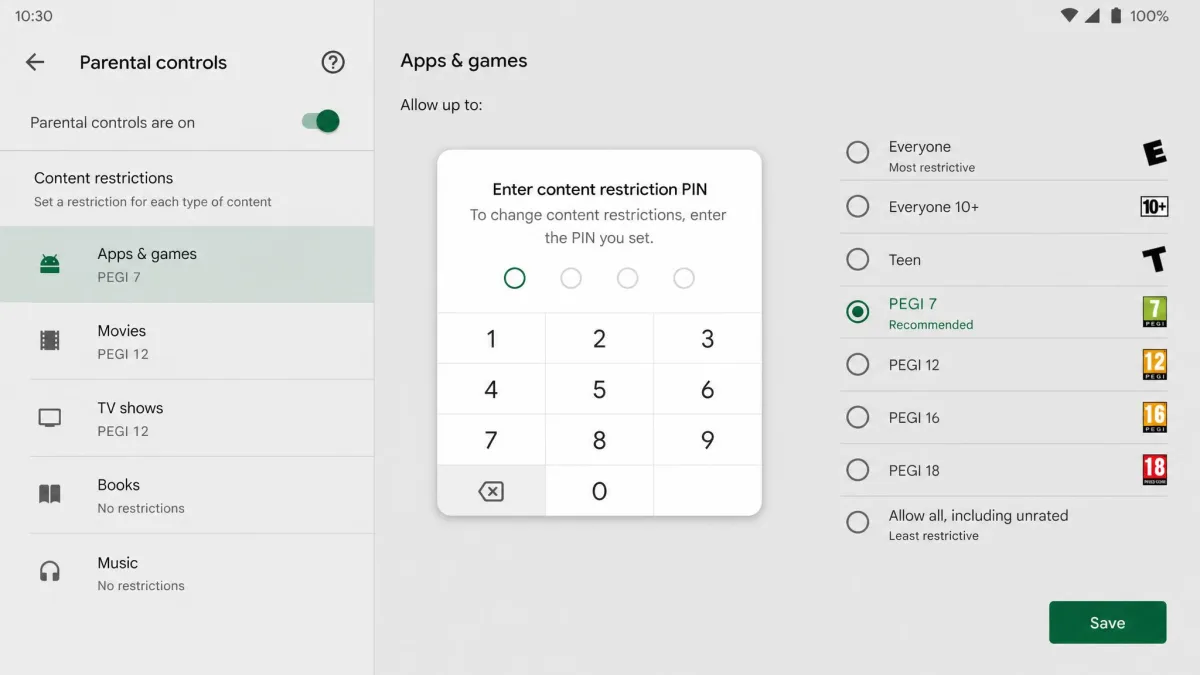
If the controls are Play Store content restrictions, clearing the app's data resets both the PIN and the restrictions. Open Settings → Apps → Google Play Store → Storage → Clear data (or Clear storage). This also wipes other Play preferences, so note any you want to keep. Google Play's parental controls settings page confirms the method.
Remove Google Family Link Supervision
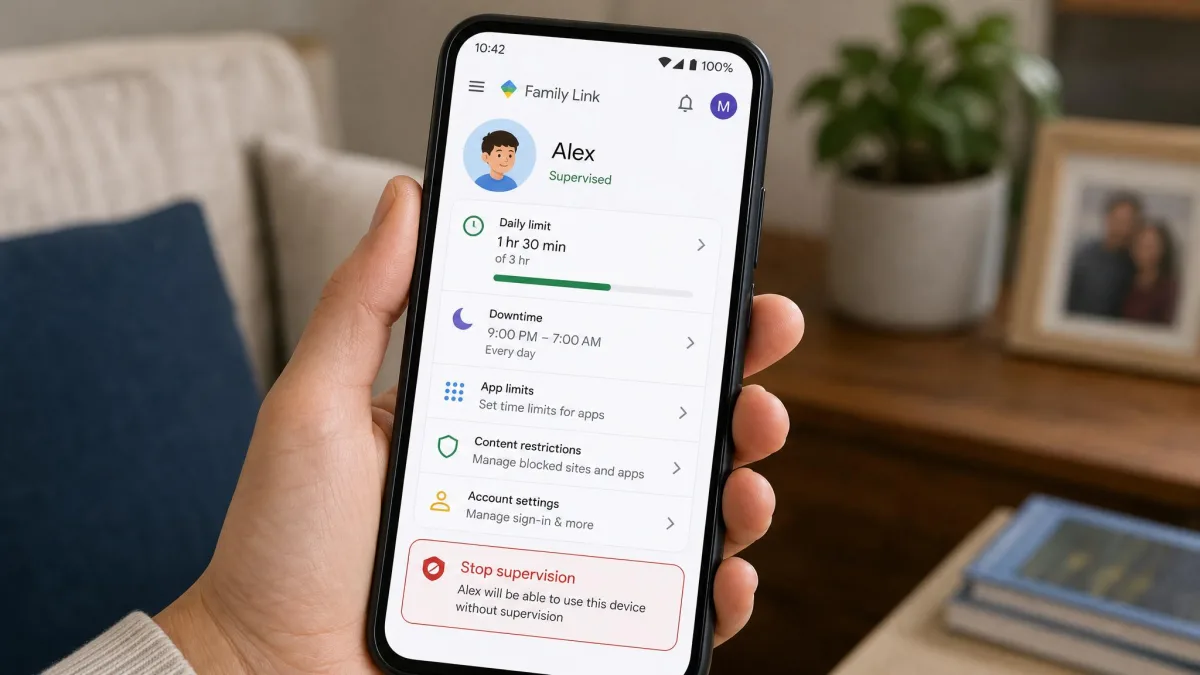
Family Link supervision is tied to the Google Account, not the device or app, so uninstalling the app does not end it. A child cannot stop supervision until they reach the age to manage their own account, which is 13 in the US and most regions; under 18, a parent's approval is needed. A parent can stop supervision from the Family Link app: select the child → Controls → Account Settings → About supervision → Stop supervision. On the child's device, open Settings → Digital Wellbeing & parental controls → More → Stop supervision, which needs a parent's sign-in or the Parent Access Code. Google Family Link stop-supervision guide has the full detail. Both parent and child are notified when supervision ends, and in our testing the change was not instant.
Reset App Preferences
Some restrictions disable individual apps, and Reset app preferences can undo that. Open Settings → Apps → three-dot menu → Reset app preferences. This re-enables disabled or hidden apps without deleting photos, messages, or downloads. It does not remove Play Store or Family Link controls.
Factory Reset (Last Resort)
As with the iPhone, a full reset wipes the device and is the last resort. Open Settings → System → Reset options → Erase all data (factory reset). A supervised Google Account stays supervised after the reset, because supervision lives in the account rather than the device.
How to Turn Off Parental Controls on Windows Without a Password
Windows methods fall into two groups: changing the account's status from a second administrator, or removing the child from the family group entirely.
Change the Account Type From a Separate Administrator Account
With any administrator login, open Settings → Accounts → Family & other users, select the child's account, and choose Change account type → Standard or Administrator. If no working admin login exists, create a new local account first: open Settings → Accounts → Other user → Add account → "I don't have this person's sign-in information" → Add a user without a Microsoft account, then promote it to Administrator. Microsoft's guide to creating a local administrator account covers both steps.
Remove a Child Account From Microsoft Family Safety
Only a family organizer can remove a member. Sign in at the Microsoft Family Safety website, select the child, remove parental consent first, then choose Remove from family group and confirm. Consent can only be removed by the adult who granted it. After removal, the organizer can no longer manage the child's screen time or content filters, and the child loses shared family purchases such as Microsoft 365 Family. A child cannot remove the controls on their own, because the account lacks the Adult or Host permission.
How to Turn Off Parental Controls on Mac Without a Password
The Mac reset mirrors the iPhone one. Open System Settings → Screen Time → Options → Change Passcode → Forgot Passcode, and enter the Apple ID and password that set up the passcode. If Share Across Devices is on, the new passcode updates on the other signed-in devices. Keep in mind that resetting the Mac login password with a second administrator account is a different task from resetting the Screen Time passcode.
What Gets Disabled When You Turn Off Parental Controls
Screen Time, introduced with iOS 12, controls app limits and content restrictions. Turning it off removes those limits but leaves your photos, messages, app data, and saved logins alone. The same split holds across platforms: Play content restrictions and Microsoft content filters go away, while the data under them stays.
Which Settings Reset and Which Are Left Alone
The settings that reset are the limits themselves. Your data and logins stay put, along with a few stubborn items: Activation Lock survives any iPhone wipe, Family Link supervision persists until the stop-supervision flow completes, and MDM profiles outlast every consumer method.
Common Pitfalls and How to Avoid Them
Most failed attempts come from using the wrong method for the wrong system. A Play Store PIN reset will not touch Family Link, and a local admin account will not clear a school's enrollment. Spamming passcode guesses can push some Screen Time setups into a lockout, and uninstalling the Family Link app does not end supervision. After a factory reset, restoring a managed backup undoes the whole job.
After Turning Controls Off: Setting Up Controls You Can Actually Manage
Once you regain access, the temptation is to leave the device fully open. A better move is to put controls back in place you can actually manage, with the password written down and stored somewhere safe. We have separate walkthroughs for setting up parental controls on iPhone, setting up parental controls on Android, and setting up parental controls on Windows 11. For guidance beyond any single platform, online safety resources for parents and the UK Safer Internet Centre offer age-by-age advice.
Frequently Asked Questions
How do I turn off parental controls on iPhone without the password?
Does factory reset remove parental controls?
How do I turn off parental controls on Android without a PIN?
How do I remove parental controls if I forgot the password?
Can I turn off parental controls without my parents knowing?
Conclusion
Removing parental controls without the password comes down to knowing which system you are dealing with and using its own recovery path. Start with the Apple ID reset on iPhone, the Play Store data clear on Android, and the administrator account or family-group route on Windows, and treat the factory reset as the last resort because it erases your data. Most fixes take a few minutes and cost nothing.
Once the controls are off, put new limits in place with a password you actually know, write it down, and set them at a level that fits your child's use. You keep the oversight that matters without getting locked out of your own equipment again.