Parental controls exist for good reasons. We'll walk you through how to turn off parental controls on iPhone, Android, Windows, Mac, and the major consoles. There are legitimate reasons to remove them. Your child may have outgrown the need for controls. You might be passing an old phone down, or you bought a secondhand device with the previous owner's restrictions still on it. Each section shows the exact settings path and what to do when you've forgotten the PIN.
Quick Answer: Turn Off Parental Controls in Seconds
The fastest route on each platform is a single settings toggle, if you have the PIN or the parent account handy. Disabling the controls in the right place avoids the reset fallback.
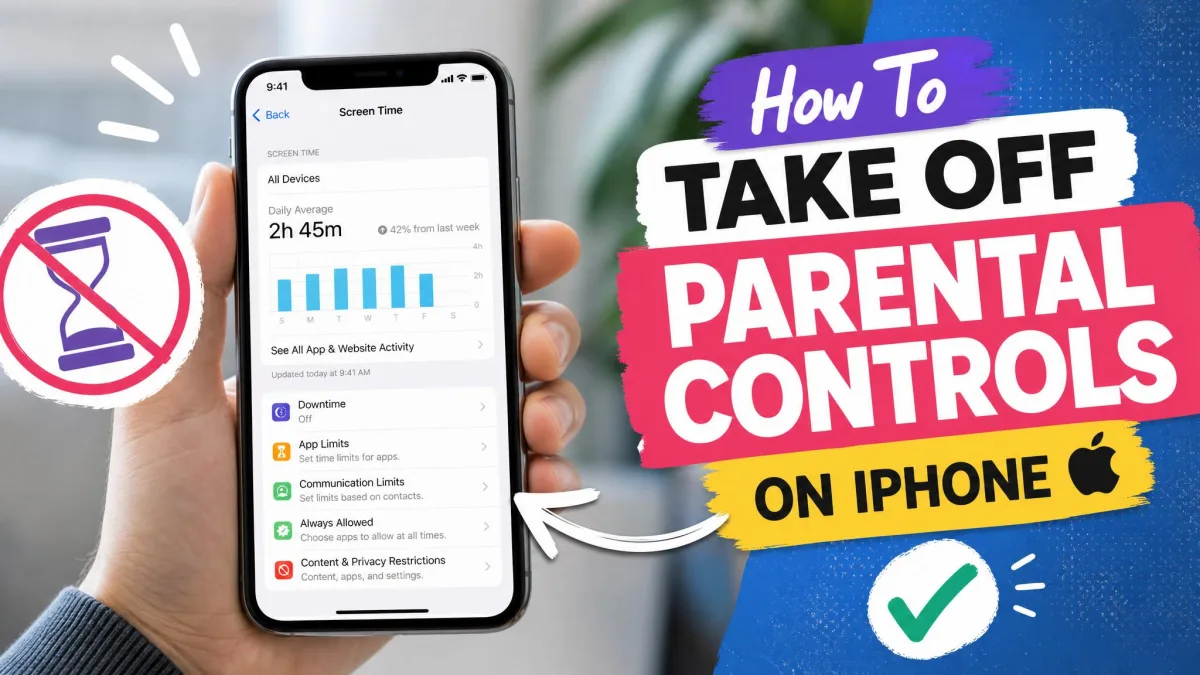
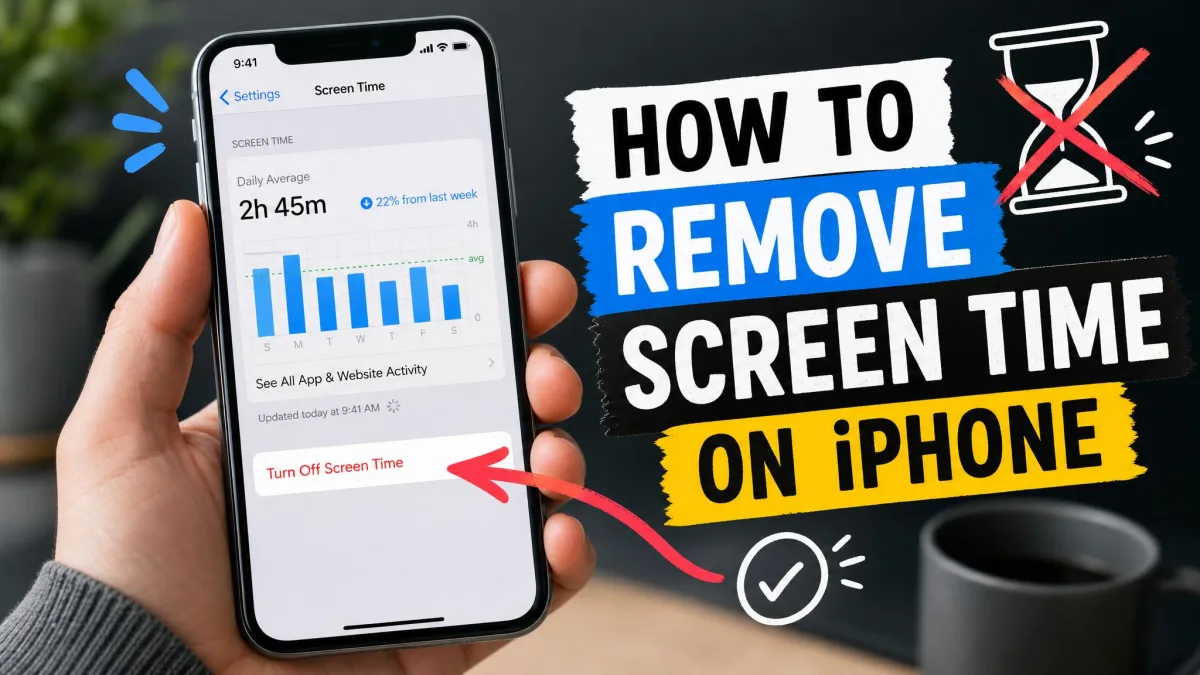
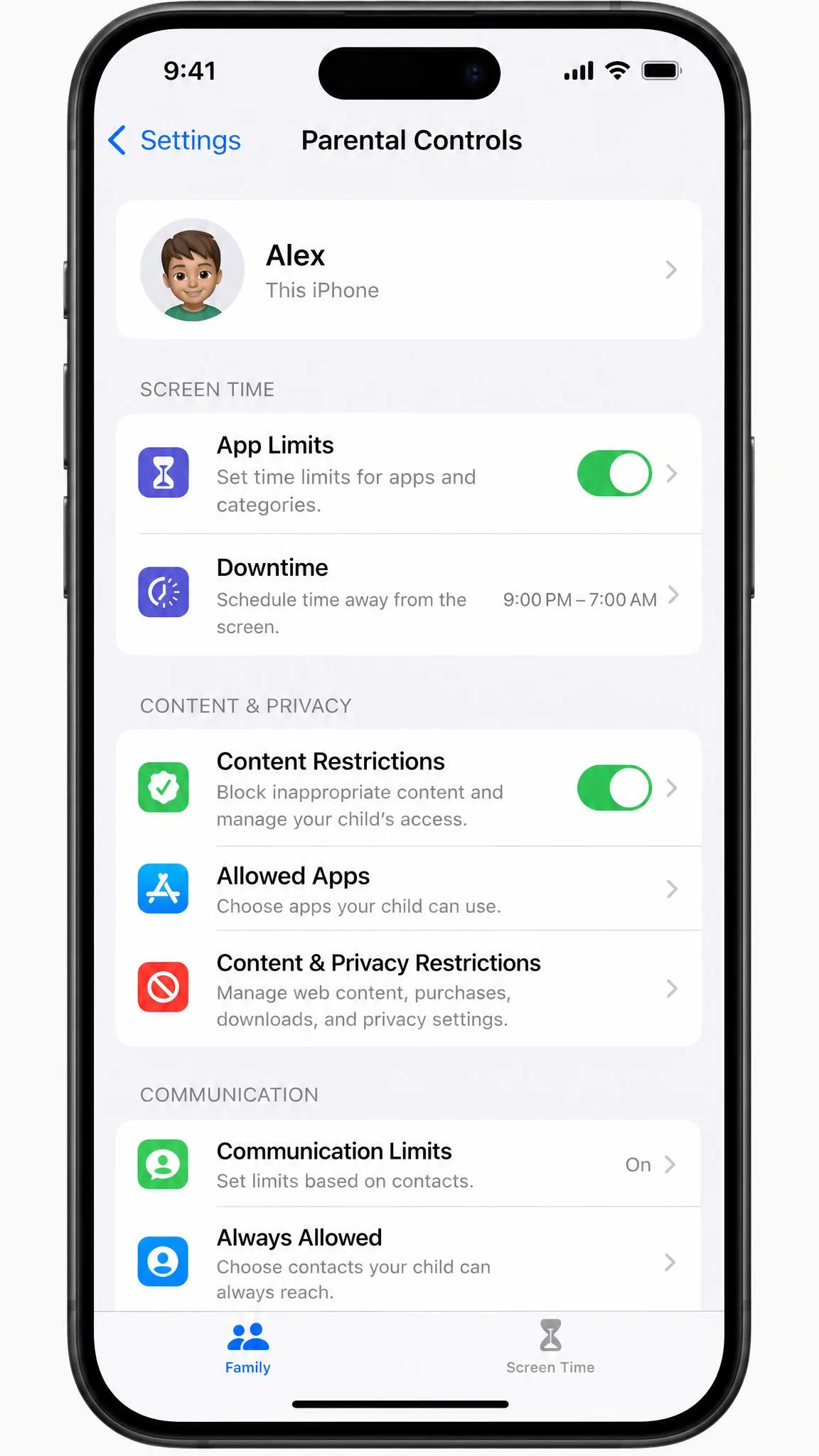
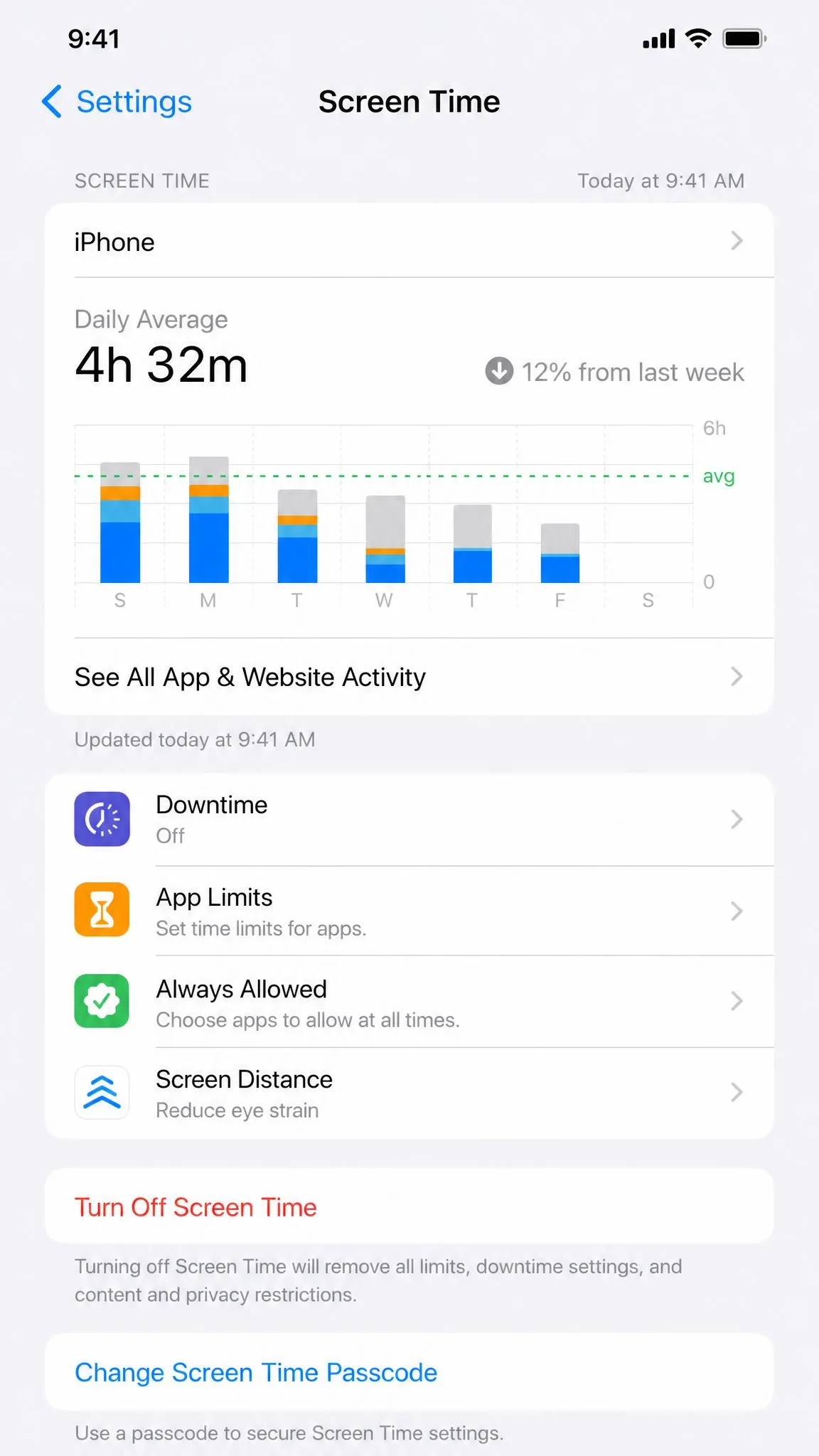
- iPhone and iPad. Open Settings → Screen Time. Scroll to the bottom and tap Turn Off Screen Time. On some iOS versions the control is labeled App & Website Activity.
- Android. Open Google Play → tap the profile icon → Settings → Family → Parental controls → toggle off.
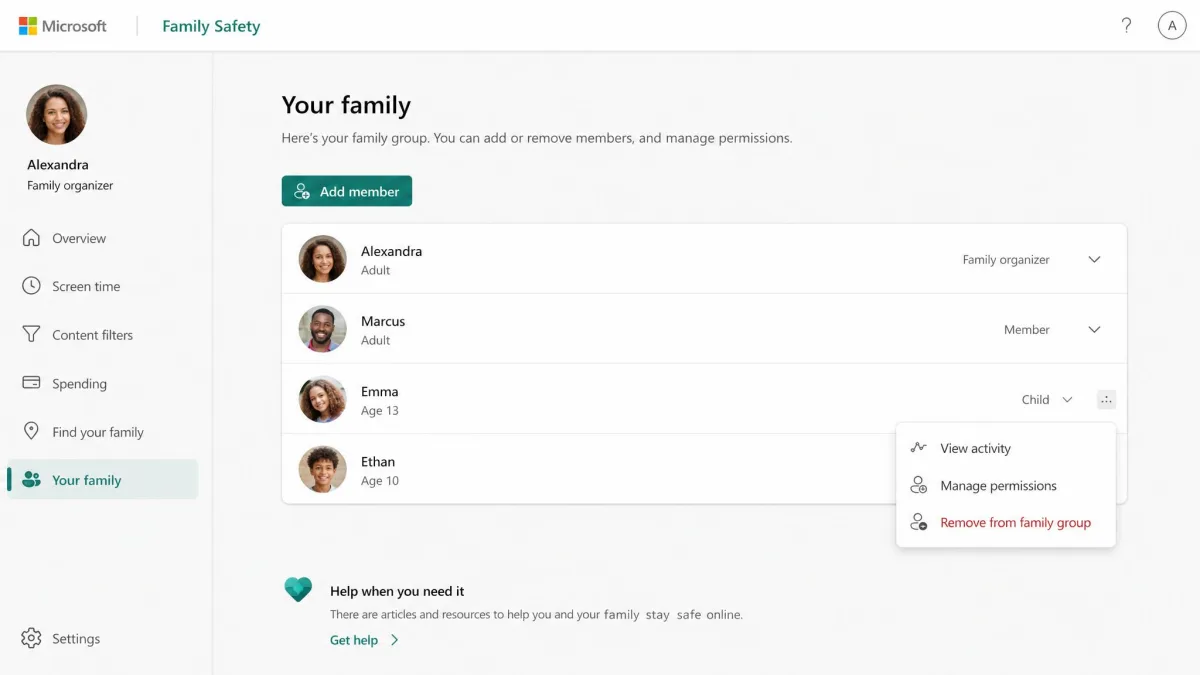
- Windows. Sign in to the Microsoft Family Safety website as the family organizer → Remove from family group for the child.
If you have forgotten the PIN, find your platform's recovery route below. If you no longer have account access, a factory reset is the last resort.
What You Need Before You Start (PIN, Admin Account, or Factory Reset)
Removal is locked to a passcode or an account on every platform, so gather these before you begin.
- The PIN or passcode. Screen Time uses a 4-digit passcode separate from the device unlock code. Google Play asks for a content restriction PIN. A PlayStation system restriction passcode defaults to 0000. A Nintendo Switch PIN is 4-8 digits.
- The parent account. Family Link changes come from the parent's Google account. Windows removals need the family organizer's sign-in. iPhone passcode recovery uses the Apple Account that was set up with the passcode.
- The managing app or website. Family Link lives in its own app. Microsoft limits are managed at family.microsoft.com.
- Time for sync. With Family Sharing, a change on your iPhone reaches the child's device in about a minute.
- The reset fallback. If no recovery path exists, a factory reset clears the controls. It also clears your photos, messages, and apps.
Save every passcode in a password manager before you change anything. A forgotten PIN is the single most common reason parents get stuck, and on some platforms the only fix is a full reset.
How to Turn Off Parental Controls on iPhone and iPad
Screen Time is Apple's built-in parental controls suite, and it runs on both iPhone and iPad. The steps are identical on either device, and the passcode is separate from the one that unlocks the screen.
Disable Screen Time Content & Privacy Restrictions
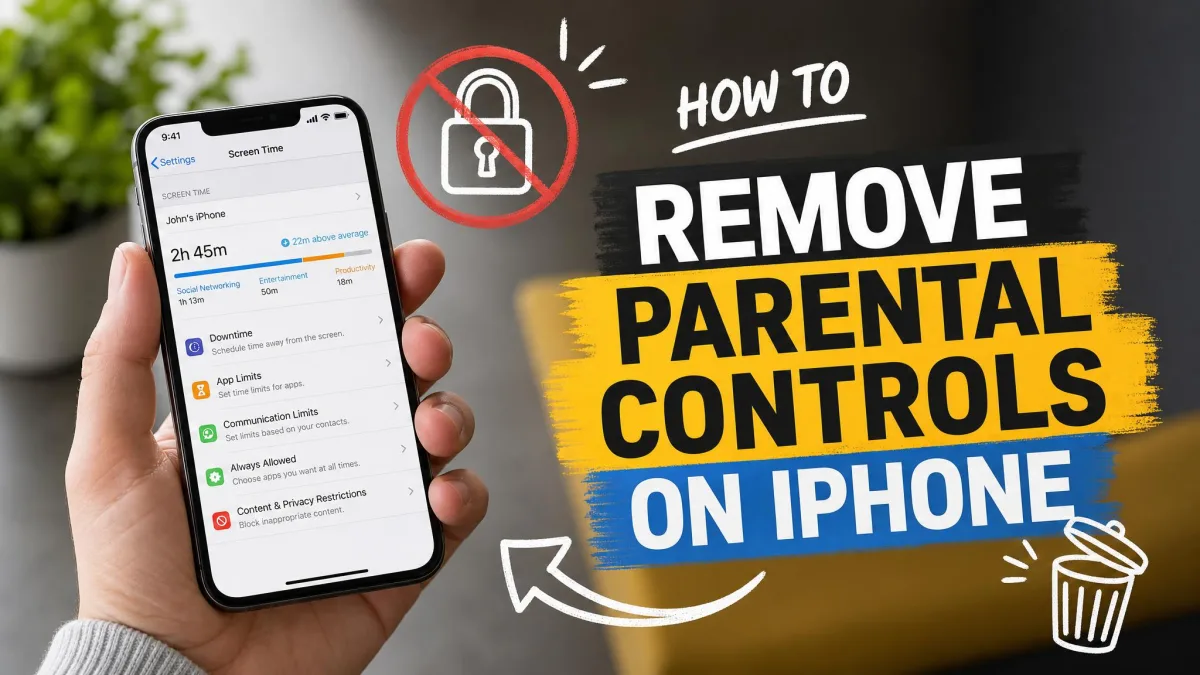
Open Settings → Screen Time → Content & Privacy Restrictions. Toggle off Content & Privacy Restrictions and enter the Screen Time passcode when prompted. This switch hides adult content, blocks app installs, and prevents purchases, so it is the first toggle most people want to disable.
Turn Off the Screen Time Passcode
If you know the current passcode, open Settings → Screen Time → Change Screen Time Passcode. Enter the existing passcode, then choose a new one or turn passcode protection off. With the passcode removed, a child can edit Screen Time settings on their own, so save this for children who have outgrown the controls.
Recover a Forgotten Screen Time Passcode (Apple ID)
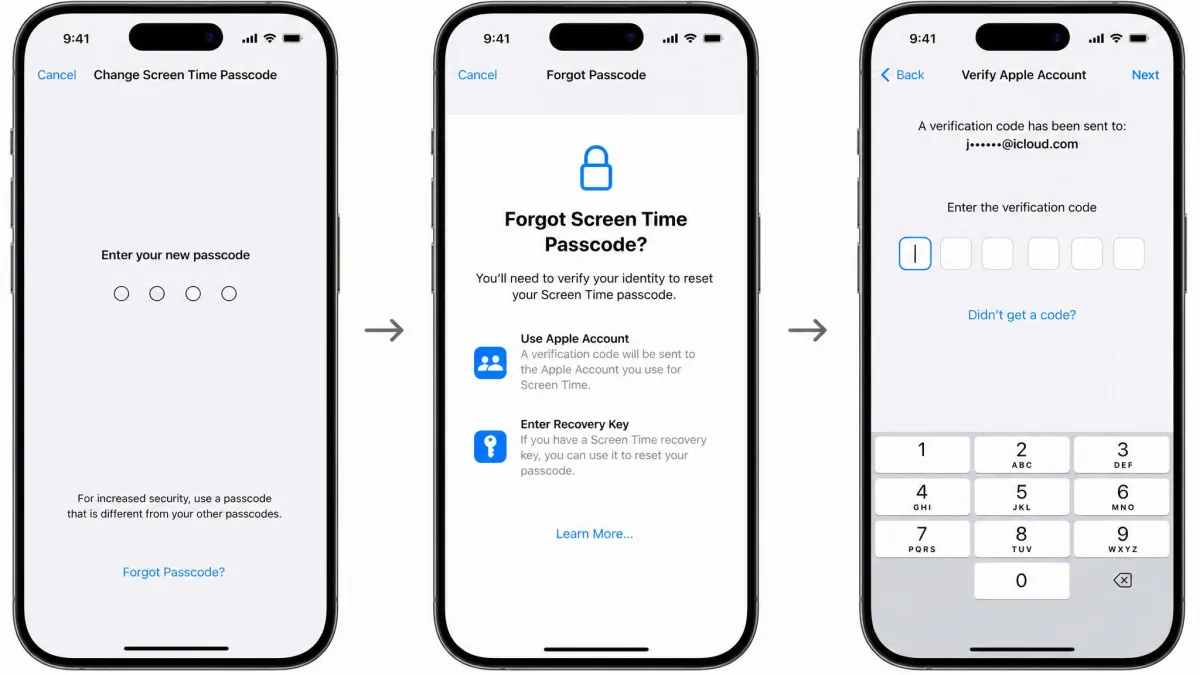
Open Settings → Screen Time → Change Screen Time Passcode → Forgot Passcode? and sign in with the Apple Account used at setup. Under Family Sharing, that may be the parent's or child's account, not the one signed in on the device. Recovery only works if Screen Time Passcode Recovery was enabled during setup.
The path usually works, but it can fail. Correct Apple Account credentials are sometimes counted as failed attempts, which locks the device out for 1 to 60 minutes. Apple's documented fallback is to erase the device and set it up as new. Restoring an old backup brings the restrictions straight back, and a factory reset does not bypass Activation Lock if another Apple ID is signed in.
Remove Carrier or School-Issued Restrictions (MDM)
If the iPhone says "This iPhone is supervised", the restrictions come from a management profile, not from Screen Time. Open Settings → General → VPN & Device Management and look for the profile. It needs the installer's authorization or a removal password, and a factory reset will not clear it. Contact the organization that issued the device.
How to Turn Off Parental Controls on Android
Android splits parental controls across Google Play and the Family Link app. Which one you need depends on how the limits were set up.
Disable Parental Controls in Google Play Store
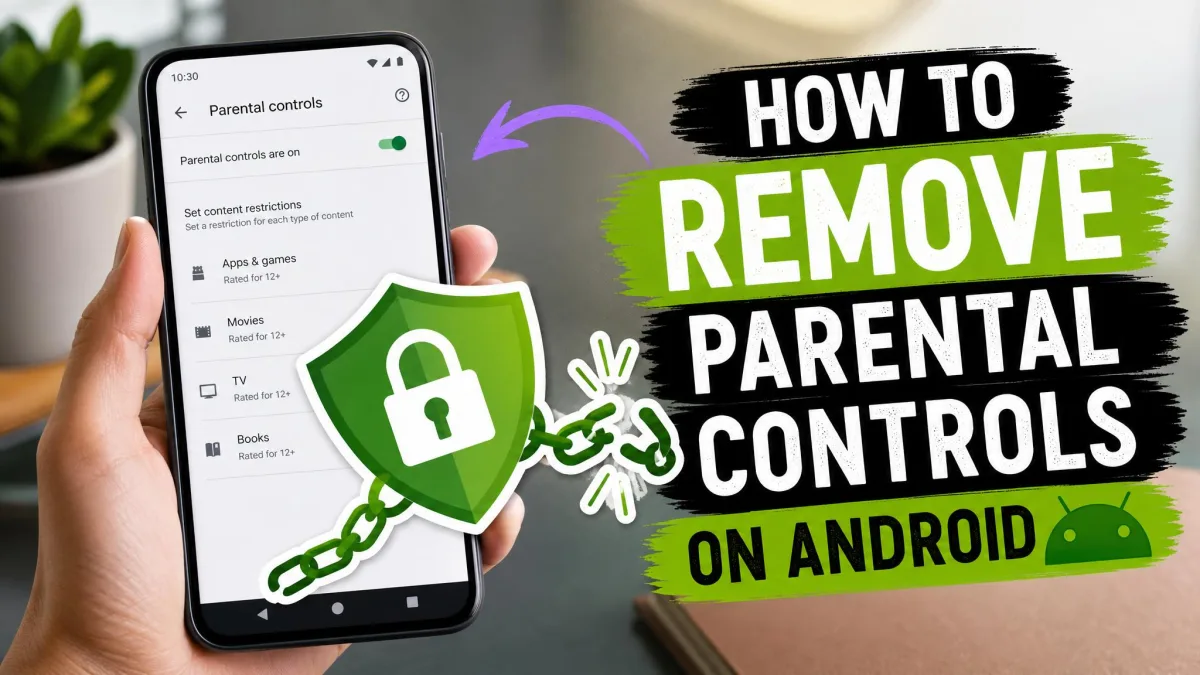
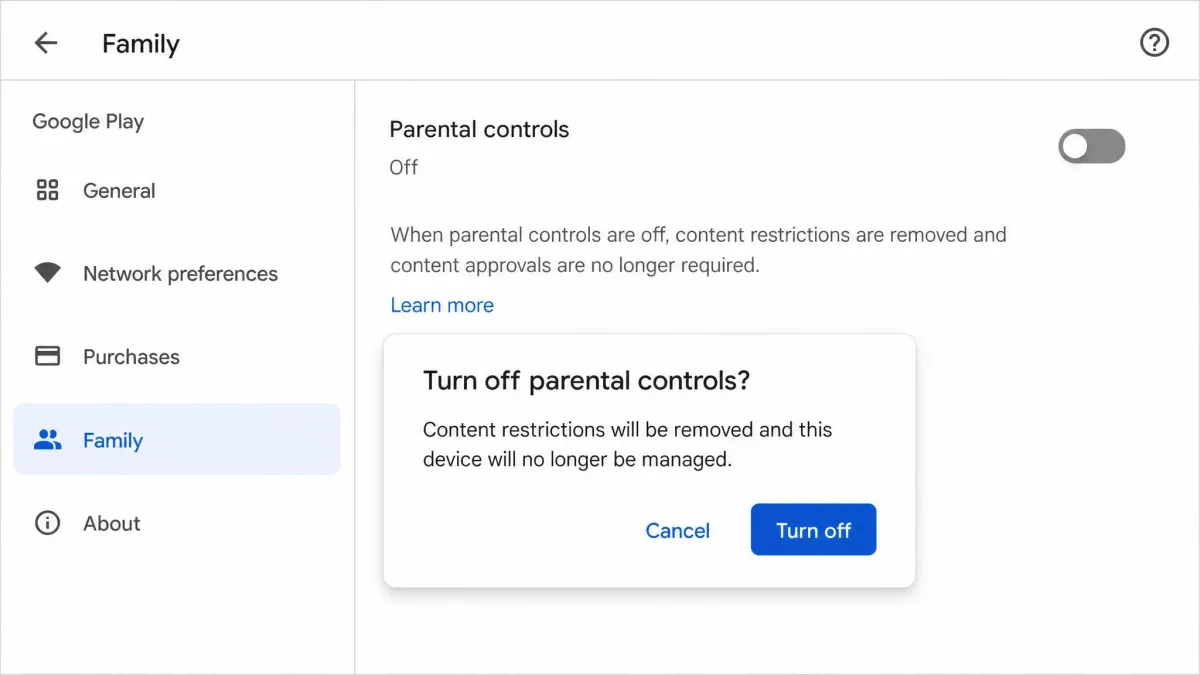
Open the Google Play app → tap the profile icon → Settings → Family → Google Play parental controls → toggle off. Enter the content restriction PIN when prompted. This removes the age-based filters for apps, games, movies, and books on that one device. The filters apply only to the device they were set on, and they do not block restricted content from search results or direct links.
Remove Family Link Supervision
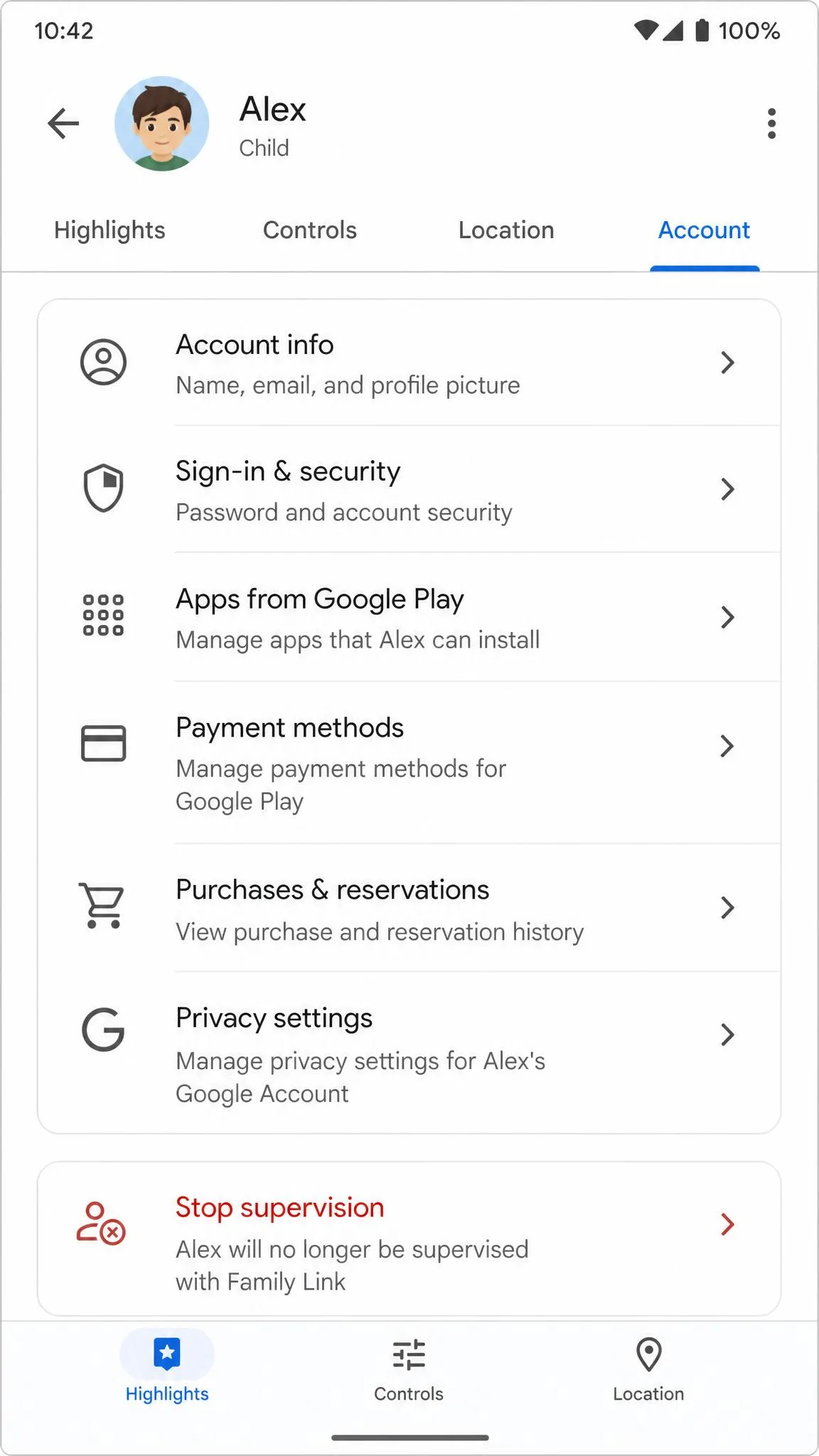
If you manage the phone with Family Link, the controls live on the parent side. Open the Family Link app → tap the child's profile → Controls → Account Settings → About supervision → stop Family Link supervision. On the child's device the same option sits under Settings → Digital Wellbeing & parental controls → More → Stop supervision, which needs Android 7.0 or higher. You verify as the parent by signing in or entering the Parent Access Code, and both sides get notified when supervision ends. The age gate matters here: a child under 13 cannot stop supervision at all, and until 18 a parent must approve it.
Stopping supervision does not delete the child's Google Account or its data. Deleting the account is a separate step, and only the parent can do it for a child under 13. Google warns that deleting the account before removing it from signed-in devices can lock the device and require a factory reset.
Forgot the Google Play PIN?
A forgotten Play PIN is reset by clearing the Google Play Store app's data. Open Settings → Apps & notifications → Google Play Store → Storage → Clear data. This resets the restrictions and the PIN, and it does not uninstall any apps. It does wipe stored items such as search history. On newer Android, deleting the PIN in Android parental controls turns off Play restrictions. This guide to turning off parental controls on Android covers the same ground in more detail.
How to Turn Off Parental Controls on Windows
Windows parental controls run through Microsoft Family Safety and the family group. The removal has to come from the family organizer, and no tinkering on the child's side will get around that.
Remove the Child Account from the Microsoft Family Group
Sign in to the Microsoft Family Safety website with an account that has the organizer role. Select the child, and choose Remove consent for this child's account first if the option appears. Then select Remove from family group and confirm. Only an organizer can remove members, and a child account cannot remove itself. If consent was granted, removal fails with a must-first-remove-consent error until the consent-granting organizer removes it first.
Turn Off Microsoft Family Safety Features
You do not have to remove the child to relax the limits. From the Family Safety app or Microsoft Family Safety at family.microsoft.com, screen time and content limits can be toggled off per member. Turn limits off works per platform, so Windows, Xbox, and mobile are separate switches. App and game limits are separate from device limits.
How to Turn Off Parental Controls on Mac (macOS)
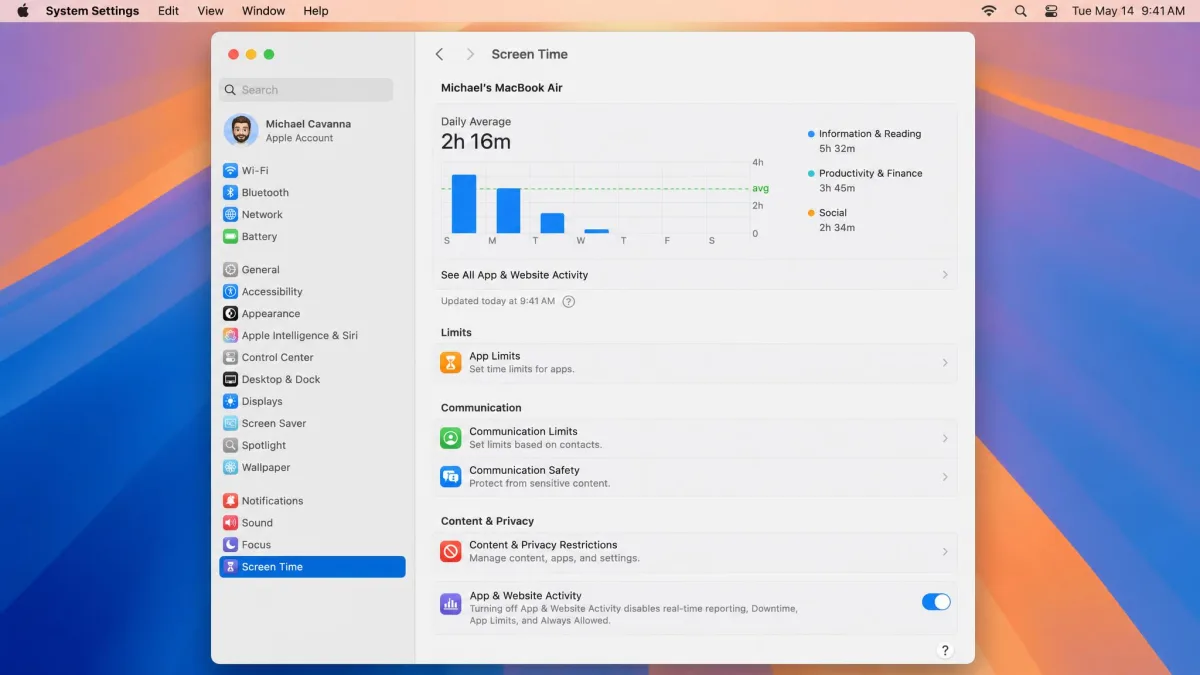
On a Mac, the same Screen Time controls run under System Settings. Open System Settings → Screen Time → Manage Screen Time and turn off App & Website Activity. For a child account, choose the child under the Family Member pop-up menu first. The Mac may ask for the Screen Time passcode or an administrator password.
In practice, the controls cannot be removed without the administrator password. The recovery-mode resetpassword workaround often ends in an unable-to-unlock-your-login-keychain error. If you are the administrator, the settings toggle is all you need.
How to Turn Off Parental Controls on Game Consoles
Consoles each keep their own PIN system, and the passcodes are simpler than on phones. A forgotten one usually means a reset.
PlayStation (PS4 and PS5)
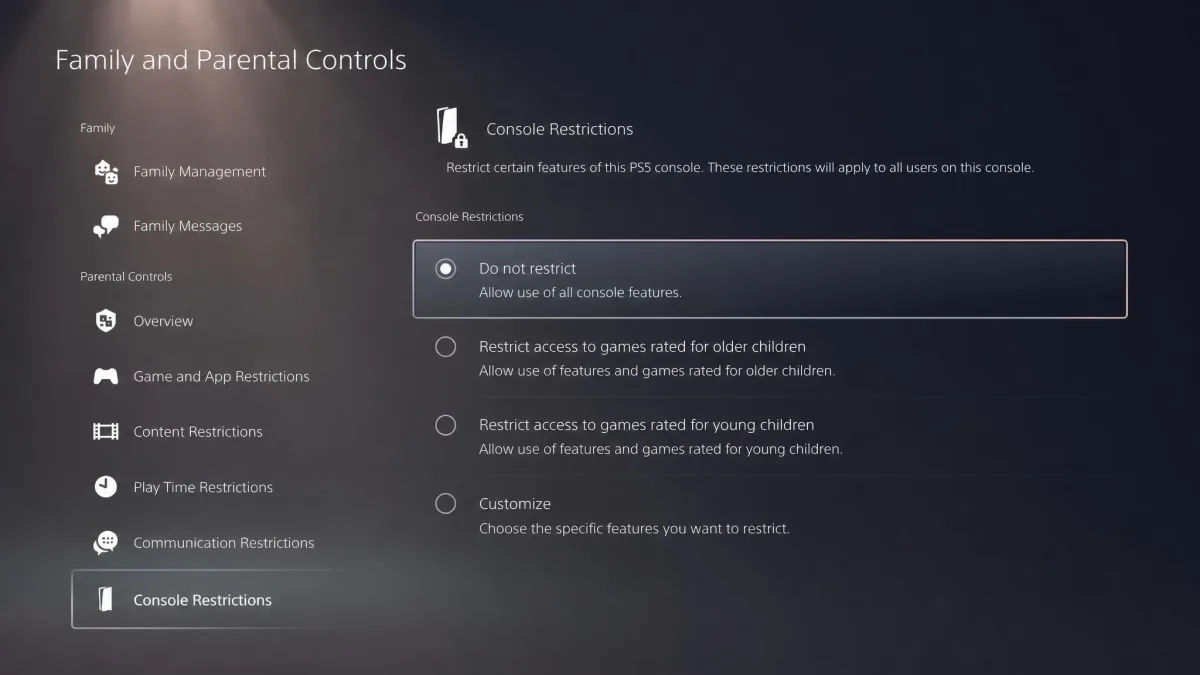
Open Settings → Parental Controls/Family Management → PS4/PS5 System Restrictions and set the level to Do Not Restrict. The console asks for the system restriction passcode, which defaults to 0000. On PS5 the path is Settings (gear icon) → Family and Parental Controls → Console Restrictions → Do not restrict. If you cannot connect to PSN, entering the passcode lifts certain restrictions temporarily. They return when the checkbox is cleared, the console turns off, or it enters rest mode.
Xbox
Xbox controls come from the same Microsoft family group that manages Windows. Turn limits off per platform from family.microsoft.com, or remove the child from the group entirely. On the console itself, a forgotten six-digit family PIN forces a factory reset. The Reset and Keep My Games & Apps option preserves installed games and data.
Nintendo Switch
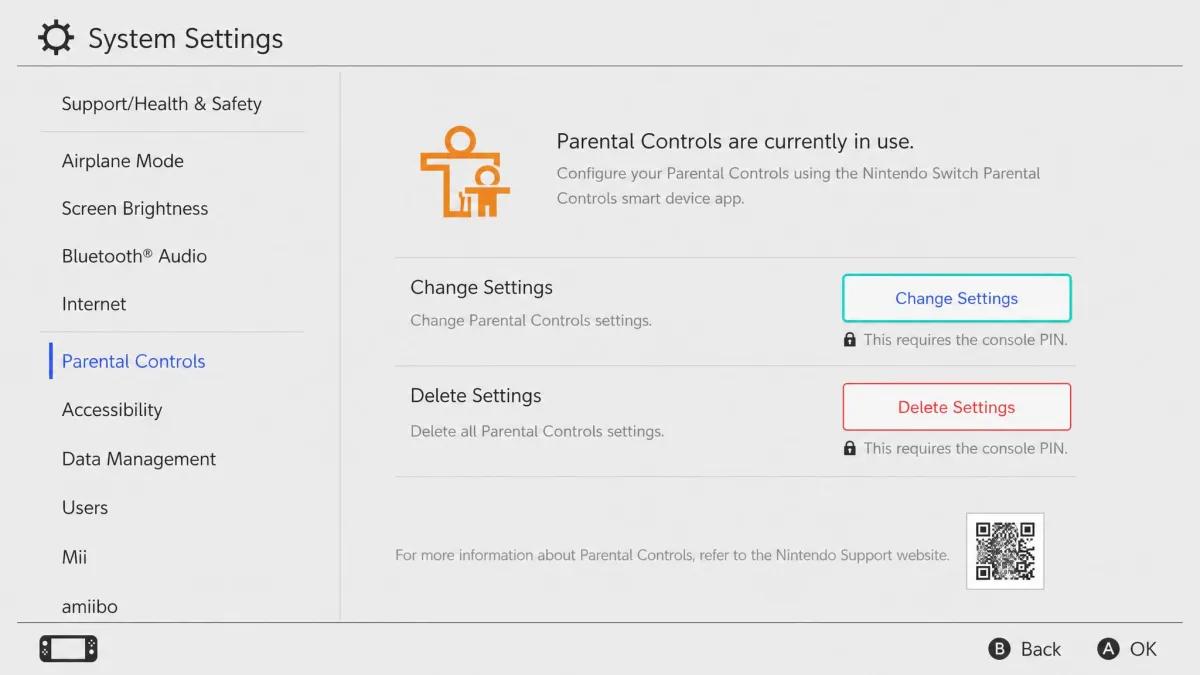
Open System Settings → Parental Controls → Change Settings, enter the PIN, and press the X Button to delete the settings and the PIN. If you use the Parental Controls app, the simpler route is to unlink it: System Settings → Parental Controls → Unlink App. All restrictions are removed once the app is unlinked, and while it is linked the PIN can only be changed through the app. Unlinking does not remove eShop spending or visibility restrictions set through the parent's Nintendo Account family group. PIN recovery needs the inquiry number and serial number through a web form, so the app-unlink route is simpler. Nintendo's instructions for removing parental controls from a Nintendo Switch walk through both options.
How to Turn Off Parental Controls on Smart TVs and Streaming Apps
Most smart TVs do not have one parental controls switch that covers every app. Each streaming service keeps its own restrictions.
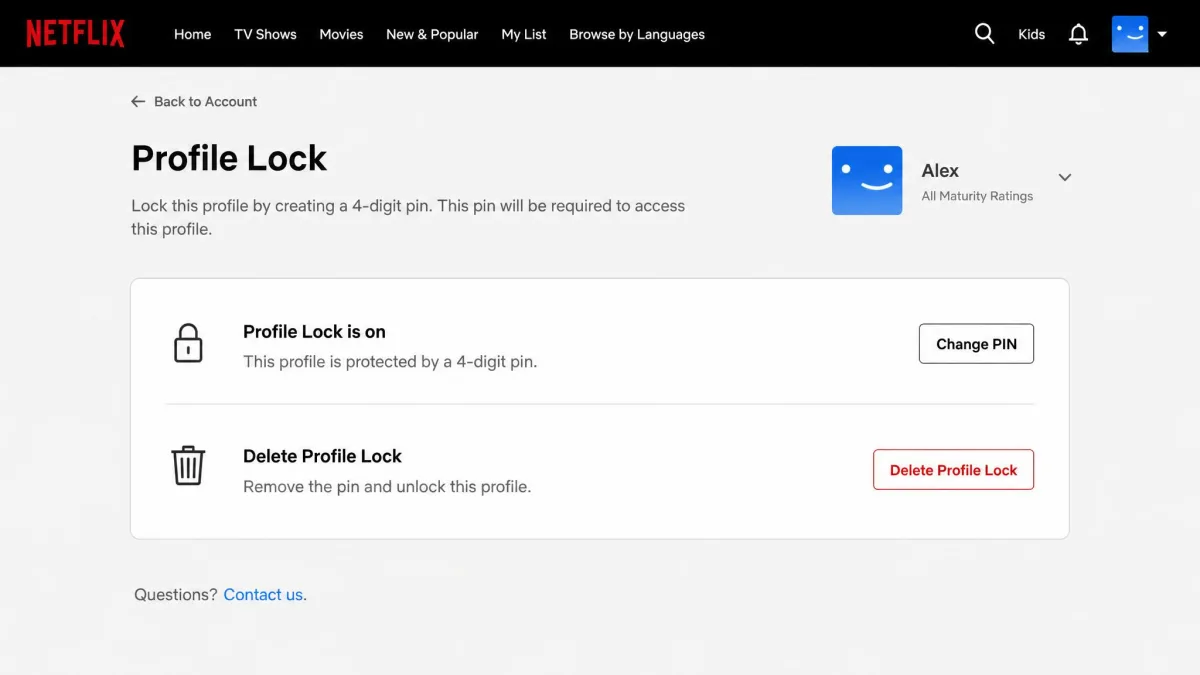
On Netflix, the restrictions are per profile. Open the Account page in a browser → Profiles → the profile → Profile Lock → Delete Profile Lock. The account owner can always disable a profile PIN, and the change syncs to every device, including smart TVs. Netflix does not ask for a PIN when the profile is the only one on the account. On Roku, parental controls live at Home → Settings → Parental controls, and they apply only to Live TV and The Roku Channel. For other smart TVs, check the app's own settings, where options like YouTube Restricted Mode live inside each app.
Forgot the Password or PIN? (Recovery Options)
If the PIN will not come back to you, the recovery route depends on the platform.
- iPhone. Forgot Passcode? under Settings → Screen Time → Change Screen Time Passcode signs you in with the Apple Account used at setup, if Passcode Recovery was turned on. Otherwise the fallback is erasing the device and setting it up as new.
- Android. Clear the Google Play Store's data to reset the Play PIN. For Family Link, verify as the parent. You can also remove parental controls from your Google account through the supervision flow.
- Windows. Recover the organizer's Microsoft account at account.live.com/password/reset. The child cannot remove themselves.
- PlayStation. Restoring default settings resets the passcode back to 0000. Without that, the only option is initializing the console.
- Nintendo Switch. Use the PIN recovery web form with the inquiry number and serial number, or unlink the app.
On iPhone, turn on Screen Time Passcode Recovery during setup. It spares you the factory-reset fallback if the passcode ever slips your mind.
What Happens When You Turn Off Parental Controls
Turning the controls off is reversible, and it removes the supervision layer rather than your data.
On iPhone and iPad, turning off Screen Time removes web content filters, App Limits, Downtime, purchase restrictions, and Communication Limits. It does not delete apps, photos, or accounts. Turning the whole feature off is different from toggling a single limit, so you can relax just one category if you need to. On Android, stopping Family Link supervision keeps the child's account and its data. The child keeps their installed apps and content. On Windows, leaving the family group is the bigger step, because it also ends shared purchases and any Microsoft 365 Family access. On consoles, all age-rated games become playable and purchase approvals switch off.
A factory reset is the fallback for a forgotten PIN on most platforms, and it erases everything: photos, messages, apps, and saved accounts. Restoring an old backup can bring the restrictions straight back after disabling them, so set the device up as new if you go down that route.
Troubleshooting: Why Parental Controls Won't Turn Off
When the toggle refuses to stick, the cause is usually one of a few known issues.
- Screen Time recovery keeps failing. Correct Apple Account credentials are sometimes counted as failed attempts. When account recovery does not resolve it, Apple's support route ends at erasing the device.
- Windows or Xbox limits stay on. App and game limits are separate toggles from device limits. Settings may not have synced, or the PC was offline when you made the change. Edge can keep enforcing limits until you sign out and back in.
- The child account hits a wall. Only the family organizer can remove a member. Windows does not allow a child account to leave the group on its own, and ending Family Safety processes in Task Manager does nothing.
- Family Link will not show Stop supervision. The option can be missing from the browser, and it can fail to appear for a child over 13. Try the parent's Family Link app or the child's device.
- The iPhone still says supervised. A management profile from a school or employer sits outside Screen Time, and no reset removes it.
If a device still blocks content after removal, restart it and sign back in to force a sync.
FAQ
Can kids turn off parental controls?
How do I turn off parental controls without the password or PIN?
Can I turn off parental controls on my child's iPhone from my phone?
Does turning off parental controls (or Screen Time) delete my app data?
Can I disable parental controls temporarily?
Will turning off parental controls affect other settings?
Is it safe to completely remove parental controls?
What if my iPhone shows "This iPhone is supervised"?
Final Thoughts
Turning off parental controls is a decision rather than a single click. It is the right call once a child has outgrown them. Keep the PIN written down, enable passcode recovery where the platform offers it, and remember that removal is reversible everywhere. If the built-in controls stopped holding up and you still want oversight, our roundup of the leading Android parental control apps is a good next stop. The goal is supervision that fits the child's age, not a permanent lock.