Maybe you set up parental controls when your kids were younger. Now your teen has outgrown them, and the Screen Time passcode is long forgotten. Or you bought a used iPhone that still carries somebody else's restrictions. Either way, the passcode is usually the sticking point. With it, turning the controls off takes about three taps. Without it, you still have a path, just a longer one. Here's how both routes work.
What Are Parental Controls on iPhone?
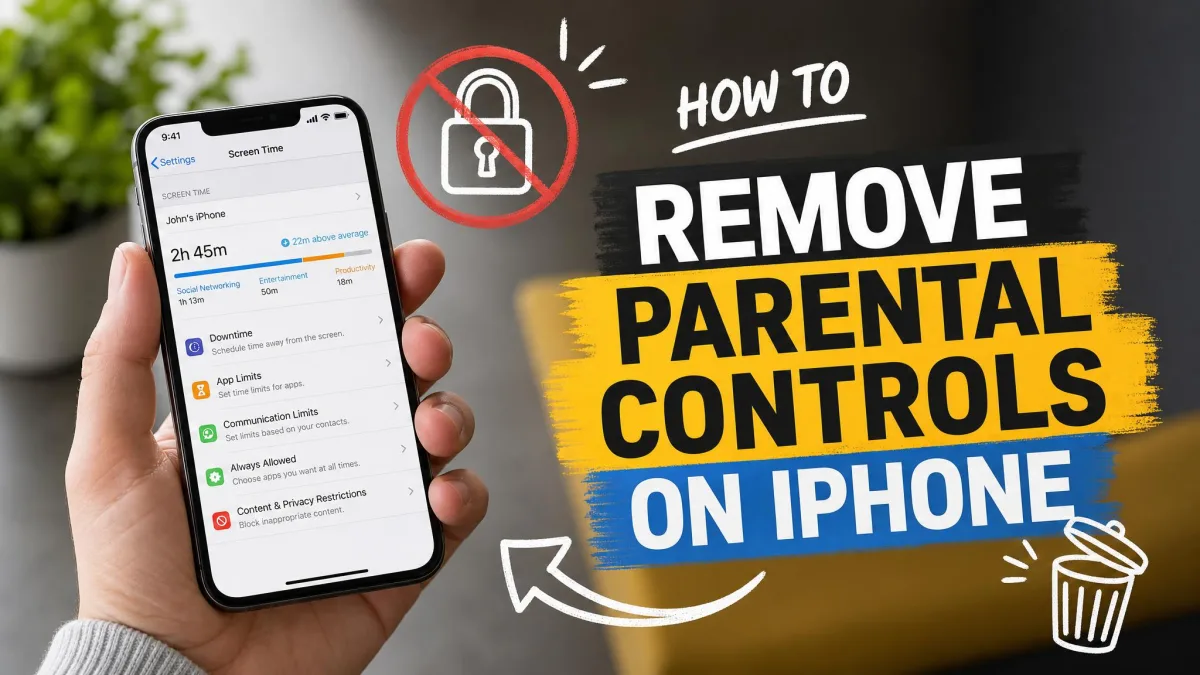
Screen Time is Apple's parental control system. It replaced the older Restrictions feature when it arrived with iOS 12 in 2018. When people talk about parental controls on an iPhone, this is what they mean. The controls allow you to set limits by category or by individual app. Understand the two layers inside Screen Time, and every method in this guide gets easier.
Screen Time vs. Content & Privacy Restrictions
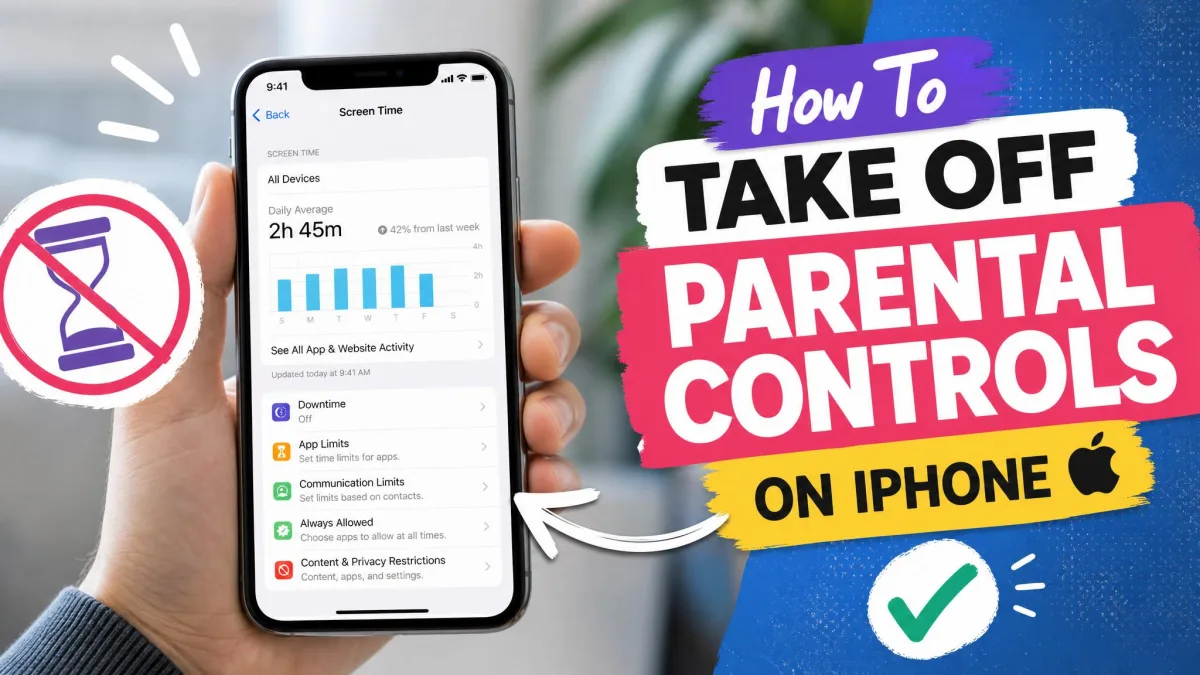
Screen Time is the umbrella. It holds Downtime, App Limits, Communication Limits, Always Allowed, and Content & Privacy Restrictions. Content & Privacy Restrictions is the gatekeeper inside that umbrella. It governs App Store purchases, web content filters, explicit-content ratings, and privacy permissions. You can switch it off on its own without touching the rest of Screen Time. Knowing which layer is doing the blocking tells you which toggle to reach for.
How Parental Controls Get Set Up (Family Sharing, Passcode)
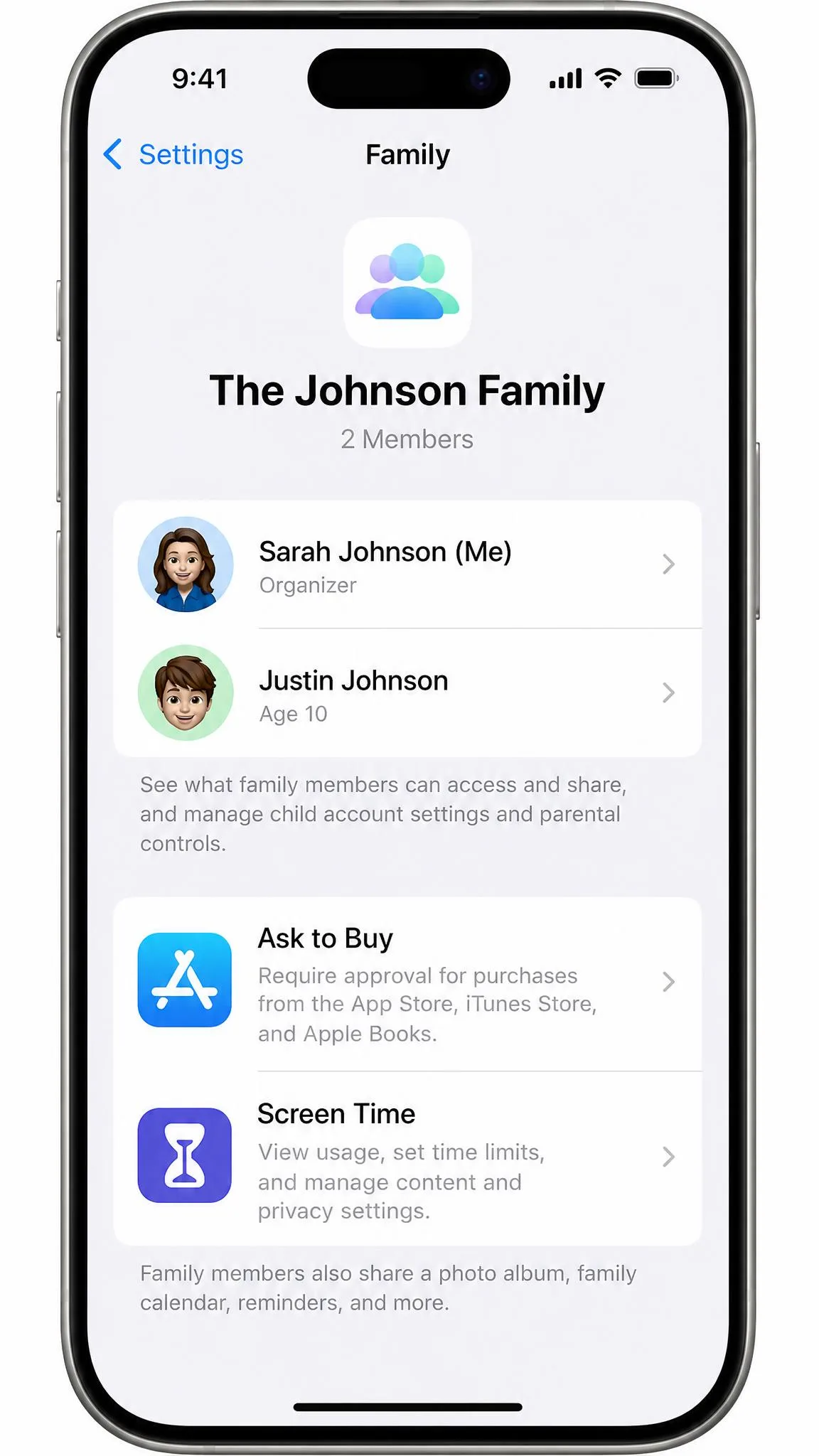
Most parents arrive here one of two ways. You created a Family Sharing group and added your child's account, which turned on Ask to Buy and age-based limits by default. Or you opened Screen Time on a single device and set a four-digit Screen Time passcode. That passcode is separate from the device lock passcode, and it is the key to every change in this guide. When you set it up, Apple offers Screen Time Passcode Recovery. That option links the passcode to an Apple Account so a forgotten code can be reset later. Whether you accepted it decides which no-passcode method will work for you.
Before You Start: What You Need
Gather three things before you start, because each method in this guide needs one of them. Jump to the one that matches your situation.
The Screen Time Passcode
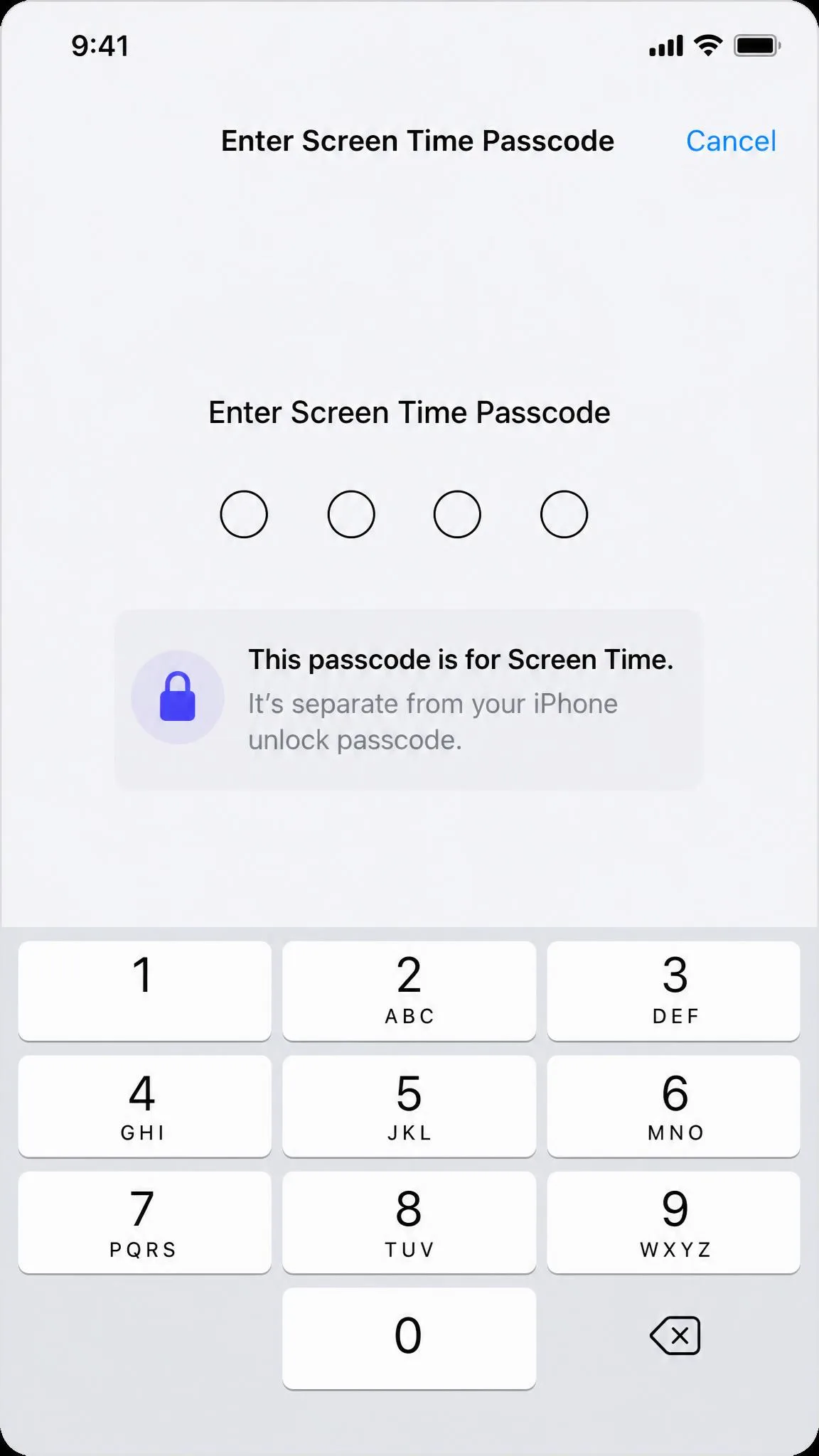
The fastest route starts with the passcode. If you know it, you can turn off any Screen Time setting from the device itself, with no Apple Account involved. If you only remember it vaguely, write it down somewhere safe, because a factory reset will ask for it too.
Apple ID Login (for Passcode Recovery)
If the passcode is gone, you need the Apple Account and password that were used when the passcode was set up. That account is not always the one currently signed in. On a family iPhone, the account that created the passcode is usually the parent's, so the login you need may live on a different phone. Note that Apple Account is the current name for what most people still call Apple ID. They are the same credentials.
Family Sharing Organizer Access (for a Child's Device)
On a child's iPhone that is managed through Family Sharing, most changes have to come from the family organizer's device. You cannot fully clear Screen Time from the child's phone itself, so have the organizer's phone or login ready before you start. If you are the organizer, sign into the same account on your own device first.
Method 1: Turn Off Parental Controls With the Passcode
If you have the passcode, the whole process takes about a minute. Everything you need sits under Settings > Screen Time, so open that screen and work through the options below.
Turn Off Screen Time Entirely
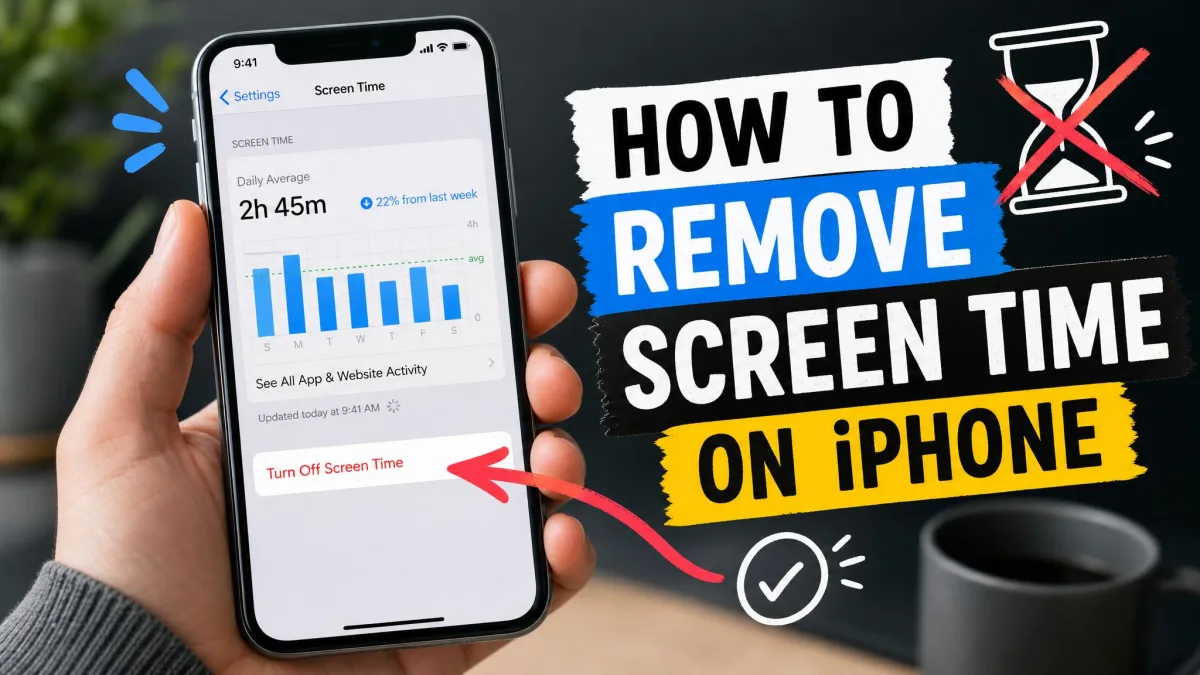
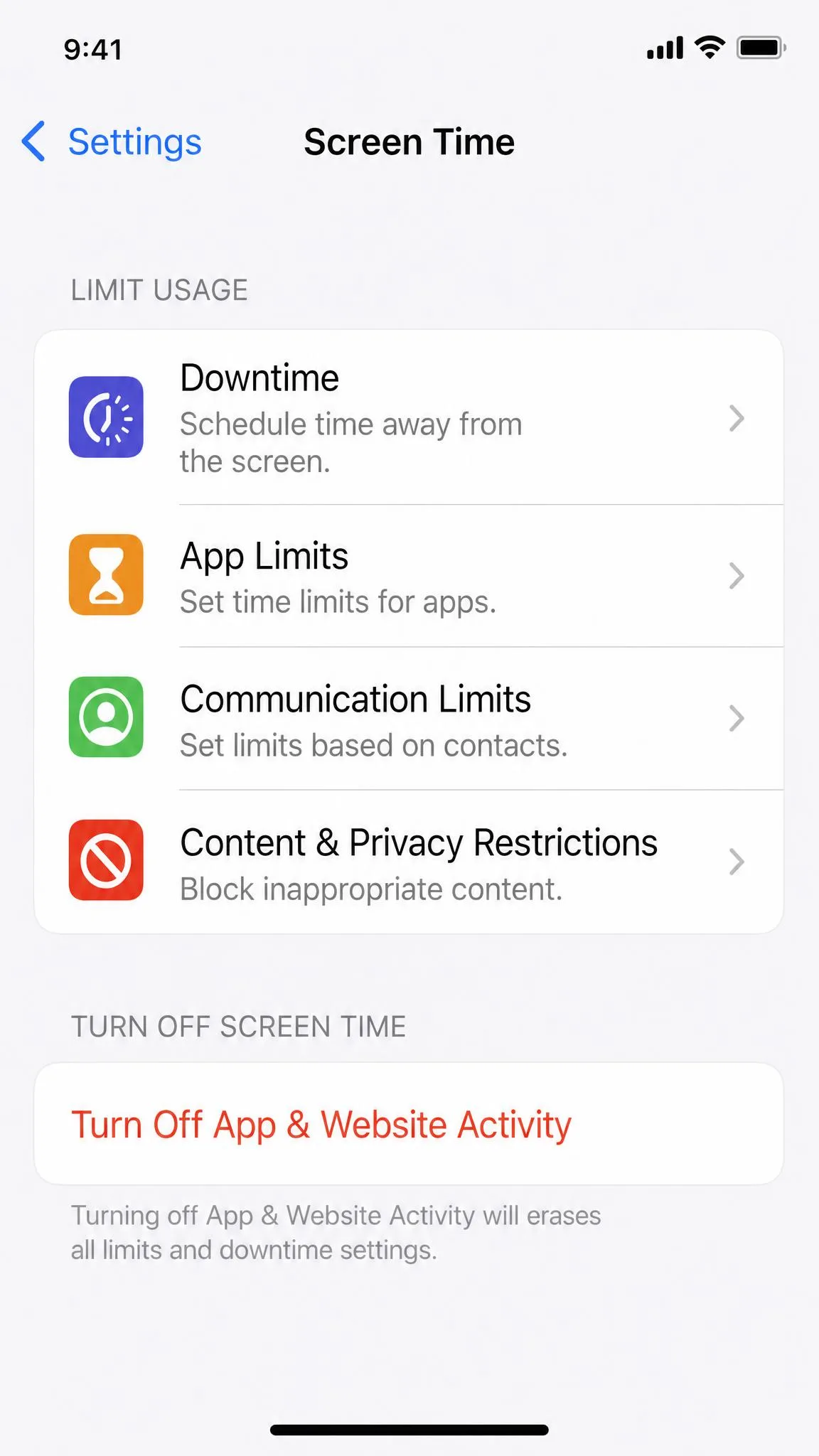
Open Settings > Screen Time and scroll to the bottom. Tap Turn Off App & Website Activity, which is what the button reads on iOS 17 and later. On iOS 16 and earlier it says Turn Off Screen Time instead. Enter the Screen Time passcode and confirm. That single step disables activity reporting, Downtime, App Limits, and Always Allowed together. It is the quickest way to clear everything at once, and it is the method Apple recommends first for removing the controls wholesale.
Turn Off Content & Privacy Restrictions Only
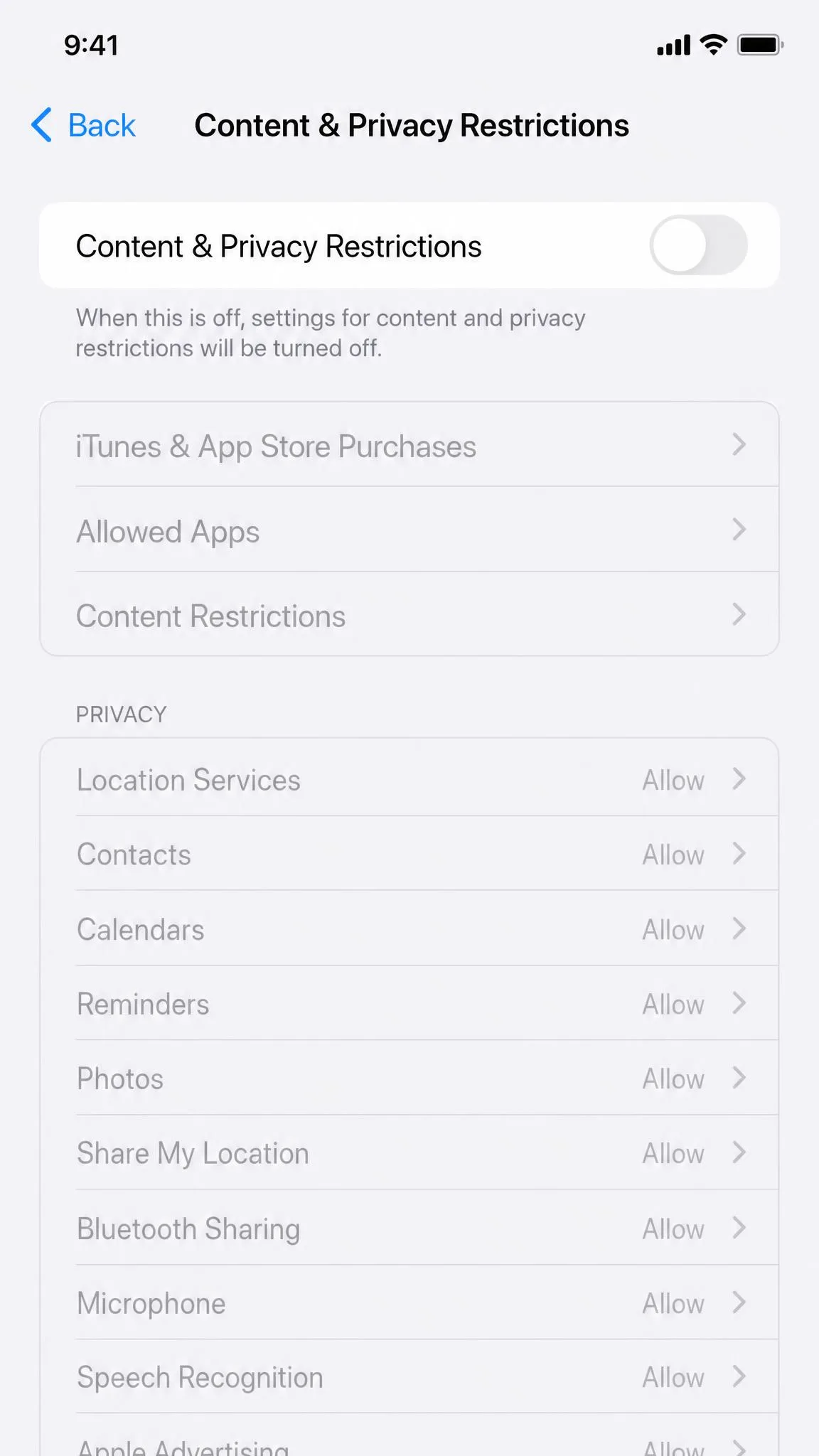
To keep screen-time limits but drop the content filters, take the narrower route. Open Settings > Screen Time > Content & Privacy Restrictions and toggle Content & Privacy Restrictions off. Enter the passcode when asked, and the sub-settings gray out to show they are inactive. Pick this option when you want to loosen the controls without removing them entirely. Each sub-setting stays where it was, so you can switch the restrictions back on later without rebuilding them.
Turn Off Individual Restrictions (App Store, Web, Privacy, Communication, Downtime)
Sometimes you only want to change one thing, like letting the App Store install apps without approval. Leave the main toggles alone and open the individual settings. Inside Content & Privacy Restrictions you can switch off iTunes & App Store Purchases, Allowed Apps, Web Content filters, and Privacy permissions one at a time. Back in the main Screen Time screen, tap a Downtime schedule to turn it off, or open App Limits, tap a limit, and choose Delete Limit. Communication Limits work the same way: set During Screen Time and During Downtime to Everyone. This table maps each restriction to its settings path.
| Restriction | What it limits | Where to turn it off |
|---|---|---|
| Downtime | Blocks app use during scheduled hours | Settings > Screen Time > Downtime |
| App Limits | Daily time caps per app or category | Settings > Screen Time > App Limits > Delete Limit |
| Communication Limits | Who the child can message or call | Settings > Screen Time > Communication Limits |
| Content & Privacy Restrictions | App Store purchases, web content, explicit content | Settings > Screen Time > Content & Privacy Restrictions |
| Ask to Buy | Parent approval for purchases and downloads | Settings > Family > child > Ask to Buy |

Method 2: Turn Off Parental Controls Without the Passcode
No passcode? Work through these options in order. The Apple ID route comes first because it keeps your data intact. Erasing is the last resort, and a third-party tool sits in between if you want to avoid both.
Reset the Screen Time Passcode with Your Apple ID
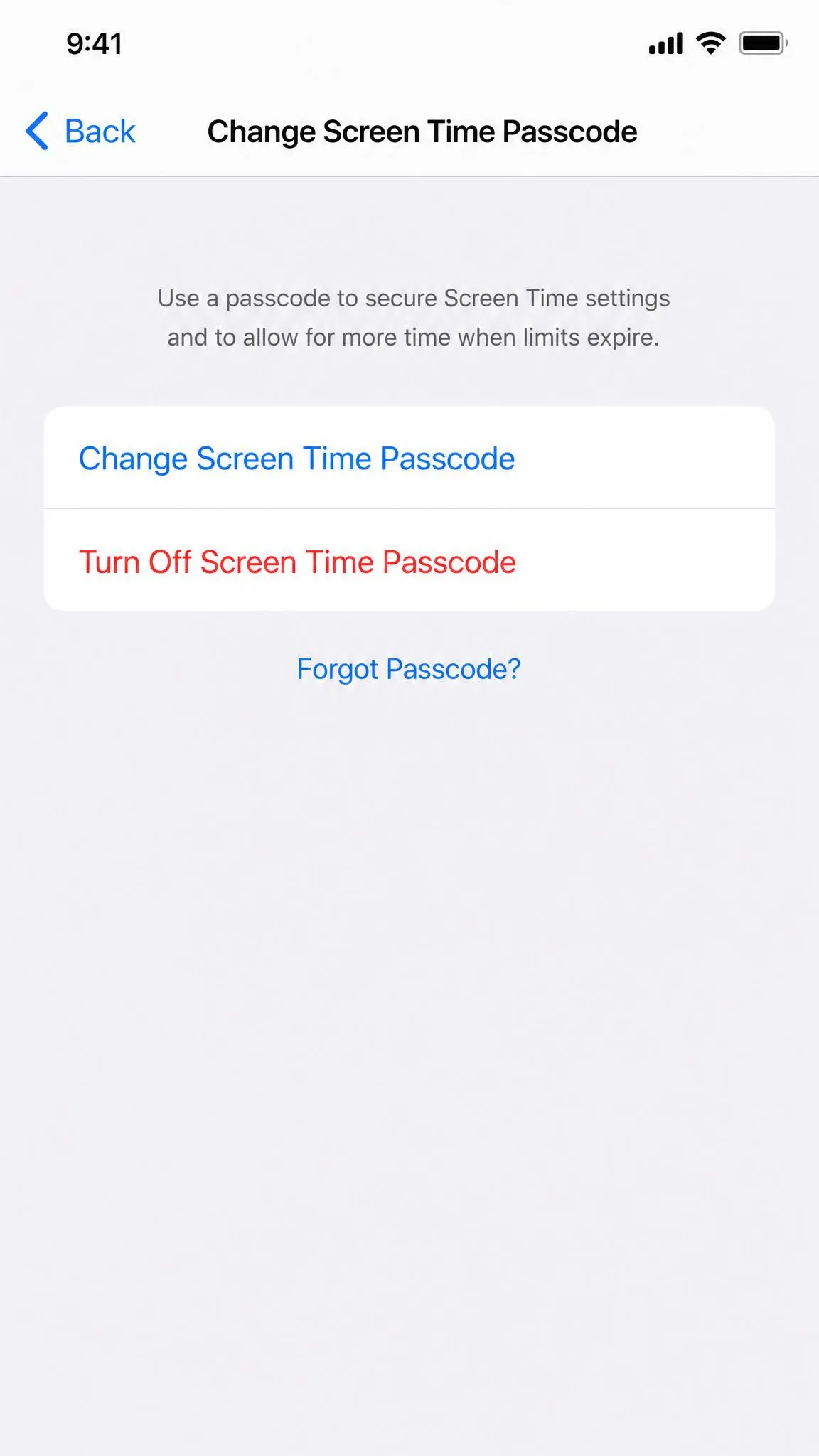
If the passcode was linked to an Apple Account during setup, you can reset it from Settings. Open Settings > Screen Time > Change Screen Time Passcode and tap Change Screen Time Passcode again. Then tap Forgot Passcode? and enter the Apple ID and password that were used when the passcode was set up. You can then set a new passcode and follow Method 1 to turn everything off. Apple's steps for recovering a forgotten Screen Time passcode walk through this exact flow.
This path is conditional, so know the limits before you rely on it. We confirmed that the Forgot Passcode? button only appears when the device is signed into the Apple Account that set up the passcode. Some iOS versions still fail the reset even with the correct credentials, and Apple Support's fallback in those cases is to erase the device.
Log In From the Parent's Account and Disable It
In a Family Sharing group, the passcode on a child's phone is usually the parent's. The controlling Apple Account can be managed from the organizer side. Sign the child's device out of the account, or use the organizer's phone, and open the Screen Time settings from there. You can then hit Turn Off App & Website Activity with the parent's credentials. Keep in mind that a grayed-out Apple Account, which Screen Time restrictions can cause, may block signing out of iCloud entirely. If the settings are locked down that way, the erase route below is the way out.
Factory Reset the iPhone (Last Resort, With a Data Warning)
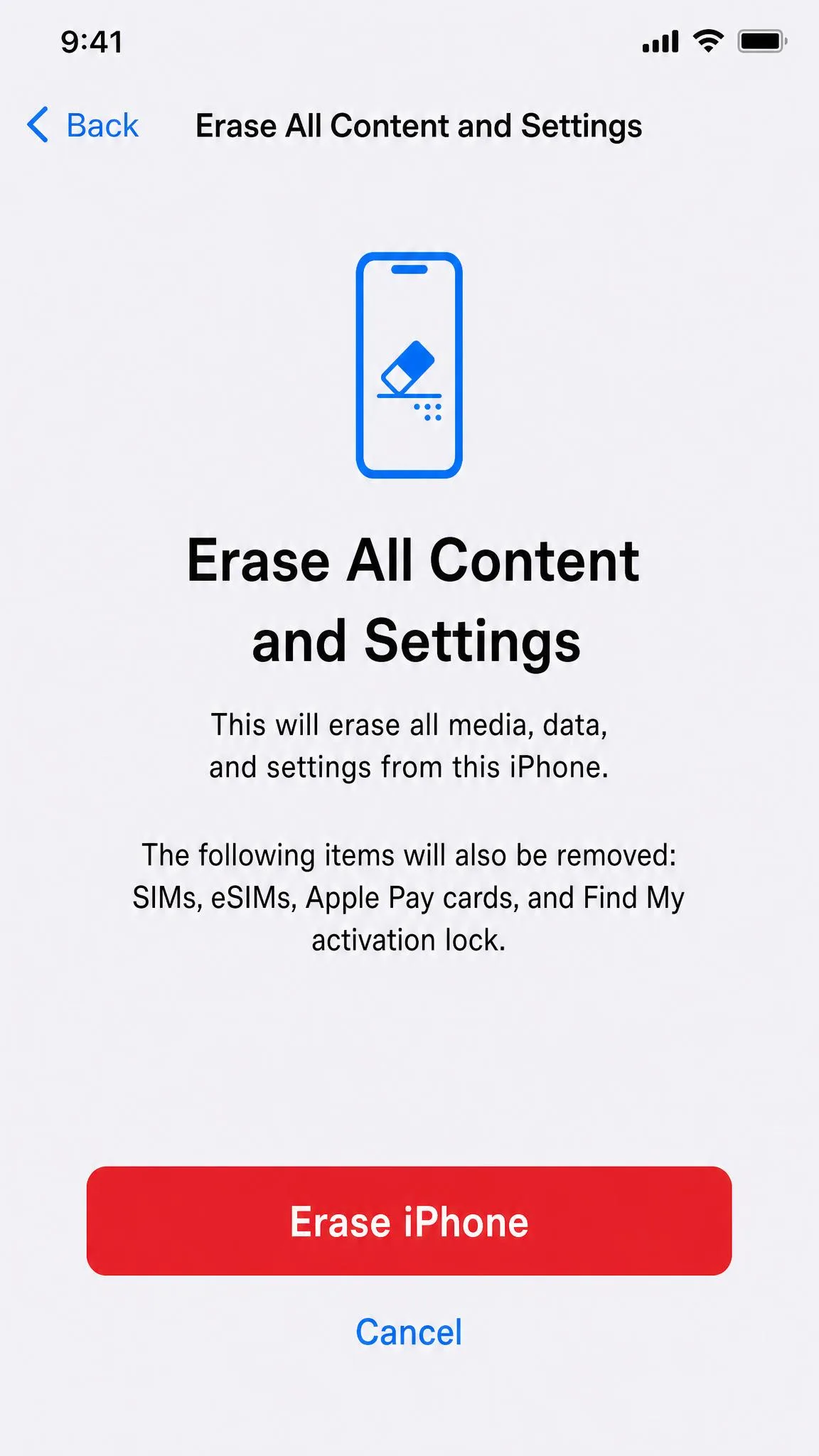
When no recovery account was linked, Apple's only official path is to erase the device. Open Settings > General > Transfer or Reset iPhone > Erase All Content and Settings, then set the phone up as new. This wipes photos, messages, app data, and saved logins, and it does not bypass Activation Lock. If Find My is on, the Apple Account password is still required after the erase. Here is the trap most people hit: restoring from a backup made while Screen Time was active brings the passcode and limits right back. We confirmed that, so an erase only works when you follow it with Set Up as New, never a backup restore.
Use a Third-Party Screen Time Passcode Remover
Third-party tools cover the no-passcode, no-erase gap, and behavior varies sharply by tool. In our testing, Dr.Fone Screen Unlock removed a Screen Time passcode automatically in about three minutes. There was no firmware download and no data wipe, though you must turn off Find My first. List prices start around $34.95 for a one-month license, but vendor prices change with promotions, so check the current store. Tenorshare 4uKey is a different story. Its Screen Time removal always wipes the device, which makes it a forced restore rather than a data-preserving unlock. It also cannot remove iCloud Activation Lock, and a lifetime license lists around $69.95 as a ballpark figure. Use any of these tools only on a device you own, and back everything up first, because the standard device-lock removal path can download a firmware package of about 9.5 GB.
Method 3: Turn Off Controls on a Child's iPhone via Family Sharing
If the iPhone belongs to your child and sits inside a Family Sharing group, the controls live with the organizer. They do not live on the child's phone. You need your own device to make these changes, because the child cannot switch them off from their side.
Remove the Child From the Family Group
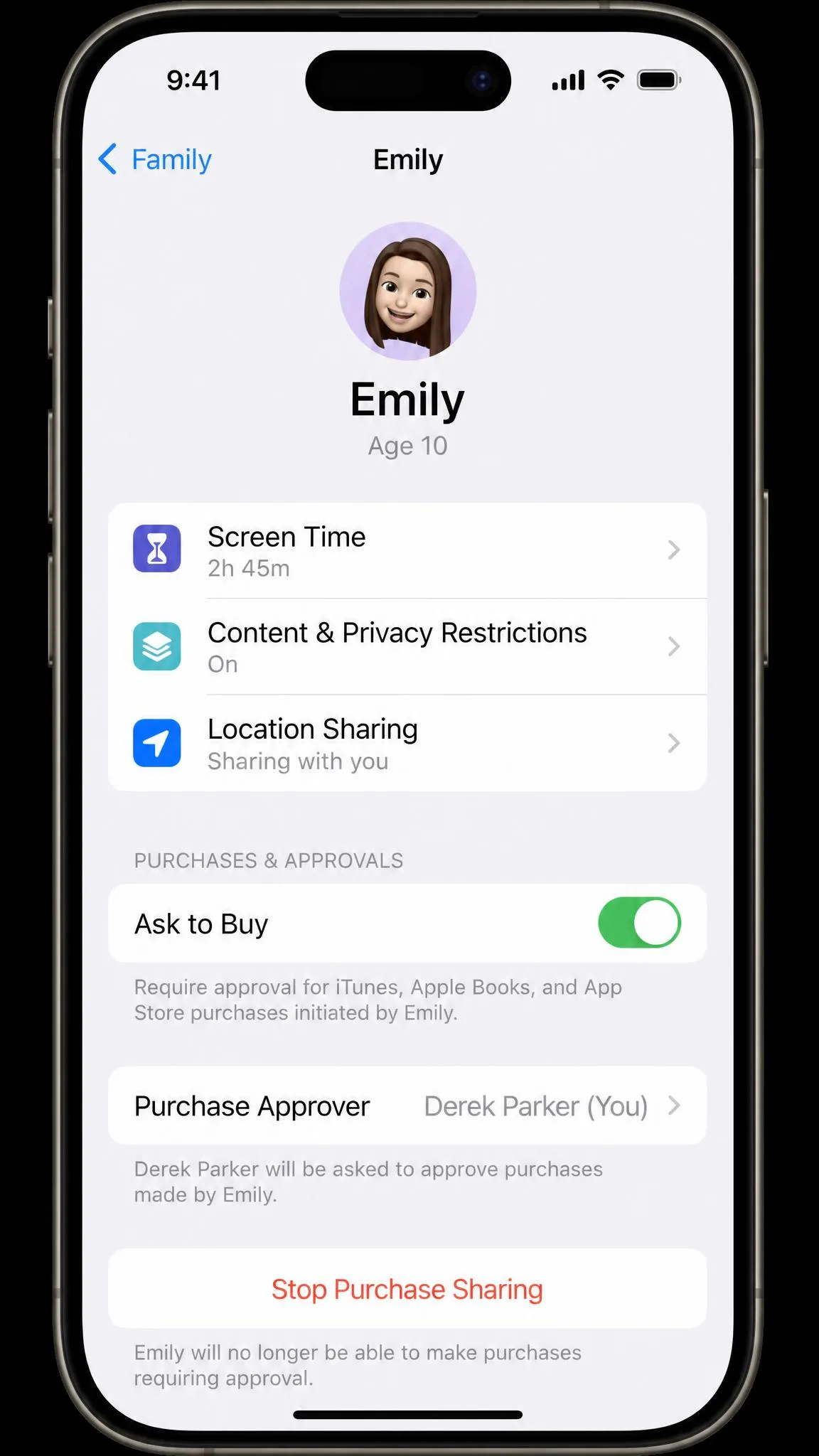
Open Settings > Family on your iPhone, tap the child's name, and tap Remove from Sharing Group, where the child's name appears in the button. For a teenager, Screen Time has to be turned off on the child's device before the removal will go through. Children under 13 cannot be removed directly at all. Their account has to move to another family group or be deleted. The exact age varies by country and region, so check Apple's family controls before you plan around it.
Turn Off Ask to Buy and Purchase Approval
Ask to Buy routes every purchase and free download through your approval. Open Settings > [your name] > Family Sharing, tap the child's name, and toggle Ask to Buy off. Only the family organizer or a designated parent or guardian can change it, and a child cannot switch it off themselves. Most parental control settings, including Ask to Buy, turn off automatically when the account holder turns 18. That is why many families never need this guide after that birthday.
What Happens When You Turn Off Parental Controls
Before you hit the toggle, know exactly what changes and what does not. That distinction is the difference between a clean switch and an accidental wipe.
What Gets Disabled (App Limits, Web Filters, Activity Monitoring)
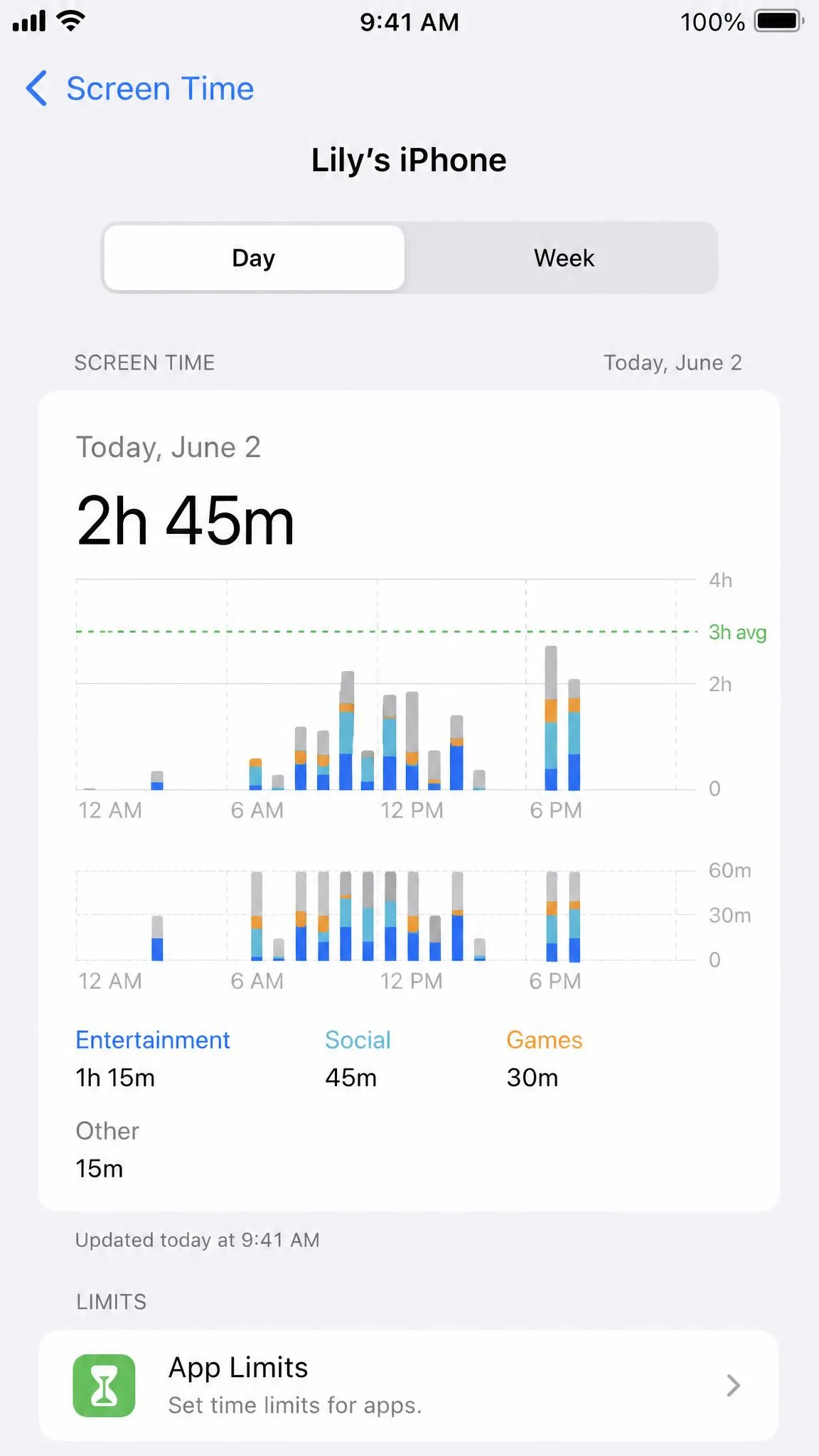
Turning Screen Time off removes Downtime schedules, App Limits, Web Content filters, and App Store install and purchase restrictions. It also removes Communication Limits and explicit-content filters, and it stops activity reporting. In short, the entire layer of limits disappears at once. If you want a middle ground, turn off only the pieces that no longer fit rather than the whole system.
What Stays (Apple ID, iCloud Data)
Your apps, photos, messages, and Apple Account data are untouched by the toggle. The only route in this guide that risks data is the factory reset in Method 2. Even then, anything backed up to iCloud comes back when you sign in again. The data-loss worry people attach to parental controls is really a worry about the erase path. That is the reassurance most parents need before they turn it off.
Troubleshooting Common Issues
A few situations come up often enough that they deserve their own answers. Work through these in order if something still blocks you after the methods above.
"This iPhone Is Supervised" (MDM-Managed Devices)
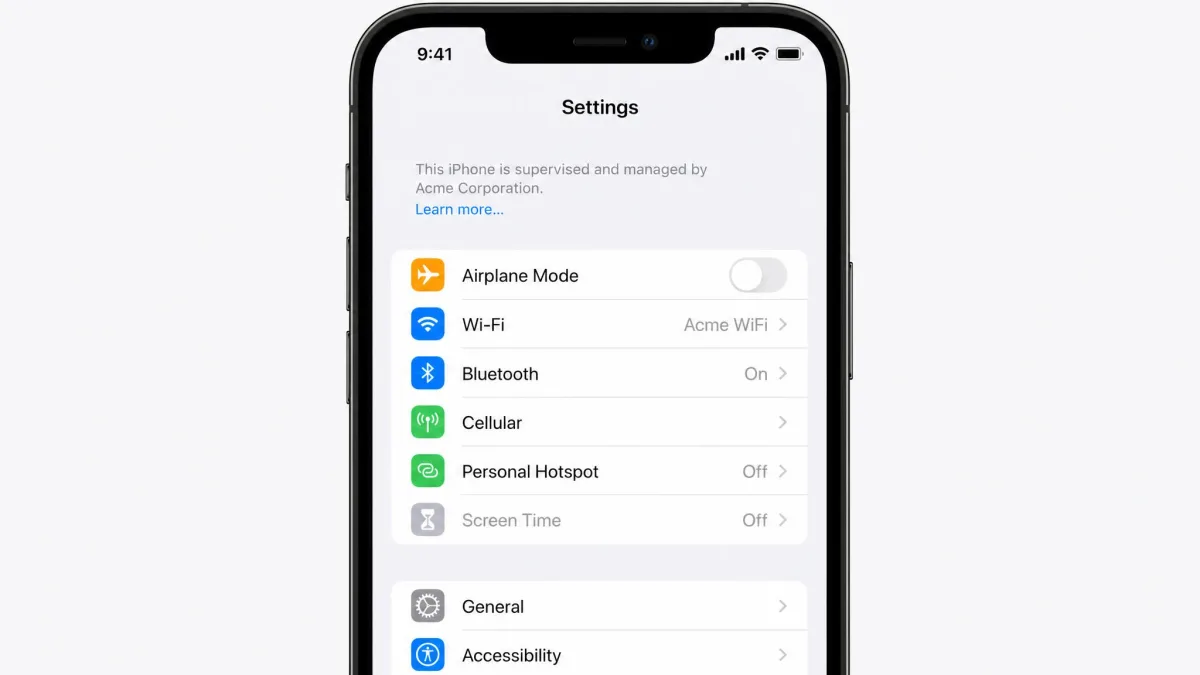
If Settings shows the line "This iPhone is supervised", the device is managed by a mobile device management profile. That profile usually comes from a school, an employer, or a carrier. Screen Time restrictions cannot be removed from Settings on a managed device. The original installer has to remove the profile, typically through Settings > General > VPN & Device Management. Until that happens, no Settings toggle will work, no matter which method you try.
Screen Time Restrictions Still Active
You turned everything off, but some limits are still biting. Check whether the device is in a Family Sharing group first. Those settings sync across every device in the group, and a limit set on the organizer's iPhone applies to the child's too. Apple recommends updating every device to the latest software before changing controls, so install pending updates on both sides. Then recheck the toggle. If an old App Limit survives, open App Limits and tap Delete Limit on any remaining entry.
Forgot Passcode and Apple ID Recovery Fails
The reset path fails most often because the Apple Account entered at setup was never linked. It also fails when the device is not signed into that account. When that happens, the erase route is the only official fix. Before you erase, try signing into the account that set up the passcode and retry Forgot Passcode?. If Screen Time restrictions are blocking the sign-out flow itself, contact Apple Support, because the standard recovery steps will keep stalling.
Alternatives to Fully Turning Off Controls
Full removal is not the only option. A lighter touch can solve the problem without losing oversight, and many parents settle on it after the first clean break.
Keep Screen Time, Adjust Settings Per App
You can keep Screen Time running and relax just the parts your teen no longer needs. Turn off Downtime but keep App Limits. Loosen Web Content filters from Strict to Unrestricted. Delete the app limits that no longer fit while keeping Communication Limits intact. The settings table in Method 1 is your map for doing this one restriction at a time. Because the changes are reversible, this is the low-risk option to start with if you are not sure you want the controls gone for good.
Third-Party Parental Control Apps
If the built-in system is not the right fit, commercial parental control apps offer an alternative. Qustodio runs about $54.95 a year for five devices. OurPact runs around $6.99 a month, and Surfshark from about $2.49 a month. These are rough ballpark figures, and prices change often. The trade-off is a subscription cost and a separate app to maintain. On iPhones, you still have to remove Screen Time before some of these apps can take over management. For the rest of the household's hardware, our guides on how to turn off parental controls on any device and how to set up parental controls on Android cover the other devices.

Frequently Asked Questions
Can I turn off parental controls without the Screen Time passcode?
How do I turn off parental controls on my child's iPhone from my phone?
Does turning off Screen Time delete my data or photos?
What if my iPhone says "This iPhone is supervised"?
Will turning off Screen Time on my iPhone affect my iPad?
How do I reset a forgotten Screen Time passcode with my Apple ID?
Conclusion
Turning off parental controls on an iPhone comes down to one question: do you have the passcode? With it, the whole system drops away from Settings > Screen Time in under a minute. Without it, the Apple ID recovery path is your best first move. A factory reset is the guaranteed fallback when that fails. For a child's device, work from the family organizer's phone instead. Choose the route that fits your situation, keep a backup handy if an erase is involved, and if you decide the limits had value after all, you can always set them up again and regain full access whenever you want it back.