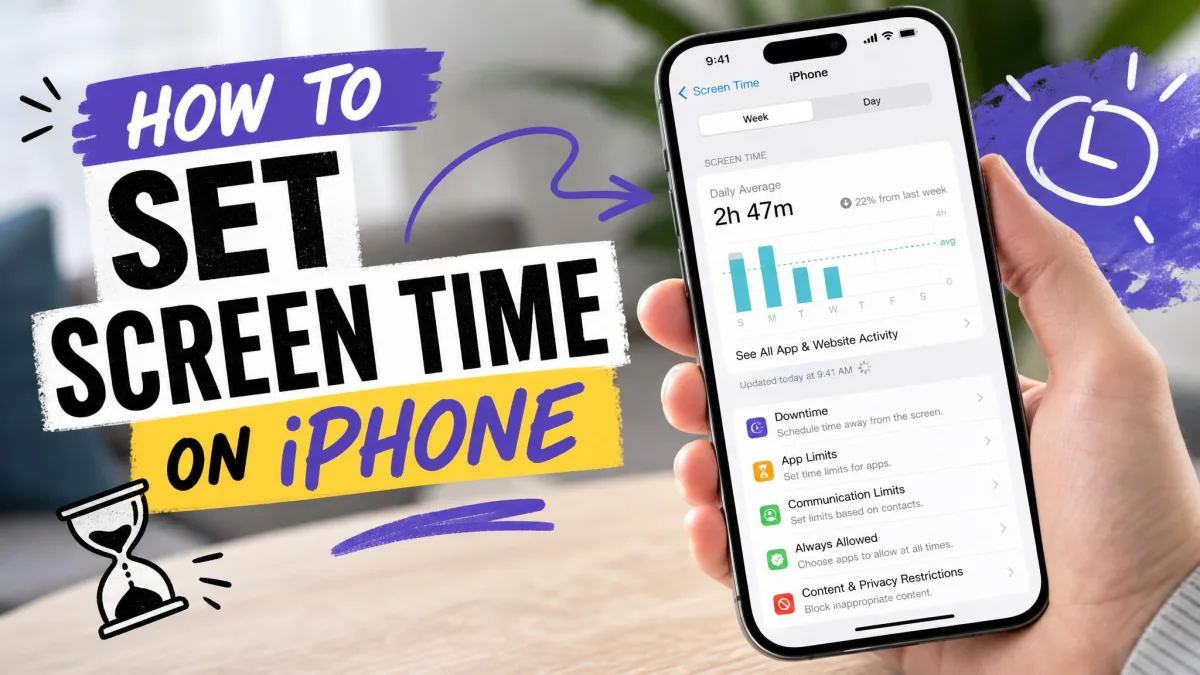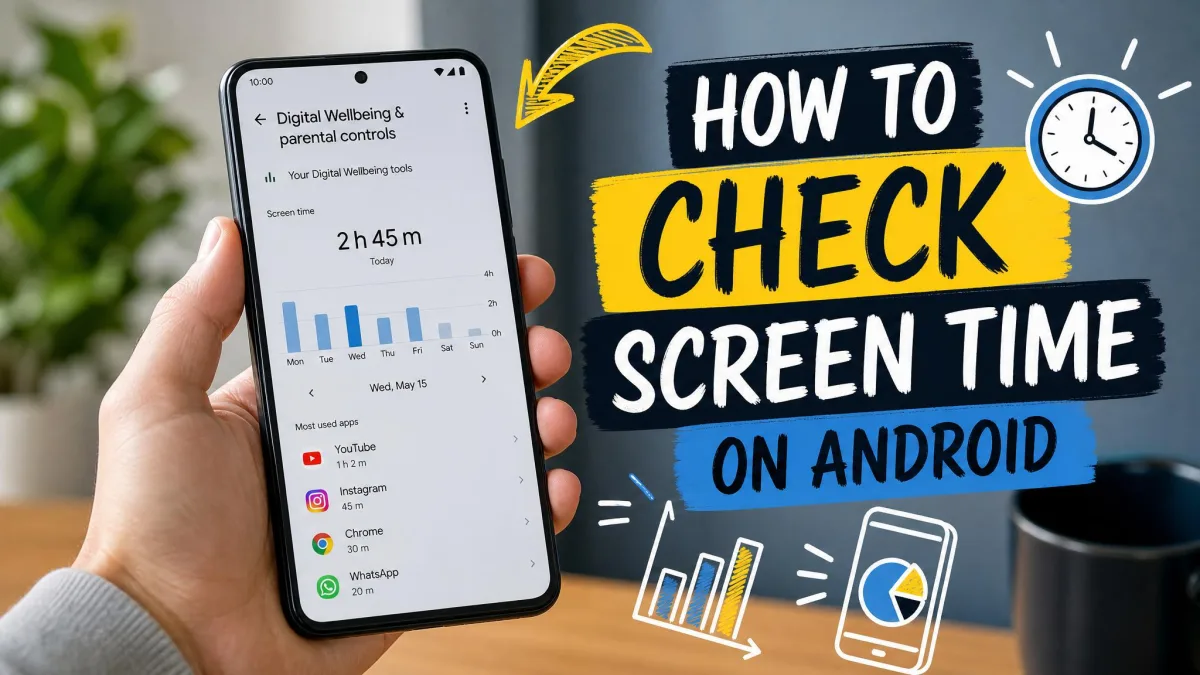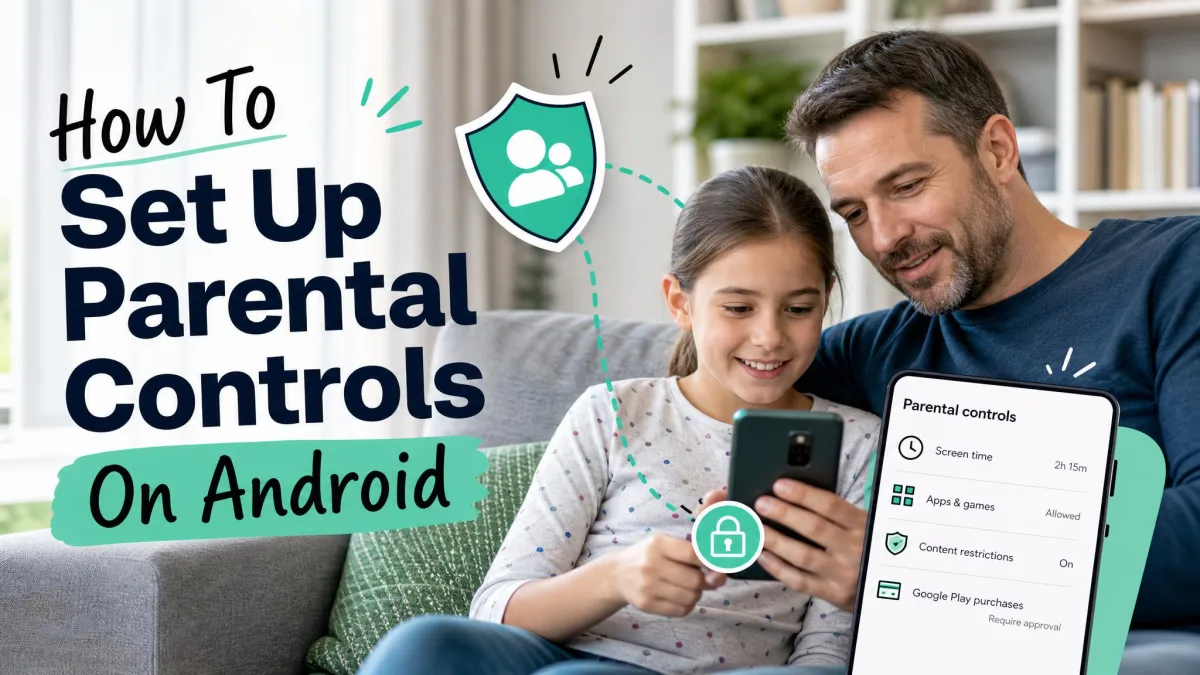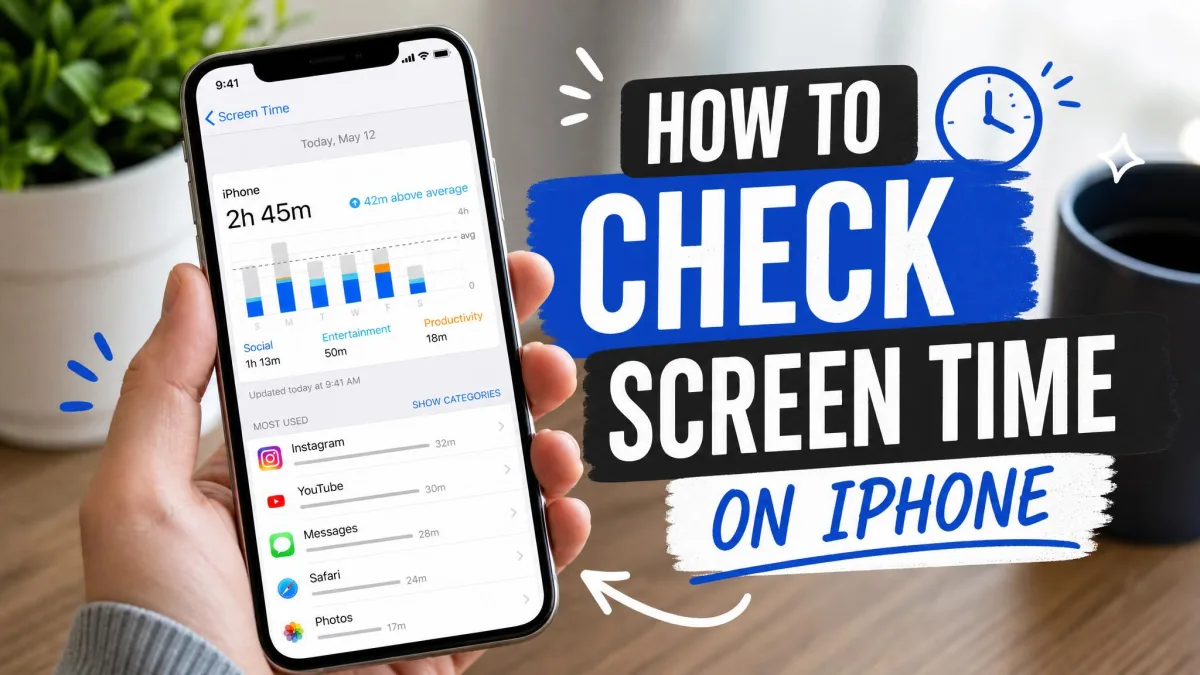
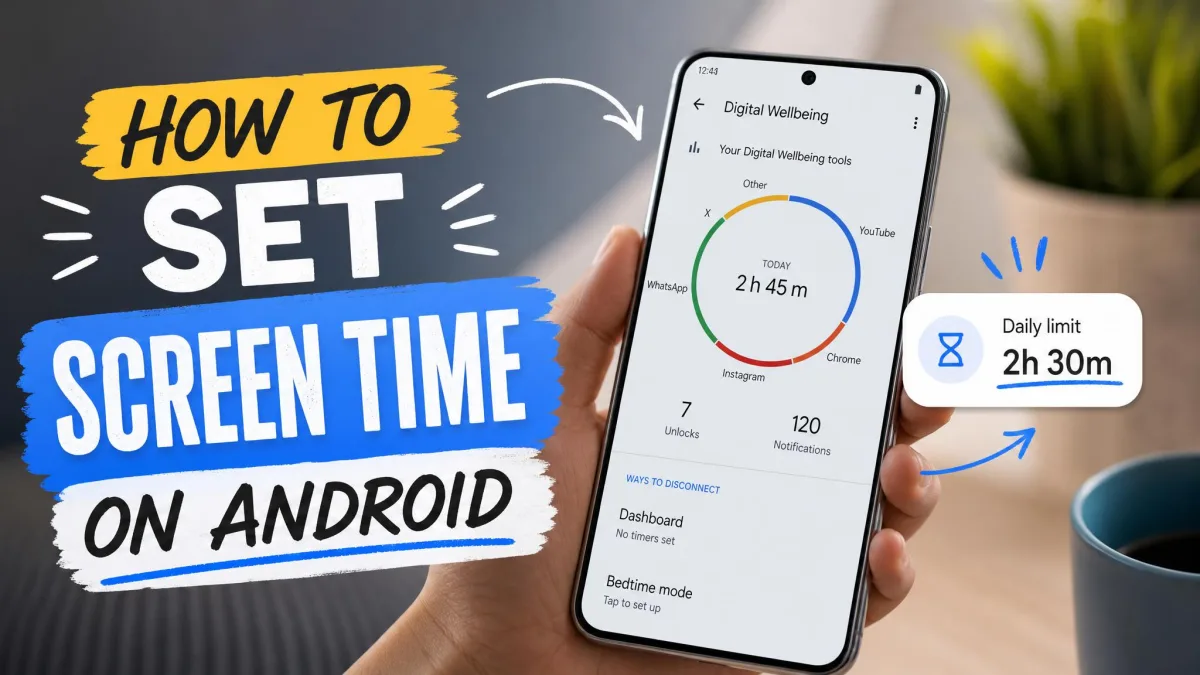
Android has free built-in tools for setting screen time: Digital Wellbeing for your own phone, and on-device parental controls or Google Family Link for a child's phone. If you want to rein in your own scrolling, start with the Digital Wellbeing section. If you're setting limits on a child's phone, skip to the parental controls or Family Link sections.
Every method below takes a few minutes, though we found a proper setup runs about 15 minutes per device. The hard part is usually the limit a child can talk their way past at bedtime, so we'll also cover how to make the limits hold.
Quick answer: how to set screen time on Android
Pick the tool that matches whose phone it is:
- Open Settings > Digital Wellbeing & parental controls and tap App timers to limit apps on your own phone.
- Open Settings > Parental controls on the child's phone to set a PIN, a Daily limit and Downtime.
- Install Family Link on your phone to manage a child's limits remotely.
Which kind of screen-time limit do you need?
Android offers three types of limits, and most families end up using two of them together.
Daily limit
A daily limit caps total screen time for the whole device. When the time runs out, the phone locks until the next day or until a parent adds time.
App limit
An app limit caps one app, such as YouTube or a game, while leaving everything else open. An app limit is the right choice when the problem is one app rather than the phone itself.
Bedtime or downtime
A downtime schedule locks the phone during set hours, whatever time is left on the clock. We'd always pair the two, because a daily limit alone doesn't stop late-night use. A child with an hour left at 9 PM can keep going unless a bedtime schedule is also set.
How to set app timers with Digital Wellbeing
Digital Wellbeing is the self-limit tool built into Android, and it works best as a nudge for your own habits. The steps below follow Google's Digital Wellbeing help page. Google's screen time widget steps apply to Android 9 and later.
Set a daily timer for one app
- Open Settings > Digital Wellbeing & parental controls.
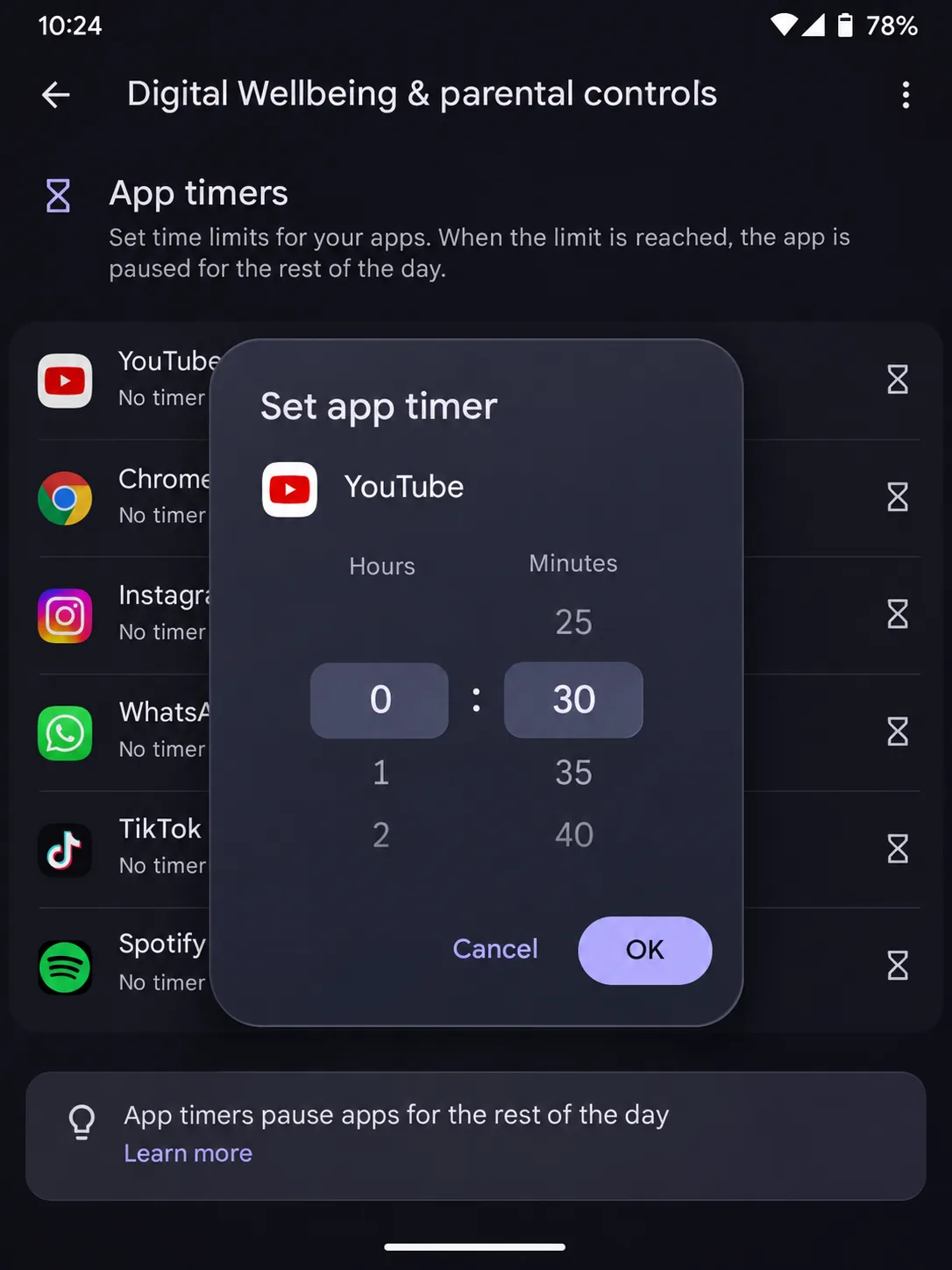
- Tap App timers.
- Tap Set timer next to the app you want to limit.
- Choose a time and tap OK.
App timers reset at midnight. When we hit a limit, the app closed on the spot and dropped out of the recent-apps list, so a half-watched YouTube video lost its place. The icon also turns gray on the home screen. The only way back in early is to edit or delete the timer in Settings, and that extra friction is what makes the limit stick. Keep in mind that timers are set app by app, since Digital Wellbeing can't limit a whole category at once.
Pause distracting apps with Focus mode
- Open Settings > Digital Wellbeing & parental controls and tap Focus mode.
- Choose the apps you want to pause.
- Tap Turn on now, or tap Set a schedule to run it during work or study hours.
Paused apps can't open and send no notifications. The Take a break option unpauses them for a set time. That makes Focus mode gentler than parental controls, though still useful for self-discipline.
Turn on Bedtime mode
- Open Settings > Digital Wellbeing & parental controls and tap Bedtime mode.
- Tap Bedtime routine.
- Choose Use a schedule and set start and end times and days, or choose Turn on while charging.
- Turn on screen options such as Grayscale and Do Not Disturb.
We found the grayscale screen takes much of the visual pull out of social apps at night.
Where the settings live on Samsung Galaxy phones
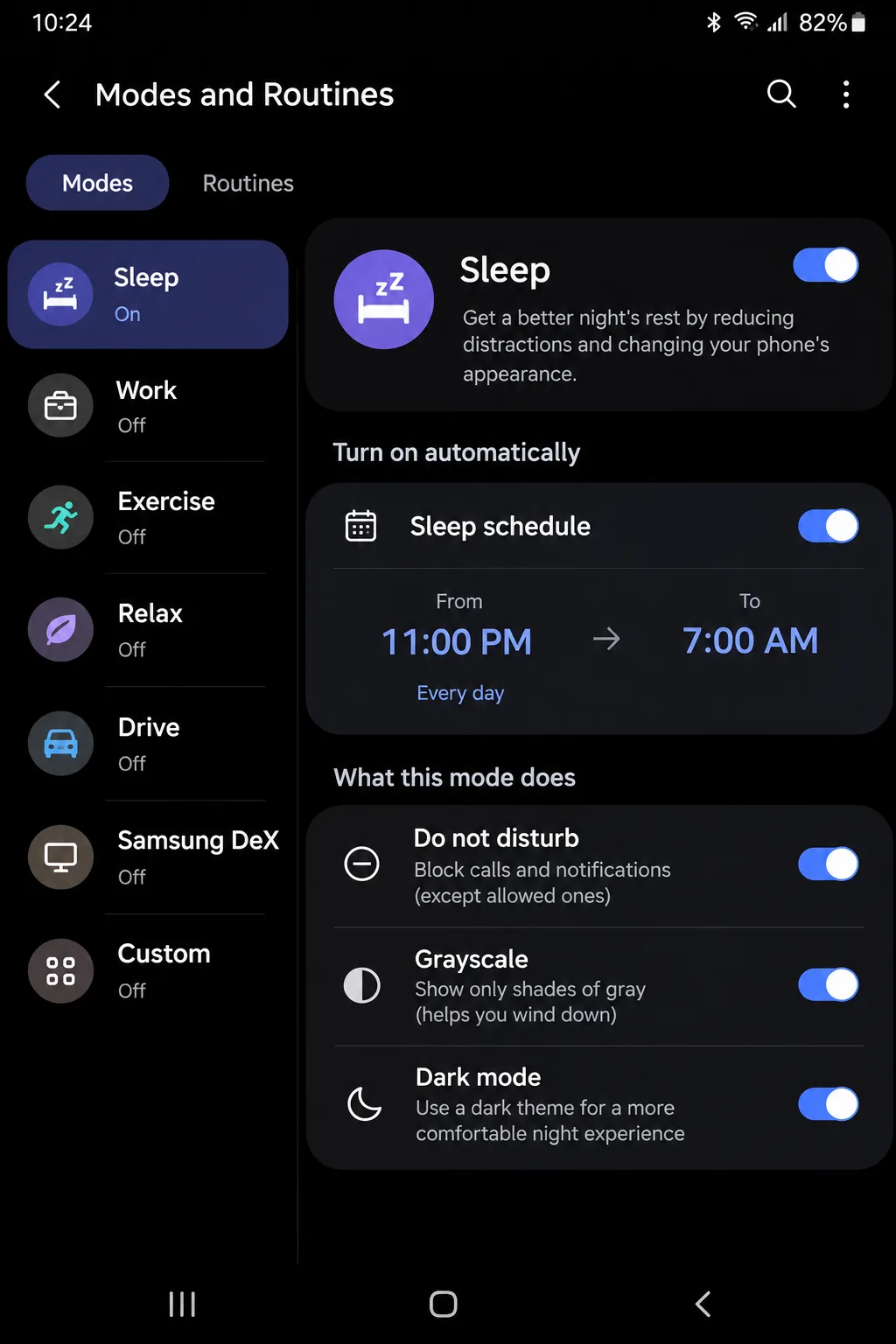
On Galaxy phones, open Settings > Digital Wellbeing (labeled Digital Wellbeing and parental controls on newer One UI builds) and tap App timers. Samsung adds an Add schedule option with day selection, plus a Screen time goal for a total daily target. Samsung's Digital Wellbeing features page lists Android 10 or later. Bedtime controls aren't in Digital Wellbeing at all on Samsung. To find them, open Settings > Modes and Routines and tap Sleep.
How to set screen time for a child with Android's built-in parental controls
Android's built-in parental controls lock limits behind a PIN on the child's own phone. According to Google's guide to on-device parental controls, the controls need Android 17. Google announced the expansion to all Android 17 devices on June 16, 2026. Pixel phones received the controls a release earlier than other brands, so the minimum version you see depends on whether the phone is a Pixel.
On-device controls can't be turned on if the phone has multiple profiles, such as a work profile or private space. Remove those first.
Set a parental controls PIN
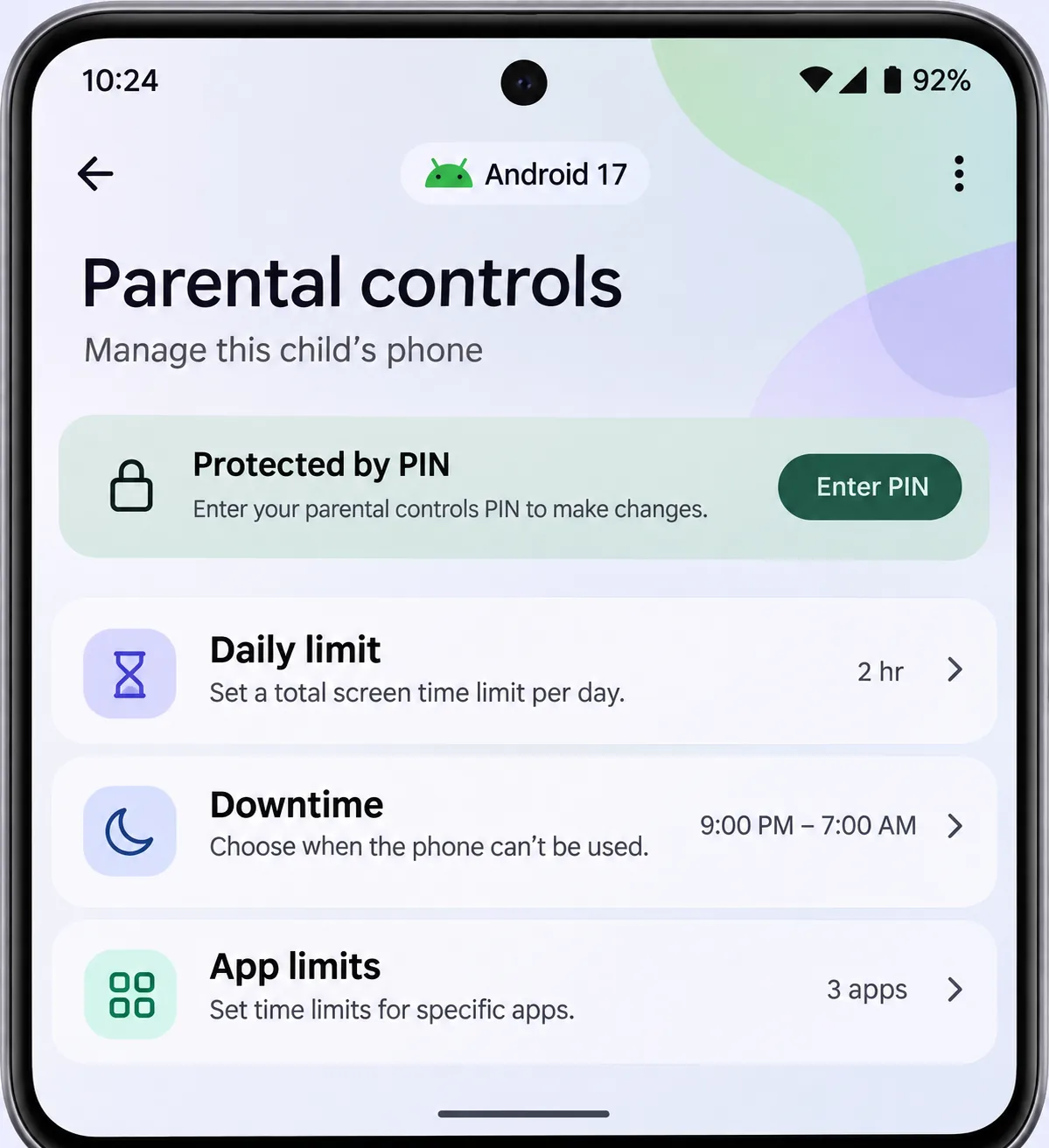
- Open Settings > Parental controls on the child's phone.
- Tap Set up Parental controls PIN and enter a PIN of at least 4 digits.
- Add a recovery email so you can reset a forgotten PIN.
We found the PIN makes these built-in limits harder to remove than those set by a typical parental-control app.
Set a daily device limit
- Tap Daily limit and turn on Use daily limit.
- Select a day and set the hours and minutes, or tap Apply to all days.
At the limit the phone locks. A parent can tap Add more time on the lock screen and enter the PIN.
Schedule downtime for bedtime
- Tap Downtime and turn on Use downtime.
- Select a day and set a Start time and End time, or tap Apply to all days.
Limit or block individual apps
- Tap App limits and select an app.
- Tap Set time limit and choose hours and minutes.
- Turn off Allow app to block it completely.
Blocked apps disappear from the app list. Don't block the Google app, because blocking it can stop Android and other apps from working properly.
How to set screen time with Google Family Link
Family Link is free, and because it manages limits from your own phone, it's the remote option. The steps follow Google's Family Link screen time help page. Screen time limits, app limits, Downtime and School time work on Android 7 and up, and the parent app also runs on iPhones with iOS 16 or later. For our take on its strengths and gaps, see our Google Family Link review.
Link your child's account in Family Link
- Install the Family Link app on your phone.
- Follow the prompts to add your child's Google Account, or create one for a child under 13.
- Sign in on the child's phone and accept the supervision prompts.
Setup goes smoothest with your child sitting next to you, because the prompts on their phone ask for their sign-in.
Set a daily limit and bedtime from your phone
- Select your child, then tap Screen time > Time limits.
- Turn on Daily limit, tap Weekly schedule, and set a limit for each day.
- Go back, tap Schedules, and turn on Downtime.
- Set the days and start and end times, then tap Done.
Daily limits count per device. A second phone or tablet effectively doubles screen time unless each device gets its own limit.
Set limits for specific apps
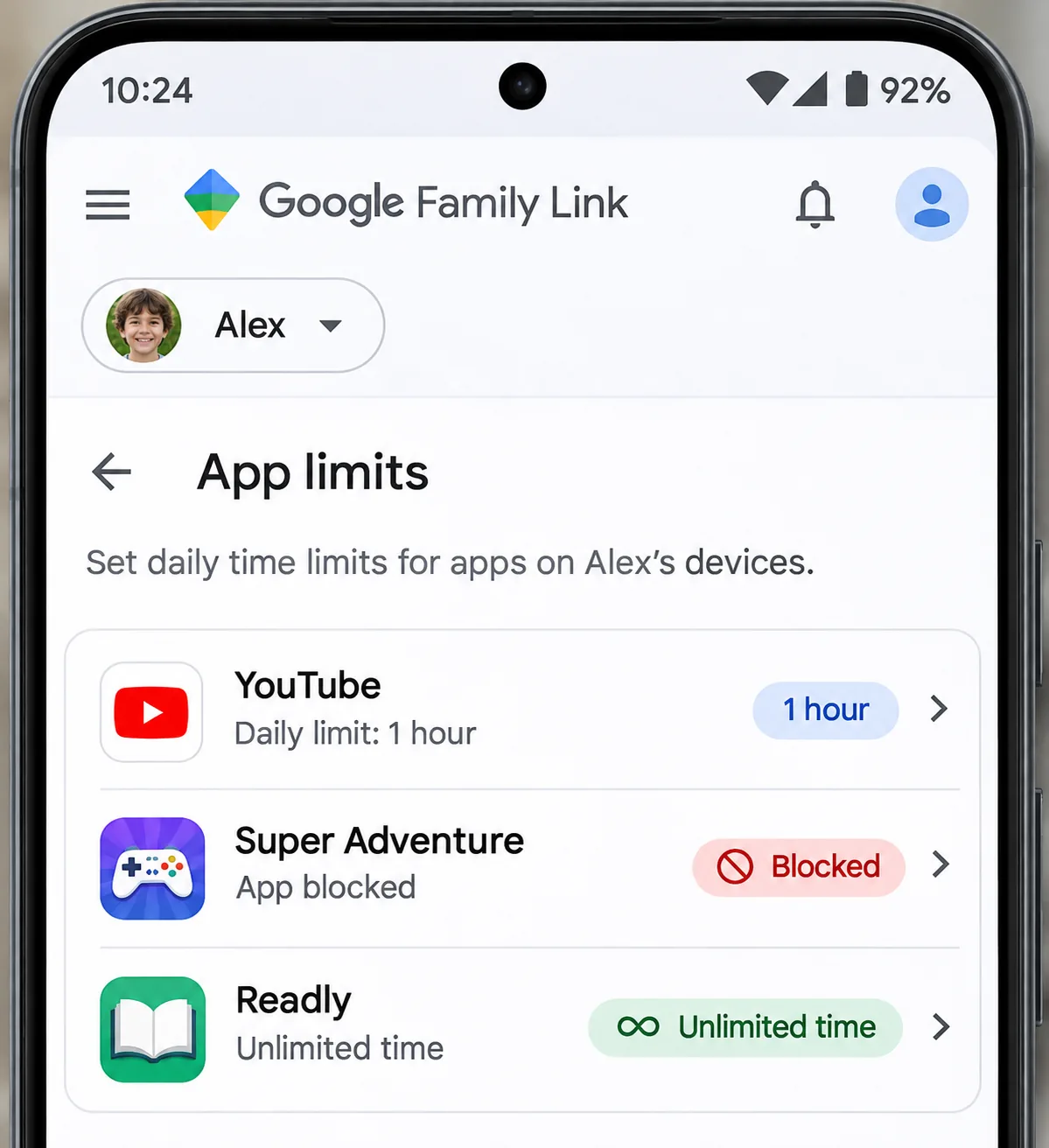
- Tap Screen time > Time limits > App limits.
- Choose an app and tap Set limit.
- Choose Blocked to block it, or Unlimited time to exempt it.
Use School time and app approvals
School time silences notifications during class hours and allows a break. It came to Android phones and tablets in 2025. Turn it on under Screen time > Schedules. Family Link can also require your approval for Google Play downloads and purchases. Once linked, it runs quietly in the background. Your child sees when a limit is reached and can request bonus time, which you approve or deny from your phone.
Built-in parental controls vs. Family Link: which should you use?
Use the built-in controls if you want quick, PIN-protected limits on one phone. Choose Family Link if you want to manage several devices remotely or need app approvals and location.
| Feature | Built-in parental controls | Family Link |
|---|---|---|
| Set up on | Child's phone | Parent's phone + child's Google Account |
| Managed from | Child's device, behind a PIN | Parent's Android or iPhone |
| Daily limit | Yes, per day or all days | Yes, weekly schedule, per device |
| App limits | Yes, or block app | Yes, block, or Unlimited time |
| Bedtime / downtime | Downtime | Downtime |
| School time | No | Yes, with breaks |
| App approvals | Play age-rating filter only | Downloads and purchases |
| Location | No | Yes, with place alerts |
| PIN protection | 4+ digit PIN, recovery email | Parent Access Code / parent sign-in |
How to stop kids from getting around screen-time limits
Most workarounds rely on settings that parents leave open. For a deeper look, see our guide to ways kids bypass screen time and how to stop them.
- Keep Automatic date and time turned on, since changing the clock can throw off timers on older Android versions.
- Turn off Developer options and USB debugging on the child's phone.
- Block account changes in Family Link so your child can't add a second, unsupervised Google account.
- Turn off Secure Folder, Dual Apps and DeX on Samsung phones, because they can run apps outside the limits.
- Keep the Unlimited time list short, because messaging apps on it can open links in an in-app browser.
Built-in web filters only cover Chrome, Google Search and WebView. Remove or block any other browser on your child's phone.
Third-party screen time apps when built-in tools aren't enough
Built-in controls and Family Link manage time and access only. They don't look inside messages or flag bullying or risky contact. Family Link's reports are also thin on browsing, with good app usage data but little site-level detail. If you need content monitoring or better web reports, a dedicated app can fill the gap. We compare the options in our roundup of the best screen time apps for Android.
Make the limits stick
Limits introduced before a child gets the phone land as normal house rules, while limits added later can feel like punishment. Explain the rules first, then test the controls on your child's actual phone, since menu names vary across Android versions and brands. Afterward, follow our guide on how to check screen time on Android to track whether the limits fit.

Frequently asked questions
Does Android have a built-in screen time limiter?
Can I set different limits for weekdays and weekends?
How do I limit one app to 30 minutes?
What's the difference between a daily limit and downtime?
Can my child bypass Family Link restrictions?
Can I allow educational apps but limit games?
What happens when the time limit runs out?
Related reading