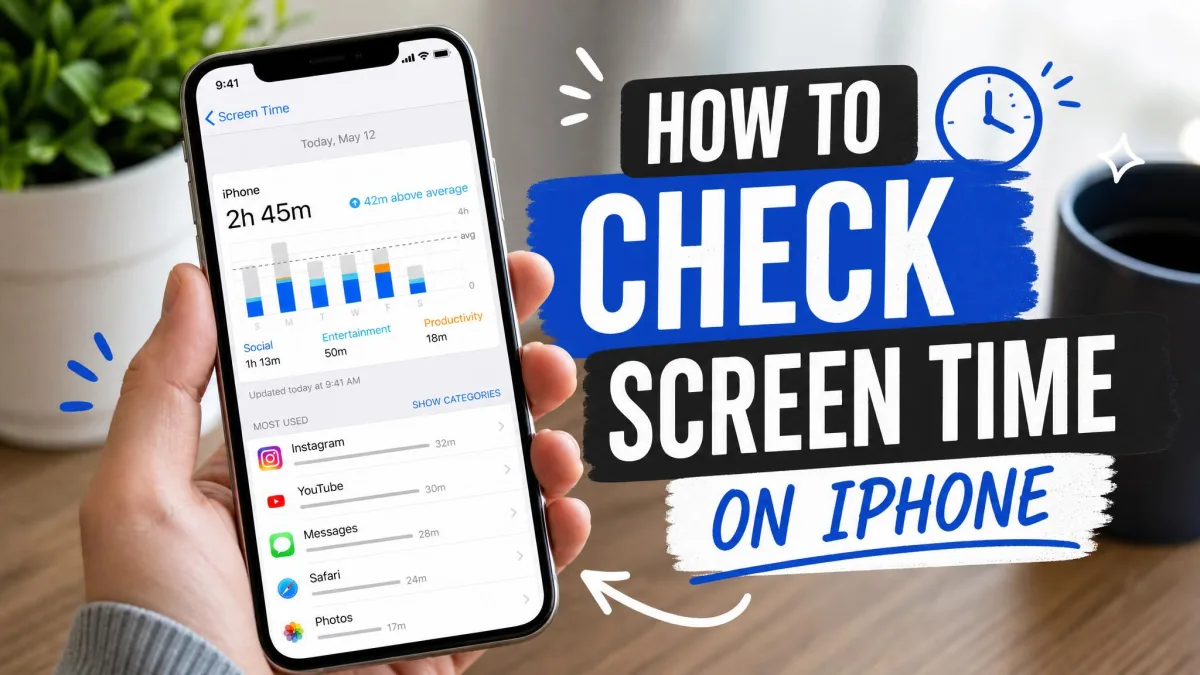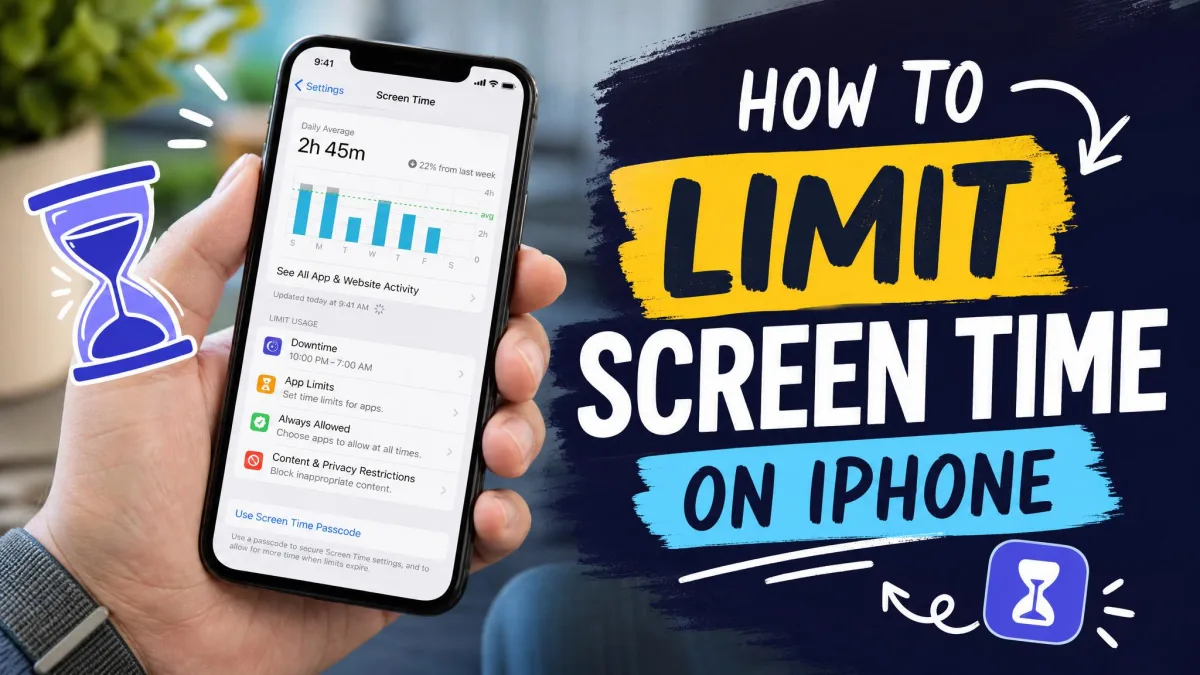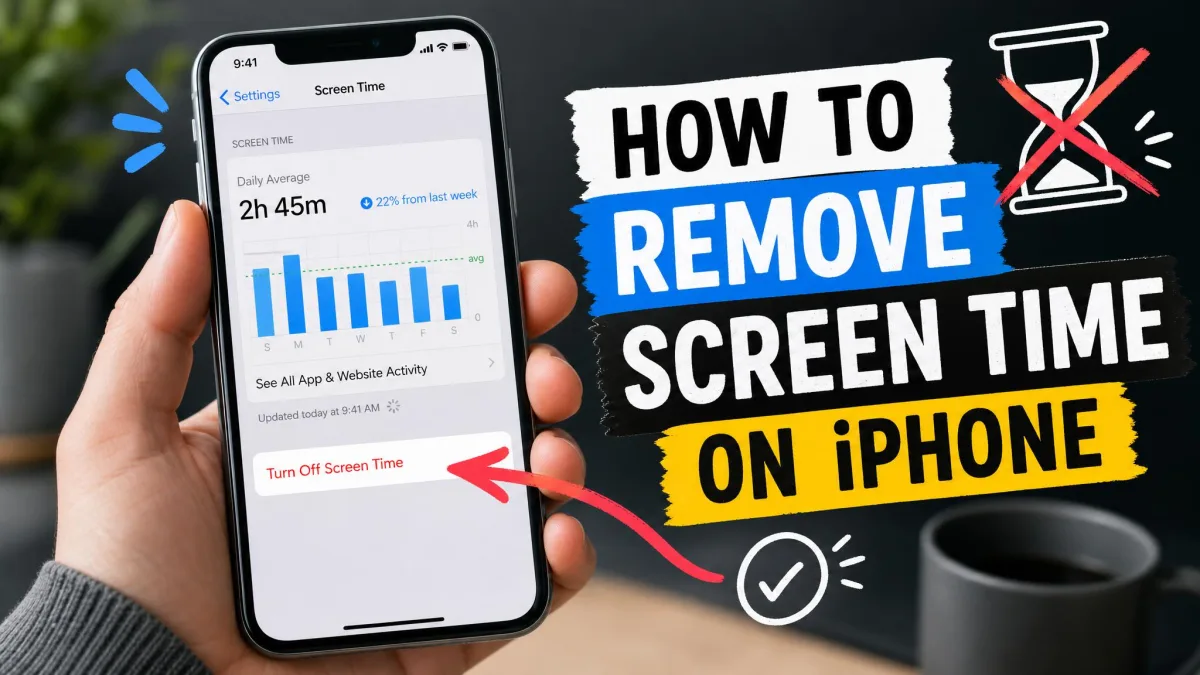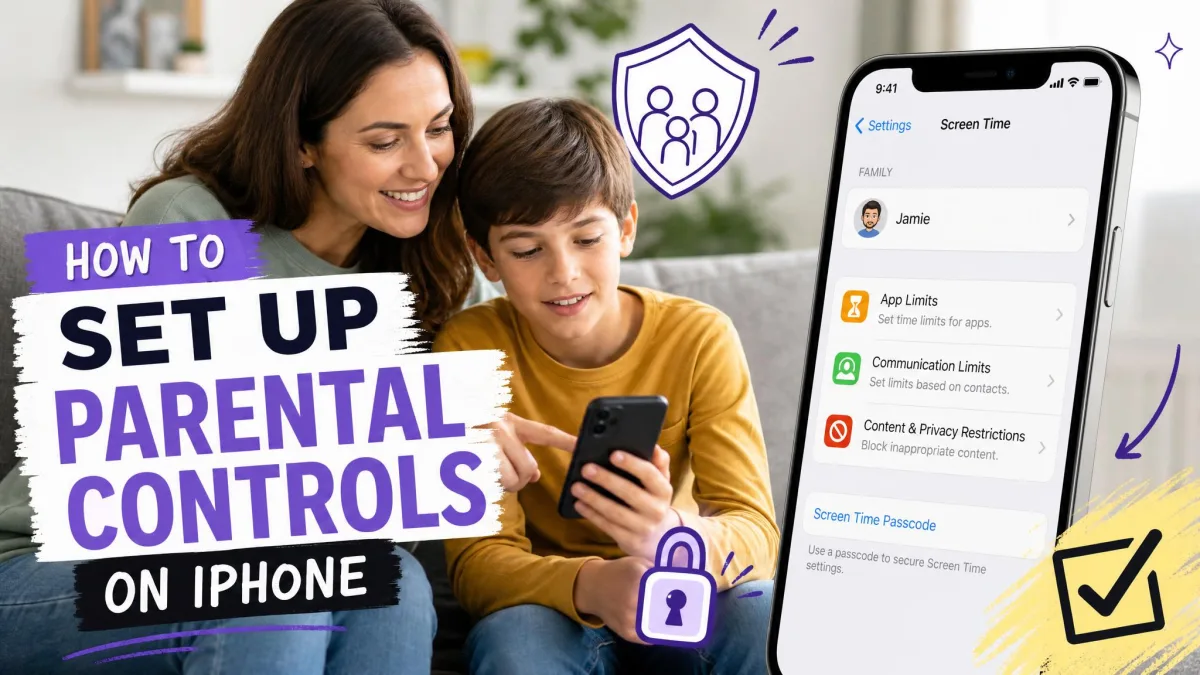
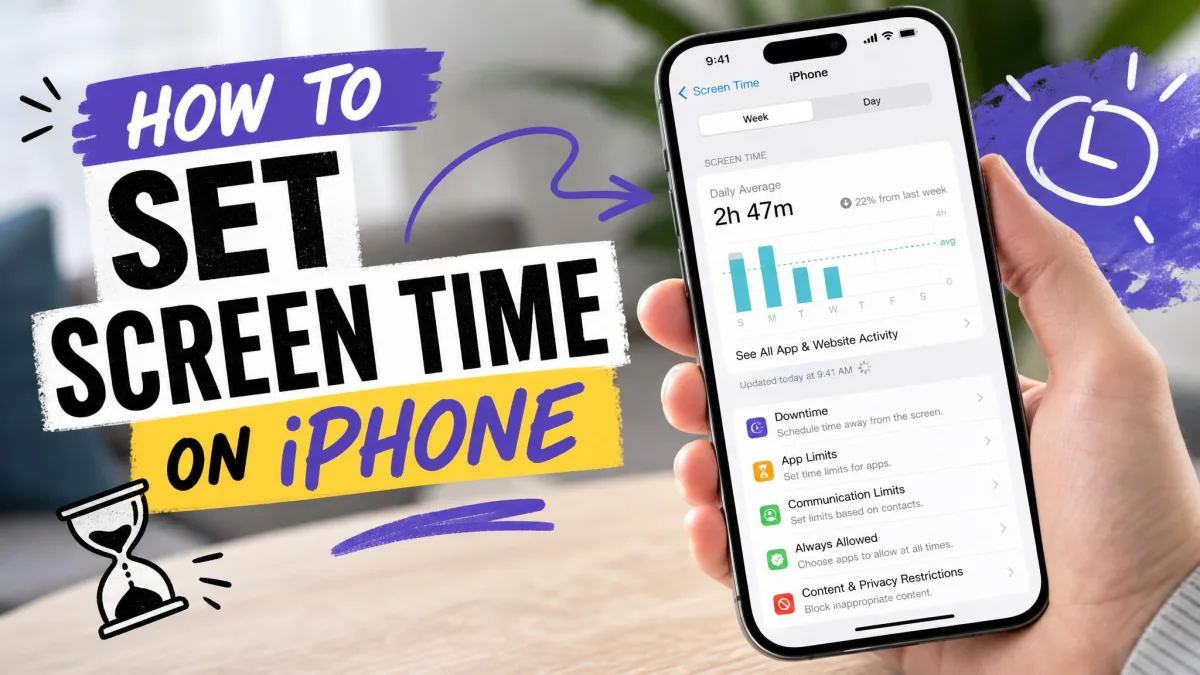
To set Screen Time on iOS 27, open Settings > Screen Time > Manage Screen Time, tap Turn On App & Website Activity, then set Time Allowances and a Screen Time Schedule. Screen Time is Apple's built-in tool for tracking how you use your iPhone and for setting daily limits on apps, websites and contacts. If your iPhone still runs iOS 26 or earlier, jump to the iOS 26 section, because the older menus use different names. A child's iPhone is set up from your own device through Family Sharing, which we cover further down.
We follow Apple's iPhone User Guide steps for setting up Screen Time for the menu names, and we add the snags we ran into on a family's devices, the way a parent would meet them.
Check which iOS version your iPhone runs
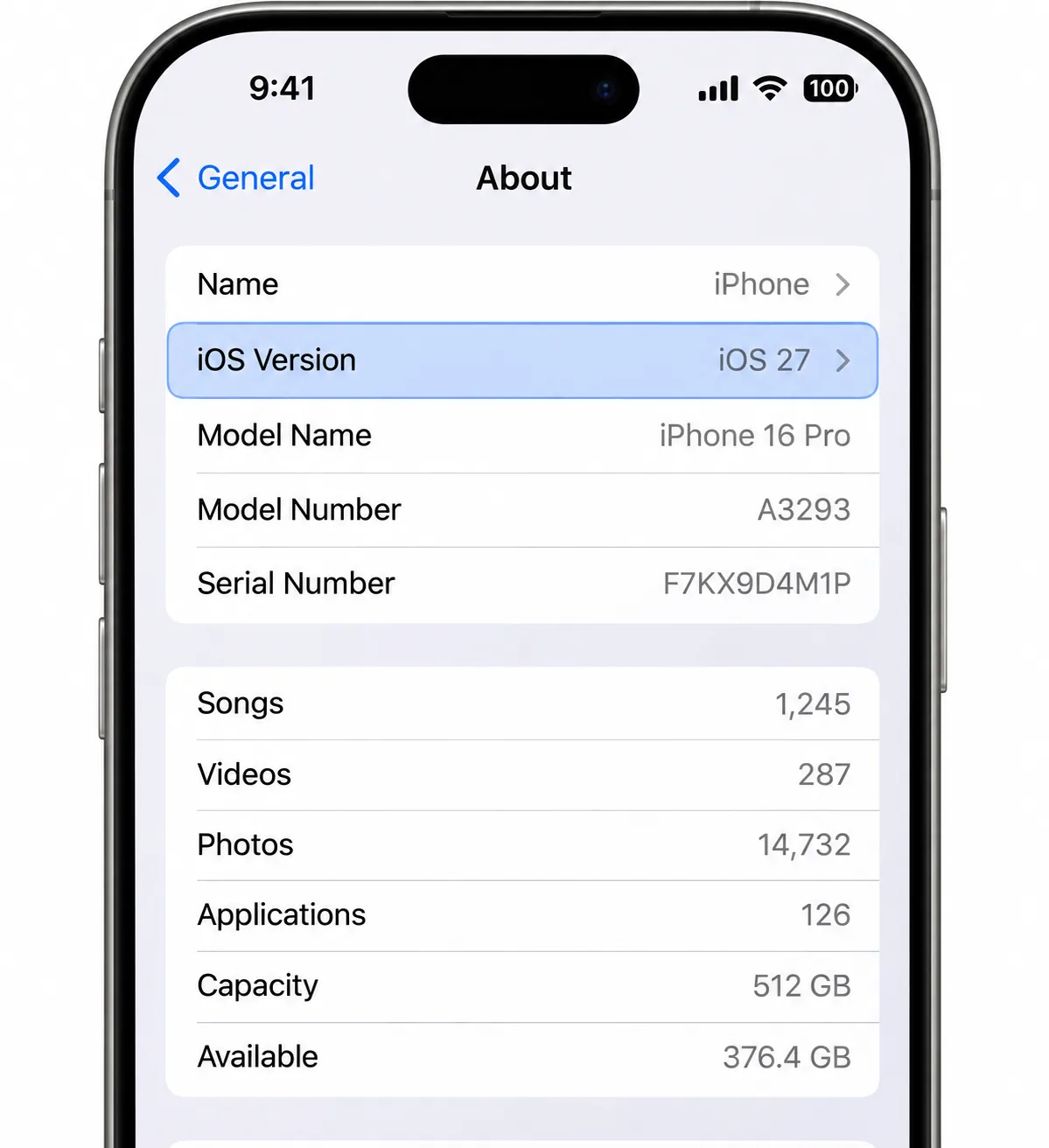
Open Settings > General > About and look at the iOS Version line before you start. Apple released iOS 27 to the public on September 14, 2026, with the main Screen Time controls renamed, so the steps you follow depend on that number.
In iOS 27, Time Allowances and Screen Time Schedule replace the older daily-limit and scheduled-blocking menus. The ideas are the same, but the labels have changed and the controls sit in new places.
| Setting | iOS 27 | iOS 26 and earlier |
|---|---|---|
| Turn on | Settings > Screen Time > Manage Screen Time | Settings > Screen Time > App & Website Activity |
| Daily limits | Time Allowances (by category) | App Limits > Add Limit |
| Scheduled blocking | Screen Time Schedule | Downtime |
| Usage report | Daily Average | See All App & Website Activity |
| Passcode | Manage Screen Time > Lock Screen Time Settings | Lock Screen Time Settings, plus Block at Downtime |
How to set up Screen Time on iPhone (iOS 27)
Work through these seven steps in order. The passcode in Step 6 turns your limits from reminders into rules.
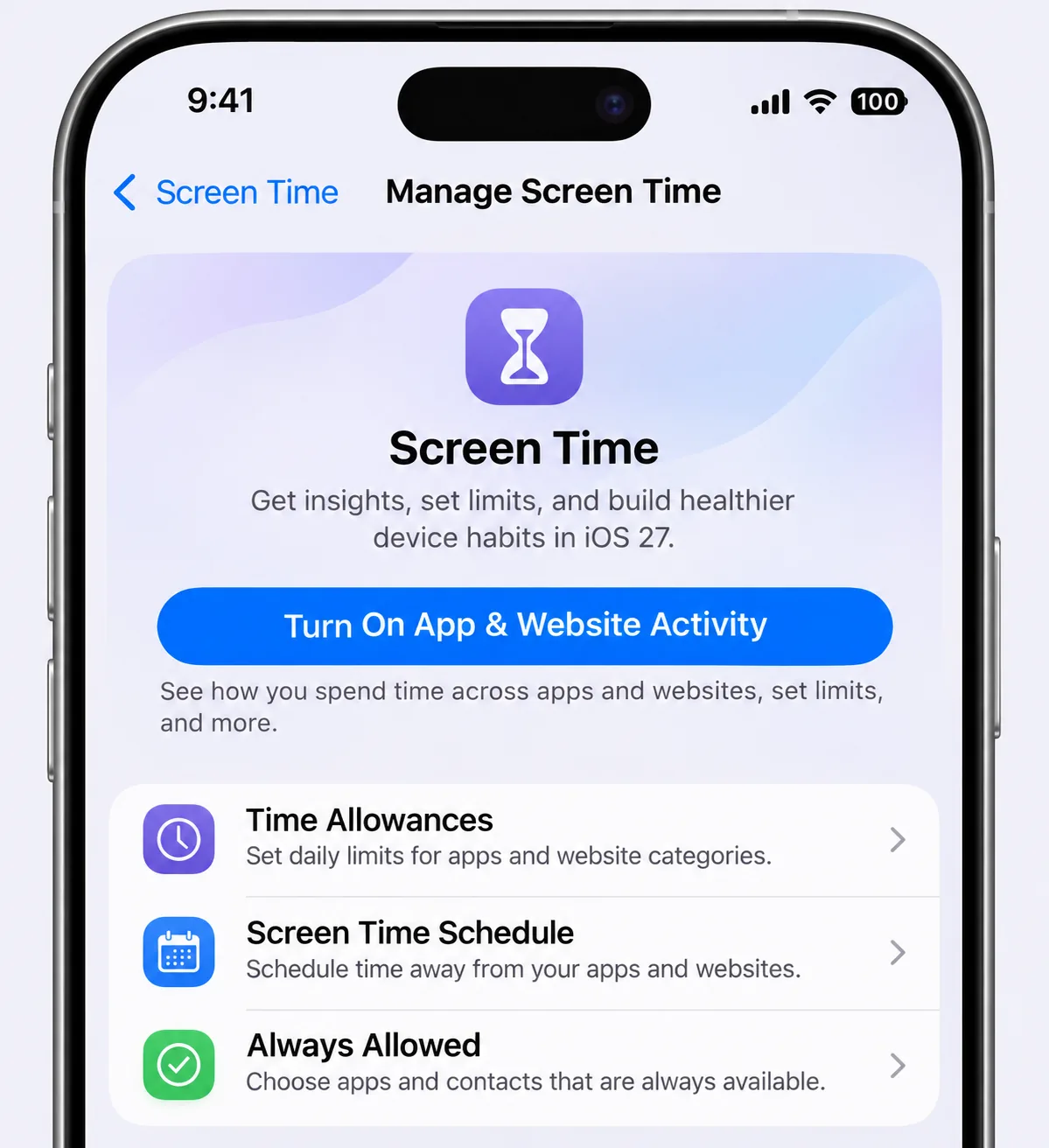
Step 1: Turn on App & Website Activity
- Open Settings and tap Screen Time.
- Tap Manage Screen Time.
- Tap Turn On App & Website Activity.
- Choose whether this iPhone belongs to you or to your child.
Screen Time starts recording usage from this point, so the report fills in over the next day or two.
Step 2: Set Time Allowances (daily app limits)
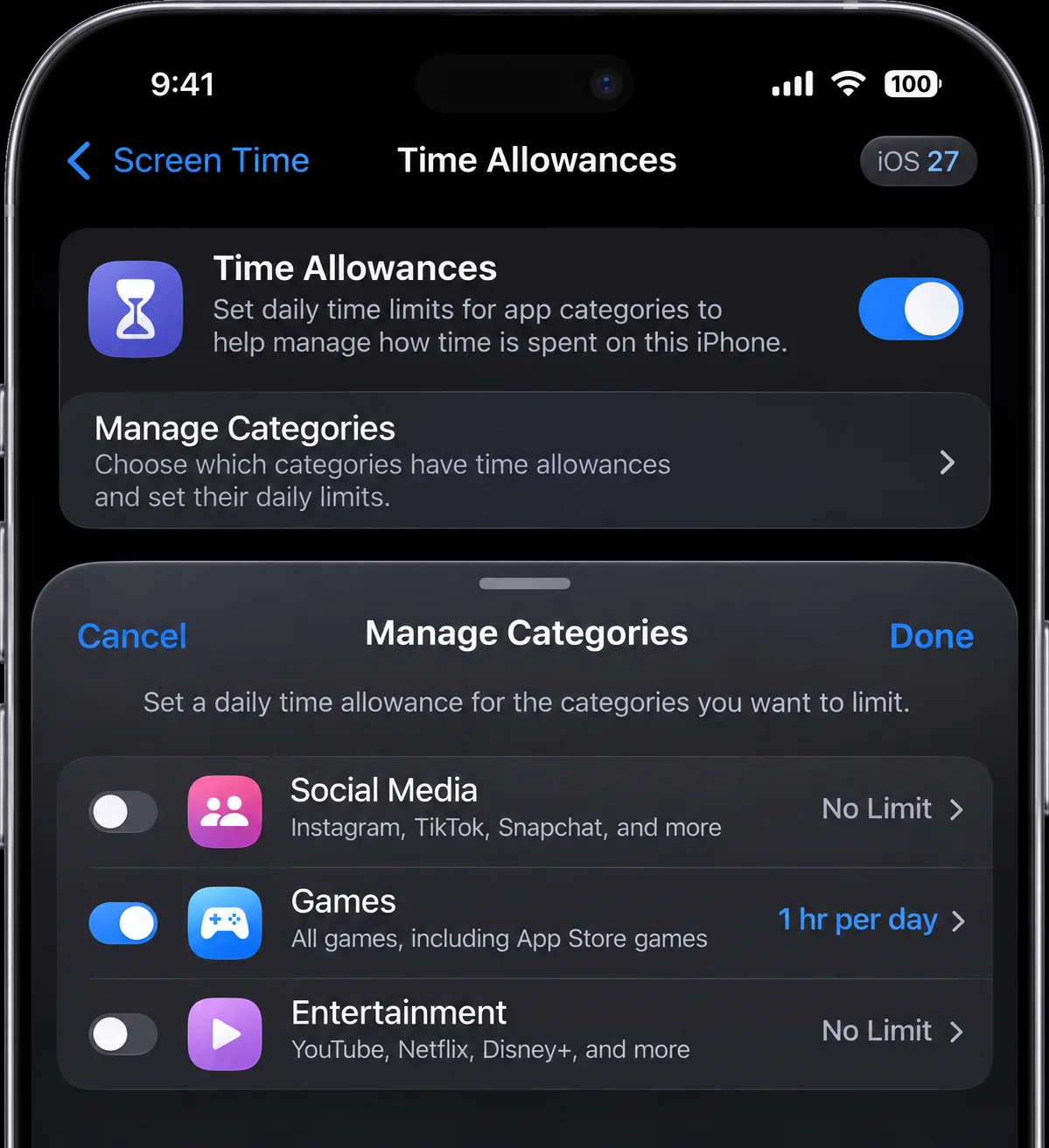
Time Allowances cap the total time you can spend in a category of apps each day, such as Entertainment, Games or Social Media.
- In Manage Screen Time, tap Time Allowances.
- Tap Manage Categories, then tap the plus icon.
- Choose the categories you want to limit and set a daily amount.
- Tap Continue, then tap Done.
Allowances reset every day at midnight. Start with the one or two categories that take the most time.
Step 3: Create a Screen Time Schedule
A Screen Time Schedule blocks apps during set hours, such as bedtime or homework time.
- In Manage Screen Time, tap Screen Time Schedule and turn on the Schedule toggle.
- Tap Add Schedule, then tap Add Time Window.
- Set the start and end times.
- Choose the days of the week the window applies to.
When we added a second schedule, iOS 27 offered to copy the time windows from the first one. Tap Don't Copy if you want a fresh set of hours, for example a later weekend bedtime.
Step 4: Choose Always Allowed apps and contacts
Always Allowed keeps the apps you need open, and the people you need reachable, during a schedule.
- Tap Always Allowed in Manage Screen Time.
- Tap Add Apps to pick apps that stay open, such as Maps or a school app.
- Tap Add People to choose contacts who can always call or send messages.
Keep this list short, because every app on it skips its allowance.
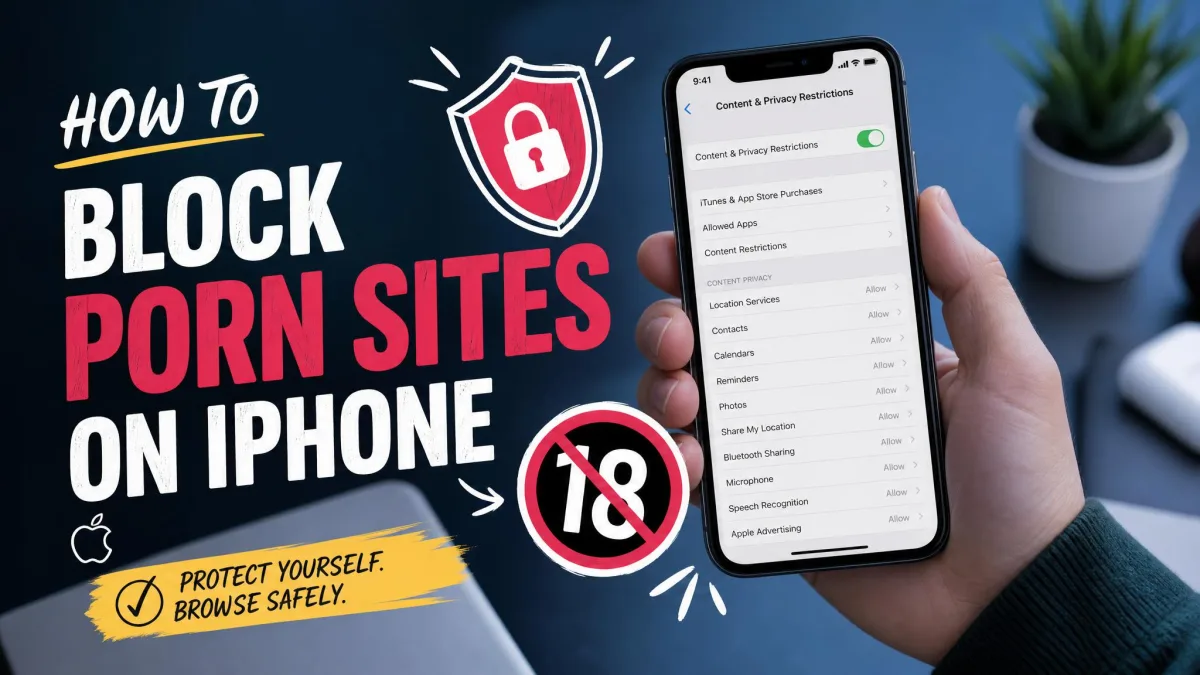
Step 5: Block content with Content & Privacy Restrictions
- Tap Content & Privacy Restrictions and turn it on.
- Choose limits for App Store purchases, web content and explicit media.
- Review the Siri controls, which also live on this screen.
In iOS 27, website-blocking changes reached Safari within seconds, even on a page that was already open. Earlier versions could take minutes.
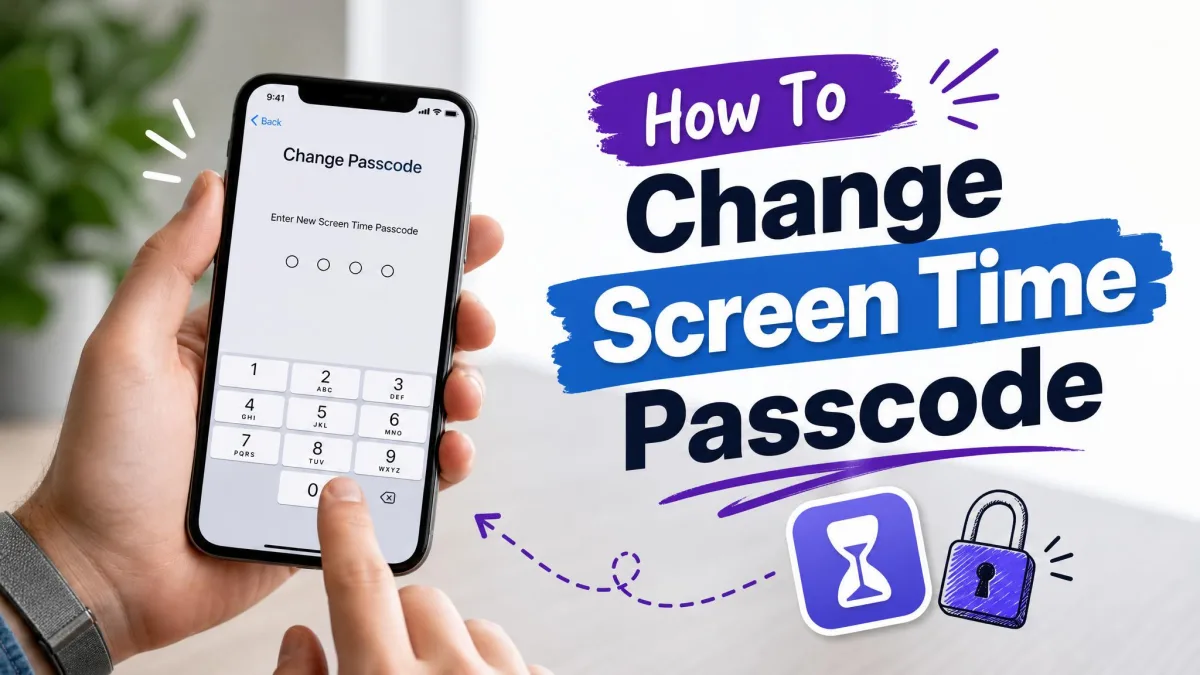
Step 6: Lock Screen Time settings with a passcode
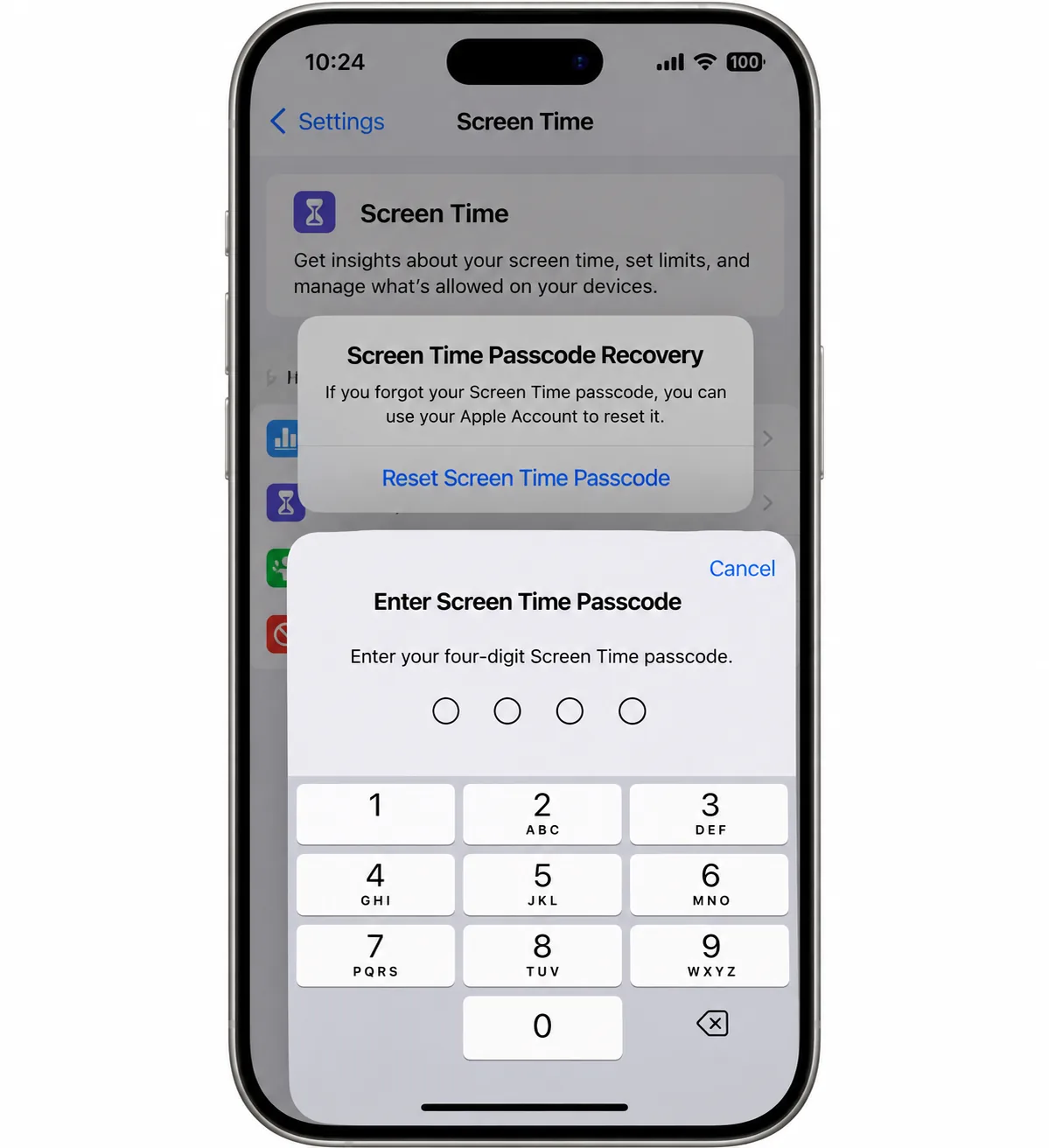
- Tap Manage Screen Time, then tap Lock Screen Time Settings.
- Enter a four-digit code, then enter it again to confirm.
- When offered, set up Screen Time Passcode Recovery with your Apple Account.
Without a Screen Time passcode, a limit is a nudge, not a lockout. One tap dismisses the limit screen. If you are setting this up for a child, pick a code that is different from the iPhone's unlock passcode.
You can reset a forgotten code with your Apple Account only if recovery was set up. Otherwise, you will need to call Apple Support. Our guide on how to change your Screen Time passcode walks through resets and changes.
Step 7: Share settings across your Apple devices
- Open Manage Screen Time.
- Turn on Share Across Devices.
Share Across Devices syncs schedules, allowances and reports across every device signed in to the same Apple Account. Time on your iPad or Mac then counts toward the iPhone's allowance. With it off, each device keeps its own settings.
How to set Screen Time on iOS 26 and earlier
Open Settings > Screen Time > App & Website Activity and tap Turn On App & Website Activity. The controls below sit on the main Screen Time screen.
Turn on Downtime
- Tap Downtime and turn on Scheduled.
- Choose Every Day or Customize Days.
- Set the start and end times.
A reminder appears 5 minutes before Downtime starts, and the schedule applies to every device using Screen Time on your account.
Add App Limits
- Tap App Limits, then tap Add Limit.
- Select a category or individual apps and tap Next.
- Set the time, and tap Customize Days if weekends need a different amount.
- Turn on Block at End of Limit, then tap Add.
App Limits reset every day at midnight. Without a passcode, a reached limit offers One More Minute, Remind Me in 15 Minutes and Ignore Limit for Today. Remind Me in 15 Minutes lets you return every 15 minutes, and that alone undoes a self-imposed limit.
Set a passcode and turn on Block at Downtime
- Tap Lock Screen Time Settings and enter a four-digit code twice.
- Return to Downtime and turn on Block at Downtime.
Block at Downtime appears only once a Screen Time passcode is set. With the passcode and Block at End of Limit on, Ignore Limit becomes Ask For More Time.
How to check your Screen Time report
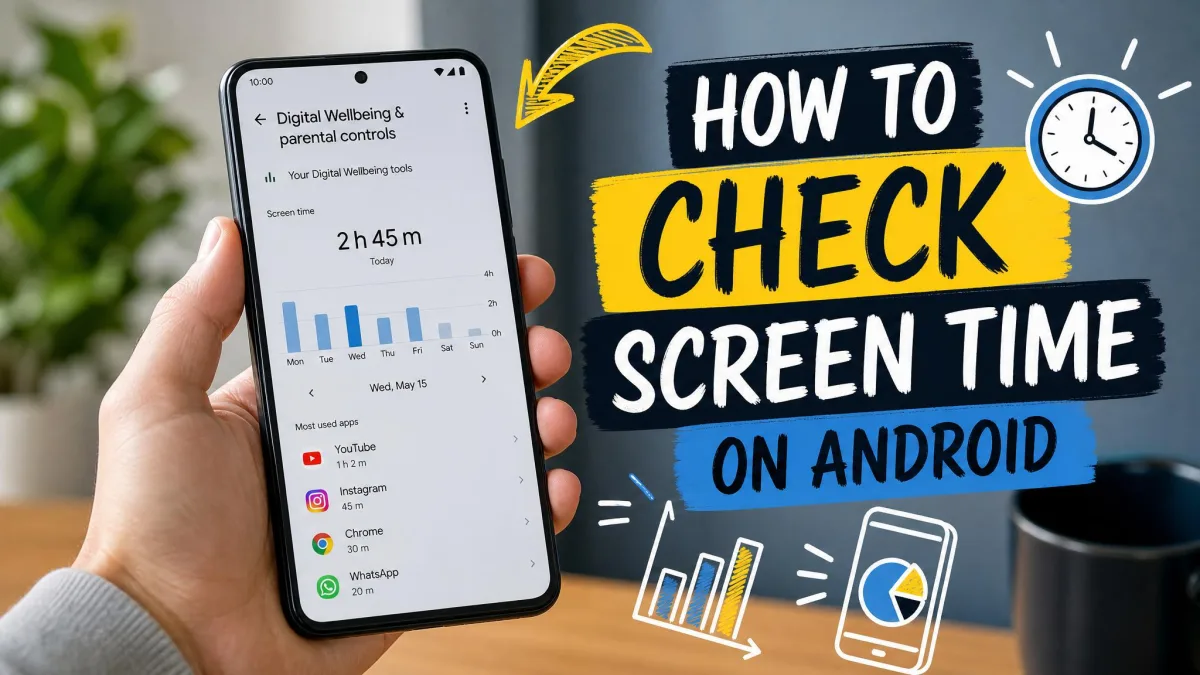
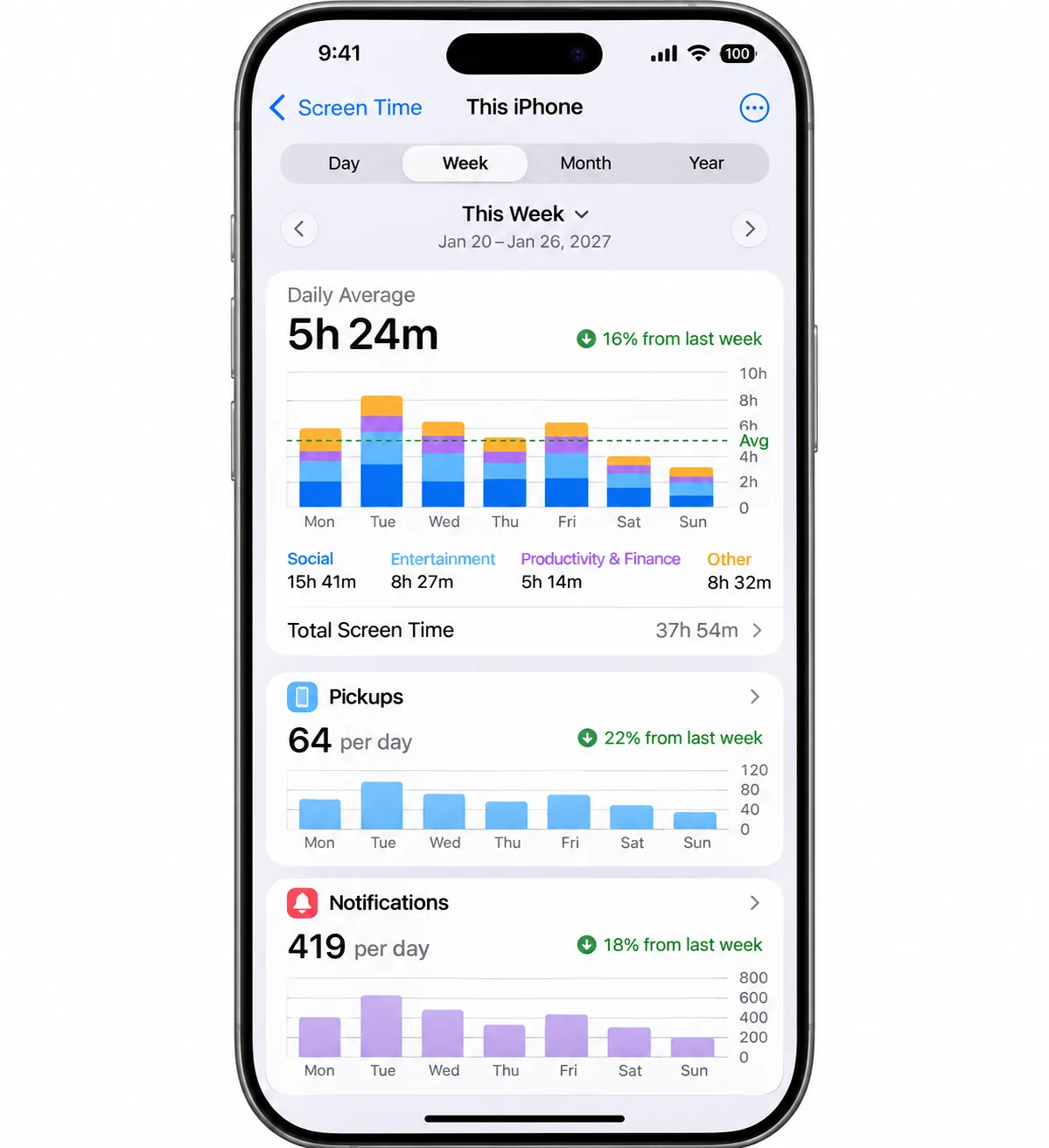
Open Settings > Screen Time and tap Daily Average. Switch between Day and Week to see totals by app and category. We find the Pickups and Notifications views the most useful parts of the report, because they show habits that a total-hours figure hides. Totals can differ depending on which family device you view them on, so compare reports on the same device each time. Our step-by-step guide on how to check Screen Time on iPhone explains every chart.
How to set Screen Time on your child's iPhone
Set it up from your iPhone with Family Sharing
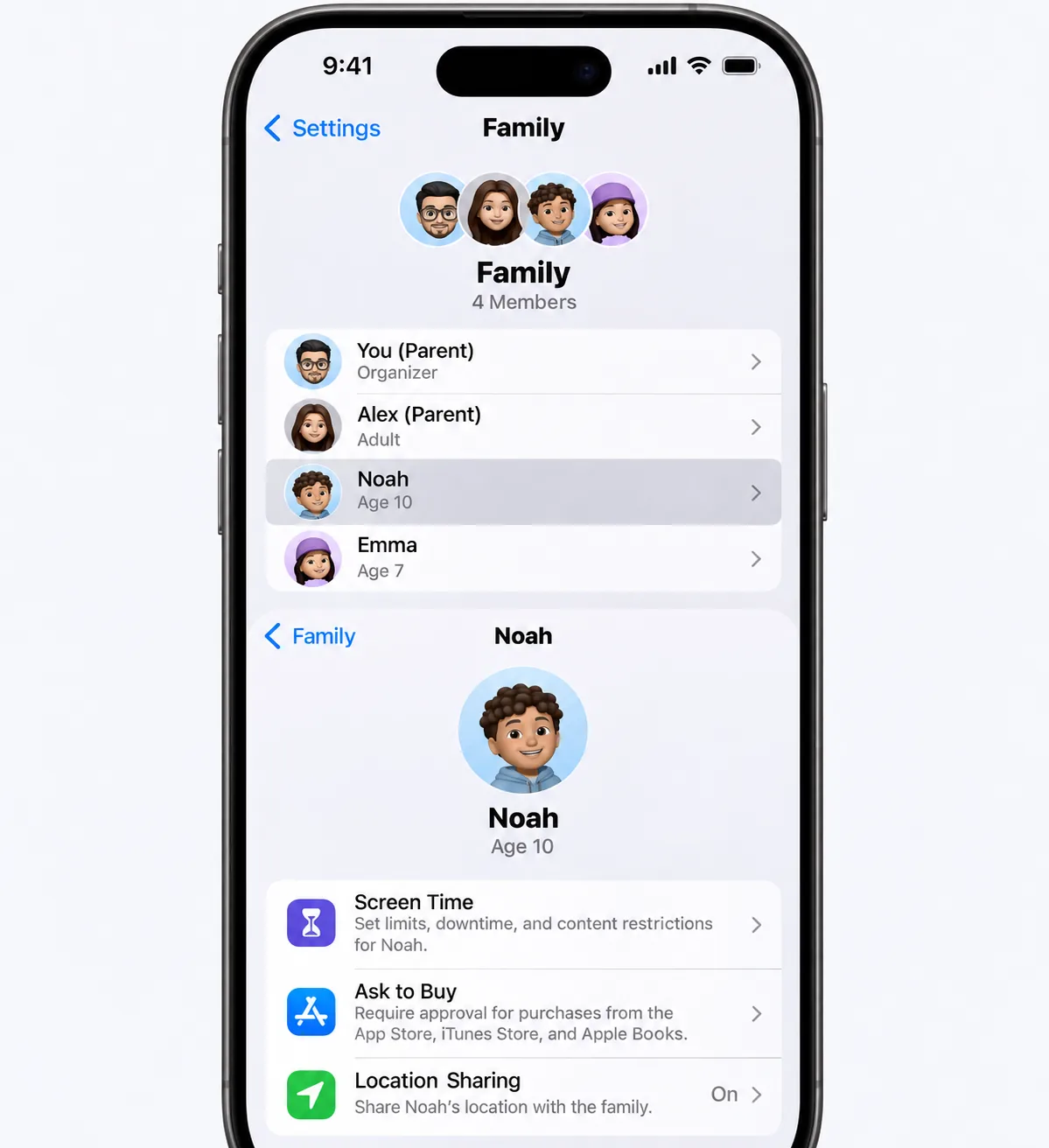
- First, add your child to Family Sharing.
- On your iPhone, open Settings > Family and tap your child's name.
- Tap Screen Time and follow the onscreen steps.
You set the child's Screen Time passcode on your own device. As Apple's guide to managing your child's iPhone with Screen Time explains, the new controls need every device in the family group on iOS 27 or its matching OS. Until then, Time Allowances and Screen Time Schedule do not appear on the child's iPhone, even if the only device left behind is an old Mac or Apple Watch.
Communication limits, Ask to Buy and Ask to Browse
Allowed Contacts lets you choose who your child can reach during Screen Time and when the device is paused. Blocked contacts show in red in recent calls and Messages, and carrier emergency numbers always get through. Ask to Buy sends app requests to you, and Ask to Browse lets you approve or decline website requests in Messages. Ask to Browse is on by default for children under 13, and Limit Adult Websites is on for children under 18, though Apple's age cutoffs for automatic defaults differ by country or region. Our iPhone parental controls setup guide goes deeper.
How to turn off or change Screen Time limits
Open Settings > Screen Time > Manage Screen Time and tap any allowance or schedule to change its time, days or categories. You will need the Screen Time passcode if one is set. To stop Screen Time entirely, tap Turn Off App & Website Activity. Doing so deletes your collected usage history. For a child's iPhone, make these changes from your own device. Our guide on how to remove Screen Time on iPhone covers every route.
Screen Time limits not working? Common fixes
Most limits that fail come down to one setting overriding another. Work through this list first:
- Check Always Allowed. An app on that list ignores its category allowance. That is the most common reason a limit seems broken.
- Simplify overlapping rules. When a one-hour Games allowance clashes with a schedule that blocks Games during school hours, the limits start to look inconsistent.
- Reset the sync. Turn off Share Across Devices, restart the iPhone, then turn Share Across Devices back on to clear most sync glitches.
- Change a child's limits from your device. Edits made on the child's own phone often do not stick.
- Update every family device. An Apple Watch that cannot take watchOS 27 can block the switch to the new Screen Time. Remove it from your Apple Account's device list, switch over, then sign it back in.
- Recheck the child's phone after updating. The iOS 27 update can change or switch off existing settings, and some phones block every app, including allowed ones, until you approve each app again.
An allowance can also trigger well before its set time, and restarting the iPhone or turning Screen Time off and on often does not fix it. If your child is getting around the rules on purpose, read our rundown of ways kids bypass Screen Time.
Frequently asked questions
Is Screen Time free?
What is the difference between Downtime and a Screen Time Schedule?
What happens when a Screen Time limit is reached?
Can I block specific apps completely?
Does Screen Time cover my iPad and Mac too?
Bottom line
Setting Screen Time on iPhone takes a few minutes: turn on App & Website Activity, add Time Allowances and a Screen Time Schedule, then lock it all with a passcode so the limits hold. On iOS 26 the same ideas live under older names, and a child's iPhone is always managed from your own device through Family Sharing. Once your limits are in place, check the Daily Average report after a week to fine-tune them.