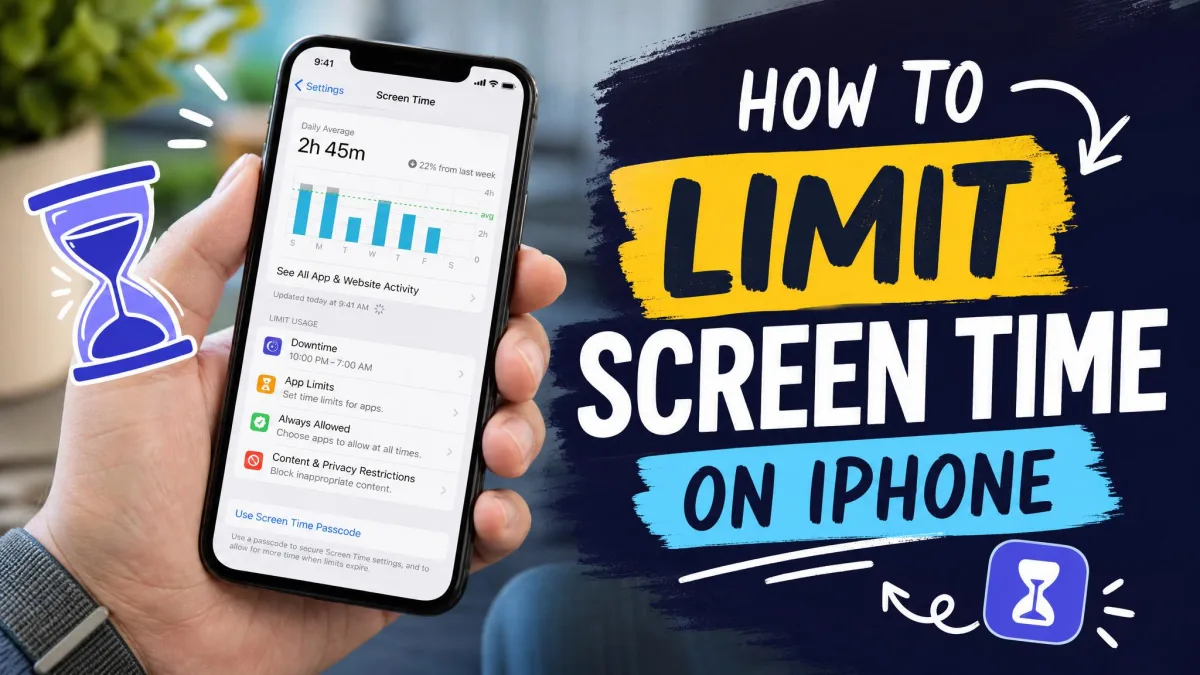
To limit screen time on an iPhone, open Settings > Screen Time, set daily App Limits and a Downtime schedule, and lock both with a Screen Time passcode. That one menu covers most of what you need.
The same steps work whether you're a parent limiting your child's iPhone or an adult trying to change your own phone habits. We walk through each setting, note what happened when limits ran out in our testing, and show how to close the gaps people use to slip past them. The steps match iOS 27, which Apple shipped on September 14, 2026, as a free update. We flag the older menu names where they differ.
Apple renamed several Screen Time features in iOS 27. App Limits became Time Allowances, Downtime became Screen Time Schedule, Communication Limits became Allowed Contacts, and Use Screen Time Passcode became Lock Screen Time Settings. On iOS 26 or earlier, you'll see the older names.
How to turn on Screen Time
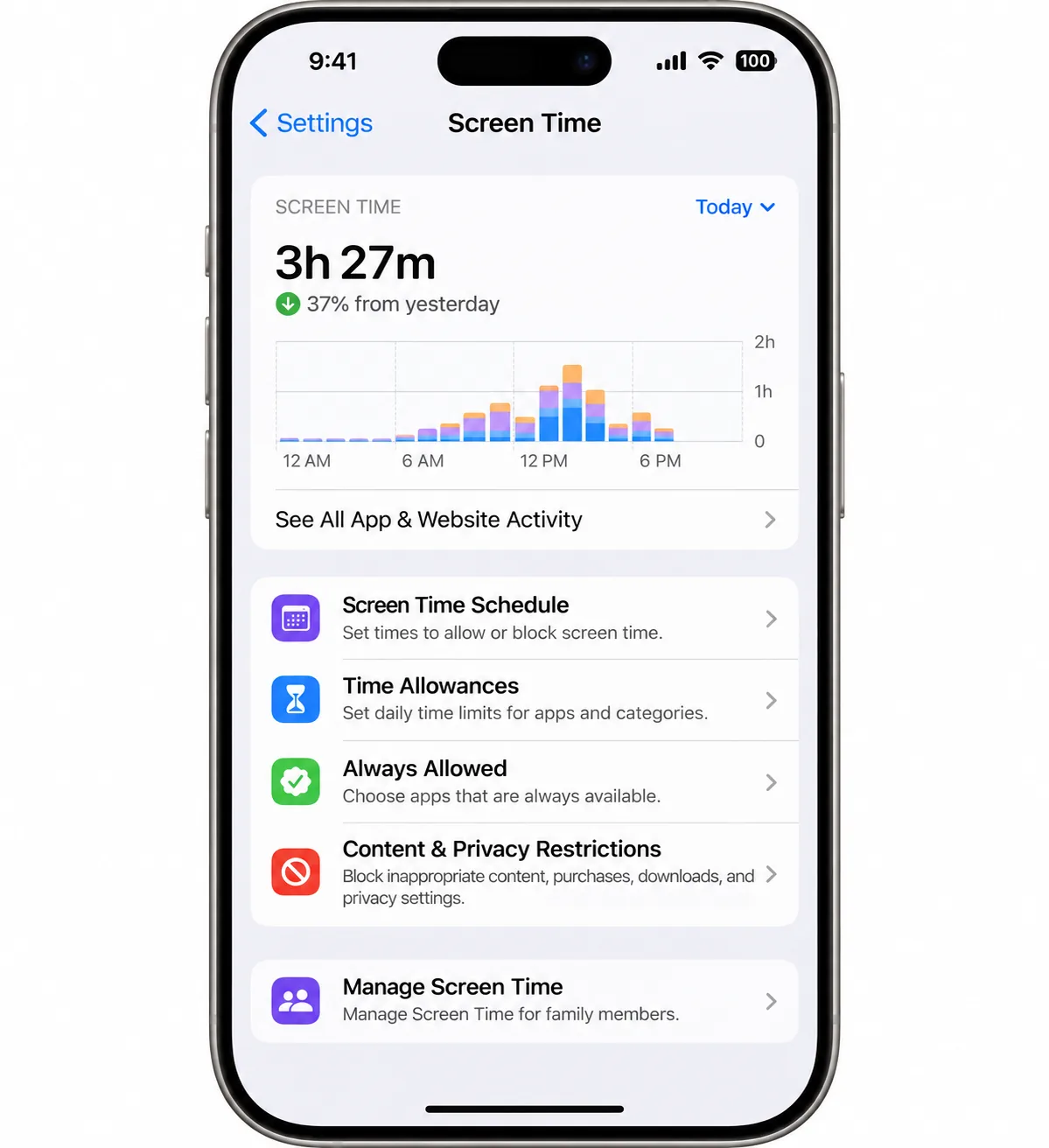
Screen Time has to track activity before any limit can work. On iOS 27, open Settings > Screen Time, tap Manage Screen Time, then tap Turn On App & Website Activity. Your iPhone starts logging app usage right away. If you also use an iPad or Mac on the same Apple Account, you'll find Share Across Devices on the Manage Screen Time screen. We cover how it syncs in the FAQ.
How to set app limits (Time Allowances)
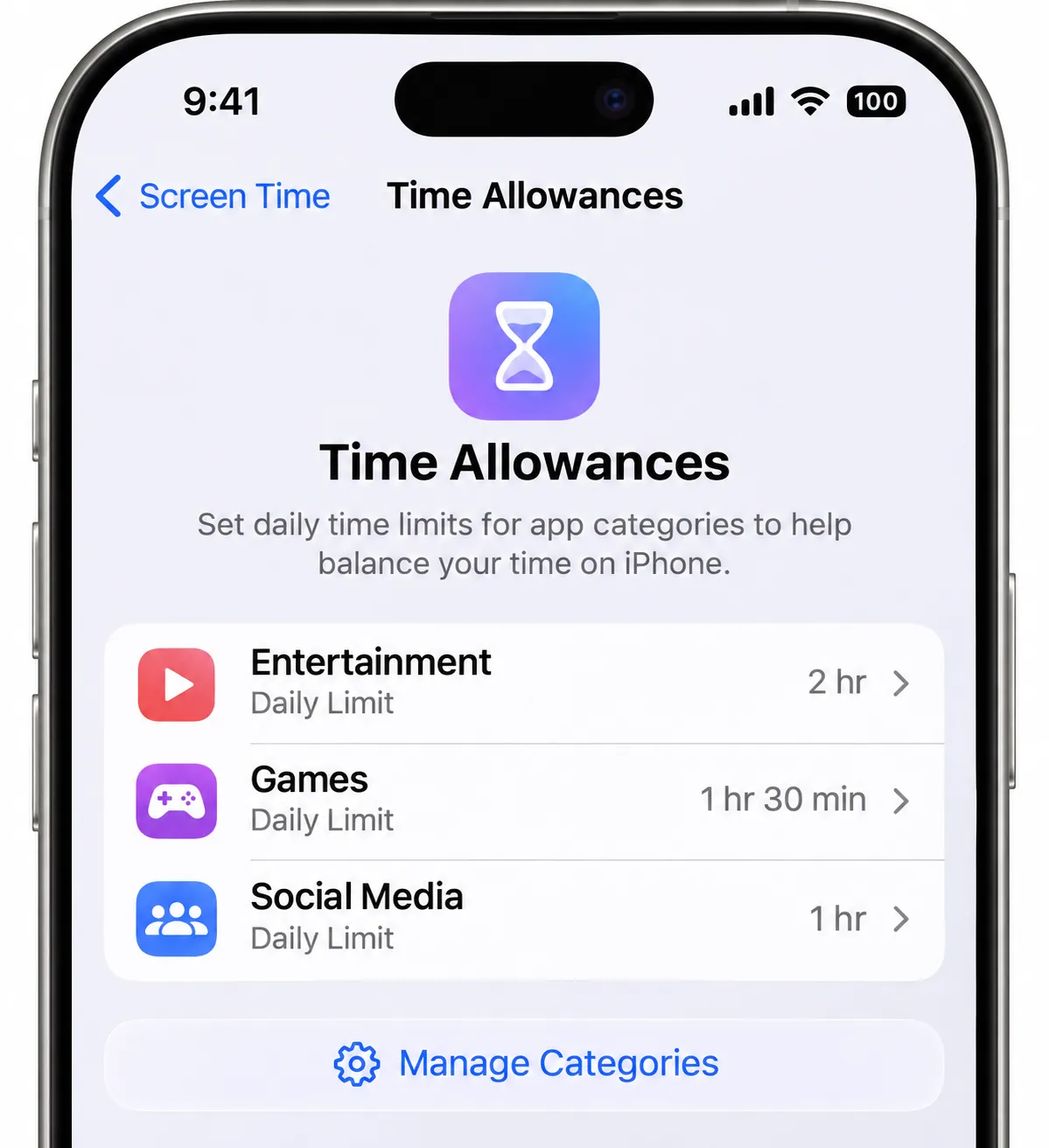
Time Allowances give you a daily time budget across your apps, which you can fine-tune for each category. iOS 26 and earlier call the same idea App Limits. Limits on both versions reset at midnight.
Limit a whole app category
- Open Settings > Screen Time and tap Time Allowances.
- Choose a category such as Entertainment, Games or Social Media.
- Set the daily time you want to allow.
- Tap Manage Categories to create a custom category or move an app.
New apps inherit their category's allowance automatically. On iOS 26 and earlier, go to Settings > Screen Time > App Limits, tap Add Limit, pick the categories, tap Next, and set the time.
You don't fully control which category an app lands in. The developer's App Store category decides that. In our testing, an app sitting in an unexpected category escaped the limit we'd set, so check where your problem apps live.
Limit a single app or website
To cap one app, open Manage Categories, move the app into its own custom category, and give that category an allowance. On iOS 26, tap Add Limit, expand a category, and select only the app or website you want. An app and its website share one allowance only when the app declares that site. In our testing, the same service opened in a browser slipped past the app's limit, so add the website separately if it matters.
Turn on Block at End of Limit
Block at End of Limit is the step most people skip, and it decides whether a limit stops anything. On iOS 26 and earlier, the toggle stays hidden on each limit until you've set a Screen Time passcode. Without it, the limit is just a notice you dismiss with Ignore Limit.
When a Time Allowance ran out in our testing, a warning appeared first, then the app locked with the message "You've used all your available time allowance." On iOS 27, the limit screen still offers Ignore Limit, and with a passcode set, extending a self-set allowance asks for the code. Apple's iOS 27 guide doesn't document a separate Block at End of Limit switch, so we can't confirm it still exists as its own toggle.
How to schedule Downtime (Screen Time Schedule)
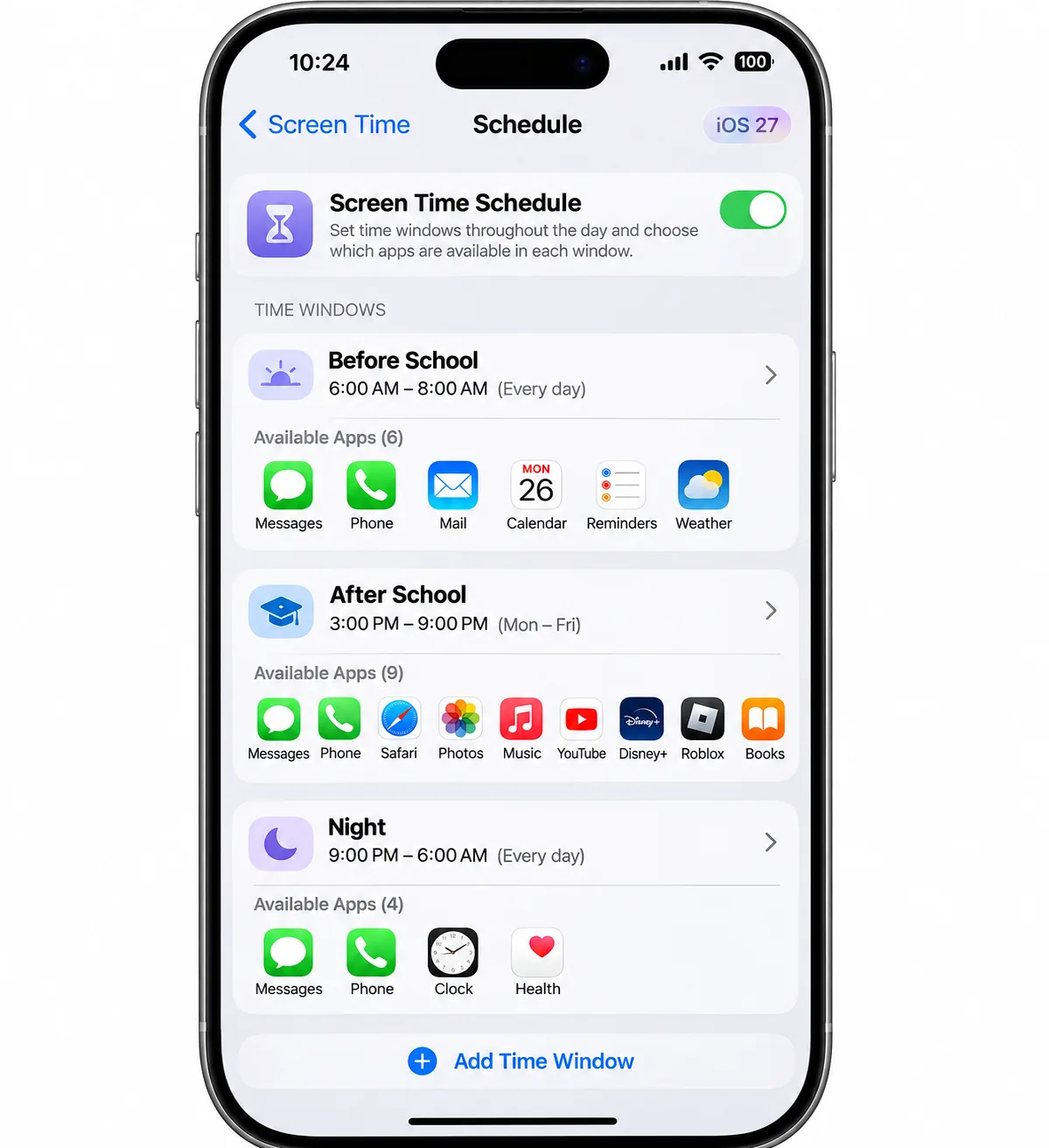
Screen Time Schedule replaces Downtime on iOS 27 and lets you choose which apps are available at different times of day. Apple's iPhone User Guide on Screen Time schedules and time allowances covers the new menus, including Match Screen Time Schedule, which ties an allowance to a schedule window.
- Open Settings > Screen Time and tap Screen Time Schedule.
- Turn on Schedule, then tap Add Schedule.
- Pick the days it covers.
- Tap Add Time Window and choose the apps available during it.
You can add several renamable windows per day, such as before school, after school and night. From Screen Time settings you can also pause the device or change today's schedule.
On iOS 26 and earlier, go to Settings > Screen Time > Downtime and turn on Scheduled, or tap Turn On Downtime Until Tomorrow for a one-off. You get one window per day, and your iPhone sends a reminder five minutes before it starts. Turn on Block at Downtime (it needs a passcode) so blocked apps dim with an hourglass icon. Settings shows Screen Time Schedule on iOS 27, while devices that can't update keep the older Downtime screen.
How to choose apps that are always allowed
Always Allowed apps and contacts stay available no matter what your schedule or allowances say, even while the device is paused. Open Settings > Screen Time > Always Allowed, then tap Add Apps or Add People. Apple suggests family contacts and the Health app as a start.
Keep this list short. In our testing, an app in Always Allowed overrode both allowances and schedules, so check this list first when a limit seems to do nothing.
With limits and a schedule in place, one setting decides whether any of them hold.
How to lock Screen Time with a passcode
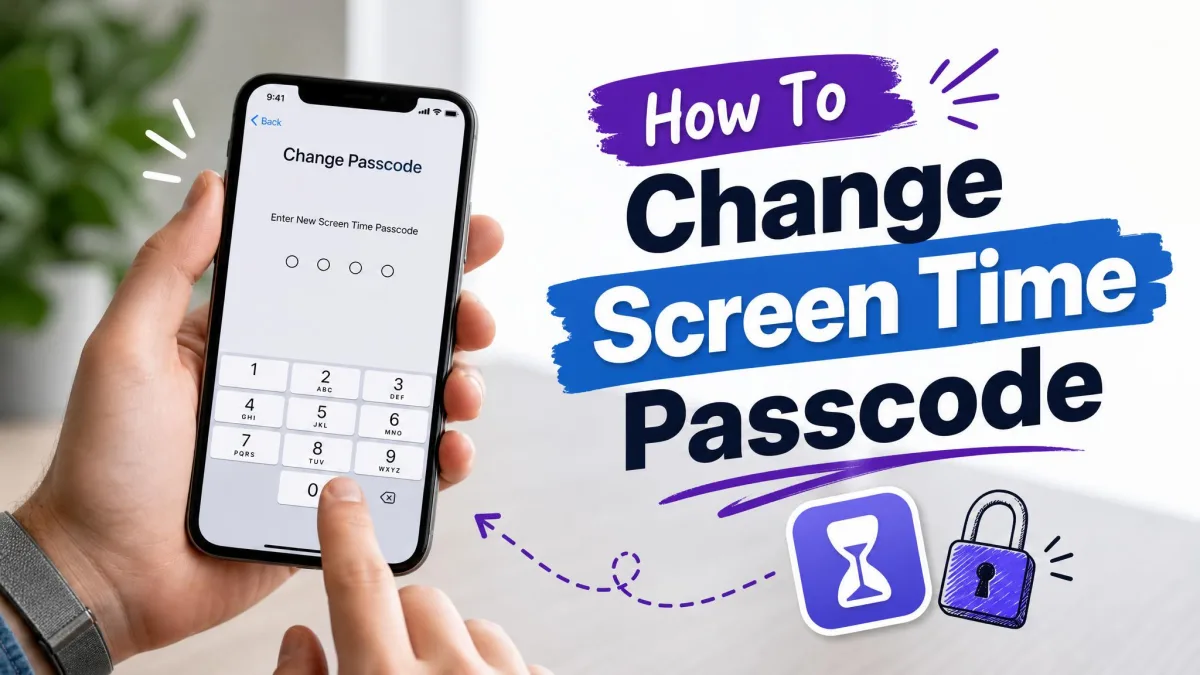
The Screen Time passcode is a 4-digit code that guards your limits and extra-time approvals. It's separate from your device passcode. On iOS 27, open Settings > Screen Time, tap Manage Screen Time, then tap Lock Screen Time Settings. On iOS 26 and earlier, tap Use Screen Time Passcode. From iOS 26.4, revoking an app's Screen Time access also requires this code instead of Face ID.
If you set the passcode on your own phone, you can still change your limits whenever you want. In our testing, self-set limits only stuck once someone else chose the code. To change or recover it later, see our guide on how to change your Screen Time passcode.
Don't reuse your lock-screen passcode as your Screen Time passcode. Kids can learn a code by watching you type it, and a reused code makes that much easier.
How to limit screen time on your child's iPhone
On a child's iPhone, you set limits from your own device. This section sticks to the iPhone settings, while our guide on how to limit screen time for kids covers the house rules that make limits easier to keep.
Set up Family Sharing
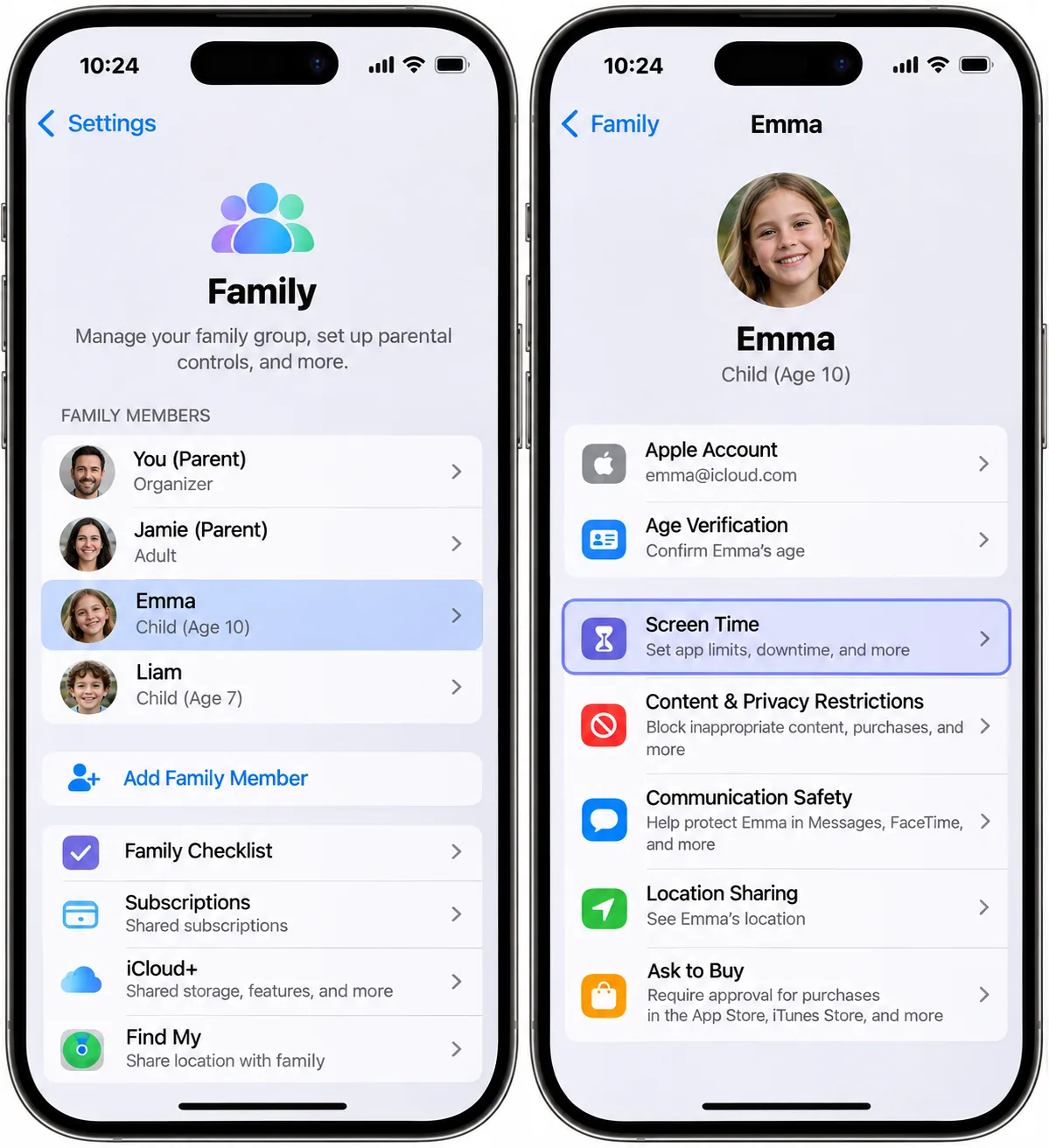
Your child needs to be in your Family Sharing group first, and our walkthrough on how to add people to Family Sharing explains how to add them. Then open Settings, tap Family, tap your child's name, tap Screen Time, and follow the prompts. Apple's guide to managing your child's iPhone with Screen Time details what the family organizer controls.
You must set your child's Screen Time passcode on your own device, not theirs. A Child Account is generally for kids under 13, though Apple notes the age varies by country or region. Teens under 18 can still be managed. The new iOS 27 controls need iOS 27 or the matching OS on every device in the group, and devices that can't update keep the previous Screen Time.
Set Communication Limits
Allowed Contacts (Communication Limits on iOS 26) decides who your child can reach by Phone, FaceTime and Messages. Tap Allowed Contacts > During Screen Time and choose Contacts Only, Contacts & Groups with at Least One Contact, or Everyone. Emergency calls always go through. You can also require your permission before your child adds a new contact, and turn off Allow Contact Editing.
Add Content and Privacy Restrictions
Content & Privacy Restrictions control what your child can see and change. Turn on the main toggle, then set age ratings for Music, Apple TV, Books and the App Store. Ask to Browse is on by default for children under 13, and Limit Adult Websites for children under 18. Under Allow Changes, set Passcode & Face ID and Accounts to Don't Allow, and block in-app purchases.
How to check your Screen Time report
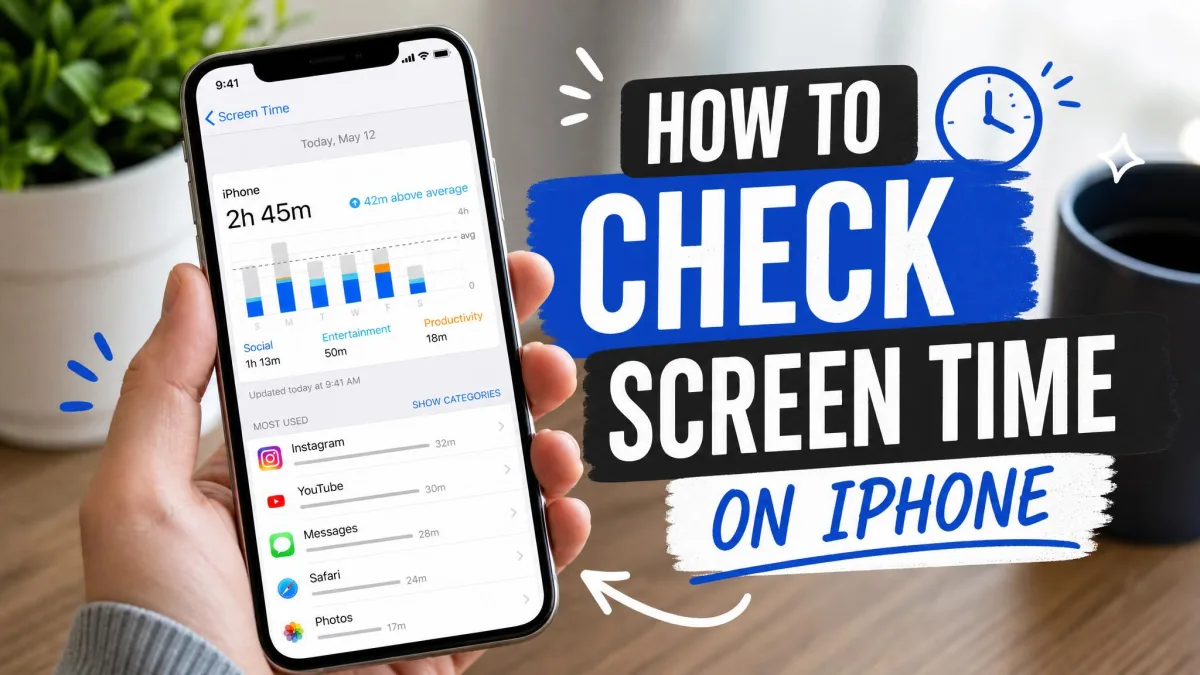
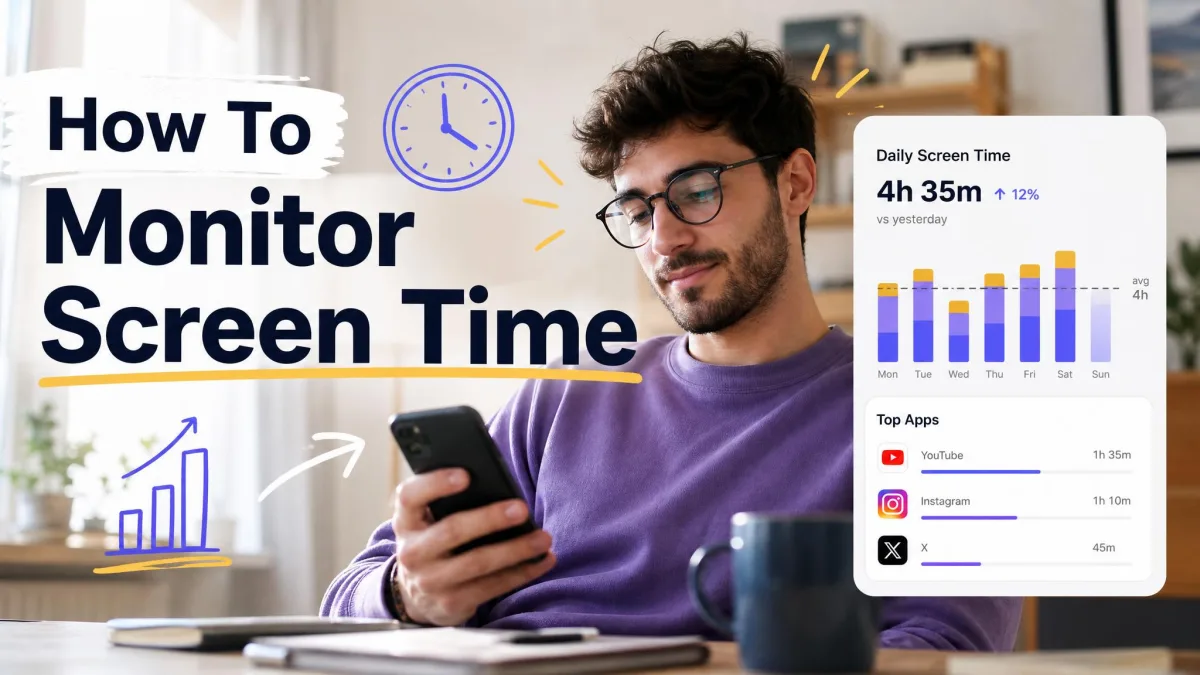
Open Settings > Screen Time to see your usage summary, including your most-used apps and weekly totals. The weekly report notification can vanish quickly, but it stays in Notification Center. Our guide on how to check Screen Time on iPhone explains how to read the numbers.
Why Screen Time limits get bypassed (and how to close the gaps)
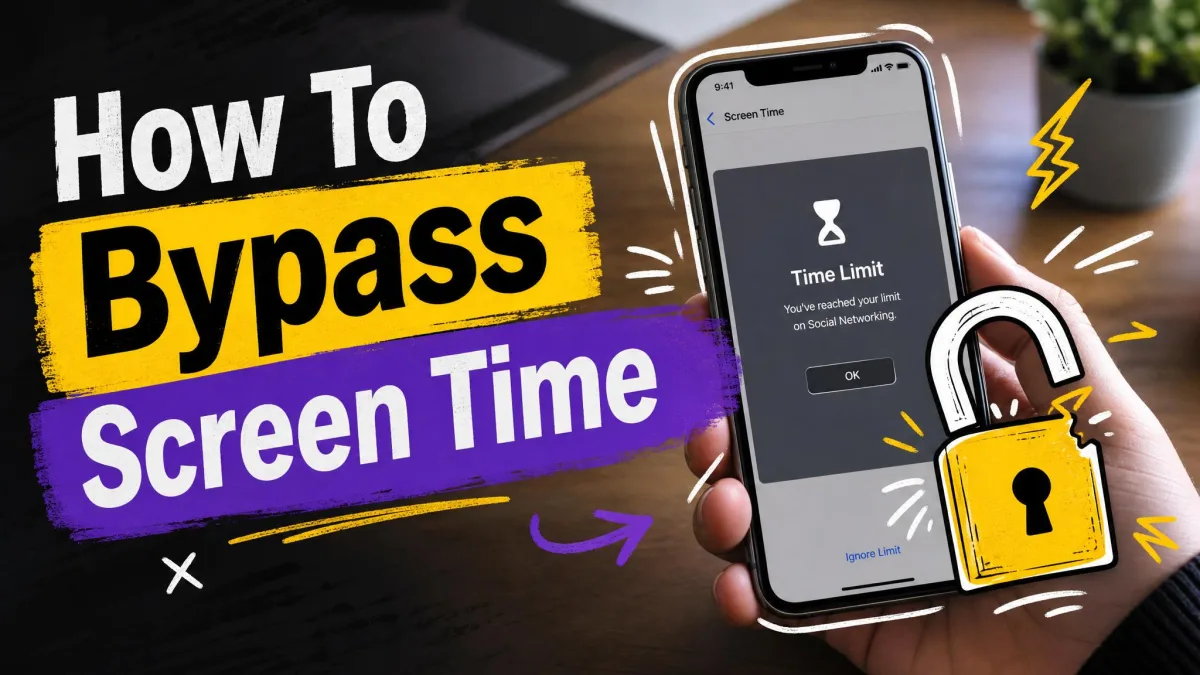
Most limits fail because the passcode is missing, Block at End of Limit is off, or the wrong app or category is selected. A few workarounds also come up again and again:
- Ignore Limit: without a passcode, it's one tap away. Set the code and turn on Block at End of Limit.
- Clock and time zone changes: these can reset usage or dodge a schedule. Keep Date & Time on Set Automatically and lock Location Services with Don't Allow Changes.
- Deleting and reinstalling apps: this can reset usage mid-day. Set Deleting Apps to Don't Allow.
- Siri: it can send messages during Downtime unless Siri & Dictation is off in allowed apps.
A sudden gap in your child's usage data can mean the phone was reset or signed out. Our list of how kids bypass Screen Time and how to stop it covers the rest. If a limit just misbehaves, delete it, restart the iPhone and add it again.
When Screen Time isn't enough
Screen Time only manages Apple devices. Even within allowed apps, in-app browsers can still reach content a limit is meant to block. If your family mixes iPhones with Android phones, or you want one dashboard for several kids, a third-party parental control app can sit on top of Apple's tools. We compare them in our guide to the best apps to limit screen time.
Frequently asked questions
What happens when my time runs out and I ask for more?
Is Screen Time free?
Can I set different limits for weekdays and weekends?
Can I block specific apps completely?
Does Screen Time sync to iPad and Mac?
Will my child know I set limits?
Bottom line
Screen Time covers what most families and adults need, as long as you set a passcode and close the obvious gaps. Turn on tracking, add Time Allowances or App Limits, build a schedule, and keep Always Allowed short. Then lock it all with a code nobody in the house has watched you type.
Related reading