If your child keeps getting past the Screen Time limits you set, the fix is usually a setting you haven't turned on yet, not a stricter rule. This guide covers the 12 most common ways around Screen Time on iPhone and iPad, how each one works, and how to close each gap. It also explains what to do if you're the one locked out because you forgot the Screen Time passcode.
We set up Screen Time on a child's iPhone the way most families do, starting from scratch, and then went looking for gaps. The biggest lesson was that the key safeguards are not on by default. A fresh setup has no Screen Time passcode, no lock on account changes and no reset protection, so several loopholes stay open until you close them yourself.
The steps below use iOS 26 labels, where you go to Settings > Screen Time > [child's name]. If every device in your Family Sharing group runs iOS 27, go to Settings > Family > [child's name] instead.
12 Ways Kids Bypass Screen Time (and the Fix for Each)
Some of these tricks still work on current iOS, some are disputed, and a few have no complete fix, so we say which is which under each one.
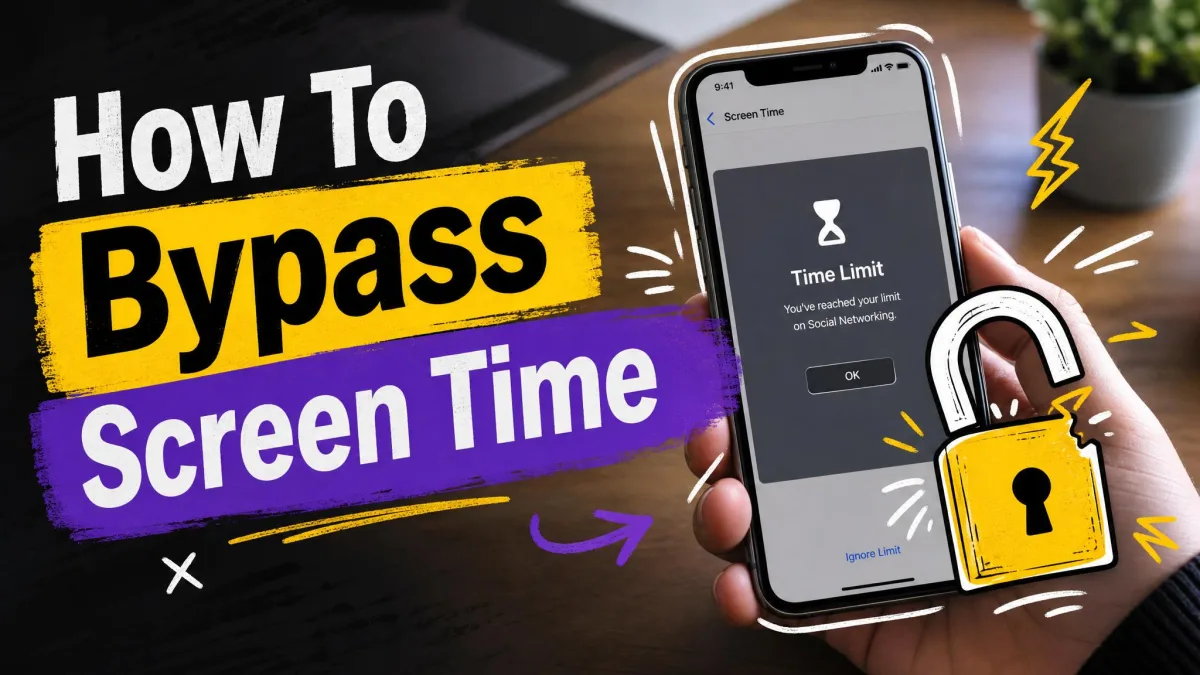
1. Tapping "Ignore Limit" or "One More Minute"
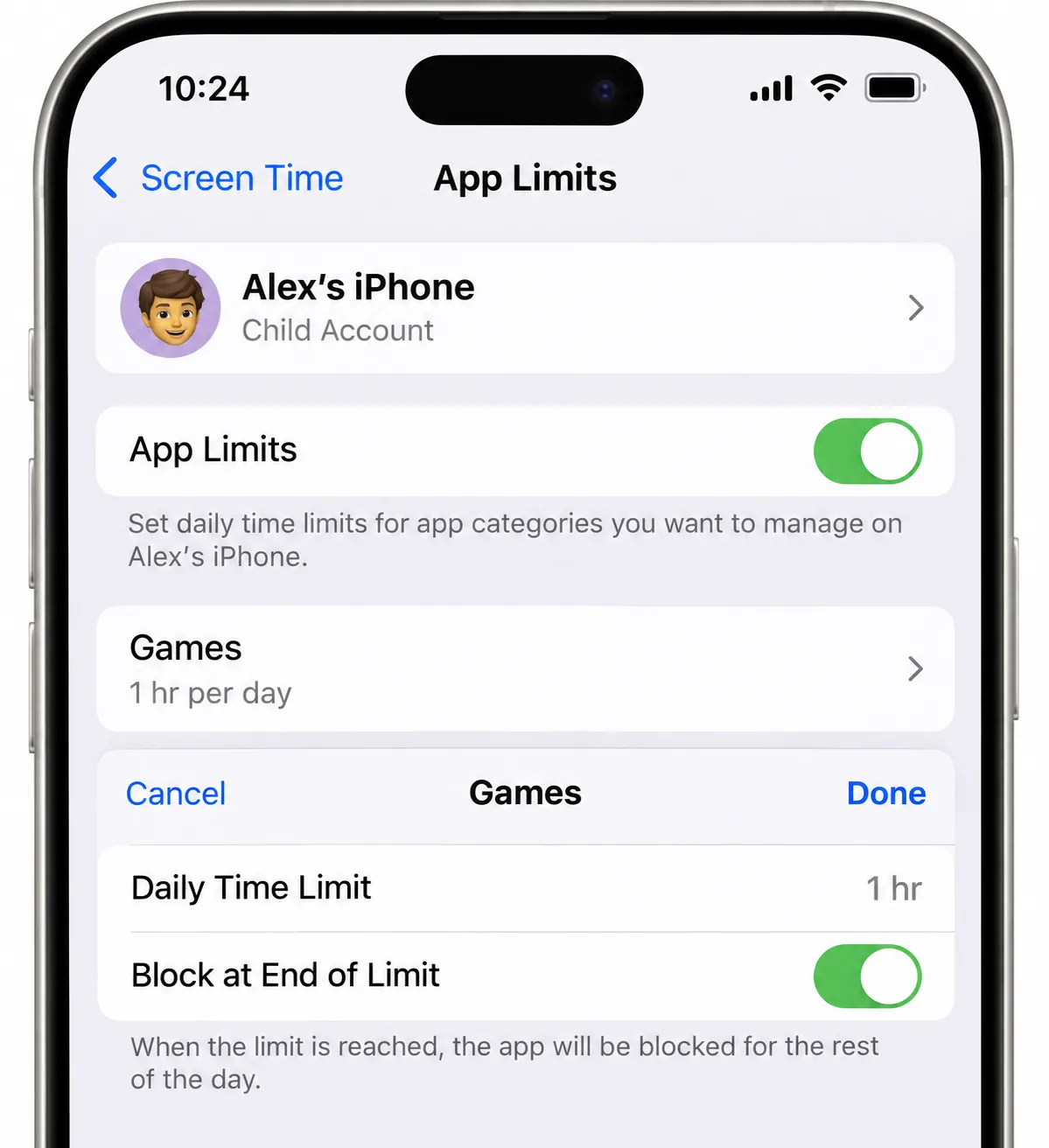
How it works. Without a Screen Time passcode, the limit screen offers Ignore Limit, and Ignore Limit for Today lifts the limit for the rest of the day. Even with a passcode, a child can often take One More Minute once per app, and those minutes add up fast across many apps. A long Apple Community thread about the One More Minute loophole ran to 122 replies and closed with no answer from Apple.
How to stop it.
- Set a Screen Time passcode first, since the Block at End of Limit toggle only appears once one exists.
- Turn on Block at End of Limit inside every App Limit, because the setting doesn't apply globally.
- Turn on Block at Downtime, and re-check both toggles after you edit any limit.
Whether this removes One More Minute entirely is disputed, because in some setups the option vanishes and in others it still appears once per app.
2. Deleting and Reinstalling Apps
How it works. A child deletes a limited app and downloads it again, hoping the App Limit timer starts over. Whether the timer actually resets is disputed and differs by iOS version and setup. When we deleted an app on a Child Account with Ask to Buy switched on, re-downloading it sent a purchase-approval request to the parent, and the reinstall stalled until we answered.
How to stop it.
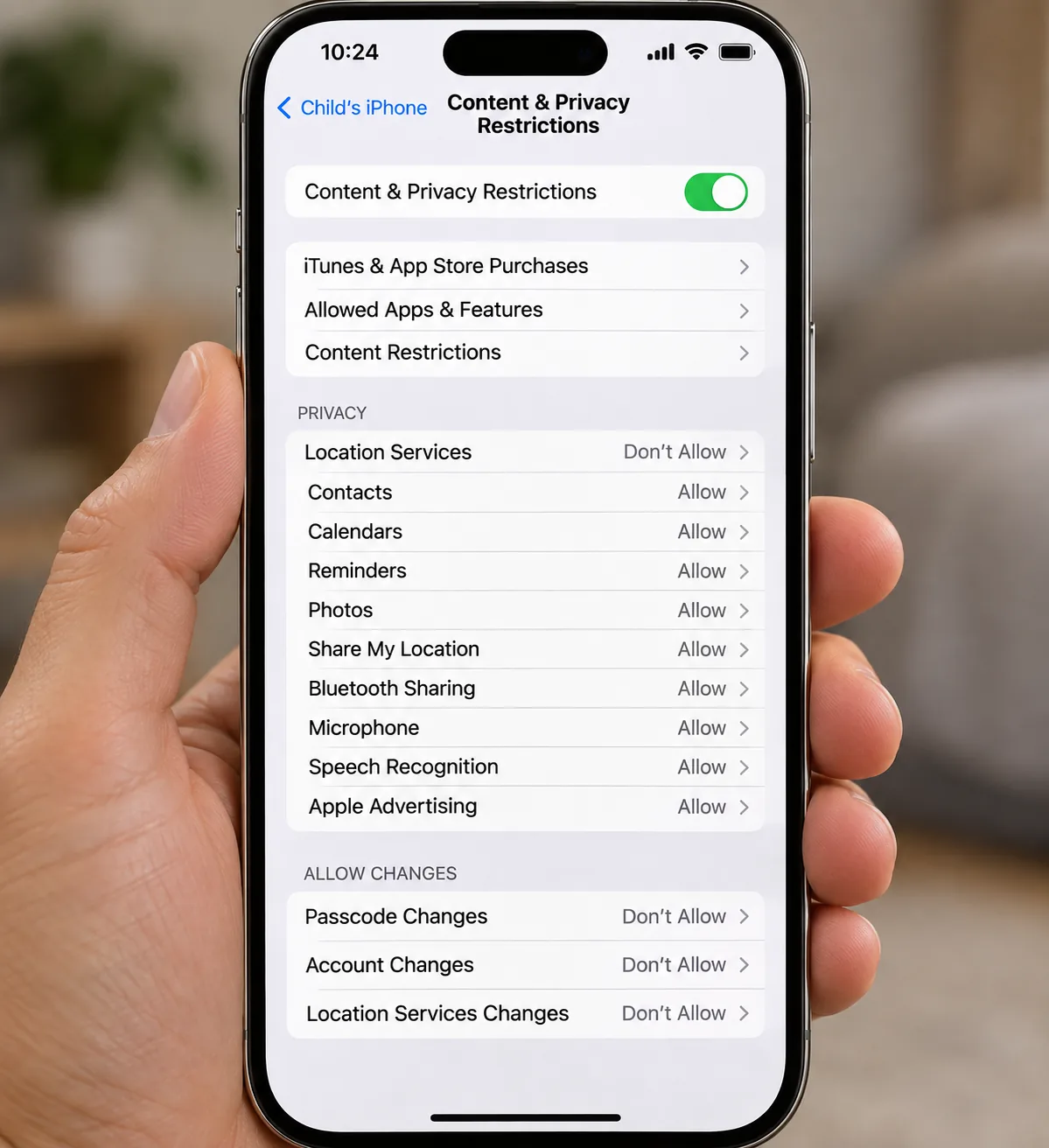
- Go to Settings > Screen Time > [child's name] > Content & Privacy Restrictions > iTunes & App Store Purchases.
- Set both Installing Apps and Deleting Apps to Don't Allow, because blocking only one of them leaves the loop open.
- Keep Ask to Buy switched on as a second line of defense.
3. Changing the Time Zone or Clock
How it works. Moving the clock forward can make the phone think Downtime is already over. Whether this still works depends on the iOS version, iPhone versus iPad, the type of child account, and whether Location Services is locked. Results therefore vary from family to family.
How to stop it.
- Go to Settings > General > Date & Time and turn on Set Automatically first, or the lock will freeze the wrong time in place.
- In Content & Privacy Restrictions, open Location Services and choose Don't Allow Changes, then check that Date & Time is now greyed out.
Re-test after any Screen Time change, because the lock can stop holding once Screen Time is switched off and on again.
4. Sending Messages Through Siri
How it works. Siri can send texts by voice even when the Messages app is limited, because the request never passes through the Messages app itself.
How to stop it. In Content & Privacy Restrictions, open Allowed Apps & Features and turn off Siri & Dictation.
This also removes dictation, which some children rely on for typing or accessibility, so talk it through with your child before you switch it off.
5. Opening Messages Through Contacts, the Share Sheet, or Notifications
How it works. Tapping Message on a contact card opens a compose window even when Messages is restricted. Sending a photo through the share sheet does the same thing, and an old notification on the Lock Screen can allow replies during Downtime.
How to stop it.
- Set a 1 minute App Limit on Contacts. When we did this, the app greyed out almost immediately.
- Set Communication Limits during Downtime to Specific Contacts or No One.
- Go to Settings > Notifications > Messages and set Show Previews to When Unlocked or Never.
The share sheet has no complete fix. Removing Messages and AirDrop from Allowed Apps closes that route, but the change also blocks emergency texting, which most parents won't want to trade away.
6. Watching YouTube Through iMessage Links
How it works. A friend sends a YouTube link, and the child taps it in Messages after the YouTube app has been blocked. Whether the video still plays is disputed. It depends on the iOS version and on whether the youtube.com website is restricted along with the app.
How to stop it.
- In Content & Privacy Restrictions, open App Store, Media, Web, & Games > Web Content > Limit Adult Websites.
- Under Never Allow, add https://www.youtube.com, youtu.be and m.youtube.com. Type each address exactly, since one wrong character makes the block fail.
7. Reaching the Web Through In-App Browsers
How it works. Links tapped inside apps such as Gmail or Facebook Messenger open a built-in browser, and that browser can reach other websites even when Safari is restricted.
How to stop it.
- Open Web Content in Content & Privacy Restrictions and choose Allowed Websites Only, which also covers browsers inside third-party apps.
- Add only the sites your child actually needs.
With most sites blocked, in-app links lead nowhere useful. If you'd rather keep the open web available, our guide on how to block adult websites on your child's iPhone covers that setup instead.
8. Screen Recording Videos or the Passcode
How it works. A screen recording made during allowed time saves video with sound to Photos, ready to replay after the limit hits. Whether a recording still captures passcode taps is disputed. Even where iOS hides the keypad, a recording can show finger movement, so treat it as a live risk.
How to stop it.
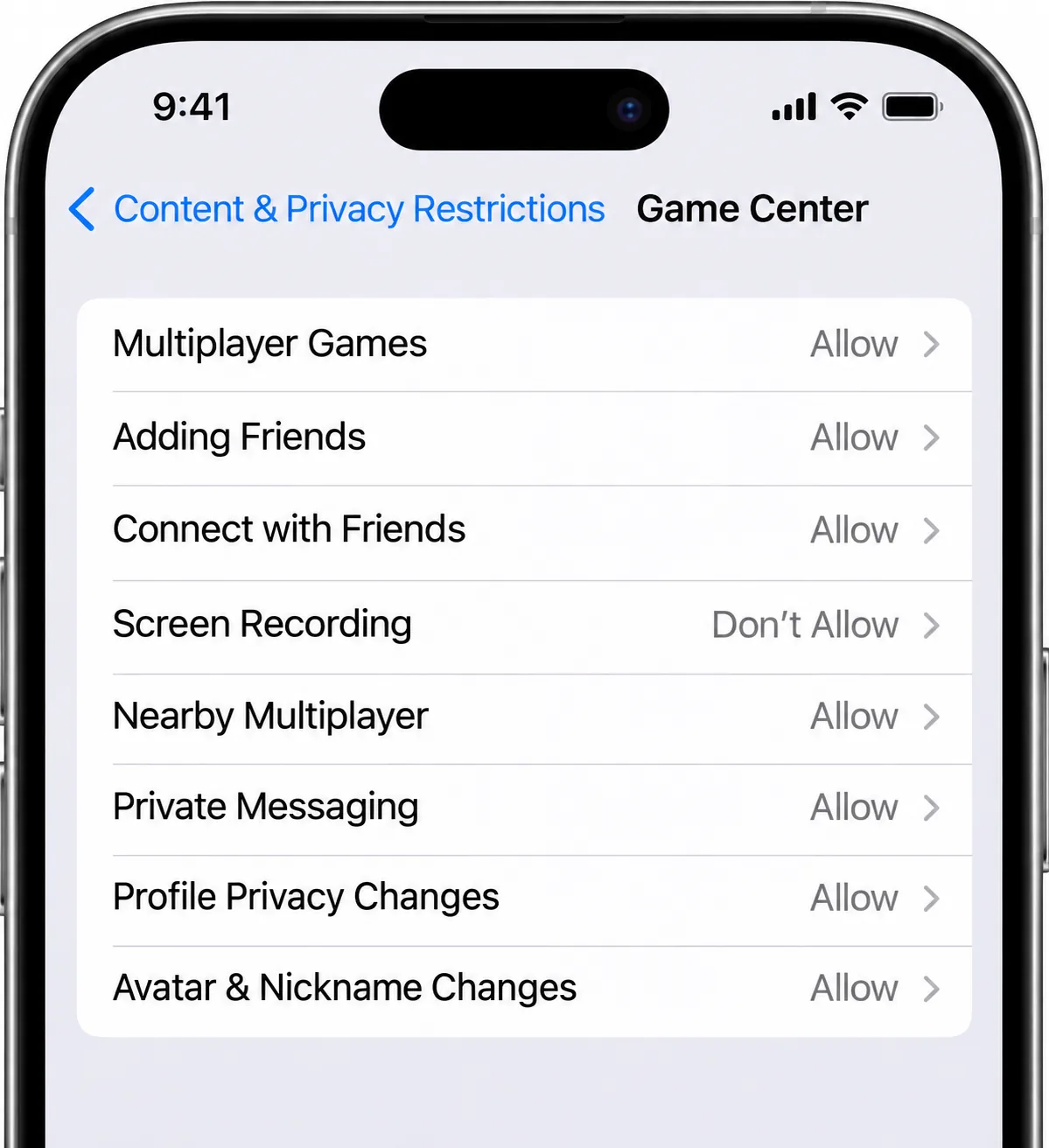
- In Content & Privacy Restrictions, open App Store, Media, Web, & Games.
- In the Game Center section, set Screen Recording to Don't Allow, which removes it from Control Center entirely.
- Before you type the passcode, glance at the status bar for the red recording indicator.
9. Guessing or Watching for the Screen Time Passcode
How it works. The Screen Time passcode is only four digits, and your child probably already knows the PIN you use to unlock your phone. If Screen Time uses that same code, or a birthday, they can undo every limit in seconds. Children also pick up codes by watching you type them, and desktop software can pull the passcode out of a computer backup of the iPhone.
How to stop it.
- Pick a different code they can't guess. Our guide on how to change the Screen Time passcode walks through the steps.
- Enter it out of sight, and keep computer backups of the child's phone to yourself.
- Set Passcode changes to Don't Allow, so nobody can add their own face or fingerprint.
10. Restarting the Phone for a Grace Window
How it works. Right after a restart, limited apps can open briefly before Screen Time reloads. The gap runs roughly 30 seconds to a minute or more, depending on the device and iOS version, and it comes back on every restart. That is enough time to check a notification or send a quick message, but not to settle in for a long session.
How to stop it. Manage Screen Time from your own device through Family Sharing, and keep Block at End of Limit on for every App Limit.
Apple hasn't documented a fix, and turning Screen Time off and on again doesn't reliably remove the gap. You can shorten the window, but you can't close it.
11. Switching Apple Accounts or Using Another Device
How it works. If account changes aren't locked, signing out of the managed Apple Account drops the restrictions. Screen Time also applies only to devices signed into the child's account, which means an old iPad or a school laptop is unrestricted. A child who knows your iPhone passcode can even change their own limits from your phone.
How to stop it.
- In Content & Privacy Restrictions, set Accounts to Don't Allow, and the child's Apple Account then turns grey in Settings.
- Sign old devices into the child's account or put them away.
- Change your own unlock code if your child knows it.
12. Factory Resetting the iPhone
How it works. A full erase wipes Screen Time along with everything else. With a passcode set, Erase All Content and Settings asks for it first, but a recovery-mode restore from a computer skips that prompt. If the child controls their own Apple Account password, an iCloud restore afterwards brings their data back without restrictions.
How to stop it.
- Keep a Screen Time passcode set at all times.
- Leave Find My on, so Activation Lock asks for the owner's Apple Account password after any erase.
- Keep the Apple Account password yourself rather than sharing it with your child.
How to Turn Off Screen Time If You Forgot the Passcode
If you're the one locked out, there are three routes, and the first two are free and leave your data in place. For screenshots and every edge case, see our full guide on how to remove Screen Time on iPhone without the passcode.
Reset the Passcode With Your Apple Account
If you turned on Screen Time Passcode Recovery when you set the code, tap Forgot Passcode and enter the Apple Account you used at setup. Apple's steps for changing or resetting your Screen Time passcode cover iOS 27 and link to the iOS 26 version. When this route fails, it's usually because the account you entered isn't the one used when the passcode was created, so try each Apple Account you own.
Turn It Off From the Organizer's Device in Family Sharing
If you manage your child through Family Sharing, you can change the code from your own phone. On iOS 26, go to Settings > Screen Time > [child's name] > Manage Screen Time > Change Screen Time Passcode. On iOS 27, go to Settings > Family > [child's name] > Passcode & Management > Change Screen Time Passcode.
Erase or Restore the iPhone
Apple's recovery-mode restore runs through Finder on a Mac or the Apple Devices app on Windows, and it needs a computer, a cable, internet access and up to 60 minutes. Restoring a backup made after the passcode was set brings the code back, so set the phone up as new. Have the Apple Account password ready, because Find My will ask for it before the phone reactivates.
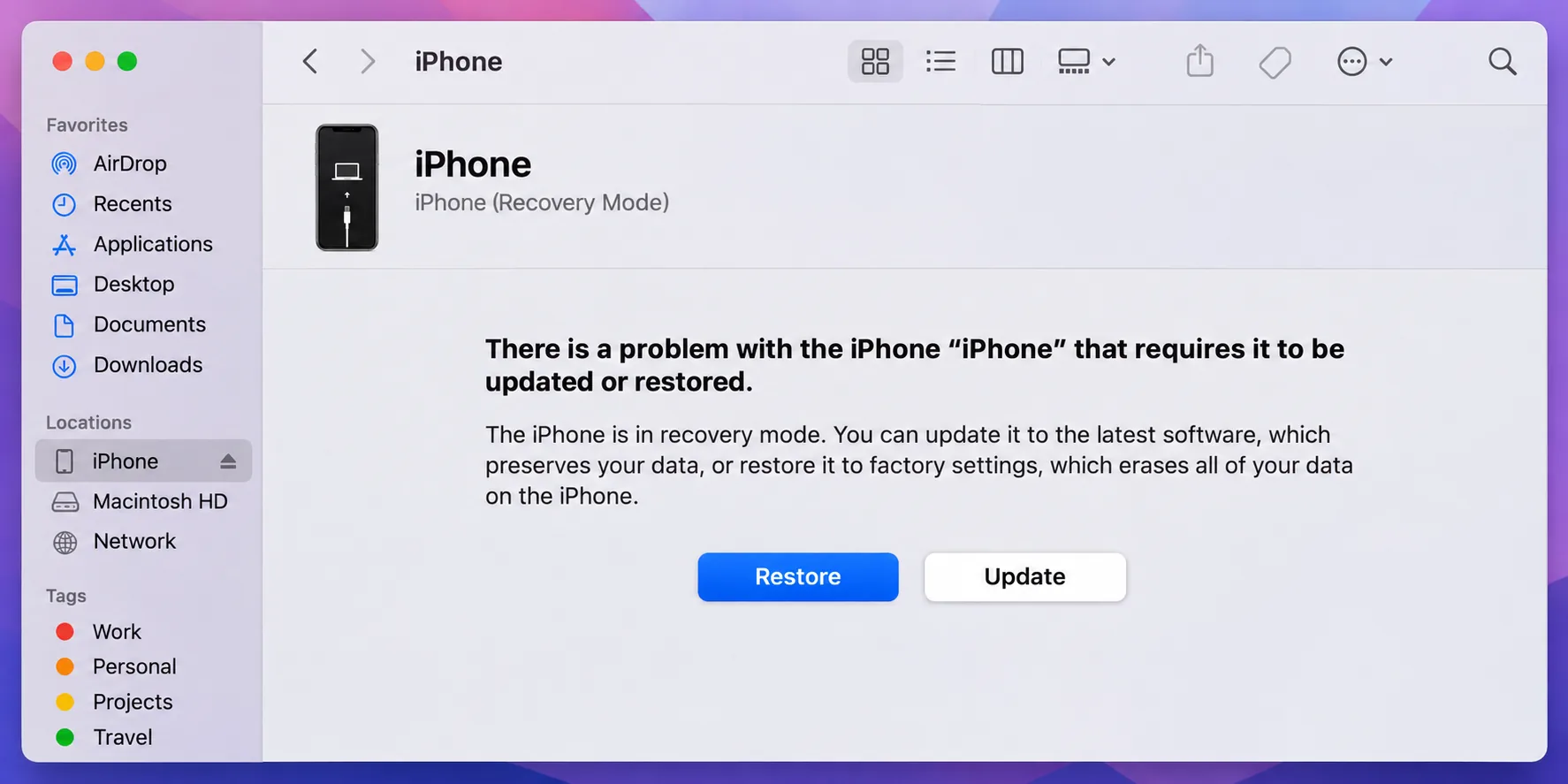
A recovery-mode restore deletes everything on the iPhone, so only use it once both free routes above have failed.
How to Lock Down Screen Time So It Holds
Most of the fixes above come back to a handful of settings. In our checks, Screen Time's content filtering held up far better than its time limits, so it pays to lock the time-related settings down carefully. Apple's guide to setting up parental controls on a child's iPhone shows where each one lives on iOS 27.
- Set a Screen Time passcode that differs from every other code your child knows.
- Turn on Block at End of Limit for each App Limit, plus Block at Downtime.
- Set Passcode, Accounts and Location Services changes to Don't Allow.
- Re-check everything after each major iOS update, since that is when new workarounds tend to surface.
How Screen Time Works and Why It Can Be Bypassed
The reason those settings matter so much comes down to how Screen Time was built. It arrived with iOS 12 in 2018 and enforces limits on the device itself, applying them only to devices signed into the child's Apple Account. That design explains most of the gaps, since a restart, a changed clock or a different account gives the rules a moment where they don't apply.
iOS 27 added Screen Time Schedules, Time Allowances and Ask to Browse. Ask to Browse is on by default for children under 13, while Limit Adult Websites is on by default for Child Accounts under 18. Apple hasn't said whether the redesign closes any loophole above. If you also have an Android phone at home, our guide on how kids bypass parental controls on iPhone and Android covers both platforms.
When Screen Time Is Not Enough
Even fully locked down, Screen Time only controls how much time your child spends, not what happens inside that time. That still matters to a lot of families, since 47% of parents limit how long their teen can be on the phone. Screen Time can cap those hours, but it can't show you who your child is talking to or flag a worrying message.
If you need that visibility, start with an open conversation about why you want it, then compare the best parental control apps for iPhone. Our top pick, Eyezy, works through the child's Apple Account and iCloud backup, so its data refreshes whenever iCloud backs up.

Frequently Asked Questions
Can a child turn off Screen Time without the passcode?
Can I tell if my child has bypassed Screen Time?
Does "Ask For More Time" still give my child extra time?
Is it safe to use third-party passcode removal tools?
Where do these fixes live after updating to iOS 27?
Bottom Line
Screen Time is a good tool with a weak default setup, and the lock-down list above closes most of these 12 tricks in a single sitting. The restart window and the share sheet are the exceptions, because neither has a complete fix. For those two, and for whatever new trick surfaces after the next iOS update, a calm conversation about why the limits exist does more than another setting.
Related reading